10 Best Microsoft Project Alternatives For PMs in 2026

10 Best Microsoft Project Alternatives Shortlist


Microsoft Project is a powerful project management platform used for planning, tracking, and executing complex projects. But for many teams, it can feel overly rigid, difficult to learn, and expensive, especially if you're looking for more flexibility, better collaboration, or modern UX.
I've spent time evaluating a range of Microsoft Project alternatives to see which tools offer a smoother setup, a shorter learning curve, and better integrations with today's workflows.
Here are the top Microsoft Project alternatives I've tested. I focused on tools that deliver similar or better functionality and tell you what makes them a great alternative.
Why Trust Our Software Recommendations
Our team has been testing and reviewing software since 2012. As project managers ourselves, we know how difficult—and important—it is to choose the right software.
For this guide, we evaluated tools using hands-on testing and independent research, scoring tools using our selection criteria. We also draw on insights from industry thought leaders and practicing project management experts.
Our reviews reflect our human editorial judgment, not a sales pitch.
Expert reviewers:
Microsoft Project Alternatives Comparison Table
Here is a table that contains information you can use to compare the tools from the overviews above.
| Tool | Best For | Trial Info | Price | ||
|---|---|---|---|---|---|
| 1 | Best for team collaboration | 14-day free trial | From $10/user/month (billed annually) | Website | |
| 2 | Best for scalable, AI-driven project planning | Free demo available | Pricing upon request | Website | |
| 3 | Best for integrations with other tools | Free plan available; 14-day free trial | From $9/user/month (billed annually) | Website | |
| 4 | Best for project and portfolio management | 14-day free trial | From $10/user/month (billed annually) | Website | |
| 5 | Best for complex project visualization | Free plan + 15-day free trial + free demo available | From $4/user/month (billed annually) | Website | |
| 6 | Best for creating Gantt charts | 14-day free trial | From $7/user/month (billed annually) | Website | |
| 7 | Best for dynamic project timelines | Free plan + 30-day free trial available | From $7.65/user/month (billed annually) | Website | |
| 8 | Best for visual collaboration | Free plan + 14-day free trial available | From $8/user/month (billed annually) | Website | |
| 9 | Best for customizability | Free plan available | From $7/user/month (billed annually) | Website | |
| 10 | Best for progress tracking and reporting | 30-day free trial | From $15/user/month (billed annually) | Website |


Best Microsoft Project Alternative Reviews
In the overview of Microsoft Project alternatives below, I break down the features, pricing, and main benefits of the best MS Project alternatives.
Wrike
Best for team collaboration
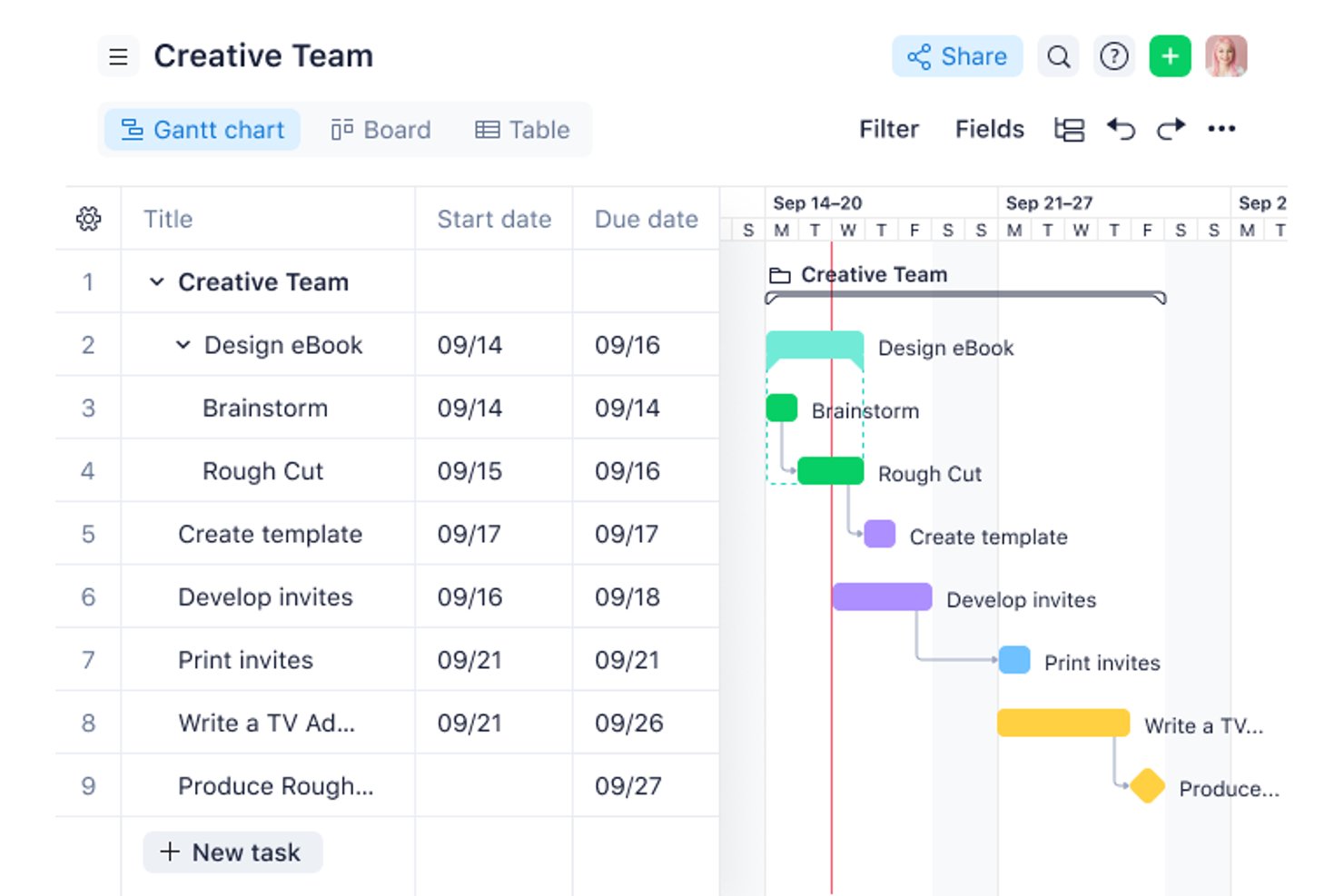
Wrike is a work management platform for project managers and cross-functional teams that need to coordinate plans, tasks, approvals, and deadlines across digital projects.
Who Is Wrike Best For?
Wrike suits tech and marketing teams that need shared visibility into project dependencies, feedback, and handoffs across departments.
Why I Picked Wrike
I rate Wrike as a strong Microsoft Project alternative for team collaboration because it connects project work with review and approval. Its online proofing lets teammates comment directly on files, while approval workflows keep decisions alongside the work. I like this for a product launch, where design feedback and sign-offs need to stay visible across teams.
Wrike Key Features
- Gantt charts: View project schedules and adjust task dates on a timeline.
- Task dependencies: Link tasks to show which work must happen first.
- Workload charts: Review team capacity across assigned tasks.
- Request forms: Collect project requests and route them into workflows.
Wrike Integrations
Wrike’s integrations directory lists 60 apps, including Slack, Microsoft Teams, Salesforce, Tableau, Power BI, Google Sheets, and Miro. It also supports Zapier, offers an API for custom integrations, and provides Wrike Integrate for building automated workflows across apps.
Pros and Cons
Pros:
- Gantt charts connect timelines and dependencies
- Dashboards clarify cross-team ownership and progress
- File proofing keeps feedback tied to deliverables
Cons:
- Dependency dates can constrain schedule modeling
- Initial setup and configuration take significant effort
New Product Updates from Wrike
Wrike Adds Klaxoon MCP Integration
Wrike’s Klaxoon MCP integration is now generally available, enabling AI agents to navigate between Wrike tasks and attached whiteboards, read task context, and manage whiteboard attachments via API. For more information, visit Wrike's official site.

Best for scalable, AI-driven project planning
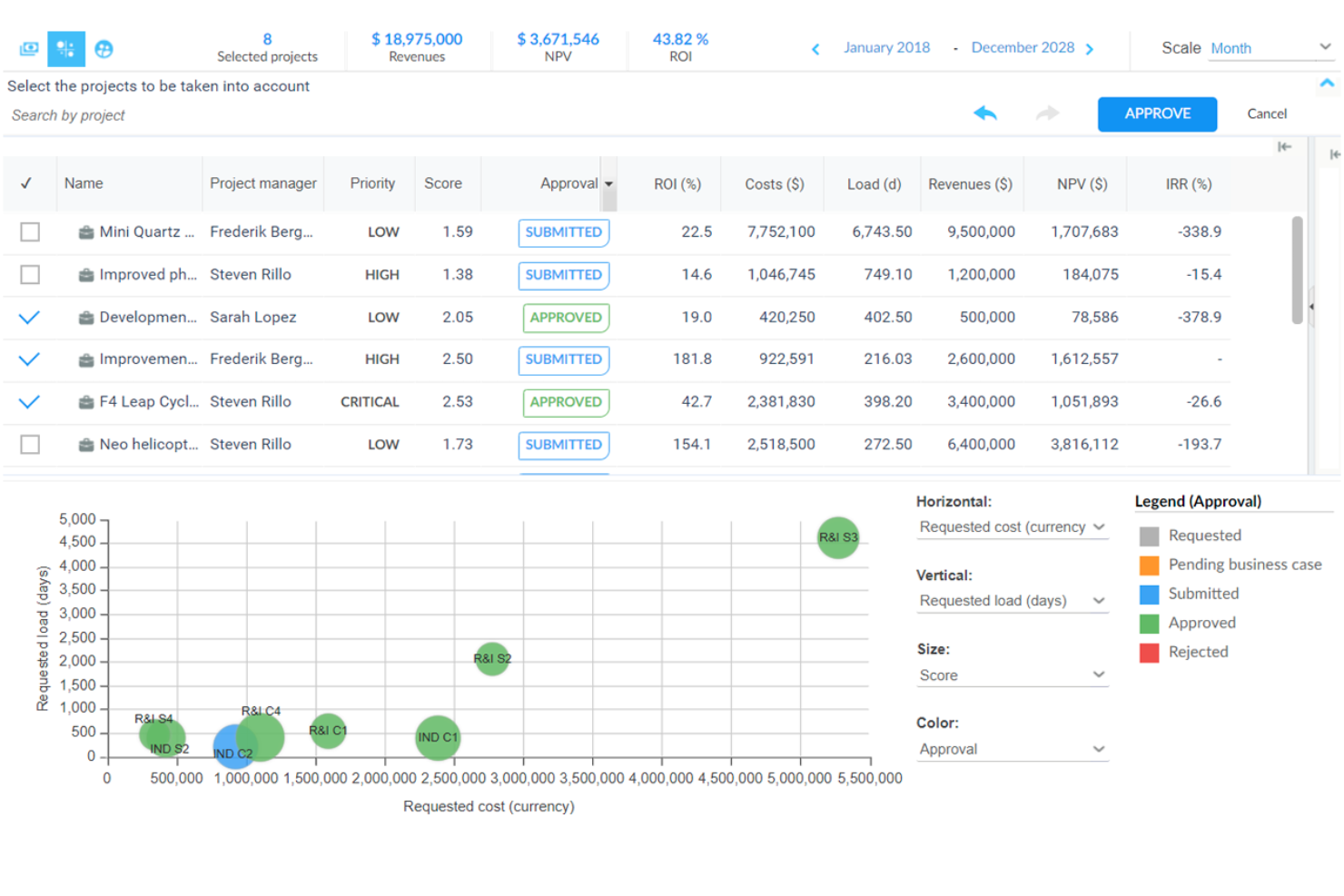
Planisware Orchestra is a project and portfolio management platform for organizations coordinating complex work, helping project managers connect plans, resources, budgets, and delivery progress across teams.
Who Is Planisware Best For?
Planisware suits project and portfolio management teams at mid-sized to large organizations coordinating complex, cross-functional initiatives.
Why I Picked Planisware
I picked Planisware Orchestra for its stated strength: Best for scalable, AI-driven project planning. I like its portfolio scenario analysis, which compares business cases with financial and capacity plans. Resource modeling also shows how availability changes affect schedules and costs, helping me weigh tradeoffs before assigning teams.
Planisware Key Features
- Portfolio dashboards: Track project status, performance, issues, and costs in shared dashboards.
- Methodology support: Manage work with waterfall, agile, hybrid, or phase-gate approaches.
- Workflow customization: Configure project gates, risk metrics, and deliverable templates.
- No-code integrations: Connect Planisware with collaboration, finance, reporting, and agile tools.
Planisware Integrations
Planisware Orchestra offers a native, bidirectional integration with Microsoft Teams, plus integrations with Jira and Azure DevOps. It provides a REST API for custom integrations and connects with Zapier.
Pros and Cons
Pros:
- Scales across large portfolios and complex project lifecycles
- Scenario analysis compares business cases, capacity, and costs
- Real-time portfolio views connect project and resource data
Cons:
- Out-of-box dashboards and reporting options are limited
- Configuration can require specialist skills and time
Best for integrations with other tools
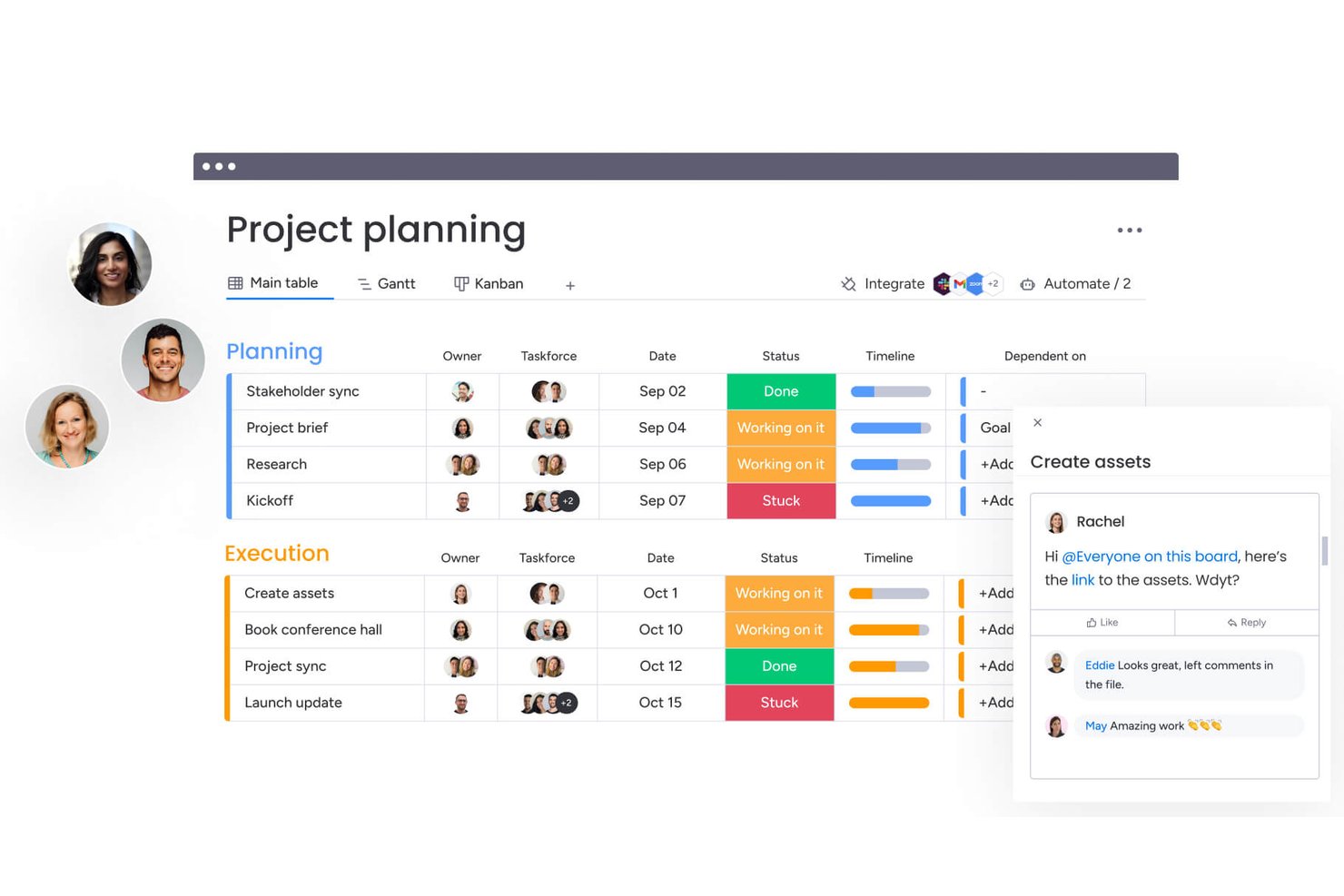
monday AI Workspace is a flexible, cloud-native work management platform that helps cross-functional teams plan, track, and collaborate on projects without the rigidity of traditional desktop-bound tools like Microsoft Project.
Who Is monday AI Workspace Best For?
It's a strong fit for mid-sized to enterprise teams managing work across multiple departments, where flexibility and cross-functional visibility matter more than rigid scheduling structures.
Why I Picked monday AI Workspace
I picked monday AI Workspace as one of the best because its integration ecosystem genuinely replaces Microsoft Project's reliance on a single vendor's stack. My team can connect it to Jira for engineering ticket visibility, Microsoft Outlook for deadline notifications, and Google Drive for document management without leaving the board. The automation layer, up to 25,000 actions per month on Pro, means those integrations aren't just passive connections but active, trigger-based workflows.
monday AI Workspace Key Features
- Customizable Gantt view: Build interactive project timelines with drag-and-drop editing, dependencies, and milestone tracking.
- AI-powered project planning: Use AI agents and assistants for scheduling, resource suggestions, and summarizing meeting notes.
- Multi-project dashboards: Monitor multiple project portfolios with cross-project reporting, visual widgets, and real-time updates.
- Built-in time tracking: Capture and log time spent on tasks and projects without using an external tool.
monday AI Workspace Integrations
monday AI Workspace offers hundreds of native integrations through its built-in integrations and marketplace, including Slack, Google Workspace, Microsoft 365, Jira, Dropbox, Zoom, HubSpot, Salesforce, GitHub, and Outlook. It also supports Zapier and provides an API for custom integrations.
Pros and Cons
Pros:
- Real-time cross-team visibility across multiple projects
- No-code automations reduce repetitive task management
- Highly customizable board views for any workflow
Cons:
- No built-in critical path analysis tool
- Gantt features locked behind higher-tier paid plans
New Product Updates from monday AI Workspace
monday AI Workspace Adds Human Approval Routing
monday AI Workspace adds a human-in-the-loop approval block to AI Workflows, sending approval requests and routing workflow paths based on responses. For more information, visit monday AI Workspace's official site.

Celoxis
Best for project and portfolio management
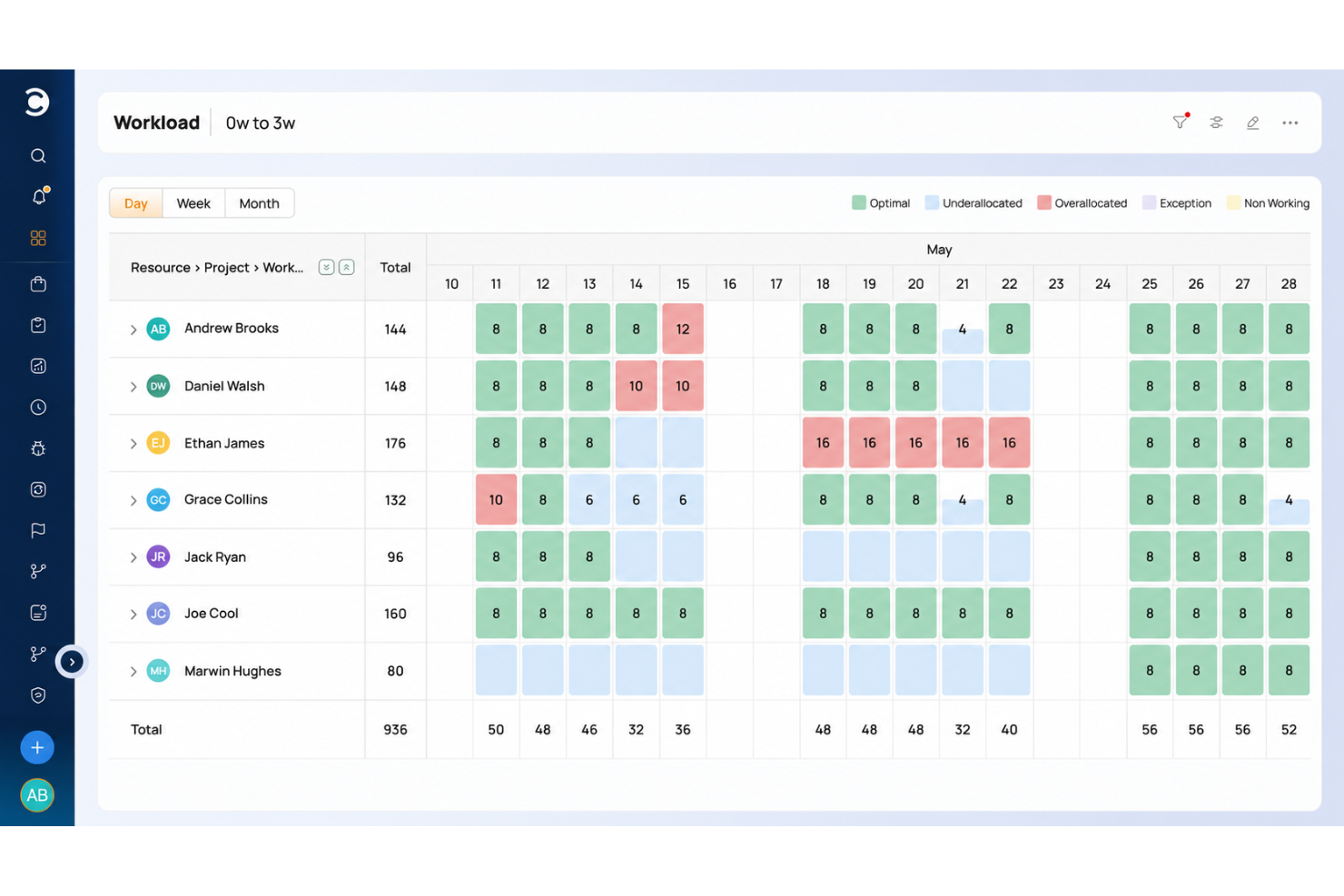
Celoxis is project management software for teams coordinating complex projects, resources, and dependencies, helping project managers track delivery and capacity across multiple workstreams.
Who Is Celoxis Best For?
Celoxis suits PMOs and project leaders coordinating multiple projects, shared resources, dependencies, and portfolio-level priorities.
Why I Picked Celoxis
I picked Celoxis as a Microsoft Project alternative because it’s Best for project and portfolio management. I like how its portfolio tools let me score and prioritize project requests, then use what-if analysis to assess budget tradeoffs. Capacity plans and workload charts help me spot resource conflicts, while Gantt dependencies and critical-path views clarify schedule impacts.
Celoxis Key Features
- Timesheets: Record time against project tasks for review and reporting.
- Risk and issue tracking: Log risks and issues, assign owners, and monitor status.
- Custom dashboards: Build dashboards with project data, charts, and KPIs.
- Jira and Azure DevOps sync: Sync issues, sprints, and work items with connected projects.
Celoxis Integrations
Celoxis lists 21 built-in integrations, including Jira, Azure DevOps, Microsoft Project, Microsoft 365 and Outlook, Microsoft Excel, Google Drive, Salesforce, QuickBooks Online, and Slack. It also connects with Zapier and offers a REST API for custom integrations.
Pros and Cons
Pros:
- Capacity and budget views expose resource tradeoffs
- Gantt dependencies recalculate downstream schedules
- Portfolio what-if analysis supports priority tradeoffs
Cons:
- Advanced reports require substantial setup
- Dense, dated menus slow daily navigation

Best for complex project visualization
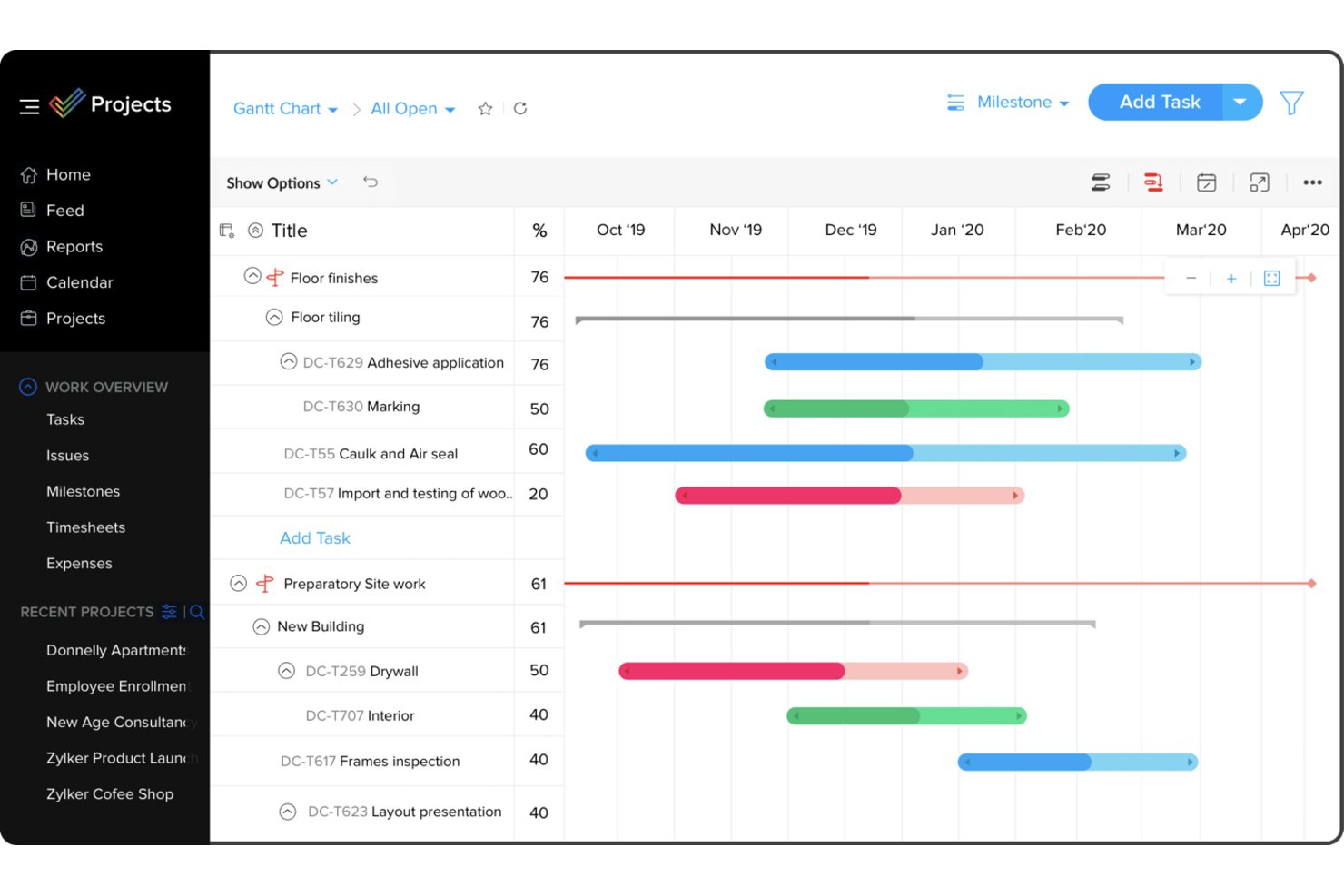
Zoho Projects is a project management platform for technical and cross-functional teams that need to plan work, track dependencies, and coordinate delivery across complex projects.
Who Is Zoho Projects Best For?
Zoho Projects suits project managers who need visual timelines to track schedules and progress across multiple initiatives.
Why I Picked Zoho Projects
I picked Zoho Projects as a Microsoft Project alternative because it’s Best for complex project visualization. Its Gantt charts show task dependencies and milestones, while critical path views help me identify schedule-sensitive work when a release plan changes.
Zoho Projects Key Features
- Task views: Switch between Classic, Plain, and Kanban views.
- Time tracking: Log work with task timers and timesheets.
- Workflow automation: Use Blueprints to define task workflows and status changes.
- Issue tracking: Record and manage project issues and bugs.
Zoho Projects Integrations
Zoho Projects integrates with Zoho CRM, Zoho Desk, Zoho Sprints, Google Calendar, Microsoft Teams, Slack, GitHub, Dropbox, and Zendesk, and connects with Zapier.
Pros and Cons
Pros:
- Blueprints automate repeatable task-status workflows
- Baselines compare planned and actual schedules
- Drag-and-drop Gantt reschedules dependent tasks
Cons:
- Crowded menus complicate initial configuration
- Large projects can trigger slower loading
New Product Updates from Zoho Projects
Zoho Projects Adds CodeX Scripts for Custom Modules
Zoho Projects now supports CodeX Scripts for custom modules, enabling conditional logic and rules for creating, updating, and deleting records. For more information, visit Zoho Projects' official site.
 .
.
GanttPRO
Best for creating Gantt charts
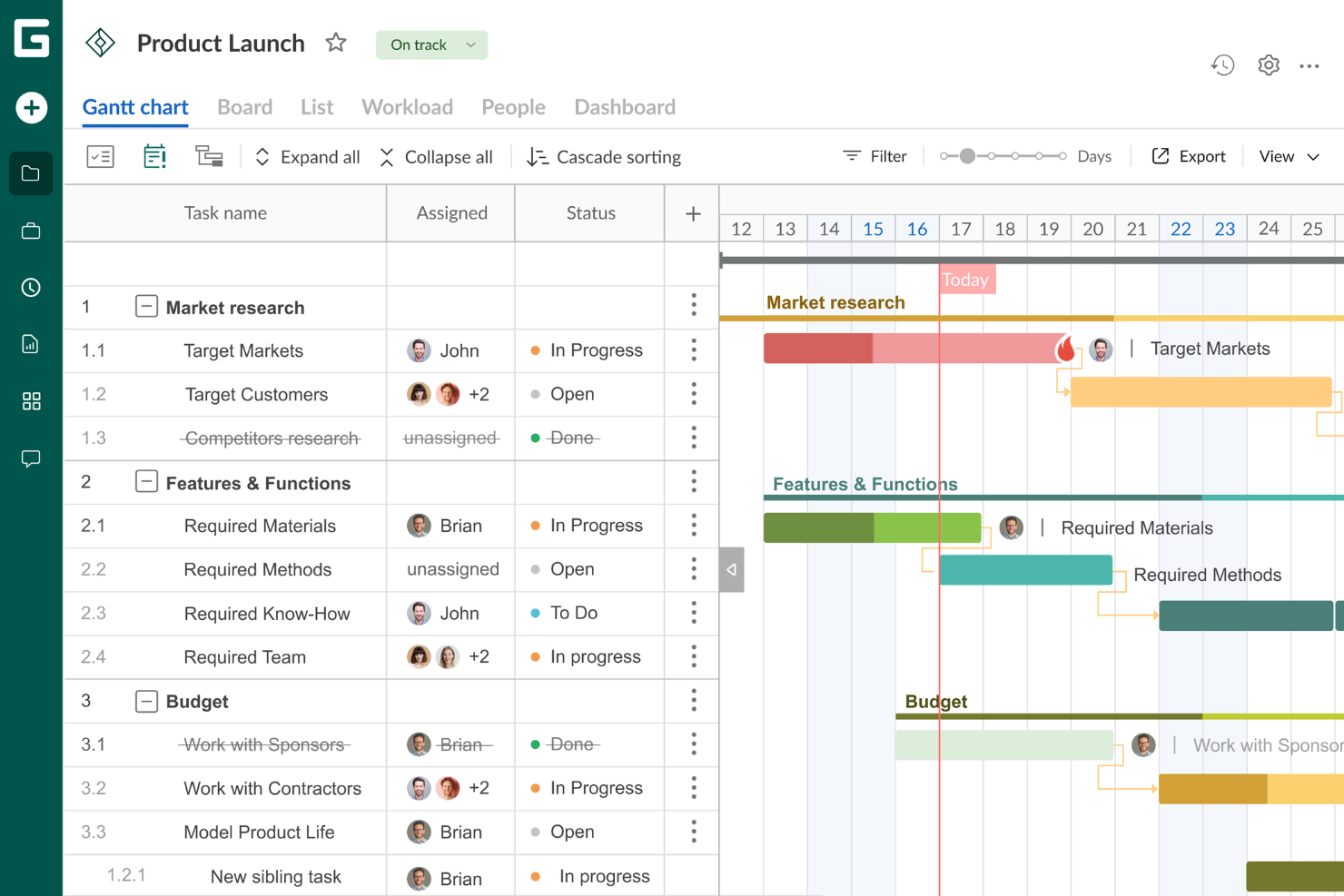
GanttPRO is project management software for teams coordinating complex work, helping project managers organize tasks and deadlines, manage dependencies, and keep cross-functional contributors aligned as plans change.
Who Is GanttPRO Best For?
GanttPRO suits project managers at growing teams who need to turn cross-functional plans into clear, shareable Gantt timelines.
Why I Picked GanttPRO
I like GanttPRO as a Microsoft Project alternative because it’s Best for creating Gantt charts. I use task dependencies and the critical path to see how a delayed engineering handoff could shift a launch date, then compare actual progress with a saved baseline.
GanttPRO Key Features
- Multiple project views: Switch between Grid, Board, Portfolio, and List views.
- Workload management: Review resource workloads and assign work across team members.
- Task comments and attachments: Add comments, , and files to tasks.
- Time tracking: Run a timer or log time spent on tasks.
GanttPRO Integrations
GanttPRO offers seven native integrations: Slack, Google Drive, Jira Cloud, OneDrive, Microsoft Project, Microsoft Teams, and Microsoft Excel. It also provides an open API for custom integrations.
Pros and Cons
Pros:
- Portfolio and workload views coordinate projects
- Baselines compare planned and actual progress
- Dependencies automatically reschedule downstream tasks
Cons:
- Mobile Gantt charts aren't viewable or editable
- Reports and dashboards offer limited customization

Quire
Best for dynamic project timelines
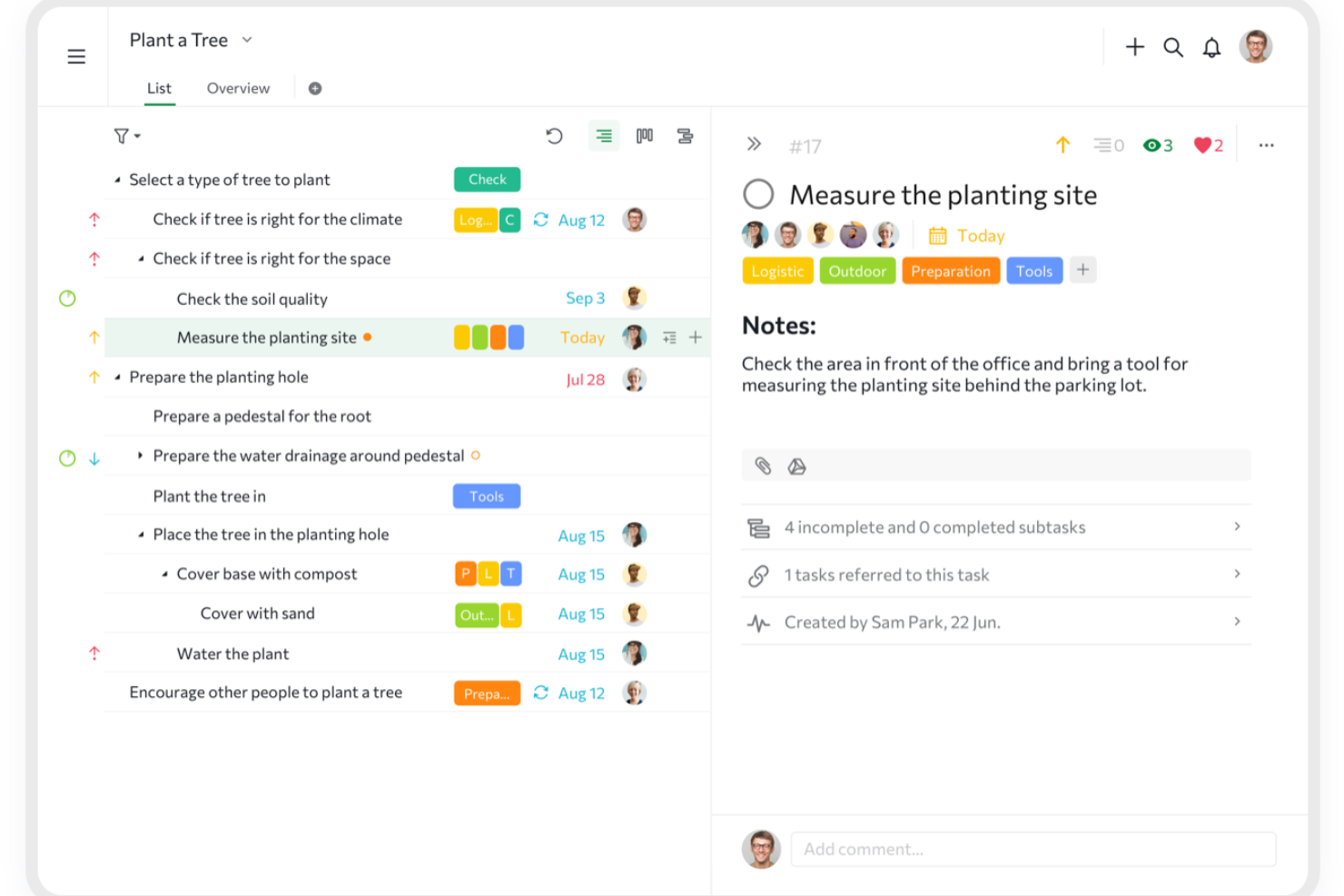
Quire is a project management platform for product, engineering, and cross-functional teams that need to break complex work into clear tasks, coordinate ownership, and keep priorities visible.
Who Is Quire Best For?
Quire fits project managers coordinating software and digital projects where timelines shift as dependencies and priorities change.
Why I Picked Quire
I picked Quire as a Microsoft Project alternative and my choice for “Best for dynamic project timelines.” Its Timeline view pairs a nested task list with a Gantt-style schedule, so I can see task durations and milestones alongside project structure. I can drag task bars to change dates as delivery plans shift.
Quire Key Features
- Board view: Displays tasks as cards in Kanban columns, where you can move cards to update status.
- Table view: Shows tasks in a spreadsheet-style layout with custom fields.
- Calendar view: Displays tasks, deadlines, and milestones in a monthly or weekly calendar.
- Email-to-task: Creates project tasks from emails sent to a unique Quire address.
Quire Integrations
Quire documents integrations with Google Drive, OneDrive, Microsoft Teams, Slack, GitHub, Dropbox, and Box; it also connects with Zapier and offers an API for custom integrations.
Pros and Cons
Pros:
- Switch views without losing task hierarchy
- Timeline view adapts as dates shift
- Nested tasks keep complex work structured
Cons:
- Offline mobile workflows remain limited
- Reporting depth trails Microsoft Project
New Product Updates from Quire
Quire Adds Custom Field Locking and Comment Reaction API Support
Quire adds custom field locking and API support for reading and setting emoji reactions on comments. These updates give teams more control over field data and expand comment interaction options for developers. For more information, visit Quire’s official site.
 .
.
Miro
Best for visual collaboration
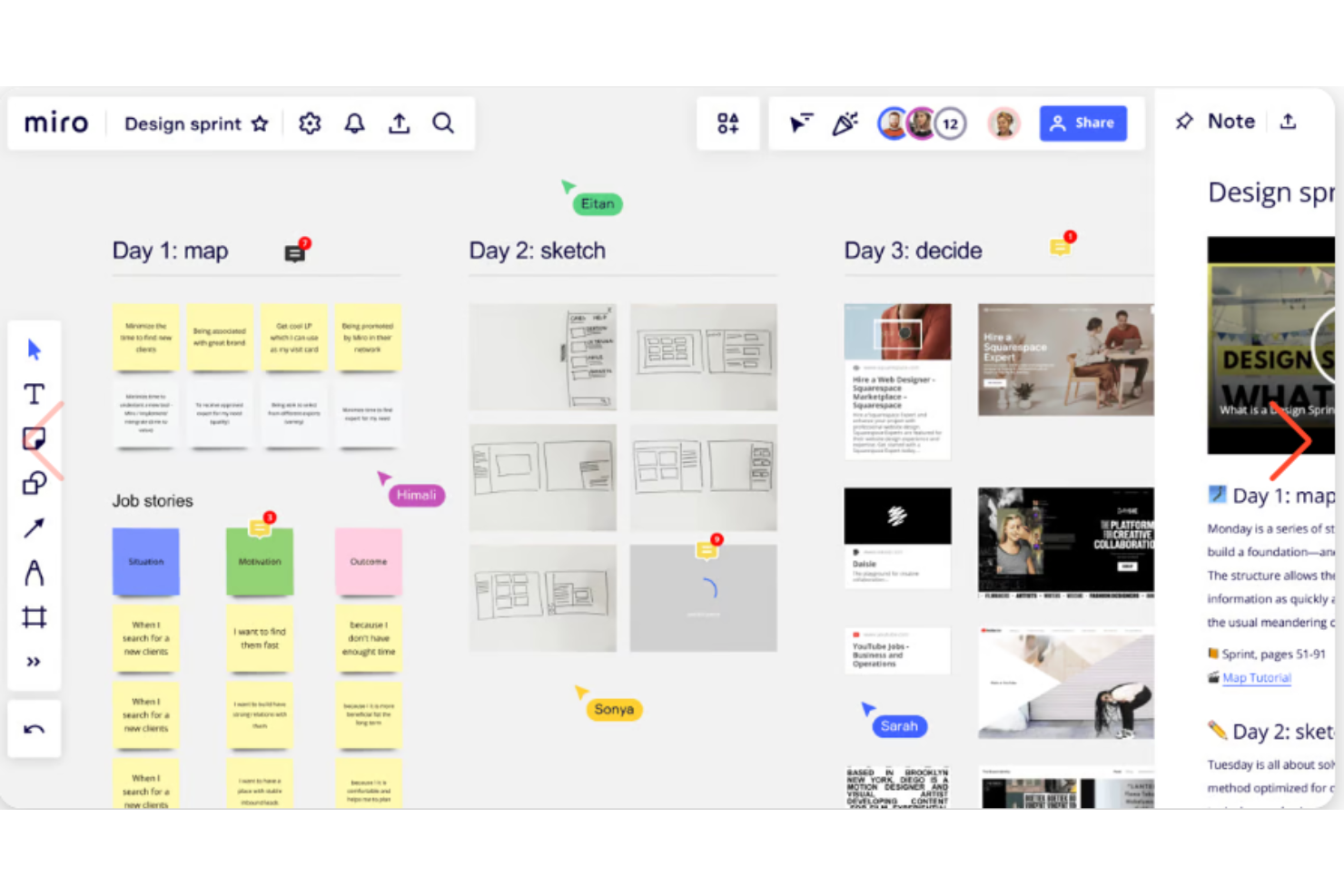
Miro is a visual collaboration workspace for product, design, and engineering teams to map project plans, clarify dependencies, and align stakeholders around changing requirements.
Who Is Miro Best For?
Miro suits product managers and workshop facilitators who need a shared canvas for discovery sessions, retrospectives, and cross-functional alignment.
Why I Picked Miro
I picked Miro for “Best for visual collaboration” among Microsoft Project alternatives because its shared canvas helps my team plan beyond timelines. We map project plans and diagram dependencies together, then use the same workspace to align stakeholders as requirements shift. That’s especially useful in discovery workshops where a schedule alone can’t capture the discussion.
Miro Key Features
- Jira integration: Import Jira issues as cards and sync updates with Jira.
- Voting: Run voting sessions to collect participant choices on board items.
- Timer: Set a countdown for time-boxed workshops and activities.
- Comments: Add threaded comments to specific board content.
Miro Integrations
Miro offers marketplace integrations with Jira, Asana, Slack, Google Drive, Microsoft Teams, and Zoom, plus Zapier. Its developer platform and APIs support custom apps and integrations.
Pros and Cons
Pros:
- Flexible canvas adapts as requirements shift
- Supports live workshops and team alignment
- Maps dependencies visually across workstreams
Cons:
- Large boards can lag and clutter
- Limited schedule-based tracking and reporting
New Product Updates from Miro
Miro Adds Japan Data Residency for Enterprise Customers
Miro has introduced Japan data residency for enterprise customers, offering in-region storage for production data, backups, and metadata, plus in-region compute infrastructure. For more information, visit Miro's official site.
ClickUp
Best for customizability
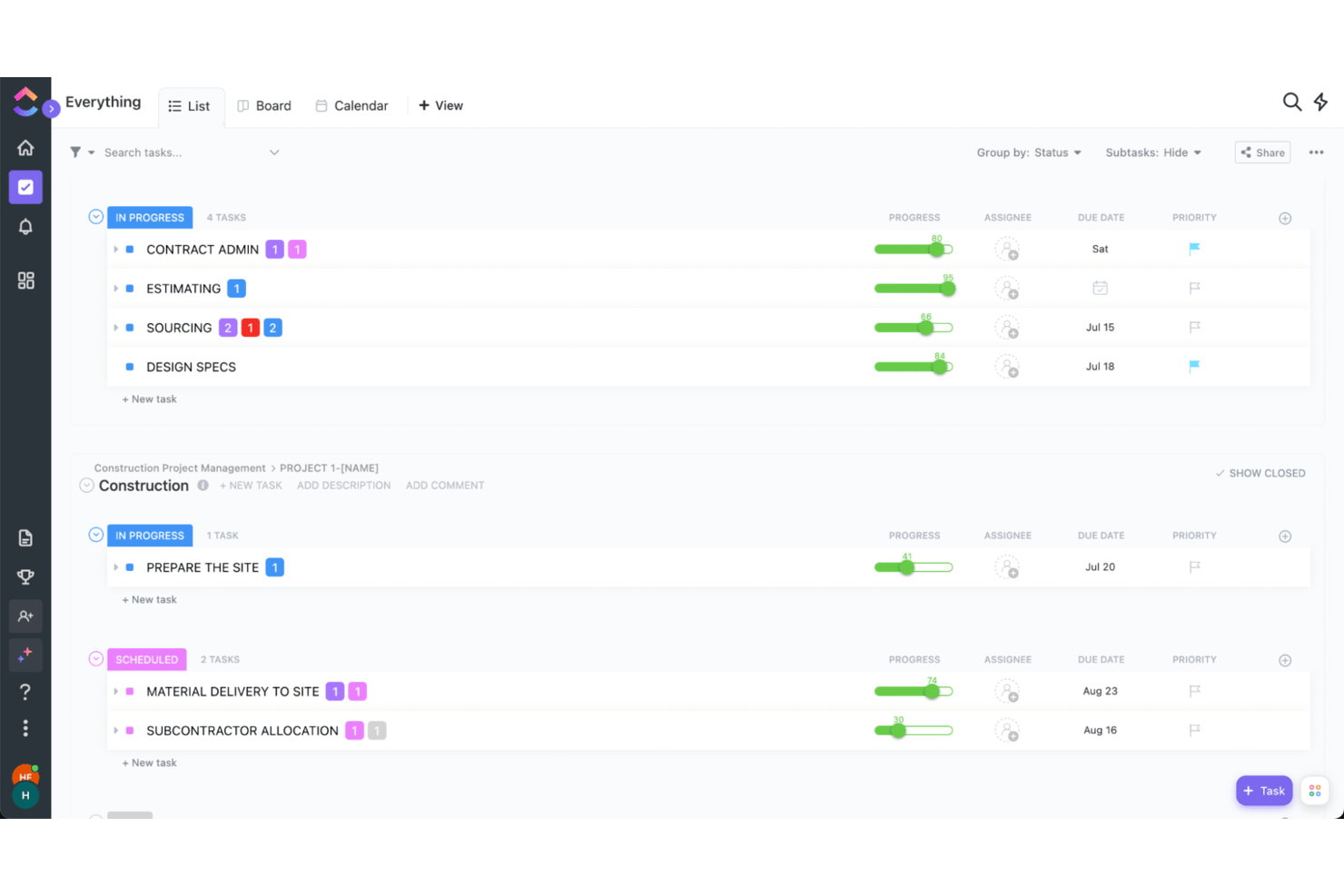
For product, engineering, and digital teams replacing Microsoft Project, ClickUp brings tasks, timelines, docs, and collaboration into one workspace to help coordinate dependencies and shifting priorities.
Who Is ClickUp Best For?
ClickUp suits project managers who need to tailor workflows, task structures, and views to different teams and project requirements.
Why I Picked ClickUp
I picked ClickUp as Best for customizability because teams can shape workflows around how product and engineering work actually moves. I like that you can create custom statuses and fields, then view the same project in Gantt, board, or list layouts. That helps teams track different work stages while keeping dates and dependencies visible as scope changes.
ClickUp Key Features
- Task automations: Set rules to create recurring tasks and send assignee notifications.
- Docs: Create team documents, edit them together in real time, and link them to tasks.
- Time tracking: Record time on tasks and filter reports by team member, project, date, or billable status.
- Dashboards: Add widgets to view project progress, team activity, and key metrics.
ClickUp Integrations
ClickUp offers native integrations with Slack, GitHub, GitLab, Bitbucket, Microsoft Teams, Google Drive, Google Calendar, Figma, Zoom, and Sentry; it also connects with Zapier. ClickUp provides an API for custom integrations.
Pros and Cons
Pros:
- Docs link project context directly to tasks
- Dependencies stay visible across Gantt timelines
- Custom fields and statuses fit varied workflows
Cons:
- Large workspaces may load slowly
- Dense controls can overwhelm first-time users
New Product Updates from ClickUp
ClickUp Adds Meetings Hub, Super Agent Templates, and ZoomInfo Integration
ClickUp adds a searchable Meetings Hub, new ways to clone and template Super Agents, and a ZoomInfo integration through the App Center. These updates improve meeting retrieval, agent reuse, and access to sales intelligence. For more information, visit ClickUp’s official site.

Best for progress tracking and reporting
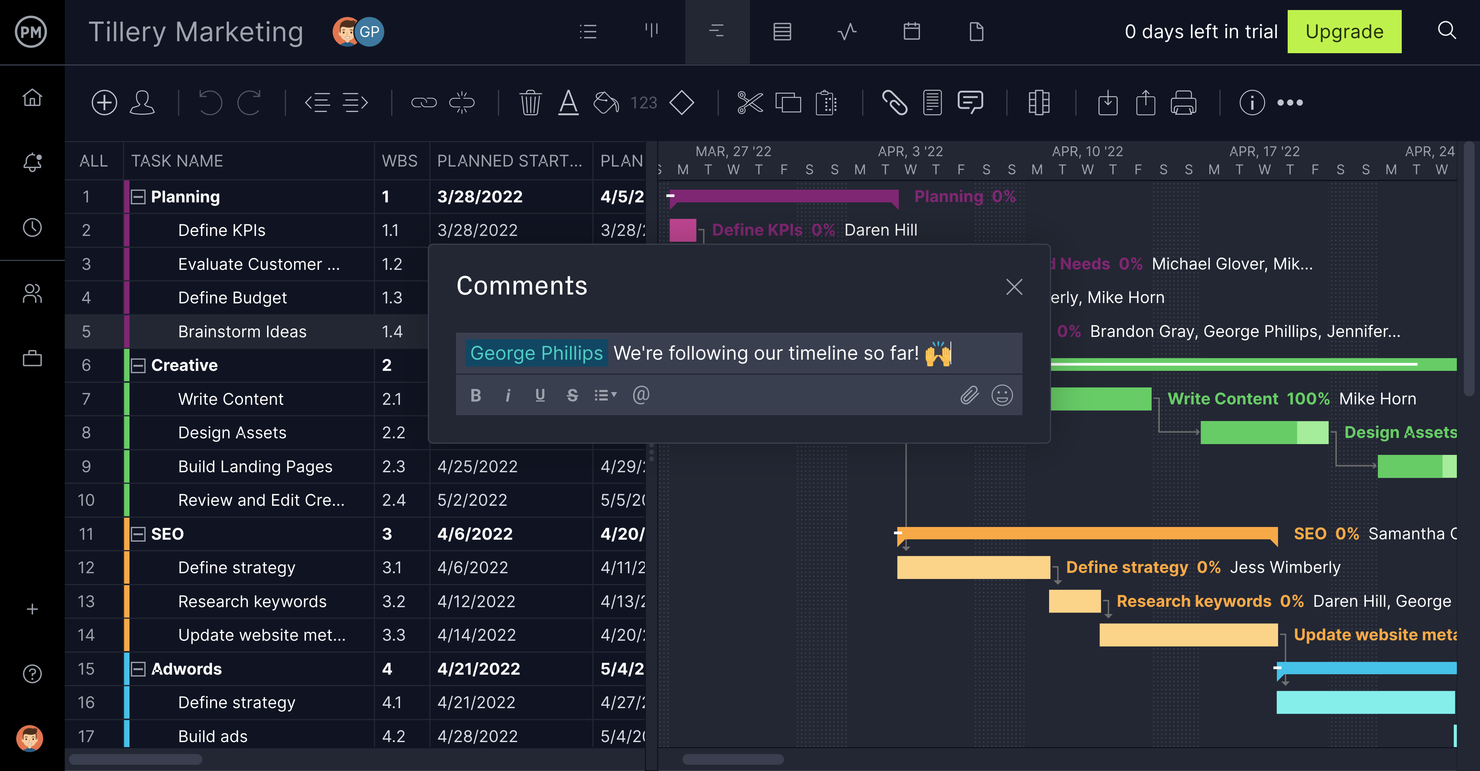
ProjectManager is a project management platform for tech and digital teams that need to coordinate schedules, tasks, and resources while keeping complex projects on track.
Who Is ProjectManager Best For?
ProjectManager is a good fit for project managers overseeing cross-functional technology initiatives who need to report progress across schedules and workstreams.
Why I Picked ProjectManager
I picked ProjectManager as a Microsoft Project alternative for its progress tracking and reporting. Its live dashboards show task status, schedule progress, and planned versus actual costs, so I can spot slippage before a status meeting. Portfolio dashboards let me filter projects by status or manager, then drill into a project that needs attention.
ProjectManager Key Features
- Kanban boards: Organize tasks into columns and filter by tags, due dates, progress, or assignee.
- Timesheets: Log hours from Gantt charts, task lists, and Kanban boards.
- Workload charts: View team members’ assigned work and availability.
- Task views: Switch between task lists, sheets, and calendars to organize project work.
ProjectManager Integrations
ProjectManager documents integrations with Microsoft Teams, Power BI, Jira, QuickBooks Online, Microsoft Project, Slack, Excel, Azure DevOps, and Office 365, plus Zapier. All workspaces have API access for custom integrations.
Pros and Cons
Pros:
- Workload charts pair assignments with availability
- Gantt baselines clarify planned-versus-actual progress
- Portfolio dashboards flag slipping workstreams
Cons:
- Mobile app limits complex task management
- Linked tasks may need manual rescheduling
Other Microsoft Project Alternatives
There are some new kids on the Gantt chart block! I haven’t had a chance to review these properly, but if none of the above work for you, it’s worth checking some of these out:
- Moovila
For project scoring
- Epicflow
For AI-driven portfolio optimization
- Jira
For agile and multi-team sprint planning
- MeisterTask
For brainstorming and ideation
- Nifty
For user experience
- ProjectLibre
For open-source MS Project migration
- Workzone
For onboarding teams away from MS Project
- GoodDay
For platform flexibility
- RAIDLOG.com
For risk management and monitoring
- monday work management
For flexible boards and multi-view planning


Related Project Management Software Reviews
If you still haven't found what you're looking for here, check out these other related tools that we've tested and evaluated:
- Project Management Software
- Resource Management Software
- Workflow Automation Software
- Task Management Software
- Collaboration Tools
- Gantt Chart Maker
What is Microsoft Project?
Microsoft Project is a project management software by Microsoft that helps teams plan, schedule, and manage tasks, resources, and budgets for complex projects.
It is widely used across various industries for planning, executing, and monitoring project performance. Microsoft Project is available in various versions, including a desktop version for individual project management and a server version, Microsoft Project Server, which supports collaborative project management.
Microsoft Project's Criticism
Microsoft Project is the OG of project management tools but has failed to quickly adapt to new market demands. Here are 6 things that people criticize MS Project for:
- Price: It can be too expensive for smaller teams. Even with its cloud-based solution, MS Project sits above the average cost for a tool of its capacity.
- User interface: The user interface is not as user-friendly as other tools and has cluttered views with tons of buttons.
- Collaboration: Remote teams struggle to collaborate in real time because there are not enough features for it (like whiteboards).
- Flexibility: There is a lack of flexibility when customizing the software for your specific use case. This includes white-labelled user portals and advanced features like custom fields.
- Platform dependency: This tool was designed for Windows, which limits cross-platform use to imperfect imports/exports and prevents you from having the tool in another operating system.
- Complexity: When you use this software, it feels difficult. The navigation is not intuitive and that results in a steep learning curve for new hires.
How I Evaluate Microsoft Project Alternatives
I evaluate every tool against two layers: the baseline capabilities that replace MS Project's scheduling and resource planning, and the differentiators that set the best options apart.
Core Functionality (Table Stakes For This List)
When I'm selecting tools for my list, I rank each one on a scale from 0 (does not offer the functionality) to 5 (excels in this area) for each core functionality listed below. Then, I calculate the tool's total score into a percentage. Each tool needs to achieve a minimum total score of 75% to be considered for inclusion.
- Gantt Chart Scheduling: I check whether the Gantt view supports interactive drag-and-drop, dependencies, milestones, and critical path—the features teams rely on to map complex timelines.
- Task & Dependency Management: Each tool should support WBS hierarchies and multiple dependency types so you can model real sequencing, like tying QA to dev completion.
- Resource & Workload Management: I look at how each platform handles resource allocation, capacity views, and over-allocation alerts across concurrent projects.
- Project Portfolio Management: Cross-project visibility matters when you're running a PMO. I evaluate portfolio dashboards, roll-up reporting, and prioritization capabilities.
- Baselines & Progress Tracking: Setting a baseline and measuring variance is how you answer "are we on track?" I check for baseline snapshots and plan-vs.-actual comparisons.
- Cloud Collaboration & Sharing: Real-time multi-user access with permissions and commenting is key for distributed teams coordinating across time zones.
Once I have a list of tools that meet this criteria, I consider what sets each platform apart.
Differentiating Factors (What Sets Vendors Apart)
Here's how I compare and contrast different vendors:
Standout Features
No-code automation is a major differentiator. Tools like Wrike and monday.com let you trigger status updates, reassign tasks, or send alerts based on project events, which cuts down on repetitive admin. I also evaluate native time tracking, since capturing actuals against estimates in the same platform gives you cleaner data for future sprint or phase planning. Budget and cost management rounds this out. When a tool ties labor rates and expenses directly to task assignments, you can flag overruns before they spiral.
Beyond Features
Pricing structure matters here because Microsoft Project's licensing model is one of the main reasons teams look elsewhere. I evaluate whether a vendor offers transparent per-user pricing and a free tier or trial for evaluation. Integration depth is equally important—I check for native connections with tools like Jira, Slack, and Microsoft 365, plus open API access for custom workflows. Platform availability also shapes my assessment, since many teams need browser-based and mobile access rather than a Windows-only desktop client.
Why Do I Need A Microsoft Project Alternative?
You might be looking for an alternative to Microsoft Project if you:
- Are looking for a friendlier UI with loads of colors and nice buttons
- Don't like your PM software to remind you of Excel
- Want a tool that facilitates teamwork and collaboration in real time
- Need a solution that can connect to other tools in your tech stack
- Need to track project progress from your mobile phone
Whatever your reason might be, the following tools offer things that Microsoft's product can't and align with at least one of these points.
How To Choose an Alternative to Microsoft Project
As you work through your own unique software selection process, keep the following points in mind to ensure you select a high-quality alternative :
- Project Complexity and Scope: Consider the project scope and complexity of your projects. If you manage large, multifaceted projects with intricate dependencies, you'll need a solution that handles advanced project planning and resource allocation, such as Smartsheet or Wrike.
- Team Collaboration Needs: Evaluate how your team collaborates. If your projects involve cross-functional teams or remote workers, you'll need software that excels in communication and real-time updates, like Asana or Trello.
- Budget Constraints: Assess your budget constraints. Some alternatives can be expensive, particularly if you need advanced features or have a large team. Consider cost-effective options like ClickUp or TeamGantt.
- Industry-Specific Requirements: Determine if your industry has specific requirements. Certain industries, like construction or IT, may require specialized features such as resource management or issue tracking. Tools like Monday.com offer industry-specific templates and customization options, enabling you to tailor the software to meet your exact needs.
- Ease of Use and Learning Curve: Consider the ease of use and the learning curve. If your team is not tech-savvy, a complex tool could hinder productivity. Look for user-friendly alternatives like Basecamp or Monday.com.
Trends In Project Management Software For 2025
In 2025, project management software is experiencing a wave of innovation, driven by the evolving needs of businesses and project teams. This evolution reflects the broader trends in technology, work culture, and organizational priorities.
Here's a comprehensive summary of these trends, highlighting the directions in which project management tools and practices are moving. Moreover, I have recommended a Microsoft Project competitor that particularly aligns with each trend.
Sustainability and ESG Considerations
- Sustainability Integration: Project management software is increasingly incorporating features to help teams assess and manage the environmental impact of their projects. This includes tools for carbon footprint calculation, sustainability reporting, and compliance with environmental, social, and governance (ESG) criteria. The trend reflects a growing awareness of the need for sustainable practices in all aspects of business operations.
- For organizations aiming to integrate sustainability and ESG considerations into their project management processes, Celoxis is an excellent choice. Celoxis offers features that facilitate the management of environmental impacts and sustainability reporting. Its tools are designed to help teams track and forecast the environmental footprint of their projects.
Focus on Mental Health and Wellbeing
- Wellbeing Features: With a growing recognition of the importance of mental health, project management tools are beginning to include features aimed at promoting work-life balance, reducing burnout, and supporting the overall wellbeing of team members. This could include reminders for breaks, integration with wellness apps, and analytics to identify overwork patterns among team members.
- ClickUp stands out when it comes to supporting the mental health and wellbeing of team members. The platform includes features like Wellness Checks, goal setting for personal development, and integration capabilities with wellness apps, which can help manage and reduce workplace stress.
Increased Use of Virtual and Augmented Reality
- Immersive Planning and Training: The use of virtual reality (VR) and augmented reality (AR) in project management is on the rise, offering new ways for teams to visualize projects, conduct remote site visits, and facilitate immersive training sessions. These technologies can enhance understanding and collaboration, especially in industries like construction, manufacturing, and design.
- Miro is highly recommended for teams looking to leverage virtual and augmented reality in their project management practices. As a visual collaboration tool, Miro supports VR integrations that allow team members to engage in immersive planning and interactive training sessions.
Blockchain for Enhanced Transparency and Security
- Blockchain Applications: Blockchain technology is being explored for its potential to offer secure, transparent, and immutable records of transactions and project activities. This could revolutionize aspects of project management, such as contract management, supply chain oversight, and stakeholder communication, by providing a level of security and trust previously difficult to achieve.
- For projects that require enhanced security and transparency, Bonsai Agency Software is an ideal Microsoft Project alternative. Bonsai integrates blockchain technology to offer secure, immutable records of all project activities and transactions.
Adaptive Project Management
- Flexibility and Resilience: There is a growing trend towards hybrid project methodologies that can easily adjust to changes and unforeseen challenges. This includes the ability to pivot project goals, adapt resource allocation, and modify timelines in response to external changes, emphasizing resilience and flexibility in project execution.
- Forecast is a superior tool for organizations that prioritize adaptive project management. It excels in providing features that allow for flexibility in project goals, resource allocation, and timelines, adapting smoothly to unexpected changes and challenges. Forecast’s AI-driven capabilities also help predict project risks and adjust plans dynamically. Find information on Forecast's pricing.
Specific Trends Related to Microsoft Projects and the Microsoft Ecosystem
- Microsoft Project and the broader Microsoft ecosystem continue to evolve, with a strong emphasis on integration and collaboration. Microsoft Teams, for example, is increasingly integrated with Microsoft Project, allowing for better communication and workflow management within project teams.
- The Microsoft ecosystem is also focusing on AI and analytics, with tools like Power BI being integrated into Microsoft Project for enhanced reporting and decision-making capabilities.
- Microsoft is pushing towards more cloud-based solutions, with Microsoft Project for the web offering a more accessible and flexible tool for project management, reflecting the broader trend towards cloud computing and SaaS models in project management software.
These trends represent a broadening of the scope of project management to include concerns beyond mere efficiency and effectiveness. They reflect an increasing emphasis on the social, environmental, and ethical dimensions of projects, as well as a recognition of the need for tools and methodologies that can adapt to rapidly changing circumstances and leverage emerging technologies to improve project outcomes.
Features of Project Management Software
Selecting the right project management software, Microsoft Project or otherwise, is crucial for the efficient planning, organizing, and tracking of tasks and resources. Your ideal software should streamline the process of managing a project from inception to completion, ensuring that all objectives are met within the designated time frame and budget. Here are the top features to look for:
- Task Management: This feature allows for the creation, assignment, and tracking of tasks. It is essential for ensuring that all project activities are clearly defined and allocated to team members, facilitating accountability and progress monitoring.
- Resource Allocation: Efficiently assigns and manages resources such as team members, equipment, and materials. This feature is critical for optimizing the use of available resources, preventing overallocation, and ensuring that each task has the necessary inputs to proceed.
- Gantt Charts: Visual representation of the project timeline and task dependencies. Gantt charts are invaluable for planning and adjusting schedules, understanding task relationships, and communicating the project plan to stakeholders.
- Time Tracking: Enables recording the amount of time spent on tasks. This feature is important for monitoring productivity, estimating future tasks more accurately, and ensuring that the project stays on schedule.
- Budget Management: Helps track project expenses and compare them against the budget. Effective budget management is crucial for financial planning, cost control, and preventing project overruns.
- Collaboration Tools: Facilitates communication and collaboration among project team members. These tools are essential for sharing documents, discussing project details, and ensuring that everyone is aligned and informed.
- Reporting and Analytics: Provides insights into project progress, resource utilization, and performance metrics. This feature is vital for making informed decisions, identifying potential issues early, and optimizing project outcomes.
- Risk Management: Identifies, analyzes, and manages potential risks. Proactive risk management is crucial for minimizing the impact of uncertainties on the project timeline and deliverables.
- Integration Capabilities: Allows for seamless integration with other software tools. This feature is important for ensuring that the project management software works well within the existing technology ecosystem, enhancing productivity and data consistency.
- Customization and Scalability: Adapts to the specific needs of a project or organization. Customization and scalability ensure that the software can grow and change with the project and organization, providing long-term value.
Choosing project management software with these features ensures that planning, organizing, and tracking tasks and resources are streamlined and effective. This not only aids in successful project completion but also enhances team collaboration, resource optimization, and overall project efficiency.
Benefits of Microsoft Project Alternatives
Exploring some of Microsoft Project's competitors can offer unique advantages to users and organizations seeking to enhance their project management capabilities. Different software solutions come with their own set of features, which can better align with specific project requirements, team dynamics, and organizational goals. Here are five notable benefits alternatives may provide:
- User-Friendly Interface: Alternatives often prioritize ease of use, making it easier for new users to adapt and reduce the time needed for training, thereby improving efficiency and productivity across the team.
- Cost-Effectiveness: Many alternatives to Microsoft Project offer competitive pricing, including free tiers or lower-cost subscriptions, making them accessible to startups and small businesses without compromising on essential features.
- Flexibility and Customization: Some software options offer more customizable workflows and interfaces than Microsoft Project, allowing users to adapt the tool to their specific project management style and requirements.
- Integration with a Wider Range of Apps: Some competitors may provide broader integration capabilities with a diverse set of applications beyond the Microsoft ecosystem, facilitating seamless workflow across different platforms used by the team.
- Cloud-Based Collaboration: Many project management software alternatives focus on cloud-based solutions, offering real-time collaboration, accessibility from anywhere, and enhanced security features, which are crucial for supporting distributed teams and remote work environments.
Embracing an alternative to Microsoft Project can lead to substantial gains in efficiency, adaptability, and collaboration for both individual users and organizations. By carefully selecting software that aligns with specific project needs and team dynamics, stakeholders can leverage these tools to drive successful project outcomes, foster innovation, and maintain a competitive edge in their respective industries.
Costs & Pricing For Microsoft Project Alternatives
Choosing the right project management alternative is a pivotal decision for any organization, especially for those shifting away from using Microsoft Project. Whether you are searching for a more cost-effective alternative or you need different features regardless of cost, the market offers a variety of plan options tailored to different needs, from basic project tracking for small teams to comprehensive solutions for large enterprises.
While it might seem that the only relevant prices are those attached to your chosen software, it's also a good idea to understand pricing trends across the market—including pricing for Microsoft Project. This can help ensure that you don't pay for features you don't need or overpay for common features.
Here's a breakdown of the common plan options and pricing for Microsoft Project and its competitors:
Plan Comparison Table for Microsoft Project Alternatives
| Plan Type | Average Price | Common Features | Microsoft Project Plan | Microsoft Project Price -Monthly | Microsoft Project Specific Features |
|---|---|---|---|---|---|
| Free | $0 | Task management, Limited projects, Basic collaboration tools, Limited storage | N/A | N/A | N/A |
| Basic | $7 - $15 per user/month | Task and project tracking, Basic reporting, Some integration capabilities, Email support | Project Plan 1 | $10 per user | Project management, Grid view, Board view, Collaboration tools |
| Team | $10 - $25 per user/month | Enhanced collaboration features, Project templates, More integrations, Advanced reporting | Project Plan 3 | $30 per user | All Plan 1 features, Timeline (Gantt) view, Roadmap, Timesheet submission |
| Professional | $20 - $50 per user/month | Resource management, Unlimited projects, Advanced analytics, Priority support | Project Plan 5 | $55 per user | All Plan 3 features, Portfolio management, Demand management |
| Enterprise | Custom pricing | Customizable features, Advanced security options, Dedicated support, Training and onboarding services | Custom Enterprise Solution | Custom pricing | Customizable solutions, Advanced analytics, Comprehensive security options |
When considering a plan, focus on the specific features that will support your project's objectives. Take advantage of free trials to test the software before committing. Additionally, always review the total cost against the value each plan brings to your team, and ensure that the software scales with your organizational growth.
Common stages where your company may want to upgrade their pricing plan include:
- Growth in Team Size: When the number of team members exceeds the limits of the current plan, teams may need to upgrade to a higher tier to accommodate more users.
- Increased Project Volume: As the number of projects being managed grows, users may require more project slots or more advanced project management features.
- Need for Advanced Features: When the company requires more sophisticated features, such as advanced reporting, automation, custom integrations, or enhanced security measures, they may wish to upgrade their plan.
- Client and Stakeholder Collaboration: Users may want to upgrade their plan when they need more extensive collaboration tools to engage with clients and stakeholders directly through the project management software.
- Enhanced Support and Service Levels: When the business requires priority support, dedicated account management, or other premium support services, they may want to upgrade to a higher-tier plan.
Understanding the differences in plan options and pricing between various alternatives, including Microsoft Project, can help you select a software that aligns with your project goals, team size, and budget.
Microsoft Project Alternatives Frequently Asked Questions
Find answers to common questions other people ask about this topic.
What's the difference between Microsoft Planner and Microsoft Project?
In summary, Microsoft Planner is a lightweight and user-friendly task management tool for simple collaborative projects, while Microsoft Project is a comprehensive project management software with advanced features and capabilities suitable for managing larger, more complex projects. The choice between the two depends on the project’s complexity and the specific needs of the project management team.
Here are the key differences between the two:
Microsoft Planner
- Task-Based: Microsoft Planner is primarily a task management tool designed for simple, collaborative task tracking within teams.
- Lightweight and User-Friendly: It is easy to use and offers a simple, user-friendly interface, making it suitable for small to medium-sized projects or teams.
- Visual Task Boards: It uses visual task boards for organizing and prioritizing tasks, allowing teams to track progress and assign responsibilities.
- Ideal for Agile and Collaborative Projects: Planner is well-suited for agile and collaborative projects where simplicity and ease of use are essential.
Microsoft Project
- Comprehensive Project Management: Microsoft Project is a robust project management software designed for planning, managing, and tracking complex projects of various sizes.
- Advanced Features: It offers advanced project planning and management features, including Gantt charts, resource management, cost tracking, and in-depth reporting.
- Customization: Project allows for detailed project planning, resource allocation, and dependencies management, making it ideal for larger, more structured projects.
- Enterprise-Grade: It caters to a wide range of project management needs, from small-scale projects to large enterprise-level initiatives.
- Historical Data and Analysis: Project provides historical data and analytics, allowing for in-depth analysis of project performance and optimization over time.
What has replaced Microsoft Project?
For many years, MS Project was the default project management tool for most project managers. However, because of its laser focus on the PM and its responsibilities, it was slow to respond to the collaboration needs of this role.
Because of it, Microsoft Project has been replaced with cloud-based project management tools that, in addition to project management, offer collaboration features such as an in-app chat, mentions, comments, approval and proofing workflows.
How do Microsoft Project alternatives handle scalability?
In general, cloud-based alternatives that have several tiers will scale well as you can upgrade plans whenever you see fit. Each upgrade will unlock new features and give you access to new stuff, like unlimited users, more workspaces, or advanced automation features that can help you streamline your work.
My recommendation is that you analyze all tiers in the tool of your preference and see if it has the features required to grow with you. Think of:
- The features that you can unlock in the next plan and if they align with how your requirements would grow.
- Your maximum growth. Compile a list of all features (having unlocked everything) and see if there’s anything missing that you would require.
How easy is it to import existing project data into these alternative tools?
Although it depends from tool to tool, the majority of Microsoft Project’s alternatives will have a way to import .mpp files into their tool. And, if you think about it, it makes sense. Microsoft’s tool was the top project management software for at least two decades decades.
Because of it, a lot of big corporations (potential clients for these alternatives):
- Work with other companies that use this software
- Need this feature to consider migrating to another tool
Is there a free MS Project alternative?
If you don’t have the budget to upgrade and are okay with having limited functionality, here are some options.
- Project Libre – open source project management software
- GanttProject – free project management and scheduling app to make Gantt charts on Windows, OSX, and Linux
- Ganttology – interactive Gantt chart software with basic free plan (1 chart, 50 tasks), in addition to paid plans
- Toggl Plan – simple, sleek project planning software with a free plan (5 people max) in addition to paid plan
What are the common challenges faced when switching from Microsoft Project to an alternative?
Switching from Microsoft Project to other project management tools can present several challenges, as users may be accustomed to the features and interface of Microsoft Project. Here are five common challenges people may face during this transition:
- Learning Curve: Adjusting to a new project management tool can be challenging due to the learning curve associated with understanding the new interface, features, and workflow. Users may need time to become proficient in the new software.
- Feature Differences: Other project management tools may not offer the exact same features as Microsoft Project. Users might find that certain capabilities they relied on in Microsoft Project are missing or implemented differently in the new tool, which can impact their ability to plan and manage projects effectively.
- Data Migration: Transferring existing project data and plans from Microsoft Project to a new tool can be a complex process. Compatibility issues, data formatting, and the need to reorganize data to fit the new tool’s structure can be time-consuming and error-prone.
- Team Training: If a team is accustomed to using Microsoft Project, introducing a new tool may require training and adjustment for all team members. This can disrupt workflow and productivity as everyone adapts to the new tool.
- Integration Challenges: Microsoft Project often integrates seamlessly with other Microsoft tools, while third-party project management software may require additional setup or integration work. Ensuring the new tool integrates well with the organization’s existing software and processes can be a challenge.
What key features should I look for when selecting MS Project alternatives?
A great alternative to software must at least match the features in the one you are trying to replace. Here’s what to look for in your new software.
- Import and export .mpp files: The tool should be able to open and import MS Project files, either natively or through a .csv file. Then, export PDFs or shareable project plans.
- Resource management: The tool should have a module that handles workload and resource scheduling and supports capacity planning.
- Time tracking: From simple to complex projects, the software needs a time tracking tool so the team can record the time they invest in activities. This can be built into the tool itself or handled through an add-on (like an integration).
- Roadmap: The ability to track multiple projects in one view, display goals, and overall progress. This specific feature might be available only on higher-tier plans.
- Reporting: The tool must have a reporting module that lets you track progress on your projects, portfolios, programs, and resources.
- Views: The ability to see information in diverse formats. The minimum required is a Gantt and a Kanban view. Modern tools will have more, such as calendar, table, box, and list views, for example.
You can learn more about Microsoft Project features, benefits, cost, and use cases in my overview of Microsoft project management software.
What other project management alternatives are there?
-
- Ease of Use and Learning Curve: Consider the ease of use and the learning curve. If your team is not tech-savvy, a complex tool could hinder productivity. Look for user-friendly alternatives like Basecamp or Monday.com.
-
- Project Complexity and Scope: Consider the complexity and scope of your projects. If you manage large, multifaceted projects with intricate dependencies, you’ll need a solution that handles advanced project planning and resource allocation, such as Smartsheet or Wrike.
-
- Team Collaboration Needs: Evaluate how your team collaborates. If your projects involve cross-functional teams or remote workers, you’ll need software that excels in communication and real-time updates, like Asana or Trello.
-
- Budget Constraints: Assess your budget constraints. Some alternatives can be expensive, particularly if you need advanced features or have a large team. Consider cost-effective options like ClickUp or TeamGantt.
-
- Industry-Specific Requirements: Determine if your industry has specific requirements. Certain industries, like construction or IT, may require specialized features such as resource management or issue tracking. Tools like Monday.com offer industry-specific templates and customization options, enabling you to tailor the software to meet your exact needs.
-
- Ease of Use and Learning Curve: Consider the ease of use and the learning curve. If your team is not tech-savvy, a complex tool could hinder productivity. Look for user-friendly alternatives like Basecamp or Monday.com.
How To Choose an Alternative to Microsoft Project
As you work through your own unique software selection process, keep the following points in mind to ensure you select a high-quality alternative :
-
- Project Complexity and Scope: Consider the complexity and scope of your projects. If you manage large, multifaceted projects with intricate dependencies, you’ll need a solution that handles advanced project planning and resource allocation, such as Smartsheet or Wrike.
-
- Team Collaboration Needs: Evaluate how your team collaborates. If your projects involve cross-functional teams or remote workers, you’ll need software that excels in communication and real-time updates, like Asana or Trello.
-
- Budget Constraints: Assess your budget constraints. Some alternatives can be expensive, particularly if you need advanced features or have a large team. Consider cost-effective options like ClickUp or TeamGantt.
-
- Industry-Specific Requirements: Determine if your industry has specific requirements. Certain industries, like construction or IT, may require specialized features such as resource management or issue tracking. Tools like Monday.com offer industry-specific templates and customization options, enabling you to tailor the software to meet your exact needs.
-
- Ease of Use and Learning Curve: Consider the ease of use and the learning curve. If your team is not tech-savvy, a complex tool could hinder productivity. Look for user-friendly alternatives like Basecamp or Monday.com.
If an alternative to Microsoft Project isn’t the right fit for your needs, there are plenty of other project management alternatives out there that might suit you better. Check out some of our other alternative project management software reviews:
How To Choose an Alternative to Microsoft Project
As you work through your own unique software selection process, keep the following points in mind to ensure you select a high-quality alternative :
-
- Project Complexity and Scope: Consider the complexity and scope of your projects. If you manage large, multifaceted projects with intricate dependencies, you’ll need a solution that handles advanced project planning and resource allocation, such as Smartsheet or Wrike.
-
- Team Collaboration Needs: Evaluate how your team collaborates. If your projects involve cross-functional teams or remote workers, you’ll need software that excels in communication and real-time updates, like Asana or Trello.
-
- Budget Constraints: Assess your budget constraints. Some alternatives can be expensive, particularly if you need advanced features or have a large team. Consider cost-effective options like ClickUp or TeamGantt.
-
- Industry-Specific Requirements: Determine if your industry has specific requirements. Certain industries, like construction or IT, may require specialized features such as resource management or issue tracking. Tools like Monday.com offer industry-specific templates and customization options, enabling you to tailor the software to meet your exact needs.
-
- Ease of Use and Learning Curve: Consider the ease of use and the learning curve. If your team is not tech-savvy, a complex tool could hinder productivity. Look for user-friendly alternatives like Basecamp or Monday.com.
Here are some questions to ask yourself when choosing the right MS project alternative for your particular needs.
How do you use your project plans and schedules?
The software on this list is meant to keep your project plans front and center. They promote visibility and communication around the plan. Consider if this is the use you currently give to your plans and schedules, or if it’s what you would like to have.
Here are some common uses:
- Gantt charts exist at the beginning of the project and are never updated again.
- Timelines serve as a tool for baseline analysis.
- Schedules communicate progress to the project and executive team.
Who will use it?
Think of who needs to see the project information. Is it a team member, client, third party, or only the project manager? The more people need to be involved and collaborate, the bigger the need for a tool that has integrated chat features, the ability to export dashboard information and create external users for the tool.
What other tools are you using?
Make a list of all the tools that you currently use. Then, define which ones are, should, and you would like to be connected. Finally, go into the integrations section of your tool of choice and see if it can mimic what’s on your list.
Sometimes these integrations are already built. Other times, they have to be connected through an external party like Zapier, or programmed by your IT team using the tool’s API.
Here are examples of time tracking software and resource scheduling software you may be using.
Are you always online?
Cloud-based project apps can be great, and they can be kept more up to date with ‘live’ information, but consider that they require an active internet connection to work. If you do not have a reliable internet connection or are constantly on the go, look for apps that have offline capabilities. This can be from a desktop version of the software to a mobile app.
What's the cost?
The cost of Microsoft Project tends to be one of the primary reasons that people look for an alternative. Microsoft Project isn’t cheap if you buy the on-premise license. However, you can always find previous versions of the software online or go with the online version, which you can pay per user per month.
So, if you want to know what the cost is, make sure you start counting. You should factor in the number of users, number of admins (for those tools that make a distinction), and include a few user growth projections. If you are part of a growing company, you will quickly find out that paying per user can become very expensive if you don't plan for it. Here are a couple of considerations and how to weigh them.
Consider Projects vs Users
Most Microsoft Project competitors are priced on a cost-per-user basis. So in working out which solution is the most affordable, consider what makes the most sense for you; is it a tool that many people in the organization will need to use, or will it be used principally by the project manager?
Consider The Lifetime Cost Of Ownership
While web-based apps might seem affordable in the short run, the cost of ownership over 3 years is actually the same as buying a copy of Microsoft Project. So, before deciding on subscribing to a service, consider purchasing a desktop-based non-cloud solution or exploring Microsoft Project viewer options like:
- Omniplan (Mac only)
- Merlin Project (Mac only)
If you want to look into Microsoft Project Online, you can subscribe for as low as $10/user/month.