

10 Task Management Software in 2026: Reviewed and Compared

10 Best Task Management Software Shortlist


The best task management software keeps work organized end to end, from capturing and assigning tasks to tracking progress and hitting deadlines. But two shifts have changed what “best” means. AI agents can now create, assign, and update tasks on their own, so you need to know what the AI can change and whether a person signs off before it does. And AI is increasingly metered through credits or paid add-ons rather than included in the plan, so the true cost depends on how much your team uses it, not just how many seats you buy. Below, I compare features, pricing, and standout capabilities to help you find the right fit.
Why Trust Our Software Recommendations
Our team has been testing and reviewing software since 2012. As project managers ourselves, we know how difficult—and important—it is to choose the right software.
For this guide, we evaluated tools using hands-on testing and independent research, scoring tools using our selection criteria. We also draw on insights from industry thought leaders and practicing project management experts.
Our reviews reflect our human editorial judgment, not a sales pitch.
Expert reviewers:
Task Management Software Comparison Table
Here is a convenient table that you can use to compare all the tools we just covered:
Score legend (out of 5)
- Excellent 4.5–5
- Good 4–4.4
- Average 3–3.9
- Below average 2–2.9
- Poor 1–1.9
| Tool | Starting Price | Website | |||||||
|---|---|---|---|---|---|---|---|---|---|
| Best with AI-powered risk detection | 3.8 out of 5 | 4 | 3 | 4 | 4 | 4 | 4 | $9/user/month Free plan + 14-day free trial available | Book Demo |
| Best for flexible task hierarchy | 3.8 out of 5 | 4 | 3 | 4 | 4 | 4 | 4 | $10/user/month Free plan + 14-day free trial + free demo available | Book Demo |
| Best for centralized agency task management | 3.3 out of 5 | 4 | 2 | 4 | 2 | 4 | 4 | $10/user/month 14-day free trial + demo available | Book Demo |
| Best for syncing work between Jira and Hive | 3.8 out of 5 | 4 | 3 | 4 | 4 | 4 | 4 | $5/user/month Free plan + free demo available | Website |
| Best for enterprise workflow automation | 3.3 out of 5 | 3 | 2 | 3 | 4 | 4 | 4 | Pricing upon request Free demo available | Book Demo |
| Best for Zoho ecosystem users | 4.0 out of 5 | 4 | 3 | 5 | 4 | 4 | 4 | $4/user/month Free plan + 15-day free trial + free demo available | Website |
| Best for time-tracked task and capacity planning | 3.8 out of 5 | 4 | 3 | 4 | 4 | 4 | 4 | $9/user/month Free plan available; 30-day free trial; Free demo available | Book Demo |
| Best for building task trackers without code | 3.3 out of 5 | 3 | 2 | 4 | 3 | 4 | 4 | $35/user/month 30-day free trial + free demo available | Website |
| Best for breaking goals into nested task lists | 4.0 out of 5 | 4 | 3 | 4 | 4 | 4 | 5 | $7.65/user/month Free plan + 30-day free trial available | Website |
| Best for milestone tracking | 4.3 out of 5 | 4 | 3 | 5 | 4 | 5 | 5 | $10/user/month Free plan + 14-day free trial available | Website |


Best Task Management Software Reviews
Time for a more in-depth review of these tools, their advanced features, pricing, and more.
Best with AI-powered risk detection
monday AI Workspace is an AI-native work management platform that combines task creation and assignment, multi-view project tracking, workflow automation, and cross-functional portfolio visibility in a single connected workspace.
Who Is monday AI Workspace Best For?
It's a strong fit for mid-size to enterprise teams coordinating work across multiple departments, particularly PMO leads and operations managers overseeing complex, multi-workstream project portfolios.
Why I Picked monday AI Workspace
monday AI Workspace earns its spot on my shortlist because of how it handles risk before it becomes a problem. The platform's AI tracks task dependencies and resource loads across boards, then surfaces conflicts proactively. I've seen it flag a resource over-allocation mid-sprint that would have been easy to miss until a deadline slipped. The AI Workflow Builder compounds this by automating the response, reassigning tasks or triggering alerts without requiring manual intervention.
monday AI Workspace Key Features
- Multi-view boards: Switch between list, timeline, Gantt, Kanban, calendar, and workload views for flexible project visualization.
- Custom reporting dashboards: Build real-time KPI dashboards that aggregate data across teams and projects.
- Advanced permissions: Set granular access levels for users, guests, and external collaborators on boards and dashboards.
- Native time tracking: Log time estimates, track actual work on tasks, and export timesheets directly from the platform.
monday AI Workspace Integrations
monday AI Workspace offers hundreds of native integrations through its built-in integrations and marketplace, including Slack, Salesforce, HubSpot, Google Workspace, Microsoft 365, Zoom, Jira, GitHub, Dropbox, and Adobe Creative Cloud. It also supports Zapier and provides an API for custom integrations.
Pros and Cons
Pros:
- No-code automation rules reduce manual status updates
- Workload view visualizes team capacity across projects
- AI flags resource conflicts before they escalate
Cons:
- Boards can get cluttered on large projects
- AI features locked behind higher-tier plans
New Product Updates from monday AI Workspace
monday AI Workspace Adds Human Approval Routing
monday AI Workspace adds a human-in-the-loop approval block to AI Workflows, sending approval requests and routing workflow paths based on responses. For more information, visit monday AI Workspace's official site.
Wrike
Best for flexible task hierarchy
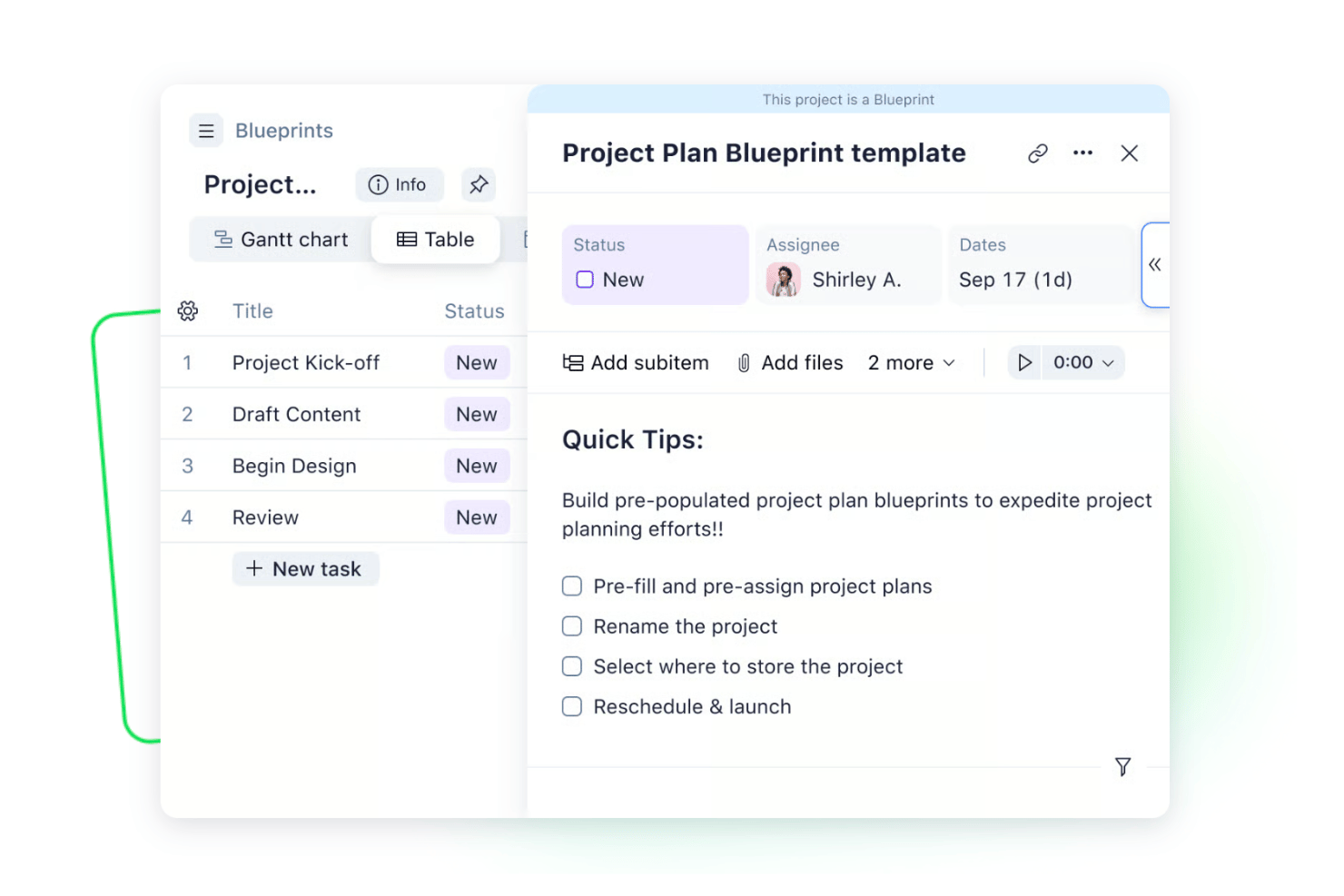
Wrike is a work management platform that combines task tracking, project planning, resource management, and cross-team collaboration with a layered folder, project, and space hierarchy that scales from individual contributors to large PMO teams.
Who Is Wrike Best For?
Wrike is a strong fit for mid-sized teams and PMO staff who need to manage work across multiple projects with layered task structures and cross-team visibility.
Why I Picked Wrike
I picked Wrike as one of the best because its layered spaces, folders, and project hierarchy lets teams structure work at whatever level of granularity they actually need. I especially like how cross-tagging lets you share a task across multiple projects without duplicating it, so a task owned by engineering can appear on a product roadmap and a sprint board simultaneously. Blueprints take that further by letting you templatize entire project structures for repeatable delivery.
Wrike Key Features
- Workload chart: View team capacity across projects, spot over-allocation, and move tasks from a built-in Backlog Box to balance work in real time.
- Time tracking: Log hours on tasks using a timer or manual entry, with dates, categories, and comments added to each time entry, available from the Business plan.
- No-code automation rules: Build trigger-based rules with up to 10 actions to automate task updates, assignments, and reminders across folders, projects, and spaces.
- Interactive Gantt charts: Map task dependencies, drag and drop to reschedule, and see how one delay shifts the rest of the project timeline.
Wrike Integrations
Wrike offers 400+ pre-built native integrations, including Slack, Microsoft Teams, Google Drive, Salesforce, and Google Sheets. It also provides an open REST API and Wrike Integrate for custom workflows.
Pros and Cons
Pros:
- Blueprints standardize repeatable project structures
- Workload charts reveal team capacity
- Dashboards clarify progress across projects
Cons:
- Navigation can obscure project information
- Configuring workflows and hierarchy takes time
New Product Updates from Wrike

Wrike Adds a Whiteboard Template Gallery
Wrike introduces a Whiteboard Template Gallery with a dedicated templates section, template previews, smart sorting, and usage counters. These features simplify whiteboard creation and template discovery. For more information, visit Wrike’s official site.
Best for centralized agency task management
Productive is a professional services management platform that brings together task management, time tracking, resource planning, budgeting, and financial reporting in one workspace.
Who Is Productive Best For?
Productive is a strong fit for agency teams and professional services firms that need project tasks, time tracking, and budgets managed in one place.
Why I Picked Productive
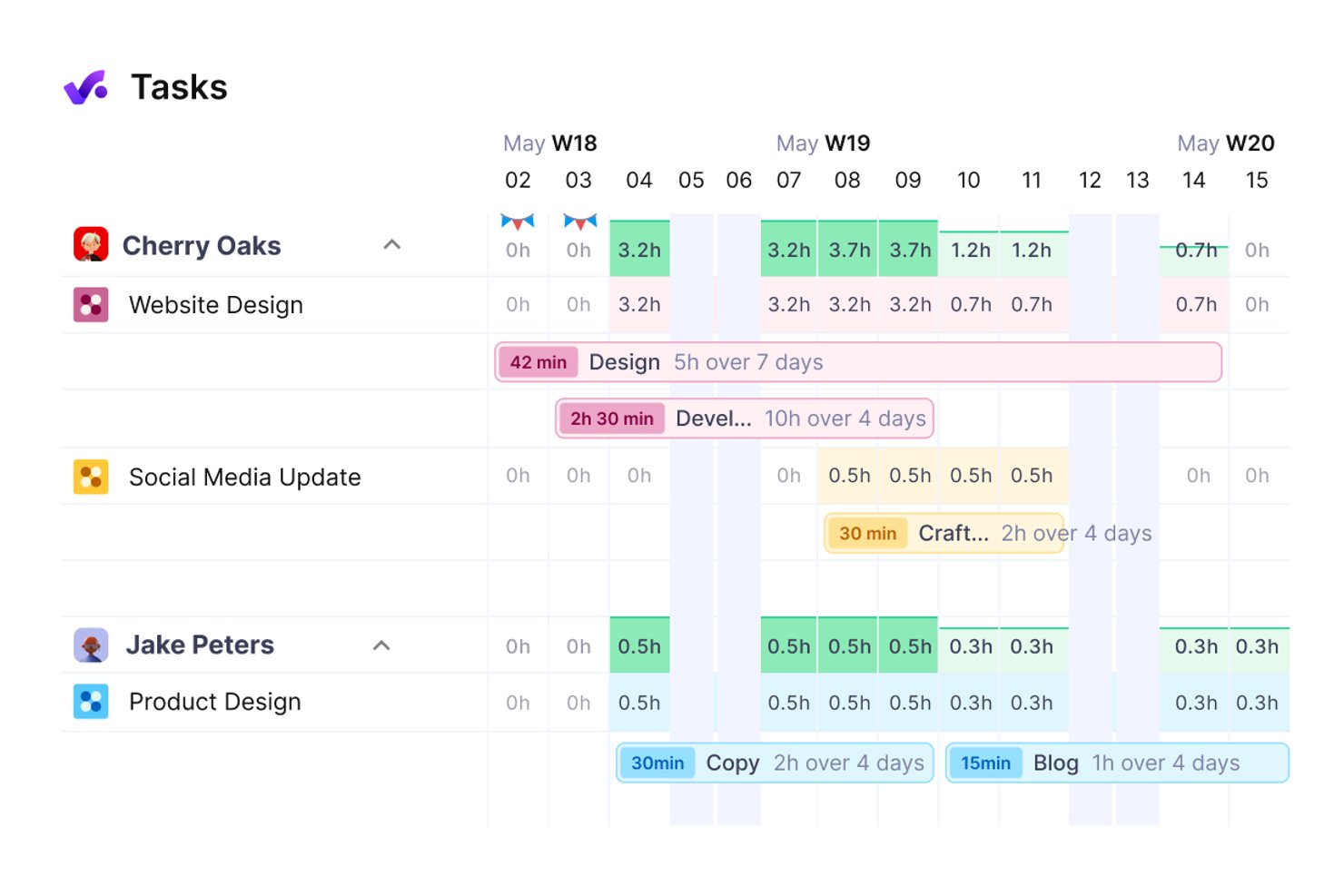
I've included Productive in my top picks because it's the only tool on this list that truly centralizes agency task management by keeping project tasks, time tracking, budgets, and resource planning in one workspace. I particularly like how tasks link directly to services and budgets, so when my team logs time against a task, that data flows straight into project profitability reporting. The workload view also gives managers a real-time picture of task load across the team, using actual assignments and estimates rather than a separate planning layer.
Productive Key Features
- AI Assistant: Lets you create, update, and remove tasks using plain-language instructions, and can draft automations for your review before activation.
- Task dependencies: Links tasks to define sequencing, so your team knows what needs to happen before the next piece of work can start.
- Project automations: Triggers actions like sending Slack messages or creating invoices based on project activity, without manual follow-up.
- Recurring tasks: Generates repeat tasks on a daily, weekly, monthly, or annual schedule, creating the next instance once the current task is closed.
Productive Integrations
Productive offers native integrations with Slack, Google Calendar, Microsoft Outlook, Jira, HubSpot, Xero, QuickBooks, and Personio. It also provides an open API with webhooks and supports Zapier.
Pros and Cons
Pros:
- Workload views reveal team task load
- Task-linked time clarifies project profitability
- Task views organize daily project work
Cons:
- Priorities require custom fields
- Single-assignee tasks restrict shared ownership
New Product Updates from Productive
Productive Adds Email and Calendar Integrations for Agents
Productive adds Gmail, Outlook, Google Calendar, and Outlook Calendar connectors for its AI agents. These integrations let agents manage emails and create calendar events directly within Productive. For more information, visit Productive’s official site.
Hive
Best for syncing work between Jira and Hive
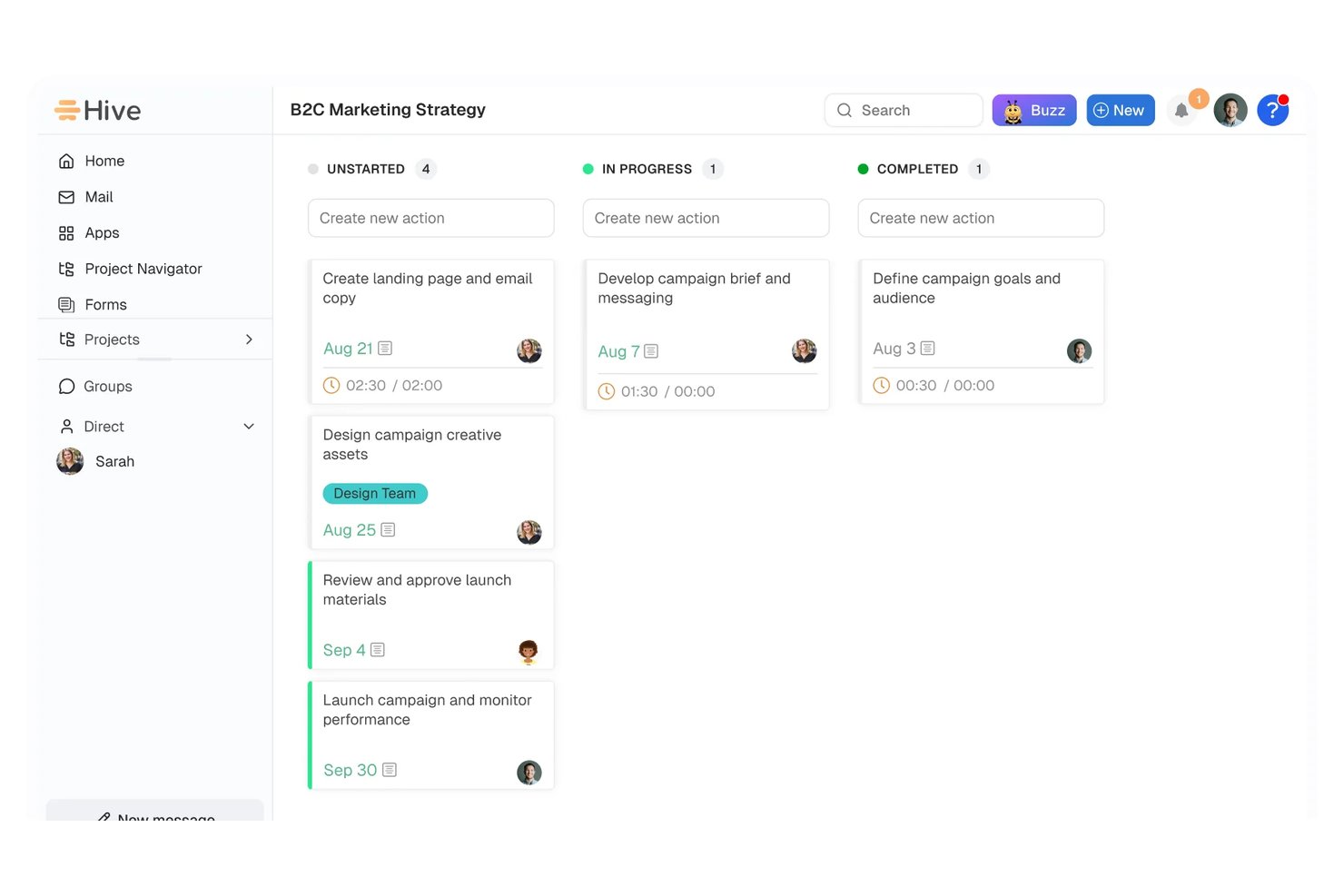
Hive is an AI-powered project and task management platform that brings together action cards, multiple project views, workflow automation, time tracking, and Jira sync in one workspace.
Who Is Hive Best For?
Hive works well for cross-functional teams that run projects in both Hive and Jira and need those two environments to stay in sync without manual updates.
Why I Picked Hive
I've included Hive in my top picks because it's the only tool on this list with a native, configurable two-way Jira sync that keeps action cards, assignees, statuses, and due dates aligned across both platforms automatically. If your engineering team lives in Jira while your project leads track work in Hive, that sync eliminates the manual reconciliation that usually falls on whoever's managing both sides. I also like that you can set the sync direction: Jira to Hive, Hive to Jira, or both ways, depending on where your source of truth lives.
Hive Key Features
- Multiple project views: Switch between Kanban, Gantt, Timeline, Table, Calendar, and Portfolio views to see work in whatever format fits your team.
- Workflow automation builder: Build multi-step automations with a drag-and-drop builder, using triggers like status changes, form submissions, or scheduled events.
- Native time tracking: Log time directly on action cards with a timer or manual entries, then roll it up into timesheets and exportable reports.
- AI-assisted project creation: Describe an outcome in plain language and Buzz generates a project complete with tasks, owners, and due dates.
Hive Integrations
Hive integrates with Jira, Jira Data Center, Slack, Microsoft Teams, Google Drive, Google Calendar, and Outlook Calendar. It also offers an API and integrations via Zapier or other iPaaS platforms.
Pros and Cons
Pros:
- Capacity views help spot overloaded teammates
- Clear ownership with comments and mentions
- Multiple views clarify task progress
Cons:
- Mobile work lacks offline access
- Reporting can require extra steps
Best for enterprise workflow automation
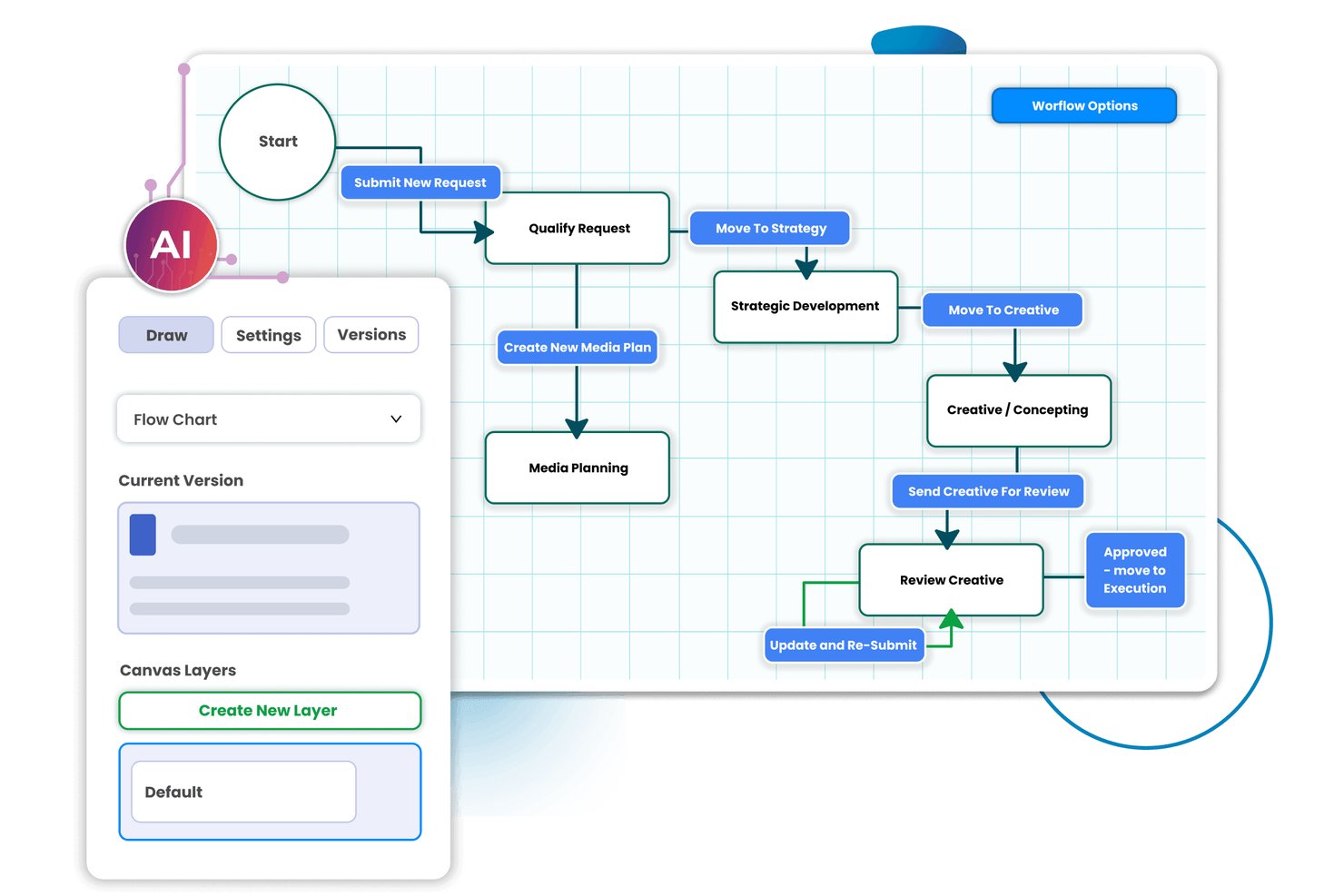
Screendragon is an enterprise workflow management platform that handles marketing and creative project tasks through configurable workflow automation, multi-view task management, resource planning, and built-in approvals and proofing.
Who Is Screendragon Best For?
Screendragon is a strong fit for enterprise marketing and creative operations teams that need to manage high volumes of complex, approval-heavy workflows across multiple projects.
Why I Picked Screendragon
I picked Screendragon as one of the best because of how deeply its workflow automation is built into the actual work, not just as an add-on feature. When a workflow step triggers, it can auto-create tasks, pre-populate briefs from intake forms, and assign work based on team skills and availability, all without manual handoffs. I also love that the AI Hub lets you embed agents directly into workflow steps to draft briefs, flag at-risk work, or summarize project status in real time.
Screendragon Key Features
- Online proofing: Review and mark up documents, artwork, and video directly within the workflow, with comments and decisions stored against each version.
- Role-based and field-level access controls: Set permissions by role down to individual fields, controlling who can view, edit, or act on specific data across projects.
- Resource capacity views: See team availability by task, hours, or percentage in weekly and monthly snapshots, filtered by department, skill set, region, or custom role.
- Custom reporting: Build automated reports from your organization's own data sets and track workflow status and milestones through real-time dashboards.
Screendragon Integrations
Screendragon has 11 documented native integrations, including Smartsheet, Workato, Microsoft Power BI, HubSpot, and Aprimo. It also offers a REST API with webhooks, plus Zapier.
Pros and Cons
Pros:
- Dashboards clarify milestones across projects
- Skill-based assignment accounts for team capacity
- Workflow triggers turn intake into assigned tasks
Cons:
- Priority sorting lacks dedicated labels and filters
- Complex approval chains can slow large projects
Best for Zoho ecosystem users
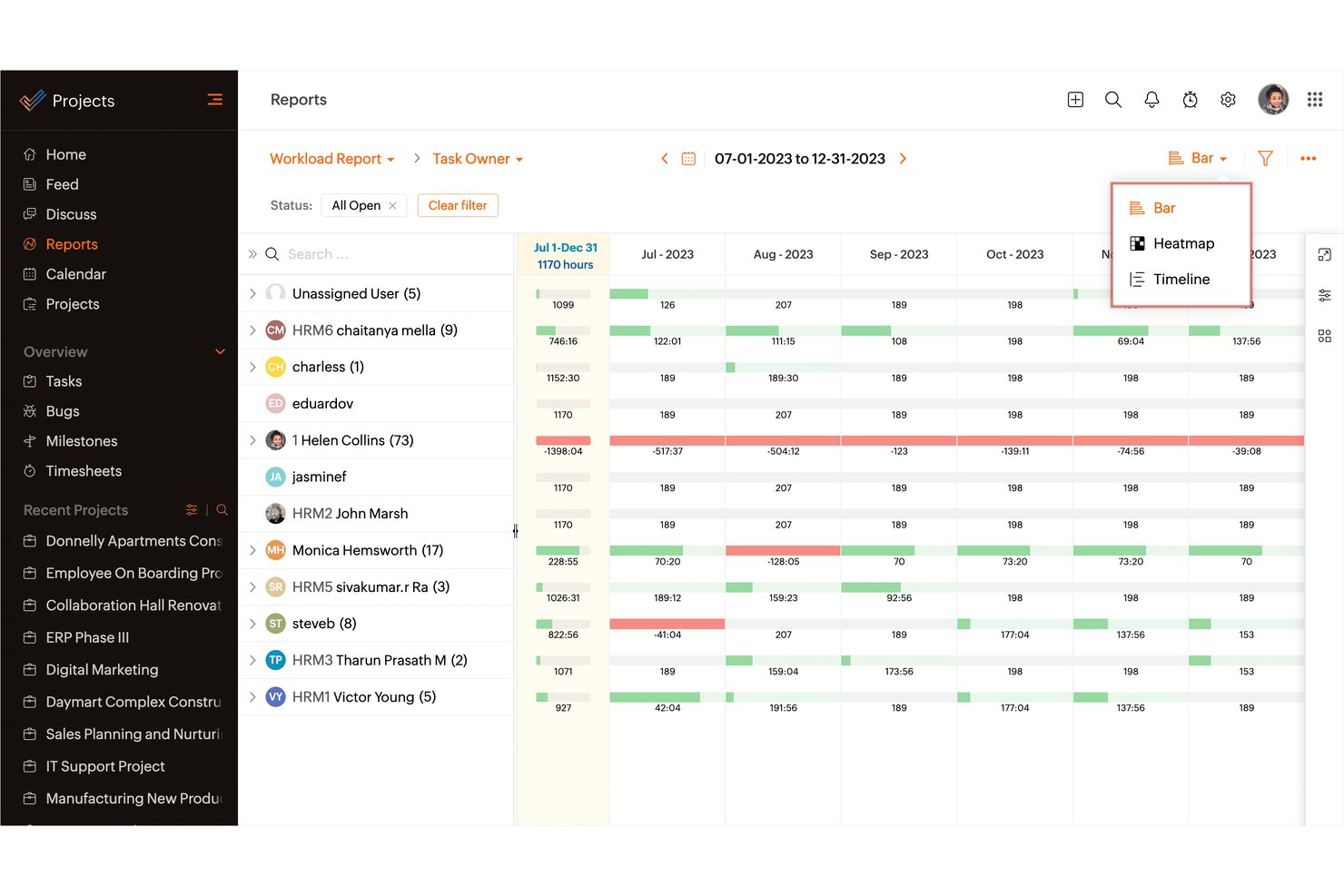
Zoho Projects is a project management platform that covers task tracking, scheduling, Gantt charts, time logging, workload management, and cross-project reporting—with deep native integrations across the broader Zoho suite.
Who Is Zoho Projects Best For?
Zoho Projects is a strong fit for small to mid-sized teams already running other Zoho tools, where native connections across CRM, billing, HR, and analytics actually pay off.
Why I Picked Zoho Projects
I've included Zoho Projects in my top picks because, if your team already runs on Zoho CRM, Zoho Desk, or Zoho People, the native connections mean project tasks, billable time, and resource availability all stay in sync without any middleware. I particularly like how the Workload Report pulls in approved leave data from Zoho People, so when I'm assigning tasks I can see who's actually available. The built-in time tracking with timesheet approvals and direct invoicing through Zoho Books is also a genuinely tight loop that most standalone project tools can't replicate natively.
Zoho Projects Key Features
- Task blueprint: Design structured task workflows that automatically assign people, update fields, and alert teams as task statuses change.
- Portfolio dashboard: View task, issue, ownership, and budget-health information across all projects in your portal from a single screen.
- Critical path identification: Pinpoint the tasks and dependencies that directly affect your project's end date so you can protect your schedule.
- Zia AI task generation: Generate a full set of tasks and subtasks from a project or milestone description using Zoho's built-in AI assistant.
Zoho Projects Integrations
Zoho Projects offers 50+ marketplace integrations, including native connections with Zoho CRM, Zoho People, Zoho Analytics, Google Calendar, Microsoft Teams, Slack, Google Drive, Dropbox, and GitHub. It also provides a REST API and Zapier integration.
Pros and Cons
Pros:
- Built-in timesheets track task hours for billing
- Gantt charts and reports clarify project progress
- Task owners, updates, files, and deadlines stay together
Cons:
- Mobile app can lag behind desktop capabilities
- Crowded screens can complicate advanced setup
New Product Updates from Zoho Projects
Zoho Projects Introduces Web Forms for External Requests
Zoho Projects introduces Web Forms to collect external user submissions and convert them into actionable project records. This feature reduces manual data entry and simplifies request management. For more information, visit Zoho Projects’ official site.
 .
Toggl
Best for time-tracked task and capacity planning
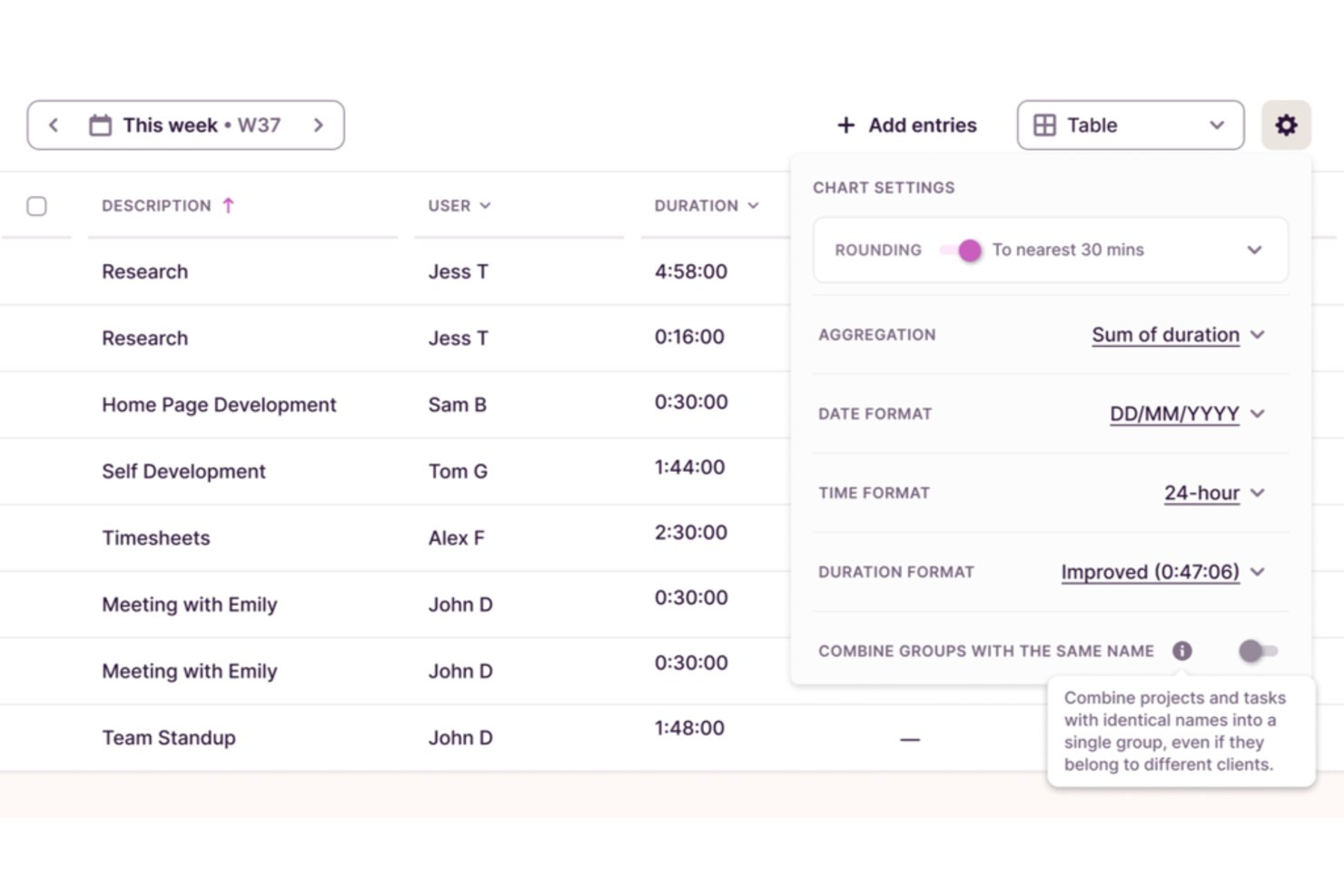
Toggl is a task and project management platform that pairs task tracking, scheduling, and team assignment with native time tracking and capacity planning tools.
Who Is Toggl Best For?
Toggl is a strong fit for project managers and team leads who need to connect task planning directly to time tracking and capacity data.
Why I Picked Toggl
I picked Toggl as one of the best because it's the only task management tool I've used where time tracking isn't bolted on as an afterthought. It's built directly into the task layer, so when I log hours against a task, those actuals flow straight into project dashboards that compare estimated versus real time spent. I also rely on its capacity planning view to see who's overloaded before I assign more work, factoring in working hours and approved time off.
Toggl Key Features
- AI task creator: Converts briefs, notes, or photos of to-do lists into structured, reviewable tasks automatically.
- Multiple assignees with split estimates: Assigns tasks to individuals or teams and divides time estimates evenly or by custom hours or percentages.
- Custom task statuses and board view: Moves tasks across user-defined statuses in a drag-and-drop board view for visual workflow management.
- Project templates: Saves and reuses project setups including task lists, member assignments, billable rates, and estimates.
Toggl Integrations
Toggl offers native integrations with Asana, Jira, Google Calendar, Outlook Email & Calendar, and Slack. It also provides a REST API, webhooks, and Zapier connectivity for custom workflows.
Pros and Cons
Pros:
- AI turns briefs into task lists
- Capacity views flag overloaded teammates
- Timer entries reveal task estimate overruns
Cons:
- No portfolio-wide task progress rollup
- Task assignments don’t notify assignees

Best for building task trackers without code
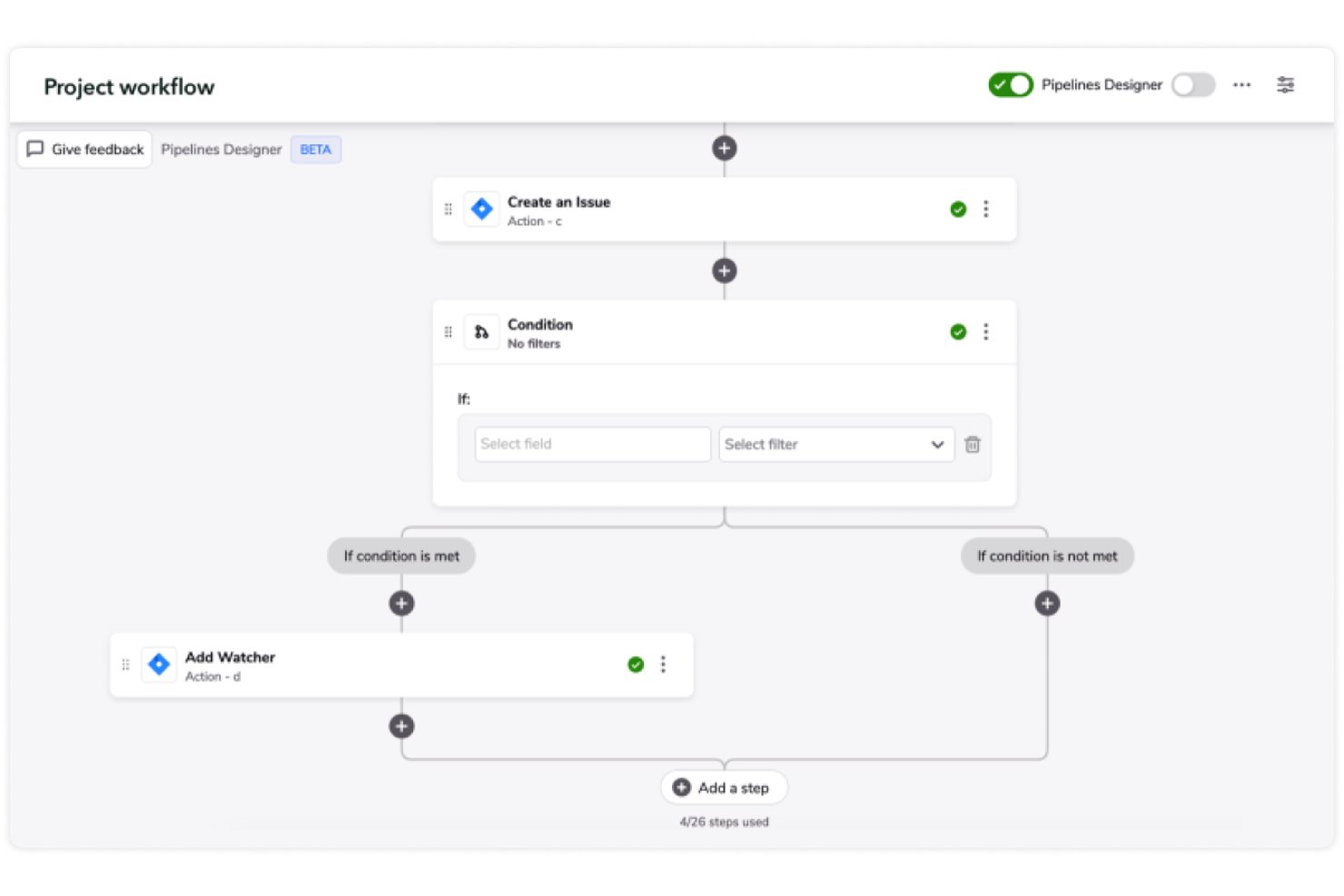
Quickbase is a no-code application platform that lets teams build custom task trackers, project management apps, and automated workflows on top of a relational database.
Who Is Quickbase Best For?
Quickbase suits operations managers and PMO teams who need to build custom workflows and task trackers around complex, cross-functional projects.
Why I Picked Quickbase
I picked Quickbase as one of the best because it lets you build task trackers that fit exactly how your team works, not the other way around. Using the no-code app builder, I can create relational tables that link projects, tasks, and issues, then surface them in Gantt, Kanban, or calendar views without writing a line of code. The Gantt plugin's dependency tracking automatically shifts downstream task dates when something changes upstream, which is a real time-saver on cross-functional projects.
Quickbase Key Features
- Role-based permissions: Control access to apps, tables, fields, and records by assigning each user a role with specific permissions.
- Record-change notifications: Trigger automated alerts when records are added, modified, or deleted, with routing to the user in an "Assigned to" field.
- Pipelines Designer: Build multi-step workflows that connect Quickbase apps and third-party tools using triggers, conditions, and loops.
- Resource assignment reports: View tasks grouped by assignee, sorted by resource, or displayed on a timeline to track who owns what across a project.
Quickbase Integrations
Quickbase offers 40+ pre-built integration channels, including Jira, Microsoft Teams, Slack, Salesforce, Procore, Box, and Google Calendar. It also provides a JSON RESTful API for custom integrations and cross-app data synchronization.
Pros and Cons
Pros:
- Resource views clarify task ownership
- Gantt dependencies update downstream task dates
- Custom reports and Kanban track progress
Cons:
- No built-in priorities or recurring tasks
- Gantt requires prebuilt tables and fields
Quire
Best for breaking goals into nested task lists
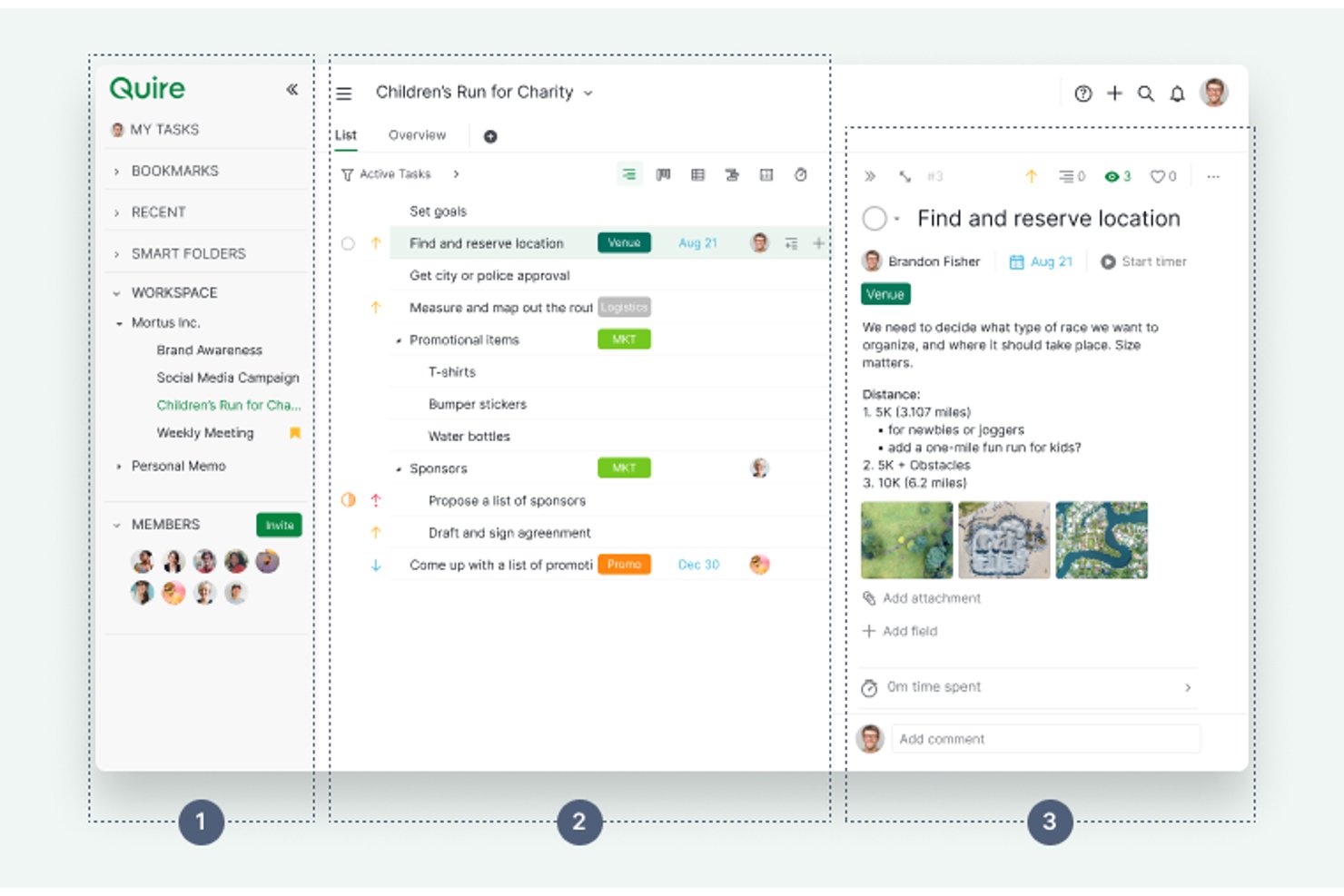
Quire is a task and project management tool built around hierarchical task organization, offering nested lists, multiple project views, team collaboration, and cross-project dashboards.
Who Is Quire Best For?
Quire is a strong fit for small to mid-sized teams that manage complex, multi-layered projects and need a clean way to break large goals into structured, nested task hierarchies.
Why I Picked Quire
I picked Quire as one of the best because its nested task hierarchy is genuinely the deepest I've seen in a task management tool. When I'm working on a complex initiative, I can break a top-level goal into subtasks, then break those subtasks down further, all without losing sight of the parent project. The Peekaboo feature is a practical touch, too: it lets me hide tasks until they're actually actionable, so the list stays focused rather than cluttered.
Quire Key Features
- Multiple assignees: Assign a task to more than one team member, or to an External Team with restricted task visibility.
- Dashboard widgets: Surface overdue, at-risk, and upcoming tasks alongside member workload and portfolio health signals in a single view.
- Kanban board view: Visualize tasks as cards moving through workflow stages as an alternative to the nested list layout.
- Time tracking and reports: Log time against tasks and review recorded hours by task, date, or team member across Time Report and Timesheet views.
Quire Integrations
Quire offers native integrations with Slack, Microsoft Teams, Google Calendar, GitHub, Google Drive, and Dropbox. It also supports a REST API with OAuth 2.0 and Zapier.
Pros and Cons
Pros:
- Task assignments make ownership visible
- List and board views clarify project work
- Nested subtasks keep complex work legible
Cons:
- Nested structure takes adjustment from flat lists
- Portfolio reporting offers limited trend detail
New Product Updates from Quire
Quire Adds Read Receipts for Comments
Quire now supports read receipts for comments, helping teams see who has viewed discussion updates and reducing missed responses. For more information, visit Quire's official site.
 .
Nifty
Best for milestone tracking
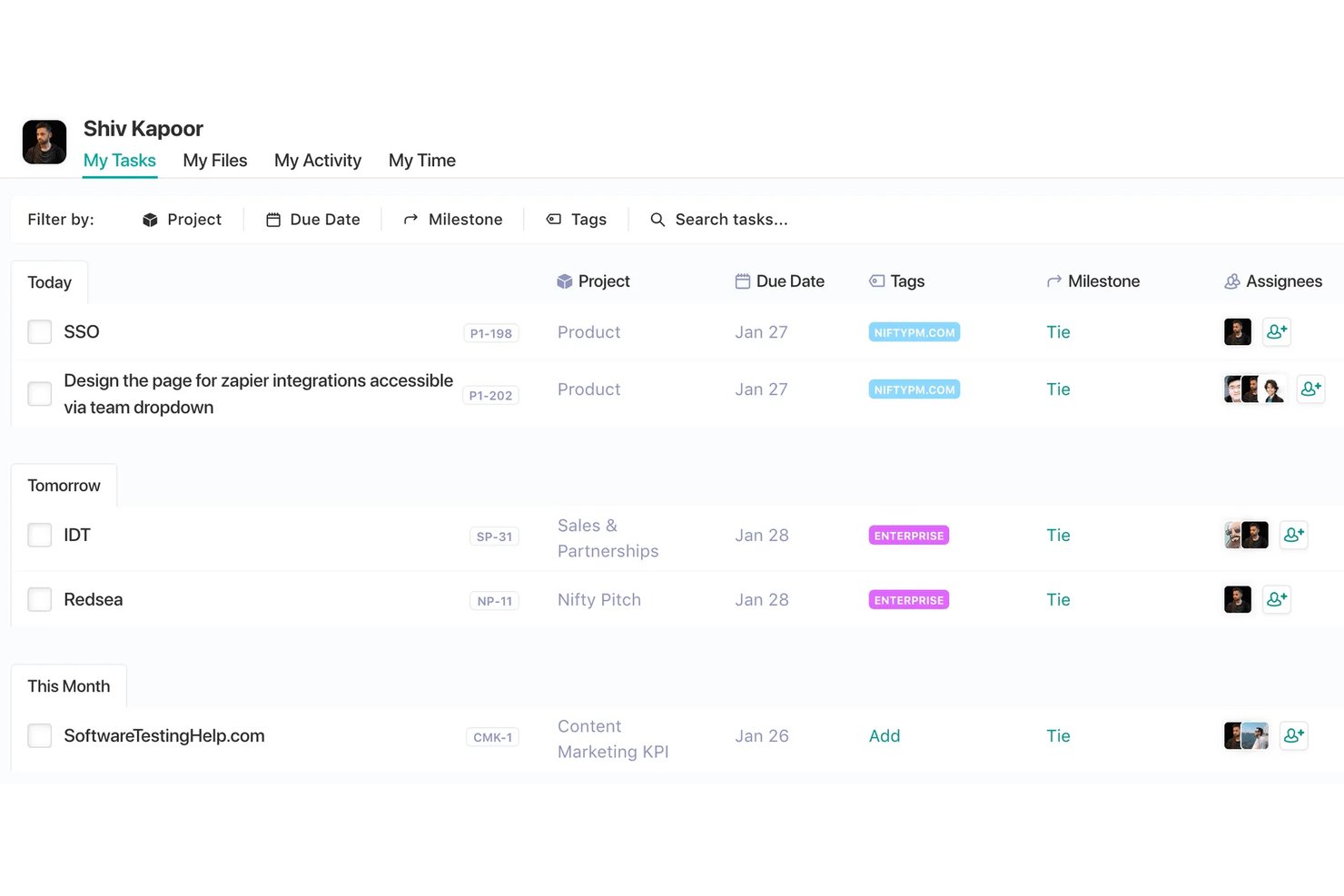
Nifty is a work management platform that combines task tracking, milestone-based roadmaps, team collaboration, and cross-project reporting in a single workspace.
Who Is Nifty Best For?
Nifty is a strong fit for small to mid-sized teams that need to connect daily task work directly to project milestones and delivery timelines.
Why I Picked Nifty
I chose Nifty as a top option because its milestone tracking is seamlessly integrated into the tool’s core functionality. When you link a task list to a milestone and set a due date, Nifty automatically updates the milestone’s progress as tasks are completed, ensuring your roadmap reflects actual work in real time. The Master Overview then presents the status of all milestones across every active project in one consolidated view, complete with portfolio filters and CSV export for easy reporting.
Nifty Key Features
- Workflow automations: Build if/then rules that automatically assign users, set deadlines, change task lists, or post messages based on configurable triggers.
- Custom fields: Add workflow-specific fields to tasks and milestones to capture the information your team actually needs to track.
- Project discussions: Collaborate with teammates in real-time project threads, convert messages into tasks, and share files without leaving the project.
- Native time tracking: Log time directly on tasks and subtasks, edit time entries, and export project-, user-, or workspace-level reports as CSV or PDF.
Nifty Integrations
Nifty offers native integrations with Slack, Microsoft Teams, Google Calendar, Outlook Calendar, GitHub, Miro, and the Microsoft ecosystem, including Microsoft 365. It also provides a REST API, webhooks, OAuth 2.1, and over 2,000 integrations through Zapier.
Pros and Cons
Pros:
- Recurring tasks support repeatable workflows
- Portfolio views surface cross-project status
- Milestone progress updates as tasks finish
Cons:
- Mobile task boards trail desktop
- Notifications can become noisy
Other Task Management Software
Here’s a few more that didn’t make the top list. If you need additional suggestions for handy task management software, check these out.
- Asana
For task visualization
- ProjectManager
For real-time dashboards
- ClickUp
Robust free plan
- GoodDay
For customizable workflows
- Smartsheet
For spreadsheet-based portfolio oversight
- Teamwork.com
For client deliverable approvals
- GanttPRO
For auto-scheduling dependent tasks
- Kintone
For task management in regulated teams
- Notion
For task-linked portfolio oversight
- Bonsai Agency Software
For tasks tied to client administration


How I Evaluate Task Management Software
I split my evaluation into three parts, giving the most weight to core functionality: track tasks with clear owners and deadlines. Next, I compare standout features such as workload views and AI scheduling. Finally, I consider onboarding, support, and pricing value as teams grow.
Core Functionality (Table Stakes For This List)
When I'm selecting tools for my list, I score each one on a scale from 0 (does not offer the functionality) to 5 (excels in this area) for each core functionality listed below. I then convert the total into a percentage to help assess each tool's overall fit, with extra weight on any functionalities I’ve deemed essential.
- Task Tracking (Essential): I look for editable tasks with descriptions, subtasks, and completion states, so a launch checklist can move from brief to done.
- Due Dates & Scheduling (Essential): I check for due dates, start dates, reminders, and recurring tasks to support release plans and recurring reviews.
- Assignment & Ownership: I assess whether teams can assign clear owners and see who’s responsible for each task across project workstreams.
- Status & Progress: I look for visible task states across list, board, or calendar views, plus progress roll-ups that help surface delivery risks.
- Prioritization: I check whether teams can label, sort, and filter tasks by priority when shifting deadlines compete for attention.
- Lists & Views: I evaluate how tasks are grouped into separate projects or workstreams, with tags or nested lists to keep complex work organized.
Once I have a list of tools that meet the criteria, I consider what sets each platform apart.
Differentiating Factors (What Sets Vendors Apart)
Here's how I compare and contrast different vendors:
Standout Features
I evaluate workload balancing views to see whether a tool shows individual capacity at a glance. When a sprint is mid-flight and a teammate is overloaded, I need to spot that before deadlines slip. I also check for cross-project portfolio rollups, since most teams juggle several projects at once and need task-level progress surfaced in a single dashboard. Custom automation rules matter too. I look at whether no-code triggers can reassign tasks or update statuses when conditions change, like moving a task to "review" once all subtasks are complete.
Beyond Features
I check how well each tool scales as teams grow, since a platform that works for five people can fall apart at fifty without proper role-based permissions and admin controls. Integration depth matters just as much. I look for native connections to Slack, Google Drive, and calendars so teams aren't copying updates between apps. API access and Zapier or Make support also help when you need to wire a tool into an existing stack. Finally, I evaluate mobile apps for real task management, not just push notifications, because distributed teams need to update work from anywhere and trust that changes sync across devices.
How to Choose Task Management Software
It’s easy to get bogged down in long feature lists and complex pricing structures when selecting a task management software. To help you stay focused as you work through your unique software selection process, here’s a checklist of factors to keep in mind:
| Factor | What to Consider |
| Scalability | Ensure the software can grow with your team. Look for flexible user limits, advanced workflows, and enterprise-level features like role-based access control and workload management. |
| Integrations | Check if the software connects with your existing tools—like Slack for communication, Google Drive for file sharing, and CRM platforms for project alignment—to streamline your workflow. |
| Customizability | Your team needs adaptable task views, custom fields, and workflow automation to match your processes instead of forcing you to adjust to the software. |
| Ease of Use | Look for an intuitive interface, drag-and-drop functionality, and minimal onboarding time. A clunky system will slow your team down instead of helping them move faster. |
| Budget | Consider both upfront and long-term costs, including per-user pricing, feature restrictions on lower plans, and hidden fees for add-ons or integrations. |
| Security Safeguards | Ensure the software includes data encryption, access controls, and compliance with industry standards like GDPR or SOC 2, especially if you handle sensitive information. |
| Collaboration Features | Your team should be able to comment on tasks, @mention colleagues, and share files easily. Features like real-time updates and mobile access can also improve teamwork. |
| Automation | Look for rule-based task automation, recurring task scheduling, and workflow triggers to reduce manual work and increase efficiency. |
How to Vet You Tool Shortlist
- Run a sample project: In a trial, create 12 tasks with owners, due dates, and subtasks; check whether your team can follow each task from assignment to completion.
- Test a schedule change: Move one deadline and add a blocked task; note whether the project view makes the changed dates and unresolved work easy to identify.
- Check cross-project reporting: Use 3 sample projects and ask a colleague to find each project’s overdue tasks and current owners without separate status updates.
- Choose your tradeoff: Record your decision in a one-page evaluation note: prioritize detailed workload and time records over simpler task handling, or simpler task handling over deeper capacity planning.
Teams are always looking to centralize their tasks and data. The best tools are the ones that can handle both task management and document collaboration, without becoming overwhelming.

What Is Task Management Software?
Task management software is a tool that helps individuals and teams organize, prioritize, and track tasks throughout a project’s lifecycle.
It gives project managers and contributors a clear view of task owners, deadlines, priorities, and progress. Teams can use it to coordinate handoffs, monitor upcoming or overdue work, and manage tasks across multiple projects. Some tools also include workload views or time tracking to support capacity planning and project reporting.
Task Management Software Features
When selecting task management software, keep an eye out for the following key features:
- Task creation and assignment: This feature lets you quickly add new tasks and assign them to yourself or team members. You can easily track who’s responsible for what, making it tough for things to fall through the cracks.
- Deadline tracking: See exactly when each task is due and get reminders when deadlines are approaching. This helps you avoid last-minute panics and keeps projects moving forward.
- Prioritization tools: Organize tasks based on their urgency or importance, so you always know what deserves your attention first. You can spend less time deciding where to start and more time getting things done.
- Collaboration features: Communicate directly on tasks with comments, file sharing, and real-time updates. You don’t have to worry about losing work or missing feedback in a sea of emails.
- Progress tracking: Get a bird’s-eye view of where each task stands—from “not started” to “in progress” to “done.” This makes it simple for you to monitor momentum and spot bottlenecks early.
- Notifications and alerts: Stay in the loop with instant notifications when tasks are updated, assigned, or completed. You won’t risk missing important updates or changes.
- Integration capabilities: Connect the software with tools you already use, like calendars, email, or messaging apps. This means fewer manual updates and more time saved throughout your day.
- Reporting and analytics: Generate reports to spot productivity trends, measure team performance, and identify areas for improvement. These insights make it easy for you to make smarter decisions about how you work.
- Mobile access: Manage tasks from any device, whether you’re at your desk or on the go. You aren’t tied to your computer (because sometimes inspiration—or deadlines—strike outside the office).
- Customizable workflows: Adapt the software to fit your team’s unique processes, whether you’re running agile sprints or following a simple to-do list. This flexibility helps you work the way you like, rather than forcing you into a rigid system.
AI Features
Modern task management software often includes AI-powered features designed to make your workflow even smoother:
- Smart task suggestions: AI can recommend tasks based on your habits or project history, helping you remember recurring work and stay organized without extra effort.
- Automated prioritization: Some tools use AI to automatically rank your tasks by urgency or importance, so you can focus on what matters most.
- Natural language processing: Quickly add tasks by typing or speaking in plain language—AI will interpret your input and create the right task for you.
- Predictive deadlines: AI can estimate how long tasks might take or flag when you’re at risk of missing a deadline, giving you a heads-up before issues arise.
- Automated reminders: Receive proactive reminders and notifications based on your work patterns, so you never miss a beat.
- Data-driven insights: AI analyzes your productivity trends and suggests ways to optimize your workflow or improve team collaboration.
- Workflow automation: Set up AI-powered rules to automatically assign tasks, update statuses, or send notifications based on triggers you define.
Benefits of Task Management Software
Implementing task management software can provide several benefits for your team and your business. Here are a few you can look forward to:
- Better organization: Keeps all tasks, deadlines, and priorities in one place so nothing gets lost or forgotten.
- Increased productivity: Helps teams focus on the right work by setting priorities, tracking progress, and reducing time spent on manual updates.
- Improved collaboration: Lets team members share tasks, leave comments, and attach files, keeping all project communication in one spot.
- Fewer missed deadlines: Sends reminders and tracks due dates, making it easier to stay on schedule.
- Clearer accountability: Assigns tasks to specific people, so everyone knows who’s responsible for what.
- More efficient workflows: Uses automation, recurring tasks, and dependencies to reduce bottlenecks and speed up processes.
- Better workload balance: Shows who’s overloaded and who has capacity, helping managers distribute tasks fairly.
Pricing
Pricing varies by features, team size, and plan limits. Here are typical price ranges and features you can expect from task management software.
Plan Comparison Table for Task Management Software
| Plan Type | Average Price | Common Features |
|---|---|---|
| Free Plan | $0 | Basic task lists, due dates, limited projects, and basic collaboration |
| Personal Plan | $4–$10/user/month | Task assignments, subtasks, calendar views, and recurring tasks |
| Business Plan | $10–$25/user/month | Advanced project views, workload management, automations, and reporting |
| Enterprise Plan | $25+/user/month or custom pricing | Advanced permissions, portfolio reporting, security controls, and dedicated support |
FAQs
See some of the most frequently asked questions about task management software below.