10 Best Project Management Software For Startups in 2026

10 Best Project Management Software For Startups Shortlist


The best project management software for startups helps founders and small teams manage deadlines, budgets, deliverables, and collaboration, and stay focused on building and scaling the business. Without the right tool, you'll struggle with scope creep, missed deadlines, and communication breakdowns caused by scattered spreadsheets, messy email threads, and disconnected tools.
The right software helps you prioritize tasks, allocate resources, manage clients, and streamline feedback, even with limited team capacity. I've used my 20+ years of experience as a project manager and startup founder to test these tools firsthand and round up the best project management software for startups so you can find the right fit to keep your business, team, and projects on track.
Why Trust Our Software Recommendations
Our team has been testing and reviewing software since 2012. As project managers ourselves, we know how difficult—and important—it is to choose the right software.
For this guide, we evaluated tools using hands-on testing and independent research, scoring tools using our selection criteria. We also draw on insights from industry thought leaders and practicing project management experts.
Our reviews reflect our human editorial judgment, not a sales pitch.
Expert reviewers:
Project Management Software for Startups Comparison Table
This comparison table summarizes pricing details for my top project management software for startups selections:
| Tool | Best For | Trial Info | Price | ||
|---|---|---|---|---|---|
| 1 | Best for collaborative creative teams | Free plan + 14-day trial available | From $9/user/month (billed annually) | Website | |
| 2 | Best for collaborative whiteboards and visualizations | Free plan + 14-day free trial available | From $8/user/month (billed annually) | Website | |
| 3 | Best for custom task tracking on a budget | Free plan + free trial + free demo available | From $12/user/month | Website | |
| 4 | Best for docs, wikis, and tasks in one workspace | Free plan + Free trial + Free demo available | From $10/user/month | Website | |
| 5 | Best for new-team task adoption | Free plan + trial + demo available | From $10.99/user/month (billed annually) | Website | |
| 6 | Best for aligning product and engineering teams | Free plan + 14-day free trial + free demo available | From $8.50/user/month (billed annually) | Website | |
| 7 | Best for dev-team sprint and roadmap tracking | Free plan available | From $10/user/month (billed annually) | Website | |
| 8 | Best for growing startups on Atlassian's ecosystem | Free plan + 7-day free trial available | From $8.48/user/month | Website | |
| 9 | Best for infinite nested task breakdowns | Free plan + 30-day free trial available | From $7.65/user/month (billed annually) | Website | |
| 10 | Best for client and guest collaboration | Free plan + 14-day free trial available | From $10/user/month (billed annually) | Website |


Overviews of the Best Project Management Software for Startups
Here’s a brief description of each of my picks for the best project management tools for startup companies, along with screenshots, best use cases, and key features.
Best for collaborative creative teams
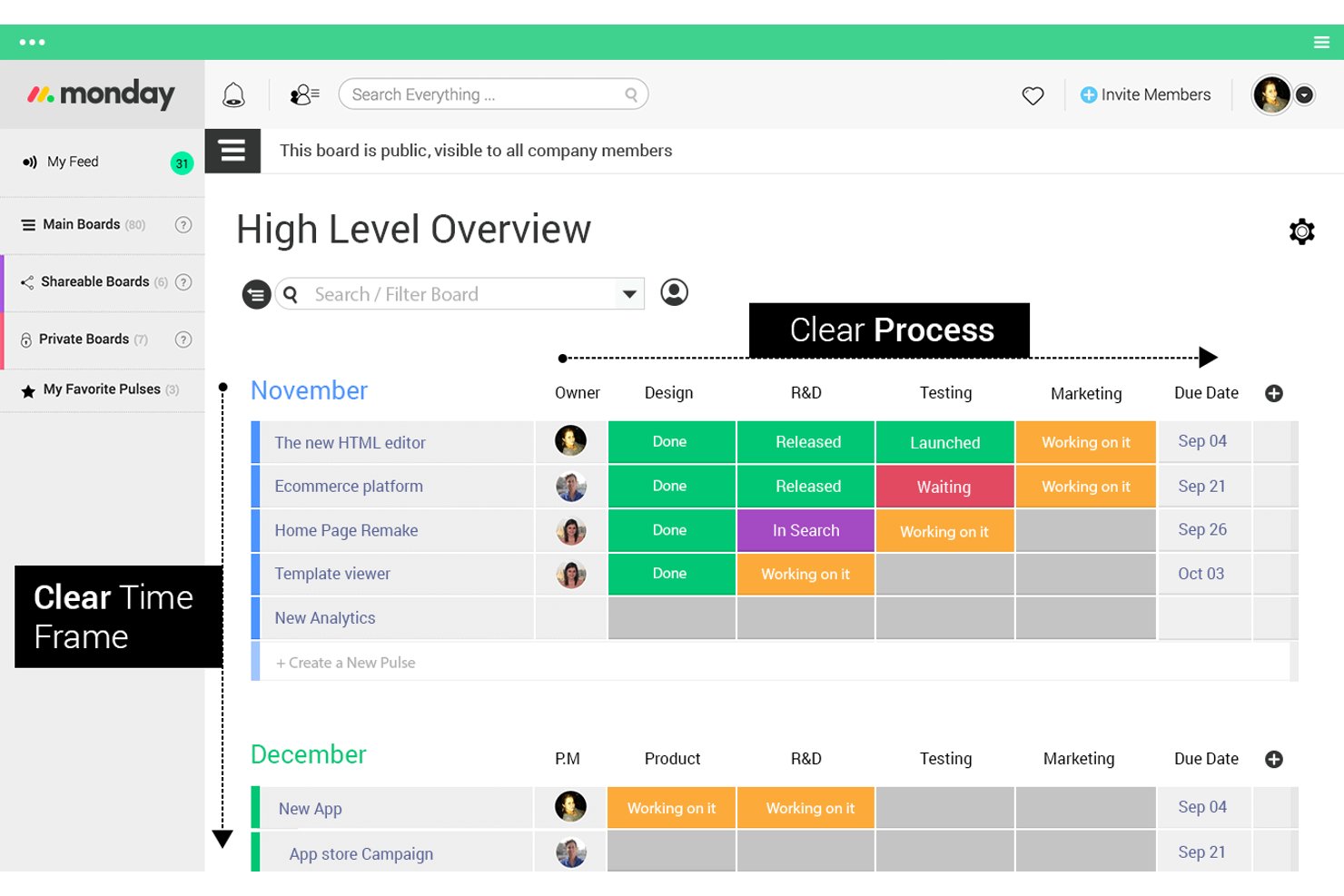
monday AI Workspace is a project management platform that combines task tracking, visual workflows, AI-assisted automation, and real-time collaboration tools across boards, timelines, and dashboards.
Who Is monday AI Workspace Best For?
monday AI Workspace is a strong fit for creative and marketing teams at startups that need visual project tracking and real-time collaboration across multiple workstreams.
Why I Picked monday AI Workspace
I've included monday AI Workspace in my top picks because creative and marketing teams at startups often juggle multiple campaigns, briefs, and feedback cycles at once. I love how its visual boards let teams map out workstreams side by side, while AI-assisted automation handles repetitive status updates. The real-time collaboration across timelines and dashboards keeps everyone aligned without constant check-ins.
monday AI Workspace Key Features
- Time tracking: Log hours directly on tasks to monitor how your team spends time across projects.
- Customizable dashboards: Build high-level views that pull data from multiple boards into a single snapshot.
- Dependency management: Link tasks so teams can see which items are blocked and what needs to happen first.
- Workload view: Visualize each team member's assigned work to spot capacity issues before they become problems.
monday AI Workspace Integrations
monday AI Workspace offers 850+ integrations and apps, including Slack, Google Calendar, Gmail, Microsoft Teams, GitHub, GitLab, HubSpot, Salesforce, QuickBooks, and Mailchimp. It supports custom integrations through a GraphQL API and Zapier.
Pros and Cons
Pros:
- Workload views expose capacity conflicts early
- Live updates reduce cross-team status chasing
- Visual boards map parallel startup campaigns
Cons:
- Custom workflows need upfront operating rules
- Board sprawl can obscure portfolio priorities
New Product Updates from monday AI Workspace
monday AI Workspace Adds Human Approval Routing
monday AI Workspace adds a human-in-the-loop approval block to AI Workflows, sending approval requests and routing workflow paths based on responses. For more information, visit monday AI Workspace's official site.

Miro
Best for collaborative whiteboards and visualizations
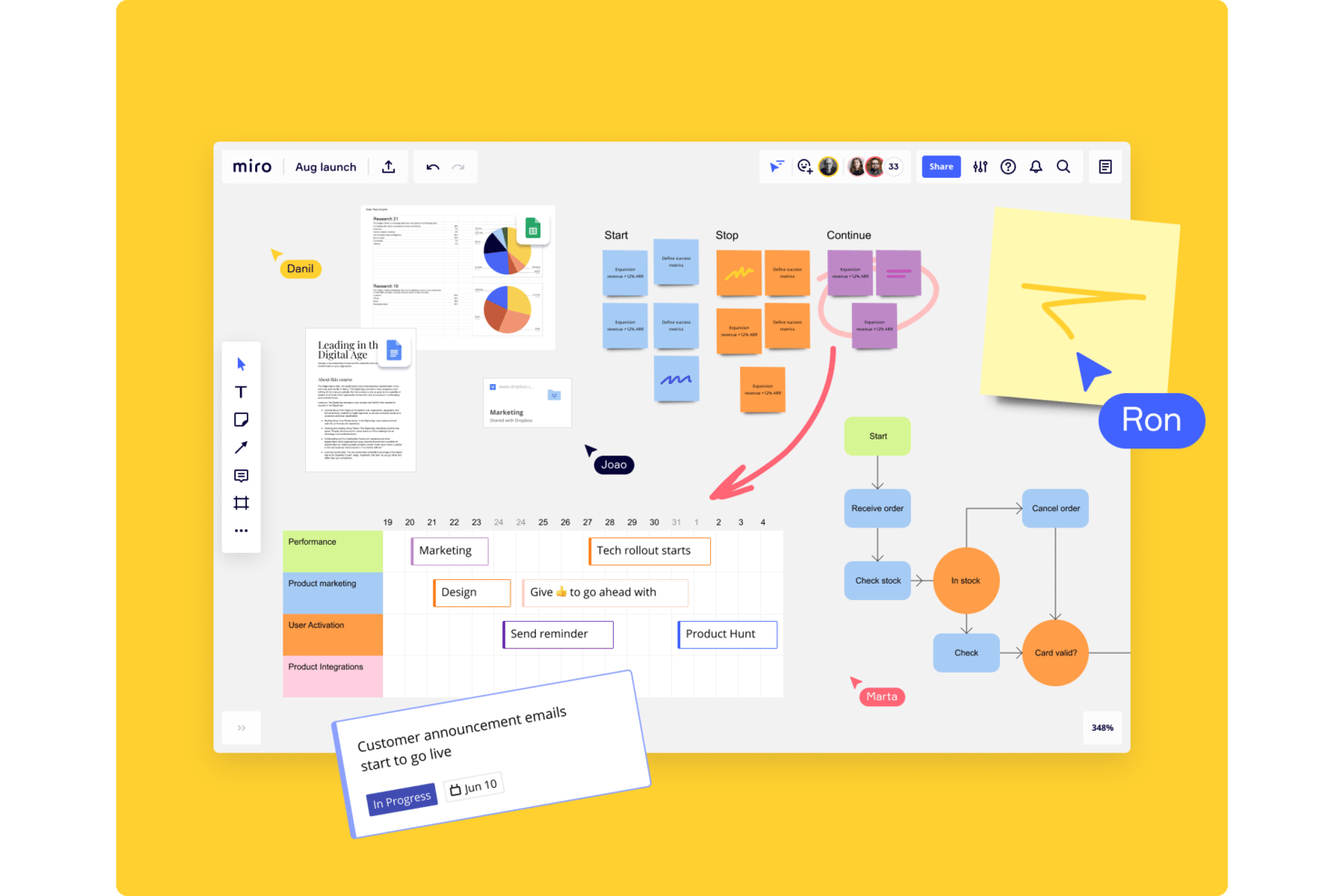
Miro is a visual collaboration platform that combines infinite whiteboards, mind mapping, diagramming, and project planning tools in one shared workspace.
Who Is Miro Best For?
Miro is a strong fit for startup teams that rely on visual thinking—whether that's mapping out product flows, running remote brainstorms, or aligning cross-functional work on a shared canvas.
Why I Picked Miro
Miro earns its spot on my shortlist because visual thinking is often how startup teams actually work through complex problems. I love how the infinite canvas lets cross-functional teams map out product flows, run structured brainstorms, and align on priorities in real time, all without losing context. The built-in mind mapping and diagramming tools mean you're not just sketching freely—you're building shareable, structured artifacts that move work forward.
Miro Key Features
- Template library: Access hundreds of pre-built templates for sprint planning, retrospectives, user story mapping, and more.
- Sticky notes and voting: Add sticky notes to any canvas and run dot-voting sessions to prioritize ideas as a team.
- Integrations with project tools: Connect Miro to Jira, Asana, Slack, and other tools to pull in live data directly onto your board.
- Presentation mode: Turn any board into a guided presentation to walk stakeholders through your work without leaving the canvas.
Miro Integrations
Miro offers 250+ integrations, including Jira, Asana, Slack, Microsoft Teams, Confluence, GitHub, Google Workspace, Zoom, and Trello. Its APIs and SDKs support custom integrations for startup workflows.
Pros and Cons
Pros:
- Diagrams map product flows and dependencies
- Voting makes startup prioritization sessions concrete
- Shared canvases help teams align visually
Cons:
- Large canvases can become difficult to navigate
- Boards don't replace structured task tracking
New Product Updates from Miro
Miro Adds Japan Data Residency for Enterprise Customers
Miro has introduced Japan data residency for enterprise customers, offering in-region storage for production data, backups, and metadata, plus in-region compute infrastructure. For more information, visit Miro's official site.
ClickUp
Best for custom task tracking on a budget
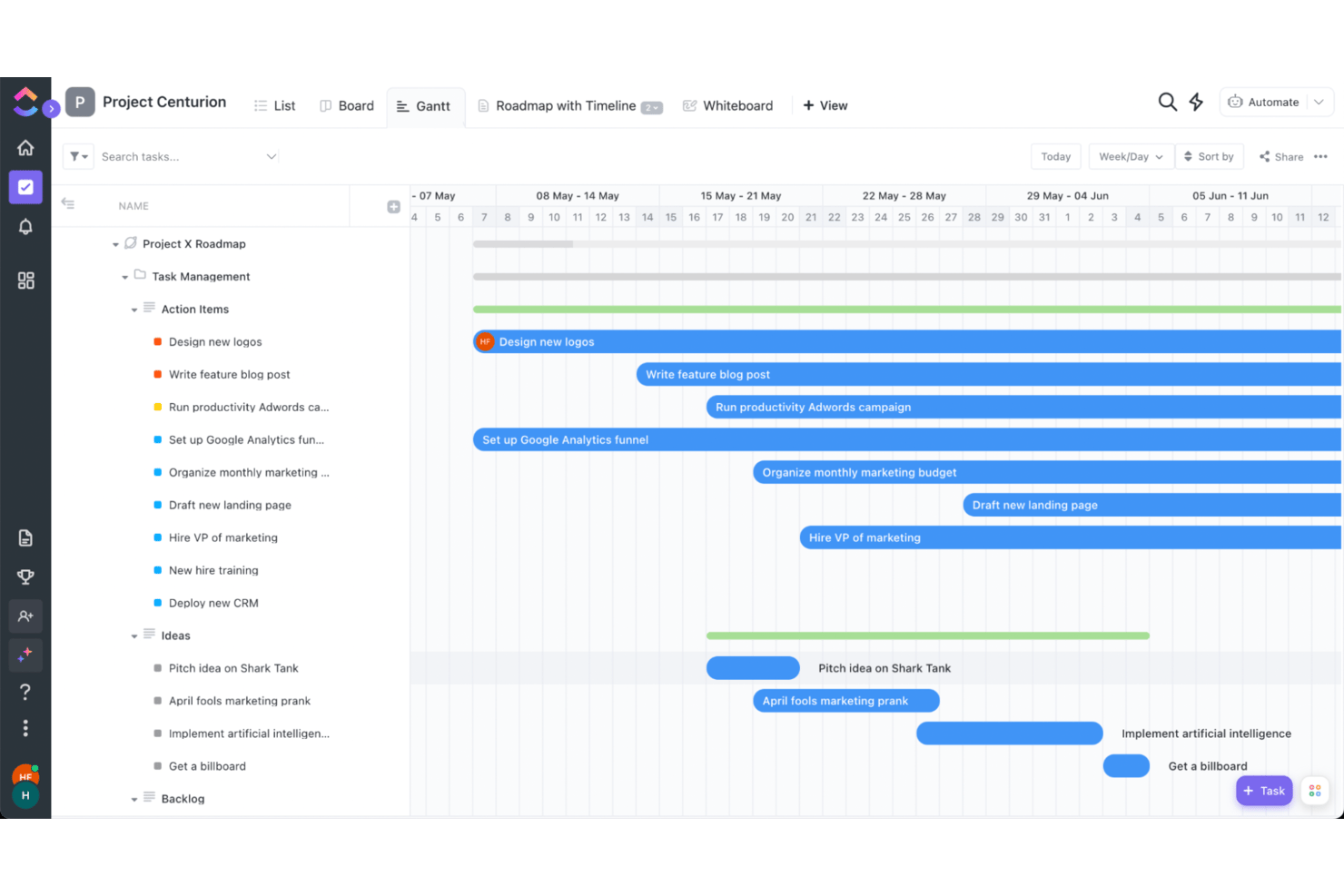
ClickUp is a project management platform that combines task tracking, docs, goals, time tracking, and custom views like Gantt charts and Kanban boards in a single workspace.
Who Is ClickUp Best For?
ClickUp is a strong fit for early-stage startups that need flexible task tracking across multiple teams without paying for multiple tools.
Why I Picked ClickUp
ClickUp earns its spot on my shortlist because it packs an impressive range of task tracking options into a free plan that most startups can actually use day-to-day. I like how custom fields let you tag tasks by sprint, team, or priority without any add-ons, and the multiple views (Kanban, Gantt, List) mean engineers and designers can work in the same project without fighting over format. For a startup watching every dollar, that flexibility without a paywall is hard to justify skipping.
ClickUp Key Features
- Goal tracking: Set measurable targets and link them directly to tasks so your team always knows how their work connects to bigger objectives.
- Time tracking: Log hours natively within any task without needing a third-party integration.
- Automation builder: Create rule-based automations to handle recurring actions like status changes, assignments, and notifications.
- Doc collaboration: Build internal wikis, briefs, or SOPs directly inside ClickUp and link them to relevant tasks.
ClickUp Integrations
ClickUp offers native integrations with Slack, GitHub, GitLab, Bitbucket, Google Drive, Google Calendar, Microsoft Teams, Zoom, Figma, and HubSpot. It also supports custom integrations through its API and Zapier.
Pros and Cons
Pros:
- Docs, goals, and tasks share one workspace
- Free plan supports multi-view task tracking
- Task fields capture sprint and priority labels
Cons:
- Large boards can feel sluggish during updates
- Busy interface can obscure everyday task controls
New Product Updates from ClickUp
ClickUp Adds Meetings Hub, Super Agent Templates, and ZoomInfo Integration
ClickUp adds a searchable Meetings Hub, new ways to clone and template Super Agents, and a ZoomInfo integration through the App Center. These updates improve meeting retrieval, agent reuse, and access to sales intelligence. For more information, visit ClickUp’s official site.

Notion
Best for docs, wikis, and tasks in one workspace
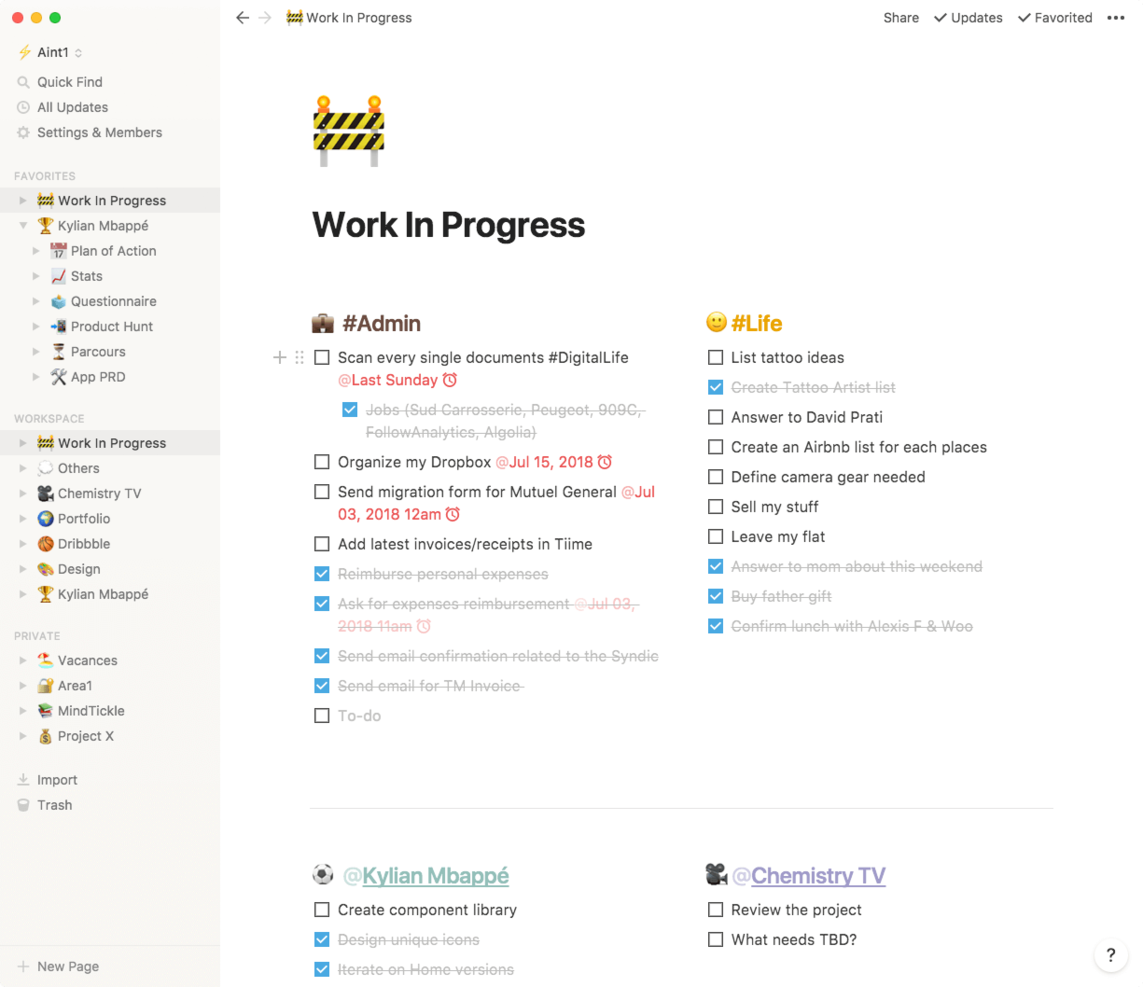
Notion is a flexible workspace platform that combines notes, docs, wikis, databases, and task management into a single connected environment.
Who Is Notion Best For?
Notion is a great fit for early-stage startups that need a single place to write docs, build a knowledge base, and track work without juggling multiple tools.
Why I Picked Notion
I've included Notion in my top picks because it's the one tool that genuinely replaces three or four separate apps for early-stage startups. I love how its linked databases let you connect a product wiki directly to a task board, so engineering and product teams share one source of truth. Notion's block-based docs also mean you can draft an onboarding runbook and turn it into a tracked project checklist without switching contexts.
Notion Key Features
- Template library: Access hundreds of pre-built templates for meeting notes, product specs, sprint planning, and OKRs to get projects moving fast.
- Notion AI: Use built-in AI to summarize pages, generate action items, and draft content directly within your workspace.
- Permissions and sharing controls: Set granular access levels for pages and databases so you can safely share specific docs with external stakeholders or contractors.
- Notion Forms: Collect structured input from teammates or users and feed responses directly into a Notion database for tracking and triage.
Notion Integrations
Notion supports integrations via its API for custom connections. Native integrations are not clearly documented.
Pros and Cons
Pros:
- Forms collect requests in tracking databases
- Project pages double as team documentation
- Linked databases connect docs to task boards
Cons:
- Reporting and workload views are limited
- Advanced project workflows need manual setup
Asana
Best for new-team task adoption

Asana is a work management platform that gives startup teams a structured way to organize tasks, assign ownership, track progress across projects, and coordinate work through timelines, boards, and automation.
Who Is Asana Best For?
Asana is a strong fit for early-stage startup teams that need a low-friction way to get everyone aligned on tasks and ownership from day one.
Why I Picked Asana
I've included Asana in my top picks because it's genuinely one of the fastest tools to get a brand-new team actually using it. Features like task templates and onboarding workflows mean you're not starting from scratch every time someone joins. I also like how My Tasks gives each team member a personal task view from day one, so ownership is clear without any manager hand-holding.
Asana Key Features
- Timeline view: A Gantt-style chart that lets you map task dependencies and visualize project schedules across the full team.
- Automation rules: Trigger-based automations that move tasks, assign owners, or update statuses when set conditions are met.
- Workload management: A dashboard that shows each team member's assigned work so you can spot capacity issues before they cause delays.
- Goals tracking: A built-in feature that connects team tasks directly to company-level objectives so progress is always visible.
Asana Integrations
Asana offers integrations with Slack, Google Drive, Microsoft Teams, Jira Cloud, GitHub, Google Calendar, and Google Sheets. It also provides an API for custom integrations and supports Zapier.
Pros and Cons
Pros:
- Timeline dependencies help coordinate changing launch plans
- Personal task views clarify individual ownership
- New hires inherit repeatable task workflows
Cons:
- Engineering teams may need separate issue tracking
- Goals need deliberate setup to stay useful

Shortcut
Best for aligning product and engineering teams

Shortcut is a project management platform built specifically for software teams, combining story-based task tracking, sprint planning, kanban boards, and product roadmapping in one workspace.
Who Is Shortcut Best For?
Shortcut is a strong fit for early-stage tech startups where product managers and engineers need to work from the same source of truth without the overhead of enterprise tooling.
Why I Picked Shortcut
I've included Shortcut in my top picks because it's built around the way product and engineering teams actually collaborate, treating stories, epics, and sprints as first-class objects rather than bolted-on afterthoughts. I love how its Docs feature lives directly alongside your sprint board, so product specs and engineering tasks stay linked instead of drifting apart in separate tools. Shortcut's label and workflow state system also lets both teams move work forward without stepping on each other.
Shortcut Key Features
- Iteration management: Plan and track sprints with dedicated iteration workflows that let teams set goals, assign stories, and monitor progress in one place.
- Customizable workflow states: Define unique workflow stages per team so engineering and product can track work through their own process without a rigid shared structure.
- Reporting dashboards: View real-time charts and burndown reports that surface delivery trends and team velocity across active projects.
- GitHub and GitLab integration: Link pull requests and branches directly to stories so code changes stay connected to the work items that drive them.
Shortcut Integrations
Shortcut offers integrations with GitHub and GitLab, linking pull requests and branches to stories so product and engineering teams can connect code changes with planned work.
Pros and Cons
Pros:
- Quick onboarding suits lean startup teams
- Epics and stories clarify cross-team ownership
- Sprint boards keep engineering work visible
Cons:
- Nontechnical teams may miss broader planning tools
- Reporting offers limited delivery metrics

Linear
Best for dev-team sprint and roadmap tracking
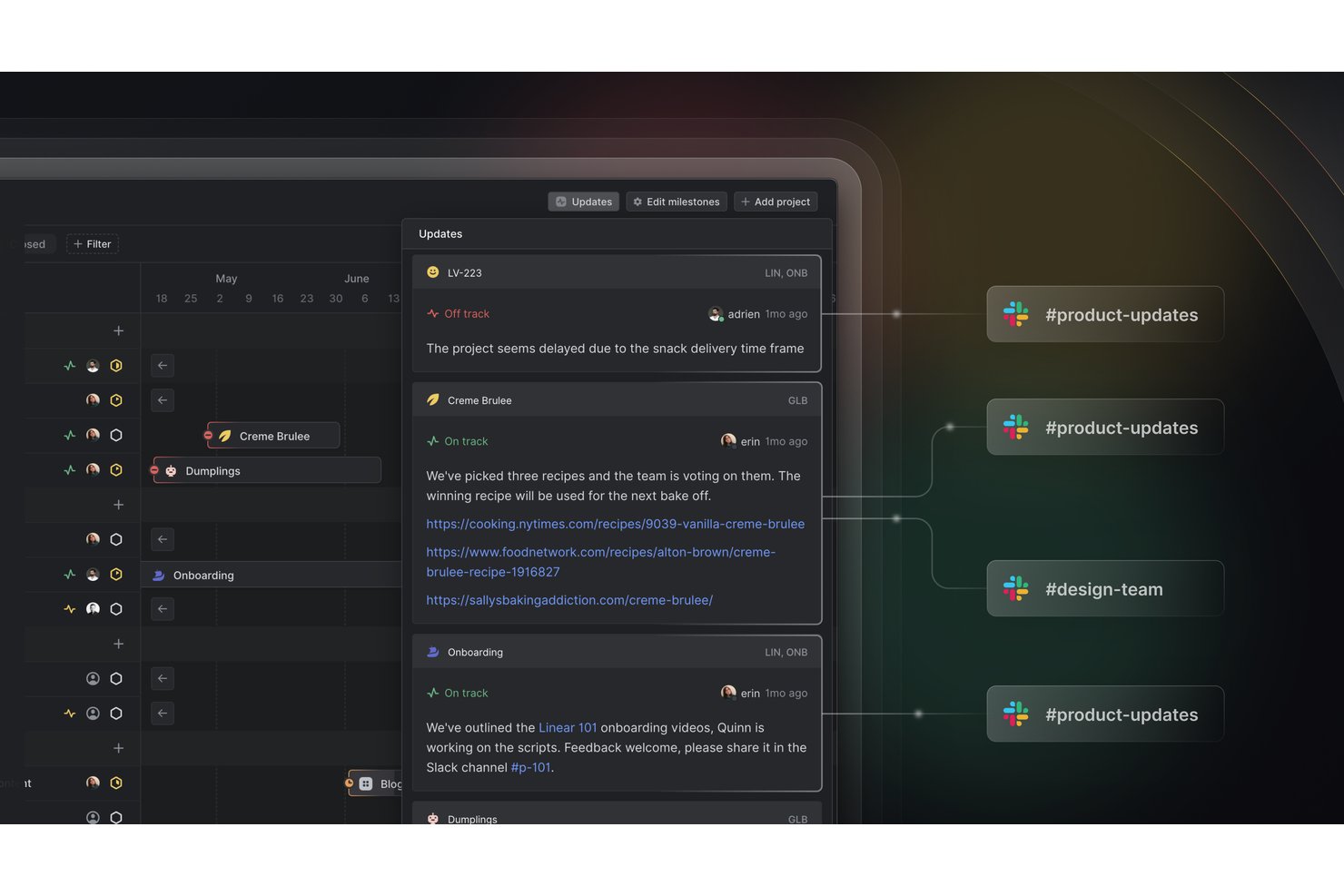
Linear is a project management tool built specifically for software teams, offering sprint planning, issue tracking, roadmap visualization, and cycle management in a single workspace.
Who Is Linear Best For?
Linear is a great fit for engineering-led startups where developers and product managers are running sprints and managing roadmaps side by side.
Why I Picked Linear
Linear earns its spot on my shortlist because it's purpose-built for the way dev teams actually work. I love how cycles (Linear's version of sprints) automatically carry over unfinished issues and surface blockers without any manual cleanup. The roadmap view connects that sprint-level work directly to product milestones, so engineering leads at early-stage startups can show progress to stakeholders without building a separate deck.
Linear Key Features
- Git integration: Linear connects directly to GitHub, GitLab, and other version control platforms to link commits and pull requests to issues automatically.
- Triage inbox: Incoming bug reports and feature requests land in a shared triage queue where your team can review, assign, and prioritize before work enters a cycle.
- Project updates: Team members can post structured progress updates on projects, giving stakeholders a clear view of status without interrupting the engineering workflow.
- Custom views: You can build filtered views by assignee, label, priority, or project to surface exactly the work that matters to you at any given moment.
Linear Integrations
Linear offers native integrations with GitHub and GitLab, linking commits and pull requests to issues for coordinated startup development workflows.
Pros and Cons
Pros:
- Triage queue helps prioritize incoming requests
- Roadmaps connect sprint work to milestones
- Unfinished issues carry into the next cycle
Cons:
- No native resource planning view
- Non-engineering workflows feel less natural

Jira
Best for growing startups on Atlassian's ecosystem
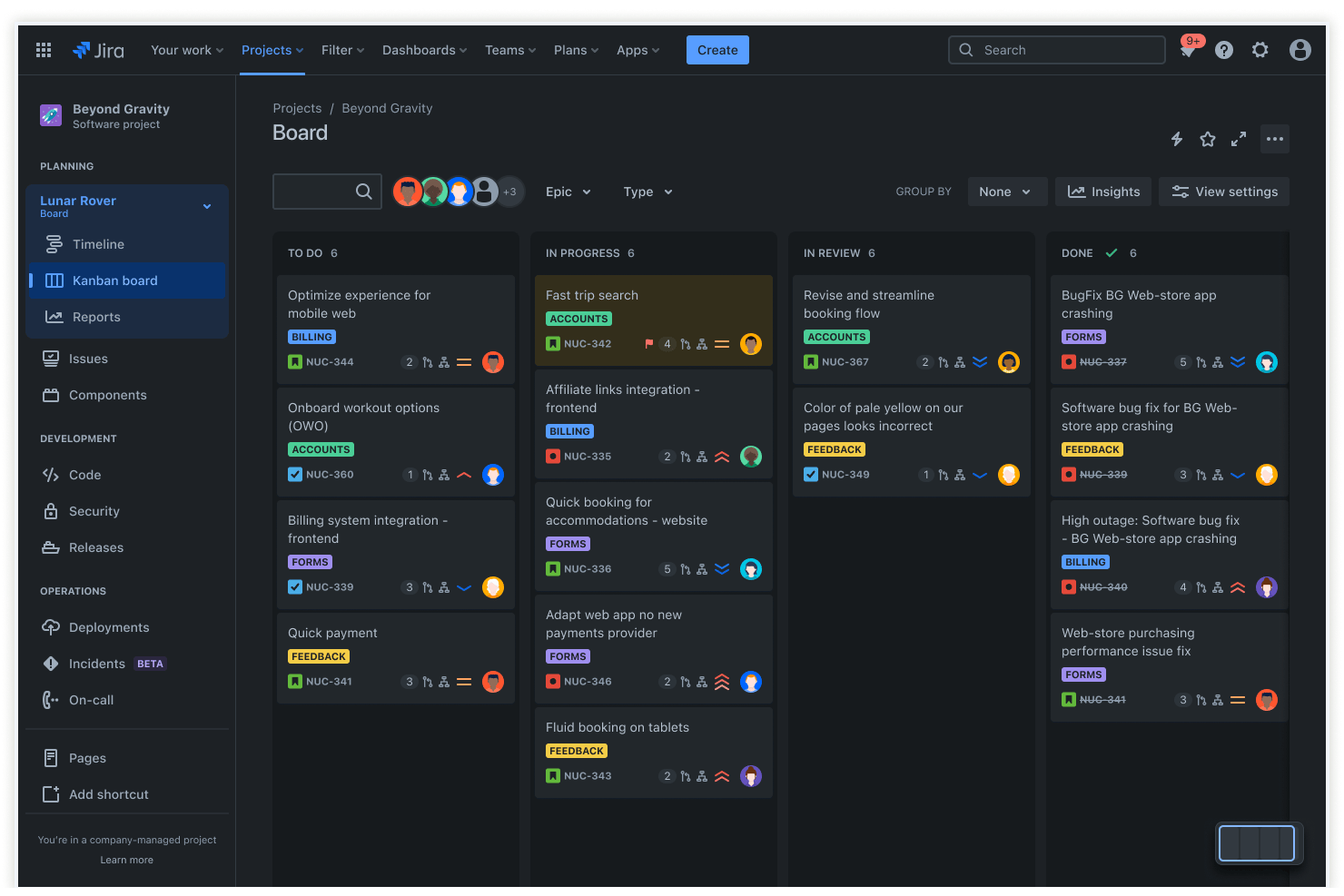
Jira is a project management and issue-tracking platform that combines sprint planning, backlog management, bug tracking, and workflow automation across software development and cross-functional teams.
Who Is Jira Best For?
Jira is a strong fit for growing startups that already use Atlassian tools like Confluence or Bitbucket and need a project management layer that scales with their engineering team.
Why I Picked Jira
I've included Jira in my top picks because it fits naturally into startups that are already building on Atlassian's stack. If your team uses Confluence for documentation or Bitbucket for version control, Jira's sprint planning and backlog management connect directly to that work without any manual syncing. I especially like how Jira's scrum boards let engineering leads track velocity across sprints, which gives growing teams real data to improve planning cycles over time.
Jira Key Features
- Bug and issue tracking: Log, assign, and prioritize bugs directly on the same board your engineering team uses for sprint work.
- Customizable workflows: Build approval chains, status transitions, and automation rules tailored to your team's delivery process.
- Roadmap view: Plot epics and initiatives on a timeline so stakeholders can see what's coming and when.
- Integration with third-party tools: Connect Jira to Slack, GitHub, Figma, and hundreds of other tools your startup already relies on.
Jira Integrations
Jira supports integrations with Slack, GitHub, and Figma, plus hundreds of other tools your startup may already use. It also provides an API for custom connections.
Pros and Cons
Pros:
- Workflow rules automate repeatable handoffs
- Issue hierarchies connect epics to delivery tasks
- Scrum boards track velocity across sprints
Cons:
- Business teams face engineering-centric terminology
- Configuration overhead grows with process complexity

Quire
Best for infinite nested task breakdowns
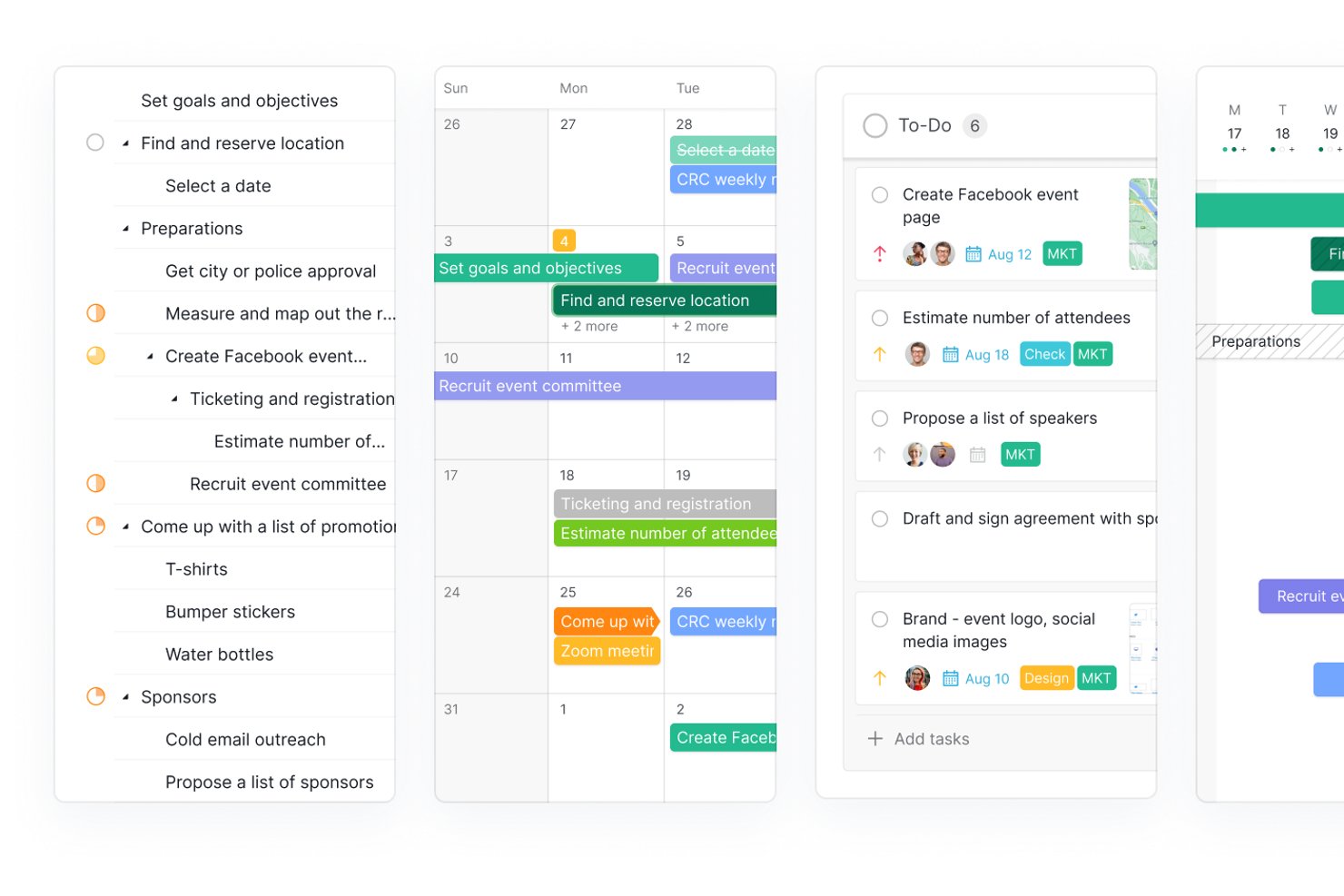
Quire is a project management tool built around an infinite nested task hierarchy, combining multi-view project tracking, sprint management via sublists, built-in collaborative docs, and portfolio-level dashboards.
Who Is Quire Best For?
Quire is a great fit for early-stage startup teams that need to break complex product goals into granular, actionable tasks without outgrowing their tool as scope evolves.
Why I Picked Quire
Quire earns its spot on my list because no other tool handles infinite nested task breakdowns quite like it does. I love how the Sublist feature lets you pull specific tasks from a sprawling nested backlog into a focused sprint board, so your team works on what matters now without losing the bigger structure. The Peekaboo feature hides non-actionable tasks from view until you need them, keeping the list clean as scope grows.
Quire Key Features
- MCP-based AI integration: Connects AI clients like Claude and ChatGPT directly to your Quire data so you can manage tasks and generate summaries using natural language.
- Collaborative documents: Built-in docs let your team write specs, meeting notes, and SOPs alongside tasks without switching to a separate tool.
- Dashboard view: A customizable dashboard displays cross-project charts and task-list widgets, giving founders and stakeholders a portfolio-level snapshot.
- External team access: Invite contractors or clients to specific tasks with limited permissions, and share project views publicly via link without requiring a Quire account.
Quire Integrations
Quire offers native integrations with Slack, GitHub, Google Calendar, Microsoft Teams, Google Drive, Dropbox, OneDrive, Power BI, and Microsoft Copilot. It also provides a REST API, webhooks, MCP support, and Zapier.
Pros and Cons
Pros:
- Built-in docs keep specs beside tasks
- Sprint sublists separate active work from backlogs
- Deep task trees keep evolving scopes organized
Cons:
- Free plan caps projects and task volume
- Reviewers flag reporting as a weak spot
New Product Updates from Quire
Quire Adds Custom Field Locking and Comment Reaction API Support
Quire adds custom field locking and API support for reading and setting emoji reactions on comments. These updates give teams more control over field data and expand comment interaction options for developers. For more information, visit Quire’s official site.
 .
.
Wrike
Best for client and guest collaboration
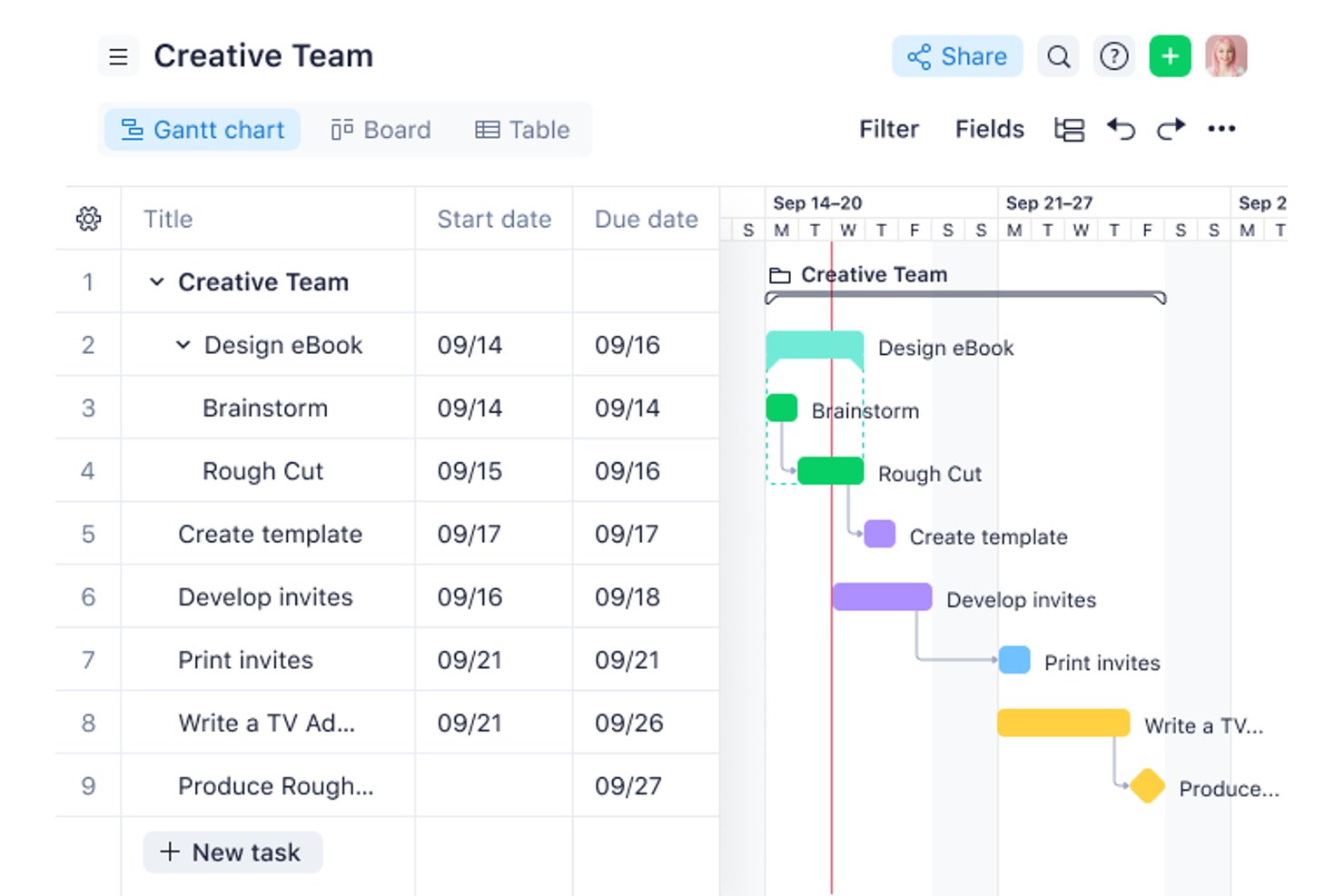
Wrike is a project management platform that combines task management, workflow automation, real-time collaboration, and reporting tools with built-in features for bringing external clients and guests into your workspace.
Who Is Wrike Best For?
Wrike suits startups that regularly work with external clients, contractors, or agency partners and need to bring them into projects without giving up control over internal workflows.
Why I Picked Wrike
Wrike earns its spot on my shortlist because of how well it handles bringing external collaborators into live projects. I love that you can invite clients or agency partners as guests with role-based permissions, so they see only what's relevant to them. Wrike's proofing and approval tools let external stakeholders review, annotate, and sign off on deliverables directly inside the platform, cutting out messy email threads.
Wrike Key Features
- Gantt chart timeline view: Visualize project schedules, dependencies, and milestones on an interactive drag-and-drop timeline.
- Custom workflow builder: Create task statuses and workflow stages tailored to your team's specific process without coding.
- Cross-project resource management: View team workload and capacity across multiple projects to spot bottlenecks before they happen.
- AI work summaries: Automatically generate summaries of task activity and project status to keep stakeholders up to date.
Wrike Integrations
Wrike offers 400+ prebuilt connectors, including Slack, GitHub, Jira, Salesforce, HubSpot, Microsoft Teams, Zoom, Dropbox, and Gmail. It also provides a REST API, Wrike Integrate, and Zapier support for custom workflows.
Pros and Cons
Pros:
- Dashboards surface cross-project workload bottlenecks
- Approval comments stay attached to deliverables
- Guest reviewers approve deliverables without workspace access
Cons:
- Dense navigation can slow new team adoption
- Workspace setup takes planning and admin time
New Product Updates from Wrike

Wrike Redesigns AI Agent Builder
Wrike redesigns its AI Agent Builder with a side-by-side setup, Scopes, sentence-style triggers and actions, and clearer filters. These changes make it easier to configure, test, and manage agent behavior. For more information, visit Wrike’s official site.
Other Tools
Here are a few more that didn’t make my top list, but which are worth your consideration if you didn’t find the right project management software for your startup above.
- Zoho Projects
For scalability
- GoodDay
For customizable workspaces at startup scale
- Smartsheet
For spreadsheet-style project tracking at scale
- Freedcamp
For all-in-one suite on a free plan
- Teamwork.com
For client-facing product management teams
- Scoro
For client-services startup billing and oversight
- Airtable
For building custom workflows on a database
- Nifty
For AI-generated sprint workflows
- Hive
For OKR and goal tracking as you scale
- Superhuman Docs
For docs, AI trackers, and free editors


How I Evaluate Project Management Software for Startups
I split my evaluation into three parts, giving core functionality the most weight: assign tasks, track deadlines, and show blockers across product and operations work. Next, I look for standout features such as native docs that keep specs beside tasks. Finally, I consider beyond-feature factors like easy onboarding and startup-friendly pricing.
Core Functionality (Table Stakes For This List)
When I'm selecting tools for my list, I score each one on a scale from 0 (does not offer the functionality) to 5 (excels in this area) for each core functionality listed below. I then convert the total into a percentage to help assess each tool's overall fit, with extra weight on any functionalities I’ve deemed essential.
- Task & Project Tracking (Essential): I look for task assignment, status tracking, subtasks, and dependencies to map work from kickoff through delivery.
- Flexible Views & Workflows (Essential): I check for list, board, and timeline views, plus adaptable statuses that fit changing product and operations processes.
- Team Collaboration: I assess whether comments, mentions, and file attachments keep decisions and project context with tasks.
- Scalable Pricing: I consider whether free or lower-cost plans support a small team, with paid tiers for growing needs.
- Integrations: I look for connections to communication, file storage, and development tools so work fits existing team workflows.
- Progress Visibility: I evaluate dashboards and status summaries that show project progress, ownership, and emerging blockers.
Once I have a list of tools that meet the criteria, I consider what sets each platform apart.
Differentiating Factors (What Sets Vendors Apart)
Here's how I compare and contrast different vendors:
Standout Features
I look for native docs and wikis that live alongside tasks, so a product spec and its related work items stay connected without toggling between apps. Custom automation builders also matter—I check whether a founder can set up a rule like "when status moves to QA, reassign to the lead engineer" without writing code. I evaluate built-in time tracking and workload views too, since lean teams need to spot who's overloaded before burnout hits.
Beyond Features
I check whether a tool lets small teams self-serve setup without a dedicated admin—templates and intuitive defaults cut onboarding time when you're hiring fast. I also evaluate API access and data export options, since technical co-founders often need to pipe project data into internal dashboards or investor reports. Role-based permissions matter too, especially once you bring on contractors or share a roadmap with external partners who shouldn't see everything.
How to Choose Project Management Software for Startups
It’s easy to get bogged down in long feature lists and complex pricing structures. To help you stay focused as you work through your unique software selection process, here’s a checklist of factors to keep in mind:
| Factor | What to Consider |
|---|---|
| Scalability | Make sure the software can grow with your startup. Look for flexible pricing, user limits, and advanced features that won’t require switching platforms as your team expands. |
| Integrations | Choose a tool that connects seamlessly with your existing apps—Slack, Google Drive, CRMs, or development tools—to avoid workflow disruptions and data silos (you might also consider project management software with CRM capabilities) |
| Customizability | Your startup’s processes are unique. Opt for software that lets you tailor workflows, dashboards, and permissions to match how your team works. |
| Ease of Use | A steep learning curve slows productivity. Pick a solution with an intuitive interface, simple navigation, and minimal training requirements. |
| Budget | Startups need cost-effective solutions. Compare free plans, trial periods, and per-user pricing to make sure you're getting an affordable option without sacrificing essential features. |
| Security Safeguards | Protect sensitive business data. Look for features like role-based access, encryption, and compliance with standards like SOC 2 or GDPR. |
| Collaboration Tools | Startups move fast, so real-time communication, task comments, file sharing, and team dashboards should be built in. |
| Mobile Accessibility | Your team needs access on the go. Make sure the software has a well-designed mobile app with full functionality. |
What is Project Management Software for Startups?
Project management software for startups is a tool that helps you organize tasks, timelines, and resources for your startup's projects. Founders, project leads, and team members use it to keep everyone on the same page, work together effectively, and deliver projects on time.
Features include task and milestone tracking, collaboration tools, document sharing, and resource management. Project management software for startups is especially helpful when your team grows and projects get more complicated, because you can organize projects in a way that boosts productivity and lets you scale effectively.
Features of Project Management Software for Startups
Here are some of the features I look for when evaluating project management systems for small teams, startups, and small businesses.
- Streamlined work management: Most startups don’t have a lot of resources to dedicate to training and onboarding, so the tool must offer simplified “get-up-and-go” project planning with a manageable learning curve.
- File-sharing: Communication and distribution of limited (but expanding) assets are critical to getting any startup off its feet.
- Real-time updates: Things are moving fast and changing often so it’s imperative that different team members are getting the most current information as soon as possible.
- Roadmapping: Not only will your startup squad need a crystal clear roadmap for where they are going but you will want some way to ping team leaders if a project or task requires follow up or course correction.
- Collaboration across projects: Startups are juggling many projects at once, from social media upkeep to product development to hiring; you’ll need an app that unifies collaboration for all branches in a central location.
- Scrum boards for backlog visibility: This helps busy teams visualize what needs to be done for each sprint and put a pin in items that are lower priorities. It also helps you keep track of great ideas for the product roadmap and future vision.
- Reporting: Get insights into project progress, team performance, and deadlines with real-time dashboards and customizable reports.
- Automation: Reduce manual work by automating task assignments, status updates, and notifications to keep projects moving efficiently.
- Document management: Store, organize, and share files in a centralized location to make sure your team has easy access to the latest project documents.
- Resource management: Allocate team members, budgets, and tools effectively to prevent overallocation and keep projects on track.
If your small business is better described as a nonprofit, try this list of project management software for nonprofits; if you're a team of one, try this list of project management software for individuals.
Frequently Asked Question About Project Management Software for Startups
How do you implement project management in a startup?
You’ll quickly realize the need for a project manager within your roster. However, you will also realize that there might not be a budget for it. Then, your first task is to select which is the best position within your current team to handle these responsibilities.
After you’ve chosen a person, look for free project management tools that you can test with. After you test, you’ll have to select the best tool for your situation. For example, it’s usually best to select software that can be run on a Macbook or other laptop so you don’t have to invest in new systems. Once you pick the right tool for you, the fun can start.
Even with the easiest project management software, tool adoption still takes time, and you’ll have to invest in one-on-one meetings to explain to different people how to use the tool for their role within the projects. This will be time-consuming but also the best path to guarantee a smoother transition from your current system to this tool.
Finally, repetition will be your best ally. Repeat, repeat, repeat. Iterate on your process and provide feedback to the team on their use of the tool so they keep moving in the direction you want them to.