40 Best Online Collaboration Tools for Teams in 2026

20 Best Online Collaboration Tools Shortlist
Here’s my list of the best online collaboration tools.


The best collaboration tools unify team chats, file sharing, task tracking, and project planning into a single, user-friendly platform. This integration helps teams maintain focus and alignment, minimizing the risk of tool overload. In contrast, disconnected systems lead to version control issues, siloed conversations, and unclear ownership, which can quickly hinder progress.
Collaboration platforms address these challenges by synchronizing communication and workflows in real time. Drawing from over 20 years in the industry and a decade spent reviewing software, this guide highlights the most reliable tools I recommend for fast-paced, cross-functional collaboration.
In this article, you’ll find a curated list of top-rated collaboration tools, complete with detailed feature breakdowns, pros and cons, and recommendations for the types of teams best suited for each tool.
Why Trust Our Collaboration Tools Reviews
We’ve been testing and reviewing collaboration tools since 2012. As experienced project managers, we know how critical, and difficult, it is to make the right software choice for your team.
We invest in deep research to help our audience make better software purchasing decisions. We’ve tested over 2,000 tools for different project management use cases and written over 1,000 comprehensive software reviews. Learn how we stay transparent & our collaboration tools review methodology.
Collaboration Tools Comparison Chart
Here’s a condensed view of the pricing information for each tool.
| Tool | Best For | Trial Info | Price | ||
|---|---|---|---|---|---|
| 1 | Best for connecting goals and projects | Free plan available | From $9/user/month (billed annually) | Website | |
| 2 | Best for custom workflows | Free plan + free demo + 14-day free trial available | From $10/user/month (billed annually) | Website | |
| 3 | Best for a high level of security | Free trial + free demo available | From $9/member/month (billed annually) | Website | |
| 4 | Best for in-app video recording | Free plan + free demo available | From $7/user/month (billed annually) | Website | |
| 5 | Best for knowledge management | 14-day free trial | From $10/user/month | Website | |
| 6 | Best for centralized knowledge bases | Free demo available | Pricing upon request | Website | |
| 7 | Best for application development | 30-day free trial | From $35/user/month (billed annually, min 20 users) | Website | |
| 8 | Best for collaborative inboxes | 30-day free trial + free plan available | From $14/user/month (billed annually) | Website | |
| 9 | Best for AI-powered meeting notes | Free plan + free demo available | From $13.33/user/month (billed annually) | Website | |
| 10 | Best for online whiteboarding | Free plan available | From $8/user/month (billed annually) | Website | |
| 11 | Best for design collaboration | Free plan + free demo + free trial available | From $3/seat/month (billed annually) | Website | |
| 12 | Best for mobile collaboration | 14-day free trial + free demo | From $6.18/user/month | Website | |
| 13 | Best for team collaboration | Free plan available | From $7/user/month (billed annually) | Website | |
| 14 | Best for secure messaging | 30-day free trial + free demo available | From $2.50/user/month | Website | |
| 15 | Best for creative review | 14-day free trial | From $35/5 users/month | Website | |
| 16 | Best for visual project boards | Free plan available | From $13/user/month (billed annually) | Website | |
| 17 | Best for dedicated workspace threads | 30-day free trial + free demo available | From $24/user/month (billed annually) | Website | |
| 18 | Best for feedback management | 30-day free trial + free plan + free demo available | From $199/month | Website | |
| 19 | Best for organizing ideas | 7-day free trial available | From $8.25/month | Website | |
| 20 | Best for creative asset collaboration | Free trial available | From $199/month (billed annually) | Website |


-

Insightful
Visit WebsiteThis is an aggregated rating for this tool including ratings from Crozdesk users and ratings from other sites.4.8 -
Accelo
Visit WebsiteThis is an aggregated rating for this tool including ratings from Crozdesk users and ratings from other sites.4.4 -
Wrike
Visit WebsiteThis is an aggregated rating for this tool including ratings from Crozdesk users and ratings from other sites.4.2


Best Collaboration Tools Reviews
Here are my reviews of the top online collaboration tools that will improve virtual teamwork amongst your project team:

monday.com is a collaboration and task management software that's well-known for its simplistic design and user-friendly features. For many organizations, it serves as the backbone for teamwork and streamlined processes. Hasan Hanif, Founder & CEO of Colour Vistas, explained how it transformed his company’s operations: “The things I like most about Monday are that it enables us to work in union, in real depth. It provides information…that keeps everyone to the same pace. Automation has saved monotony in our operations and helped us automate a majority of our processes. … It’s made our routines more efficient and easier, making us more collaborative.”
Why I picked monday.com: I love how many collaboration tools this platform offers to help you work on your projects and tasks as a team. But the main reason it made my list is because of its goal-setting capabilities. You can develop your strategic goals, and then connect them to projects and tasks. This helps keep everyone aligned and on track in their work, and contributes to better teamwork.
As for project management, the platform is highly customizable, which is always a top priority for me when I look at project management tools. You can select from an array of views to keep track of progress. Shared documents allow users to co-create meeting minutes, brainstorm, and engage with others in the team. Everything related to your project can live in one place.
monday.com Standout Features & Integrations
Features include monday.com's Teamwork Hub, which is a dedicated space where team members can track dependencies, share updates, and resolve blockers in real time. Additionally, the platform supports guest access, which enables external collaborators like clients or contractors to work alongside your team while maintaining control over shared information.
Integrations include Slack, Google Drive, Gmail, Google Calendar, Jira, GitHub, Trello, Dropbox, Zoom, and Typeform. Many more are accessible via a paid Zapier account.
Pros and Cons
Pros:
- Free-forever plan available
- User-friendly and intuitive interface
- Complete work management platform
Cons:
- Limited reporting in basic and free plans
- Limited storage in basic and free plans
New Product Updates from monday.com

monday.com Adds Microsoft Teams Messaging In Workflows
monday.com introduces Microsoft Teams messaging within workflows. This update allows users to send messages to specific individuals directly from workflows, improving collaboration and communication. For more information, visit monday.com’s official site.


Wrike is a workflow management software that's highly configurable and easy to use, making it suitable for teams of all sizes. For marketing and creative teams especially, having a centralized hub can be a real advantage. Mircea Dima, Founder & CEO/CTO of AlgoCademy, shared: “In the case of intricate marketing projects, being able to keep all assets, remarks, and schedules within a single place saved hours of back and forth and cut errors that can often go unnoticed when utilizing email chains.”
Why I picked Wrike: This platform made my list because of its versatility. It has a large suite of project management features, from resource management to approval flows to request forms and more. As for collaboration, team members can share files and chat in real-time with threaded messages and @-mentions to stay in the loop and work together more effectively. You can easily jump around from your home screen to timesheets, dashboards, calendars, and an activity stream to keep up with project progress, roadblocks, and updates.
Wrike Standout Features & Integrations
Features include dynamic request forms, which automatically route tasks to the right team members, ensuring clarity and accountability from the start. Wrike also features visual proofing and approval tools that enable teams to provide actionable feedback directly on images, videos, and documents.
Integrations include Microsoft Suite, Google Workspace, Asana, Basecamp, Dropbox, Salesforce, HubSpot, Jira, Slack, Shopify, and hundreds more.
Pros and Cons
Pros:
- Lots of smart AI and automation features
- Guest access available
- Free plan with unlimited users
Cons:
- Resource management limited to higher-tier plans
- Real-time reports not included in free or basic plan
New Product Updates from Wrike

Streamlining Workspaces with New Updates
Wrike announces custom space templates, AI Agents in Wrike Labs, and a new Guage widget to improve project management. For more information, visit Wrike's official site.

Smartsheet is a spreadsheet-based project management software that helps you manage projects, automate processes, and scale up to enterprise-level programs and portfolios.
Why I picked Smartsheet: This software is designed with enterprise businesses in mind and as such, has a very high level of security. I picked it for teams who are looking to collaborate virtually, but keep their data well-governed. Granular access controls help you ensure only approved collaborators have access to specific information. The platform's request forms and approval workflows also caught my attention, as they ensure an effective transfer of data and information to right people at the right time.
Smartsheet Standout Features & Integrations
Features include a shared workspace feature that enables teams to co-edit project plans, task lists, and schedules in real time. Smartsheet’s discussion threads also enable users to attach comments directly to rows, sheets, or dashboards, ensuring that feedback and updates are contextually tied to specific tasks or data points.
Integrations include Google Workspace, Microsoft Office 365, Box, DocuSign, Slack, Microsoft Teams, Skype for Business, Gmail, Outlook, and many other apps. Some integrations require Business or Enterprise plans.
Pros and Cons
Pros:
- Plenty of self-serve knowledge base content
- Ability to collaborate with external partners
- Comprehensive enterprise work management platform
Cons:
- Robust system, comes with a learning curve
- Freemium limited to 2 editors
New Product Updates from Smartsheet

Smartsheet Adds Direct Data Import to Existing Sheets
Smartsheet introduces direct data import to existing sheets in table view. This update lets you import CSV, XLS, and XLSX files directly into sheets, reducing manual work and speeding up data setup. For more information, visit Smartsheet's official site.
 .
.

ClickUp is a project management app where you can plan, track, and manage any type of work regardless of geographical location and using any device. For teams using it day-to-day, the platform’s features can be true time-savers. As Maryse Marius, Senior Project Manager at Elevate Impact, explains: “ClickUp's automation has reduced the time spent on repetitive tasks across projects. And its Docs feature replaces Google Docs for many internal processes.”
Why I picked ClickUp: This is a platform that puts a lot of thinking into what they develop. One of the most recent updates includes an in-app video recording tool that can help any team member record their screen, share a link to the video, and requires no downloads. The opportunity to collaborate in ClickUp includes comments, mentions, notifications, collaborative documents, whiteboards, and task management.
Task management features include task checklists, subtasks, reminders, priorities, and task templates, as well as the ability to filter, sort, search for, easily reorder, and view tasks in the manner most convenient for the team. Users can also create Gantt charts, calendars, and timelines to visualize tasks. ClickUp includes time tracking as well, both through integrations and natively.
ClickUp features color-coding for further organization and clarity, as well as multiple task views such as lists, calendars, Gantt charts, Kanban boards, and more.
Reporting features include the ability to create custom dashboards, as well as six built-in report types for team reporting.
ClickUp Standout Features & Integrations
Features include ClickUp's Pulse, which provides real-time activity monitoring that allows team members to see who is online, what tasks they are working on, and their current status. The platform’s Goals feature also lets teams collaboratively set, track, and update progress on shared objectives, linking them to actionable tasks for a seamless workflow.
Integrations include native connections with Slack, G Suite, Dropbox, and many more tools, as well as over 1,000+ integrations through Zapier.
New Product Updates from ClickUp

ClickUp Enhances Task Management and Introduces AI Notetaker
ClickUp introduces an AI Notetaker for meetings and improves task type management in views. These updates help teams capture meeting insights automatically and organize work more efficiently. For more information, visit ClickUp’s official site.
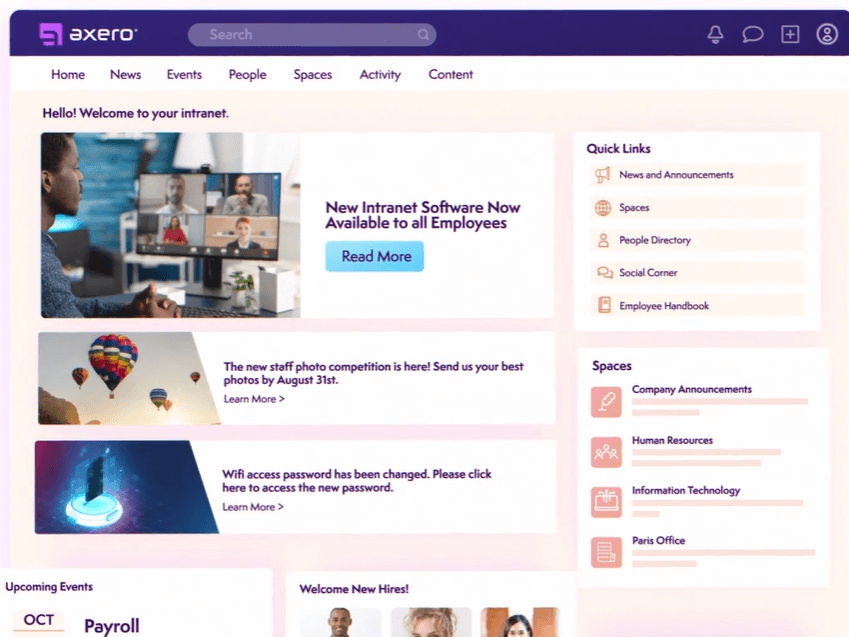
Axero is a knowledge sharing platform that can be used to build out content hubs for internal and external collaboration. It's a flexible solution that's adaptable to the needs of various types and sizes of businesses.
Why I picked Axero: I decided to give this platform a spot on my list for its capacity to build a knowledge base for either internal or external collaborators (or both). It's flexible enough to suit various contexts, yet provides the necessary structure to keep information organized, accessible, and accounted for.
You can create both public and private spaces in your company wiki, and build out content in various formats. Blog posts, forums, surveys, and broadcasts are among the supported content types. Meanwhile, commenting and like buttons allow for engagement and interaction, and live chat lets you keep all communications centralized in one space.
Axero Standout Features and Integrations
Features include a collaborative document editing feature that enables multiple team members to work on shared content in real time. Moreover, Axero’s activity feed aggregates updates from across the platform, ensuring that team members can stay informed about new content, comments, and project developments without switching between tools.
Integrations include Outlook 365, Sharepoint, OneDrive, Microsoft Teams, Google Workspace, Slack, Zoom, Dropbox, Box, Unsplash, and Twilio, among others.
Pros and Cons
Pros:
- Suitable to the needs of larger organizations
- Can be used for internal and external knowledge sharing
- Highly flexible and customizable to various contexts
Cons:
- Takes time to get familiar with all features
- Integrations not included in starter plan


Document360 is an AI-powered knowledge base designed to boost collaboration and productivity for teams and customers. It offers a customizable portal for editors and writers, a customer-facing site, and an embedded help center for SaaS products, making it a versatile tool for managing and sharing knowledge.
Why I Picked Document360: Document360 provides an all-in-one hub where teams can organize and manage content effortlessly. Whether it's technical, product, or API documentation, it's easy to manage any type of documentation. The rich editor, version control, content reuse, and analytics help make documentation measurable and keep it consistent and updated.
Its AI assistant, Eddy, helps your team generate structured content quickly and accurately. Eddy can transform prompts, transcripts, or videos into well-structured articles, suggest titles, create FAQs, and add tags while maintaining your predefined style guide. Document360 also includes a private share feature allowing you to securely share draft articles with reviewers, collaborators, or stakeholders without giving them full access to your knowledge base.
Document360 Standout Features & Integrations
Features include a centralized knowledge base that enhances operational efficiency across sectors like finance, manufacturing, and education. The platform allows you to centralize standard operating procedures and create instructional manuals, which can be invaluable for training and onboarding. It even includes a category manager for organizing content across teams and departments.
Integrations include Salesforce, HubSpot, Slack, Microsoft Teams, Zendesk, GitHub, WordPress, Google Sheets, Google Drive, Crowdin, and Zapier.
Pros and Cons
Pros:
- AI-powered search for instant answers
- Eddy provides AI-driven content suggestions
- Strong analytics capabilities
Cons:
- No mobile app
- Limited language support
New Product Updates from Document360

Document360 Improves Article Review Workflows
Document360 introduces enhancements to article review reminders, improving review governance with new interactive features. For more information, visit Document360's official site.
 .
.
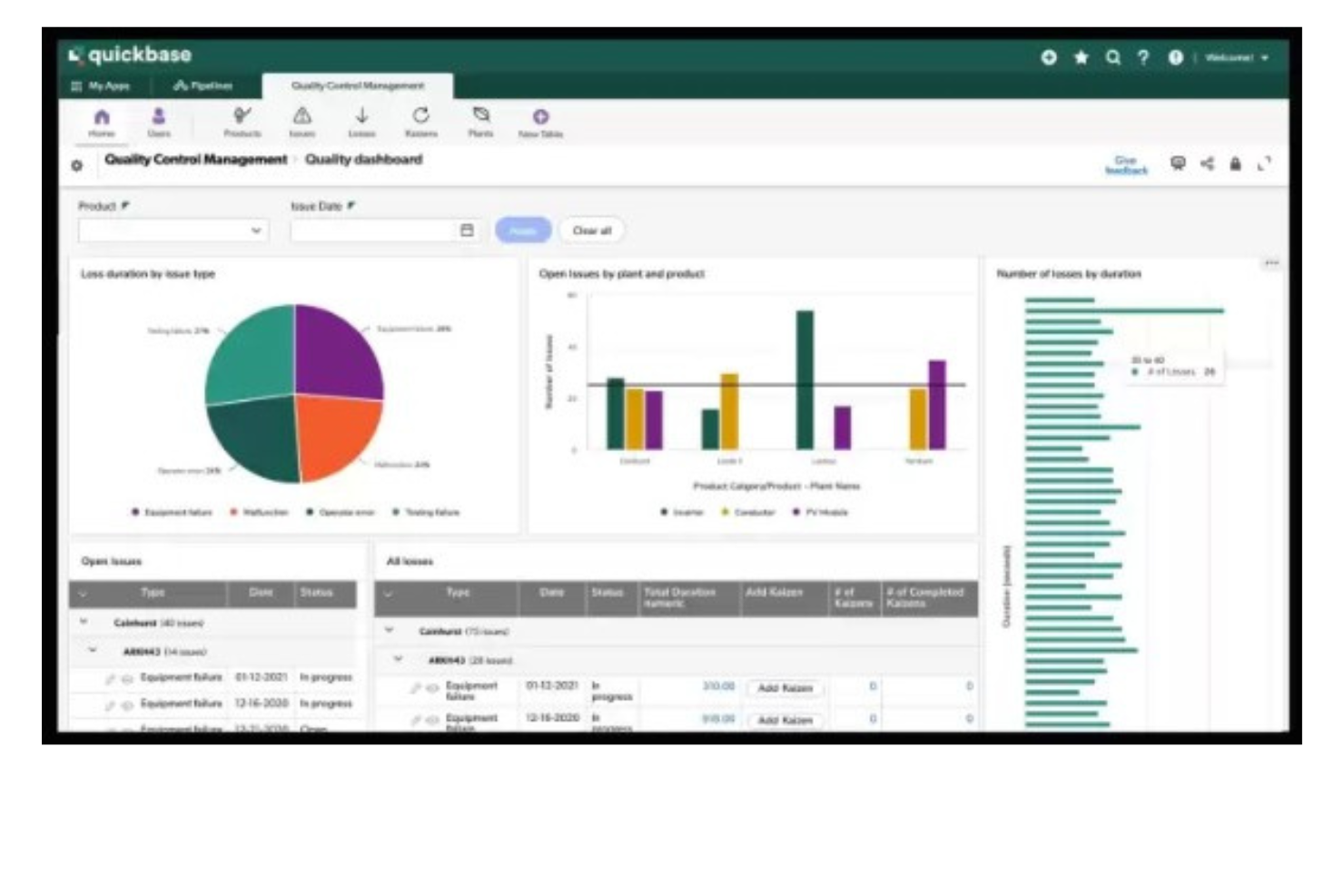
QuickBase is a platform that enables the development of custom applications without requiring deep coding skills. It stands out for its no-code approach, allowing users to build industry-specific solutions with features like integrations, automations, and mobile capabilities.
Why I picked QuickBase: I selected QuickBase as a collaboration tool after judging its capabilities to enable teams to create and customize applications without the need for extensive coding skills. What differentiates QuickBase is its user-friendly interface and the empowerment it offers to citizen developers, allowing them to automate workflows and connect data effortlessly. I believe QuickBase is best for no-code app development because of its flexibility and the comprehensive solutions it provides, which cater to a wide range of business needs without requiring deep technical expertise.
QuickBase stands out as an excellent tool for collaboration due to its user-friendly interface and customizable features that cater to a wide range of business needs. It enables teams to create and share interactive, data-driven applications without requiring extensive technical knowledge. This flexibility allows for seamless integration of data from various sources, fostering efficient teamwork and decision-making.
QuickBase Standout Features & Integrations
Features include a no-code platform that enables users to build custom applications tailored to their business needs. Moreover, QuickBase’s built-in audit logs provide a collaborative safety net by tracking changes and updates, allowing teams to review and revert actions when necessary.
Integrations include Salesforce, Microsoft Teams, Google Calendar, Tableau, QuickBase Pipelines, Slack and Zapier.
Pros and Cons
Pros:
- Robust notifications and reminders
- Workflows are easy to set up and customize
- Simple no-code platform is easy for non-tech people to learn
Cons:
- May be cost prohibitive for small businesses
- Team plan requires a minimum of 20 users

Missive is an online collaboration tool designed to bring team communication, tasks, and shared email management into one space. It combines chat, email, and task management so you don’t have to juggle multiple apps.
Why I Picked Missive: I picked Missive because of how it lets your team work on conversations together in real time. With internal threads and collaborative drafting, you can write, review, and edit emails as a group, which makes teamwork faster and clearer. Assign and watch features make it easy to give conversations to a teammate, but still stay in the loop without disrupting the flow.
I also like how tasks are tied directly to conversations. Instead of moving between tools, you can create, view, and manage tasks right from your inbox. You’ll always know the status of a task, whether it’s being worked on or finished, without having to ask for updates. Auto-assignment and smart attributes like due dates or linked conversations help keep everyone on track and reduce back-and-forth.
Missive Standout Features & Integrations
Features include team spaces that let you set up dedicated areas for different groups, keeping their conversations and work focused. Guest access also makes it simple to collaborate with people outside your organization by inviting them into specific conversations.
Integrations include OpenAI, Integrately, Lindy.ai, Make, Close, HubSpot, Pipedrive, Salesforce, AIrcall, Dialpad, Dropbox, Google Drive, Asana, Trello, Shopify, and GitHub.
Pros and Cons
Pros:
- AI helps draft, summarize, and translate emails
- Built-in task management linked to conversations
- Real-time collaborative email drafting and editing
Cons:
- Task management less detailed than full PM tools
- No built-in video calling option
New Product Updates from Missive

Missive Introduces MCP Integrations for AI Workflows
Missive introduces MCP integrations, enabling its AI to interact with external tools and systems. This update allows teams to automate workflows and access data across platforms directly within conversations. For more information, visit Missive’s official site.
 .
.

Zoom is a collaboration platform for video, voice, and chat that helps teams connect and work together in real time. It offers flexible meeting tools, persistent chat, and AI assistance, making it a fit for both small groups and large organizations.
Why I Picked Zoom: I picked Zoom because it makes virtual meetings more productive and inclusive. Its AI assistant can summarize discussions, highlight action items, and generate notes, so you don’t have to worry about missing key details. You can also enable translated captions in more than 30 languages, which helps make conversations accessible for global teams. Beyond meetings, Zoom supports ongoing collaboration through team chat channels and a cloud VoIP service, keeping communication centralized and organized.
Zoom Standout Features & Integrations
Features include interactive whiteboards, personalized meeting layouts, surveys and polls for engagement, and short video clips for asynchronous updates. It also supports continuous chat threads with pinned assets, plus appointment scheduling through Zoom Scheduler.
Integrations include Microsoft Teams, Salesforce, Google Workspace, Slack, HubSpot, Asana, Confluence for Zoom, Microsoft 365, Calendly, Kahoot!, Fathom, and Read AI.
Pros and Cons
Pros:
- Flexible for teams of any size
- Strong collaboration tools like breakout rooms and whiteboards
- Reliable audio and video quality
Cons:
- Some advanced features require a learning curve
- Free version has strict limits on meetings
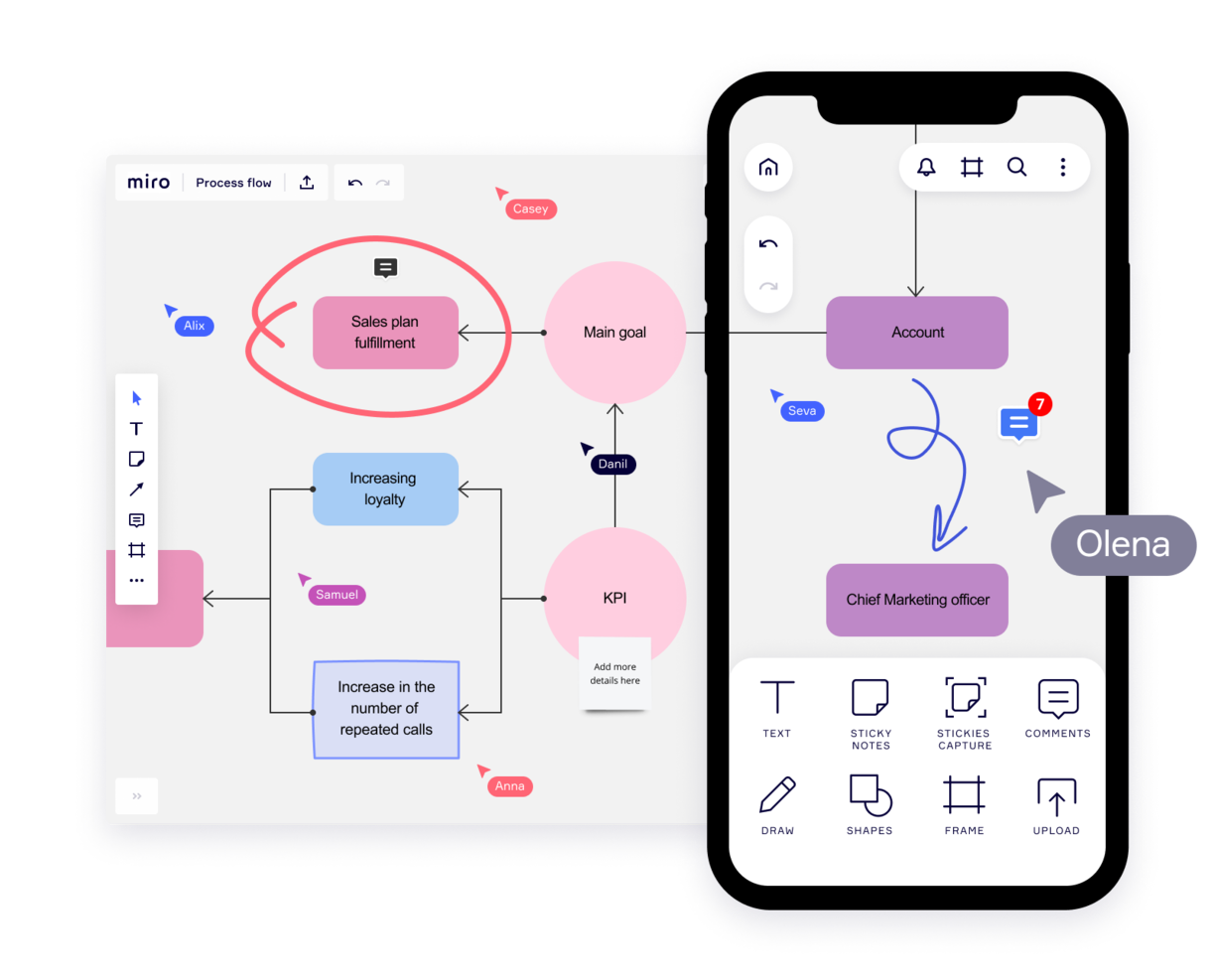
Miro is a collaborative online whiteboard built to facilitate brainstorming, ideation, team meetings, project planning, and other team activities. Marissa Taffer, Founder & President of M. Taffer Consulting, relies on it heavily for remote teamwork: “Miro is amazing for virtual collaboration. I use it pretty extensively for brainstorming and sprint retros. One team I managed loved having themed retros using themes from the Miroverse!”
Why I picked Miro: I decided to include this platform because of how versatile and flexible it is. Your team can start with a blank canvas or choose from the 1,000+ pre-built templates included. Miro supports a diverse expression of ideas, including numerical data and brand elements, alongside traditional visuals like sticky notes and videos.
Unique features such as Stickies Capture and TalkTrack can also help users convert physical notes to digital and recording explanatory videos for asynchronous collaboration, respectively. With integrations like Jira and Asana, plus Confluence and Notion, Miro bridges idea generation with project execution, facilitating a cohesive team collaboration environment.
Miro Standout Features & Integrations
Features include real-time voting and timer features that allow teams to prioritize ideas and stay on track during brainstorming sessions. Its "Digital Sticky Notes" tool supports infinite flexibility for organizing thoughts, while the "Mind Mapping" function encourages free-form ideation with structured visuals.
Integrations include Zoom, Figma, Asana, Microsoft Teams, Jira, Slack, Google Drive, monday.com, Confluence Box, Airtable, Notion, Azure, and Webex. Some integrations are limited to paid plans only.
Pros and Cons
Pros:
- Highly versatile and flexible solution
- Thousands of customizable templates
- Intuitive and easy setup
Cons:
- Zooming can be jumpy on larger projects
- No high-quality PDF export with free plan
New Product Updates from Miro

Miro Enhances AI Workflows and Tables for Task Planning
Miro enhances AI workflows and Tables with AI-generated planning boards and web-aware automation. These updates help teams organize tasks faster and analyze external content within workflows. For more information, visit Miro’s official site.

FigJam transforms your team's collaboration experience with a dynamic online whiteboard tailored for creativity and teamwork. Ideal for industries and professionals in product development, it supports activities like brainstorming and strategic planning, making it perfect for design teams and project managers. With real-time communication tools and integration with project management software, FigJam helps align team members on project goals and fosters innovative solutions.
Why I Picked FigJam
I picked FigJam because it excels in design collaboration, providing an intuitive space for real-time brainstorming and diagramming that enhances creative workflows. Its unique ability to support dynamic discussions through live chat and audio, combined with over 300 ready-made templates, makes it a versatile tool for aligning team efforts on design projects. The seamless integration with project management tools like Asana and Jira further streamlines the design process, addressing the challenge of coordinating across teams. FigJam's capability to include external contributors without requiring a login ensures that your design collaboration remains flexible and inclusive.
FigJam Key Features
In addition to its strengths in design collaboration, FigJam offers a range of features that enhance team interaction and creativity.
- Stamps and Emotes: Users can place stamps on the board and use emotes for temporary emoji reactions to express feelings or feedback.
- Audio Calls: Users can initiate or join audio conversations directly within FigJam for real-time discussions.
- Spotlight Feature: This allows users to highlight their view to collaborators, making it easier to guide discussions during meetings.
- Custom Templates: Teams can create and publish templates to streamline workflows and maintain consistency in projects.
FigJam Integrations
Integrations include Atlassian, Microsoft, Slack, Zoom, Dropbox, and Asana.
Pros and Cons
Pros:
- Freemium plan for up to 3 files
- User-friendly and intuitive
- Super helpful integration with Figma
Cons:
- Non-Figma users may not get all the benefits
- Onboarding and account support locked to enterprise plan
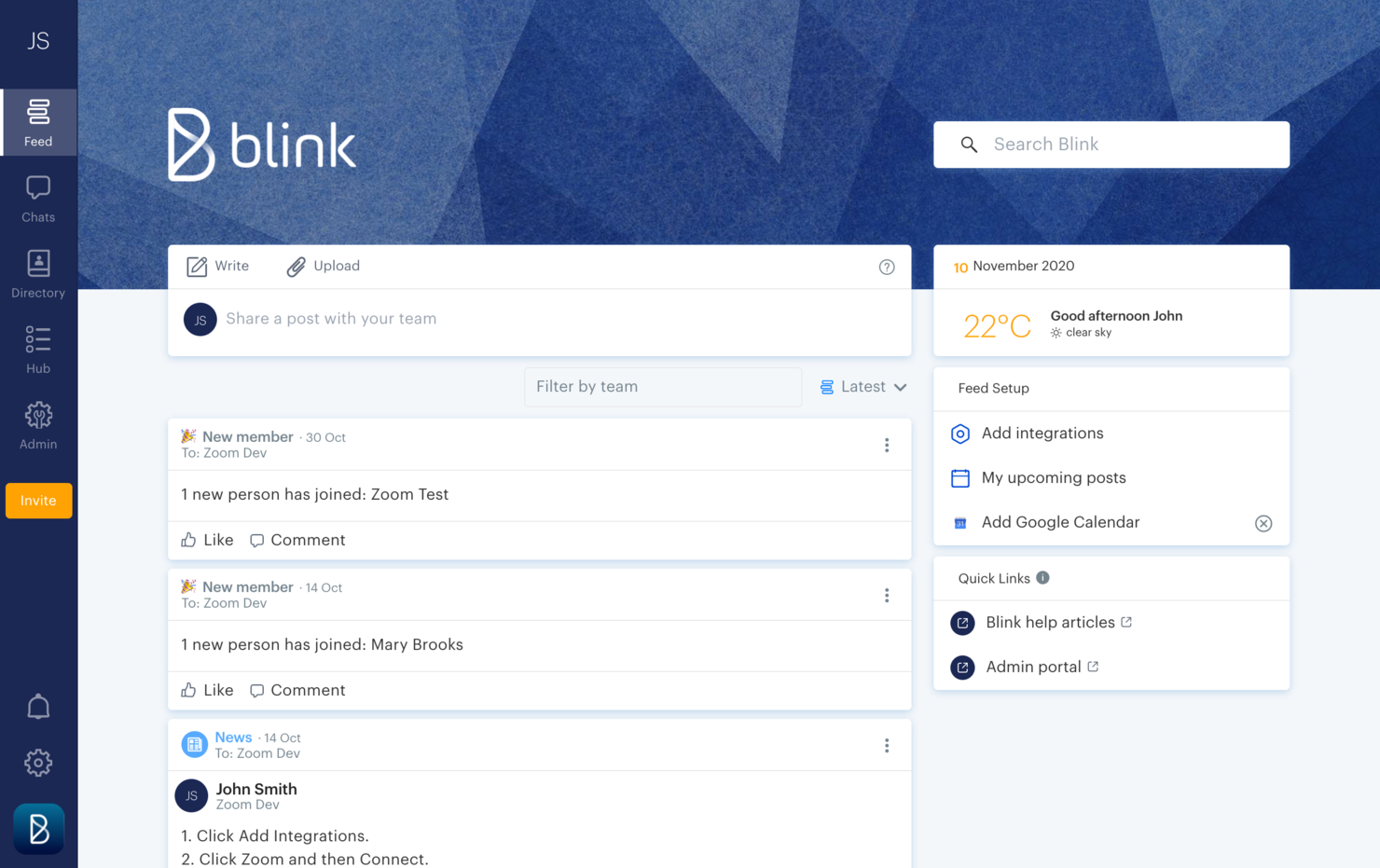
Blink is an online communication tool designed to fit the needs of a deskless workforce.
Why I picked Blink: If you ask me, workplace communication is at the heart of this software. I love that Blink offers direct messaging, group chats, and top-down communications via a company news feed. Moreover, I decided to include it in my list because of how friendly it is to non-office workers. The mobile app is available for both iOS and Android devices, so your team members can have access from their personal or company-provided mobile devices.
In addition to the communication features, the platform also offers an employee recognition tool and engagement tracking tools. You can facilitate peer-to-peer recognition messages and automated messages for things like anniversaries and birthdays. Employee surveys are also included to help you keep a pulse on morale and engagement levels.
Blink Standout Features & Integrations
Features include the platform's analytics capabilities for admins features that allow you to track post-by-post and hub analytics to measure interactions and adoption. You can also track metrics at the company and team level to dig deeper. Another feature is the mandatory reads option, which can be added to communications to ensure employees read through important announcements.
Integrations include Jira, Trello, ADP, Workday, Typeform, Dropbox, GitHub, Box, Office 365, and Google Workplace, among others. You can also build new integrations with the software's public APIs.
Pros and Cons
Pros:
- 24/7 support with all plans
- User-friendly and intuitive to navigate
- Custom branding can be implemented
Cons:
- API access restricted to Enterprise plan
- No free forever plan available
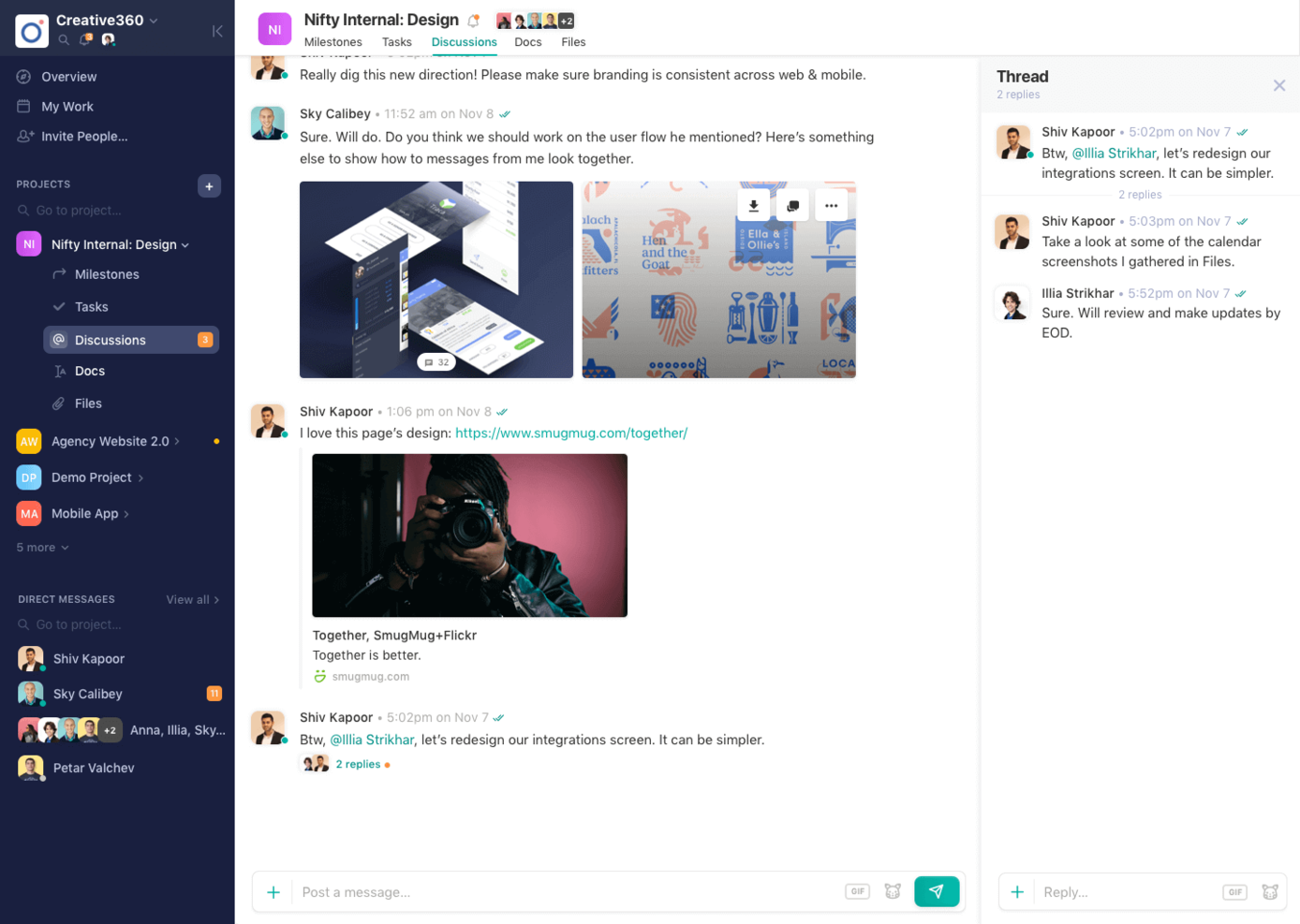
Nifty is a collaboration hub that unites goals, actions, and communications across your projects.
Why I picked Nifty: I selected Nifty for this list for its ability to integrate collaboration tools with individual projects. With this tool, every project comes with its own discussion board and a Zoom integration that you can use to call your team any time. Further, you can collaborate on documents from the documents tab. I also like how this lightweight document solution integrates with Google Docs so that you can work on documents in real-time without leaving Nifty.
The tool also includes direct messaging, which I think is great for facilitating team-wide communication from planning to delivery. Its ability to automatically update project milestones as tasks are completed also stood out to me.
Nifty Standout Features & Integrations
Features include project-specific collaborative workflows that allow team members to share files, assign tasks, and provide updates in a single cohesive view. Its dynamic workspace also includes a team calendar that consolidates project timelines, personal task deadlines, and meetings for enhanced visibility and synchronization.
Integrations. Nifty allows you to import data from Asana, Basecamp, ClickUp, and Trello so you can quickly establish your workflow. Nifty has built-in native integrations such as Slack, Zoom, GitHub, Dropbox, Google Drive, GSuite, and Google Calendar, as well as over 1000 additional integrations through Zapier.
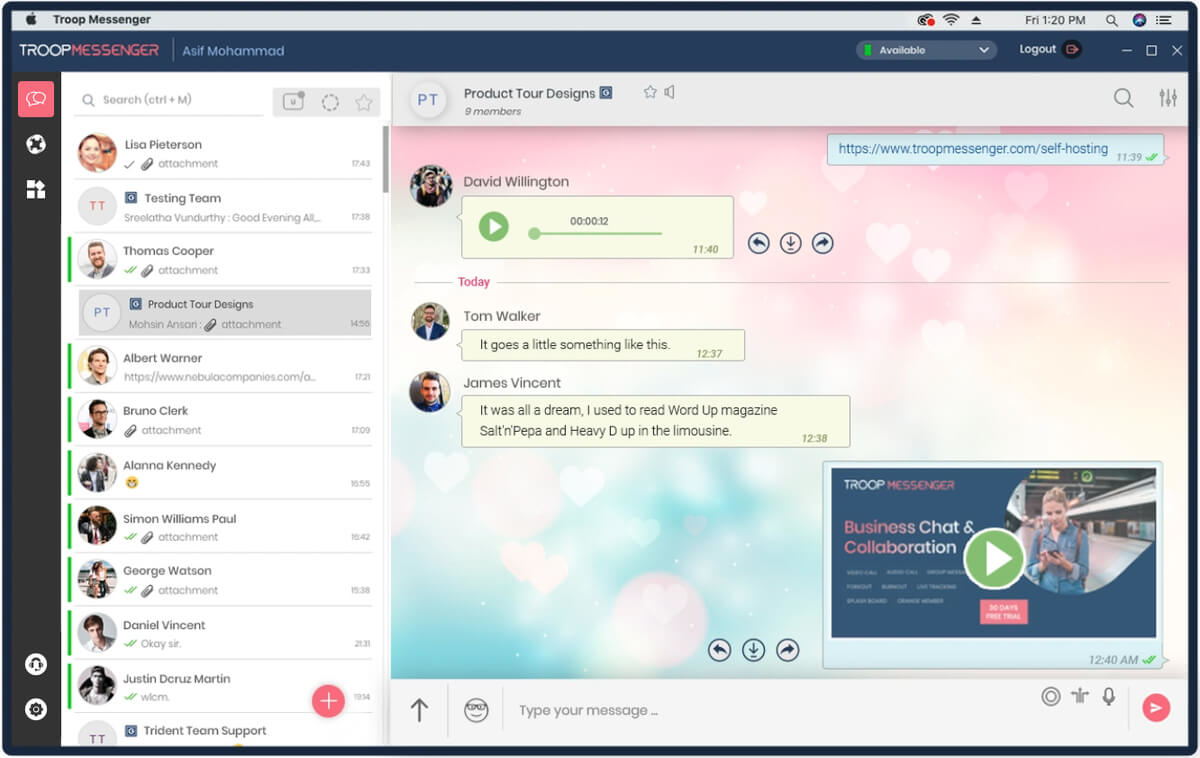
Troop Messenger is a team communication platform that helps remote and hybrid teams keep in touch and stay aligned on their work.
Why I picked Troop Messenger: This platform's major features caught my attention, include instant messaging, voice and video calling, video conferencing, file sharing, and screen sharing and remote screen control. The main reason Troop Messenger made it onto my list, however, is because of its extensive capabilities for connecting team members working together but apart. It keeps all of your communications in a single platform, making it easier to find information and keep conversations centralized. I also want to note that, although it’s a SaaS tool, self-hosting, API, and custom application options are available, too.
Troop Messenger Standout Features & Integrations
Features include a "respond later" option and a "burnout" option that lets you set a message to send at a later time. The self-messaging feature is also unique—a simple but useful feature that lets you send reminders and notes to yourself. Finally, the "forkout" feature lets you send bulk text messages and files to multiple users at once.
Integrations include Google Drive, Dropbox, and LDAP. You can also connect it to a paid Zapier account for additional integrations. The app is available across Windows, Linux, Mac, Android, and iOS.
Pros and Cons
Pros:
- High level of security (end-to-end encryption, MFA)
- Extensive filters for search function
- Ability to invite guest collaborators
Cons:
- Group calling not included in basic plan
- No free-forever plan available

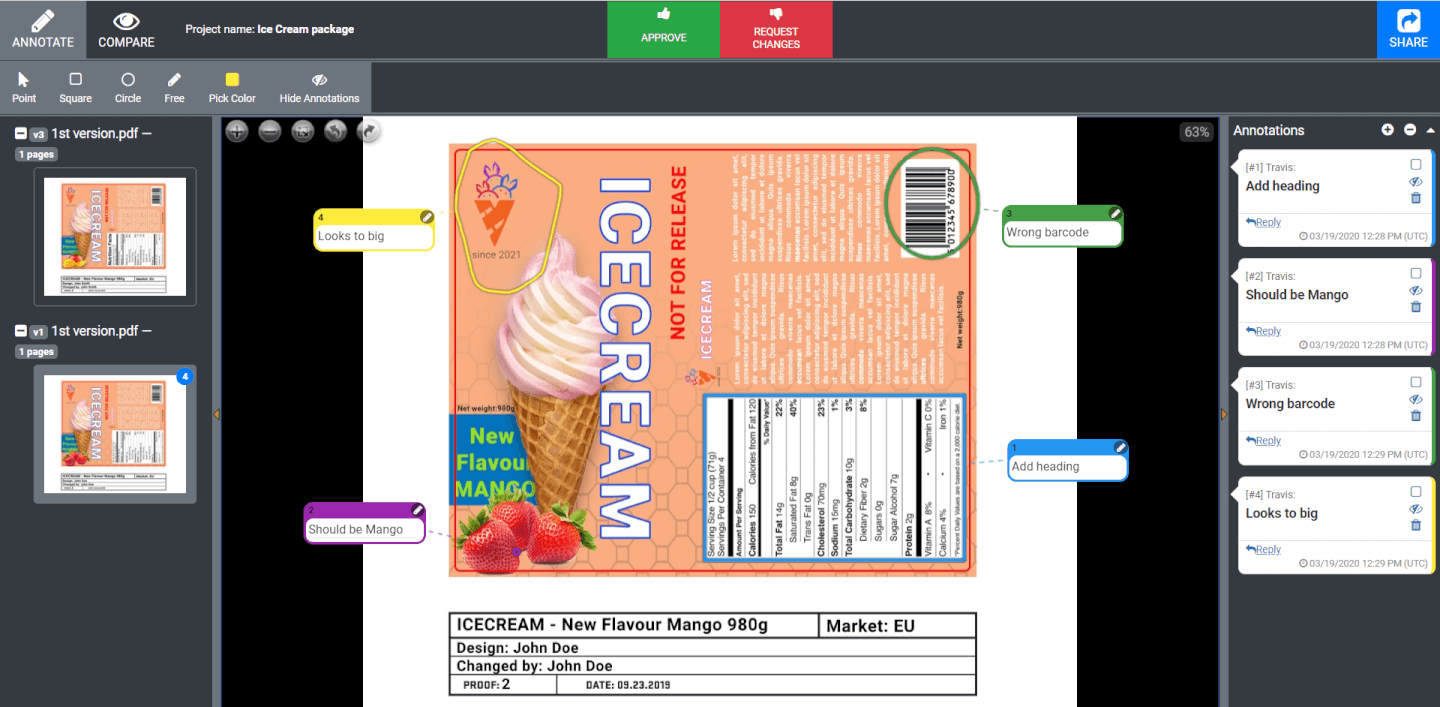
Approval Studio is a design approval software that allows for design feedback and annotation throughout the creation process.
Why I picked Approval Studio: This software made it onto my list because of how useful it is for creative teams, especially creative agencies. You can manage your creative projects and set up approval flows to ensure feedback and proofing rounds are done in an efficient and consistent way. I am especially impressed by the level of detailed feedback that the platform encourages people to provide. For example, there are 4 different annotation types, which allows for more granular version control and supports collaborative iteration on creative assets. You can also have real-time review sessions using the software's live updates.
Approval Studio Standout Featuress & Integrations
Standout features include side-by-side version comparison that allows team members to view multiple iterations of a design simultaneously and provide feedback on changes. The platform also offers customizable project permissions, ensuring that only the right stakeholders can access specific files or make approvals.
Integrations include Shopify and Slack. You can also set up tons of other integrations with a paid Zapier account.
Pros and Cons
Pros:
- Unlimited projects and external reviews with all plans
- Custom branding options with all plans
- Supports over 20 different file types
Cons:
- No free plan available
- Several feature restrictions with the Lite plan
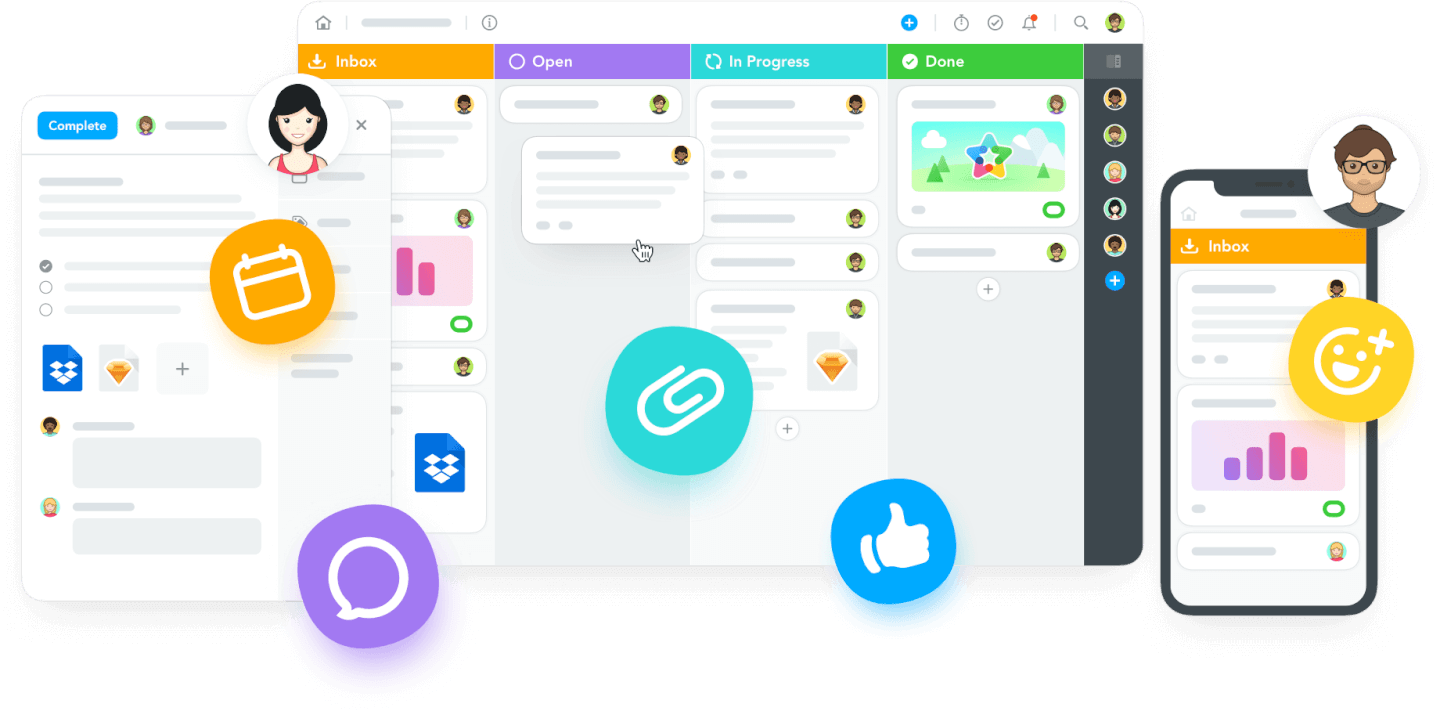
MeisterTask is an online task management tool with intuitive dashboards and individual agendas for each team member.
Why I picked MeisterTask: This software made it onto my list because of its task-specific communication tools. I was particularly impressed by its Kanban-style project boards, which you can customize to fit your team's workflow and track the progress of tasks. Within each task card, you can also store relevant files and links, and carry out discussions, which I think is a fantastic way to keep everyone on the same page.
MeisterTask Standout Features & Integrations
Standout features include the software's individual agendas, which allow each team member to set up and customize their own personal board view, showing the tasks they need to accomplish across multiple projects. Additionally, MeisterTask's focus timer feature helps team members manage their productivity by tracking focused work sessions directly within the platform.
Integrations include Google Workspace, Slack, and GitHub. You can also set up more integrations with a paid Zapier account.
Pros and Cons
Pros:
- Easy to create and assign tasks
- User-friendly and easy to navigate
- Free plan for up to 3 projects
Cons:
- Personal agendas not included in free plan
- Roles and permissions not included in lower-tier plans
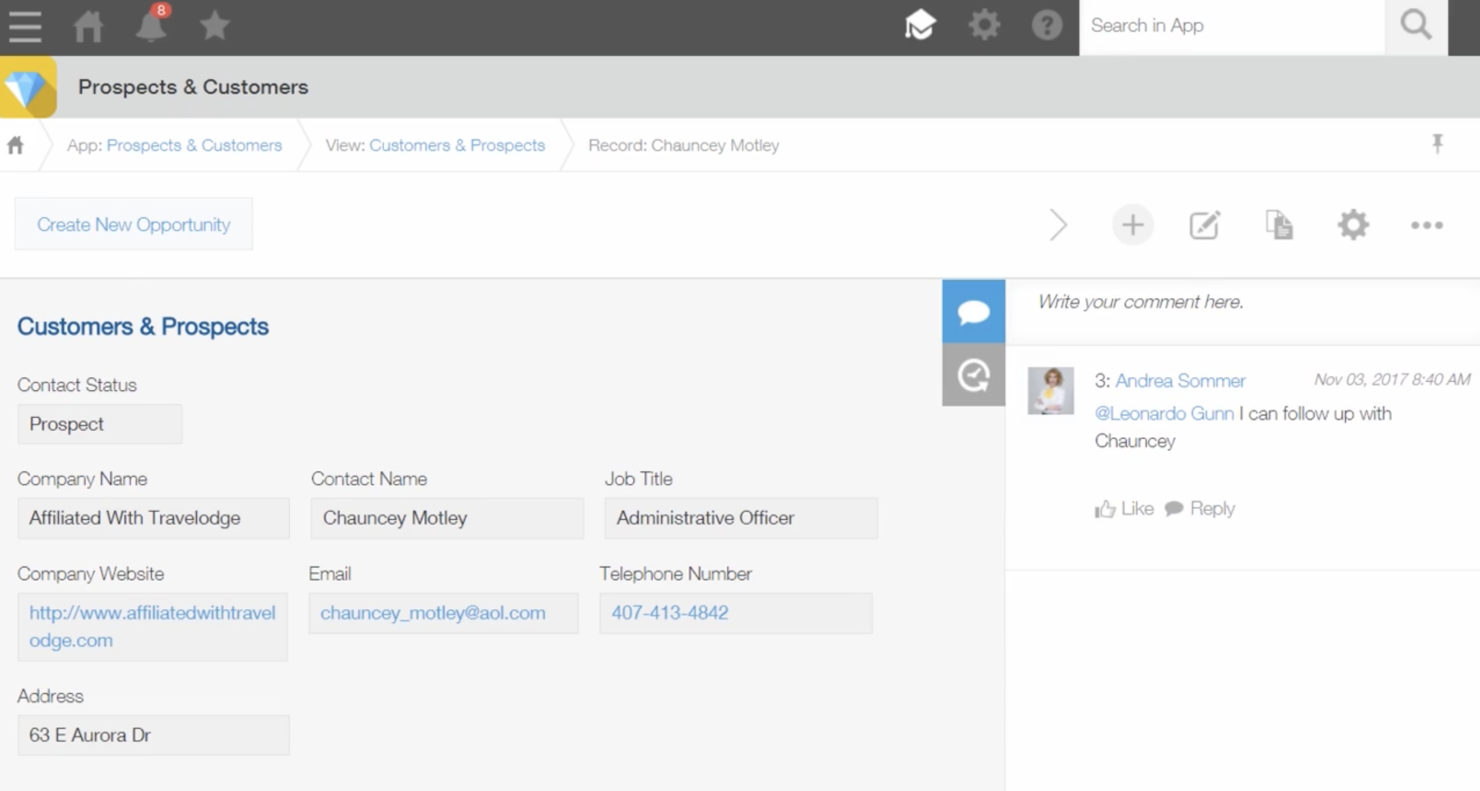
Kintone is a customizable collaboration tool used by teams at Volvo Trucks North America, Japan Airlines, Shiseido, and over 23,000 organizations worldwide.
Why I picked Kintone: Their unique platform allows you to build a wide variety of customizable no-code “apps” either from scratch, using templates or from your existing spreadsheets, for data management, business processes, and workflows. Kintone apps are not only customizable but they allow you to communicate where the data lives so your team is always on the same page.
Kintone Team Space feature lets you start conversations with your team. You can create different spaces for different projects or teams, which keeps your conversations relevant. Pretty much like conversations within tasks, every project data record within Kintone has its comment section where you can mention team members which helps add context to your conversations.
Kintone Standout Features & Integrations
Features include granular permission settings that allow teams to manage access at the app, record, or field level, ensuring the right people are involved in the right conversations. Additionally, Kintone’s built-in database supports collaborative data editing, where multiple users can update records simultaneously.
Integrations include tools like Slack, Gmail, Google Calendar, Outlook, Tableau, Dropbox, Salesforce, HubSpot, Eventbrite, WordPress, QuickBooks, MailChimp, and many more through a paid plan with Zapier or via API integrations.


Filestage is a review and approval platform used by agencies and in-house creative teams around the world. From sharing files to collecting feedback, I believe it can help speed up every step of your creative review process.
Why I picked Filestage: Though it is an overall collaboration tool, I have noticed that feedback management is where Filestage really shines. You can invite reviewers to add comments and discuss ideas right alongside your content and create review steps to group feedback from different types of stakeholders, like Creative, Account management, and Client. Add in automated timecodes, version comparisons, annotations, and attachments, and I think that Filestage is a great feedback platform.
Additionally, I am very impressed that Filestage allows users to see every review step, file format, version, and reviewer in your project, with status indicators to show who’s approved what in a centralized dashboard. At any stage in your creative review process, you can see exactly where things are at a glance.
Filestage Standout Features & Integrations
Features include a region-specific comments feature that ensures feedback is precisely tied to specific areas of visual or textual content. Additionally, Filestage offers automated reminders for reviewers to ensure timely feedback without requiring manual follow-ups, which keeps projects moving efficiently.
Integrations include Slack, Microsoft Teams, Adobe Creative Cloud, and Asana. Additionally, you can access thousands more apps through their integration partners, like Pabbly.

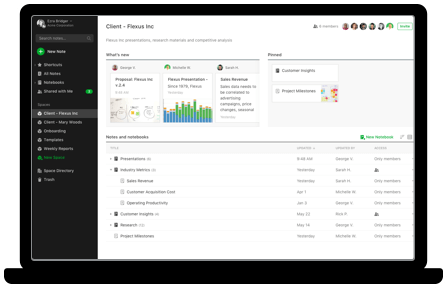
Evernote is a note-taking app where teams can store records and documents, plan projects, and communicate.
Why I picked Evernote: I picked this platform because it's a great way to keep track of multimedia notes and information in one place. You can collect web clippings, meeting notes, images, to-do lists and more, and share them with other team members as needed. I also like how customizable the dashboard is, with lots of widgets to choose from so you can set it up however you like. There's also a virtual bulletin board, which makes it easy to share info and announcements with your whole team.
Evernote Standout Features & Integrations
Features include the ability to search through handwritten notes and digitize paper documents. You can also create your own custom templates to enhance note-taking and records-keeping. The PDF annotation feature also stands out as a small feature that can be incredibly useful.
Integrations include Google Drive, Outlook, Salesforce, Slack, and Microsoft Teams.
Pros and Cons
Pros:
- Free plan available for individual users
- Excellent web clipping capabilities
- Fast, accurate search functionality
Cons:
- Limited offline capabilities
- Admin tools not included in basic team plan

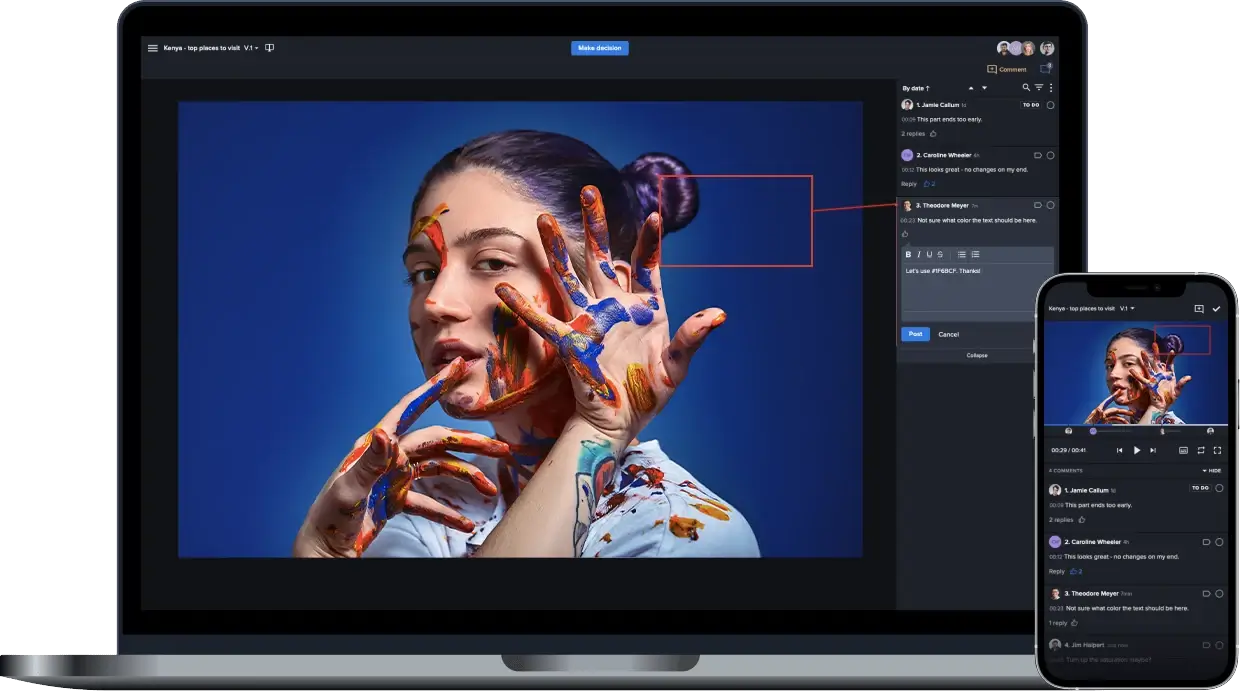
Ziflow is a team collaboration platform for multimedia projects and creative assets. Based on my research, I think it is well-suited to the needs of design, content, marketing, and other creative teams.
Why I picked Ziflow: I added this platform to my list because of its unique capabilities for collaborating on creative assets. It's focus on feedback, with tools like commenting, approvals, and review workflows to ensure your creative processes are followed, particularly stood out to me. You can even add comments on specific frames within a video. The workflow tool also has automation capabilities, so you can speed up your processes and alleviate some of your team's manual workload.
Ziflow Standout Features & Integrations
Standout features include built-in markup tools that allow teams to use shapes and arrows to provide feedback on assets, alongside comment threads and tagging. The software also supports over 1,200 types of files, making it a seriously powerful solution for all kinds of creative work.
Integrations include Slack, Clarizen, monday.com, Microsoft Teams, Jira, Dropbox, Trello, Google Drive, and Asana.
Pros and Cons
Pros:
- Freemium plan available for individuals
- Exceptional customer support provided
- Unlimited reviewers with all plans
Cons:
- Uploads and processing times can be long
- Workflow limitations in lower-tier plans
Other Collaboration Tools
Here are some other collaboration tools that I haven’t had the chance to dive into fully yet, but which are worth a look.
- Samepage
Collaboration mobile app
- Teamwork.com
For company-wide chats
- Gmelius
Collaboration tool for Gmail
- ProjectManager
With built-in employee onboarding
- Redbooth
For creating team dashboards
- GatherContent
For collaborative content management
- Podio
For low-code automated workflows
- Next Matter
For complex workflows
- Confluence
For flexible, customizable workflows
- Ideagen Huddle
Document collaboration tool
- Nutcache
For schedule collaboration
- Hibox
For meeting management
- Workmates
For employee communications and intranet
- Guru
For instant answers within workflows
- SpatialChat
For immersive team collaboration spaces
- Milanote
For team-built visual boards
- Pastel
For digital asset approvals
- Unito
For workflow management
- Visor
For spreadsheet management
- Height
For cross-functional collaboration


Related Project Management Reviews
If you still haven't found what you're looking for here, check out these other project management tool reviews we've curated for you:
- Gantt Chart Maker
- Productivity Tools
- Project Tracking Software
- Project Scheduling Software
- Project Management Software
- Resource Management Software
- Project Management Tools for Remote Teams
- Asynchronous Collaboration Tools
- HIPAA Compliant Collaboration Software
Selection Criteria for Collaboration Tools
Through my experience and research, I have identified key criteria that define a top-tier collaboration tool. These include core functionality, additional standout features, ease of use, onboarding process, customer support, value for money, and user reviews.
Core Collaboration Tools Functionality (25% of final scoring)
To be considered for inclusion on my list of the best collaboration tools, the solution had to offer these core features and capabilities.
- Team collaboration and communication
- Task scheduling and management
- File management and sharing
- Real-time editing and feedback
- Data security and integrity
Additional Standout Features (25% of final scoring)
To help further narrow down the competition, I also looked for unique features, such as:
- Robust security and compliance options
- Advanced project visualization tools
- Built-in workflow automation
- Customizable dashboards
- Multilingual collaboration
Usability (10% of final scoring)
To get a sense of the usability of each system, I considered the following:
- Efficient navigation and search functionality
- Intuitive and clean interface
- Smooth and responsive user experience
- Minimal learning curve for new users
- Support for mobile and desktop usage
Onboarding (10% of total score)
To evaluate the onboarding experience for each platform, I considered the following:
- Detailed training videos and tutorials
- Pre-built templates for quick setup
- Interactive product tours
- Availability of live chat or chatbot support
- Webinars or Q&A sessions for new users
Customer Support (10% of total score)
To assess each software provider’s customer support services, I considered the following:
- Availability of 24/7 support
- Multiple support channels like email, phone, and live chat
- Detailed knowledge base or FAQ section
- Dedicated account manager for enterprise users
- Quick and effective responses to customer issues
Value For Money (10% of total score)
To evaluate the value for money of each platform, I considered the following:
- Competitive pricing compared to similar tools
- Flexible pricing plans for different team sizes
- Clear and transparent pricing structure
- Delivers significant ROI based on features and usage
- Free trials or freemium options
Customer Reviews (10% of total score)
To get a sense of overall customer satisfaction, I considered the following when reading customer reviews:
- Overall user satisfaction ratings
- Feedback regarding tool reliability
- Trends in customer complaints
- Comments about feature usability
- Feedback on support responsiveness
How To Choose Online Collaboration Tools
It’s easy to get bogged down in long feature lists and complex pricing structures. To help you stay focused as you work through your unique software selection process, here’s a checklist of factors to keep in mind:
| Factor | What to Consider |
|---|---|
| Scalability | Make sure the tool can grow with your team and support more users, projects, and data without extra hassle. |
| Integrations | Check if the tool connects with software your team already uses, like Slack, Google Drive, or CRM systems. |
| Customizability | Look for options to tailor your workflows, permissions, or dashboards to match your team’s unique processes. |
| Ease of Use | Make sure it’s easy for everyone to adopt, has a clean interface, and minimal training is required. |
| Budget | Compare the pricing to your team’s needs and consider hidden costs like add-ons, user limits, or upgrades. |
| Security Safeguards | Verify that the tool offers features like data encryption, user permissions, and compliance with standards like GDPR or HIPAA. |
| Collaboration Features | Assess tools for real-time editing, communication channels, and task tracking to keep your team in sync. |
| Support Options | Check that the tool has accessible support channels like live chat, tutorials, or dedicated account managers. |
Trends In Collaboration Tools
Through deep analysis of product updates, press releases, and release logs from numerous influential tools, several distinct trends in collaboration tools have come to light.
- Augmented reality (AR) and virtual reality (VR) integration: Collaboration platforms and video collaboration tools are experimenting with AR and VR in order to deliver a more immersive communication experience. These technologies help replicate in-person interaction, which is perfect for remote teams.
- Advanced project visualization: A major trend in 2024 is the rise in advanced project visualization tools. Features like Gantt charts, Kanban boards, and mind maps are evolving dramatically to help users better visualize their work.
- Real-time collaboration: Real-time collaboration tools are putting greater emphasis on collaboration features, such as co-editing, live commenting, and instant updates, especially collaboration tools for remote teams. These allow team members to contribute simultaneously, saving time and boosting productivity. Google Docs is a testament to this feature's popularity.
- Better security measures: Data security is irreplaceable, particularly with the rise in remote work and data protection regulations like GDPR. Collaboration tools are therefore venturing into advanced security measures like end-to-end encryption and two-factor authentication.
- Cross-platform integration: Integrations with other project management, communication, and productivity tools are becoming increasingly crucial. As a result, several collaboration tools are expanding their integrations to offer better data synchronization and workflow management. A popular integration in this regard is PM software that integrates with MS Teams, as many companies already work with Microsoft 365.
- Death of stand-alone applications: Stand-alone collaboration tools are witnessing a decline in popularity. In 2025, the quest for end-to-end solutions is reducing the demand for single-functionality tools. Platforms with combined features for discussions, video conferencing, project management, and file sharing are gaining traction.
What Are Collaboration Tools?
A collaboration tool is software that enables teams to work together in real-time or asynchronously by sharing tasks, files, messages, and updates in one central location.
These tools are designed to help teams stay aligned, improve communication, and reduce the friction of working across departments, time zones, or organizations. Project managers, team leads, and remote teams rely on them to keep workflows moving, eliminate information silos, and ensure that nothing falls through the cracks.
Features of Collaboration Tools
When selecting collaboration tools, keep an eye out for the following key features:
- Real-time messaging: This lets you instantly chat with teammates, share quick updates, and hash out ideas without waiting on emails. It keeps communication flowing and makes it easy for everyone to stay in the loop.
- File sharing and storage: You can easily upload, organize, and share files within the platform. No more endless digging through inboxes—your documents are always where you need them.
- Task and project management: This feature helps you break down projects into manageable pieces, assign responsibility, and track progress. You’ll always know who’s doing what and when things are due.
- Calendar integration: By syncing calendars, you can schedule meetings, set deadlines, and avoid awkward double-bookings. It’s a real headache saver when juggling multiple projects.
- Video conferencing: Virtual face-to-face meetings become seamless with built-in video calls. You can connect with your team, wherever they are, and add a personal touch to remote collaboration.
- Document collaboration: Multiple people can edit, comment, and review documents at the same time. It takes the pain out of version control and helps ideas develop faster.
- Permission controls: You decide who can access what, keeping confidential information safe and ensuring that only the right people can make edits.
- Mobile access: Stay connected on the go with apps that let you communicate, share files, or check updates from your phone or tablet.
Common Collaboration Tools AI Features
Beyond the standard collaboration tool features listed above, many of these solutions are incorporating AI with features like:
- Automated meeting summaries: AI listens in on meetings and generates concise summaries, so you can quickly review what was discussed—no frantic note-taking required.
- Smart task assignment: AI analyzes conversations and suggests task assignments based on team members’ roles and workloads, helping you distribute work more efficiently.
- Intelligent scheduling assistants: These features find the best meeting times by scanning everyone’s calendars and preferences, saving you from endless back-and-forth emails.
- Contextual file recommendations: AI anticipates the files you might need in a conversation and suggests relevant documents, speeding up collaboration and decision-making.
- Real-time language translation: Communicate smoothly in global teams as AI translates messages or documents instantly, breaking down language barriers.
- Automated workflow suggestions: AI identifies patterns in your projects and proposes process improvements, making teamwork faster and more effective.
Benefits of Collaboration Tools
Here are five benefits of collaboration tools you should consider:
- Improved communication: Collaboration tools allow for efficient communication among team members. By providing a shared platform for discussion, they minimize miscommunication and foster greater transparency.
- Enhanced productivity: Tools with project management capabilities can significantly boost productivity. They help keep track of tasks, deadlines, and milestones, and lead to improved team efficiency and on-time project delivery.
- Centralized information: Collaboration tools act as a central repository for all project-related files and documents. This reduces the amount of time that's wasted sorting through scattered files and allows for quick and easy access to data when needed.
- Better stakeholder management: They let you easily share progress updates and reports with stakeholders. This fosters a sense of trust and alignment among all parties involved in the project.
- Streamlined workflows: Collaboration tools offer workflow management features that outline the project pathway. It helps in the efficient allotment of tasks and in identifying and rectifying bottlenecks promptly.
Keep in mind that the true value of a project management tool lies in its ability to simplify workflows and improve reliability, without unnecessary complexity. As Robyn Birkedal puts it:
A collaboration tool is software that enables teams to work together in real-time or asynchronously by sharing tasks, files, messages, and updates in one central location.
These tools are designed to help teams stay aligned, improve communication, and reduce the friction of working across departments, time zones, or organizations. Project managers, team leads, and remote teams rely on them to keep workflows moving, eliminate information silos, and ensure that nothing falls through the cracks.
What I appreciate most about a good project management tool is when it gets the job done without overcomplicating things. It’s not about having the flashiest features; it’s about being functional and reliable.

Costs & Pricing For Collaboration Tools
Below is a breakdown of common plan types, their average prices, and the features typically included:
| Plan Name | Price (per user/month) | Features |
|---|---|---|
| Free | $0 | Basic communication, limited users and storage, basic file sharing |
| Basic | $5 - $10 | Chat, file sharing, basic task management, limited users and storage |
| Standard | $10 - $20 | Chat, video conferencing, task management, document collaboration, integrations, multiple users, increased storage |
| Premium | $20 - $50 | Advanced collaboration features, project tracking, advanced integrations, unlimited users and storage |
Common stages where your company may want to upgrade their pricing plan include:
- Team expansion: Significant growth in the number of employees or team members often requires more user licenses, advanced collaboration features, and increased storage capacity.
- Project volume increase: As the number of projects grows, users may need more advanced project management capabilities, higher storage limits, and better task tracking features.
- Advanced feature requirements: As your company matures, you might need sophisticated features such as advanced analytics, custom reporting, automation capabilities, and integrations with other enterprise software.
- Client and stakeholder collaboration: Working with more external clients or stakeholders may necessitate better security features, guest access, and collaboration tools that support external communication and file sharing.
- Compliance and security needs: As your company grows, compliance with industry regulations (e.g., GDPR, HIPAA) and heightened security measures may become more critical. This could require an upgrade to a tier that offers better security and compliance features.
Other Types of Collaboration Tools
Here’s a look at some essential categories of collaboration tools that might interest you, either as an alternative or a supplement for your primary collaboration tool:
- Video collaboration software: Video collaboration tools allow for face-to-face interaction and instant communication regardless of location. Features include video calls, screen sharing, and virtual meetings, which make them ideal for collaborative projects. Popular options include Zoom, Microsoft Teams, and Google Meet.
- Secure file sharing and storage tools: For teams working with sensitive data, secure file sharing and storage tools are a major requirement. These cloud collaboration tools make sure files are stored safely and can be accessed only by authorized users. Solutions like Dropbox Business and Google Drive offer features like encryption and two-factor authentication.
- Content creation and management software: Content collaboration tools improve the process of creating, editing, and managing documents and media. Platforms like Notion and Confluence serve as document collaboration tools. Multiple users can work on documents simultaneously, leave comments, and track changes. This is particularly beneficial for content-heavy projects.
- Design and prototyping tools: Design collaboration software is vital for creative teams working on visual projects. Tools like Figma and Adobe XD allow designers to create, share, and receive feedback on prototypes in real-time. These tools allow for instant communication between designers and stakeholders, so all parties are aligned on project goals.
- Digital asset management software: Digital asset management (DAM) software helps teams organize, store, and share digital assets such as images, videos, and documents. Tools like Bynder and Widen provide a centralized repository that improves accessibility and collaboration and makes it easier for teams to find and use assets across various projects.
Collaboration Tools FAQs
Find answers to common questions about remote team collaboration.
Which features in collaboration tools actually save time for project managers?
Collaboration tool features like automated task assignments, workflow templates, and real-time notifications help project managers avoid repetitive work and manual follow-ups. Dashboards with progress and reporting functions make it easy to monitor project health at a glance. Integrations with calendars, file sharing, and communication apps also save time by reducing the need to switch between different tools.
How do collaboration tools make remote work easier for teams?
Collaboration tools make remote work easier by centralizing team communication and file sharing. Features like group chats, video meetings, and real-time document editing allow smooth collaboration regardless of location. Virtual whiteboards and threaded conversations support brainstorming and keep discussions organized, even when team members work in different time zones.
Can collaboration tools be customized for different industries or project types?
Yes, most top collaboration tools offer customization options for different workflows, templates, and integrations. Settings can often be adjusted to match project requirements, whether that’s managing agile sprints, tracking client approvals, or displaying project timelines. Evaluating these options during a trial period helps ensure the tool fits industry-specific needs.
How can collaboration tools improve team engagement and motivation?
Collaboration tools improve engagement by making it easy for everyone to participate and stay informed. Teams can use polls to collect opinions, celebrate milestones in shared channels, and create visible dashboards to display progress. Regular feedback, transparent task tracking, and open channels for suggestions all contribute to a more motivated team environment.
How can project data stay secure when using online collaboration tools?
Project data stays secure by choosing platforms with features such as end-to-end encryption, strong user authentication, and compliance with security standards like GDPR or SOC 2. Setting user roles ensures only the right people access sensitive information. Best practices include using strong passwords, enabling two-factor authentication, and regularly reviewing access permissions and privacy policies.
What's Next?
Want to connect with other digital project managers to share resources and best practices? Join our membership community and get access to 100+ templates, samples, and examples and connect with 100s of other digital project managers in Slack.