

I Tested 10 Workflow Management Software: Top 2026 Picks

10 Best Workflow Management Software Shortlist


The best workflow management software can help coordinate multi-phase product launches that span multiple departments, time zones, and approval gates, while automatically triggering task handoffs, surfacing bottlenecks in real time, and ensuring compliance with internal SOPs. Without it, you're stuck juggling disjointed systems, unclear responsibilities, and progress that's hard to measure, leading to missed deadlines and inefficient collaboration.
After 20+ years of managing projects, I've tested over 25 workflow tools (including more than a few overly complex ones) and used everything from simple task trackers to robust platforms built for cross-functional operations. I've learned that the right tool brings alignment, clarity, and speed, removing bottlenecks and reducing confusion.
Below, you’ll find the top workflow management software options based on what I learned and hands-on testing of current tools. Each recommendation includes standout features, ideal use cases, and what makes it different, so you can find the right solution for your team.
Why Trust Our Software Recommendations
Our team has been testing and reviewing software since 2012. As project managers ourselves, we know how difficult—and important—it is to choose the right software.
For this guide, we evaluated tools using hands-on testing and independent research, scoring tools using our selection criteria. We also draw on insights from industry thought leaders and practicing project management experts.
Our reviews reflect our human editorial judgment, not a sales pitch.
Expert reviewers:
Workflow Management Software Comparison Table
Here’s a table summarizing basic info about the tools described in this article:
| Tool | Best For | Trial Info | Price | ||
|---|---|---|---|---|---|
| 1 | Best with AI-powered risk identification | Free plan + 14-day free trial available | From $9/user/month (billed annually) | Website | |
| 2 | Best for reconnecting siloed teams | Free plan + 14-day free trial + free demo available | From $10/user/month (billed annually) | Website | |
| 3 | Best for secure client collaboration portals | Free demo available | From $5,000/year (billed annually) | Website | |
| 4 | Best for agency management | 14-day free trial + free demo available | From $10/user/month (billed annually) | Website | |
| 5 | Best for complex workflow automation and approvals | Free demo available | Pricing upon request | Website | |
| 6 | Best for workflow orchestration | 15-day free trial | From $19/user/month (billed annually) | Website | |
| 7 | Best for dynamic work management | 30-day free trial | From $35/user/month (billed annually) | Website | |
| 8 | Best with 1,000+ prebuilt app connectors | 30-day free trial | Pricing upon request | Website | |
| 9 | Best for workflow templates | Free demo | Pricing upon request | Website | |
| 10 | Best for AI-driven workflow automation | Free trial available + free demo | Pricing upon request | Website |


Best Workflow Management Software Reviews
These are my overviews of the 20 best workflow management software that made it onto my shortlist. Find each tool’s best use case, standout features, integrations, and pricing information below. I also included a screenshot of the software’s user interface, and some pros and cons for each one.
Best with AI-powered risk identification
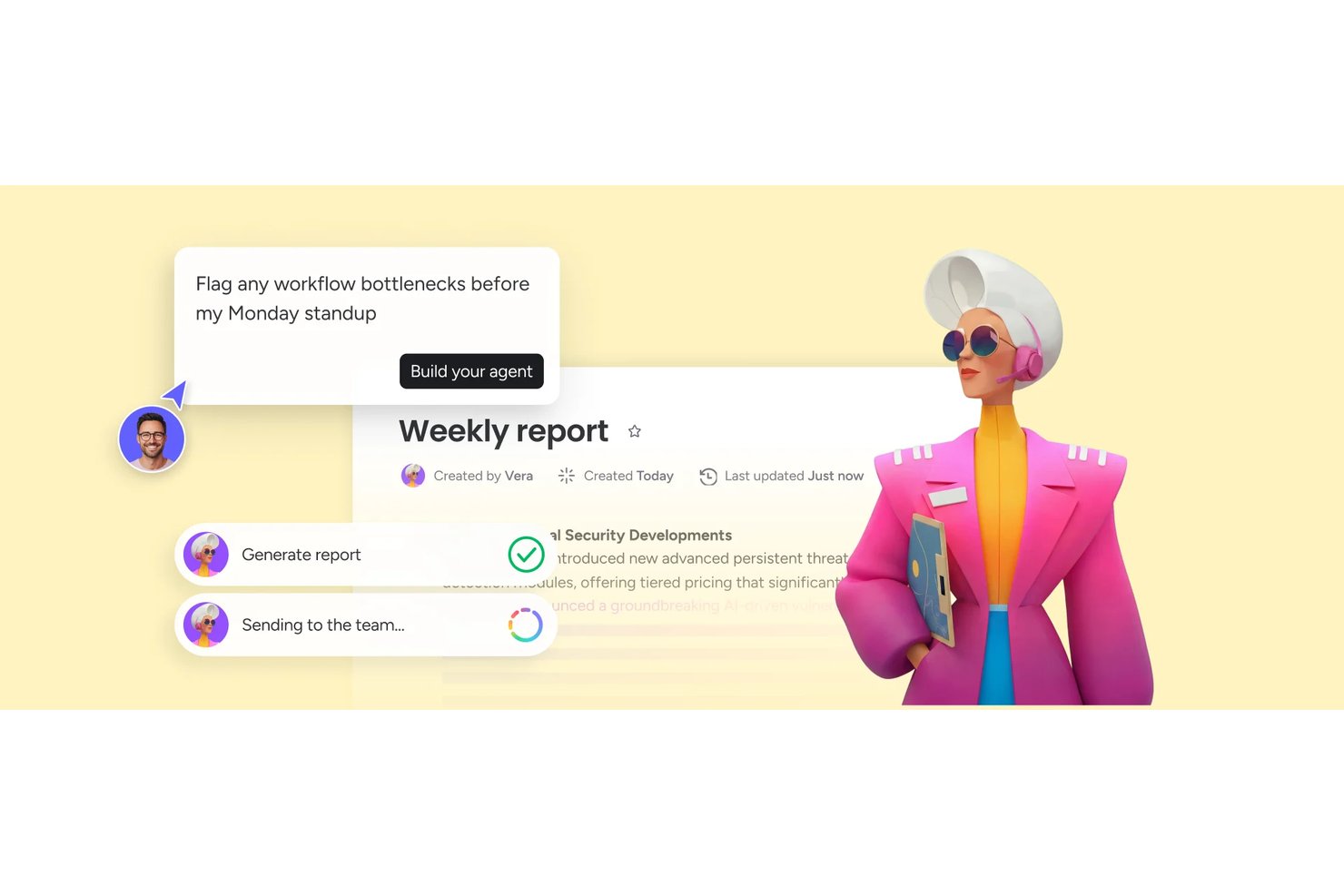
monday AI Workspace is an AI-powered workflow management platform that combines no-code automation, visual project boards, multi-view task management, and an AI agent workforce to orchestrate work across cross-functional teams.
Who Is monday AI Workspace Best For?
It's a strong fit for PMO leads and operations managers at mid-size to enterprise organizations running multiple concurrent projects across distributed teams.
Why I Picked monday AI Workspace
monday AI Workspace earns its spot on my shortlist because of how it handles risk before it becomes a problem. The platform's AI automatically scans dependencies and flags tasks that are likely to slip, surfacing those signals directly inside your board without any manual monitoring. I also like the AI workflow builder, which lets you set up conditional automations that reroute work or escalate alerts the moment a milestone falls behind.
monday AI Workspace Key Features
- No-code workflow builder: Create, map, and modify multi-stage project workflows with drag-and-drop tools and customizable templates.
- Multi-view project boards: Switch between Kanban, Gantt, list, calendar, chart, and dashboard views for any project workspace.
- Form and request intake: Use dynamic intake forms with conditional logic to kick off automated workflows from new project requests.
- Resource and capacity planning: Allocate workload, balance resources, and forecast team capacity directly within project timelines.
monday AI Workspace Integrations
monday AI Workspace offers hundreds of native integrations through built-in integrations and its marketplace, including Slack, Salesforce, HubSpot, Google Workspace, Microsoft 365, Jira, GitHub, Zoom, and Adobe Creative Cloud. It also supports Zapier and provides an API for custom integrations.
Pros and Cons
Pros:
- Gantt, Kanban, calendar, and list views included
- No-code builder handles complex conditional logic
- AI proactively identifies at-risk workflow tasks
Cons:
- Heavy board structures slow down navigation
- Automation runs capped on lower-tier plans
New Product Updates from monday AI Workspace
monday AI Workspace Adds Human Approval Routing
monday AI Workspace adds a human-in-the-loop approval block to AI Workflows, sending approval requests and routing workflow paths based on responses. For more information, visit monday AI Workspace's official site.

Wrike
Best for reconnecting siloed teams
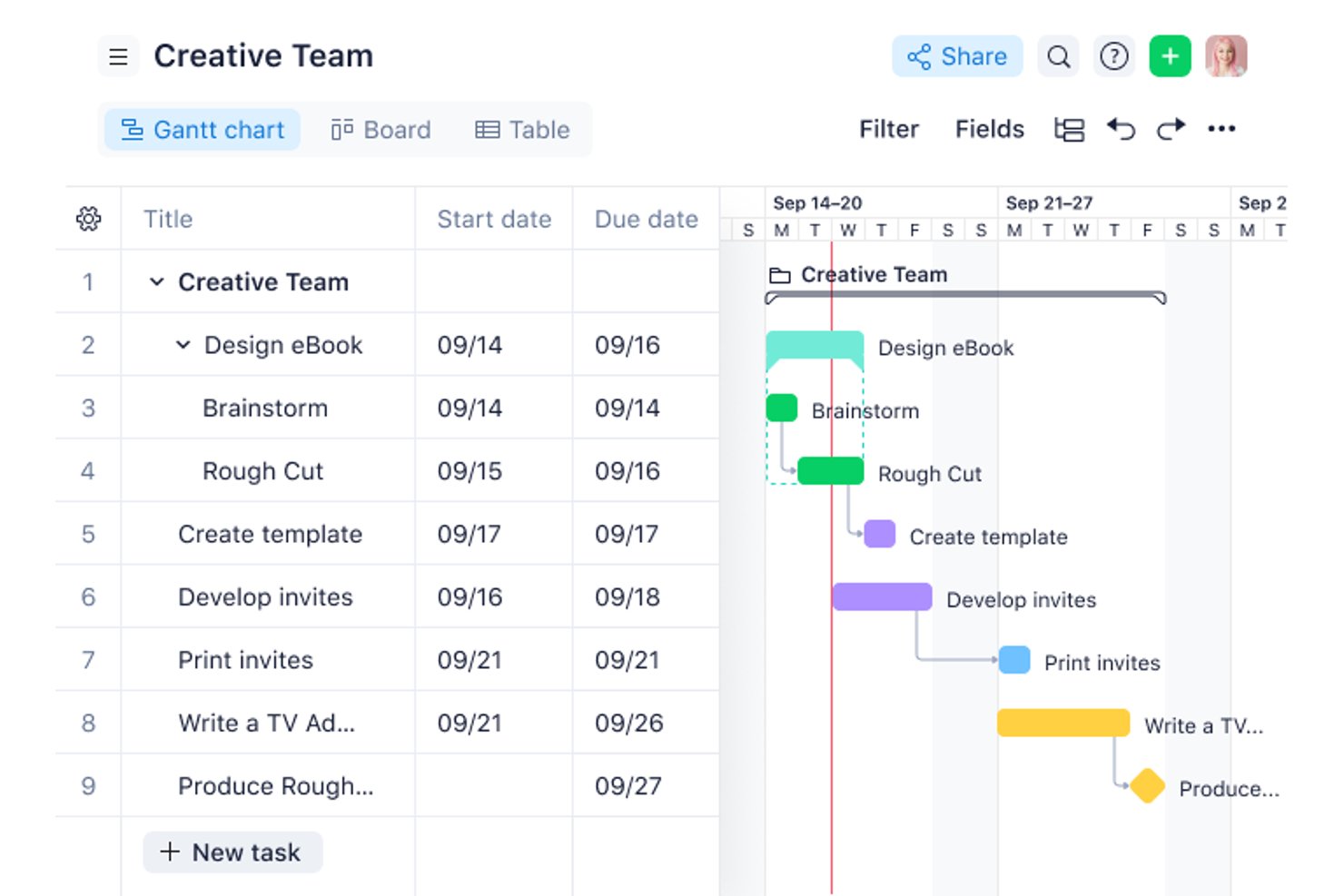
Wrike is a workflow management platform that combines custom workflow builders, multi-view task management, no-code automation, reusable Blueprints, approval and proofing workflows, dynamic request forms, and cross-functional resource and capacity planning tools.
Who Is Wrike Best For?
Wrike is a strong fit for PMO leads, program managers, and operations teams in mid-to-large organizations managing complex, cross-functional workflows.
Why I Picked Wrike
Wrike stands out for supporting workflows across multiple stages, from intake and task assignment through review and approval. Dynamic request forms with conditional logic can route work, assign tasks, and trigger reusable Blueprints for recurring projects and workflows. Wrike also supports approval and proofing workflows, allowing teams to route deliverables for review and track approvals alongside project work.
Wrike Key Features
- Blueprints: Save project and workflow structures as reusable templates for recurring processes.
- Approvals and proofing: Route deliverables for review and approval within workflows, with markup and proofing support for 30+ file types, including video and HTML.
- No-code automation rules: Build WHEN-IF-THEN automation rules with unlimited conditions and up to 10 actions per rule to automate recurring task handoffs.
- Resource and capacity planning: Use workload charts, effort allocation, and drag-and-drop reassignment to manage team availability across projects.
Wrike Integrations
Wrike offers 400+ pre-built native integrations, including Microsoft and Google tools, Dropbox, Salesforce, Marketo, Tableau, and Power BI. An API is also available for custom integrations.
Pros and Cons
Pros:
- Shows dependencies across multiple project views
- Routes intake requests with conditional logic
- Reconnects teams through approval chains
Cons:
- Automation rules stop after usage caps
- Setup demands careful workflow governance
New Product Updates from Wrike

Wrike Adds Quick Search to Table View
Wrike adds Quick Search to Table View with full-table search across titles, descriptions, and fields, plus highlighted matches. This helps users find tasks faster in large tables. For more information, visit Wrike’s official site.

Moxo
Best for secure client collaboration portals

Moxo is a workflow orchestration platform that combines a no-code workflow builder, AI agents, task assignments, approvals, forms, and client portals to manage multi-party business processes end to end.
Who Is Moxo Best For?
Moxo is a strong fit for service-based businesses—like financial services, legal, or consulting firms—that run recurring, client-facing workflows requiring coordination across internal teams and external stakeholders.
Why I Picked Moxo
I've included Moxo in my top picks because it's one of the few workflow management tools that pairs a full process orchestration engine with client portals that are genuinely built for security. Every client interaction happens inside a dedicated portal with granular role-based access controls, so only the right people see the right steps. On top of that, Moxo is SOC 2 Type II certified, GDPR compliant, and maintains a seven-plus-year audit trail, which I think makes it a serious option if you're running regulated processes like KYC verification, loan applications, or compliance reviews.
Moxo Key Features
- No-code workflow builder: Design multi-step workflows with conditional branching, parallel paths, and looping logic using a visual drag-and-drop editor.
- AI workflow agents: Deploy AI agents to handle preparation, coordination, and validation steps automatically within a running workflow.
- eSignature and document collection: Embed eSignature requests and file collection steps directly inside a workflow sequence.
- SLA timers and escalations: Set time-based triggers on workflow steps that automatically escalate overdue tasks to the right stakeholders.
Moxo Integrations
Moxo offers data sync connectors with Salesforce, HubSpot, Microsoft Dynamics, Zoho, Wealthbox, Redtail, Filevine, Global Relay, Smarsh, and Xero, along with documented integrations for tools like Jira, Slack, DocuSign, Stripe, Google Drive, Dropbox, Box, OneDrive, monday.com, QuickBooks, and Zendesk. It connects with Zapier and provides a REST API along with webhooks for custom integrations.
Pros and Cons
Pros:
- Dedicated per-client workspaces with audit trails
- SOC 2 Type II and GDPR compliant
- Built-in eSignatures, forms, and approvals per workflow
Cons:
- No built-in time tracking for tasks
- Mobile app less capable than desktop
Best for agency management
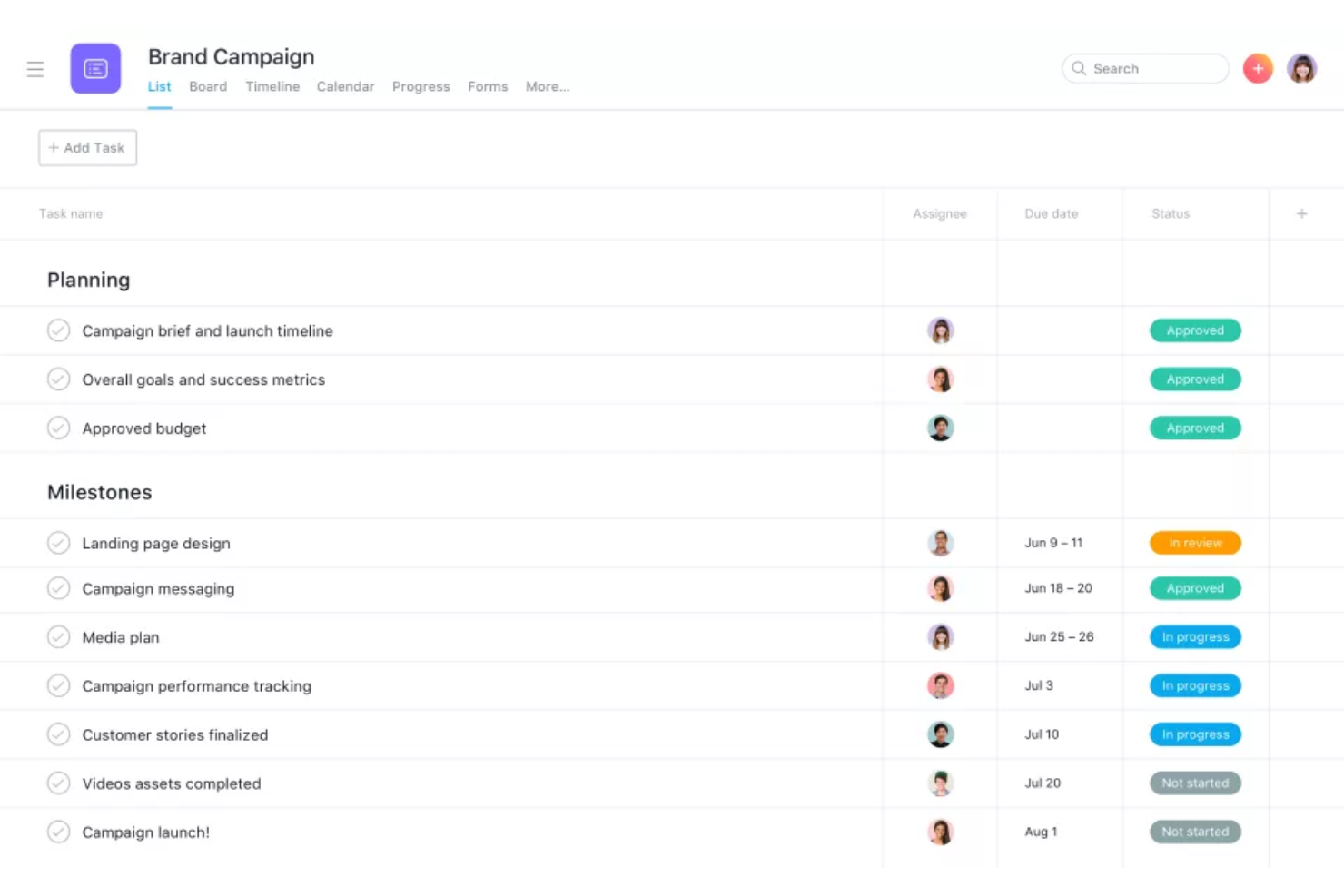
Productive is a workflow management software that helps businesses manage their workflows, projects, and resources using flexible dashboards, charts, and calendars. It's user-friendly, customizable, and scalable, making it a great choice for digital agencies planning for growth.
Why I picked Productive: Productive excels as a workflow management software, particularly for digital agencies, by providing comprehensive tools to streamline and optimize growing and changing business processes. With its user-friendly interface and customizable features, Productive enables digital agencies to create and manage workflows tailored to their specific needs. Productive's integrated time tracking and project management features allow agencies and their clients to monitor project progress, track resources, and ensure deadlines are met. Productive boasts strong reporting and analytics capabilities, providing valuable and shareable insights around team performance, profitability, and project health.
Productive Standout Features & Integrations
Features include billable utilization by person, capacity insights, booking insights, scheduling, placeholders, vacation requests, and operations analytics.
Integrations include Quickbooks, Jira, Xero, Exact, Slack, Harvest Import, Fortnox, and Personio. More integrations are available by connecting a paid Zapier account.
Pros and Cons
Pros:
- Client guest accounts are free
- iOS + Android mobile app available
- Built-in time tracking capabilities
Cons:
- Roles and user rights could be more customizable
- Webhooks locked to higher paid plans
New Product Updates from Productive
Productive Adds Voice Dictation, Slack Connector, Proposals, and Overtime
Productive adds voice dictation, a Slack Connector, proposal controls, and overtime tracking. These updates support faster AI interactions, client proposals, and time management. For more information, visit Productive’s official site.

Best for complex workflow automation and approvals

If you're looking to transform how your marketing team or agency operates, Screendragon offers a unique approach to workflow management. This no-code platform offers AI tools that help you automate complex workflows, provide real-time insights, and free your team from mundane administrative tasks. Whether managing agency operations or optimizing resource management, it empowers you to focus on creativity and impactful work.
Why I Picked Screendragon
I picked Screendragon because it's no-code workflow management features are tailored to serve marketing teams. Unique features like AI agents and governance rules let you automate complex workflows and manage high volumes of marketing activities.
The platform also provides real-time insights and advanced permission controls, so your team can focus on creative processes while maintaining operational efficiency. With these tailored functionalities, Screendragon stands out as a valuable tool for boosting productivity and profitability in marketing operations.
Screendragon Key Features
Screendragon offers a variety of other workflow management features that cater to diverse needs.
- Visual Workflow Builder: This feature lets your team create and modify workflows with a drag-and-drop interface, which makes it easy to adapt processes to your specific requirements.
- Dynamic Custom Forms: You can create tailored forms for capturing the specific data necessary for your projects and make sure all relevant information is collected and processed efficiently.
- Digital Approval Management: This lets you streamline your approval processes, set up automated approval workflows, reduce bottlenecks, and speed up project timelines.
- Comprehensive Workflow Analytics: You get real-time insights and reports on your workflows, which helps you make informed decisions and optimize your team's performance.
Screendragon Integrations
Integrations include Microsoft Power BI, Slack, Microsoft Teams, Jira, Google Drive, Egnyte, Box, Adobe, Salesforce, and Trello.
Pros and Cons
Pros:
- Responsive and knowledgeable customer support team
- Easy to scale workflows and processes to large teams and departments
- Workflow builder does not require coding abilities
Cons:
- Configuration options can be overwhelming
- Some functionalities difficult to find or not immediately clear
New Product Updates from Screendragon
Screendragon Unveils New AI Hub
Screendragon introduced AI Hub, a new capability that lets teams build and manage AI agents directly within workflows. The update helps marketing teams automate tasks, maintain governance controls, and scale AI-driven operations more efficiently. For more information, visit Screendragon's official site.
Qntrl
Best for workflow orchestration
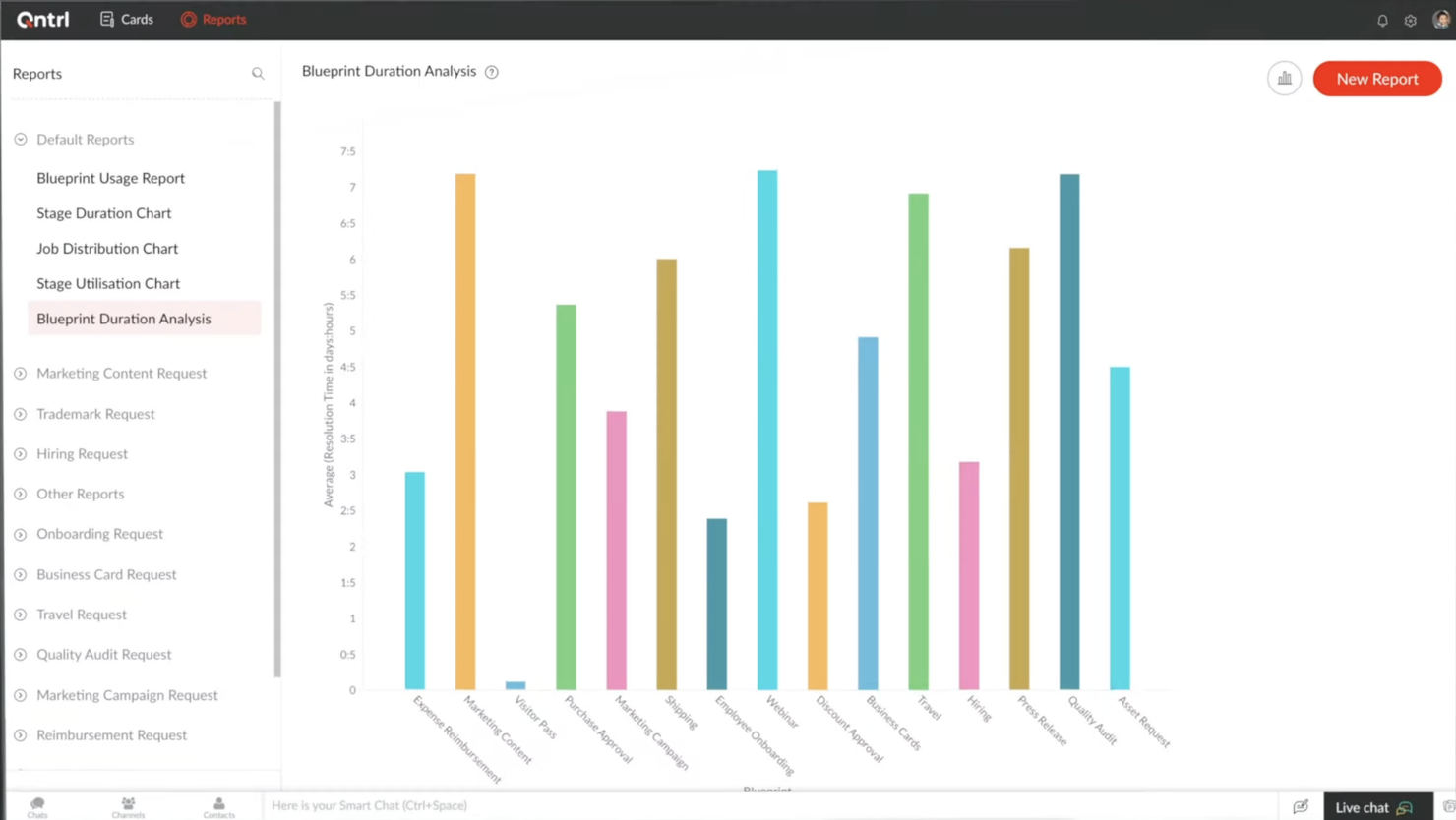
Qntrl is a low-code workflow orchestration software that brings visibility, control, and automation to processes by cutting down on manual work. The platform lets users control all incoming requests for a team through a centralized interface.
Why I Picked Qntrl
Qntrl comes with integrated tools for workflow orchestration that help workflow process managers design, deploy, and iterate workflows for almost any process. Its centralized visibility feature provides your team with a unified view of requests, so all stakeholders are on the same page.
Additionally, Qntrl's process automation tools reduce manual tasks so you can focus on strategic priorities rather than routine operations. The platform's robust process compliance tools make sure your workflows adhere to established standards so you can improve efficiency and governance.
Qntrl Key Features
Qntrl offers a range of other features designed to improve your workflow management.
- Process Mapping: This feature lets you visually design workflows using a drag-and-drop interface and simplify the creation of complex processes.
- Automated Notifications: You can keep everyone in the loop with automatic updates that notify your team of important changes and deadlines.
- Enterprise Security: Qntrl provides robust security measures to protect your data and manage access, so you can keep your workflows secure.
- Reports & Dashboards: You can track operational performance and generate custom reports to gain insights into your business processes.
Qntrl Integrations
Integrations include Zoho CRM, Salesforce, Typeform, Pipedrive, HubSpot, Slack, and Freshsales.
Pros and Cons
Pros:
- Webhooks can send notifications to third-party applications
- Great workflow visualizations (“Blueprints”)
- Native integration with Zoho
Cons:
- Complex feature set has a learning curve
- Field names have to be unique across flows

Best for dynamic work management

Quickbase offers a platform designed for dynamic work management, providing a robust solution for businesses to manage complex projects and processes. It distinguishes itself as a leading choice for dynamic work management by offering a no-code application platform that empowers teams to create, connect, and control their workflows with ease and efficiency.
Why I Picked Quickbase
I chose Quickbase for workflow management because it offers a highly customizable and dynamic work management platform that caters to a variety of project types and industries, including construction, manufacturing, property management, education, government, and legal. You can use their software to set up workflows for numerous business needs, including project management, process improvements, field services, supply chain monitoring, training, and customer relations.
What sets Quickbase apart is its emphasis on letting users create, connect, and customize applications without the need to replace existing systems. This flexibility is particularly valuable for dynamic work environments where adaptability is key.
Quickbase Key Features
Quickbase also offers a range of other features that can help improve workflow management for your team.
- Custom Application Building: You can create tailored applications using a low-code environment and address specific workflow needs without the need for extensive programming skills.
- Real-Time Data Syncing: This feature keeps data and changes up-to-date across the platform to provide your team with the most current information for decision-making and collaboration.
- Mobile Accessibility: Your field teams can use offline forms and checklists that automatically sync with the system to maintain seamless updates between field and office operations.
- Role-Based Permissions: You can manage user access effectively by setting roles and permissions. This makes sure team members have the appropriate level of access to information and tools for their tasks.
Quickbase Integrations
Integrations include Salesforce, Slack, Google Calendar, Gmail, Outlook, and Dropbox.
Pros and Cons
Pros:
- Robust notifications and reminders
- Simple no-code platform is easy for non-tech people to learn
- Workflows are easy to set up and customize
Cons:
- Project management integrations are limited
- Team plan requires a minimum of 20 users
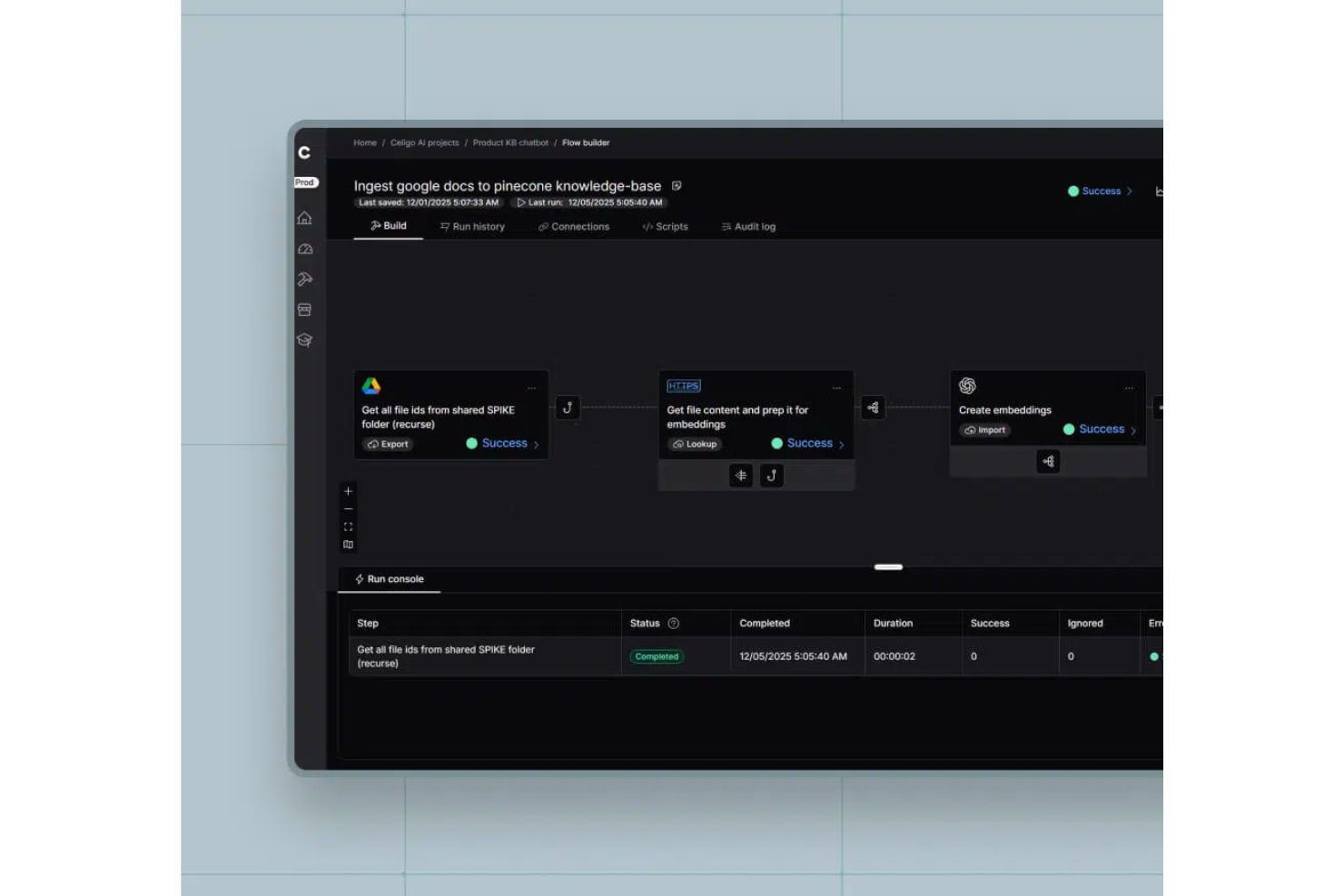
Celigo is an integration and workflow automation platform that connects cloud apps, automates business processes, and manages data flows across your tech stack.
Who Is Celigo Best For?
Celigo suits IT teams and operations leaders at mid-sized to large businesses who need to automate workflows across multiple cloud applications.
Why I Picked Celigo
I picked Celigo as one of the best because having access to over 1,000 prebuilt app connectors lets my team automate workflows between nearly any combination of cloud tools. I use these connectors to quickly link systems like Salesforce, NetSuite, and Slack without custom development. This saves us time when orchestrating multi-step processes across departments.
Celigo Key Features
- AI integration assistant: Build and optimize integrations using AI-driven recommendations and automation.
- Error management dashboard: Monitor, diagnose, and resolve integration errors from a centralized dashboard.
- Custom flow builder: Design and manage multi-step workflows with a visual, drag-and-drop interface.
- Role-based access controls: Set granular permissions for users and teams managing workflows and integrations.
Celigo Integrations
Celigo offers 1,000+ native prebuilt connectors, including Salesforce, NetSuite, Microsoft Dynamics 365, SAP, Oracle, Shopify, Amazon, Jira, Slack, and Google Sheets. An API is available for custom integrations.
Pros and Cons
Pros:
- Supports advanced API management and publishing
- Real-time error monitoring and alerting available
- Visual flow designer simplifies workflow automation
Cons:
- Advanced features may require technical expertise
- Limited offline workflow capabilities
New Product Updates from Celigo
Celigo Expands Microsoft Entra Authentication for SQL Connectors
Celigo’s Azure Synapse and MS SQL connectors now support Microsoft Entra service principal authentication via client secrets and certificates, so you can connect securely without relying on SQL credentials. For more information, visit Celigo’s official site.
 .
.
Kissflow
Best for workflow templates
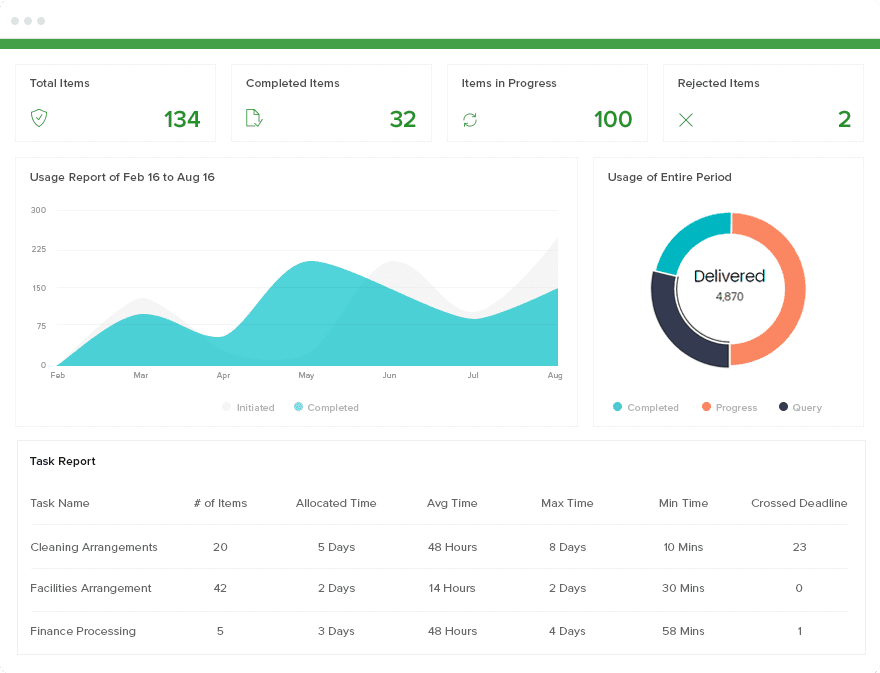
Kissflow is a low-code workflow management software solution that combines projects, cases, and collaboration within its core functionality. This solution is ideal for teams or projects whose makeup, processes, or framework require flexibility.
Why I Picked Kissflow
I picked Kissflow because it offers a range of customizable workflow templates that cater to diverse industries like IT, healthcare, and finance. These templates simplify the process of creating and deploying workflows, so you can visualize processes and define roles without the need for extensive coding skills.
The platform's low-code and no-code capabilities make sure your team can quickly adapt and manage operations, which helps to reduce redundancies and improve collaboration. With over 200 templates available, Kissflow offers the flexibility to address various business needs, from employee onboarding to expense management.
Kissflow Key Features
Kissflow offers a comprehensive suite of other features that can help with workflow management.
- Visual Workflow Designer: The intuitive drag-and-drop interface lets you map out processes easily and makes it simple to visualize and adjust workflows as needed.
- Role-Based Access Control: You can make sure sensitive information is only accessible to authorized users, which maintains security and compliance across your organization.
- KPI-Based Reporting: You get detailed reports on workflow efficiency and potential bottlenecks, which helps you make data-driven decisions for process improvements.
- External Portals: This feature lets external users access your core applications, can facilitate collaboration with stakeholders outside your organization, and helps maintain smooth workflow processes.
Kissflow Integrations
Integrations include ActiveCampaign, Mailchimp, Adobe Sign, Docusign, Asana, Basecamp, and monday.com.
Pros and Cons
Pros:
- Real-time communication boosts collaboration
- Loads of configurable workflow design features
- Built-in, holistic workflow modeling
Cons:
- Requires longer time to implement and onboard
- Not tailored for small organizations

TrailHQ
Best for AI-driven workflow automation
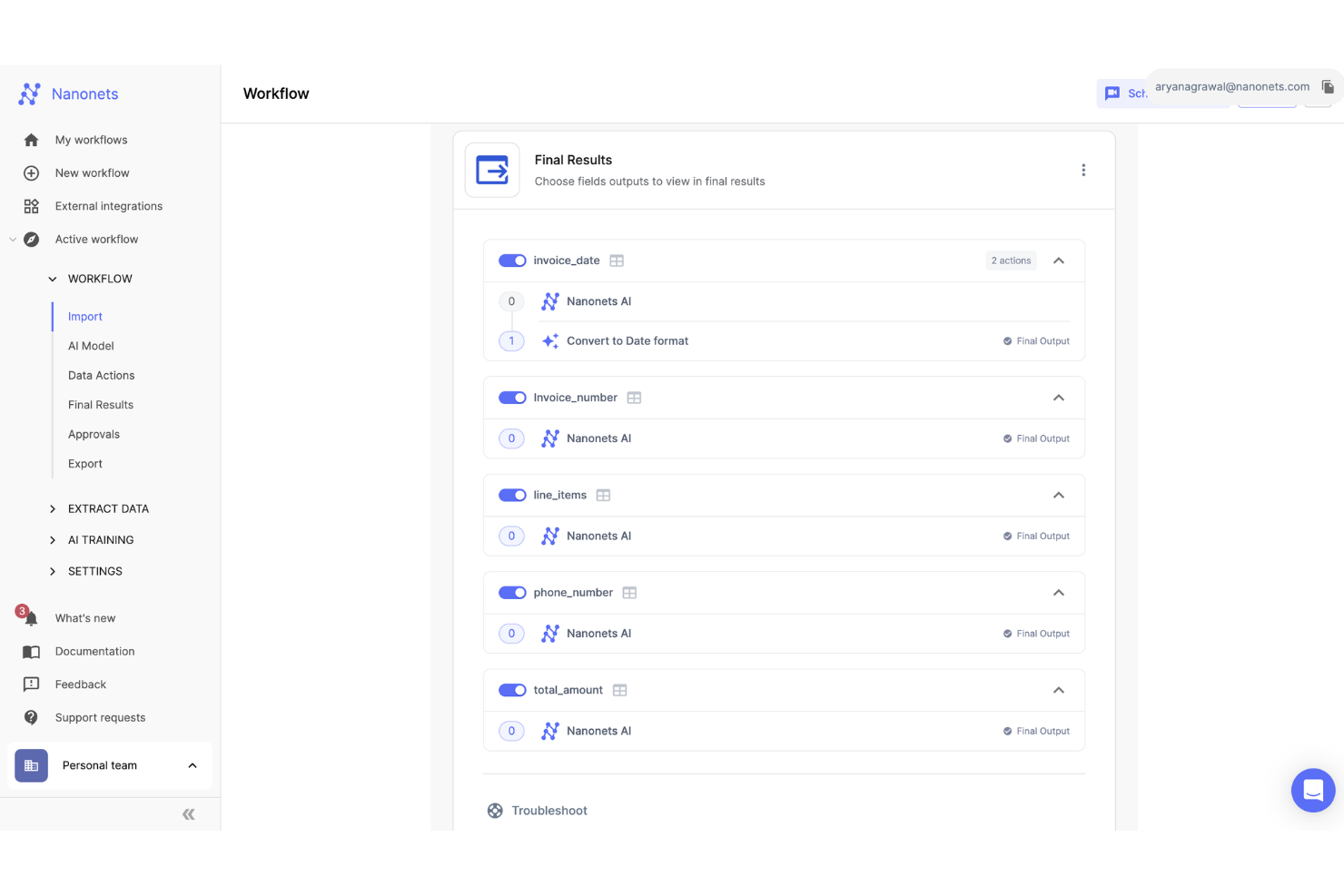
Nanonets is an AI platform that lets you automate document processing and workflow management across industries like finance, healthcare, and logistics. It handles tasks such as data extraction, invoice handling, and accounts payable to help reduce the need for manual intervention.
Why I Picked Nanonets
I selected Nanonets for its advanced AI features that simplify complex workflows through natural language processing, enabling integration with multiple applications and data sources. It supports custom Language Learning Models (LLMs), allowing for highly customizable workflows that adapt to specific business requirements, so you can create processes that are both automated and highly adaptable.
Nanonets also has a human-in-the-loop option for manual approval steps, adding an extra layer of precision to automated processes. Additionally, as a no-code platform, it also empowers users to automate workflows without any coding knowledge.
Nanonets Key Features
Nanonets offers several other capabilities that make it a compelling choice for workflow management software.
- Natural Language Workflow Creation: You can quickly build workflows using natural language, as well as connect apps, databases, and documents without complex coding.
- Data Security Compliance: Nanonets adheres to GDPR, SOC 2, and HIPAA standards, which helps you maintain confidentiality and integrity of data throughout the workflow process.
- Advanced Optical Character Recognition: This lets you convert various document types into editable data and streamline document processing tasks.
- Data Extraction Capabilities: You can extract data accurately to reduce errors and make sure your workflows maintain high levels of precision.
Nanonets Integrations
Integrations include QuickBooks, Salesforce, Google Sheets, Dropbox, and Zapier.
Pros and Cons
Pros:
- Data extraction features
- Compatible with multiple programming languages
- Simple API for easy integration
Cons:
- May not be suitable for extensive machine learning projects
- Nanonets offers fewer customization options than other tools
Other Workflow Management Software
Here are a few more tools that did not make it to the top, but are still worth your consideration.
- Quixy
For drag-and-drop workflows
- ClickUp
For free plan
- TaxDome
For setting dependencies
- Cflow
For growing organizations
- Nifty
For team communication
- Pipefy
For low-code process templates
- Kintone
For designing custom workflow apps
- Process Street
For process documentation
- Avaza
For consolidating workflows
- DocuWare
For document management workflows
- Jira
For agile project tracking
- Camunda Platform
For BPMN workflow engine
- Admation
For marketing-specific projects
- beSlick
For improving work processes
- Next Matter
For handling cross-functional workflows
- Adobe Workfront
For project process templates
- ProcessMaker
For large organizations
- Formstack
For workflow library
- Ravetree
For integrated work management
- Pneumatic Workflow
For process automation
- WorkflowGen
For adaptive workflows for digital ecosystems
- Unito
For collaboration across multiple tools
- Lytho
For built-in DAM
- Metatask
For repeatable business workflows
- Gain
For approval workflows
- GanttPRO
For Gantt workflows
- Miro
For flowcharts and mind maps
- Creatio AI Studio
For no-code workflow automation
- Jotform Workflows
For no-code workflow creation
- Smartsheet
For spreadsheet-based workflows


Related Workflow Management Software Reviews
- Approval Workflow Software
- Free Workflow Software
- Workflow App
- Document Workflow Software
- Process Workflow Software
- Workflow Diagram Software
How I Evaluate Workflow Management Software
I split my evaluation into two layers: baseline must-haves like visual workflow builders and approval routing, and the differentiators that separate good tools from great ones.
Core Functionality (Table Stakes For This List)
When I'm selecting tools for my list, I rank each one on a scale from 0 (does not offer the functionality) to 5 (excels in this area) for each core functionality listed below. Then, I calculate the tool's total score into a percentage. Each tool needs to achieve a minimum total score of 75% to be considered for inclusion.
- Visual Workflow Builder: I look for a drag-and-drop or no-code builder where teams can map out multi-stage processes, like a design review pipeline with conditional branching for revisions.
- Task Automation & Triggers: Each tool gets evaluated on whether it supports rule-based automations, such as auto-assigning a QA reviewer when a development task moves to "ready for review."
- Approval & Review Routing: I check whether the tool can handle sequential or parallel approval chains, like gating a deployment stage until both a tech lead and a product owner sign off.
- Multi-View Task Management: The tool should offer at least Kanban, list, and Gantt views so teams can track workflow status and dependencies in the format that fits their planning style.
- Team Collaboration Tools: I evaluate whether comments, @mentions, and file sharing are tied directly to workflow steps, not buried in a separate module disconnected from project context.
- Integrations & API Access: A strong integration catalog matters, especially native connections to tools like Slack, Jira, and Google Drive, plus an open API for custom workflow extensions.
Once I have a list of tools that meet the criteria, I consider what sets each platform apart.
Differentiating Factors (What Sets Vendors Apart)
Here's how I compare and contrast different vendors:
Standout Features
Custom workflow analytics make a real difference when you need to pinpoint where projects consistently stall—like discovering that a legal review stage adds days to every product launch. I also look for dynamic intake forms that auto-route requests based on field responses, which eliminates the manual triage step many teams get stuck on. Resource and capacity planning is another separator, especially for PMO leads balancing workloads across multiple concurrent projects.
Beyond Features
Scalability matters when a tool that works for a 10-person agile squad starts buckling under an enterprise PMO running hundreds of concurrent workflows. I evaluate how well each platform handles growing teams and automation volumes. Implementation support is another key factor—vendors that offer workflow migration assistance and prebuilt starter templates cut time-to-value significantly. I also consider pricing transparency, especially whether automation limits or user tiers create unexpected costs as your team grows.
How to Choose Workflow Management Software
With so many different workflow management software solutions available, it can be challenging to make decisions on what workflow management software is going to be the best fit for your needs.
As you're shortlisting, trialing, and selecting workflow management software consider:
- What you want to use it to do: Start by identifying the workflow management software feature gap you're trying to fill to clarify the features and functionality the workflow automation software needs to provide.
- Who will need to use it: To evaluate cost and requirements, consider who will be using the software and how many licenses you'll need. You'll need to evaluate if it'll just be your team or the whole organization that will require access. When that's clear, it's worth considering if you're prioritizing ease of use for all, or speed for your workflow management software power users.
- What other tools it needs to work with: Clarify what tools you're replacing, what tools are staying, and the tools you'll need to integrate with, such as accounting, CRM or HR software. You'll need to decide if the tools will need to integrate together, or alternatively, if you can replace multiple tools with one consolidated workflow management software.
- What outcomes are important: Consider the result that the software needs to deliver to be considered a success. Consider what capability you want to gain, or what you want to improve, and how you will be measuring success. For example, an outcome could be the ability to get greater visibility into performance. You could compare workflow management software features until you’re blue in the face but if you aren’t thinking about the outcomes you want to drive, you could be wasting a lot of valuable time.
- How it would work within your organization: Consider the software selection alongside your workflows and delivery methodology. Evaluate what's working well, and the areas that are causing issues that need to be addressed. Remember every business is different; don’t assume that because a tool is popular that it'll work in your organization.
Trends In Workflow Management Software
Workflow approval software continue to evolve rapidly, driven by the need to streamline work, enhance productivity, and reduce inefficiencies and errors in project processes. This evolution is characterized by several key trends and features that I outline next.
- Customization and Flexibility: A significant emphasis on customization and flexibility to allow users to tailor the work flow management system to their specific project needs. Tools like Kintone and monday.com offer extensive customization options, from creating custom workflow apps to utilizing a wide array of templates for various project types, highlighting the importance of adaptability in workflow management software.
- Integration and Automation: Since it is very difficult to create a tool that does everything well, vendors are investing in enhanced integration capabilities and automation features, enabling seamless connection with other tools and the automation of repetitive tasks. Digital workflow automation solutions like Pneumatic Workflow and Flokzu provide robust integration options and the ability to automate workflows, demonstrating the push toward making workflow management more efficient and less prone to error.
- Enhanced Security Measures: As society leans more into data privacy and security, there will be a heightened focus on security measures within data workflow tools, especially for industries with strict regulatory requirements and data privacy laws like GDPR.
What Is Workflow Management Software?
Workflow management software is a digital tool designed to automate, streamline, and optimize the various processes and tasks within an organization. It helps teams create structured workflows, assign tasks, track progress, and streamline handoffs between people or systems. Project managers, operations leads, and cross-functional teams use it to reduce manual errors, increase accountability, and boost efficiency.
Types of Workflow Management Software
Workflow management software comes in various forms, each tailored to different industries and needs. From a free workflow tool to industry-specific business workflow tools, here's a look at the main types of workflow management software available today:
General Workflow Management Software
These tools cater to a wide range of business processes across various industries, offering versatile solutions that enhance overall efficiency and streamline operations.
- Free Workflow Software: Provides essential features at no cost, offering a cost-effective starting point for small businesses or teams with basic workflow needs.
- SaaS Workflow Software: Cloud workflow management solutions that are easy to deploy and scale, popular for their accessibility, cost-effectiveness, and regular updates across various industries.
- Enterprise Workflow Systems: Comprehensive workflow systems for handling complex, large-scale operations within big organizations, offering advanced features like process mapping, analytics, and extensive integrations.
- No-Code Workflow Automation Systems: Allows users to create and automate workflows without programming knowledge, popular among non-technical teams for rapid setup and adaptability.
Industry-Specific Workflow Management Software
These tools are tailored to meet the specific needs and requirements of various industries, ensuring optimized company workflows and enhanced efficiency within their respective fields.
- IT Workflow Management Software: Designed specifically for IT departments, these tools help manage tasks like ticketing, incident response, and change management, integrating with other IT systems to ensure smooth IT workflows.
- Healthcare Workflow Software: Streamlines patient management, appointment scheduling, billing, and compliance tracking, essential for medical practices, hospitals, and clinics.
- Construction Workflow Software: Manages project timelines, resources, subcontractor workflows, and compliance requirements, helping construction managers keep projects on track and within budget.
- Legal Workflow Software: Assists law firms in managing case files, client communications, billing, and document approval processes, enhancing productivity and compliance with legal standards.
- Marketing Workflow Software: Tailored for marketing teams to manage campaign workflows, content approvals, project timelines, and client management workflows, improving collaboration and execution of marketing initiatives.
- HR Workflow Software: Automates recruitment, onboarding, employee management workflows, and performance reviews, essential for HR teams to streamline processes and improve the employee experience.
- Finance Workflow Software: Automates invoice processing, expense approvals, and financial reporting, enhancing accuracy and efficiency in financial operations.
- Manufacturing Workflow Software: Focuses on production planning, inventory management, quality control, and compliance tracking, optimizing production processes and maintaining quality standards.
- Sales Workflow Software: Optimizes sales processes by helping manage leads, track progress through the sales funnel, and automate follow-ups, essential for enhancing sales performance.
Features of Workflow Management Software
When selecting workflow management software, keep an eye out for the following key features:
- Automation of repetitive tasks: This lets you set up rules and triggers so routine activities, like task assignments or status updates, happen automatically. It reduces repetitive, manual work so you can focus on more strategic work.
- Real-time collaboration: With built-in chat, file sharing, and commenting, you and your team can work together in the moment. This reduces time spent searching for information and lets everyone give feedback and see changes as they happen.
- Integration capabilities: You should be able to connect with other tools you're using, like email, calendars, or CRM platforms. This keeps information in sync, saves you from constant app switching, and cuts down on confusion and manual entry.
- Visual workflow builders: These drag-and-drop tools let you map and customize your workflow. You can adapt the software to fit the way your team actually works, save time, and avoid unnecessary mistakes.
- Task prioritization and management: You can organize tasks by priority, due date, and dependencies. This provides clarity and helps you and your team meet deadlines, tackle important work first, and keep projects on track.
- Security measures: You should have access to strong security controls like user permissions, encryption, and audit logs to protect your project data, keep sensitive information safe, and meet compliance requirements.
- Data analytics and reporting: This feature provides insights into project progress, bottlenecks, and team performance so you can make better decisions and spot issues before they escalate.
Common Workflow Management Software AI Features
Beyond the standard software features listed above, many workflow management solutions offer AI features like:
- Intelligent task assignment: You can use AI to automatically match tasks to the right team members based on workload, skill sets, and past performance. This cuts down on time spent delegating and lets everyone work on what they do best.
- Predictive analytics: With AI-powered predictions, you get alerts about possible delays, resource shortages, or workflow bottlenecks early so you can address issues and keep projects moving forward.
- Automated process optimization: This AI feature can analyze patterns in how your team works and suggest ways to streamline processes or automate steps. This helps you continuously refine your workflow and be more efficient over time.
- Natural language processing: You can describe workflows in plain English, and the software automatically builds and configures the process for you. This removes the learning curve and helps you set up new processes faster.
- Smart notifications and reminders: This AI feature learns which notifications matter most to each team member, reduces noise, and makes sure you never miss a critical update or deadline.
Benefits of Workflow Management Software
Here are five primary advantages of using workflow management software:
- Enhanced Efficiency: Automates and streamlines routine processes. This benefit allows users to focus on more critical aspects of their projects, significantly reducing the time spent on manual tasks and speeding up project delivery.
- Improved Collaboration: Centralizes communication and project documentation. Teams can work together more effectively, with all members having access to the latest updates and documents, which ensures that everyone is on the same page and reduces misunderstandings or errors.
- Greater Visibility: Offers real-time insights into project progress and performance. This visibility enables project managers to make informed decisions, anticipate potential bottlenecks, and adjust resources or timelines as necessary to stay on track.
- Increased Accountability: Tracks tasks and responsibilities clearly. By defining who is responsible for each task and monitoring progress, workflow management software helps ensure that all team members are accountable for their contributions, leading to more consistent project outcomes.
- Scalability: Adapts to the needs of projects of any size. Whether managing a small team project or overseeing multiple large-scale initiatives, workflow management software can scale to accommodate the complexity and scope of any project, making it a versatile tool for organizations of all sizes.
5 Workflow Management Best Practices
Implementing workflow management best practices is essential for streamlining operations, enhancing team collaboration, and ensuring continuous improvement. Here’s how to optimize workflows effectively to make the most out of your software:
1. Define Clear Objectives and Outcomes
Establishing specific goals ensures that all team members understand the desired outcomes and align their efforts accordingly. SMART (Specific, Measurable, Achievable, Relevant, Time-bound) goals should be developed for each workflow, and these objectives should be communicated clearly across the team to maintain alignment and clarity.
2. Map and Analyze Current Processes
Understanding existing workflows is crucial for identifying inefficiencies and areas for improvement. Process mapping tools can help you create detailed visualizations of current workflows, making it easier to pinpoint bottlenecks. Regular workflow audits should be conducted to assess performance and refine processes where necessary.
3. Leverage Automation Strategically
Automation plays a key role in reducing manual effort, minimizing errors, and freeing up time for high-value tasks. Identifying repetitive tasks that can be automated, such as routine communications and data entry, ensures efficiency gains. Workflow automation software should be integrated with existing systems to create a seamless operational flow.
4. Integrate Systems for Seamless Data Flow
A well-connected system prevents data silos and eliminates the need for manual data transfers between platforms. Choosing workflow management software with strong integration capabilities ensures a smooth exchange of information between different tools. It is also important to periodically review and update integrations to accommodate new technologies or changes in processes.
6. Implement Continuous Monitoring and Improvement
Ongoing evaluation allows you to adapt workflows based on data insights and feedback. Establishing key performance indicators (KPIs) helps track workflow efficiency, while your team's input provides qualitative insights that can inform necessary improvements. Reviewing workflow analytics and making iterative adjustments ensures that processes remain effective over time.
Costs & Pricing For Workflow Management Software
Workflow management tools typically offer different tiers to cater to the varying needs of businesses, from small startups to large enterprises. These usually include a core set of features with additional capabilities provided in higher tiers to support more complex project management needs.
Below is a table summarizing common plan options, their average pricing, and the features included in each:
Plan Comparison Table For Workflow Management Software
| Plan Type | Average Price | Common Features Included |
|---|---|---|
| Free | $0 | Task management, basic reporting, limited integrations, team collaboration tools |
| Basic | $5-10 per user/month | Enhanced task management, additional integrations, more storage, support via email |
| Standard | $10-20 per user/month | Full project management suite, advanced reporting, unlimited integrations, priority support |
| Premium | $20-30 per user/month | Resource management, time tracking, advanced security options, personalized onboarding |
| Enterprise | Custom pricing | Custom features and integrations, dedicated support, enterprise-grade security, data analytics |
When selecting a plan, consider the size of your team, the complexity of your projects, and the level of support you might need. The right workflow management software should not only address your current requirements but also scale with your organization's growth.
Common stages where your company may want to upgrade its pricing plan include:
- Increased Team Size: As the company grows and hires more employees, the need for additional user licenses and collaboration features increases.
- Expanded Project Volume: When the number of projects and tasks significantly increases, the company may require advanced project management features, such as enhanced reporting and automations.
- Advanced Reporting and Analytics: As the company matures, there is often a greater need for detailed reporting and analytics to track performance, productivity, and project success.
- Integration Needs: With growth, companies often start using more tools and systems, necessitating more integrations with other tools like CRM, accounting, or communication platforms.
- Enhanced Security and Compliance: As companies handle more sensitive data and face stricter regulatory requirements, they may require access to more security features, compliance support, and better data protection.
Workflow Management Software Frequently Asked Questions
Find answers to common questions other people ask about this topic.
What problems does workflow management software solve?
Workflow management software helps to solve several problems often encountered in project management. These include:
- Lack of Transparency and Visibility: The software offers a visual representation of the workflow, ensuring that everyone knows their respective roles and the progress of each task.
- Inefficiency and Delays: It helps to streamline and automate repetitive tasks, reducing the time taken to complete processes and increasing productivity.
- Error Prone Manual Processes: By automating workflows, the chances of errors that are common in manual processes are significantly reduced.
- Inconsistency in Workflows: It aids in standardizing workflows, ensuring tasks are carried out in a consistent manner irrespective of the team member handling them.
How do project managers track progress with workflow management software?
Project managers track progress using real-time dashboards, task boards, Gantt charts, and automated status reports.
These tools let you see what’s complete, what’s in progress, and what’s behind schedule at a glance. You can quickly drill into bottlenecks, reassign work, and keep everyone aligned without chasing status updates over email.
How can workflow management tools help identify and prevent project bottlenecks?
Workflow management tools help you spot bottlenecks by providing visual task flows and alerts for overdue tasks. You’ll see where tasks pile up and which stages slow down your teams.
Once you spot those bottlenecks, you can use built-in analytics to review common blockers, redistribute workload, and adjust workflows to avoid recurring delays.
What does workflow software do?
Workflow software helps automate task assignment, manage approvals, and standardize repeatable processes. With it, tasks get routed automatically, files and updates are in one place, and you can easily adjust priorities as project needs change.
It varies by tool, but most workflow software are made to help you perform these functions:
- List tasks and organize them (hierarchically, by temporal order, by project, by tag, etc)
- Map dependencies between tasks
- Set deadlines for tasks and monitor them over time
- Create diagrams that show the sequence of tasks in a drag-and-drop interface
Which are the two primary ways to coordinate project workflows?
Use case 1: Coordinating people-centric workflows
This use case focuses on organizing people by bringing their tasks, files, status updates, and comms into one place, with a clear structure to the flow of work.
This is often the case in businesses including:
- Digital agencies, development agencies, creative agencies, etcetera
- Project and product teams or departments within companies
- Professional services companies
If you’re among these users, the type of workflow software that’s most useful for you will usually be focused on:
- Collaboration
- Scheduling
- File sharing
You also will want all these features in a no-code environment that simply organizes your business processes in a central place. Most of the products in my list here fall into this category. You can also explore business process management (BPM) tools that help streamline people-centric workflows with structured process design.
Use case 2: Coordinating system-centric workflows
This use case focuses more on connecting business processes or systems together, integrating their functions and tech systems to create a unified workflow.
This is more common in enterprise companies, as well as in sectors including:
- IT and software
- Manufacturing and logistics
- Transportation
If you’re among these users, the type of workflow software that is most useful is often an enterprise-grade solution. At the very least, you need access to a REST API and SLA manager to help you orchestrate across multiple systems.
At this level, though, many companies may go beyond a workflow SaaS product and use an Integration Platform As-A-Service (iPaaS) such as Make (formerly known as Integromat) offering connectors to unify their business process systems.
What training is required for employees to use workflow management software effectively?
For effective use of workflow management software, employees need a mix of general and tool-specific training. You can start with a foundational session, using materials such as our Beginner’s Guide to Workflow Management, to establish the principles of workflow management and set the context. Then, move on to hands-on training with the specific software—this should cover navigation, features, and how to manage tasks within the software. Be sure to include scenario-based exercises that mirror real work processes.
Moreover, periodic refresher courses and advanced training for power users can really help in optimizing the use of the tool. This approach ensures that everyone is comfortable and proficient, ultimately enhancing productivity and adoption.
What are common challenges in implementing a workflow management process?
Implementing a workflow management process can be tricky. Some common challenges include:
- Resistance from team members, especially if they’re comfortable with the old ways of doing things.
- Aligning the new system with existing processes and ensuring it actually meets the team’s needs.
- Gaps in the initial planning once the system goes live.
- Ensuring everyone is up to speed and proficient with the new tools.
- Continuous monitoring and tweaking the system based on feedback and performance can demand a lot of attention initially.
How can workflow management be optimized in a multi-departmental organization?
Optimizing workflow management in a multi-departmental organization requires:
- Creating standardized processes
- Setting clear ownership
- Using role-based permissions
Start by mapping out every department’s typical workflow and identifying handoff points between teams. Then, use workflow management software to create shared templates with clear steps and owners. Finally, set up role-based permissions so each team sees only what’s relevant but can collaborate on cross-functional projects.
Remember to schedule regular sync meetings to review shared tasks and resolve blockers early. Use automation to assign tasks across departments and trigger alerts if deadlines slip. Finally, gather feedback from each department to adjust and improve your workflows, so everyone works together smoothly.