

10 Best ActiveCollab Alternatives in 2026

Best ActiveCollab Alternatives Shortlist


Strong ActiveCollab alternatives are project management platforms that fit your delivery model, whether you need cross-project capacity planning, client-work visibility, or software-team workflows. After 15+ years in digital transformation and agency client services, I know how quickly plans strain when priorities shift and dependencies cross disciplines. This guide compares tools for client delivery, operations, and software teams so you can choose based on how your work gets planned, coordinated, and tracked.
What Is ActiveCollab?
ActiveCollab is project management and collaboration software for service businesses, agencies, and consultancies. It brings tasks, client communication, time tracking, budgeting, and invoicing into one platform. Teams can plan work in list, board, or timeline views, manage task dependencies, and track workload, project budgets, and profitability.
Comparison Table: ActiveCollab Alternatives
Compare pricing and specs, side by side, for the ActiveCollab alternatives that made it onto my shortlist.
Score legend (out of 5)
- Excellent 4.5–5
- Good 4–4.4
- Average 3–3.9
- Below average 2–2.9
- Poor 1–1.9
| Tool | Starting Price | Website | |||||||
|---|---|---|---|---|---|---|---|---|---|
| Best for AI agents that act on project work | 4.2 out of 5 | 3 | 5 | 5 | 3 | 5 | 4 | $10.99/user/month Free plan + free trial available | Website |
| Best for forecasting client-work profitability | 4.0 out of 5 | 4 | 4 | 4 | 3 | 5 | 4 | $9.99/user/month Free plan + 14-day free trial + free demo available | Website |
| Best for linking work to code and team docs | 4.3 out of 5 | 3 | 5 | 5 | 4 | 5 | 4 | $9.70/user/month Free plan + 14-day free trial available | Website |
| Best for AI that acts across project work | 4.5 out of 5 | 4 | 5 | 5 | 4 | 5 | 4 | $12/user/month Free plan + free demo available | Book Demo |
| Best for linking agency work to profitability | 4.7 out of 5 | 5 | 5 | 5 | 4 | 5 | 4 | $10/user/month 14-day free trial + demo available | Book Demo |
| Best for spreadsheet-led operations planning | 4.0 out of 5 | 2 | 5 | 4 | 4 | 5 | 4 | $9/user/month 30-day free trial + free demo available | Website |
| Best for service firms from quote to cash | 4.3 out of 5 | 4 | 5 | 5 | 3 | 5 | 4 | $17/user/month 14-day free trial + free demo available | Book Demo |
| Best for cross-project capacity planning | 4.5 out of 5 | 4 | 5 | 5 | 4 | 5 | 4 | $10/user/month Free plan + 14-day free trial + free demo available | Book Demo |
| Best for tying project costs to billing | 4.7 out of 5 | 5 | 5 | 5 | 4 | 5 | 4 | $4/user/month Free plan + 15-day free trial + free demo available | Website |
| Best for cross-team operations beyond projects | 4.3 out of 5 | 3 | 5 | 5 | 4 | 5 | 4 | $9/seat/month Free plan + 14-day free trial available | Website |


Why Trust Our Software Recommendations
Our team has been testing and reviewing software since 2012. As project managers ourselves, we know how difficult—and important—it is to choose the right software.
For this guide, we evaluated tools using hands-on testing and independent research, scoring tools using our selection criteria. We also draw on insights from industry thought leaders and practicing project management experts.
Our reviews reflect our human editorial judgment, not a sales pitch.
Expert reviewers:
ActiveCollab Alternatives Reviews
Below are my reviews of the best ActiveCollab alternatives on my shortlist. Each covers features, best-fit use cases, and pricing to help you choose the right project management platform for your team.
Asana
Best for AI agents that act on project work
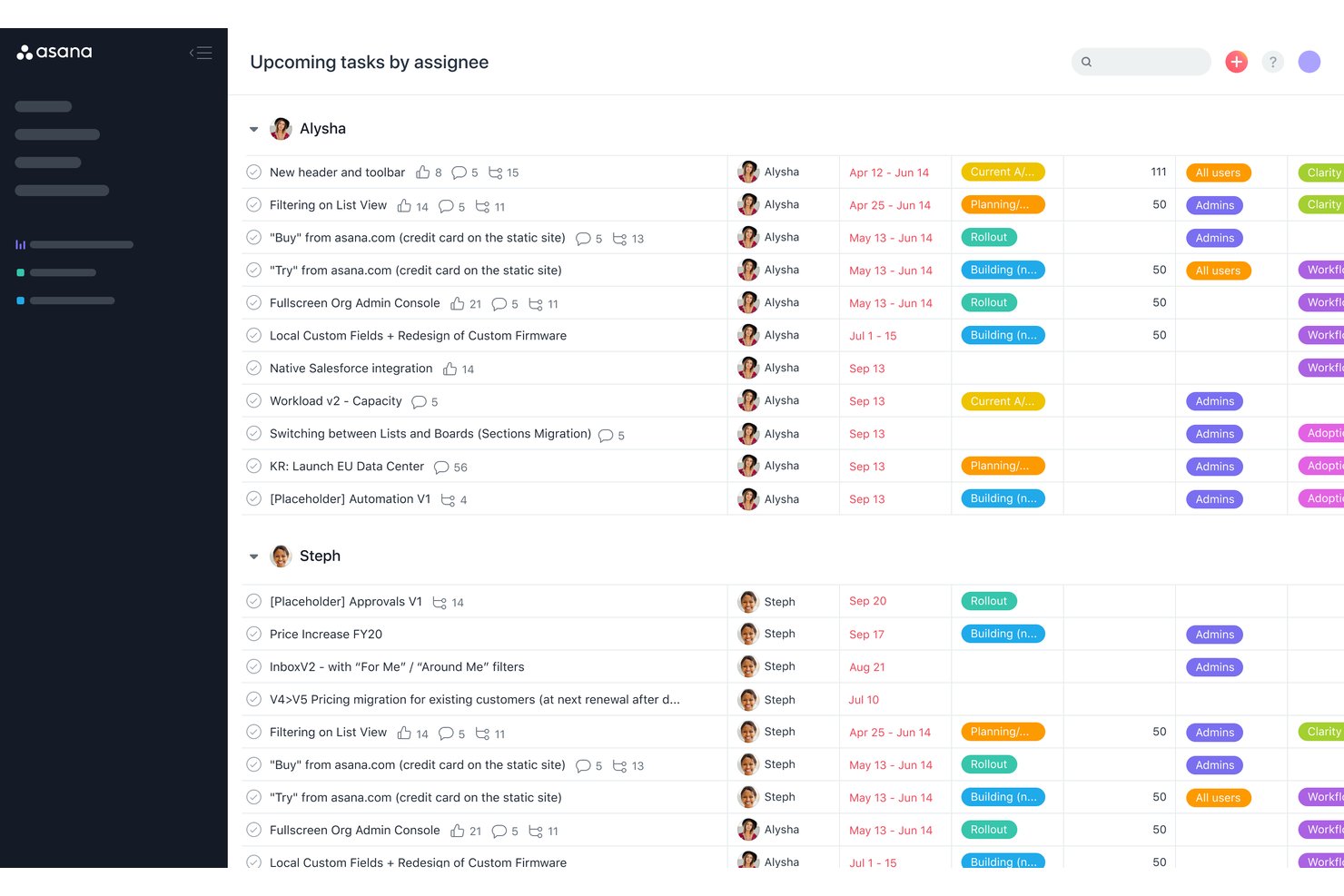
Asana is a work management platform that connects tasks, projects, goals, and AI agents in one shared workspace, making it a natural fit for project managers who need to track cross-functional work while keeping teams aligned on priorities and deadlines.
Who Is Asana Best For?
Asana is a strong fit for cross-functional project managers who need to coordinate work across product, engineering, and design teams in a single shared workspace.
Why I Picked Asana
I picked Asana as one of the best because its AI agents, called AI Teammates, can actually do project work rather than just assist with it. You can assign an AI Teammate to triage incoming requests, draft status updates, or route tasks to the right person automatically. I also like how AI Studio lets me build no-code workflows using natural-language instructions to classify incoming requests and route tasks to the right teams, with human oversight when needed.
Asana Key Features
- Task dependencies: Link tasks so team members can see which items are blocked and get notified when a predecessor is completed or its due date changes.
- Multiple project views: Switch between list, board, calendar, timeline, and Gantt views to see work in the format that fits your planning style.
- Automation rules: Create trigger-based rules to automate task assignments, field updates, and workflow stage changes.
- Portfolio dashboards: Track progress and health across multiple related projects from a single dashboard view.
Asana Integrations
Asana offers 100+ free integrations, including Jira Cloud, Slack, Google Drive, Microsoft Teams, Google Calendar, Salesforce, and Google Sheets. It also supports marketplace integrations, a REST API, webhooks, SDKs, and Zapier.
Pros and Cons
Pros:
- Portfolios consolidate project health, milestones, and delivery timelines
- Dependencies clarify blocked project work
- AI Teammates handle assigned tasks and recurring workflows
Cons:
- Guests cannot create or own automation rules
- Project-level guest access exposes all tasks within shared projects
Best for forecasting client-work profitability
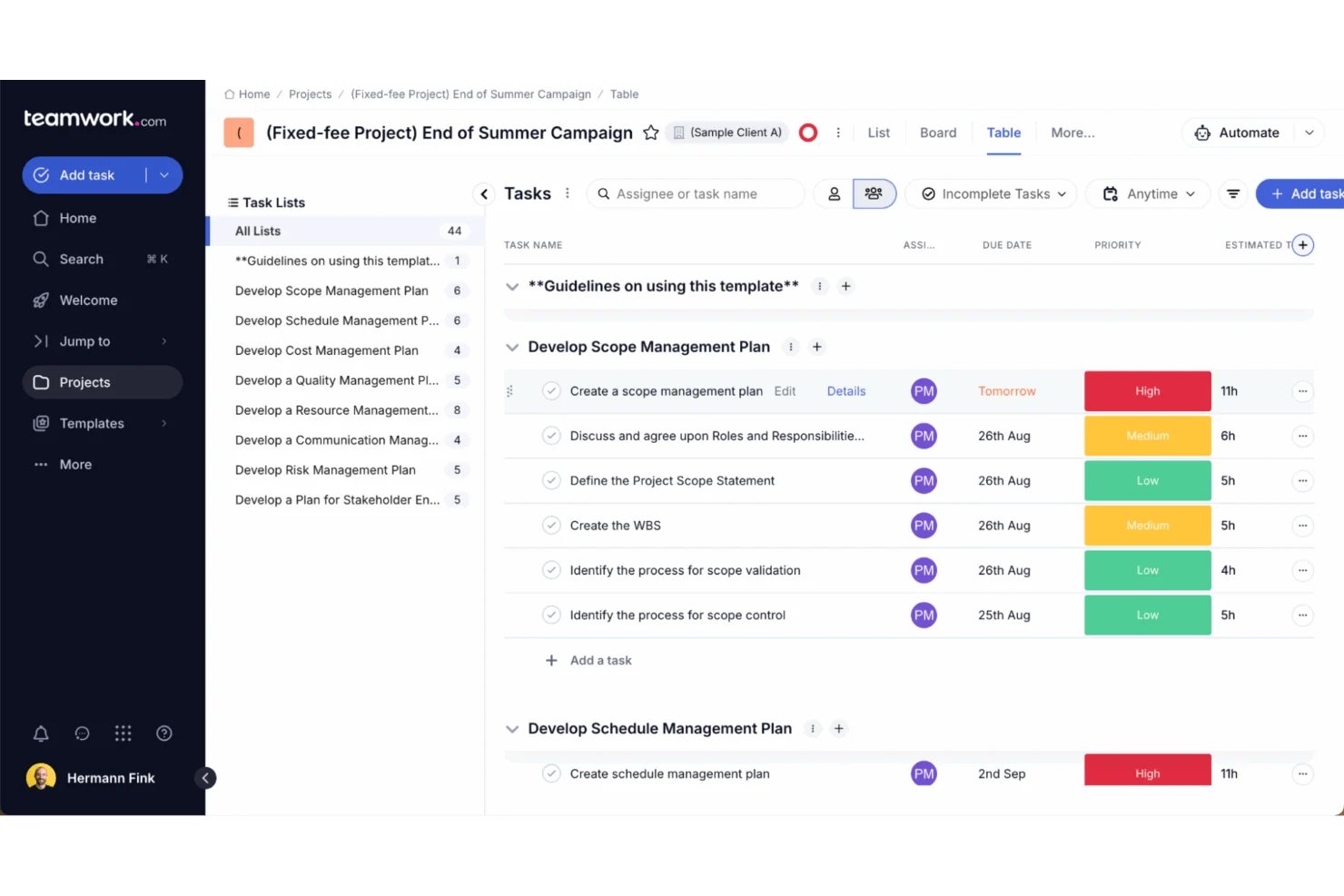
Teamwork.com is a project management platform built for client-service teams, bringing together task tracking, time logging, budgeting, invoicing, and resource planning in one place.
Who Is Teamwork.com Best For?
Teamwork.com is a strong fit for agencies and client-services teams that need to track budgets, log billable time, and monitor project profitability across multiple clients.
Why I Picked Teamwork.com
I picked Teamwork.com because it connects project delivery with financial tracking and profitability forecasting. I can set billable rates by team member or role, monitor logged hours against project budgets, and compare revenue, costs, and profitability across projects and clients. On Optimize, I also like how tentative projects let me model resource allocations, budgets, and projected financial performance before committing to new client work.
Teamwork.com Key Features
- Client and project permissions: Control exactly what clients and team members can see by configuring visibility and access levels at the project level.
- Kanban board view: Visualize task status across workflow stages, move cards between stages, and trigger automations when tasks enter a stage.
- Workflow automations: Create reusable rules with templates or custom triggers to automate task updates across supported projects.
- Milestone tracking: Set project checkpoints, track task-based progress, and share milestones with clients through controlled permissions.
Teamwork.com Integrations
Teamwork.com offers 150+ integrations, including native connections with Slack, Microsoft Teams, Google Calendar, Dropbox, Xero, QuickBooks, HubSpot, Salesforce, and NetSuite. It also provides an HTTP API and supports Zapier.
Pros and Cons
Pros:
- Configurable client permissions control project access and collaboration
- Billable hours and labor costs feed project budget tracking
- Forecasts client profitability using estimated revenue and delivery costs
Cons:
- Client users can join only five active projects
- AI profitability forecasting requires 90 days of historical data

Jira
Best for linking work to code and team docs
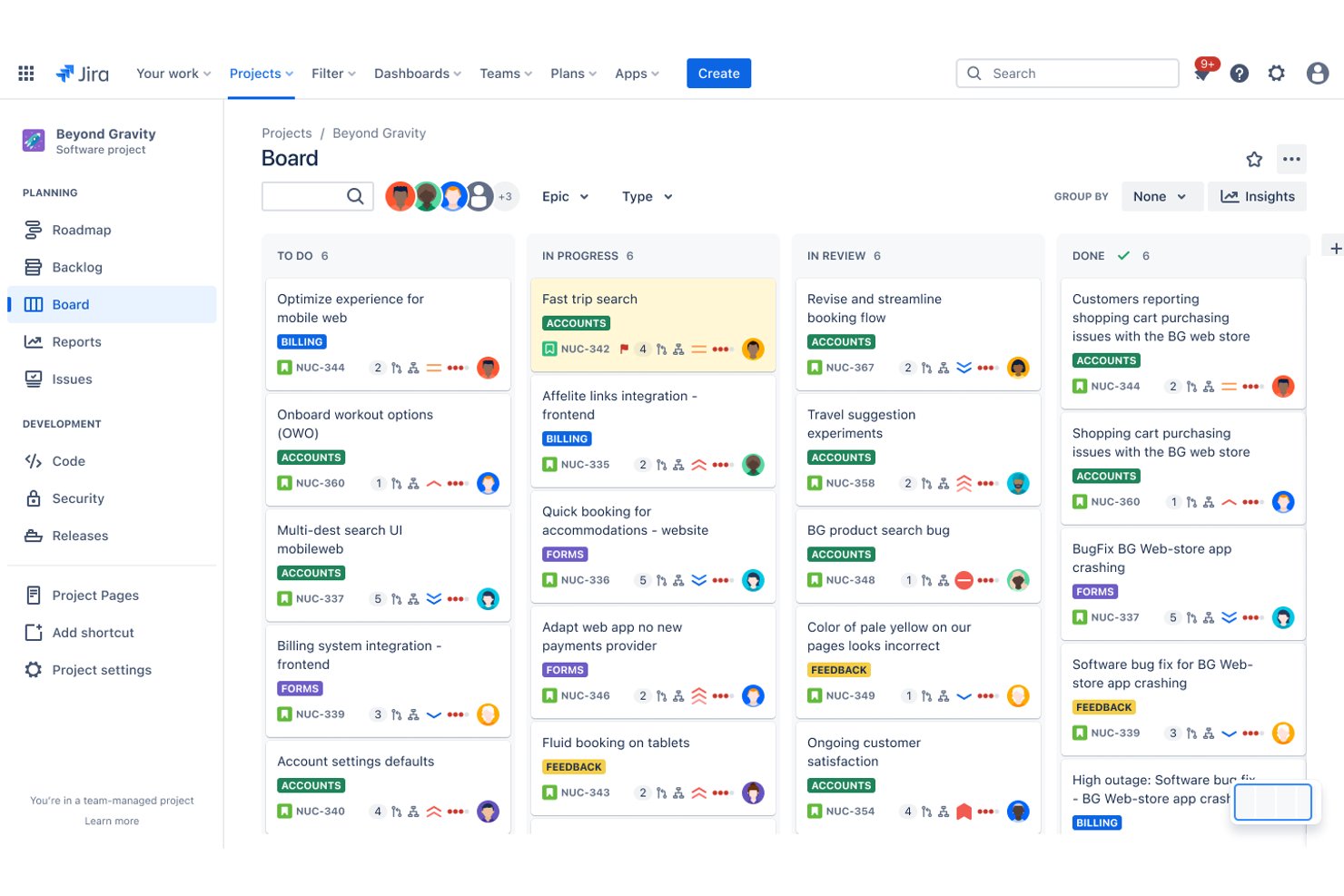
Jira is a project management platform built for software and product teams that need to plan, track, and deliver work across sprints, backlogs, and cross-functional initiatives.
Who Is Jira Best For?
Jira is a strong fit for software and product teams that need to connect project work with code commits, pull requests, and technical documentation.
Why I Picked Jira
I picked Jira as one of the best ActiveCollab alternatives because it connects project tracking with development activity and technical documentation. Its Bitbucket integration links work items to commits and pull requests, with configurable workflow triggers that can automatically update task statuses as development progresses. Pairing that with Confluence integration connects specifications, decisions, and meeting notes to relevant Jira work items, making technical context easier to access throughout a project.
Jira Key Features
- No-code automation rules: Build trigger-based automation rules that run across spaces or your entire site without writing a single line of code.
- Cross-team dependency management: Visualize and track dependencies between work items across multiple teams and projects on Premium and Enterprise plans.
- Customizable workflows: Configure custom statuses, transitions, and approval steps for supported spaces and plans.
- Individual capacity planning: Allocate work to team members in hours, days, or percentages and view utilization across your site using People and Work views.
Jira Integrations
Jira integrates with Slack, Microsoft Teams, GitHub, GitLab, Bitbucket, Confluence, Jenkins, and Azure DevOps. It also supports connections to Salesforce, Zendesk, Figma, Miro, and Power BI through Marketplace apps, plus custom integrations using its REST API and webhooks.
Pros and Cons
Pros:
- Scrum boards and backlogs organize sprint priorities and progress
- Custom workflows define task statuses and permitted transitions
- Cross-team plans track project dependencies and delivery progress
Cons:
- Company-managed workflow changes require Jira administrator access
- Free plan excludes configurable user roles and permissions
ClickUp
Best for AI that acts across project work
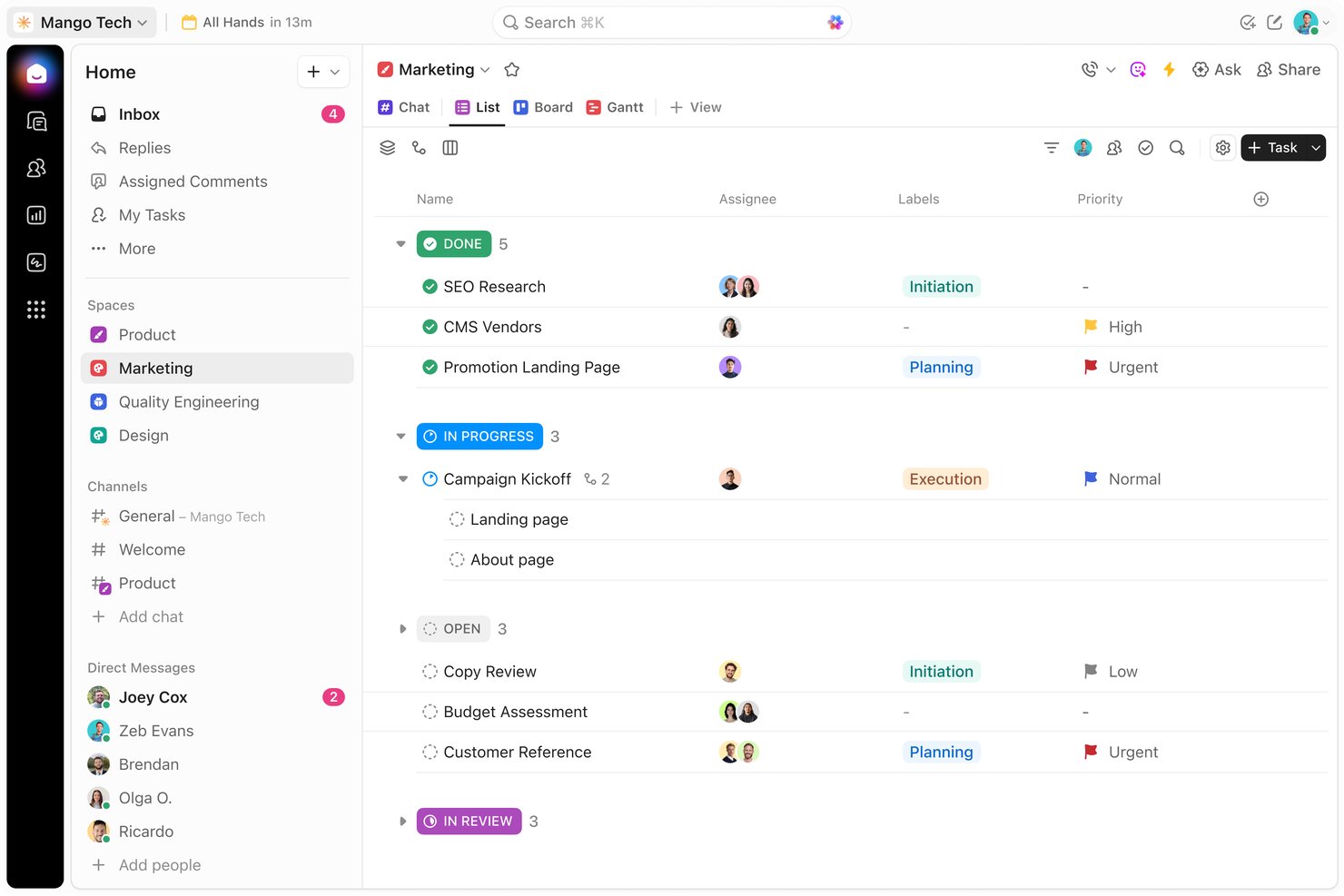
ClickUp is a unified project workspace that brings together tasks, docs, chat, and AI-powered workflows in one platform—making it a strong fit for project managers and cross-functional teams that need customizable workflows and centralized project collaboration.
Who Is ClickUp Best For?
ClickUp is a strong fit for project managers and cross-functional teams who need to manage tasks, docs, and workflows in one customizable workspace.
Why I Picked ClickUp
I picked ClickUp as one of the best because its AI doesn't just surface information—it acts on work. ClickUp Brain can create subtasks, update task fields, while Automations can trigger actions based on workspace events. Super Agents take this further, running multi-step workflows autonomously using instructions, memory, and connected tools. I especially like that the AI Notetaker joins Zoom or Google Meet calls and turns them directly into action items inside ClickUp.
ClickUp Key Features
- Gantt and timeline views: Visualize project timelines, link task dependencies, and track critical paths, baselines, and slack time.
- Custom fields and task types: Add fields like dropdowns, dates, and formulas to tasks, and define custom task types to match your team's workflow.
- Workload view: Compare assigned work against team capacity using task counts, time estimates, or Sprint Points to identify overallocation.
- Sprint management: Plan time-boxed sprints with backlogs, Sprint Points, spillover tracking, and built-in sprint reporting.
ClickUp Integrations
ClickUp offers 50+ native integrations, including Slack, GitHub, Miro, Google Drive, Google Calendar, Microsoft Teams, Zoom, HubSpot, and Zendesk. It also supports API, webhooks, OAuth, MCP Server, and Zapier connections.
Pros and Cons
Pros:
- Tasks, Docs, chat, and time tracking share one workspace
- Gantt dependencies and workload views map complex projects
- ClickUp Brain creates and assigns tasks from Chat conversations
Cons:
- Mobile apps lack Gantt views and task dependencies
- Guests cannot edit dashboards or add dashboard cards
New Product Updates from ClickUp
ClickUp Adds List Automations, Time Off Scheduling, and Org Charts
ClickUp adds template-based List automations, personal time off scheduling, a unified picker, automatic task date syncing, and Org Charts. These updates help teams automate project setup, manage availability, and organize work. For more information, visit ClickUp’s official site.

Best for linking agency work to profitability
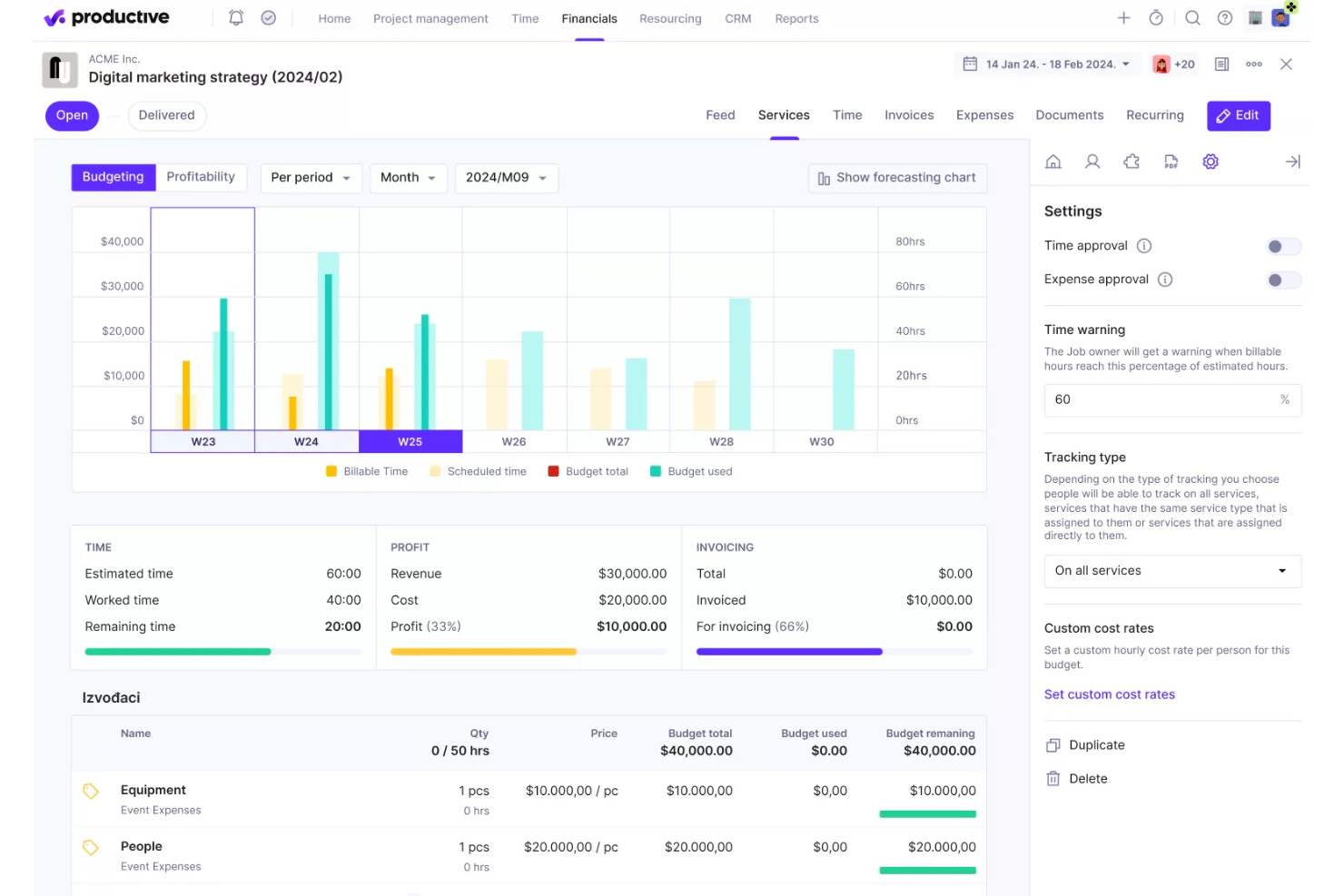
Productive is an agency-focused platform that brings project management, time tracking, resource planning, budgeting, and invoicing into a single workspace—making it a strong fit for client services teams that need visibility across delivery and finances.
Who Is Productive Best For?
Productive is a strong fit for client services teams—agencies, consultancies, and professional services firms—that need to manage projects, track time, and monitor profitability in one place.
Why I Picked Productive
I picked Productive because it connects project delivery with financial performance, making it particularly useful for agencies managing client budgets and profit margins. I love how budgets link to time entries in real time, giving me visibility into remaining budgets, costs, and profitability. Its Scenario Builder, available on the Ultimate plan, also lets me compare staffing allocations, project costs, and projected margins before committing to a deal or budget.
Productive Key Features
- Resource planning: View team availability, allocations, and upcoming capacity across projects from a people-first or project-first perspective.
- Client access controls: Give clients access to assigned project tasks, shared documents, and permitted budget and timesheet data.
- Automation rules: Set triggers based on task creation, updates, time-based events, or external Slack messages to automatically create tasks, update fields, or add comments.
- Reporting library: Access 50+ pre-built agency report templates covering utilization, financials, and project progress, with export to PDF, CSV, or XLS.
Productive Integrations
Productive offers native integrations with Jira, HubSpot, Xero, Google Calendar, Office 365, Slack, BambooHR, and QuickBooks, plus an Open API, webhooks, and Zapier.
Pros and Cons
Pros:
- Dependencies and Gantt views clarify sequencing
- Projects connect task delivery with budgets and invoicing
- Tracked time updates project costs and profitability
Cons:
- Grouped report filters cannot target aggregate totals
- Tasks support only one primary assignee
New Product Updates from Productive
Productive Adds Email and Calendar Integrations for Agents
Productive adds Gmail, Outlook, Google Calendar, and Outlook Calendar connectors for its AI agents. These integrations let agents manage emails and create calendar events directly within Productive. For more information, visit Productive’s official site.
Best for spreadsheet-led operations planning
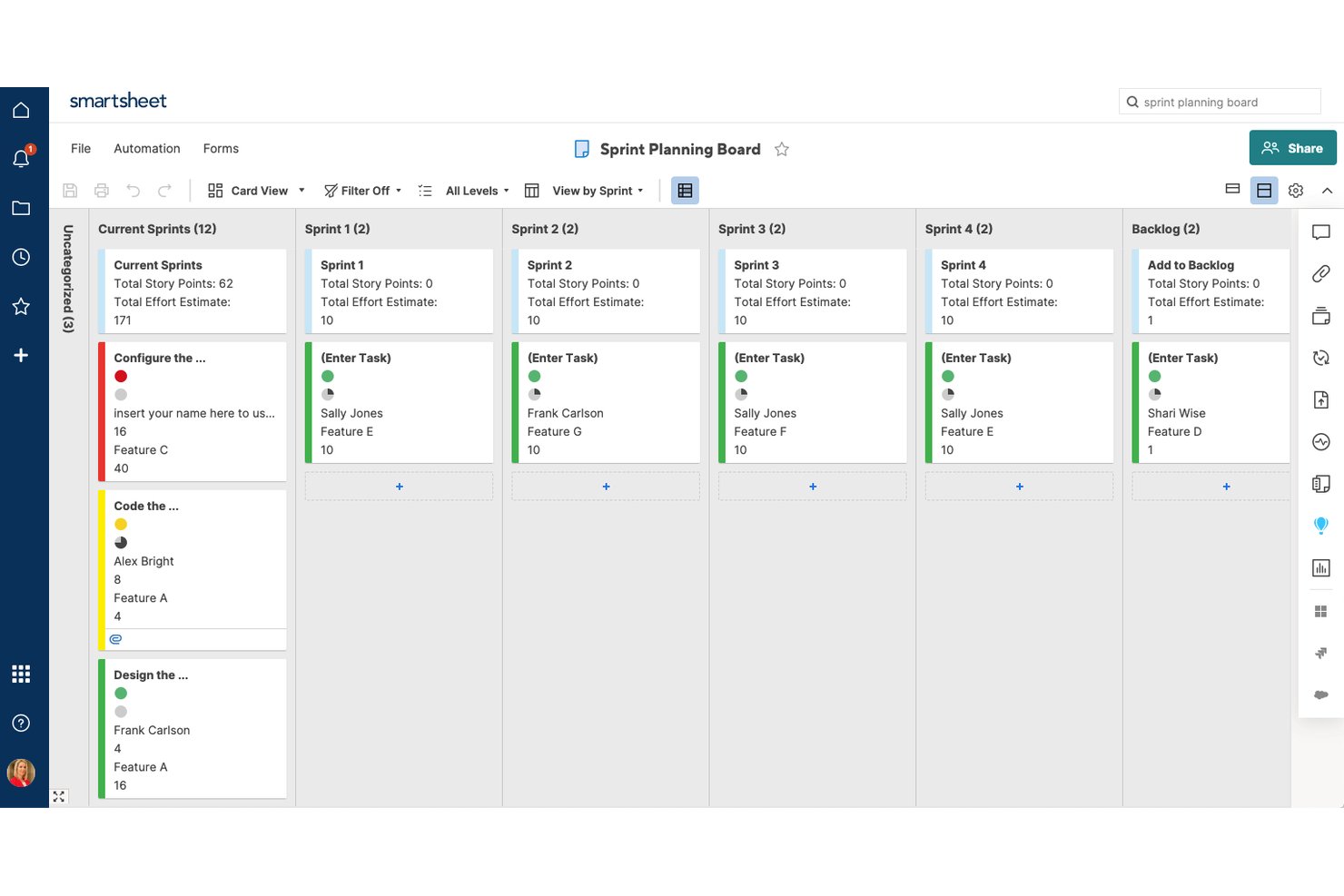
Smartsheet is a spreadsheet-style work management platform that lets project managers plan, track, and automate work across multiple projects, teams, and departments.
Who Is Smartsheet Best For?
Smartsheet is a strong fit for operations managers and project managers who prefer spreadsheet-style workflows and need to coordinate work across teams and departments.
Why I Picked Smartsheet
I picked Smartsheet as one of the best because its grid-based interface makes it easy to organize cross-departmental work using familiar spreadsheet-style layouts. Its Workload Tracking feature helps me identify resource availability and over-allocation through a heatmap and schedule that account for assignments across tracked projects. I also like how Scenario Planning, available on Enterprise plans, lets me compare timeline and resource allocation changes without affecting live project plans until I'm ready to apply them.
Smartsheet Key Features
- No-code automation workflows: Build trigger-based rules to automate approvals, reminders, task assignments, and cell updates.
- Cross-project portfolio view: Monitor project health and prioritize work across multiple related projects from a centralized portfolio dashboard on Enterprise plans.
- Dependency-based scheduling: Link tasks using four dependency types and automatically recalculate dates when predecessor schedules change.
- Dynamic View: Share selected sheet data through customizable, permission-controlled views without granting access to the source sheet.
Smartsheet Integrations
Smartsheet offers more than 175 integrations, including Jira Software, Salesforce, Slack, Microsoft Teams, Power BI, and Zapier. Its REST API, webhooks, SDKs, and OAuth 2.0 support custom integrations for Business plans and higher.
Pros and Cons
Pros:
- Dashboards consolidate project metrics, reports, and timelines
- Workload heatmaps expose over-allocation
- Reusable blueprints standardize project setup and reporting
Cons:
- Shared reports may omit data without source-sheet access
- Pro plan reports support only one source sheet
New Product Updates from Smartsheet

Smartsheet Adds Plan-Wide reCAPTCHA Controls for Forms
Smartsheet introduces centralized reCAPTCHA controls for existing and future forms through Admin Center. This feature strengthens bot protection and reduces spam submissions. For more information, visit Smartsheet’s official site.
 .

Scoro
Best for service firms from quote to cash
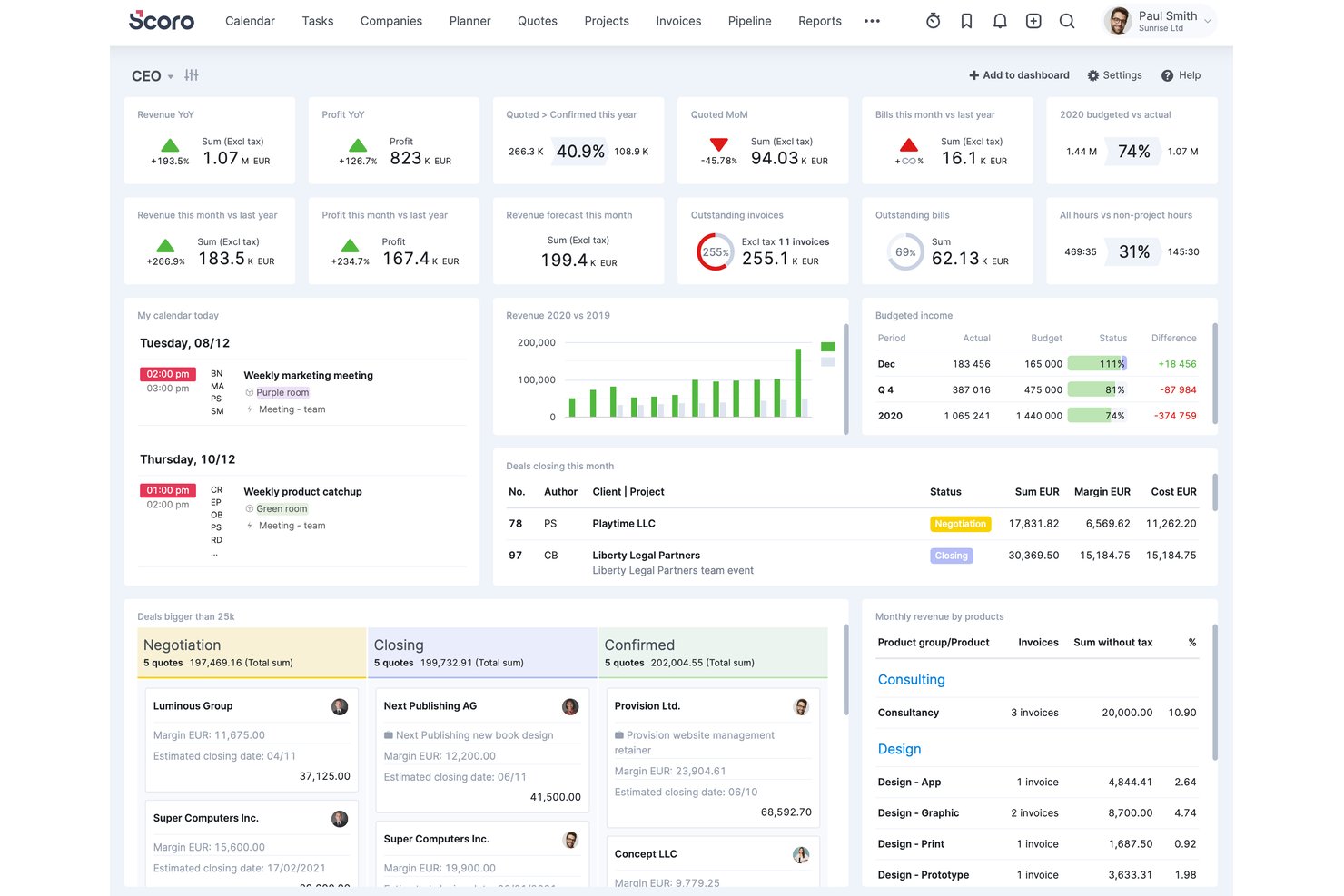
Scoro is a professional services automation platform that connects project planning, resource scheduling, time tracking, and invoicing through configurable core apps—making it a strong fit for service firms that need to manage work and finances together.
Who Is Scoro Best For?
Scoro is a strong fit for service firms—agencies, consultancies, and similar businesses—that need to connect project delivery with quoting, budgeting, and invoicing in one place.
Why I Picked Scoro
I picked Scoro as one of the best because its higher-priced Quote to Cash package connects quoting, project delivery, and invoicing in one platform. I love how the estimation matrix lets me break deliverables down by role, estimate hours and costs, and calculate expected margins before sending a quote. Once confirmed, I can convert the quote into a project with prefilled budget figures and use the Quoted vs Actual table to compare estimates against actual costs and profitability. Time-based billing also lets me generate invoices from logged project hours.
Scoro Key Features
- Kanban boards and Gantt charts: Manage tasks in board and timeline views, with four dependency types available through advanced settings.
- Triggers and actions automation: Set up rules with a trigger event, conditions, and up to 10 actions—including email, Slack, webhook, or in-app notifications—to automate repetitive workflows.
- Capacity planning and tentative bookings: View team availability and workload across roles, and test staffing scenarios with tentative bookings before confirming assignments.
- Customer portal: Share project information, files, comments, and invoices with clients through a permission-controlled portal (available as a paid extra).
Scoro Integrations
Scoro documents 40+ integrations, including native connections with Jira, HubSpot, Salesforce, Xero, QuickBooks, Google Calendar, Slack, and Google Drive. It also supports REST API access, webhooks, MCP, and Zapier.
Pros and Cons
Pros:
- Resource heatmaps flag overbooking before projects are confirmed
- Billable hours connect directly to invoicing
- Quotes carry into project budgets
Cons:
- Imports exceeding 10,000 rows require multiple files
- Utilization reports cannot be exported
New Product Updates from Scoro

Scoro Adds Time Mobile App and ELI Improvements
Scoro adds the Scoro Time mobile app for iOS/Android to track time anywhere and expands ELI with attachments, smarter filtering, and trigger-based actions. For more information, visit Scoro's official site.
Wrike
Best for cross-project capacity planning
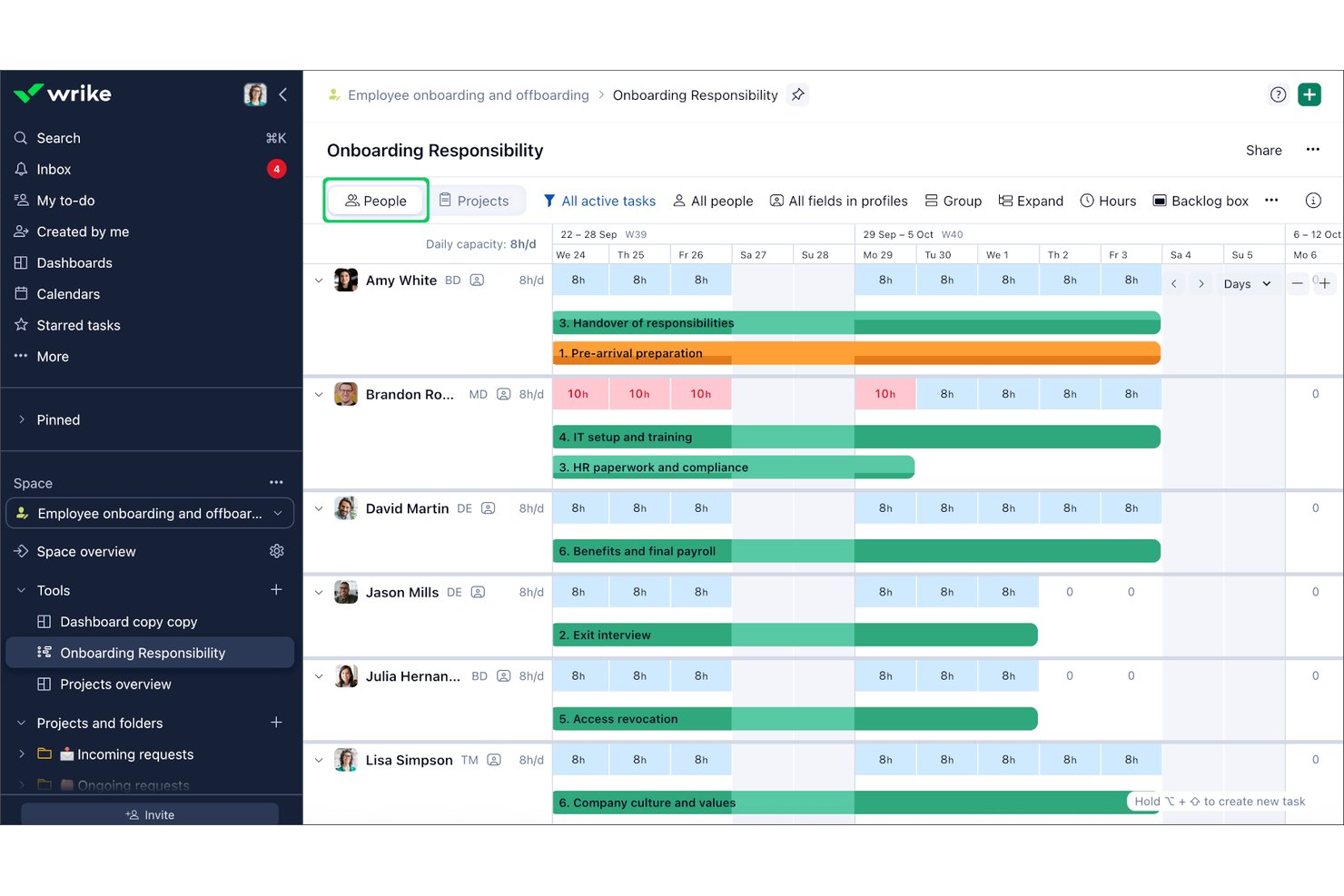
Wrike is a work management platform built for teams that need to plan, track, and coordinate projects across multiple workstreams, with particular depth in capacity planning, automation, and cross-functional visibility.
Who Is Wrike Best For?
Wrike is a strong fit for project managers and operations teams running multiple concurrent projects who need cross-team capacity visibility and dependency tracking in one place.
Why I Picked Wrike
I picked Wrike as one of the best because it handles cross-project capacity planning better than almost anything else I've used. Workload charts let me scope capacity views across folders, projects, spaces, or the entire account, so I can see exactly where individuals are overloaded before it becomes a problem. Combined with resource bookings and effort estimation, I can redistribute tasks across concurrent projects without losing visibility into who owns what.
Wrike Key Features
- Interactive Gantt charts: Visualize project timelines, set task dependencies across four relationship types, and adjust dates directly on the chart.
- Automation rules: Create account- or space-level rules with triggers, optional conditions, and actions based on task changes, statuses, or assignments.
- Guest reviews and approvals: Invite external stakeholders to review and approve files via email without granting them access to your full Wrike workspace.
- Custom fields and Blueprints: Save reusable project and folder structures as Blueprints and configure custom fields to match your team's specific workflows.
Wrike Integrations
Wrike offers 400+ pre-built native integrations, including Salesforce, Slack, QuickBooks Online, Google Sheets, Miro, and Power BI. It also provides an open REST API and Wrike Integrate for custom connections and workflow automation.
Pros and Cons
Pros:
- External clients review and approve files without accounts
- Gantt dependencies automatically reschedule linked active tasks
- Cross-project workload charts expose capacity gaps
Cons:
- Cloud-stored files cannot enter approvals, except YouTube videos
- Tasks without effort estimates don't affect workload capacity
New Product Updates from Wrike

Wrike Adds a Whiteboard Template Gallery
Wrike introduces a Whiteboard Template Gallery with a dedicated templates section, template previews, smart sorting, and usage counters. These features simplify whiteboard creation and template discovery. For more information, visit Wrike’s official site.

Best for tying project costs to billing
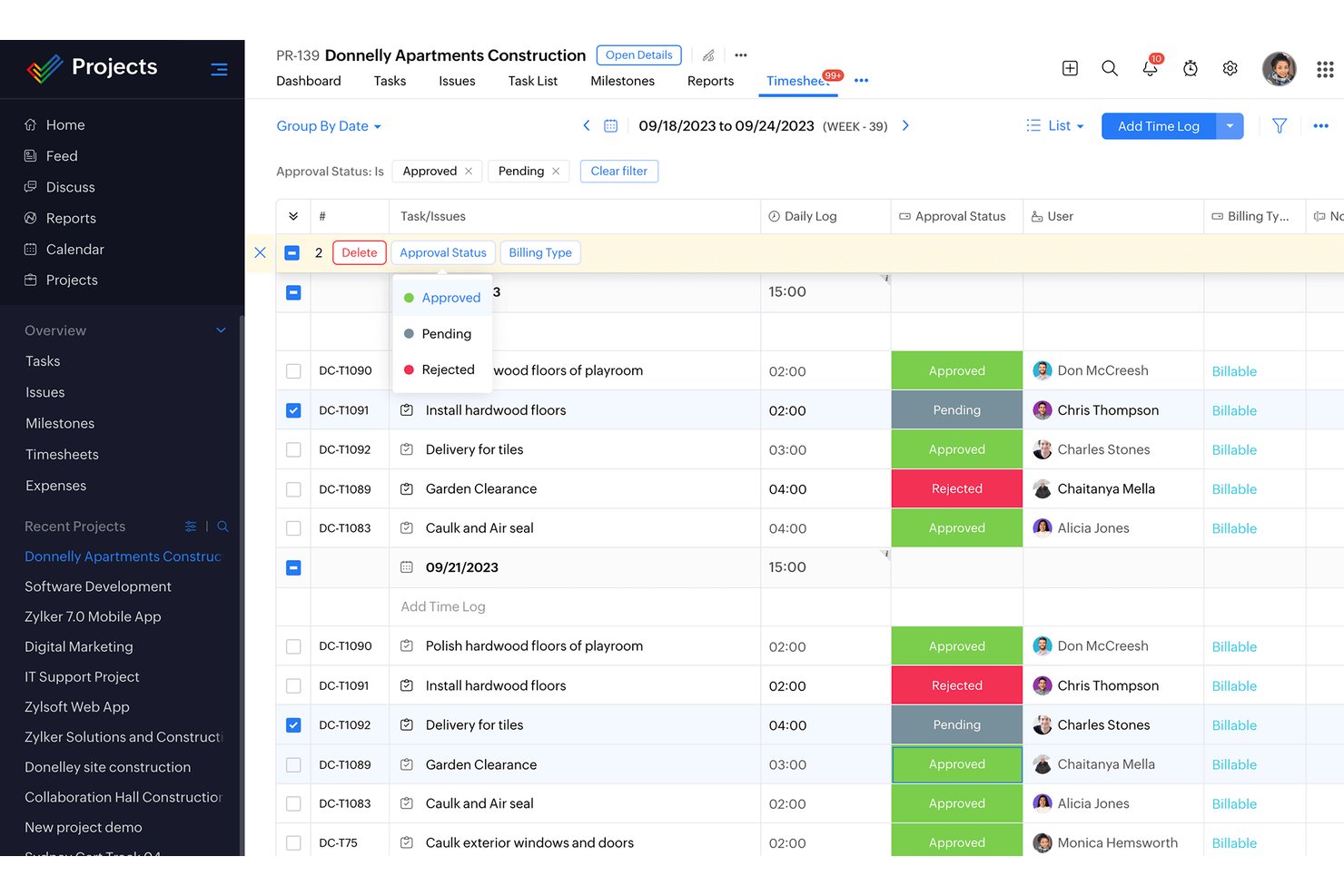
Zoho Projects is a project management platform suited to teams that need task tracking, time logging, and budgeting in one place—particularly those already in the Zoho ecosystem or looking for per-user pricing that scales across different team sizes.
Who Is Zoho Projects Best For?
Zoho Projects is best for teams that track billable hours, monitor project costs, and generate client invoices through Zoho Books or Zoho Invoice.
Why I Picked Zoho Projects
I picked Zoho Projects as one of the best because of how tightly it connects task-based time tracking with project budgeting and client billing. I log billable and non-billable hours directly against tasks, while approved billable hours automatically update actual cost calculations. From there, the Zoho Invoice or Zoho Books integration lets me generate invoices straight from timesheets. Zoho Projects also offers project, phase, task, and user-based budgets, with Earned Value Management available on supported plans to measure cost and schedule performance.
Zoho Projects Key Features
- Task blueprints: Design step-by-step task workflows that enforce statuses, assign responsible users, update fields, and trigger email alerts at each stage.
- Gantt chart scheduling: Build and adjust project timelines with dependency linking, hard and soft link options, and drag-to-reschedule functionality.
- Workload reports: Monitor team allocation using bar, heatmap, or timeline views grouped by task owner, team, profile, or role.
- Issue tracker: Log, track, and manage project issues with custom fields, SLA rules, business rules, and automated notifications separate from task tracking.
Zoho Projects Integrations
Zoho Projects lists 50+ integrations, including Zoho Invoice, Zoho Books, Jira, Slack, Microsoft Teams, GitHub, Google Calendar, Google Tasks, Dropbox, and Zendesk. It also supports a REST API with OAuth 2.0 and Zapier.
Pros and Cons
Pros:
- Cross-project workload reports identify resource allocation gaps
- Gantt charts show dependencies and baselines on eligible plans
- Approved billable hours inform budget actuals
Cons:
- Cross-project workload reports require Enterprise or Ultimate
- Client users cannot create project schedule baselines
New Product Updates from Zoho Projects
Zoho Projects Introduces Web Forms for External Requests
Zoho Projects introduces Web Forms to collect external user submissions and convert them into actionable project records. This feature reduces manual data entry and simplifies request management. For more information, visit Zoho Projects’ official site.
 .
monday.com
Best for cross-team operations beyond projects
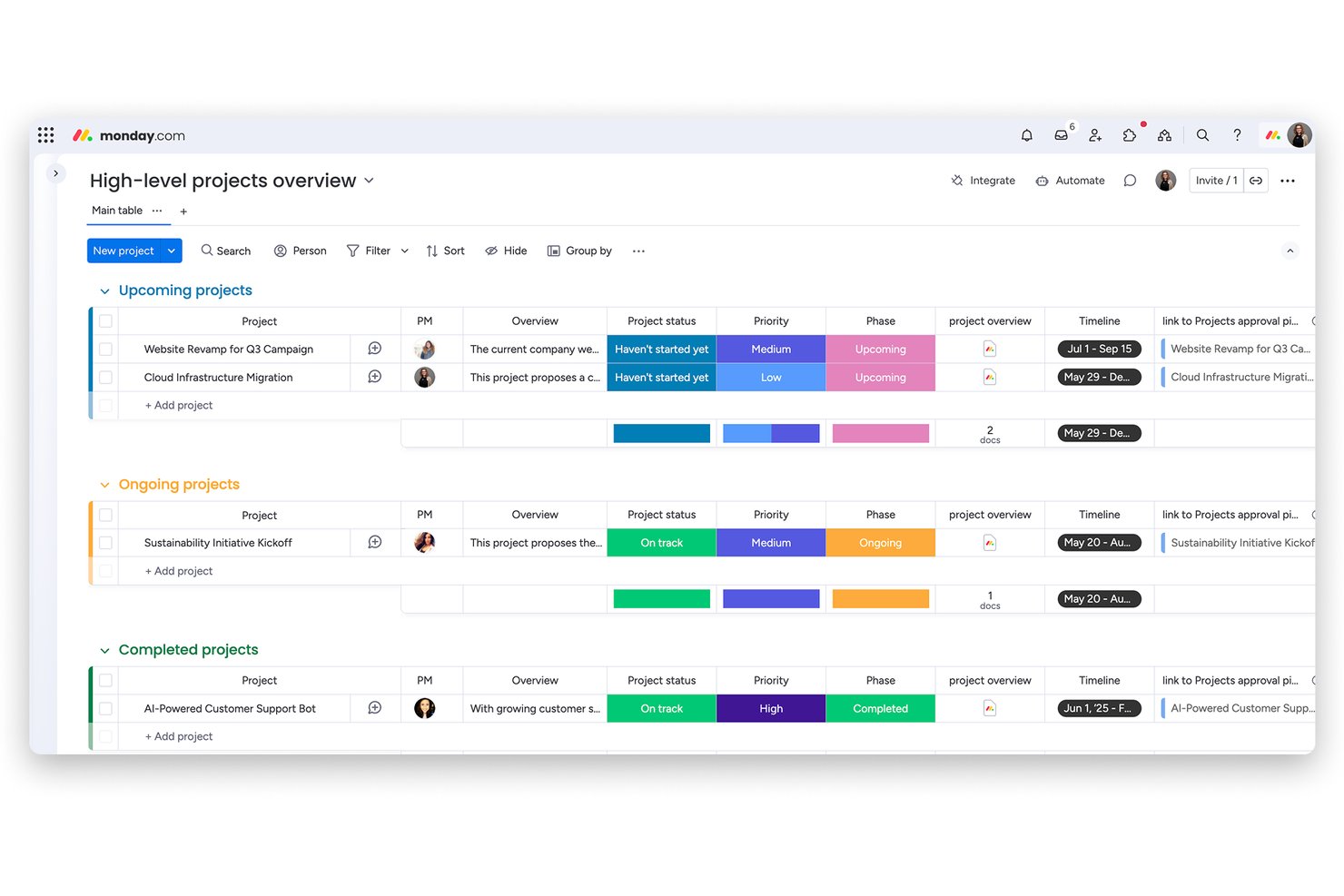
monday.com is a flexible work management platform that lets project managers plan tasks, visualize timelines, automate workflows, and coordinate work across multiple teams and departments.
Who Is monday.com Best For?
monday.com is a strong fit for operations managers and team leads who need to coordinate work across multiple departments, monitor team capacity, and track progress across projects.
Why I Picked monday.com
I picked monday.com because it supports cross-department project coordination with workload monitoring and portfolio reporting. Its Workload Widget combines capacity data from multiple boards, helping me identify overloaded team members and redistribute tasks. I also like that the Enterprise All Projects Dashboard consolidates up to 200 project boards, providing a centralized view of budgets, milestones, planned versus spent effort, and project progress.
monday.com Key Features
- No-code workflow automation: Build trigger-based rules to automate task creation, status updates, notifications, and cross-board handoffs.
- Gantt chart view: Visualize project schedules with dependencies, milestones, baselines, and critical paths.
- Updates section: Keep task-level discussions, replies, and file attachments connected to individual board items.
- 850+ integrations: Connect tools like Slack, GitHub, Salesforce, and HubSpot to pull work into a single workspace.
monday.com Integrations
monday.com offers 850+ integrations, including GitHub, GitLab, Jira, Slack, Microsoft Teams, Google Drive, QuickBooks, and Zendesk. GraphQL API, SDK, and MCP support custom integrations.
Pros and Cons
Pros:
- Task updates keep discussions in context
- Gantt dependencies clarify shifting schedules
- Cross-board workload helps rebalance teams
Cons:
- Dashboards are limited to 20,000 connected items
- Automation and integration actions have monthly plan limits
Other ActiveCollab Alternatives
Here are a few additional options that didn’t make my shortlist but are still worth checking out:
- Basecamp
For flat account pricing
- Paymo
For client work from task to invoice
- Avaza
For tying project work to client billing
- MeisterTask
For connecting team knowledge to tasks
- Accelo
For client delivery and project margins
- GanttPRO
For dependency-driven project scheduling
- Bitrix24
For connecting project work with CRM
- Flowlu
For linking sales to delivery and billing
- OpenProject
For open-source, self-hosted teams
- Hive
For AI that handles project admin


How I Evaluate ActiveCollab Alternatives
I split my evaluation into three parts. First, core functionality: I look for tools that can track tasks across multiple projects and offer visual planning views like boards, timelines, or Gantt charts—this carries the most weight. Second, I evaluate standout features like client-facing portals and built-in budgeting. Third, I consider pricing transparency and onboarding quality.
Core Functionality (Table Stakes For This List)
When I'm selecting tools for my list, I score each one on a scale from 0 (does not offer the functionality) to 5 (excels in this area) for each core functionality listed below. I then convert the total into a percentage to help assess each tool's overall fit, with extra weight on any functionalities I’ve deemed essential.
- Task & Project Tracking (Essential): I look for clear task ownership, status tracking, subtasks, and dependencies across projects, such as when a design handoff affects a launch date.
- Visual Planning Views (Essential): I check for useful views like boards, calendars, and timelines that help teams map milestones and spot schedule conflicts.
- Team Collaboration: I evaluate whether comments, discussions, and file sharing stay connected to the relevant task or project as work moves between disciplines.
- Workload & Progress: I look for status, deadline, and capacity views that help managers spot overloaded contributors and work at risk across projects.
- Time Tracking: I consider whether teams can log time against tasks and review reports to compare effort with project plans.
- Third-Party Integrations: I check whether integrations connect project work with tools for file storage, communication, or invoicing already in the team’s workflow.
Once I have a list of tools that meet the criteria, I consider what sets each platform apart.
Differentiating Factors (What Sets Vendors Apart)
Here's how I compare and contrast different vendors:
Standout Features
I look for client portals with granular permissions, since agencies often need clients to view progress without exposing internal notes or budgets. Built-in budgeting and invoicing tied to tracked time also matters—when a retainer is burning faster than planned, I want that visible inside the project, not buried in a separate finance tool. I also evaluate automation rules that handle recurring task creation or status changes, which cut down on the manual admin that slows delivery across multiple projects.
Beyond Features
Pricing transparency matters—I check whether essential features like integrations or storage sit behind paywalls, since tools like monday.com and Wrike tier those differently. I also evaluate onboarding quality, including migration support and templates, because switching from ActiveCollab mid-project can stall delivery if the learning curve is steep. Security and compliance round it out: role-based access controls and standards like SOC 2 or GDPR compliance are non-negotiable when your projects involve sensitive client data.
Why Look for ActiveCollab Alternatives?
While ActiveCollab is a good project management choice, some teams need a different fit. You might be looking for an alternative to ActiveCollab because…
- Per-seat pricing makes budgets harder to forecast as your team grows
- Budgeting and capacity planning require the higher-tier Pro+ plan
- Your product team needs deeper engineering workflows
- Your team relies on integrations beyond the options ActiveCollab lists
If any of these sound like you, you’ve come to the right place. My list includes project management options better suited to teams facing these challenges with ActiveCollab and looking for an alternative.
ActiveCollab Key Features
Here are ActiveCollab’s key features to help you compare it with alternative options:
- Task and project tracking: Create projects, tasks, and subtasks, then assign owners, due dates, and labels. Recurring tasks and project templates help teams organize repeatable client work.
- Visual planning: View tasks in List, Board, or Gantt views. Use these layouts to check task status, map schedules, and see how work fits together.
- Task dependencies: Link tasks that must happen in sequence, then use the timeline to plan around those relationships. This helps you see how a delayed handoff could affect later work.
- Time tracking: Log billable and non-billable time against tasks or projects with a stopwatch or timesheet. Compare estimated and actual hours to review effort against project plans.
- Workload planning: Review assignments across projects and account for team capacity, work schedules, and time off. These views help you spot overloaded contributors before deadlines slip.
- Client access and collaboration: Give clients access to selected projects or tasks with configurable limits. Keep discussions, notes, files, and feedback connected to the work without sharing every internal detail.
- Project budgets and profitability: Manage fixed-price or hourly project budgets, track costs and expenses, and monitor project profitability.
- Estimates and invoicing: Create estimates, generate projects with budgets based on estimate amounts, invoice tracked time and expenses, and automate overdue payment reminders.
Pricing
Pricing varies by features, team size, billing frequency, and subscription structure. Here’s a general guide to the plans and price ranges you can expect from ActiveCollab alternatives.
Plan Comparison Table for ActiveCollab Alternatives
| Plan Type | Price | Common Features |
|---|---|---|
| Free Plan | $0 | Basic task tracking, limited projects, simple collaboration, and basic integrations. |
| Entry-Level Paid Plan | $4–$17/user/month | Task tracking, multiple project views, file sharing, time tracking, and basic integrations, depending on the platform. |
| Advanced Team Plan | $12–$25/user/month | Workflow automation, workload management, project dashboards, resource planning, and advanced reporting. |
| Enterprise Plan | Custom pricing | Advanced permissions, portfolio management, security controls, capacity planning, and enterprise support. |