

10 Best Zoho Projects Alternative Tools for PM in 2026

Best Alternatives To Zoho Projects Shortlist


I get it—finding the right tool can make all the difference in keeping your team organized and efficient. Factors such as specific use cases, budget, and personal preferences might have led you to look for Zoho Projects alternatives. However, it's difficult to tell which are the best ones.
In this article, I'll share my top picks for Zoho Projects alternatives. I've tested and reviewed each one to help you find the best fit for your team. Let's explore options that could better align with your business goals and make your project management smoother.
What is Zoho Projects?
Zoho Projects is a cloud-based project management software designed for businesses of all sizes. It facilitates project planning, tracking, and collaboration. The software is utilized by project managers, teams, and stakeholders to manage work and achieve project objectives efficiently. It provides tools for task management, time tracking, and document sharing, and integrates with other Zoho applications, catering to a variety of industry needs.
Why Trust Our Software Recommendations
Our team has been testing and reviewing software since 2012. As project managers ourselves, we know how difficult—and important—it is to choose the right software.
For this guide, we evaluated tools using hands-on testing and independent research, scoring tools using our selection criteria. We also draw on insights from industry thought leaders and practicing project management experts.
Our reviews reflect our human editorial judgment, not a sales pitch.
Expert reviewers:
Zoho Projects Alternatives Comparison Table
This comparison table summarizes pricing details for my top alternative project management software to Zoho projects:
| Tool | Best For | Trial Info | Price | ||
|---|---|---|---|---|---|
| 1 | Best for workflow automation | Free plan + 14-day free trial + free demo available | From $10/user/month (billed annually) | Website | |
| 2 | Best for linking projects to existing tools | Free plan + free trial + free demo available | From $12/user/month | Website | |
| 3 | Best for project automation | Free plan + 14-day free trial available | From $10/user/month (billed annually) | Website | |
| 4 | Best for client work management | Free plan + 14-day trial + demo available | From $9.99/user/month (billed annually) | Website | |
| 5 | Best for Agile software development | Free plan + 7-day free trial available | From $8.48/user/month | Website | |
| 6 | Best for flexible project methodologies | Free demo available | From $39/user/month | Website | |
| 7 | Best for integrated workspace | Free plan + trial available | From $10/user/month | Website | |
| 8 | Best for task management | Free plan available | From $10.99/user/month (billed annually) | Website | |
| 9 | Best for workflow customization | Free plan + 14-day trial available | From $9/user/month (billed annually) | Website | |
| 10 | Best for hierarchical task breakdown | Free plan + 30-day free trial available | From $7.65/user/month (billed annually) | Website |


Best Zoho Projects Alternatives Reviews
In this section, I will walk you through the pros and cons of each Nifty alternative. I’ll cover their features and best use cases to help you make an informed decision and find the right tool for your needs.
Wrike
Best for workflow automation
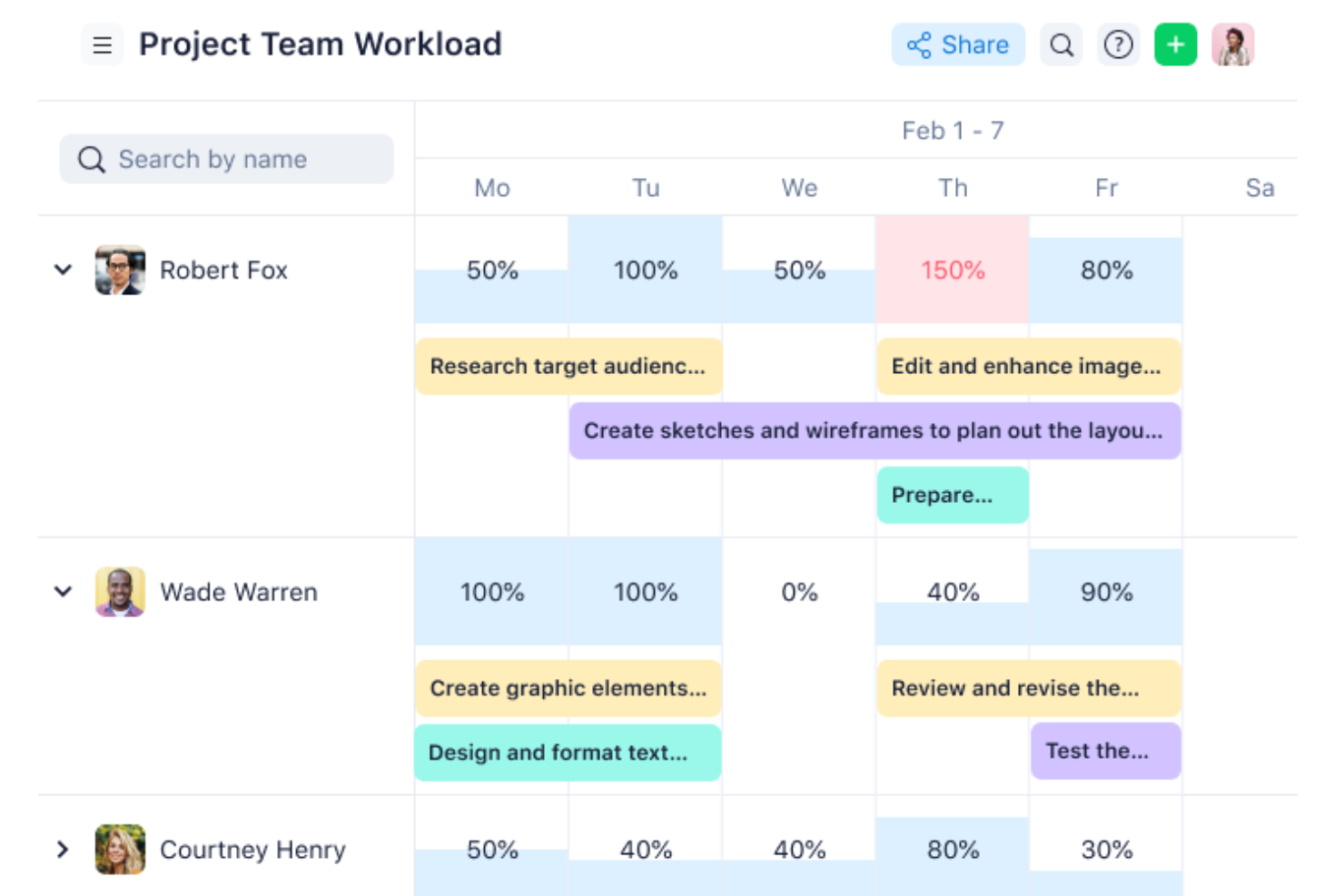
Wrike is a work management platform that combines task tracking, Gantt-based project planning, workload management, workflow automation, and real-time reporting across projects and teams.
Who Is Wrike Best For?
Wrike suits mid-sized teams that need to manage complex, cross-functional projects and want to automate repetitive workflow steps without building everything from scratch.
Why I Picked Wrike
I've included Wrike in my top picks because its workflow automation is genuinely one of the most configurable I've seen: you can set triggers that automatically reassign tasks, update statuses, and sync related work across projects without writing a single rule from scratch. I particularly like how automations pair with dynamic request forms to route incoming work directly into the right project structure. Time tracking is available from the Business plan, and workload charts show capacity by day, week, or month so you can catch overallocation before it becomes a problem.
Wrike Key Features
- Guest approvals: Route files to external reviewers who can comment, approve, or request changes without needing a Wrike account.
- Custom request forms: Collect incoming work requests with structured fields and automatically route them to the right project or team.
- Cross-tagging: Link tasks across multiple spaces, folders, and projects so teams share visibility without duplicating work items.
- Resource bookings: Reserve specific team members or job roles and estimate the hours and availability needed for upcoming project work.
Wrike Integrations
Wrike offers 400+ pre-built native integrations, including Jira, Slack, Microsoft, Google, Salesforce, HubSpot, and NetSuite. It also provides an open REST API and Wrike Integrate for custom integrations, data synchronization, and workflow automation.
Pros and Cons
Pros:
- Workload charts expose team overload
- Gantt dependencies clarify project timelines
- Automations route recurring work requests
Cons:
- Budgeting and invoicing need finance tools
- Workflow setup takes time to configure
New Product Updates from Wrike

Wrike Redesigns AI Agent Builder
Wrike redesigns its AI Agent Builder with a side-by-side setup, Scopes, sentence-style triggers and actions, and clearer filters. These changes make it easier to configure, test, and manage agent behavior. For more information, visit Wrike’s official site.
ClickUp
Best for linking projects to existing tools
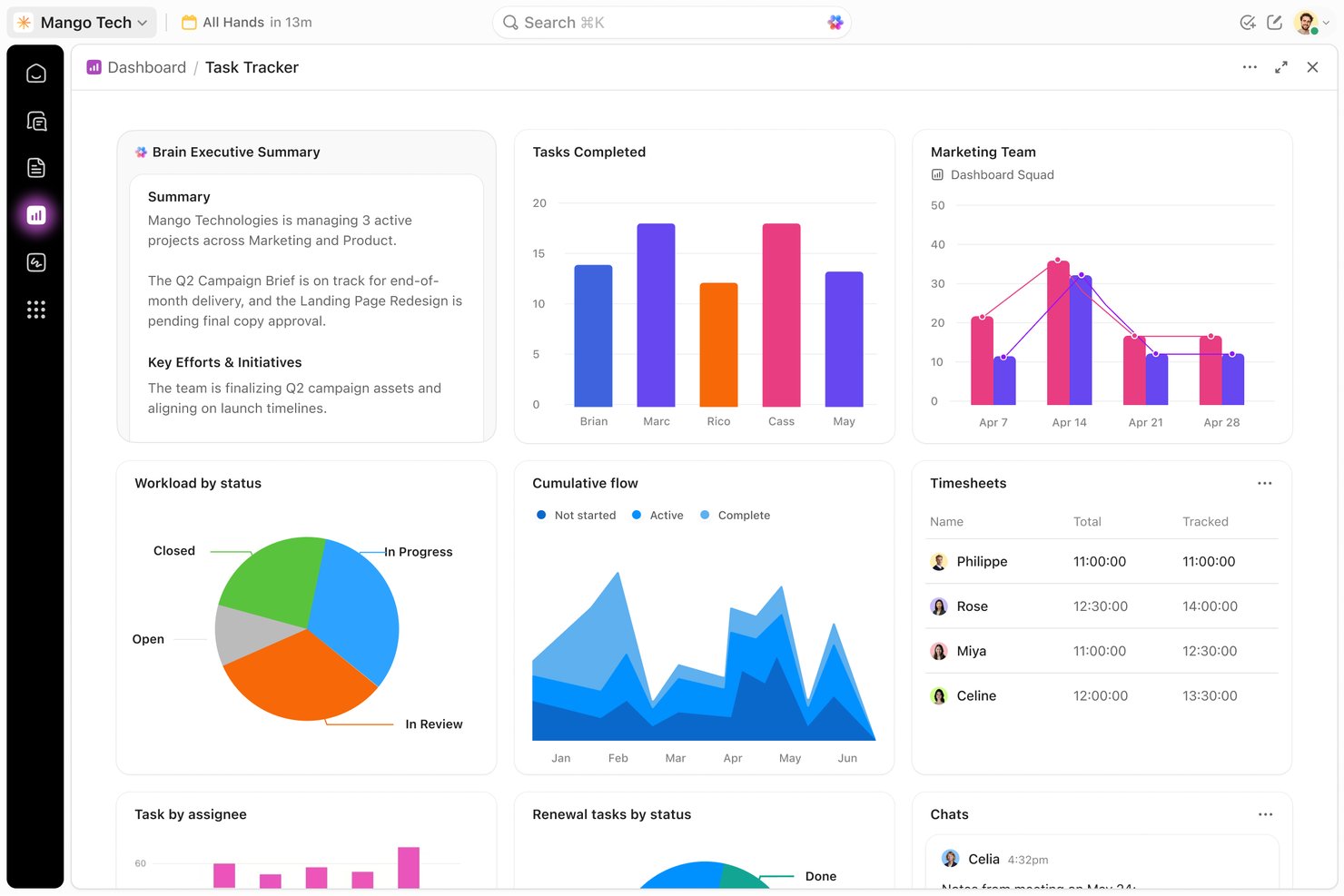
ClickUp is a project management platform that unifies tasks, Gantt charts, timelines, workload views, Docs, and team chat alongside automations and 1,000+ integrations in a single workspace.
Who Is ClickUp Best For?
ClickUp suits cross-functional project teams that want tasks, docs, chat, and reporting in one place without juggling multiple tools.
Why I Picked ClickUp
ClickUp earns its spot on my shortlist because it genuinely replaces a stack of tools rather than just matching Zoho Projects feature-for-feature. I like that tasks, Docs, Chat, and Gantt charts all live in one workspace, so my team can move from planning to execution without switching context. The Workload view is what really sets it apart: I can see who's over capacity across multiple projects and reassign work directly from the same screen.
ClickUp Key Features
- Collaborative Docs: Create and edit documents alongside tasks, with live cursors, inline comments, threaded feedback, and version history all in one workspace.
- Workflow automations: Trigger status changes, task assignments, and notifications automatically when set conditions are met, reducing manual follow-up.
- Custom dashboards: Build reports combining charts, time tracking, workload data, and task cards, then share them with stakeholders using granular permissions.
- 1,000+ integrations: Connect ClickUp to tools like Slack, GitHub, HubSpot, and Google Drive through native integrations, Zapier, webhooks, or the public API.
ClickUp Integrations
ClickUp offers 1,000+ integrations, including Slack, GitHub, HubSpot, Google Drive, Microsoft Teams, Google Calendar, and Zoom. It also provides a public API, webhooks, MCP, OAuth, and Zapier for custom connectivity.
Pros and Cons
Pros:
- Dashboards surface cross-project ownership and progress
- Docs, chat, and tasks share project context
- Multiple planning views keep deadlines visible
Cons:
- Large boards and reports can lag
- Workspace setup takes upfront configuration
New Product Updates from ClickUp
ClickUp Adds Meetings Hub, Super Agent Templates, and ZoomInfo Integration
ClickUp adds a searchable Meetings Hub, new ways to clone and template Super Agents, and a ZoomInfo integration through the App Center. These updates improve meeting retrieval, agent reuse, and access to sales intelligence. For more information, visit ClickUp’s official site.
Nifty
Best for project automation
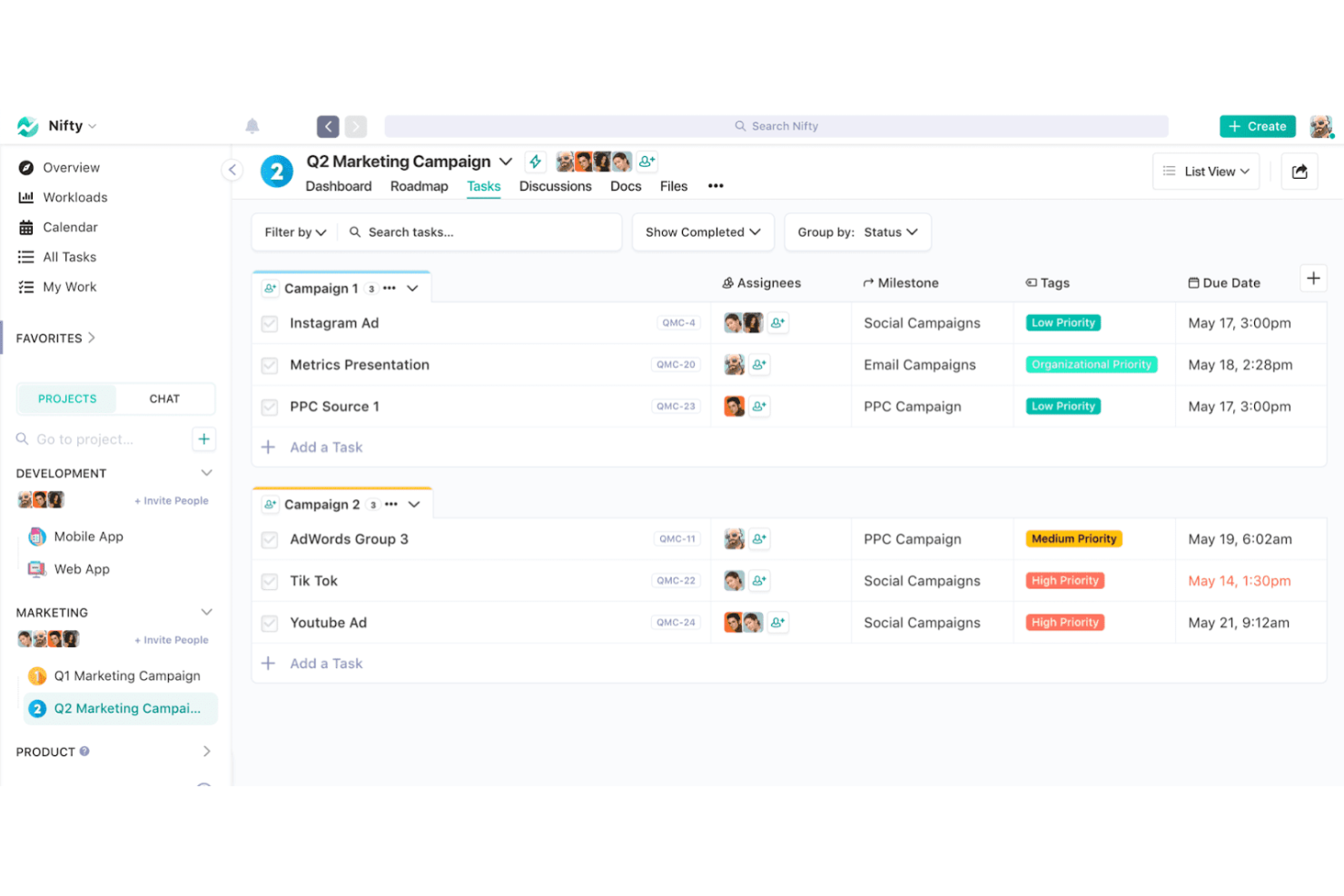
Nifty is a project management platform that brings tasks, milestones, timelines, workload tracking, docs, and team collaboration together in one workspace, with built-in workflow automation and AI-assisted project creation.
Who Is Nifty Best For?
Nifty is a strong fit for small teams that want tasks, milestones, timelines, and client collaboration in one place without paying for tools they'll rarely use.
Why I Picked Nifty
I've included Nifty in my top picks because its built-in workflow automation sets it apart from Zoho Projects in a meaningful way. Nifty's if/then automation rules handle status updates, task handoffs, and reminders automatically, and its Orbit AI can generate a fully structured project from a single description, complete with tasks, owners, and due dates. I also like that milestone-based progress rolls up in real time across projects, so nothing slips through without a trigger to act on it.
Nifty Key Features
- Cross-project overviews: View task status, progress, and activity across multiple projects from a single dashboard.
- Guest and client access: Invite clients to individual projects so they can comment on tasks, join discussions, and upload files.
- Time tracking and reporting: Log time on tasks and subtasks, then export project- or workspace-level reports as CSV or PDF.
- Custom fields: Add custom fields to tasks on Pro and higher plans to capture the specific data your team needs.
Nifty Integrations
Nifty offers native integrations with Slack, Zoom, Webex, GitHub, Google Drive and Calendar, Microsoft Suite, Harvest, Miro, and Typeform. It also provides REST API access, webhooks, and 2,000+ integrations through Zapier.
Pros and Cons
Pros:
- Connects client discussions and files to projects
- Generates project plans from brief descriptions
- Automates task handoffs, updates, and reminders
Cons:
- Workload planning requires an eligible plan or add-on
- Advanced reporting falls short for some reviewers
Best for client work management
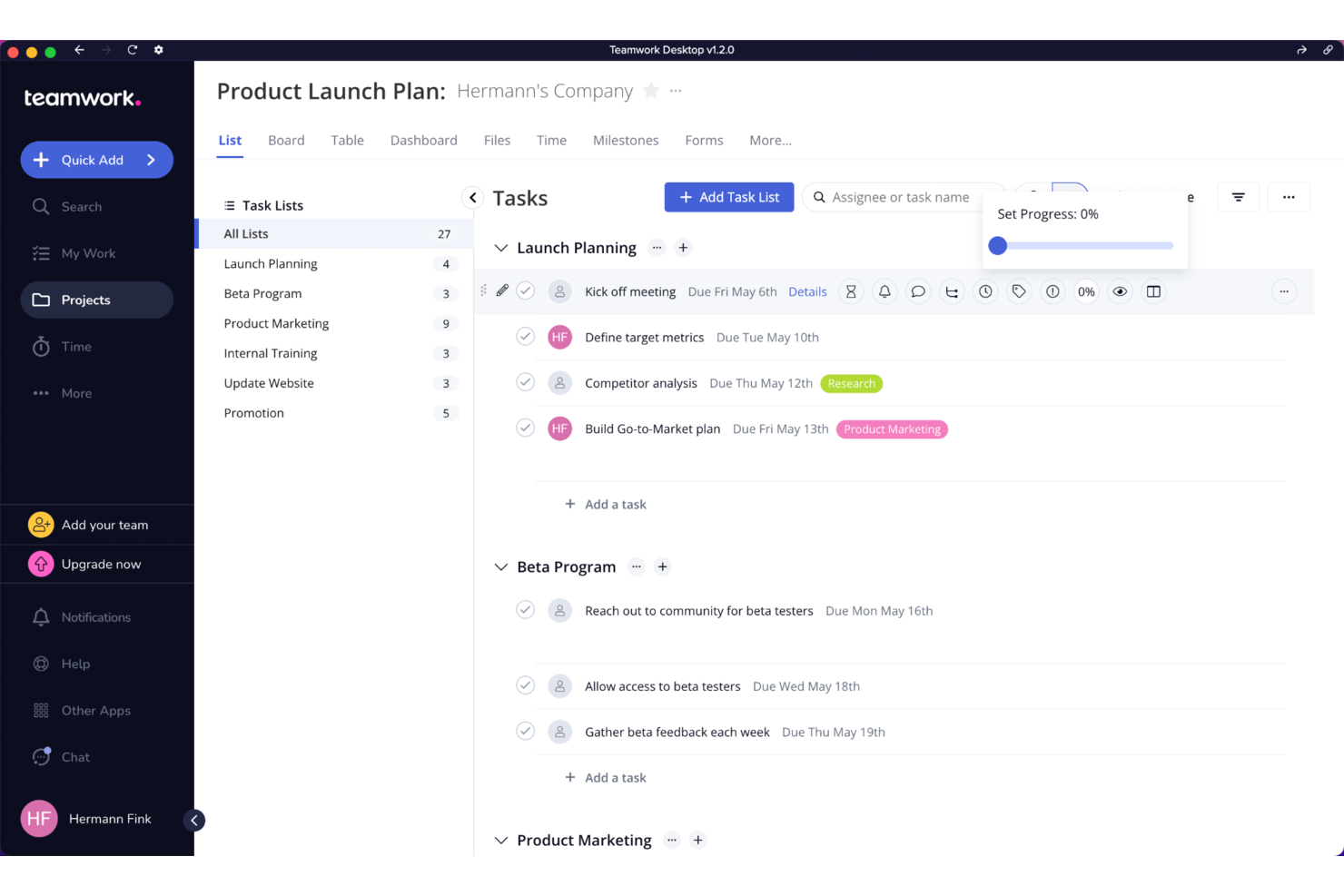
Teamwork.com is a project management platform built around client work, combining task tracking, Gantt and board views, resource planning, time tracking, budget management, and client collaboration tools in one place.
Who Is Teamwork.com Best For?
Teamwork.com is a strong fit for project managers and operations leads at agencies or service teams who need to track client work, budgets, and billable time in one place.
Why I Picked Teamwork.com
Teamwork.com earns its spot on my shortlist because it's purpose-built for client work in a way most project management tools simply aren't. I particularly like how it combines time tracking, project budgets, and client billing into a single workflow, so you can log billable hours against a project and generate an invoice without ever leaving the platform. The client portal access lets external stakeholders view project status and approve deliverables directly, which keeps feedback loops tight without adding unnecessary back-and-forth.
Teamwork.com Key Features
- Workload Planner: Visualizes each team member's day-to-day capacity and flags resourcing risks so you can reassign work before deadlines slip.
- Intake forms: Collects client requests and feedback through a structured form that converts submissions directly into project tasks.
- Proofs: Manages the full review and approval cycle for deliverables, from initial upload through client revisions to final sign-off.
- Project portfolios: Groups multiple projects into a single portfolio view so you can track progress, health, and milestones across all active work at once.
Teamwork.com Integrations
Teamwork.com offers 150+ integrations, including native Slack, Microsoft Teams, Google Calendar, Dropbox, QuickBooks Online, Xero, HubSpot, Salesforce, NetSuite, and Microsoft Project connections. It also provides an API on every plan, with webhooks from Basics upward.
Pros and Cons
Pros:
- Portfolio views reveal progress across client projects
- Billable time connects directly to project budgets
- Client approvals stay tied to deliverables
Cons:
- Frequent notifications can bury important updates
- Gantt planning can feel clumsy for complex schedules

Jira
Best for Agile software development
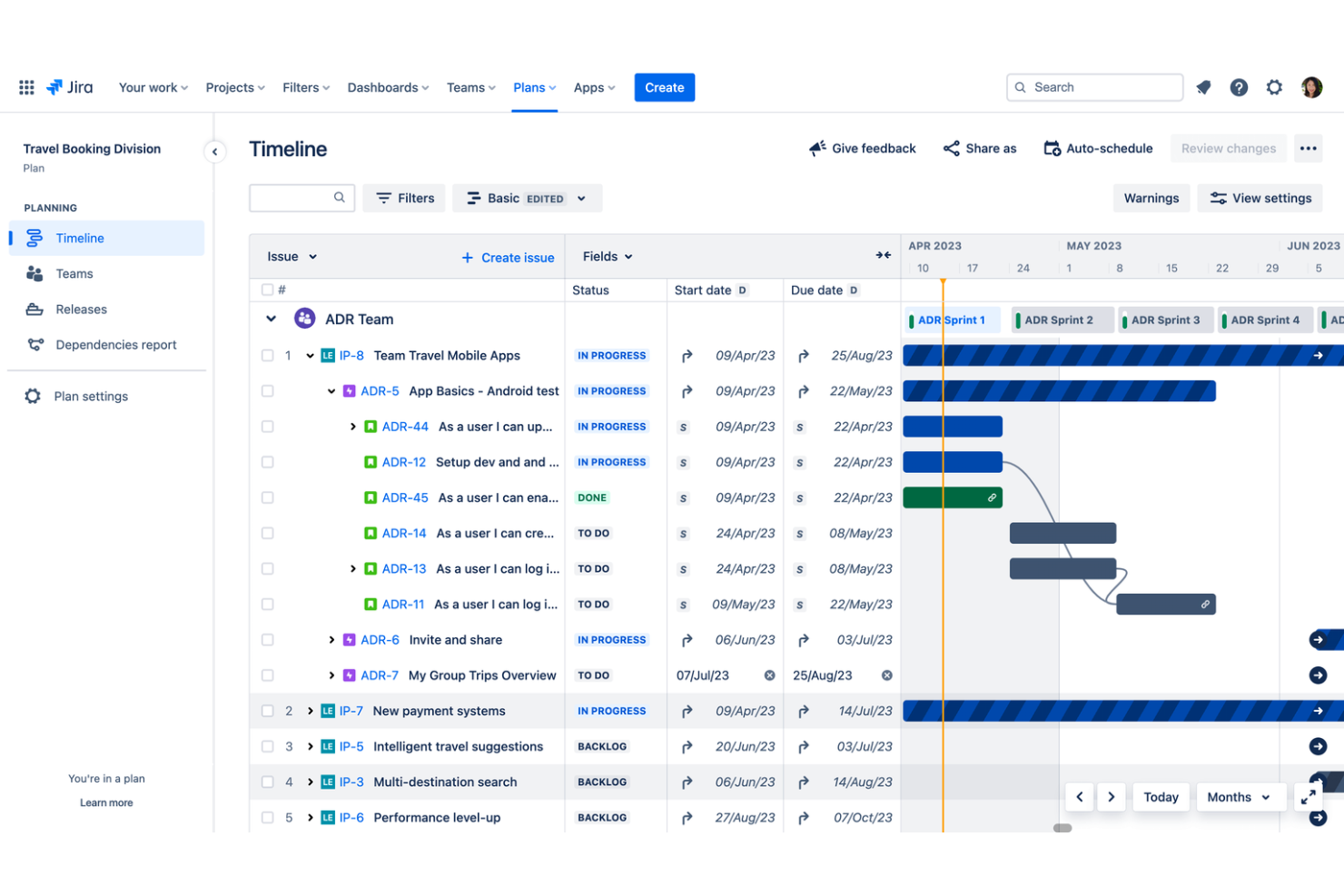
Jira is Atlassian's project and work management platform built around Agile workflows, offering task tracking, sprint planning, customizable boards, roadmaps, dependency management, and reporting across teams.
Who Is Jira Best For?
Jira is a strong fit for software and product teams that run Agile workflows and need deep sprint planning, backlog management, and dev-tool integrations in one place.
Why I Picked Jira
Jira earns its spot as one of the best on my shortlist because it's built from the ground up for Agile software development, with sprint planning, backlog management, and Scrum and Kanban boards that go far deeper than what Zoho Projects offers. I love how the timeline view connects directly to your backlog, so dependency tracking isn't a separate workflow but part of how you plan sprints. Burndown, velocity, and cumulative flow reports are baked in, so my team can surface delivery patterns without building custom views from scratch.
Jira Key Features
- No-code automation: Build rules to trigger actions automatically across one or multiple spaces without writing any code.
- Guest access: Invite external collaborators to a specific Jira space to view and edit work items, comment, and participate in boards.
- Custom fields: Add fields to work items to capture workflow-specific data, including currency-formatted numbers and formula calculations.
- Rovo AI agents: Assign work to AI agents, review their activity alongside your team's work, and use natural language to create automation rules and build custom agents.
Jira Integrations
Jira offers 3,000+ Marketplace integrations, including Slack, Confluence, Trello, Bitbucket, GitHub, Figma, Gmail, Google, Microsoft, and Zoom. Its REST API v3 supports custom integrations.
Pros and Cons
Pros:
- Configurable workflows fit engineering teams
- Burndown and velocity clarify delivery
- Deep sprint and backlog planning
Cons:
- Executive reporting needs dashboard configuration
- Nontechnical projects inherit Agile overhead

Ravetree
Best for flexible project methodologies
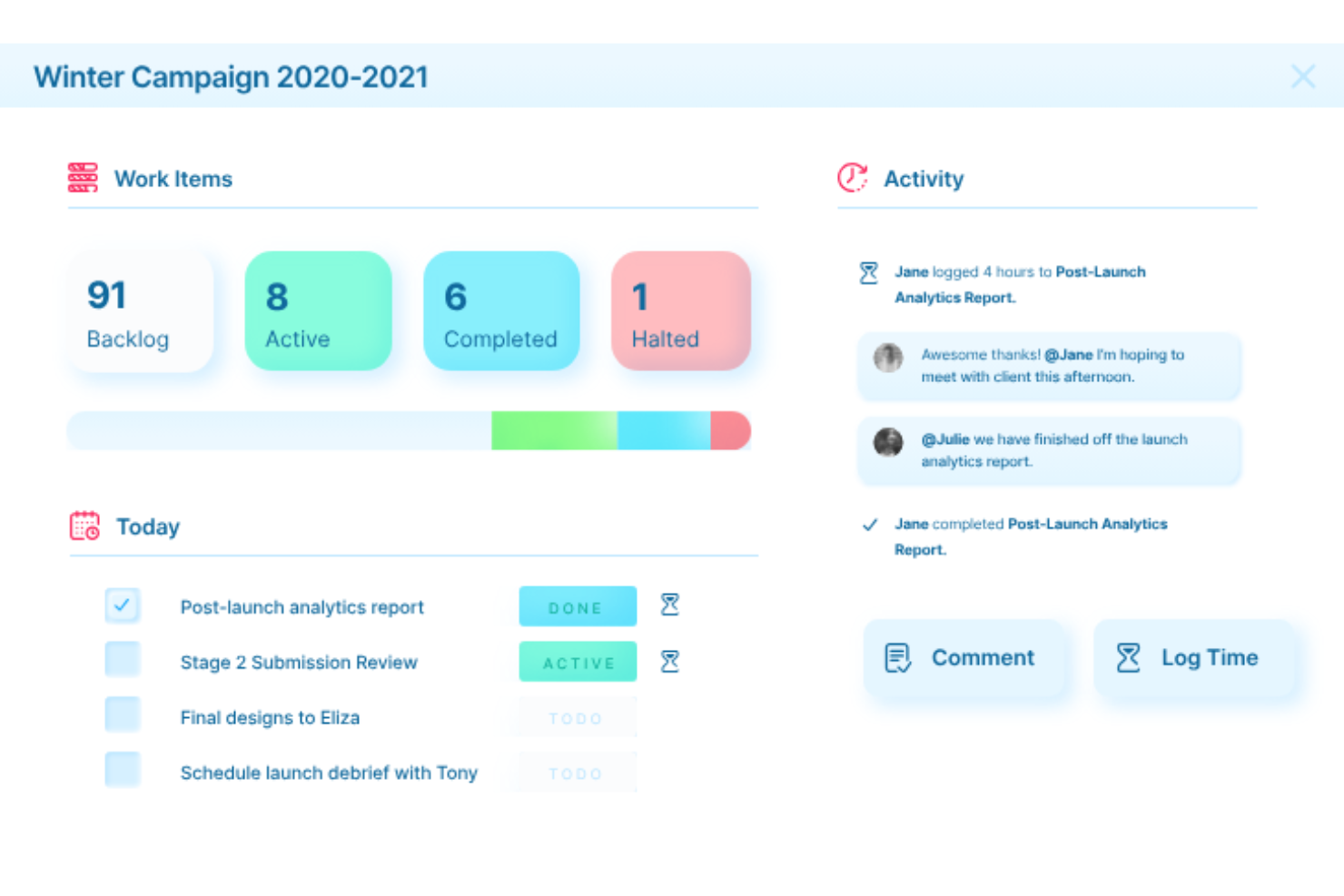
Ravetree is a work management platform that combines project tracking, resource planning, time and expense logging, billing, and client portals in one place.
Who Is Ravetree Best For?
Ravetree is a strong fit for agencies and professional-services teams that need to manage projects, track budgets, and bill clients from a single platform.
Why I Picked Ravetree
Ravetree earns its spot on my shortlist because it genuinely supports both traditional and Agile project workflows without forcing you to choose one or the other. I love that you can manage sprints and Kanban boards in one project while running Gantt-based timelines with finish-to-start dependencies in another. The custom work-item types let my team define its own fields and workflows per project type, which makes switching methodologies feel natural rather than like a workaround.
Ravetree Key Features
- Client portal: Give clients real-time access to project status updates, shared files, and request submission forms directly within Ravetree.
- Budget and expense tracking: Log expenses against custom categories, add percentage markups to billable items, and view profitability and estimated-versus-actual figures per project.
- Retainer management: Automate recurring invoices, generate projects from retainer templates, and track earned versus unearned revenue across all active retainers.
- Resource utilization views: See capacity in hours and percentages across individuals, teams, and departments, filtered by work role, skill, office, or department.
Ravetree Integrations
Ravetree offers native integrations with Google Calendar, Outlook Calendar, Google Drive, HubSpot, QuickBooks, Xero, Stripe, and GitHub. Its REST OpenAPI supports custom integrations.
Pros and Cons
Pros:
- Share project updates through client portals
- Track budgets alongside billable project work
- Switch between Agile and Gantt workflows
Cons:
- Resource-planning views can feel dense
- Mobile functionality trails the desktop experience
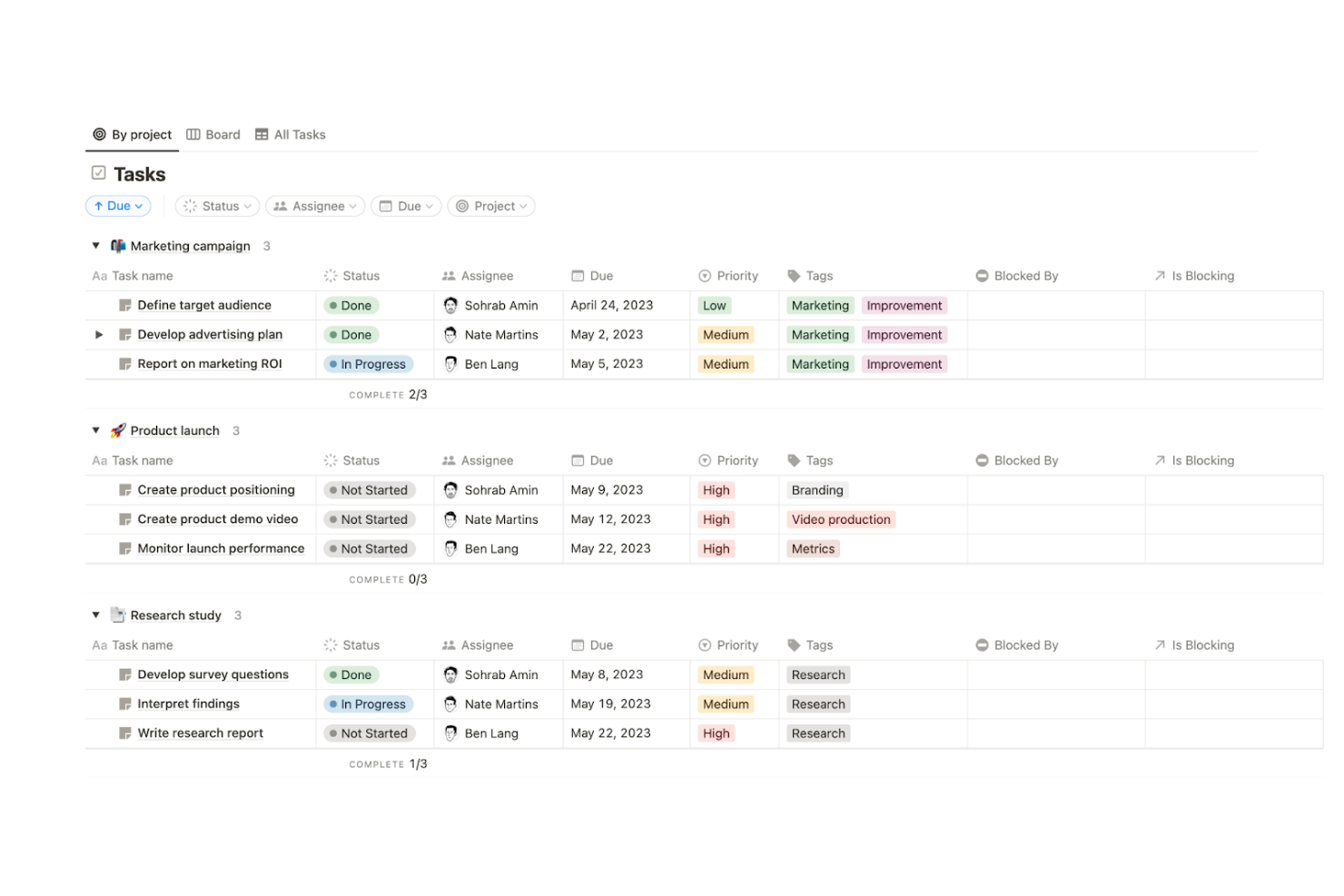
Notion is an all-in-one workspace platform that combines project databases, task tracking, wikis, and real-time document collaboration in a single connected environment.
Who Is Notion Best For?
Notion works best for teams that want project tracking and documentation living in the same place, rather than juggling separate tools for each.
Why I Picked Notion
I've included Notion in my top picks because it's the only tool on this list where your project databases and team documentation genuinely live in the same place. I like that you can link a project record directly to its spec doc, meeting notes, or decision log without switching apps. The connected database setup also lets you build cross-project dashboards with live charts, so you're not manually pulling status updates from scattered sources.
Notion Key Features
- Real-time co-editing: Multiple team members can edit project documents and pages simultaneously, with active collaborators visible on screen.
- Database automations: Automate task workflows, bug reports, and database entries to trigger actions based on status changes or other conditions.
- Subtasks and dependencies: Break tasks into subtasks assigned to different team members and link dependencies directly in timeline view.
- Project forms: Collect intake requests through customizable forms that feed responses directly into project databases to start tasks and workflows.
Notion Integrations
Notion offers documented integrations with Slack, Google Drive, GitHub, Figma, Jira, Linear, Microsoft Teams, and Notion Calendar connections. Its public API and webhooks support custom connections, while synced Jira and GitHub databases are read-only.
Pros and Cons
Pros:
- Teams edit plans together in real time
- Views adapt to changing team workflows
- Project context stays beside tasks
Cons:
- Workload views don’t forecast team capacity
- Advanced execution needs dedicated PM tooling
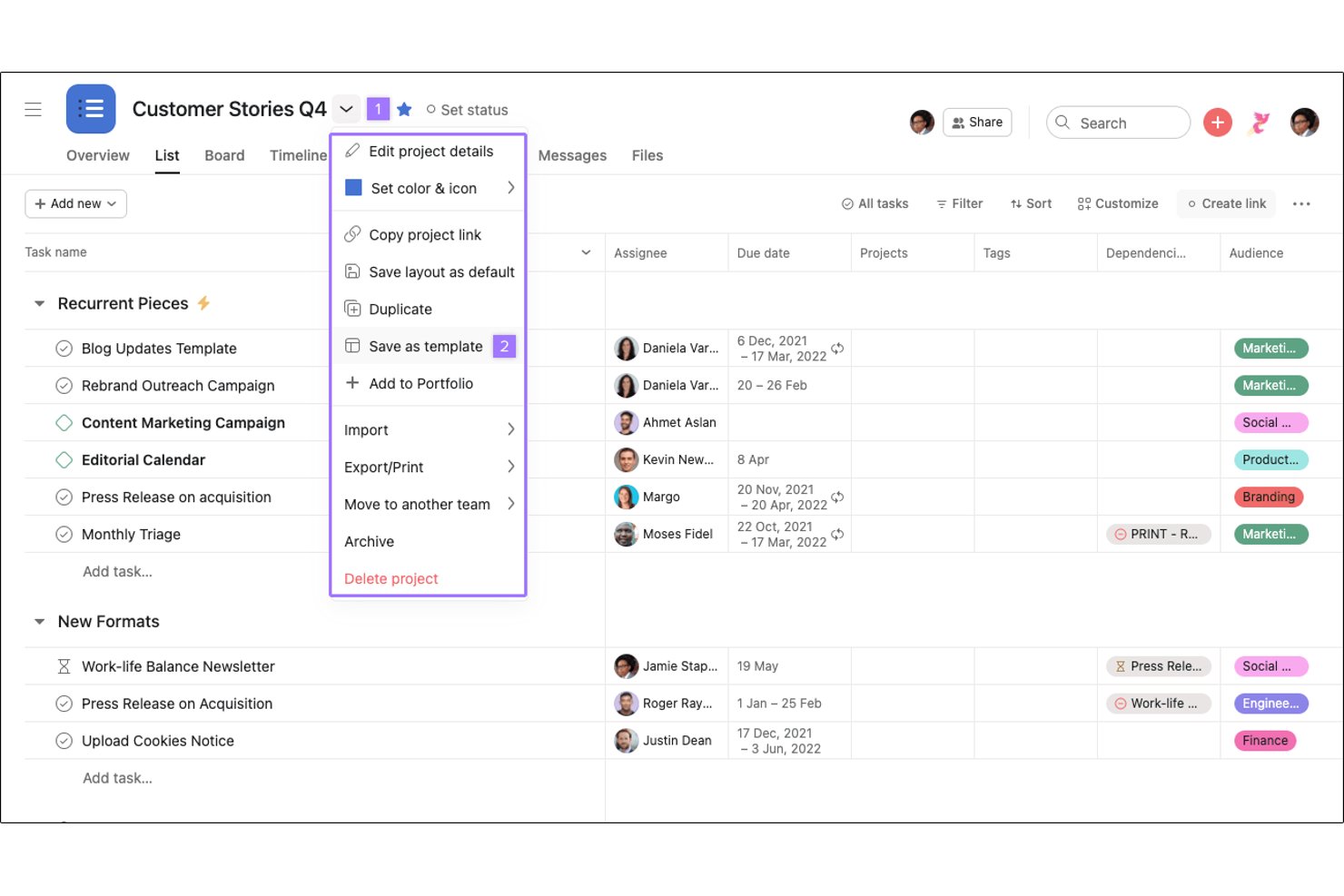
Asana is a work management platform that covers task tracking, project planning, workflow automation, and cross-functional team coordination across multiple views including lists, boards, timelines, and Gantt charts.
Who Is Asana Best For?
Asana works well for cross-functional teams that need a structured way to manage tasks, coordinate handoffs, and track project progress across multiple workstreams.
Why I Picked Asana
Asana earns its spot on my shortlist because task management is where it genuinely excels. I love how every task can carry an owner, due date, dependencies, and milestone markers, so nothing falls through the cracks across workstreams. In practice, my team can switch between list, board, timeline, and Gantt views on the same project without rebuilding anything, which makes it easy to track progress at whatever level of detail a given meeting or stakeholder requires.
Asana Key Features
- Workflow automation rules: Triggers and actions automate routine task updates, assignments, and handoffs without manual intervention.
- Custom fields and templates: Reusable project templates and up to 150 custom fields per project standardize how work is structured across teams.
- Goals and portfolio tracking: Portfolios group related projects and link them to team or company objectives to surface progress at a glance.
- 270+ app integrations: Native connectors span communication, storage, CRM, and developer tools, with a REST API and MCP server for custom connections.
Asana Integrations
Asana offers 270+ integrations, including Jira, Slack, Google Drive, Microsoft 365, Salesforce, HubSpot, GitHub, Tableau, and Power BI. It also provides a REST API, webhooks, client libraries, app components, and an MCP server for custom integrations.
Pros and Cons
Pros:
- Task-linked discussions keep project context together
- Multiple planning views expose schedule slippage
- Task ownership and dependencies clarify handoffs
Cons:
- Detailed analytics remain limited for reporting needs
- Per-seat charges grow as teams expand
Best for workflow customization
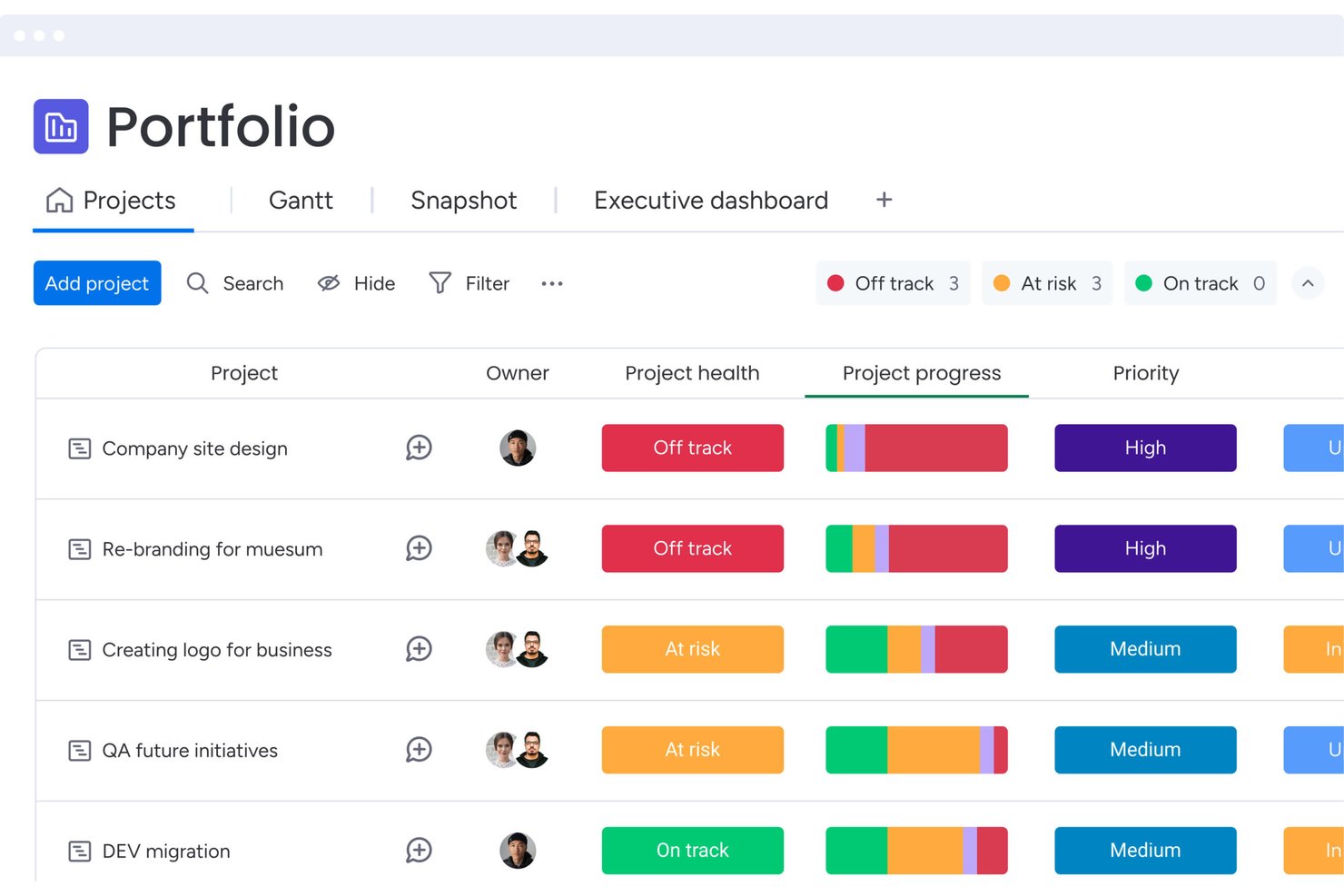
monday work management is a project and work management platform that lets teams track tasks, plan timelines, automate workflows, and report on progress across projects—all on customizable boards with 850+ integrations.
Who Is monday AI Workspace Best For?
monday work management is a strong fit for project managers who need to shape their own workflows rather than adapt to a rigid system.
Why I Picked monday AI Workspace
monday work management earns its spot on my shortlist because no other tool gives you the same level of control over how your workflows actually behave. I love that you can build a project intake pipeline with custom approval routing, then automatically spin up a dedicated project board from a template the moment a request is approved. The AI-powered project planner agent can map out dependencies and assign owners without manual setup, which is something I haven't seen done as cleanly elsewhere.
monday AI Workspace Key Features
- Customizable board automations: Set up code-free automations to handle notifications, task assignments, status updates, and handoffs between workflow stages.
- Workload widget: View team members' capacity across one or multiple boards, with drill-down to individual tasks and support for custom work schedules.
- Shareable boards: Invite external collaborators to specific project boards without giving them access to your full monday.com account.
- 850+ integrations: Connect monday work management to tools like Slack, Jira, GitHub, Salesforce, and QuickBooks through native integrations or the GraphQL/MCP API.
monday AI Workspace Integrations
monday AI Workspace offers 850+ integrations and apps, including native integrations with Jira, GitHub, Slack, Google Drive, Salesforce, QuickBooks, HubSpot, and Microsoft Teams. GraphQL, SDK, and MCP APIs support custom connections.
Pros and Cons
Pros:
- Dashboards keep project status visible across teams
- Custom boards adapt to changing delivery processes
- Approval workflows turn requests into project boards
Cons:
- Resource leveling still requires manual adjustments
- Gantt view may not suit project planning
New Product Updates from monday AI Workspace
monday AI Workspace Adds Human Approval Routing
monday AI Workspace adds a human-in-the-loop approval block to AI Workflows, sending approval requests and routing workflow paths based on responses. For more information, visit monday AI Workspace's official site.

Quire
Best for hierarchical task breakdown
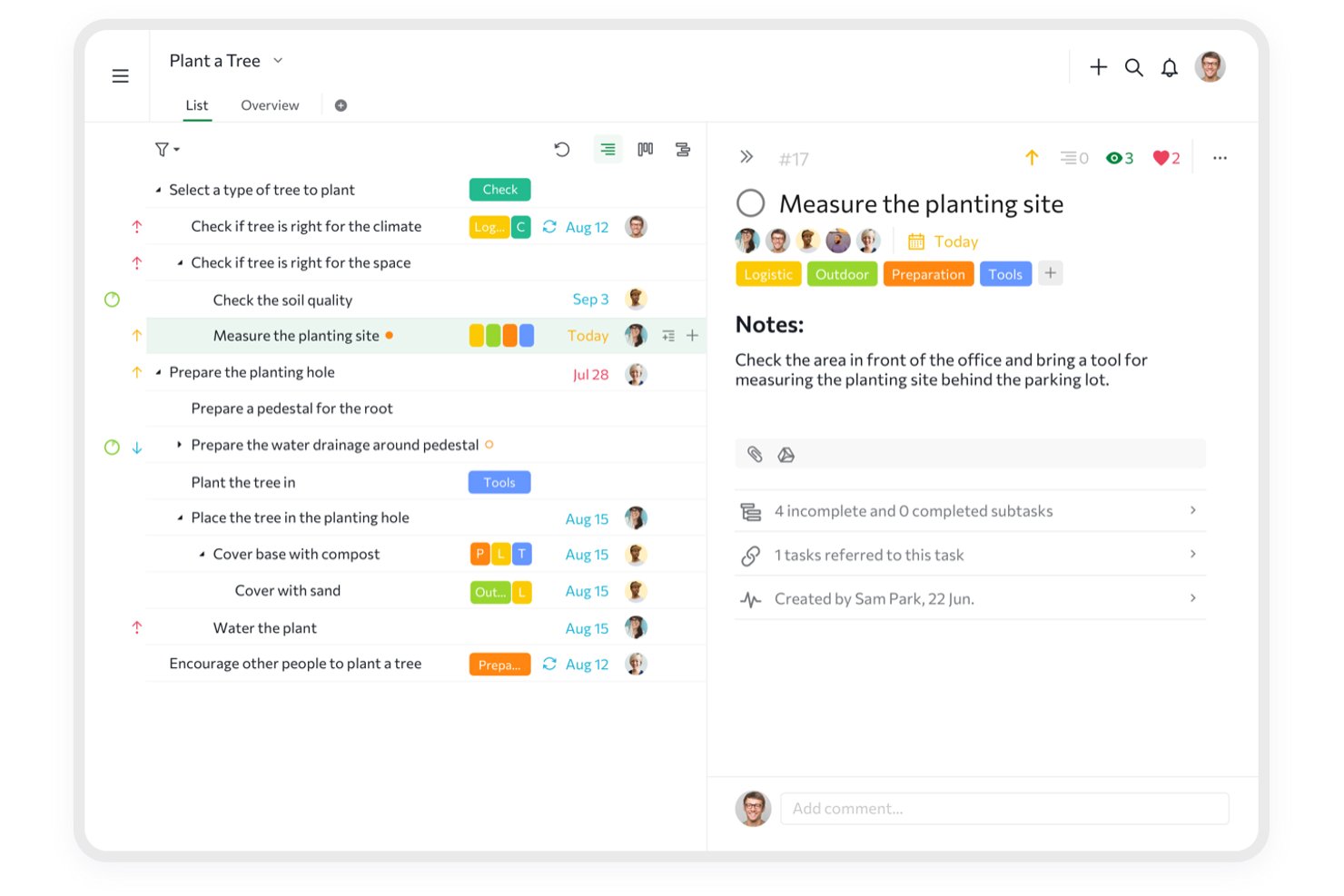
Quire is a project and task management platform that brings together hierarchical task organization, multiple project views (Kanban, timeline, calendar, and table), team collaboration tools, time tracking, and cross-project reporting.
Who Is Quire Best For?
Quire suits small teams and growing businesses that need to break complex projects into deeply nested tasks without paying for features they won't use.
Why I Picked Quire
I picked Quire as one of the best because of how it handles task breakdown, specifically through unlimited subtask nesting. When I'm managing a complex deliverable, I can split it into as many layers as the work actually requires, rather than forcing everything into a flat list. The Peekaboo feature is genuinely useful here too: I can tuck tasks away until they're actionable, which keeps the view clean without losing anything. Paired with dependency tracking in Timeline view, blocked work surfaces immediately with a red line.
Quire Key Features
- Kanban board view: Visualize and move tasks through workflow stages using a drag-and-drop board layout.
- Project chat channels: Communicate with your team directly inside a project without switching to an external messaging tool.
- External teams: Grant clients or contractors access to only the tasks assigned to them, keeping the rest of your project private.
- Time tracking and reports: Log time spent on tasks and review time reports across projects to monitor where hours are going.
Quire Integrations
Quire offers native integrations with Dropbox, Google Drive, Google Calendar, Microsoft Teams, Microsoft OneDrive, and Slack, plus marketplace integrations for GitHub and Zapier. It also provides an API and Quire MCP for custom connections.
Pros and Cons
Pros:
- Workload dashboards surface overdue tasks and trends
- Timeline dependencies expose blocked work visually
- Deep task nesting keeps complex work organized
Cons:
- Mobile users cannot set task dependencies
- Reporting offers limited analytical depth
New Product Updates from Quire
Quire Adds Custom Field Locking and Comment Reaction API Support
Quire adds custom field locking and API support for reading and setting emoji reactions on comments. These updates give teams more control over field data and expand comment interaction options for developers. For more information, visit Quire’s official site.
 .
.Other Zoho Projects Alternatives
Below is a list of additional project management software that didn’t make it into my top 10 list for Zoho Project alternatives, but are still worth checking out:
- Smartsheet
For spreadsheet-like interface
- Celoxis
For advanced project analytics
- Paymo
For project budget and profit oversight
- ProofHub
For centralized project control
- Scoro
For professional service automation
- Microsoft Project
For Microsoft 365-native project scheduling
- Hive
For AI-assisted project planning
- Zoho Sprints
For Scrum teams leaving Zoho Projects
- GoodDay
For Agile teams wanting deep customization
- TeamGantt
For Gantt-first visual scheduling


Related Project Management Reviews
If you still haven't found what you're looking for here, check out these other project management tool reviews we've curated for you:
How I Evaluate Zoho Projects Alternatives
I split my evaluation into three parts, giving core needs the most weight: assign tasks, track deadlines, and plan work on boards or timelines. Next, I compare differentiators such as client approval portals and capacity forecasts. Finally, I consider beyond-feature factors, including migration help, onboarding, support, and pricing as teams grow.
Core Functionality (Table Stakes For This List)
When I'm selecting tools for my list, I score each one on a scale from 0 (does not offer the functionality) to 5 (excels in this area) for each core functionality listed below. I then convert the total into a percentage to help assess each tool's overall fit, with extra weight on any functionalities I’ve deemed essential.
- Task & Project Tracking (Essential): I look for task owners, statuses, due dates, dependencies, and milestones that support delivery across multiple projects.
- Visual Planning Views (Essential): I check for interactive boards, timelines, or calendars that help teams plan work and adjust schedules as priorities shift.
- Team Collaboration: I evaluate whether comments, files, and notifications stay connected to project tasks and decisions.
- Resource & Workload: I look for cross-project capacity views that help project managers spot overloaded team members and rebalance assignments.
- Reporting & Insights: I assess whether dashboards show project status, deadlines, and progress clearly enough to guide delivery decisions.
- Third-Party Integrations: I check for connections to tools teams use for communication, file storage, calendars, or billing.
Once I have a list of tools that meet the criteria, I consider what sets each platform apart.
Differentiating Factors (What Sets Vendors Apart)
Here's how I compare and contrast different vendors:
Standout Features
I look for client portal access that lets external stakeholders review deliverables and leave approvals without a full license. This matters when you're running multiple client projects and need feedback loops that don't rely on forwarded emails. I also evaluate resource forecasting—specifically whether a tool flags over-allocation across projects before it becomes a scheduling problem. Budget and financial tracking is another differentiator; I check whether time entries tie directly to project budgets so you can monitor margins on client work without toggling to a separate system.
Beyond Features
I check whether a tool locks essential features like automation or time tracking behind expensive tiers, since that changes the real cost as your team scales. Migration support matters too—I look for import wizards or dedicated specialists that move tasks, files, and timelines from Zoho Projects without data loss. I also evaluate open API access and two-way sync with tools like Slack and Google Workspace, which helps teams avoid trading one vendor lock-in for another.
Why Look for a Zoho Projects Alternative
You might be looking for an alternative to Zoho Projects if you are worried about:
- Cost: While comprehensive, you find the features to be beyond your current needs and the pricing structure of Zoho Projects to be beyond your budget.
- Feature Set: The focus of the features offered by Zoho Projects does not meet the specific needs of your team or project.
- User Experience: You or your team find the interface of Zoho Projects to be unintuitive or cumbersome.
- Integration Capabilities: You require better integration with specific tools, existing workflows, and other services that are not sufficiently supported by Zoho Projects.
- Customer Support: The learning curve is too steep, you require a greater level of customer support, or you’ve had a poor experience.
Whether or not the reasons above align with your specific experience, it never hurts to shop around.
Software alternatives to Zoho Projects can provide different features, a better value for your money, or simply an overall better tool based on your custom project management needs. You may find a solution that not only fits your specific requirements but shaves hours of time and energy spent navigating rigid and inflexible user interfaces, complicated setups, or inefficient workflows.
Zoho Projects Key Features
Here are some of the key features of Zoho Projects, to help you contrast and compare what alternative solutions offer:
- Task management: Allows you to create, assign, and track tasks, ensuring your team stays organized and on schedule.
- Time tracking: Helps you monitor the time spent on tasks and projects, improving billing accuracy and productivity.
- Document management: Centralizes all project-related documents and attachments, making it easy for your team to access and collaborate on files.
- Gantt charts: Provides a visual timeline for project scheduling, helping you plan and track project progress effectively.
- Kanban boards: Offers a visual way to manage tasks and workflows, making it easy to see the status of each task at a glance.
- Milestones: Lets you set key project milestones to track progress and ensure timely completion of critical tasks.
- Custom workflows: Allows you to create tailored workflows that fit your team's unique processes and requirements.
- Zoho Zia: An AI-powered assistant that helps automate tasks and provides insights to enhance project management.
- Collaboration tools: Includes discussion boards and chat features to facilitate team communication and collaboration.
- Resource management: Helps you allocate and manage resources efficiently, ensuring optimal utilization across projects. This, unfortunately, is a feature that is not common in every software. Therefore, you might need to explore resource management software that can complement the alternative you go with.