
26 Best Collaboration Tools for Remote Teams in 2026

Best collaboration tools for remote teams Shortlist
Here's my pick of the 15 best software from the 26 tools reviewed.


Choosing the right collaboration tools for remote teams is tough. You want to improve communication and productivity but need to figure out which tool fits best. In this article, I’ll make things easy, leveraging my years of managing digital projects and using various tools to bring you this shortlist of best collaboration tools for remote teams.
Why Trust Our Software Reviews
We’ve been testing and reviewing collaboration tools for remote teams since 2012. As project managers ourselves, we know how critical and difficult it is to make the right decision when selecting software.
We invest in deep research to help our audience make better software purchasing decisions. We’ve tested more than 2,000 tools for different project management use cases and written over 1,000 comprehensive software reviews. Learn how we stay transparent & our software review methodology.
Table of Contents
- Best Software Shortlist
- Why Trust Our Software Reviews
- Compare Specs
- Best Collaboration Tools for Remote Teams Reviews
- Other Collaboration Tools For Remote Teams
- Related Reviews
- Selection Criteria
- How To Choose
- What Are Collaboration Tools For Remote Teams?
- Trends For Collaboration Tools For Remote Teams In 2025
- Features
- Benefits
- Costs And Pricing
- FAQs
Best collaboration tools for remote teams Summary
| Tool | Best For | Trial Info | Price | ||
|---|---|---|---|---|---|
| 1 | Best for flexible dashboards | Free plan available | From $9/seat/month (billed annually) | Website | |
| 2 | Best for cross-location project management | Free plan + free demo + 14-day free trial available | From $10/user/month (billed annually) + add-on fee | Website | |
| 3 | Best for collaborative whiteboards | Free trial + free plan available | From $8/member/month (billed annually) | Website | |
| 4 | Best with guest access for external partners | 30-day free trial + free plan available | From $14/user/month (billed annually) | Website | |
| 5 | Best for interactive discussion tools | Free demo available | Pricing upon request | Website | |
| 6 | Best for in-task collaboration | Free plan available | From $13/user/month (billed annually) | Website | |
| 7 | Best all-in-one workspace | Free plan available | From $10/user/month (billed annually) | Website | |
| 8 | Best for integrated productivity tools | 14-day free trial + free demo available | From $67user/month (billed annually) | Website | |
| 9 | Best for video conferencing and webinars | Free trial + free demo available | From $66.67/month (billed annually) | Website | |
| 10 | Best for creative asset collaboration | Free trial available | From $199/month (billed annually) | Website | |
| 11 | Best for visual task management | Free trial + free plan available | From $5/user/month (billed annually) | Website | |
| 12 | Best for centralized project collaboration | 14-day free trial + free demo available | From $45/month (billed annually) | Website | |
| 13 | Best for team communication and collaboration | 30-day free trial + free plan available | From $4/user/month (billed annually) | Website | |
| 14 | Best for intranet and internal communications | Free trial available | Pricing upon request | Website | |
| 15 | Best for AI-assisted project scheduling | 14-day free trial + 30-day money back guarantee | From $8.50/user/month (billed annually) | Website |


-

Accelo
Visit WebsiteThis is an aggregated rating for this tool including ratings from Crozdesk users and ratings from other sites.4.4 -
Wrike
Visit WebsiteThis is an aggregated rating for this tool including ratings from Crozdesk users and ratings from other sites.4.2 -
Forecast
Visit WebsiteThis is an aggregated rating for this tool including ratings from Crozdesk users and ratings from other sites.4.6


Best Collaboration Tools for Remote Teams Reviews
Here’s an in-depth analysis and overview of various collaboration tools for remote teams. This will walk through the pros and cons of each tool, their features, and their best use cases

monday.com gives you a flexible visual workspace that helps you and your team keep track of projects, tasks, and workflows — whether you’re working across offices, home desks, or time zones. It’s ideal for teams that juggle a variety of projects — marketing, IT, design, product development — and want to keep everyone aligned without bouncing between dozens of tools.
Why I Picked monday.com
I picked monday.com for its unique ability to adapt to the diverse needs of remote teams. Its customizable, flexible dashboards allow you to visualize project progress in real-time, ensuring everyone stays informed. Automation features reduce repetitive tasks, freeing up time for more critical work. Additionally, the platform's collaboration tools facilitate seamless communication, making it an ideal choice for teams aiming to maintain productivity and cohesion across distances.
monday.com Key Features
In addition to its standout features, monday.com offers several other tools that enhance team collaboration:
- Time Tracking: Monitor the time spent on tasks and projects to optimize productivity and resource allocation.
- File Sharing: Centralize and share documents easily within your team, allowing for efficient collaboration.
- Task Dependencies: Set dependencies between tasks to ensure a smooth workflow and timely project completion.
- Team Workload Management: Balance workloads across your team to prevent burnout and maintain efficiency.
monday.com Integrations
Integrations include Slack, Gmail, Microsoft Teams, GitLab, Mailchimp, Excel, Outlook, and DocuSign.
Pros and Cons
Pros:
- Strong support for remote collaboration with real-time updates and mobile access
- Highly customizable boards let teams build workflows around their own processes
- Clarity and visibility across projects help distributed teams stay aligned
Cons:
- Without customization and thoughtful setup, boards can become messy as projects scale.
- Free and Basic plans are very limited and don’t include key views or automation features.
New Product Updates from monday.com

monday.com's AI Blocks Now Available to All Users
monday.com AI Blocks are now available to all users, enabling teams to integrate AI directly into workflows. This rollout helps automate tasks and improve productivity across projects. For more information, visit monday.com's official site.


Wrike is a project management platform designed to support remote teams with tools that enhance collaboration, task management, and communication. Its features help distributed teams stay aligned on projects, track progress in real-time, and manage workloads effectively.
Why I Picked Wrike: Wrike provides remote teams with multiple work views, such as Kanban boards and Gantt charts, to help visualize project timelines and resources. Real-time dashboards and analytics offer transparency into performance metrics, allowing teams to stay informed and make quick decisions. Integrations with Slack, Zoom, and Microsoft Teams centralize communication, reducing reliance on scattered tools. These features make Wrike a solid choice for remote collaboration.
Standout Features & Integrations:
Features include customizable workflows for adapting to different team processes, real-time dashboards for project visibility, and in-platform communication tools to reduce context-switching. Mobile apps allow users to manage projects and collaborate from anywhere.
Integrations include 400+ pre-built native connections, including Microsoft, Google, Dropbox, Salesforce, and Marketo.
Pros and Cons
Pros:
- Easily visualize workflow performance
- Individuals and teams can track workloads
- In-app chat to reduce switch cost for collaboration
Cons:
- Limited to 10 workflows per space
- Not suitable for small organizations
New Product Updates from Wrike

Streamlining Workspaces with New Updates
Wrike announces custom space templates, AI Agents in Wrike Labs, and a new Guage widget to improve project management. For more information, visit Wrike's official site.

Miro is an online collaborative platform designed to help teams work together visually, no matter where they are. It offers a shared digital whiteboard where teams can brainstorm, plan, and manage projects.
Why I Picked Miro: I like Miro because its whiteboard supports both real-time and asynchronous collaboration. Features like embedded video chat, commenting, and mouseover collaboration allow team members to interact and provide feedback directly on the board, reducing the need for separate communication tools. The infinite canvas ensures that teams have ample space to develop and organize their ideas without constraints.
Standout Features & Integrations:
Features include a vast library of templates that cater to various use cases such as design thinking, agile workflows, and strategic planning, allowing teams to jumpstart their projects without starting from scratch. The Talktrack feature also enables users to record audio or video walkthroughs of their boards, facilitating asynchronous communication and reducing the need for live meetings.
Integrations include Confluence, Notion, Monday.com, Asana, Jira, Slack, Microsoft Teams, Zoom, Dropbox, Google Drive, and Trello.
Pros and Cons
Pros:
- Embedded communication tools reduce the need for external applications
- Infinite canvas provides lots of space for complex projects
- Supports both real-time and asynchronous collaboration
Cons:
- Integration with some third-party tools may require additional setup
- Performance can be affected when handling very large boards
New Product Updates from Miro

Miro Adds AI Prototyping, Search, and Workflow Updates
Miro introduces AI-powered prototyping, AI search, and workflow enhancements. These features help teams turn ideas into structured outputs faster and improve collaboration. For more information, visit Miro's official site.
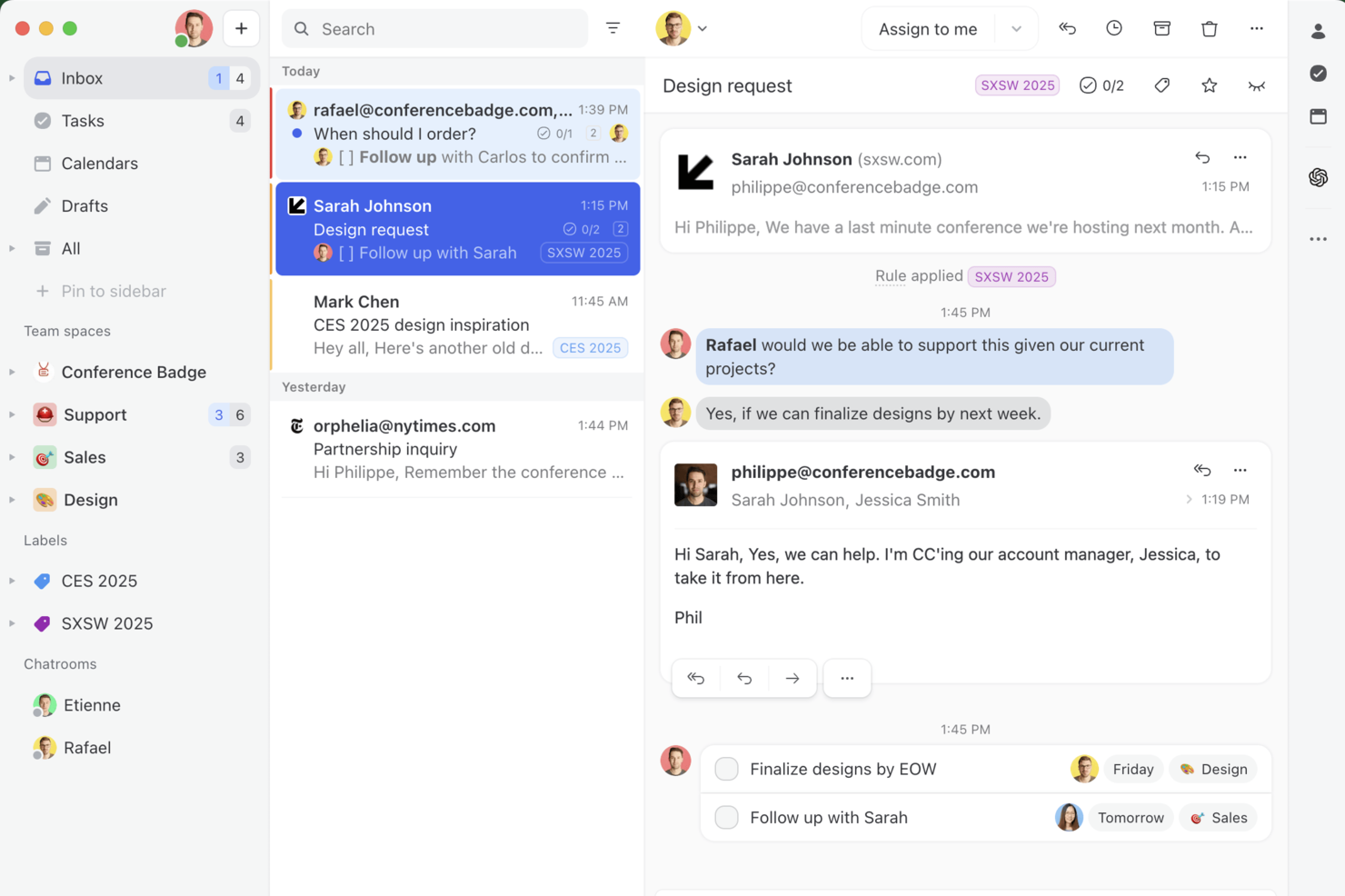
Missive brings together email, chat, and task management in one platform designed for remote teams who need to coordinate conversations and manage shared work across multiple channels.
Who Is Missive Best For?
Remote teams in tech, marketing, or client services who need to manage conversations and tasks across multiple communication channels.
Why I Picked Missive
I picked Missive because it allows teams to invite external partners as guests into specific conversations without granting full workspace access. This makes it possible to collaborate with clients and vendors directly within shared threads while keeping communication organized. Guest users can comment, upload files, and participate in discussions, while workspace admins control what they can see. This structure helps maintain a clear separation between external and internal conversations.
Missive Key Features
- Unified inbox: Manage email, SMS, live chat, and social media messages from one place.
- Internal chat: Start real-time conversations with teammates directly inside any thread.
- Task assignment: Assign actionable tasks to team members within conversations.
- Conversation snooze: Temporarily hide threads and have them return to your inbox at a set time.
Missive Integrations
Integrations include HubSpot, Salesforce, Asana, Trello, ClickUp, Shopify, Zoom, Google Drive, Dropbox, and GitHub.
Pros and Cons
Pros:
- Use shared labels for team-wide organization
- Add internal comments to any message thread
- Merge related conversations from multiple channels
Cons:
- Guest access requires a paid plan
- No built-in video or voice calling
New Product Updates from Missive

Missive Introduces MCP Integrations for AI Workflows
Missive introduces MCP integrations, enabling its AI to interact with external tools and systems. This update allows teams to automate workflows and access data across platforms directly within conversations. For more information, visit Missive’s official site.
 .
.

Axero is a digital workplace platform that helps teams communicate, collaborate, and share knowledge from a centralized hub.
Why I Picked Axero: I like that Axero focuses on interactive discussions through built-in forums. This tool allows you to create topics, engage in threaded discussions, and share documents and media all within one place. What makes this especially helpful for remote teams is that it gives conversations a home—threads don’t disappear like in chat tools, and everyone can contribute asynchronously.
Standout Features & Integrations:
Features include activity streams and commenting that let teams see real-time feeds of discussions. Axero also offers idea and innovation management, where team members can submit ideas and vote or comment on them to drive group decision-making.
Integrations include Outlook 365, SharePoint, OneDrive, Microsoft Teams, Google Workspace, Slack, Zoom, Dropbox, Box, Unsplash, and Twilio.
Pros and Cons
Pros:
- Easy to organize content by spaces and departments
- Strong internal communication tools like forums
- Customizable to different team structures
Cons:
- Mobile experience lags behind desktop
- Search functionality can be inconsistent
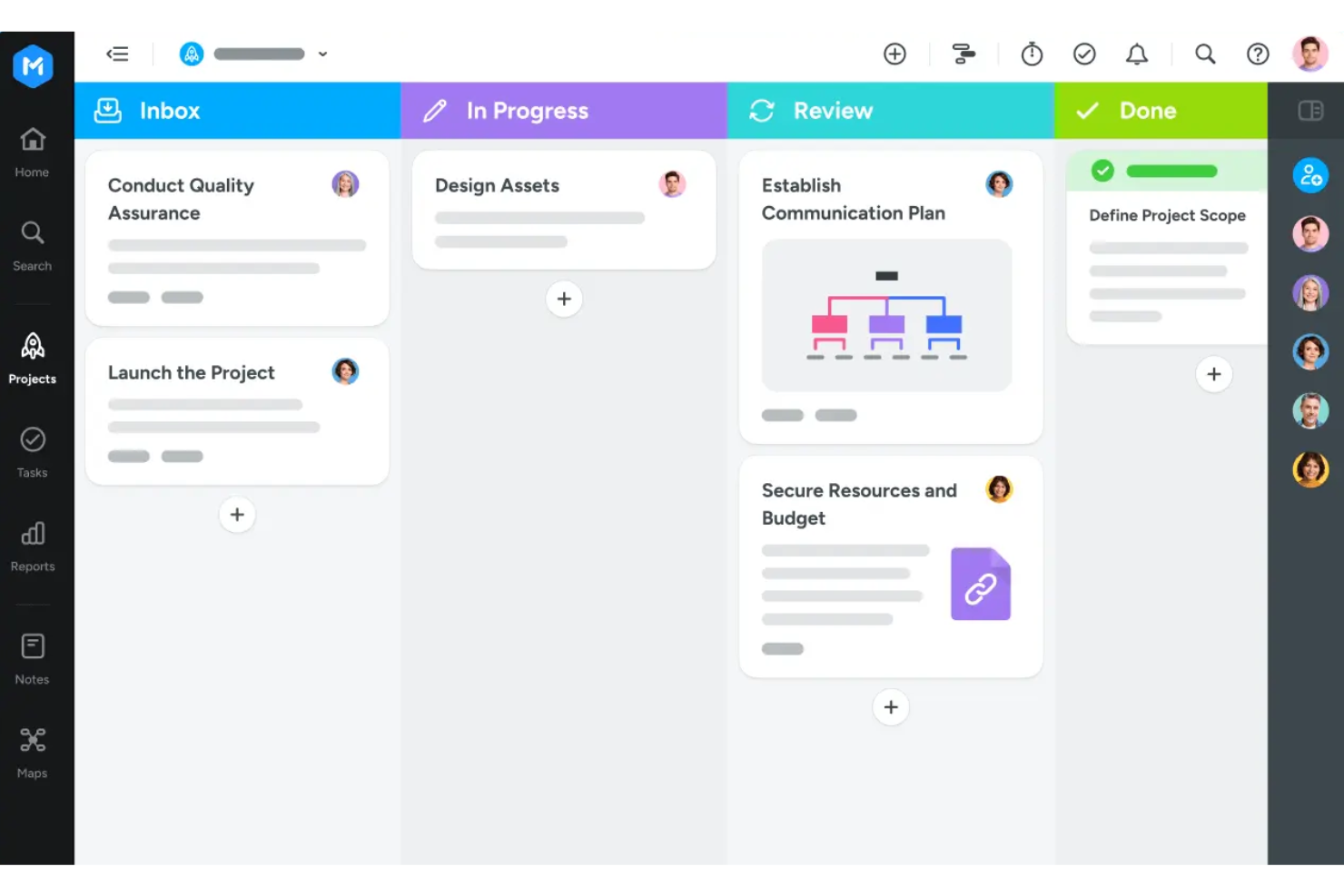
MeisterTask is a collaborative task and project management tool designed to help teams organize their work visually and stay aligned.
Why I Picked MeisterTask: For remote teams, MeisterTask provides clear task ownership by allowing you to assign specific owners and watchers to tasks, ensuring everyone knows their responsibilities. Along with its task management feature, the platform centralizes communication by enabling discussions and feedback directly within tasks and documents. This means your team can collaborate in real-time, leaving comments and updates where they're most relevant, rather than relying on scattered emails or messages.
Standout Features & Integrations:
Features include customizable project boards that let you switch between board, list, and timeline views, adapting to your team's workflow preferences. The use of color-coded tags also allows you to categorize tasks by team, priority, or other criteria, making it easier to organize and prioritize work.
Integrations include MindMeister, GitHub, Zendesk, Slack, Microsoft Teams, Gmail, and Microsoft Outlook.
Pros and Cons
Pros:
- Visual task boards provide clarity on project progress
- Roles and permissions offer control over project access
- Real-time updates keep all team members informed
Cons:
- Some advanced features may come with a learning curve
- Mobile app may experience sync issues

Notion is a versatile workspace that combines note-taking, project management, and task management into one tool. It helps remote teams collaborate by offering a unified platform for various workflows.
Why I Picked Notion: I chose Notion for its versatility and comprehensive feature set that makes it stand out from other collaboration tools. Notion's ability to serve as an all-in-one workspace, combining project management, documentation, and collaboration, makes it uniquely suited for remote teams. Its customizable pages and dynamic community support further enhance its appeal.
Standout Features & Integrations:
Features include customizable project organization, a vibrant community for support and learning, and multilingual support. Users can create and customize their own pages, communicate ideas, and track information in a way that suits their needs.
Integrations include Slack, Google Drive, Trello, Asana, GitHub, Figma, Zapier, Typeform, Intercom, and Jira.
Pros and Cons
Pros:
- Multilingual support
- Integrated AI assistant
- Customizable pages
Cons:
- Limited offline access
- Steeper learning curve


Google Workspace is a suite of cloud-based productivity and collaboration tools designed for remote teams. It combines essential applications like Gmail, Google Drive, Docs, Sheets, and Meet into a single platform, enhancing team collaboration and productivity.
Why I Picked Google Workspace: I chose Google Workspace for its robust integration of productivity tools that cater to various business needs. Its seamless combination of email, cloud storage, and collaboration apps sets it apart from other tools. It offers a unified experience that simplifies workflows and enhances team efficiency.
Standout Features & Integrations:
Features include custom business email with Gmail, shared calendars, cloud storage with Drive, video and voice conferencing with Meet, and real-time collaboration on documents with Docs, Sheets, and Slides. These features ensure that teams can work together effectively, regardless of their location.
Integrations include Salesforce, Slack, Trello, Asana, Zoom, DocuSign, Dropbox, Zapier, HubSpot, and Microsoft Office.
Pros and Cons
Pros:
- Strong security features
- Real-time collaboration
- Comprehensive tool suite
Cons:
- Learning curve for new users
- Requires consistent internet connection
New Product Updates from Google Workspace

Google Workspace Enhances Email Proofreading In Gmail
Google Workspace introduces enhanced email proofreading in gmail. This update uses gemini to refine drafts for clarity, tone, and conciseness before sending. For more information, visit Google Workspace’s official site.
 .
.

Zoom is a comprehensive video conferencing tool that supports remote team collaboration through high-quality video calls and webinars. It is known for its robust video conferencing capabilities, making it ideal for hosting large meetings and webinars with ease.
Why I Picked Zoom: I chose Zoom for its unparalleled video conferencing and webinar capabilities, which stand out in the crowded market of remote collaboration tools. Zoom's ability to host large-scale meetings with high-quality video and audio, along with its user-friendly interface, makes it a top choice for remote teams. Its extensive feature set, including breakout rooms, screen sharing, and recording, ensures that it meets the diverse needs of remote teams.
Standout Features & Integrations:
Features include high-definition video and audio, breakout rooms for smaller group discussions, screen sharing, meeting recording, and virtual backgrounds. Zoom also offers robust security features such as end-to-end encryption and waiting rooms to ensure secure meetings.
Integrations include Slack, Microsoft Teams, Google Calendar, Outlook, Dropbox, Salesforce, HubSpot, Asana, Trello, and Zapier.
Pros and Cons
Pros:
- User-friendly interface
- Extensive integration options
- High-quality video and audio
Cons:
- Limited features in free plan
- Occasional security concerns


Ziflow is an online proofing platform designed to help creative teams manage feedback and approvals on visual content. It supports a variety of file types, including videos, images, PDFs, and web pages, allowing teams to collaborate on creative assets in one place.
Why I Picked Ziflow: Ziflow offers features that help remote creative teams stay aligned and keep feedback organized. Its version management system lets you compare different iterations of a file side by side, so your team can track changes and ensure everyone is reviewing the latest version. I also like that it gives you the ability to leave comments directly on the content, whether it's a video, image, or document, to keep collaborative efforts centralized.
Standout Features & Integrations:
Features include customizable workflows that let you tailor the review process to fit your team's needs. Ziflow also offers audit trails that keep a record of all comments, decisions, and changes, providing transparency and accountability.
Integrations include monday.com, Dropbox, Slack, Asana, Google Drive, Jira, ClickUp, Microsoft Teams, Wrike, Final Cut Pro, Salesforce, and Adobe Creative Suite.
Pros and Cons
Pros:
- Automated workflows help streamline the approval process
- Allows for precise commenting directly on content.
- Supports a wide range of file types for review
Cons:
- Many integrations limited to higher tier plans
- Notifications can be overwhelming if not managed properly

Trello is a project management tool that allows remote teams to collaborate and manage projects effectively. Its visual task management capabilities help teams to see the progress of tasks at a glance.
Why I Picked Trello: I chose Trello for its intuitive interface and visual task management, making it easy for remote teams to collaborate. The tool stands out due to its user-friendly design and flexibility in organizing projects. Compared to other collaboration tools, Trello’s card, list, and board system offers a unique way to manage tasks visually.
Standout Features & Integrations:
Features include boards, lists, and cards that help teams organize tasks and projects visually. Trello also offers automation through Butler, which allows users to automate repetitive tasks and workflows. Additionally, Trello's Power-Ups enables teams to integrate their favorite tools directly into their Trello boards, enhancing functionality and collaboration.
Integrations include Slack, Google Drive, Dropbox, Microsoft Teams, Evernote, GitHub, Salesforce, Jira, and Confluence.
Pros and Cons
Pros:
- Customizable workflows
- Easy to use
- Visual task management
Cons:
- Can become cluttered with many cards
- Limited reporting features

ProofHub is a project management and team collaboration software designed to streamline work processes and improve productivity. It consolidates all project-related activities, communication, and documentation into one platform, making it easier for teams to stay organized and aligned.
Why I Picked ProofHub: I chose ProofHub for this list because it offers a comprehensive suite of project management and collaboration tools that cater to various team needs. Unlike other tools, ProofHub centralizes tasks, chat, and files, which simplifies workflows and enhances team productivity. Its ability to bring all project elements into one accessible location reduces the need for multiple tools.
Standout Features & Integrations:
Features include task management with boards and table views, Gantt charts for project timelines, real-time chat, discussions, file proofing, and time tracking. These features collectively ensure that teams can manage their projects from start to finish within a single platform.
Integrations include Google Drive, Dropbox, OneDrive, Box, FreshBooks, QuickBooks, Google Calendar, iCal, Outlook, and Slack.
Pros and Cons
Pros:
- No per-user fee
- Comprehensive features
- Flat pricing
Cons:
- No native mobile app
- Occasional slow performance


Microsoft Teams is a collaboration platform that integrates chat, video meetings, file storage, and application integration to facilitate teamwork. It helps remote teams stay connected and productive through a unified interface.
Why I Picked Microsoft Teams: I picked Microsoft Teams for its seamless integration with Microsoft 365, making it ideal for organizations already using Microsoft's ecosystem. Its extensive features, including real-time messaging, video conferencing, and file sharing, make it an indispensable tool for remote teams. Microsoft Teams excels in providing a unified platform for communication and collaboration, integrating smoothly with other Microsoft applications, and offering advanced security to safeguard sensitive information.
Standout Features & Integrations:
Features include real-time messaging, video conferencing, file sharing, and integration with Microsoft 365 applications. Teams also offer advanced meeting capabilities, such as collaborative notes, intelligent message translation, and customizable meeting options.
Integrations include Outlook, Word, SharePoint, OneDrive, PowerPoint, Excel, Trello, GitHub, Adobe Creative Cloud, and Zoom.
Pros and Cons
Pros:
- Advanced meeting capabilities
- Robust security features
- Integrated with Microsoft 365
Cons:
- Requires Microsoft 365 subscription
- Can be complex to set up


Happeo is an intranet and collaboration platform designed to help remote teams communicate, collaborate, and stay connected. It integrates various tools and resources into one cohesive platform, facilitating effective teamwork.
Why I Picked Happeo: I chose Happeo for this list because it excels in creating a unified digital workspace that addresses the complexities of internal communications. Its ability to integrate tools and provide a central source of truth makes it stand out from other collaboration tools. Happeo cuts through the noise with structured channels and delivers relevant messages to the right people at the right time.
Standout Features & Integrations:
Features include a robust intranet system, enterprise AI search, and automated knowledge management. Happeo's intranet serves as a digital home for employees, while its AI-powered search functionality ensures quick access to information. It also automates knowledge management, identifying gaps and helping to close them.
Integrations include Slack, Miro, Confluence, Jira, Asana, Dropbox, Trello, hiBob, YouTube, and Google Workspace.
Pros and Cons
Pros:
- Effective internal communication
- Comprehensive search functionality
- User-friendly interface
Cons:
- Limited customization options
- Requires training for full utilization


awork is a project management platform designed for remote teams, offering tools to manage tasks, track time, and collaborate effectively. Its AI-driven features, real-time project oversight, and external client collaboration capabilities make it a strong choice for distributed teams that need to stay organized and aligned.
Why I Picked awork: I picked awork because it combines real-time project management with AI-assisted scheduling, making it easier for remote teams to coordinate tasks and deadlines. Its built-in time tracking automatically logs hours against project plans, helping teams monitor productivity without manual effort. I also like that awork supports secure external collaboration, allowing you to work with freelancers and clients at no extra cost while maintaining control over sensitive data.
Standout Features & Integrations
Features include an AI project assistant that analyzes deadlines and reschedules tasks automatically, project templates for consistent workflows, and workflow automations to reduce manual updates and streamline communication across teams.
Integrations include n8n, Xero, sevDesk, Personio, Slack, Microsoft Teams, MOCO, helloHQ, Zapier, easyJOB, Lexware, and Salesforce.
Pros and Cons
Pros:
- Clever time tracking options
- Easy to automate recurring workflows
- Unlimited access to personal support
Cons:
- Focus on intuitive interfaces
- No option to customize forms
Other Collaboration Tools For Remote Teams
Below is a list of additional collaboration tools for remote teams that we shortlisted, but did not make it to the top list. Definitely worth checking them out.
- Guru
For knowledge doc collaboration
- Around
For inclusive hybrid-remote meetings
- ClickUp
For customizable project management
- Hiver
For shared inbox management
- Slack
For real-time team communication
- Hub
Integrated comms and knowledge base
- Asana
For goal-oriented project management
- Basecamp
For simple project management
- Kantata
Good for resource management
- Scoro
Good for business management
- Staffbase
Good for internal communications


Collaboration Tools For Remote Teams Selection Criteria
Selecting collaboration tools for remote teams involves evaluating functionality and meeting specific use cases that matter most. Criteria relate to software buyer needs, pain points, and the intended use of the software. Having personally tried and researched these tools, I focus on the following criteria:
Core Collaboration Tools for Remote Teams Functionality: 25% of total weighting score
- Real-time messaging
- Video conferencing
- File sharing
- Task management
- Calendar integration
Additional Standout Features: 25% of total weighting score
- Integration with third-party apps
- Advanced security features
- Customizable workflows
- AI-driven insights
- Mobile app functionality
Usability: 10% of total weighting score
- Intuitive interface
- Drag-and-drop functionality
- Customizable dashboards
- Minimal learning curve
Onboarding: 10% of total weighting score
- Availability of training videos
- Interactive product tours
- Pre-built templates
- Webinars and live demos
Customer Support: 10% of total weighting score
- 24/7 support availability
- Multi-channel support (chat, email, phone)
- Dedicated account managers
- Comprehensive help center
Value For Money: 10% of total weighting score
- Competitive pricing
- Flexible subscription plans
- Free trial availability
- Transparent pricing structure
Customer Reviews: 10% of total weighting score
- Overall satisfaction ratings
- Feedback on ease of use
- Comments on customer support quality
- Insights on feature effectiveness
How To Choose Collaboration Tools For Remote Teams
To help you sift through team collaboration software reviews, here are the questions you should be asking yourself before making a purchasing decision:
⬜ What are your goals for employing collaboration tools for remote project management?
⬜ Have you ever used collaboration tools for remote teams before?
⬜ How many users will need access to the tool? And how often?
⬜ What are 3 key software features you can't live without?
⬜ What unique or niche needs does your company have?
⬜ What channels does it need to connect to? Email, Slack, other?
⬜ What's your budget for collaboration tools for remote teams?
It could be helpful to write down the answers to these questions before you start reading the reviews below. That way, you can measure each tool against the features, functionality, and flexibility you actually need.
Trends For Collaboration Tools For Remote Teams In 2025
Remote work is evolving, and so are the tools that support it. Here are some key trends shaping collaboration tools for remote teams.
- AI-Powered Project Management: AI in project management is being integrated to automate routine tasks. This allows teams to focus on more strategic activities. It also provides predictive analytics to foresee risks.
- Virtual Reality Meetings: Virtual reality is transforming remote meetings by making them more immersive. Teams can engage in a 3D space, fostering deeper interaction and collaboration—especially during creative brainstorming sessions. If you’re interested in this trend, check out our article, Immersing PMs in Immersive Technology, for an in-depth exploration of its impact.
- Asynchronous Communication Tools: Asynchronous communication tools are gaining popularity. They allow team members to contribute on their own schedules. This is crucial for teams spread across different time zones.
- Integrated Workflow Automation: Workflow automation software are becoming more integrated with other tools. This reduces the need for manual data entry. It also ensures that information flows smoothly between different platforms.
- Enhanced Security Features: Security is a growing concern for remote teams. Collaboration tools are now offering advanced encryption and multi-factor authentication. These features protect sensitive information from cyber threats.
These trends are shaping the future of remote team collaboration.
What Are Collaboration Tools For Remote Teams?
Collaboration tools for remote teams are software designed to facilitate communication, coordination, and cooperation among team members who are not physically co-located. These tools are commonly used by remote workers, freelancers, and distributed teams to share information, manage tasks, and collaborate on projects.
Components of collaboration tools for remote teams include messaging platforms, video conferencing, file sharing, task management, and collaborative document editing. These features help team members stay connected, organized, and productive, regardless of their physical location.
Features Of Collaboration Tools For Remote Teams
Collaboration tools have become essential for bridging the physical divide, fostering effective communication, and streamlining project management across dispersed workforces. Here are some of their key features:
- Unified Communication: Consolidates emails, chats, documents, and calendar events into a single platform. This feature eliminates the need to toggle between multiple applications, enabling seamless access to all relevant information and communication from a centralized hub.
- Real-Time Collaboration: Allows team members to share updates and provide instant feedback. This fosters a dynamic, interactive environment that transcends geographical boundaries, enhancing productivity and team alignment.
- Calendar Integration: Connects calendar events with broader communication contexts. This helps users stay apprised of team activities, track deadlines, and plan meetings with a comprehensive understanding of relevant discussions and documentation.
- Voice Calling and Screen Sharing: Facilitates engaging, face-to-face interactions within distributed teams. These capabilities, combined with contextual awareness, elevate the quality of team discussions and decision-making processes.
- File Sharing and Storage: Easy access to all necessary documents and files means that team members have the information they need without waiting, which speeds up workflows. This may also include real-time document collaboration and editing.
- Security and Privacy: Ensures strong security measures to protect sensitive data and maintain privacy. Features like data encryption, secure access controls, and regular security updates are crucial for safeguarding user information.
- Integration with Third-Party Apps: Enhances collaboration by integrating with popular applications like project management tools, file storage platforms, and productivity apps. This allows users to streamline their workflow and consolidate communication efforts within a single platform.
- Customization and Personalization: Allows users to customize their collaboration experience by choosing themes, setting preferences, and organizing their workspace. This promotes productivity and provides a personalized and enjoyable user experience.
- User-Friendly Interface: Features an intuitive and user-friendly interface that enhances the overall user experience. A clean and simple layout makes it easy for users to navigate and access features, minimizing the learning curve.
- Presence and Status Indicators: Shows the availability and status of team members, indicating who is online, busy, or away. This feature helps in efficient and timely communication by allowing users to choose the most appropriate mode of interaction based on availability.
- Live Updates & Notifications: Ensures that changes made by one user are propagated to all other users instantly. This feature is essential for maintaining data integrity and preventing conflicts during collaborative work.
- Mobile Access: When team members can access collaboration tools from their phones or tablets, it makes it easier for everyone to stay connected, even when they’re on the go. Some of the best remote project management tools have solid mobile apps for on-the-go teams.
Integrating these features into collaboration tools not only enhances the user experience but also drives data-driven decision-making and automates routine tasks, empowering teams to focus on high-impact work.
Benefits Of Collaboration Tools For Remote Teams
Collaboration tools have become essential for maintaining productivity and communication among team members in the digital and remote work environment. Below are five primary benefits of collaboration tools for remote teams, highlighting how they can benefit both users and organizations.
- Improved Communication Collaboration tools facilitate real-time communication through features like video conferencing, instant messaging, and discussion channels. This ensures that team members can easily share ideas, provide updates, and stay connected, regardless of their physical location.
- Increased Productivity By automating routine tasks and streamlining workflows, collaboration tools free up time for more critical activities. This allows team members to focus on high-value tasks, thereby boosting overall productivity and enabling faster project completion.
- Enhanced Flexibility These tools provide the flexibility to work from anywhere, at any time. This not only accommodates different time zones and personal schedules but also helps in attracting and retaining top talent who prefer remote work options.
- Better Project Management Collaboration tools often come with project management features such as task assignments, progress tracking, and deadline reminders. This helps in keeping projects on track and ensures that all team members are aligned with the project goals and timelines.
- Cost Savings By reducing the need for physical office space and minimizing travel expenses, collaboration tools can lead to significant cost savings for organizations. Additionally, the efficiency gained through these tools can result in better resource allocation and reduced operational costs.
By leveraging these tools, organizations can ensure that their remote teams operate as effectively as possible, leading to improved outcomes and a more engaged workforce.
Costs And Pricing Of Collaboration Tools For Remote Teams
Choosing the right collaboration tool for remote teams can be a crucial decision for businesses. It’s essential to understand the different plan options and their associated costs.
Below is a table outlining the different plan types, average prices, and common features for collaboration tools for remote teams.
Plan Comparison Table for Collaboration Tools for Remote Teams
| Plan Type | Average Price | Common Features |
| Free Plan | $0 | Basic messaging, limited file sharing, limited integrations, basic task management |
| Personal Plan | $5 - $10 per user/month | Enhanced messaging, file sharing, basic project management, limited video conferencing, priority support |
| Business Plan | $10 - $20 per user/month | Advanced messaging, extensive file sharing, project management, admin controls, video conferencing, integrations with other tools |
| Enterprise Plan | $20 - $30 per user/month | All features from Business Plan plus advanced security, compliance, custom integrations, dedicated support |
Considering these plans, buyers should evaluate their specific needs, team size, and budget to select the most suitable option for their remote collaboration requirements.
Collaboration Tools for Remote Teams FAQs
Still figuring out how collaboration tools for remote teams can enhance your team’s productivity and communication? Here are some answers to frequently asked questions that should help clarify their benefits and functionalities:
How can we ensure data security while using collaboration tools?
To ensure collaboration data security, choose tools for remote teams that offer end-to-end encryption, multi-factor authentication, and compliance with industry standards such as GDPR or HIPAA. Regularly update software to patch vulnerabilities and train team members on best practices for data security.
What are the best practices for integrating collaboration tools with existing systems?
Best practices include conducting a thorough needs assessment, ensuring compatibility with current systems, and involving IT teams in the integration process. A common example of an integration is project management software integrating with Microsoft Teams. Fortunately, most of these common integrations already have connectors that don’t require much technical work.
For less common integrations, you can use APIs and third-party integration platforms to facilitate seamless data flow between tools. Just make sure you regularly review and update integrations to maintain efficiency.
How do we measure the effectiveness of collaboration tools?
Measure effectiveness of collaboration tools by tracking key performance indicators (KPIs) such as project completion rates, team productivity, and user satisfaction. Use built-in analytics features of the tools to gather data and conduct regular surveys to get feedback from team members.
What strategies can we use to encourage team adoption of new collaboration tools?
Strategies include providing comprehensive training, offering ongoing support, and involving team members in the selection process. Highlight the benefits and improvements the tools bring to their workflow. Create a culture of open communication where feedback is encouraged and acted upon.
How can we manage different time zones effectively with collaboration tools?
Use tools that offer features like shared calendars, time zone converters, and asynchronous communication options. Schedule regular check-ins at times that are convenient for all team members and record meetings for those who cannot attend live. Encourage flexibility and respect for different working hours. Additionally, time tracking tools for remote teams can help with tracking hours your team is logging.
What are the common challenges faced when using collaboration tools, and how can we overcome them?
Common challenges include tool overload, lack of user engagement, and technical issues. Overcome these by selecting a few essential tools, providing adequate training, and ensuring reliable technical support. Regularly review tool usage and gather feedback to make necessary adjustments.
How do we handle version control and document management in collaboration tools?
Choose tools that offer robust version control features, such as automatic saving, version history, and the ability to revert to previous versions. Implement clear document management policies and ensure all team members are trained on how to use these features effectively.
What are the best ways to maintain team morale and engagement using collaboration tools?
Maintain morale and engagement by using tools that facilitate regular communication, recognition, and social interaction. Schedule virtual team-building activities, such as brainstorming with visual collaboration tools, celebrate achievements, and provide platforms for informal conversations. Encourage a positive and inclusive team culture.
Are there any free collaboration tools for remote teams?
Yes, there are free collaboration tools available for remote teams that offer essential features like messaging, file sharing, task management, and video conferencing. These tools are especially useful for small businesses, startups, or teams with limited budgets who need to stay organized and connected without investing in paid software. While free versions may come with limitations—such as user caps or reduced storage—they can still provide a solid foundation for communication and productivity.
What Next?
Want to connect with other digital project managers to share resources and best practices? Join our membership community and get access to 100+ templates, samples, and examples and connect with 100s of other digital project managers in Slack.