

I Tested 10 Productivity Apps In 2026: My Top Picks

Best Productivity Apps


Productivity apps are tools that help project managers plan work, assign tasks, track deadlines, automate updates, and keep teams aligned in one place. The best productivity apps reduce scattered communication, missed handoffs, and unclear priorities by giving you better visibility into what needs to happen, who owns it, and what is falling behind.
Productivity apps can help you organize tasks, manage deadlines, and keep your team on track. But with so many choices, it’s hard to know which one will actually make a difference to your work.
I’ve tested and reviewed the best productivity apps for project managers, focusing on what matters most—efficiency, collaboration, and ease of use. In this article, I’ll break down my top picks and what sets them apart.
Why Trust Our Software Recommendations
Our team has been testing and reviewing software since 2012. As project managers ourselves, we know how difficult—and important—it is to choose the right software.
For this guide, we evaluated tools using hands-on testing and independent research, scoring tools using our selection criteria. We also draw on insights from industry thought leaders and practicing project management experts.
Our reviews reflect our human editorial judgment, not a sales pitch.
Expert reviewers:
Productivity Apps Comparison Table
This comparison table summarizes pricing details for my top productivity apps selections:
| Tool | Best For | Trial Info | Price | ||
|---|---|---|---|---|---|
| 1 | Best for custom workflows and task boards | Free plan available; 14-day free trial | From $9/user/month (billed annually) | Website | |
| 2 | Best with automated time tracking | Free plan + 30-day free trial + free demo available | From $9/user/month (billed annually) | Website | |
| 3 | Best productivity app for end-to-end project management | Free plan + 15-day free trial + free demo available | From $4/user/month (billed annually) | Website | |
| 4 | Best for brainstorming, ideation, and task management in one | Free trial + free plan + free demo available | From $13/user/month (billed annually) | Website | |
| 5 | Best for in-app communication tools | Free plan available | From $9/user/month (billed annually) | Website | |
| 6 | Best for building custom productivity apps | 30-day free trial + free demo available | From $24/user/month | Website | |
| 7 | Best for card-based task lists and Kanban boards | 14-day free trial | From $5/user/month (billed annually) | Website | |
| 8 | Best for real-time collaboration | 14-day free trial available | From $7/user/month (billed annually) | Website | |
| 9 | Best tool for searching through all your apps to surface answers quickly | Free demo available | Pricing upon request | Website | |
| 10 | Best for its user-friendly interface | Free plan available | From $18/user/month | Website |


Best Productivity App Reviews
These are my top selections for productivity apps and software. I’ve reviewed each tool’s best use case, standout features, and integrations. I’ve also included pricing information and a screenshot of each platform’s user interface.
Best for custom workflows and task boards
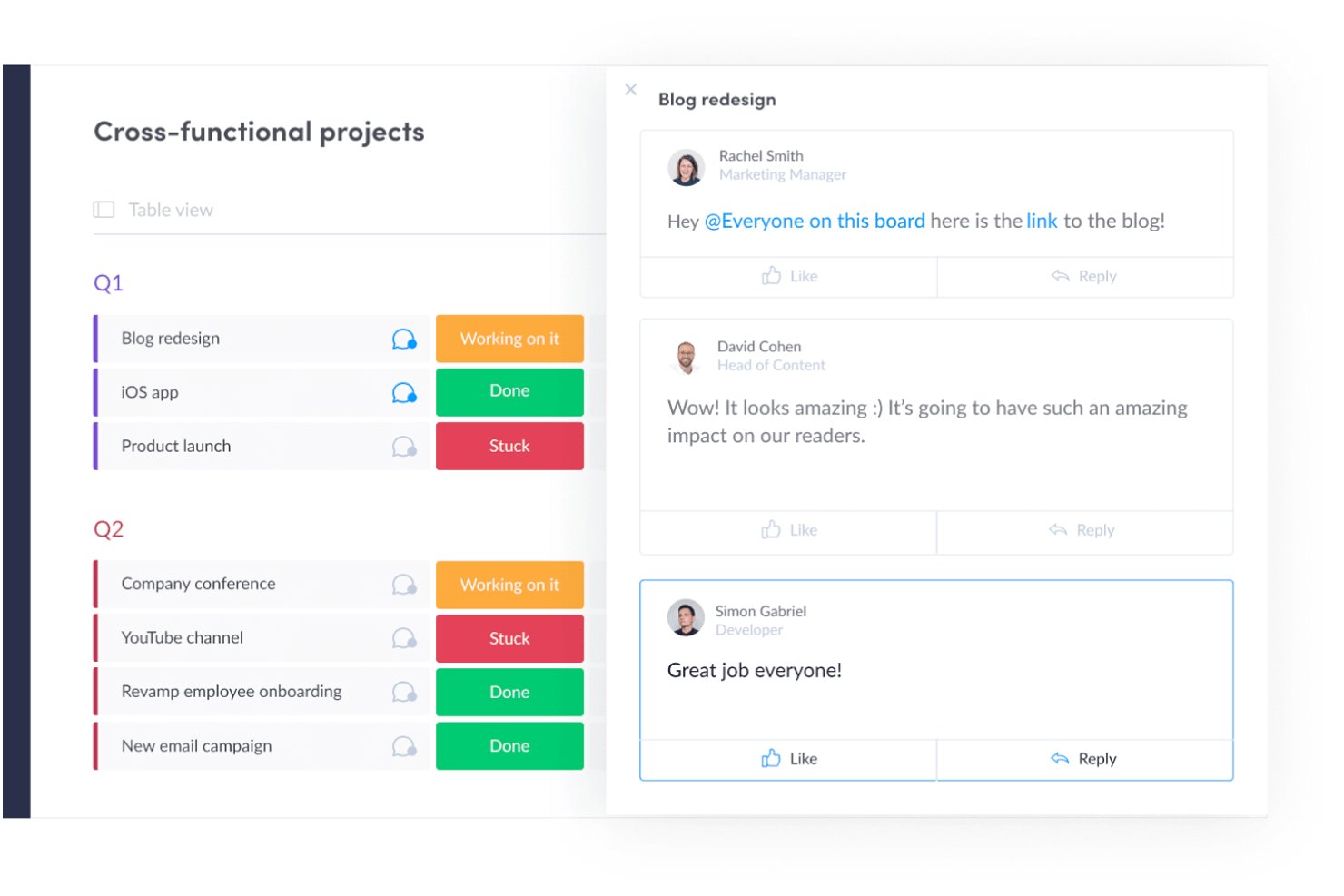
monday AI Workspace is a work management platform that combines customizable task boards, project planning, workflow automation, and AI-powered execution tools across project management, CRM, dev, and service operations.
Who Is monday AI Workspace Best For?
It's a strong fit for mid-to-large teams running multiple workstreams across product, marketing, operations, or engineering who need a single, highly configurable workspace.
Why I Picked monday AI Workspace
I've included monday AI Workspace in my top picks because no other tool makes it this easy to build workflows that match how your team works. The board system lets you configure custom columns, statuses, and automations around your specific process. I particularly like the AI Workflow Builder, which orchestrates multi-step automations across boards without needing a developer. My team can build a sprint board for engineering and a campaign tracker for marketing, each with its own automations.
monday AI Workspace Key Features
- AI Meeting Notetaker: Captures, summarizes, and distributes action items from project meetings automatically.
- Time tracking: Lets team members log hours directly within tasks for accurate project reporting.
- Integrated Docs: Supports collaborative note-taking and documentation tied to specific boards or projects.
- Custom dashboard reporting: Allows creation of real-time dashboards to visualize metrics across multiple workspaces.
monday AI Workspace Integrations
monday AI Workspace offers hundreds of native integrations through its built-in marketplace, including Slack, Microsoft Teams, Google Workspace, Salesforce, HubSpot, Jira, GitHub, Dropbox, Zoom, and Outlook. It also supports Zapier and provides an API for custom integrations.
Pros and Cons
Pros:
- Multiple project views including Gantt and workload
- AI workflow builder handles multi-step automations
- Highly customizable boards with flexible column types
Cons:
- Notification volume can become hard to manage
- Dashboards require manual configuration across boards
New Product Updates from monday AI Workspace
monday AI Workspace Adds Human Approval Routing
monday AI Workspace adds a human-in-the-loop approval block to AI Workflows, sending approval requests and routing workflow paths based on responses. For more information, visit monday AI Workspace's official site.
Toggl
Best with automated time tracking
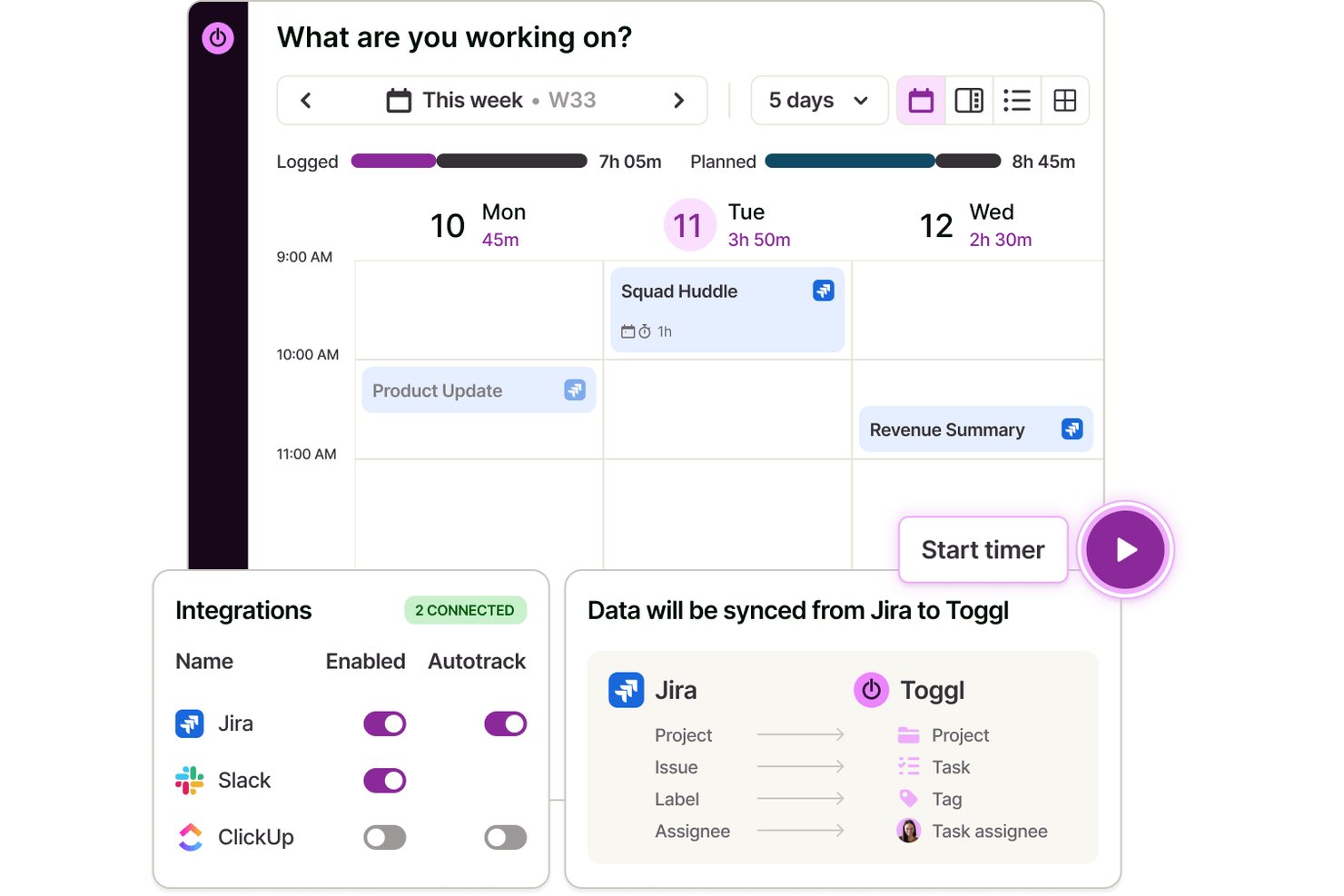
Toggl is a time tracking app that lets individuals and teams log hours across web, desktop, and mobile, with automated time capture, calendar integrations, and detailed productivity and profitability reporting.
Who Is Toggl Best For?
Toggl is a strong fit for freelancers, consultants, and agencies that bill by the hour and need accurate time data without invasive employee monitoring.
Why I Picked Toggl
I picked Toggl as one of the best because its approach to automated tracking is genuinely different. The desktop app silently logs every app and website you use for over 10 seconds, but that data stays private to you alone. You decide what becomes an official time entry, which means no screenshots, no keystroke logs, and no manager surveillance. It also converts calendar events into time entries automatically, so logging a client call takes zero extra effort. Toggl also has an AI assistant that lets you ask plain-language questions about your time and project data, making it easier to pull insights from what you've tracked.
Toggl Key Features
- Calendar view: See tracked time as blocks on a visual calendar and connect with Google or Outlook.
- Project and client tracking: Organize time entries by unlimited projects and clients for clean reporting.
- AI task creation and management: Create tasks from screenshots, notes, and ideas and manage them in Board, List, Calendar, or Timeline view
- Customizable reports: Build bar, donut, pivot, and line charts to analyze trends in tracked hours.
Toggl Integrations
Toggl offers native integrations with Asana, Trello, Jira, ClickUp, Salesforce, Google Calendar, Outlook Calendar, QuickBooks Online, Xero, and Slack.
Pros and Cons
Pros:
- Simple switching between projects and clients
- Full privacy controls on activity data
- Calendar events become time entries automatically
Cons:
- Mobile app can miss background tracking
- Lacks advanced task management features
Best productivity app for end-to-end project management
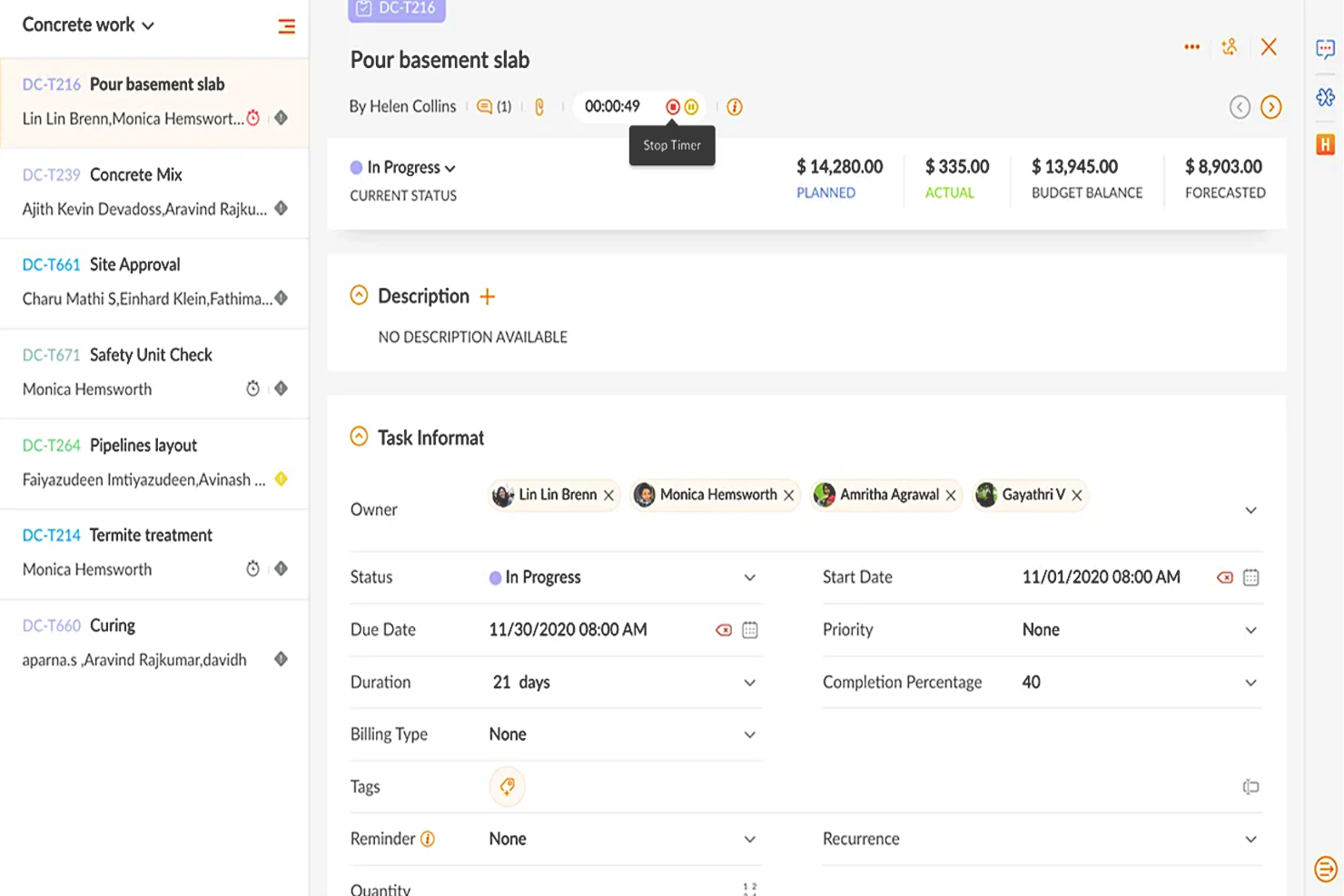
Zoho Projects is a cloud-based project management software that allows individuals and teams to collaborate, plan, and execute projects efficiently. The software enhances productivity by providing a centralized platform for task management, time tracking, document sharing, and team communication.
Why I picked Zoho Projects: It's a versatile software solution that different types of organizations and teams can use to manage their projects effectively. Its intuitive interface makes it easy to navigate and utilize, and it's user-friendly, with features that are easily accessible and organized logically. Their customizable user interface lets you choose the layout and features that best suit your needs.
You can create, manage, assign, and set task deadlines using Zoho Projects. You can also create task dependencies, ensuring that each job is completed in the correct order. It includes a calendar view allowing users to see their upcoming tasks and deadlines in one place.
Users can also track their time spent on each task, making it easier to manage their workload and allocate resources effectively. The time tracking feature can generate reports, providing valuable insights into team performance and project progress.
Zoho Projects Standout Features & Integrations
Features include collaboration tools that make it easy for team members to communicate and work together, a chat feature that supports real-time communication, and a comments section where team members can discuss specific tasks and projects. It also includes a document management system where team members can share and collaborate on documents, spreadsheets, and presentations.
Integrations are available with other Zoho apps, commonly used Google apps (Google Calendar, Drive, Spreadsheets, etc.), Microsoft apps (Calendar, Excel, Office 365, OneDrive, Teams, and SharePoint), and other third-party apps such as Basecamp, Jira, Slack, Zendesk, and Zapier.
New Product Updates from Zoho Projects
Zoho Projects Adds CodeX Scripts for Custom Modules
Zoho Projects now supports CodeX Scripts for custom modules, enabling conditional logic and rules for creating, updating, and deleting records. For more information, visit Zoho Projects' official site.
 .
.
Best for brainstorming, ideation, and task management in one

MeisterTask is a versatile project management tool that combines intuitive Kanban boards with powerful collaboration and customization features, making it ideal for teams of all sizes. Its seamless integration with MindMeister for brainstorming and ideation, along with robust task automation and real-time communication capabilities, streamlines workflow and enhances productivity across projects.
Why I picked MeisterTask: MeisterTask excels as a productivity app by offering a streamlined, intuitive interface that simplifies task and project management. It effectively combines customizable Kanban boards for visual workflow management with powerful features like task automation, due date reminders, and time tracking to enhance efficiency.
The app facilitates seamless collaboration through easy file sharing, commenting, and task assignments, keeping teams aligned and focused. Its integration with tools like MindMeister for mind mapping ensures a smooth transition from brainstorming to execution, making it easier for users to turn ideas into actionable tasks. MeisterTask's focus on user-friendly design and practical functionality makes it a valuable tool for individuals and teams aiming to boost productivity and achieve their goals more efficiently.
MeisterTask Standout Features and Integrations
Features include Kanban boards, task automation, mindmeister integration, customizable workflows, project templates, time tracking, file attachments, due date reminders, collaboration tools, activity streams, mobile apps, secure data encryption, multiple integrations with other tools, personalized dashboards, and flexible project views.
Integrations include Slack, Dropbox, Github, Google Drive, Microsoft Teams, Outlook, Trello, Asana, MindMeister, and hundreds more through a paid plan with Zapier.
ClickUp
Best for in-app communication tools

ClickUp is a productivity app that helps you and your team stay aligned on day-to-day tasks, projects, and company goals, among other things. Their platform brings your team together in one app to communicate, collaborate, simplify the work, and get more done.
Why I Picked ClickUp: You can work smarter as a team with real-time chat. Tag individuals or groups, assign comments for action items, and link tasks to ensure nothing gets lost in the daily grind. Stay on track to hit your goals with targets for task completions, numbers, and monetary values.
ClickUp Standout Features & Integrations
Features include task scheduling/tracking, project management, resource management, budgeting, contact management, data visualizations, employee database, expense tracking, file sharing, third-party plugins, collaboration support, timesheets, roadmapping, chat, customer management, email integration, feedback management, and process reporting.
Integrations include native integrations with Slack, Google Workspace, Dropbox, and many more tools, as well as over 1,000+ integrations through Zapier (may incur additional costs).
New Product Updates from ClickUp
ClickUp Adds Meetings Hub, Super Agent Templates, and ZoomInfo Integration
ClickUp adds a searchable Meetings Hub, new ways to clone and template Super Agents, and a ZoomInfo integration through the App Center. These updates improve meeting retrieval, agent reuse, and access to sales intelligence. For more information, visit ClickUp’s official site.
Kintone
Best for building custom productivity apps
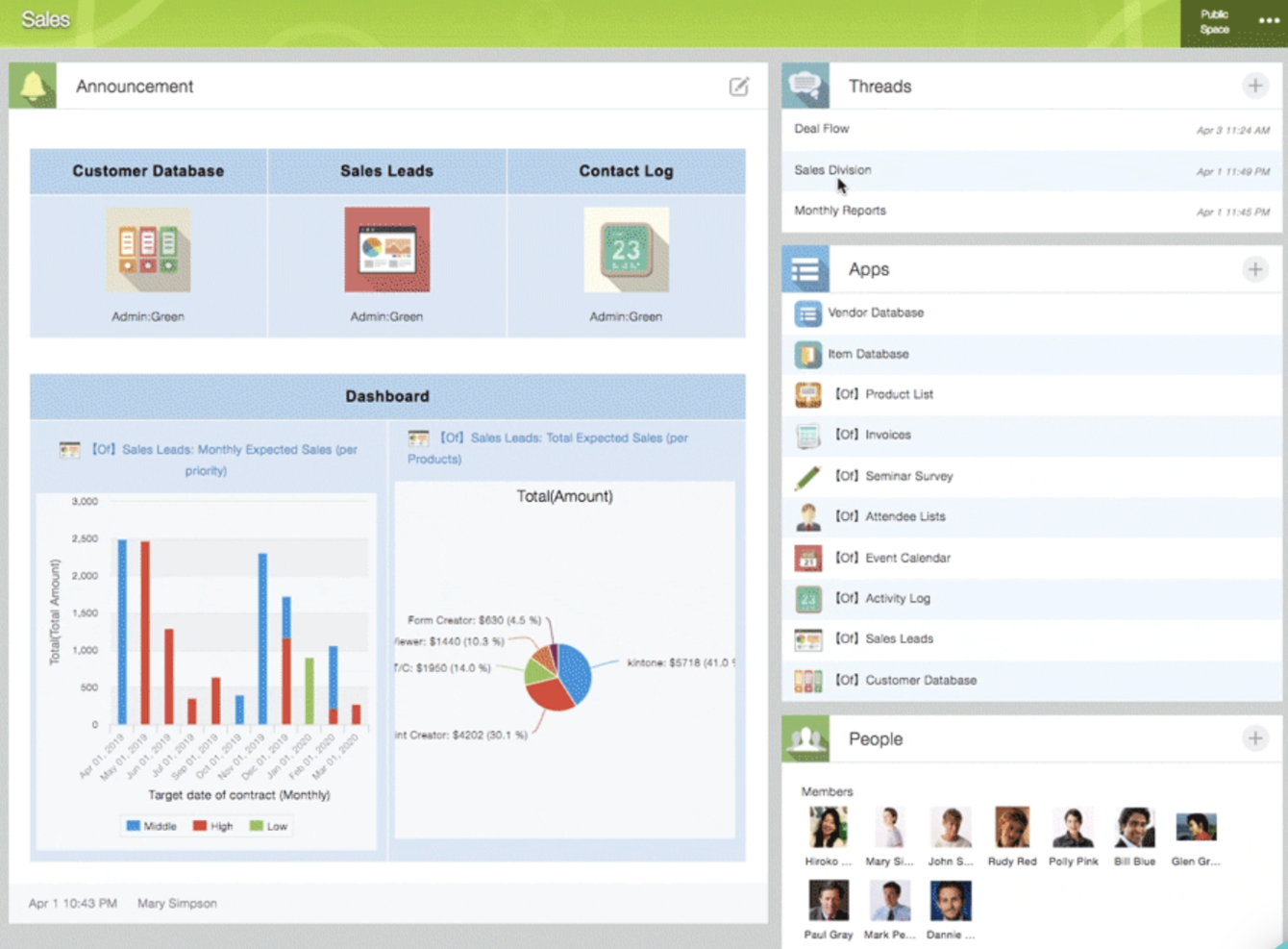
Kintone is a customizable app platform used by teams at Volvo Trucks North America, Japan Airlines, Shiseido, and over 23,000 organizations worldwide. Their unique approach allows you to build a wide variety of customizable “apps” either from scratch, using templates or from your existing spreadsheets, for data management, business processes, and workflows. Kintone apps can be customized for project management, sales CRM, customer databases, expense reports, shared to-do lists, equipment management, product feedback, and much more.
Why I Picked Kintone: Kintone lets you build no-code task management apps by dragging and dropping elements that you want to see onto the page: rich text fields, date fields, drop-down menus, number fields with built-in calculations, spaces for attachments, user or group selection menus, related data from other apps, tables, and more.
Once you’ve built the app you want, you can use it to more easily manage whatever data and tasks you and your team need to track. And with custom notifications and reminders as well as detailed permissions settings, your project tracking solution can look and work however you want it to.
What makes Kintone particularly great for project tracking are the features to filter and prioritize tasks by data field or team member to generate custom reports or dashboard views, as well as the ability to automate reminders and handoffs between team members for multi-step workflows.
Kintone’s built-in communication features also allow teams to discuss projects directly in the app and in topic or project-based threads. Dedicated “spaces” organize everything your team needs for your project, including task-tracking apps and searchable conversation threads.
Kintone Standout Features & Integrations
Features include project management, dashboards, resource management, analytics, calendar management, conversion tracking, employee onboarding, forecasting, lead scoring, timesheets, collaboration support, reports, pipeline management, budgeting, and process modeling.
Integrations include Slack, Gmail, Google Calendar, Outlook, Tableau, Dropbox, Salesforce, HubSpot, Eventbrite, WordPress, QuickBooks, MailChimp, and many more through a paid plan with Zapier or via API integrations.
Trello
Best for card-based task lists and Kanban boards
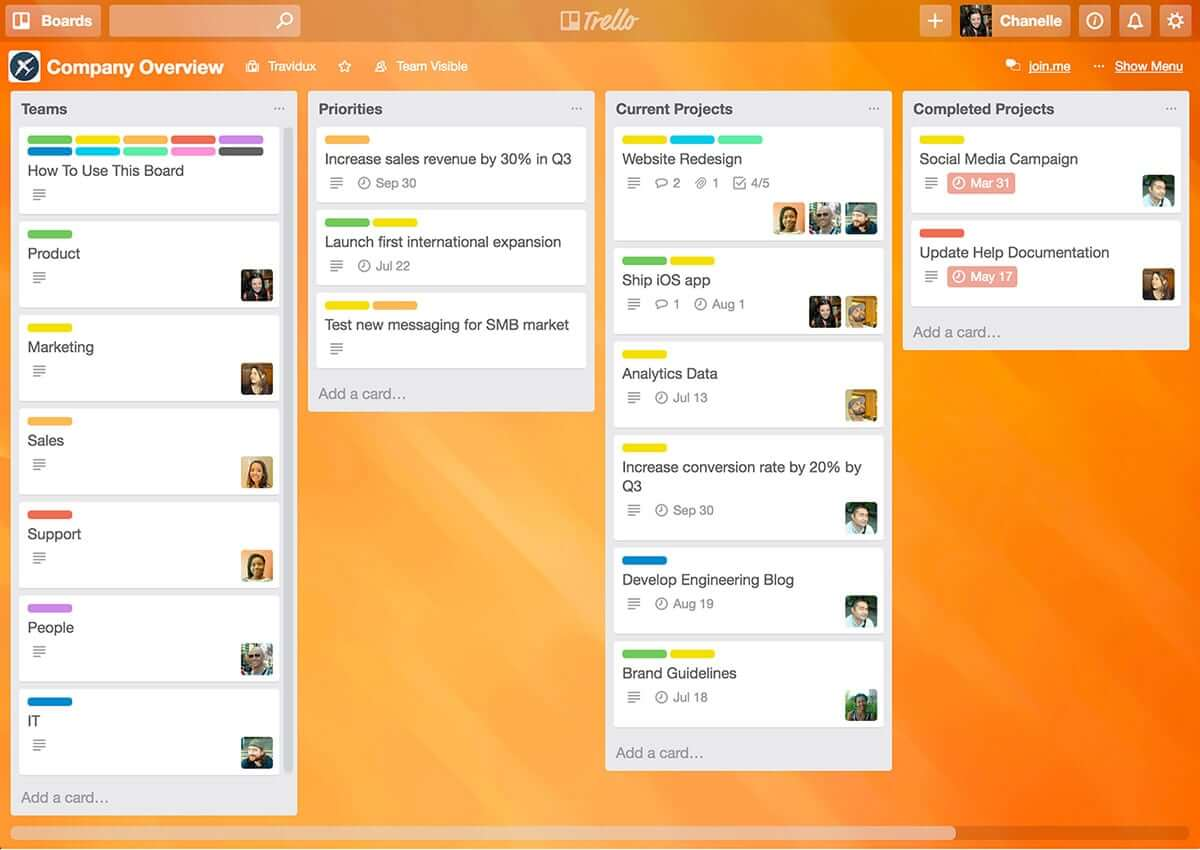
Trello is a Kanban board app that can be used to organize tasks visually. It’s user-friendly, with an intuitive drag-and-drop interface that makes it easy to learn. This popular tool can be used to help you visualize your deadlines, items in progress, and completed tasks, enabling you to make informed decisions about what to work on next according to the big picture.
Why I Picked Trello: Trello is a popular project management tool that helps teams organize tasks and collaborate on projects visually and intuitively. It uses a system of boards, lists, and cards to represent tasks and workflows, allowing team members to easily see what needs to be done, who is responsible for each task, and what the status of each task is. Trello can be customized to fit a wide range of project management needs, and it offers features such as due dates, checklists, attachments, and team member assignments. Its flexibility and ease of use make it a great tool for teams of all sizes and types, from small startups to large enterprises.
Trello Standout Features & Integrations
Features include boards, to-do lists, task management, workflow management, priority labels, due dates, file sharing, communication, a mobile app, and third-party integrations/add-ons.
Integrations include 200+ apps and tools your team depends on, like Slack, Google Drive, Salesforce, Dropbox directly into your Trello boards. (Note: Some connections require an additional subscription fee.)

Best for real-time collaboration

Whether you're leading a small business, managing a large enterprise, or navigating the educational sector, Google Workspace offers a suite of productivity tools designed to meet your diverse needs. With apps like Gmail, Drive, and Meet, you can seamlessly manage communications, storage, and virtual meetings while enhancing collaboration and maintaining strong security. With Gemini—Google’s premium AI—integrated across all plans, Workspace helps you draft emails faster, summarize documents instantly, generate ideas, and stay organized across devices. Whether you're handling client communication, creating content, or coordinating daily operations, Workspace boosts productivity and keeps your team connected.
Why I Picked Google Workspace
I picked Google Workspace for its unique blend of real-time collaboration, cloud accessibility, and AI-driven assistance. Tools like Google Docs and Sheets allow your team to work together simultaneously, eliminating version-control issues and reducing unnecessary email threads. Google Meet provides convenient video conferencing without relying on external software, making communication frictionless. Gemini is built directly into apps like Gmail, Docs, Sheets, and Meet, going beyond collaboration to actively enhance how you work. From drafting content to summarizing documents and managing tasks, having AI built in helps you stay efficient, responsive, and adaptive to changing business or project needs.
Google Workspace Key Features
In addition to its collaborative capabilities, Google Workspace offers several other features that boost productivity:
- Drive: Secure cloud storage with generous space options, ensuring your files are accessible anywhere, anytime.
- Calendar: Simplified scheduling with shared calendars and appointment booking pages to keep your team organized.
- Chat: Integrated messaging platform for real-time team communication and collaboration.
- NotebookLM: Instant insights and podcast-style Audio Overviews to accelerate team learning and content understanding.
Google Workspace Integrations
Integrations include Salesforce, Atlassian, Tableau, SAP, Okta, Microsoft Office 365, Slack, Zoom, Trello, and Asana.
Pros and Cons
Pros:
- Generous cloud storage options facilitate easy file access and sharing.
- Real-time collaboration tools improve team productivity and communication.
- Seamless integration with Google services enhances workflow efficiency.
Cons:
- Shared drive permissions and complex folder hierarchies can become difficult to manage if not structured carefully.
- Compatibility issues when collaborating externally with teams using non-Google file formats or Microsoft Office workflows.
Guru
Best tool for searching through all your apps to surface answers quickly
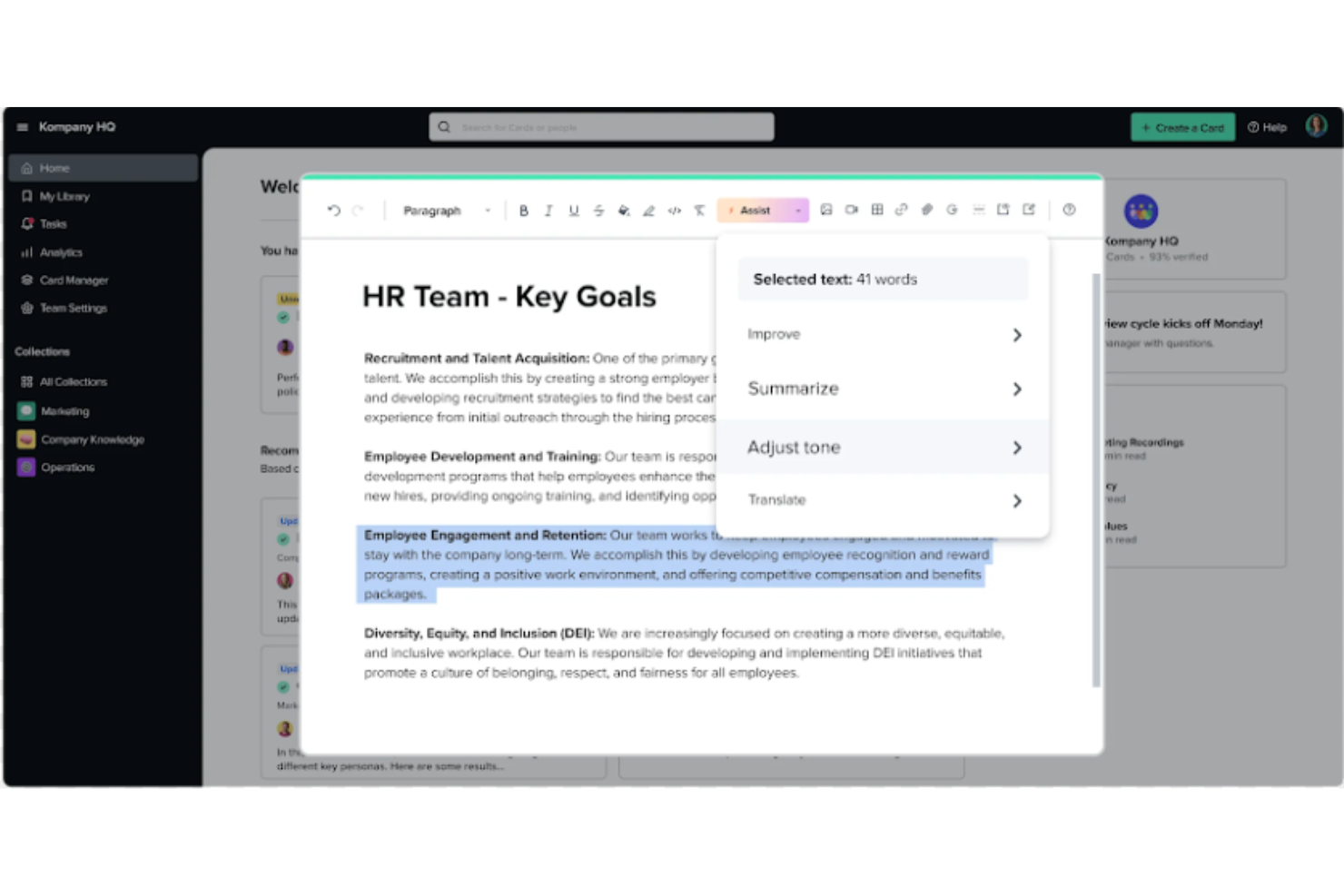
Guru is an advanced search and knowledge management platform that's designed to help users find relevant information quickly. Their advanced AI-driven search feature can search all your apps, documents, and slack #channels for answers — either directly in Slack or via a Chrome extension — making it easier to find information fast.
Why I Picked Guru: Guru employs AI to deliver instant answers within the user's workflow that are tailored to their specific role, location, and activities. The tool also facilitates the onboarding process for new hires, streamlines the creation, sharing, and organization of company documentation, and acts as a knowledge hub to disseminate educational content and troubleshooting guidance throughout an organization. The platform also integrates with a multitude of tools and services, enabling users to find answers and collaborate without leaving their workflow.
Overall, Guru is intended to eliminate the barriers created by knowledge silos and to improve productivity by automating information retrieval, thus allowing employees to concentrate on tasks that require human intelligence.
Guru Standout Features & Integrations
Features include enterprise AI search, an employee intranet, a company wiki, AI suggest and assist, custom branding tools, collaboration and feedback tools, mobile accessibility, and access controls and permissions.
Integrations include Trello, Cognito Forms, Jira Software Cloud, Confluence Cloud, HubSpot, Google Chat, Confluence Server, and GitHub.
Visor
Best for its user-friendly interface

Visor is a cloud-based SaaS product that aims to help individuals and businesses manage their time and tasks more efficiently. It's best suited for individuals and teams who need a comprehensive and easy-to-use productivity tool that allows them to manage their projects, tasks, and time all in one place.
Why I picked Visor: I chose Visor as one of the best productivity software because it's an all-in-one solution that brings together task management, project management, time tracking, and calendar features in a user-friendly interface. I appreciate that I can keep track of everything I need to do without having to switch between multiple tools or apps.
Another great feature is its real-time collaboration capabilities, which allow you to work with your team members on projects, assign tasks, and track progress. This feature makes it easy to communicate with team members and stay on top of everything that's going on in your projects. It also has an intelligent scheduling feature that suggests the best time slots for each task based on your availability and workload. This feature is particularly helpful when you have a lot of tasks to complete and you need to prioritize your time effectively.
Visor Standout Features & Integrations
Features include API, dashboards, data export/data import, data visualization, external integrations, Gantt charts, project management, task scheduling/tracking, resource management and third-party plugins/add-ons.
Integrations include Jira, HubSpot, and Salesforce.
Other Productivity Tools
I haven’t had a chance to review all of these tools in-depth, but here are a few more to check out if the ones featured in this review don’t fit your needs.
- Pneumatic Workflow
For unlimited workflow management
- Collabio Spaces
For iPhone & Mac
- Focus Booster
For the Pomodoro productivity technique
- SaneBox
For increasing productivity by streamlining your email inbox
- Slack
Instant messaging app for teams
- actiTIME
For detailed time tracking
- Hubstaff
For managing remote and field teams
- Hive
For flexible project views according to team needs
- Lucidspark
For ideation and collaboration using an infinite canvas
- Wrike
Productivity app for team collaboration
- GoodDay
For Agile and Waterfall support
- Buffer
A social media management app for scheduling and tracking social media content
- Asana
For a clean, simple, & easy-to-use interface
- Blink
For remote and async communication
- Zapier
For creating automated workflows
- IFTTT
Low-code automation capabilities
- Missinglettr
Social media maintenance app with campaign automations
- Quip
For integration with Salesforce
- Remember The Milk
Organize and categorize tasks, and set corresponding reminders
- Things 3
For drag-and-drop task lists
- Just Say No
A productivity app designed to help you reduce distractions or bad habits
- Omni Focus
Productivity app for Mac users
- QuuuPromote
A content promotion app designed to increase campaign reach


How I Evaluate Productivity Apps
Whether you're managing a product launch or a sprint backlog, I evaluate productivity apps on two levels: core functionality that qualifies a tool, and differentiators that separate the best options.
Core Functionality (Table Stakes For This List)
When I'm selecting tools for my list, I rank each one on a scale from 0 (does not offer the functionality) to 5 (excels in this area) for each core functionality listed below. Then, I calculate the tool's total score into a percentage. Each tool needs to achieve a minimum total score of 75% to be considered for inclusion.
- Task & Project Management: I look for tools that let you create, assign, and track tasks with due dates, statuses, dependencies, and subtasks—enough structure to manage a full product launch or sprint cycle.
- Team Collaboration: Each app should support shared workspaces where teammates can comment, @mention, and co-edit in real time, similar to how tools like Asana and monday.com handle threaded project discussions.
- Views & Organization Options: I evaluate how many ways you can visualize work—list, Kanban, calendar, Gantt, or timeline—since a PM planning quarterly roadmaps needs different views than a team lead running daily standups.
- Integrations & Connectivity: The tool should connect to the apps your team already uses, like Slack, Google Workspace, or GitHub, either through native integrations or an open API.
- Notifications & Reminders: I check whether you can configure alerts by channel, task, or priority level so deadline reminders actually reach the right people without flooding everyone's inbox.
- Cross-Platform Access: A productivity app should work across web, desktop, and mobile with real functionality on each—not just a stripped-down mobile viewer that forces you back to your laptop.
Once I have a list of tools that meet the criteria, I consider what sets each platform apart.
Differentiating Factors (What Sets Vendors Apart)
Here's how I compare and contrast different vendors:
Standout Features
Built-in automation is a major differentiator—I look for no-code rules that auto-assign tasks or shift items between stages when a status changes, which saves hours on a busy sprint board. Reporting and dashboards matter just as much, especially when you need portfolio-level visibility across multiple active projects. I also check whether tools offer native time tracking paired with workload views, since that combination helps managers spot capacity problems before deadlines slip. AI-powered features like task generation from meeting notes are increasingly useful too.
Beyond Features
Pricing structure matters a lot here—I evaluate whether a tool offers a usable free tier for small teams and transparent per-user pricing that won't surprise you as headcount grows. I also consider team size fit, since an app built for solo freelancers won't handle a 50-person PMO the same way an enterprise platform would. Security is another key factor; for teams handling sensitive client data, I check for SSO, role-based access controls, and certifications like SOC 2.
How to Choose a Productivity App
It’s easy to get bogged down in long feature lists and complex pricing structures. To help you stay focused as you work through your unique software selection process, here’s a checklist of factors to keep in mind:
| Factor | What to Consider |
| Scalability | Make sure the app can grow with your needs. Can it handle more users, projects, or automation as your workload increases? Look for flexible pricing plans and enterprise-level features if you anticipate scaling. |
| Integrations | Does the app connect with your existing tools? Seamless integration with platforms like Slack, Google Workspace, or Trello helps prevent workflow disruptions and reduces manual work. |
| Customizability | Look for features like custom fields, workflow automation, and adjustable dashboards to tailor the app to your team's unique workflows. |
| Ease of Use | A complicated app will slow your team down. Prioritize intuitive interfaces, drag-and-drop functionality, and minimal onboarding time to ensure quick adoption. |
| Budget | Pricing varies widely. It's important to consider not just the upfront cost but also hidden fees for add-ons, premium features, or required integrations. Choose a plan that fits your budget without sacrificing key functionality. |
| Security Safeguards | Ensure the app offers encryption, multi-factor authentication, and compliance with security standards like GDPR or SOC 2 to protect your data. |
| Collaboration Tools | Productivity apps should make teamwork seamless. Features like real-time editing, shared task lists, and built-in chat can help boost efficiency. |
| Automation Features | Reduce repetitive work with task automation, recurring reminders, and AI-powered suggestions to optimize your workflows. |
What are Productivity Apps?
Productivity apps are software that help individuals and teams enhance their efficiency and effectiveness in various tasks. These apps encompass a wide range of functionalities, such as task management, calendar and scheduling, note-taking, document editing and collaboration, time tracking, and communication tools.
The primary goal of productivity apps is to streamline work processes, organize tasks, manage time better, and facilitate easier and more effective communication and collaboration. They are used both in personal and professional contexts to help users stay organized, focused, and productive.
Features of Productivity Apps
When selecting productivity apps, keep an eye out for the following key features:
- Search and filtering: Helps you quickly find tasks, documents, or notes without scrolling endlessly.
- Task management: Helps you create, organize, and track tasks so nothing falls through the cracks.
- Collaboration tools: Allows teams to share files, comment on tasks, and communicate without switching between apps.
- Time tracking: Logs work hours and activity to help manage workloads and improve efficiency.
- Priority setting: Lets you rank tasks by urgency and importance to focus on what matters most.
- Offline access: Enables you to manage tasks without an internet connection.
- File storage and sharing: Keeps documents in one place and makes it easy to share them with others.
- Recurring tasks: Automates repetitive tasks so you don’t have to enter them manually every time.
- Calendar integration: Syncs with your schedule to ensure deadlines and meetings stay visible.
- Progress tracking: Shows real-time updates on tasks and projects to keep everyone informed.
Benefits of Productivity Apps
Implementing productivity apps can provide several benefits for your team and your business. Here are a few you can look forward to:
- Better organization: Keeps tasks, deadlines, and files in one place so nothing gets lost or forgotten.
- Improved time management: Helps you plan your day, track work hours, and prioritize tasks more effectively.
- Easier collaboration: Lets team members share updates, assign work, and communicate without endless emails.
- Fewer missed deadlines: Sends reminders and notifications to keep projects on track.
- Reduced manual work: Automates repetitive tasks so you can focus on more important work.
- Greater visibility: Provides a clear view of workloads, progress, and bottlenecks in real time.
- More accountability: Tracks task ownership and deadlines, making it clear who’s responsible for what.
Costs & Pricing for Productivity Apps
Selecting productivity apps requires an understanding of the various pricing models and plans available. Free productivity apps may cover essential needs, while paid plans typically provide advanced functionality. Costs vary based on features, team size, add-ons, and more.
The table below summarizes common plans, their average prices, and typical features included in productivity app solutions:
Plan Comparison Table for Productivity Apps
| Plan Type | Average Price | Common Features |
| Free Plan | $0 | Basic task management, limited storage, single-user access, and essential integrations. |
| Personal Plan | $5-$15/user/month | Task tracking, calendar integration, mobile access, increased storage, and limited automation. |
| Business Plan | $15-$40/user/month | Team collaboration, advanced reporting, workflow automation, priority support, and third-party integrations. |
| Enterprise Plan | $40+/user/month | Custom security controls, API access, dedicated account management, advanced analytics, and organization-wide automation. |
Productivity Software Frequently Asked Questions
Find answers to common questions about productivity apps.
What apps help with personal productivity?
Pomodoro Timer, Forest, Todoist, Tiimo, Bear, Notability, Forest, and Done.
These are tools we recommend you check out for personal productivity that may or may not have to do with your work as a project manager. Especially for those of you with kids who need to be full-time PMs, juggling all those extracurriculars.
How can I improve my daily productivity?
Believe it or not, many DPMs struggle with productivity. Everybody wants to be more productive at work, and it’s not only about having the tools, it also has to do with being disciplined and incorporating productivity hacks into your daily routine.
Here are 4 useful hacks to become more productive:
- Stay away from social media. This one is a big one. Since we handle team communications mostly online, our phones have become a very useful device to contact colleagues. The problem arises when you start switching to other apps or tending to your pending notifications every time you set eyes on your screen. Look for ways in which you can limit your access to certain apps from your phone settings. If you can’t, make some time for your phone using the next hack.
- Try introducing a working method, like Pomodoro. The Pomodoro method is a popular work methodology in which you break your day into periods of deep 25-minute focus followed by 5-minute breaks.
- Stay hydrated. Dehydration affects concentration, and you need to focus to be productive.
- Prioritize work. Not all tasks are born equal, although it may feel like it. Use a tool like the Eisenhower matrix to focus your efforts on the things that matter.
What is productivity paranoia?
Productivity paranoia is a phenomenon in which employers get scared that productivity is decreasing because they can’t “see” what employees are doing. This is mostly a consequence of remote work and the lack of trust in metrics.
As a result, employers might be hesitant to advertise new jobs as remote, increase the measures of control over employees (such as granular time tracking), or asking employees to return to the office part-time.
Read all about it in our productivity paranoia article where we discuss the US and states that are most affected by this phenomenon.