

10 Best Critical Path Software Solutions Picked for 2026

Best Critical Path Software Shortlist


Critical path software helps you map, visualize, and manage the sequence of tasks that determine your project’s minimum completion time. If you’re searching for the best critical path software, you’re likely facing shifting deadlines, complex dependencies, and the pressure to keep projects on track.
The right tool can give you the visibility and control you need to coordinate teams, adjust plans quickly, and deliver the results that leadership cares about. In this list, you’ll find expert-vetted options that support modern project delivery, so you can choose the best fit for your workflow and challenges.
Why Trust Our Software Recommendations
Our team has been testing and reviewing software since 2012. As project managers ourselves, we know how difficult—and important—it is to choose the right software.
For this guide, we evaluated tools using hands-on testing and independent research, scoring tools using our selection criteria. We also draw on insights from industry thought leaders and practicing project management experts.
Our reviews reflect our human editorial judgment, not a sales pitch.
Expert reviewers:
Critical Path Software Comparison Table
This comparison table summarizes pricing details for my top critical path software selections:
| Tool | Best For | Trial Info | Price | ||
|---|---|---|---|---|---|
| 1 | Best for MS Project file migration to CPM cloud | Free plan available | From $9.99/user/month (billed annually) | Website | |
| 2 | Best for DCMA-automated schedule quality checks | Free demo available | Pricing upon request | Website | |
| 3 | Best for construction CPM scheduling | Free demo available | Pricing upon request | Website | |
| 4 | Best for resource-constrained critical path scheduling | Free demo available | From $800/license | Website | |
| 5 | Best for quantitative schedule risk analysis | 30-day free trial | Pricing upon request | Website | |
| 6 | Best for Microsoft 365 ecosystem scheduling | 30-day free trial | From $10/user/month (billed annually) | Website | |
| 7 | Best for real-time critical path dashboards | 30-day free trial | From $15/user/month (billed annually) | Website | |
| 8 | Best for enterprise-scale multi-project CPM scheduling | Free demo available | Pricing upon request | Website | |
| 9 | Best for 4D BIM-linked schedule planning | 14-day free trial | From $1,320/user (billed annually) | Website | |
| 10 | Best for government and defense schedule analytics | Free demo available | Pricing upon request | Website |
Best Critical Path Software Reviews
Below are my detailed summaries of the critical path software that made it onto my shortlist. My reviews offer a detailed look at the features, best use cases, and integrations of each software to help you find the best one for you.

Best for MS Project file migration to CPM cloud
My Evaluation Score
- Float & Slack Analysis
- 3/5
- Task Dependency Mapping
- 4/5
- Critical Path Calculation
- 4/5
- Gantt Chart Visualization
- 5/5
- What-If Scenario Modeling
- 5/5
- Baseline & Schedule Tracking
- 5/5
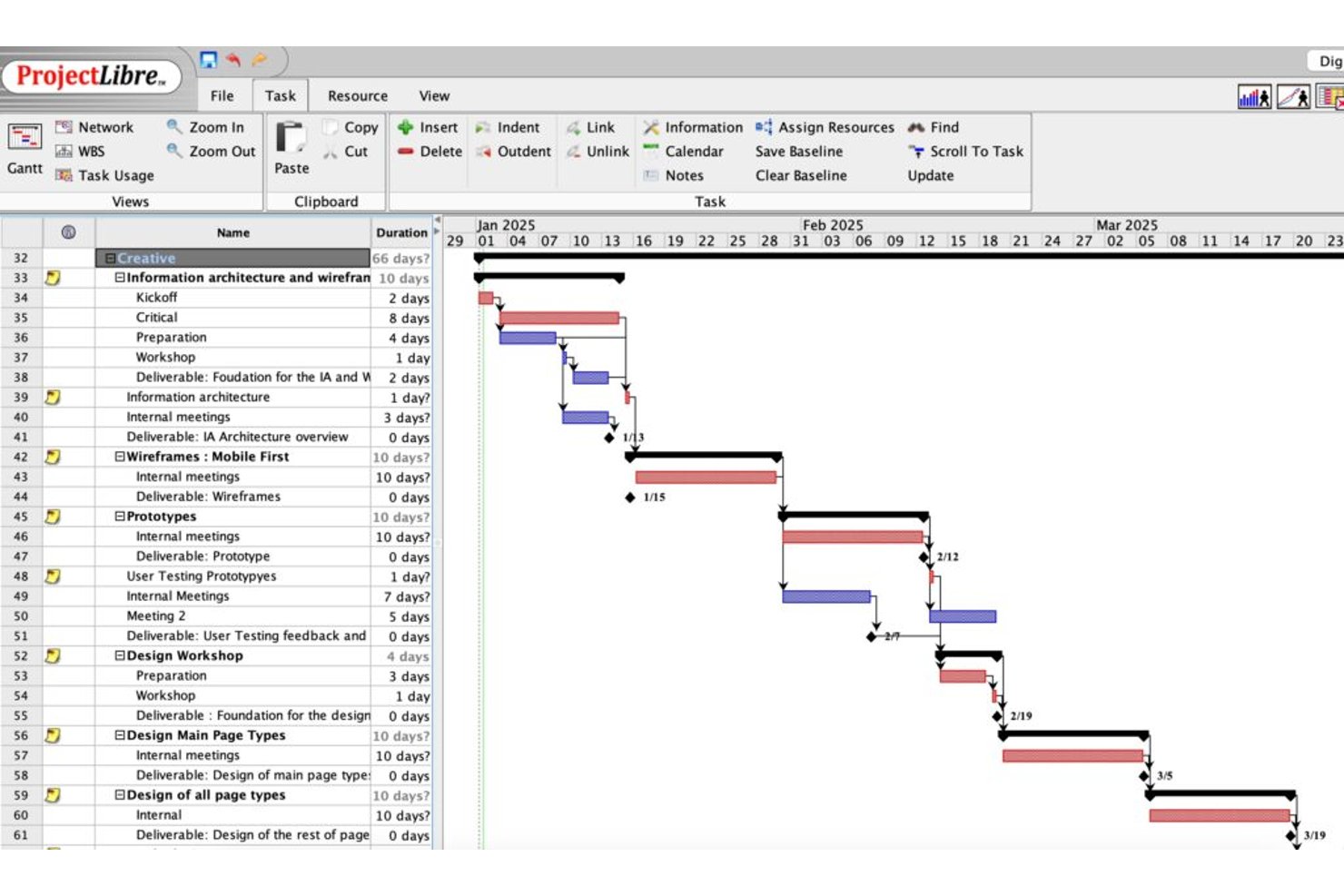
ProjectLibre is a critical path software solution available as both a free open-source desktop application and a cloud platform, offering CPM scheduling, Gantt charts, task dependency mapping, float analysis, baseline tracking, and earned value management.
Who Is ProjectLibre Best For?
ProjectLibre is a strong fit for teams migrating existing MS Project schedules to a cloud-based CPM environment without rebuilding from scratch.
Why I Picked ProjectLibre
I picked ProjectLibre as one of the best because it's the only tool on my list that lets you import an existing .MPP file directly into a cloud CPM environment without rebuilding your schedule from scratch. If your team is running MS Project schedules today, that's a real time-saver. I also like that the Cloud version supports up to 11 baselines alongside live EVM metrics (CPI, SPI, TCPI), which makes tracking schedule performance against multiple reference points genuinely practical.
ProjectLibre Key Features
- Critical path highlighting: Critical path tasks display in red on the Gantt chart, letting you spot the longest dependency chain at a glance.
- Free and total float display: Both free float and total float values appear per task in the task sheet, so you can see exactly how much schedule flexibility each task has.
- DCMA 14-point schedule audit: The Cloud version runs a built-in DCMA schedule quality check against the 14-point standard used in government and defense program management.
- AI Copilot project generation: Enter a natural language prompt and the AI Copilot builds a full project plan—tasks, milestones, dependencies, durations, and Gantt—automatically.
ProjectLibre Integrations
Native integrations are not publicly listed.
Pros and Cons
Pros:
- Cloud version includes Monte Carlo risk analysis
- Supports up to 11 baselines per schedule
- Imports Microsoft Project files without data loss
Cons:
- No mobile app available for on-site access
- No real-time collaboration in desktop version

My Evaluation Score
- Float & Slack Analysis
- 3/5
- Task Dependency Mapping
- 5/5
- Critical Path Calculation
- 5/5
- Gantt Chart Visualization
- 5/5
- What-If Scenario Modeling
- 5/5
- Baseline & Schedule Tracking
- 4/5
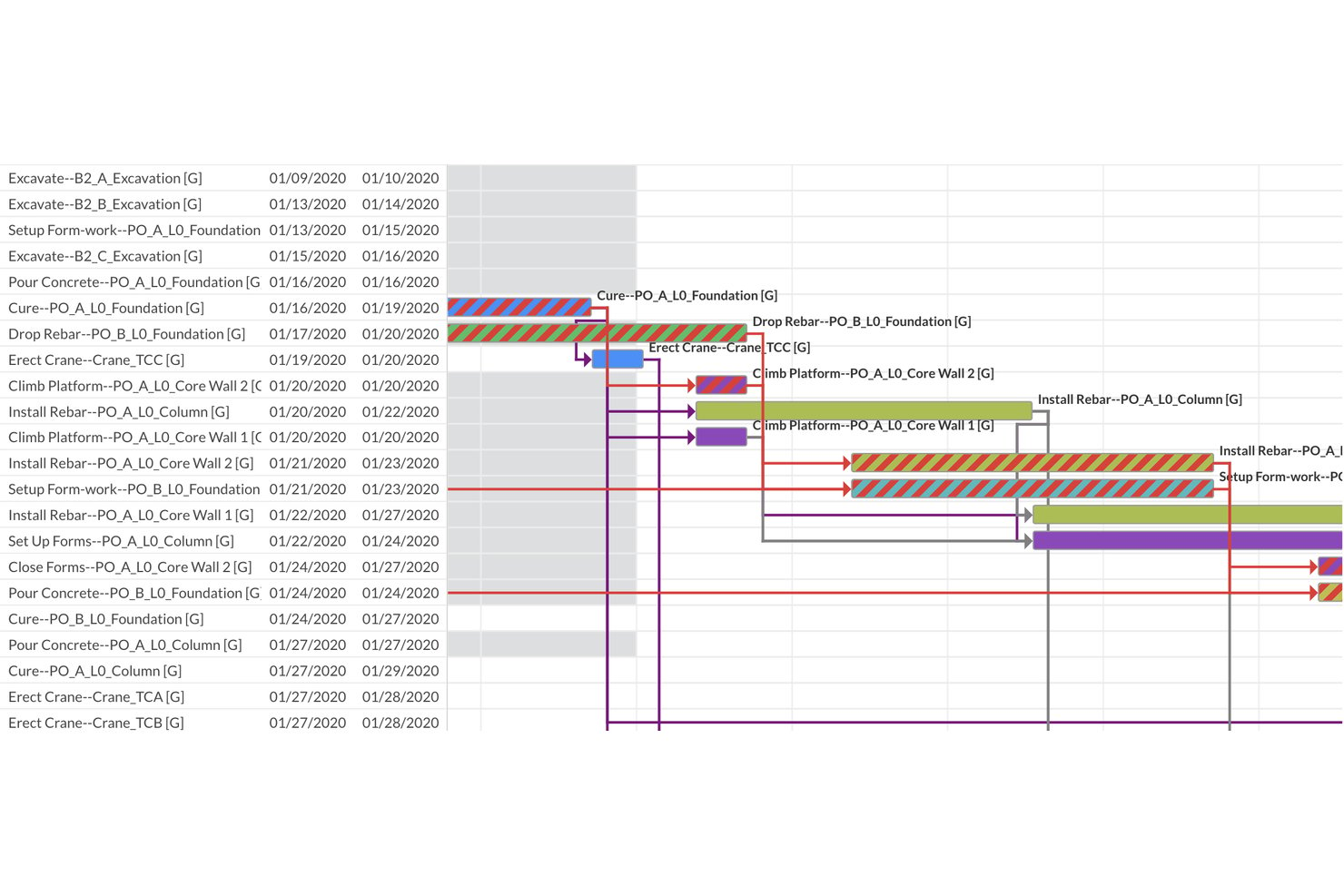
ALICE is a construction-focused critical path scheduling platform that combines AI-driven generative scheduling, constraint-based dependency modeling, Gantt visualization, and automated DCMA 14-Point schedule quality assessment.
Who Is ALICE Best For?
ALICE is built for construction schedulers and PMO directors managing large capital projects who need automated schedule quality validation alongside AI-driven optimization.
Why I Picked ALICE
ALICE earns its spot on my shortlist because its automated DCMA 14-Point Schedule Assessment runs every time you upload or optimize a schedule, instantly flagging logic errors, missing dependencies, negative float, and critical path integrity issues. I picked it specifically for teams where schedule quality isn't optional: the built-in Critical Path Length Index (CPLI) and Baseline Execution Index (BEI) give schedulers quantifiable, audit-ready metrics without manual setup. The generative scheduling engine also runs hundreds of millions of sequencing permutations, so you're not just validating one static critical path but comparing many optimized alternatives.
ALICE Key Features
- Generative scheduling engine: Runs hundreds of millions of sequencing permutations to produce multiple optimized schedules, rather than a single static critical path.
- Gantt Overlay: Places your optimized schedule directly against a saved baseline for visual deviation detection across the full project timeline.
- Portfolio Performance Dashboard: Aggregates all active projects into a single executive view, tracking average completion vs. baseline and flagging projects behind schedule.
- Schedule Insights Agent: A conversational AI interface that lets you query your schedule in natural language to get optimization and recovery recommendations.
ALICE Integrations
ALICE supports integrations with Oracle Primavera P6, Oracle Primavera Cloud, and Microsoft Project through schedule import and export. It also accepts BIM 3D models and 2D drawing files for schedule visualization and 4D planning.
Pros and Cons
Pros:
- AI-powered resource leveling reduces idle time
- Automated DCMA 14-point schedule quality checks
- Generative engine produces multiple optimized critical paths
Cons:
- Cloud-only platform with no on-premise option
- No Monte Carlo simulation for risk analysis

My Evaluation Score
- Float & Slack Analysis
- 5/5
- Task Dependency Mapping
- 4/5
- Critical Path Calculation
- 5/5
- Gantt Chart Visualization
- 5/5
- What-If Scenario Modeling
- 5/5
- Baseline & Schedule Tracking
- 4/5
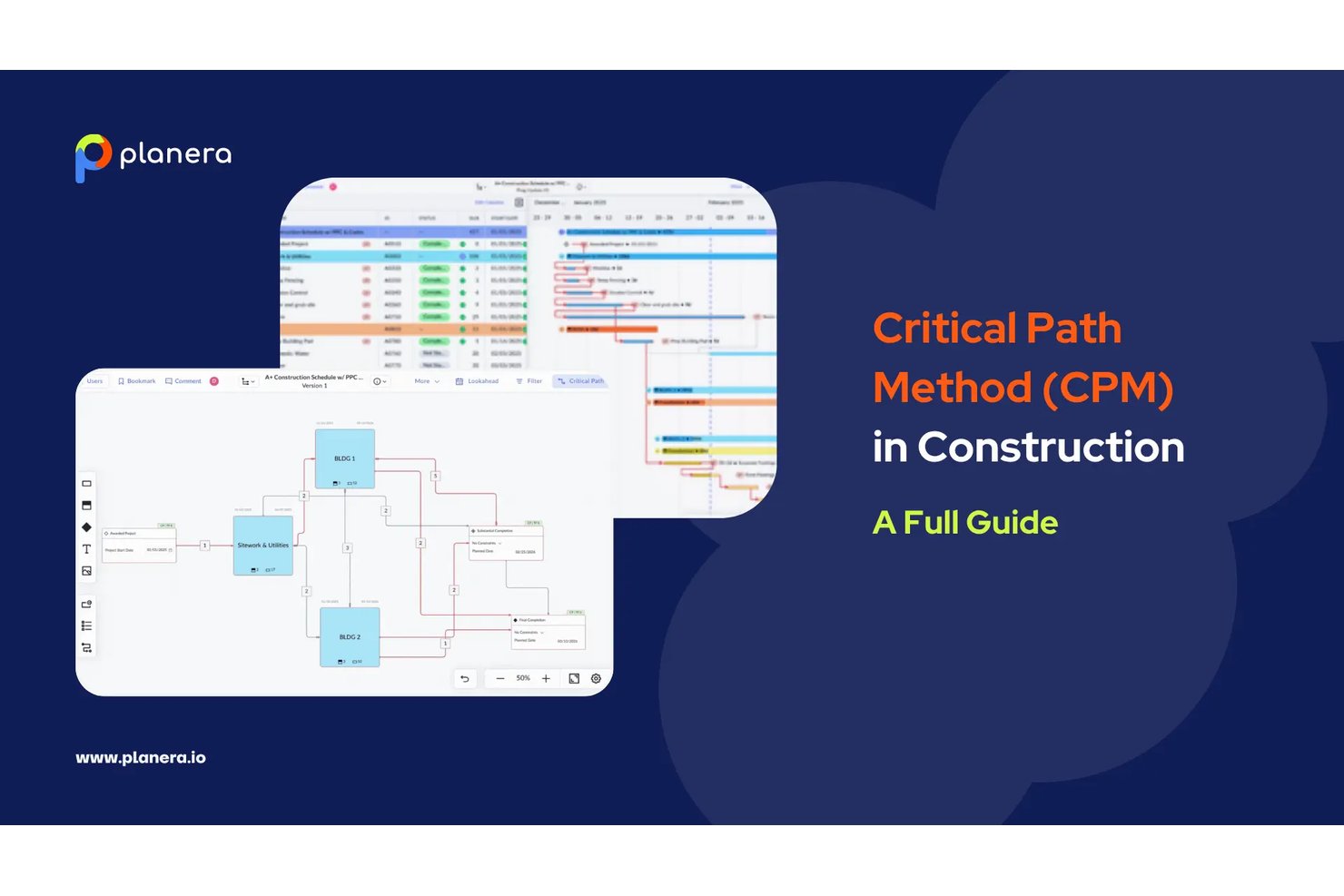
Planera is a construction-native CPM scheduling platform built around a full critical path engine, interactive Gantt charts, a visual CPM Canvas, Monte Carlo risk simulation, and AI-assisted what-if scenario modeling.
Who Is Planera Best For?
Planera is a strong fit for general contractors and construction schedulers who need full CPM depth without the complexity and overhead of Primavera P6.
Why I Picked Planera
Planera earns its spot on my shortlist because it's the only CPM scheduling tool I've found that's built from the ground up for construction, not adapted from generic project management software. I love that it combines a full CPM engine with a visual CPM Canvas, where you can drag activities, wire dependencies, and watch the critical path recalculate in real time. The built-in Monte Carlo simulation is what really sets it apart: you can run probabilistic completion forecasts directly inside the scheduler, without exporting to a separate risk tool.
Planera Key Features
- DCMA 14-point schedule quality check: A built-in validation tool that audits your schedule against 14 industry-standard quality criteria to flag logic errors and compliance issues.
- Field schedule generation: Planera pulls a live field schedule directly from the master CPM plan in seconds, with all logic intact, so field crews always work from current data.
- Version compare: Side-by-side comparison of schedule versions that surfaces deviations between any two snapshots of your plan.
- Resource loading and workload dashboards: Tools for assigning labor and equipment to activities, with visual dashboards that flag bottlenecks and forecast demand across the project.
Planera Integrations
Planera offers native integrations with Procore and Autodesk Construction Cloud. It also supports XER, MPP, XML, and Excel import/export, plus a cloud API for custom integrations.
Pros and Cons
Pros:
- CPM Canvas enables real-time drag-and-drop scheduling
- All four dependency types with float paths
- Monte Carlo risk simulation included natively
Cons:
- No on-premise deployment option available
- No earned value management metrics provided

My Evaluation Score
- Float & Slack Analysis
- 5/5
- Task Dependency Mapping
- 5/5
- Critical Path Calculation
- 5/5
- Gantt Chart Visualization
- 5/5
- What-If Scenario Modeling
- 5/5
- Baseline & Schedule Tracking
- 5/5
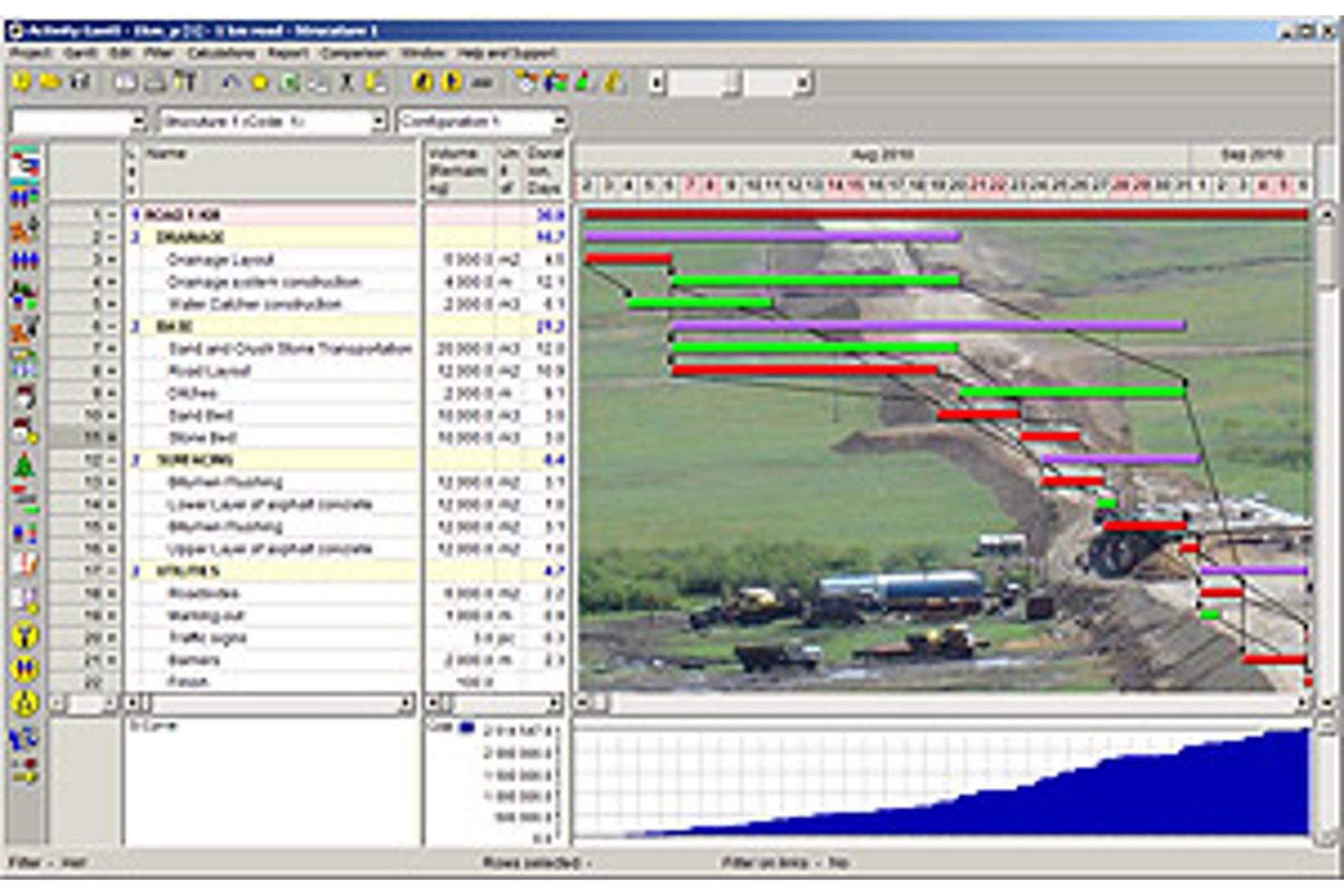
Spider Project is a desktop-based critical path scheduling tool that supports CPM calculation, resource-constrained scheduling, portfolio management, earned value management, and built-in risk simulation across complex, multi-project environments.
Who Is Spider Project Best For?
Spider Project suits schedulers and program managers in construction, engineering, and infrastructure who need resource-constrained critical path scheduling across large, complex project portfolios.
Why I Picked Spider Project
Spider Project earns its spot on my shortlist because no other scheduling tool handles resource-constrained critical path scheduling quite like it. I'm particularly impressed by its Resource Critical Path calculation, which factors in resource availability to identify the true driving sequence, not just the logic-driven one. It also calculates Critical Path Drag, so you can see exactly how much each critical task is adding to your total project duration.
Spider Project Key Features
- Quantity-based scheduling: Automatically calculates activity durations from work volumes (cubic meters, tons) and stored productivity rates, so you don't have to manually estimate task length.
- Unlimited baselines: Stores and compares any number of project snapshots side by side, letting you track how your schedule has shifted over time.
- Earned value management: Calculates CPI, SPI, cost variance, and schedule variance natively across costs, materials, and user-defined fields with trend reporting built in.
- Switch activities: Lets you define conditional branching in your network, so the schedule dynamically selects between competing paths based on user-defined logic.
Spider Project Integrations
Spider Project supports file-based data exchange with Microsoft Project, Primavera P6, Microsoft Excel, CSV, MS SQL Server, and Oracle Database.
Pros and Cons
Pros:
- Unlimited baselines with robust earned value tracking
- Quantity-based scheduling supports construction workflows
- Resource-constrained critical path scheduling is built-in
Cons:
- Physical USB key needed for license use
- Windows desktop only, no cloud version

My Evaluation Score
- Float & Slack Analysis
- 5/5
- Task Dependency Mapping
- 5/5
- Critical Path Calculation
- 5/5
- Gantt Chart Visualization
- 4/5
- What-If Scenario Modeling
- 5/5
- Baseline & Schedule Tracking
- 5/5
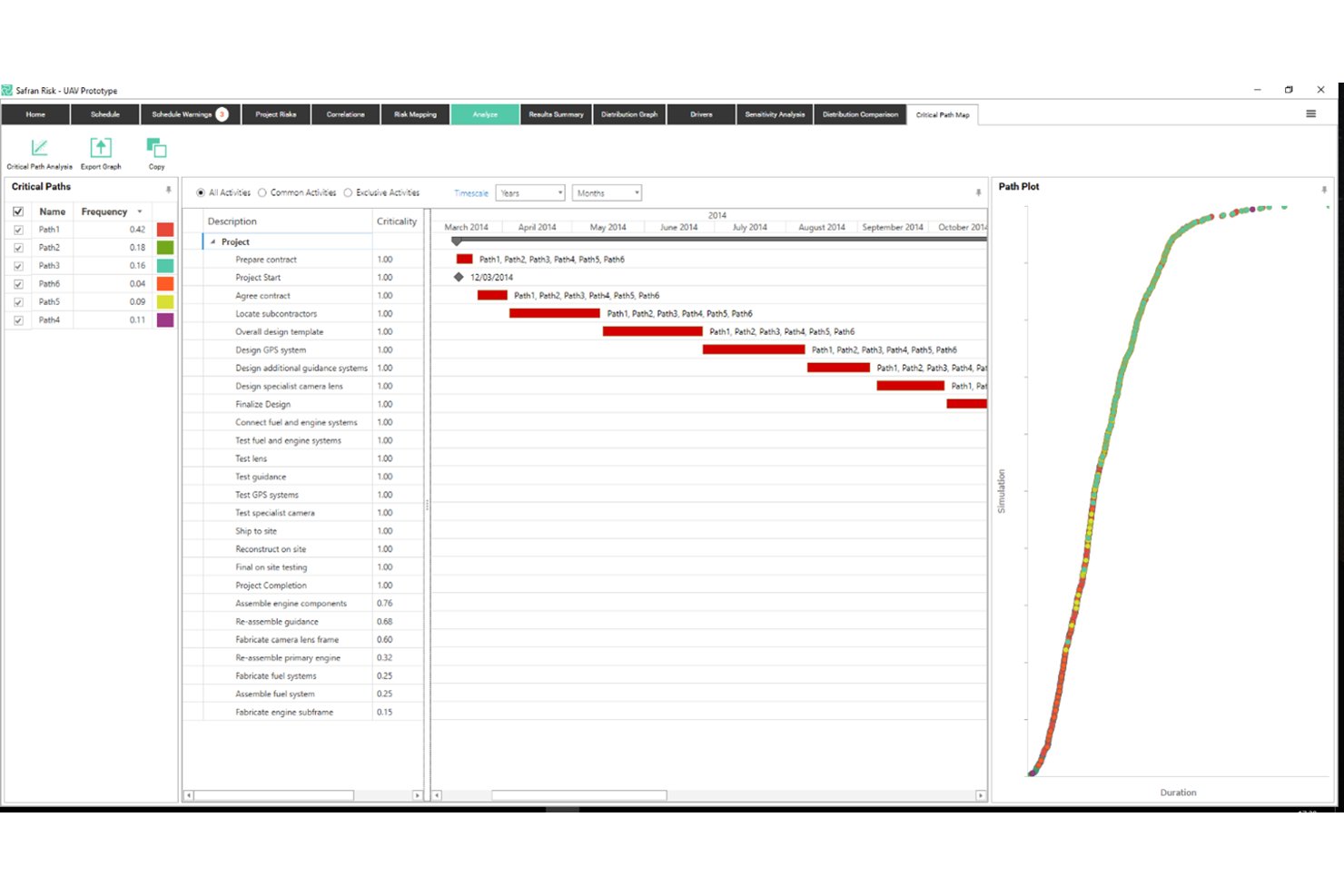
Safran Project is a specialist CPM scheduling platform built for capital-intensive industries, offering real-time critical path calculation, advanced float management, quantitative schedule risk analysis via Monte Carlo simulation, and integrated earned value management.
Who Is Safran Project Best For?
Safran Project is built for schedulers and project controls teams working on capital-intensive projects in oil and gas, engineering, construction, aerospace, and defense.
Why I Picked Safran Project
Safran Project earns its spot on my shortlist because no other tool I've reviewed handles quantitative schedule risk analysis with this level of depth. I'm particularly impressed by the native Monte Carlo simulation via Safran Risk, which runs 97% faster than Primavera Risk Analysis and produces Joint Confidence Levels across both cost and schedule simultaneously. The Split Target constraint is another standout: it lets you deliberately distribute float between project phases, so you get early warning when a specific segment is burning through its buffer before it hits the critical path.
Safran Project Key Features
- Real-time CPM scheduling engine: Automatically recalculates the critical path across unlimited activities the moment any input or logic changes.
- EVM reporting suite: Tracks SPI, CPI, SV, CV, EAC, and VAC against a set baseline, with S-curves and histograms for ANSI/EIA-748A-compliant performance measurement.
- What-if alternative scheduling: Lets you create and compare alternative schedule versions to assess the impact of scope changes on resources and timelines.
- Smart resource leveling: Redistributes workloads across constrained resources at the project or portfolio level without disrupting the critical path.
Safran Project Integrations
Safran Project offers native integrations with Oracle Primavera P6, Microsoft Project, SAP Project System, IFS, and ILAP. It also provides an Integration API for custom connections and supports private-cloud deployment through Safran Cloud.
Pros and Cons
Pros:
- Advanced float analysis with phase distribution
- Real-time critical path updates for large portfolios
- Monte Carlo simulation built into scheduling workflow
Cons:
- No native mobile app for field use
- Interface design appears visually outdated
Best for Microsoft 365 ecosystem scheduling
My Evaluation Score
- Float & Slack Analysis
- 4/5
- Task Dependency Mapping
- 5/5
- Critical Path Calculation
- 5/5
- Gantt Chart Visualization
- 5/5
- What-If Scenario Modeling
- 3/5
- Baseline & Schedule Tracking
- 5/5
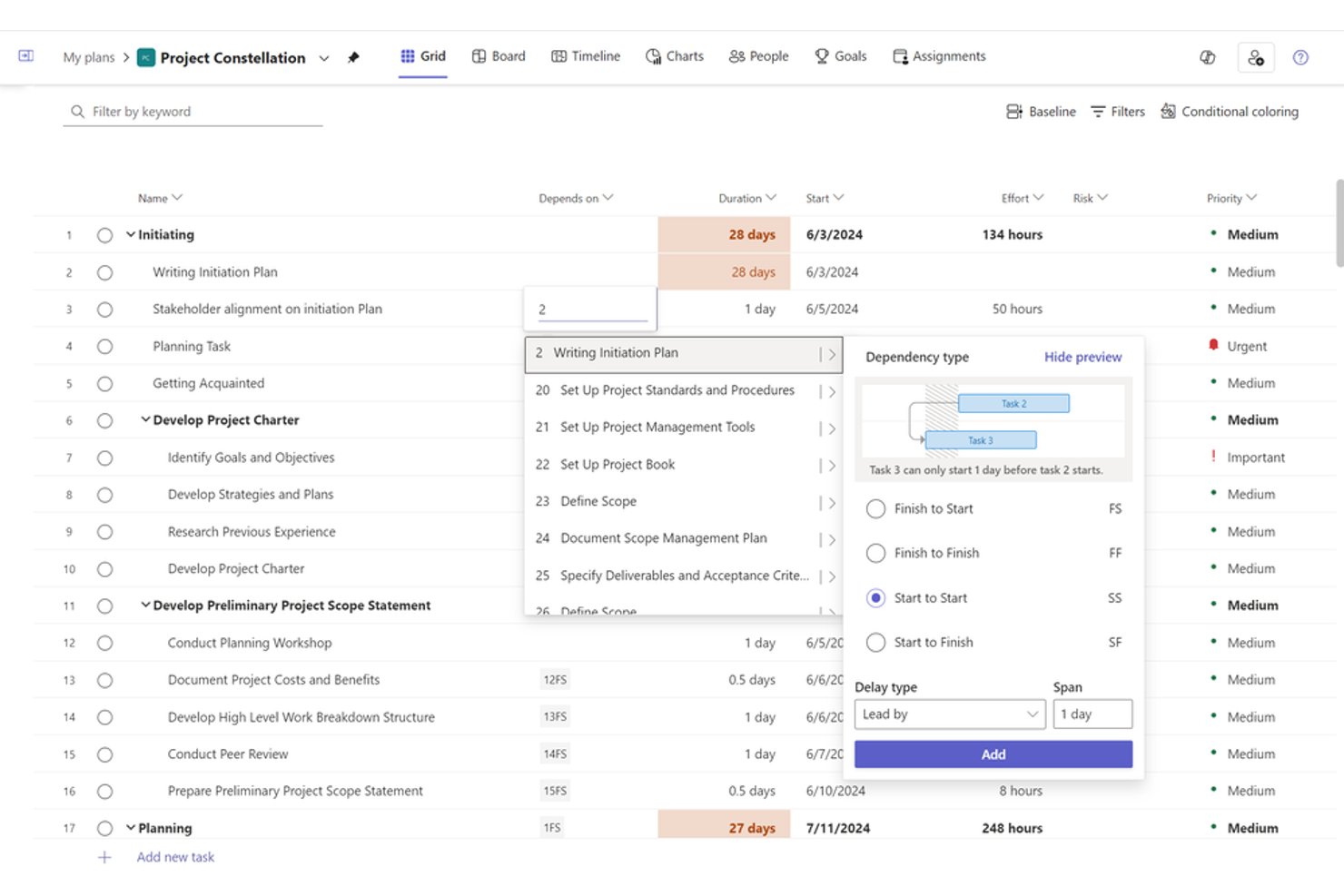
Microsoft Project is a project scheduling and portfolio management tool built around a native CPM engine, offering Gantt charts, task dependency mapping, resource leveling, baseline tracking, and earned value management across both desktop and cloud-based environments.
Who Is Microsoft Project Best For?
Microsoft Project suits PMO directors and engineering program managers at mid-to-large organizations that are already running Microsoft 365 and need enterprise-grade CPM scheduling without leaving that ecosystem.
Why I Picked Microsoft Project
Microsoft Project earns its spot on my shortlist because, if your team already runs on Microsoft 365, the scheduling depth you get without leaving that ecosystem is hard to replicate elsewhere. I particularly like the native CPM engine's ability to calculate multiple simultaneous critical paths across a master project, with red-coded Gantt bars and configurable slack thresholds that flag near-critical tasks before they become actual problems. The up-to-11-baseline support plus built-in EVM metrics like CPI and SPI make it my go-to when a program needs rigorous schedule accountability.
Microsoft Project Key Features
- Auto-scheduling engine: Dynamically recalculates task start and finish dates in real time whenever durations, dependencies, or constraints change.
- Resource leveling: Automatically redistributes work across overallocated resources by delaying non-critical tasks within available float.
- Network Diagram view: Displays all tasks and dependencies as a node-based flowchart, giving you a dependency-focused alternative to the Gantt view.
- Portfolio analysis (Plan 5): Lets PMOs compare, prioritize, and score projects across the portfolio using business driver weighting and demand vs. capacity modeling.
Microsoft Project Integrations
Microsoft Project offers native integrations across the Microsoft ecosystem, including Microsoft Teams, SharePoint, Power BI, Power Automate, Planner, and Dynamics 365. It also provides a REST API for custom integrations and supports Zapier.
Pros and Cons
Pros:
- Supports all four dependency types
- Native earned value and baseline tracking
- Auto-calculates multiple project critical paths
Cons:
- Master project features require enterprise tier
- No built-in Monte Carlo risk analysis

Best for real-time critical path dashboards
My Evaluation Score
- Float & Slack Analysis
- 3/5
- Task Dependency Mapping
- 4/5
- Critical Path Calculation
- 4/5
- Gantt Chart Visualization
- 5/5
- What-If Scenario Modeling
- 1/5
- Baseline & Schedule Tracking
- 4/5
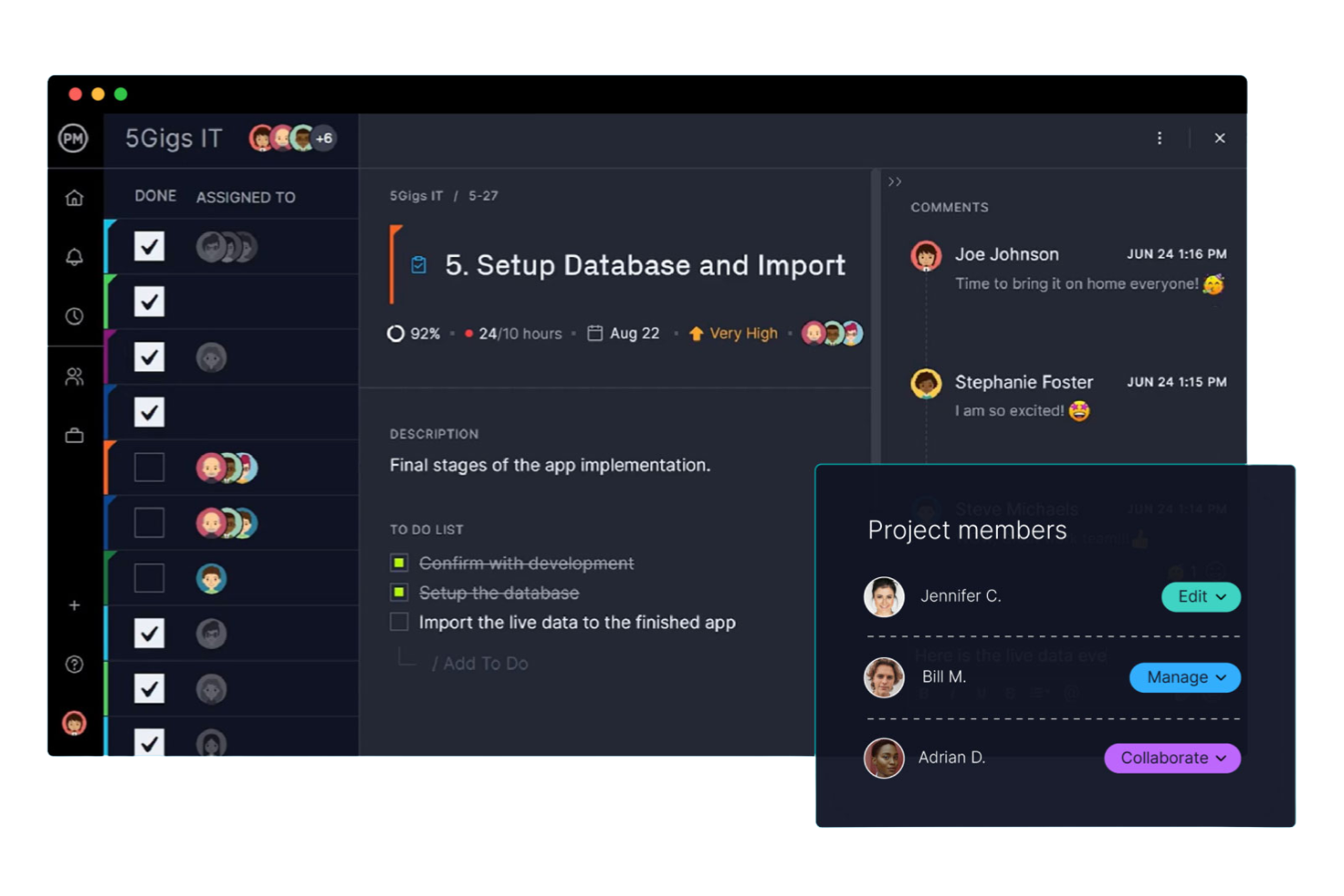
ProjectManager is a project management platform with an interactive Gantt chart that auto-calculates the critical path, supports all four dependency types with lag/lead configuration, and delivers real-time dashboards for baseline tracking and schedule variance reporting.
Who Is ProjectManager Best For?
ProjectManager is a strong fit for PMO directors and IT program managers who need clear critical path visibility and real-time dashboard reporting without the complexity of enterprise scheduling tools.
Why I Picked ProjectManager
ProjectManager earns its spot on my shortlist because its real-time dashboards give you instant schedule health visibility without any manual reporting. I love that the one-click critical path filter highlights critical tasks directly on the Gantt chart, and baseline overlays let you see planned-vs.-actual drift the moment it happens. If you're managing a portfolio of IT or program workstreams, the portfolio dashboard rolls up schedule variance across every project in one view.
ProjectManager Key Features
- All four dependency types: Link tasks using Finish-to-Start, Start-to-Start, Finish-to-Finish, or Start-to-Finish relationships, with lag and lead time configuration on each.
- Float and slack display: When you enable the critical path filter, the Gantt chart surfaces total and free float per task so you can see schedule buffer at a glance.
- Portfolio dashboard: A rollup view aggregates task progress, costs, and workload across multiple projects into a single interface for cross-project visibility.
- AI Project Insights: Available on Business and Enterprise plans, this feature delivers automated progress summaries, risk flags, and resource recommendations without manual reporting.
ProjectManager Integrations
ProjectManager offers native integrations with Microsoft Project, Jira, Azure DevOps, Microsoft Teams, Power BI, and QuickBooks Online. It also provides an API for custom integrations and supports Zapier.
Pros and Cons
Pros:
- Float and slack displayed on Gantt
- Baseline and variance tracking built-in
- Critical path filter highlights tasks instantly
Cons:
- Resource leveling is manual only
- No what-if scenario modeling

My Evaluation Score
- Float & Slack Analysis
- 5/5
- Task Dependency Mapping
- 5/5
- Critical Path Calculation
- 5/5
- Gantt Chart Visualization
- 5/5
- What-If Scenario Modeling
- 4/5
- Baseline & Schedule Tracking
- 5/5
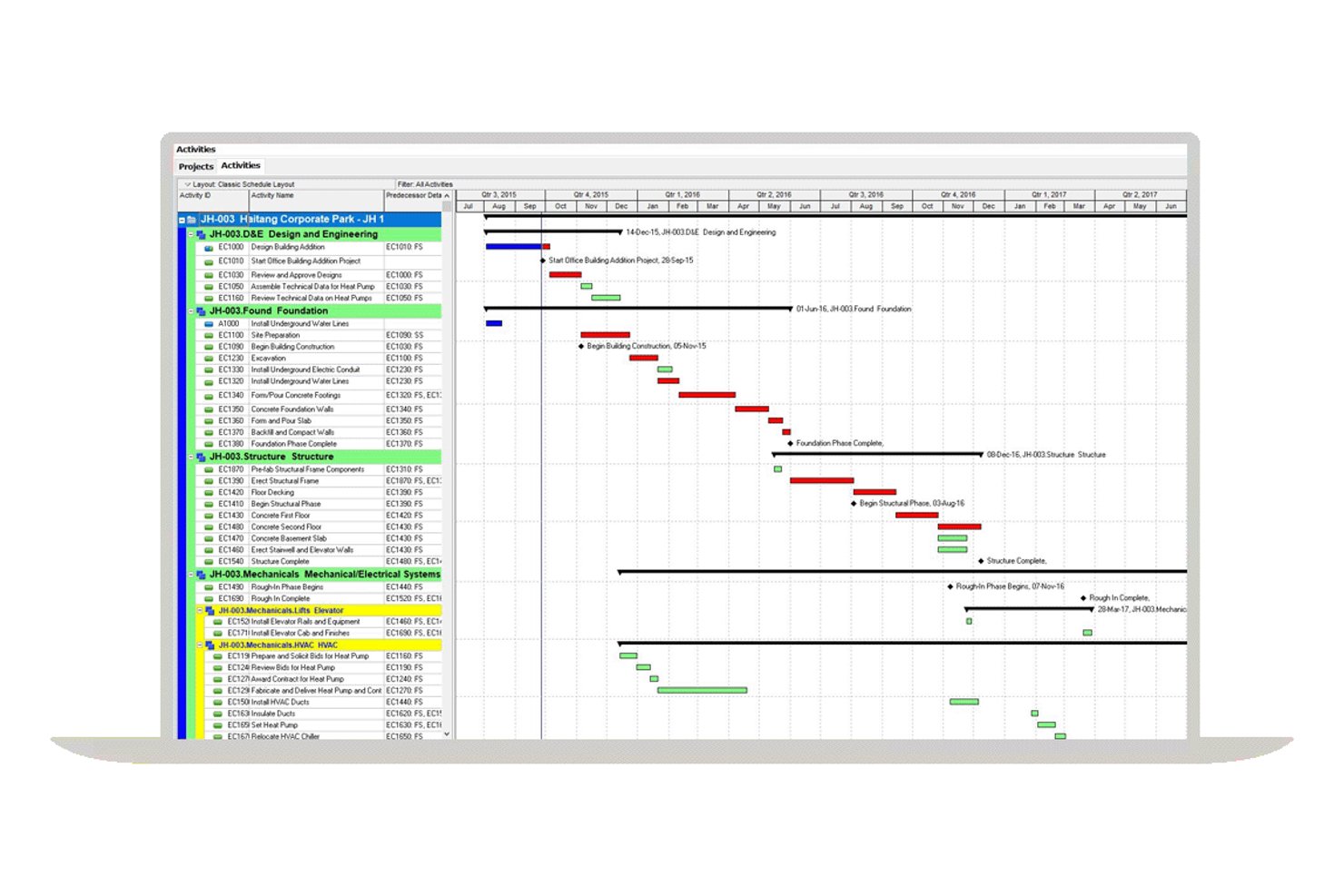
Oracle Primavera P6 is an enterprise CPM scheduling platform built for large-scale, multi-project environments, offering critical path calculation, dependency mapping, float analysis, resource leveling, baseline tracking, and earned value management.
Who Is Oracle Primavera P6 Best For?
Oracle Primavera P6 is the go-to choice for enterprise project controls teams managing large, complex programs in construction, EPC, oil and gas, or infrastructure.
Why I Picked Oracle Primavera P6
Oracle Primavera P6 earns its spot on my shortlist because no other tool matches its depth of multi-project CPM scheduling at enterprise scale. I'm particularly impressed by its support for up to 30 simultaneous critical paths, calculated via forward and backward passes across an entire project portfolio using the Enterprise Project Structure. Its float analytics are equally strong, tracking total float, free float, and negative float per activity, which is exactly what you need for delay analysis across complex, interdependent programs.
Oracle Primavera P6 Key Features
- Resource leveling engine: Automatically redistributes workloads across constrained resources without disrupting the critical path, supporting multi-project leveling across the full EPS hierarchy.
- Work breakdown structure (WBS) hierarchy: Organizes projects into granular WBS levels with summary activities, activity codes, and user-defined fields for detailed classification and filtering.
- Earned value management (EVM): Calculates PV, EV, AC, CPI, and SPI at the project and activity level, tied directly to the project baseline for schedule performance tracking.
- Cross-project dependency mapping: Supports all four dependency types—FS, SS, FF, and SF—with lag and lead configuration, including dependencies across concurrent projects within the EPS hierarchy.
Oracle Primavera P6 Integrations
Oracle Primavera P6 offers native integrations with Oracle Primavera Unifier, Aconex, Oracle Primavera Cloud, and SAP through its Project Integration Framework. P6 also supports Oracle Integration Cloud, Microsoft Project, XER/XML exchange, and REST APIs for custom integrations.
Pros and Cons
Pros:
- Offers deep float and delay analysis tools
- Supports up to 30 simultaneous critical paths
- Handles enterprise-scale multi-project CPM scheduling
Cons:
- Native reporting tools described as limited
- Monte Carlo simulation requires separate add-on

My Evaluation Score
- Float & Slack Analysis
- 5/5
- Task Dependency Mapping
- 5/5
- Critical Path Calculation
- 5/5
- Gantt Chart Visualization
- 5/5
- What-If Scenario Modeling
- 5/5
- Baseline & Schedule Tracking
- 5/5
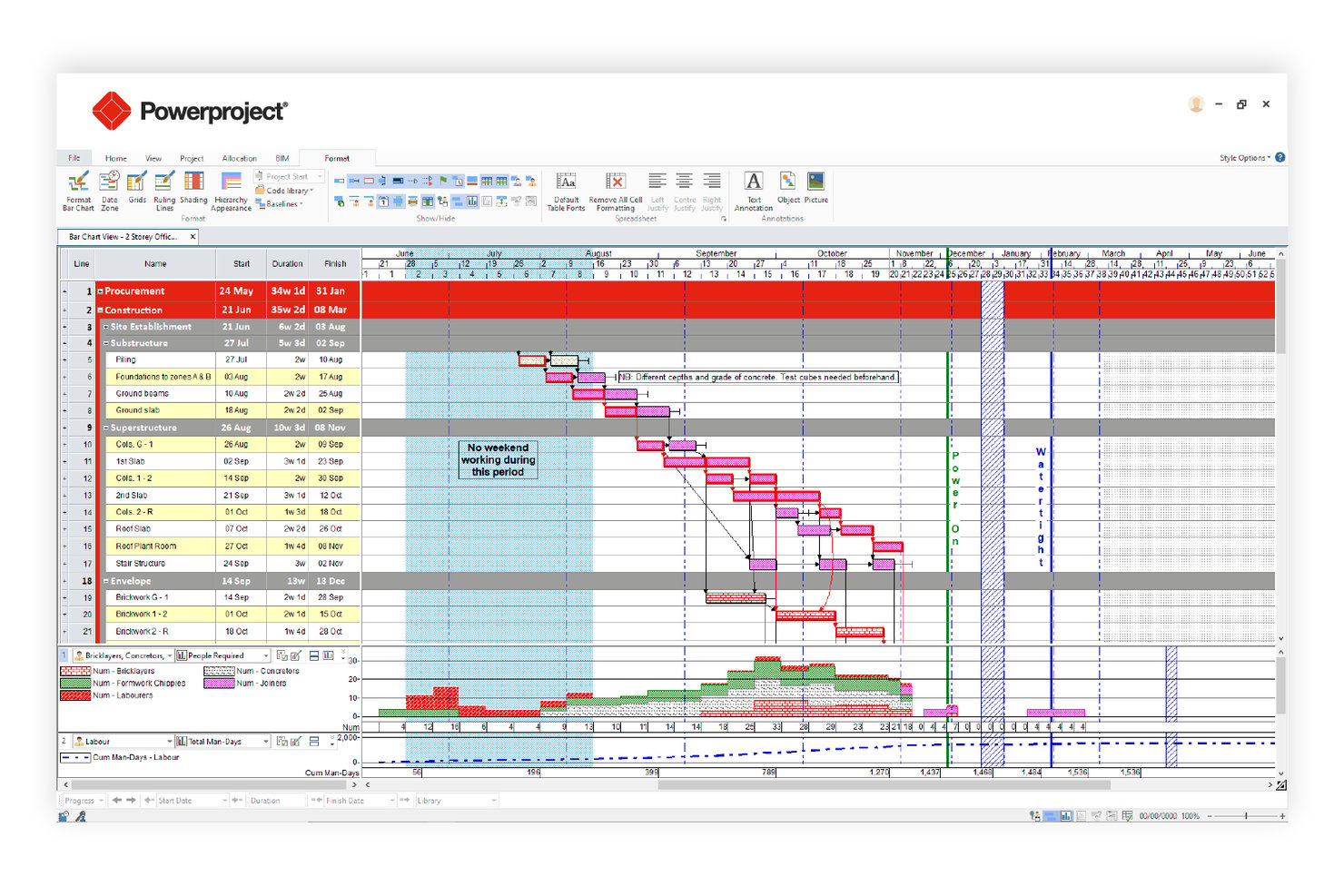
Asta Powerproject is a construction-focused critical path scheduling tool that combines CPM auto-calculation, 4D BIM integration, Monte Carlo risk analysis, multi-baseline tracking, and resource leveling in a single platform.
Who Is Asta Powerproject Best For?
Asta Powerproject is a strong fit for construction and infrastructure project managers who need schedule planning tightly connected to BIM models.
Why I Picked Asta Powerproject
Asta Powerproject earns its spot on my shortlist because no other critical path tool links schedule tasks directly to a 3D BIM model the way it does, letting you simulate construction progression visually before a single shovel hits the ground. I also rate its Monte Carlo Risk Analysis highly: it runs hundreds of iterations and produces a Criticality Index showing exactly which tasks land on the critical path most often across scenarios. Add unlimited baselines with up to 10 visible simultaneously, and you get precise deviation tracking that most CPM tools can't match.
Asta Powerproject Key Features
- Task dependency mapping: Supports all four CPM dependency types—Finish-to-Start, Start-to-Start, Finish-to-Finish, and Start-to-Finish—with lag/lead configuration and multiple logic links between the same task pair.
- Float and slack analysis: Calculates and displays both free float and total float per task, with near-critical threshold alerts and negative float indicators for super-critical tasks.
- Schedule quality check: Validates schedule integrity against pre-configured DCMA and CIOB compliance metrics before submission or client review.
- Asta SiteProgress mobile app: Lets site teams submit real-time progress updates, photo annotations, and quantity-based tracking directly from iOS or Android devices.
Asta Powerproject Integrations
Asta Powerproject offers integrations with Microsoft Project (.MPP), Oracle Primavera P6 (.XER/.XML), Excel, CSV, SQL, and Oracle databases. Asta Powerproject also connects with SAP, Oracle ERP, Procore, Bidcon BIM 5D, and Asta Vision for construction data exchange and reporting.
Pros and Cons
Pros:
- Built-in Monte Carlo risk analysis module
- Unlimited baselines with ten overlaid simultaneously
- Links schedule tasks directly to 3D BIM
Cons:
- No built-in formal risk register feature
- Earned value reporting less detailed than P6

My Evaluation Score
- Float & Slack Analysis
- 5/5
- Task Dependency Mapping
- 5/5
- Critical Path Calculation
- 5/5
- Gantt Chart Visualization
- 4/5
- What-If Scenario Modeling
- 5/5
- Baseline & Schedule Tracking
- 5/5
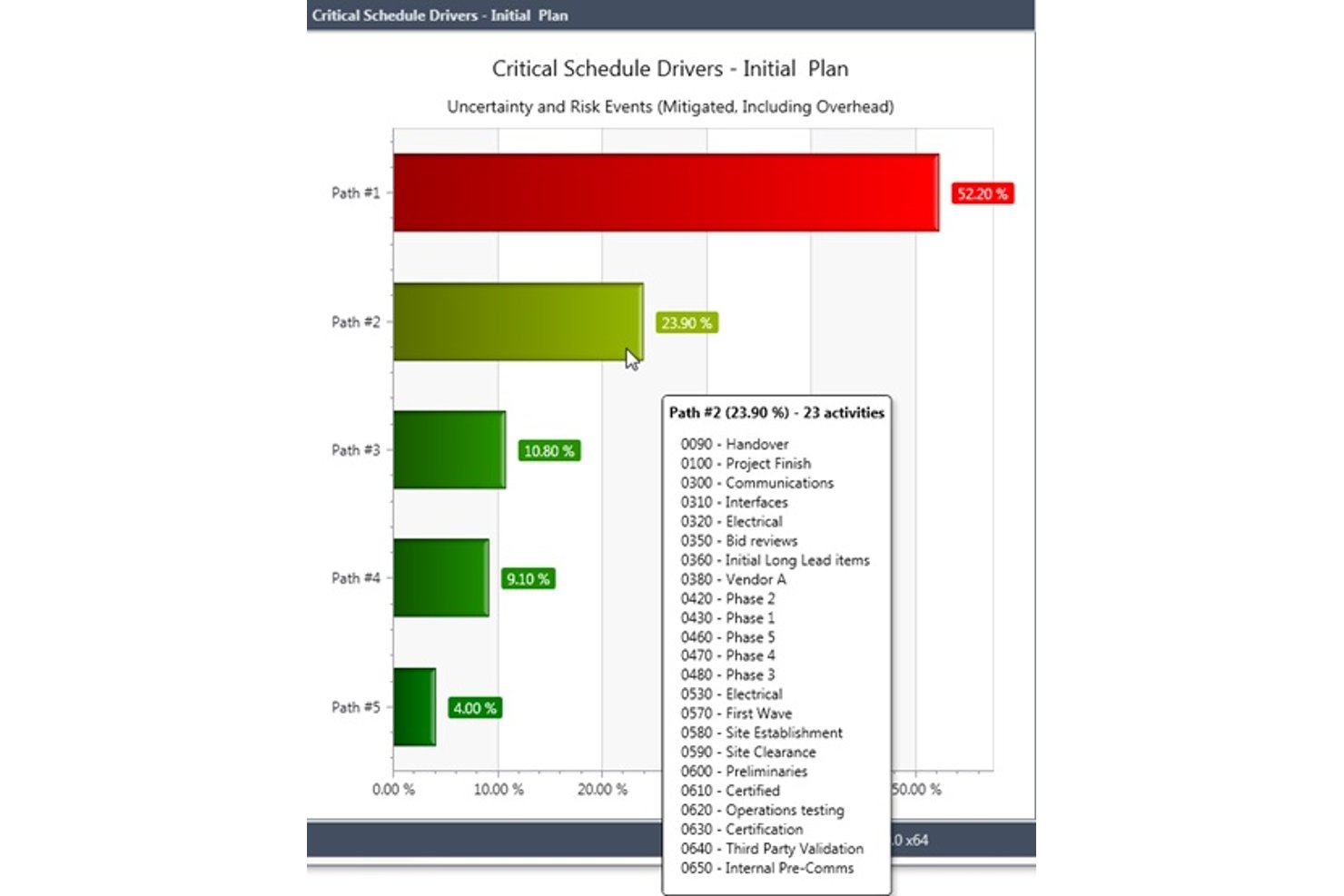
Deltek Acumen is a schedule analytics and risk platform that runs schedule diagnostics, Monte Carlo simulations, forensic delay analysis, and portfolio-level schedule governance on top of schedules built in tools like Primavera P6 and MS Project.
Who Is Deltek Acumen Best For?
Deltek Acumen is built for schedulers and program controls teams in government contracting, defense, aerospace, and EPC construction who need forensic-grade schedule analytics on top of Primavera P6 or MS Project.
Why I Picked Deltek Acumen
Deltek Acumen earns its spot on my shortlist because no other tool comes close to its forensic-grade schedule analytics for government and defense programs. I particularly value its DCMA 14-point diagnostics and half-step delay analysis, which automatically separates progress changes from scope changes between schedule versions—exactly what you need for claims support or audit documentation. On top of that, its Monte Carlo simulation identifies probabilistic critical paths across 500,000+ activity schedules, pinpointing which paths are truly driving risk.
Deltek Acumen Key Features
- Acumen Touchstone schedule governance: Automatically scores subcontractor schedule submissions against configurable quality thresholds, enforces acceptance criteria, and maintains full audit trails across all submissions.
- Dela AI risk identification: Analyzes project type, location, and schedule logic to surface risks automatically and generate prioritized, activity-mapped mitigation strategies.
- Liquidated damages modeling: Configures contract-aware LD caps and calculates delay penalty exposure directly within the schedule risk environment.
- IPMDAR and DOE PARS reporting: Generates IPMDAR SPD/CPD outputs and ingests DOE PARS data for pre-submission schedule and cost analysis aligned to government reporting requirements.
Deltek Acumen Integrations
Deltek Acumen supports integrations with Primavera P6, Microsoft Project, Deltek Open Plan, Safran Project, Asta Powerproject, Phoenix Project Manager, Deltek Cobra, PrismG2, and DOE PARS.
Pros and Cons
Pros:
- Advanced schedule governance for compliance-heavy projects
- Unmatched forensic delay and baseline insights
- Excels at probabilistic critical path analysis
Cons:
- Custom report building requires significant manual effort
- Cannot create or edit schedules directly
Other Critical Path Software
Here are some additional critical path software options that didn’t make it onto my shortlist, but are still worth checking out:
- Wrike
For cross-team collaboration features
- InEight
For AI-assisted CPM in capital construction
- Smartsheet
For spreadsheet-style scheduling
- Zoho Projects
For time-tracked CPM on a Zoho stack
- GanttPRO
For interactive Gantt-based CPM planning
- monday.com
For visual project dashboards
- Phoenix Project Manager
For Timescaled Network Diagram scheduling
- Trimble Tilos
For linear infrastructure schedule planning


How I Evaluate Critical Path Software
I split my evaluation into baseline criteria every scheduler-focused tool must meet—like auto CPM calculation and dependency mapping—and differentiators that separate the best fits from the rest.
Core Functionality (Table Stakes For This List)
When I'm selecting tools for my list, I rank each one on a scale from 0 (does not offer the functionality) to 5 (excels in this area) for each core functionality listed below. Then, I calculate the tool's total score into a percentage. Each tool needs to achieve a minimum total score of 65% to be considered for inclusion.
- Critical Path Calculation: I check whether the tool auto-calculates early/late start and finish dates across all tasks—say, a 200-activity construction schedule—without manual workarounds.
- Task Dependency Mapping: All four dependency types (FS, SS, FF, SF) matter, and I look for lag/lead time support for scenarios like curing periods between pours and formwork.
- Gantt Chart Visualization: The Gantt view should visually separate critical from non-critical tasks and let you interact with the schedule directly, not just view a static timeline.
- Float & Slack Analysis: I evaluate whether total and free float are surfaced per task, since spotting near-critical activities early is how schedulers prevent last-minute path shifts.
- Baseline & Schedule Tracking: Setting multiple baselines and comparing planned vs. actual timelines is how I gauge a tool's schedule governance depth—one baseline isn't enough for phased projects.
- What-If Scenario Modeling: I look for the ability to simulate delays or resource changes and see the critical path recalculate in real time, which is essential during owner-requested change orders.
Once I have a list of tools that meet the criteria, I consider what sets each platform apart.
Differentiating Factors (What Sets Vendors Apart)
Here's how I compare and contrast different vendors:
Standout Features
Monte Carlo simulation is a big one—I look for tools that let schedulers run probabilistic analysis on task durations to forecast realistic completion dates instead of relying on single-point estimates. Resource leveling also matters, especially on multi-trade projects where overallocated crews shift the critical path. For PMO directors juggling concurrent programs, portfolio-level CPM that calculates paths across projects is what separates a scheduling tool from a true planning platform.
Beyond Features
I evaluate whether a tool supports .MPP and .XER file imports, since most scheduling teams need to exchange files with clients or contractors who use MS Project or Primavera P6. Deployment matters too—field-based teams on construction sites need mobile and offline access, while regulated industries often require on-premise hosting. I also check for industry-specific templates, because a scheduler building a data center rollout has very different WBS needs than one planning an agile software release.
How to Choose Critical Path Software
It’s easy to get bogged down in long feature lists and complex pricing structures. To help you stay focused as you work through your unique software selection process, here’s a checklist of factors to keep in mind:
| Factor | What to Consider |
|---|---|
| Scalability | Will the software handle your project volume as your team or organization grows? Check user limits, project caps, and performance with large datasets. |
| Integrations | Does the tool connect natively to your existing project management, file storage, or communication platforms? Confirm compatibility with your tech stack. |
| Customizability | Can you adapt workflows, fields, and views to match your team’s processes? Avoid rigid systems that force you to change how you work. |
| Ease of use | How quickly can new users get up to speed? Look for intuitive navigation, clear labeling, and minimal training requirements. |
| Implementation and onboarding | What resources are needed to get started? Consider the time, support, and training required for setup, data migration, and user adoption. |
| Cost | Are pricing tiers transparent and predictable as your needs change? Watch for hidden fees, per-user costs, or required add-ons. |
| Security safeguards | Does the software meet your organization’s data protection standards? Look for encryption, access controls, and compliance certifications. |
| Support availability | What support channels are offered, and during what hours? Consider if you need 24/7 help, dedicated account reps, or self-service resources. |
What is Critical Path Software?
Critical path software is a type of project management software that helps teams plan, schedule, and manage the sequence of dependent tasks that determine project completion. It uses the critical path method to map task durations, define task dependencies, and identify the longest path required to complete the entire project.
These tools support detailed work breakdown structures, making it easier to organize project work, assign responsibilities, and set accurate due dates. Project managers use critical path software to build clear project roadmaps, monitor scheduling changes, and maintain control over complex project timelines while tracking progress across all phases.
Features
Here are the core features any great critical path software should have:
- Task dependency mapping: Visually connect tasks to show which activities rely on others, making it easier to spot bottlenecks and sequence work correctly.
- Critical path identification: Automatically calculate and highlight the sequence of tasks that directly impact your project’s finish date.
- Gantt chart visualization: Display project timelines, dependencies, and milestones in a bar chart format for clear, at-a-glance scheduling.
- Dynamic timeline updates: Adjust project schedules in real time as tasks are completed or delayed, keeping your plan accurate and current.
- Resource allocation tools: Assign team members, equipment, or budget to specific tasks and monitor workload distribution across the project.
- Progress tracking: Monitor task completion, update statuses, and generate reports to keep stakeholders informed about project health.
- Scenario planning: Model different project paths or timelines to see how changes in scope, resources, or deadlines could affect delivery.
- Collaboration features: Enable team members to comment, share updates, and work together within the platform to resolve issues quickly.
- Export and sharing options: Generate and share project plans, reports, or diagrams in various formats to communicate with stakeholders outside the tool.
Critical path software solutions do not typically include AI as part of their feature offering.
Benefits
Implementing critical path software provides several benefits for your team and your business. Here are a few you can look forward to:
- Improved project visibility: Visual mapping and timeline tools make it easier to see dependencies, bottlenecks, and overall project status at a glance.
- Accurate scheduling: Automated critical path calculations and dynamic updates help you build realistic timelines and adjust quickly to changes.
- Better resource allocation: Resource management features let you assign tasks and balance workloads, reducing the risk of overloading team members.
- Faster decision-making: Scenario planning and real-time progress tracking give you the data needed to make informed adjustments as projects evolve.
- Enhanced stakeholder communication: Export and sharing options, along with presentation tools, help you keep everyone aligned and informed throughout the project.
- Reduced project delays: Early identification of critical tasks and dependencies allows you to address risks before they impact delivery.
- Streamlined collaboration: Built-in collaboration features support teamwork and keep everyone on the same page, even across distributed teams.
Costs and Pricing
Selecting critical path software requires an understanding of the various pricing models and plans available. Costs vary based on features, team size, add-ons, and more. The table below summarizes common plans, their average prices, and typical features included in critical path software solutions:
Plan Comparison Table for Critical Path Software
| Plan Type | Average Price | Common Features |
|---|---|---|
| Free Plan | $0 | Basic task and dependency mapping, limited Gantt chart views, single project support, and basic export options. |
| Personal Plan | $5-$15/user/month | Multiple project support, timeline updates, simple reporting, and limited integrations. |
| Business Plan | $20-$40/user/month | Advanced dependency mapping, resource allocation, collaboration tools, scenario planning, and priority support. |
| Enterprise Plan | $50-$100/user/month | Custom integrations, advanced security, dedicated onboarding, compliance features, and admin controls. |
FAQs
Here are some answers to common questions about critical path software:
How does critical path software help with project scheduling?
Critical path software helps by automatically identifying the sequence of tasks that determine your project’s minimum completion time. This lets you see which activities can’t be delayed without affecting the deadline, so you can prioritize resources and adjust schedules as needed.
Can critical path software handle complex, multi-phase projects?
Yes, most critical path software is designed to manage complex projects with multiple phases, dependencies, and teams. Look for tools that support unlimited tasks, cross-project dependencies, and customizable views to keep large projects organized.
What types of teams benefit most from using critical path software?
Project managers in construction, IT, engineering, and product development often rely on critical path software. Any team managing projects with interdependent tasks, tight deadlines, or resource constraints can benefit from these tools.
Is it difficult to migrate existing project data into critical path software?
No, most solutions offer import tools, templates, or migration support to help you bring in data from spreadsheets or other project management platforms. Check for compatibility with your current tools and ask about onboarding assistance.
How secure is data stored in critical path software platforms?
Most reputable vendors use encryption, access controls, and compliance certifications to protect your data. Always review a provider’s security documentation and confirm it meets your organization’s requirements before committing.