

10 Best MeisterTask Alternative Tools for Projects in 2026

Best MeisterTask Alternatives Shortlist


While Meistertask is a solid task management tool, the right project management software should adapt to your team’s way of working, not the other way around. But with so many alternatives out there, it's difficult to choose the best one.
That’s why I tested a range of alternatives to find the best options for different use cases—whether you need more automation, deeper collaboration features, or a system that scales with your team. Based on my hands-on experience, I’ll walk you through the top MeisterTask alternatives, highlighting their standout features, pricing, and who they’re best suited for.
What is MeisterTask?
MeisterTask is a project management tool designed to facilitate task management and collaboration among teams. The software is tailored to support teams in organizing and managing their projects and tasks efficiently, ensuring that everyone is aligned and informed throughout the project lifecycle.
Why Trust Our Software Recommendations
Our team has been testing and reviewing software since 2012. As project managers ourselves, we know how difficult—and important—it is to choose the right software.
For this guide, we evaluated tools using hands-on testing and independent research, scoring tools using our selection criteria. We also draw on insights from industry thought leaders and practicing project management experts.
Our reviews reflect our human editorial judgment, not a sales pitch.
Expert reviewers:
MeisterTask Alternatives Comparison Table
| Tool | Best For | Trial Info | Price | ||
|---|---|---|---|---|---|
| 1 | Best for scalable project collaboration | Free plan + 14-day free trial + free demo available | From $10/user/month (billed annually) | Website | |
| 2 | Best for nested task management | Free plan + 30-day free trial available | From $7.65/user/month (billed annually) | Website | |
| 3 | Best for client work time tracking and billing | Free plan + 14-day trial + demo available | From $9.99/user/month (billed annually) | Website | |
| 4 | Best for no-code workflow automation | 15-day free trial + demo available | From €8/user/month (billed annually) | Website | |
| 5 | Best for AI-generated apps within task workflows | Free plan available | From $20/month | Website | |
| 6 | Best for all-in-one docs and task databases | Free plan + Free trial + Free demo available | From $10/user/month | Website | |
| 7 | Best for cross-functional team workflow tracking | Free plan + trial + demo available | From $10.99/user/month (billed annually) | Website | |
| 8 | Best for spreadsheet-style project scaling | 30-day free trial | From $9/user/month (billed annually) | Website | |
| 9 | Best for enterprise-scale Agile task tracking | Free plan + 7-day free trial available | From $8.48/user/month | Website | |
| 10 | Best for eight synced views in one workspace | Free plan + 14-day trial + demo available | From $5/user/month (billed annually) | Website |


Best MeisterTask Alternatives
Below, I’ll provide a detailed analysis and overview of each MeisterTask alternative. Through each of these reviews, you’ll learn the advantages and disadvantages, features, and ideal scenarios for using each tool.
Wrike
Best for scalable project collaboration
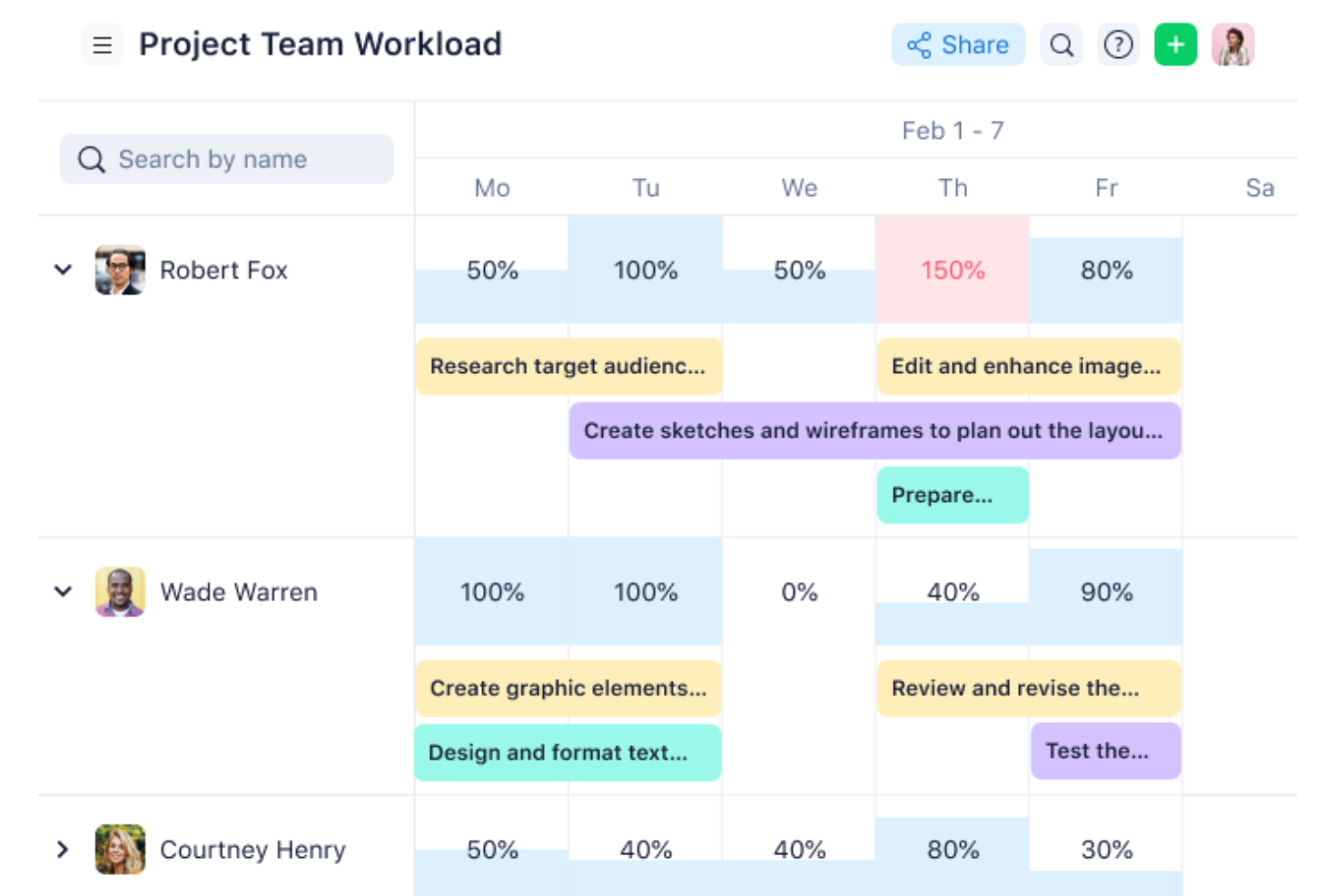
Wrike is a work management platform that brings together Kanban boards, Gantt charts, workload views, workflow automation, and cross-team collaboration tools across a highly configurable, multi-view workspace.
Who Is Wrike Best For?
Wrike is a strong fit for mid-sized to large cross-functional teams that need to manage complex, multi-workstream projects across product, engineering, and design.
Why I Picked Wrike
I've included Wrike in my top picks because it scales with cross-functional teams in ways MeisterTask simply can't match. I love how workload charts let me see team capacity across projects at once, so I can shift tasks before bottlenecks form rather than after. Wrike's multi-trigger automation rules and five-plus project views, from Gantt to Kanban boards, give my team the structure to coordinate complex, multi-workstream delivery without losing visibility.
Wrike Key Features
- Custom fields: Add text, number, date, and dropdown fields to tasks to capture project-specific data across your workspace.
- Request forms: Build dynamic intake forms that route incoming work requests directly into the right project or folder.
- Cross-tagging: Associate a single task with multiple projects or spaces so different teams maintain visibility without duplicating work.
- Approval chains: Set up internal and guest approval workflows directly within tasks to collect sign-offs without leaving the platform.
Wrike Integrations
Wrike offers 400+ pre-built native integrations, including Slack, Zoom, Salesforce, HubSpot, Jira, GitHub, Google Calendar, Dropbox, and QuickBooks. It also provides an open REST API and Wrike Integrate for custom integrations and workflow automation.
Pros and Cons
Pros:
- Task-based approvals keep decisions with deliverables
- Workload charts expose cross-project capacity bottlenecks
- Kanban boards pair with dependency-aware Gantt timelines
Cons:
- Navigation makes older conversations harder to find
- Dense setup can slow lightweight task tracking
New Product Updates from Wrike

Wrike Redesigns AI Agent Builder
Wrike redesigns its AI Agent Builder with a side-by-side setup, Scopes, sentence-style triggers and actions, and clearer filters. These changes make it easier to configure, test, and manage agent behavior. For more information, visit Wrike’s official site.

Quire
Best for nested task management
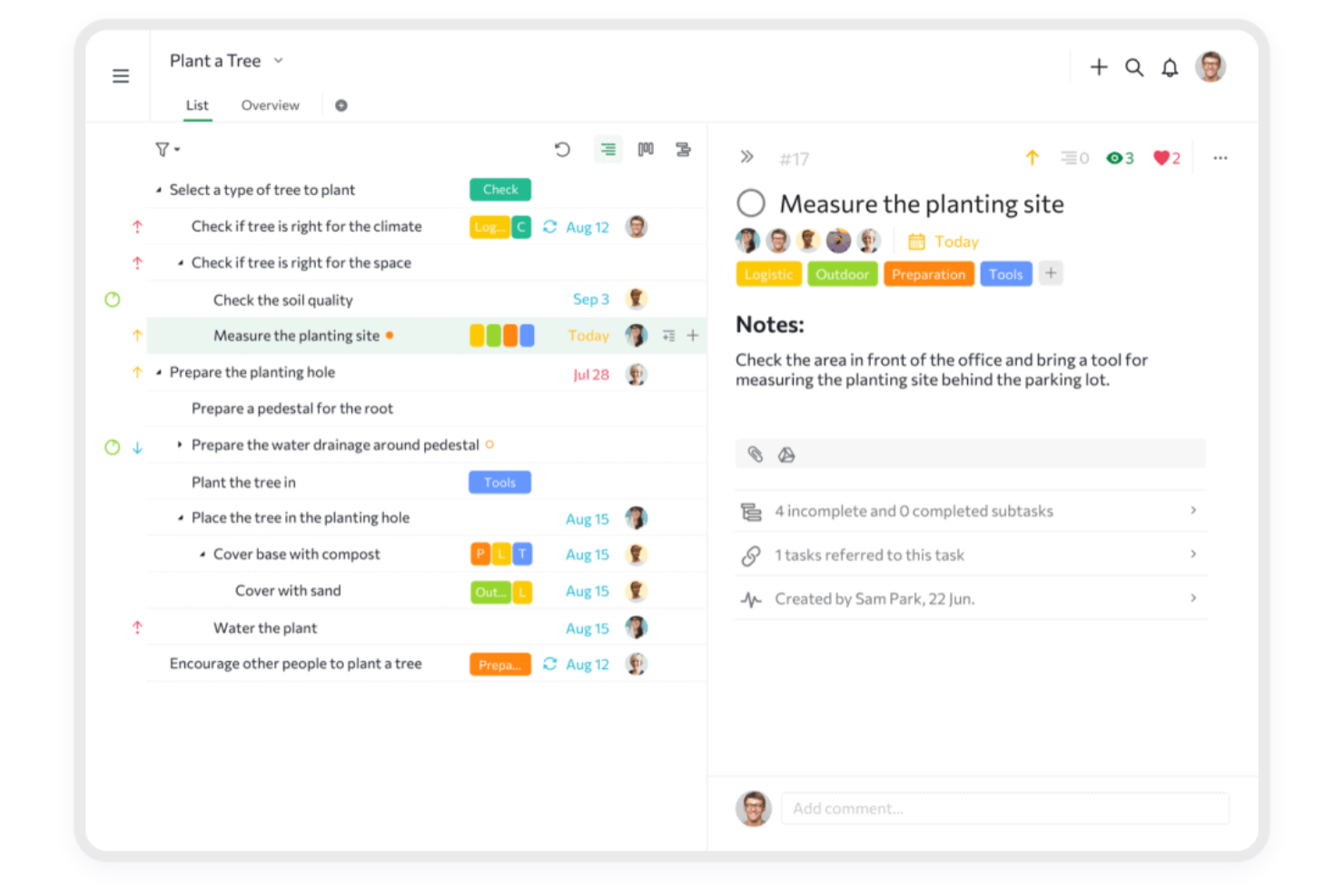
Quire is a project management tool that pairs an infinite nested task hierarchy with Kanban boards, timeline, calendar, and table views for organizing and tracking work across projects.
Who Is Quire Best For?
Quire is a strong fit for small teams and team leads who need to break complex projects into layered, nested tasks without sacrificing a clear visual workflow.
Why I Picked Quire
I've included Quire in my top picks because its nested task hierarchy is genuinely one of the best I've seen for breaking complex projects into layered subtasks without losing track of the bigger picture. Where MeisterTask keeps things relatively flat, Quire lets you build unlimited subtask levels and then flip that same structure into a Kanban board using Task Bundle to keep subtasks grouped under their parent cards. The Panorama view also lets you see workload spread across every project in your organization at once, which I find especially useful when managing multiple workstreams.
Quire Key Features
- Task dependencies: Connect tasks to define sequencing and surface scheduling bottlenecks before they become blockers.
- Member workload widget: View each team member's active, completed, and overdue task counts alongside a health badge at the project or organization level.
- Project chat channels: Communicate with team members directly within a project without leaving the tool.
- Calendar view: Schedule and reschedule dated tasks by dragging them onto a calendar for a time-based view of upcoming work.
Quire Integrations
Quire offers native integrations with Slack, Microsoft Teams, Google Calendar, Google Drive, OneDrive, GitHub, and n8n, plus marketplace integrations for Dropbox and Box. It also provides API access and supports Zapier.
Pros and Cons
Pros:
- Workload dashboards flag overdue task concentration
- Kanban boards pair with nested task lists
- Unlimited subtask levels preserve project context
Cons:
- Mobile app can't set task dependencies
- Subtasks appear as separate board cards
New Product Updates from Quire
Quire Adds Custom Field Locking and Comment Reaction API Support
Quire adds custom field locking and API support for reading and setting emoji reactions on comments. These updates give teams more control over field data and expand comment interaction options for developers. For more information, visit Quire’s official site.
 .
Best for client work time tracking and billing
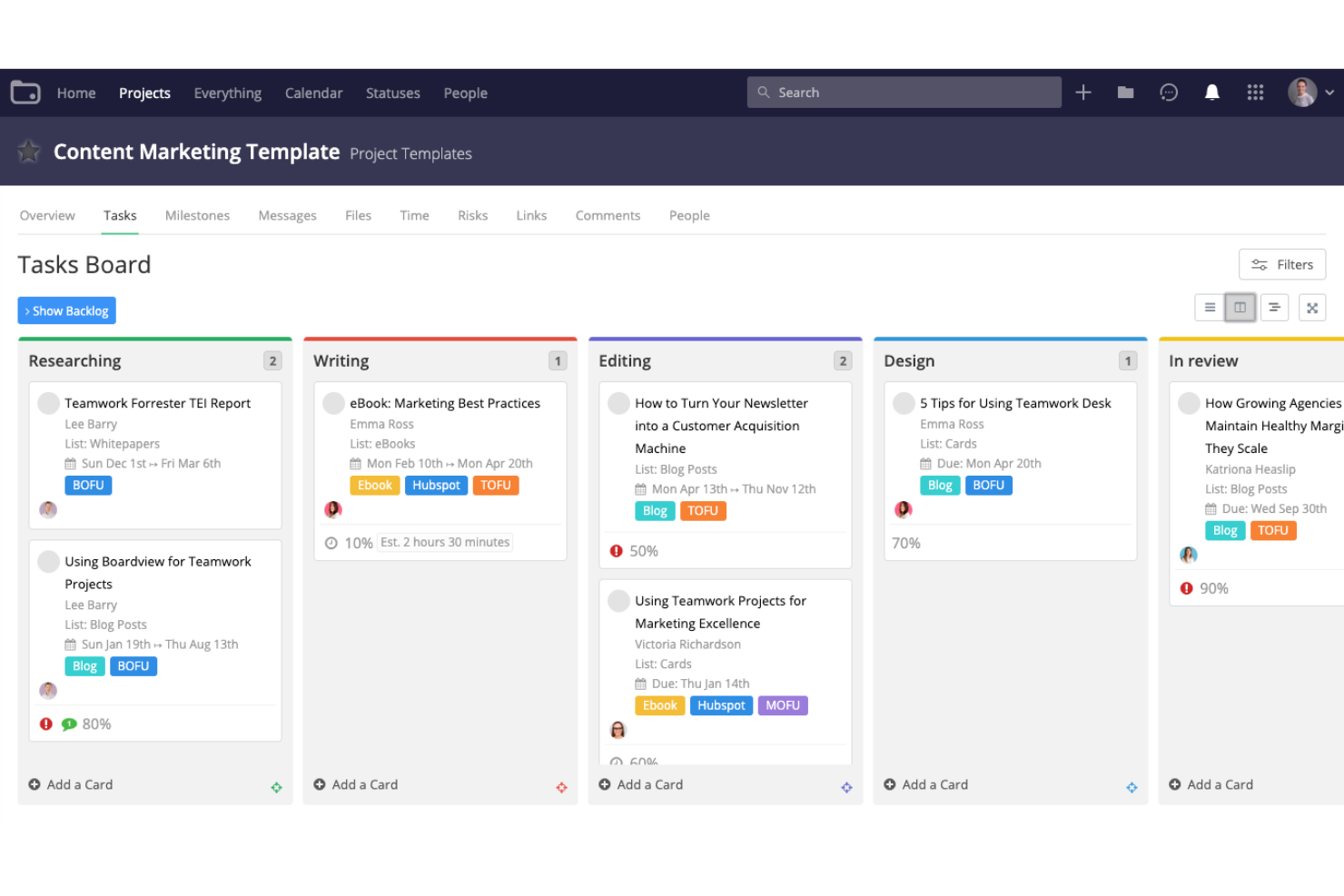
Teamwork.com is a project management platform built specifically for client work, combining task tracking, Kanban boards, Gantt charts, native time tracking, and invoicing tools in one place.
Who Is Teamwork.com Best For?
Teamwork.com is a strong fit for agencies and client-facing teams that need to track billable hours and generate invoices directly from logged project time.
Why I Picked Teamwork.com
I've included Teamwork.com in my top picks because it's the only tool on this list that connects time tracking directly to client invoicing inside the same platform. Instead of exporting hours to a separate billing tool, I can mark time as billable, set custom rates by project or team member, and generate an invoice from logged time without leaving the app. The native timesheet and timer tools make it easy to capture hours accurately, even across multiple concurrent client projects.
Teamwork.com Key Features
- Kanban board view: Visualize tasks as cards across customizable workflow stages, with drag-and-drop movement, color-coded stages, and filtering options.
- Project templates: Build reusable templates that include task lists, milestones, forms, and automations, or create new templates directly from existing projects.
- Workload and capacity management: View team workloads in real time, spot bottlenecks, and reassign tasks to balance capacity across members.
- Client and collaborator access: Add clients or external collaborators to specific projects with permission-controlled access, keeping them informed without exposing the full workspace.
Teamwork.com Integrations
Teamwork.com offers 150+ integrations, including Slack, Microsoft Teams, Google Calendar, Outlook, Xero, QuickBooks Online, HubSpot, Salesforce, and Dropbox. It also supports webhooks, an MCP server, and Zapier for custom integrations.
Pros and Cons
Pros:
- Reusable templates carry tasks and milestones
- Balances workloads across concurrent projects
- Tracks billable hours through client invoicing
Cons:
- Broader project controls add setup overhead
- Free boards allow three stages, ten cards

Kantree
Best for no-code workflow automation
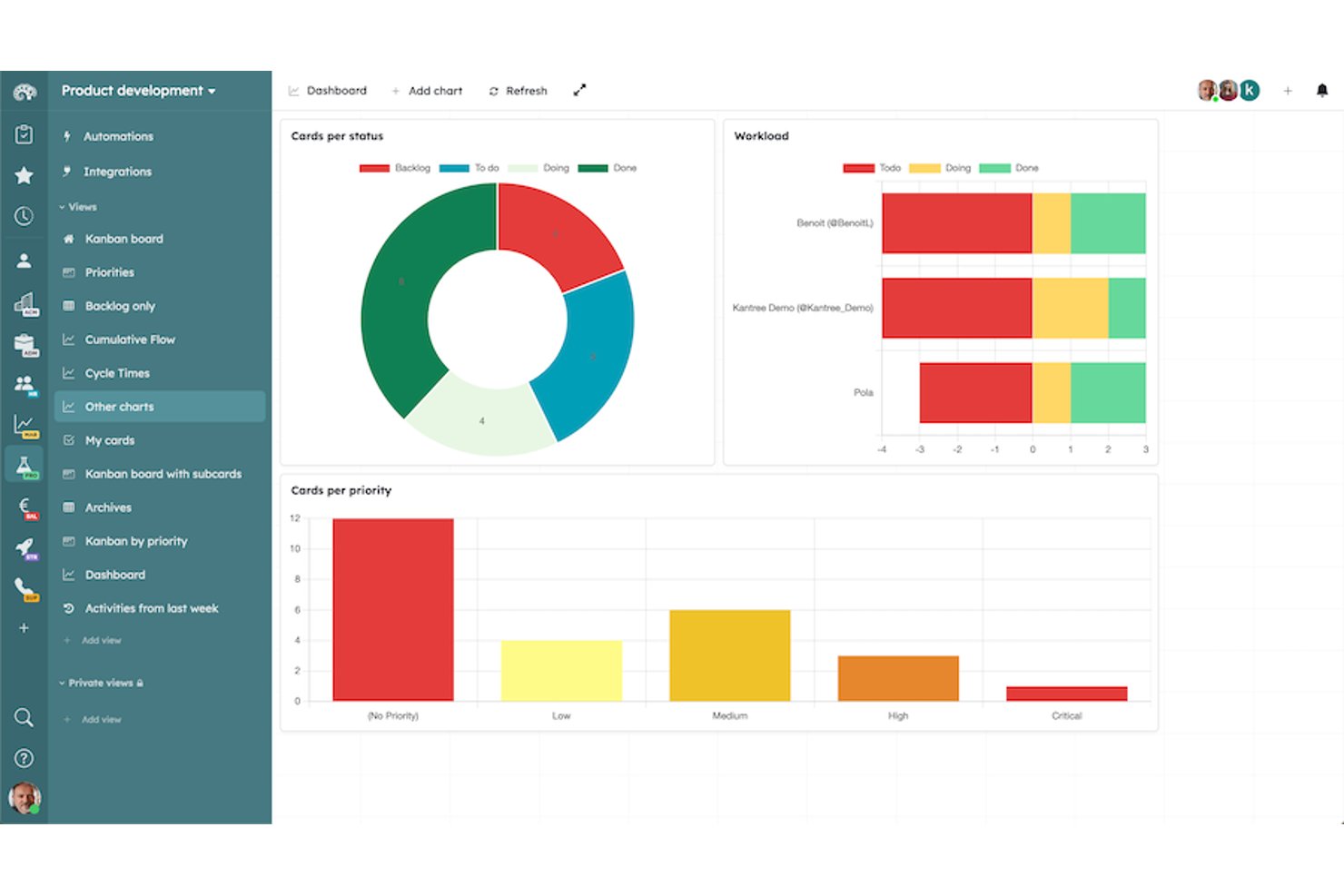
Kantree is a customizable work management platform that combines Kanban boards, multi-view project tracking, no-code workflow automation, and team collaboration tools.
Who Is Kantree Best For?
Kantree is a strong fit for operations teams and project coordinators who need to build and automate custom workflows without writing a line of code.
Why I Picked Kantree
Kantree earns its spot on my shortlist because of how far its no-code automation actually goes. I'm not talking about simple status-change triggers—you can build conditional branches, chain parallel actions, and run KQL query blocks that apply a rule to multiple cards at once. In practice, that means my team can automate things like setting relative due dates, routing requests through approval steps, or archiving completed cards without touching a single line of code.
Kantree Key Features
- Multiple project views: Switch between Kanban, table, list, matrix, timeline, and calendar views—all included on the base Team plan.
- Custom card fields: Add dates, labels, members, numbers, rich text, multiple choice, percentages, and formula fields to tailor cards to your workflow.
- Real-time comments and mentions: Discuss tasks directly on cards, mention teammates to trigger notifications, and track all activity in a filterable journal.
- Agile reporting charts: Access cycle-time, burndown, velocity, and workload charts to monitor team progress and rebalance assignments across projects.
Kantree Integrations
Kantree offers native integrations with Trello, Asana, GitHub, Slack, Google Drive, Dropbox, Microsoft OneDrive, Google Workspace, Microsoft 365, and iCalendar-compatible apps. Its REST API supports API keys, OAuth 2.0, and webhooks for custom integrations.
Pros and Cons
Pros:
- Nested cards connect work across projects
- Six project views share one workflow
- Conditional automations can update multiple cards
Cons:
- Workload charts count cards, not available hours
- Tables become difficult with large datasets
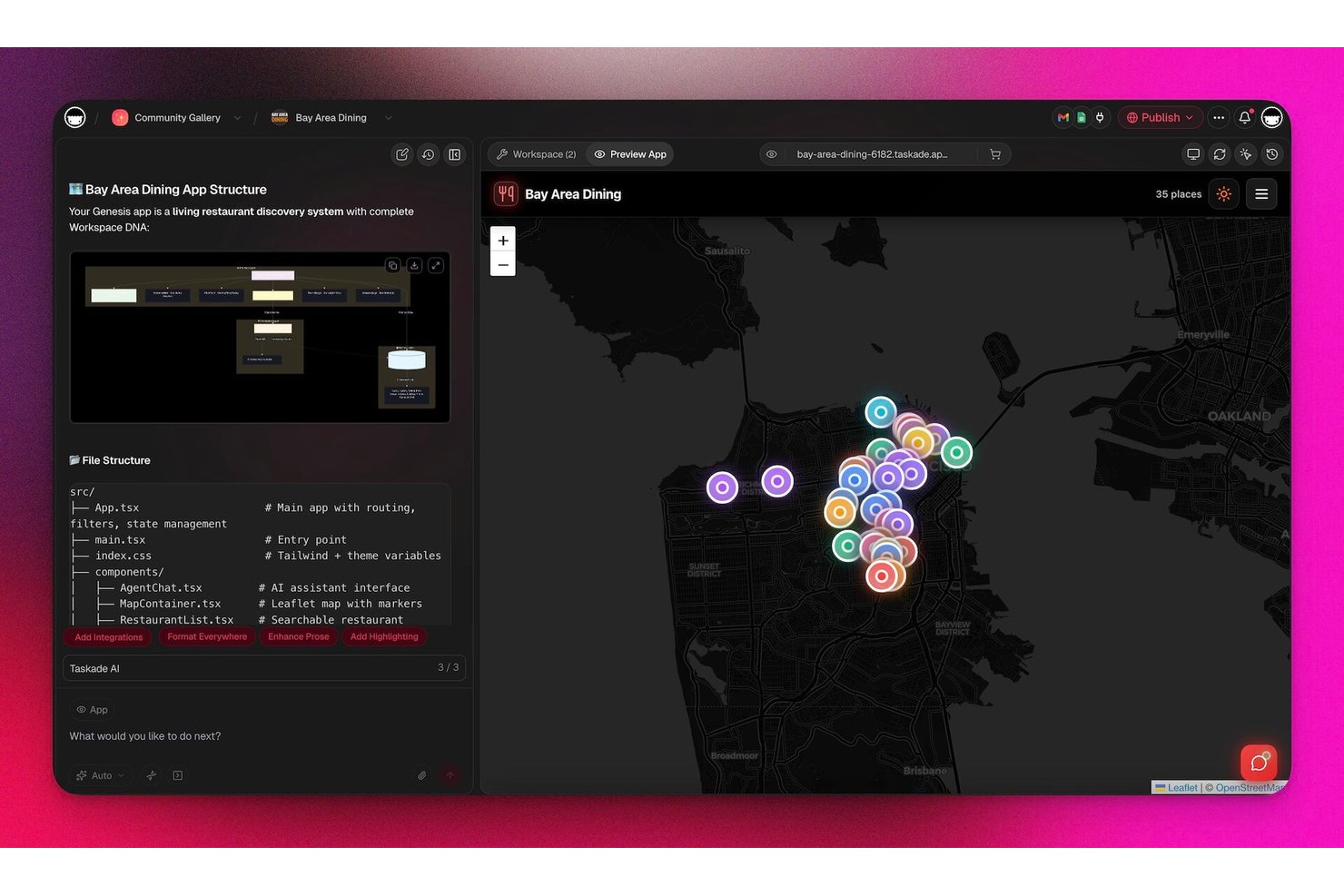
Taskade Genesis is an AI-native workspace and app builder that combines task management, Kanban boards, multi-view project tracking, and prompt-to-app creation across a single connected platform.
Who Is Taskade Genesis Best For?
Taskade Genesis is a strong fit for small business owners and freelancers who want to build client-facing apps—like portals, booking tools, or CRMs—directly inside their task workspace.
Why I Picked Taskade Genesis
I picked Taskade Genesis as one of the best because it goes further than task management by letting you build live, client-facing apps directly inside your workspace. Using Genesis, I can describe a CRM or booking tool in plain language and get a working app, complete with Stripe payments and user authentication, without leaving my projects. It's the kind of capability that sets Taskade apart from standard MeisterTask alternatives.
Taskade Genesis Key Features
- Drag-and-drop board view: A Kanban interface where top-level tasks become columns and subtasks become cards, with changes syncing across all other project views.
- Nine synchronized project views: Switch between List, Board, Table, Mind Map, Calendar, Gantt, Org Chart, Actionsheet, and Docs without duplicating data.
- Task-level custom fields: Add Status, Priority, Progress, Estimated Time, and other field types to tasks in Table view, with filtering, grouping, and sorting across records.
- Scheduled project templates: Automatically create recurring projects from a saved template on daily, weekly, biweekly, or monthly schedules, available on paid plans.
Taskade Genesis Integrations
Taskade Genesis lists 166 integrations across six categories, including Slack, Google Calendar, Google Drive, HubSpot, Stripe, GitHub, Jira, and Notion. It also supports REST API, webhooks, MCP, and Zapier for custom connectivity.
Pros and Cons
Pros:
- Comments and video keep teams aligned
- Switch synchronized views without duplicating work
- Build client apps from task workflows
Cons:
- No native workload-capacity dashboard
- AI credits can run out quickly
Notion
Best for all-in-one docs and task databases
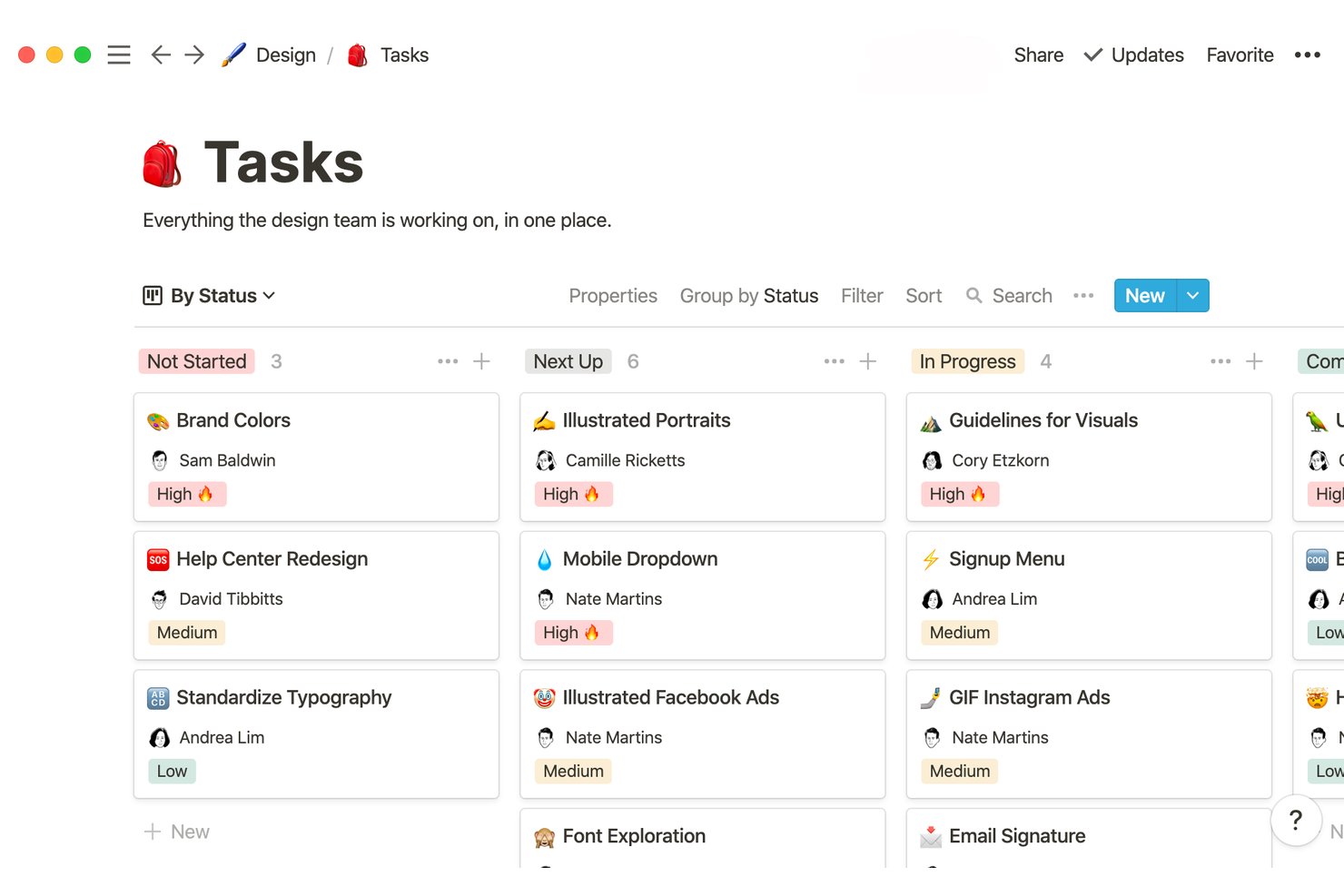
Notion is an all-in-one workspace platform that combines task databases, project boards, docs, and wikis into a single connected environment for teams.
Who Is Notion Best For?
Notion is a strong fit for teams that want their tasks, docs, and wikis living in one place rather than spread across multiple tools.
Why I Picked Notion
I've included Notion in my top picks because it's the only tool here that genuinely unifies tasks, docs, and wikis in one database-driven workspace. I love how a single project database can display the same work as a Kanban board, a timeline, a calendar, or a table, so my team never has to duplicate information across views. You can also build subtask hierarchies with dependencies and auto-calculated progress bars, which makes tracking delivery milestones feel natural rather than bolted on.
Notion Key Features
- Database automations: Set triggers—like a property change or a new page added—to automatically update statuses, reassign tasks, or send Slack notifications.
- @-mentions and comment threads: Tag teammates directly on database pages or documents, and filter comment threads by person or open/resolved status.
- Recurring database templates: Build templates that auto-populate on a daily, weekly, or monthly schedule to kick off repeating workflows.
- Granular database permissions: Control who can view or edit specific databases, available on the Business plan and above.
Notion Integrations
Notion’s connections marketplace includes Slack, Google Drive, GitHub, Jira, Linear, Microsoft Teams, Figma, and Google Calendar. It also offers a public API and webhooks for custom integrations.
Pros and Cons
Pros:
- Tracks dependencies and calculated project progress
- Reuses one database across multiple project views
- Keeps project tasks beside team documentation
Cons:
- No built-in timer for tracking time spent
- Task workflows can take substantial configuration
Asana
Best for cross-functional team workflow tracking
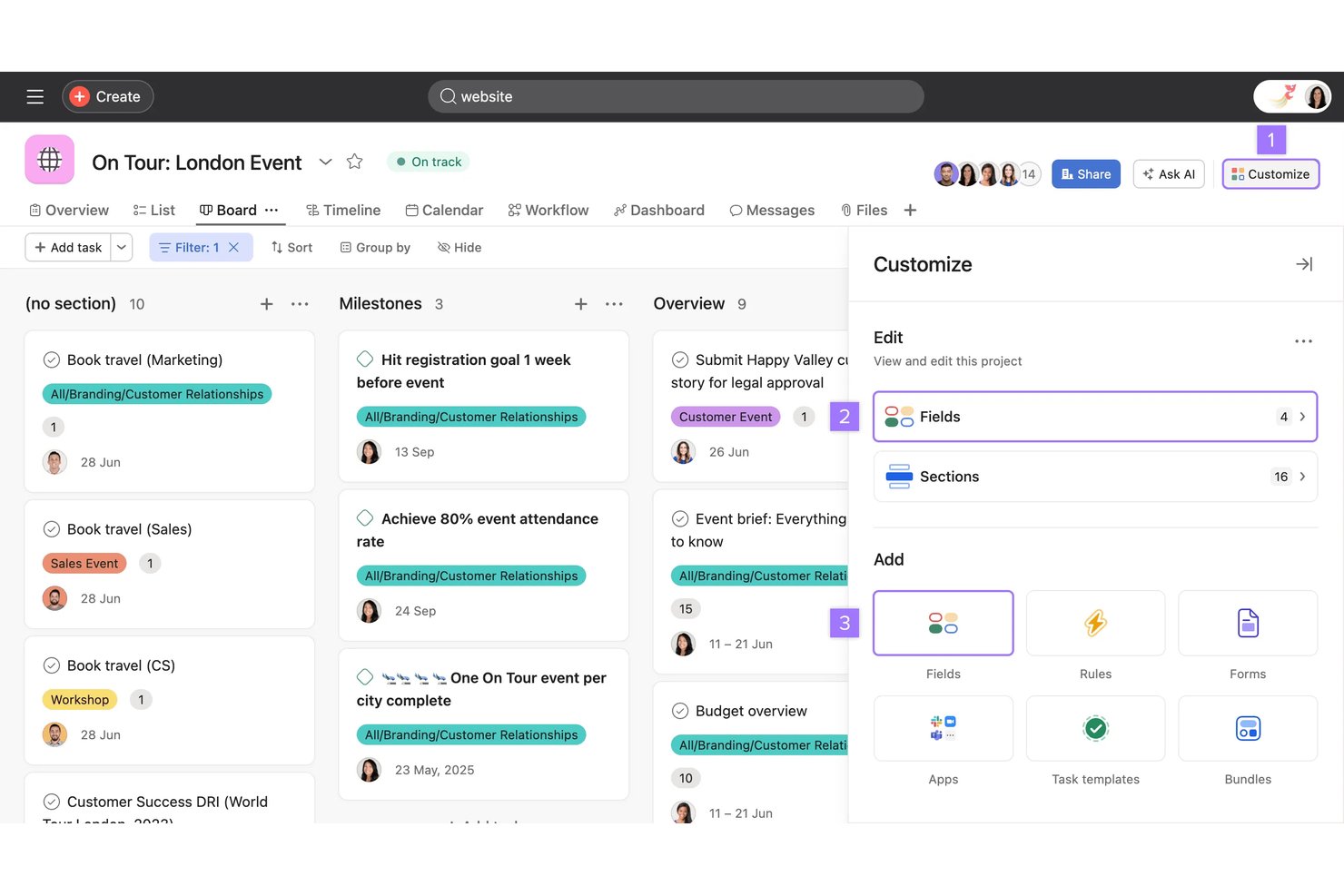
Asana is a work management platform that combines task tracking, Kanban boards, multiple project views, workflow automation, and cross-functional collaboration tools for teams managing shared projects and workstreams.
Who Is Asana Best For?
Asana is a strong fit for cross-functional teams in tech and digital environments that need to coordinate work across product, engineering, design, and operations in one shared space.
Why I Picked Asana
I've included Asana in my top picks because it's genuinely built for cross-functional work, where product, engineering, and design teams need to share a single view of what's moving and what's blocked. I particularly like how project sections can act as live workflow stages, triggering automation rules when tasks move between them, so your Kanban board does real coordination work rather than just tracking status. Portfolios pull multiple projects into one health view, which is where Asana pulls ahead for teams running parallel workstreams.
Asana Key Features
- Task dependencies: Mark tasks as waiting on others so your team always knows what's blocked and what can move forward.
- AI Studio workflow builder: Create AI-powered automations using plain-language instructions triggered by form submissions, new tasks, or project events.
- Goal tracking: Connect daily tasks to team-level goals and track progress against objectives directly inside your projects.
- CSV import from other tools: Bring existing project data into Asana by mapping exported CSV columns from tools like Trello, ClickUp, or Google Sheets.
Asana Integrations
Asana offers 200+ marketplace partners, including Slack, Microsoft Teams, Google Drive, Jira Cloud, GitHub, Salesforce, Figma, and Google Calendar. It also supports Zapier and provides a REST API, webhooks, SDKs, and an MCP server for custom integrations.
Pros and Cons
Pros:
- Dependencies clarify blocked work and sequencing
- Board stages can trigger workflow rules
- Cross-team work stays visible across projects
Cons:
- Advanced automations take setup and tuning
- Subtasks can be hard to follow in project views
Best for spreadsheet-style project scaling
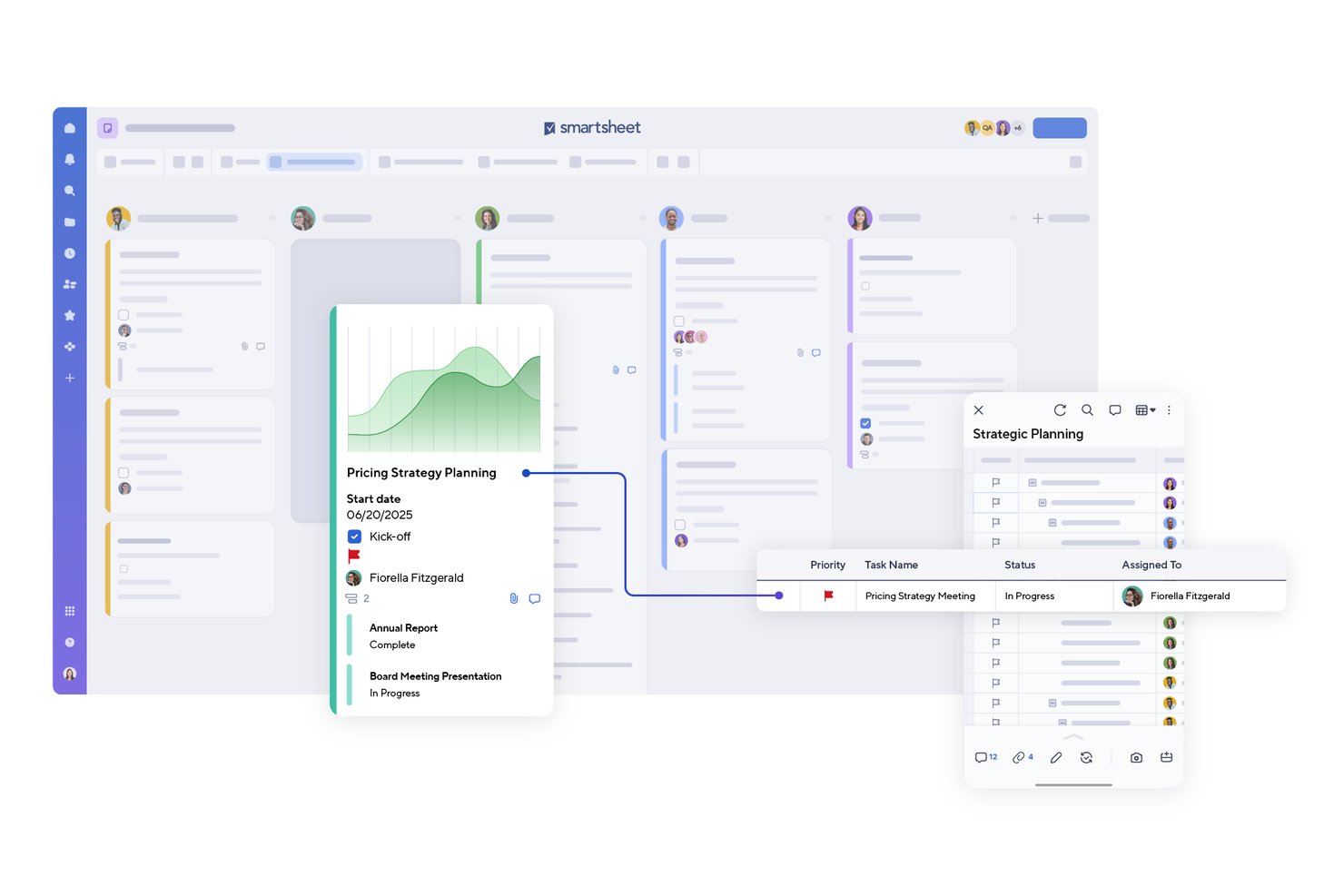
Smartsheet is a spreadsheet-style work management platform that combines task tracking, Kanban boards, Gantt timelines, automated workflows, and cross-functional reporting across Grid, Calendar, and Timeline views.
Who Is Smartsheet Best For?
Smartsheet is a strong fit for cross-functional teams that need to manage multiple projects at once and want a familiar spreadsheet-style interface with serious automation and reporting built in.
Why I Picked Smartsheet
I've included Smartsheet in my top picks because it's the go-to option when a team has outgrown simple task boards and needs to manage multiple projects at once without switching tools. I love how Board view lets you drag cards across status, phase, or assignee lanes in real time, while Gantt and Timeline views give you that cross-project visibility MeisterTask simply doesn't offer. The no-code workflow automation handles approvals, alerts, and status updates across workstreams without manual follow-up.
Smartsheet Key Features
- No-code workflow automation: Build trigger-based workflows with conditions and multi-path routing to handle approvals, alerts, and status updates without writing code.
- Cross-sheet reporting: Pull data from multiple sheets into a single report to filter, sort, and share a unified view of work across projects.
- Workload tracking: Monitor team member availability and task allocation to spot and resolve over-assignment before it affects delivery.
- Template library: Start new projects from pre-built, customizable templates covering Agile projects, project tracking, schedules, and daily task management.
Smartsheet Integrations
Smartsheet offers over 175 integrations, including Jira Software, Slack, Microsoft Teams, Google Drive, Google Calendar, Salesforce, Power BI, and Tableau. It also provides API, SDK, and MCP Server connectivity for custom integrations.
Pros and Cons
Pros:
- Shared sheets keep task updates in context
- Automated alerts reduce manual status chasing
- Cross-project timelines clarify dependencies and deadlines
Cons:
- Complex formulas and reports take practice
- Simple Kanban boards need extra configuration
New Product Updates from Smartsheet

Smartsheet Adds Non-Plan User Management in Admin Center
Smartsheet adds a Non plan users tab to the Seat types and true-up page in Admin Center. This lets system admins review non-plan users and add them to the plan or remove them from the organization in one place. For more information, visit Smartsheet’s official site.
Jira
Best for enterprise-scale Agile task tracking
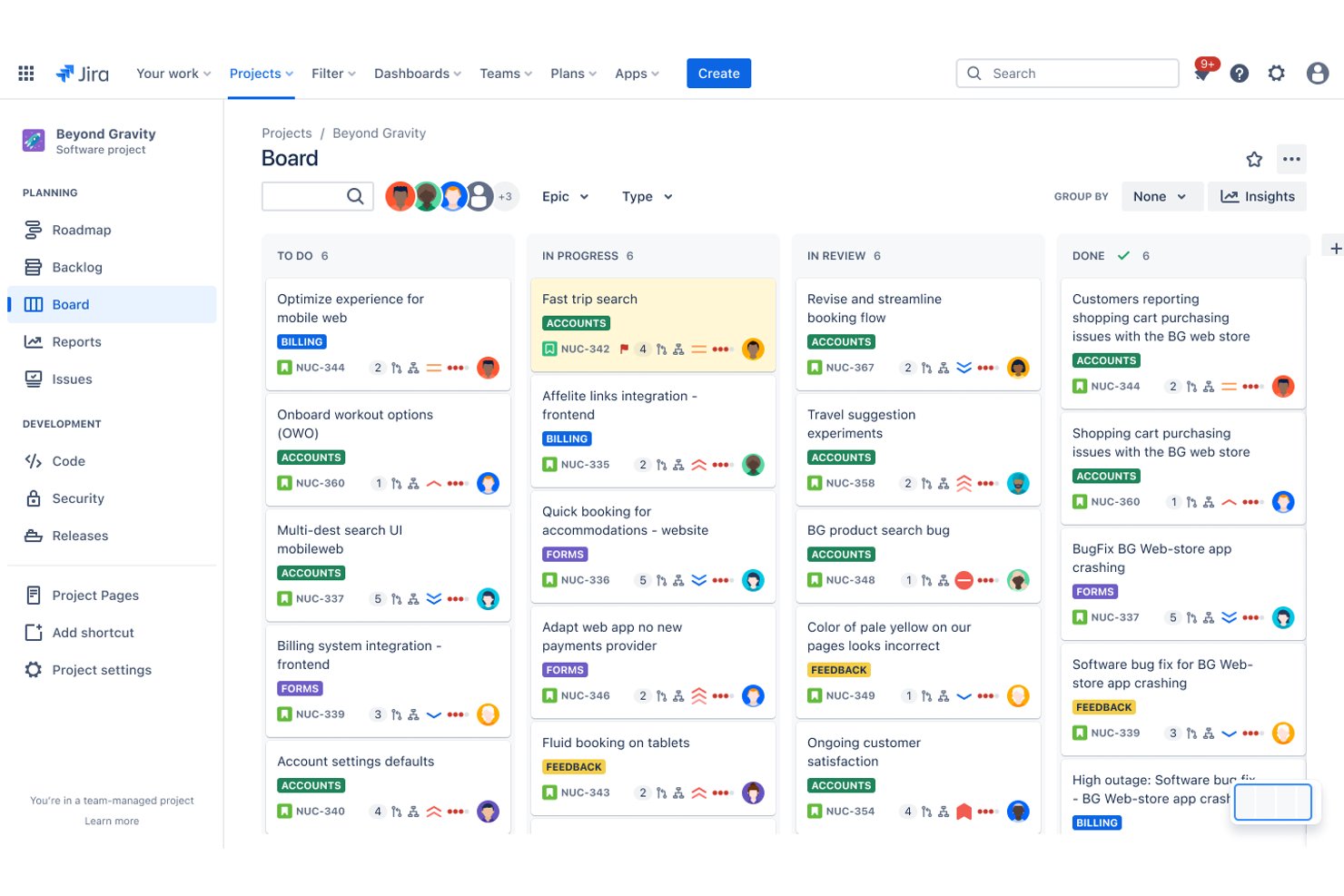
Jira is a project management and task tracking platform by Atlassian that combines Kanban and Scrum boards, sprint planning, workflow automation, dependency tracking, and reporting across multiple project views.
Who Is Jira Best For?
Jira is a strong fit for engineering and product teams that need Agile-native task tracking—sprint boards, dependency management, and cross-team planning—at scale.
Why I Picked Jira
Jira earns its spot on my shortlist because it's purpose-built for Agile work at a scale MeisterTask simply can't match. I love how sprint boards and cross-team dependency tracking work together in one place, so engineering and product teams can manage work across multiple squads without losing sight of blockers. Capacity planning in Jira Premium even visualizes overallocation directly on the timeline, turning a red bar into an immediate signal that something needs to shift.
Jira Key Features
- Workflow automation: A no-code rules engine lets you trigger actions across one or more projects based on status changes, assignments, or custom conditions.
- Custom fields and card layouts: Board cards can display up to three custom fields and use color-coding based on work type, priority, assignee, or JQL query.
- CSV importer: Teams can bring in work items, comments, work logs, and attachments from external systems using a mapped CSV file.
- Atlassian Marketplace integrations: Over 3,000 apps connect Jira to tools like Slack, GitHub, Figma, and Google Workspace.
Jira Integrations
Jira has native integrations with Confluence, Trello, and Bitbucket, plus over 3,000 Marketplace integrations and a REST API v3 for custom connections. Documented integrations also include Slack, Microsoft, Google, Zoom, Figma, and Gmail.
Pros and Cons
Pros:
- Time tracking compares estimates with logged work
- Cross-team plans reveal dependencies and capacity overloads
- Configurable Scrum and Kanban boards clarify work stages
Cons:
- Crowded screens add friction to routine updates
- Configuration overhead can outweigh simple task tracking
Hive
Best for eight synced views in one workspace
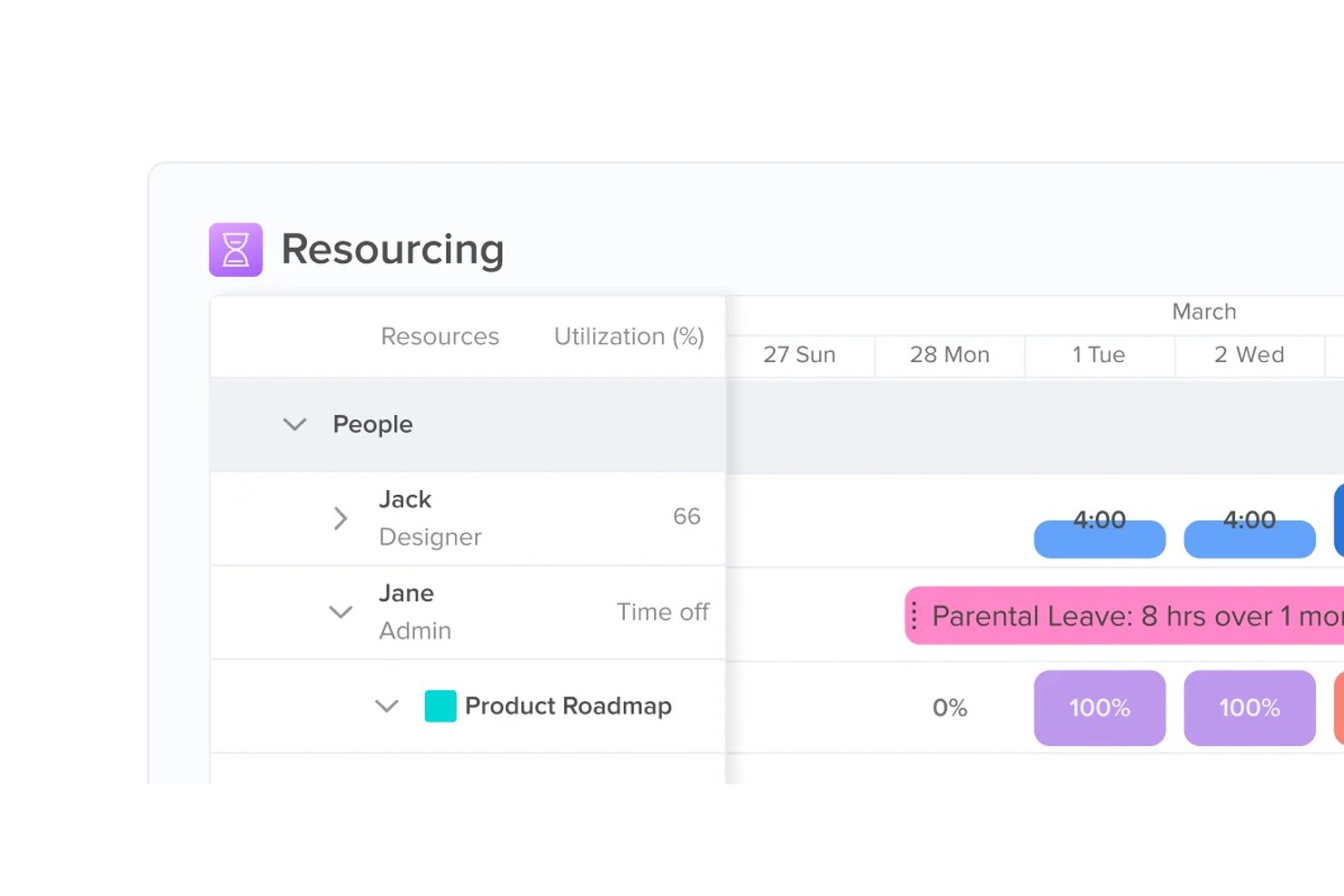
Hive is a work management platform that brings together task tracking, multiple project views, workflow automation, team collaboration, and built-in time tracking across a single workspace.
Who Is Hive Best For?
Hive is a strong fit for project coordinators and operations teams who need to manage multiple workstreams across a single, flexible workspace.
Why I Picked Hive
Hive earns its spot on my shortlist because of how it handles multiple project views in a single, connected workspace. I love that you can flip between eight layouts (List, Status, Team, Label, Calendar, Gantt, Table, and Timeline) and every change syncs across all of them in real time, so nothing falls out of date when you switch perspectives. In practice, that means my team can track deadlines in Gantt, reassign work in Team view, and review progress in a Status board without ever touching the same task twice.
Hive Key Features
- Workflow automation builder: Set triggers based on status changes, form submissions, or scheduled events, and define one or more actions like reassigning tasks, updating due dates, or sending Slack messages.
- Built-in time tracking: Log time directly on action cards using a timer or manual entry, then roll that time into team timesheets for review and approval.
- Collaborative notes: Edit shared documents in real time alongside your tasks, making it easy to capture meeting notes, briefs, or specs without leaving the workspace.
- Project templates: Build reusable project structures that include tasks, subtasks, assignees, labels, and dates, with copy options for attachments, custom fields, and approvals.
Hive Integrations
Hive states it offers over 1,000 integrations, including native connections with Google Drive, Google Calendar, Slack, Jira, GitHub, Zoom, Dropbox, Microsoft Teams, and Outlook Calendar. It also supports REST and GraphQL APIs plus Zapier.
Pros and Cons
Pros:
- Shared notes and task comments centralize coordination
- Kanban boards pair with deadline-focused Gantt planning
- Eight synced views keep task updates aligned
Cons:
- Mobile app trails desktop for field updates
- Project setup can take days of configuration
Other MeisterTask Alternatives
Below is a list of additional MeisterTask alternatives that I shortlisted. While they didn’t make the top 10, they’re still valuable and worth further research.
- Zoho Projects
For in-depth task reporting
- Businessmap
For portfolio-level Kanban planning
- Zenkit
For switching views without losing data
- ClickUp
For all-in-one task and project depth
- Nifty
For milestone-driven project tracking
- Productive
For agency project and financial oversight
- Bitrix24
For CRM-connected task collaboration
- Linear
For dev-team issue tracking and Kanban boards
- Stackfield
For EU-encrypted all-in-one workspaces


Related Project Management Software Reviews
If you still haven't found what you're looking for here, check out these other related tools that we've tested and evaluated:
- Time Tracking Software
- Task Management Software
- Collaboration Tools
- Gantt Chart Maker
- Productivity Tools
- Project Tracking Software
- Project Scheduling Software
How I Evaluate MeisterTask Alternatives
I split my evaluation into three parts, giving the most weight to core needs: move tasks across visual boards, assign owners, and track deadlines. Next, I look for differentiators such as built-in time tracking for client billing. Finally, I consider pricing value, onboarding, and responsive support.
Core Functionality (Table Stakes For This List)
When I'm selecting tools for my list, I score each one on a scale from 0 (does not offer the functionality) to 5 (excels in this area) for each core functionality listed below. I then convert the total into a percentage to help assess each tool's overall fit, with extra weight on any functionalities I’ve deemed essential.
- Visual Task Boards (Essential): I look for customizable stages and movable cards that make it easy to see work progress across projects.
- Task Assignment & Tracking (Essential): I assess whether teams can assign owners, set due dates, and track status as work changes.
- Team Collaboration: I check for comments, file attachments, and activity updates that keep project decisions with the related tasks.
- Workflow Automation: I look for rules that handle recurring steps, such as notifying an owner when a task changes status.
- Multiple Project Views: I consider whether teams can switch between useful views, such as boards, lists, calendars, or timelines.
- Third-Party Integrations: I evaluate connections to tools for communication, file storage, and calendars used in existing workflows.
Once I have a list of tools that meet the criteria, I consider what sets each platform apart.
Differentiating Factors (What Sets Vendors Apart)
Here's how I compare and contrast different vendors:
Standout Features
I look for native time tracking on tasks, since agency teams billing multiple clients need logged hours without jumping to a separate app. Workload views matter just as much—I check whether a tool shows each team member's capacity so managers can rebalance assignments before deadlines slip. I also evaluate project and task templates, especially for repeatable work like sprint cycles or client onboarding, where a ready-made structure cuts setup time to minutes.
Beyond Features
I check whether a tool lets you export boards, tasks, and history cleanly—CSV export and open API access matter when you want to avoid vendor lock-in down the road. Pricing transparency is just as important; I look for clear per-seat costs and watch for hidden caps on automations or storage that inflate the bill after onboarding. I also evaluate how quickly a small team can get productive, since most teams leaving MeisterTask expect a similarly low learning curve with guided setup and ready-made templates.
Why Look for a MeisterTask Alternative
While MeisterTask is a valuable project management software solution, some teams may look for alternatives for the following reasons:
- Cost concerns: If you find the pricing model of MeisterTask to be outside your budget, you may need to seek an alternative solution.
- Feature limitations: MeisterTask offers several features, but it won't be helpful if it doesn't supply the tools you need to complete various projects, making an alternative necessary.
- User experience issues: A hard-to-use interface can decrease performance and productivity. To succeed, your team will need a user-friendly interface and an alternative may have that solution.
- Integration needs: MeisterTask integrates with several software options, but if it doesn't connect well with your current stack, a different solution might serve you better.
- Support and resources: Additional learning resources and customer support can help your team as you learn the software.
Different solutions can provide different features, pricing models, and user experiences that may better suit your project management needs. They may also offer improved integration capabilities and support resources, aligning with the specific requirements you have identified.
MeisterTask Key Features
Here are some of the key features of MeisterTask to help you contrast and compare what alternative solutions offer:
- Centralized Work Management: Provides a secure platform for managing projects, tasks, and documentation, facilitating efficient teamwork.
- Project Management: Offers task management boards for visualizing workloads and tracking project status.
- Documentation: Enables the creation of a navigable knowledge base for documenting processes and strategies.
- Team Collaboration: Allows adding team members and external collaborators, assigning responsibilities, and tracking progress.
- User-Friendly Onboarding: Simplifies task management with Kanban boards and purpose-built templates for quick project initiation.
- AI Assistance: Features built-in AI for finding information and generating content.
- Task Importing: Facilitates quick conversion of emails and meeting notes into tasks, with calendar synchronization.
- Progress Tracking: Provides reports for monitoring team progress and measuring productivity.
- Enterprise-Grade Security: ISO 27001 certified and fully GDPR compliant, ensuring data security and privacy.
- Mobile Accessibility: Empowers teams to manage work on-the-go with mobile applications.
Choosing the right project management software depends on your team’s needs, whether you are looking for enhanced automation, better collaboration, or more advanced reporting. The software should align with your workflow, improve efficiency, and integrate seamlessly with your existing tools.