

I 10 migliori strumenti di gestione dei progetti integrati con Microsoft Teams

Elenco dei migliori software di gestione dei progetti che si integrano con Microsoft Teams


Scegliere un software di gestione dei progetti che si integri con Microsoft Teams può migliorare la collaborazione e la produttività del team. Tuttavia, trovare la soluzione migliore per la propria azienda può sembrare difficile, soprattutto quando sono disponibili così tante opzioni.
Per aiutarti a iniziare, ho raccolto alcuni dei migliori software sulla base di usabilità, scalabilità e redditività. Grazie a questi consigli, puoi scegliere con sicurezza il miglior software di gestione dei progetti per soddisfare le esigenze del tuo team e portare i tuoi progetti al successo.
Perché fidarsi dei nostri consigli sui software
Il nostro team testa e recensisce software dal 2012. In quanto project manager noi stessi, sappiamo quanto sia difficile — e importante — scegliere il software giusto.
Per questa guida, abbiamo valutato gli strumenti attraverso test pratici e ricerche indipendenti, assegnando un punteggio agli strumenti in base ai nostri criteri di selezione. Ci basiamo inoltre sulle competenze di leader di pensiero del settore e di professionisti attivi nella gestione dei progetti.
Le nostre recensioni riflettono il nostro giudizio editoriale umano, non un discorso di vendita.
Revisori esperti:
Tabella comparativa: software di gestione dei progetti che si integrano con Microsoft Teams
Questa tabella comparativa riassume i dettagli sui prezzi delle mie migliori selezioni di software di gestione dei progetti che si integrano con Microsoft Teams:
| Tool | Best For | Trial Info | Price | ||
|---|---|---|---|---|---|
| 1 | Ideale per l'automazione delle attività tramite AI in Teams | Prova gratuita di 14 giorni | Da $9/utente/mese (fatturato annualmente) | Website | |
| 2 | Ideale per viste di progetto flessibili | Prova gratuita di 14 giorni + piano gratuito disponibile | A partire da $10/utente/mese (fatturazione annuale) | Website | |
| 3 | Ideale per la funzione di monitoraggio del tempo integrata | Prova gratuita di 14 giorni + piano gratuito + demo gratuita disponibile | Da $5/utente/mese (fatturato annualmente) | Website | |
| 4 | Ideale per una pianificazione dei progetti facile da usare | Prova gratuita di 15 giorni + piano gratuito + demo gratuita disponibile | Da $4/utente/mese (fatturato annualmente) | Website | |
| 5 | Ideale per il monitoraggio dei progetti integrato in Microsoft 365 | Prova gratuita di 30 giorni | A partire da $10/utente/mese (con fatturazione annuale) | Website | |
| 6 | Ideale per ridurre il passaggio tra app in un unico hub | Piano gratuito disponibile; prova gratuita di 14 giorni | A partire da $16/utente/mese | Website | |
| 7 | Ideale per la versatilità di uno strumento tutto-in-uno | Piano gratuito disponibile | A partire da 7 $/utente/mese (con fatturazione annuale) | Website | |
| 8 | Best for regnearklignende prosjektvisninger | 30 dagers gratis prøveperiode | Fra $9/bruker/måned (fakturert årlig) | Website | |
| 9 | Ideale per la pianificazione tra i team | Prova gratuita di 7 giorni | Da $7.50/utente/mese (fatturato annualmente) | Website | |
| 10 | Ideale per collegare il lavoro agli obiettivi | Piano gratuito disponibile | A partire da $10.99/utente/mese (con fatturazione annuale) | Website |


Recensioni dei migliori software di gestione dei progetti che si integrano con Microsoft Teams
Trovare il software di gestione dei progetti giusto, che si integri perfettamente con Microsoft Teams, può trasformare il modo in cui il tuo team collabora e gestisce i progetti. Le mie recensioni dettagliate ti guideranno attraverso vantaggi e svantaggi, funzionalità principali e scenari ideali per ogni software.
Ideale per l'automazione delle attività tramite AI in Teams
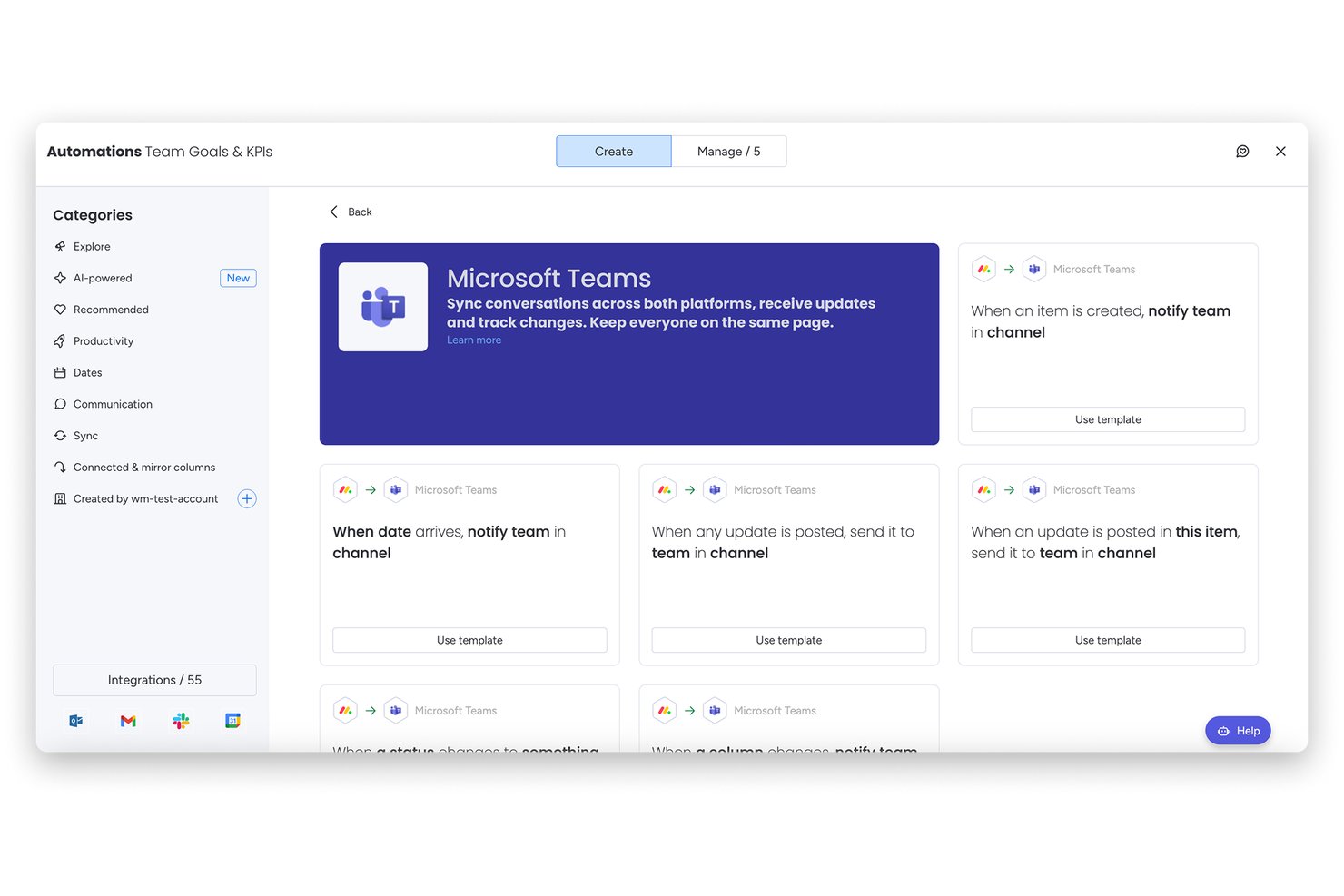
monday AI Workspace è una piattaforma di gestione progetti potenziata dall'AI che combina automazione dei processi, supervisione del portafoglio e collaborazione trasversale con un'integrazione nativa di Microsoft Teams per gestire il lavoro direttamente all'interno di Teams.
Per chi è ideale monday AI Workspace?
monday AI Workspace si adatta a team di medie e grandi dimensioni che gestiscono progetti trasversali nell'ecosistema Microsoft 365 e che necessitano di più automazione e intelligenza artificiale rispetto agli strumenti nativi di Teams.
Perché ho scelto monday AI Workspace
monday AI Workspace merita il suo posto nella mia shortlist perché l'AI Workflow Builder automatizza l'assegnazione e l'instradamento delle attività non appena si attiva un trigger, come la creazione di un ticket incidente ad alta priorità su Teams quando viene generato un allarme di monitoraggio. Mi affido inoltre all'AI Meeting Notetaker per trasformare le discussioni delle riunioni su Teams in elementi tracciabili nelle board senza doverli inserire manualmente. Il bot di monday gestisce tutto il resto, consentendo al mio team di creare elementi, aggiornare stati e visualizzare informazioni contestuali delle board direttamente dalle chat di Teams.
Funzionalità principali di monday AI Workspace
- Schede interattive in Teams: Fissa board, dashboard e viste progetto come schede modificabili direttamente all'interno dei canali Microsoft Teams.
- Dashboard snapshot del portafoglio: Visualizza dashboard multi-progetto in tempo reale che mostrano cronologie, dipendenze e stati con aggiornamenti immediati.
- Approvazioni tramite schede adattive: Approva, rifiuta o commenta richieste usando schede adattive nelle conversazioni Teams senza lasciare la chat.
- Integrazione SSO Azure AD: Accedi con le credenziali Microsoft 365 e collega monday a SharePoint, OneDrive e Outlook per un'autenticazione senza interruzioni.
Integrazioni di monday AI Workspace
monday AI Workspace offre integrazioni native nell'ecosistema Microsoft, inclusi Microsoft Teams, Microsoft 365 e Azure, oltre a Slack, Salesforce, HubSpot, Google Workspace, Zoom e Jira. Supporta Zapier e offre un'API per integrazioni personalizzate.
Pros and Cons
Pros:
- L'AI automatizza la creazione delle attività dalle chat di Teams
- Le board si possono fissare come schede completamente modificabili in Teams
- Strumento di automazione granulare con trigger senza codice
Cons:
- Le funzionalità AI sono disponibili solo nei piani superiori
- Il volume delle notifiche su Teams può sopraffare gli utenti
New Product Updates from monday AI Workspace
monday AI Workspace Adds Human Approval Routing
monday AI Workspace adds a human-in-the-loop approval block to AI Workflows, sending approval requests and routing workflow paths based on responses. For more information, visit monday AI Workspace's official site.

Wrike
Ideale per viste di progetto flessibili
Wrike è un potente software di gestione dei progetti progettato per aiutare i team a collaborare in modo efficiente e a raggiungere i propri obiettivi. Offre una suite completa di strumenti per pianificare, monitorare e gestire i progetti, rendendolo una soluzione ideale per aziende di tutte le dimensioni.
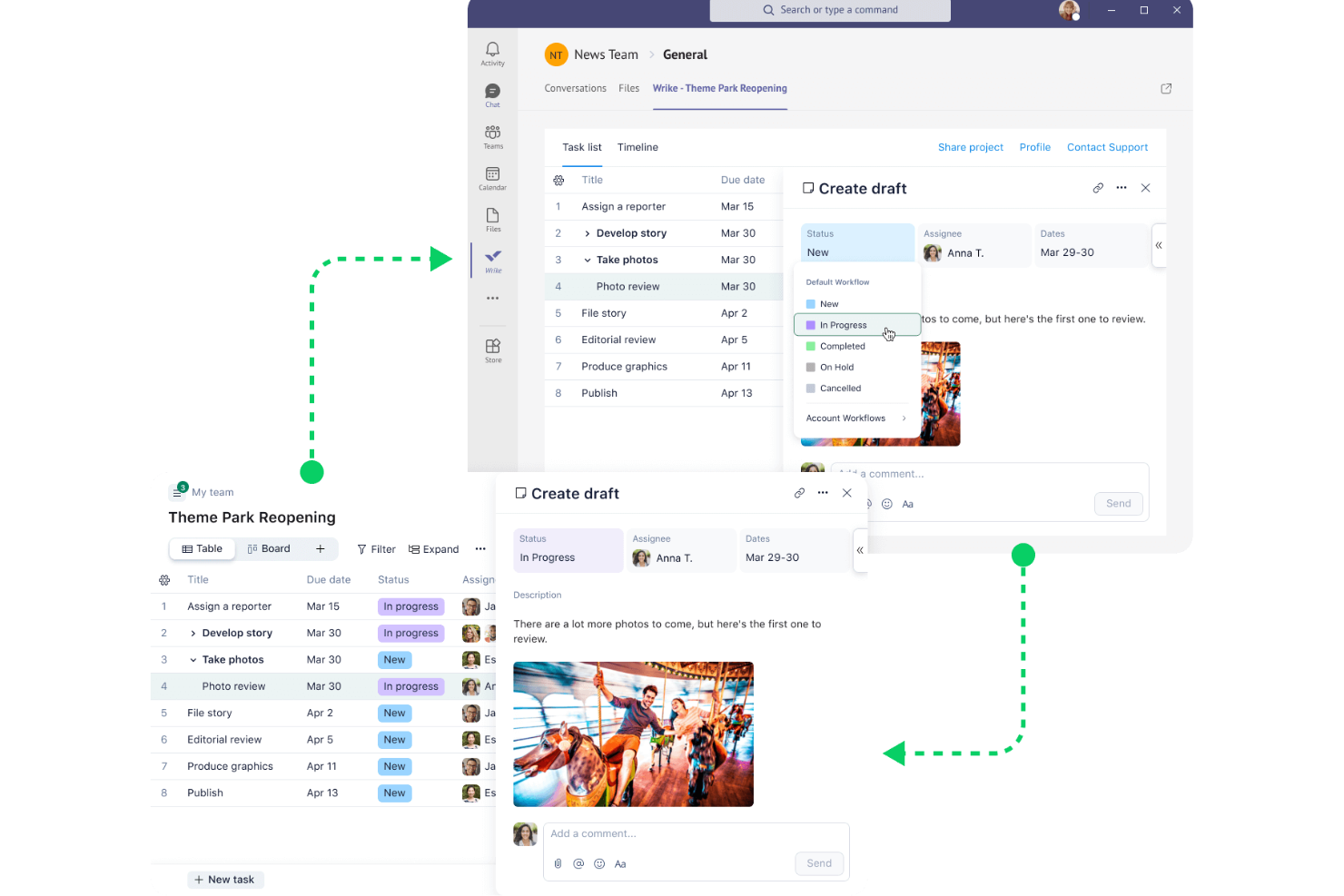
Perché ho scelto Wrike: Wrike si integra con Microsoft Teams per migliorare la gestione dei progetti permettendo agli utenti di gestire attività, cartelle, progetti e spazi direttamente dall’interfaccia di Teams. Questa integrazione supporta aggiornamenti e notifiche in tempo reale, garantendo che tutti i membri del team siano sempre informati sull’avanzamento dei progetti senza dover cambiare applicazione. Gli utenti possono aggiungere progetti Wrike come tab nei canali di Teams, visualizzare le attività in modalità Elenco o diagramma di Gantt, creare e modificare attività, e collaborare tramite commenti e menzioni.
Caratteristiche principali & integrazioni:
Funzionalità incluse gestione del carico di lavoro, moduli di richiesta personalizzati, monitoraggio del tempo, diagrammi di Gantt, gestione del budget, modelli di progetto, revisione e approvazioni, versionamento dei documenti, automazione, feed di notizie in tempo reale e supporto per app mobile.
Integrazioni incluse Microsoft Teams, Salesforce, Google Drive, Slack, Dropbox, Adobe Creative Cloud, Box, Evernote, OneDrive, GitHub, Zapier e Trello.
Pros and Cons
Pros:
- Strumenti di revisione potenti
- Buone funzionalità di automazione dei flussi di lavoro
- Viste di gestione progetti dinamiche e visive
Cons:
- Le opzioni di personalizzazione possono risultare complesse
- Mancanza di una chat integrata nell'app
New Product Updates from Wrike
Wrike Adds Klaxoon MCP Integration
Wrike’s Klaxoon MCP integration is now generally available, enabling AI agents to navigate between Wrike tasks and attached whiteboards, read task context, and manage whiteboard attachments via API. For more information, visit Wrike's official site.

Hive
Ideale per la funzione di monitoraggio del tempo integrata
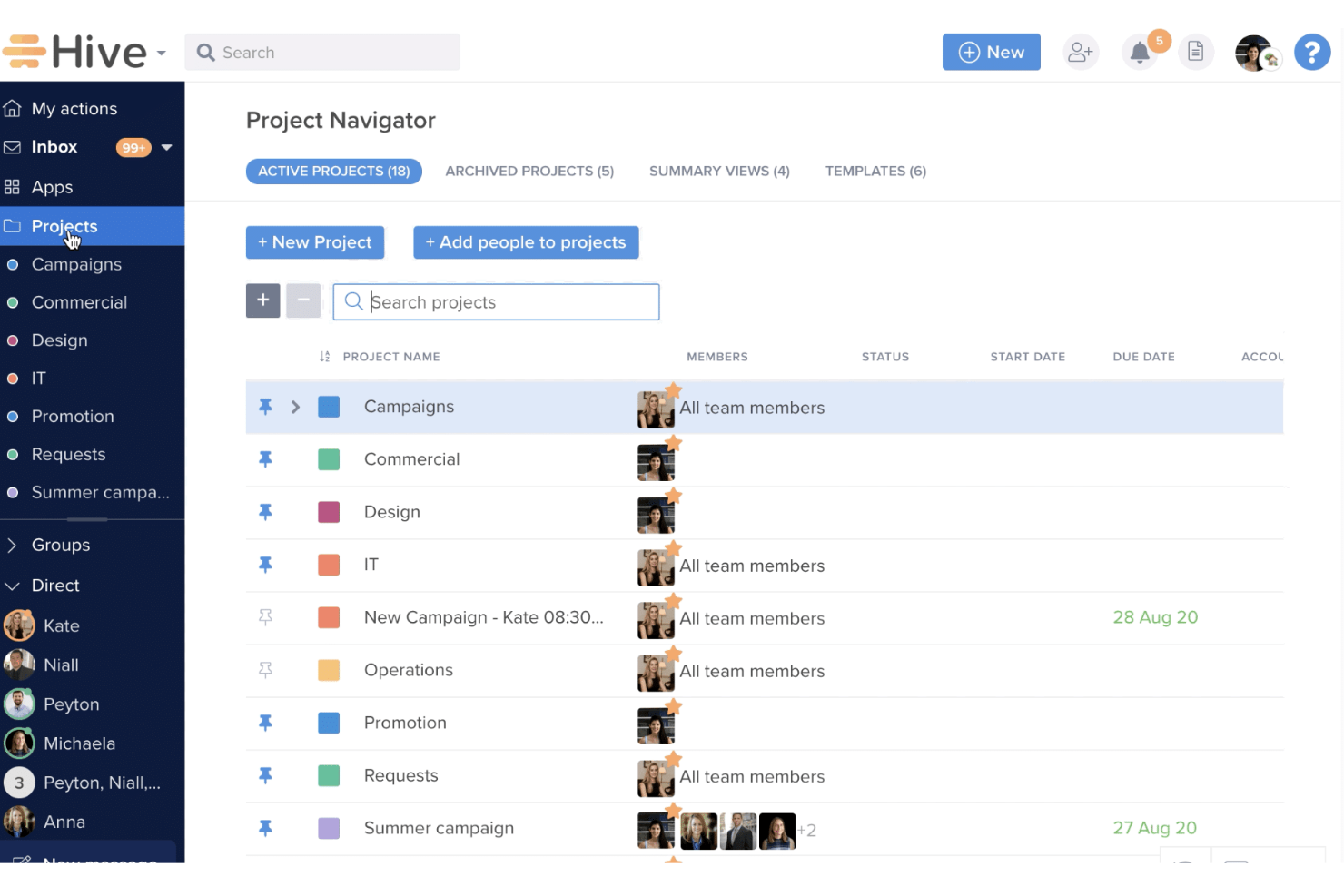
Hive è una piattaforma di gestione progetti e collaborazione progettata per aiutare i team a pianificare, eseguire e monitorare i progetti in modo efficiente. Offre vari strumenti per gestire le attività, monitorare i progressi e facilitare la comunicazione all'interno del team, tutto in un'unica interfaccia.
Perché ho scelto Hive: Ho scelto Hive per la sua flessibilità nella visualizzazione dei progetti. Puoi visualizzare i tuoi progetti in formati come diagrammi di Gantt, bacheche Kanban, calendari e tabelle, permettendo a ogni membro del team di lavorare nel modo che preferisce. Questa flessibilità aiuta il tuo team a gestire attività e scadenze in modo più efficace. Inoltre, con il monitoraggio del tempo integrato, il tuo team può tenere traccia del tempo dedicato ai singoli compiti, facilitando una pianificazione accurata dei progetti e l'allocazione delle risorse.
Caratteristiche distintive e integrazioni:
Caratteristiche includono strumenti per la gestione delle risorse, un editor di documenti con intelligenza artificiale, modelli di progetto, viste di portafoglio, etichette, livelli di urgenza, schede attività, raccolta tramite moduli, reportistica sul tempo e monitoraggio del tempo fatturabile.
Integrazioni includono Microsoft Teams, Google Drive, Google Calendar, Dropbox, QuickBooks, Zoom, Slack, Jira e GitHub.
Pros and Cons
Pros:
- Ampia gamma di modelli di progetto
- Varie visualizzazioni per il monitoraggio dei progressi
- Interfaccia intuitiva
Cons:
- L'app mobile potrebbe offrire più funzionalità
- Molte funzionalità di personalizzazione sono limitate ai piani di livello superiore

Ideale per una pianificazione dei progetti facile da usare

Zoho Projects è uno strumento completo per gestire i tuoi progetti con facilità. Si distingue per le sue capacità intuitive di pianificazione dei progetti, risultando la scelta ideale per i team che cercano una soluzione di project management facile da usare.
Perché ho scelto Zoho Projects: L’interfaccia semplice e accessibile di Zoho Projects contribuisce a semplificare la gestione dei progetti, rendendolo il migliore per una pianificazione facile e intuitiva. Lo strumento offre un equilibrio tra profondità e semplicità, assicurando che i team possano iniziare rapidamente senza una curva di apprendimento troppo ripida.
Funzionalità principali e integrazioni:
Le principali funzionalità di Zoho Projects includono gestione delle attività, diagrammi di Gantt, monitoraggio del tempo, gestione delle segnalazioni, gestione documentale, forum di progetto, report e dashboard di progetto, automazione con Blueprint, gestione del budget e gestione dei timesheet.
Zoho Projects si integra con numerosi strumenti, tra cui Microsoft Teams, Office 365, Slack, Dropbox, SharePoint, GitHub, BitBucket, GitLab, Zoho CRM, Zoho Meeting, Zoho Sprints, Zoho Books & Invoice, Zoho People, Zoho Flow, Zoho Analytics, Zoho Desk e Zoho Directory.
Pros and Cons
Pros:
- Interfaccia user-friendly per una pianificazione dei progetti semplice
- Set completo di funzionalità tra cui automazione dei task e rilevazione dei tempi
- Ampia gamma di integrazioni native con altri strumenti e servizi
Cons:
- Prestazioni a volte lente con progetti di grandi dimensioni
- Opzioni di personalizzazione limitate
New Product Updates from Zoho Projects
Zoho Projects Adds CodeX Scripts for Custom Modules
Zoho Projects now supports CodeX Scripts for custom modules, enabling conditional logic and rules for creating, updating, and deleting records. For more information, visit Zoho Projects' official site.
 .
.
Ideale per il monitoraggio dei progetti integrato in Microsoft 365
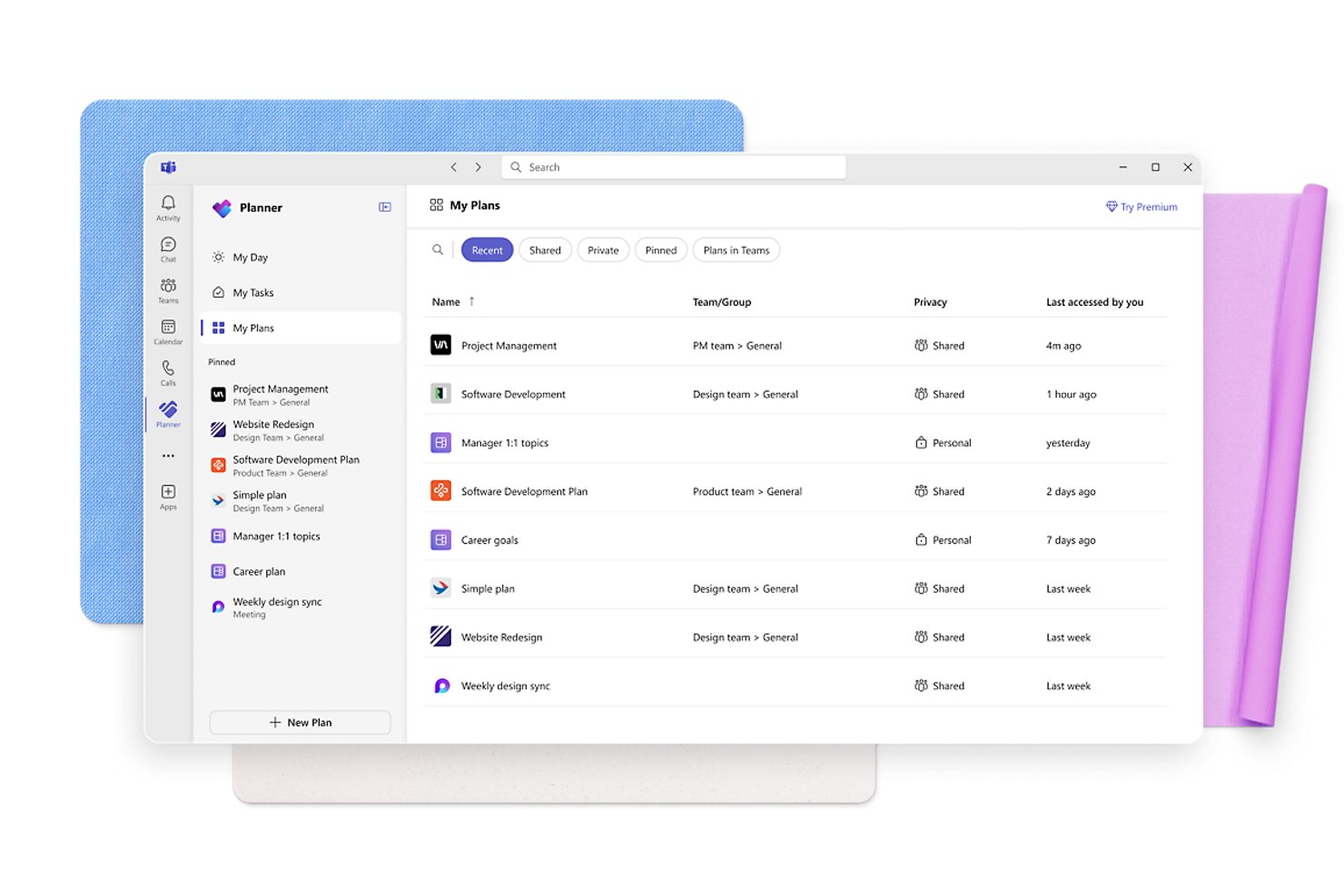
Microsoft Planner è uno strumento per la gestione di attività e progetti integrato in Microsoft 365, che consente ai team di creare piani, assegnare attività, monitorare i progressi e collaborare nelle viste Griglia, Bacheca, Pianificazione e Grafici, tutto all'interno dell'ecosistema Microsoft.
Per chi è più adatto Microsoft Planner?
Microsoft Planner è una scelta naturale per i team che lavorano già in Microsoft 365 e desiderano integrare il monitoraggio delle attività negli strumenti che usano ogni giorno.
Perché ho scelto Microsoft Planner
Microsoft Planner è entrato nella mia lista ristretta perché la gestione delle attività si svolge interamente all'interno di Microsoft 365, invece di essere uno strumento da aggiungere in un secondo momento. Apprezzo particolarmente la funzione di conversione dei messaggi in attività: quando una decisione emerge in una chat di Teams, posso trasformare quel messaggio in un'attività monitorata, assegnarla, impostare una scadenza e pubblicare una risposta, senza mai uscire dalla conversazione. Insieme ai piani visualizzati direttamente come schede dei canali, il mio team può controllare lo stato delle attività, aggiornare i progressi e passare dalle viste Bacheca, Griglia e Pianificazione, tutto all'interno di Teams.
Funzionalità principali di Microsoft Planner
- Viste Griglia, Bacheca, Pianificazione e Grafici: passa da una delle quattro viste integrate all'altra per monitorare visivamente le attività, per data o in un layout in stile foglio di calcolo.
- Contenitori ed etichette personalizzabili: organizza le attività all'interno di un piano utilizzando contenitori denominati ed etichette di categoria con codici colore.
- Integrazione con Power Automate: collega Planner ai flussi di lavoro automatizzati utilizzando il connettore nativo di Power Automate per attivare azioni in base alle modifiche delle attività.
- Collaborazione sulle attività con utenti ospiti: gli utenti ospiti esterni possono creare, eliminare e modificare attività e contenitori all'interno dei piani condivisi.
Integrazioni di Microsoft Planner
Microsoft Planner offre integrazioni native nell'ecosistema Microsoft, tra cui Microsoft Teams, SharePoint, Outlook, Power Automate, Power Apps e Azure Logic Apps. L'API Microsoft Graph supporta integrazioni personalizzate.
Pros and Cons
Pros:
- Chiara assegnazione delle attività e visibilità sui progressi
- Le bacheche visive rendono facile una rapida panoramica dello stato
- Diverse viste supportano esigenze di pianificazione differenti
Cons:
- Le dipendenze limitate vincolano i piani di progetto complessi
- La reportistica tra i piani offre una visibilità limitata del portafoglio
Nifty
Ideale per ridurre il passaggio tra app in un unico hub
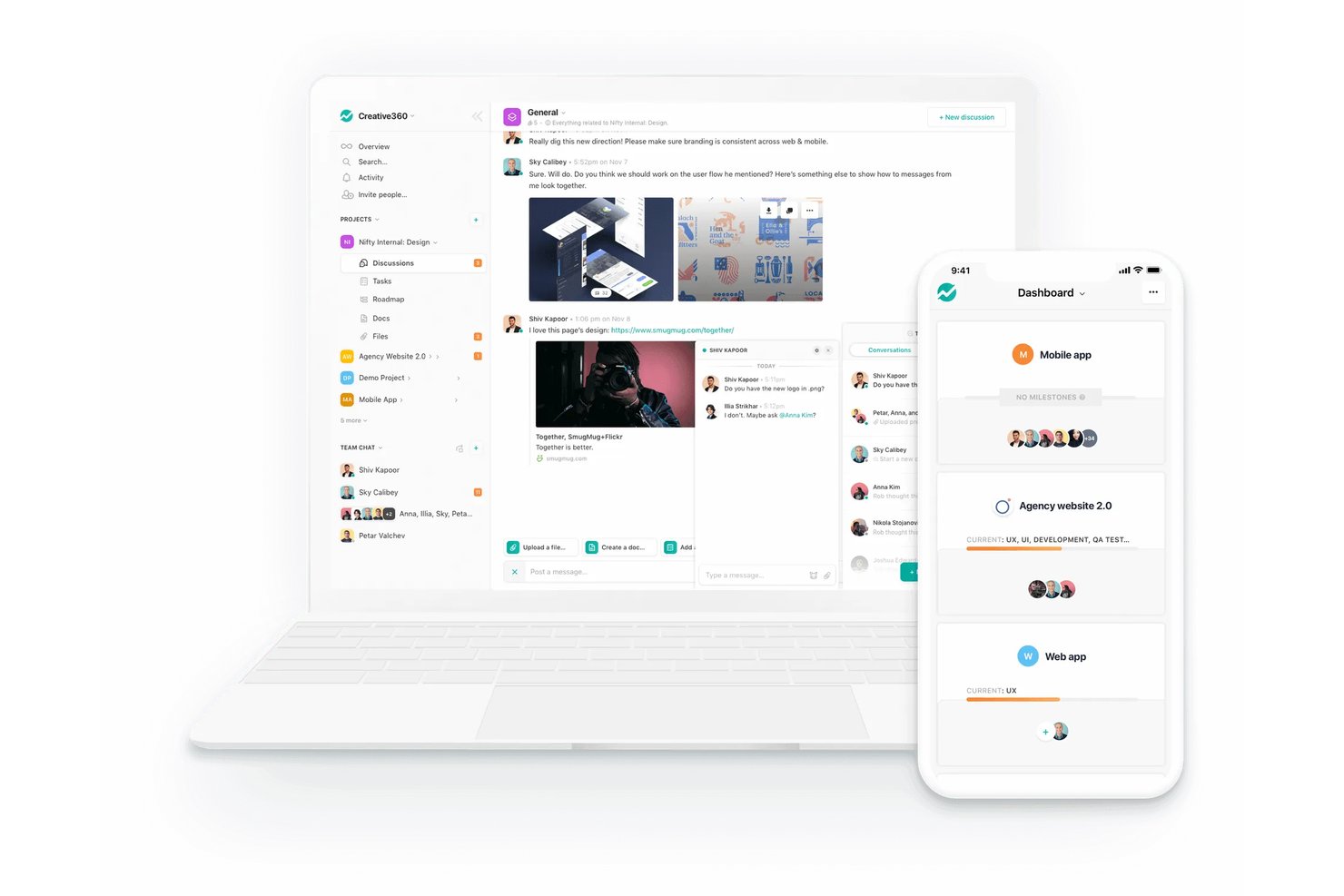
Nifty è una piattaforma di gestione dei progetti basata sull'IA che centralizza attività, roadmap, documenti, discussioni e report in un unico spazio di lavoro, con un bot nativo per Microsoft Teams e notifiche basate sull'automazione integrate nell'integrazione.
Per chi è più adatto Nifty?
Nifty è particolarmente adatto ai team di piccole e medie dimensioni che desiderano gestire attività, documenti, discussioni e report in un unico posto, invece di destreggiarsi tra più strumenti.
Perché ho scelto Nifty
Ho scelto Nifty come uno dei migliori perché riunisce davvero attività, documenti, discussioni e report in un unico spazio di lavoro, così il team non deve passare continuamente da una delle cinque schede all'altra per tenere traccia di uno sprint. Il bot di Teams consente di creare attività, milestone e aggiornamenti di stato direttamente da Teams, mentre l'automazione invia eventi relativi alle attività, come avvisi per scadenze superate e completamenti, nei canali scelti senza alcun intervento manuale.
Funzionalità principali di Nifty
- Più visualizzazioni delle attività: Passa dalle visualizzazioni Kanban, Elenco, Swimlane, Cronologia e Calendario per adattarle al modo in cui il team tiene traccia del lavoro.
- Dipendenze tra milestone: Impedisci l'avvio di una milestone finché le attività di una milestone precedente non sono state completate, mantenendo intatta la sequenza dello sprint.
- Panoramica del portfolio: Raggruppa i progetti in portfolio e monitora stato, tempistiche e membri del team di tutti i progetti in un'unica dashboard.
- Automazioni del flusso di lavoro: Imposta regole se/allora per assegnare utenti, aggiornare gli stati o modificare le scadenze in base alle condizioni delle attività.
Integrazioni di Nifty
Nifty offre integrazioni native con Microsoft Teams, l'ecosistema Microsoft, inclusi OneDrive e Calendario di Outlook, Google Drive, Google Calendar, Slack, GitHub, Zoom e Miro. Supporta inoltre un'API aperta e oltre 2.000 integrazioni tramite Zapier.
Pros and Cons
Pros:
- L'assegnazione delle attività e le dipendenze chiariscono le responsabilità
- Le discussioni condivise sui progetti riducono il passaggio da un contesto all'altro
- Le visualizzazioni flessibili aiutano i team a tenere traccia del lavoro
Cons:
- I problemi tecnici interrompono flussi di lavoro altrimenti regolari
- I report personalizzati possono essere difficili da esportare

ClickUp
Ideale per la versatilità di uno strumento tutto-in-uno
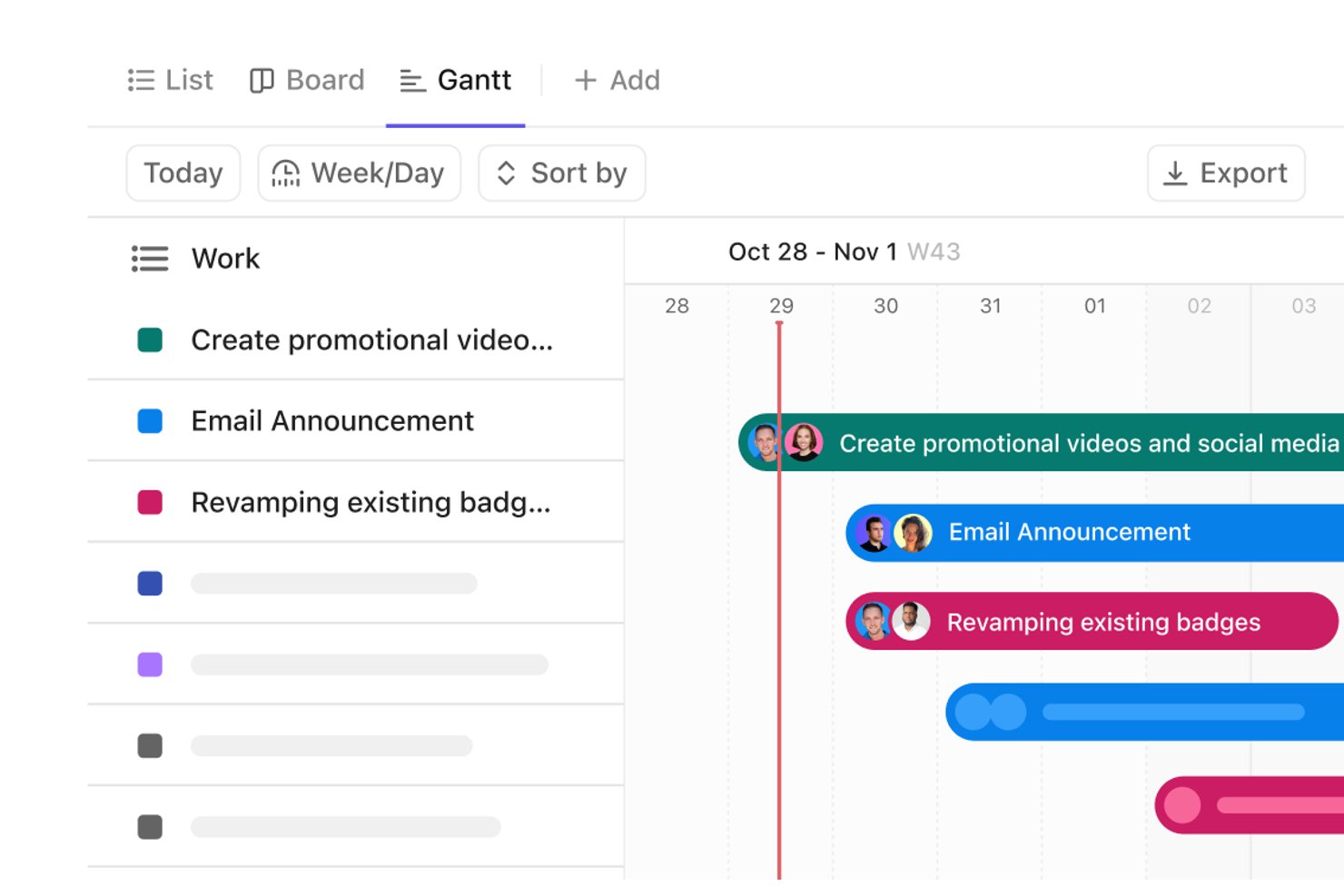
ClickUp è una piattaforma di gestione del lavoro che combina il monitoraggio delle attività, la pianificazione dei progetti, i documenti, i cruscotti e la chat integrata, con un'integrazione nativa con Microsoft Teams per creare attività dai messaggi e sincronizzare l'attività dei progetti nei canali.
Per chi è più adatto ClickUp?
ClickUp è adatto ai team interfunzionali che desiderano attività, documenti, cruscotti e chat in un unico spazio di lavoro, senza dover collegare strumenti separati.
Perché ho scelto ClickUp
Ho incluso ClickUp tra le mie migliori scelte perché è uno dei rari strumenti che sostituisce davvero diverse app contemporaneamente: attività, documenti, cruscotti, chat e lavagne si trovano tutti in un unico spazio di lavoro. Per gli utenti di Teams, apprezzo particolarmente la possibilità di trasformare un messaggio di Teams in un'attività di ClickUp con un assegnatario e una scadenza, senza mai lasciare la conversazione. La ricerca connessa di ClickUp consente inoltre di importare direttamente i file di SharePoint in ClickUp, così i documenti M365 restano facilmente reperibili insieme al lavoro del progetto.
Funzionalità principali di ClickUp
- Ricerca connessa a SharePoint: Cerca unità, siti, documenti e file di SharePoint direttamente in ClickUp, senza lasciare il tuo spazio di lavoro.
- Provisioning SCIM di Entra ID: Crea, rimuove e assegna automaticamente i ruoli agli utenti in ClickUp in base ai gruppi di Microsoft Entra ID.
- Registri di controllo dello spazio di lavoro: Monitora gli accessi degli utenti, le modifiche ai ruoli, gli eventi delle attività e l'attività di connessione delle app tramite registri esportabili per la documentazione relativa alla conformità.
- Vista del carico di lavoro: Visualizza la capacità del team tra attività e progetti in una disposizione visiva per individuare gli squilibri e riassegnare il lavoro prima che le scadenze vengano disattese.
Integrazioni di ClickUp
ClickUp offre oltre 50 integrazioni native, tra cui Microsoft Teams, SharePoint, OneDrive, Google Drive, Slack, GitHub e Outlook. Supporta inoltre Zapier, webhook, OAuth e un'API pubblica per le integrazioni personalizzate.
Pros and Cons
Pros:
- Centralizza l'assegnazione delle attività e la visibilità delle scadenze
- I cruscotti aiutano a monitorare i progressi tra i progetti
- Mantiene insieme i documenti del progetto e il contesto di lavoro
Cons:
- La configurazione dei flussi di lavoro richiede un impegno iniziale
- Gli spazi di lavoro di grandi dimensioni possono risultare lenti durante la creazione delle attività

Best for regnearklignende prosjektvisninger
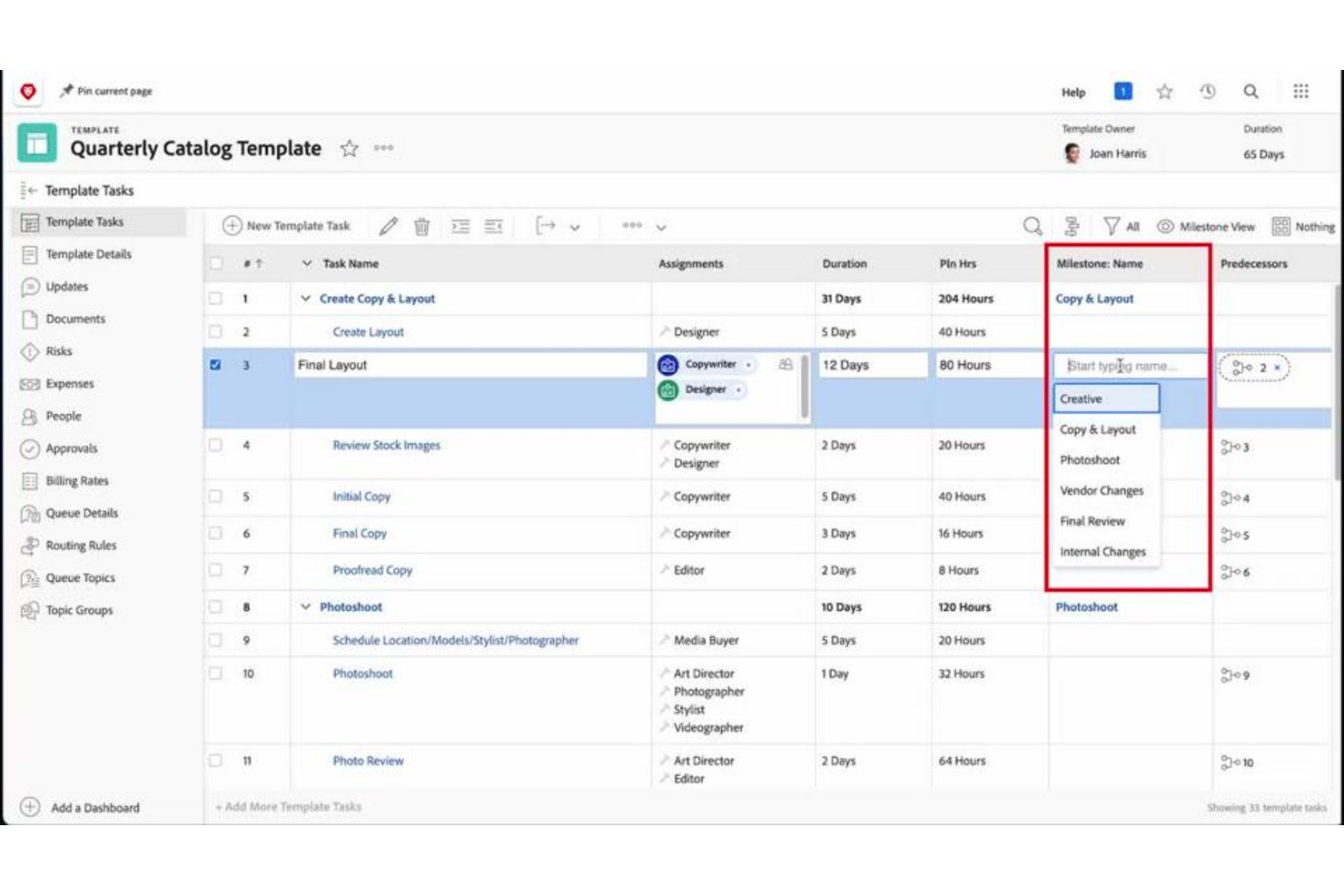
Smartsheet er en plattform for arbeidsstyring bygget rundt regnearkbasert prosjektsporing, med Gantt-, tavle-, kalender- og tidslinjevisninger samt automatiserte arbeidsflyter, dashbord og rapportering.
Hvem passer Smartsheet best for?
Smartsheet passer godt for prosjektledere og driftsteam som tenker i rader og kolonner, og som ønsker å legge Gantt-diagrammer, dashbord og automatiserte arbeidsflyter oppå en kjent regnearkstruktur.
Hvorfor jeg valgte Smartsheet
Jeg har tatt med Smartsheet blant mine toppvalg fordi det er det eneste verktøyet på denne listen som legger Gantt-diagrammer, dashbord og automatiserte arbeidsflyter direkte oppå en regnearkstruktur – så hvis teamet ditt allerede jobber i rader og kolonner, overføres tankemodellen umiddelbart. Jeg liker at du kan feste et levende Smartsheet-rutenett eller Gantt-diagram direkte som en fane i en Teams-kanal, slik at hele teamet får en felles visning uten at noen trenger å forlate Teams. Gantt-visningen sporer spesifikt avhengigheter, milepæler og kritiske stier, noe som er akkurat det du trenger når du administrerer prosjekter i flere faser på tvers av distribuerte team.
Viktige funksjoner i Smartsheet
- Automatiserte arbeidsflyter: Bygg arbeidsflyter uten kode som utløser varsler, godkjenninger og oppdateringer basert på betingelser du definerer.
- Integrasjon med Microsoft Entra ID: Opprett, oppdater og deaktiver Smartsheet-brukere automatisk basert på organisasjonens katalog.
- Dashbord og rapportering: Kombiner data fra flere ark i delbare dashbord med diagrammer og måleverdier i sanntid.
- Arbeidsbelastningssporing: Se teamets kapasitet og tilgjengelighet for å oppdage og løse overbelastning på tvers av aktive prosjekter.
Smartsheet-integrasjoner
Smartsheet tilbyr en dedikert Microsoft Teams-integrasjon samt tilkobling til Microsoft 365, inkludert Outlook og OneDrive. Integrasjonskatalogen viser over 175 integrasjoner, inkludert Jira Software, Power BI, Salesforce, Microsoft Entra ID og Power Automate. Den tilbyr også et API, webhooks, SDK-er og SharePoint-tilkobling gjennom Bridge.
Pros and Cons
Pros:
- Regnearkbasert sporing føles kjent
- Gantt-avhengigheter tydeliggjør tidsplaner i flere faser
- Dashbord gir interessenter oversikt over prosjektet
Cons:
- Full oppgavehåndtering krever at du forlater Teams
- Komplekse formler kan kreve ekstra oppsett

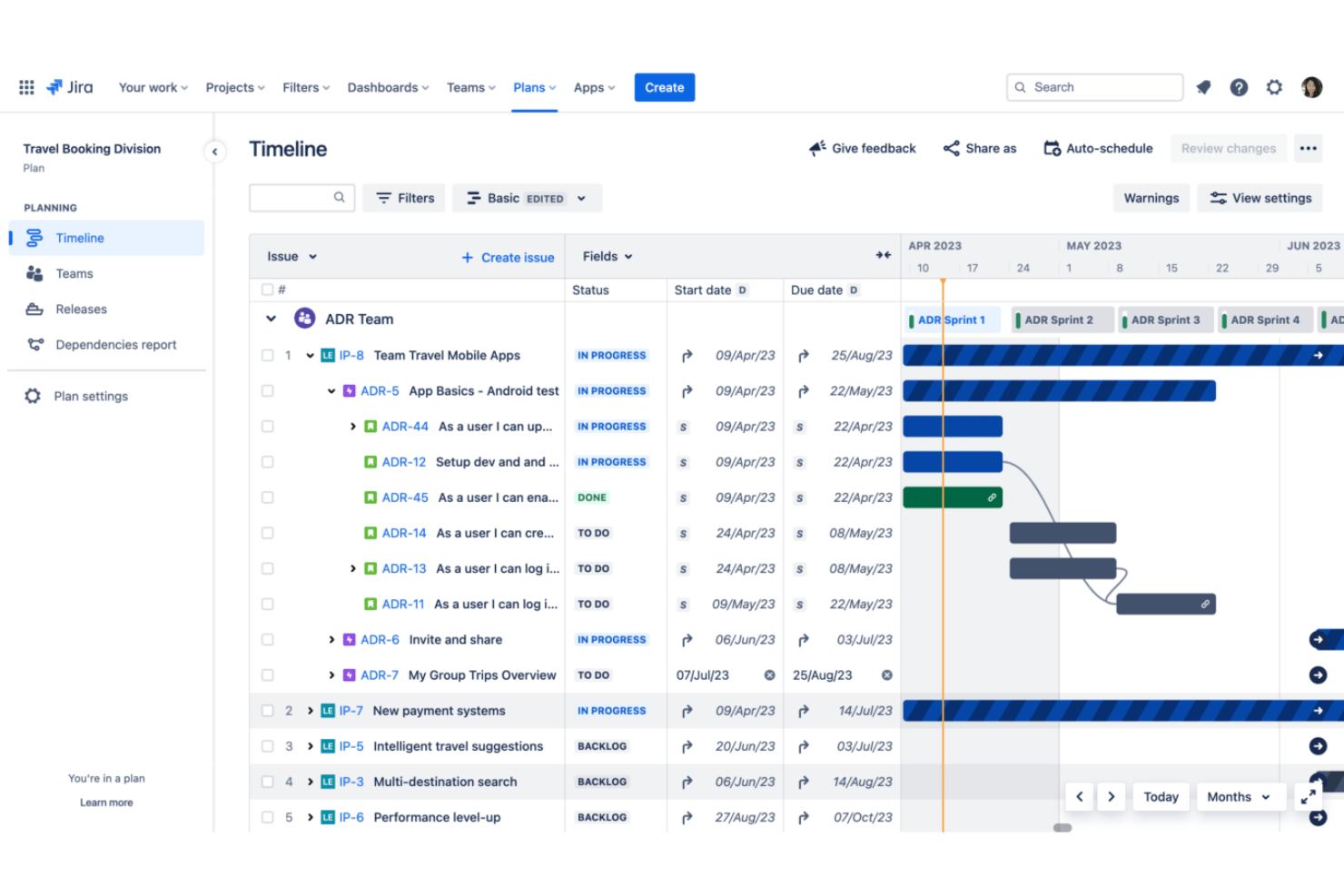
Jira Cloud è uno strumento di gestione dei progetti progettato per aiutare i team a pianificare, monitorare e gestire i propri progetti di sviluppo software. Si distingue per le sue solide funzionalità che supportano le metodologie Agile e la collaborazione interfunzionale.
Perché ho scelto Jira Cloud: Jira Cloud offre un insieme completo di funzionalità che soddisfano vari aspetti della gestione dei progetti, in particolare grazie al suo forte supporto per le pratiche Agile. Inoltre, la sua integrazione con Microsoft Teams offre al team una visione unificata dei progetti Jira, consentendo una collaborazione e una gestione delle attività fluide direttamente all'interno di Teams. Puoi migliorare il tuo flusso di lavoro con notifiche personalizzate, anteprime dei collegamenti e la possibilità di creare, cercare e aggiornare le attività Jira senza cambiare piattaforma.
Funzionalità e integrazioni principali:
Le funzionalità includono la gestione Agile dei progetti, flussi di lavoro personalizzabili, bacheche Kanban e Scrum, monitoraggio di problemi e bug, prioritizzazione del backlog, report e analisi in tempo reale, monitoraggio del tempo, integrazione con app di terze parti, regole di automazione, ricerca avanzata con JQL, roadmap, modelli di progetto, autorizzazioni e ruoli degli utenti, strumenti di collaborazione e accesso tramite app mobile. Inoltre, Jira Cloud offre funzionalità avanzate di pianificazione, come roadmap e gestione delle dipendenze, essenziali per coordinare il lavoro e garantire l'allineamento tra i diversi team.
Le integrazioni includono Microsoft Teams, Confluence, Bitbucket, Trello, Slack, GitHub, GitLab, Jenkins, Bamboo, Zendesk e Salesforce.
Pros and Cons
Pros:
- Funzionalità avanzate di pianificazione per il coordinamento tra i team
- Flussi di lavoro personalizzabili in base ai processi del team
- Ampie opzioni di integrazione con altri strumenti e servizi
Cons:
- La configurazione e la personalizzazione possono essere complesse
- Potrebbe essere più costoso rispetto ad altre opzioni per i team più numerosi
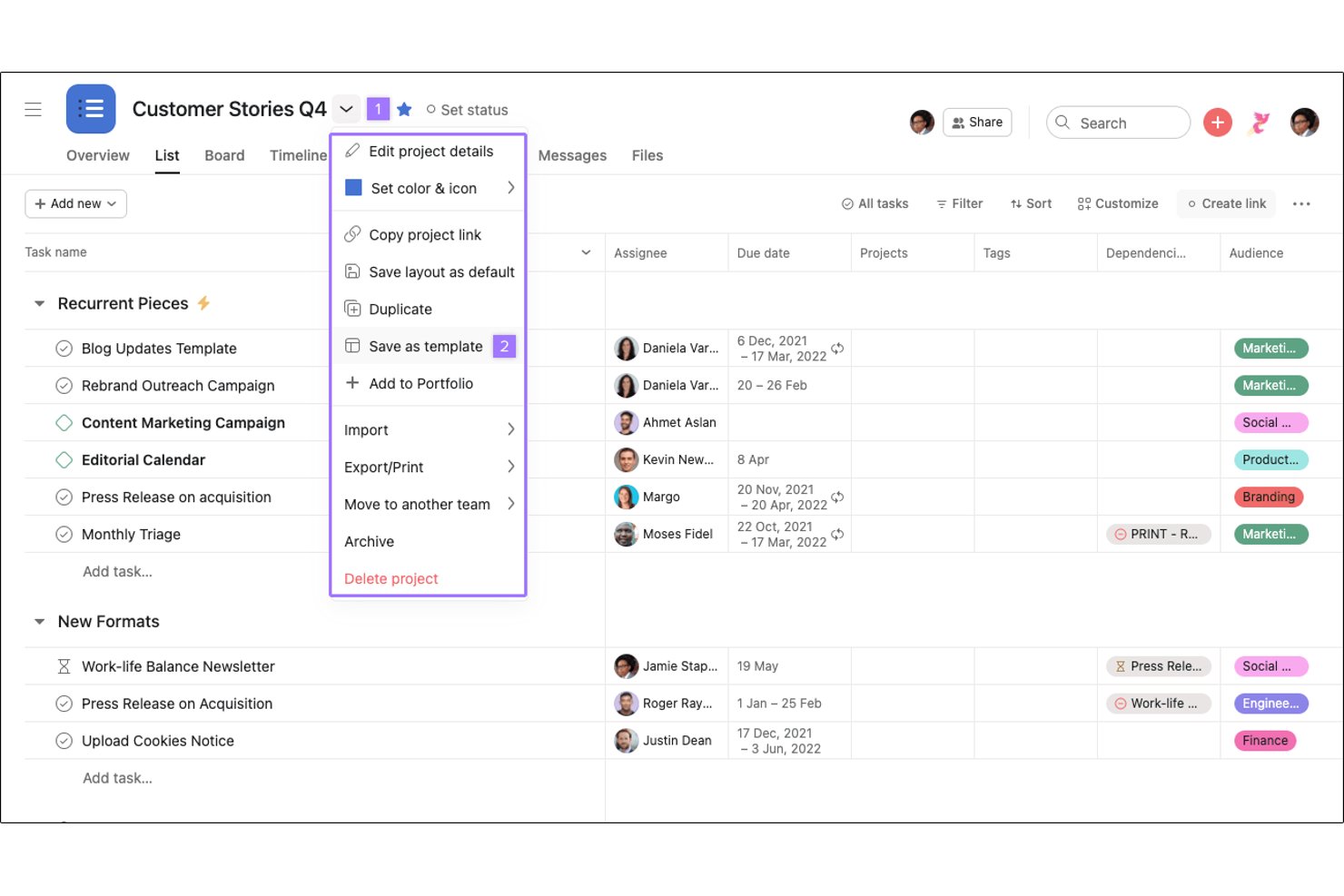
Asana è uno strumento di gestione dei progetti che aiuta i team a monitorare il proprio lavoro. Si distingue come la soluzione migliore per collegare il lavoro agli obiettivi, fornendo un quadro chiaro per allineare le attività agli obiettivi strategici.
Perché ho scelto Asana: Asana offre funzionalità avanzate che facilitano la gestione dei progetti orientata agli obiettivi. Si distingue dagli altri strumenti scomponendo gli obiettivi in attività operative e monitorando i progressi. Asana consente di definire obiettivi chiari e collegarli direttamente ad attività e progetti, garantendo che gli sforzi del team siano allineati agli obiettivi aziendali.
Funzionalità e integrazioni principali:
Le funzionalità includono la gestione delle attività, le tempistiche dei progetti, la collaborazione in tempo reale, i report e l'analisi, i campi e i modelli personalizzati, diverse visualizzazioni dei progetti (come elenco, bacheca, calendario e sequenza temporale), il monitoraggio degli obiettivi, l'automazione con regole, la gestione del portafoglio e la gestione del carico di lavoro.
Le integrazioni includono Microsoft Teams, Slack, Google Calendar, Outlook, Gmail, Jira, Salesforce, Zapier, Adobe Creative Cloud e Tableau.
Pros and Cons
Pros:
- Allinea le attività agli obiettivi strategici
- Flussi di lavoro e automazione personalizzabili
- Flussi di lavoro e automazione personalizzabili Ampie possibilità di integrazione
Cons:
- Curva di apprendimento ripida per i principianti
- Nessun monitoraggio nativo del tempo
Altri software di gestione dei progetti che si integrano con Microsoft Teams
\u003cspan style=\u0022font-weight: 400\u0022\u003eDi seguito è riportato un elenco di ulteriori software di gestione dei progetti che si integrano con Microsoft Teams e che ho selezionato. Sebbene non siano entrati tra i primi 10, sono comunque validi e meritano ulteriori approfondimenti.\u003c/span\u003e
- Miro
Ideale per la collaborazione visiva nelle riunioni di Teams
- Smartsheet
Ideale per visualizzazioni dei progetti simili a fogli di calcolo
- Planview AdaptiveWork
Ideale per la gestione del portafoglio aziendale in Teams
- ProjectManager
Ideale per il monitoraggio e l'analisi in tempo reale dei progetti
- Teamwork.com
Ideale per le aziende di servizi ai clienti
- Zenkit
Ideale per il monitoraggio dei progetti ospitati nell'UE in Teams
- Trello
Ideale per semplificare processi complessi
- Backlog
Ideale per la collaborazione sul codice
- Workzone
Ideale per una visibilità completa sui progetti
- Azure DevOps
Ideale per approvare le distribuzioni delle pipeline in Teams


Recensioni correlate sui software di gestione dei progetti
Se non hai ancora trovato quello che cerchi, dai un'occhiata a questi altri strumenti correlati che abbiamo testato e valutato:
- Software di gestione dei progetti
- Software di gestione delle risorse
- Software di automazione dei flussi di lavoro
- Software per il monitoraggio del tempo
- Software di gestione delle attività
- Strumenti di collaborazione
- Strumento per creare diagrammi di Gantt
- Strumenti per la produttività
- Software per il monitoraggio dei progetti
- Software per la pianificazione dei progetti
- Software di gestione dei progetti per piccoli team
Come valuto il software di gestione progetti che si integra con Microsoft Teams
Divido la mia valutazione in due livelli: i requisiti di base come la sincronizzazione in tempo reale delle attività e l'incorporamento di schede in Teams, e i fattori differenzianti come la conversione dei messaggi in attività che distinguono gli strumenti tra loro.
Funzionalità principali (Requisiti fondamentali per questa lista)
Quando scelgo gli strumenti per la mia lista, valuto ciascuno su una scala da 0 (non offre la funzionalità) a 5 (eccelle in quest'area) per ogni funzionalità principale elencata qui sotto. Successivamente, calcolo il punteggio totale dello strumento in percentuale. Ogni strumento deve raggiungere un punteggio totale minimo del 65% per essere preso in considerazione.
- App nativa per Teams: Verifico se il fornitore offre un'app certificata nello Store di Teams, poiché strumenti come Asana e monday.com forniscono app installabili mentre altri si affidano a semplici webhook.
- Incorporamento di canali & schede: Ogni strumento dovrebbe permettere di appuntare bacheche di progetto o dashboard come schede all'interno dei canali Teams così che il team possa visualizzare le attività senza cambiare finestra.
- Sincronizzazione bidirezionale delle attività: Valuto se le attività create o aggiornate all'interno di Teams vengono riflesse nello strumento PM in tempo reale, non solo come notifiche unidirezionali che richiedono interventi manuali.
- Notifiche e bot per Teams: Lo strumento dovrebbe inviare avvisi attuabili e interazioni bot nelle chat di Teams, come promemoria di assegnazione o richieste di approvazione, non solo messaggi webhook generici.
- Capacità PM principali: Oltre al livello Teams, cerco viste essenziali come lavagne Kanban, cronologie e dipendenze tra le attività che rendono la piattaforma valida come principale strumento di gestione progetti.
- Autenticazione Microsoft 365: Valuto il SSO tramite Azure AD e come lo strumento si collega ai servizi M365 adiacenti come SharePoint, OneDrive o Outlook per la condivisione di file e la sincronizzazione dei calendari.
Una volta che ho una lista di strumenti che soddisfano questi criteri, considero ciò che rende unica ogni piattaforma.
Fattori differenzianti (Cosa distingue i fornitori)
Ecco come confronto e metto a confronto i diversi fornitori:
Funzionalità distintive
La conversione dei messaggi in attività è un grande fattore differenziante—cerco strumenti che consentono di evidenziare un messaggio di Teams e trasformarlo in un'attività tracciata mantenendo tutto il contesto. Anche i workflow con schede adattive sono importanti perché permettono ai membri del team di inviare approvazioni o aggiornare stati direttamente nella conversazione. Valuto anche il supporto a Power Automate, che abilita trigger tra le app M365 come la creazione automatica di attività al ricevimento di una mail segnalata su Outlook.
Oltre le funzionalità
Considero quanto profondamente uno strumento si collega all'intero ecosistema M365. Le raccolte documenti di SharePoint possono essere visualizzate nelle schede di progetto? Gli eventi del calendario di Outlook si sincronizzano con le cronologie? Anche la struttura delle licenze è importante, in particolare se collaboratori esterni come clienti o fornitori possono accedere ai progetti senza una licenza completa a pagamento. Valuto anche la facilità di distribuzione, verificando se gli amministratori IT possono rendere disponibile l'app a tutto il tenant tramite Teams Admin Center e gestire i permessi tramite le policy delle app.
Come scegliere un software di gestione dei progetti che si integri con Microsoft Teams
Mentre segui il tuo specifico processo di selezione del software, tieni presenti i seguenti aspetti:
- Livello di integrazione: La soluzione ideale dovrebbe consentire opzioni di personalizzazione complete e facilitare una comunicazione efficiente tra la piattaforma scelta e Microsoft Teams. Questa integrazione può portare a significativi risparmi di tempo e costi automatizzando notifiche e aggiornamenti.
- Esperienza utente: Il software deve fornire un'interfaccia intuitiva che semplifichi la gestione delle attività. Dovrebbe consentire al team di gestire le attività quotidiane, come il monitoraggio delle scadenze e la gestione degli aggiornamenti, direttamente all'interno di Microsoft Teams, garantendo un flusso di lavoro fluido.
- Compatibilità con altri strumenti: È importante che il software di gestione dei progetti funzioni bene con gli altri strumenti su cui fa affidamento il team. Questa compatibilità contribuisce a mantenere un flusso di lavoro coerente, sia che coinvolga fogli di calcolo, altre metodologie di gestione dei progetti o strumenti di comunicazione.
- Funzionalità del software: Valuta attentamente le funzionalità offerte dal software di gestione dei progetti e il modo in cui soddisfano i requisiti del team. Funzionalità come le dipendenze tra attività, le panoramiche intuitive, le liste di controllo e la possibilità di lavorare all'interno di Microsoft Teams possono migliorare notevolmente l'efficienza del progetto.
- Supporto e risorse: Scegli un software che offra un supporto efficace e risorse formative. Ciò include guide dettagliate, un servizio clienti reattivo e materiali di formazione che consentano al team di sfruttare appieno le funzionalità del software. Anche l'accesso a modelli e buone pratiche può essere utile per una gestione efficiente dei progetti.
Tendenze dei software di gestione dei progetti integrati con Microsoft Teams
Ecco alcune delle principali tendenze che ho notato nei software di gestione dei progetti integrati con Microsoft Teams:
- Gestione dei progetti basata sull'intelligenza artificiale: L'intelligenza artificiale sta diventando un elemento fondamentale nei software di gestione dei progetti, offrendo analisi predittive e gestione automatizzata delle attività. Questa tendenza è interessante perché consente ai responsabili di progetto di concentrarsi sulle decisioni strategiche mentre l'intelligenza artificiale gestisce le attività di routine.
- Integrazione avanzata della comunicazione: Gli strumenti di comunicazione all'interno dei software di gestione dei progetti stanno diventando più sofisticati, integrandosi direttamente con Microsoft Teams e altri strumenti, come la posta elettronica. Questo è importante perché ottimizza i flussi di lavoro, garantendo che tutte le comunicazioni relative al progetto siano centralizzate e accessibili.
- Pianificazione strategica delle risorse: La gestione delle risorse sta acquisendo sempre più importanza, con software che forniscono informazioni dettagliate sulla disponibilità e sulle competenze del team. Ciò consente di assegnare il personale ai progetti in modo più efficiente e di utilizzare meglio le risorse umane.
- Enfasi sulla gestione del cambiamento: Le funzionalità di gestione del cambiamento vengono integrate per aiutare i team ad adattarsi più efficacemente ai cambiamenti dei progetti. Questo tiene conto dell'aspetto umano della gestione dei progetti, concentrandosi sul morale e sull'adattabilità del team.
- Approccio incentrato sul cloud: Si sta adottando una mentalità incentrata sul cloud, con software di gestione dei progetti che offrono solide soluzioni basate sul cloud. Questa tendenza è interessante perché supporta i modelli di lavoro da remoto e ibridi, offrendo ai team flessibilità e accessibilità.
Che cos'è un software di gestione dei progetti integrato con Microsoft Teams?
Il software di gestione dei progetti è uno strumento digitale progettato per aiutare singoli utenti e team a pianificare, organizzare, gestire e monitorare i progetti dall'inizio alla fine. Quando è integrato con Microsoft Teams, consente agli utenti di gestire facilmente le attività, monitorare i progressi, condividere file e comunicare in tempo reale senza dover passare da un'applicazione all'altra.
Funzionalità dei software di gestione dei progetti integrati con Microsoft Teams
Quando si seleziona un software di gestione dei progetti integrato con Microsoft Teams, è importante considerare le funzionalità che migliorano ulteriormente il monitoraggio dei progetti e la comunicazione del team. Ecco le funzionalità più importanti da ricercare:
- Assegnazione e monitoraggio delle attività: Questa funzionalità consente di delegare e monitorare le attività. È fondamentale perché garantisce che ogni membro del team conosca le proprie responsabilità e scadenze, favorendo il senso di responsabilità.
- Condivisione dei file e collaborazione: Questa funzionalità consente ai membri del team di condividere facilmente i documenti e collaborare in tempo reale. È importante perché centralizza le risorse, facilitando per tutti l'accesso ai materiali del progetto e il lavoro su di essi.
- Monitoraggio del tempo: Questa funzionalità consente di registrare il tempo dedicato alle attività e ai progetti. È essenziale per mantenere la produttività e garantire che i progetti rispettino le tempistiche previste.
- Chat di team integrata: Questa funzionalità offre una piattaforma per la messaggistica istantanea all'interno del team. È fondamentale per mantenere una comunicazione chiara e immediata, indispensabile per risolvere rapidamente i problemi.
- Sincronizzazione del calendario: Questa funzionalità consente di allineare gli impegni e le scadenze all'interno di Microsoft Teams. È importante perché aiuta a prevenire i conflitti di programmazione e garantisce che tutti i membri del team siano a conoscenza delle date importanti.
- Bacheche Kanban: Queste bacheche visive aiutano a gestire il flusso di lavoro e le attività. Sono importanti perché offrono una panoramica chiara dei progressi e aiutano i team a rimanere organizzati.
- Diagrammi di Gantt: Questa funzionalità offre una sequenza temporale visiva per la pianificazione dei progetti. È importante perché aiuta a comprendere la sequenza delle attività e le relative dipendenze, elementi fondamentali per una pianificazione efficace del progetto.
- Strumenti di reportistica: Questi strumenti generano dati sulle prestazioni del progetto. Sono importanti per monitorare i progressi e prendere decisioni informate basate su dati in tempo reale.
- Dashboard personalizzabili: Questa funzionalità consente agli utenti di adattare le visualizzazioni dei progetti alle proprie esigenze. È importante perché permette ai membri del team di concentrarsi sulle informazioni più rilevanti per il loro lavoro.
- Notifiche e avvisi: Questa funzionalità mantiene il team aggiornato sulle modifiche e sulle tappe fondamentali. Aiuta a garantire che tutti siano informati sugli ultimi sviluppi, contribuendo a mantenere il ritmo del progetto.
Selezionare un software per la gestione dei progetti con queste funzionalità può sostenere notevolmente gli sforzi di un team nella realizzazione efficiente dei progetti. Integrandosi con Microsoft Teams, questi strumenti possono contribuire a mantenere una comunicazione chiara, garantire che tutti siano allineati e consentire un monitoraggio efficace di ogni aspetto del progetto.
Vantaggi del software per la gestione dei progetti integrato con Microsoft Teams
Per chi sta valutando un software per la gestione dei progetti integrato con Microsoft Teams, comprendere i vantaggi specifici che offre può aiutare a prendere una decisione consapevole. Ecco alcuni dei principali vantaggi che gli utenti possono aspettarsi:
- Comunicazione centralizzata: Integrando il software per la gestione dei progetti con Microsoft Teams, gli utenti possono conservare tutte le conversazioni e i file relativi al progetto in un unico luogo, riducendo la necessità di passare da un'applicazione all'altra e risparmiando tempo prezioso.
- Maggiore visibilità e monitoraggio: Questa integrazione consente ai membri del team e agli stakeholder di rimanere informati sugli ultimi sviluppi, garantendo che tutti siano allineati e possano affrontare rapidamente eventuali problemi.
- Collaborazione migliorata: Grazie alla disponibilità degli strumenti per la gestione dei progetti direttamente all'interno di Microsoft Teams, i membri del team possono collaborare facilmente alle attività, condividere documenti e accedere alle risorse condivise senza uscire dall'ambiente di Teams.
- Gestione semplificata delle attività: Gli utenti possono assegnare attività, impostare scadenze e monitorare i completamenti direttamente tramite Microsoft Teams, semplificando la gestione dei flussi di lavoro dei progetti e garantendo una consegna puntuale.
- Notifiche personalizzabili: L'integrazione consente di personalizzare le notifiche all'interno di Microsoft Teams, così gli utenti possono scegliere di ricevere avvisi su specifiche tappe fondamentali del progetto, sul completamento delle attività o sui messaggi, aiutandoli a concentrarsi su ciò che è più importante.
Sfruttando questi vantaggi, le organizzazioni possono favorire un ambiente di gestione dei progetti più coeso ed efficiente, ottenendo in definitiva risultati positivi e migliori prestazioni aziendali.
Costi e prezzi del software per la gestione dei progetti integrato con Microsoft Teams
Quando si prende in considerazione un nuovo software, è necessario conoscere le varie opzioni di piano e i prezzi disponibili. Di seguito è riportata una tabella riepilogativa dei tipi di piano, dei prezzi medi e delle funzionalità comuni dei software per la gestione dei progetti integrati con Microsoft Teams.
Tabella comparativa dei piani per il software per la gestione dei progetti integrato con Microsoft Teams
| Tipo di piano | Prezzo medio | Caratteristiche comuni |
| Piano gratuito | $0 | Gestione di base delle attività, integrazione limitata con Microsoft Teams e accesso all'assistenza della community |
| Piano base | $5 - $15 per utente/mese | Monitoraggio di attività e progetti, reportistica di base, alcune integrazioni con Microsoft Teams e assistenza via e-mail |
| Piano intermedio | $15 - $35 per utente/mese | Funzionalità avanzate di gestione dei progetti, integrazione completa con Microsoft Teams, assistenza prioritaria e sicurezza avanzata |
| Piano di fascia alta | $35 - $60 per utente/mese | Gestione completa di progetti e portafogli, integrazioni personalizzate, assistenza dedicata e analisi e reportistica avanzate |
| Piano aziendale | Prezzi personalizzati | Soluzioni su misura, sicurezza di livello aziendale, gestione personale dell'account e strumenti di pianificazione strategica |
Le informazioni fornite sono una guida generale, poiché le funzionalità e i prezzi specifici possono variare notevolmente tra i diversi fornitori di software di gestione dei progetti. È importante che gli acquirenti del software considerino le dimensioni del proprio team, la complessità dei progetti e il livello di assistenza di cui hanno bisogno quando scelgono un piano.
Domande frequenti sui software di gestione dei progetti che si integrano con Microsoft Teams
In che modo l'integrazione con Microsoft Teams migliora la gestione dei progetti?
L’integrazione del software di gestione dei progetti con Microsoft Teams consente di centralizzare la comunicazione e la collaborazione. I membri del team possono discutere delle attività, condividere file e ricevere aggiornamenti all’interno di un’unica piattaforma. Questa integrazione aiuta a mantenere tutti allineati e informati, riducendo la necessità di passare da un’applicazione all’altra.
È possibile ricevere notifiche dallo strumento di gestione dei progetti in Microsoft Teams?
Sì, una volta effettuata l’integrazione, la maggior parte degli strumenti di gestione dei progetti può inviare notifiche a Microsoft Teams. Queste notifiche possono includere aggiornamenti sulle attività, modifiche ai progetti e promemoria, garantendo che i membri del team siano informati in tempo reale.
Quali autorizzazioni sono necessarie per integrare il software di gestione dei progetti con Microsoft Teams?
Per integrare il software di gestione dei progetti con Microsoft Teams, in genere sono necessarie autorizzazioni amministrative in entrambi i sistemi. Ciò consente di installare i componenti aggiuntivi o le app necessarie e di configurare le impostazioni per la condivisione dei dati e l’accesso degli utenti.
L'integrazione degli strumenti di gestione dei progetti con Microsoft Teams supporta la condivisione dei file?
L’integrazione supporta spesso la condivisione dei file, consentendo agli utenti di allegare file dal proprio strumento di gestione dei progetti direttamente a una chat o a un canale di Microsoft Teams. Questa funzionalità semplifica la collaborazione, poiché i membri del team possono accedere facilmente ai documenti relativi al progetto e discuterne.
Quanto sono sicuri i dati quando si utilizza un software di gestione dei progetti integrato con Microsoft Teams?
La sicurezza dei dati è una priorità sia per Microsoft Teams sia per gli strumenti di gestione dei progetti di terze parti. In genere, offrono crittografia, certificazioni di conformità e impostazioni di sicurezza personalizzabili. Tuttavia, è importante esaminare le misure e le politiche di sicurezza dello strumento specifico che si sceglie di integrare, per assicurarsi che soddisfino gli standard della propria organizzazione.