

Microsoft Teams ile Entegre En İyi 10 Proje Yönetimi Aracı

Microsoft Teams ile Entegrasyon Sağlayan En İyi Proje Yönetimi Yazılımları Kısa Listesi


Microsoft Teams ile entegre olan bir proje yönetimi yazılımı seçmek, ekip iş birliğini ve verimliliği artırabilir. Ancak, özellikle çok fazla seçenek mevcut olduğunda, işletmeniz için en iyi çözümü bulmak zor görünebilir.
Başlamanıza yardımcı olmak için kullanılabilirlik, ölçeklenebilirlik ve kârlılık temelinde en iyi yazılımlardan bazılarını derledim. Bu önerilerle ekibinizin ihtiyaçlarını karşılayacak ve projelerinizin başarıya ulaşmasını sağlayacak en iyi proje yönetimi yazılımını güvenle seçebilirsiniz.
Yazılım Önerilerimize Neden Güvenebilirsiniz?
Ekibimiz 2012’den beri yazılımları test ediyor ve inceliyor. Biz de proje yöneticisi olduğumuz için doğru yazılımı seçmenin ne kadar zor ve önemli olduğunu biliyoruz.
Bu rehber için araçları uygulamalı testler ve bağımsız araştırmalarla değerlendirdik ve seçim kriterlerimize göre puanladık. Ayrıca sektörün fikir önderlerinin ve alanında çalışan proje yönetimi uzmanlarının görüşlerinden de yararlanıyoruz.
İncelemelerimiz bir satış konuşması değil, editör ekibimizin kendi değerlendirmesidir.
Uzman inceleyenler:
Karşılaştırma Tablosu: Microsoft Teams ile Entegrasyon Sağlayan Proje Yönetimi Yazılımları
Microsoft Teams ile entegrasyon sağlayan en iyi proje yönetimi yazılımı seçimlerimin fiyatlandırma ayrıntılarını bu karşılaştırma tablosunda özetledim:
Score legend (out of 5)
- Excellent 4.5–5
- Good 4–4.4
- Average 3–3.9
- Below average 2–2.9
- Poor 1–1.9
| Tool | Starting Price | Website | |||||||
|---|---|---|---|---|---|---|---|---|---|
| Best for AI-powered task automation in Teams | 3.8 out of 5 | 5 | 4 | 4 | 3 | 3 | 4 | $9/user/month Free plan + 14-day free trial available | Book Demo |
| Best for flexible project views | 4.0 out of 5 | 5 | 4 | 5 | 3 | 3 | 4 | $10/user/month Free plan + 14-day free trial + free demo available | Book Demo |
| Best for built-in time tracking | — | 5 | 3 | 5 | 3 | — | 3 | $5/user/month Free plan + free demo available | Website |
| Best for user-friendly project planning | 3.8 out of 5 | 5 | 4 | 5 | 3 | 3 | 3 | $4/user/month Free plan + 15-day free trial + free demo available | Website |
| Best for project tracking built into Microsoft 365 | 3.5 out of 5 | 4 | 4 | 3 | 3 | 3 | 4 | $10.00 30-day free trial available | Website |
| Best for reducing app-switching in one hub | 3.5 out of 5 | 4 | 3 | 5 | 3 | 3 | 3 | $10/user/month Free plan + 14-day free trial available | Website |
| Best for all-in-one tool versatility | 3.8 out of 5 | 5 | 3 | 5 | 3 | 3 | 4 | $9/user/month Free plan + free demo available | Website |
| Best for operational efficiency | 3.7 out of 5 | 4 | 4 | 4 | 3 | 4 | 3 | Pricing upon request Free demo available | Website |
| Best for planning across teams | 3.7 out of 5 | 5 | 4 | 5 | 2 | 3 | 3 | $7.50/user/month 7-day free trial | Website |
| Best for connecting work to goals | 3.5 out of 5 | 4 | 4 | 4 | 3 | 3 | 3 | $10.99/user/month Free plan + Free trial available | Website |


Microsoft Teams ile Entegrasyon Sağlayan En İyi Proje Yönetimi Yazılımları İncelemeleri
Microsoft Teams ile sorunsuz bir şekilde entegre olan doğru proje yönetimi yazılımını bulmak, ekibinizin iş birliği yapma ve projeleri yönetme biçimini dönüştürebilir. Ayrıntılı incelemelerim, her yazılımın avantajları ve dezavantajları, temel özellikleri ve ideal kullanım senaryoları konusunda size yol gösterecek.
Best for AI-powered task automation in Teams
monday AI Workspace is an AI-powered project management platform that combines task automation, portfolio oversight, and cross-functional collaboration with a native Microsoft Teams integration for managing work directly inside Teams.
Who Is monday AI Workspace Best For?
monday AI Workspace suits mid-sized to enterprise teams running cross-functional projects inside the Microsoft 365 ecosystem who need more automation and AI than native Teams tools provide.
Why I Picked monday AI Workspace
monday AI Workspace earns its spot on my shortlist because the AI Workflow Builder automates task routing and assignments the moment a trigger fires, like creating a high-priority incident ticket inside Teams when a monitoring alert goes off. I also rely on the AI Meeting Notetaker to convert Teams meeting discussions into tracked board items without manual logging. The monday bot handles the rest, letting my team create items, update statuses, and surface board context directly from Teams chats.
monday AI Workspace Key Features
- Interactive Teams tabs: Pin boards, dashboards, and project views as editable tabs directly inside Microsoft Teams channels.
- Portfolio snapshot dashboards: View live, multi-project dashboards showing timelines, dependencies, and status with real-time updates.
- Adaptive card approvals: Approve, reject, or comment on requests using adaptive cards in Teams conversations without leaving chat.
- Azure AD SSO integration: Log in with Microsoft 365 credentials and connect monday to SharePoint, OneDrive, and Outlook for seamless authentication.
monday AI Workspace Integrations
monday AI Workspace offers native integrations across the Microsoft ecosystem, including Microsoft Teams, Microsoft 365, and Azure, plus Slack, Salesforce, HubSpot, Google Workspace, Zoom, and Jira. It supports Zapier and provides an API for custom integrations.
Pros and Cons
Pros:
- Granular automation builder with no-code triggers
- Boards pin as fully editable Teams tabs
- AI automates task creation from Teams chats
Cons:
- Notification volume in Teams can overwhelm users
- AI features locked behind higher-tier plans
New Product Updates from monday AI Workspace
monday AI Workspace Adds Human Approval Routing
monday AI Workspace adds a human-in-the-loop approval block to AI Workflows, sending approval requests and routing workflow paths based on responses. For more information, visit monday AI Workspace's official site.
Wrike
Best for flexible project views
Wrike is a powerful project management software designed to help teams collaborate efficiently and achieve their goals. It offers a comprehensive suite of tools for planning, tracking, and managing projects, making it an ideal solution for businesses of all sizes.
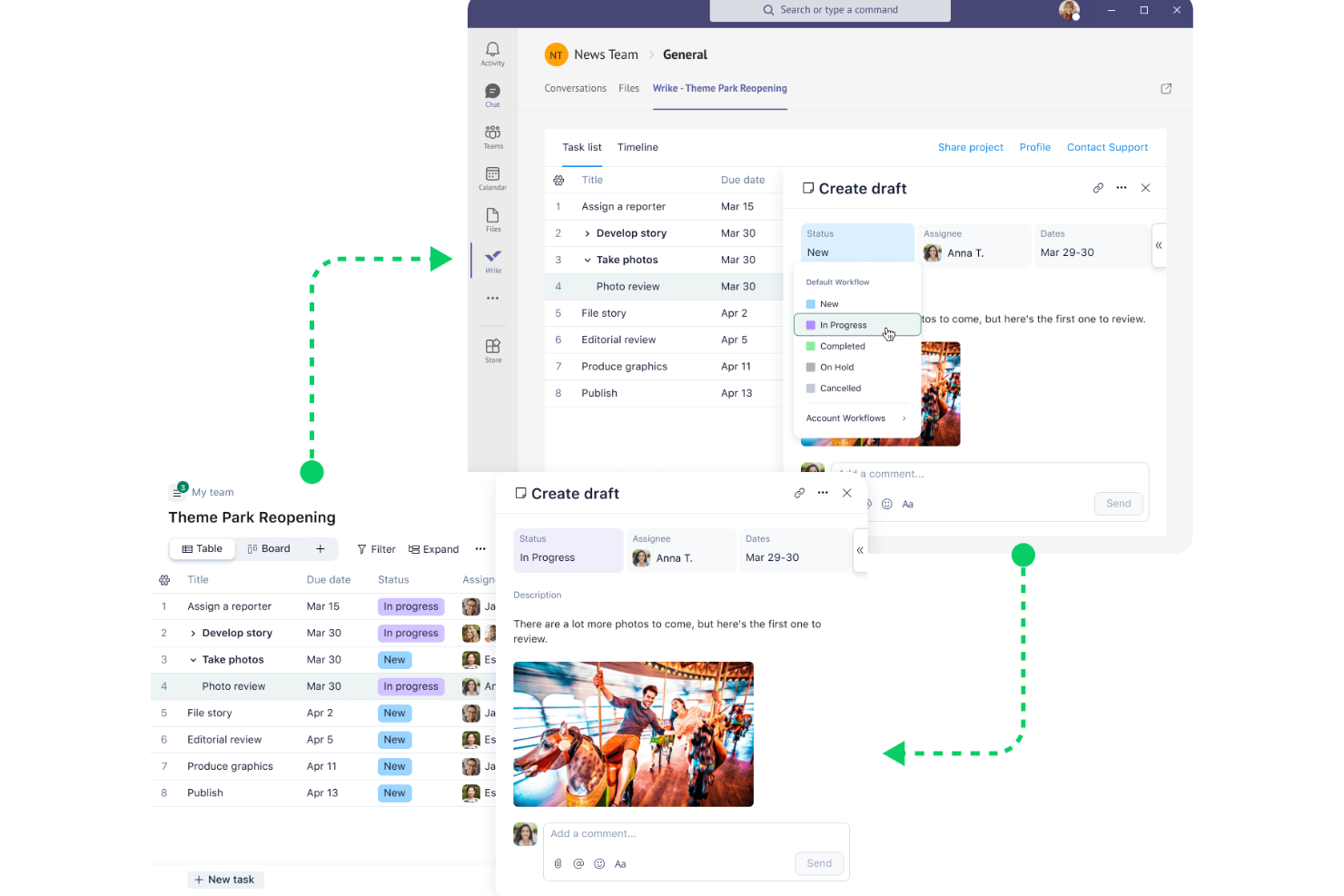
Why I picked Wrike: Wrike integrates with Microsoft Teams to enhance project management by allowing users to manage tasks, folders, projects, and spaces directly within the Teams interface. This integration supports real-time updates and notifications, ensuring team members are always informed about project progress without needing to switch between applications. Users can add Wrike projects as tabs in Teams channels, view tasks in List or Gantt chart views, create and edit tasks, and collaborate through comments and mentions.
Standout features & integrations:
Features include workload management, custom request forms, time tracking, Gantt charts, budget management, project templates, proofing and approvals, document versioning, automation, real-time newsfeed, and mobile app support.
Integrations include Microsoft Teams, Salesforce, Google Drive, Slack, Dropbox, Adobe Creative Cloud, Box, Evernote, OneDrive, GitHub, Zapier, and Trello.
Pros and Cons
Pros:
- Dynamic, visual project management views
- Good workflow automation features
- Powerful proofing tools
Cons:
- Lack of in-app chat option
- Customization options can be complex
New Product Updates from Wrike

Wrike Adds Advanced Filters to Chart View
Wrike introduces new default filters in Chart view, including relative dates, exclusion conditions, multiple filters per field, and status group filtering. These updates help teams refine project data and reporting. For more information, visit Wrike’s official site.
Hive
Best for built-in time tracking

Hive is a project management and collaboration platform designed to help teams plan, execute, and track projects efficiently. It offers various tools to manage tasks, monitor progress, and facilitate team communication, all within a single interface.
Why I picked Hive: I chose Hive for its flexible project views. You can visualize your projects in formats like Gantt charts, Kanban boards, calendars, and tables, allowing each team member to work in the way that suits them best. This flexibility helps your team manage tasks and timelines more effectively. Additionally, with built-in time tracking, your team can monitor the time spent on individual tasks, aiding in accurate project planning and resource allocation.
Standout features & integrations:
Features include resourcing tools, an AI document editor, project templates, portfolio views, labels, urgency levels, action cards, form intakes, time reporting, and billable time tracking.
Integrations include Microsoft Teams, Google Drive, Google Calendar, Dropbox, QuickBooks, Zoom, Slack, Jira, and GitHub.
Pros and Cons
Pros:
- User-friendly interface
- Various project views for tracking progress
- Range of project templates
Cons:
- Many customization features are limited to higher-tier plans
- Mobile app could offer more features

Best for user-friendly project planning

Zoho Projects is a comprehensive tool for managing your projects with ease. It stands out for its user-friendly project planning capabilities, making it an ideal choice for teams looking for an intuitive project management solution.
Why I picked Zoho Projects: Zoho Projects’ straightforward and accessible interface helps to simplify project management, making it the best for user-friendly project planning. The tool provides a balance of depth and simplicity, ensuring that teams can start quickly without a steep learning curve.
Standout features & integrations:
Zoho Projects’ key features include task management, Gantt charts, time tracking, issue tracking, document management, project forums, project reports and dashboards, automation with Blueprint, budget management, and timesheet management.
Zoho Projects integrates with several tools, including Microsoft Teams, Office 365, Slack, Dropbox, SharePoint, GitHub, BitBucket, GitLab, Zoho CRM, Zoho Meeting, Zoho Sprints, Zoho Books & Invoice, Zoho People, Zoho Flow, Zoho Analytics, Zoho Desk, and Zoho Directory.
Pros and Cons
Pros:
- Wide range of native integrations with other tools and services
- Comprehensive set of features including task automation and time tracking
- User-friendly interface for easy project planning
Cons:
- Limited customization options
- Occasional slow performance with larger projects
New Product Updates from Zoho Projects

Zoho Projects Adds QuickBooks Online and Xero Integrations
Zoho Projects now connects with QuickBooks Online and Xero, bringing project work and accounting workflows closer together. Manage project-related billing and financial tasks with fewer app switches. For more information, visit Zoho Projects’ official site.
 .
Best for project tracking built into Microsoft 365
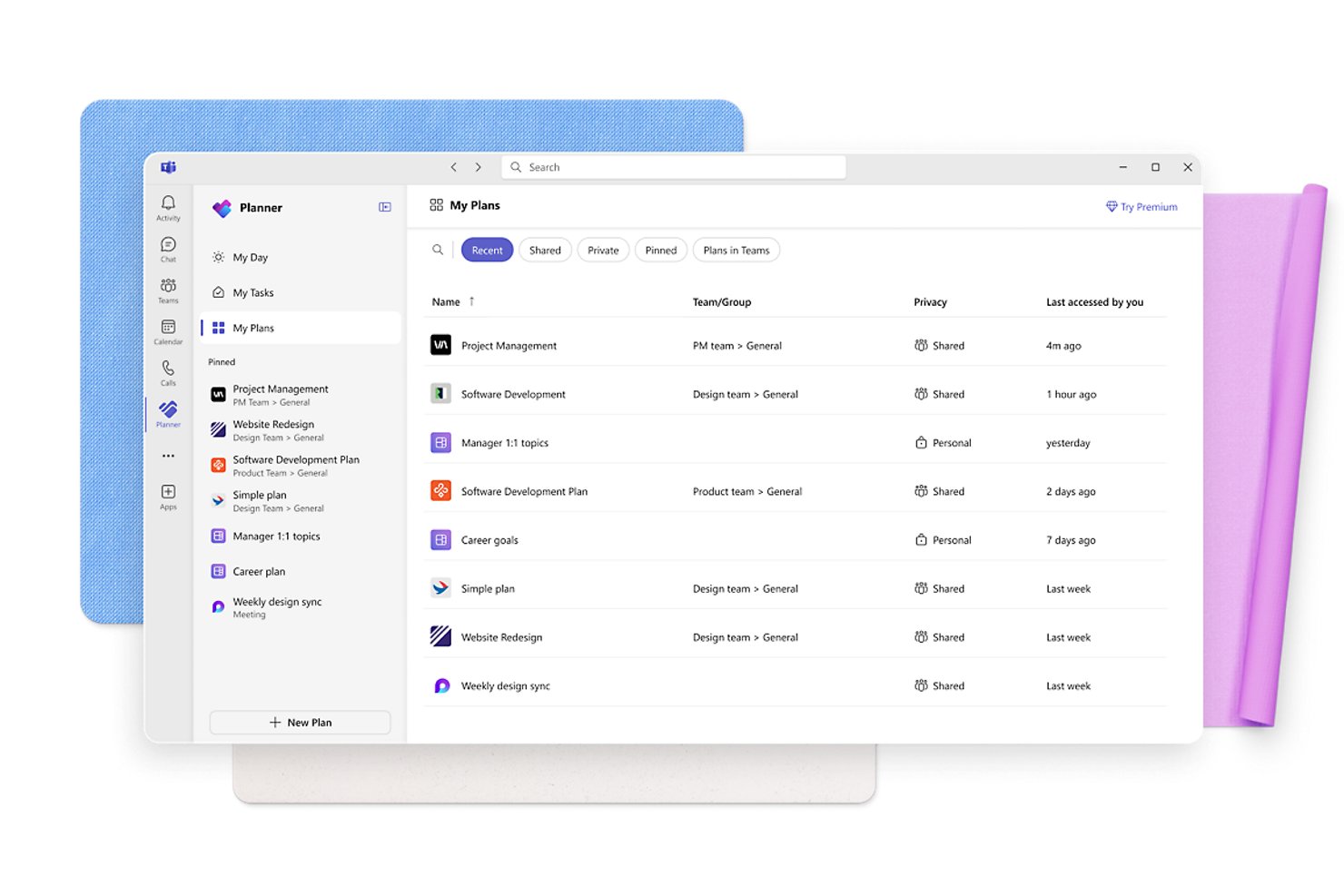
Microsoft Planner is a task and project management tool built into Microsoft 365 that lets teams create plans, assign tasks, track progress, and collaborate across Grid, Board, Schedule, and Charts views—all within the Microsoft ecosystem.
Who Is Microsoft Planner Best For?
Microsoft Planner is a natural fit for teams already working in Microsoft 365 who want task tracking built into the tools they use every day.
Why I Picked Microsoft Planner
Microsoft Planner earns its spot on my shortlist because it's task management that lives entirely inside Microsoft 365, not a tool you bolt on afterward. I especially like the message-to-task conversion feature: when a decision lands in a Teams chat, I can turn that message into a tracked task, assign it, set a due date, and post a reply, without ever leaving the conversation. Combined with plans surfaced directly as channel tabs, my team can check task status, update progress, and switch between Board, Grid, and Schedule views all within Teams.
Microsoft Planner Key Features
- Grid, Board, Schedule, and Charts views: Switch between four built-in views to track tasks visually, by date, or in a spreadsheet-style layout.
- Customizable buckets and labels: Organize tasks within a plan using named buckets and color-coded category labels.
- Power Automate integration: Connect Planner to automated workflows using the native Power Automate connector to trigger actions based on task changes.
- Guest task collaboration: External guests can create, delete, and edit tasks and buckets within shared plans.
Microsoft Planner Integrations
Microsoft Planner offers native integrations across the Microsoft ecosystem, including Microsoft Teams, SharePoint, Outlook, Power Automate, Power Apps, and Azure Logic Apps. Microsoft Graph API supports custom integrations.
Pros and Cons
Pros:
- Several views support different planning needs
- Visual boards make status easy to scan
- Clear task ownership and progress visibility
Cons:
- Cross-plan reporting offers little portfolio visibility
- Limited dependencies constrain complex project plans
Nifty
Best for reducing app-switching in one hub
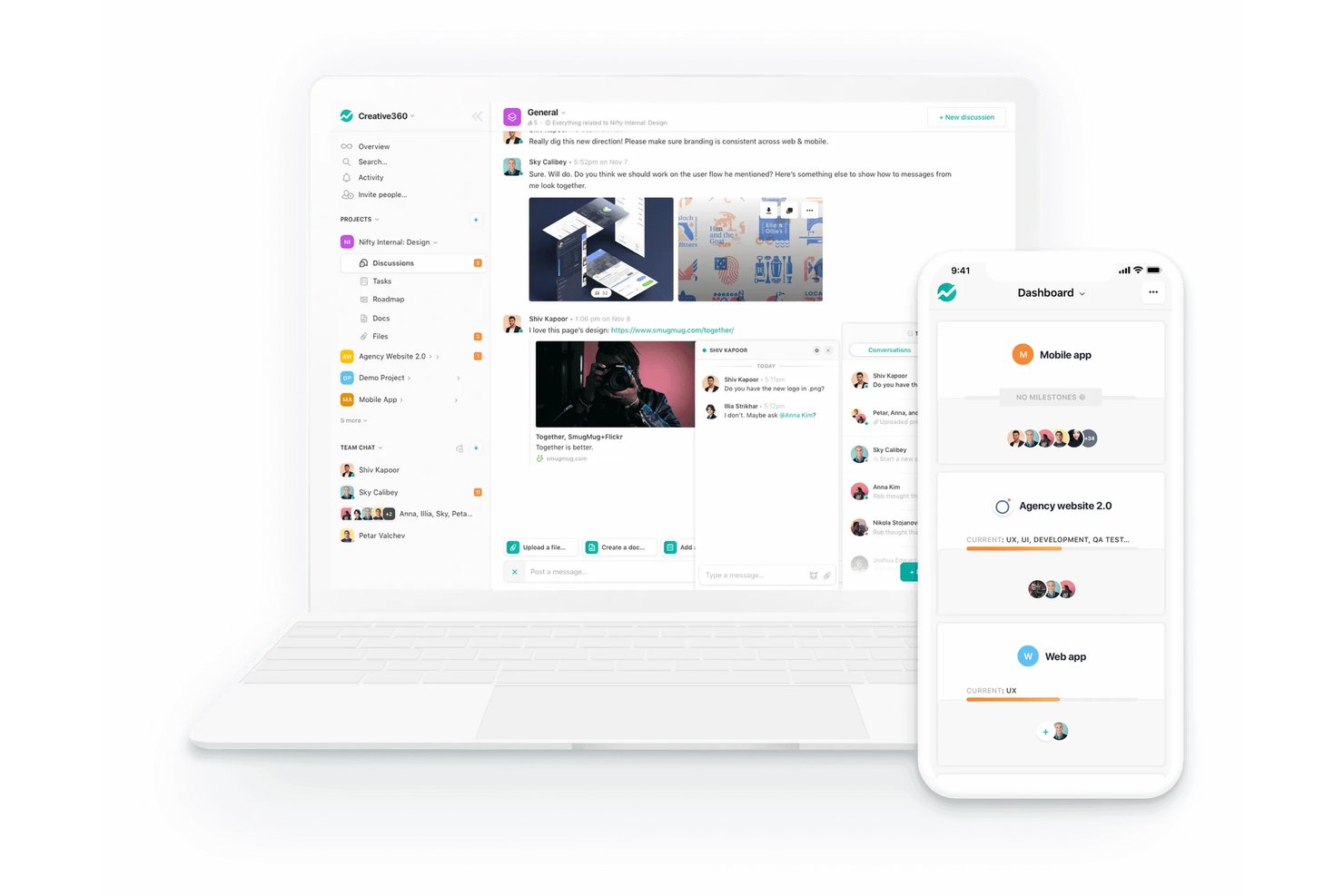
Nifty is an AI-powered project management platform that centralizes tasks, roadmaps, docs, discussions, and reporting in one workspace, with a native Microsoft Teams bot and automation-based notifications built into the integration.
Who Is Nifty Best For?
Nifty is a strong fit for small to mid-sized teams that want tasks, docs, discussions, and reporting in one place instead of juggling multiple tools.
Why I Picked Nifty
I picked Nifty as one of the best because it genuinely pulls tasks, docs, discussions, and reporting into a single workspace, so your team isn't bouncing between five tabs to track a sprint. The Teams bot lets you create tasks, milestones, and status updates directly from Teams, while automation pushes task events like overdue alerts and completions into your chosen channels without any manual follow-up.
Nifty Key Features
- Multiple task views: Switch between Kanban, List, Swimlane, Timeline, and Calendar views to match how your team tracks work.
- Milestone dependencies: Block a milestone from starting until tasks in a preceding milestone are completed, keeping sprint sequencing intact.
- Portfolio overview: Group projects into portfolios and monitor status, timelines, and team members across all of them in one dashboard.
- Workflow automations: Set if/then rules to assign users, update statuses, or trigger deadline changes based on task conditions.
Nifty Integrations
Nifty offers native integrations with Microsoft Teams, the Microsoft ecosystem including OneDrive and Outlook Calendar, Google Drive, Google Calendar, Slack, GitHub, Zoom, and Miro. It also supports an Open API and over 2,000 integrations through Zapier.
Pros and Cons
Pros:
- Flexible views help teams track work
- Shared project discussions reduce context switching
- Task assignments and dependencies clarify ownership
Cons:
- Customized reports can be difficult to export
- Technical glitches disrupt otherwise steady workflows

ClickUp
Best for all-in-one tool versatility
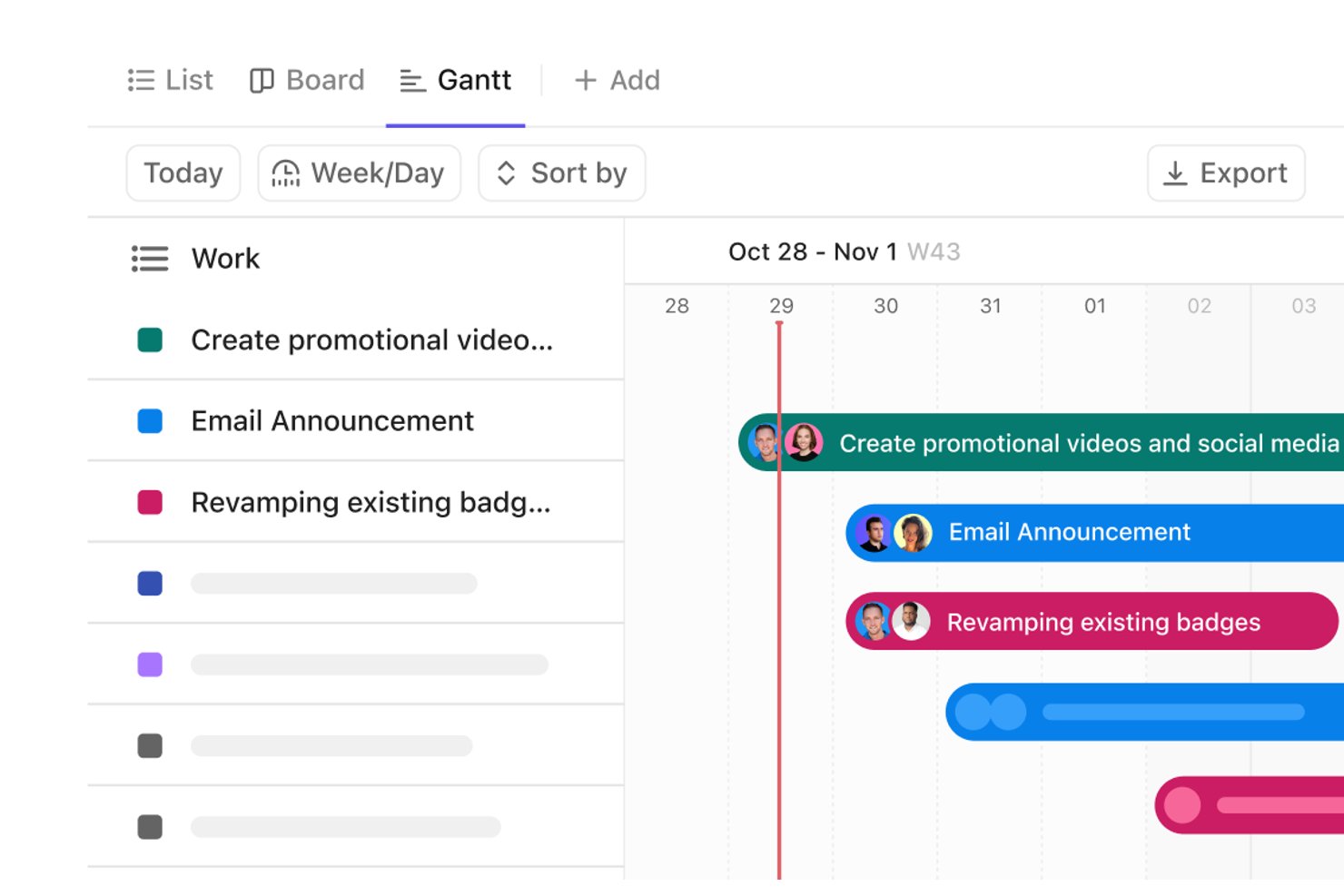
ClickUp is a work management platform that combines task tracking, project planning, docs, dashboards, and built-in chat—with a native Microsoft Teams integration for creating tasks from messages and syncing project activity to channels.
Who Is ClickUp Best For?
ClickUp suits cross-functional teams that want tasks, docs, dashboards, and chat in one workspace without stitching together separate tools.
Why I Picked ClickUp
I've included ClickUp in my top picks because it's the rare tool that genuinely replaces several apps at once—tasks, docs, dashboards, chat, and whiteboards all live in one workspace. For Teams users, I particularly like that you can turn a Teams message into a ClickUp task with an assignee and deadline without ever leaving the conversation. ClickUp's Connected Search also lets you pull SharePoint files directly into ClickUp, so your M365 documents stay findable alongside your project work.
ClickUp Key Features
- SharePoint Connected Search: Search SharePoint drives, sites, documents, and files directly within ClickUp without leaving your workspace.
- Entra ID SCIM provisioning: Automatically create, remove, and assign roles for users in ClickUp based on your Microsoft Entra ID groups.
- Workspace audit logs: Track user logins, role changes, task events, and app-connection activity with exportable logs for compliance reference.
- Workload view: See team capacity across tasks and projects in a visual layout to spot imbalances and reassign work before deadlines slip.
ClickUp Integrations
ClickUp offers 50+ native integrations, including Microsoft Teams, SharePoint, OneDrive, Google Drive, Slack, GitHub, and Outlook. It also supports Zapier, webhooks, OAuth, and a public API for custom integrations.
Pros and Cons
Pros:
- Keeps project documents and work context together
- Dashboards help monitor cross-project progress
- Centralizes task ownership and deadline visibility
Cons:
- Large workspaces can feel slow during task creation
- Configuring workflows takes upfront effort

Best for operational efficiency
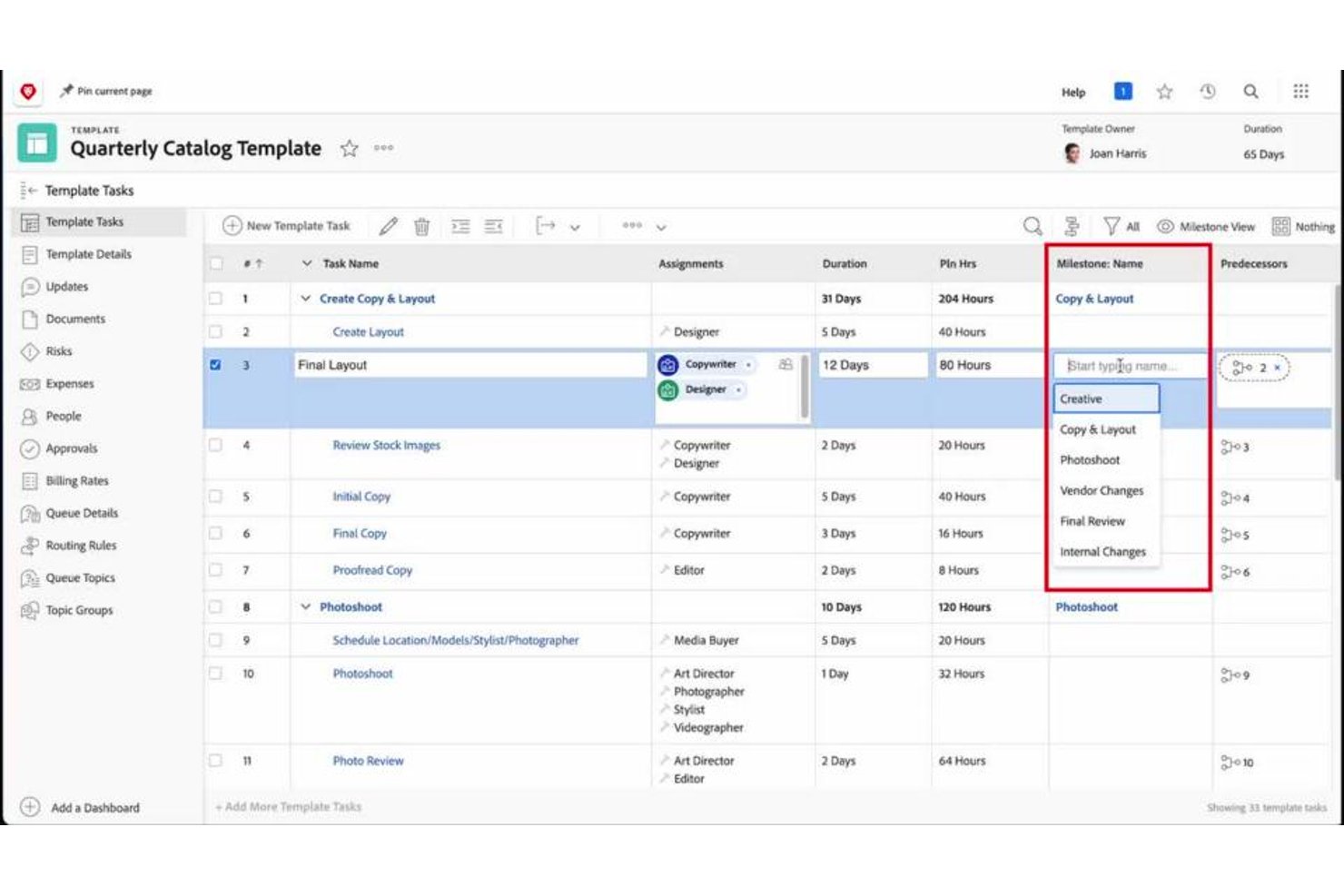
Workfront is an enterprise work management platform that helps teams streamline their operations and work more efficiently. Workfront tackles the complexities of enterprise work management and focuses on improving operational efficiency. It offers a centralized platform for managing new projects, resources, and processes, which is essential for maintaining a high level of operational performance.
Why I picked Workfront: You guessed it! Because it integrates with MS Teams. You can access Adobe Workfront from Microsoft Teams and perform several actions in Workfront by typing commands in either the Workfront bot channel or any other team channel.
Examples of what you can do from MS Teams include search for projects, tasks, or issues, create personal tasks, respond to notifications, and manage document approvals.
Standout features & integrations:
Features include project management, task management, resource management, portfolio management, real-time reporting and analytics, time tracking, collaboration tools, workflow automation, document management, customizable dashboards, proofing and approval processes, budgeting and expense tracking, and mobile app access.
Integrations include Adobe Creative Cloud, Adobe Experience Manager, Jira, Salesforce, Microsoft Teams, Slack, Tableau, ServiceNow, Google Workspace, and Workday.
Pros and Cons
Pros:
- Workflow automation features
- Advanced reporting and resource management
- Customizable project dashboards
Cons:
- Potential learning curve for new users
- Higher cost for smaller teams

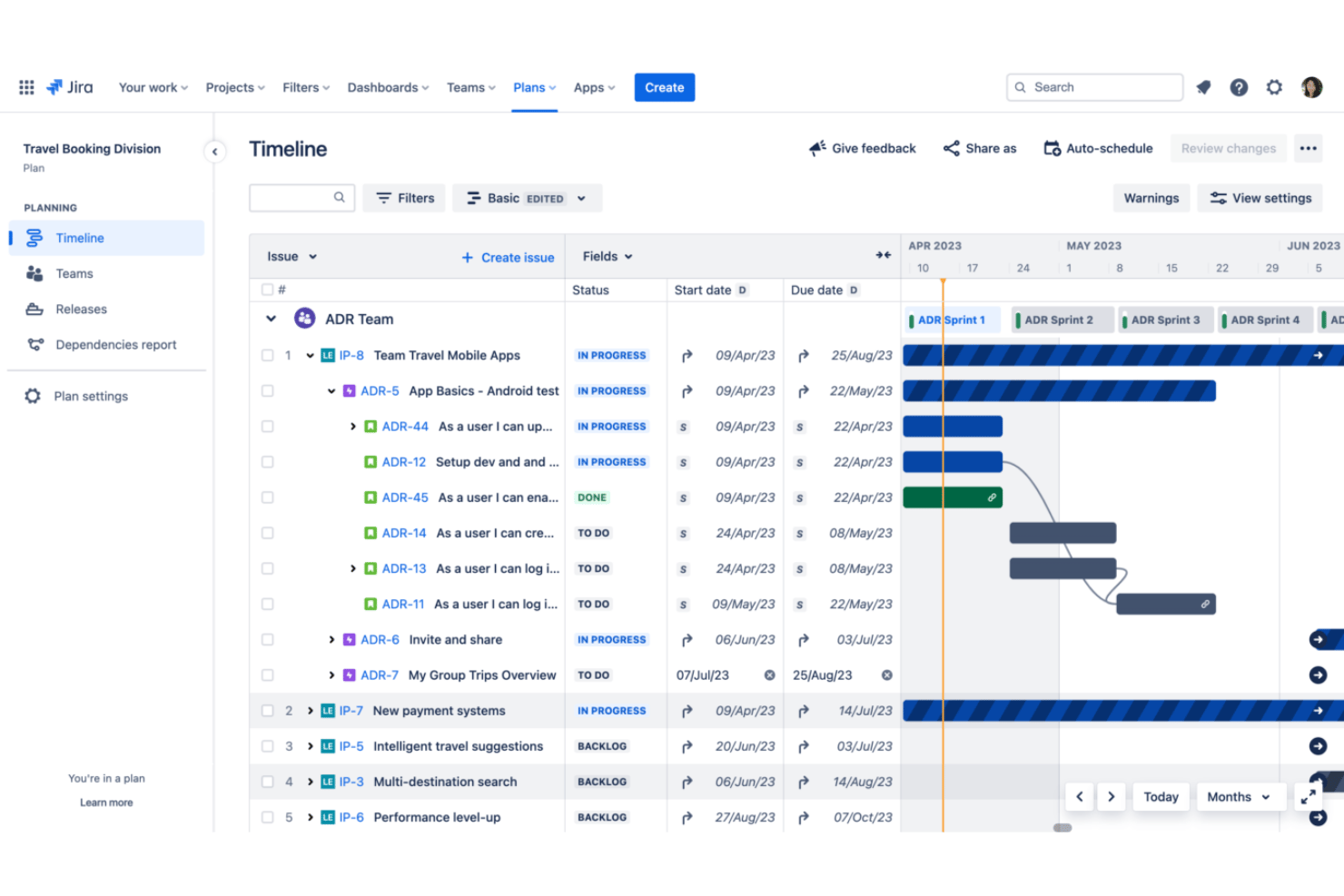
Jira Cloud is a project management tool designed to help teams plan, track, and manage their software development projects. It stands out due to its robust features that support Agile methodologies and cross-functional collaboration.
Why I picked Jira Cloud: Jira Cloud offers a comprehensive set of features that cater to various aspects of project management, particularly its strong support for Agile practices. Additionally, its integration with Microsoft Teams provides your team with a unified view of Jira projects, enabling seamless collaboration and task management directly within Teams. You can enhance your workflow with customized notifications, link previews, and the ability to create, search, and update Jira tasks without switching platforms.
Standout features & integrations:
Features include Agile project management, customizable workflows, Kanban and Scrum boards, issue and bug tracking, backlog prioritization, real-time reporting and analytics, time tracking, integration with third-party apps, automation rules, advanced search with JQL, roadmaps, project templates, user permissions and roles, collaboration tools, and mobile app access. Additionally, Jira Cloud provides advanced planning features, such as roadmaps and dependency management, which are essential for coordinating work and ensuring alignment among different teams.
Integrations include Microsoft Teams, Confluence, Bitbucket, Trello, Slack, GitHub, GitLab, Jenkins, Bamboo, Zendesk, and Salesforce.
Pros and Cons
Pros:
- Extensive integration options with other tools and services
- Customizable workflows to match team processes
- Advanced planning features for cross-team coordination
Cons:
- May be more expensive than other options for larger teams
- Can be complex to set up and customize
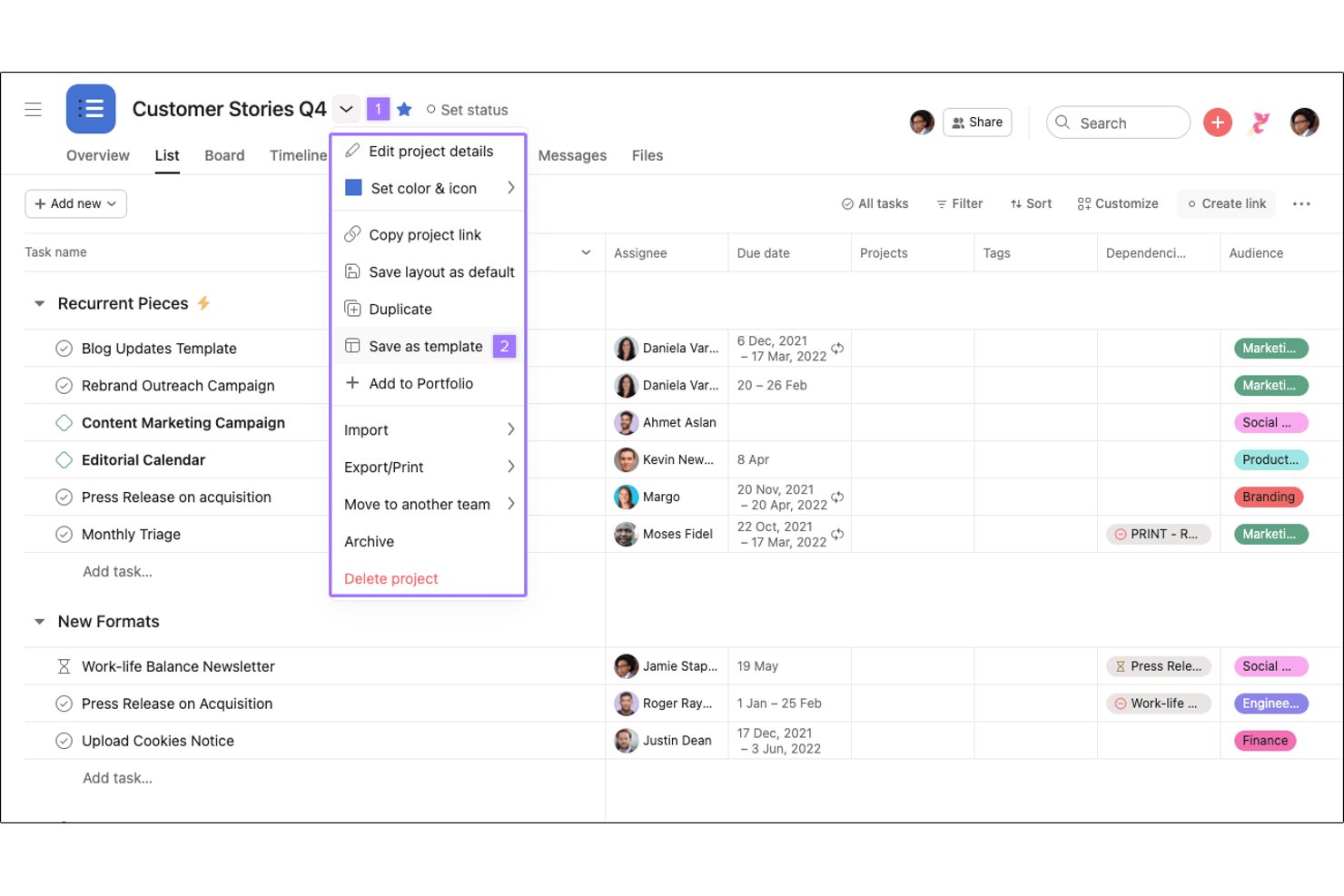
Asana is a project management tool that helps teams track their work. It stands out as the best for connecting work to goals by providing a clear framework for aligning tasks with strategic objectives.
Why I picked Asana: Asana hosts robust features that facilitate goal-oriented project management. It distinguishes itself from other tools by breaking down goals into actionable tasks and tracking progress. Asana allows for setting clear objectives and linking them directly to tasks and projects, ensuring team efforts align with company goals.
Standout features & integrations:
Features include task management, project timelines, real-time collaboration, reporting and analytics, custom fields and templates, multiple project views (like list, board, calendar, and timeline), goal tracking, automation with rules, portfolio management, and workload management.
Integrations include Microsoft Teams, Slack, Google Calendar, Outlook, Gmail, Jira, Salesforce, Zapier, Adobe Creative Cloud, and Tableau.
Pros and Cons
Pros:
- Customizable workflows and automation Broad integration capabilities
- Customizable workflows and automation
- Aligns tasks with strategic goals
Cons:
- No native time-tracking
- Steep learning curve for beginners
Microsoft Teams ile Entegrasyon Sağlayan Diğer Proje Yönetimi Yazılımları
Aşağıda, kısa listeme aldığım ve Microsoft Teams ile entegre olan ek proje yönetimi yazılımlarının bir listesi yer alıyor. İlk 10’a girememiş olsalar da yine de değerliler ve daha fazla araştırmaya değerler.
- Miro
For visual collaboration in Teams meetings
- Smartsheet
For spreadsheet-like project views
- Planview AdaptiveWork
For enterprise portfolio management in Teams
- ProjectManager
For real-time project tracking and insights
- Teamwork.com
For client services businesses
- Zenkit
For EU-hosted project tracking in Teams
- Trello
For simplifying complex processes
- Backlog
For code collaboration
- Workzone
For comprehensive project visibility
- Azure DevOps
For approving pipeline deployments in Teams


İlgili Proje Yönetimi Yazılımı İncelemeleri
Aradığınızı burada hâlâ bulamadıysanız, test edip değerlendirdiğimiz diğer ilgili araçlara göz atın:
- Proje Yönetimi Yazılımı
- Kaynak Yönetimi Yazılımı
- İş Akışı Otomasyonu Yazılımı
- Zaman Takibi Yazılımı
- Görev Yönetimi Yazılımı
- İş Birliği Araçları
- Gantt Şeması Oluşturucu
- Verimlilik Araçları
- Proje Takibi Yazılımı
- Proje Planlama Yazılımı
- Küçük Ekipler için Proje Yönetimi Yazılımı
How I Evaluate Project Management Software That Integrates With Microsoft Teams
I split my evaluation into three parts, weighting core functionality most: managing assigned tasks and deadlines, tracking status, and working in Teams. Next, I consider standout features such as message-to-task conversion. Finally, I assess onboarding, support, and pricing value.
Core Functionality (Table Stakes For This List)
When I'm selecting tools for my list, I score each one on a scale from 0 (does not offer the functionality) to 5 (excels in this area) for each core functionality listed below. I then convert the total into a percentage to help assess each tool's overall fit, with extra weight on any functionalities I’ve deemed essential.
- Teams Integration (Essential): I look for a dedicated Teams app, tab, or bot that lets people access project information and take action from channels or chats.
- Project Management (Essential): I assess whether teams can create, assign, schedule, and track tasks, including ownership, due dates, priorities, and status.
- Teams Notifications: I check whether updates such as assignments and status changes reach relevant channels with links back to the work.
- Project Views: I look for multiple ways to review work, such as boards, lists, calendars, or timelines, to suit different planning needs.
- File Collaboration: I assess whether teams can attach or share project files and access linked documents through Teams or SharePoint.
- Microsoft Identity: I check for Microsoft SSO or Entra ID support and how well sign-in and access fit an organization’s setup.
Once I have a list of tools that meet the criteria, I consider what sets each platform apart.
Differentiating Factors (What Sets Vendors Apart)
Here's how I compare and contrast different vendors:
Standout Features
I look for message-to-task conversion that lets someone turn a Teams chat into a tracked task without switching apps. When a client flags a blocker mid-conversation, that context shouldn't get lost. I also evaluate whether boards and action items can surface inside a Teams meeting stage, so sprint reviews don't require a second screen. Tools like Asana and monday.com handle this differently, and the gap matters during fast-moving sessions. Finally, I check for adaptive card approvals—interactive notifications that let a manager approve or reassign work right from chat.
Beyond Features
I check whether project data stays inside your Microsoft 365 tenant or lives on the vendor's servers—this matters when your organization has data residency requirements. Governance alignment is just as important: I look for role-based permissions that map to existing Entra ID policies and admin controls over audit logging and user deprovisioning. I also evaluate how licensing scales across team structures, since a tool that fits a five-person squad can become expensive or unwieldy at the PMO level.
Microsoft Teams ile Entegrasyon Sağlayan Proje Yönetimi Yazılımı Nasıl Seçilir?
Kendinize özgü yazılım seçimi sürecinizi yürütürken aşağıdaki noktaları göz önünde bulundurun:
- Entegrasyon Düzeyi: İdeal çözüm, kapsamlı özelleştirme seçeneklerine olanak tanımalı ve seçtiğiniz platform ile Microsoft Teams arasında verimli iletişimi kolaylaştırmalıdır. Bu entegrasyon, bildirimleri ve güncellemeleri otomatikleştirerek önemli ölçüde zaman ve maliyet tasarrufu sağlayabilir.
- Kullanıcı Deneyimi: Yazılım, görev yönetimini basitleştiren kullanıcı dostu bir arayüz sunmalıdır. Ekibinizin son tarihleri takip etme ve güncellemeleri yönetme gibi günlük görevleri doğrudan Microsoft Teams içinde gerçekleştirmesini sağlayarak sorunsuz bir iş akışı sunmalıdır.
- Diğer Araçlarla Uyumluluk: Proje yönetimi yazılımının ekibinizin güvendiği diğer araçlarla iyi çalışması önemlidir. Bu uyumluluk; elektronik tabloları, diğer proje yönetimi metodolojilerini veya iletişim araçlarını içeren iş akışının bütünlüğünü korumaya yardımcı olur.
- Yazılım Özellikleri: Proje yönetimi yazılımının sunduğu özellikleri ve bunların ekibinizin gereksinimlerini nasıl karşıladığını dikkatlice değerlendirin. Görev bağımlılıkları, kolay genel bakışlar, kontrol listeleri ve Microsoft Teams içinde çalışma olanağı gibi özellikler proje verimliliğini büyük ölçüde artırabilir.
- Destek ve Kaynaklar: Güçlü destek ve eğitim kaynaklarıyla birlikte sunulan bir yazılım seçin. Buna ayrıntılı kılavuzlar, hızlı yanıt veren müşteri hizmetleri ve ekibinizin yazılımın özelliklerinden tam olarak yararlanmasını sağlayan eğitim materyalleri dahildir. Şablonlara ve en iyi uygulamalara erişim de verimli proje yönetimi açısından faydalı olabilir.
Microsoft Teams ile Entegre Olan Proje Yönetimi Yazılımlarındaki Trendler
Microsoft Teams ile entegre olan proje yönetimi yazılımlarında fark ettiğim bazı temel trendler şunlardır:
- Yapay Zekâ Destekli Proje Yönetimi: Yapay zekâ, öngörücü analizler ve otomatik görev yönetimi sunarak proje yönetimi yazılımlarının temel unsurlarından biri hâline geliyor. Bu trend ilgi çekici çünkü proje yöneticilerinin stratejik karar almaya odaklanmasına, yapay zekânın ise rutin görevleri üstlenmesine olanak tanıyor.
- Gelişmiş İletişim Entegrasyonu: Proje yönetimi yazılımlarındaki iletişim araçları, Microsoft Teams ve e-posta gibi diğer araçlarla doğrudan entegre olarak daha gelişmiş hâle geliyor. Bu önemlidir çünkü tüm proje iletişimlerinin merkezi ve erişilebilir olmasını sağlayarak iş akışlarını kolaylaştırır.
- Stratejik Kaynak Planlaması: Ekip uygunluğu ve beceri setleri hakkında ayrıntılı bilgiler sunan yazılımlarla kaynak yönetimi daha fazla önem kazanıyor. Bu durum, daha verimli proje kadroları oluşturulmasını ve insan kaynaklarının daha iyi kullanılmasını sağlıyor.
- Değişim Yönetimine Vurgu: Ekiplerin proje değişikliklerine daha etkili bir şekilde uyum sağlamasına yardımcı olmak için değişim yönetimi özellikleri ekleniyor. Bu yaklaşım, ekip moraline ve uyum yeteneğine odaklanarak proje yönetiminin insani yönünü ele alıyor.
- Önceliği Buluta Veren Yaklaşım: Proje yönetimi yazılımlarının güçlü bulut tabanlı çözümler sunmasıyla önceliği buluta veren bir anlayış benimseniyor. Bu trend, uzaktan ve hibrit çalışma modellerini desteklemesi, ekiplere esneklik ve erişilebilirlik sağlaması bakımından ilgi çekicidir.
Microsoft Teams ile Entegre Olan Proje Yönetimi Yazılımı Nedir?
Proje yönetimi yazılımı, bireylerin ve ekiplerin projeleri başlangıçtan tamamlanmaya kadar planlamasına, düzenlemesine, yönetmesine ve takip etmesine yardımcı olmak için tasarlanmış dijital bir araçtır. Microsoft Teams ile entegre edildiğinde kullanıcılar farklı uygulamalar arasında geçiş yapmadan görevleri kolayca yönetebilir, ilerlemeyi takip edebilir, dosyaları paylaşabilir ve gerçek zamanlı iletişim kurabilir.
Microsoft Teams ile Entegre Olan Proje Yönetimi Yazılımının Özellikleri
Microsoft Teams ile entegre olan bir proje yönetimi yazılımı seçerken, proje takibini ve ekip iletişimini daha da geliştiren özellikleri dikkate almak önemlidir. Aranması gereken en önemli özellikler şunlardır:
- Görev Atama ve Takibi: Bu özellik, görevlerin devredilmesine ve izlenmesine olanak tanır. Bu önemlidir; çünkü her ekip üyesinin sorumluluklarını ve son teslim tarihlerini bilmesini sağlayarak hesap verebilirliği teşvik eder.
- Dosya Paylaşımı ve İş Birliği: Bununla ekip üyeleri belgeleri kolayca paylaşabilir ve gerçek zamanlı olarak iş birliği yapabilir. Bu özellik önemlidir; çünkü kaynakları merkezileştirerek herkesin proje materyallerine erişmesini ve bunlar üzerinde çalışmasını kolaylaştırır.
- Zaman Takibi: Bu özellik, görevler ve projeler için harcanan zamanın kaydedilmesini sağlar. Verimliliği korumak ve projelerin programa uygun ilerlemesini sağlamak için gereklidir.
- Entegre Ekip Sohbeti: Bu özellik, ekip içinde anlık mesajlaşma için bir platform sağlar. Sorunların hızlı bir şekilde çözülmesinde kilit rol oynayan açık ve anında iletişimi sürdürmek için kritik öneme sahiptir.
- Takvim Senkronizasyonu: Bu özellik, Microsoft Teams içindeki programların ve son teslim tarihlerinin uyumlu hâle getirilmesini sağlar. Önemlidir; çünkü planlama çakışmalarının önlenmesine yardımcı olur ve tüm ekip üyelerinin önemli tarihlerden haberdar olmasını sağlar.
- Kanban Panoları: Bu görsel panolar, iş akışını ve görevleri yönetmeye yardımcı olur. İlerlemenin net bir görünümünü sağlamak ve ekiplerin düzenli kalmasına yardımcı olmak açısından önemlidir.
- Gantt Şemaları: Bu özellik, proje planlaması için görsel bir zaman çizelgesi sunar. Görevlerin sırasını ve aralarındaki bağımlılıkları anlamaya yardımcı olması açısından önemlidir; bu da etkili proje planlaması için kritik öneme sahiptir.
- Raporlama Araçları: Bu araçlar, proje performansına ilişkin veriler oluşturur. İlerlemeyi takip etmek ve gerçek zamanlı verilere dayanarak bilinçli kararlar almak için önemlidir.
- Özelleştirilebilir Gösterge Panoları: Bununla kullanıcılar proje görünümlerini ihtiyaçlarına göre düzenleyebilir. Bu önemlidir; çünkü ekip üyelerinin çalışmalarıyla en ilgili bilgilere odaklanmasını sağlar.
- Bildirimler ve Uyarılar: Bu özellik, ekibi değişiklikler ve kilometre taşları hakkında güncel tutar. Herkesin son gelişmelerden haberdar olmasını sağlar ve bu da proje ivmesinin korunmasına yardımcı olabilir.
Bu özelliklere sahip proje yönetimi yazılımlarını seçmek, bir ekibin projeleri verimli bir şekilde teslim etme çabalarını büyük ölçüde destekleyebilir. Microsoft Teams ile entegre olan bu araçlar, açık iletişimin sürdürülmesine, herkesin aynı bilgiye sahip olmasının sağlanmasına ve bir projenin tüm yönlerinin etkili bir şekilde takip edilmesine yardımcı olabilir.
Microsoft Teams ile Entegre Proje Yönetimi Yazılımlarının Faydaları
Microsoft Teams ile entegre olan bir proje yönetimi yazılımını değerlendirenler için, sunduğu belirli avantajları anlamak bilinçli bir karar vermeye yardımcı olabilir. Kullanıcıların bekleyebileceği başlıca faydalardan bazıları şunlardır:
- Merkezileştirilmiş İletişim: Proje yönetimi yazılımını Microsoft Teams ile entegre ederek kullanıcılar, projeyle ilgili tüm konuşmaları ve dosyaları tek bir yerde tutabilir; böylece uygulamalar arasında geçiş yapma ihtiyacını azaltır ve değerli zamandan tasarruf eder.
- Geliştirilmiş Görünürlük ve Takip: Bu entegrasyon, ekip üyelerinin ve paydaşların son gelişmelerden haberdar olmasını sağlar; böylece herkes aynı bilgiye sahip olur ve ortaya çıkan sorunlara hızlı bir şekilde müdahale edebilir.
- Geliştirilmiş İş Birliği: Proje yönetimi araçları doğrudan Microsoft Teams içinde kullanılabildiğinden ekip üyeleri, Teams ortamından ayrılmadan görevler üzerinde kolayca iş birliği yapabilir, belgeleri paylaşabilir ve ortak kaynaklara erişebilir.
- Kolaylaştırılmış Görev Yönetimi: Kullanıcılar görevleri atayabilir, son teslim tarihleri belirleyebilir ve tamamlanma durumunu doğrudan Microsoft Teams üzerinden takip edebilir. Bu da proje iş akışlarını yönetmeyi ve zamanında teslimatı sağlamayı kolaylaştırır.
- Özelleştirilebilir Bildirimler: Entegrasyon, Microsoft Teams içinde özelleştirilebilir bildirimlere olanak tanır. Böylece kullanıcılar belirli proje kilometre taşları, görev tamamlanmaları veya mesajlar hakkında bildirim almayı seçebilir ve en önemli konulara odaklanmayı sürdürebilir.
Kuruluşlar bu avantajlardan yararlanarak daha uyumlu ve verimli bir proje yönetimi ortamı oluşturabilir; bu da nihayetinde başarılı proje sonuçlarına ve daha iyi iş performansına katkı sağlar.
Microsoft Teams ile Entegre Proje Yönetimi Yazılımlarının Maliyetleri ve Fiyatlandırması
Yeni bir yazılımı değerlendirirken mevcut çeşitli plan seçeneklerinin ve fiyatlandırmanın farkında olmalısınız. Aşağıda, Microsoft Teams ile entegre olan proje yönetimi yazılımları için plan türlerini, ortalama fiyatları ve yaygın özellikleri özetleyen bir tablo yer almaktadır.
Microsoft Teams ile Entegre Proje Yönetimi Yazılımları için Plan Karşılaştırma Tablosu
| Plan Türü | Ortalama Fiyat | Yaygın Özellikler |
| Ücretsiz Plan | $0 | Temel görev yönetimi, Microsoft Teams ile sınırlı entegrasyon ve topluluk desteğine erişim |
| Başlangıç Seviyesi Planı | $5 - $15 kullanıcı/ay | Görev ve proje takibi, temel raporlama, Microsoft Teams ile bazı entegrasyonlar ve e-posta desteği |
| Orta Seviye Plan | $15 - $35 kullanıcı/ay | Gelişmiş proje yönetimi özellikleri, Microsoft Teams ile tam entegrasyon, öncelikli destek ve gelişmiş güvenlik |
| Premium Plan | $35 - $60 kullanıcı/ay | Kapsamlı proje ve portföy yönetimi, özel entegrasyonlar, özel destek ve gelişmiş analiz ile raporlama |
| Kurumsal Plan | Özel fiyatlandırma | İhtiyaca göre uyarlanmış çözümler, kurumsal düzeyde güvenlik, kişisel hesap yönetimi ve stratejik planlama araçları |
Sunulan bilgiler genel bir kılavuz niteliğindedir; belirli özellikler ve fiyatlandırma, farklı proje yönetimi yazılımı sağlayıcıları arasında önemli ölçüde değişiklik gösterebilir. Yazılım alıcılarının plan seçerken ekiplerinin büyüklüğünü, projelerinin karmaşıklığını ve ihtiyaç duydukları destek düzeyini göz önünde bulundurmaları önemlidir.
Microsoft Teams ile Entegre Olan Proje Yönetimi Yazılımları Hakkında SSS
Microsoft Teams ile entegrasyon proje yönetimini nasıl geliştirir?
Proje yönetimi yazılımının Microsoft Teams ile entegre edilmesi, merkezi iletişim ve iş birliği olanağı sağlar. Ekip üyeleri tek bir platform üzerinden görevleri tartışabilir, dosya paylaşabilir ve güncellemeleri alabilir. Bu entegrasyon, herkesin uyum içinde ve bilgilendirilmiş kalmasına yardımcı olurken uygulamalar arasında geçiş yapma ihtiyacını azaltır.
Microsoft Teams'te proje yönetimi aracından bildirim almak mümkün müdür?
Evet, entegre edildikten sonra çoğu proje yönetimi aracı Microsoft Teams’e bildirim gönderebilir. Bu bildirimler görev güncellemelerini, proje değişikliklerini ve hatırlatıcıları içerebilir; böylece ekip üyelerinin gerçek zamanlı olarak bilgi sahibi olması sağlanır.
Proje yönetimi yazılımını Microsoft Teams ile entegre etmek için ne tür izinler gerekir?
Proje yönetimi yazılımını Microsoft Teams ile entegre etmek için genellikle her iki sistemde de yönetici izinlerine sahip olmanız gerekir. Bu izinler, gerekli eklentileri veya uygulamaları yüklemenize ve veri paylaşımı ile kullanıcı erişimi ayarlarını yapılandırmanıza olanak tanır.
Proje yönetimi araçlarının Microsoft Teams ile entegrasyonu dosya paylaşımını destekler mi?
Entegrasyon genellikle dosya paylaşımını destekler ve kullanıcıların proje yönetimi araçlarındaki dosyaları doğrudan bir Microsoft Teams sohbetine veya kanalına eklemesine olanak tanır. Bu özellik, ekip üyelerinin projeyle ilgili belgelere kolayca erişip bunları tartışabilmesini sağlayarak iş birliğini kolaylaştırır.
Microsoft Teams ile entegre proje yönetimi yazılımı kullanılırken veriler ne kadar güvendedir?
Veri güvenliği, hem Microsoft Teams hem de üçüncü taraf proje yönetimi araçları için önceliklidir. Bu araçlar genellikle şifreleme, uyumluluk sertifikaları ve özelleştirilebilir güvenlik ayarları sunar. Ancak seçtiğiniz belirli aracın güvenlik önlemlerini ve politikalarını incelemeniz, bunların kuruluşunuzun standartlarını karşıladığından emin olmanız açısından önemlidir.