

10 beste gratis samarbeidsverktøy anmeldt for 2026

Kortliste over de beste gratis samarbeidsverktøyene


Samarbeidsverktøy er en verdifull ressurs for enhver virksomhet. Med riktig programvare kan team samarbeide mer effektivt eksternt eller på samme sted og holde seg samkjørte om viktige oppgaver. Men det kan være utfordrende å finne det riktige samarbeidsverktøyet, særlig når det finnes så mange alternativer.
Med utgangspunkt i erfaringen min med programvare for prosjektstyring testet og sammenlignet jeg flere av de beste tilgjengelige samarbeidsverktøyene. Deretter samlet jeg resultatene i grundige anmeldelser for å hjelpe virksomheter med å finne den beste programvaren for deres unike behov. Enten du driver en liten bedrift eller en stor virksomhet, er jeg sikker på at du finner ditt neste samarbeidsverktøy i listen nedenfor.
Why Trust Our Software Recommendations
Our team has been testing and reviewing software since 2012. As project managers ourselves, we know how difficult—and important—it is to choose the right software.
For this guide, we evaluated tools using hands-on testing and independent research, scoring tools using our selection criteria. We also draw on insights from industry thought leaders and practicing project management experts.
Our reviews reflect our human editorial judgment, not a sales pitch.
Expert reviewers:
Sammenligningstabell for gratis samarbeidsverktøy
Denne sammenligningstabellen oppsummerer prisdetaljene for mine utvalgte beste gratis samarbeidsverktøy:
| Tool | Best For | Trial Info | Price | ||
|---|---|---|---|---|---|
| 1 | Best for flexible, collaborative workflows | Free plan available | From $9/user/month (billed annually) | Website | |
| 2 | Best for shared inbox team collaboration | 30-day free trial | From $24/user/month (billed annually) | Website | |
| 3 | Best for asynchronous video messaging | Free demo available | $18/month | Website | |
| 4 | Best for video conferencing | Free plan available | From $14.16/user/month (billed annually) | Website | |
| 5 | Best for secure file sharing | Free trial + free plan available | From $9.99/user/month (billed annually) | Website | |
| 6 | Best for integrated productivity tools | 14-day free trial available | From $7/user/month (billed annually) | Website | |
| 7 | Best for visual task management | Free plan available | From $5/user/month (billed annually) | Website | |
| 8 | Best for complex project tracking | Free plan available; 7-day free trial | From $8.48/user/month | Website | |
| 9 | Best for visual collaboration and brainstorming | Free plan + 14-day free trial available | From $8/user/month (billed annually) | Website | |
| 10 | Best for team communication | Free plan available | From $7.25/user/month (billed annually) | Website |


Anmeldelser av de beste gratis samarbeidsverktøyene
Denne delen gir en grundig analyse og oversikt over hvert gratis samarbeidsverktøy. Jeg går gjennom fordeler og ulemper, funksjoner og de beste bruksområdene for hvert verktøy.
Best for flexible, collaborative workflows

monday.com is a work management platform for teams that lets you organize projects, assign tasks, share files, and collaborate in real time using customizable boards and workflows.
Who Is monday.com Best For?
monday.com is a good fit for cross-functional teams in tech, marketing, and product who need a flexible, visual workspace to manage collaborative work across multiple projects.
Why I Picked monday.com
I picked monday.com as one of the best because of how genuinely flexible its board structure is for cross-functional collaboration. My team uses it to run everything from sprint planning to content calendars on the same platform, switching between Kanban, Gantt, and list views without rebuilding anything. I also like the customizable workflow automations—for example, set a rule that notifies a designer when a developer marks a task "ready for review," cutting down on a lot of back-and-forth. The Workdocs feature lets you embed live board data directly into a document, so your project brief and your task tracker stay connected instead of drifting apart.
monday.com Key Features
- Guest access: Invite external collaborators—like clients or contractors—to specific boards without giving them full account access.
- Dashboard reporting: Build real-time dashboards that pull data from multiple boards to give stakeholders a consolidated view of project status.
- @mentions and updates: Tag teammates directly in task updates to keep conversations tied to specific items rather than scattered across email threads.
- Forms: Create intake forms that feed submissions directly into a board, so incoming requests from other teams land in the right place automatically.
monday.com Integrations
monday.com offers hundreds of native integrations through its marketplace, including Slack, Google Workspace, Microsoft Teams, Zoom, Salesforce, HubSpot, Dropbox, GitHub, Trello, and Outlook. It also supports Zapier and provides an API for custom integrations.
What's Free?
monday.com offers a free-forever plan for up to 2 users, limited to 3 boards and 3 docs. Integrations and automations are not included on the free plan.
Pros and Cons
Pros:
- Clarity and visibility across projects help distributed teams stay aligned
- Highly customizable boards let teams build workflows around their own processes
- Strong support for remote collaboration with real-time updates and mobile access
Cons:
- Free and Basic plans are very limited and don’t include key views or automation features.
- Without customization and thoughtful setup, boards can become messy as projects scale.
New Product Updates from monday AI Workspace
monday AI Workspace Adds Human Approval Routing
monday AI Workspace adds a human-in-the-loop approval block to AI Workflows, sending approval requests and routing workflow paths based on responses. For more information, visit monday AI Workspace's official site.
Missive
Best for shared inbox team collaboration
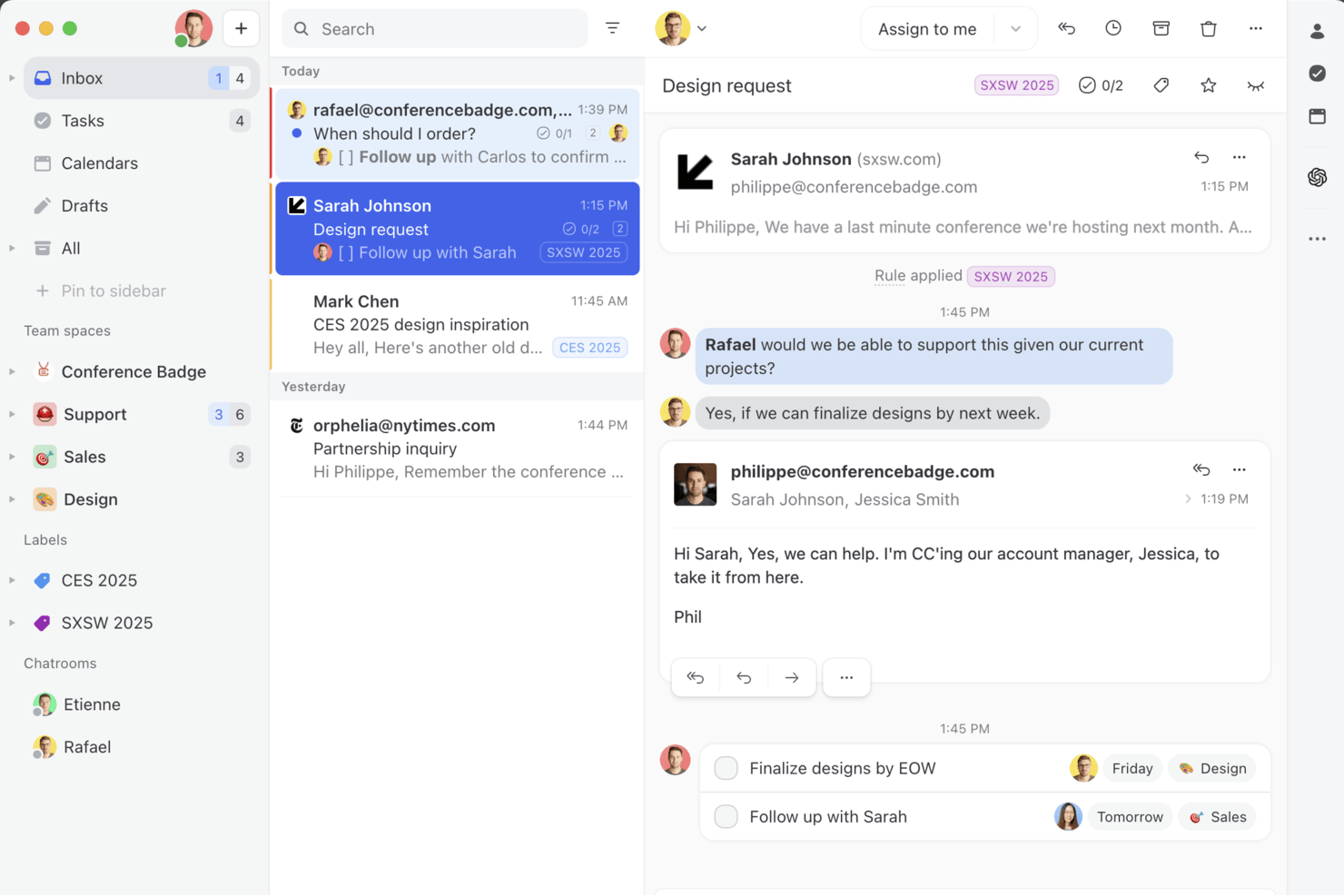
Missive is a collaborative email and chat platform built for teams who need shared inboxes, multi-channel communication, and real-time internal collaboration features.
Who Is Missive Best For?
Agency account managers and client-facing teams who need a shared inbox for multi-channel communication and real-time collaboration.
Why I Picked Missive
I picked Missive because I rely on shared inboxes for true team email collaboration. Assigning conversations, adding internal comments, and inviting guests into threads streamlines client communications. Real-time collaborative drafting means my team never steps on each other’s toes when replying.
Missive Key Features
- Team spaces: Create separate workspaces for different teams, each with its own inbox, chat, and tasks.
- Audit trail: Track every user action and message change by time and person for full transparency.
- Rules engine for automation: Automate assignments, replies, and follow-ups through a flexible, no-code rules builder.
- Multi-channel inbox: Manage emails, SMS, WhatsApp, Instagram, Messenger, and live chat from a unified interface.
- Missive MCP Server: Connect external AI tools (like Claude or ChatGPT) to query collaboration threads, check calendars, and draft replies—while keeping team review required before sending.
Missive Integrations
Missive offers 30+ native integrations, including Google Drive, Dropbox, HubSpot, Salesforce, Pipedrive, Asana, ClickUp, Trello, Zoom, Twilio, and Slack. It also integrates with Zapier, Make, provides a public API for custom workflows, and includes its new MCP Server on Productive and Business plans (requires admin activation).
What's Free?
Missive offers a 30-day free trial with access to all features. After the trial, you’ll need a paid plan—there’s no free-forever option. The free trial includes unlimited users and channels, so you can test full team collaboration.
Pros and Cons
Pros:
- Guest access for external collaborators
- Unified inbox for email and chat
- Collaborative drafting of emails and comments
Cons:
- Task management tied to email threads
- No free plan for ongoing use
New Product Updates from Missive
Missive Adds Conversation Pins
Missive now lets you pin key links, decisions, and notes inside a conversation, keeping them accessible in a dedicated Pins section in the Details sidebar. For more information, visit Missive's official site.
 .
.
Loom
Best for asynchronous video messaging

Loom is a video collaboration platform that lets teams record, share, and organize screen and webcam videos for asynchronous communication and feedback.
Who Is Loom Best For?
Loom is a strong fit for remote and distributed teams—especially in product, engineering, and design—who rely on async communication across time zones.
Why I Picked Loom
Loom is one of my top picks because I love how it replaces the kind of meeting that really should've been a video. My team uses Loom to record quick screen walkthroughs with a camera bubble overlay, so the person watching gets both the visual context and the face-to-face feel without scheduling anything. The viewer insights feature is genuinely useful too—I can see exactly who watched a video and how far they got, which tells me whether my message actually landed. Timestamped comments let teammates respond directly to a specific moment in the recording rather than sending a vague follow-up message.
Loom Key Features
- Transcriptions and closed captions: Loom auto-generates transcripts and captions for every video in 50+ languages.
- Speaker notes: Add notes visible only to you while recording, so you stay on track without a separate script.
- Libraries: Organize videos into personal, shared, and team libraries so recordings are easy to find and manage.
- Video privacy controls: Set per-video privacy settings, including password protection and email-gated viewing.
Loom Integrations
Integrations include Slack, Microsoft Teams, Jira, Confluence, GitHub, Google Workspace, Salesforce, Zendesk, Intercom, Trello, and Notion.
What's Free?
Loom offers a free-forever plan for up to 50 users per workspace. Free users can record up to 25 videos per person, each with a maximum length of 5 minutes.
Pros and Cons
Pros:
- Secure sharing
- AI transcription
- Easy video recording
Cons:
- Requires internet connection
- Free plan lacks importing & downloading

Zoom
Best for video conferencing

Zoom is a cloud-based collaboration platform that brings together video meetings, chat, screen sharing, and whiteboarding for teams who need real-time communication.
Who Is Zoom Best For?
Zoom is a strong fit for distributed and hybrid teams of any size that rely on frequent video meetings as their primary mode of collaboration.
Why I Picked Zoom
Zoom earns its spot on my shortlist because it's the most widely recognized video conferencing tool available, and its free tier is genuinely usable for real team collaboration. I like that the free plan supports meetings with up to 100 participants, which covers most sprint reviews or cross-functional syncs my team runs. The multi-speaker view automatically shifts focus to whoever is talking, so I'm not manually managing layouts mid-meeting. Breakout rooms are also available on the free plan, which means I can split a larger group into smaller working sessions without upgrading.
Zoom Key Features
- Screen sharing: Share your full screen, a specific application window, or a portion of your screen during any meeting.
- In-meeting chat: Send messages, links, and files to all participants or specific individuals without interrupting the call.
- Zoom Whiteboard: Collaborate visually using a shared digital canvas with sticky notes, shapes, and drawing tools.
- Meeting recording: Record meetings locally to your device and revisit discussions or share them with teammates who couldn't attend.
Zoom Integrations
Zoom offers native integrations with Google Workspace, Microsoft 365, Slack, Salesforce, HubSpot, Dropbox, Box, Trello, Asana, and Zapier. An API is available for custom integrations.
What's Free?
Zoom offers a free-forever plan that allows unlimited one-on-one meetings and group meetings for up to 100 participants, with a 40-minute limit on group sessions. Some advanced features and integrations are only available on paid plans.
Pros and Cons
Pros:
- Robust security features
- User-friendly interface
- High-quality video and audio
Cons:
- Requires stable internet connection
- Free plan only allows for 40 minutes of meeting time

Dropbox
Best for secure file sharing

Dropbox is a cloud-based collaboration platform that lets teams store, share, and work together on files and documents in one place.
Who Is Dropbox Best For?
Dropbox is a good fit for distributed teams that regularly share and collaborate on files across departments or with external stakeholders.
Why I Picked Dropbox
Dropbox earns its spot as one of the best on my shortlist because of how seriously it handles secure file sharing. I like that every file shared through Dropbox is protected with 256-bit AES and SSL/TLS encryption, and I can set password protection and expiration dates on shared links so access doesn't linger longer than it should. When I need to pull back access, revoking permissions on a file or folder takes just a few clicks. The version history and file recovery features also give my team a safety net when working on shared documents across multiple contributors.
Dropbox Key Features
- Dropbox Paper: A built-in collaborative document editor where your team can write, comment, and assign tasks directly within a shared doc.
- File request: Send a link that lets anyone upload files directly to your Dropbox folder without needing a Dropbox account.
- Dropbox Replay: A dedicated tool for reviewing and leaving timestamped feedback on video files without leaving Dropbox.
- Smart Sync: Control which files are stored locally or kept cloud-only, so team members can access the full folder structure without using up local storage.
Dropbox Integrations
Dropbox offers native integrations with Google Workspace, Microsoft 365, Slack, Zoom, Trello, DocuSign, Canva, Adobe Creative Cloud, Salesforce, and Okta. An API is available for custom integrations.
What's Free?
Dropbox offers a free-forever Basic plan with up to 2 GB of storage for individual users. This plan has limited features and does not include advanced sharing controls or most integrations.
Pros and Cons
Pros:
- Cross-device access
- Easy file sharing
- Strong security features
Cons:
- Requires internet access
- Limited free storage

Best for integrated productivity tools

Google Workspace is a cloud-based collaboration suite that brings together document editing, file sharing, team chat, video meetings, and email in one platform.
Who Is Google Workspace Best For?
Google Workspace is a natural fit for teams of any size that are already working within the Google ecosystem and need a single platform for communication, document collaboration, and file management.
Why I Picked Google Workspace
I chose Google Workspace because its deep tool integration is difficult to match. I like that when I'm in Google Docs, I can start a Google Meet call, pull in a comment from Google Chat, and share the file via Gmail without ever leaving the browser tab. The real-time co-editing in Docs, Sheets, and Slides means my team can work on the same file simultaneously, with changes appearing in real time and a full revision history tracking every edit. Google Drive ties it all together as a shared file system that every other tool in the suite connects back to natively.
Google Workspace Key Features
- Google Meet: Host video calls directly from your calendar, Gmail, or Chat with screen sharing and in-meeting chat built in.
- Google Chat spaces: Create dedicated spaces for specific projects or teams where you can share files, assign tasks, and thread conversations.
- Shared drives: Store files at the team level rather than tied to individual accounts, so access persists regardless of team changes.
- Google Calendar: Schedule meetings, set shared team calendars, and view colleagues' availability directly within the Workspace environment.
Google Workspace Integrations
Google Workspace offers native integrations across the Google ecosystem, including Google Drive, Google Meet, Google Chat, Google Calendar, and Gmail. An API is available for custom integrations.
What's Free?
Google Workspace offers a 14-day free trial with access to all core features. After the trial, you’ll need to choose a paid plan to continue using the service; there is no free-forever plan.
Pros and Cons
Pros:
- Strong security features
- Seamless integration across tools
- Comprehensive tool suite
Cons:
- Syncing delays
- Limited offline access


Trello is a collaboration and project management platform that uses boards, lists, and cards to help teams organize tasks, share files, and coordinate work visually.
Who Is Trello Best For?
Trello is a great fit for small to mid-sized teams that prefer a visual, low-overhead approach to organizing and tracking collaborative work.
Why I Picked Trello
Trello earns its spot as one of the best on my shortlist because its Kanban board interface makes it easy to see where every task stands at a glance. I love how cards carry all the context—checklists, due dates, attachments, and comments—so my team doesn't have to chase down status updates in Slack. The Timeline view is useful: when sprint priorities shift, I can drag and drop cards to adjust dates on the fly without rebuilding the whole plan. For visual task management, Trello's board-first design is hard to replicate with tools that treat the list view as the default.
Trello Key Features
- Automation rules: Set trigger-based rules in Trello's built-in Butler automation to move cards, assign members, or update due dates without manual input.
- Custom fields: Add structured data to cards—like dropdowns, numbers, or text fields—to tailor boards to your team's specific workflow.
- Inbox: Capture tasks from emails, Slack messages, and other sources directly into a central Trello Inbox before assigning them to a board.
- AI writing assistance: Use built-in AI on cards to brainstorm ideas, organize action items, and condense long text into concise summaries.
Trello Integrations
Trello offers over 200 native integrations, including Slack, Jira Cloud, Miro, GitLab, Google Calendar, Deskpro, Zoho Desk, Mailbutler, Ganttify, and Droplr. An API is available for custom integrations.
What's Free?
Trello offers a free-forever plan for up to 10 boards per workspace and unlimited users. The free plan includes basic features, but limits you to 250 workspace command runs per month and one Power-Up (integration) per board.
Pros and Cons
Pros:
- Easy to use
- Highly customizable boards
- Flexible workflows
Cons:
- Limited advanced features
- No offline mode

Jira
Best for complex project tracking

Jira is a project management and collaboration platform designed for teams who need advanced issue tracking, customizable workflows, and agile board features.
Who Is Jira Best For?
Jira is a strong fit for software development and product teams that need structured issue tracking and agile project management across multiple workstreams.
Why I Picked Jira
Jira earns its spot on my shortlist because of how well it handles multi-layered project tracking across teams. I particularly like the dependency mapping feature, which lets my team connect engineering, product, and design work so nothing falls through the cracks during a big launch. The timeline view gives me a live read on where every workstream stands, and I can switch between board, list, and calendar views depending on what I need to see. Custom workflows and granular permission controls also mean I can configure Jira to match how my team actually works, not the other way around.
Jira Key Features
- Agile boards: Run Scrum sprints or Kanban boards to visualize work in progress and manage team capacity across active workstreams.
- Intake forms: Let partner teams submit requests directly into Jira projects, keeping all incoming work in one trackable place.
- Automation rules: Set trigger-based rules that automatically update issue statuses, send reminders, or reassign tasks without manual input.
- Reporting dashboards: Access built-in reports like burndown charts and cycle time metrics to monitor team performance and delivery pace.
Jira Integrations
Jira offers native integrations with Confluence, Bitbucket, Trello, Slack, GitHub, Microsoft Teams, Google Drive, Dropbox, Zendesk, and Salesforce. An API is available for custom integrations.
What's Free?
A free trial is available for the Product Management Dashboard for Jira, but details on user limits or feature restrictions are not specified on the site.
Pros and Cons
Pros:
- AI-driven task suggestions
- Real-time data insights
- Customizable workflows
Cons:
- Comes with a learning curve
- Complex setup process
Miro
Best for visual collaboration and brainstorming

Miro is an online collaborative whiteboard platform that lets teams create, share, and organize visual boards for brainstorming, planning, and project collaboration.
Who Is Miro Best For?
Miro is a good fit for cross-functional teams in product, design, and engineering who need a shared visual space for planning and ideation.
Why I Picked Miro
Miro is one of my top picks because I love how its infinite multiplayer canvas turns a brainstorm into something you can act on. My team uses Miro to run live ideation sessions where everyone adds sticky notes simultaneously, and the AI clustering feature automatically groups those notes by theme or sentiment. That alone cuts the time we'd normally spend manually sorting ideas in half. I also rely on Talktrack to record async walkthroughs of our boards, so teammates in different time zones can review decisions and leave comments directly on the canvas without waiting for a meeting.
Miro Key Features
- Templates library: Access 7,000+ pre-built, customizable templates for use cases like journey mapping, Agile planning, and wireframing.
- Voting: Run live polling and dot-voting sessions directly on the board to gather team input and prioritize ideas.
- Presentation mode: Present board content in a structured, slide-by-slide format while keeping full canvas access for live edits and comments.
- Workshop facilitation tools: Use built-in timers, reactions, and facilitation controls to run structured, interactive team sessions.
Miro Integrations
Miro offers native integrations with Slack, Microsoft Teams, Google Drive, Jira, Asana, Trello, Zoom, Confluence, Dropbox, and Box. It also connects with Zapier and provides an API for custom integrations.
What's Free?
Miro offers a free-forever plan that allows unlimited team members but limits you to 3 editable boards. Some advanced features and integrations are only available on paid plans.
Pros and Cons
Pros:
- Real-time collaboration
- Extensive template library
- AI-powered tools
Cons:
- Occasional lag with large boards
- Limited advanced analytics
New Product Updates from Miro
Miro Adds Japan Data Residency for Enterprise Customers
Miro has introduced Japan data residency for enterprise customers, offering in-region storage for production data, backups, and metadata, plus in-region compute infrastructure. For more information, visit Miro's official site.

Slack
Best for team communication

Slack is a collaboration platform for teams that brings together real-time messaging, organized channels, file sharing, and integrations with other workplace tools.
Who Is Slack Best For?
Slack is a strong fit for tech and digital teams of any size that need a dedicated space for real-time communication across multiple projects and departments.
Why I Picked Slack
Slack is on my shortlist because its channel-based structure handles team communication at scale. I use channels to separate conversations by project, team, and topic, so nothing gets buried in a shared inbox or a long email thread. Slack's Huddles feature lets my team jump into a quick audio or video call directly from any channel without scheduling a meeting. Slack Connect brings external partners and clients into shared channels, keeping cross-org communication in one place rather than bouncing between email and chat.
Slack Key Features
- Message threading: Reply directly to specific messages in a thread to keep conversations organized without cluttering the main channel.
- Workflow Builder: Create automated workflows for routine tasks like onboarding requests or status updates without writing any code.
- Canvas: Create and share rich documents, notes, and project briefs directly inside a Slack channel for easy team reference.
- Search and message history: Search across all messages, files, and channels to find past conversations and shared documents quickly.
Slack Integrations
Slack offers over 2,400 native integrations through its App Directory, including Google Workspace, Microsoft Office, Zoom, Salesforce, GitHub, Dropbox, HubSpot, Webex Meetings, Adobe Creative Cloud, and Microsoft Teams. It connects with Zapier and provides an API for custom integrations.
What's Free?
Slack offers a free-forever plan with unlimited users, but limits access to the most recent 90 days of message history and restricts some advanced features and integrations.
Pros and Cons
Pros:
- User-friendly mobile app interface
- Customizable notifications
- Organized communication channels
Cons:
- Can be overwhelming for new users
- Limited video conferencing features
Andre gratis samarbeidsverktøy
Nedenfor finner du en liste over flere gratis samarbeidsverktøy som jeg valgte ut. Selv om de ikke kom med blant de 10 beste, er de fortsatt nyttige og verdt å undersøke nærmere.
- Hive
For team-based project management
- Asana
For goal-oriented project management
- Freedcamp
For comprehensive project management
- Taskworld
For task and project visualization
- Airtable
For no-code custom app building
- Nifty
For project timeline tracking
- Quire
For visual task management
- Lucidspark
For collaborative brainstorming
- Bitrix24
For integrated communication tools
- OneDrive
For cloud storage and file sharing
- Excel
For data analysis and spreadsheets
- same-page.com
For real-time team collaboration


Relaterte anmeldelser av programvare for prosjektstyring
Hvis du fortsatt ikke har funnet det du ser etter her, kan du ta en titt på disse andre relaterte verktøyene som vi har testet og evaluert:
- Programvare for prosjektstyring
- Programvare for ressursstyring
- Programvare for arbeidsflytautomatisering
- Programvare for tidsregistrering
- Programvare for oppgavestyring
- Videobaserte samarbeidsverktøy
- Gantt-diagramverktøy
- Produktivitetsverktøy
- Programvare for prosjektsporing
- Programvare for prosjektplanlegging
- Asynkrone samarbeidsverktøy
How I Evaluate Free Collaboration Tools
I split my evaluation into two layers: baseline criteria a tool must clear—like real multi-user collaboration on a free plan—and the differentiators that separate the best from the rest.
Core Functionality (Table Stakes For This List)
When I'm selecting tools for my list, I rank each one on a scale from 0 (does not offer the functionality) to 5 (excels in this area) for each core functionality listed below. Then, I calculate the tool's total score into a percentage. Each tool needs to achieve a minimum total score of 65% to be considered for inclusion.
- Genuine Free Plan: I check whether the tool offers a permanent free tier rather than a short trial, since teams need long-term access to plan sprints, manage backlogs, and run ongoing projects.
- Shared Workspaces: Each tool should let multiple people work inside the same project space, whether that's a Kanban board in Trello, a space in ClickUp, or a channel in Slack.
- Task & Project Tracking: I look for the ability to create, assign, and track tasks with due dates and statuses, the kind of structure you need to keep a product launch or client deliverable on schedule.
- Real-Time Communication: Built-in commenting, threaded discussions, or chat features matter here because context-rich conversations attached to tasks reduce the back-and-forth of scattered emails.
- File Sharing & Storage: Teams constantly share design mockups, specs, and docs, so I evaluate whether the free plan supports uploading, previewing, and organizing files within project spaces.
- Multi-User Collaboration: A free collaboration tool needs to support more than one person, so I look at how many team members you can invite before hitting a paywall.
Once I have a list of tools that meet this criteria, I consider what sets each platform apart.
Differentiating Factors (What Sets Vendors Apart)
Here's how I compare and contrast different vendors:
Standout Features
Guest and client access is a big differentiator for me. Agency producers and freelancers regularly need to loop in external stakeholders without paying for extra seats. I also evaluate whether a tool offers multiple project views—switching between a Kanban board during daily standups and a timeline view for executive updates makes a real difference in how teams consume information. Free-tier automation is another factor I look at, like auto-assigning tasks when a status changes or triggering deadline reminders in tools like Asana or ClickUp.
Beyond Features
Integrations matter a lot when you're on a free plan. I check whether a tool connects to apps teams already depend on—like Slack, Google Workspace, or GitHub—without requiring an upgrade. Free plan scalability is another key factor; I evaluate how restrictive user, project, and storage caps become as a team grows from five to fifteen people. Security is worth a close look too, since even free-tier users should have access to two-factor authentication and data encryption to keep project data protected.
Slik velger du gratis samarbeidsverktøy
Mens du går gjennom den unike prosessen med å velge programvare, bør du ha følgende punkter i tankene:
- Brukervennlighet: Verktøyet bør være intuitivt og enkelt å navigere i for å sikre rask innføring i teamet ditt. Et unødvendig komplekst verktøy kan redusere produktiviteten og avskrekke teammedlemmer fra å bruke det.
- Integrasjonsmuligheter: Sørg for at verktøyet kan integreres med teamets eksisterende teknologiplattform. Dette kan effektivisere arbeidsflyter og redusere behovet for å bytte mellom ulike applikasjoner. Hvis teamet ditt for eksempel bruker Google Disk til fillagring, vil det spare tid og forbedre effektiviteten å velge et samarbeidsverktøy som integreres med Google Disk.
- Tilpasningsmuligheter: Ulike team har ulike arbeidsflyter og preferanser, og en tilpasningsbar løsning kan tilpasses ulike arbeidsstiler for å øke produktiviteten. Et verktøy som tillater personlige oversikter og automatisering av arbeidsflyter, vil for eksempel imøtekomme de unike behovene til hvert teammedlem.
- Sikkerhetsfunksjoner: Det er avgjørende å beskytte sensitiv informasjon. Verktøyet bør ha sterke sikkerhetstiltak for å beskytte brukerdata. Hvis teamet ditt for eksempel håndterer konfidensiell kundeinformasjon, vil det å velge et verktøy med sterk kryptering og samsvar med personvernforordninger bidra til å forhindre datainnbrudd.
- Kostnad og budsjett: Selv om alle verktøyene som er oppført her, tilbyr gratisalternativer, bør du ta hensyn til eventuelle kostnader knyttet til premiumfunksjoner eller oppskalering etter hvert som teamet vokser. En gratisversjon kan være tilstrekkelig for et lite team, men du kan måtte oppgradere til en betalt plan for å få flere funksjoner etter hvert som teamet utvides.
Trender for gratis samarbeidsverktøy
Her er noen trender jeg har lagt merke til blant de beste nettbaserte samarbeidsverktøyene, samt hva de kan bety for fremtiden. Jeg gikk gjennom utallige produktoppdateringer, pressemeldinger og versjonslogger for å trekke frem de viktigste innsiktene.
- AI-drevne funksjoner: AI integreres i samarbeidsverktøy for å automatisere oppgaver. Dette reduserer manuelt arbeid og øker effektiviteten, noe som er avgjørende fordi det gjør det mulig for team å fokusere på mer strategiske aktiviteter.
- Integrasjon på tvers av plattformer: Samarbeidsverktøy er i økende grad kompatible med ulike plattformer, noe som sikrer en sømløs arbeidsflyt på tvers av forskjellige enheter. Team må bruke ulike teknologier.
- Forbedret sikkerhet: Gratisverktøy tilbyr bedre sikkerhetsfunksjoner, inkludert kryptering og flerfaktorautentisering. Det er avgjørende å beskytte sensitiv informasjon.
- Tilpasningsbare arbeidsflyter: Brukere kan nå tilpasse arbeidsflyter etter sine spesifikke behov. Denne fleksibiliteten forbedrer produktiviteten og brukertilfredsheten. Det er interessant fordi det muliggjør personlig prosjektstyring.
Hva er gratis samarbeidsverktøy?
Gratis samarbeidsverktøy er programvareapplikasjoner som gjør det mulig for enkeltpersoner og team å arbeide sammen om prosjekter uten kostnad. Disse verktøyene brukes ofte av fjernteam, frilansere og små bedrifter til å dele filer, kommunisere og administrere oppgaver. Brukere trenger disse verktøyene for å koordinere innsatsen, dele informasjon og sørge for at alle er samkjørte med prosjektmålene.
Gratis samarbeidsverktøy kan omfatte fildeling, visuelt samarbeid, direktemeldinger i sanntid, oppgavehåndtering og videokonferanser. Disse funksjonene gjør det mulig for team å kommunisere effektivt, følge fremdriften og samarbeide om dokumenter og oppgaver på en sentralisert plattform.
Funksjoner i gratis samarbeidsverktøy
Det er avgjørende å velge riktig samarbeidsverktøy for å forbedre virtuelt samarbeid og samarbeid ansikt til ansikt, samt holde teammedlemmene samkjørte. Når du velger et gratis samarbeidsverktøy, bør du vurdere flere viktige funksjoner som kan ha stor innvirkning på virksomhetens suksess, for eksempel:
- Enhetlig kommunikasjon: Denne funksjonen samler e-poster, chatter, dokumenter og kalenderhendelser på én plattform. Den eliminerer behovet for å bytte mellom flere applikasjoner og gir sømløs tilgang til all relevant informasjon og kommunikasjon fra et sentralisert knutepunkt.
- Samarbeid i sanntid: Denne funksjonen lar teammedlemmer dele oppdateringer og gi umiddelbare tilbakemeldinger. Den fremmer et dynamisk og interaktivt miljø som overskrider geografiske grenser, og forbedrer produktiviteten og samkjøringen i teamet.
- Kalenderintegrasjon: Kobler kalenderhendelser til bredere kommunikasjonskontekster. Denne funksjonaliteten hjelper brukere med å holde seg oppdatert på teamaktiviteter, følge opp tidsfrister og planlegge møter med en helhetlig forståelse av relevante diskusjoner og dokumentasjon.
- Taleanrop og skjermdeling: Legger til rette for engasjerende møter ansikt til ansikt i distribuerte team. Kombinert med kontekstforståelse hever disse funksjonene kvaliteten på teamdiskusjoner og beslutningsprosesser.
- Sikkerhet og personvern: Implementerer sterke sikkerhetstiltak for å beskytte sensitive data og ivareta personvernet. Funksjoner som datakryptering, sikre tilgangskontroller og regelmessige sikkerhetsoppdateringer er avgjørende for å opprettholde integriteten og konfidensialiteten til brukerdata.
- Integrasjon med tredjepartsapper: Forbedrer samarbeidsprogramvare ved å integrere populære applikasjoner som prosjektstyringsverktøy, fillagringsplattformer og produktivitetsapper. Denne integrasjonen effektiviserer arbeidsflyter og samler kommunikasjonsarbeidet på én plattform.
- Tilpasning og personalisering: Denne funksjonen lar brukere tilpasse samarbeidsopplevelsen ved å velge temaer, angi innstillinger og organisere arbeidsområdet. Den fremmer produktivitet ved å tilby en personlig og behagelig brukeropplevelse.
- Brukervennlig grensesnitt: Sikrer at plattformen er enkel å navigere i og bruke. Et ryddig og intuitivt oppsett minimerer læringskurven, slik at brukerne kan konsentrere seg om arbeidet i stedet for å slite med komplisert navigasjon eller forvirrende oppsett.
- Tilstedeværelses- og statusindikatorer: Denne funksjonen viser teammedlemmenes tilgjengelighet og status. Den bidrar til effektiv og tidsriktig kommunikasjon ved at brukerne kan se hvem som er pålogget, opptatt eller borte, og velge den mest hensiktsmessige samhandlingsformen.
- Direkteoppdateringer og kommentarer: Denne funksjonen gir oppdateringer og kommentarer i sanntid for å legge til rette for rask iterasjon og kommunikasjon. Den er avgjørende for å opprettholde informasjonsflyten og sikre at alle teammedlemmer er samkjørte.
Fordeler med gratis samarbeidsverktøy
Her er fem hovedfordeler ved å bruke gratis samarbeidsverktøy:
- Sparer tid og ressurser: Gratis samarbeidsverktøy effektiviserer kommunikasjon og prosjektstyring, og reduserer tiden som brukes på administrative oppgaver. Dette gjør det mulig for ansatte å konsentrere seg om viktigere aktiviteter, noe som øker den samlede produktiviteten.
- Øker produktiviteten: Ved å automatisere rutineoppgaver og forenkle arbeidsflyter gjør samarbeidsverktøy det mulig for team å få gjort mer på kortere tid. Dette gir høyere effektivitet og lar ansatte konsentrere seg om strategiske initiativer.
- Forbedrer kommunikasjonen: Disse verktøyene legger til rette for kommunikasjon og informasjonsdeling i sanntid, slik at alle teammedlemmer er samkjørte. Dette er særlig nyttig for eksterne eller hybride team, ettersom det minimerer risikoen for misforståelser og sikrer at viktige oppdateringer ikke går tapt.
- Forbedrer samarbeid på avstand: Gratis samarbeidsverktøy gjør det enklere for team å jobbe sammen fra forskjellige steder. De tilbyr en sentralisert plattform for deling av dokumenter, prosjektoppfølging og kommunikasjon, noe som er avgjørende for å opprettholde produktiviteten i et eksternt arbeidsmiljø.
- Styrker teammoralen: Når ansatte har verktøyene de trenger for å jobbe effektivt, kan det føre til høyere jobbtilfredshet og bedre moral. Samarbeidsverktøy gjør det også enklere for teammedlemmer å anerkjenne og sette pris på hverandres bidrag, noe som fremmer et positivt arbeidsmiljø.
Kostnader og priser for samarbeidsverktøy
Valg av samarbeidsverktøy krever en forståelse av de ulike prismodellene og abonnementene som er tilgjengelige. Selv om alle verktøyene som er beskrevet ovenfor, tilbyr en gratisversjon eller prøveperiode, har de også betalte abonnementer med flere funksjoner og muligheter. Tabellen nedenfor oppsummerer vanlige abonnementer, gjennomsnittsprisene deres og typiske funksjoner.
Sammenligningstabell for abonnementer for samarbeidsverktøy
| Plantype | Gjennomsnittspris | Vanlige funksjoner |
| Gratisplan | $0 | Grunnleggende oppgavehåndtering, begrenset lagringsplass, grunnleggende integrasjoner, begrenset brukertilgang |
| Personlig plan | $5-$10/måned | Forbedret oppgavehåndtering, mer lagringsplass, avanserte integrasjoner, større brukertilgang |
| Bedriftsplan | $10-$20/måned | Avansert prosjektstyring, omfattende lagringsplass, premiumintegrasjoner, verktøy for teamsamarbeid |
| Plan for større virksomheter | $20+/måned | Tilpassbare funksjoner, ubegrenset lagringsplass, integrasjoner på virksomhetsnivå, avanserte funksjoner for sikkerhet og overholdelse av regelverk |
Vanlige spørsmål om gratis samarbeidsverktøy
Her er noen vanlige spørsmål om gratis samarbeidsverktøy.
Hvordan velger jeg det beste gratis samarbeidsverktøyet for teamet mitt?
Når du skal velge det beste gratis samarbeidsverktøyet for teamet ditt, må du vurdere de spesifikke behovene deres og sammenligne dem med funksjonene som tilbys av ulike verktøy. Ta hensyn til faktorer som størrelsen på teamet, typen prosjekter dere jobber med, og hvor omfattende integrasjon som kreves med annen programvare. Se etter verktøy som tilbyr gode kommunikasjonsfunksjoner, funksjoner for oppgavestyring og alternativer for fildeling. Les også brukeranmeldelser og casestudier for å forstå hvordan andre team har hatt nytte av verktøyene du vurderer.
Finnes det noen begrensninger ved bruk av gratis samarbeidsverktøy?
Ja, gratis samarbeidsverktøy har ofte begrensninger sammenlignet med de betalte alternativene. Disse begrensningene kan omfatte begrenset lagringsplass, et begrenset antall brukere, færre integrasjoner og redusert kundestøtte. Noen verktøy kan også begrense hvor mange prosjekter eller oppgaver du kan opprette. Det er viktig å lese vilkårene for gratisversjonen for å sikre at den dekker teamets behov uten å føre til avbrudd.
Kan gratis samarbeidsverktøy integreres med annen programvare?
Mange gratis samarbeidsverktøy tilbyr integrasjoner med annen populær programvare, selv om omfanget av disse integrasjonene kan variere. Vanlige integrasjoner omfatter e-postplattformer, skylagringstjenester, prosjektstyringsverktøy og kommunikasjonsapper. Sjekk verktøyets integrasjonsmuligheter på nettstedet eller i appen for å sikre at det kan kobles til den andre programvaren teamet bruker regelmessig.
Hvor sikre er gratis samarbeidsverktøy?
Sikkerheten i gratis samarbeidsverktøy kan variere betydelig. Anerkjente verktøy tilbyr vanligvis grunnleggende sikkerhetsfunksjoner som datakryptering, sikre innloggingsprotokoller og regelmessige oppdateringer for å beskytte mot sårbarheter. De tilbyr imidlertid kanskje ikke samme sikkerhetsnivå som betalte versjoner, som ofte inkluderer avanserte funksjoner som tofaktorautentisering, samsvarssertifiseringer og dedikert sikkerhetsstøtte. Les alltid gjennom verktøyets sikkerhetspolicyer, og vurder om det oppfyller sikkerhetskravene til organisasjonen din.
Hva er noen vanlige utfordringer ved bruk av gratis samarbeidsverktøy?
Vanlige utfordringer ved bruk av gratis samarbeidsverktøy er begrensede funksjoner, brukerbegrensninger og potensielle bekymringer knyttet til datasikkerhet. Team kan også få problemer med skalerbarheten etter hvert som behovene vokser, og kan måtte gå over til en betalt plan eller et annet verktøy. I tillegg kan gratis verktøy ha mindre pålitelig kundestøtte, noe som kan være problematisk hvis det oppstår tekniske problemer.
Kan jeg flytte data fra et gratis samarbeidsverktøy til en betalt versjon eller et annet verktøy?
De fleste gratis samarbeidsverktøy tilbyr sømløse alternativer for datamigrering til de betalte versjonene. Det kan imidlertid være mer komplisert å flytte data til et annet verktøy, og det kan kreve at data eksporteres i bestemte formater eller at du bruker tredjepartstjenester for migrering. Det anbefales å se i verktøyets dokumentasjon eller hjelpesider for detaljerte instruksjoner om datamigrering.
Hvordan håndterer gratis samarbeidsverktøy brukertillatelser og roller?
Gratis samarbeidsverktøy tilbyr vanligvis viktige funksjoner for håndtering av brukertillatelser og roller. Dette kan omfatte tildeling av administrator-, redaktør- og leserroller samt innstilling av tillatelser for tilgang til bestemte prosjekter eller filer. Detaljnivået for disse tillatelsene kan imidlertid være begrenset sammenlignet med betalte versjoner. Sørg for at verktøyet du velger, lar deg administrere brukerroller effektivt, slik at du beholder kontrollen over teamets samarbeidsmiljø.