

10 beste Gantt-diagramverktøy for prosjektplanlegging i 2026

10 Kortliste over de beste verktøyene for å lage Gantt-diagrammer


De beste verktøyene for å lage Gantt-diagrammer lar deg planlegge og styre prosjekter med en tydelig, visuell tidslinje som gjør det enkelt å planlegge oppgaver, håndtere avhengigheter og følge opp milepæler. Uten et Gantt-diagram kommer du til å gå glipp av tidsfrister, få problemer med å følge opp fremdriften nøyaktig og oppleve misforståelser som forsinker leveransen og svekker ansvarsforholdene.
Jeg har brukt mine over 15 års erfaring innen prosjektstyring til å teste og vurdere mer enn 30 verktøy for å lage Gantt-diagrammer grundig. Jeg har dekket viktige funksjoner og bruksområder for hvert verktøy, slik at du kan finne det riktige alternativet som støtter arbeidsflytene til teamet ditt og hjelper deg med å koordinere tverrfunksjonelle team, planlegge produktlanseringer og håndtere overlappende tidsfrister med kontroll og oversikt.
Why Trust Our Software Recommendations
Our team has been testing and reviewing software since 2012. As project managers ourselves, we know how difficult—and important—it is to choose the right software.
For this guide, we evaluated tools using hands-on testing and independent research, scoring tools using our selection criteria. We also draw on insights from industry thought leaders and practicing project management experts.
Our reviews reflect our human editorial judgment, not a sales pitch.
Expert reviewers:
Sammenligningstabell for verktøy for å lage Gantt-diagrammer
Tabellen nedenfor sammenligner viktige spesifikasjoner for mine beste utvalgte verktøy for å lage Gantt-diagrammer.
| Tool | Best For | Trial Info | Price | ||
|---|---|---|---|---|---|
| 1 | Best for visual progress tracking | Free plan available | From $9/user/month (billed annually) | Website | |
| 2 | Best for scalability | Free plan + 15-day free trial + free demo available | From $4/user/month (billed annually) | Website | |
| 3 | Best for interactive whiteboards | Free plan + 14-day free trial available | From $8/user/month (billed annually) | Website | |
| 4 | Best for detailed project planning | 30-day free trial | Pricing upon request | Website | |
| 5 | Best for easy-to-use templates | Free trial + free plan available | From $144/user/year (billed annually) | Website | |
| 6 | Best for visualizing task dependencies | Free plan available | From $10.99/user/month (billed annually) | Website | |
| 7 | Best for AI-powered work automation | Free plan + 14-day free trial available | From $10/user/month (billed annually) | Website | |
| 8 | Best for design collaboration | Free plan available | From $16/user/month | Website | |
| 9 | Best for custom task views | Free plan available | From $9/user/month (billed annually) | Website | |
| 10 | Best for data-driven presentations | 30-day free trial | From $21/user/month | Website |


Anmeldelser av de beste verktøyene for å lage Gantt-diagrammer
Her er sammendraget mitt av hvert programvareverktøy for å lage Gantt-diagrammer på listen min:
Best for visual progress tracking
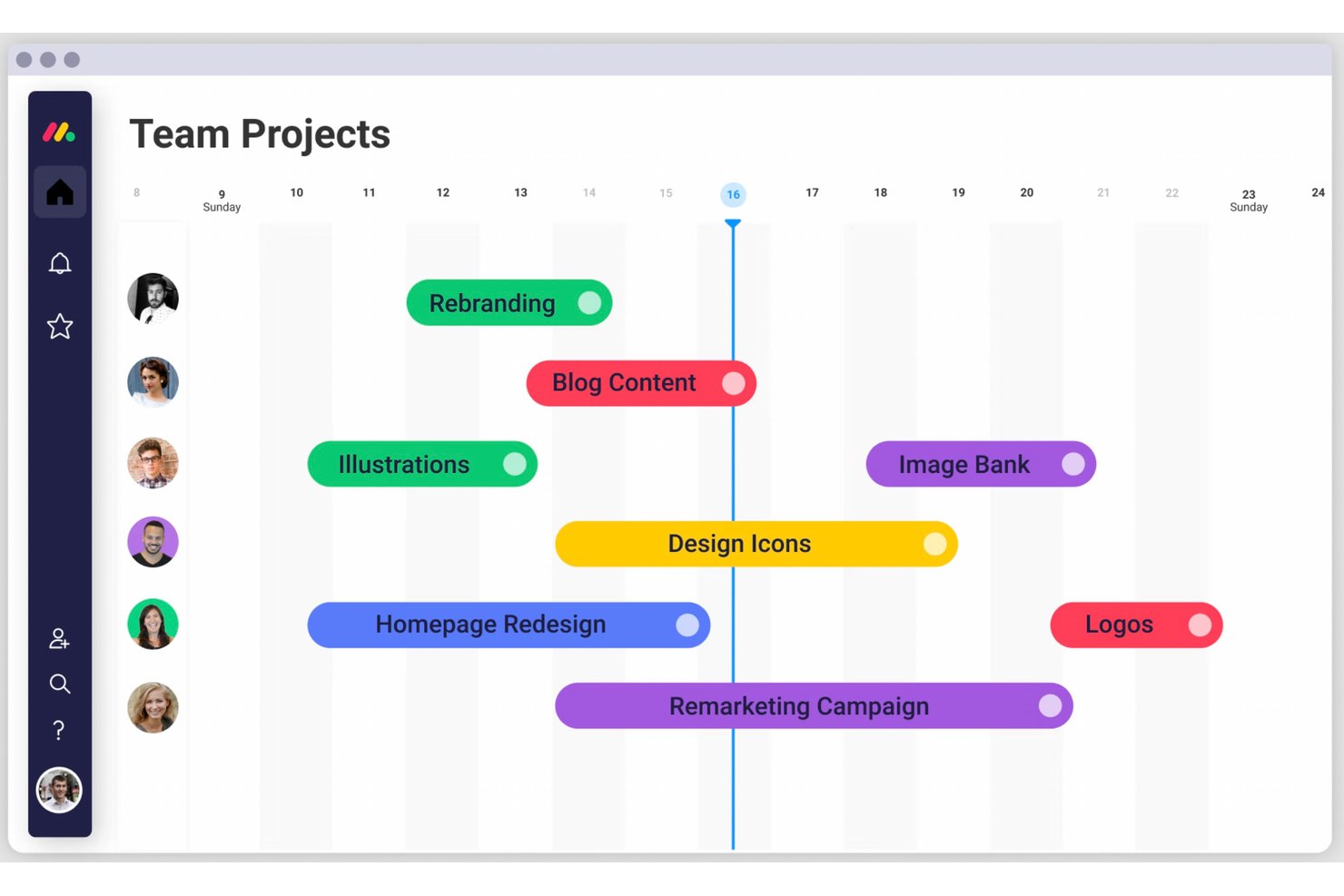
monday AI Workspace is an AI-powered work management platform that combines Gantt chart views, task dependencies, drag-and-drop scheduling, milestone tracking, and real-time collaboration across projects and portfolios.
Who Is monday AI Workspace Best For?
It's a strong fit for cross-functional teams in tech, product, and creative industries that need to manage multiple concurrent projects with real-time visibility across stakeholders.
Why I Picked monday AI Workspace
I picked monday AI Workspace as one of the best because of the visual control I get directly on the Gantt canvas. I can color-code tasks by status, owner, or priority, apply conditional formatting, and track baselines alongside live progress bars, all without leaving the timeline view. The critical path highlighting is what I find most useful: when a dependency slips, the affected chain updates instantly so I know exactly where to focus before the schedule cascades.
monday AI Workspace Key Features
- AI workflow builder: Automates tasks, updates, and project workflows using customizable AI-driven logic.
- Workload view: Displays resource allocation and availability across all team members for efficient project staffing.
- Portfolio dashboards: Consolidate multiple project timelines, tasks, and progress metrics into a single, portfolio-level dashboard.
- Template library: Offers pre-built project and Gantt chart templates for quick setup across common project management methodologies.
monday AI Workspace Integrations
monday AI Workspace offers hundreds of native integrations, including Slack, Google Workspace, Microsoft 365, Salesforce, Jira, GitHub, Zoom, Dropbox, HubSpot, and Zendesk. It also supports Zapier and provides an API for custom integrations.
Pros and Cons
Pros:
- Portfolio-level Gantt roll-ups across multiple projects
- Critical path auto-updates across linked tasks
- Color-coded conditional formatting on Gantt timelines
Cons:
- Automations have a steep initial configuration curve
- Gantt features locked behind higher-tier plans
New Product Updates from monday AI Workspace
monday AI Workspace Adds Human Approval Routing
monday AI Workspace adds a human-in-the-loop approval block to AI Workflows, sending approval requests and routing workflow paths based on responses. For more information, visit monday AI Workspace's official site.
Best for scalability

Zoho Projects is a project management software with a built-in Gantt chart maker. It's a highly detailed solution that helps you make sure you don't lose any important project information.
Why I Picked Zoho Projects
I chose Zoho Projects for its ability to scale with your growing project management needs, especially its Gantt charts. With features like task dependencies and baseline comparisons, you can manage complex project timelines and track progress over time. The platform's ability to accommodate projects of various sizes and complexities makes sure your team can adapt to increasing demands without losing control. Additionally, Zoho Projects' Gantt chart offers functionalities like color-coded tracking for milestones, which provides clear visibility and better project planning.
Zoho Projects Key Features
Zoho Projects also offers a range of other features for project management.
- Custom Views: You can tailor your Gantt chart display to suit your team's preferences, which allows for a more personalized project tracking experience.
- Resource Utilization: This lets you monitor and manage team workload effectively by visualizing resource allocation directly on your Gantt chart.
- Project Baselines: You can set and compare project baselines to track deviations from your original plan and help your team stay on course.
- Drag-and-Drop Interface: This lets you easily adjust task timelines and dependencies with a user-friendly drag-and-drop function, which makes project adjustments intuitive and straightforward.
Zoho Projects Integrations
Integrations include all the Zoho apps, Google Workspace, Microsoft Suite, Jira, Basecamp, Box, Dropbox, GitHub, GitLab, Zendesk, and Slack, among others. You can also connect to Zapier for additional integrations.
Pros and Cons
Pros:
- Task automation via the blueprint feature
- Free plan for up to 2 projects
- Connects easily with the complete Zoho product suite
Cons:
- Takes time to learn the platform
- Subtasks not available in free plan
New Product Updates from Zoho Projects
Zoho Projects Adds CodeX Scripts for Custom Modules
Zoho Projects now supports CodeX Scripts for custom modules, enabling conditional logic and rules for creating, updating, and deleting records. For more information, visit Zoho Projects' official site.
 .
.
Miro
Best for interactive whiteboards
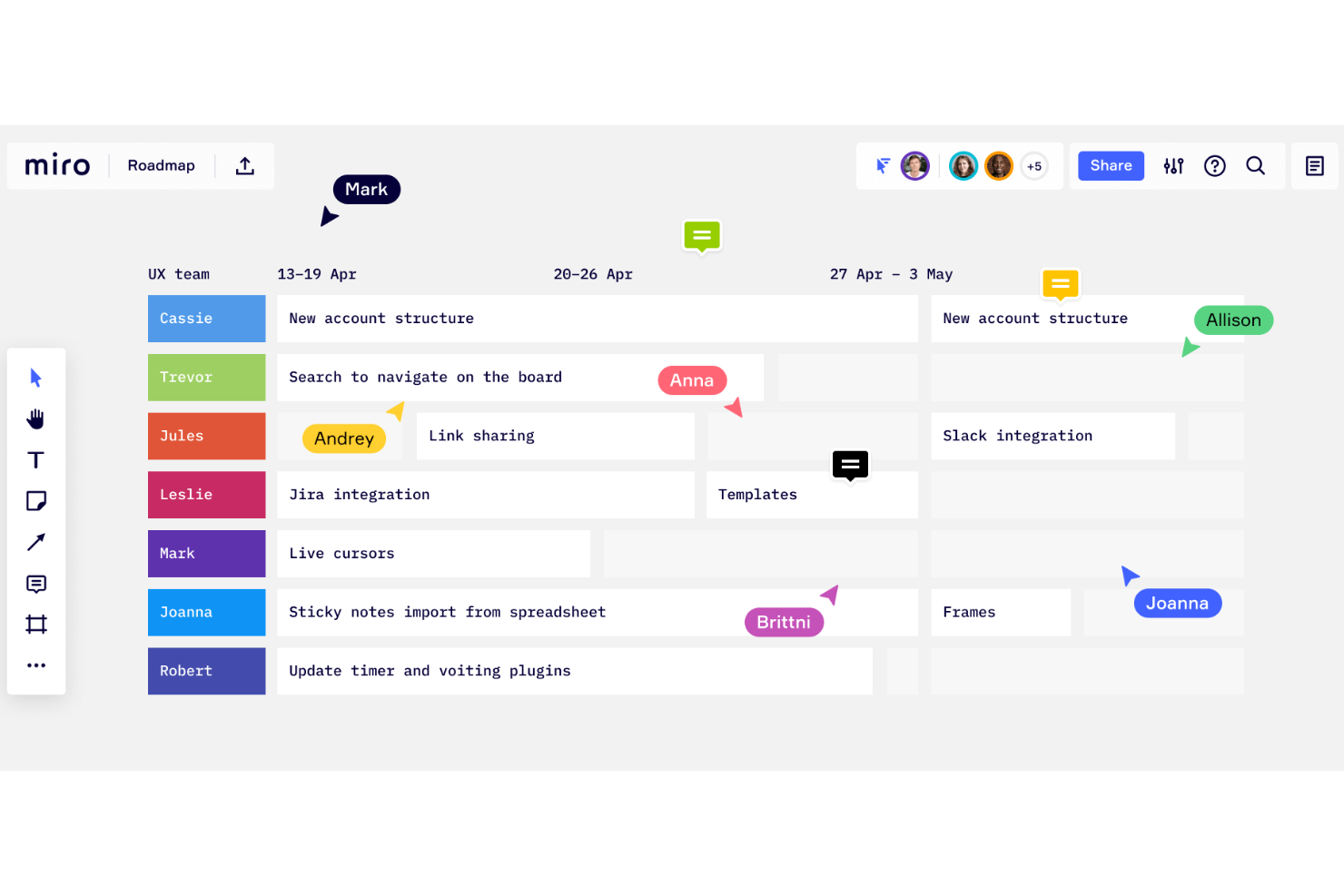
Miro is a collaborative online whiteboard with over 1,000 templates including mind maps, Kanban boards, Gantt charts, product wireframes, research boards, and flowcharts.
Why I Picked Miro
I picked Miro for its standout capability as an interactive whiteboard, which is perfect for creating Gantt charts. What I appreciate is how Miro lets your team visualize project timelines directly on a collaborative canvas and makes it easy to adjust tasks and deadlines in real time. The drag-and-drop functionality makes modifying your Gantt chart straightforward and keeps project planning dynamic and responsive.
Additionally, the ability to collaborate with team members in real-time means that input and updates are seamlessly integrated. This also keeps everyone on the same page without the hassle of back-and-forth communications.
Miro Key Features
Miro also offers several other features that make it useful for creating Gantt charts and managing projects.
- Effort Estimation: This feature lets you factor in people, time, and tools needed for tasks and helps you identify potential risks early in the project planning process.
- Milestones: You can set and celebrate milestones, which helps keep your team motivated and makes sure everyone stays aligned with the project's goals.
- Customizable Templates: This lets you start with ready-made templates or create charts from scratch and add tasks, timelines, and color-coding for better organization and clarity.
- AI Assistance: Miro's AI features can automatically structure timelines and tasks based on your input to save time and maintain accuracy.
Miro Integrations
Integrations include Zoom, Figma, Asana, Microsoft Teams, Jira, Slack, Google Drive, Box, Confluence, monday.com, Airtable, Notion, Azure, and Webex. Some integrations are limited to paid plans only.
Pros and Cons
Pros:
- Built-in communication features
- Intuitive and easy setup
- Free forever plan available
Cons:
- No high-quality PDF export with free plan
- Zooming can be jumpy on larger projects
New Product Updates from Miro
Miro Adds Japan Data Residency for Enterprise Customers
Miro has introduced Japan data residency for enterprise customers, offering in-region storage for production data, backups, and metadata, plus in-region compute infrastructure. For more information, visit Miro's official site.
Best for detailed project planning

Microsoft Project is a project management software developed and sold by Microsoft. It is designed to help you plan, track, and manage projects of different sizes and complexities through a variety of features, including its Gantt chart maker.
Why I Picked Microsoft Project
I picked Microsoft Project for its detailed project planning, which makes it an excellent choice for creating Gantt charts. With features like hierarchical task organization and dependency linking, you can visualize complex project timelines with clarity.
The customization of Gantt bars allows for personalized visual cues and helps you manage intricate project tasks. Additionally, the integrated resource allocation and budget management tools help keep project planning aligned with your team's capabilities and financial constraints.
Microsoft Project Key Features
Microsoft Project also offers a variety of other features that make it useful as a Gantt chart maker.
- Timeline View: This lets you see an overview of your project schedule and provides a high-level snapshot that complements the detailed Gantt chart view.
- Milestone Tracking: You can set specific points in your project timeline to focus on key achievements, and make sure your team stays on track with crucial deadlines.
- Resource Pooling: This lets you manage resources across multiple projects and allocate team members and equipment efficiently.
- Task Prioritization: By assigning priority levels to tasks, you can address the most critical activities first, optimize your workflows, and maximize productivity.
Microsoft Project Integrations
Integrations include other Microsoft software, like Outlook, Excel, Skype, and more.
Pros and Cons
Pros:
- Integration with other Microsoft software
- Helpful project template descriptions for guidance
- Driver prioritization module for ranking strategies/objectives
Cons:
- Steep learning curve
- Limited customization options
Canva
Best for easy-to-use templates

Canva is an online design platform built to be user-friendly for non-design experts. It offers templates for all kinds of things, from Gantt charts to slide decks, infographics, social media assets, and more.
Why I Picked Canva
I'm a big fan of this software's simple, straightforward drag-and-drop interface. It is easy to use, even for the least tech-savvy among us. I chose Canva for this list because it's intuitive and comes with a ton of templates that are ready to go. You can select from the hundreds of thousands of templates available, and customize them to meet your needs. In my opinion, Canva's free plan is a fantastic, quick way to create a presentation-ready Gantt chart at no cost. Plus, you'll be able to use the platform for other design needs too.
Canva Key Features
In addition to templates, Canva offers a range of other features that are useful for Gantt chart creation.
- Visual Customization Tools: You can easily adjust colors, fonts, and styles to match your brand and make your Gantt charts functional and visually appealing.
- Milestone Setting: This feature lets you mark significant points in your project timeline to help your team stay focused on key deliverables.
- Dependency Management: You can connect tasks to visualize dependencies and make sure your team understands the sequence of project activities.
- Collaboration Features: You and your team can edit and view changes simultaneously, which helps improve communication and teamwork.
Canva Integrations
Integrations include WordPress, eClincher, Rippling, Sendible, Post Planner, and Viraltag.
Pros and Cons
Pros:
- Presentable product, no designer needed
- Hundreds of thousands of templates
- Super user-friendly and intuitive
Cons:
- Limited download options with free plan
- Lacks advanced Gantt chart features
Asana
Best for visualizing task dependencies
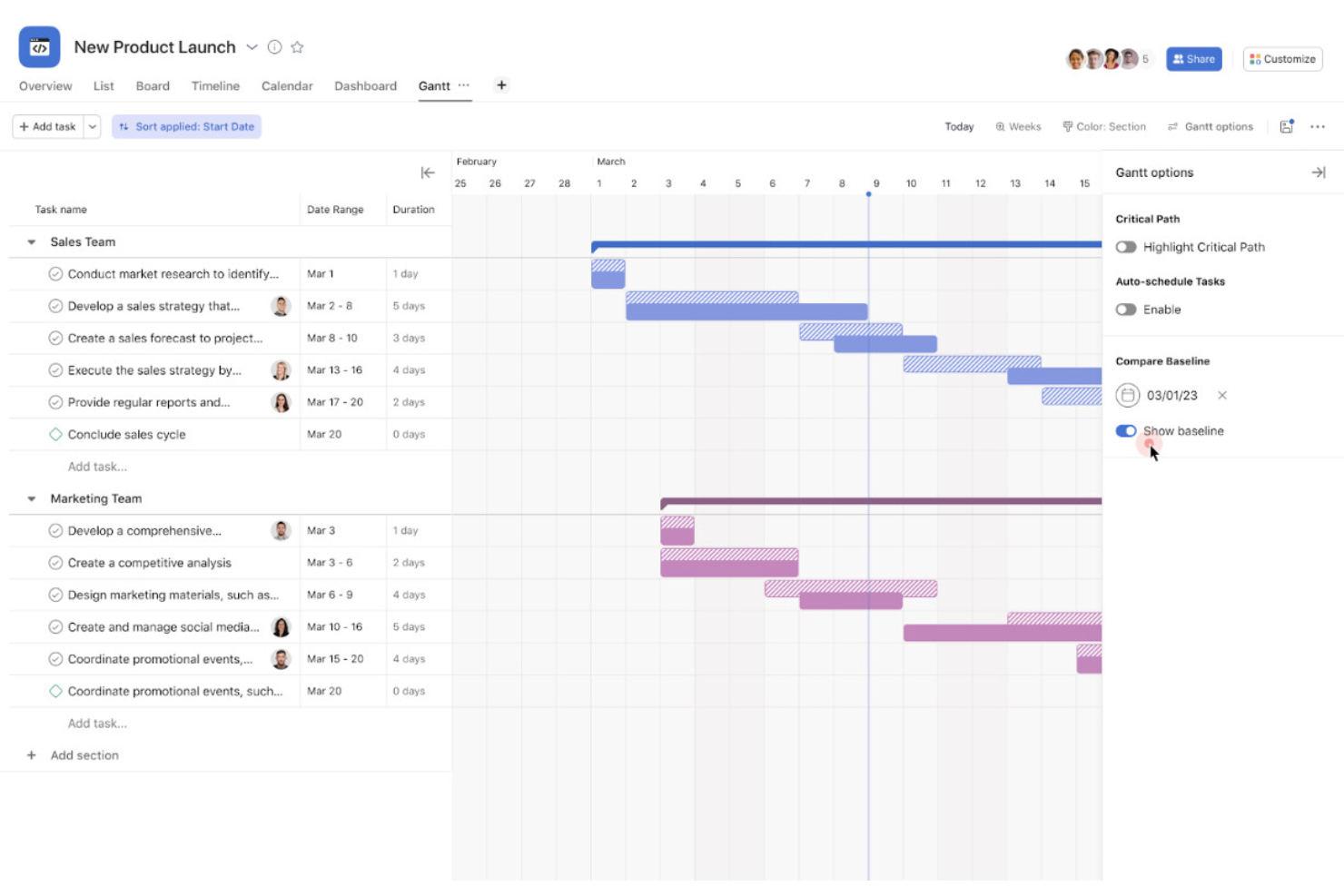
Asana is a project management tool that helps teams plan, organize, and track work over time. One of the key ways it does this is via its timeline (also called Gantt) view, letting you see tasks laid out along a schedule.
Why I Picked Asana
I picked Asana because it gives you the ability to draw dependencies between tasks directly in the timeline view. This means you don’t just put dates on tasks—you can also show which tasks block others or depend on others. As changes happen (tasks move, delays happen), you see how one change ripples through dependent tasks.
Asana Key Features
In addition to task dependency visualization, Asana offers a range of other features for project management.
- Timeline View: This lets you create a visual project plan and map out deadlines and milestones for better project tracking.
- Task Prioritization: You can easily prioritize tasks within projects and make sure your team focuses on what's most important at any given time.
- Project Templates: This helps you quickly set up new projects with predefined structures and workflows.
- Team Collaboration Tools: With built-in communication features like comments and file attachments, your team can collaborate and exchange information directly within tasks.
Asana Integrations
Integrations include Slack, Google Drive, Everhour, Microsoft Teams, Amazon Q Index, Splunk, Entra ID, Tableau, Jira Cloud, Microsoft Office 365, MuleSoft, and BetterCloud.
Pros and Cons
Pros:
- Supports subtasks within broader project timeline
- Lets you draw task dependencies in timeline view
- Highlights critical path so you see blockers
Cons:
- Baseline API access limited or missing for some data
- Complex timelines can get visually crowded
Wrike
Best for AI-powered work automation

Wrike is a cloud-based project management platform that combines Gantt chart scheduling, task tracking, workload management, and AI-powered automation across projects and workflows.
Who Is Wrike Best For?
Wrike is a strong fit for mid-size to enterprise teams managing complex, multi-stakeholder projects across product, marketing, and operations functions.
Why I Picked Wrike
I picked Wrike as one of the best because its AI automation goes well beyond surface-level suggestions. Wrike's AI capabilities can help summarize work, generate content, and assist with project management workflows. I also like Wrike Copilot, which sits inside your projects and answers questions about timeline status or sprint progress on demand. For Gantt chart work specifically, that means less time chasing updates and more time managing actual dependencies and milestones.
Wrike Key Features
- Interactive Gantt timeline: Drag and drop tasks directly on the timeline to reschedule work and adjust dependencies in real time.
- Workload view: See each team member's assigned tasks and capacity across projects to spot overallocation before it affects delivery.
- Custom dashboards: Build project-specific dashboards that surface task progress, overdue items, and milestone status at a glance.
- Project blueprints: Save and reuse project structures, including timelines and task sequences, as templates for repeatable workflows.
Wrike Integrations
Wrike offers 400+ integrations through its built-in connectors and Wrike Integrate add-on, including tools like Salesforce, Microsoft Teams, Google Sheets, Slack, Adobe Creative Cloud, Jira, Power BI, Tableau, Miro, and Zoom. It also connects with Zapier and provides an open RESTful API for custom integrations.
Pros and Cons
Pros:
- Dependent task dates auto-adjust on changes
- Imports .MPP, .MPX, and .XML project files
- Built-in critical path with float analysis
Cons:
- Time tracking locked to the Business plan and above
- Navigation between spaces and views feels cluttered
New Product Updates from Wrike
Wrike Adds Klaxoon MCP Integration
Wrike’s Klaxoon MCP integration is now generally available, enabling AI agents to navigate between Wrike tasks and attached whiteboards, read task context, and manage whiteboard attachments via API. For more information, visit Wrike's official site.
FigJam
Best for design collaboration
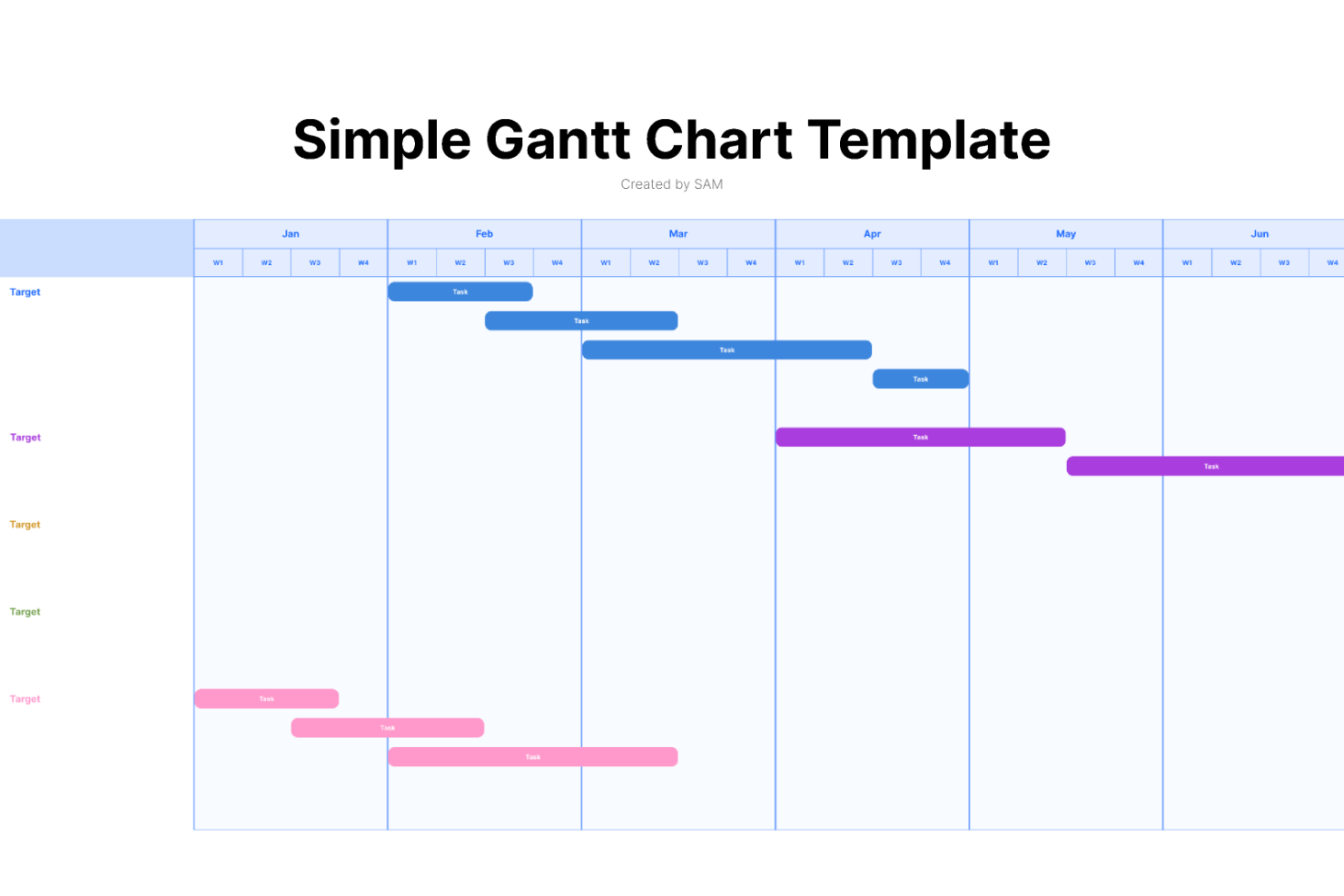
FigJam is an online whiteboard tool designed to facilitate real-time collaboration among team members, providing a dynamic platform for a variety of activities including brainstorming, diagramming, and strategic planning.
Why I Picked FigJam
I chose FigJam as a Gantt chart maker because of its capacity for real-time collaboration, which is crucial for maintaining up-to-date project timelines and ensuring team alignment. What makes FigJam different is its integration of AI features that can generate custom templates and automate repetitive tasks, which can be particularly useful when creating and updating Gantt charts.
I believe FigJam is best for real-time design team collaboration because it not only allows team members to work together synchronously with audio and live chat but also supports asynchronous communication through comments and reactions, ensuring that all team members, regardless of their location or time zone, can contribute to the project planning process.
FigJam Key Features
FigJam offers several other features that make it a compelling choice for Gantt chart software.
- Interactive Whiteboard: This lets your team collaborate in real-time, sketch out ideas and project plans directly on a digital canvas, and visualize complex project timelines.
- Milestone Visualization: You can track progress by marking key dates and deliverables within your project timeline and making sure everyone is aligned on project goals.
- Resource Management Tools: This lets you to allocate and track resources effectively (via templates), and maintain balance and efficiency across your project tasks.
- Task Assignment and Management: You can assign tasks to team members directly within the Gantt chart, which makes it easy to manage schedules and responsibilities.
FigJam Integrations
Integrations include Figma, Microsoft Teams, Asana, Jira, Mixpanel, and GitHub.
Pros and Cons
Pros:
- User-friendly and intuitive interface
- Integrates with Figma for design collaboration
- Offers community templates for various uses
Cons:
- Onboarding and account support locked to enterprise plan
- No offline access available
ClickUp
Best for custom task views

ClickUp is a comprehensive work management solution that offers a Gantt chart maker among several other features like whiteboarding, goal setting, document management, and more.
I recently spoke with Jeff Cypher, a former ClickUp consultant who now works for the company. He spoke to ClickUp's flexibility when it comes to project changes. "I recommend ClickUp's Gantt view for project managers who need dynamic project adjustments," he says.
Why I Picked ClickUp
I picked ClickUp for its custom task views and Gantt charts. The platform's drag-and-drop interface lets you easily adjust tasks and dependencies and offers visual clarity on project timelines and potential roadblocks. With features like critical path and slack time, you can quickly identify and address scheduling challenges, which makes it easier to keep your projects on track. This customization and flexibility make ClickUp an ideal choice for teams that want to optimize their project management processes.
ClickUp Key Features
ClickUp offers a variety of other features for creating Gantt charts and managing projects.
- Milestones: You can track significant project achievements to make sure your team is meeting critical deadlines.
- Time Tracking: This lets you monitor the time spent on tasks directly within the platform to better manage your resources and deadlines.
- Task Priorities: You can assign priority levels to tasks to help your team focus on what's most important and keep projects moving smoothly.
- Multiple Assignees: This lets you assign tasks to multiple team members to foster collaboration and maintain accountability across your projects.
ClickUp Integrations
Integrations include Slack, Google Workspace, Dropbox, Figma, Vimeo, Zoom, Box, and Microsoft Teams. You can also use Zapier for additional integrations, or build custom integrations using the software's API.
Pros and Cons
Pros:
- Unlimited file storage with all paid plans
- 50+ widgets to customize your dashboard
- Unlimited users with free plan
Cons:
- Storage, projects, and custom fields limited in free plan
- Reporting not available in free plan
New Product Updates from ClickUp
ClickUp Adds Meetings Hub, Super Agent Templates, and ZoomInfo Integration
ClickUp adds a searchable Meetings Hub, new ways to clone and template Super Agents, and a ZoomInfo integration through the App Center. These updates improve meeting retrieval, agent reuse, and access to sales intelligence. For more information, visit ClickUp’s official site.

thinkcell
Best for data-driven presentations

think-cell is a software add-on for Microsoft PowerPoint and Excel that helps you easily create various types of charts for your presentations to stakeholders, including Gantt charts.
Why I Picked think-cell
For project managers who spend more than 2 hours per week preparing presentations in Excel or PowerPoint, I believe this software will save you tons of time and headaches. It lets you build adjustable calendar-based Gantt charts right inside of PowerPoint, with drag-and-drop capabilities for timelines, dependencies, and milestones. You can also link Excel sheets to PowerPoint charts so any data updates will carry-over to your Gantt chart.
think-cell Key Features
think-cell offers a range of other features tailored to creating effective Gantt charts.
- Interactive Activity Entry: This lets you enter activities directly onto the Gantt chart to streamline the process of building your project timeline.
- Customizable Work Weeks: You can define the workweek setup, such as 5-day or 7-day weeks, to accurately reflect your team's working schedule.
- Time Span Brackets: This lets you easily add brackets to indicate the duration of specific tasks or phases within your project and provides clear visual cues.
- Automatic Date Updates: When you move tasks or milestones, the dates automatically adjust, which makes sure your timeline remains accurate without manual intervention.
think-cell Integrations
Integrations include Microsoft PowerPoint and Microsoft Excel.
Pros and Cons
Pros:
- User-friendly, even for non technical experts
- Automation to speed up repetitive tasks
- Elevates your capabilities with Microsoft products
Cons:
- Primarily designed for Windows
- Difficult to shift data to a new chart once one is created
Annen programvare for å lage Gantt-diagrammer
Verktøyene ovenfor er ikke de eneste som kan lage Gantt-diagrammer. Her er noen andre verktøy som fortjener å nevnes.
- Visor
For user-friendly interface
- MindView
For work breakdown structures
- TeamGantt
For drag-and-drop timeline planning
- Gantter
For AI recommendations
- GanttPRO
For real-time workload management
- Smartsheet
Enterprise-grade integrations
- ProjectManager
For hybrid desktop and mobile workflows
- Lucen
For executive-ready PowerPoint visuals
- BigGantt
For cross-project timeline management
- Jira
Integration with agile development tools


Se videoen vår om de beste verktøyene for å lage Gantt-diagrammer:


Relaterte anmeldelser av prosjektstyringsverktøy
Hvis du fortsatt ikke har funnet det du ser etter her, kan du ta en titt på disse andre anmeldelsene av prosjektstyringsverktøy som vi har satt sammen for deg:
- Produktivitetsverktøy
- Programvare for prosjektsporing
- Programvare for prosjektplanlegging
- Programvare for prosjektstyring
- Programvare for ressursstyring
- Programvare for arbeidsflytautomatisering
- Prosjektstyringsprogramvare med Gantt-diagrammer
How I Evaluate Gantt Chart Makers
I evaluate Gantt chart makers in two layers: a baseline every tool must clear—timeline views, task dependencies, drag-and-drop scheduling—and differentiators that separate the strongest options.
Core Functionality (Table Stakes For This List)
When I'm selecting tools for my list, I rank each one on a scale from 0 (does not offer the functionality) to 5 (excels in this area) for each core functionality listed below. Then, I calculate the tool's total score into a percentage. Each tool needs to achieve a minimum total score of 75% to be considered for inclusion.
- Timeline Visualization: I check whether the Gantt view supports day, week, and month zoom scales—so you can plan a two-week sprint or a year-long rollout from the same chart.
- Task Dependencies: Every tool should let you link tasks with standard dependency types. I look for how well the chart handles finish-to-start, start-to-start, and lag/lead time logic.
- Drag-and-Drop Scheduling: I evaluate whether moving or resizing a bar on the canvas automatically ripples changes to dependent tasks, the way tools like monday.com and Smartsheet handle it.
- Milestones & Baselines: Baseline snapshots matter when stakeholders ask why the launch date shifted. I look for the ability to overlay planned vs. actual timelines side by side.
- Critical Path & Progress Tracking: The chart should highlight which task sequence drives the end date and show percent-complete indicators, so you spot slippage before it cascades.
- Sharing & Export: I evaluate export options (PDF, PNG, CSV) and shareable links, since project managers regularly need to drop a clean timeline into a status deck or client email.
Once I have a list of tools that meet the criteria, I consider what sets each platform apart.
Differentiating Factors (What Sets Vendors Apart)
Here's how I compare and contrast different vendors:
Standout Features
Portfolio roll-ups matter when you're running multiple projects at once—I look for tools that consolidate separate Gantt charts into a single program-level timeline. Auto-scheduling is another factor I weigh heavily. When a task slips by three days, the chart should cascade that change to every downstream dependency without manual rework. I also evaluate client and stakeholder views, since most PMs need to share schedules with people who don't need—or shouldn't have—a full paid seat.
Beyond Features
Integrations are a big differentiator. I check whether the tool connects to platforms your team already uses—Jira for dev work, Slack for updates, or SharePoint for documentation. A Gantt chart that lives in isolation creates double entry. Scalability also matters; I evaluate whether the tool handles a 50-task project as well as a 5,000-task portfolio without lag. Finally, I look at onboarding resources, especially pre-built templates for common project types like product launches or construction phases that shorten time to value.
Slik velger du programvare for å lage Gantt-diagrammer
Det er lett å gå seg vill i lange funksjonslister og kompliserte prismodeller. For å hjelpe deg med å holde fokus får du her en sjekkliste over faktorer du bør ha i tankene:
| Faktor | Hva du bør vurdere |
|---|---|
| Skalerbarhet | Forsikre deg om at verktøyet kan håndtere teamet ditt når det vokser, og stadig mer komplekse prosjekter, uten å bli tregere. |
| Integrasjoner | Kontroller om programvaren kan kobles til verktøyene du allerede bruker, for eksempel prosjektstyringsprogramvare, CRM-systemer eller skylagring. |
| Tilpasningsmuligheter | Se etter alternativer for å tilpasse Gantt-diagrammer med egendefinerte felt, farger eller oppsett som passer teamets arbeidsflyt. |
| Brukervennlighet | Forsikre deg om at grensesnittet er intuitivt, slik at teamet raskt kan begynne å bruke det uten omfattende opplæring. |
| Budsjett | Sammenlign prisplaner og forsikre deg om at funksjonene du trenger, er inkludert uten at det kreves kostbare tillegg. |
| Sikkerhetstiltak | Kontroller at plattformen har sterke tiltak for databeskyttelse, som kryptering og tilgangskontroller for brukere, for å holde prosjektene dine sikre. |
| Samarbeid | Bekreft at løsningen støtter teamsamarbeid med funksjoner som kommentering av oppgaver, oppdateringer i sanntid og fildeling. |
| Rapporteringsverktøy | Kontroller om løsningen tilbyr tydelige og handlingsrettede rapporter som hjelper deg med å følge fremdriften og ta datadrevne beslutninger. |
Trender innen verktøy for å lage Gantt-diagrammer
Her får du en sniktitt på noen trender innen verktøy for å lage Gantt-diagrammer som vi forventer vil fortsette å utvikle seg i år:
- Bedre visuelle grensesnitt: Programvare som Smartsheet og ClickUp har gjennomført betydelige forbedringer av grensesnittene for å gjøre prosjektvisualisering mer intuitiv, fargerik og interaktiv.
- Integrering av kunstig intelligens: Verktøy som Hive og Height tilbyr AI-funksjoner som kan automatisere tidkrevende oppgaver og gi prediktiv innsikt. Dette er spesielt nyttig for ressursallokering og identifisering av risiko, og kan bidra til å redusere arbeidsmengden din.
- Programtillegg for samarbeid i sanntid: Etter hvert som bruken av spesialisert programvare går ned, tilbyr flere verktøy programtillegg og integrasjoner som lar brukerne diskutere, dele filer og ta beslutninger uten å forlate plattformen.
Hva er et verktøy for å lage Gantt-diagrammer?
Et verktøy for å lage Gantt-diagrammer er et prosjektstyringsverktøy for å opprette Gantt-diagrammer – visuelle tidslinjer for prosjekter – og bruke dem til å følge fremdriften. Du kan bruke Gantt-diagramprogramvare til å kartlegge oppgaver, varigheter, start- og sluttdatoer, avhengigheter, den kritiske stien og ressurser.
Programmer for Gantt-diagrammer inkluderer også ofte funksjoner for oppgavetildeling og ressursallokering, kan bidra til å forenkle prosjektplanleggingen og gi klarhet og samsvar rundt prosjektplanen og prosjektets fremdrift.
Funksjoner
Når du velger et verktøy for å lage Gantt-diagrammer, bør du se etter følgende viktige funksjoner:
- Oppgaveavhengigheter: Du kan enkelt koble oppgaver sammen og visualisere hvilke oppgaver som må fullføres først. Dette hjelper deg med å oppdage flaskehalser og holde prosjektene i gang.
- Dra-og-slipp-grensesnitt: Dette lar deg enkelt klikke på og flytte oppgaver direkte på tidslinjen, noe som gjør det raskt og intuitivt å oppdatere tidsplaner.
- Oppfølging av milepæler: Du kan angi og visualisere viktige milepæler i prosjektet, slik at alle vet hvordan arbeidet utvikler seg.
- Ressursallokering: Dette lar deg tilordne teammedlemmer eller ressurser til bestemte oppgaver, unngå å overbelaste noen og holde alle samkjørte.
- Zoom og tilpasning av tidslinjen: Du kan justere visningen fra timer til måneder for å fokusere på detaljer eller se helheten etter behov.
- Fremdriftsoppfølging: Dette hjelper deg med å overvåke fullføringsprosenten for hver oppgave, slik at du alltid har en klar forståelse av status.
- Samarbeidsverktøy: Du kan invitere kolleger, legge igjen kommentarer eller dele prosjektoppdateringer for å gjøre teamarbeid enkelt og kommunikasjonen sømløs.
- Alternativer for eksport og deling: Dette lar deg opprette PDF-filer, lenker eller bildeeksporter av diagrammene dine og dele prosjektplaner med kunder eller teammedlemmer.
- Fargekoding: Du kan bruke fargeskjemaer til å kategorisere oppgaver etter team, prioritet eller fase, og holde diagrammet organisert.
- Fremheving av kritisk sti: Dette hjelper deg med å identifisere rekken av oppgaver som direkte påvirker prosjektets sluttdato, slik at du kan konsentrere deg om det som haster mest.
AI-funksjoner du bør se etter i et verktøy for å lage Gantt-diagrammer
Mange verktøy for å lage Gantt-diagrammer inkluderer også AI-drevne funksjoner som kan spare deg for tid og øke effektiviteten:
- Automatisert planlegging: Du kan la KI foreslå optimale oppgavesekvenser og tidslinjer basert på prosjektkrav, tidsfrister og tilgjengelige ressurser.
- Prediktiv analyse: Du får prognoser for mulige forsinkelser eller risikoer ved å analysere historiske data og aktuelle prosjekttrender.
- Smart ressursallokering: Du kan få KI-drevne anbefalinger for tildeling av teammedlemmer eller ressurser, slik at arbeidsbelastningen holdes balansert og konflikter unngås.
- Naturlig språk som inndata: Dette lar deg beskrive prosjektet ditt med vanlig språk, og KI genererer et utkast til et Gantt-diagram for deg uten behov for manuell registrering av data.
- Automatiserte fremdriftsoppdateringer: KI kan spore fullføring av oppgaver og oppdatere diagrammet automatisk ved å integrere med andre prosjektstyringsverktøy eller til og med tolke teamkommunikasjon.
- Intelligente varsler: Du får proaktive påminnelser og varsler om kommende tidsfrister, mulige hindringer eller endringer i tidsplanen.
- Scenarioplanlegging: Du kan bruke KI til å modellere «hva om»-scenarier og se hvordan endringer i omfang, ressurser eller tidsfrister kan påvirke tidslinjen din.
- Prioritering av oppgaver: Du får forslag til hvilke oppgaver som bør prioriteres basert på avhengigheter, tidsfrister og teamets kapasitet, slik at du kan holde prosjektet på rett spor.
Selv om disse funksjonene er vanlige i denne programvarekategorien, er produktene i stadig endring. Derfor bør du ta hensyn til hvor ofte produktet oppdateres. Som Robyn Birkedal påpeker:
En ting det er viktig å huske på, er hvor ofte et verktøy oppdateres. Nye funksjoner kan være flotte, men hvis du ikke holder tritt, kan det føles overveldende når grensesnittet endres uventet.

Fordeler med programvare for å lage Gantt-diagrammer
Her er fem viktige fordeler med programvare for å lage Gantt-diagrammer:
- Forenklet prosjektstyring: Gantt-diagramprogramvare gir deg en sentral plattform for å administrere alle prosjektoppgaver. Denne samlede tilnærmingen gjør det mulig å ha oversikt over fremdrift for oppgaver, ressursallokering og tidsfrister, samt å forbedre prosjektleveransen.
- Bedre teamsamarbeid: Teammedlemmer kan dele oppdateringer, gi tilbakemeldinger og opprettholde tydelig kommunikasjon. Dette sikrer at alle er samkjørte når det gjelder prosjektmålene, og at de kan holde seg produktive.
- Effektiv ressursallokering: Gantt-diagramprogramvare lar deg visualisere og administrere ressursfordelingen effektivt. Ved å tildele ressurser strategisk kan du sikre optimal utnyttelse, forbedre prosjektresultatene og unngå at ressursene blir overbelastet.
- Identifiser og reduser prosjektrisiko: Avansert analyse i Gantt-diagramprogramvare lar deg oppdage mulige hindringer og håndtere risikoer i tide. Dette lar deg løse problemer proaktivt og minimere prosjektforsinkelser.
- Bedre beslutningstaking: Med omfattende rapportering og innsikt gir Gantt-diagramprogramvare deg og interessentene dine dataene som trengs for å ta velinformerte beslutninger. Du fjerner gjetting fra ligningen og bidrar til å styre prosjekter mot suksess basert på solid dokumentasjon.
Kostnader og priser
Nedenfor finner du en tabell som viser de ulike abonnementsalternativene og prisene for Gantt-diagramprogramvare:
| Abonnementsnavn | Pris (per bruker/måned) | Funksjoner |
|---|---|---|
| Gratis | $0 | Grunnleggende Gantt-diagramfunksjonalitet, begrenset antall brukere og prosjekter |
| Grunnleggende | $5 - $10 | Oppretting av Gantt-diagrammer, oppgaveavhengigheter, grunnleggende rapportering, begrenset antall brukere og prosjekter |
| Standard | $10 - $20 | Avanserte Gantt-diagramfunksjoner, oppgaveplanlegging, ressursstyring, flere brukere/prosjekter |
| Premium | $20 - $50 | Avansert prosjektplanlegging, tilpassbare Gantt-diagrammer, integrasjoner, ubegrenset antall brukere/prosjekter |
Vanlige stadier der selskapet ditt kan ønske å oppgradere prisplanen, omfatter:
- Økt prosjektkompleksitet: Når prosjekter blir mer komplekse, kan det hende at du må oppgradere til et høyere prisnivå for å få tilgang til avanserte funksjoner.
- Utvidelse av teamet: Etter hvert som teamet vokser, kan det hende at du må oppgradere prisnivået for å få plass til flere brukerlisenser, bedre samarbeidsverktøy og mer avansert håndtering av tillatelser.
- Integrasjonsbehov: Når du trenger å integrere Gantt-diagramprogramvaren med andre verktøy som CRM-, ERP- eller prosjektstyringspakker, kan en oppgradering til et høyere prisnivå gi tilgang til avanserte integrasjonsmuligheter.
- Krav til data og rapportering: Det kan hende at du må oppgradere prisnivået hvis du trenger avansert rapportering, analyse og funksjoner for datavisualisering.
- Kundestøtte og opplæring: Høyere nivåer av kundestøtte, opplæring og introduksjon blir viktig etter hvert som selskapet vokser, fordi dette hjelper deg med å bruke verktøyet effektivt og maksimere fordelene.
Vanlige spørsmål om Gantt-diagramverktøy
Finn svar på vanlige spørsmål om dette emnet.