

10 Best SmartDraw Alternatives for Diagramming in 2026

Best SmartDraw Alternatives Shortlist


The best SmartDraw alternatives deliver intuitive diagramming, flexible workflow templates, and stronger collaboration features than SmartDraw itself. If you’re searching for SmartDraw alternatives, you’re likely looking for a more user-friendly solution. You may also want better ease of use, modern collaboration tools, and support for evolving workflows.
Many options offer an all-in-one approach to visual planning. They allow teams to create diagrams, process maps, and prototypes in a single workspace. Whether you need a fully web-based platform or a tool with a generous free version, there are plenty of options available. The right alternative can help your team stay aligned. It can also improve communication and help teams adapt to changing project requirements.
What Is SmartDraw?
SmartDraw is a workflow diagram software for creating flowcharts, organizational charts, network diagrams, and other visual process maps. It offers a library of templates and shapes that help teams build diagrams quickly. The platform also supports integrations with tools like Microsoft Office and Google Workspace. Project managers, IT teams, and business analysts use SmartDraw to visualize complex processes. They also use it to communicate workflows and simplify collaboration across different project stages.
SmartDraw Alternatives Comparison Table
This comparison table summarizes pricing details for my top SmartDraw alternative selections:
| Tool | Best For | Trial Info | Price | ||
|---|---|---|---|---|---|
| 1 | Best for real-time visual collaboration | Free plan available | From $16/user/month | Website | |
| 2 | Best for fast, visually clean mockups | Free plan available | From $10/user/month (billed annually) | Website | |
| 3 | Best for visual database-driven diagrams | Free plan available | From $5/month (billed annually) | Website | |
| 4 | Best for team brainstorming workshops | Free plan available | From $9.99/user/month (billed annually) | Website | |
| 5 | Best for unlimited free diagramming | Free plan available | Free to use | Website | |
| 6 | Best for simple drag-and-drop workflows | 30-day free trial available | From $2.80/month (billed annually) | Website | |
| 7 | Best for industry-specific diagram templates | Free trial available | From $79 (billed semi-annually) | Website | |
| 8 | Best for sharing live diagrams in the cloud | 14-day free trial + free plan available | From $5/user/month (billed annually) | Website | |
| 9 | Best for Microsoft 365 ecosystem compatibility | 30-day free trial available | From CAD$6.80/month (billed annually) | Website | |
| 10 | Best for cross-functional remote teams | Free plan available | From $8/user/month (billed annually) | Website |

Why Trust Our Software Recommendations
Our team has been testing and reviewing software since 2012. As project managers ourselves, we know how difficult—and important—it is to choose the right software.
For this guide, we evaluated tools using hands-on testing and independent research, scoring tools using our selection criteria. We also draw on insights from industry thought leaders and practicing project management experts.
Our reviews reflect our human editorial judgment, not a sales pitch.
Expert reviewers:
Best SmartDraw Alternatives Reviews
Below are my detailed summaries of the best SmartDraw alternatives that made it onto my shortlist. My reviews offer a detailed look at the features, best use cases, and integrations of each workflow diagram software to help you find the best one for you.

FigJam
Best for real-time visual collaboration

FigJam brings a digital whiteboard approach to diagramming, letting teams quickly sketch, map workflows, and organize ideas visually. Product managers, designers, and cross-functional teams will find its collaborative canvas ideal for brainstorming and turning concepts into clear, actionable diagrams.
Who Is FigJam Best For?
FigJam is a good fit for distributed teams who need to brainstorm and map out processes together in real time.
Why FigJam Is a Good SmartDraw Alternative
I picked FigJam because real-time collaboration is baked into every part of the experience, not bolted on. My team uses FigJam's live cursor tracking and simultaneous editing to map out workflows together during live sessions, which cuts down the back-and-forth that slows down async diagramming. I also appreciate the sticky notes and voting features, which let us run structured brainstorms and prioritize ideas directly on the canvas. In practice, that means we can go from raw ideas to a shared workflow diagram in a single meeting.
FigJam Key Features
- Snap-to-grid connectors: Connect shapes to build user flows, process maps, and system diagrams with connectors that automatically align to the grid.
- Spotlight mode: Guide meeting participants to focus on specific content on the canvas during live facilitated sessions.
- Template library: Access over 300 ready-made templates for workflows like flowcharts, retrospectives, roadmap reviews, and project timelines.
- AI diagram generation: Generate diagrams from brainstorms, project plans, or codebases using a simple text prompt.
FigJam Integrations
FigJam offers native integrations with Figma, Jira, Google Workspace, Slack, and Microsoft Teams, Zapier, and provides an API for custom integrations.
Pros and Cons
Pros:
- AI-powered diagram auto-generation from text
- Built-in voting and icebreaker facilitation tools
- Live multiplayer cursor and annotation support
Cons:
- Limited export options for complex workflows
- Lacks precision control for technical diagrams

Best for fast, visually clean mockups
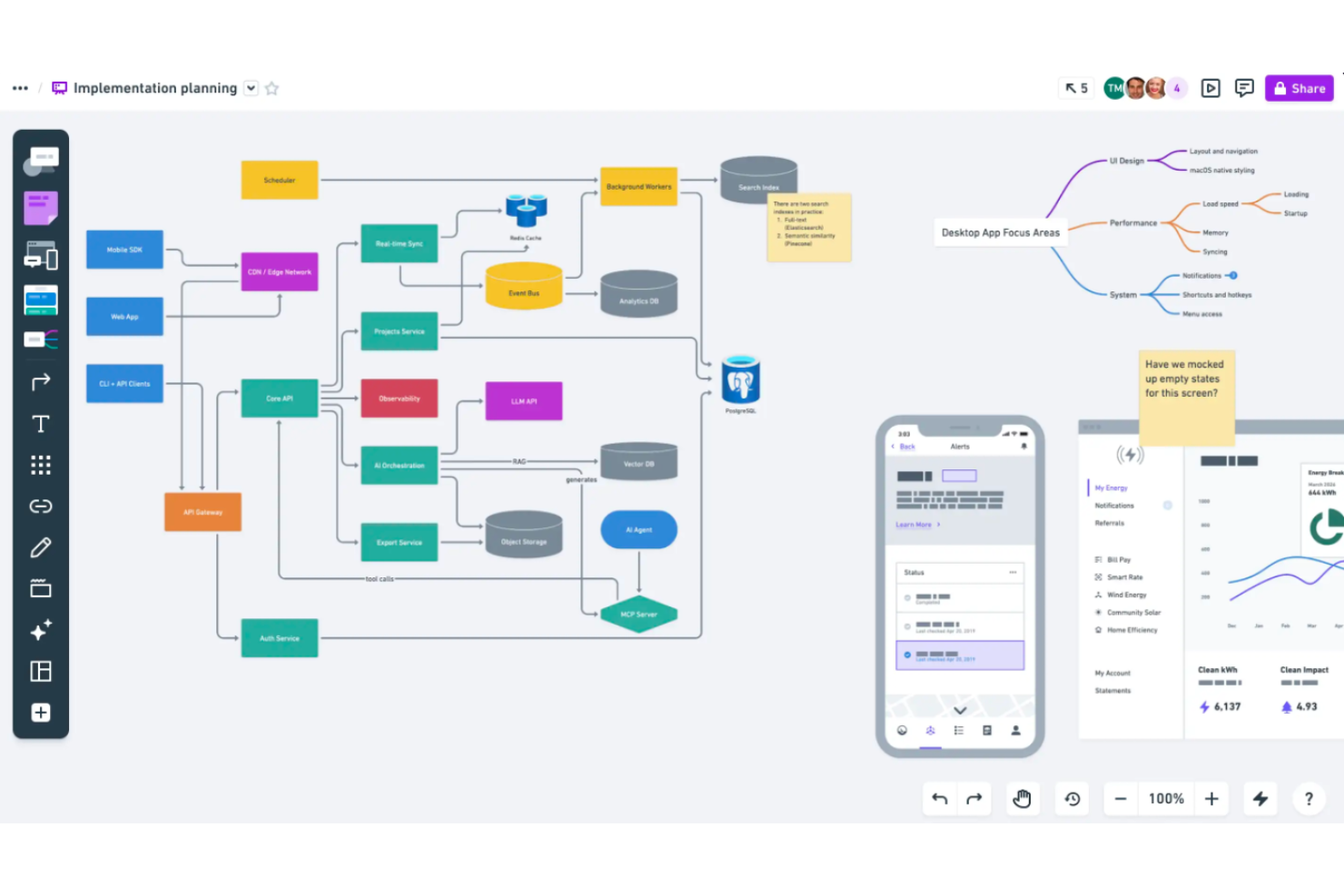
Whimsical stands out for teams who want to quickly create polished workflow diagrams, wireframes, and mind maps in a collaborative environment. Product managers and designers use it to visually organize ideas and streamline project planning in a distraction-free interface.
Who Is Whimsical Best For?
Product managers and design teams who need to create clean, collaborative mockups and diagrams at speed.
Why Whimsical Is a Good SmartDraw alternative
I picked Whimsical because the gap between "rough idea" and "shareable mockup" is almost nonexistent. Its drag-and-drop wireframe components include adjustable properties and configurable device frames for browsers, phones, and tablets, so my team can sketch a user flow and present it to stakeholders without switching tools. I also appreciate Whimsical AI, which uses Claude to generate diagrams and flowcharts from a prompt—ideal when I need to visualize a process quickly without building it from scratch. The predictive shapes and keyboard shortcuts in the flowchart editor keep my hands off the mouse and focused on thinking, not formatting.
Whimsical Key Features
- Mind map editor: Build and organize ideas into structured mind maps with automatic layouts and movable branches.
- Infinite canvas boards: Create diagrams, wireframes, and whiteboards on a single unlimited-space canvas.
- Threaded comments: Leave contextual comments directly on diagram elements to keep feedback in one place.
- Version history: View and restore previous board states to track how a diagram evolved over time.
Whimsical Integrations
Whimsical offers native integrations with Slack, Google Drive, Atlassian Jira, and Confluence. An API is available for custom integrations.
Pros and Cons
Pros:
- Quick switching between diagram, wireframe, and mind map
- Clean visual style ideal for stakeholder presentations
- Real-time collaboration without page refresh delays
Cons:
- No offline editing capability available
- Limited control over text formatting options

Creately
Best for visual database-driven diagrams

Creately is a diagramming platform that brings together visuals and structured data on an infinite canvas. I’ve found it useful for teams who want to link diagrams directly to project docs, databases, and process flows for richer, always-current visual maps.
Who Is Creately Best For?
Creately is a strong fit for operations managers and product teams in mid-sized businesses who need unified diagrams tied directly to live project or process data.
Why Creately Is a Good SmartDraw Alternative
I picked Creately because it treats diagrams as living documents, not static exports. Its visual database feature lets me attach structured data fields directly to shapes—so a process node can carry owner, status, and priority information without leaving the canvas. I also use Creately's linked data panels to sync diagram elements with project records, which means when something changes in a workflow, the visual updates with it. For teams managing complex processes across multiple owners, that connection between diagram and data is something SmartDraw simply doesn't offer.
Creately Key Features
- 8,000+ templates: Access a library of professionally designed templates spanning multiple industries to jump-start any diagram type.
- Presentation mode: Build slides directly from canvas elements and present without ever leaving the workspace.
- Voting sessions: Run timed anonymous or public voting on any canvas element to reach decisions during live team sessions.
- Full-text search: Search all content across every workspace instantly and navigate results visually on the canvas.
Creately Integrations
Creately offers native integrations with Google Drive, Slack, Microsoft Teams, Confluence, Jira, and Trello. It connects with Zapier and provides an API for custom integrations.
Pros and Cons
Pros:
- Real-time multi-user editing with version history
- Infinite canvas for large, interconnected workflows
- Diagrams support custom data fields per shape
Cons:
- Occasional sync delays with attached data sources
- Limited advanced diagram automation features

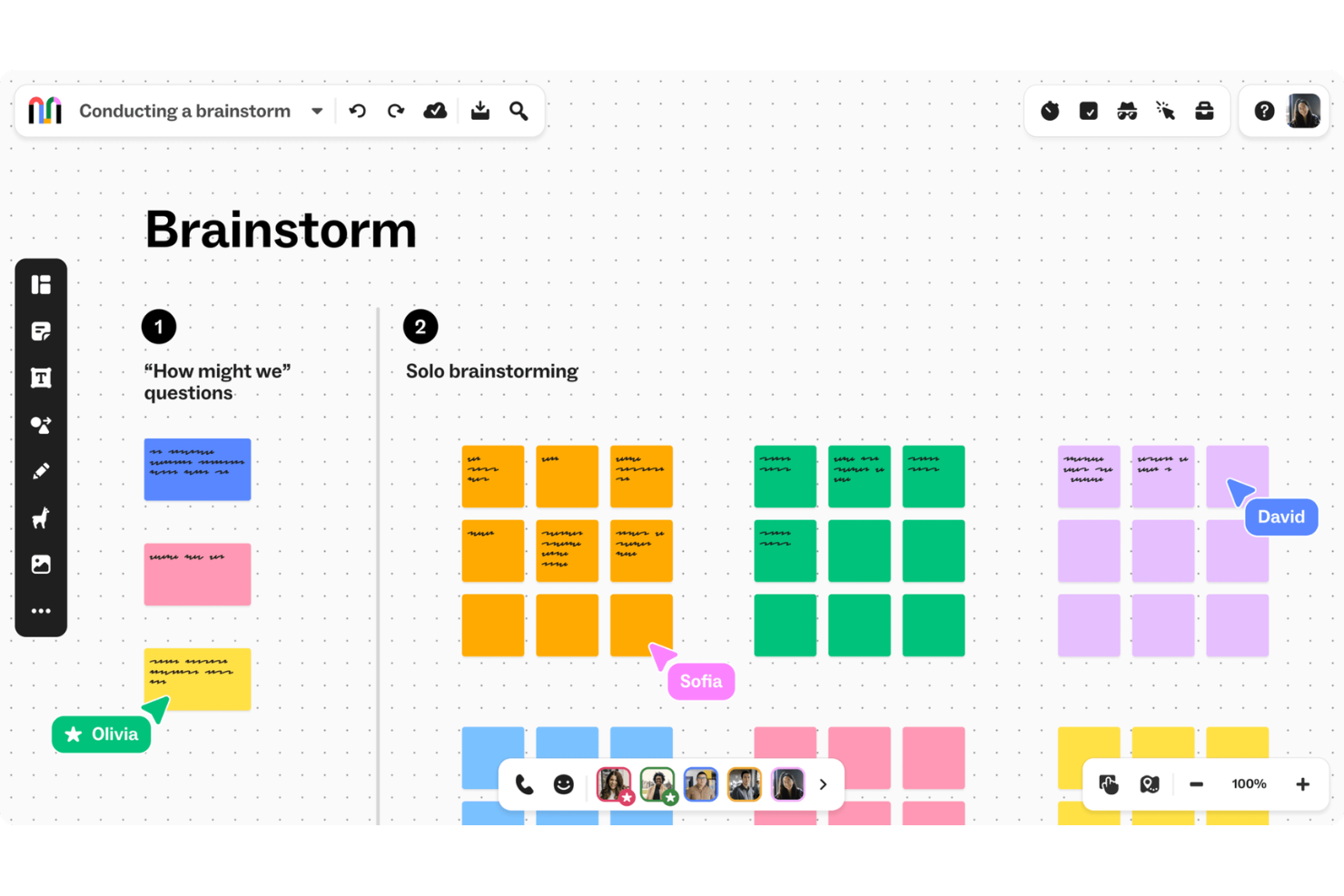
Mural is a digital workspace built for teams who need to map ideas, processes, and workflows visually. If you often run collaborative sessions or workshops, you’ll find Mural’s interactive boards and facilitation tools designed to engage participants and speed up consensus.
Who Is Mural Best For?
Mural is a great choice for distributed product, design, or strategy teams running frequent workshops or collaborative planning sessions.
Why Mural Is a Good SmartDraw Alternative
I picked Mural specifically because of how it handles live workshop facilitation—something SmartDraw doesn't touch. Mural's private mode lets every participant add ideas simultaneously without seeing each other's input, which removes groupthink from brainstorming sessions before they start. I also use the AI clustering feature to instantly group sticky notes by theme after ideation, cutting what used to be 20 minutes of manual sorting down to seconds. For teams that run regular retrospectives, sprint planning, or discovery workshops, that combination makes Mural a meaningfully different tool than a traditional diagramming solution.
Mural Key Features
- Infinite canvas: Work on an expandable canvas that scales to fit any project size without hard boundaries.
- Custom template publishing: Save and publish your own workshop or process templates for reuse across your entire workspace.
- Super lock: Restrict object movement to facilitators only, keeping diagrams and layouts intact during live sessions.
- Flexible permissions: Set view-only, edit, or facilitator-level access for each participant in a mural.
Mural Integrations
Mural offers native integrations with Microsoft Teams, Google Drive, Jira, Zapier, Slack, Dropbox, OneDrive, Box, Adobe Creative Cloud, and Webex. An API is available for custom integrations.
Pros and Cons
Pros:
- AI-powered clustering for organizing sticky notes
- Private mode for unbiased idea generation
- Real-time visual collaboration for brainstorming sessions
Cons:
- Advanced features gated to higher plans
- Limited diagram export customization options

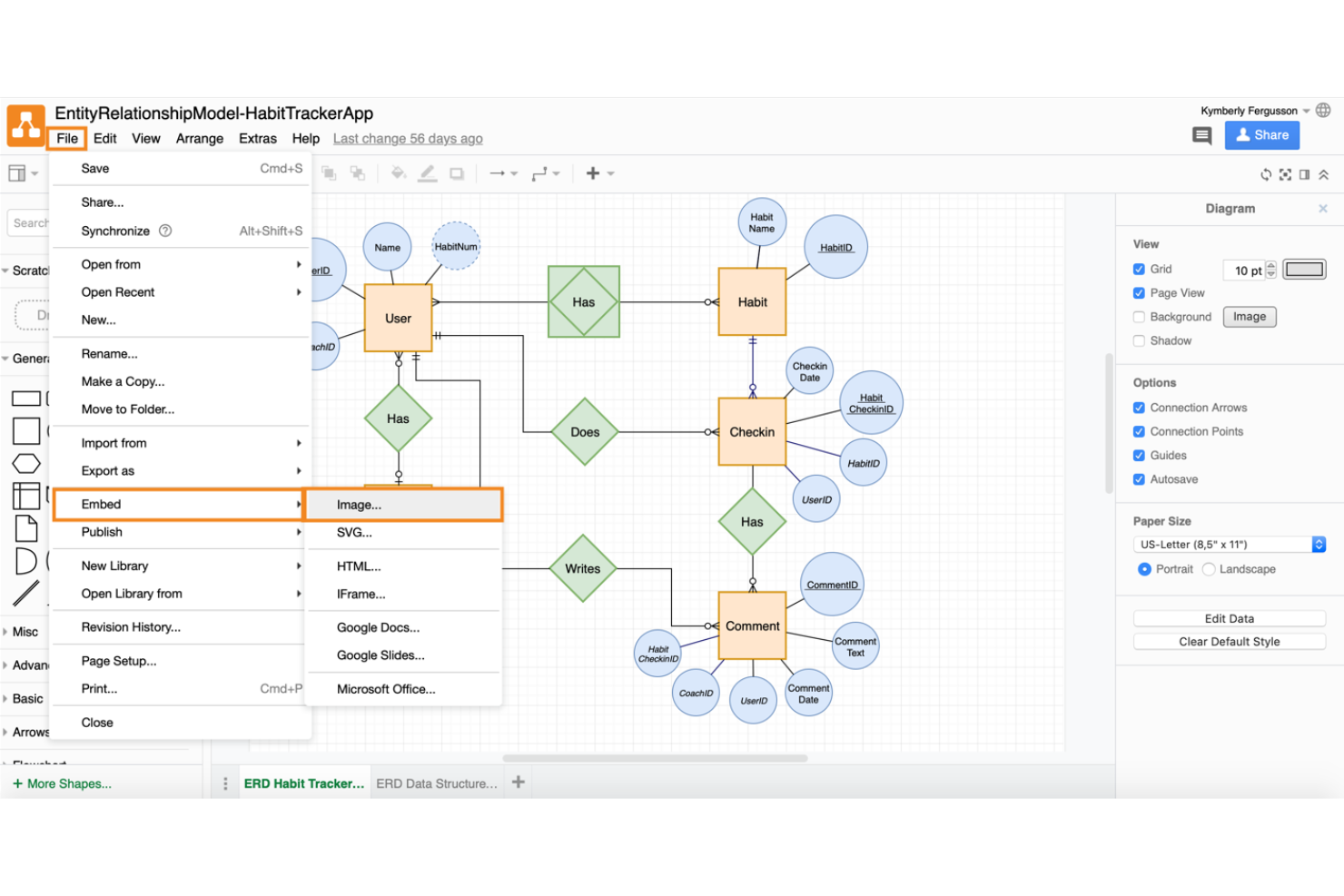
For teams who want a browser-based diagramming tool with flexibility, draw.io enables fast process mapping, flowcharting, and system visualization. Engineers, business analysts, and project managers use it for visualizing workflows and documenting projects with simplicity.
Who Is draw.io Best For?
Draw.io is a strong fit for software engineers, project managers, and IT teams who want a flexible, code-free diagramming platform that works entirely in the browser.
Why draw.io Is a Good SmartDraw alternative
I picked draw.io because it's genuinely unlimited and free—no seat count caps, no trial periods, and no feature paywalls blocking core diagramming tools. My team uses it to map system architectures and process flows directly in the browser, which means there's nothing to install and no licensing conversation to have before getting started. I especially appreciate the XML-based file format, which lets me store diagrams in Google Drive or Confluence and open them again without worrying about file compatibility. In practice, that means my team can spin up a detailed workflow diagram in minutes and share it with anyone, regardless of whether they have an account.
draw.io Key Features
- Shape libraries: Access hundreds of categorized shapes for UML, BPMN, network, and ERD diagrams out of the box.
- Real-time collaboration: Co-edit diagrams simultaneously with shared cursors and live updates across your team.
- Multi-format export: Export diagrams to SVG, PNG, or PDF, or embed them directly in HTML.
- Version-controlled storage: Save diagrams as XML files directly to Google Drive, OneDrive, or GitHub repos.
draw.io Integrations
Draw.io offers native integrations with Google Drive, OneDrive, GitHub, Confluence, and Jira. An API is available for custom integrations.
Pros and Cons
Pros:
- Exports directly to multiple file formats
- Fast diagram creation with drag-and-drop
- Unlimited diagram size and page count
Cons:
- No real-time chat within collaboration sessions
- Limited advanced shape styling options


Gliffy lets teams quickly create, edit, and share diagrams with a straightforward drag-and-drop interface. It appeals to project managers and teams who need to map workflows, organizational charts, or processes without getting bogged down in complex features.
Who Is Gliffy Best For?
Gliffy is a solid pick for small businesses and team leaders looking to diagram processes or org charts without a steep learning curve.
Why Gliffy Is a Good SmartDraw Alternative
I picked Gliffy because the drag-and-drop experience genuinely removes friction from the diagram-building process. When I drop a shape onto the canvas, I can see exactly how it will look before placing it—a small feature that speeds up iteration. I also use Gliffy's interactive diagramming to build diagrams that expand and collapse on click, which helps when I'm presenting layered workflows to stakeholders who don't need to see every detail at once. For Confluence users especially, Gliffy embeds directly into pages without extra plugins, so my team documents processes without ever switching contexts.
Gliffy Key Features
- Diagram version history: Review and restore previous versions of any diagram directly within the editor.
- Shape libraries: Access pre-built shape sets for flowcharts, network diagrams, UML, and BPMN.
- Team sharing controls: Set view or edit permissions per diagram to manage access across collaborators.
- Export options: Download diagrams as PNG, JPEG, SVG, or PDF files for use outside the platform.
Gliffy Integrations
Gliffy offers native integrations with Slack and Mermaid. An API is available for custom integrations.
Pros and Cons
Pros:
- Revision history for restoring previous diagram versions
- Real-time team collaboration on diagrams
- Shape library includes network, UML, BPMN diagrams
Cons:
- Diagrams can become laggy with large projects
- No advanced automation for workflow processes

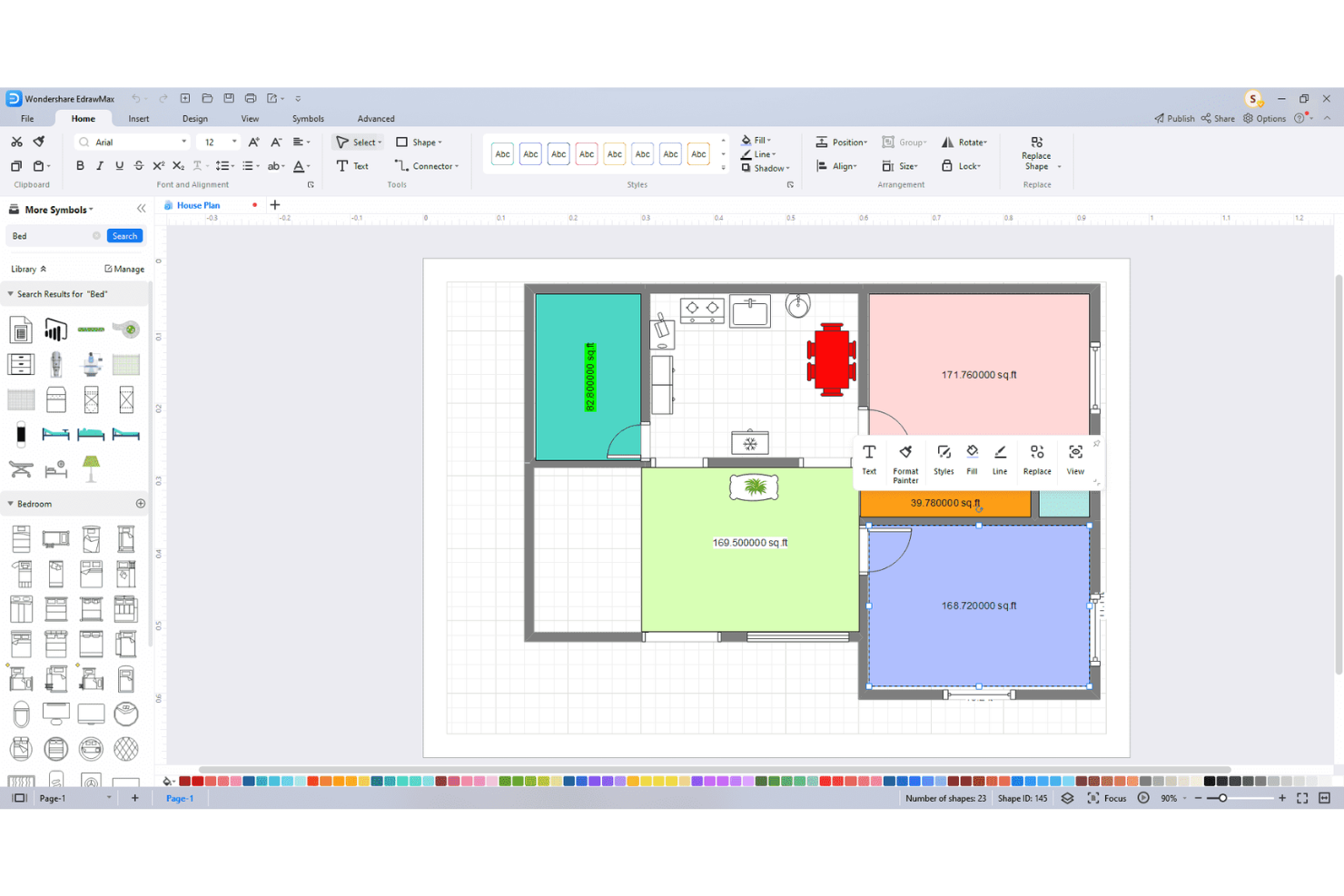
EdrawMax is a diagramming tool designed for teams and professionals who need to create detailed visual workflows across technical and industry-specific fields. If you work with complex processes or cross-functional teams, you’ll find EdrawMax’s broad template selection especially helpful for mapping out your operations.
Who Is EdrawMax Best For?
EdrawMax fits engineers, process analysts, and operations teams in regulated industries who need specialized diagram templates for accurate documentation.
Why EdrawMax Is a Good SmartDraw Alternative
I picked EdrawMax because its template library goes far deeper than generic flowcharts. It covers specialized fields like electrical engineering, network architecture, and process engineering—with templates built to industry standards rather than adapted from general-purpose shapes. I use the engineering-specific symbol libraries to build accurate P&ID diagrams and floor plans without needing to source custom shape packs. In practice, that means my team can hand off documentation that meets industry expectations without any extra formatting work.
EdrawMax Key Features
- Code-to-flowchart conversion: Paste code directly into EdrawMax and it automatically generates a flowchart of the logic.
- Auto layout: Automatically arranges diagram elements to optimize organization without manual repositioning.
- Multi-format export: Export diagrams in 10+ formats including PDF, PowerPoint, SVG, HTML, and VSDX for Visio compatibility.
- Document theme customization: Apply and customize themes across diagrams to maintain consistent visual branding.
EdrawMax Integrations
EdrawMax offers native integrations with Google Drive, Dropbox, OneDrive, and Box, and provides an API for custom integrations.
Pros and Cons
Pros:
- Supports advanced document theme customization
- Code-to-flowchart automatic conversion tool
- Extensive library of industry-specific diagram templates
Cons:
- Some advanced export formats require manual adjustments
- Limited real-time collaboration features for teams


Cacoo is an online diagramming tool made for teams who need to create, edit, and share diagrams together in real time. I think product managers, designers, and IT teams who rely on visual collaboration to map out processes or systems will find it especially useful for distributed work.
Who Is Cacoo Best For?
Remote teams in tech, marketing, or product who need to co-create, review, and share diagrams in a cloud-based workspace.
Why Cacoo Is a Good SmartDraw Alternative
I picked Cacoo because sharing live diagrams with external stakeholders is genuinely easier here than in most other tools. Its password-protected sharing lets me send a live diagram link to a client or stakeholder outside my organization without giving them full workspace access. I also rely on its Follow mode, which mirrors a teammate's cursor during a review so everyone's attention stays on the same part of the diagram without any verbal coordination. For teams managing infrastructure or codebases, the AWS importer and code-to-graph feature convert existing setups directly into editable diagrams, cutting out the manual redrawing that SmartDraw typically requires.
Cacoo Key Features
- Tables and dynamic charts: Create charts and tables that update automatically when your underlying data changes.
- In-board video calls and chat: Start a video call or text chat directly from your canvas without switching to another tool.
- Kanban board: Manage tasks using Kanban cards placed directly alongside your diagrams and plans.
- Presentation mode: Turn any diagram into a guided slideshow without ever leaving the canvas.
Cacoo Integrations
Cacoo offers native integrations with Google Drive, Slack, Confluence, Dropbox, Box, Microsoft Teams, and Typetalk, and it connects with Zapier. An API is available for custom integrations.
Pros and Cons
Pros:
- Breakout boards for focused team collaboration
- Built-in video chat during diagram sessions
- Real-time multi-user editing on diagrams
Cons:
- Template library smaller than some competitors
- Limited offline access for diagrams

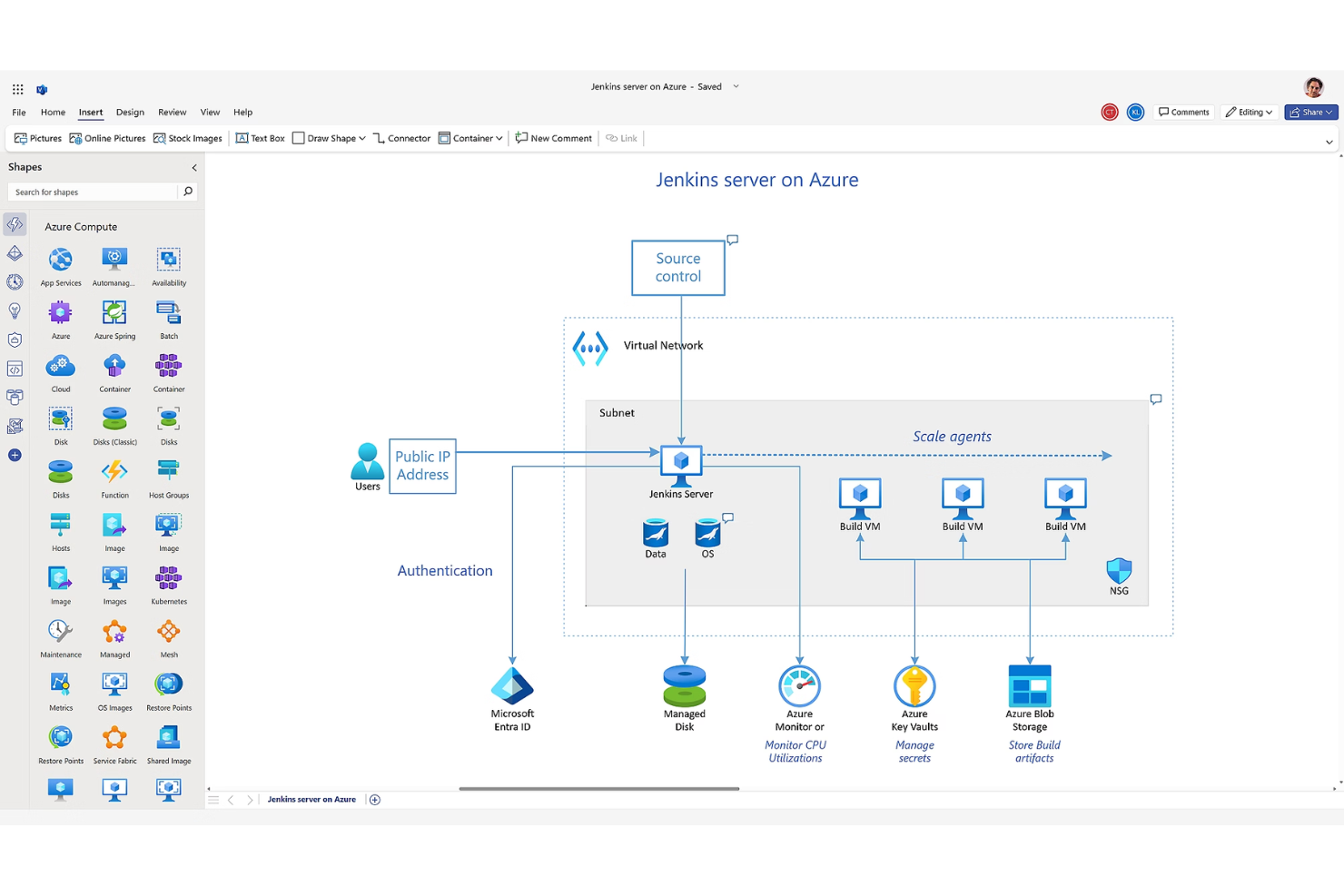
Microsoft Visio is a diagramming and workflow visualization platform designed for teams who already work within the Microsoft 365 suite. I find it fits organizations who need precise process maps, flowcharts, and org charts built with familiar Microsoft-style tools.
Who Is Microsoft Visio Best For?
Microsoft Visio is designed for IT managers and business analysts in organizations standardized on Microsoft 365.
Why Microsoft Visio Is a Good SmartDraw alternatives
I picked Microsoft Visio because of how naturally it fits into a Microsoft 365 environment. My team can embed Visio diagrams directly into Teams channels, SharePoint pages, and Word documents without any export or conversion steps. I also rely on Visio's data-linked diagrams, which connect shapes directly to Excel data sources so process maps update automatically when the underlying data changes. For organizations already running on Microsoft 365, that level of native connectivity removes the friction of maintaining diagrams separately from the systems your team already works in.
Microsoft Visio Key Features
- Diagram templates: Access hundreds of pre-built templates for flowcharts, network diagrams, BPMN, and org charts.
- Cross-functional flowcharts: Build swim lane diagrams to map processes across multiple departments or roles.
- Shape libraries: Use industry-specific shape sets, including UML, network, and engineering shapes.
- Co-authoring: Multiple users can edit the same Visio diagram simultaneously in the browser-based version.
Microsoft Visio Integrations
Microsoft Visio has native integrations across the Microsoft ecosystem, including Microsoft 365 and Azure. You can connect it to data sources like Microsoft Access, SharePoint, SQL Server, Exchange Server, and Microsoft Entra ID. An API is available for custom integrations.
Pros and Cons
Pros:
- Supports advanced process modeling with BPMN notation
- Enterprise-grade diagram validation and standards checking
- Direct editing of diagrams within Microsoft Teams
Cons:
- Complex licensing structure for different editions
- Web version lacks some desktop features
Miro
Best for cross-functional remote teams
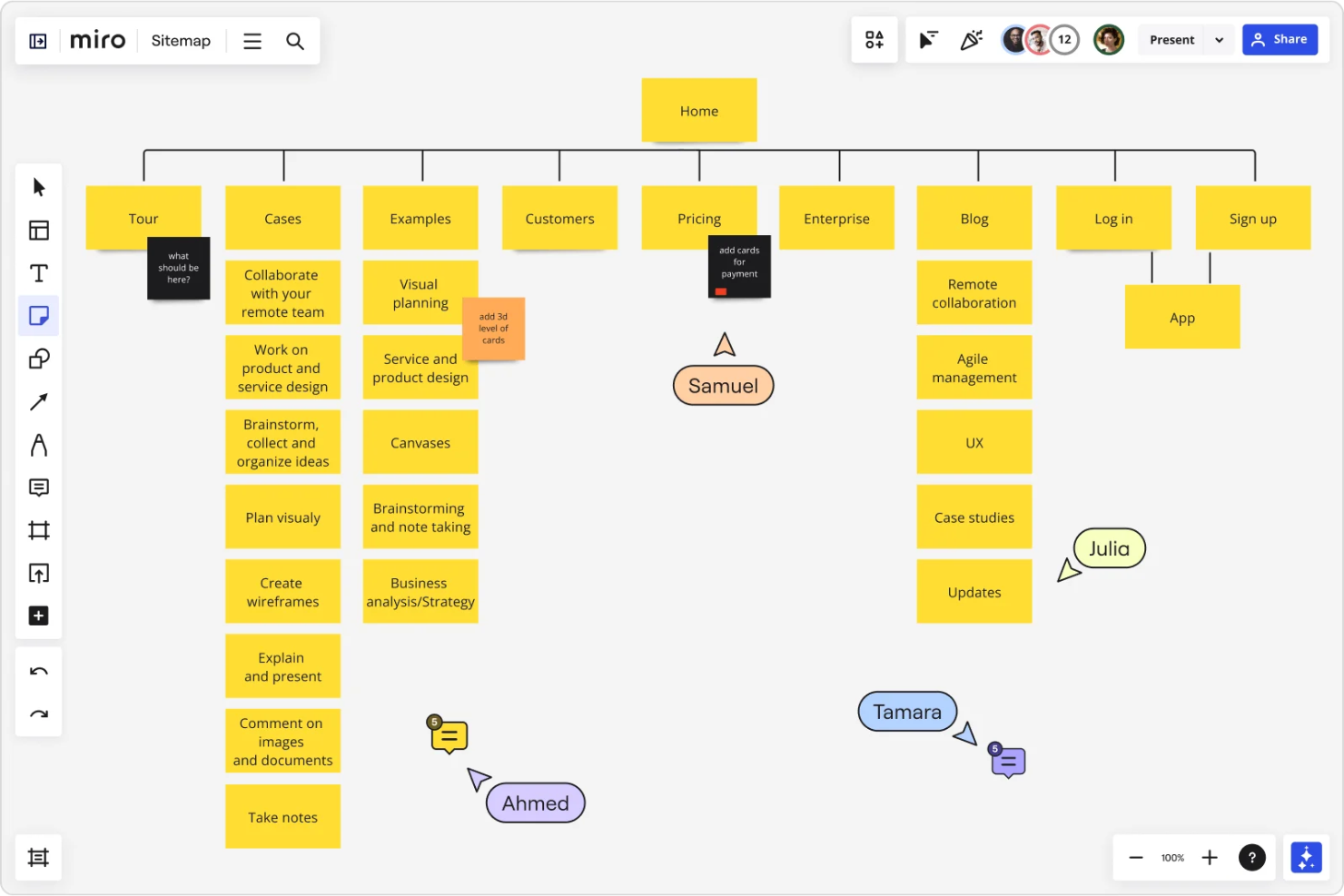
Miro is a collaborative online whiteboard platform for teams who need flexible, real-time diagramming and brainstorming. I think it works well for product managers, scrum masters, and distributed teams mapping workflows or ideating on projects together.
Who Is Miro Best For?
Miro fits distributed teams who need to collaborate visually on workflows, diagrams, planning, or retrospectives across functions and departments.
Why Miro Is a Good SmartDraw alternatives
I picked Miro for cross-functional remote teams because it treats diagramming as a live, collaborative activity rather than a solo drafting task. My team uses Miro's infinite canvas to run real-time process mapping sessions where engineers, designers, and product managers all contribute simultaneously—no version-passing required. I especially appreciate the built-in facilitation tools like timer, voting, and cursor tracking, which keep distributed sessions structured and on-task. In practice, that means my team can run a full workflow mapping workshop asynchronously or live without ever switching tools.
Miro Key Features
- Diagram templates: Choose from hundreds of pre-built templates for flowcharts, mind maps, swimlane diagrams, and process maps.
- Smart diagramming: Use Miro's shape libraries and auto-connect features to build structured diagrams quickly on the canvas.
- Sticky notes and tagging: Add color-coded sticky notes and tags directly to diagrams to capture decisions or flag open questions.
- Presentation mode: Walk stakeholders through a board in a guided, slide-style view without leaving the Miro canvas.
Miro Integrations
Miro offers 100+ native integrations, including Jira, Asana, Trello, Slack, Microsoft Teams, Google Drive, Zoom, Notion, Confluence, Dropbox, and Zapier. An API is available for custom integrations.
Pros and Cons
Pros:
- Built-in facilitation tools for remote sessions
- Live multi-user collaboration with visual cursors
- Infinite canvas supports large workflows
Cons:
- Limited diagram validation for process compliance
- Board exports sometimes distort formatting
New Product Updates from Miro
Miro Adds Japan Data Residency for Enterprise Customers
Miro has introduced Japan data residency for enterprise customers, offering in-region storage for production data, backups, and metadata, plus in-region compute infrastructure. For more information, visit Miro's official site.
Other SmartDraw Alternatives
Here are some additional SmartDraw alternatives options that didn’t make it onto my shortlist, but are still worth checking out:
- Lucidchart
For enterprise-grade integrations
- Lucidspark
For digital whiteboarding sessions
- ClickUp
For integrating tasks with diagram workflows
- MindManager
For structured mind mapping diagrams
- Xmind
For brainstorming with map-style layouts
- Visual Paradigm
For agile user story mapping visuals
- SAP Signavio
For business process analysis modeling
- Excalidraw
For hand-drawn style visualizations
- ConceptDraw Diagram
For professional diagram export options
- SketchWow
For cartoon-style sketch diagramming


How I Evaluate SmartDraw Alternatives
I evaluate SmartDraw alternatives on two layers: the baseline must-haves like Visio import, data-linked org charts, and collaborative editing, and the differentiators that make one a better fit.
Core Functionality (Table Stakes For This List)
When I'm selecting tools for my list, I rank each one on a scale from 0 (does not offer the functionality) to 5 (excels in this area) for each core functionality listed below. Then, I calculate the tool's total score into a percentage. Each tool needs to achieve a minimum total score of 75% to be considered for inclusion.
- Diagram Template Library: I check for templates across flowcharts, UML, BPMN, network diagrams, org charts, and floor plans—not just a handful of generic shapes.
- Drag-and-Drop Canvas: Smart connectors, auto-alignment, and snap-to-grid matter here. Building a BPMN swimlane diagram shouldn't mean manually routing every arrow.
- Real-Time Collaboration: I look for live co-editing with comments and presence indicators so distributed teams can review process maps together, not trade static exports.
- Data-Linked Diagrams: Tools should generate or refresh org charts and network maps from CSV, Excel, or database imports rather than requiring manual shape-by-shape entry.
- Import/Export Formats: Visio (VSDX) import and export is what I evaluate first. Support for PNG, SVG, PDF, and JPEG rounds out interoperability with existing toolchains.
- Integrations With Work Tools: Embedding diagrams in Confluence pages, linking to Jira tickets, or sharing in Slack and Teams channels are the integration touchpoints I evaluate.
- Version History & Permissions: Enterprise teams need rollback, role-based access, and audit logs. I look for granular controls that support governance in regulated environments.
- Cross-Platform Access: A web app is the baseline. Desktop apps for Windows and macOS, plus mobile access, determine whether remote and field teams can use the tool fully.
Once I have a list of tools that meet this criteria, I consider what sets each platform apart.
Differentiating Factors (What Sets Vendors Apart)
Here's how I compare and contrast different vendors:
Standout Features
AI-assisted diagramming is a big differentiator. Some tools generate a flowchart or org chart from a text prompt or pasted data, which saves real time when you're documenting a multi-step approval process. I also look for whiteboarding capabilities that let teams brainstorm during sprint planning and then convert sticky notes into structured diagrams on the same canvas. Presentation mode matters too. Walking stakeholders through a process map slide-by-slide, without exporting to PowerPoint, keeps the source of truth in one place.
Beyond Features
Pricing structure is one of the first things I evaluate. Some vendors charge per editor and let viewers in free, while others bundle seats into team plans—the right model depends on how many stakeholders need access versus how many actually build diagrams. Security and compliance also weigh heavily when enterprise teams are involved. I check for SOC 2 compliance, SSO support, and role-based access controls, especially for teams handling sensitive architecture or infrastructure documentation. Scalability matters too—I consider whether a tool handles large, multi-page diagrams without performance issues as teams grow.
Why Look For A SmartDraw Alternative?
While SmartDraw is a good choice of workflow diagram software, there are a number of reasons why some users seek out alternative solutions. You might be looking for SmartDraw alternatives because…
- You need real-time multi-user editing
- You want a wider variety of export formats
- Your team relies on in-app video chat for collaboration
- You work mostly on mobile or tablets
- You face limits with template library depth
- Your company requires stricter access controls
If any of these sound like you, you’ve come to the right place. My list contains several workflow diagram software options that are better suited for teams facing these challenges with SmartDraw and looking for alternative solutions.
SmartDraw Key Features
Here are some of the key features of SmartDraw, to help you contrast and compare what alternative solutions offer:
- Diagram templates: SmartDraw provides hundreds of built-in diagram templates for flowcharts, mind maps, network diagrams, org charts, and more, so you can jump into creating workflows fast without designing from scratch.
- Automatic formatting: The tool automatically aligns shapes and connectors as you build, making it easy to keep diagrams clean, clear, and professional-looking without constant manual adjusting.
- Visio import and export: SmartDraw lets you import and export Microsoft Visio files, so you can collaborate with teams or clients who rely on Visio and avoid vendor lock-in.
- Collaboration tools: You can share diagrams via links or email and let others comment or edit, which helps keep feedback and revision cycles fast and organized in distributed teams.
- Cloud and desktop options: SmartDraw works as both a browser-based application and a downloadable desktop program, letting users choose the best environment for their needs or security requirements.
- Automated diagram generation: Users can generate diagrams automatically from data sources like spreadsheets, speeding up the creation of organization charts, process maps, or other data-driven visuals.
- Document and presentation integration: SmartDraw integrates directly with Microsoft Word, PowerPoint, and Google Workspace, allowing you to pull diagrams into documentation or presentations with minimal friction.
- Floor plans and engineering diagrams: The tool supports specialized templates and symbols for architectural or engineering diagrams, so you can build layouts beyond basic workflows.
- Custom symbol libraries: You can build, organize, and reuse your own collections of symbols and shapes, which supports industry-specific or branded diagramming needs.
- Single sign-on (SSO): SmartDraw supports SSO for enterprise users, helping you manage user access and data security at scale.