

10 Best Whimsical Alternatives for Mind Mapping in 2026

Whimsical Alternatives Shortlist


A strong Whimsical alternative gives your team flexible data visualization, real-time collaboration, and easy diagramming without limiting creativity or workflow. If you’re searching for alternatives to Whimsical, you likely need tools that support brainstorming, mapping, and prototyping across distributed teams—without sacrificing usability or integration with your existing stack. This list will help you compare the top options for 2026, so you can find the right fit for your team’s collaboration style, technical needs, and project goals.
What Is Whimsical?
Whimsical is a collaborative visual workspace tool designed for creating flowcharts, wireframes, mind maps, and sticky notes in real time. Teams use Whimsical to brainstorm, map processes, and prototype ideas together, whether they’re in the same room or distributed across locations. Its simple and intuitive interface, ease of use, and built-in templates help users quickly turn concepts in project planning into shareable visuals, making it popular for product, design, and engineering teams.
Whimsical Alternatives Comparison Table
This comparison table summarizes pricing details for my top Whimsical alternative selections.
| Tool | Best For | Trial Info | Price | ||
|---|---|---|---|---|---|
| 1 | Best for real-time UI prototyping | Free plan available | From $3/user/month | Website | |
| 2 | Best for creative moodboards and visual planning | Free plan + free trial + free demo available | From $9.99/user/month (billed annually) | Website | |
| 3 | Best for diagramming with built-in data views | Free plan available | From $5/month (billed annually) | Website | |
| 4 | Best for remote design thinking workshops | Free plan available | From $9.99/user/month (billed annually) | Website | |
| 5 | Best for GDPR-compliant whiteboard collaboration | Free plan + free trial available | From €5/user/month | Website | |
| 6 | Best for free, open-source technical diagramming | Free forever | Free to use | Website | |
| 7 | Best for teams already working in Canva | Free plan available | Free plan available | Website | |
| 8 | Best for AI-assisted canvas and lifetime plans | Free plan available | From $5/user/month (billed annually) | Website | |
| 9 | Best for cross-team visual sprint planning | Free plan + 14-day free trial available | From $8/user/month (billed annually) | Website | |
| 10 | Best for data-linked diagram automation | Free plan + 7-day free trial available | From $9/month (billed annually) | Website |

Why Trust Our Software Recommendations
Our team has been testing and reviewing software since 2012. As project managers ourselves, we know how difficult—and important—it is to choose the right software.
For this guide, we evaluated tools using hands-on testing and independent research, scoring tools using our selection criteria. We also draw on insights from industry thought leaders and practicing project management experts.
Our reviews reflect our human editorial judgment, not a sales pitch.
Expert reviewers:
Whimsical Alternatives Reviews
Below are my detailed summaries of the Whimsical alternatives that made it onto my shortlist. My reviews offer a detailed look at the features, best use cases, and integrations of each platform to help you find the best one for your team.

Figma
Best for real-time UI prototyping
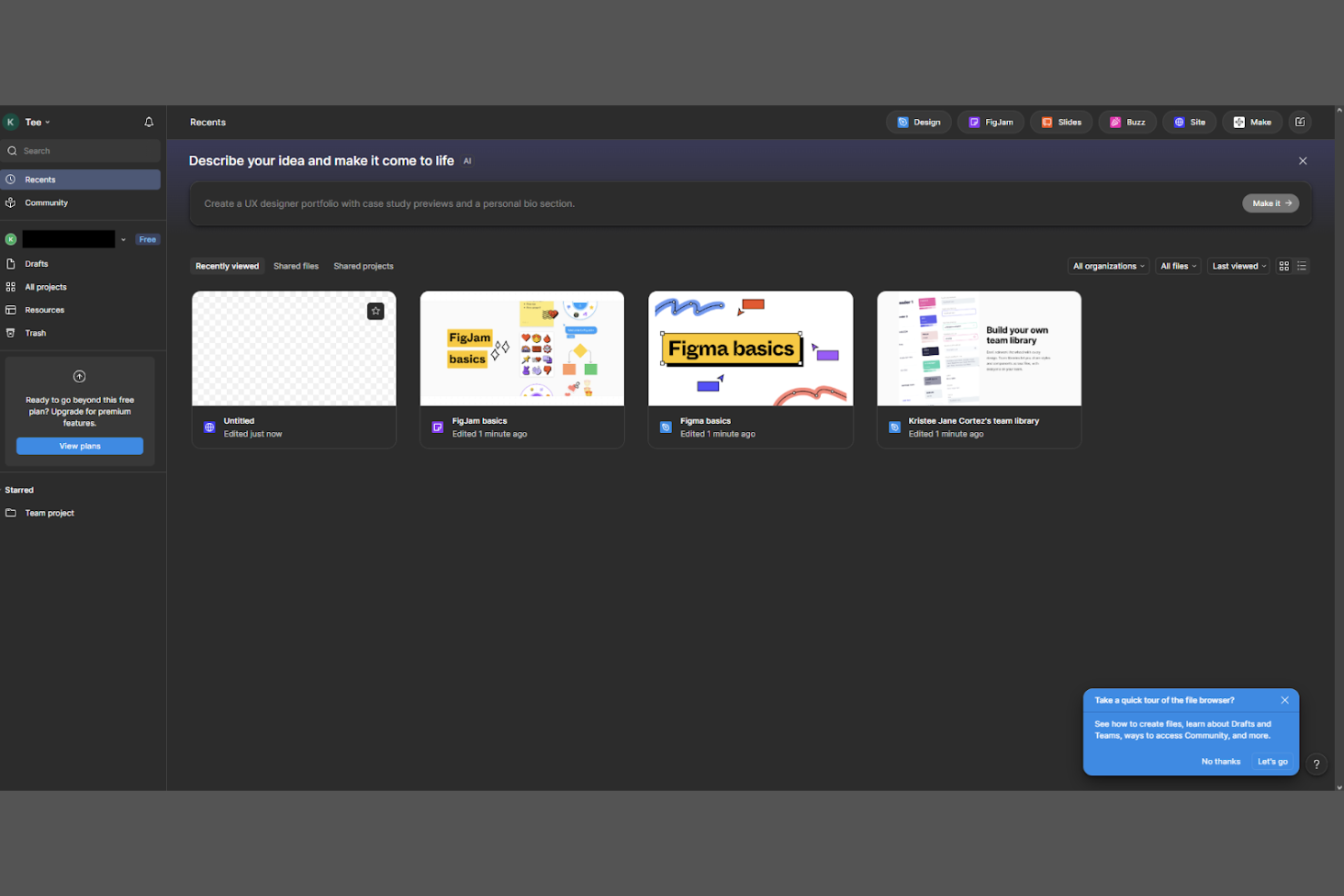
Design and product teams looking for real-time collaboration on UI and prototyping often turn to Figma. The platform is especially useful for distributed teams that need to co-design, review, and iterate on interfaces together in the same workspace. Figma stands out from Whimsical by offering pixel-precise design tools, interactive prototyping, and developer handoff features all in one browser-based environment.
Why Figma Is a Good Whimsical Alternative
For teams that need to prototype user interfaces together in real time, Figma offers a level of collaboration that’s hard to match. I picked Figma because it lets multiple users co-edit designs, leave comments, and test interactive prototypes all in the same browser window.
The tool’s vector editing and prototyping features are built for UI and UX work, making it easy to move from wireframes to high-fidelity mockups without switching platforms. If your team’s workflow centers on rapid, collaborative interface design, Figma is a strong alternative to Whimsical.
Figma Key Features
Some other features in Figma help teams manage and scale their design work:
- Design Systems Support: Create, maintain, and share reusable components and styles across projects.
- Version History: Access and restore previous versions of files to track changes over time.
- Plugin Ecosystem: Extend functionality with a wide range of community and official plugins.
- Presentation Mode: Share designs in a view-only mode for stakeholder reviews and feedback.
Figma Integrations
Integrations include Slack, Jira, Trello, GitHub, Zeplin, Asana, Microsoft Teams, Notion, Airtable, and Google Drive.
Pros and Cons
Pros:
- Design system libraries help maintain consistent UI components across projects
- Interactive prototyping tools allow clickable flows without extra software
- Real-time multiplayer editing supports large, distributed design teams
Cons:
- Offline access is limited compared to some desktop-based alternatives
- Diagramming tools are less specialized than dedicated mind mapping apps
Milanote
Best for creative moodboards and visual planning
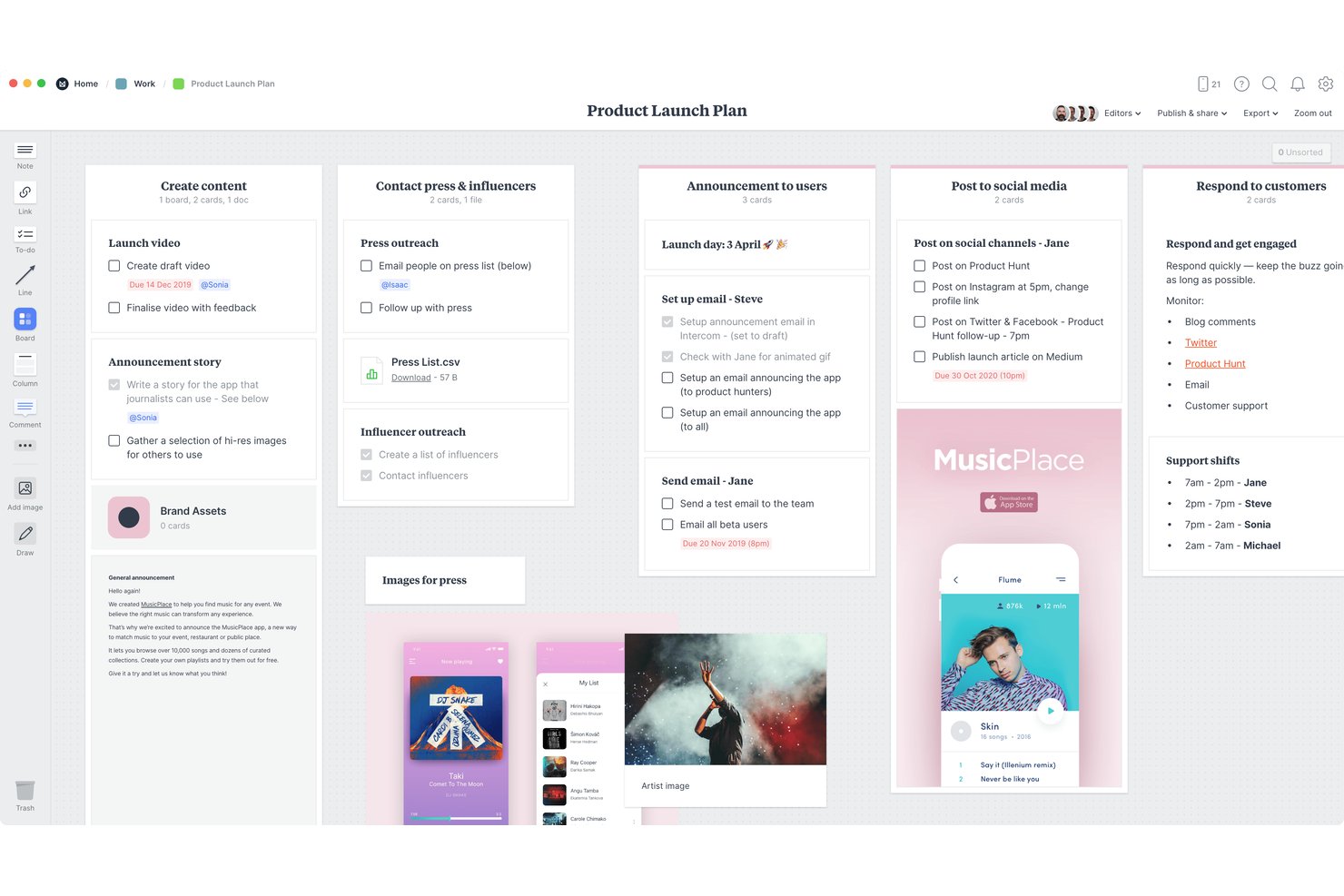
Milanote is a visual collaboration workspace for design, product, and marketing teams that helps organize ideas and project references when rigid task boards don’t fit creative planning.
Who Is Milanote Best For?
Milanote suits UX designers, art directors, and creative leads who need to gather visual references and turn early concepts into shared moodboards.
Why I Picked Milanote
I picked Milanote because it fits the “Best for creative moodboards and visual planning” brief while offering a visual alternative to Whimsical. Its open-ended boards let me arrange images, videos, color swatches, and design files alongside notes and links. I use that mix to align on a product’s visual direction before turning concepts into specs or tasks.
Milanote Key Features
- To-do lists: Add checkboxes to track tasks on a board.
- Comments: Leave feedback on individual items.
- Templates: Start with ready-made layouts for projects and workflows.
- Share links: Invite collaborators to view or edit shared work.
Milanote Integrations
Milanote doesn’t have any native integrations.
Pros and Cons
Pros:
- Share boards for team feedback
- Build moodboards from mixed-media references
- Arrange images, notes, and links freely
Cons:
- Tasks lack detailed progress and ownership tracking
- Less suited to structured flowcharts than Whimsical

Creately
Best for diagramming with built-in data views
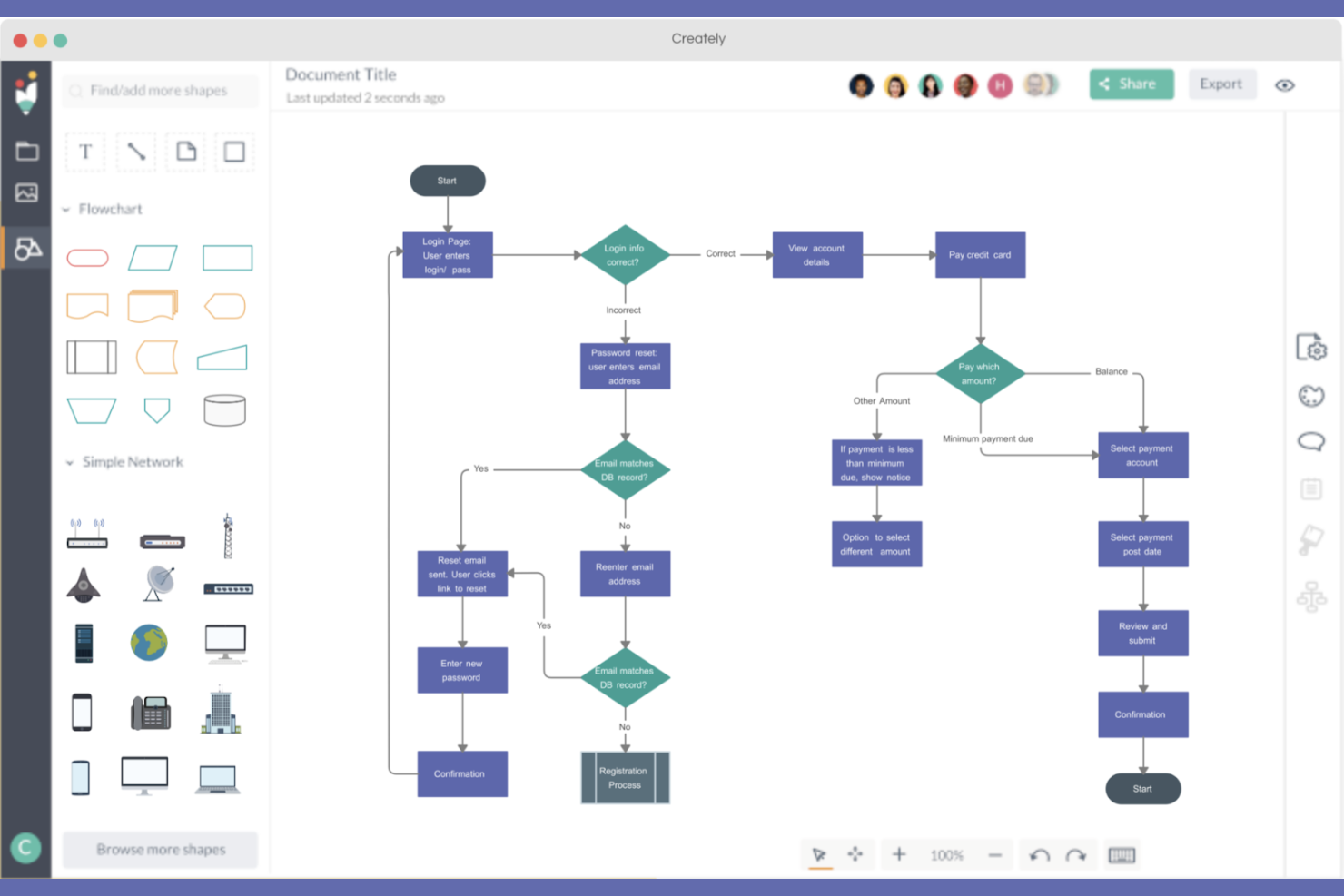
Creately is a visual collaboration and diagramming platform for product, engineering, and operations teams that need to map workflows, clarify dependencies, and organize project discussions.
Who Is Creately Best For?
Creately suits product and engineering teams that need to connect process diagrams with structured project data and keep dependencies visible.
Why I Picked Creately
Creately earns a place on my Whimsical alternatives list through diagramming with built-in data views. I like how its process maps connect to structured project data, so I can inspect dependencies alongside workflow steps. That’s useful when mapping a product handoff and checking which teams or tasks depend on each stage.
Creately Key Features
- Diagramming library: Includes 70 diagramming standards, over 1,000 shapes, and context-specific connectors.
- Template gallery: Offers more than 8,000 templates for diagrams and visual planning.
- Real-time editing: Lets multiple collaborators edit the same canvas at once.
- Comments and discussions: Supports contextual comments and threaded discussions on the canvas.
Creately Integrations
Creately integrates with Google Drive, Slack, Microsoft Teams, Confluence, and Jira; Jira supports two-way syncing of issues and updates. Creately also offers a native plugin for on-premise Confluence servers.
Pros and Cons
Pros:
- Contextual comments keep feedback beside diagram elements
- Templates cover process maps and visual planning
- Workflow diagrams connect directly to structured data
Cons:
- Dense interface can slow diagram navigation
- Complex diagrams can lag during editing

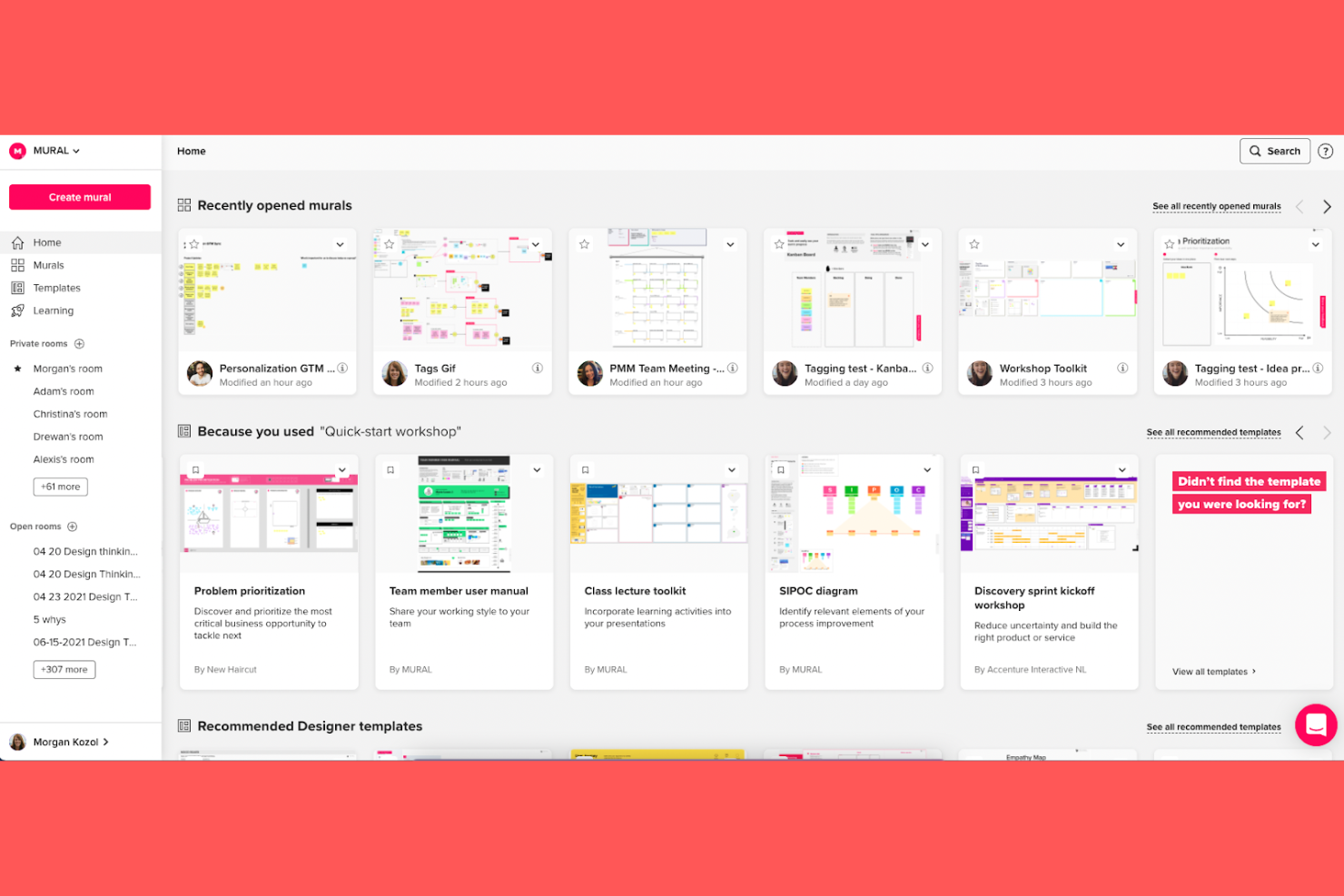
Mural is an online whiteboard for product, design, and project teams that need a shared visual workspace to map ideas, align stakeholders, and turn early concepts into actionable plans.
Who Is Mural Best For?
Mural suits workshop facilitators and product or UX teams that need a shared space to lead remote design-thinking sessions.
Why I Picked Mural
I picked Mural as a Whimsical alternative for its stated fit: Best for remote design thinking workshops. I appreciate how private mode lets participants add ideas before revealing them, while voting and timers help facilitators prioritize concepts and keep exercises on track. These tools help me guide distributed teams from brainstorming toward a decision.
Mural Key Features
- Infinite canvas: Create a shared workspace for mapping ideas and project plans.
- Templates: Start with ready-made boards for research, roadmaps, and project kickoffs.
- Areas and outlines: Organize canvas content and guide participants through a board.
- Integrations: Connect Mural with tools such as Microsoft Teams, Slack, and Jira.
Mural Integrations
Mural’s documented integrations include Jira, Azure DevOps, Asana, Slack, Microsoft Teams, Figma, and Confluence, with broader connections across Microsoft 365 and Google Workspace. Mural also supports Zapier and offers a public API for custom integrations.
Pros and Cons
Pros:
- Large groups can contribute in real time
- Templates support structured design-thinking exercises
- Voting and timers guide workshop decisions
Cons:
- Tables and diagramming feel less flexible
- Busy boards become harder to navigate

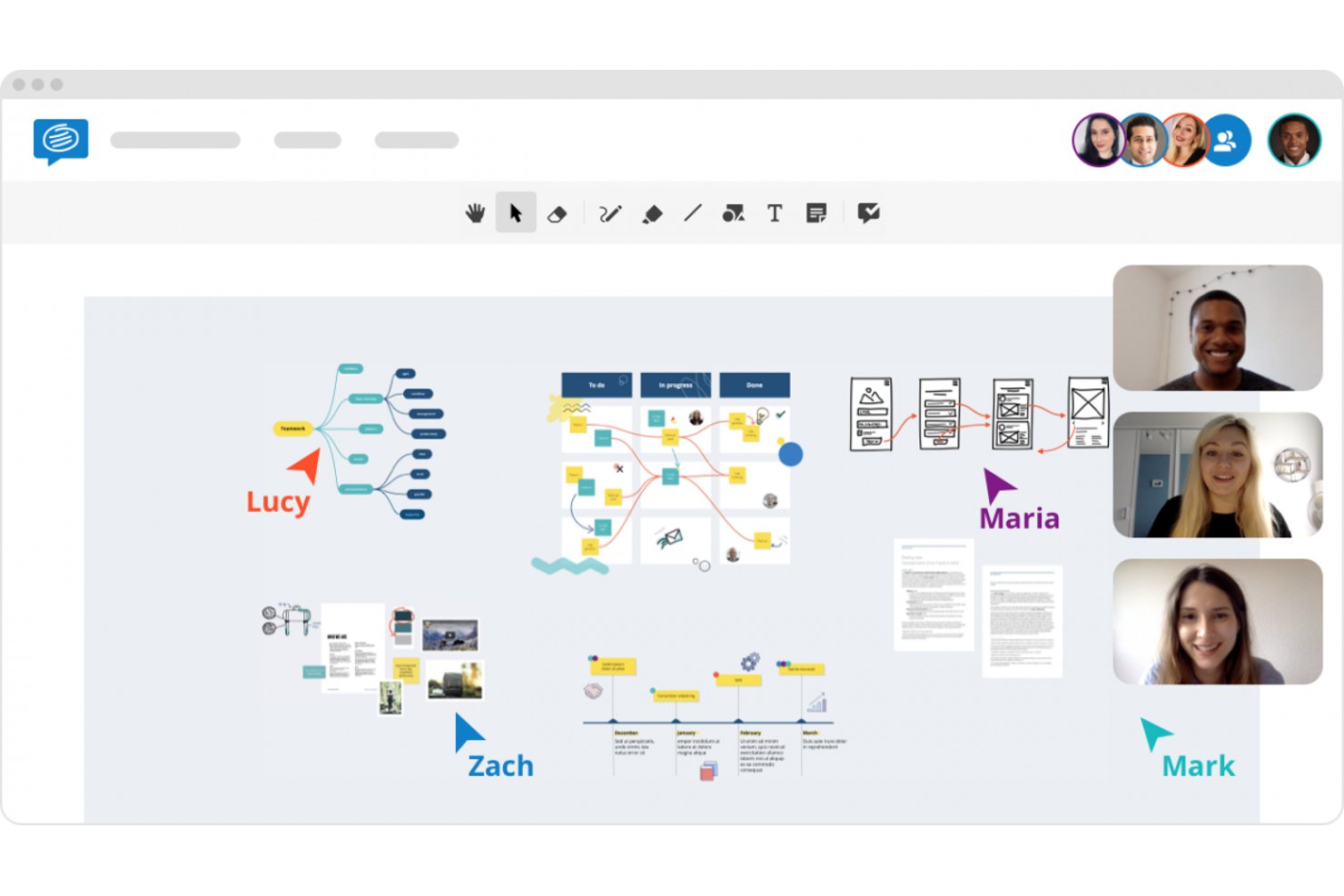
Conceptboard gives distributed product, design, and project teams a shared online whiteboard for mapping workflows, running workshops, and turning scattered ideas into clear plans.
Who Is Conceptboard Best For?
Conceptboard suits project managers and cross-functional teams that need collaborative visual planning with GDPR requirements in mind.
Why I Picked Conceptboard
I picked Conceptboard as my “Best for GDPR-compliant whiteboard collaboration” choice among Whimsical alternatives. It hosts and processes data in Germany, and lets me set access rights for individual boards and projects. AES encryption protects data at rest and in transit, which helps me keep sensitive product workflow plans controlled.
Conceptboard Key Features
- Templates: Start workshops with templates for retrospectives, process maps, and other activities.
- Live comments: Add comments directly to boards during meetings and workshops.
- Voting widget: Let participants vote on ideas and view results when voting ends.
- Board tasks: Turn board content into to-dos with owners, deadlines, and tags.
Conceptboard Integrations
Conceptboard documents five integrations: Azure, Jira, Microsoft Teams, Webex, and Confluence. You can embed boards in Microsoft Teams and Confluence to keep visual collaboration alongside project discussions and documentation.
Pros and Cons
Pros:
- Board tasks connect ideas to ownership
- Voting and moderation support structured workshops
- GDPR-compliant hosting supports sensitive workflows
Cons:
- Dense boards become cluttered during planning
- Large boards can load slowly

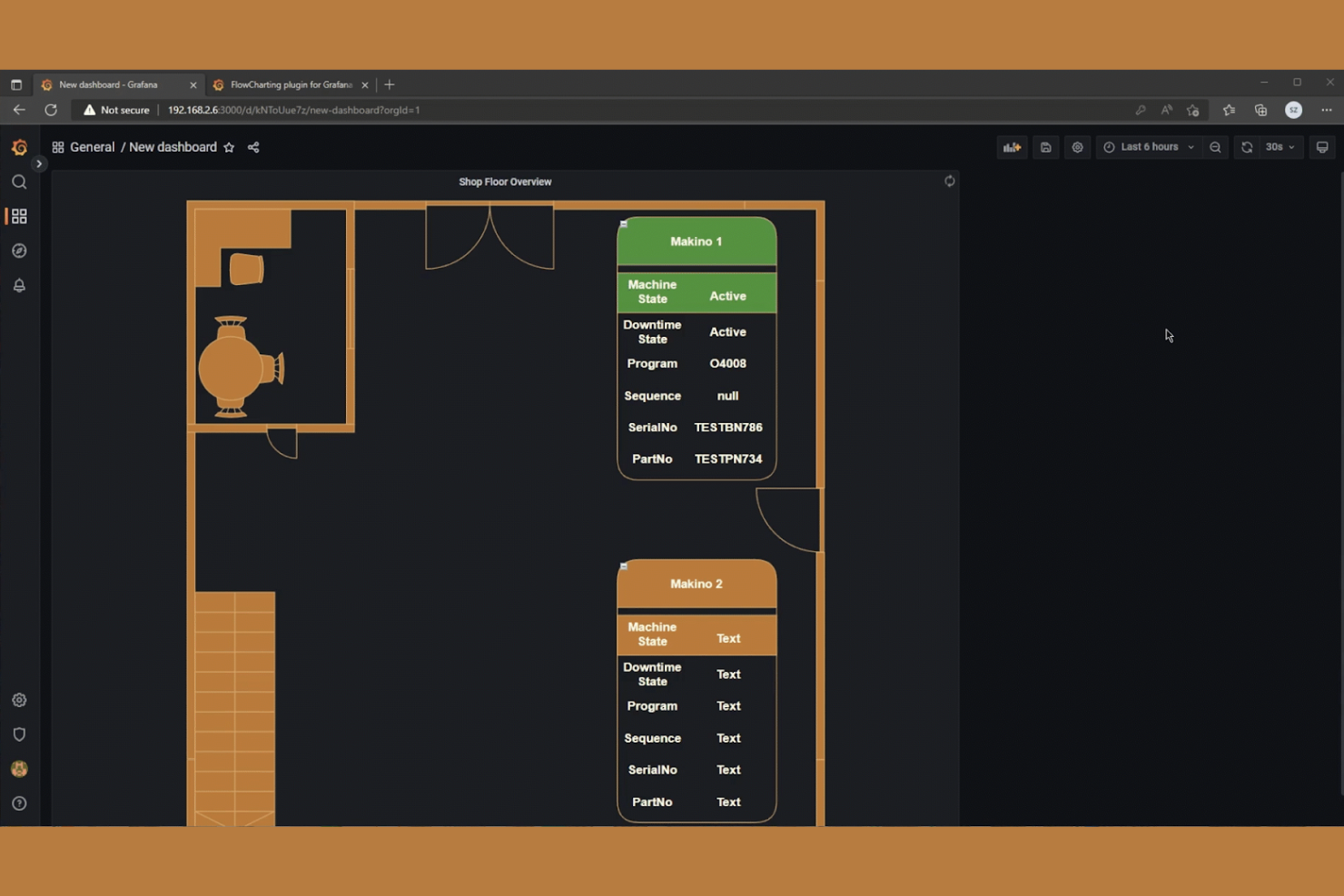
Diagrams.net helps product, engineering, and operations teams map systems, workflows, and processes when they need a technical diagramming alternative to Whimsical.
Who Is Diagrams.net Best For?
Diagrams.net suits software and IT teams that need a free, open-source tool for documenting system architecture, network layouts, and technical workflows.
Why I Picked Diagrams.net
I picked Diagrams.net because its USP, “Best for free, open-source technical diagramming,” fits teams replacing Whimsical for system documentation. I like its network and cloud architecture shape libraries for mapping service dependencies, data flows, and infrastructure boundaries. Connectors help show how components relate across a technical workflow.
Diagrams.net Key Features
- Templates: Start diagrams with templates for flowcharts, UML, and BPMN.
- Layers: Group diagram elements into layers you can show or hide.
- File format support: Import and export diagrams as files such as SVG, PNG, and PDF.
- Offline desktop app: Create and edit diagrams in the desktop application without a browser.
Diagrams.net Integrations
Diagrams.net supports integrations with Google Drive, Microsoft OneDrive, SharePoint, Teams, GitHub, and VS Code. Its Confluence and Jira apps are available through Atlassian Marketplace, and a Chrome extension supports Notion.
Pros and Cons
Pros:
- Offline desktop app supports local editing
- Templates cover UML, BPMN, and flowcharts
- Network and cloud architecture shape libraries
Cons:
- Large diagrams may lag during editing
- Connectors can shift when moving shapes
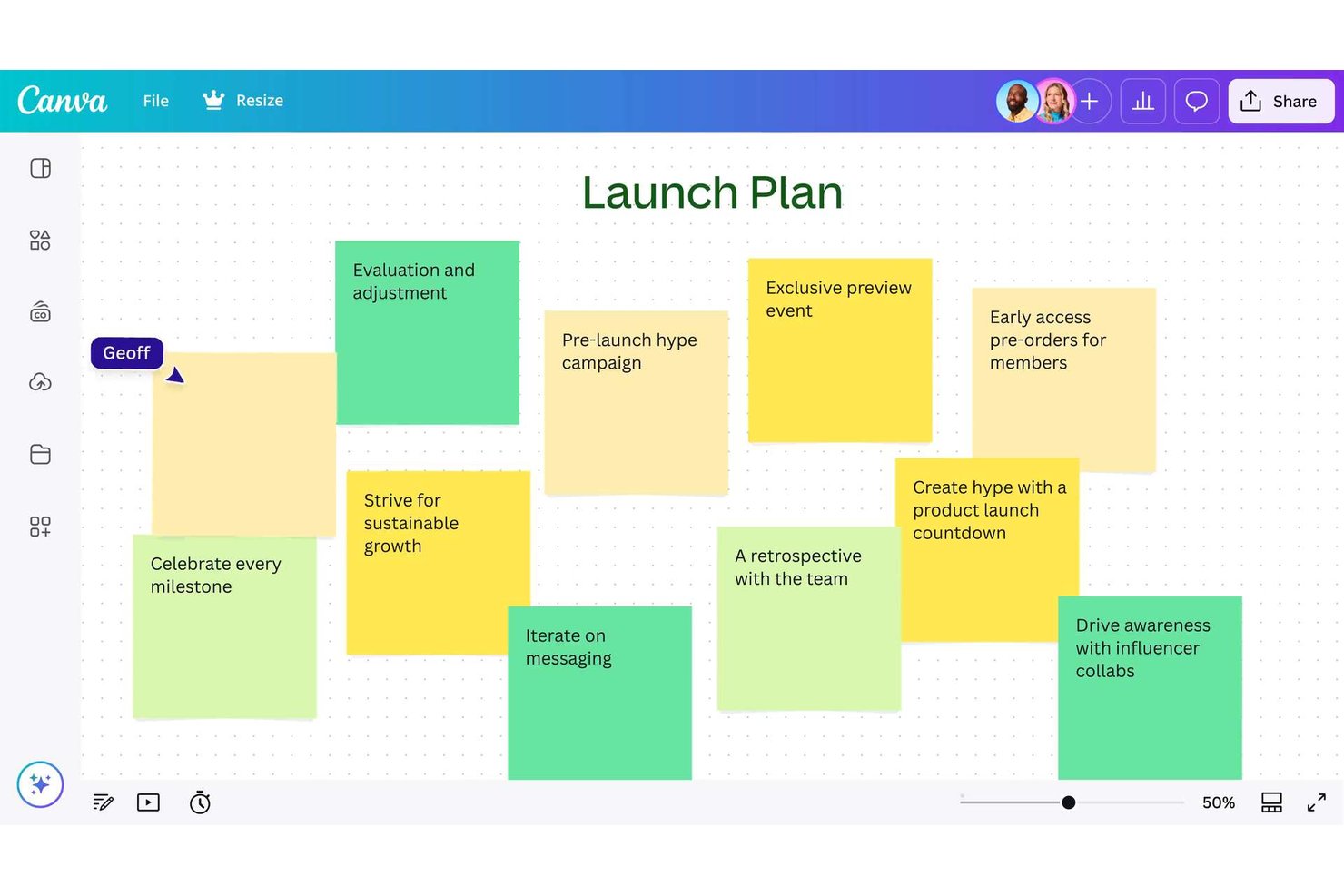
For product and design teams comparing Whimsical alternatives, Canva Whiteboard provides a collaborative visual canvas for mapping workflows, brainstorming ideas, and aligning stakeholders around plans.
Who Is Canva Whiteboard Best For?
Product, marketing, and design teams that already create visual content in Canva and want to brainstorm in the same workspace.
Why I Picked Canva Whiteboard
I picked Canva Whiteboard because teams already working in Canva can bring templates, shapes, and brand assets onto an infinite canvas. I like using sticky notes and connectors to map a product launch workflow beside the campaign visuals, keeping brainstorms and design work in the same workspace.
Canva Whiteboard Key Features
- Real-time collaboration: See teammates’ edits as they work on the board.
- Comments: Add discussion threads to board content.
- Timer: Set a timer to structure brainstorming activities.
- Sketching tools: Draw freehand directly on the canvas.
Canva Whiteboard Integrations
Canva offers integrations with Slack, Asana, Microsoft Teams, Salesforce, and Google Workspace, plus 300+ design apps through the Canva Apps Marketplace. It connects with Zapier and provides Connect APIs and an Apps SDK for custom integrations.
Pros and Cons
Pros:
- Canva visuals make boards presentation-ready
- Presentation-to-whiteboard transitions keep workshops connected
- Templates and sticky-note sorting help structure discovery
Cons:
- Graphics don’t attach directly to sticky notes
- Complex boards can lag with layered elements
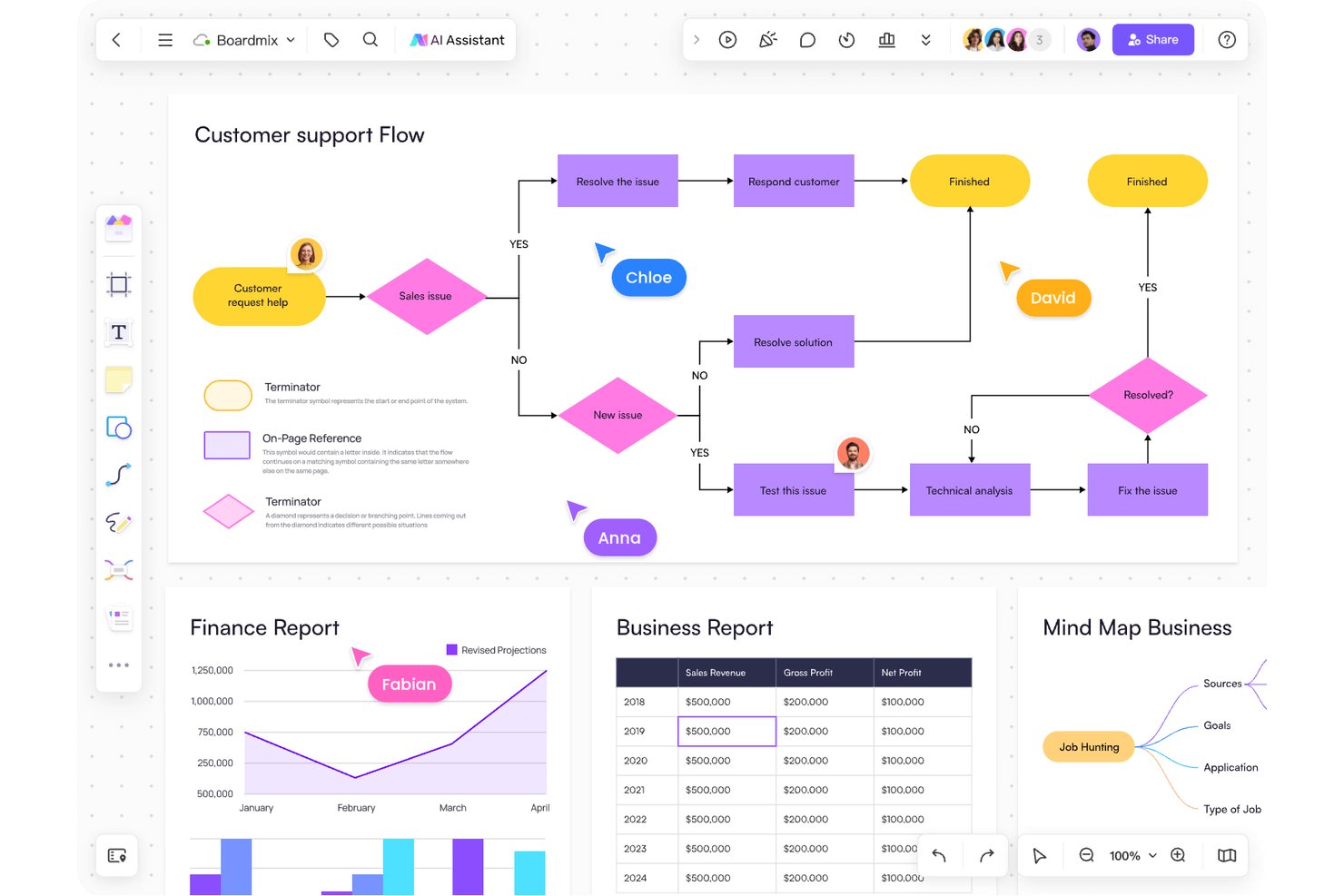
Boardmix gives product, design, and delivery teams an online whiteboard for mapping ideas, workflows, and project plans in a shared visual workspace.
Who Is Boardmix Best For?
Boardmix suits product and design teams that need an AI-assisted canvas for workshops and planning, especially those who prefer a lifetime plan over recurring billing.
Why I Picked Boardmix
I picked Boardmix as a Whimsical alternative for visual planning, with the USP “Best for AI-assisted canvas and lifetime plans.” I like its AI-assisted canvas for turning brainstorms into workflow maps and project plans, while its lifetime plan gives teams an option beyond recurring billing.
Boardmix Key Features
- Real-time collaboration: Brainstorm with teammates on a shared board.
- Mind map layouts: Organize ideas with different themes and layouts.
- Board annotations: Add sticky notes, links, and connection lines to topics.
- Comments, chat, and video: Discuss ideas and share feedback on the board.
Boardmix Integrations
Boardmix’s native integrations aren’t clearly documented. It offers an SDK with API-driven integration for embedding its whiteboard in other platforms, plus custom connections to enterprise systems.
Pros and Cons
Pros:
- Real-time co-editing supports remote brainstorming
- Mind maps pair with an infinite canvas
- Reusable templates support visual project planning
Cons:
- Mobile flowchart editing frustrates reviewers
- Large boards can lag with high-resolution images
Miro
Best for cross-team visual sprint planning
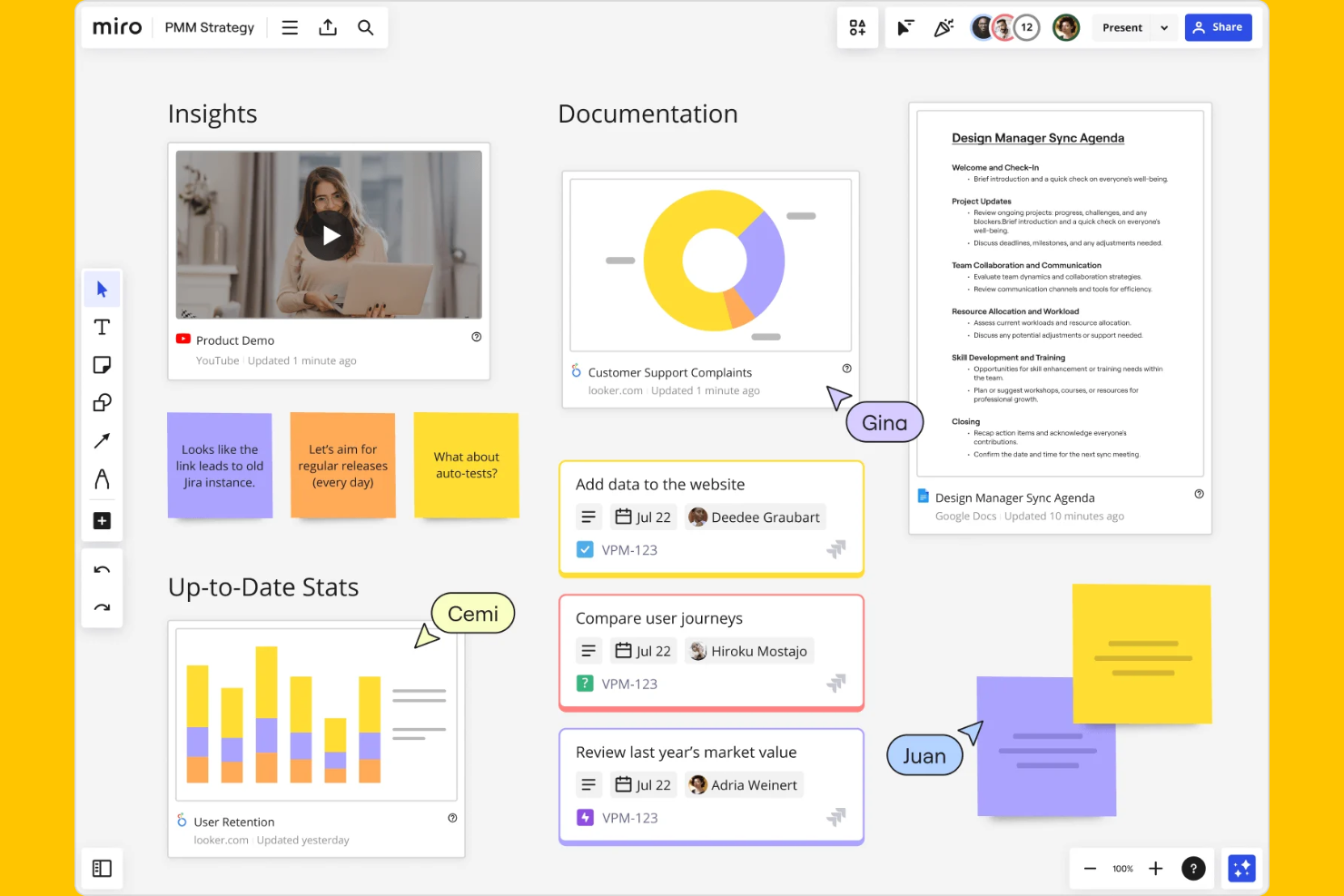
Miro gives product, design, and engineering teams a shared online canvas to map ideas, workflows, and decisions, helping distributed groups turn scattered input into clear plans.
Who Is Miro Best For?
Miro suits project managers coordinating visual sprint planning across product, design, and engineering teams.
Why I Picked Miro
I picked Miro for Best Whimsical Alternatives because it’s built for cross-team visual sprint planning. Its sprint planning templates give product, design, and engineering a shared space for mapping work, while sticky notes and voting help teams sort and prioritize ideas. A timer can keep planning discussions focused.
Miro Key Features
- Infinite canvas: Add and arrange content across a zoomable board.
- Diagramming tools: Create flowcharts, mind maps, and other visual diagrams.
- Comments: Leave feedback directly on board content.
- Integrations: Connect boards with tools such as Jira and Slack.
Miro Integrations
Miro’s marketplace offers 250+ apps, integrations, and AI tools, including Jira Cards, Confluence, Slack, Google Drive, Microsoft Teams, Asana, GitHub, and Zapier. Miro also provides APIs for custom integrations.
Pros and Cons
Pros:
- One canvas supports diagrams, workflows, and planning
- Sprint templates, voting, and timers support prioritization
- Live collaboration brings cross-functional teams together
Cons:
- Flowchart creation can take extra orientation
- Large boards can lag and become cluttered
New Product Updates from Miro
Miro Adds Japan Data Residency for Enterprise Customers
Miro has introduced Japan data residency for enterprise customers, offering in-region storage for production data, backups, and metadata, plus in-region compute infrastructure. For more information, visit Miro's official site.

Lucidchart
Best for data-linked diagram automation
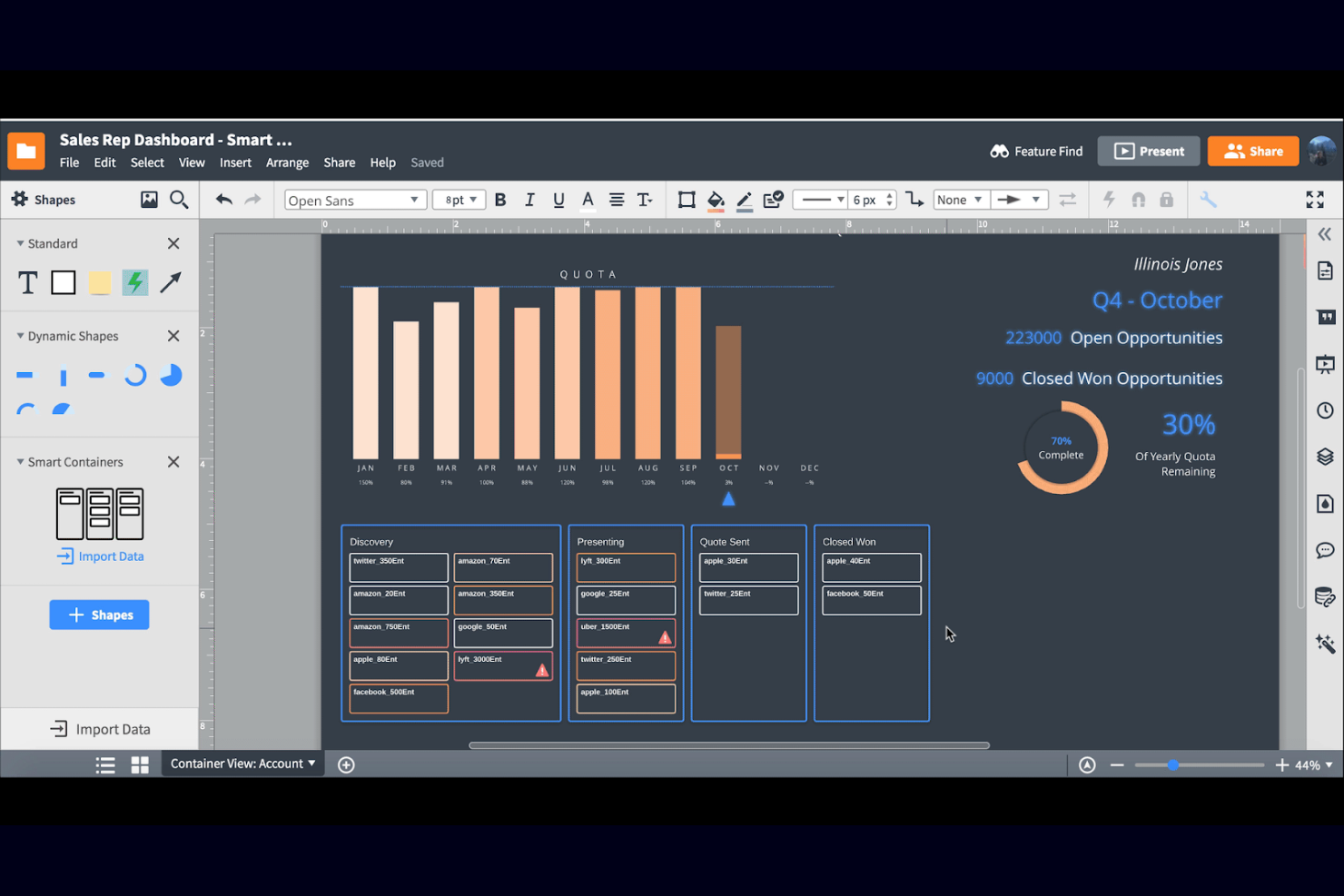
Lucidchart gives product, engineering, and operations teams a collaborative diagramming workspace for mapping workflows, systems, and processes, helping distributed teams clarify complex ideas and align on project decisions.
Who Is Lucidchart Best For?
Lucidchart suits product and operations teams that need data-linked diagrams to keep system and process views up to date.
Why I Picked Lucidchart
I picked Lucidchart as a Whimsical alternative because it’s best for data-linked diagram automation. I link Google Sheets, Excel, or CSV files to generate visualizations, then use conditional formatting to highlight patterns, such as delays in a process map.
Lucidchart Key Features
- Lucid AI: Generate diagram content from text prompts on the canvas.
- UML markup: Create sequence diagrams from text, then edit their markup or style.
- Layers: Organize visualizations into levels with separate visibility controls.
- Jira and Confluence integrations: Attach Lucidchart diagrams to Jira work and add documents to Confluence.
Lucidchart Integrations
Lucidchart integrates with Jira and Confluence, letting teams add diagrams to issues and pages. It also links diagram data to Google Sheets, Excel files, and CSV files.
Pros and Cons
Pros:
- Layers keep complex system views organized
- UML markup generates editable sequence diagrams
- Live data links refresh process visualizations
Cons:
- Browser-only workflow limits offline diagramming
- Large diagrams lag and need manual cleanup
Other Whimsical Alternatives
Here are some additional Whimsical alternatives that didn’t make it onto my shortlist, but are still worth checking out:
- Lucidspark
For facilitator-led team brainstorming
- Stormboard
For Agile sprint and retro planning
- Balsamiq
For wireframing before dev handoff
- Visily
For AI-generated UI wireframes
- Visio
With Microsoft 365 compatibility
- ClickUp
With integrated task management
- Microsoft Whiteboard
For Microsoft 365 teams brainstorming together
- Eraser
For AI-driven technical diagram generation
- iMindQ
For turning mind maps into presentations


How I Evaluate Whimsical Alternatives
I split my evaluation into three parts. First, core functionality: I check whether a tool supports an infinite canvas and real-time co-editing—these carry the most weight. Then I look for standout features like AI-assisted diagramming or interactive prototyping links. Finally, I consider onboarding ease and pricing value.
Core Functionality (Table Stakes For This List)
When I'm selecting tools for my list, I score each one on a scale from 0 (does not offer the functionality) to 5 (excels in this area) for each core functionality listed below. I then convert the total into a percentage to help assess each tool's overall fit, with extra weight on any functionalities I’ve deemed essential.
- Infinite Canvas (Essential): I look for free placement, dependable zoom and panning, and room to map a customer journey or workshop without crowding.
- Real-Time Collaboration (Essential): I check whether teammates can edit together, see who’s present, and contribute during a live retrospective or planning session.
- Diagramming & Flowcharts: For process maps and user flows, I assess shape variety, connector behavior, and how easily teams can rearrange steps as decisions change.
- Sticky Notes & Brainstorming: I consider how quickly people can add, color-code, group, and sort ideas during a brainstorm or affinity-mapping exercise.
- Templates & Frameworks: I look for useful starting points, such as retrospective and roadmap templates, and assess how easily teams can adapt them.
- Presentation & Flow: I check whether teams can sequence canvas content into a clear walkthrough for a stakeholder review or project kickoff.
Once I have a list of tools that meet the criteria, I consider what sets each platform apart.
Differentiating Factors (What Sets Vendors Apart)
Here's how I compare and contrast different vendors:
Standout Features
I check whether a tool can generate diagrams from text prompts—AI-assisted diagramming saves real time when you're sketching a user flow mid-meeting. Interactive prototyping links matter just as much; I want wireframes that click through so stakeholders can react to a sequence, not a static screen. I also evaluate version history and branching, since workshop canvases evolve fast and teams need to compare or roll back iterations without losing earlier thinking.
Beyond Features
I check whether a tool syncs two-way with trackers like Jira or Linear, since visual plans lose value when they drift from sprint boards. Facilitation support matters just as much—built-in timers, voting, and anonymous input let distributed teams run retros without bolting on extra apps. I also evaluate onboarding ease for non-designers, looking at guided templates and in-app walkthroughs that help PMs and engineers contribute from day one.
Why Look For a Whimsical Alternative?
While Whimsical is a good choice of collaborative visual workspaces tool, there are a number of reasons why some users seek out alternative solutions. You might be looking for a Whimsical alternative because…
- You need more advanced diagramming or data linking features
- Your team requires deeper project documentation capabilities
- You want native integrations with specific business tools
- You need better support for large or complex projects
- Your organization has strict access control or compliance needs
If any of these sound like you, you’ve come to the right place. My list contains several collaborative visual workspaces tool options that are better suited for teams facing these challenges with Whimsical and looking for alternative solutions.
Whimsical Key Features
Here are some of the key features of Whimsical, to help you contrast and compare what alternative solutions offer:
- Real-time collaborative whiteboarding and diagramming
- Built-in templates for flowcharts, wireframes, and mind maps
- Sticky notes and comments for team feedback
- Visual project boards for task organization
- Easy drag-and-drop interface for creating visuals
- Version history and change tracking
- Quick sharing with public or private links
- Markdown support for text formatting
- Multi-user editing with live cursors
- Simple workspace and folder organization