

10 Free Productivity Apps for 2026

Free Productivity Apps Shortlist


Free productivity apps are software tools that help you organize tasks, manage projects, reduce procrastination, and boost focus—without requiring payment upfront. If you’re searching for the best free productivity apps, you’re likely looking to improve how you and your team work without adding to your budget, whether you’re an individual user or a small business. Many modern tools also include AI features, integrations with tools like ChatGPT, and a free version that lets you test core functionality before upgrading. With so many options offering free plans or trials, it’s tough to know which tools actually deliver the features you need. This list will help you quickly compare top free productivity apps for 2026, so you can find the right fit for your workflow and start working smarter today.
Why Trust Our Software Recommendations
Our team has been testing and reviewing software since 2012. As project managers ourselves, we know how difficult—and important—it is to choose the right software.
For this guide, we evaluated tools using hands-on testing and independent research, scoring tools using our selection criteria. We also draw on insights from industry thought leaders and practicing project management experts.
Our reviews reflect our human editorial judgment, not a sales pitch.
Expert reviewers:
Free Productivity Apps Comparison Table
This comparison table summarizes pricing details for my top free productivity app selections:
| Tool | Best For | Trial Info | Price | ||
|---|---|---|---|---|---|
| 1 | Best for visual project board customization | Free plan + free demo available | From $3.99/seat/month (billed annually) | Website | |
| 2 | Best for focus-enhancing background audio | Free trial available | From $14.99/month | Website | |
| 3 | Best for managing complex task hierarchies | Free plan available | From $5/user/month (billed annually) | Website | |
| 4 | Best for Microsoft 365 ecosystem users | Free-forever plan available | Free to use | Website | |
| 5 | Best for combining notes and databases | Free plan available | From $10/user/month | Website | |
| 6 | Best for built-in habit tracking features | Free plan available | From $49.99/year (billed annually) | Website | |
| 7 | Best for risk and issue management tools | Free plan available + 7-day free trial | From $3/user/month (billed annually) | Website | |
| 8 | Best for workflow automation with integrations | Free plan available | From $10.99/user/month (billed annually) | Website | |
| 9 | Best for daily planning with calendar integration | 14-day free trial | From $17/user/month (billed annually) | Website | |
| 10 | Best for gamifying daily task completion | Free plan available | From $9/month (+$3 per additional member) | Website |
Free Productivity Apps Reviews
Below are my detailed summaries of the free productivity apps that made it onto my shortlist. My reviews offer a detailed look at the features, best use cases, and integrations of each tool to help you find the best one for you.

Plaky
Best for visual project board customization

If you want a free productivity app that lets you customize project boards visually, Plaky is worth considering. This tool is designed for teams that need flexible board layouts and detailed field customization to match their workflows. Plaky helps project managers and team leads organize, track, and adapt projects with a visual approach that’s easy to tailor for different industries.
Why I Picked Plaky
What sets Plaky apart for me among free productivity apps is how much control it gives you over customizing project boards. You can create boards with unique fields, color-coded labels, and custom views that match your team’s workflow, which is especially useful if you manage projects that don’t fit a standard template. I also like that you can adjust board layouts and add as many columns or data types as you need, so you’re not boxed in by rigid structures. For project managers who want a visual, flexible way to organize and track work, Plaky’s board customization features make it a strong choice.
Plaky Key Features
Some other features in Plaky that help teams manage productivity include:
- Task Assignment: Assign tasks to specific team members and set deadlines for each item.
- Commenting and Mentions: Add comments and tag teammates directly on tasks to keep communication organized.
- File Attachments: Upload and attach files to tasks so all related documents stay in one place.
- Activity Log: Track all changes and updates on boards with a detailed activity history.
Plaky Integrations
Integrations include Clockify, Pumble, and more.
What's Free?
Plaky offers a free-forever plan with unlimited users, boards, and tasks. The free plan does not include native integrations or advanced reporting features.
Pros and Cons
Pros:
- Activity logs track project changes
- Task assignments manage team accountability
- Custom fields tailor board workflows
Cons:
- Only Kanban board visualization
- No time tracking or workload tools
Brain.fm
Best for focus-enhancing background audio
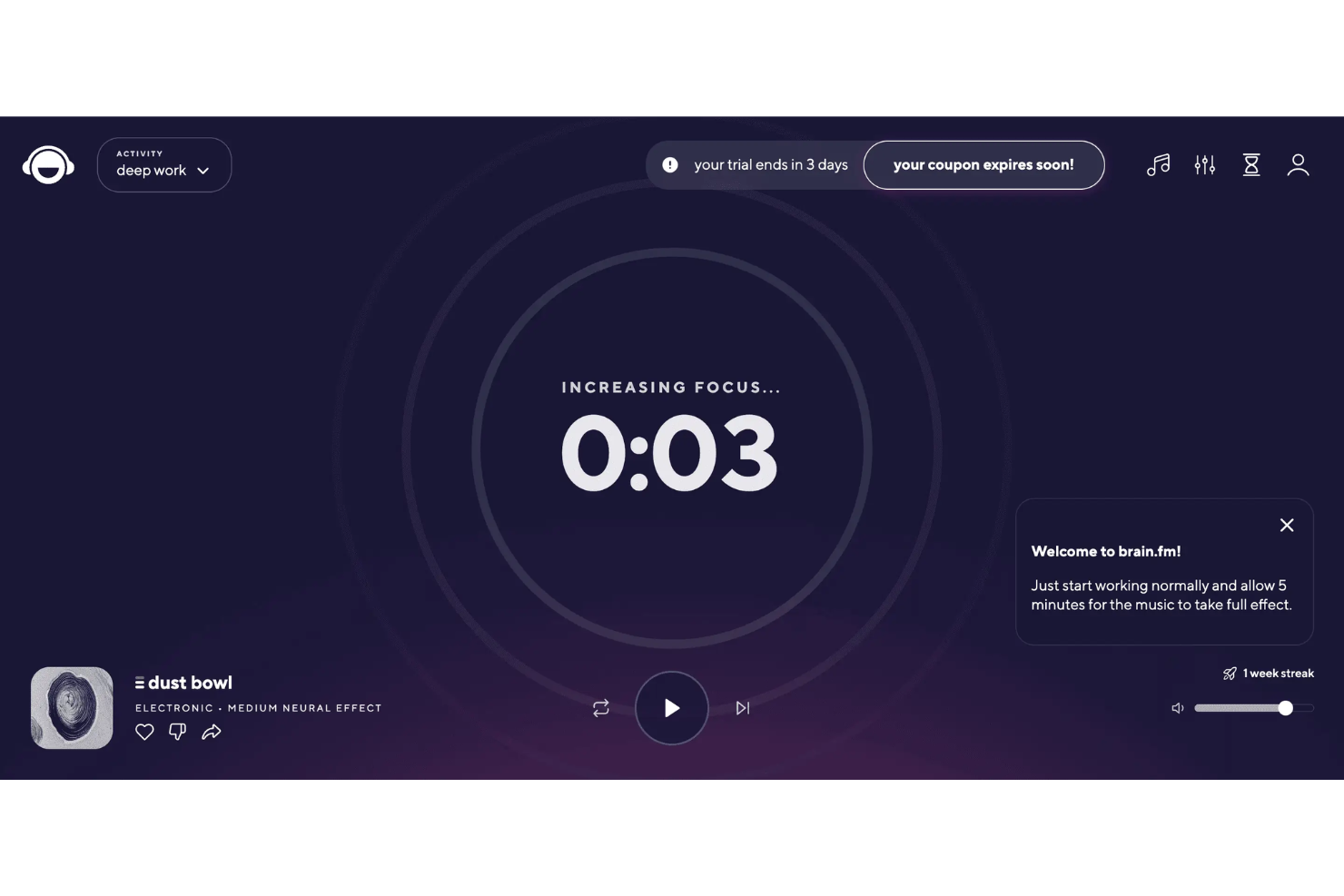
If you’re looking for a way to boost focus while working, Brain.fm offers science-backed background audio designed to help you concentrate. This tool is a good fit for professionals, students, or anyone who needs to minimize distractions and stay on task. Brain.fm stands out by using specially engineered music that aims to support productivity, relaxation, or sleep, depending on your needs.
Why I Picked Brain.fm
What makes Brain.fm a strong choice for free productivity apps is its unique approach to focus-enhancing background audio. The platform uses AI-generated music that’s specifically designed to support deep work, which is something I haven’t seen in most other productivity tools. You can choose from different focus modes, like “Deep Work” or “Light Work,” to match the intensity of your task. For anyone who struggles with distractions or needs help maintaining concentration, Brain.fm’s science-backed audio features offer a practical way to create a more productive work environment.
Brain.fm Key Features
Some other features in Brain.fm that help users get more out of their workday include:
- Offline Listening: Download sessions to use Brain.fm’s audio without an internet connection.
- Session Length Customization: Set the duration of your audio session to match your planned work period.
- Mobile and Desktop Apps: Access Brain.fm on both mobile devices and desktop computers for flexibility.
- Timer and Pomodoro Mode: Use built-in timers and Pomodoro settings to structure your focus sessions.
Brain.fm Integrations
Native integrations are not currently listed.
What's Free?
Brain.fm offers a limited free trial that gives you access to its full feature set for a short period. After the trial ends, continued use requires a paid subscription, and there is no free-forever plan.
Pros and Cons
Pros:
- Science-backed music for productivity
- Pomodoro timer structures work sessions
- Audio sessions designed for focus
Cons:
- Cannot upload custom audio
- No productivity tool integrations
Todoist
Best for managing complex task hierarchies
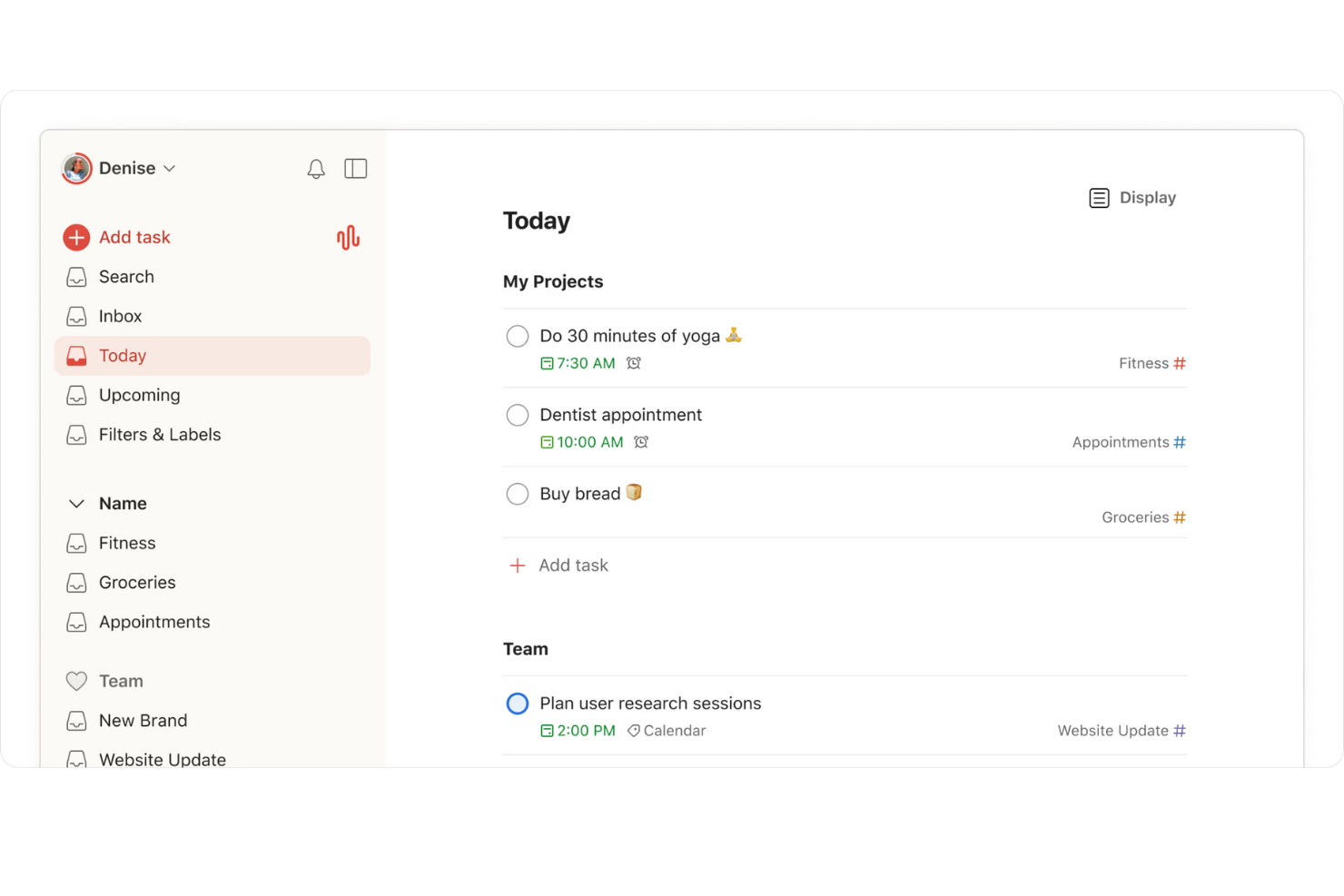
If you need a way to organize complex projects with many moving parts, Todoist is worth a look. This tool is designed for anyone who manages layered task lists, from project managers to freelancers juggling multiple clients. Its flexible hierarchy system helps you break down big goals into actionable steps and keep everything visible in one place.
Why I Picked Todoist
Todoist stands out for its ability to handle complex task hierarchies, which is something many free productivity apps struggle with. I picked it because you can nest tasks within projects, create multiple sub-tasks, and use labels to organize work at several levels. The section and sub-section structure lets you break down even the most complicated projects into manageable pieces. This makes Todoist a strong choice if you need to keep track of dependencies or want a clear overview of multi-step workflows.
Todoist Key Features
Some other features in Todoist that are useful for productivity and organization include:
- Recurring due dates: Set tasks to repeat on a custom schedule so you never miss regular responsibilities.
- Priority levels: Assign priority flags to tasks to help you focus on what matters most each day.
- Productivity visualizations: View progress trends and completed tasks with built-in charts and activity logs.
- Collaboration tools: Share projects, assign tasks, and comment with team members directly inside the app.
Todoist Integrations
Integrations include Google Calendar, Slack, Gmail, Outlook, Zapier, Dropbox, Google Drive, Trello, and more.
What’s Free?
Todoist offers a free-forever plan. Free users can create up to five active projects, collaborate with up to five people per project, and access basic task management features, but advanced features like reminders, labels, and filters are restricted to paid plans.
Pros and Cons
Pros:
- Activity logs track productivity
- Recurring due dates on free tier
- Nested subtasks organize projects
Cons:
- File uploads restricted on free plan
- Reminders require paid upgrade

Best for Microsoft 365 ecosystem users
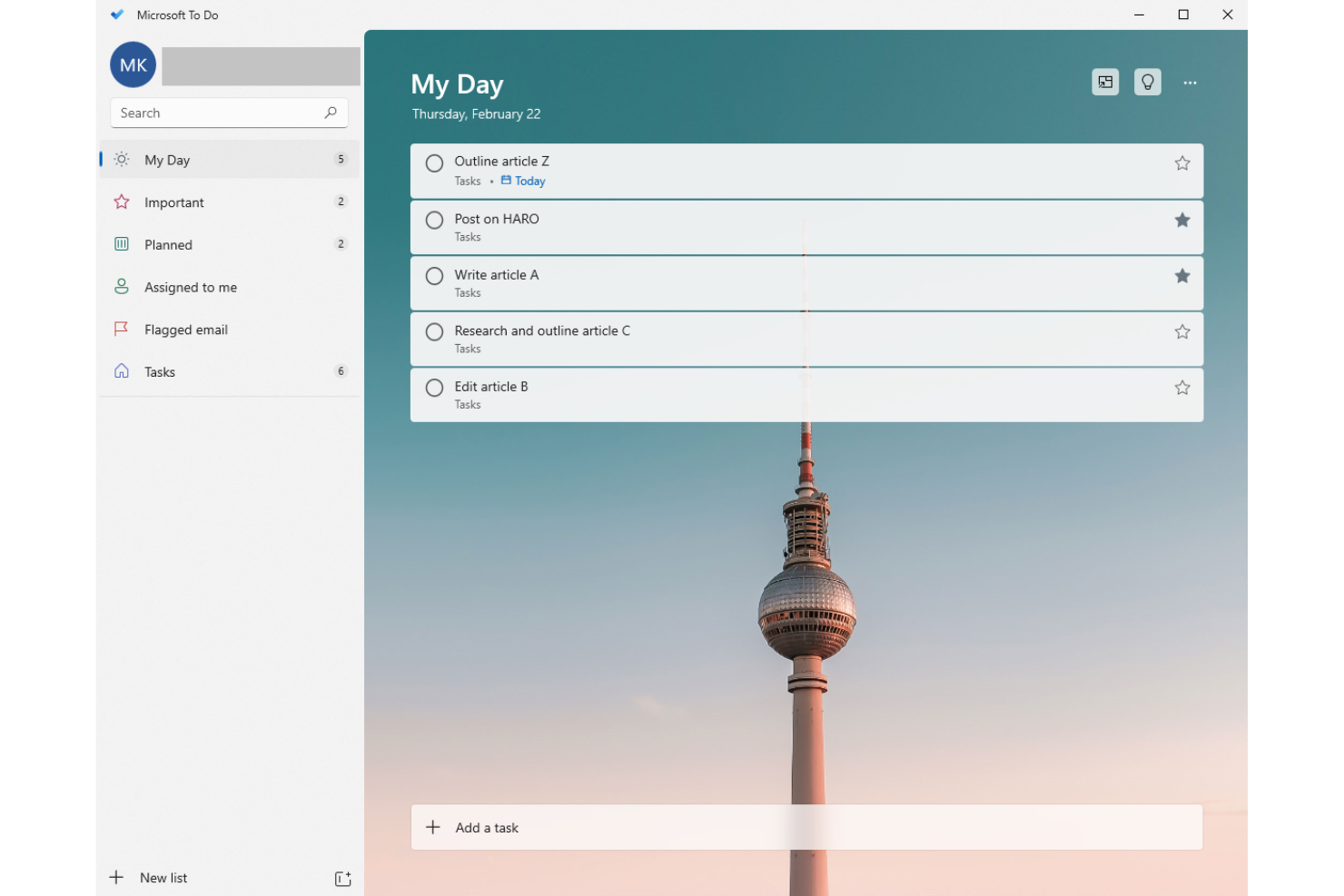
If your team already uses Microsoft 365, Microsoft To Do fits right into your workflow. This task management app is designed for users who want to organize personal and professional tasks within the Microsoft ecosystem. It helps you keep track of daily priorities, share lists, and sync tasks across Outlook and other Microsoft apps.
Why I Picked Microsoft To Do
What makes Microsoft To Do a strong choice for free productivity apps is how seamlessly it fits into the Microsoft 365 ecosystem. If your team already relies on Outlook, Teams, or other Microsoft tools, you can sync tasks and lists directly across these platforms without extra setup. I like that you can flag emails in Outlook and have them appear as actionable tasks in To Do, which helps keep everything connected. For anyone looking to manage tasks within a familiar Microsoft environment, this integration is a clear advantage.
Microsoft To Do Key Features
Some other features in Microsoft To Do that help teams manage productivity include:
- My Day planning tool: Start each day with a clean slate and add tasks you want to focus on.
- Task reminders: Set one-time or recurring reminders to help you stay on top of deadlines.
- Subtasks and notes: Break down larger tasks into smaller steps and add notes for extra context.
- List sharing: Share task lists with colleagues or family members for collaborative planning.
Microsoft To Do Integrations
Native integrations are not currently listed.
What's Free?
Microsoft To Do offers a free-forever plan with unlimited tasks, lists, and users. All core features are available for free, but advanced integrations are limited to the Microsoft 365 ecosystem.
Pros and Cons
Pros:
- Mobile, web, and desktop apps
- List sharing supports simple collaboration
- Reminders and recurring tasks included
Cons:
- Subtasks limited to simple checklists
- No Gantt charts or advanced projects
Notion
Best for combining notes and databases
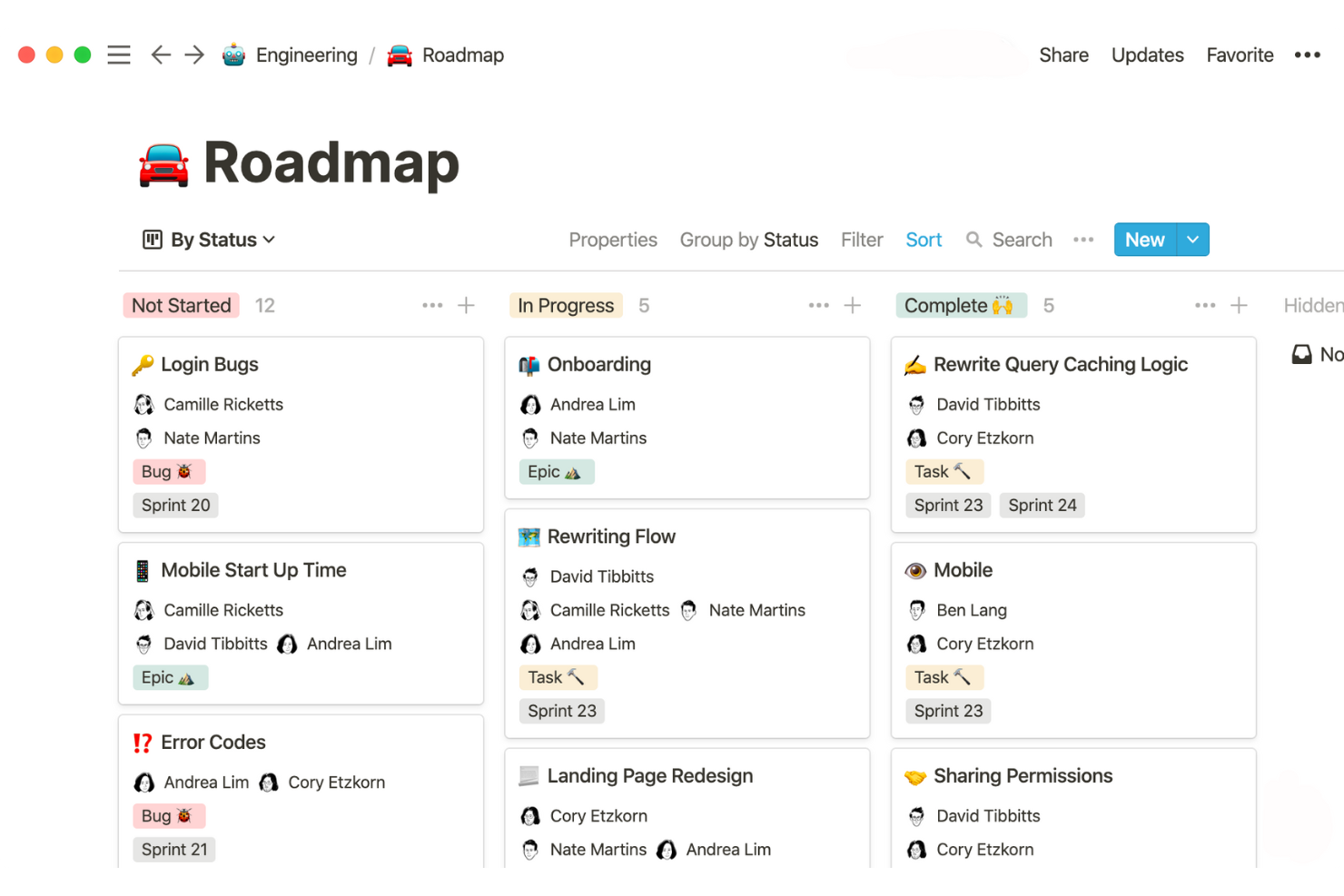
If you need a workspace that blends note-taking with structured data, Notion is worth considering. This tool appeals to project managers, product teams, and anyone who wants to link meeting notes, tasks, and databases in one place. Notion helps you organize scattered information and build custom workflows that go beyond basic lists or documents.
Why I Picked Notion
Notion stands out because it lets you combine free-form notes with structured databases in a single workspace. I picked it for this list since you can create linked tables, kanban boards, and wikis right alongside your meeting notes or project documentation. This flexibility means you can build custom dashboards or track project deliverables without switching between separate tools. If you want a free productivity app that adapts to both unstructured brainstorming and organized data management, Notion is a strong choice.
Notion Key Features
Some other features in Notion that help teams stay organized and productive include:
- Template Gallery: Access a library of pre-built templates for project management, meeting notes, and personal productivity.
- Page Sharing and Permissions: Control who can view, comment, or edit each page or database within your workspace.
- Version History: Review and restore previous versions of any page to track changes or recover lost content.
- Web Clipper: Save articles, web pages, and research directly into Notion from your browser.
Notion Integrations
Integrations include Slack, Google Drive, GitHub, Figma, Jira, Asana, Zoom, Typeform, Miro, and an API for custom integrations.
What's Free?
Notion offers a free-forever plan for individuals with unlimited pages, blocks, and up to 10 guests. The free plan limits file uploads to 5MB per file and restricts some advanced features like version history and admin controls.
Pros and Cons
Pros:
- Wide range of workflow templates
- Real-time collaboration with multiple users
- Free plan allows unlimited pages
Cons:
- No built-in time tracking or reminders
- No native calendar sync

TickTick
Best for built-in habit tracking features
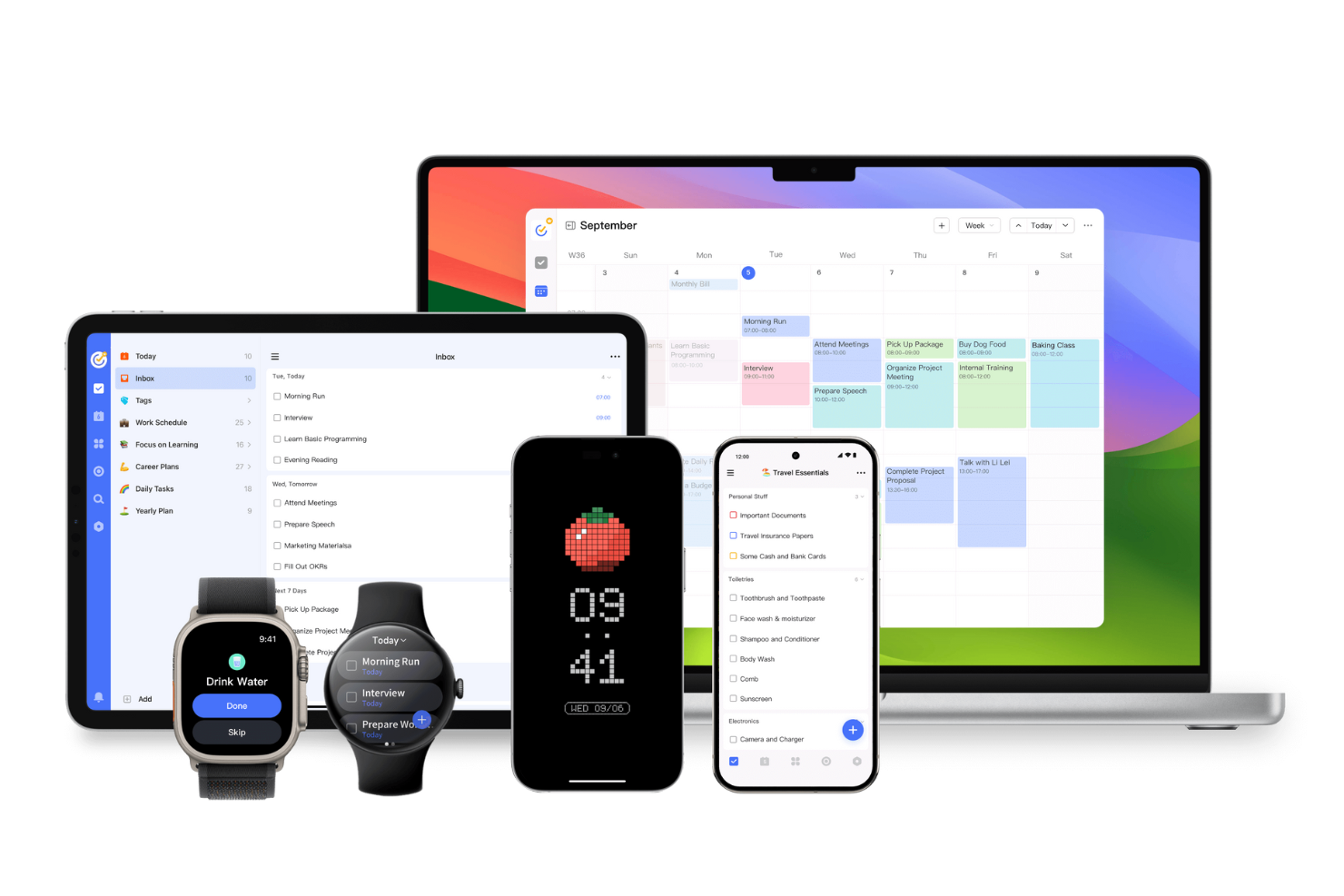
If you want a free productivity app that goes beyond basic task lists, TickTick brings built-in habit tracking into your daily workflow. This tool is a good fit for individuals and teams who want to manage tasks while also building positive routines. With its focus on both productivity and personal development, TickTick helps you keep projects and habits in one place.
Why I Picked TickTick
What sets TickTick apart in the free productivity app space is its built-in habit tracking, which you rarely find alongside standard task management features. I picked TickTick because it lets you create recurring habits right next to your to-dos, so you can track daily routines and project tasks in one place. The habit tracker includes visual streaks and progress charts, making it easy to see how consistent you’ve been over time. For anyone who wants to build better habits while staying on top of work, TickTick brings both together in a single, unified app.
TickTick Key Features
Some other features in TickTick that help teams and individuals manage productivity include:
- Calendar view: See all your tasks and deadlines in a visual calendar layout.
- Priority levels: Assign priority flags to tasks to help organize your workload.
- Pomodoro timer: Use a built-in timer to break work into focused intervals.
- Attachment support: Add files and images directly to tasks for extra context.
TickTick Integrations
Integrations include Amazon Alexa, Slack, Outlook, Gmail, Zapier, and more.
What's Free?
TickTick offers a free-forever plan with basic task management, habit tracking, and calendar features. The free plan limits you to 9 lists, 99 tasks per list, and 19 subtasks per task, and some advanced features require a paid upgrade.
Pros and Cons
Pros:
- Task attachments add files and images
- Calendar view shows upcoming deadlines
- Habit tracker monitors routines and tasks
Cons:
- No team chat or collaboration
- Subtasks require paid upgrade
nTask
Best for risk and issue management tools
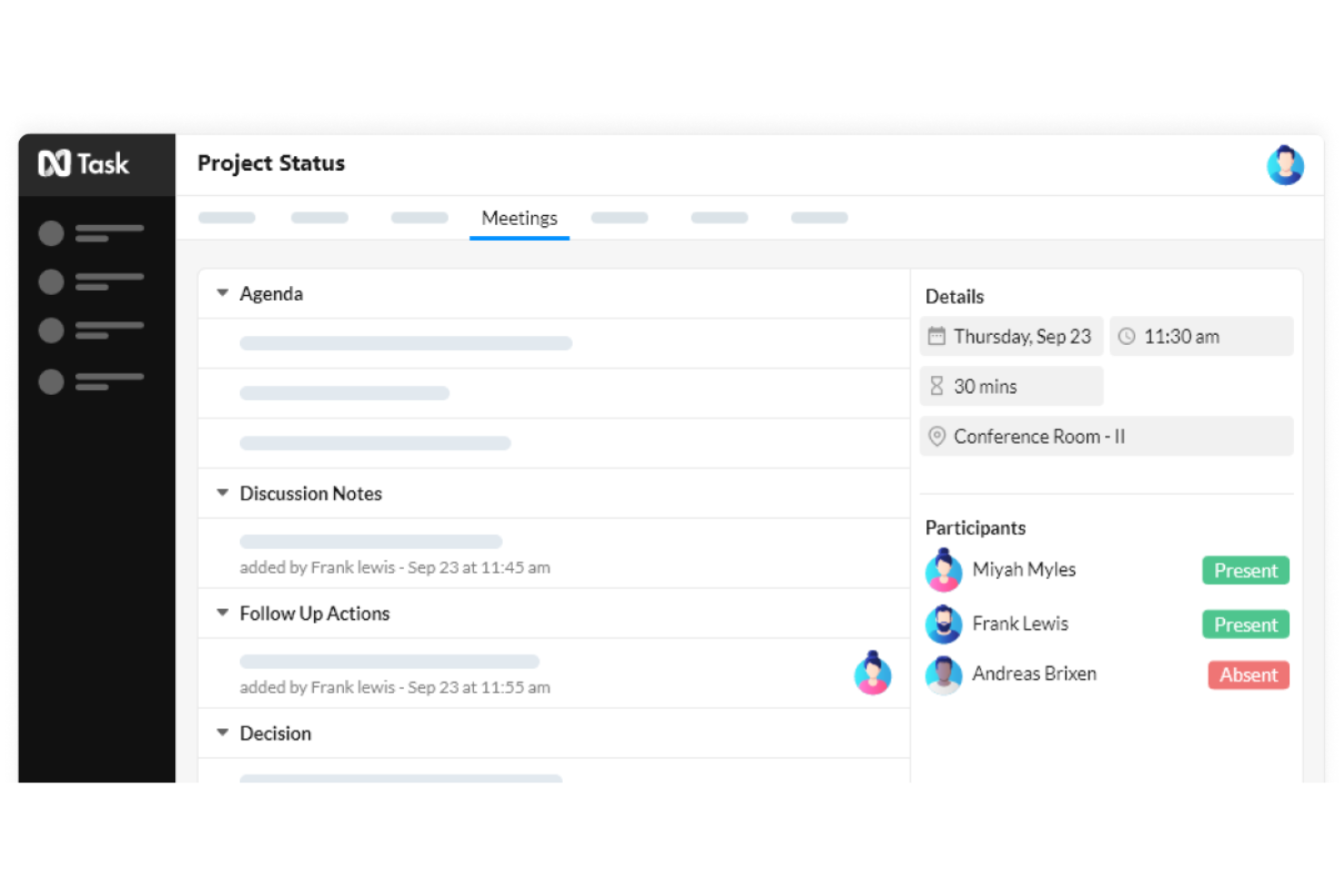
If you need a free productivity app with built-in risk and issue management, nTask is worth a look. This tool is designed for project managers and teams who want to track risks, issues, and tasks in one workspace. nTask helps you identify, document, and monitor project risks alongside your daily work, making it easier to keep projects on track.
Why I Picked nTask
What makes nTask stand out among free productivity apps is its dedicated risk and issue management tools, which you rarely find in this category. I picked nTask because it lets you log, categorize, and track project risks and issues directly within your workspace, so you don’t need a separate tool for this critical part of project delivery. The risk register and issue log features help you document details, assign owners, and monitor status changes as your project progresses. For project managers who need more than just task lists, nTask brings risk and issue tracking into your daily workflow.
nTask Key Features
Some other features in nTask that help teams manage productivity include:
- Task Dependencies: Set relationships between tasks to control workflow order and timing.
- Time Tracking: Track time spent on tasks with built-in timers and manual entry.
- Meeting Management: Schedule, organize, and document meetings directly within the platform.
- Gantt Charts: Visualize project timelines and task progress with interactive Gantt charts.
nTask Integrations
Integrations include Google Calendar, Google Meet, Outlook, Microsoft Teams, and more.
What's Free?
nTask offers a free-forever plan for up to 5 users with basic task management, issue tracking, and meeting management features. The free plan limits file attachments to 100MB per workspace and does not include advanced features like Gantt charts, Kanban boards, or native integrations.
Pros and Cons
Pros:
- Time tracking monitors project hours
- Meeting tools manage agendas and follow-ups
- Gantt charts visualize timelines
Cons:
- Recurring tasks require paid upgrade
- Kanban boards require paid plan
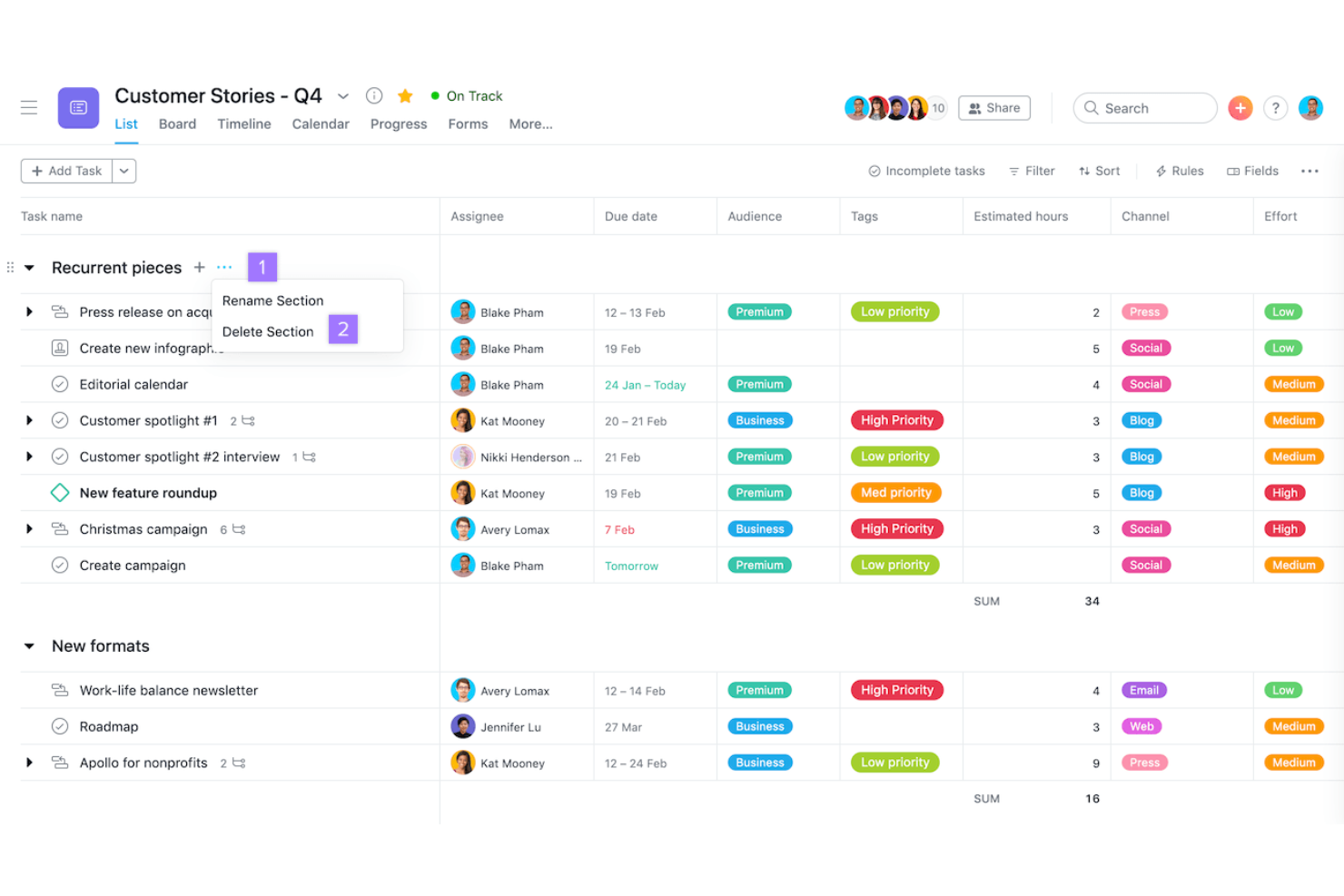
If you’re looking for a free productivity app that excels at automating workflows, Asana is worth a look. This tool is especially useful for teams that need to connect tasks across multiple apps and automate repetitive project steps. Asana helps project managers and cross-functional teams coordinate work, reduce manual updates, and keep projects moving with built-in automation features.
Why I Picked Asana
What makes Asana a strong choice for free productivity apps is how it lets you automate routine workflows and connect your project boards with other tools you already use. I picked Asana because its automation builder allows you to set up custom rules that trigger actions—like moving tasks, assigning work, or sending notifications—without manual effort. I also appreciate that you can integrate Asana with a wide range of apps, so updates and information flow automatically between platforms. For project managers who want to reduce repetitive work and keep projects in sync across tools, Asana’s automation and integration features are especially valuable.
Asana Key Features
Some other features in Asana that help teams manage productivity include:
- Timeline View: Visualize project schedules and dependencies with a drag-and-drop Gantt chart.
- Task Dependencies: Mark tasks as dependent on others to clarify sequencing and avoid blockers.
- Custom Fields: Add custom data fields to tasks for tracking project-specific information.
- Project Templates: Use pre-built templates to quickly launch new projects with best-practice workflows.
Asana Integrations
Integrations include Slack, Google Drive, Microsoft Teams, Zoom, Dropbox, Salesforce, Jira Cloud, Adobe Creative Cloud, Gmail, and Outlook.
What's Free?
Asana offers a free-forever plan for up to 15 users. The free plan includes unlimited tasks, projects, and messages, but limits access to advanced features like timeline view, reporting, and some integrations.
Pros and Cons
Pros:
- Task assignments manage accountability
- Multiple views include list and calendar
- Automation rules support basic workflows
Cons:
- Guest access is limited
- Timeline view is not in free plan

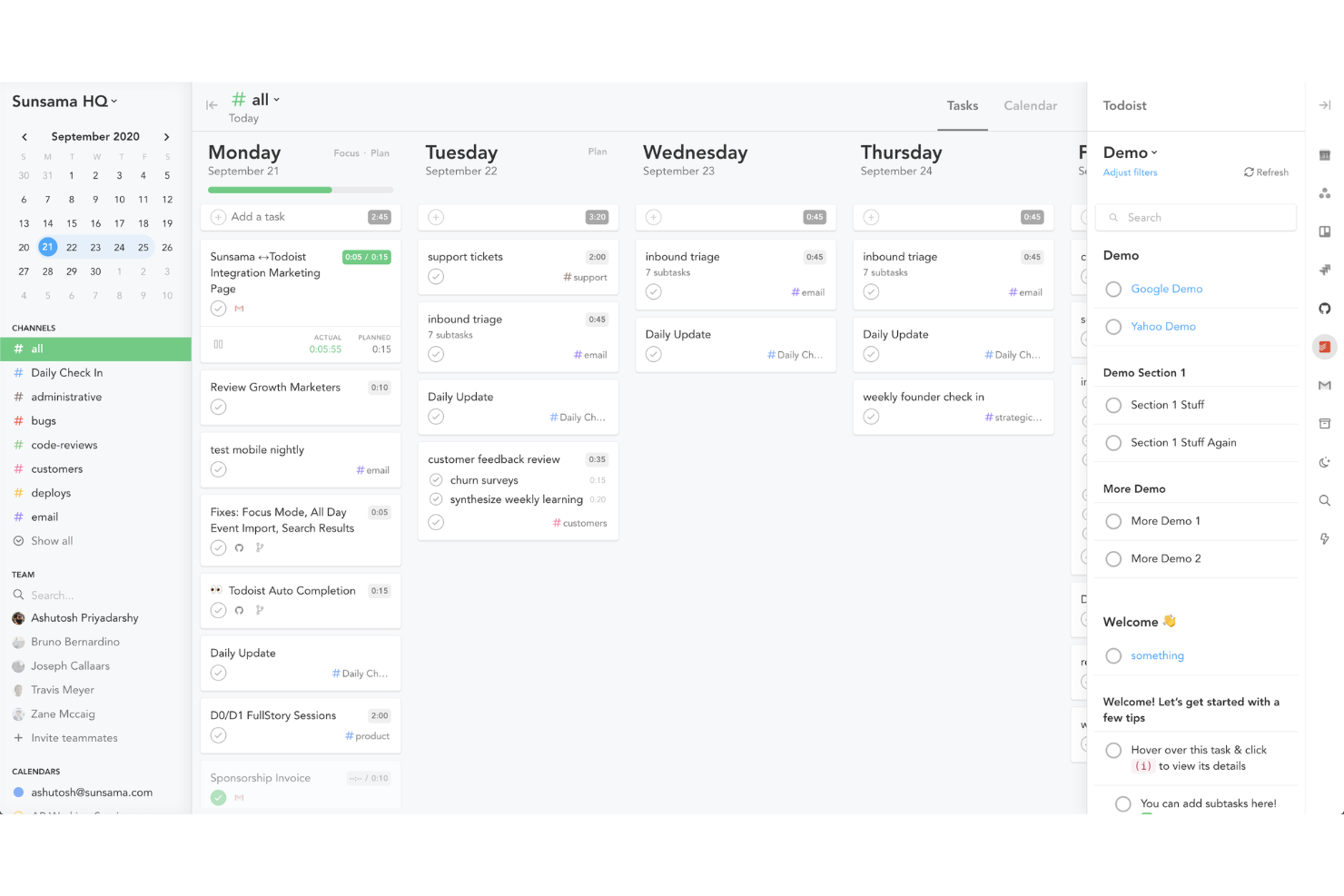
If you want a daily planner that brings your tasks and calendar together, Sunsama is worth a look. This tool appeals to professionals who need to organize their day by pulling in tasks from multiple sources and aligning them with their schedule. Sunsama helps you plan realistic workloads and stay focused by integrating your to-dos directly with your calendar.
Why I Picked Sunsama
What drew me to Sunsama is how it connects daily planning directly with your calendar, making it easy to see your tasks and meetings in one place. You can drag and drop tasks onto your schedule, which helps you realistically plan your day and avoid overcommitting. I also like that Sunsama pulls in tasks from other tools, so you can organize everything from email follow-ups to project work alongside your calendar events. For anyone who wants a daily planning tool that actually syncs with how they work, Sunsama’s calendar integration stands out.
Sunsama Key Features
Some other features in Sunsama that help teams and individuals manage their workday include:
- Focus Mode: This feature lets you work through your daily tasks one at a time, minimizing distractions.
- Task Channel Organization: You can group tasks by channels or categories to keep different workstreams organized.
- Daily Review and Planning Prompts: Sunsama guides you through a daily review and planning process to help you reflect and prioritize.
- Email Task Import: You can turn emails from Gmail or Outlook directly into actionable tasks within your daily plan.
Sunsama Integrations
Integrations include Asana, ClickUp, GitHub, Notion, Google Calendar, Jira, Google Tasks, monday.com, Slack, Microsoft Teams, and more.
What's Free?
Sunsama offers a 14-day free trial with full access to all features. After the trial, continued use requires a paid subscription, and there is no free-forever plan available.
Pros and Cons
Pros:
- Converts emails into tasks
- Guided daily planning prompts
- Imports tasks from major tools
Cons:
- No team collaboration on trial
- Task analytics require paid plan
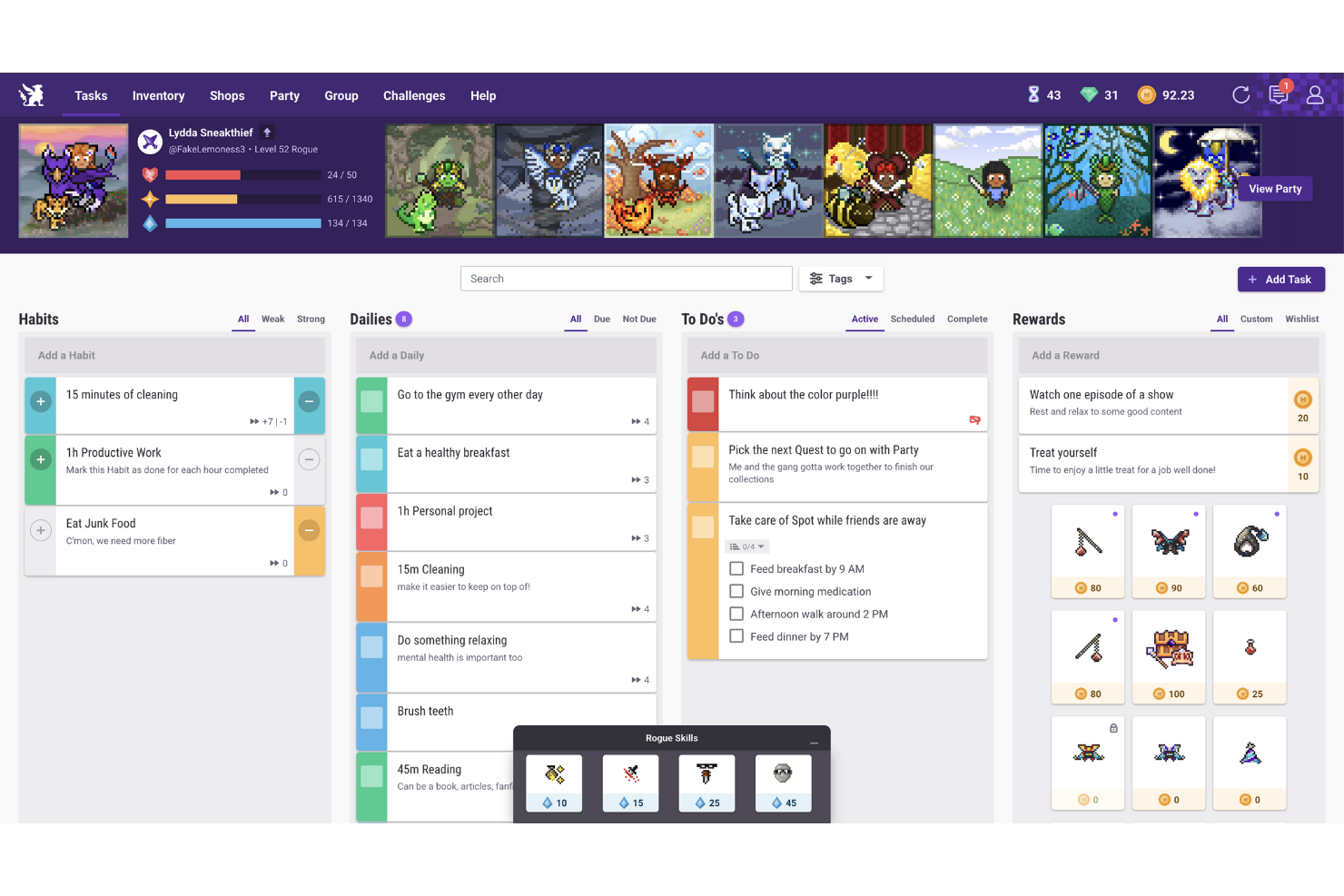
If you want to turn daily task management into a game, Habitica offers a unique approach. This app is designed for individuals and teams who find motivation in rewards, challenges, and levelling up. Habitica helps you build better habits and stay productive by making task completion feel like a role-playing game.
Why I Picked Habitica
What sets Habitica apart from other free productivity apps is how it transforms daily task completion into a game-like experience. I picked Habitica because it uses features like avatars, experience points, and in-app rewards to motivate users to check off tasks and build positive habits. The app also lets you join parties and participate in group challenges, which adds a social and collaborative element to staying productive. For anyone who wants to make habit tracking and task management more engaging, Habitica’s gamification approach is a strong fit.
Habitica Key Features
Some other features in Habitica that help users manage productivity include:
- Daily, Habit, and To-Do Lists: Organize tasks into separate categories for recurring habits, daily routines, and one-time to-dos.
- Customizable Task Difficulty: Set difficulty levels for each task to adjust the challenge and rewards.
- Mobile and Web Access: Use Habitica on both mobile devices and web browsers for flexible task management.
- Open Source Community Plugins: Extend functionality with community-created plugins and add-ons.
Habitica Integrations
Native integrations are not currently listed.
What's Free?
Habitica offers a free-forever plan with access to unlimited tasks, habits, and to-dos. Some advanced features, cosmetic items, and group management options require a paid subscription, but there are no user or time restrictions on the free plan.
Pros and Cons
Pros:
- Custom avatars and rewards personalize productivity
- Community challenges encourage accountability
- Gamified system motivates daily tasks
Cons:
- Progress tracking focuses on gamification
- Task organization limited versus task apps
Other Free Productivity Apps
Here are some additional free productivity app options that didn’t make it onto my shortlist, but are still worth checking out:


How I Evaluate Free Productivity Apps
I split my evaluation into two layers—core requirements like a genuinely free multi-user plan, and differentiators that separate the tools worth using from the ones that hit a wall fast.
Core Functionality (Table Stakes For This List)
When I'm selecting tools for my list, I rank each one on a scale from 0 (does not offer the functionality) to 5 (excels in this area) for each core functionality listed below. Then, I calculate the tool's total score into a percentage. Each tool needs to achieve a minimum total score of 65% to be considered for inclusion.
- Free Plan Availability: I check whether the tool offers a truly free tier with ongoing access, not just a 14-day trial that locks you out mid-sprint.
- Task & Project Management: Assigning tasks with due dates and statuses is table stakes, but I also look for subtasks and dependencies for managing real delivery workflows.
- Time Tracking: I evaluate time tracking capabilities, including timers, to ensure teams can accurately log work, monitor productivity, and track project progress in one centralized workspace.
- Multiple Project Views: Different workflows need different lenses. I look for at least two views like Kanban boards, calendars, or timelines to support varied planning styles.
- Notifications & Reminders: Missed deadlines often trace back to poor alerts. I check for in-app and email notifications that keep assignees aware of upcoming due dates.
- Third-Party Integrations: Most PMs live across multiple tools, so I evaluate native connections with platforms like Google Workspace, Slack, and common developer tools.
Once I have a list of tools that meet this criteria, I consider what sets each platform apart.
Differentiating Factors (What Sets Vendors Apart)
Here's how I compare and contrast different vendors:
Standout Features
Built-in automation is a major differentiator. I look for tools that let you set rules like auto-assigning tasks when a status changes or triggering reminders before a sprint deadline. Time tracking matters too, especially for freelance PMs who need to log hours against specific projects without adding a separate app. I also evaluate template libraries—a strong set of pre-built templates for sprints, launches, or onboarding workflows saves real setup time when you're spinning up new projects weekly.
Beyond Features
Free plan generosity varies widely. I evaluate how many users, projects, and storage each tool allows before gating features behind a paywall—because a three-person cap can stall a growing team fast. The upgrade path matters just as much. I check whether scaling from a free plan to a paid tier is smooth or forces a painful data migration. Onboarding speed is another factor I weigh. Tools with in-app walkthroughs and quickstart templates get new team members productive in hours, not days.
How to Choose Free Productivity Apps
It’s easy to get bogged down in long feature lists and complex pricing structures. To help you stay focused as you work through your unique software selection process, here’s a checklist of factors to keep in mind:
| Factor | What to Consider |
|---|---|
| Scalability | Will the app support your team as it grows, or are there user/task limits that could block future expansion? |
| Integrations | Does the app connect natively to your existing tools (like Slack, Google Calendar, or Trello), or will you need workarounds? |
| Customizability | Can you adapt task categories, workflows, and notifications to match your team’s processes, or are you locked into rigid templates? |
| Ease of use | How quickly can new users get started, and does the interface reduce friction for daily task management? Test with a small group if possible. |
| Implementation and onboarding | What resources are available to help your team get up and running—such as tutorials, templates, or live support? Consider the time and effort required for adoption. |
| Cost | Are there hidden costs, upgrade prompts, or usage caps that could force you to pay sooner than expected? Review the free plan’s fine print. |
| Security safeguards | Does the app offer basic protections like data encryption, user permissions, and regular updates? Check for compliance with your organization’s security standards. |
| Support availability | If you run into issues, is there timely help via chat, email, or forums, or will you be left waiting for answers? Review support hours and response times. |
What Are Free Productivity Apps?
Free productivity apps are software tools that help individuals or teams organize tasks, manage projects, and track progress without requiring payment. These apps typically offer core features like task lists, reminders, and collaboration tools at no cost. They’re designed to support better time management, improve workflow visibility, and enable users to stay on top of their responsibilities, making them accessible options for those with limited budgets.
Features of Free Productivity Apps
Let’s go over the features commonly found in productivity apps, and which ones are usually included in free vs. paid plans.
Typically Free Productivity App Features
- Task management: Create, edit, and organize tasks or to-dos, helping users keep track of what needs to be done each day.
- Due dates and reminders: Set deadlines and receive notifications to ensure important tasks are completed on time.
- Basic collaboration: Share tasks or lists with others, allowing for simple teamwork and shared accountability.
- Checklists: Break larger tasks into smaller, actionable steps that can be checked off as they’re completed.
- Basic project organization: Group tasks by project, category, or label to keep work organized and easy to find.
- Mobile and web access: Use the app across devices, so tasks and updates are always available whether at a desk or on the go.
- Simple progress tracking: View completed and outstanding tasks to monitor daily or weekly productivity.
- Limited file attachments: Add documents or images to tasks, usually with restrictions on file size or storage.
Typically Paid Productivity App Features
- Advanced integrations: Connect with other software like calendars, communication tools, or cloud storage for a more unified workflow.
- Custom automation: Set up rules or triggers that automate repetitive actions, such as moving tasks or sending reminders.
- Time tracking: Monitor how much time is spent on tasks or projects, supporting better planning and reporting.
- Advanced reporting and analytics: Access detailed insights into productivity trends, team performance, and project progress.
- Role-based permissions: Control who can view, edit, or manage specific tasks and projects for better security and oversight.
- Priority support: Receive faster response times and dedicated help from customer support teams.
- Expanded storage: Upload larger files or store more documents within the app, supporting more complex projects.
- Custom branding: Add your organization’s logo and colors to the app interface for a more professional look.
- Workflow templates: Access or create reusable templates for common processes, saving time on setup for recurring projects.
- Advanced collaboration tools: Use features like real-time chat, comments, or video calls directly within the app to enhance teamwork.
Benefits of Free Productivity Apps
Implementing free productivity apps provides several benefits for your team and your business. Here are a few you can look forward to:
- Cost savings: Access essential task management and collaboration features without adding to your software budget.
- Improved organization: Use task lists, reminders, and project grouping to keep work structured and easy to manage.
- Increased accountability: Assign tasks and share progress with team members, making it easier to track responsibilities.
- Faster onboarding: Get started quickly with intuitive interfaces, templates, and basic collaboration tools that require little training.
- Flexibility and accessibility: Manage tasks from anywhere with mobile and web access, supporting distributed or remote teams.
- Low-risk experimentation: Try out different workflows and features without financial commitment, helping you find the right fit before upgrading.
- Encouraged team engagement: Use gamification or social features to motivate participation and maintain momentum on daily tasks.
Costs & Pricing of Productivity Apps
I realize you came to this article looking for the best productivity app options that are available for free. However, since free plans only offer limited features, there's a good chance you'll need to scale your plan up in the future.
The table below summarizes common plans, their average prices, and typical features included in productivity apps:
Plan Comparison Table for Productivity Apps
| Plan Type | Average Price | Common Features |
|---|---|---|
| Free Plan | $0 | Basic task management, simple collaboration, limited file attachments, mobile and web access, and basic reminders. |
| Personal Plan | $5–$10/user/month | All free features, calendar integrations, recurring tasks, increased storage, and basic customization options. |
| Business Plan | $10–$25/user/month | All personal features, advanced integrations, workflow automation, team management tools, and reporting capabilities. |
| Enterprise Plan | $25–$40/user/month | All business features, advanced security, custom roles and permissions, priority support, and compliance options. |
Free Productivity Apps FAQs
Here are some answers to common questions about free productivity apps:
Are free productivity apps secure enough for business use?
Yes, most free productivity apps offer basic security features like data encryption and user authentication. However, advanced security controls and compliance options are usually reserved for paid plans, so review each app’s privacy policy and security documentation before using it for sensitive business data.
Can I upgrade from a free plan to a paid plan later?
Yes, nearly all productivity apps allow you to start on a free plan and upgrade to a paid plan as your needs grow. Upgrading typically unlocks more advanced features, higher storage limits, and enhanced support options without requiring you to migrate your data.
What are the main limitations of free productivity apps?
Free productivity apps often limit the number of users, projects, or storage space you can use. You may also find restrictions on integrations, automation, and advanced reporting. These limitations can impact larger teams or more complex workflows, so assess your needs before committing.
Do free productivity apps work on both desktop and mobile devices?
Yes, most free productivity apps offer both web and mobile versions, allowing you to manage tasks and collaborate from anywhere. However, some features or integrations may be limited on mobile, so check the app’s documentation for details.
How do I choose the right free productivity app for my team?
Start by identifying your team’s core needs, such as task management, collaboration, or integration with other tools. Compare usability, scalability, and support options, and test a few apps with your team to see which one fits your workflow best.