

10 Best Digital Workplace Software for 2026

Best Digital Workplace Software Shortlist


Digital workplace software brings together tools for communication, collaboration, and workflow management in a single digital environment. If you’re searching for the best digital workplace software, you’re likely aiming to keep your team connected, organized, and productive—no matter where they’re working. With so many platforms promising to solve remote work challenges, it’s tough to know which ones actually deliver on features like document sharing, real-time messaging, and project tracking. This list will help you quickly compare top options, understand what sets each apart, and find the right fit for your team’s unique needs in 2026.
Why Trust Our Software Recommendations
Our team has been testing and reviewing software since 2012. As project managers ourselves, we know how difficult—and important—it is to choose the right software.
For this guide, we evaluated tools using hands-on testing and independent research, scoring tools using our selection criteria. We also draw on insights from industry thought leaders and practicing project management experts.
Our reviews reflect our human editorial judgment, not a sales pitch.
Expert reviewers:
Digital Workplace Software Comparison Table
This comparison table summarizes pricing details for my top digital workplace software selections:
| Tool | Best For | Trial Info | Price | ||
|---|---|---|---|---|---|
| 1 | Best for remote device access and support | 30-day free trial | From $24.9/month (billed annually) | Website | |
| 2 | Best for database-driven project tracking | Free plan available; 14-day free trial | From $20/user/month (billed annually) | Website | |
| 3 | Best for real-time document collaboration | 14-day free trial available | From $7/user/month (billed annually) | Website | |
| 4 | Best for task automation features | Free plan available | From $10.99/user/month (billed annually) | Website | |
| 5 | Best with enterprise-grade security controls | 1-month free trial | From $30/user/month (billed annually) | Website | |
| 6 | Best with self-hosted deployment options | Free plan + 30-day free trial available | From $20/admin/month | Website | |
| 7 | Best for customizable workflow management | Free plan available | From $7/user/month (billed annually) | Website | |
| 8 | Best for unified knowledge management | Free plan + free demo available | From $10/user/month (billed annually) | Website | |
| 9 | Best for multilingual team communication | Free plan available | Pricing upon request | Website | |
| 10 | Best for visual brainstorming sessions | Free plan + 14-day free trial available | From $8/user/month (billed annually) | Website |

Digital Workplace Software Reviews
Below are my detailed summaries of digital workplace software that made it onto my shortlist. My reviews offer a detailed look at the features, best use cases, and integrations of each platform to help you find the best one for your team.

Best for remote device access and support
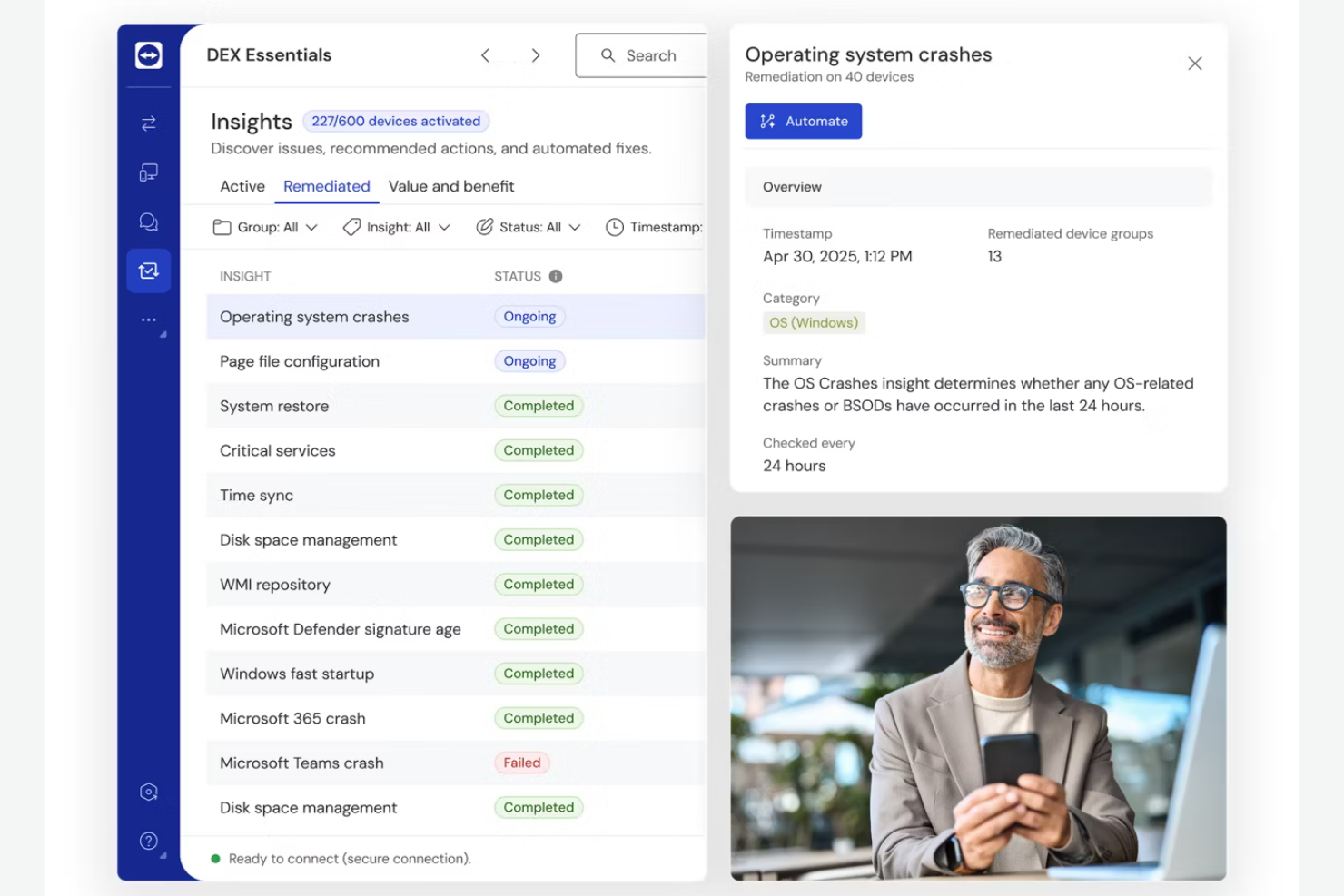
If your team needs to access and support devices remotely, TeamViewer offers secure, cross-platform connectivity for IT professionals and support teams. It’s especially useful for organizations managing distributed endpoints, remote workers, or client devices outside the office network. TeamViewer helps resolve technical issues quickly and maintain business continuity without requiring users to be on-site.
Why I Picked TeamViewer
Remote device access and support are essential for distributed teams, which is why I picked TeamViewer for this list. The platform allows IT staff to connect to and control devices across different operating systems, even when those devices are outside the company network. I appreciate that TeamViewer includes unattended access and secure session recording, which help teams troubleshoot issues without disrupting end users. For organizations supporting remote employees or clients, these features make TeamViewer a practical choice for digital workplace environments.
TeamViewer Key Features
Some other features that make TeamViewer useful for digital workplace teams include:
- File Transfer: Move files securely between connected devices during a remote session.
- Multi-User Support Sessions: Allow multiple support technicians to join and collaborate on the same session.
- Remote Printing: Print documents from a remote device to a local printer without extra setup.
- Mobile Device Access: Connect to and control smartphones and tablets running iOS or Android.
TeamViewer Integrations
Integrations include Microsoft Intune, ServiceNow, Freshworks, Jira, Salesforce, Zendesk, Slack, Microsoft Teams, Zoho, and more.
Pros and Cons
Pros:
- Wake-on-LAN allows remote device startup
- Remote printing works with most local printers
- Supports audit and compliance needs with recordings
Cons:
- No built-in ticketing or case management
- File transfer speed varies with network conditions
Airtable
Best for database-driven project tracking
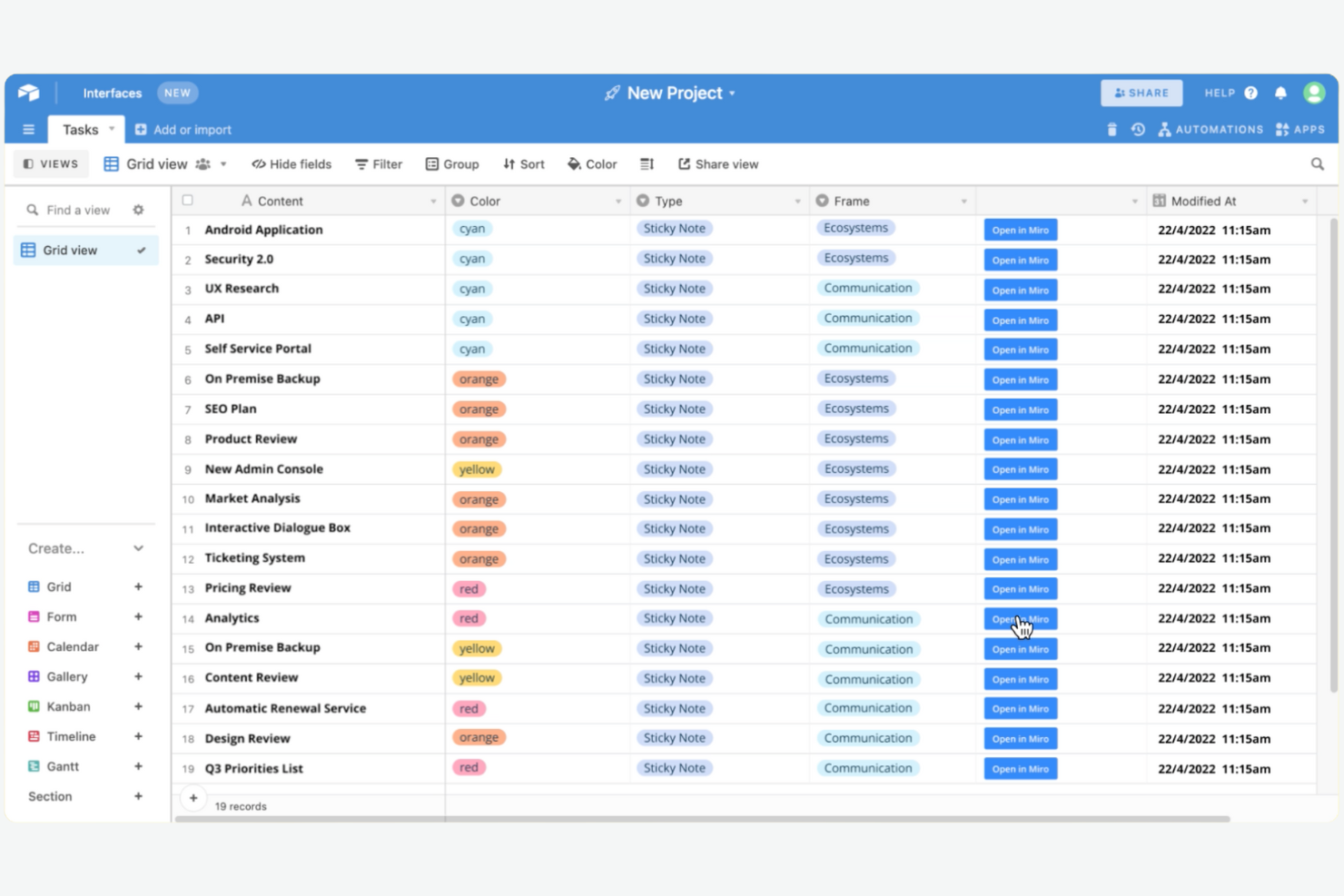
Airtable combines the flexibility of a spreadsheet with the structure of a database, making it a strong fit for teams that need to track complex projects or manage large sets of information. It’s especially useful for product, marketing, and operations teams that want to build custom workflows without writing code. Airtable helps you organize, link, and visualize project data in ways that traditional task trackers can’t match.
Why I Picked Airtable
What sets Airtable apart for digital workplace software is its database-driven approach to project tracking. I picked Airtable because it lets teams design custom tables, link records across projects, and create relational databases without technical expertise. The platform’s flexible views—like Kanban, calendar, and gallery—help you visualize and manage project data in the way that fits your workflow best. This structure is valuable for teams looking to break down information silos when handling multi-dimensional projects.
Airtable Key Features
Some other features that make Airtable useful for digital workplace teams include:
- Automations: Set up triggers and actions to automate repetitive tasks across your bases.
- Form Builder: Collect structured data from teammates or external stakeholders directly into your tables.
- Permission Controls: Assign granular access levels to collaborators for better data security.
- Syncing with External Sources: Connect and sync data from other platforms like Google Calendar or Salesforce.
Airtable Integrations
Integrations include Slack, Google Drive, Salesforce, Jira, Zendesk, Box, Dropbox, GitHub, and more.
Pros and Cons
Pros:
- Permission controls manage collaborator access
- Form builder collects structured input easily
- Multiple view options for visualizing data
Cons:
- No built-in chat or messaging feature
- Revision history limited on lower-tier plans

Best for real-time document collaboration
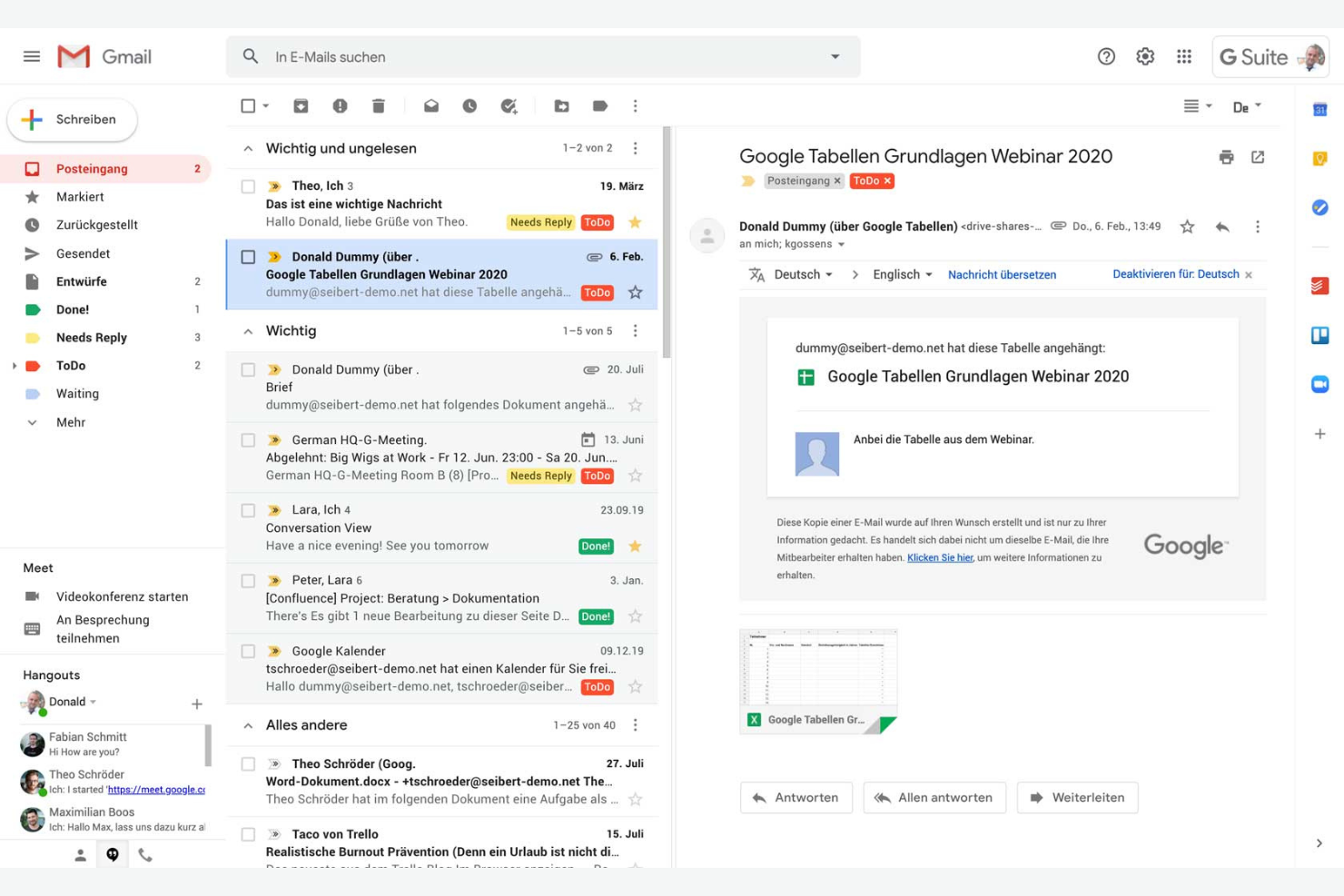
If your team needs to collaborate on documents in real time, Google Workspace is a strong contender. It’s designed for organizations that prioritize editing, sharing, and communication across distributed teams. The platform stands out for its integrated suite of productivity tools that optimize every employee’s productivity, whether they’re working in the office or remotely.
Why I Picked Google Workspace
I chose Google Workspace because its real-time document collaboration tools set it apart in the digital workplace software space. Teams can co-edit Docs, Sheets, and Slides simultaneously, with changes appearing instantly for everyone involved. The built-in commenting and suggestion features make it easy to gather feedback and keep conversations tied directly to the work. For organizations that need to keep projects moving without version confusion or email back-and-forth, these capabilities are hard to match.
Google Workspace Key Features
Some other features in Google Workspace that support digital workplace needs include:
- Shared Drives: Create team-specific drives where files are owned collectively and remain accessible even as team members change.
- Google Meet Integration: Launch video meetings directly from calendar events or chat threads for quick face-to-face collaboration.
- Admin Console: Manage user access, security settings, and device policies from a centralized dashboard.
- AppSheet Automation: Build custom workflow automations and apps without coding, using data from Google Sheets and other Workspace tools.
Google Workspace Integrations
Integrations include Gmail, Google Drive, Google Meet, Google Chat, Google Calendar, Google Docs, Google Sheets, and more.
Pros and Cons
Pros:
- Reliable cloud storage with sharing controls
- Integrates with Google’s productivity apps
- Real-time co-editing across all document types
Cons:
- Limited advanced project management features
- Offline access can be inconsistent
Asana
Best for task automation features
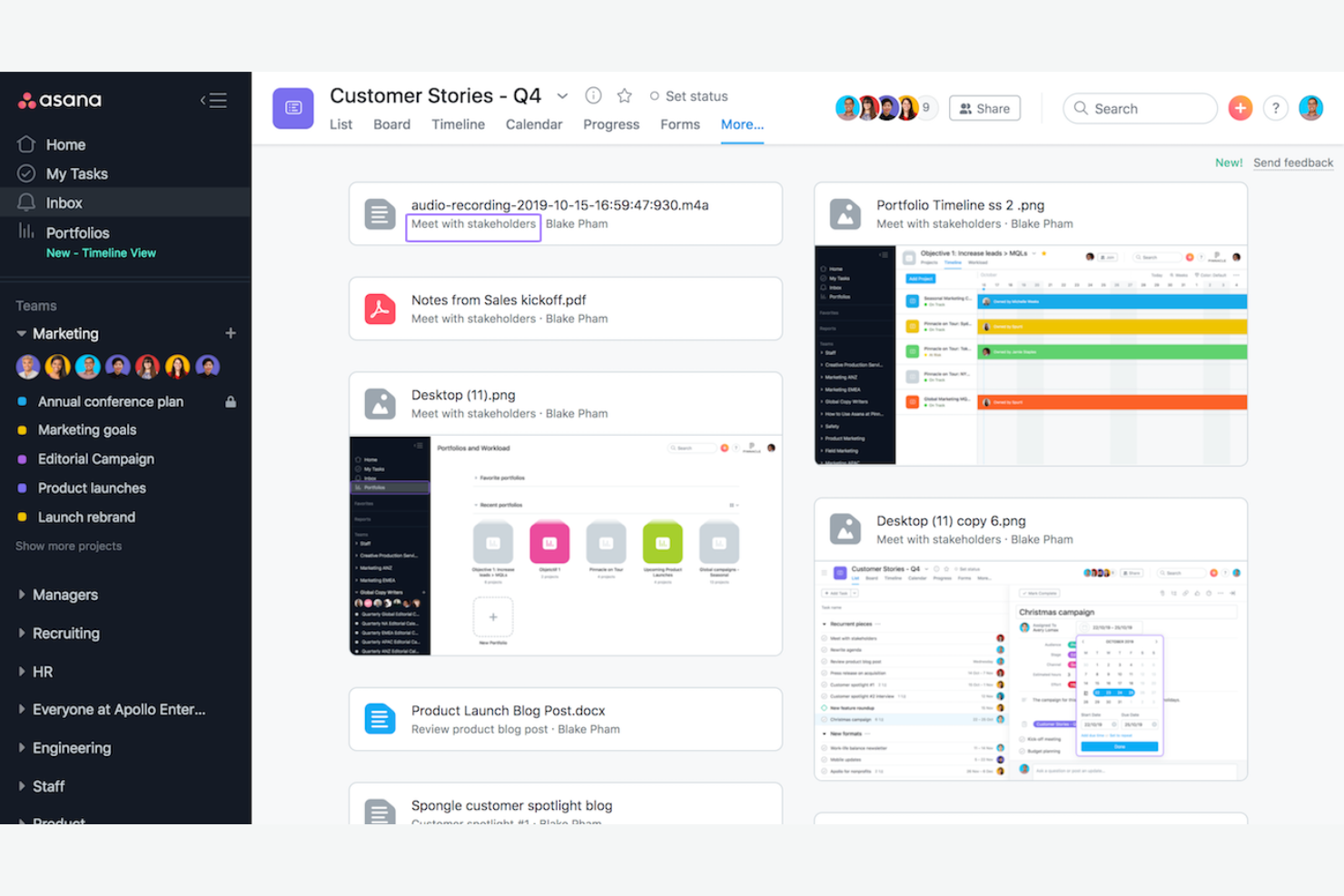
If your team needs to automate repetitive work and keep projects moving, Asana offers a flexible platform built for task management at scale. It’s a strong fit for cross-functional teams in tech, marketing, and operations that want to coordinate tasks, deadlines, and dependencies with minimal manual effort. Asana stands out for its automation features that help reduce busywork and keep everyone aligned.
Why I Picked Asana
For teams looking to automate routine project work, Asana’s task automation features make it a strong choice for digital workplace software. I picked Asana because its Rules engine lets you set up custom triggers and actions to automate task assignments, status updates, and notifications. The platform also supports workflow templates that help standardize processes across teams. These automation tools improve the user experience by reducing manual coordination for the team.
Asana Key Features
Some other features that make Asana useful for digital workplace teams include:
- Timeline View: Visualize project schedules and dependencies with a drag-and-drop Gantt chart interface.
- Workload Management: Monitor team capacity and balance assignments across projects.
- Goals Tracking: Set, track, and connect team or company goals directly to project work.
- Custom Fields: Add specific data points to tasks for better tracking and reporting.
Asana Integrations
Integrations include Slack, Google Drive, Microsoft Teams, Salesforce, Jira, Zoom, Dropbox, GitHub, Outlook, and more.
Pros and Cons
Pros:
- Has advanced search filters
- Built-in workload management
- Goals feature links work to objectives
Cons:
- No built-in document editing tools
- Subtasks lack full project visibility
Best with enterprise-grade security controls

Microsoft 365 Copilot brings together productivity apps, cloud storage, and advanced security features for organizations that need to protect sensitive data. It’s especially well-suited for enterprises and regulated industries where compliance, identity management, and threat protection are top priorities. With unified tools for collaboration and granular admin controls, Microsoft 365 Copilot helps IT teams manage risk while supporting remote and hybrid work.
Why I Picked Microsoft 365 Copilot
Security and compliance are at the core of Microsoft 365 Copilot, which is why I picked it for teams that need enterprise-grade controls in their digital workplace software. The platform offers advanced threat protection, data loss prevention, and encryption across all its apps, helping organizations safeguard sensitive information. I appreciate that Microsoft 365 includes granular access controls and audit logging, so IT teams can manage permissions and monitor activity at scale. For businesses in regulated industries or those handling confidential data, these features make Microsoft 365 Copilot a strong choice.
Microsoft 365 Copilot Key Features
Some other features that make Microsoft 365 Copilot valuable for digital workplace teams include:
- Co-Authoring in Office Apps: Multiple users can edit Word, Excel, and PowerPoint files simultaneously in real time.
- Microsoft Teams Integration: Chat, video meetings, and file sharing are unified in a single workspace.
- SharePoint Online: Create internal sites and manage document libraries for team collaboration.
- Planner and To Do: Organize tasks, assign responsibilities, and track progress across projects.
Microsoft 365 Copilot Integrations
Integrations include Dynamics 365, Salesforce, Adobe Sign, Docusign, Trello, Zoom, ServiceNow, Dropbox, Box, and more.
Pros and Cons
Pros:
- Built-in email encryption for sensitive information
- Integrated with Teams chat and meetings
- Meets strict enterprise compliance needs
Cons:
- Complex licensing structure
- Admin portal navigation can be confusing

Best with self-hosted deployment options
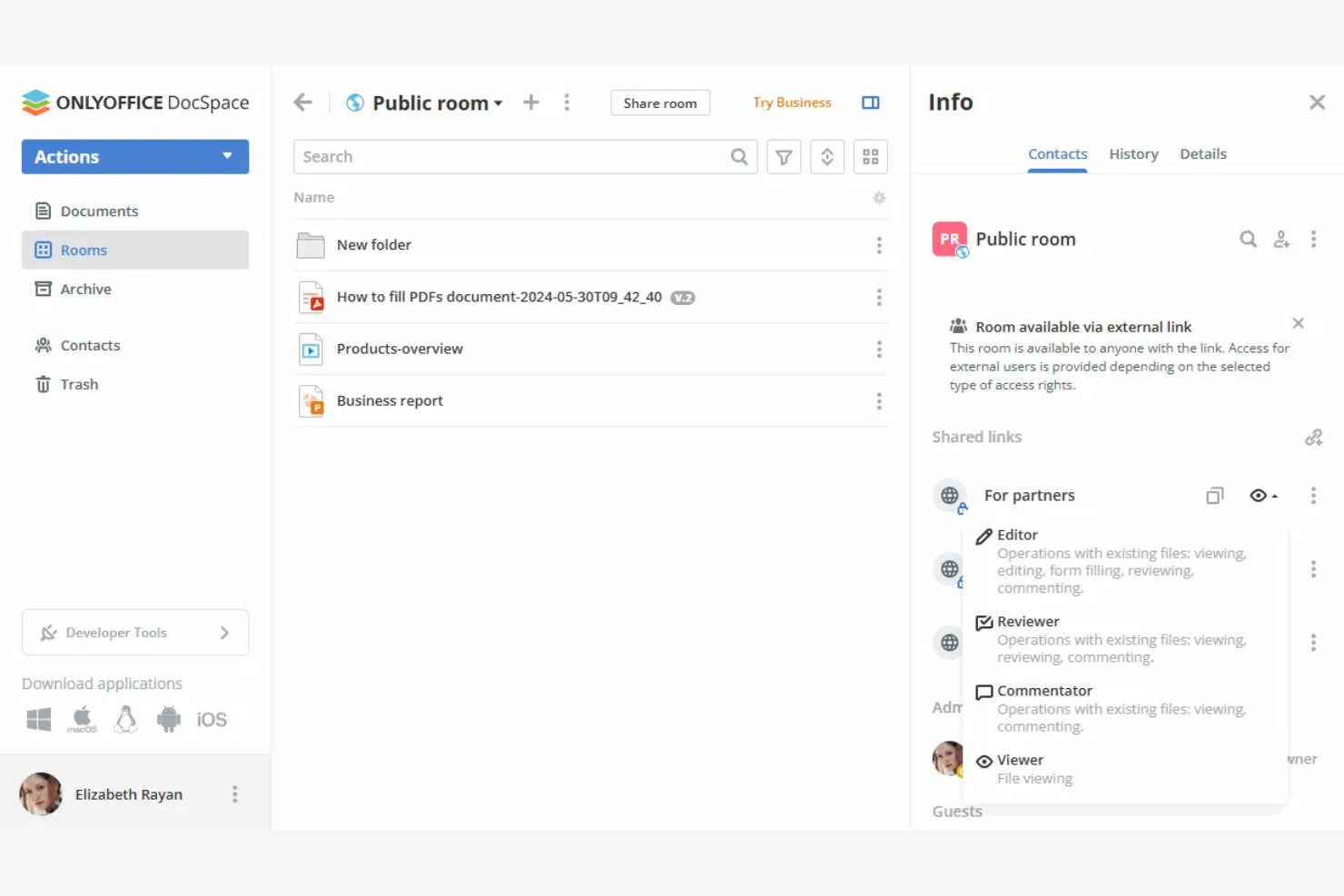
ONLYOFFICE gives organizations full control over their digital workplace with flexible self-hosted deployment options. It’s a strong choice for IT teams, privacy-focused businesses, or regulated industries that need to keep data on-premises. ONLYOFFICE combines document editing, project management, and collaboration tools in a single platform you can host on your own infrastructure.
Why I Picked ONLYOFFICE
For teams that need full control over their data and infrastructure, ONLYOFFICE stands out with its self-hosted deployment options. I picked ONLYOFFICE because it lets organizations install the entire platform on their own servers, which is especially important for businesses with strict compliance or privacy requirements. The platform supports private cloud and on-premises setups, so IT teams can tailor security and access controls to their needs. This level of deployment flexibility is rare among digital workplace tools and makes ONLYOFFICE a strong fit for regulated industries or any business that prioritizes data sovereignty.
ONLYOFFICE Key Features
Some other features that make ONLYOFFICE useful for digital workplace teams include:
- Collaborative Document Editing: Multiple users can work on documents, spreadsheets, and presentations at the same time.
- Project Management Module: Track tasks, set deadlines, and manage project milestones within the platform.
- CRM Integration: Manage contacts, sales, and customer interactions directly from the workspace.
- Calendar and Mail Aggregation: Centralize scheduling and email communications for better team coordination.
ONLYOFFICE Integrations
Integrations include Nextcloud, Moodle, WordPress, Confluence, Jira, Redmine, Box, Dropbox, and more.
Pros and Cons
Pros:
- Native integration with Nextcloud and ownCloud
- Built-in project management and CRM modules
- Supports self-hosted deployment
Cons:
- Limited third-party integrations
- Advanced setup requires IT administration skills

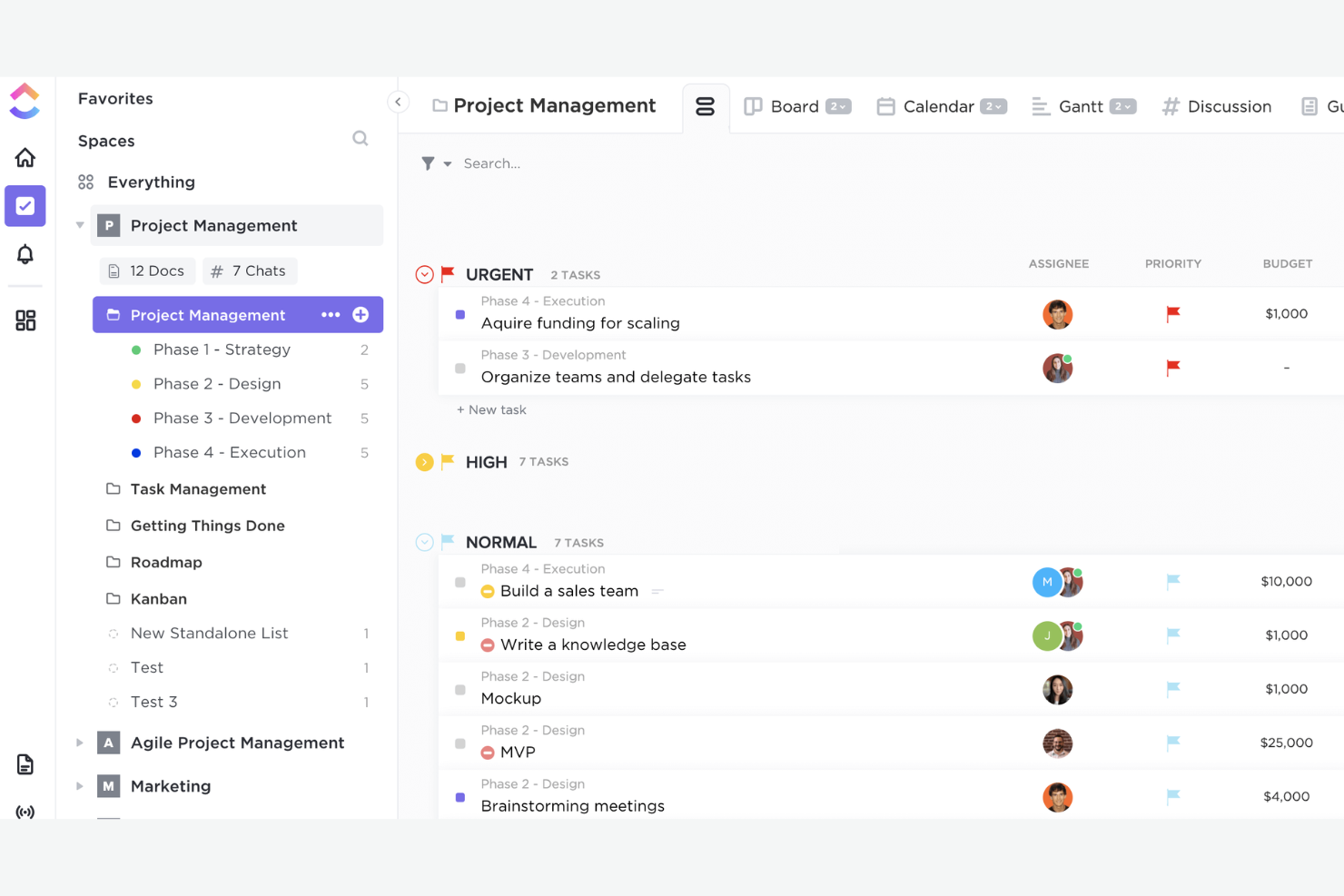
ClickUp gives teams a single platform to design, automate, and manage workflows that fit their exact needs. It’s a strong choice for project managers, operations leads, and cross-functional teams who want to tailor task management, reporting, and collaboration to their own processes. With its flexible structure and deep customization options, ClickUp helps teams handle everything from agile sprints to complex multi-department projects.
Why I Picked ClickUp
Customizable workflow management is where ClickUp really shines for digital workplace software. The platform lets you build custom task statuses, fields, and views so your team can mirror its exact processes, whether you’re running agile sprints or managing client deliverables. I like that you can automate repetitive steps with ClickUp’s automation builder, which helps teams reduce manual work and stay consistent. For teams that need to adapt their workspace as projects evolve, ClickUp’s flexibility makes it a strong fit.
ClickUp Key Features
Some other features that make ClickUp stand out for digital workplace teams include:
- Docs and Wikis: Create, edit, and share internal documentation directly within your workspace.
- Time Tracking: Log time spent on tasks with built-in timers and manual entry options.
- Goal Tracking: Set, track, and visualize progress toward team or project goals.
- Whiteboards: Collaborate visually with digital whiteboards for brainstorming and planning sessions.
ClickUp Integrations
Integrations include Slack, GitHub, GitLab, HubSpot, Everhour, Toggl, Google Drive, Outlook, Figma, and more.
Pros and Cons
Pros:
- Has an automation builder for repetitive tasks
- Organizes projects and teams in a hierarchy
- Custom fields support granular task tracking
Cons:
- Mobile app lacks some desktop features
- Overwhelming notification settings
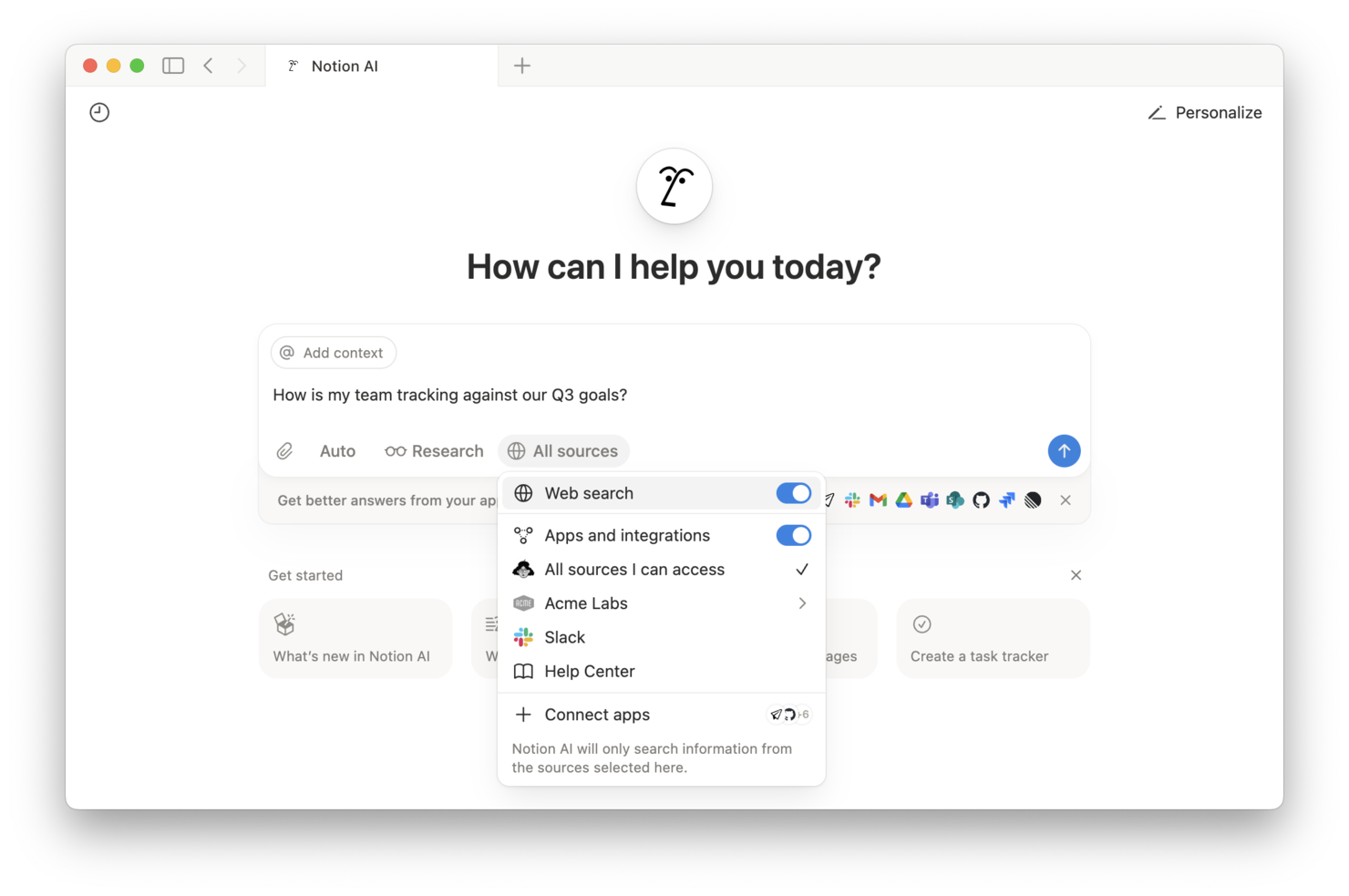
If your team needs a single place to organize documents, projects, and knowledge, Notion brings everything together in one flexible workspace. It’s especially useful for product teams, agencies, and startups that want to centralize wikis, notes, and project plans without juggling multiple apps. Notion’s customizable pages and databases help teams build a unified source of truth that adapts as their needs evolve.
Why I Picked Notion
What sets Notion apart for digital workplace software is its ability to unify knowledge, documentation, and project information in one place. I picked Notion because its flexible page structure lets teams create wikis, SOPs, and knowledge bases that are easy to organize and update as things change. The database feature allows you to link notes, tasks, and resources, so information stays connected and searchable across your workspace. For teams that want a single source of truth without switching between multiple tools, Notion’s unified approach is a strong fit.
Notion Key Features
In addition to its unified workspace for knowledge management, Notion offers several other features that support digital teams:
- Real-Time Collaboration: Multiple users can edit pages and databases at the same time.
- Custom Templates: Build and reuse templates for meeting notes, project trackers, and more.
- Permissions and Sharing: Set granular access controls for pages, databases, and workspaces.
- Embedded Media: Add images, videos, code snippets, and files directly into any page.
Notion Integrations
Integrations include Slack, Jira, GitHub, Asana, Google Drive, Figma, Trello, GitLab, Typeform, and more.
Pros and Cons
Pros:
- Nested pages allow deep documentation hierarchies
- AI assistant generates summaries and action items
- Page version history tracks all content changes
Cons:
- No built-in Gantt chart for project timelines
- Offline access is limited and unreliable

MelpApp is designed for teams that need to communicate across language barriers in real time. It’s a strong fit for global organizations, distributed teams, or any workplace where multilingual collaboration is part of daily operations. MelpApp helps reduce miscommunication by offering instant translation and language support within team chats and meetings.
Why I Picked MelpApp
Multilingual team communication is a challenge for many digital workplaces, which is why I picked MelpApp for this list. The platform offers real-time translation in group chats and meetings, so team members can interact in their preferred language without missing key details. I appreciate that MelpApp also supports voice and text translation, making it easier for teams to collaborate across regions and time zones. For organizations with global or multilingual staff, these features help ensure everyone stays connected and informed.
MelpApp Key Features
Some other features that make MelpApp useful for digital workplace teams include:
- Message Scheduling: Schedule messages to be sent at a specific time for better coordination across time zones.
- Read Receipts: See when team members have read your messages for better communication tracking.
- Role-Based Access Controls: Assign permissions and manage access based on user roles within your organization.
- File Sharing: Share documents, images, and other files directly within chats for quick collaboration.
MelpApp Integrations
Native integrations are not currently listed.
Pros and Cons
Pros:
- Free plan available for small teams
- Supports read receipts
- Provides real-time translation
Cons:
- No built-in video conferencing feature
- No native integrations listed
Miro
Best for visual brainstorming sessions
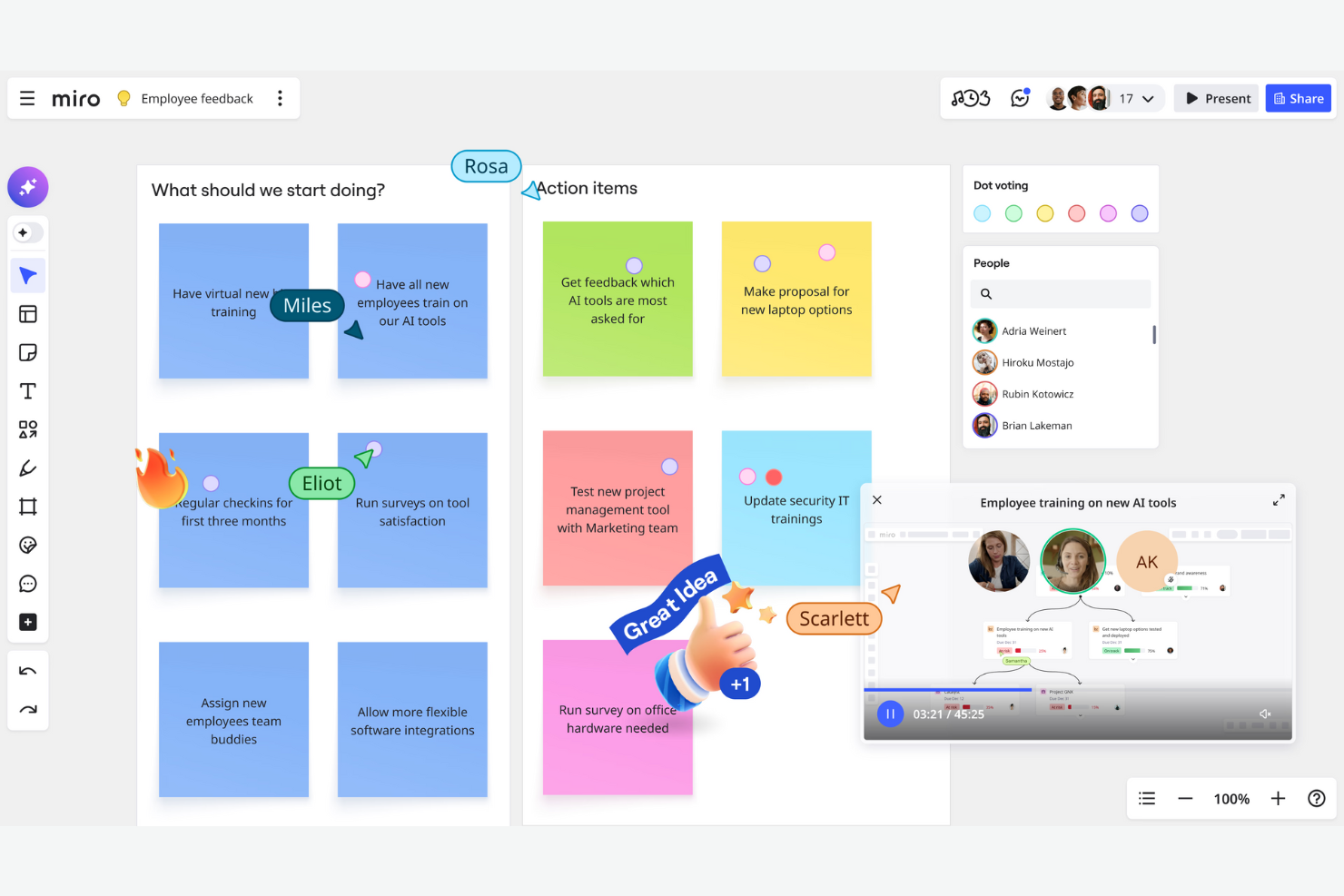
For teams that rely on visual thinking and creative collaboration, Miro offers a flexible online whiteboard platform. It’s especially useful for product managers, designers, and distributed teams who need to map out ideas, workflows, or user journeys together. Miro stands out as an employee experience platform that turns brainstorming sessions into actionable plans with interactive boards.
Why I Picked Miro
When it comes to visual brainstorming sessions, Miro offers a level of flexibility and interactivity that’s hard to match in digital workplace software. The infinite canvas lets teams capture, organize, and connect ideas without running out of space or structure. I appreciate how features like sticky notes, drawing tools, and voting make it easy for everyone to contribute and prioritize ideas in real time. For teams that need to turn creative sessions into actionable outcomes, Miro’s visual approach keeps collaboration both engaging and productive.
Miro Key Features
In addition to its visual brainstorming tools, Miro offers several other features that support digital collaboration:
- Pre-built Templates: Choose from a library of templates for workflows, mind maps, retrospectives, and more to jumpstart your sessions.
- Presentation Mode: Turn any board into a guided presentation with step-by-step navigation for sharing ideas with stakeholders.
- Commenting and Tagging: Add comments and tags directly to board elements to keep feedback organized and easy to track.
- Integration Marketplace: Connect Miro with tools like Jira, Slack, and Asana to keep boards in sync with your team’s workflows.
Miro Integrations
Integrations include Google Workspace, Jira, Confluence, Slack, Asana, GitHub, Azure DevOps, and more.
Pros and Cons
Pros:
- Has a presentation mode for sharing boards
- Real-time collaboration with visual feedback tools
- Supports complex project mapping
Cons:
- Export options are restricted on lower tiers
- Large boards can cause browser slowdowns
New Product Updates from Miro
Miro Adds Japan Data Residency for Enterprise Customers
Miro has introduced Japan data residency for enterprise customers, offering in-region storage for production data, backups, and metadata, plus in-region compute infrastructure. For more information, visit Miro's official site.
Other Digital Workplace Software
Here are some additional digital workplace software options that didn’t make it onto my shortlist, but are still worth checking out:
- Slack
For integrated team messaging
- Zoom
For large-scale video meetings
- Wrike
For advanced workflow automation
- Todoist
For personal task organization
- monday AI Workspace
With AI-powered project insights
- Happeo
For integrating intranet with Google Workspace
- Beekeeper
For frontline team communication
- Kadence
For hybrid space coordination
- UKG
For complex workforce scheduling
- Humand
For building digital communities


How I Evaluate Digital Workplace Software
I split my evaluation into two layers: the baseline a tool must clear—unified workspaces, task tracking, and docs—and the differentiators that separate strong contenders from the rest.
Core Functionality (Table Stakes For This List)
When I'm selecting tools for my list, I rank each one on a scale from 0 (does not offer the functionality) to 5 (excels in this area) for each core functionality listed below. Then, I calculate the tool's total score into a percentage. Each tool needs to achieve a minimum total score of 75% to be considered for inclusion.
- Unified Collaboration Hub: I check whether chat, team spaces, and threaded discussions live inside the same environment where projects happen, rather than forcing teams to bounce between separate apps.
- Task & Project Management: Each tool should offer multiple views like Kanban boards, Gantt charts, or timelines so teams can track tasks, dependencies, and milestones in the format that fits their workflow.
- Document & Knowledge Management: I look for native docs, wikis, or knowledge bases that keep project artifacts searchable and colocated—not just basic file attachments bolted onto a chat tool.
- Integrations & Interoperability: The platform should connect with tools teams already rely on, like Jira, Google Workspace, or Microsoft 365, through native integrations, open APIs, or iPaaS connectors.
- Workflow Automation: I evaluate whether the tool lets you automate recurring actions like status updates, approval routing, or task assignments using a no-code builder with conditional logic.
- Access Control & Permissions: Role-based permissions, guest access for external stakeholders, and SSO support all factor in—especially for teams managing sensitive project data across departments.
Once I have a list of tools that meet the criteria, I consider what sets each platform apart.
Differentiating Factors (What Sets Vendors Apart)
Here's how I compare and contrast different vendors:
Standout Features
AI-powered assistants are a big differentiator—tools like Notion AI and Microsoft Copilot can summarize long threads or draft project updates, which saves real time during status reporting. I also evaluate resource and capacity planning features, since knowing who's overloaded across concurrent projects matters more than a basic task list. No-code app builders round things out by letting teams create custom views or intake forms tailored to their workflows without waiting on a developer.
Beyond Features
Enterprise security and compliance matter when your workspace houses sensitive project data. I check for SOC 2 Type II certification, SSO/SAML support, and data residency options—especially for teams operating across regions. Pricing transparency is another factor I weigh heavily. Hidden costs for guest users, storage overages, or AI add-ons can balloon the total cost quickly. I also look at implementation support, since rolling out a digital workplace across departments needs solid onboarding resources, migration tools, and an active community or partner network.
How to Choose Digital Workplace Software
It’s easy to get bogged down in long feature lists and complex pricing structures when trying to improve the employee experience. To help you stay focused as you work through your unique software selection process, here’s a checklist of factors to keep in mind:
| Factor | What to Consider |
|---|---|
| Scalability | Will the software support your team as you grow? Check user limits, storage caps, and plan upgrades for future needs. |
| Integrations | Does it connect natively with your existing tools (e.g., Slack, Google Workspace, Jira)? Gaps here can create manual workarounds. |
| Customizability | Can you adapt workflows, permissions, and layouts to match your processes? Rigid tools may force you to change how your team works. |
| Ease of use | Will your team adopt it quickly? Look for clear navigation, minimal training requirements, and positive feedback from similar organizations. |
| Implementation and onboarding | How long will it take to get up and running? Consider migration support, data import options, and the availability of onboarding resources. |
| Cost | Are pricing tiers transparent and predictable? Factor in all users, storage, and potential add-ons to avoid budget surprises. |
| Security safeguards | Does the platform offer SSO, encryption, and compliance with standards like SOC 2 or GDPR? Assess risk based on your data sensitivity. |
| Support availability | What support channels are offered, and during what hours? If your team works globally, 24/7 support may be essential. |
What Is Digital Workplace Software?
Digital workplace software is a category of tools that centralize communication, collaboration, document management, and project tracking for distributed teams. These platforms help organizations organize knowledge, coordinate work, and share resources in a single online work environment. By bringing together messaging, file sharing, and workflow management, digital workplace software supports productivity and alignment across departments, locations, and time zones.
Features
Here are the core features any great digital workplace software should have:
- Document management: Store, organize, and share files in a centralized location so teams can access the latest versions and collaborate on documents in real time.
- Task and project tracking: Assign tasks, set deadlines, and monitor progress across projects to keep everyone aligned and accountable.
- Team communication: Use built-in chat, discussion threads, or messaging tools to facilitate quick questions, updates, and ongoing conversations.
- Knowledge base creation: Build and maintain searchable wikis or resource libraries to capture institutional knowledge and standard operating procedures.
- Calendar integration: Sync with team calendars to schedule meetings, track milestones, and coordinate deadlines within the platform.
- Permissions and access control: Set granular user roles and permissions to ensure sensitive information is only accessible to the right people.
- Workflow automation: Automate repetitive processes, such as approvals or notifications, to reduce manual work and speed up routine tasks.
- Third-party integrations: Connect with other essential tools in your ecosystem, like email, cloud storage, or project management platforms, to centralize work across systems.
Common AI Features
Beyond the standard digital workplace software features listed above, many platforms use AI to drive employee engagement with features like:
- Automated meeting summaries: AI listens to meeting recordings or reads transcripts and generates concise summaries, action items, and key decisions for easy reference and follow-up.
- Smart content suggestions: AI analyzes your digital workspace activity and recommends relevant documents, templates, or resources based on your current project or conversation context.
- Intelligent search: AI-powered search understands natural language queries and surfaces the most relevant files, messages, or knowledge base articles, even if keywords don’t match exactly.
- Task prioritization: AI reviews deadlines, dependencies, and workload to suggest which tasks should be tackled first, helping teams focus on high-impact work.
- Automated workflow routing: AI detects patterns in requests or approvals and routes tasks to the right person or team, reducing bottlenecks and manual handoffs.
Benefits
Implementing digital workplace software provides several benefits for your team and your business. Here are a few you can look forward to:
- Centralized knowledge sharing: Teams can store, organize, and access documents and resources in one place, reducing time spent searching for information.
- Improved cross-team collaboration: Built-in communication tools and shared workspaces help teams coordinate projects and share updates in real time.
- Greater visibility into work: Task tracking and project dashboards give managers and team members a clear view of progress, deadlines, and responsibilities.
- Faster onboarding and knowledge transfer: New hires can access training materials, templates, and company knowledge bases to get up to speed quickly.
- Enhanced data security: Permissions and access controls ensure sensitive information is only available to authorized users.
- Reduced manual work: Workflow automation and AI-powered features handle repetitive tasks, freeing up time for higher-value activities.
- Scalability for growing teams: Flexible user management and integration options allow the platform to grow with your organization’s needs.
Costs and Pricing
Selecting digital workplace solutions requires an understanding of the various pricing models and plans available. Costs vary based on features, team size, add-ons, and more. The table below summarizes common plans, their average prices, and typical features included in digital workplace software solutions:
Plan Comparison Table
| Plan Type | Average Price | Common Features |
|---|---|---|
| Free Plan | $0 | Basic document storage, limited task management, simple communication tools, and basic integrations. |
| Personal Plan | $5–$15/user/month | Individual workspaces, enhanced file storage, calendar sync, and basic permissions controls. |
| Business Plan | $15–$30/user/month | Team collaboration tools, advanced project tracking, workflow automation, expanded integrations, and admin controls. |
| Enterprise Plan | $30–$60/user/month | Custom security settings, advanced analytics, priority support, compliance features, and dedicated onboarding. |
FAQs
Here are some answers to common questions about digital workplace software:
How does digital workplace software support remote and hybrid teams?
Digital workplace software gives remote and hybrid teams a central hub for communication, document sharing, and project tracking. This helps everyone stay aligned, access resources, and collaborate in real time, regardless of location or time zone.
For teams splitting their time between remote and in-office work, hot desk booking software can also help coordinate where employees work when they come into the office.
Can digital workplace software replace email for internal communication?
Yes, many teams use digital workplace software to reduce internal email by shifting conversations to chat, discussion threads, or project comments. This keeps communication organized and makes it easier to find relevant information later.
What should I consider when migrating to a new digital workplace platform?
Plan for data migration, user training, and integration with your existing tools. Look for platforms that offer import tools, onboarding resources, and support to help your team transition smoothly and minimize disruption.
How secure is digital workplace software for sensitive company data?
Most digital workplace software includes encryption, access controls, and compliance with standards like SOC 2 or GDPR. Always review a vendor’s security documentation and ask about certifications that match your organization’s requirements.
How do I know if a digital workplace tool will scale with my organization?
Check user limits, storage caps, and available plan upgrades. Ask about performance with large teams and review customer stories from organizations similar in size to yours to ensure the platform can grow with your needs.