

10 Best Calendar Software Reviewed in 2026

Best Calendar Software Shortlist


Managing your team's schedule can be difficult. Meetings, deadlines, and tasks pile up, making it tough to keep everything on track. That's where calendar software comes in by helping you organize, prioritize, and collaborate more effectively.
In my experience, the right calendar tool can make your workday a lot smoother. I've tested and reviewed various options to bring you an unbiased list of the best calendar software available. My goal is to help you find the perfect fit for your team's needs.
In this article, you'll discover top picks for the best calendar apps and desktop versions, each with unique features to tackle your scheduling challenges.
Why Trust Our Software Recommendations
Our team has been testing and reviewing software since 2012. As project managers ourselves, we know how difficult—and important—it is to choose the right software.
For this guide, we evaluated tools using hands-on testing and independent research, scoring tools using our selection criteria. We also draw on insights from industry thought leaders and practicing project management experts.
Our reviews reflect our human editorial judgment, not a sales pitch.
Expert reviewers:
Calendar Software Comparison Table
This comparison table summarizes pricing details for my top calendar software selections:
| Tool | Best For | Trial Info | Price | ||
|---|---|---|---|---|---|
| 1 | Best for team collaboration | Free demo available | From $119/month | Website | |
| 2 | Best for scheduling meetings | 14-day free trial + free plan + free demo available | From $10/seat/month (billed annually) | Website | |
| 3 | Best for group polls | Free plan available | From $6.95/user/month (billed annually) | Website | |
| 4 | Best for appointment booking | Free plan available | From $5/user/month (billed annually) | Website | |
| 5 | Best for time blocking | 14-day free trial | $7.56/month | Website | |
| 6 | Best for simple scheduling | Free plan available | From $6.99/user/month (billed annually) | Website | |
| 7 | Best for minimalist design | Free trial available | From $49.99/year | Website | |
| 8 | Best for email integration | Free plan available | From $12.50/month (billed annually) | Website | |
| 9 | Best for Apple users | Free plan available | Pricing upon request | Website | |
| 10 | Best for AI scheduling | 14-day free trial available | From $16/user/month (billed annually) | Website |
Best Calendar Software Reviews
Below are my detailed summaries of the best calendar software that made it onto my shortlist. My reviews offer a detailed look at the key features, pros and cons, integrations, and ideal use cases of each tool to help you find the best one for you.

Teamup
Best for team collaboration

Teamup is a shared calendar tool for groups and organizations to manage events and schedules collaboratively. It gives teams a less complex centralized platform to coordinate activities and share calendars compared to traditional scheduling tools.
Why I picked Teamup: The tool fosters team collaboration by allowing multiple users to access and manage shared calendars. You can set up sub-calendars for different projects or departments for better team organization. Its color-coded calendar system helps you quickly identify and categorize events, making scheduling more intuitive. With customizable access permissions, you can ensure that each team member has the right level of access to the information they need.
Standout Features and Integrations:
Features include the ability to view calendars in multiple formats, such as day view, week, month, and year, providing flexibility in how to view tasks. You can also set up email reminders to keep everyone on track with upcoming events. The calendar link sharing option makes it easy to distribute schedules without requiring user accounts.
Integrations include Slack, Google Calendar, Microsoft Outlook, Apple Calendar, Zapier, OttoKit, and more.
Pros and Cons
Pros:
- Customizable access permissions
- Great for managing shift schedules
- Easy calendar link sharing
Cons:
- Limited integrations
- Short free trial for higher plans

Calendly
Best for scheduling meetings

Calendly is an online scheduling tool for professionals and teams needing to organize meetings without the back-and-forth of email. It simplifies the process of setting appointments by allowing users to share their availability and letting invitees book meetings for time slots that work for them.
Why I picked Calendly: It works great for scheduling meetings efficiently, saving you and your team valuable time. You can create custom meeting types, each with its own settings and availability. The tool allows you to set buffer times between meetings to prevent back-to-back scheduling. Time zone detection ensures your meetings are accurately scheduled for all participants.
Standout Features and Integrations:
Features include personalized booking links, which make it easy for others to schedule time with you. You can also set up automated reminders to reduce no-shows and cancellations. The tool offers various meeting duration options, giving you flexibility in how you allocate your time.
Integrations include Zoom, Microsoft Teams, Slack, Salesforce, HubSpot, Google Analytics, Stripe, PayPal, Mailchimp, Zapier, and more.
Pros and Cons
Pros:
- Automated reminders reduce no-shows
- Personalized booking links
- Buffer times between meetings
Cons:
- High pricing for small teams
- Limited features on free plan

Doodle
Best for group polls
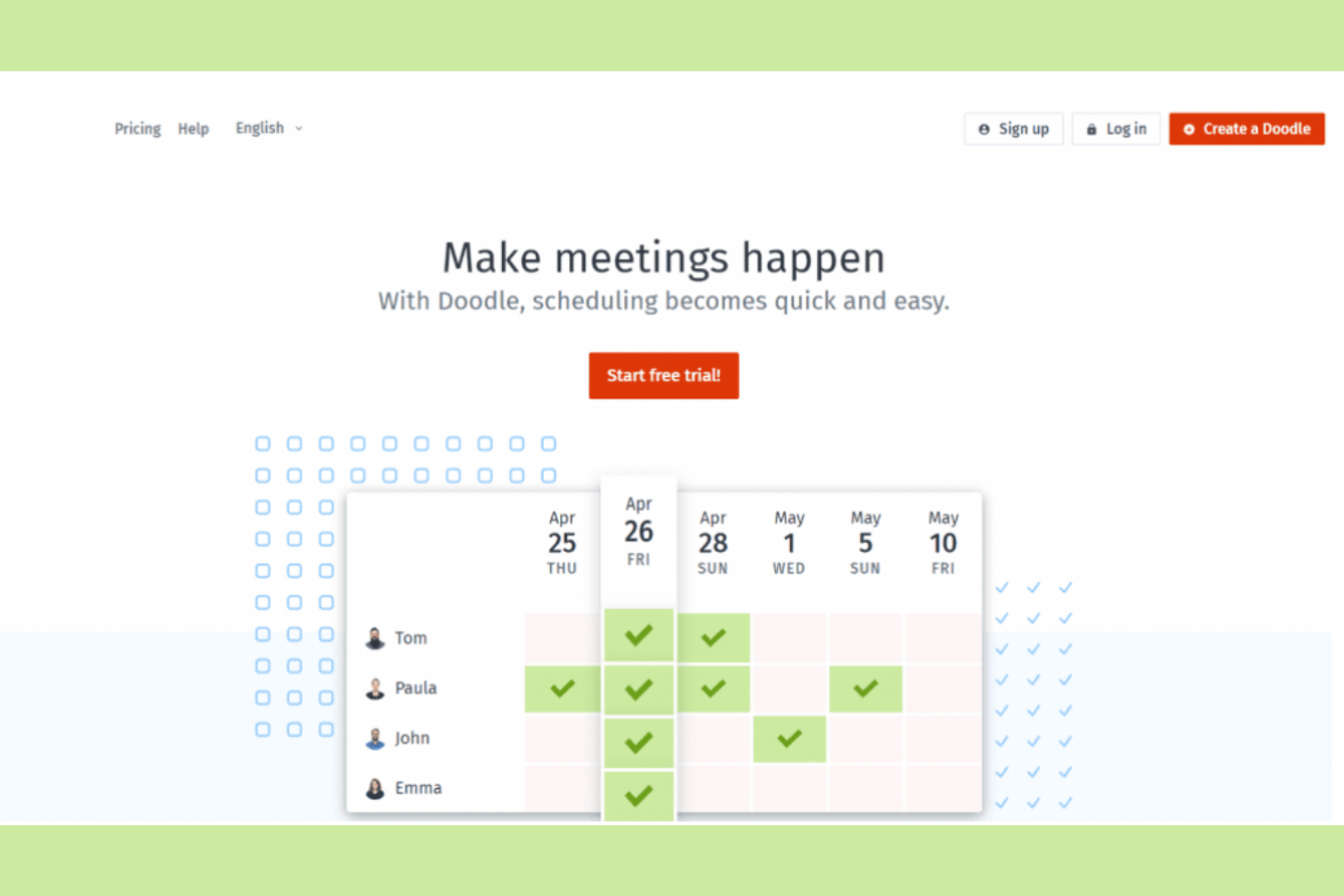
Doodle is a scheduling tool that makes it easier to find the best time for group meetings. Teams and organizations use it to coordinate schedules without the hassle of multiple emails.
Why I picked Doodle: It organizes group polls for scheduling, so you and your team can find common availability. You can create polls quickly, allowing participants to vote on their preferred times. The tool's straightforward interface makes setting up and managing polls easy. With options for time zone adjustments, you can coordinate with international teams effectively.
Standout Features and Integrations:
Features include the ability to create polls for event scheduling to find mutually convenient times. You can also set deadlines for responses to ensure timely scheduling. The tool provides a calendar view to help you visualize potential meeting times at a glance.
Integrations include Google Calendar, Microsoft Outlook, Zoom, Webex, Microsoft Teams, iCloud, Zapier, Stripe, and more.
Pros and Cons
Pros:
- Integrates with payment processors
- Offers branded booking pages
- Efficient group scheduling polls
Cons:
- No poll-taking reminders
- Add-heavy in free version

Setmore
Best for appointment booking
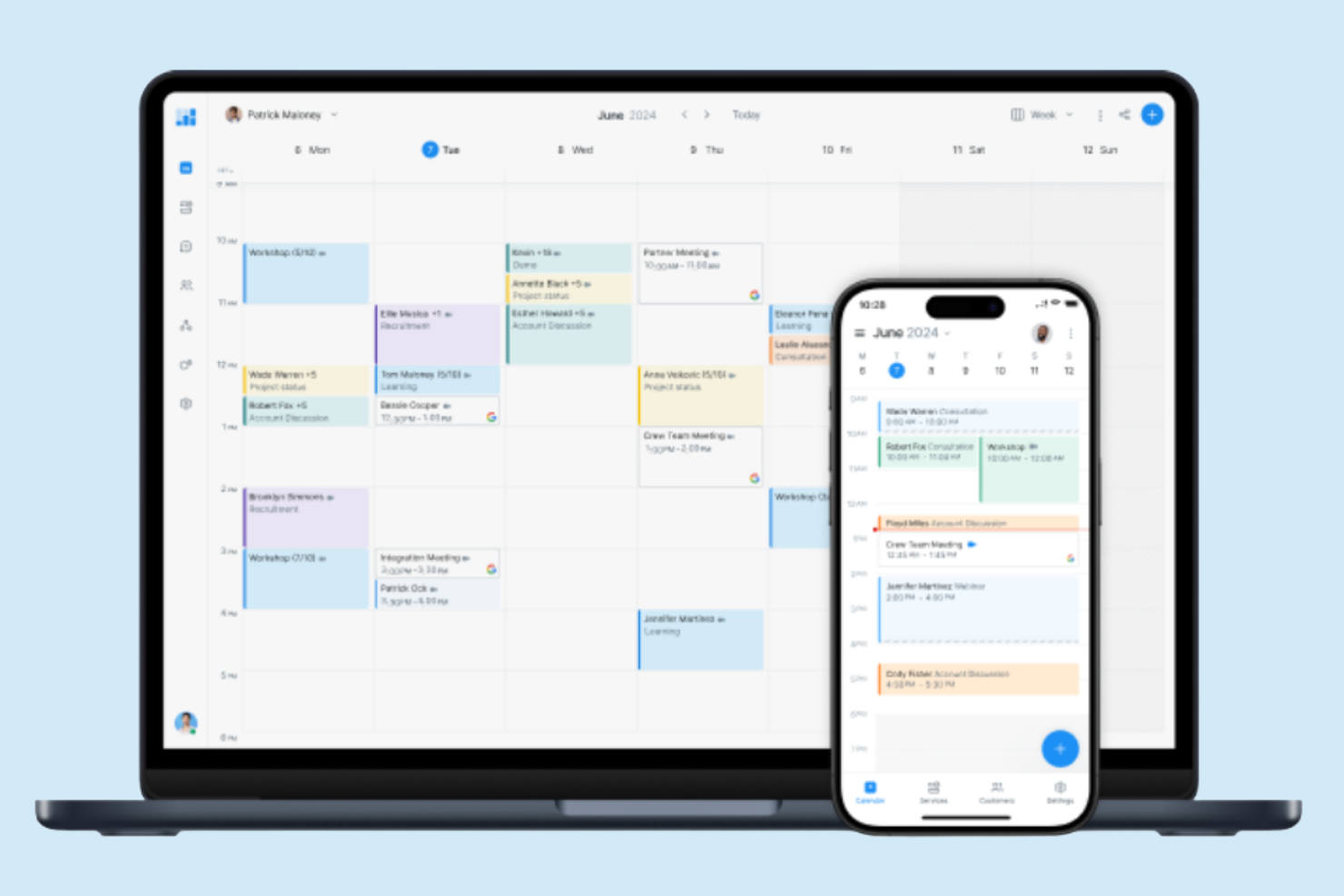
Setmore is an online scheduling platform for small businesses and professionals who need to manage appointments and bookings efficiently. It offers users a straightforward way to handle customer appointments, helping optimize the booking process and improve operational efficiency.
Why I picked Setmore: It's made for appointment booking, making it a great choice for businesses that rely on scheduled services. You can create a customizable booking page that clients can access to book their appointments directly. The tool also provides automated reminders to reduce no-shows and cancellations. With its user-friendly interface, you can manage staff calendars and sync appointments across devices.
Standout Features and Integrations:
Features include the ability to coordinate schedules within your team using individual calendars. You can also set up recurring appointments for regular clients, saving you time on scheduling. The platform offers analytics to give you insights into your booking patterns and client interactions.
Integrations include Google Calendar, Microsoft Outlook, Zendesk, Zoom, Facebook, Slack, QuickBooks, Salesforce, Stripe, PayPal, Mailchimp, and more.
Pros and Cons
Pros:
- Great for advance payment
- Offers one-click video meetings
- Customizable booking pages
Cons:
- Free tier limitations
- Restricted analytics

Best for time blocking
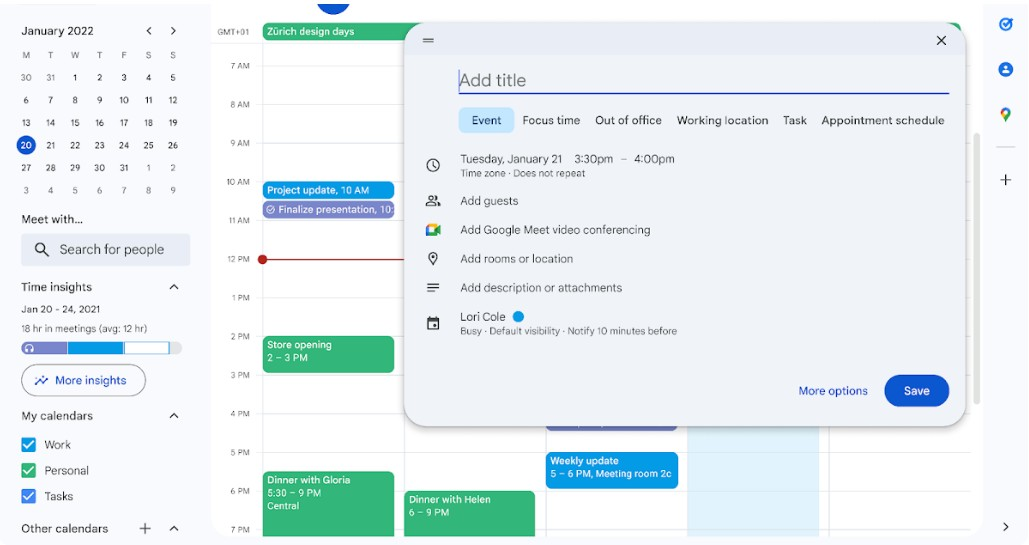
Google Calendar is a versatile scheduling tool that individuals and teams use to manage appointments, meetings, and deadlines. Businesses use it for its integration with other Google Workspace applications, such as Google Tasks and Google Docs, and better productivity and collaboration.
Why I picked Google Calendar: This tool helps you manage your time efficiently with features geared toward time blocking. You can set up different calendars for work and personal events, making it easier to focus on specific tasks. Google Calendar also allows you to organize your schedule by using visual prompts to quickly identify different types of events.
Standout Features and Integrations:
Features include creating multiple calendars for different aspects of your life, color-coding events for easy identification, and setting recurring events and reminders to keep track of ongoing tasks across teams.
Integrations include Google Meet, Gmail, Google Drive, Microsoft Outlook, Apple Calendar, Zoom, Slack, Trello, Asana, Salesforce, and more.
Pros and Cons
Pros:
- Paid plan includes Google Workplace
- Supports multiple calendars
- Suggests times for group meetings
Cons:
- Limited time zone display
- No dedicated desktop app

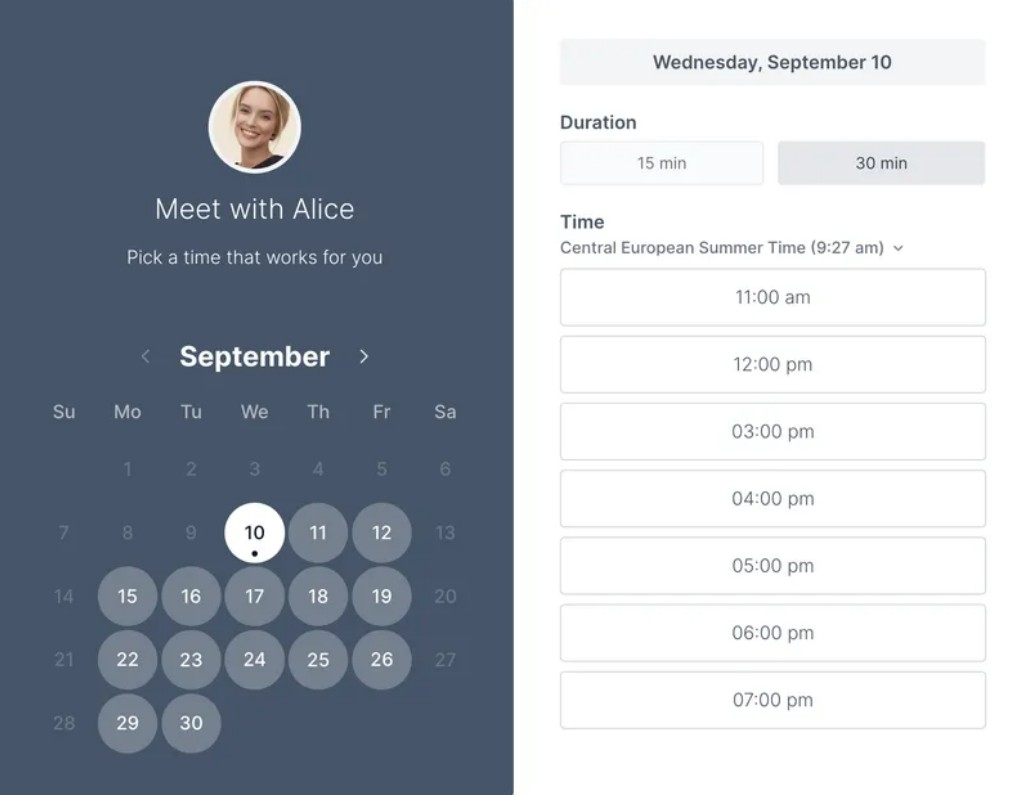
Koalendar is an intuitive scheduling tool for individuals and small teams that need an easy way to organize meetings and appointments. It makes setting up schedules straightforward for better time management.
Why I picked Koalendar: You can quickly create booking links to share with others, allowing them to view your availability and book appointments directly. The tool's clean interface ensures you can manage your schedule without distractions, and email reminders help keep track of upcoming appointments.
Standout Features and Integrations:
Features include customizable booking pages that let you control how others see your availability. You can also set buffer times between meetings to prevent back-to-back scheduling or use the automatic time zone detection to coordinate meetings with people in different regions.
Integrations include Google Calendar, Microsoft Outlook, Zoom, Shopify, Microsoft Teams, Apple Calendar, Zapier, Webhooks, WordPress, and more.
Pros and Cons
Pros:
- Email notifications for appointments
- Automatic language detection for guests
- Built-in payment options
Cons:
- Focus on basic scheduling
- Lacks deep integrations

Best for minimalist design

Tweek is a simple and elegant calendar application for users who appreciate a minimalist approach to scheduling appointments and other tasks. Individuals and teams appreciate its clean interface and straightforward functionality.
Why I picked Tweek: It offers a minimalist design that reduces clutter and focuses on the essentials when scheduling. You can quickly jot down tasks and appointments without getting slowed down by unnecessary features. The tool's weekly planner layout gives a clear view of your commitments, helping you focus on the big picture. Tweek is ideal if you want to manage your time without distractions.
Standout Features and Integrations:
Features include a weekly view that allows you to see all your tasks at a glance. The tool also offers a simple task management system where you can prioritize and check off completed items. You have the option to customize your planner with different colors.
Integrations include Google Calendar, Apple Calendar, and more.
Pros and Cons
Pros:
- Customizable themes
- Quick task entry and management
- Minimalist and clean design
Cons:
- Limited functions for big teams
- No integrations with the free version

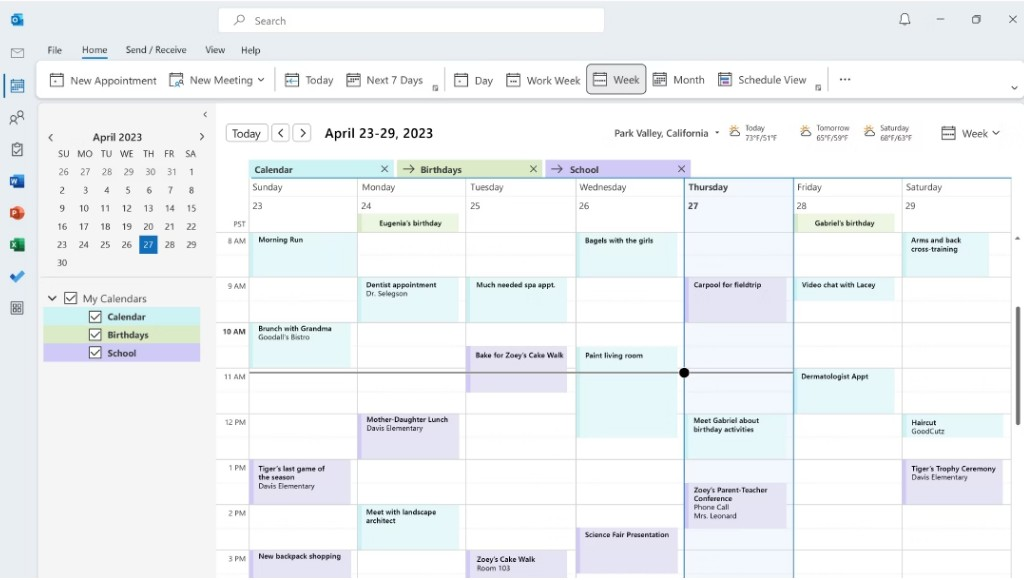
Microsoft Outlook Calendar is a scheduling tool that professionals and businesses rely on to organize meetings, appointments, and events. It serves as a central hub for managing personal and work schedules by connecting with email and other productivity tools.
Why I picked Microsoft Outlook Calendar: This calendar integrates well with your email, making scheduling more efficient for you and your team. You can create events directly from your inbox, reducing the need to switch between apps. Sharing calendars allows for better team coordination and knowledge of each other's schedules. With its intuitive interface, managing multiple calendars and setting reminders becomes a breeze.
Standout Features and Integrations:
Features include the ability to categorize events with colors, set up meetings with a scheduling assistant, and manage multiple time zones for global teams. The user-friendly interface allows you to quickly navigate through your schedule and make adjustments to calendar events. You can also customize calendar views to focus on daily, weekly, or monthly agendas.
Integrations include Microsoft Teams, OneDrive, SharePoint, Zoom, Slack, Trello, Asana, Salesforce, Google Calendar, and more.
Pros and Cons
Pros:
- Direct email to event conversion
- Customizable calendar views
- Smart email integration
Cons:
- Requires Microsoft 365 subscription
- Integrates with Microsoft's to-do list
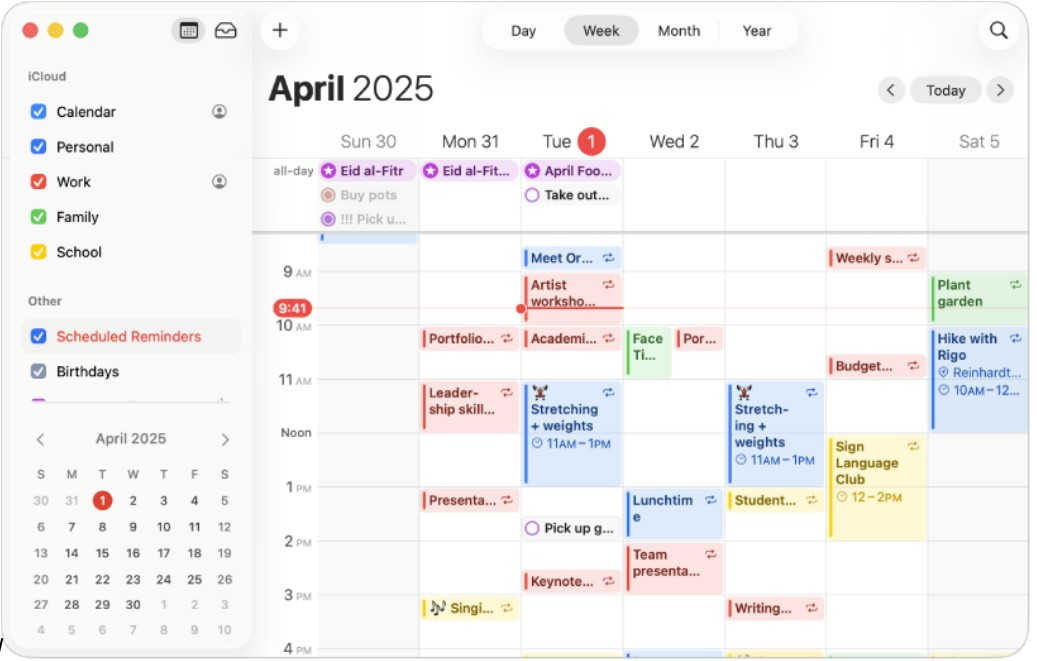
Apple Calendar is a straightforward calendar application for Apple device users, offering essential scheduling and event management functions. It caters to individuals and teams who rely on Apple's ecosystem to organize their daily activities and want real-time sync across devices.
Why I picked Apple Calendar: This tool integrates flawlessly with Apple's ecosystem, making it ideal for users of other Apple products. You can sync your calendar across your iPhone, iPad, and Mac, ensuring you always have access to your schedule. The interface is clean and intuitive, allowing you to create and manage events with ease.
Standout Features and Integrations:
Features include the ability to set and customize event alerts, view your calendar in day, week, or month format, and manage shared calendars for team coordination. You can also use the natural language input feature to quickly add events. The calendar supports time zones, which is great for scheduling international meetings.
Integrations include iCloud, Siri, Apple Maps, Mail, Contacts, FaceTime, Zoom, Microsoft Exchange, Google Calendar, and more.
Pros and Cons
Pros:
- Pre-installed on Apple devices
- Free for all users
- Syncs across Apple devices
Cons:
- Only available on Apple devices
- No premium plan available

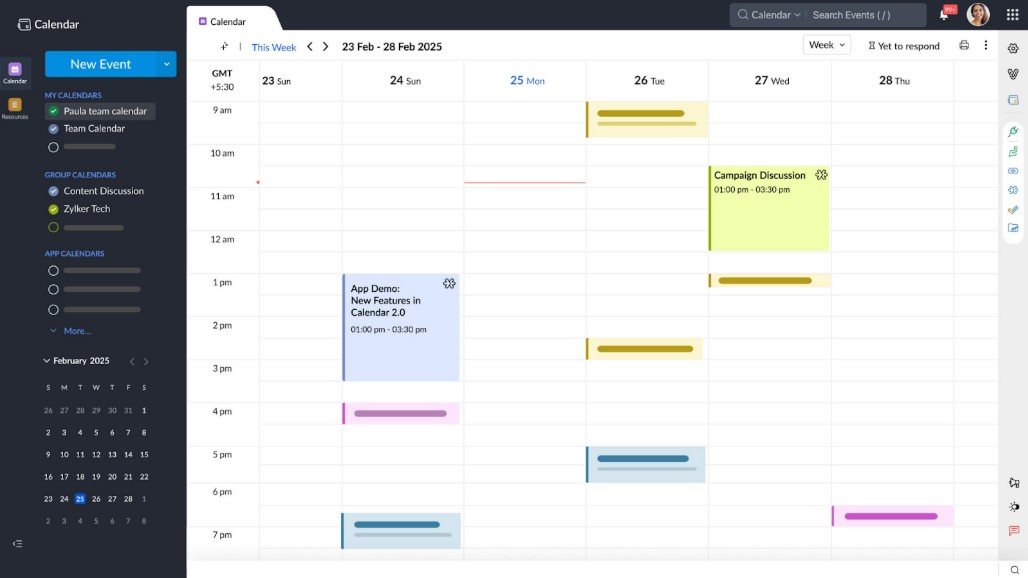
Calendar is an intelligent scheduling tool to optimize time management for professionals and businesses. It provides solutions for scheduling meetings, managing events, and analyzing time usage.
Why I picked Calendar: It uses AI to improve scheduling efficiency, making it perfect for busy teams. AI-powered insights help you understand how you and your team spend time, allowing for better planning. You can also automate meeting scheduling by sharing availability and letting others book directly. The tool's smart suggestions help minimize scheduling conflicts and maximize productivity.
Standout Features and Integrations:
Features include advanced analytics that give you insights into your time allocation. You can set up personalized scheduling links to optimize the booking process. The tool also provides customizable reminders to allow follow-up with upcoming commitments.
Integrations include Google Calendar, Apple Calendar, Zoom, Salesforce, HubSpot, Zapier, Microsoft Teams, and more.
Pros and Cons
Pros:
- Advanced time analytics
- Offers browser extensions
- AI-driven scheduling insights
Cons:
- Support can be slow for lower plans
- Paid professional tier model only
Other Calendar Software
Here are some additional calendar software options that didn’t make it onto my shortlist, but are still worth checking out:
- Fantastical
For natural language input
- Morgen
For AI-driven task management
- SimplyBook.me
For business management
- YouCanBookMe
For personalized bookings
- Appointy
For small businesses
- OnceHub
For lead generation
- Zoho Calendar
For Zoho users
- Motion
For task automation
- Square Appointments
For class bookings
- Acuity
For client self-scheduling
- ClickUp
For project management
- Clockwise
For AI-driven team scheduling


How I Evaluate Calendar Software
I look at calendar software in two layers: the core scheduling, syncing, and sharing a tool must nail, and the differentiators—like Gantt views and workload overlays—that matter to project teams.
Core Functionality (Table Stakes For This List)
When I'm selecting tools for my list, I rank each one on a scale from 0 (does not offer the functionality) to 5 (excels in this area) for each core functionality listed below. Then, I calculate the tool's total score into a percentage. Each tool needs to achieve a minimum total score of 65% to be considered for inclusion.
- Calendar View Options: I check whether the tool offers day, week, month, and agenda views with filtering and color-coding so teams can zoom in on a sprint or zoom out on a quarterly roadmap.
- Task Scheduling & Assignment: Each tool should let you create tasks with dates, durations, assignees, and dependencies—like scheduling a QA review to start only after a design handoff wraps.
- Team Calendar Sharing: I evaluate how teams share and collaborate on calendars, including role-based permissions that let a project lead edit schedules while stakeholders get view-only access.
- External Calendar Sync: Two-way sync with Google Calendar, Outlook, and iCal matters here—project deadlines should flow into a team member's personal calendar without manual re-entry.
- Deadline Notifications & Reminders: Tools should offer multi-channel alerts (email, in-app, mobile push) with configurable timing so your team gets a heads-up before a milestone review, not after.
- Timeline & Gantt Views: I look for interactive Gantt charts that map task dependencies, milestones, and critical paths—helpful when you need to show leadership how a delayed API integration ripples across the release schedule.
Once I have a list of tools that meet this criteria, I consider what sets each platform apart.
Differentiating Factors (What Sets Vendors Apart)
Here's how I compare and contrast different vendors:
Standout Features
Multi-project overlay is a big one—when you're running three launches at once, seeing all timelines in a single view helps you spot conflicts before they become blockers. I also evaluate workload management features that show team capacity right on the calendar, so you know whether a developer is double-booked before assigning another task. Automated scheduling is worth checking too, especially tools that rebalance timelines when a deadline shifts mid-sprint.
Beyond Features
Integrations matter a lot here. I check whether a tool connects natively with the PM platforms your team already uses—Jira, Asana, monday.com—so calendar updates flow both ways without manual syncing. Scalability is another factor I evaluate, especially how well a tool handles growth from a single team to multiple departments running concurrent projects. Mobile access rounds things out; project managers who split time between meetings and their desk need full scheduling capability from their phone, not a stripped-down companion app.
How To Choose Calendar Software
It's easy to get bogged down in long feature lists and complex pricing structures. To help you stay focused as you work through your unique software selection process, here's a checklist of factors to keep in mind:
| Factor | What To Consider |
|---|---|
| Scalability | Can the software grow with your team? Consider if it can handle more users, events, and data as your needs expand. Avoid tools that might limit future growth. |
| Integrations | Does it work with your existing tools? Ensure it connects with software such as email, CRM, and project management apps to optimize workflows and data sharing. |
| Customizability | Can you tailor it to fit your workflow? Look for flexible settings to adjust views, notifications, and permissions to match your team's specific needs. |
| Ease of use | Is it user-friendly for everyone? Choose a tool that team members can learn quickly without extensive training. Avoid overly complex systems that hinder adoption. |
| Implementation and onboarding | How fast can you get up and running? Check for resources such as tutorials, support, and clear documentation to help you start using the tool effectively. |
| Cost | Does it fit your budget? Compare pricing plans, including hidden fees or required add-ons. Consider the value provided for the cost, not just the price tag. |
| Security safeguards | Is your data protected? Look for features such as encryption, access controls, and compliance with data protection regulations to keep your information safe. |
| Support availability | Will you get help when needed? Verify the availability of support channels, such as live chat, email, or phone, and response times to ensure you can resolve issues quickly. |
What Is Calendar Software?
Calendar software is a digital tool that helps individuals and teams schedule and manage events and appointments. Professionals such as project managers, executives, and administrative staff use these tools to organize their time and improve productivity. Features such as scheduling, reminders, and integrations help with managing time efficiently, coordinating with others, and staying on top of tasks. These tools offer a centralized way to keep track of schedules and commitments.
Features
When selecting calendar software, keep an eye out for the following key features:
- Scheduling: Allows users to set up meetings and appointments quickly, ensuring no time conflicts.
- Reminders: Send notifications to keep users informed of upcoming events and deadlines.
- Recurring events: Support setting up events that repeat automatically, saving time on re-entry.
- Integrations: Connect with other software, such as email and CRM tools, to optimize workflows.
- Time zone support: Adjusts event times based on participants' locations, aiding global coordination.
- Customizable views: Let users adjust calendar layouts to suit their preferences and needs.
- Access permissions: Provide control over who can view or edit calendar entries for improved security.
- Analytics: Offer insights into time usage and scheduling patterns to improve time management.
- Mobile access: Ensures users can manage their schedules on the go via mobile devices.
- Color-coding: Allows users to categorize events visually, making schedules easier to read.
Benefits
Implementing calendar software provides several benefits for your team and your business. Here are a few you can look forward to:
- Improved organization: Helps keep track of appointments and deadlines, reducing the risk of missing important events.
- Time-saving: Automates scheduling and reminders, freeing up time for more critical tasks.
- Greater collaboration: Allows team members to share calendars and coordinate schedules, improving teamwork and communication.
- Increased productivity: Provides insights into time management, helping users allocate resources more effectively.
- Flexibility: Offers mobile access and customizable views, enabling users to manage their schedules from anywhere.
- Better planning: Supports recurring events and color-coding, making it easier to plan long-term projects.
- Security: Ensures data protection with access permissions, keeping sensitive information safe.
Costs & Pricing
Selecting calendar software requires an understanding of the various pricing models and plans available. Costs vary based on features, team size, add-ons, and more. The table below summarizes common plans, their average prices, and typical features included in calendar software solutions:
Plan Comparison Table for Calendar Software
| Plan Type | Average Price | Common Features |
|---|---|---|
| Free Plan | $0 | Basic scheduling, limited integrations, and basic reminders. |
| Personal Plan | $4.75-$12/month | Advanced scheduling, multiple calendar views, and email reminders. |
| Business Plan | $14-$70/month | Team collaboration tools, integrations with other apps, and advanced analytics. |
| Enterprise Plan | $125-$1,250/month | Customizable access permissions, dedicated support, and enterprise-level security features. |
Calendar Software FAQs
Here are some answers to common questions about calendar software:
Can calendar software integrate with other tools we already use?
Yes, most calendar software integrates with common tools such as email platforms, CRM systems, and project management apps. This connectivity helps optimize your workflow by allowing data exchange between your calendar and other systems. Check the integration options of each software to ensure compatibility with your existing tools.
Is it easy to migrate my existing data to the new calendar software?
Yes, many calendar tools offer import features to help you transfer existing data. Look for software with simple data migration processes, such as CSV imports or direct integration with current calendar systems. Before migrating, back up your data to avoid any loss during the transfer.
What security measures should I expect from calendar software?
Expect calendar software to offer basic security features, such as encryption and access controls. These safeguards protect your data from unauthorized access. For businesses handling sensitive information, look for software that complies with data protection regulations and offers additional security features such as two-factor authentication.