

10 migliori strumenti gratuiti per la collaborazione recensiti per il 2026

Elenco dei migliori strumenti gratuiti per la collaborazione


Gli strumenti di collaborazione sono una risorsa preziosa per qualsiasi azienda. Con il software giusto, i team possono lavorare insieme da remoto o di persona in modo più efficiente e rimanere allineati sulle attività importanti. Tuttavia, trovare lo strumento di collaborazione giusto può essere una sfida, soprattutto considerando le numerose opzioni disponibili.
Basandomi sulla mia esperienza con i software di gestione dei progetti, ho testato e confrontato diversi tra i principali strumenti di collaborazione disponibili. Successivamente, ho raccolto i risultati in recensioni approfondite per aiutare le aziende a trovare il software migliore per le loro esigenze specifiche. Che si tratti di una piccola impresa o di una grande azienda, sono certo che nell'elenco seguente troverai il tuo prossimo strumento di collaborazione.
Perché fidarsi dei nostri consigli sui software
Il nostro team testa e recensisce software dal 2012. In quanto project manager noi stessi, sappiamo quanto sia difficile — e importante — scegliere il software giusto.
Per questa guida, abbiamo valutato gli strumenti attraverso test pratici e ricerche indipendenti, assegnando un punteggio agli strumenti in base ai nostri criteri di selezione. Ci basiamo inoltre sulle competenze di leader di pensiero del settore e di professionisti attivi nella gestione dei progetti.
Le nostre recensioni riflettono il nostro giudizio editoriale umano, non un discorso di vendita.
Revisori esperti:
Tabella di confronto degli strumenti gratuiti per la collaborazione
Questa tabella di confronto riassume i dettagli sui prezzi dei miei principali strumenti gratuiti per la collaborazione selezionati:
| Tool | Best For | Trial Info | Price | ||
|---|---|---|---|---|---|
| 1 | Ideale per flussi di lavoro flessibili e collaborativi | Piano gratuito disponibile | Da $9/utente/mese (fatturazione annuale) | Website | |
| 2 | Ideale per la collaborazione del team tramite caselle di posta condivise | Prova gratuita di 30 giorni disponibile | A partire da $14/utente/mese (con fatturazione annuale) | Website | |
| 3 | Ideale per messaggi video asincroni | Demo gratuita disponibile | $18/mese | Website | |
| 4 | Ideale per videoconferenze | Piano gratuito + demo gratuita disponibile | Da $14,16/mese (fatturato annualmente) | Website | |
| 5 | Ideale per la condivisione sicura di file | Prova gratuita + piano gratuito disponibili | Da $9,99/utente/mese (fatturazione annuale) | Website | |
| 6 | Ideale per strumenti di produttività integrati | Prova gratuita di 14 giorni disponibile | A partire da $7/utente/mese (fatturato annualmente) | Website | |
| 7 | Ideale per la gestione visiva delle attività | Piano gratuito disponibile | Da $5/utente/mese (fatturato annualmente) | Website | |
| 8 | Ideale per il tracciamento di progetti complessi | Piano gratuito + prova gratuita di 14 giorni disponibile | Da $7.91/utente/mese (fatturazione annuale) | Website | |
| 9 | Ideale per collaborazione visiva e brainstorming | Piano gratuito disponibile | Da $8/membro/mese (fatturazione annuale) | Website | |
| 10 | Ideale per la comunicazione di team | Piano gratuito disponibile | Da $7,25/utente/mese (fatturato annualmente) | Website |


Recensioni dei migliori strumenti gratuiti per la collaborazione
Questa sezione offre un’analisi e una panoramica approfondite di ogni strumento gratuito per la collaborazione. Esaminerò i vantaggi e gli svantaggi, le funzionalità e i casi d’uso migliori di ciascuno.

Ideale per flussi di lavoro flessibili e collaborativi

monday.com è una piattaforma di gestione del lavoro per i team che consente di organizzare progetti, assegnare task, condividere file e collaborare in tempo reale utilizzando bacheche e flussi di lavoro personalizzabili.
Per chi è più adatto monday.com?
monday.com è ideale per team trasversali in ambito tecnologico, marketing e prodotto che necessitano di uno spazio di lavoro flessibile e visivo per gestire collaborazioni su più progetti.
Perché ho scelto monday.com
Ho scelto monday.com tra i migliori per la reale flessibilità della sua struttura a bacheche, perfetta per la collaborazione tra diversi reparti. Il mio team lo utilizza per gestire tutto, dalla pianificazione degli sprint ai calendari editoriali sulla stessa piattaforma, passando facilmente dalla vista Kanban, al Gantt o all’elenco senza dover ricostruire nulla. Apprezzo anche le automazioni del flusso di lavoro personalizzabili: ad esempio, puoi impostare una regola che avvisa il designer quando uno sviluppatore contrassegna una task come 'pronta per la revisione', riducendo le comunicazioni superflue. La funzione Workdocs permette di incorporare dati live della bacheca direttamente in un documento, mantenendo così connessi il brief di progetto e il tracker delle attività invece che separarli.
Funzionalità chiave di monday.com
- Accesso ospite: Invita collaboratori esterni—come clienti o fornitori—su bacheche specifiche senza dover dare loro accesso completo all’account.
- Dashboard di reportistica: Crea dashboard in tempo reale che estraggono dati da più bacheche per offrire una visione consolidata dello stato dei progetti agli stakeholder.
- @menzioni e aggiornamenti: Tagga direttamente i colleghi negli aggiornamenti delle attività per mantenere le conversazioni legate a elementi specifici anziché disperse tra le email.
- Moduli: Crea moduli di richiesta che inviano le risposte direttamente su una bacheca, così le richieste in arrivo da altri team arrivano subito nella destinazione corretta.
Integrazioni di monday.com
monday.com offre centinaia di integrazioni native tramite il suo marketplace, inclusi Slack, Google Workspace, Microsoft Teams, Zoom, Salesforce, HubSpot, Dropbox, GitHub, Trello e Outlook. Supporta anche Zapier e mette a disposizione un’API per integrazioni personalizzate.
Cosa è gratuito?
monday.com offre un piano gratuito per sempre per un massimo di 2 utenti, limitato a 3 bacheche e 3 documenti. Integrazioni e automazioni non sono incluse nel piano gratuito.
Pros and Cons
Pros:
- Forte supporto alla collaborazione remota con aggiornamenti in tempo reale e accesso da mobile
- Bacheche altamente personalizzabili permettono ai team di creare workflow basati sui propri processi
- Chiarezza e visibilità trasversale sui progetti aiutano i team distribuiti a restare allineati
Cons:
- Senza personalizzazione e una configurazione attenta, le bacheche possono diventare confuse quando i progetti crescono.
- I piani Free e Basic sono molto limitati e non includono viste fondamentali né automazioni.
New Product Updates from monday AI Workspace
monday AI Workspace Adds Human Approval Routing
monday AI Workspace adds a human-in-the-loop approval block to AI Workflows, sending approval requests and routing workflow paths based on responses. For more information, visit monday AI Workspace's official site.
Missive
Ideale per la collaborazione del team tramite caselle di posta condivise
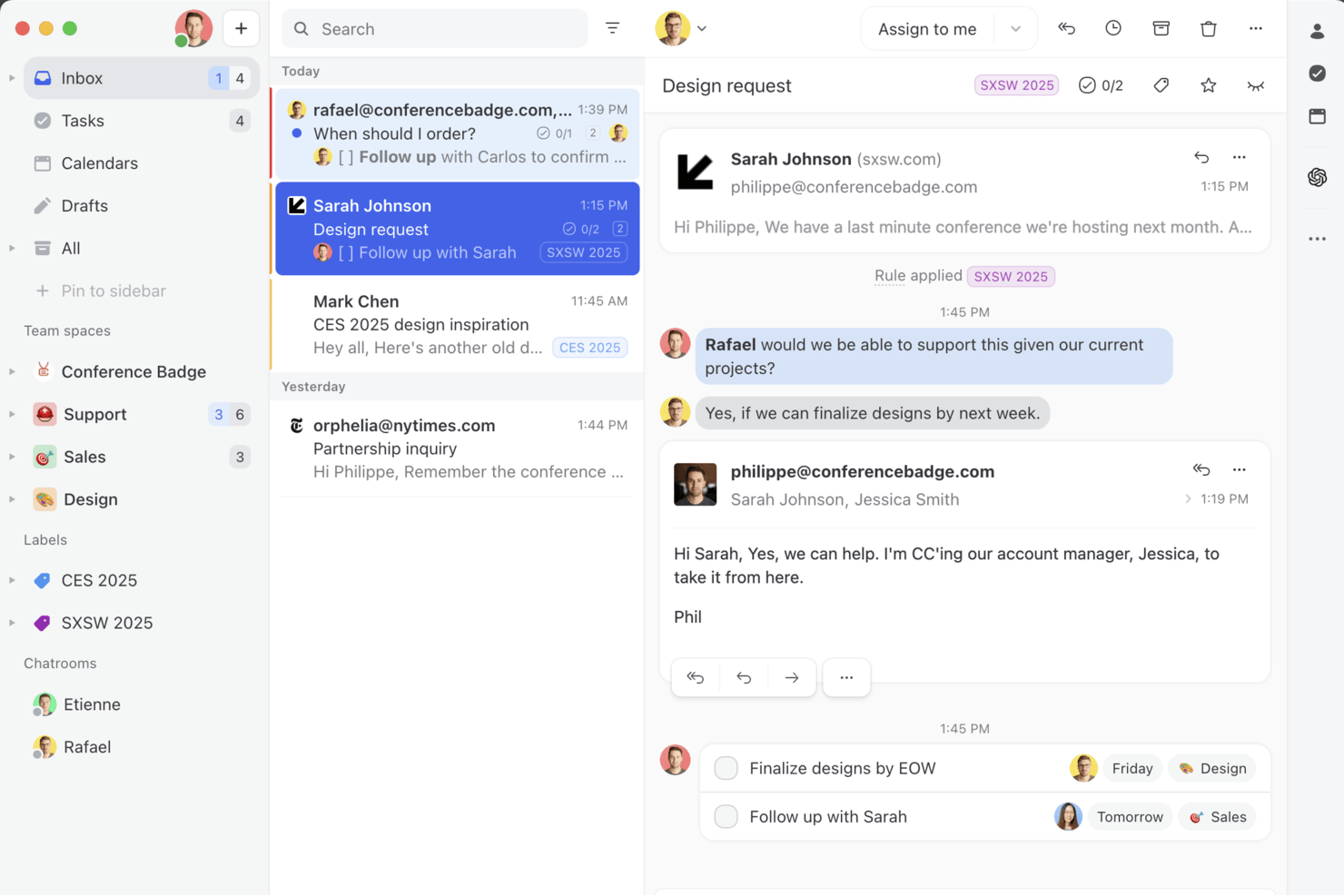
Missive è una piattaforma collaborativa per email e chat progettata per i team che hanno bisogno di caselle di posta condivise, comunicazione multicanale e funzionalità di collaborazione interna in tempo reale.
Per chi è più adatto Missive?
Account manager di agenzie e team a contatto con i clienti che hanno bisogno di una casella di posta condivisa per la comunicazione multicanale e la collaborazione in tempo reale.
Perché ho scelto Missive
Ho scelto Missive perché mi affido alle caselle di posta condivise per una vera collaborazione del team via email. Assegnare le conversazioni, aggiungere commenti interni e invitare ospiti nelle conversazioni semplifica le comunicazioni con i clienti. La stesura collaborativa in tempo reale fa sì che il mio team non si ostacoli a vicenda quando risponde.
Funzionalità principali di Missive
- Spazi del team: Crea spazi di lavoro separati per team diversi, ciascuno con la propria casella di posta, chat e attività.
- Registro di controllo: Tieni traccia di ogni azione dell'utente e modifica dei messaggi in base all'orario e alla persona, per una trasparenza completa.
- Motore di regole per l'automazione: Automatizza assegnazioni, risposte e promemoria tramite un generatore flessibile di regole senza codice.
- Casella di posta multicanale: Gestisci email, SMS, WhatsApp, Instagram, Messenger e chat dal vivo da un'interfaccia unificata.
- Server MCP di Missive: Collega strumenti di intelligenza artificiale esterni (come Claude o ChatGPT) per consultare le conversazioni collaborative, controllare i calendari e preparare risposte, mantenendo al contempo obbligatoria la revisione del team prima dell'invio.
Integrazioni di Missive
Missive offre oltre 30 integrazioni native, tra cui Google Drive, Dropbox, HubSpot, Salesforce, Pipedrive, Asana, ClickUp, Trello, Zoom, Twilio e Slack. Si integra anche con Zapier e Make, offre un'API pubblica per flussi di lavoro personalizzati e include il nuovo Server MCP nei piani Productive e Business (richiede l'attivazione da parte dell'amministratore).
Cosa è gratuito?
Missive offre una prova gratuita di 30 giorni con accesso a tutte le funzionalità. Al termine della prova, è necessario un piano a pagamento: non esiste un'opzione gratuita a tempo indeterminato. La prova gratuita include utenti e canali illimitati, così puoi testare la collaborazione completa del team.
Pros and Cons
Pros:
- Stesura collaborativa di email e commenti
- Casella di posta unificata per email e chat
- Accesso degli ospiti per collaboratori esterni
Cons:
- Nessun piano gratuito per l'uso continuativo
- Gestione delle attività collegata alle conversazioni email
New Product Updates from Missive
Missive Adds Conversation Pins
Missive now lets you pin key links, decisions, and notes inside a conversation, keeping them accessible in a dedicated Pins section in the Details sidebar. For more information, visit Missive's official site.
 .
.
Loom
Ideale per messaggi video asincroni
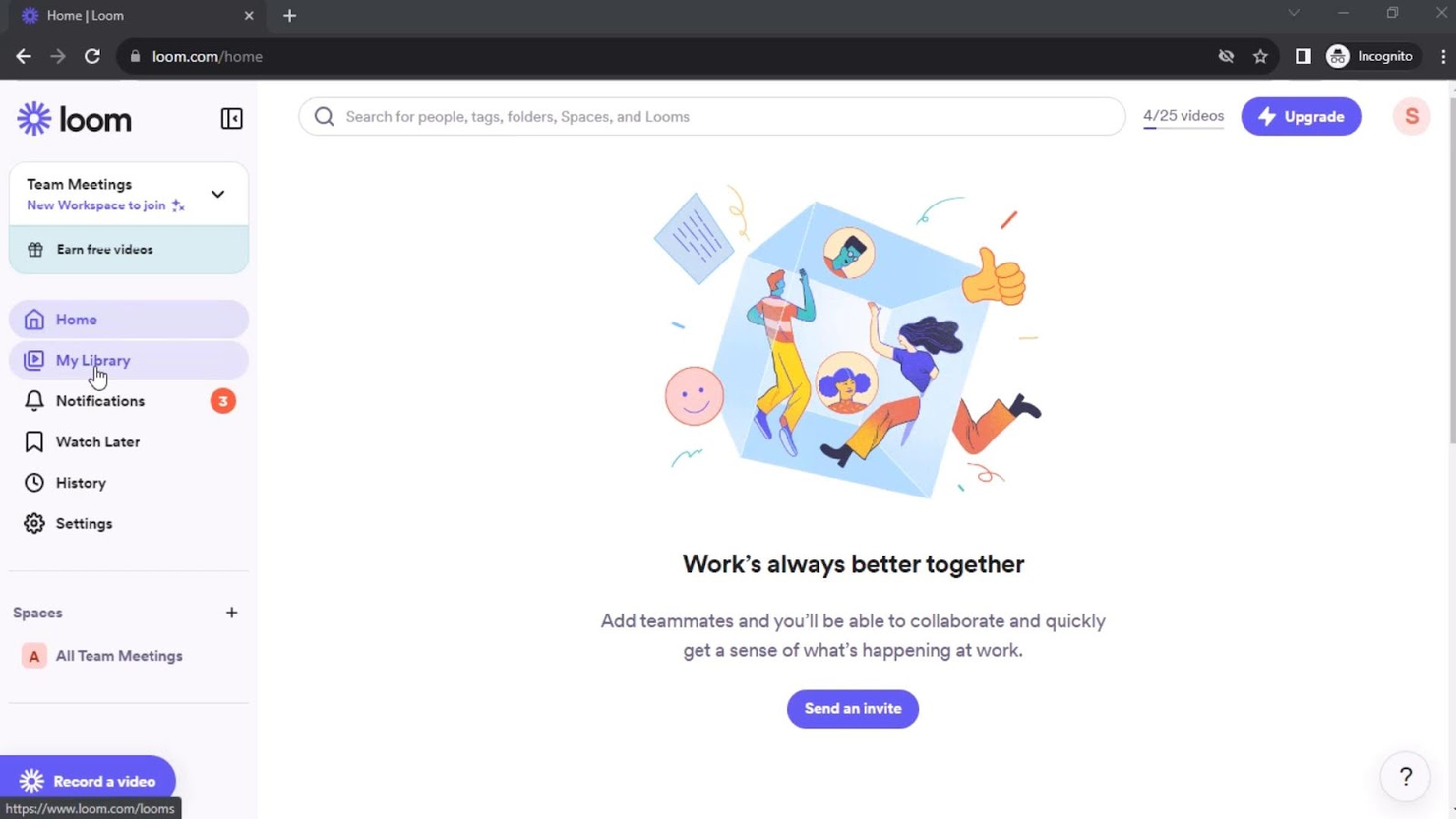
Loom è una piattaforma di collaborazione video che consente ai team di registrare, condividere e organizzare video dello schermo e della webcam per la comunicazione e il feedback asincroni.
Per chi è migliore Loom?
Loom è particolarmente indicato per team remoti e distribuiti — soprattutto nei reparti di prodotto, ingegneria e design — che si affidano alla comunicazione asincrona attraverso diversi fusi orari.
Perché ho scelto Loom
Loom è una delle mie migliori scelte perché adoro il modo in cui sostituisce le riunioni che in realtà avrebbero dovuto essere un video. Il mio team usa Loom per registrare rapide presentazioni dello schermo con una bolla della fotocamera sovrapposta, così chi guarda ottiene sia il contesto visivo che la sensazione di interazione faccia a faccia senza dover programmare nulla. Anche la funzione degli approfondimenti sugli spettatori è davvero utile: posso vedere esattamente chi ha guardato un video e fino a che punto è arrivato, il che mi dice se il mio messaggio è stato effettivamente recepito. I commenti con indicazione temporale permettono ai colleghi di rispondere direttamente a un momento specifico della registrazione invece di inviare un messaggio vago di follow-up.
Funzionalità principali di Loom
- Trascrizioni e sottotitoli: Loom genera automaticamente trascrizioni e sottotitoli per ogni video in oltre 50 lingue.
- Note per il presentatore: Aggiungi note visibili solo a te durante la registrazione, così rimani in pista senza bisogno di uno script separato.
- Librerie: Organizza i video in librerie personali, condivise e del team in modo che le registrazioni siano facili da trovare e gestire.
- Controlli di privacy dei video: Imposta le preferenze di privacy per ogni video, inclusa la protezione tramite password e la visualizzazione tramite email.
Integrazioni di Loom
Le integrazioni includono Slack, Microsoft Teams, Jira, Confluence, GitHub, Google Workspace, Salesforce, Zendesk, Intercom, Trello e Notion.
Cosa è gratuito?
Loom offre un piano gratuito per sempre fino a 50 utenti per workspace. Gli utenti free possono registrare fino a 25 video a testa, ciascuno con una durata massima di 5 minuti.
Pros and Cons
Pros:
- Registrazione video facile
- Trascrizione con intelligenza artificiale
- Condivisione sicura
Cons:
- Il piano gratuito non consente importazione e download
- Richiede connessione a Internet

Zoom
Ideale per videoconferenze
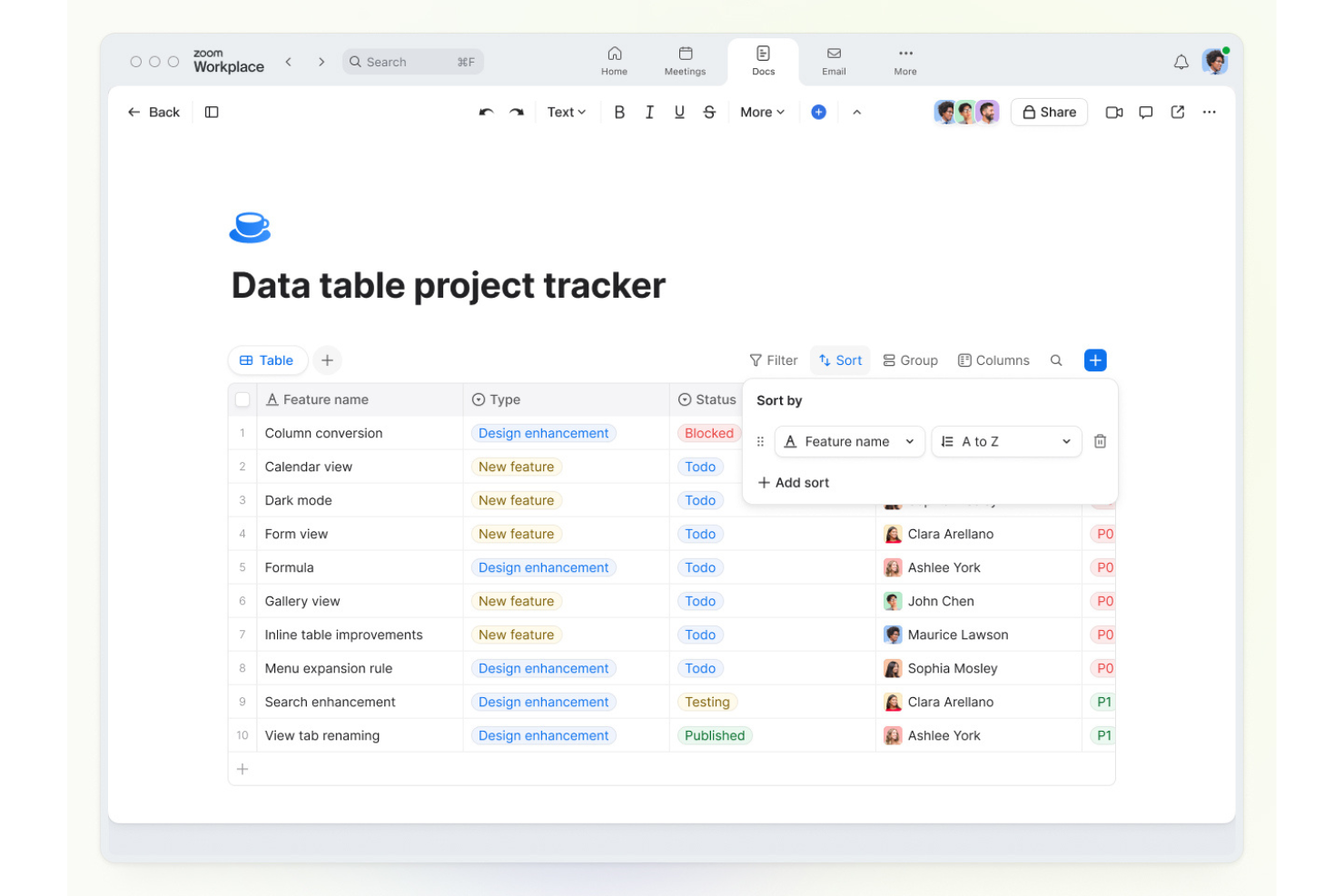
Zoom è una piattaforma di collaborazione basata su cloud che riunisce riunioni video, chat, condivisione dello schermo e lavagna digitale per i team che necessitano di comunicazione in tempo reale.
Per chi è ideale Zoom?
Zoom è particolarmente adatto per team distribuiti e ibridi di qualsiasi dimensione che si affidano a frequenti riunioni video come principale modalità di collaborazione.
Perché ho scelto Zoom
Zoom merita il suo posto nella mia selezione perché è lo strumento di videoconferenza più riconosciuto e il suo piano gratuito è davvero utilizzabile per la collaborazione reale in team. Apprezzo il fatto che il piano gratuito supporti riunioni fino a 100 partecipanti, coprendo così la maggior parte delle revisioni sprint o delle sincronizzazioni cross-funzionali che il mio team svolge. La visualizzazione multi-relatore sposta automaticamente l'attenzione su chi sta parlando, quindi non devo gestire manualmente i layout durante la riunione. Le stanze separate (breakout rooms) sono disponibili anche con il piano gratuito, il che significa che posso suddividere un gruppo più grande in sessioni di lavoro più piccole senza dover fare un upgrade.
Caratteristiche principali di Zoom
- Condivisione dello schermo: Condividi il tuo schermo intero, una specifica finestra di applicazione o una porzione di schermo durante qualsiasi riunione.
- Chat durante la riunione: Invia messaggi, link e file a tutti i partecipanti o a singoli individui senza interrompere la chiamata.
- Zoom Whiteboard: Collabora visivamente usando una lavagna digitale condivisa con post-it, forme e strumenti di disegno.
- Registrazione delle riunioni: Registra le riunioni localmente sul tuo dispositivo e rivedi le discussioni o condividile con i colleghi che non hanno potuto partecipare.
Integrazioni Zoom
Zoom offre integrazioni native con Google Workspace, Microsoft 365, Slack, Salesforce, HubSpot, Dropbox, Box, Trello, Asana e Zapier. È disponibile un'API per integrazioni personalizzate.
Cosa è gratuito?
Zoom offre un piano gratuito per sempre che consente riunioni individuali illimitate e riunioni di gruppo fino a 100 partecipanti, con un limite di 40 minuti per le sessioni di gruppo. Alcune funzionalità avanzate e integrazioni sono disponibili solo nei piani a pagamento.
Pros and Cons
Pros:
- Video e audio di alta qualità
- Interfaccia intuitiva
- Funzionalità di sicurezza avanzate
Cons:
- Il piano gratuito consente solo 40 minuti di riunione
- Richiede una connessione internet stabile

Dropbox
Ideale per la condivisione sicura di file

Dropbox è una piattaforma di collaborazione basata su cloud che permette ai team di archiviare, condividere e lavorare insieme su file e documenti in un unico posto.
Per chi è Dropbox?
Dropbox è adatto ai team distribuiti che condividono e collaborano regolarmente su file tra diversi reparti o con stakeholder esterni.
Perché ho scelto Dropbox
Dropbox si guadagna il suo posto tra i migliori della mia shortlist per la serietà con cui gestisce la condivisione sicura dei file. Mi piace che ogni file condiviso tramite Dropbox sia protetto con crittografia AES a 256 bit e SSL/TLS, e che sia possibile impostare la protezione tramite password e date di scadenza sui link condivisi, così l'accesso non resta disponibile più del dovuto. Quando devo revocare un accesso, bastano pochi click per togliere i permessi su un file o una cartella. La cronologia delle versioni e le funzioni di recupero dei file danno inoltre al mio team una rete di sicurezza durante il lavoro collaborativo su documenti condivisi da più contributori.
Funzionalità Principali di Dropbox
- Dropbox Paper: Un editor di documenti collaborativo integrato in cui il team può scrivere, commentare e assegnare task direttamente in un documento condiviso.
- Richiesta di file: Invia un link che consente a chiunque di caricare file direttamente nella tua cartella Dropbox senza bisogno di un account Dropbox.
- Dropbox Replay: Uno strumento dedicato alla revisione e al rilascio di feedback con indicazione temporale sui file video senza uscire da Dropbox.
- Smart Sync: Gestisci quali file sono salvati localmente o solo nel cloud, così i membri del team possono accedere all’intera struttura di cartelle senza occupare spazio sull’hard disk.
Integrazioni di Dropbox
Dropbox offre integrazioni native con Google Workspace, Microsoft 365, Slack, Zoom, Trello, DocuSign, Canva, Adobe Creative Cloud, Salesforce e Okta. È disponibile un'API per integrazioni personalizzate.
Cosa è gratuito?
Dropbox propone un piano Basic gratuito per sempre, con fino a 2 GB di spazio di archiviazione per utenti singoli. Questo piano prevede funzionalità limitate e non include i controlli avanzati sulla condivisione né la maggior parte delle integrazioni.
Pros and Cons
Pros:
- Sicurezza avanzata
- Condivisione di file semplice
- Accesso da più dispositivi
Cons:
- Spazio gratuito limitato
- Richiede accesso a internet

Ideale per strumenti di produttività integrati

Google Workspace è una suite di collaborazione basata su cloud che riunisce la modifica di documenti, la condivisione di file, la chat di squadra, le videoconferenze e l'email in un'unica piattaforma.
Per chi è ideale Google Workspace?
Google Workspace è una soluzione naturale per team di qualsiasi dimensione che lavorano già nell'ecosistema Google e hanno bisogno di una piattaforma unica per comunicazione, collaborazione sui documenti e gestione dei file.
Perché ho scelto Google Workspace
Ho scelto Google Workspace perché la sua profonda integrazione degli strumenti è difficile da eguagliare. Mi piace che, quando sono in Google Docs, posso avviare una chiamata Google Meet, inserire un commento da Google Chat e condividere il file tramite Gmail senza mai lasciare la scheda del browser. La co-modifica in tempo reale in Docs, Fogli e Presentazioni significa che il mio team può lavorare sullo stesso file contemporaneamente, con le modifiche che compaiono in tempo reale e una cronologia completa delle revisioni che tiene traccia di ogni modifica. Google Drive collega tutto come un sistema di file condiviso a cui ogni altro strumento della suite si integra nativamente.
Funzionalità chiave di Google Workspace
- Google Meet: Organizza videochiamate direttamente dal tuo calendario, da Gmail o da Chat con condivisione dello schermo e chat integrata durante le riunioni.
- Spazi Google Chat: Crea spazi dedicati per progetti o team specifici dove puoi condividere file, assegnare attività e gestire conversazioni in thread.
- Drive condivisi: Archivia i file a livello di team invece che su account individuali, così l'accesso viene mantenuto indipendentemente dai cambi di squadra.
- Google Calendar: Pianifica riunioni, imposta calendari condivisi per il team e visualizza la disponibilità dei colleghi direttamente all'interno dell'ambiente Workspace.
Integrazioni di Google Workspace
Google Workspace offre integrazioni native in tutto l'ecosistema Google, tra cui Google Drive, Google Meet, Google Chat, Google Calendar e Gmail. È disponibile un'API per integrazioni personalizzate.
Cosa è gratuito?
Google Workspace offre una prova gratuita di 14 giorni con accesso a tutte le funzionalità principali. Al termine del periodo di prova, sarà necessario scegliere un piano a pagamento per continuare a utilizzare il servizio; non esiste un piano gratuito per sempre.
Pros and Cons
Pros:
- Suite di strumenti completa
- Integrazione perfetta tra gli strumenti
- Solide funzionalità di sicurezza
Cons:
- Accesso offline limitato
- Ritardi nella sincronizzazione


Trello è una piattaforma di collaborazione e gestione progetti che utilizza bacheche, liste e schede per aiutare i team a organizzare le attività, condividere file e coordinare il lavoro in modo visivo.
Per chi è ideale Trello?
Trello è perfetto per team di piccole e medie dimensioni che preferiscono un approccio visivo e snello per organizzare e monitorare il lavoro collaborativo.
Perché ho scelto Trello
Trello si guadagna il suo posto tra i migliori nella mia lista perché la sua interfaccia a bacheca Kanban rende facile vedere a colpo d'occhio lo stato di ogni attività. Mi piace come le schede riportino tutto il contesto—liste di controllo, scadenze, allegati e commenti—così il mio team non deve inseguire aggiornamenti di stato su Slack. La vista Cronologia è utile: quando cambiano le priorità degli sprint, posso trascinare e rilasciare le schede per modificare le date al volo senza dover ricostruire l'intero piano. Per la gestione visiva delle attività, il design di Trello basato sulle bacheche è difficile da replicare con strumenti che privilegiano la vista a elenco come predefinita.
Caratteristiche principali di Trello
- Regole di automazione: Imposta regole basate su trigger con l'automazione integrata Butler di Trello per spostare schede, assegnare membri o aggiornare date di scadenza senza intervento manuale.
- Campi personalizzati: Aggiungi dati strutturati alle schede—come menu a discesa, numeri o campi di testo—per adattare le bacheche al flusso di lavoro specifico del tuo team.
- Inbox: Acquisisci attività da email, messaggi Slack e altre fonti direttamente in una casella Inbox centrale di Trello prima di assegnarle a una bacheca.
- Assistenza alla scrittura AI: Usa l'AI integrata nelle schede per fare brainstorming, organizzare le attività da svolgere e sintetizzare testi lunghi in brevi riepiloghi.
Integrazioni di Trello
Trello offre oltre 200 integrazioni native, tra cui Slack, Jira Cloud, Miro, GitLab, Google Calendar, Deskpro, Zoho Desk, Mailbutler, Ganttify e Droplr. È disponibile un'API per integrazioni personalizzate.
Cosa è gratuito?
Trello offre un piano gratuito per sempre per un massimo di 10 bacheche per spazio di lavoro e utenti illimitati. Il piano gratuito include le funzionalità di base, ma ti limita a 250 comandi workspace al mese e un Power-Up (integrazione) per bacheca.
Pros and Cons
Pros:
- Flussi di lavoro flessibili
- Bacheche altamente personalizzabili
- Facile da usare
Cons:
- Nessuna modalità offline
- Funzionalità avanzate limitate

Jira
Ideale per il tracciamento di progetti complessi
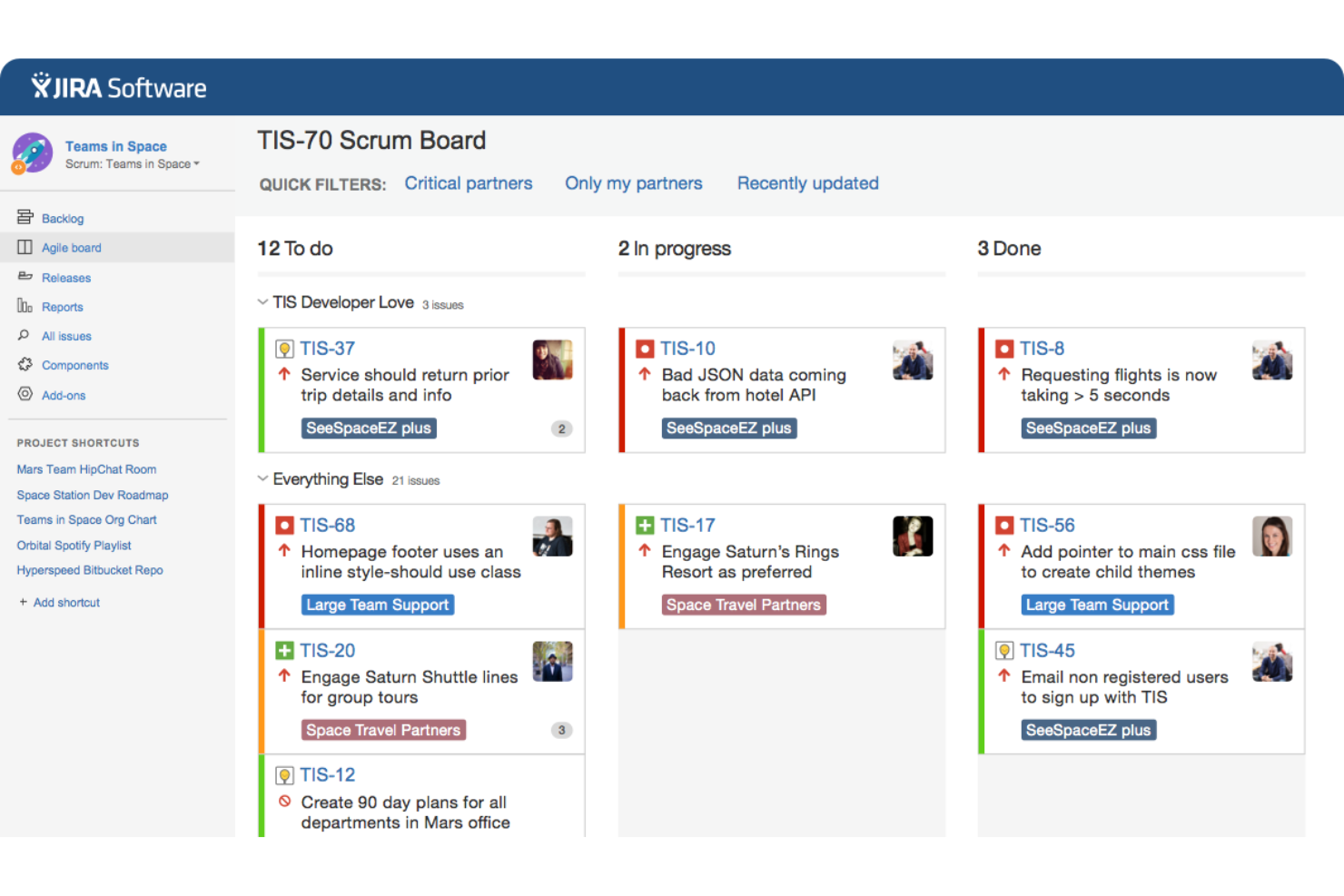
Jira è una piattaforma di gestione progetti e collaborazione progettata per i team che necessitano di un tracciamento avanzato delle problematiche, flussi di lavoro personalizzabili e funzionalità di board agile.
Per chi è ideale Jira?
Jira è particolarmente indicato per i team di sviluppo software e prodotto che necessitano di un tracciamento strutturato delle problematiche e di una gestione agile del progetto su più flussi di lavoro.
Perché ho scelto Jira
Jira merita un posto nella mia shortlist per la sua efficacia nel gestire il tracciamento multilivello dei progetti tra diversi team. Apprezzo in particolare la funzione di mappatura delle dipendenze, che permette al mio team di collegare il lavoro di ingegneria, prodotto e design, così da non far sfuggire nulla durante un grande lancio. La vista timeline mi dà un aggiornamento in tempo reale su ogni flusso di lavoro, e posso passare facilmente dalla visualizzazione a board, lista o calendario a seconda delle necessità. I flussi di lavoro personalizzati e i controlli granulari sui permessi mi consentono anche di configurare Jira in base alle reali esigenze operative del mio team, e non viceversa.
Funzionalità principali di Jira
- Board agile: Gestisci sprint Scrum o Kanban board per visualizzare il lavoro in corso e controllare la capacità del team sui flussi di lavoro attivi.
- Moduli di raccolta richieste: Consenti ai team partner di inviare richieste direttamente nei progetti Jira, mantenendo tutto il lavoro in arrivo in un'unica posizione tracciabile.
- Regole di automazione: Imposta regole basate su trigger che aggiornano automaticamente lo stato dei ticket, inviano promemoria o riassegnano attività senza intervento manuale.
- Dashboard di reportistica: Accedi a report integrati come burn-down chart e metriche di tempo di ciclo per monitorare le prestazioni del team e il ritmo di consegna.
Integrazioni di Jira
Jira offre integrazioni native con Confluence, Bitbucket, Trello, Slack, GitHub, Microsoft Teams, Google Drive, Dropbox, Zendesk e Salesforce. È disponibile un'API per integrazioni personalizzate.
Cosa è gratuito?
È disponibile una prova gratuita per la Dashboard di Gestione Prodotto di Jira, ma sul sito non sono specificati limiti utenti o restrizioni funzionali.
Pros and Cons
Pros:
- Flussi di lavoro personalizzabili
- Insight sui dati in tempo reale
- Suggerimenti delle attività guidati dall'AI
Cons:
- Processo di configurazione complesso
- Richiede curva di apprendimento

Miro
Ideale per collaborazione visiva e brainstorming
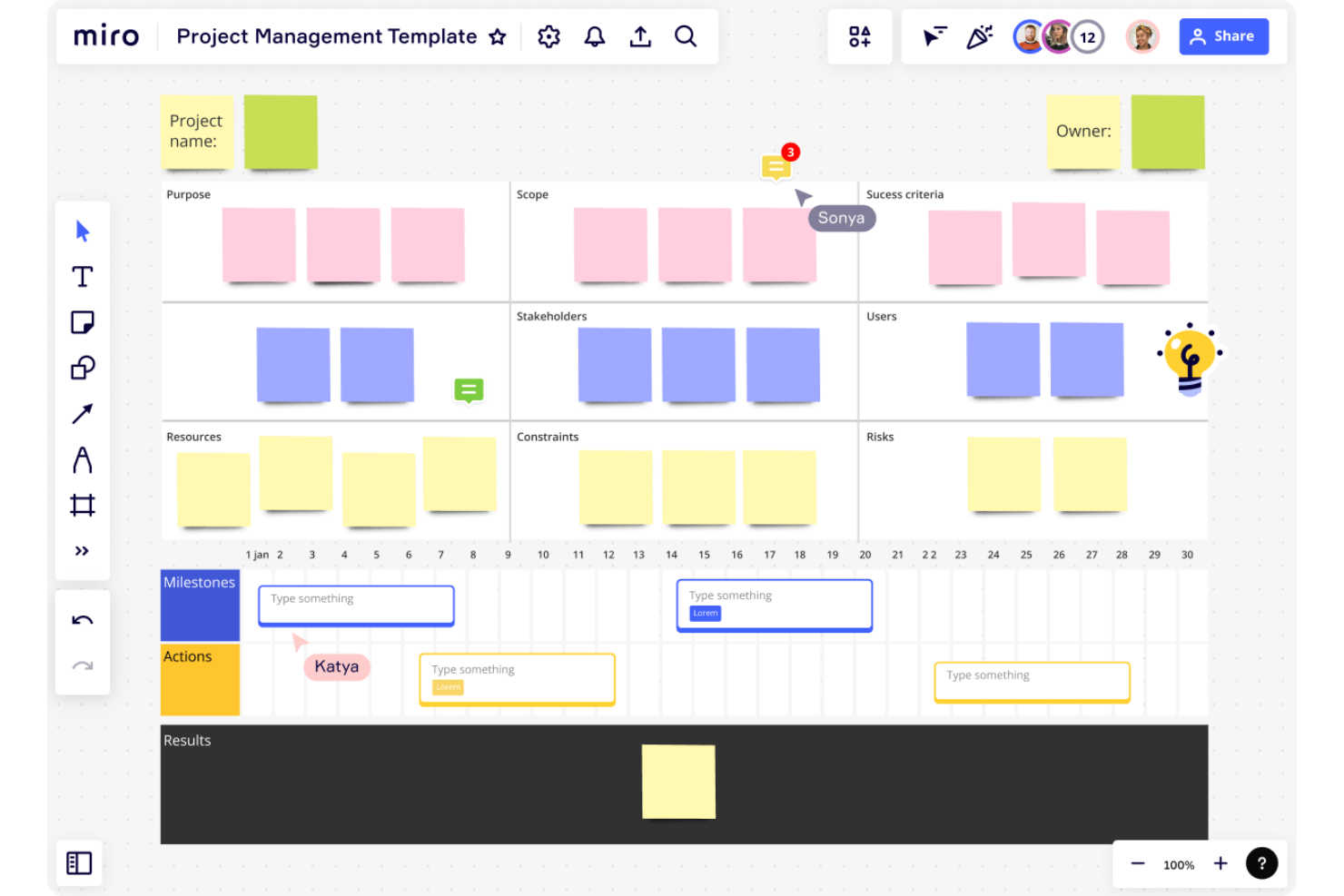
Miro è una piattaforma di lavagna collaborativa online che consente ai team di creare, condividere e organizzare bacheche visive per brainstorming, pianificazione e collaborazione su progetti.
Per chi è ideale Miro?
Miro è una buona soluzione per team trasversali in ambito prodotto, design ed engineering che necessitano di uno spazio visivo condiviso per pianificazione e ideazione.
Perché ho scelto Miro
Miro è una delle mie scelte preferite perché adoro come la sua tela infinita e collaborativa trasformi un brainstorming in qualcosa di veramente realizzabile. Il mio team usa Miro per organizzare sessioni di ideazione live dove tutti aggiungono sticky note contemporaneamente e la funzione di raggruppamento automatico con IA classifica subito le note per tema o sentimento. Questo da solo dimezza il tempo che normalmente dedicheremmo a riordinare manualmente le idee. Inoltre, mi affido a Talktrack per registrare walkthrough asincroni delle nostre bacheche, così i colleghi in diversi fusi orari possono esaminare le decisioni e lasciare commenti direttamente sulla tela senza aspettare una riunione.
Caratteristiche principali di Miro
- Libreria di template: Accedi a oltre 7.000 modelli predefiniti e personalizzabili per casi d’uso come journey mapping, pianificazione Agile e wireframing.
- Votazione: Realizza sondaggi in tempo reale e sessioni di dot-voting direttamente sulla lavagna per raccogliere opinioni del team e dare priorità alle idee.
- Modalità presentazione: Presenta i contenuti della lavagna in un formato strutturato, slide per slide, mantenendo sempre accesso completo alla tela per modifiche ed eventuali commenti live.
- Strumenti di facilitazione: Utilizza timer integrati, reazioni e controlli di facilitazione per condurre sessioni strutturate e interattive con il team.
Integrazioni di Miro
Miro offre integrazioni native con Slack, Microsoft Teams, Google Drive, Jira, Asana, Trello, Zoom, Confluence, Dropbox e Box. Si collega anche con Zapier e mette a disposizione un’API per integrazioni personalizzate.
Cosa è gratuito?
Miro propone un piano gratuito per sempre che permette membri illimitati nel team ma consente di modificare solo 3 bacheche. Alcune funzionalità avanzate e integrazioni sono disponibili esclusivamente nei piani a pagamento.
Pros and Cons
Pros:
- Strumenti potenziati da IA
- Vasta libreria di template
- Collaborazione in tempo reale
Cons:
- Analisi avanzate limitate
- Rallentamenti occasionali con bacheche di grandi dimensioni
New Product Updates from Miro
Miro Adds Japan Data Residency for Enterprise Customers
Miro has introduced Japan data residency for enterprise customers, offering in-region storage for production data, backups, and metadata, plus in-region compute infrastructure. For more information, visit Miro's official site.

Slack
Ideale per la comunicazione di team
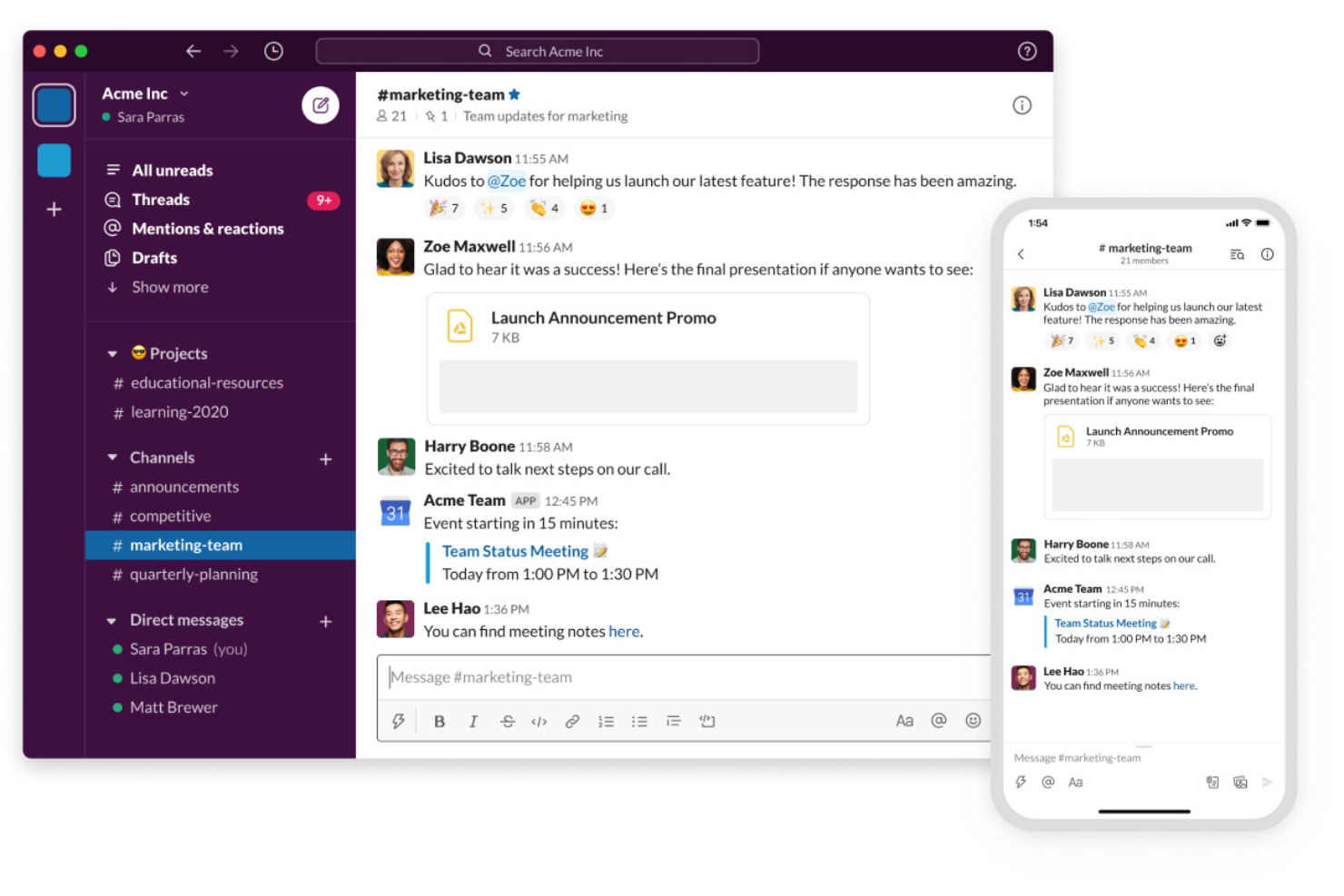
Slack è una piattaforma di collaborazione per team che riunisce messaggistica in tempo reale, canali organizzati, condivisione di file e integrazioni con altri strumenti di lavoro.
Per Chi È Ideale Slack?
Slack è particolarmente indicato per team tecnologici e digitali di qualsiasi dimensione che necessitano di uno spazio dedicato alla comunicazione in tempo reale attraverso vari progetti e reparti.
Perché Ho Scelto Slack
Slack è nella mia lista ristretta perché la sua struttura basata sui canali gestisce la comunicazione del team su larga scala. Utilizzo i canali per separare le conversazioni per progetto, team e argomento, così nulla si perde in una casella di posta condivisa o in un lungo thread di email. La funzione Huddles di Slack permette al mio team di avviare rapidamente una chiamata audio o video direttamente da qualsiasi canale senza dover programmare una riunione. Slack Connect coinvolge partner e clienti esterni in canali condivisi, mantenendo le comunicazioni tra organizzazioni nello stesso posto invece che passando da email a chat.
Caratteristiche Principali di Slack
- Conversazioni a thread: Rispondi direttamente a specifici messaggi in un thread per mantenere le conversazioni organizzate senza sovraccaricare il canale principale.
- Workflow Builder: Crea flussi di lavoro automatizzati per compiti di routine come richieste di onboarding o aggiornamenti di stato, senza dover scrivere codice.
- Canvas: Crea e condividi documenti ricchi, note e dossier di progetto direttamente all'interno di un canale Slack, rendendoli facilmente accessibili al team.
- Ricerca e cronologia dei messaggi: Cerca tra tutti i messaggi, file e canali per trovare rapidamente conversazioni passate e documenti condivisi.
Integrazioni di Slack
Slack offre oltre 2.400 integrazioni native tramite la sua App Directory, tra cui Google Workspace, Microsoft Office, Zoom, Salesforce, GitHub, Dropbox, HubSpot, Webex Meetings, Adobe Creative Cloud e Microsoft Teams. Si collega con Zapier e offre un'API per integrazioni personalizzate.
Cosa È Gratuito?
Slack propone un piano gratuito illimitato per numero di utenti, ma limita l'accesso ai soli ultimi 90 giorni di cronologia messaggi e restringe alcune funzionalità e integrazioni avanzate.
Pros and Cons
Pros:
- Canali di comunicazione organizzati
- Notifiche personalizzabili
- Interfaccia dell'app mobile intuitiva
Cons:
- Funzionalità di videoconferenza limitate
- Può essere travolgente per nuovi utenti
Altri strumenti gratuiti per la collaborazione
Di seguito trovi un elenco di ulteriori strumenti gratuiti per la collaborazione che ho selezionato. Sebbene non siano rientrati tra i primi 10, sono comunque validi e meritano ulteriori approfondimenti.
- Hive
Ideale per la gestione di progetti orientata al team
- Excel
Ideale per l'analisi dei dati e i fogli di calcolo
- same-page.com
Ideale per la collaborazione in tempo reale del team


Recensioni correlate dei software di gestione dei progetti
Se non hai ancora trovato quello che cerchi qui, dai un'occhiata a questi altri strumenti correlati che abbiamo testato e valutato:
- Software di gestione dei progetti
- Software di gestione delle risorse
- Software di automazione dei flussi di lavoro
- Software per il monitoraggio del tempo
- Software di gestione delle attività
- Strumenti di collaborazione video
- Creatore di diagrammi di Gantt
- Strumenti per la produttività
- Software per il monitoraggio dei progetti
- Software per la pianificazione dei progetti
- Strumenti di collaborazione asincrona
Come Valuto Gli Strumenti di Collaborazione Gratuiti
Divido la mia valutazione in due livelli: i criteri di base che uno strumento deve soddisfare—come la vera collaborazione multiutente su un piano gratuito—e i fattori che distinguono i migliori dagli altri.
Funzionalità Fondamentali (Requisiti Minimi per Questa Lista)
Quando seleziono gli strumenti per la mia lista, valuto ciascuno su una scala da 0 (non offre la funzionalità) a 5 (eccelle in quest'area) per ciascuna delle funzionalità fondamentali elencate di seguito. Poi calcolo il punteggio totale dello strumento in percentuale. Ogni strumento deve raggiungere un punteggio totale minimo del 65% per essere preso in considerazione.
- Piano Gratuito Reale: Verifico se lo strumento offre un piano gratuito permanente e non solo una prova temporanea, poiché i team hanno bisogno di accesso a lungo termine per pianificare sprint, gestire backlog e portare avanti progetti continuativi.
- Spazi di Lavoro Condivisi: Ogni strumento dovrebbe permettere a più persone di lavorare all'interno dello stesso spazio di progetto, che si tratti di una bacheca Kanban su Trello, uno spazio su ClickUp o un canale su Slack.
- Monitoraggio di Attività e Progetti: Cerco la possibilità di creare, assegnare e monitorare attività con date di scadenza e stati, la struttura necessaria per mantenere una pubblicazione di prodotto o una consegna cliente in programma.
- Comunicazione in Tempo Reale: Funzionalità integrate come commenti, discussioni nidificate o chat sono importanti perché le conversazioni ricche di contesto collegate alle attività riducono la confusione delle email sparse.
- Condivisione e Archiviazione di File: I team condividono costantemente bozze di design, specifiche e documenti, quindi valuto se il piano gratuito supporta il caricamento, l'anteprima e l'organizzazione dei file all'interno degli spazi di progetto.
- Collaborazione Multiutente: Uno strumento di collaborazione gratuito deve supportare più di una persona, quindi verifico quanti membri del team è possibile invitare prima di incontrare un limite a pagamento.
Una volta che ho una lista di strumenti che rispondono a questi criteri, considero cosa distingue ogni piattaforma.
Fattori di Differenziazione (Cosa Distingue i Fornitori)
Ecco come confronto i diversi fornitori:
Funzionalità Distintive
L'accesso per ospiti e clienti è un grande elemento di differenziazione per me. I project manager di agenzia e i liberi professionisti hanno spesso bisogno di coinvolgere stakeholder esterni senza dover pagare posti aggiuntivi. Valuto anche se uno strumento offre più visualizzazioni di progetto: passare da una bacheca Kanban durante i meeting quotidiani a una vista a timeline per aggiornamenti alla direzione fa davvero la differenza nel modo in cui i team fruiscono le informazioni. Anche l'automazione nel piano gratuito è un fattore in più che considero, come l'assegnazione automatica di attività al cambiare dello stato o l'invio di promemoria per le scadenze in strumenti come Asana o ClickUp.
Oltre le Funzionalità
Le integrazioni contano molto quando si parla di piani gratuiti. Verifico se uno strumento si connette alle app su cui i team già fanno affidamento—come Slack, Google Workspace o GitHub—senza richiedere un upgrade. Anche la scalabilità del piano gratuito è un aspetto chiave; valuto quanto siano vincolanti i limiti per utenti, progetti e archiviazione man mano che un team cresce da cinque a quindici persone. La sicurezza merita attenzione anch'essa, perché anche gli utenti free-tier dovrebbero avere accesso all'autenticazione a due fattori e alla crittografia dei dati per mantenere i dati dei progetti protetti.
Come scegliere gli strumenti gratuiti per la collaborazione
Mentre porti avanti il processo di selezione del software più adatto alle tue esigenze specifiche, tieni presenti i seguenti punti:
- Facilità d'uso: Lo strumento dovrebbe essere intuitivo e facile da usare per garantirne una rapida adozione da parte della squadra. Uno strumento eccessivamente complesso può rallentare la produttività e scoraggiare i membri della squadra dall'utilizzarlo.
- Funzionalità di integrazione: Assicurati che lo strumento sia integrabile con l'insieme di tecnologie già in uso dalla squadra. Questo può semplificare i flussi di lavoro e ridurre la necessità di passare da un'applicazione all'altra. Ad esempio, se la tua squadra utilizza Google Drive per l'archiviazione dei file, scegliere uno strumento di collaborazione integrabile con Google Drive farà risparmiare tempo e migliorerà l'efficienza.
- Opzioni di personalizzazione: Squadre diverse hanno flussi di lavoro e preferenze diverse, e una soluzione personalizzabile si adatta ai vari stili di lavoro per migliorare la produttività. Ad esempio, uno strumento che consente di personalizzare i pannelli di controllo e automatizzare i flussi di lavoro risponderà alle esigenze specifiche di ciascun membro della squadra.
- Funzionalità di sicurezza: Proteggere le informazioni sensibili è fondamentale. Lo strumento dovrebbe disporre di solide misure di sicurezza per salvaguardare i dati degli utenti. Ad esempio, se la tua squadra gestisce informazioni riservate sui clienti, scegliere uno strumento dotato di crittografia avanzata e conforme alle normative sulla protezione dei dati contribuirà a prevenire le violazioni dei dati.
- Costo e budget: Sebbene tutti gli strumenti elencati qui offrano opzioni gratuite, considera i potenziali costi associati alle funzionalità premium o all'espansione del servizio con la crescita della squadra. Una versione gratuita potrebbe essere sufficiente per una squadra di piccole dimensioni, ma potresti dover passare a un piano a pagamento per ottenere funzionalità aggiuntive man mano che la squadra cresce.
Tendenze degli strumenti di collaborazione gratuiti
Ecco alcune tendenze che ho notato tra i migliori strumenti di collaborazione online e ciò che potrebbero significare per il futuro. Ho analizzato innumerevoli aggiornamenti dei prodotti, comunicati stampa e registri delle versioni per individuare gli aspetti più importanti.
- Funzionalità basate sull'IA: L'IA viene integrata negli strumenti di collaborazione per automatizzare le attività. Questo riduce il lavoro manuale e aumenta l'efficienza, un aspetto essenziale perché consente alle squadre di concentrarsi su attività più strategiche.
- Integrazione multipiattaforma: Gli strumenti di collaborazione sono sempre più compatibili con diverse piattaforme, garantendo un flusso di lavoro uniforme su dispositivi differenti. Le squadre devono utilizzare tecnologie diverse.
- Maggiore sicurezza: Gli strumenti gratuiti offrono funzionalità di sicurezza migliori, tra cui crittografia e autenticazione a più fattori. Proteggere le informazioni sensibili è essenziale.
- Flussi di lavoro personalizzabili: Ora gli utenti possono adattare i flussi di lavoro alle proprie esigenze specifiche. Questa flessibilità migliora la produttività e la soddisfazione degli utenti. È interessante perché consente una gestione personalizzata dei progetti.
Cosa sono gli strumenti di collaborazione gratuiti?
Gli strumenti di collaborazione gratuiti sono applicazioni software che consentono a singoli utenti e squadre di lavorare insieme ai progetti senza costi. Questi strumenti sono comunemente utilizzati da squadre che lavorano da remoto, liberi professionisti e piccole imprese per condividere file, comunicare e gestire le attività. Gli utenti hanno bisogno di questi strumenti per coordinare gli sforzi, condividere informazioni e assicurarsi che tutti siano allineati sugli obiettivi del progetto.
Gli strumenti di collaborazione gratuiti possono includere la condivisione di file, la collaborazione visiva, la messaggistica in tempo reale, la gestione delle attività e le videoconferenze. Queste funzionalità consentono alle squadre di comunicare in modo efficace, monitorare i progressi e collaborare a documenti e attività su una piattaforma centralizzata.
Funzionalità degli strumenti di collaborazione gratuiti
Scegliere lo strumento di collaborazione giusto è essenziale per migliorare il lavoro di squadra virtuale e in presenza e mantenere allineati i membri della squadra. Quando selezioni uno strumento di collaborazione gratuito, considera diverse funzionalità fondamentali che possono incidere significativamente sul successo dell'azienda, come:
- Comunicazione unificata: questa funzionalità riunisce email, chat, documenti ed eventi del calendario in un'unica piattaforma. Elimina la necessità di passare da un'applicazione all'altra, consentendo di accedere facilmente a tutte le informazioni e comunicazioni pertinenti da un hub centralizzato.
- Collaborazione in tempo reale: questa funzionalità consente ai membri del team di condividere aggiornamenti e fornire feedback immediati. Promuove un ambiente dinamico e interattivo che supera i confini geografici, migliorando la produttività e l'allineamento del team.
- Integrazione del calendario: collega gli eventi del calendario a contesti di comunicazione più ampi. Questa funzionalità aiuta gli utenti a rimanere aggiornati sulle attività del team, monitorare le scadenze e pianificare riunioni con una comprensione completa delle discussioni e della documentazione pertinenti.
- Chiamate vocali e condivisione dello schermo: facilita interazioni coinvolgenti e faccia a faccia all'interno dei team distribuiti. In combinazione con la consapevolezza del contesto, queste funzionalità migliorano la qualità delle discussioni del team e dei processi decisionali.
- Sicurezza e privacy: implementa solide misure di sicurezza per proteggere i dati sensibili e garantire la privacy. Funzionalità come la crittografia dei dati, i controlli di accesso sicuri e gli aggiornamenti periodici della sicurezza sono fondamentali per mantenere l'integrità e la riservatezza dei dati degli utenti.
- Integrazione con app di terze parti: migliora il software di collaborazione integrandosi con applicazioni popolari come strumenti di gestione dei progetti, piattaforme di archiviazione dei file e app per la produttività. Questa integrazione semplifica i flussi di lavoro e riunisce le attività di comunicazione all'interno di un'unica piattaforma.
- Personalizzazione e configurazione: questa funzionalità consente agli utenti di personalizzare la propria esperienza di collaborazione scegliendo temi, impostando preferenze e organizzando il proprio spazio di lavoro. Promuove la produttività offrendo un'esperienza utente personalizzata e piacevole.
- Interfaccia intuitiva: garantisce che la piattaforma sia facile da navigare e utilizzare. Un layout pulito e intuitivo riduce al minimo la curva di apprendimento, consentendo agli utenti di concentrarsi sul proprio lavoro invece di avere difficoltà con una navigazione complessa o layout confusionari.
- Indicatori di presenza e stato: questa funzionalità mostra la disponibilità e lo stato dei membri del team. Favorisce una comunicazione efficiente e tempestiva, consentendo agli utenti di vedere chi è online, occupato o assente e scegliere la modalità di interazione più appropriata.
- Aggiornamenti e commenti in tempo reale: questa funzionalità fornisce aggiornamenti e commenti in tempo reale per facilitare iterazioni e comunicazioni rapide. È essenziale per mantenere il flusso di informazioni e garantire che tutti i membri del team siano aggiornati.
Vantaggi degli strumenti di collaborazione gratuiti
Ecco cinque vantaggi principali dell'utilizzo di strumenti di collaborazione gratuiti:
- Risparmio di tempo e risorse: gli strumenti di collaborazione gratuiti semplificano la comunicazione e la gestione dei progetti, riducendo il tempo dedicato alle attività amministrative. Ciò consente ai dipendenti di concentrarsi su attività più importanti, aumentando la produttività complessiva.
- Aumento della produttività: automatizzando le attività di routine e semplificando i flussi di lavoro, gli strumenti di collaborazione consentono ai team di ottenere risultati migliori in meno tempo. Questo porta a una maggiore efficienza e consente ai dipendenti di concentrarsi sulle iniziative strategiche.
- Miglioramento della comunicazione: questi strumenti facilitano la comunicazione e la condivisione delle informazioni in tempo reale, garantendo che tutti i membri del team siano aggiornati. Ciò è particolarmente vantaggioso per i team da remoto o ibridi, poiché riduce al minimo il rischio di incomprensioni e garantisce che gli aggiornamenti importanti non vengano trascurati.
- Miglioramento della collaborazione da remoto: gli strumenti di collaborazione gratuiti facilitano il lavoro di squadra tra persone che si trovano in luoghi diversi. Offrono una piattaforma centralizzata per la condivisione dei documenti, il monitoraggio dei progetti e la comunicazione, elementi essenziali per mantenere la produttività in un ambiente di lavoro da remoto.
- Aumento del morale del team: quando i dipendenti dispongono degli strumenti per lavorare in modo efficiente ed efficace, ciò può portare a una maggiore soddisfazione e a un morale più alto. Gli strumenti di collaborazione facilitano inoltre il riconoscimento e l'apprezzamento dei contributi reciproci da parte dei membri del team, promuovendo un ambiente di lavoro positivo.
Costi e prezzi degli strumenti di collaborazione
La scelta degli strumenti di collaborazione richiede una comprensione dei vari modelli e piani tariffari disponibili. Sebbene tutti gli strumenti descritti sopra offrano una versione gratuita o una prova, dispongono anche di piani a pagamento con funzionalità aggiuntive. La tabella seguente riassume i piani più comuni, i relativi prezzi medi e le funzionalità tipiche.
Tabella di confronto dei piani degli strumenti di collaborazione
| Tipo di piano | Prezzo medio | Funzionalità comuni |
| Piano gratuito | $0 | Gestione di base delle attività, spazio di archiviazione limitato, integrazioni di base, accesso limitato degli utenti |
| Piano personale | $5-$10/mese | Gestione avanzata delle attività, maggiore spazio di archiviazione, integrazioni avanzate, accesso per più utenti |
| Piano aziendale | $10-$20/mese | Gestione avanzata dei progetti, ampio spazio di archiviazione, integrazioni premium, strumenti per la collaborazione del team |
| Piano aziendale avanzato | $20+/mese | Funzionalità personalizzabili, spazio di archiviazione illimitato, integrazioni a livello aziendale, funzionalità avanzate di sicurezza e conformità |
Domande frequenti sugli strumenti gratuiti per la collaborazione
Ecco alcune domande frequenti sugli strumenti gratuiti per la collaborazione.
Come scelgo il miglior strumento gratuito per la collaborazione per il mio team?
La scelta del miglior strumento gratuito per la collaborazione per il tuo team richiede la valutazione delle tue esigenze specifiche e il confronto con le funzionalità offerte dai vari strumenti. Considera fattori come le dimensioni del team, la natura dei progetti e il livello di integrazione richiesto con altri software. Cerca strumenti che offrano solide funzionalità di comunicazione, capacità di gestione delle attività e opzioni per la condivisione dei file. Inoltre, leggi le recensioni degli utenti e i casi di studio per capire in che modo altri team hanno tratto vantaggio dagli strumenti che stai prendendo in considerazione.
Ci sono limitazioni nell'utilizzo degli strumenti gratuiti per la collaborazione?
Sì, gli strumenti gratuiti per la collaborazione presentano spesso limitazioni rispetto alle controparti a pagamento. Queste limitazioni includono spazio di archiviazione ridotto, un numero limitato di utenti, meno integrazioni e un’assistenza clienti più limitata. Alcuni strumenti possono anche limitare il numero di progetti o attività che puoi creare. È essenziale esaminare i termini e le condizioni della versione gratuita per assicurarti che soddisfi le esigenze del tuo team senza causare interruzioni.
Gli strumenti gratuiti per la collaborazione possono integrarsi con altri software?
Molti strumenti gratuiti per la collaborazione offrono integrazioni con altri software diffusi, anche se l’estensione di queste integrazioni può variare. Le integrazioni standard includono piattaforme email, servizi di archiviazione cloud, strumenti di gestione dei progetti e app di comunicazione. Controlla le funzionalità di integrazione dello strumento sul relativo sito web o all’interno dell’app per assicurarti che possa connettersi regolarmente agli altri software utilizzati dal tuo team.
Quanto sono sicuri gli strumenti gratuiti per la collaborazione?
Il livello di sicurezza degli strumenti gratuiti per la collaborazione può variare notevolmente. Gli strumenti affidabili offrono in genere funzionalità di sicurezza di base, come la crittografia dei dati, protocolli di accesso sicuri e aggiornamenti regolari per proteggere dalle vulnerabilità. Tuttavia, potrebbero non offrire lo stesso livello di sicurezza delle versioni a pagamento, che spesso includono funzionalità avanzate come l’autenticazione a due fattori, certificazioni di conformità e assistenza di sicurezza dedicata. Esamina sempre le politiche di sicurezza dello strumento e valuta se soddisfa i requisiti di sicurezza della tua organizzazione.
Quali sono alcune difficoltà comuni nell'utilizzo degli strumenti gratuiti per la collaborazione?
Tra le difficoltà comuni nell’utilizzo degli strumenti gratuiti per la collaborazione figurano funzionalità limitate, restrizioni sugli utenti e potenziali problemi di sicurezza dei dati. I team possono inoltre incontrare difficoltà di scalabilità con la crescita delle proprie esigenze, rendendo necessario il passaggio a un piano a pagamento o a uno strumento completamente diverso. Inoltre, gli strumenti gratuiti possono offrire un’assistenza clienti meno affidabile, il che può essere problematico in caso di problemi tecnici.
Posso migrare i dati da uno strumento gratuito per la collaborazione a una versione a pagamento o a un altro strumento?
La maggior parte degli strumenti gratuiti per la collaborazione offre opzioni di migrazione dei dati senza problemi alle versioni a pagamento. Tuttavia, la migrazione dei dati a uno strumento diverso può essere più complessa e potrebbe richiedere l’esportazione dei dati in formati specifici o l’utilizzo di servizi di migrazione di terze parti. È consigliabile consultare la documentazione dello strumento o le risorse di assistenza per istruzioni dettagliate sulla migrazione dei dati.
In che modo gli strumenti gratuiti per la collaborazione gestiscono le autorizzazioni e i ruoli degli utenti?
Gli strumenti gratuiti per la collaborazione offrono in genere funzionalità essenziali per la gestione delle autorizzazioni e dei ruoli degli utenti. Queste possono includere l’assegnazione dei ruoli di amministratore, editor e visualizzatore, nonché l’impostazione delle autorizzazioni per l’accesso a progetti o file specifici. Tuttavia, il livello di dettaglio di queste autorizzazioni può essere limitato rispetto alle versioni a pagamento. Assicurati che lo strumento scelto ti consenta di gestire efficacemente i ruoli degli utenti per mantenere il controllo sull’ambiente di collaborazione del tuo team.