

10 Best Project Expense Tracker Tools for 2026

Best Project Expense Tracker Shortlist


A project expense tracker is a tool that helps your team record, categorize, and monitor project-related spending in real time. If you’re searching for the best project expense tracker, you’re likely looking to keep budgets under control, avoid surprise overruns, and give stakeholders clear visibility into where money goes.
With shifting requirements and distributed teams, tracking expenses accurately is essential for delivering projects on time and within scope. This list will help you compare leading options for 2026, so you can choose the right solution to manage costs, support compliance, and keep your projects financially on track.
Why Trust Our Software Recommendations
Our team has been testing and reviewing software since 2012. As project managers ourselves, we know how difficult—and important—it is to choose the right software.
For this guide, we evaluated tools using hands-on testing and independent research, scoring tools using our selection criteria. We also draw on insights from industry thought leaders and practicing project management experts.
Our reviews reflect our human editorial judgment, not a sales pitch.
Expert reviewers:
Project Expense Tracker Comparison Table
This comparison table summarizes pricing details for my top project expense tracker selections
| Tool | Best For | Trial Info | Price | ||
|---|---|---|---|---|---|
| 1 | Best for advanced scheduling controls | Free trial available | From $10/user/month (billed annually) | Website | |
| 2 | Best for invoicing alongside expenses | Free demo + 30-day free trial available | From $12/month (billed annually) | Website | |
| 3 | Best with integrated chat and docs | Free plan available | From $12/user/month (billed annually) | Website | |
| 4 | Best for automated receipt scanning | 14-day free trial | From $3/user/month (billed annually) | Website | |
| 5 | Best for global expense compliance | Free demo available | From $8/user/month (billed annually) | Website | |
| 6 | Best for mobile expense capture | Not available | From $5/user/month | Website | |
| 7 | Best for creative agency workflows | Free demo available | From $47/user/month | Website | |
| 8 | Best for time and cost allocation | Free demo available | Pricing upon request | Website | |
| 9 | Best for visual task prioritization | Free trial available | Pricing upon request | Website | |
| 10 | Best for spreadsheet-style tracking | 30-day free trial + free demo available | From $9/user/month (billed annually) | Website |

Best Project Expense Tracker Reviews
Below are my detailed summaries of the project expense tracker tools that made it onto my shortlist. My reviews offer a detailed look at the features, best use cases, and integrations of each tool to help you find the best one for your team.

Best for advanced scheduling controls
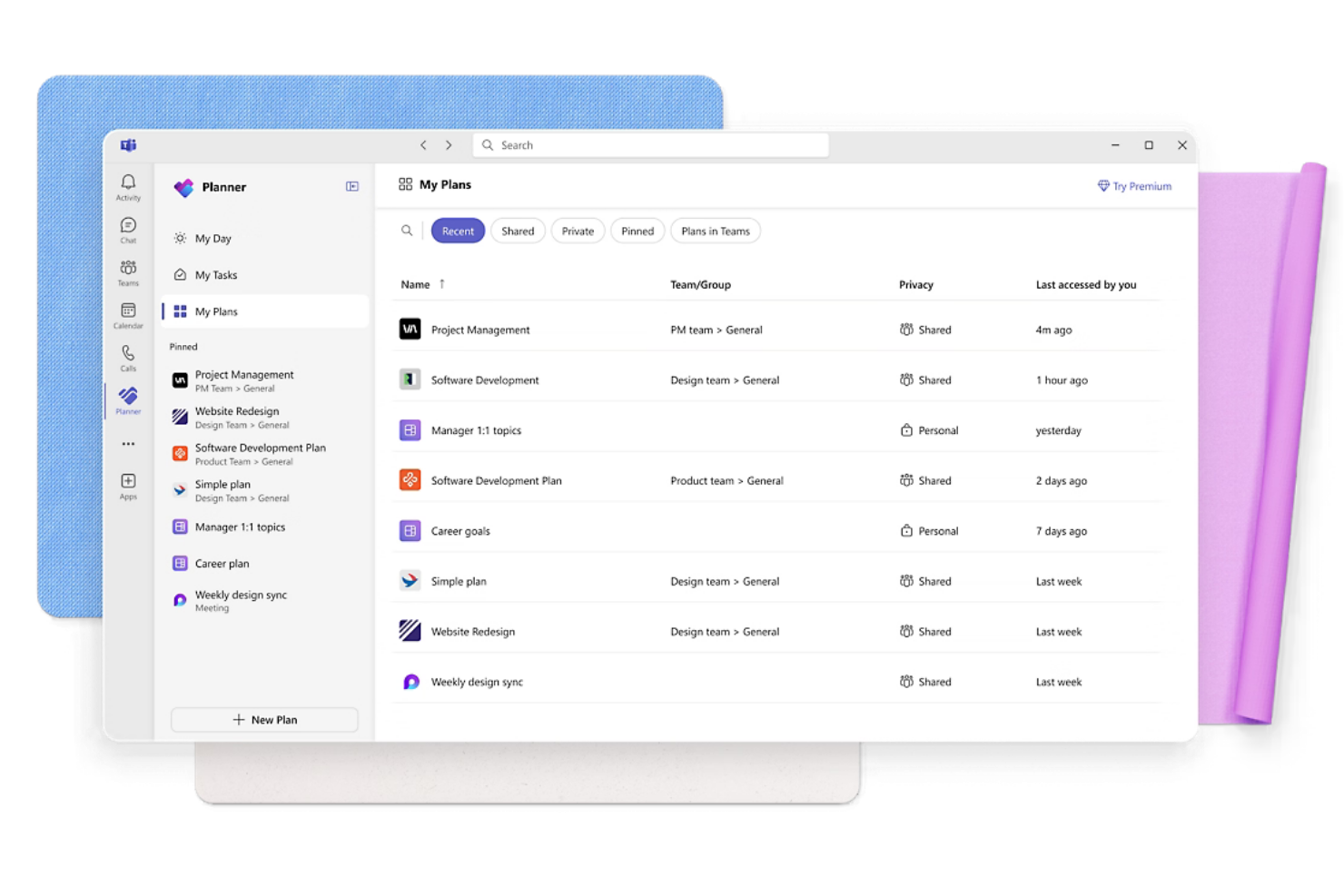
Microsoft Planner stands out for project planning experts who need precise control over budgets and timelines. It’s especially useful for teams in construction, engineering, or IT who require rigorous budget management for complex projects with layered costs. With its advanced scheduling and resource allocation tools, Microsoft Planner helps you track expenses at a granular level as projects evolve.
Why I Picked Microsoft Planner
For teams that need advanced scheduling controls, Microsoft Planner offers a level of detail that’s hard to match in project expense tracking. Its Gantt chart view lets you map out every task, milestone, and associated cost, so you can see exactly how expenses align with your project timeline. I appreciate how resource allocation tools allow you to assign costs to specific team members, equipment, or materials, making it easier to monitor spending as work progresses. These features make Microsoft Planner a strong choice for managing complex budgets and dependencies in large-scale projects.
Microsoft Planner Key Features
Some other features in Microsoft Planner help teams manage expenses with more control:
- Baseline Tracking: Compare planned spending against actual costs throughout the project lifecycle.
- Custom Reporting: Build tailored reports to analyze budget performance and cost trends.
- Cost Rate Tables: Set different pay rates for resources to reflect varying labor costs.
- Task Dependencies: Link tasks to visualize how changes in one area may impact overall project costs.
Microsoft Planner Integrations
Native integrations include Microsoft Teams, SharePoint, OneDrive, Outlook, Power BI, Microsoft Planner, Excel, Word, Dynamics 365, and more.
Pros and Cons
Pros:
- Handles multi-currency project budgets
- Links resource costs directly to tasks
- Supports custom cost fields for expenses
Cons:
- Limited integration with third-party finance tools
- No built-in expense approval workflow

Best for invoicing alongside expenses
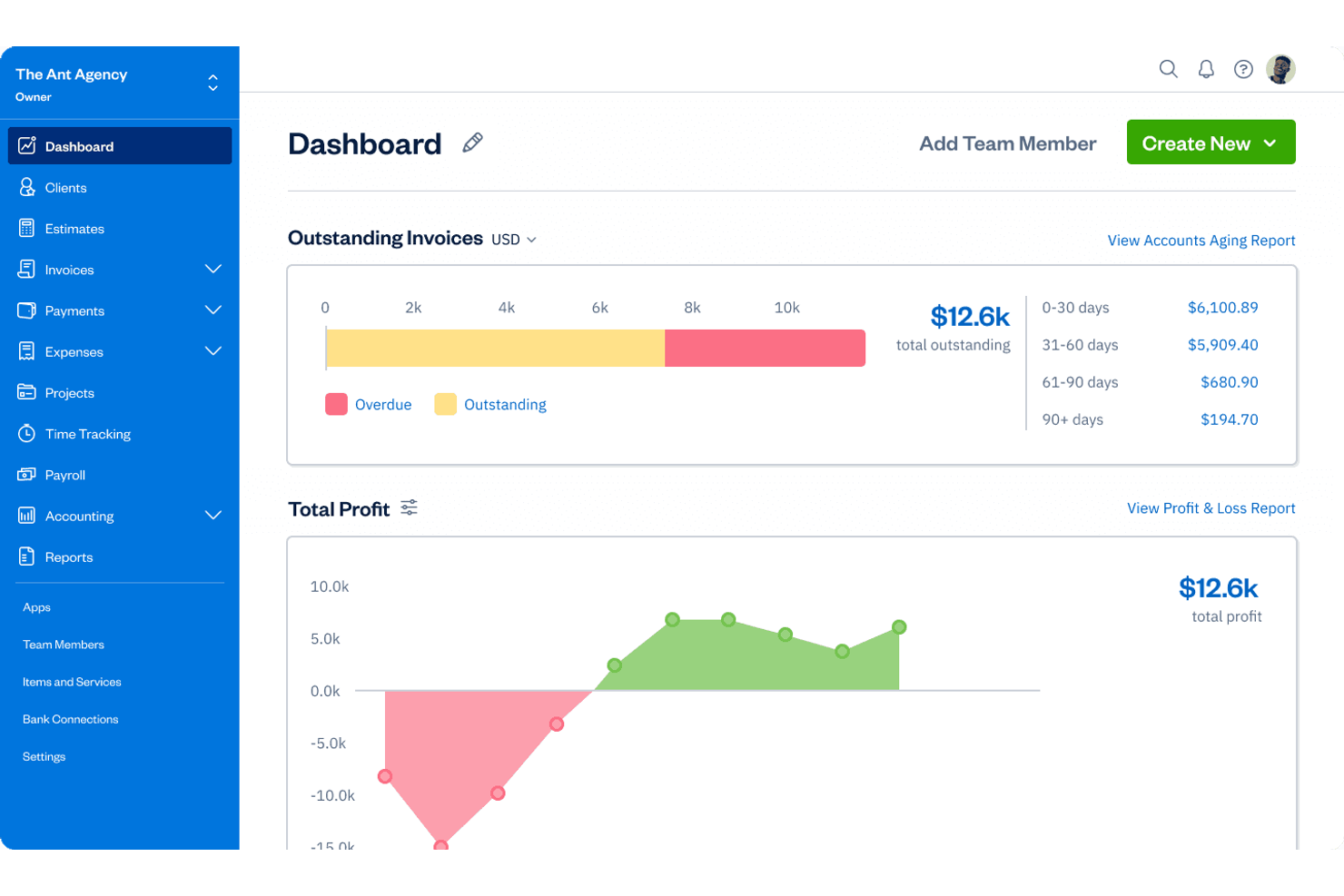
FreshBooks stands out for project managers and small business owners who need to track expenses and send invoices from the same platform. It’s especially useful for service-based teams that bill clients for project work and want to keep expenses and invoicing tightly connected. FreshBooks helps you manage project costs and client billing without switching between multiple tools.
Why I Picked FreshBooks
For project teams that need to manage both expenses and client billing, FreshBooks offers a unified approach that’s hard to find elsewhere. The platform lets you track project expenses and convert them directly into invoices, which is especially helpful for service-based businesses that bill clients for reimbursable costs. I like that you can assign expenses to specific projects and clients, making it easy to keep billing accurate and transparent. This tight connection between expense tracking and invoicing is what makes FreshBooks a strong fit for project expense management.
FreshBooks Key Features
Some other features in FreshBooks help project teams manage finances and reporting more thoroughly:
- Time Tracking: Log billable hours directly to projects for accurate invoicing.
- Bank Reconciliation: Connect bank accounts and credit cards to automatically import and match transactions.
- Team Collaboration: Invite team members to track time and expenses on shared projects.
- Financial Reporting: Generate detailed reports on project profitability, expenses, and revenue.
FreshBooks Integrations
Integrations include Gusto, Stripe, Shopify, Bench, HubSpot, Zapier, Trello, Mailchimp, and more.
Pros and Cons
Pros:
- Tracks billable and non-billable project costs
- Allows team members to log expenses
- Provides project profitability and expense reports
Cons:
- Mobile app expense tracking is basic
- Generic and basic expense categories

Lark
Best with integrated chat and docs
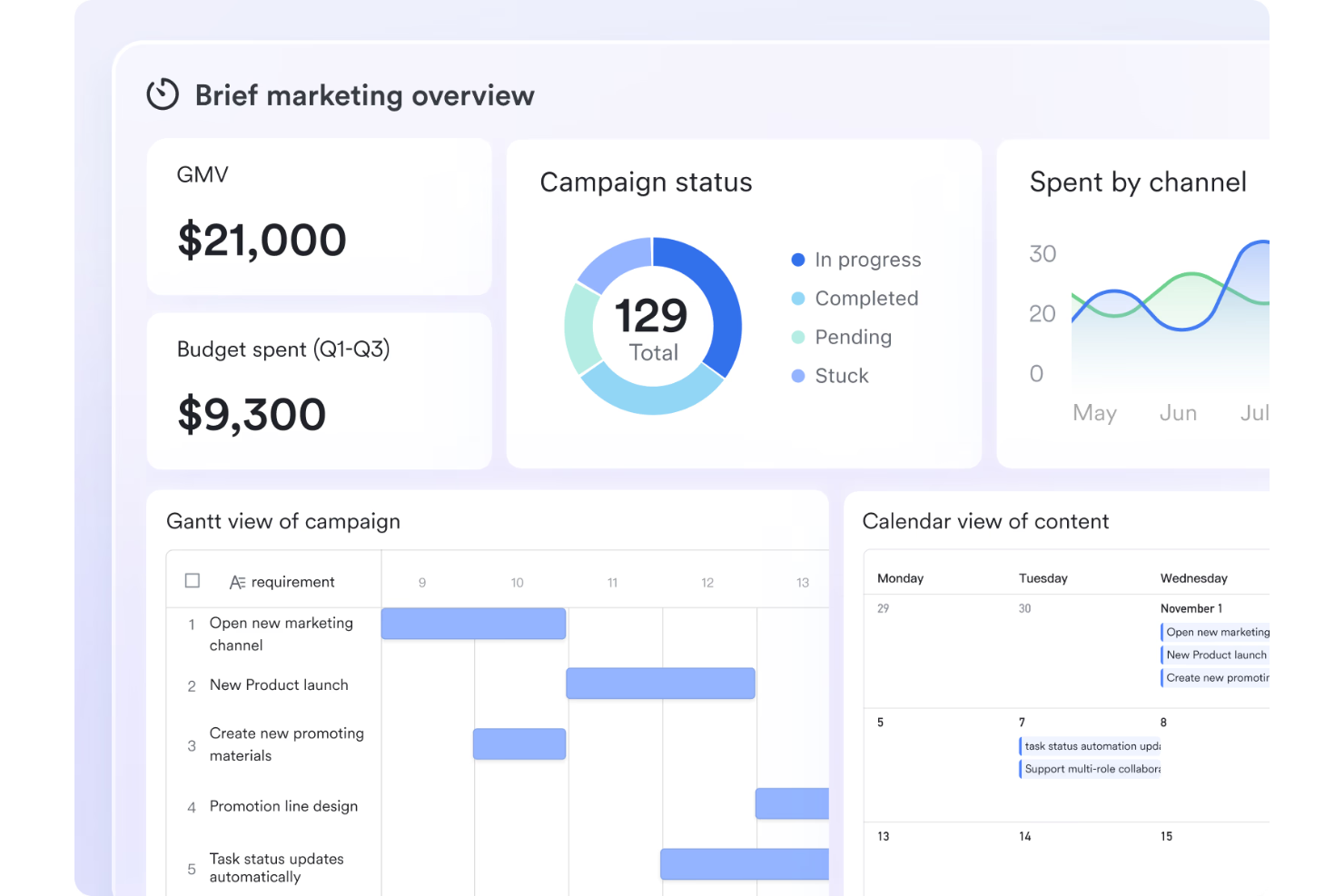
If your team needs to track project expenses while collaborating in real time, Lark brings chat, docs, and expense management together in one workspace. It’s a fit for distributed teams and project managers who want to keep expense discussions, approvals, and documentation tightly linked to project communication. Lark’s integrated approach helps you manage budgets and share updates without switching between multiple tools.
Why I Picked Lark
Lark stands out for project expense tracking because it combines chat, docs, and approval workflows in a single platform. You can discuss expenses directly in chat threads, attach receipts or budget files to shared docs, and route expense approvals without leaving the workspace. I like how this setup keeps all expense-related communication and documentation in context, reducing the risk of lost information. For teams that need integrated tracking tools to keep conversations and expense management connected, Lark is a strong fit.
Lark Key Features
Some other features in Lark help teams manage project expenses and collaboration more effectively:
- Customizable Forms: Build and share forms tailored to your project’s financial reporting needs.
- Automated Reminders: Set up reminders for expense deadlines or budget reviews within the workspace.
- Permission Controls: Manage who can view, edit, or approve expense documents and forms.
- Mobile App Access: Track and submit expenses from anywhere using Lark’s mobile app.
Lark Integrations
Integrations include Google Drive, Microsoft Teams, Zoom, Slack, Trello, Asana, Jira, GitHub, Salesforce, and more.
Pros and Cons
Pros:
- Permission controls for financial data access
- Document sharing for receipts and invoices
- In-chat expense approvals
Cons:
- Basic expense analytics dashboards
- Limited options for expense data export

Best for automated receipt scanning
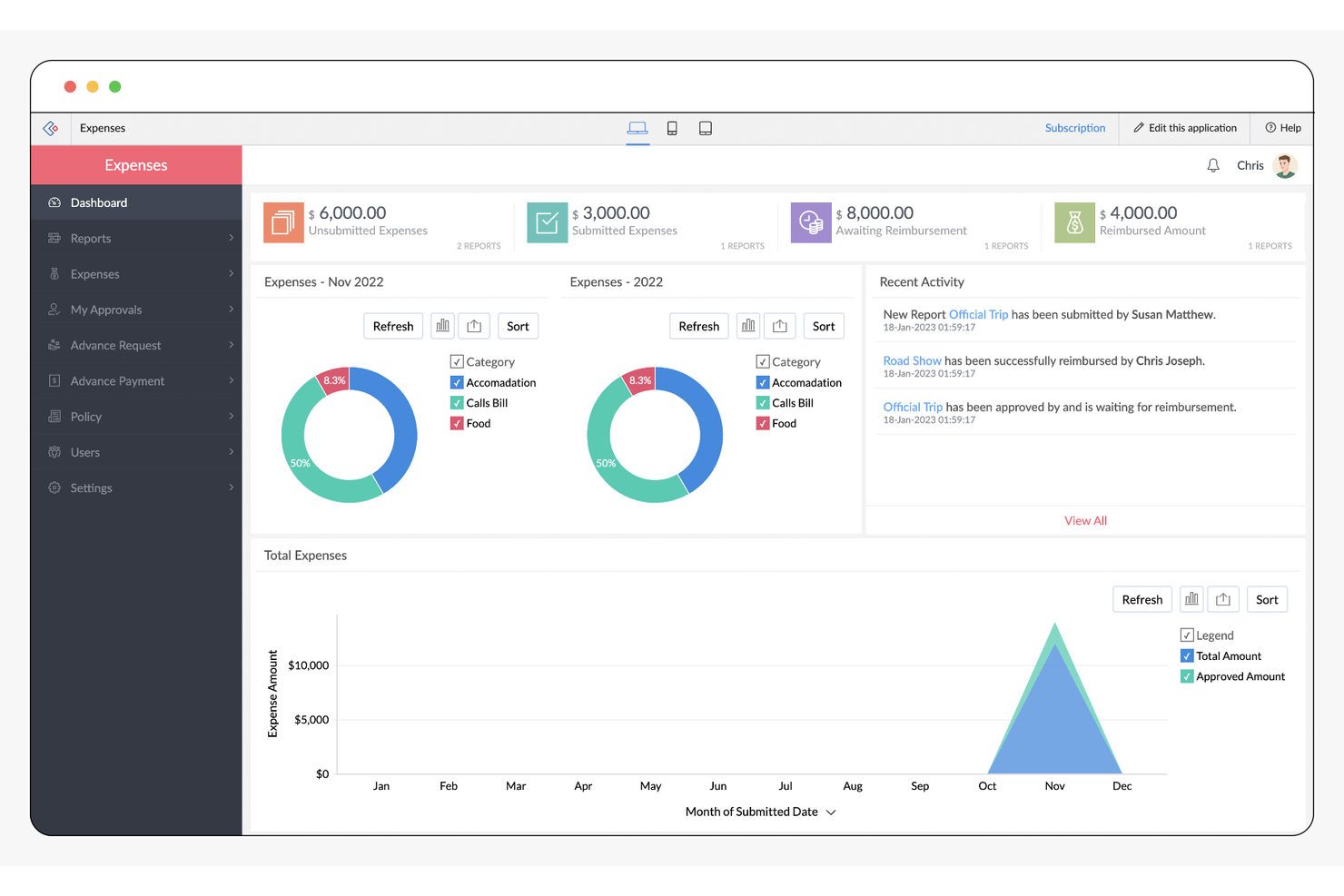
If your team needs to capture and track project expenses with minimal manual entry, Zoho Expense is built for automated receipt scanning and expense management. It’s especially useful for project managers and finance teams who handle frequent travel or vendor receipts. Zoho Expense helps you quickly turn receipts into categorized expenses, reducing errors and saving time on project cost tracking.
Why I Picked Zoho Expense
For project managers who want to eliminate manual data entry, Zoho Expense stands out with its automated receipt scanning capabilities. The tool uses OCR technology to extract details from uploaded receipts and instantly create expense entries, which helps reduce errors and speeds up expense reporting. I like that Zoho Expense also supports bulk receipt uploads, making it easier to handle multiple project expenses at once. If your projects involve frequent purchases or travel, this level of automation can make expense tracking much more efficient.
Zoho Expense Key Features
Some other features in Zoho Expense help project teams manage spending and compliance:
- Custom Approval Workflows: Set up multi-level approval processes for project expenses.
- Mileage Tracking: Log and calculate mileage expenses using GPS or manual entry.
- Corporate Card Reconciliation: Match card transactions with submitted expenses for accurate reporting.
- Per Diem Automation: Configure and apply per diem rates for travel-related project costs.
Zoho Expense Integrations
Integrations include Zoho Books, QuickBooks Online, Xero, Sage Accounting, Zoho Projects, Zoho People, Uber for Business, Lyft, Slack, and more.
Pros and Cons
Pros:
- Supports multi-level approval
- Supports bulk uploads for receipts
- Automated OCR scans receipts into expenses
Cons:
- Basic analytics for expense trends
- Project tagging requires manual entry

Rydoo
Best for global expense compliance
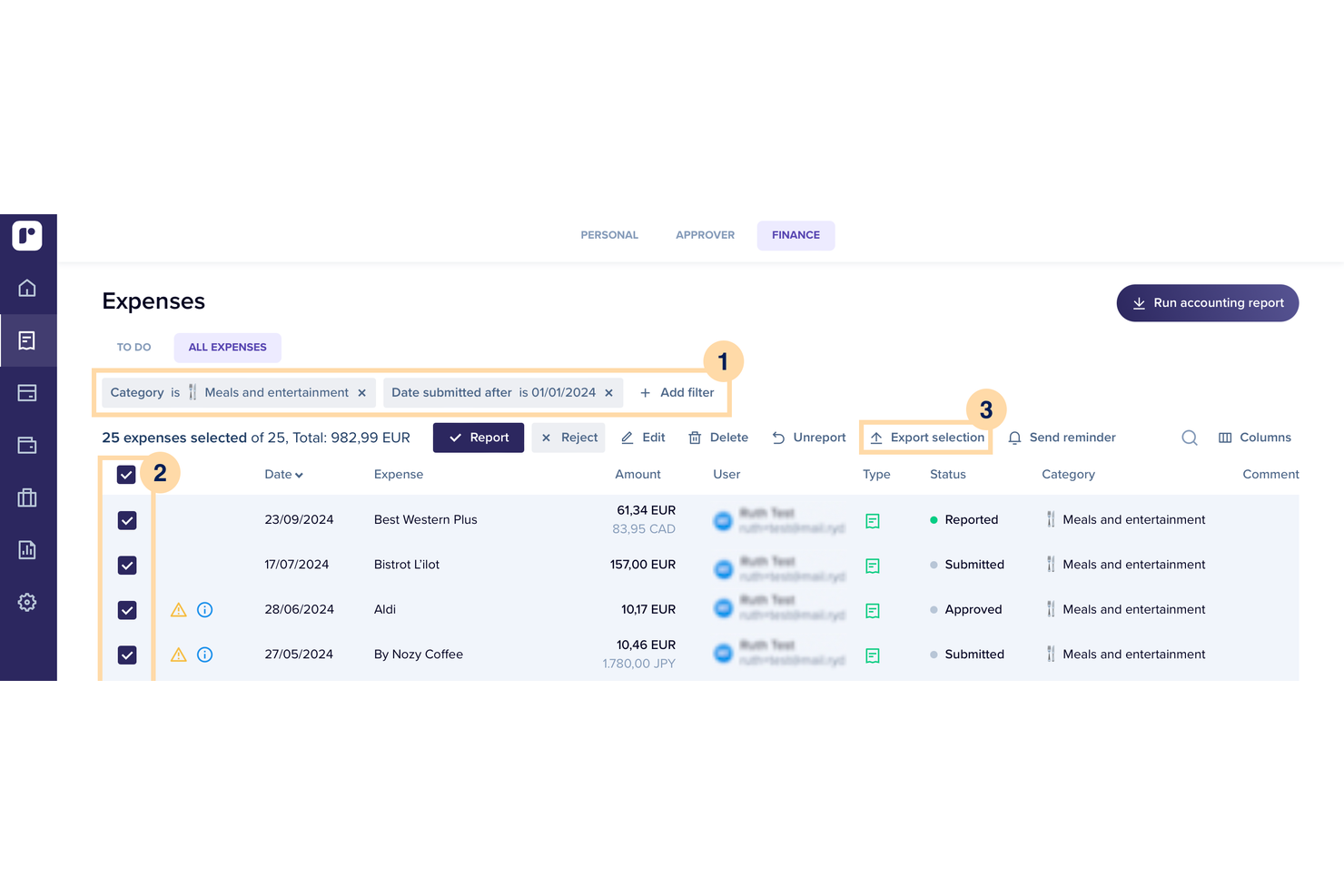
Rydoo is designed for project managers and finance teams who need to track expenses across multiple countries and stay compliant with local regulations. It’s especially useful for organizations with distributed teams or frequent international projects, where tax rules and expense policies can get complicated. Rydoo helps you automate compliance checks and standardize expense tracking no matter where your team is working.
Why I Picked Rydoo
When you need to manage project expenses across different countries, Rydoo stands out for its focus on global compliance. The platform automatically applies local tax rules and per diem rates, which helps project managers avoid costly errors and stay audit-ready. I appreciate that Rydoo updates compliance rules in real time, so your team’s expense reports always reflect the latest regulations. This makes it a strong choice for organizations with international projects or distributed teams.
Rydoo Key Features
Some other features in Rydoo that you might find useful for managing project expenses include:
- Real-Time Receipt Scanning: Capture and upload receipts instantly using the mobile app, which automatically extracts key data for expense reports.
- Custom Approval Workflows: Set up multi-level approval chains tailored to your organization’s structure and project needs.
- Per Diem Management: Configure and track business expenses like per diem allowances for travel, with automated calculations based on location.
- Integration With Accounting Software: Connect Rydoo to platforms like QuickBooks, Xero, and SAP to sync expense data directly with your accounting system.
Rydoo Integrations
Integrations include SAP, Oracle NetSuite, Microsoft Dynamics 365, QuickBooks, Xero, Sage, Workday, BambooHR, Slack, and Uber.
Pros and Cons
Pros:
- Offers real-time expense approval notifications
- Supports multi-country tax and per diem rules
- Flags non-compliant expenses automatically
Cons:
- Inflexible user roles and permissions
- Limited offline functionality for expense entry

Best for mobile expense capture
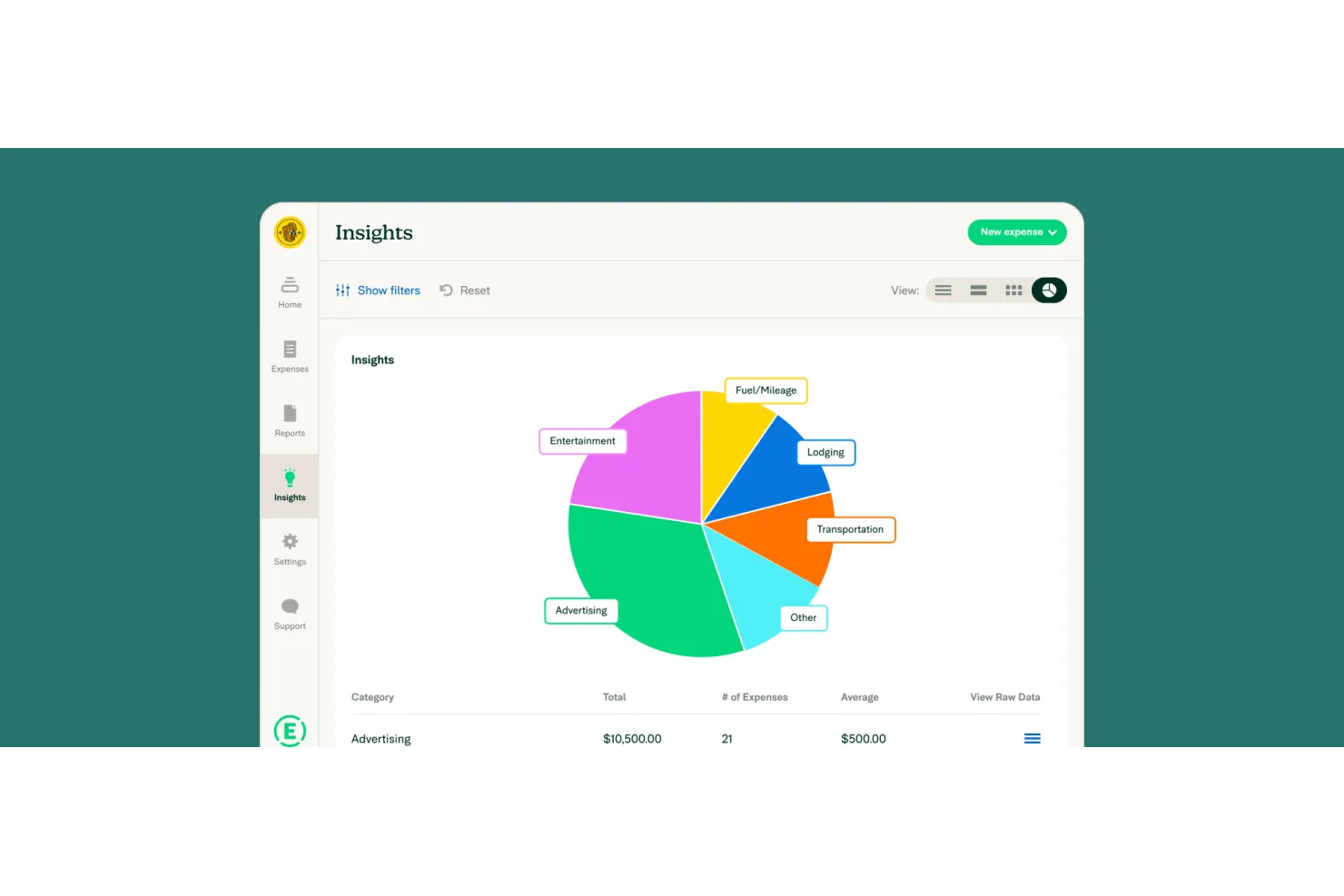
Expensify is designed for teams that need to capture project expenses on the go, especially those with distributed or traveling staff. Its mobile-first approach lets users snap receipts and submit expenses directly from their phones, making it a strong fit for field teams and consultants. Expensify helps project managers keep real-time tabs on spending without waiting for paperwork to catch up.
Why I Picked Expensify
When project teams need to capture expenses from anywhere, Expensify’s mobile-first design makes it a practical choice. The app lets users snap photos of receipts, automatically extract details, and submit expenses directly from their phones, which is especially useful for teams working in the field or traveling between client sites. I appreciate that Expensify also supports real-time expense reporting, so project managers can monitor spending as it happens. This focus on mobile expense capture helps reduce delays and keeps project budgets up to date.
Expensify Key Features
Some other features in Expensify help project teams manage and control expenses more efficiently:
- Corporate Card Integration: Sync company card transactions directly with expense reports for accurate tracking.
- Customizable Approval Workflows: Set up multi-level approval chains to match your project’s requirements.
- Policy Enforcement: Apply custom rules to flag out-of-policy expenses before submission.
- Automatic Currency Conversion: Convert expenses into your base currency using real-time exchange rates.
Expensify Integrations
Integrations include QuickBooks, Xero, Oracle NetSuite, Sage Intacct, Workday, Gusto, ADP, Uber, Lyft, and more.
Pros and Cons
Pros:
- Automatic sync of expenses to project codes
- Real-time policy violation alerts
- Syncs corporate card transactions
Cons:
- Requires internet for mobile scans
- Project-level reporting is limited

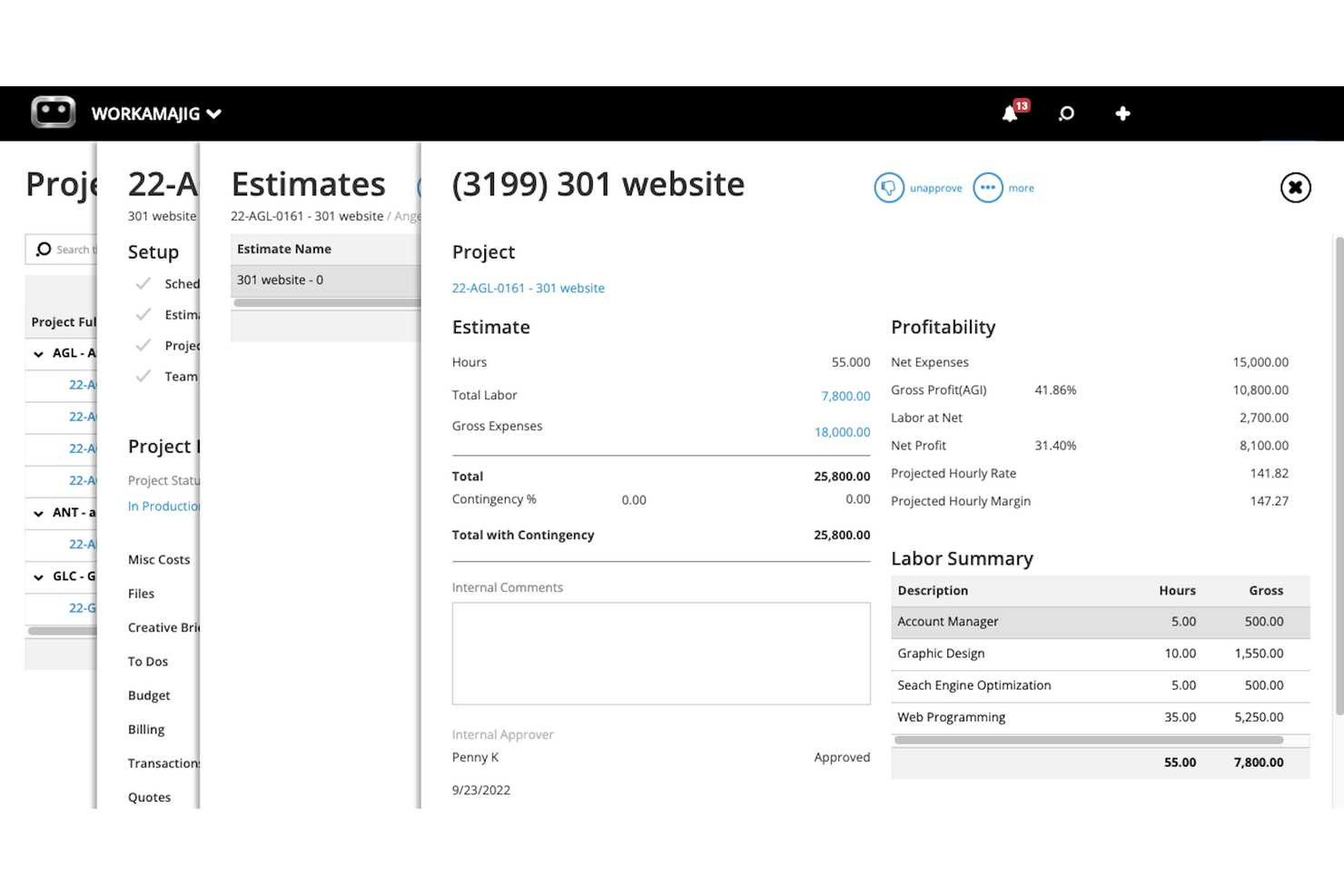
Workamajig is purpose-built for creative agencies that need to manage projects, expenses, and client billing in one place. It’s especially useful for marketing, design, and advertising teams that juggle multiple campaigns and want to connect project budgets directly to creative workflows. With Workamajig, you can track time, expenses, and resource allocations alongside project progress, helping you keep client work profitable and on track.
Why I Picked Workamajig
For creative agencies, Workamajig brings project expense tracking directly into the flow of campaign and client work. You can connect project budgets to individual jobs, track expenses by client or campaign, and manage estimates versus actuals as projects progress. I like that Workamajig offers a user-friendly way to allocate resources and costs to specific creative deliverables, so you always know where project funds are going. This focus on creative workflows makes it a strong fit for agencies that need to keep a close eye on both project costs and client profitability.
Workamajig Key Features
Some other features in Workamajig help agencies manage project expenses with more precision and control:
- Vendor Invoice Management: Track, approve, and pay vendor invoices directly within the platform.
- Purchase Order Tracking: Create and manage purchase orders linked to specific projects or clients.
- Custom Reporting Builder: Design and generate detailed financial and project reports tailored to agency needs.
- Integrated Time Tracking: Log billable and non-billable hours alongside expense entries for complete project accounting.
Workamajig Integrations
Integrations include Avalara, Bionic, Edenred Pay, and AvidXchange.
Pros and Cons
Pros:
- Supports granular expense permissions
- Tracks vendor costs within each project budget
- Link project expenses directly to clients
Cons:
- Exports require manual formatting
- Limited mobile app features


Replicon is built for teams that need to track both time and project costs in detail, making it a strong fit for professional services, consulting, and IT firms. It’s especially useful if you need to allocate labor and expenses across multiple projects or clients and want to capture billable versus non-billable hours. Replicon’s granular tracking helps you connect time entries directly to project budgets, so you can monitor costs and resource usage as work happens.
Why I Picked Replicon
Replicon stands out for its ability to tie time tracking directly to project cost allocation, which is essential for teams managing complex billing or resource-heavy projects. You can assign labor costs to specific projects, track billable versus non-billable hours, and monitor real-time budget consumption as work progresses. I appreciate how Replicon lets you set up custom cost rates for different roles or resources, making it easier to get accurate project expense data. These features make Replicon a strong choice if you need to connect time, cost, and project tracking in one place.
Replicon Key Features
Some other features in Replicon help teams manage project expenses with more control and transparency:
- Expense Policy Enforcement: Set rules for allowable expenses and automate compliance checks.
- Multi-Currency Support: Track and convert expenses in different currencies for global projects.
- Mobile Receipt Capture: Upload and attach receipts to expense entries directly from a mobile device.
- Custom Approval Workflows: Design multi-step approval processes for expense submissions.
Replicon Integrations
Integrations include SAP, Oracle, ADP, QuickBooks, Xero, Sage, Microsoft Dynamics 365, Salesforce, Tableau, and more.
Pros and Cons
Pros:
- Integrates with payroll and ERP systems
- Offers audit trails for all expense entries
- Role-based rates to calculate labor costs
Cons:
- Limited expense categories customization
- No built-in OCR for receipt scanning

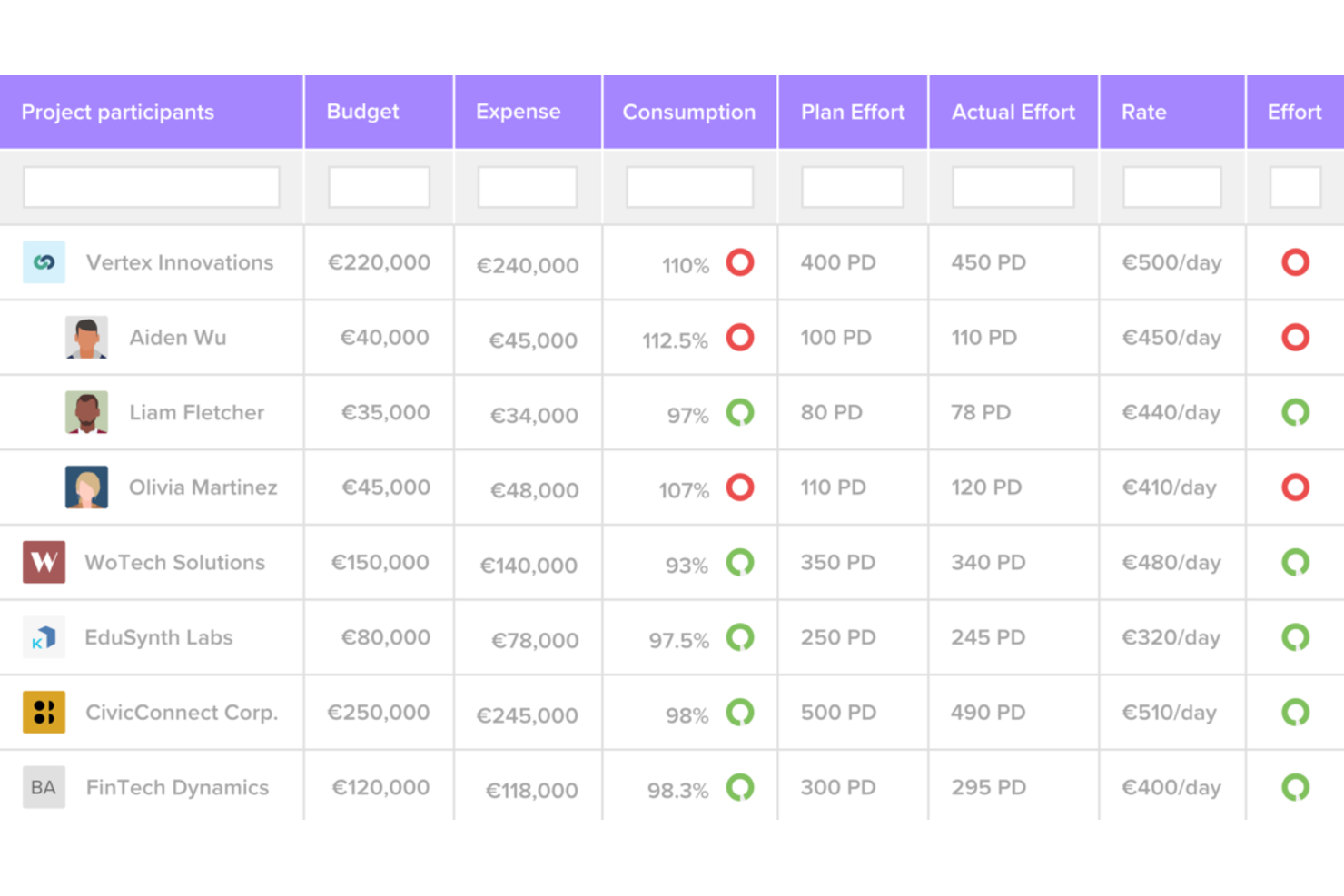
Priofy offers a visual-first approach to task and expense tracking, making it a fit for teams that need to see priorities at a glance. It’s designed for project managers and teams who want to organize, prioritize, and monitor both tasks and related expenses in a single, interactive interface. With Priofy, you can quickly spot budget-impacting tasks and adjust priorities as project needs shift.
Why I Picked Priofy
What sets Priofy apart is its focus on visual task prioritization, which directly supports project expense tracking for teams that need to see both workload and budget impact in one place. You can assign expenses to tasks and visually organize them by priority, making it easier to spot which items are driving costs. I appreciate how Priofy’s drag-and-drop boards improve financial management by letting you quickly adjust priorities as budgets shift. This approach helps project managers keep financial oversight tightly connected to day-to-day task management.
Priofy Key Features
Some other features in Priofy help teams manage project expenses and tasks more efficiently:
- Customizable Task Labels: Add color-coded labels to tasks for quick identification of expense categories or project phases.
- Attachment Support: Upload receipts, invoices, or supporting documents directly to tasks for easy reference.
- Progress Tracking Widgets: Use built-in widgets to monitor task completion rates and budget consumption side by side.
- Comment Threads: Collaborate on tasks and expense items with threaded discussions for clear communication.
Priofy Integrations
Integrations are not publicly listed.
Pros and Cons
Pros:
- Performs KPI analysis across projects
- Supports receipts attachments per task
- Visual boards for expense-heavy tasks
Cons:
- Cannot generate detailed expense reports
- No direct integration with accounting platforms

Smartsheet
Best for spreadsheet-style tracking

If you’re looking for a project expense tracker that feels familiar to anyone who’s used spreadsheets, Smartsheet is worth a close look. It’s designed for teams in marketing, operations, or project management who want to organize costs, approvals, and budgets in a flexible, grid-based format. Smartsheet stands out for letting you build custom expense sheets with formulas, attachments, and automated workflows all in one place.
Why I Picked Smartsheet
What sets Smartsheet apart is its spreadsheet-style interface, which makes tracking cash flow and project expenses feel intuitive. You can create custom columns for cost categories, use formulas to calculate totals, and attach receipts or invoices directly to each row. I like that you can set up automated approval workflows for expense submissions, which helps keep spending organized and auditable. These features make Smartsheet a strong fit for teams that want the flexibility of a spreadsheet with the structure of a dedicated project expense tracker.
Smartsheet Key Features
Some other features in Smartsheet help teams manage project expenses with more visibility and control:
- Resource Management Panel: Track team allocation and associated labor costs in real time.
- Gantt Chart View: Visualize project timelines alongside budgeted and actual spending.
- Cell Linking: Connect data across multiple sheets to consolidate expense information.
- Permission Controls: Set granular access levels for who can view cost estimates or edit financial data.
Smartsheet Integrations
Integrations include Jira Software, Power BI, Salesforce, SAP ERP, ServiceNow, Tableau, Workday, Microsoft Teams, Slack, Docusign, and more.
Pros and Cons
Pros:
- Conditional formatting to flag over-budget items
- Integrates with Docusign for expense approvals
- Extensive template gallery
Cons:
- Limited multi-currency support for expenses
- No native mileage or per diem tracking
New Product Updates from Smartsheet
Smartsheet Adds Column Duplication Without Data
Smartsheet now lets you duplicate columns in table view without copying cell data, while retaining column properties like type, formatting, validation, and dropdown/contact options. For more information, visit Smartsheet's official site.
Other Project Expense Trackers
Here are some additional project expense tracker options that didn’t make it onto my shortlist, but are still worth checking out:
- Wrike
For real-time team collaboration
- QuickBooks Online
For accounting integration
- Productive
For agency profitability insights
- SAP Concur
With enterprise travel expense controls


How I Evaluate Project Expense Trackers
I look for two things: baseline capabilities—like tagging expenses to a project code and tracking budget burn—and the differentiators that set one project expense tracker apart from another.
Core Functionality (Table Stakes For This List)
When I'm selecting tools for my list, I rank each one on a scale from 0 (does not offer the functionality) to 5 (excels in this area) for each core functionality listed below. Then, I calculate the tool's total score into a percentage. Each tool needs to achieve a minimum total score of 65% to be considered for inclusion.
- Project-Based Cost Allocation: I check whether expenses can be tagged to specific projects, phases, tasks, and cost codes—like splitting a software license across three active client engagements.
- Budget vs. Actuals Tracking: Real-time variance visibility matters here. I evaluate how each tool surfaces budget burn and whether it flags when a project is trending toward overrun.
- Expense Capture & Receipts: I look for mobile receipt capture, OCR scanning, and the ability to tie uploaded documentation directly to a project record from the field.
- Multi-Project Financial Reporting: Cross-project dashboards are key. The tool should let you filter expense reports by client, date range, or project to compare cost performance side by side.
- Billable Expense Handling: I evaluate how each platform distinguishes billable from non-billable costs and whether it supports markup rules or feeds expenses into client invoices.
- Time & Labor Cost Integration: Most project spend is labor. I look for native time tracking with role-based cost rates or a clear integration path with tools like Harvest or Toggl Track.
Once I have a list of tools that meet this criteria, I consider what sets each platform apart.
Differentiating Factors (What Sets Vendors Apart)
Here's how I compare and contrast different vendors:
Standout Features
Forecasting tools that calculate Estimate at Completion give project managers early warning when spend is trending off-plan—before the budget is already blown. I also look at approval workflows, especially whether you can set multi-tier chains based on expense amount or project type. For teams running international engagements, multi-currency handling with automated exchange rate conversion saves hours of manual reconciliation each billing cycle.
Beyond Features
Accounting integrations matter a lot here. I check whether the tool syncs with platforms like QuickBooks, Xero, or NetSuite so project expenses flow into the general ledger without re-keying. Pricing structure is another factor—per-user models work for small PMOs, but agencies with dozens of contractors get better value from per-project pricing. I also evaluate audit readiness, looking for immutable logs on expense edits and approvals that hold up during client or financial audits.
How to Choose a Project Expense Tracker
It’s easy to get bogged down in long feature lists and complex pricing structures. To help you stay focused as you work through your unique software selection process, here’s a checklist of factors to keep in mind:
| Factor | What to Consider |
|---|---|
| Scalability | Will the tool handle your current and future project volume, team size, and geographic expansion? |
| Integrations | Does it connect natively to your accounting, HR, and project management systems without workarounds? |
| Customizability | Can you tailor expense categories, approval workflows, and reporting to match your organization’s needs? |
| Ease of use | Will your team adopt the tool quickly, or will it require extensive training and support? |
| Implementation and onboarding | How long will it take to get up and running, and what resources or support does the vendor provide? |
| Cost | Are pricing tiers clear, and do they align with your budget and expected usage patterns? |
| Security safeguards | Does the tool offer data encryption, access controls, and compliance with relevant standards (like GDPR)? |
| Compliance requirements | Can the tool support your industry’s or region’s specific tax, audit, and documentation needs? |
What Is a Project Expense Tracker?
A project expense tracker is a software tool that helps teams record, categorize, and monitor expenses tied to specific projects. It allows project managers to track spending in real time, attach receipts, and ensure expenses align with budgets and policies. These tools support accurate reporting, simplify approvals, and help organizations maintain financial control across multiple projects or clients.
Features
When selecting a project expense tracker, keep an eye out for the following key features:
- Project-based expense tracking: Assign expenses to specific projects or clients, making it easy to monitor budgets and spending at a granular level.
- Receipt capture and storage: Upload, store, and organize digital copies of receipts for each expense, supporting audit trails and compliance.
- Approval workflows: Route submitted expenses through customizable approval chains, ensuring oversight and policy adherence before reimbursement.
- Multi-currency support: Record and convert expenses in different currencies, which is essential for teams working across borders.
- Custom expense categories: Create and manage categories that reflect your organization’s unique spending types and reporting needs.
- Integration with accounting systems: Sync expense data directly with your accounting or ERP software to reduce manual entry and errors.
- Real-time reporting and dashboards: Access up-to-date visualizations and summaries of project spending to support decision-making.
- User roles and permissions: Control who can submit, approve, or view expenses, protecting sensitive financial information.
- Mobile access: Enter expenses, upload receipts, and approve requests from smartphones or tablets, supporting teams on the go.
Benefits
Using a tracker can optimize your operations and provide several benefits for your team and your business. Here are a few you can look forward to:
- Improved budget control: Track project-specific spending in real time, helping you stay within budget and avoid overspending.
- Faster expense approvals: Manage the review process with automated workflows, reducing delays and manual follow-ups.
- Greater compliance: Enforce company policies and tax regulations by flagging non-compliant expenses and maintaining detailed audit trails.
- Accurate reporting: Generate up-to-date reports and dashboards that give you clear visibility into project costs and spending patterns.
- Simplified receipt management: Store and organize digital receipts, making audits and reimbursements easier and more reliable.
- Enhanced team accountability: Assign expenses to individuals and projects, clarifying responsibility and reducing disputes over spending.
- Easy integration: Sync expense data with accounting and ERP systems, minimizing manual entry and reducing the risk of errors.
Costs and Pricing
Selecting a project expense tracker requires an understanding of the various pricing models and plans available. Costs vary based on features, team size, add-ons, and more. The table below summarizes common plans, their average prices, and typical features included in project expense tracker solutions:
Plan Comparison Table for Project Expense Tracker
| Plan Type | Average Price | Common Features |
|---|---|---|
| Free Plan | $0 | Basic expense tracking, limited receipt uploads, single-user access, and basic reporting. |
| Personal Plan | $3–$11/user/month | Project-based tracking, mobile access, receipt capture, and simple approval workflows. |
| Business Plan | $10–$43/user/month | Multi-user support, advanced approval chains, integration with accounting systems, and custom categories. |
| Enterprise Plan | $38–$275+/user/month | Advanced security, global compliance tools, custom integrations, dedicated support, and audit trails. |
Project Expense Tracker FAQs
Here are some answers to common questions about the project expense tracker:
Can project expense trackers handle expenses in multiple currencies?
Yes, most project expense trackers support multi-currency expense entry and conversion. This is important for teams working across different countries, as it helps ensure accurate reporting and budget tracking regardless of where expenses are incurred.
How do project expense trackers support compliance with company policies?
Project expense trackers let you set custom approval workflows, flag non-compliant expenses, and require documentation like receipts. These features help enforce internal policies and make it easier to prepare for audits or meet regulatory requirements.
What types of integrations should I look for in a project expense tracker?
Look for integrations with your accounting software, HR systems, and project management tools. These connections reduce manual data entry, help keep financial records accurate, and make it easier to link expenses directly to projects or clients.
Is it possible to restrict who can view or approve expenses?
Yes, most project expense trackers offer user roles and permissions. You can control who can submit, approve, or view expenses, which helps protect sensitive financial data and ensures only authorized users manage approvals.
How long does it take to implement a project expense tracker?
Implementation time varies, but many cloud-based solutions can be set up in a few days. Factors like data migration, integration setup, and user training can extend the timeline, so it’s important to plan for onboarding and support needs.