

10 Best Internal Wiki Software In 2026

Best Internal Wiki Software Shortlist


Building an internal knowledge base gives your team a shared space to create, store, and organize company knowledge so everyone can access the latest information. If you’re searching for the best wiki software for internal operations, you probably want a solution that’s easy to use, bridges communication gaps, and keeps project details and documentation at everyone’s fingertips. With so many options, picking the right one can feel overwhelming.
This guide compares the top tools and highlights what makes each unique, so you can quickly make the best choice for your team’s workflow and knowledge-sharing needs.
Why Trust Our Software Recommendations
Our team has been testing and reviewing software since 2012. As project managers ourselves, we know how difficult—and important—it is to choose the right software.
For this guide, we evaluated tools using hands-on testing and independent research, scoring tools using our selection criteria. We also draw on insights from industry thought leaders and practicing project management experts.
Our reviews reflect our human editorial judgment, not a sales pitch.
Expert reviewers:
Internal Wiki Software Comparison Table
This comparison table summarizes pricing details for my top internal wiki software selections:
| Tool | Best For | Trial Info | Price | ||
|---|---|---|---|---|---|
| 1 | Best for advanced content versioning controls | Free demo available | Pricing upon request | Website | |
| 2 | Best for async team knowledge sharing | Free demo + 14-day free trial available | From $10/user/month (billed annually) | Website | |
| 3 | Best for real-time editing with visual workspace | Free plan available | From $6/user/month (billed annually) | Website | |
| 4 | Best for Slack and Microsoft Teams integration | 30-day free trial | From $8/user/month (billed annually) | Website | |
| 5 | Best for linking company knowledge across tools | Free plan available | From $6.67/user/month (billed annually) | Website | |
| 6 | Best for building collaborative knowledge bases | Free plan available | From $12/user/month (billed annually) | Website | |
| 7 | Best for unifying notes, tasks, and databases | Free plan available | From $10/user/month | Website | |
| 8 | Best for Microsoft ecosystems document management | 30-day free trial | From $5.00/user/month (billed annually) | Website | |
| 9 | Best for collaboration on structured documents | Free trial + free plan available | From $5.42/user/month | Website | |
| 10 | Best for fast answers with integrations | Free demo available | Pricing upon request | Website |
Best Internal Wiki Software Reviews
Below are my detailed summaries of the best internal wiki software that made it onto my shortlist. My reviews offer a detailed look at the features, best use cases, and integrations of each platform to help you find the best one for you.

Best for advanced content versioning controls
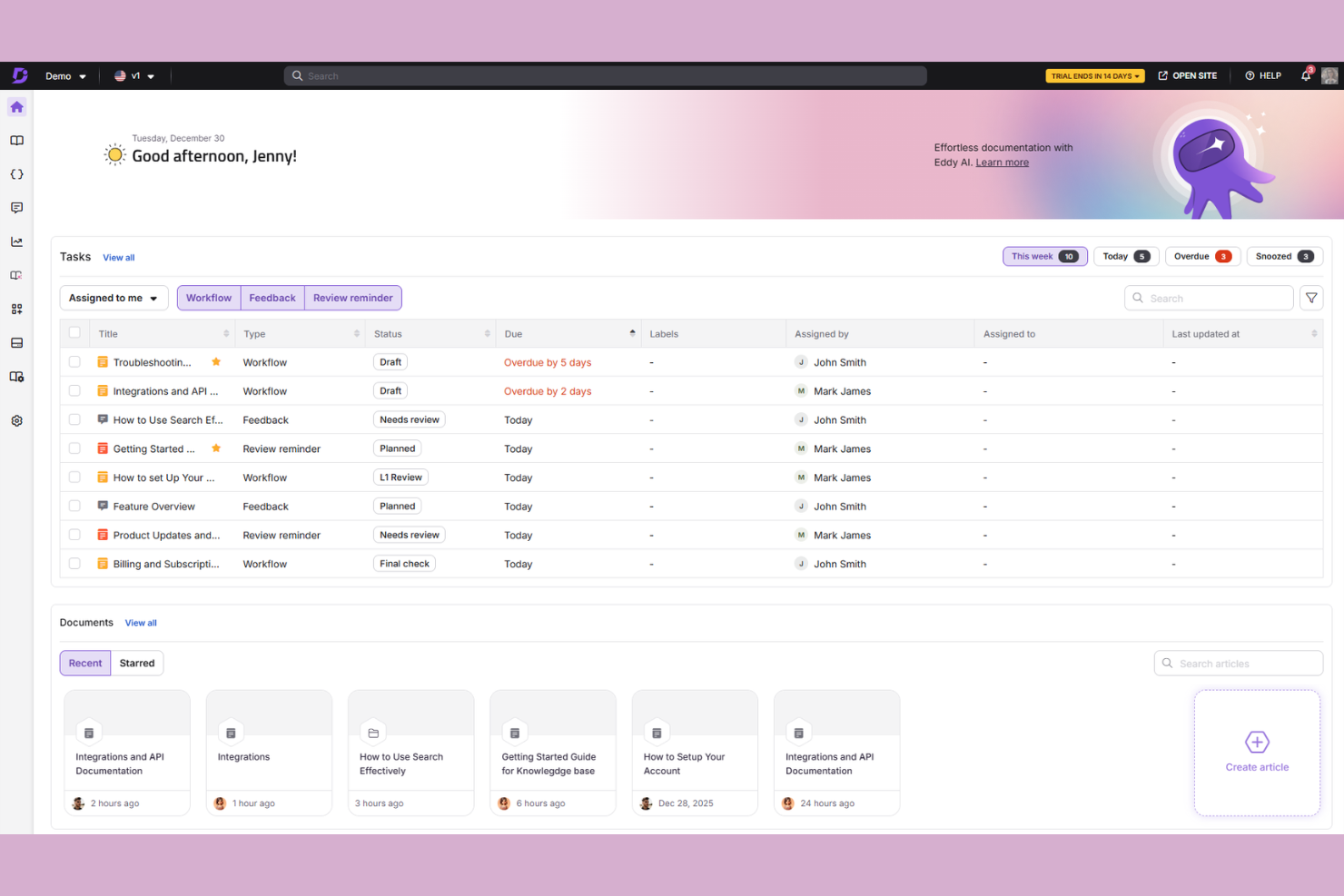
Document360 is a knowledge base platform built for teams that need structured content management, with a dual-editor experience, AI-powered search, and support for both internal wikis and external documentation sites.
Who Is Document360 Best For?
Document360 is a strong fit for mid-sized to enterprise SaaS and tech teams that manage large volumes of documentation across multiple product versions or audiences.
Why I Picked Document360
Document360 earns its spot on my shortlist because its versioning controls go well beyond a basic "last edited" log. I can view a full version history for any article, compare changes between specific versions side by side, and restore any prior state instantly. I also like that version tracking works at the category level, so when a product update affects an entire section of your wiki, you can roll back a whole content branch rather than hunting through individual pages.
Document360 Key Features
- Dual-mode article editor: Switch between a block-based WYSIWYG editor, raw HTML, and a Markdown editor on a per-article basis.
- Role-based access controls: Assign granular permissions across readers, editors, and admins at the project or category level.
- Content reuse via snippets: Create reusable text blocks that auto-update across every article where they appear when edited once.
- Built-in article analytics: Track views, search queries, and reader feedback scores to identify gaps in your wiki content.
Document360 Integrations
Document360 offers over 25 integrations across its marketplace, including Zendesk, Freshdesk, Intercom, Slack, Microsoft Teams, Salesforce, GitHub, Crowdin, and Google Analytics. It also connects with Zapier and Make, and provides an API for custom integrations.
Pros and Cons
Pros:
- Multilingual support with translation management workflows
- Reusable snippets, variables, and glossary terms
- Separate portals for internal and public docs
Cons:
- Word imports require manual formatting cleanup
- Analytics cannot consolidate multiple workspaces
New Product Updates from Document360

Document360 Adds Bulk Mirroring, Eddy AI Citations, and Unified SSO
Document360 adds bulk article mirroring, citations in Eddy AI chatbot responses, and a unified Enterprise SSO setup. These updates improve content reuse, answer verification, and access management. For more information, visit Document360’s official site.
 .
.
Slite
Best for async team knowledge sharing
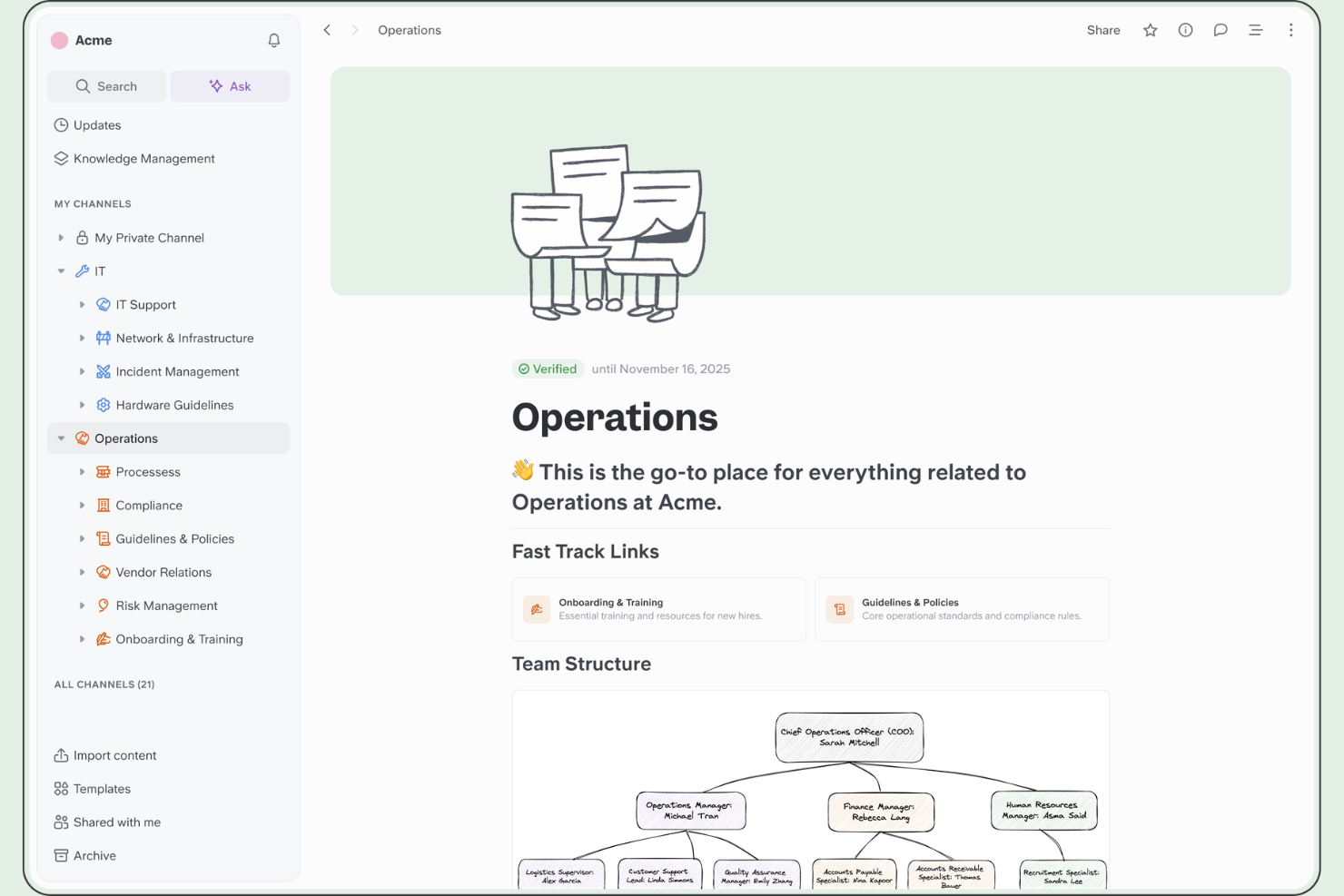
Slite is a wiki and knowledge base platform that combines structured documentation, channel-based content organization, and an AI-powered search assistant for surfacing answers across your team's knowledge base.
Who Is Slite Best For?
Slite is a natural fit for remote and distributed teams that rely on written communication to keep everyone aligned across time zones.
Why I Picked Slite
I've included Slite in my top picks because it's genuinely built around the idea that teammates shouldn't have to ask each other for information. The Ask feature lets anyone query the knowledge base in plain language and get a direct answer pulled from existing docs, which cuts down on repeat questions in Slack. I also like the doc verification system, where content owners can mark pages as verified or flag them as outdated, so distributed teams aren't making decisions based on stale documentation.
Slite Key Features
- Channels: Organize wiki content into dedicated channels by team, project, or topic to keep documentation grouped and browsable.
- Doc templates: Create new pages from pre-built or custom templates to standardize how your team documents processes, meeting notes, or onboarding guides.
- Inline comments: Leave threaded comments directly on any section of a document so feedback and discussion stay tied to the relevant content.
- Real-time collaborative editing: Multiple team members can edit the same document simultaneously, with live cursor tracking showing who's working where.
Slite Integrations
Slite offers 40+ native integrations across three categories: searchable sources (like Google Drive, Confluence, Notion, SharePoint, GitHub, GitLab, Jira, Linear, and HubSpot), document embeds (like Figma, Miro, Loom, Google Sheets, and Airtable), and a Slack integration for querying your knowledge base directly from channels. It's also available on Zapier and has an API for custom integrations.
Pros and Cons
Pros:
- Constrained editor keeps docs visually consistent
- Doc verification flags stale wiki content
- AI Ask feature surfaces answers from docs
Cons:
- Offline editing is basically unavailable
- No database views or relational content structures

Nuclino
Best for real-time editing with visual workspace
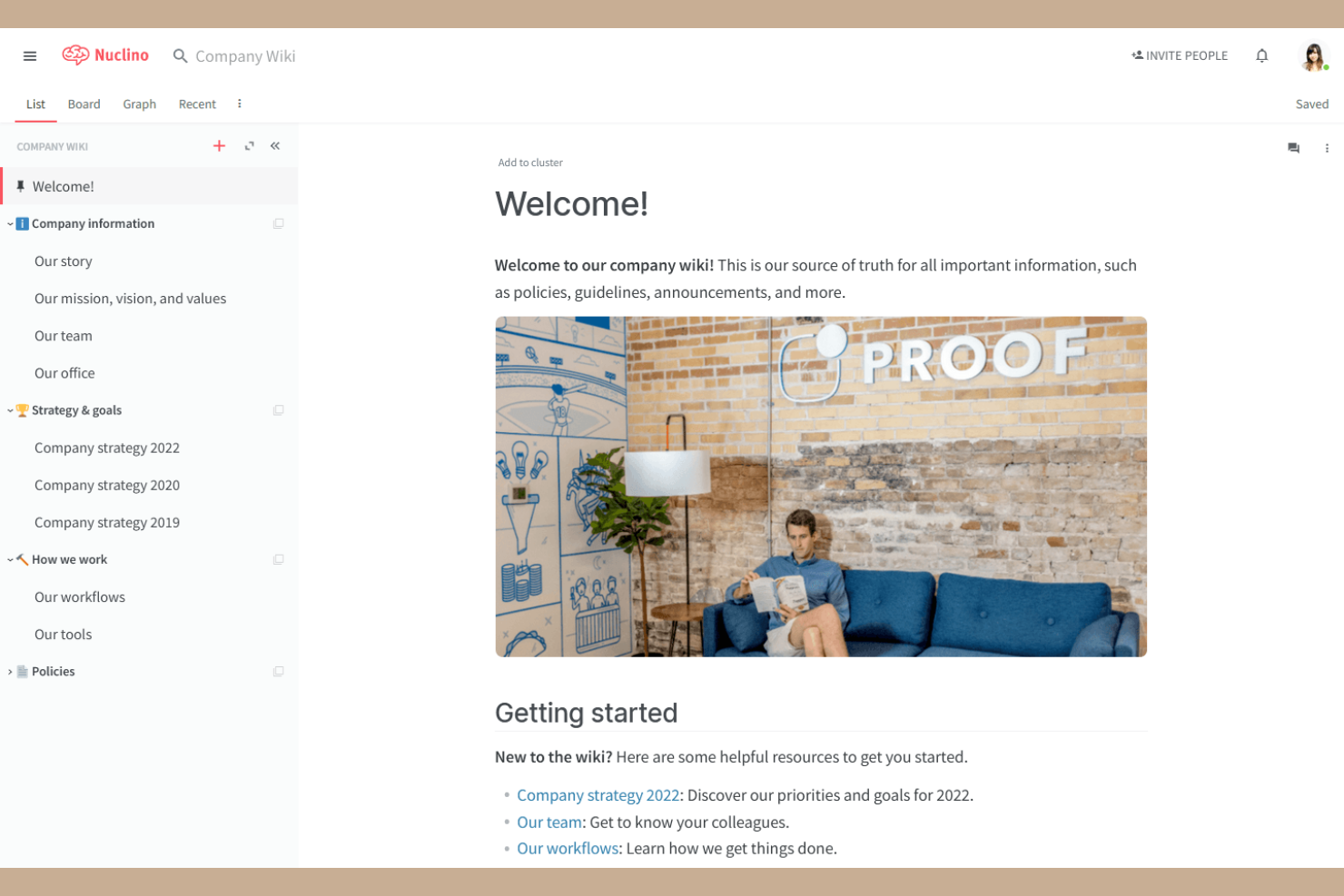
Nuclino is an internal wiki and team knowledge base that combines collaborative docs, multiple workspace views (list, board, table, and graph), and a built-in infinite canvas for visual collaboration.
Who Is Nuclino Best For?
Nuclino is a strong fit for small to mid-size tech teams that want a lightweight wiki with visual workspace mapping built in.
Why I Picked Nuclino
Nuclino earns its spot as one of the best on my shortlist because it's one of the few wiki tools that makes real-time visual collaboration a native part of the experience. The built-in Canvas lets my team drop an infinite whiteboard directly inside any wiki page, so we can diagram a system architecture or map out a sprint workflow right next to the written docs. The graph view also lets us explore how wiki pages connect to each other visually, which I find genuinely useful for navigating a growing knowledge base.
Nuclino Key Features
- Universal search: Search across all pages, items, and content within the workspace from a single search bar.
- Version history: View and restore any previous version of a page to track how wiki content has changed over time.
- Page templates: Start new wiki pages from pre-built templates to keep documentation structure consistent across your team.
- Inline task assignments: Assign tasks directly within wiki pages so action items stay connected to the relevant documentation.
Nuclino Integrations
Nuclino offers 40+ integrations, including Slack, Microsoft Teams, Jira, Figma, Miro, Lucidchart, Google Drive, Dropbox, Loom, and Airtable, along with SSO support through Google Workspace and Microsoft Active Directory. An API is available for custom integrations.
Pros and Cons
Pros:
- Markdown rendering works without dual-pane editing
- Search returns results with sub-second speed
- Graph view maps page relationships visually
Cons:
- No page-level permission controls available
- Search fails to handle typos gracefully

Tettra
Best for Slack and Microsoft Teams integration

Tettra is an internal wiki and knowledge base platform built around AI-powered Q&A, with tools for creating and verifying documentation and surfacing answers directly inside Slack.
Who Is Tettra Best For?
Tettra is a strong fit for small to mid-sized teams that run day-to-day communication through Slack or Microsoft Teams and need a wiki that works inside those tools.
Why I Picked Tettra
I picked Tettra as one of the best because its Slack integration goes far deeper than just sharing links. Kai, Tettra's AI bot, monitors Slack channels in real time, answers questions automatically using your knowledge base, and prompts teammates to save unresolved threads as new wiki pages. I also like that Kai assigns unanswered questions to subject-matter experts directly in Slack, so nothing falls through the cracks without switching tools.
Tettra Key Features
- Page ownership and verification: Assign owners to individual pages and set review schedules to flag outdated content for updates.
- Pre-built page templates: Use structured templates for common documentation types like onboarding guides, meeting notes, and SOPs.
- Content request system: Team members can submit specific knowledge requests that get routed to the right person to fill the gap.
- Nested categories and subcategories: Organize pages into a structured hierarchy so teams can browse the wiki by topic or department.
Tettra Integrations
Tettra offers a smaller set of native integrations, including Slack, Google Workspace, GitHub, and Notion. It connects with Zapier and provides an API for custom integrations.
Pros and Cons
Pros:
- Page export prevents vendor lock-in
- AI bot answers questions without app switching
- Q&A workflow turns Slack threads into pages
Cons:
- Limited layout and design customization options
- Search slows down in large knowledge bases

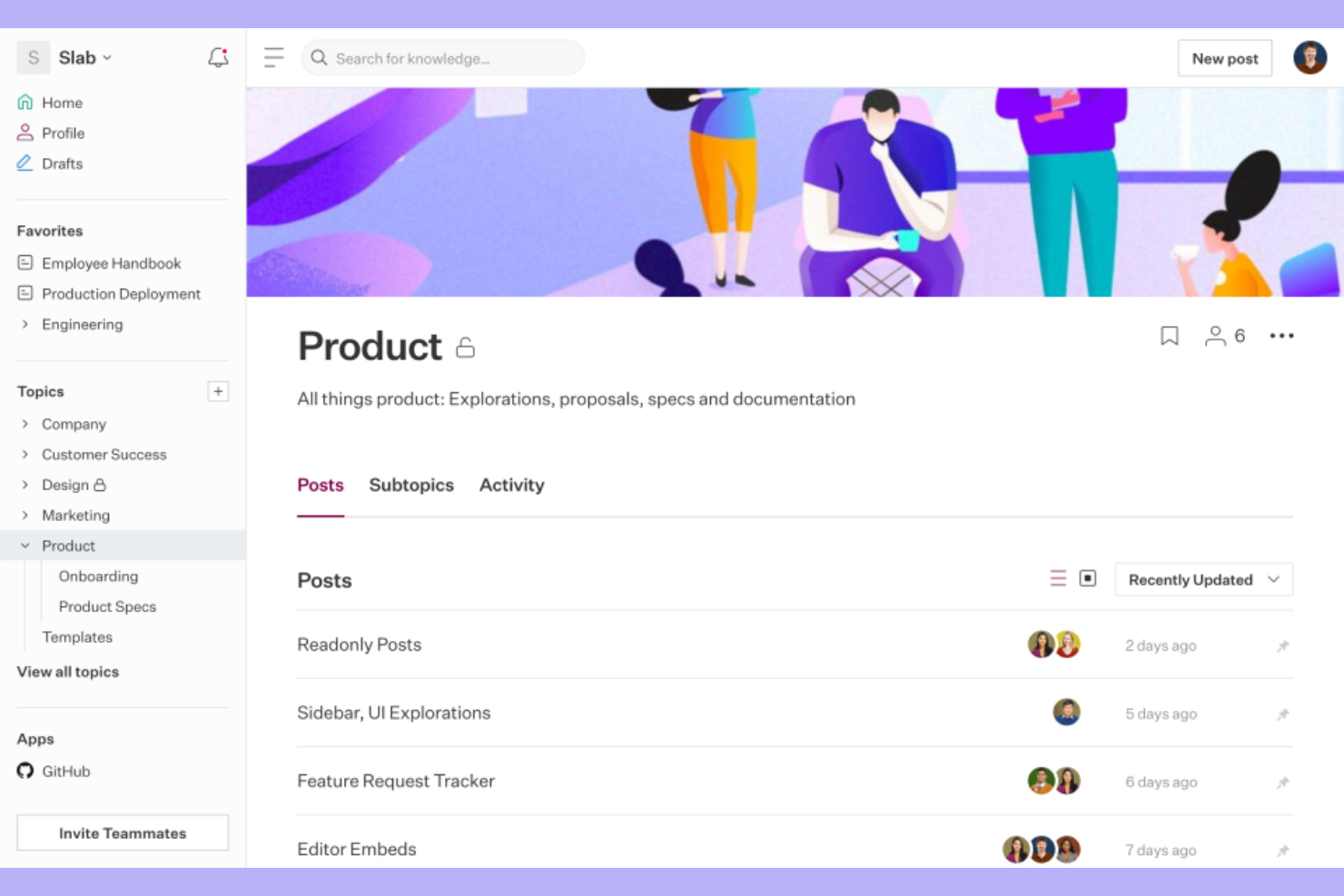
Slab is an internal wiki and knowledge base platform built around a Unified Search feature that surfaces answers from both Slab content and connected third-party tools in a single search.
Who Is Slab Best For?
Slab is a strong fit for mid-sized tech and product teams that work across multiple tools and need their documentation to stay connected to where actual work happens.
Why I Picked Slab
I picked Slab as one of the best because its Unified Search is the most practical answer I've seen to a real problem: company knowledge scattered across GitHub, Google Drive, Slack, and Asana. Instead of hunting through five tabs, my team can run one search in Slab and pull results from all connected tools at once. I also like that Slab Topics adds context around docs, showing what to read, in what order, and who to contact with follow-up questions.
Slab Key Features
- Admin insights: View data on which posts are getting read, which are going stale, and what questions your team is asking that have no documented answer.
- Slab Provisions: Create custom user templates so new team members see role-specific content the moment they sign in, without any manual setup.
- Inline reactions and comments: Teammates can comment, react with emoji, or thank post authors directly within a doc to signal what's clear and what needs work.
- Relevance-ranked search results: Slab tracks reads, views, links, and mentions to rank results by importance, not just keyword match.
Slab Integrations
Slab offers 50+ native integrations, including Slack, Google Workspace, GitHub, Asana, Jira, Linear, Confluence, Figma, Loom, and Miro. An API and webhooks are available for custom integrations and automation.
Pros and Cons
Pros:
- Real-time co-editing prevents version conflicts
- Imported Google Drive docs stay searchable
- Multi-topic tagging organizes cross-team docs
Cons:
- Mobile experience lacks full feature parity
- Table formatting inside posts is limited
Coda
Best for building collaborative knowledge bases
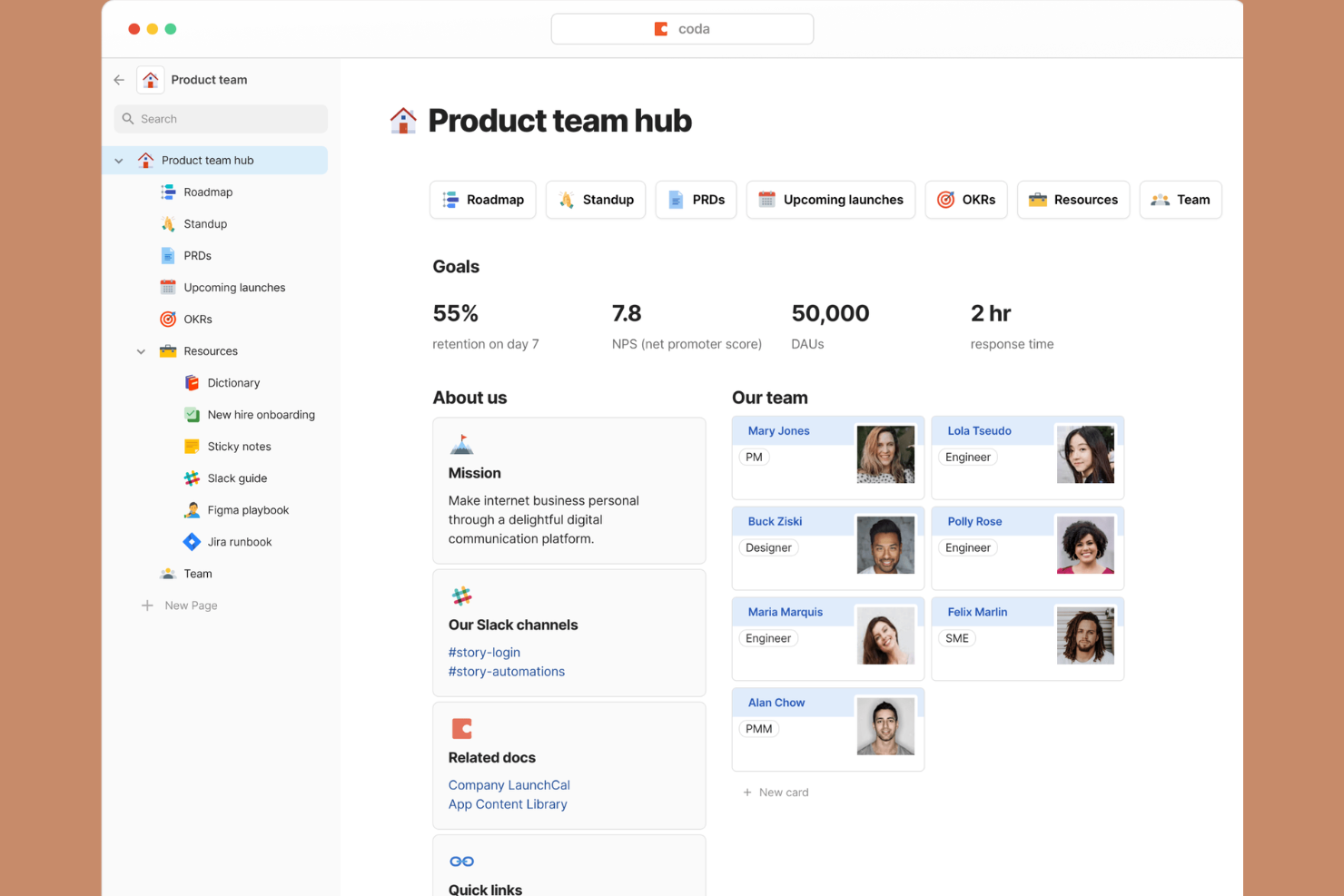
Coda is a doc-based wiki platform that blends pages, tables, and formulas into a single workspace where teams can build and manage collaborative knowledge bases.
Who Is Coda Best For?
Coda is a strong fit for product and cross-functional teams that need a shared workspace combining documentation with live, structured data.
Why I Picked Coda
I picked Coda as one of the best because every page functions as a canvas that holds text, tables, and formulas together. My team uses this to build product wikis where written context sits directly alongside a live task tracker or decision log. The cross-page formula system means updates in one doc automatically flow through to related pages, which keeps a shared knowledge base current without manual upkeep.
Coda Key Features
- Coda AI: A built-in AI assistant that drafts, summarizes, and generates content directly inside any doc or page.
- Page locking: Restrict editing on specific pages while keeping them visible to the broader team.
- Version history: Track changes to any doc over time and restore previous versions as needed.
- Doc publishing: Share any Coda doc as a publicly accessible or access-controlled web page.
Coda Integrations
Coda offers 500+ integrations through its Packs system, including Slack, Jira, Figma, Salesforce, Google Sheets, Microsoft Teams, GitHub, HubSpot, Miro, and Zoom. An API is also available for custom integrations.
Pros and Cons
Pros:
- Large template gallery for quick setup
- Only Doc Makers need paid seats
- Embeds tables and formulas inside wiki pages
Cons:
- Large docs can slow down noticeably
- No offline access or desktop app
Notion
Best for unifying notes, tasks, and databases

Notion is a flexible wiki and knowledge base platform that combines docs, databases, and task tracking in one connected workspace.
Who Is Notion Best For?
Notion can function as a personal wiki or scale into a strong fit for small to mid-size tech teams that want a single workspace for documentation, project tracking, and knowledge management.
Why I Picked Notion
I picked Notion as one of the best because it lets my team build a wiki where documentation and project data live on the same page. I can embed a live database of sprint tasks directly inside a team handbook page, so context and work are never separated. Notion's linked databases mean I can reference the same dataset across multiple wiki pages without duplicating it.
Notion Key Features
- Notion AI: Generate page summaries, auto-fill database fields, and draft wiki content directly inside any page.
- Synced blocks: Write a content block once and sync it across multiple pages so updates apply everywhere automatically.
- Granular page permissions: Set view, comment, or edit access at the individual page or workspace level.
- Inline comments and mentions: Leave feedback on specific text and tag teammates directly within any wiki page.
Notion Integrations
Notion offers dozens of integrations through its integration gallery, including native connections with Slack, Google Drive, Jira, GitHub, Asana, GitLab, Figma, Trello, and Miro. It connects with Zapier and Make for workflow automation, and provides a public API for building custom integrations.
Pros and Cons
Pros:
- Block-based editor supports flexible layouts
- Embed databases directly inside wiki pages
- Verified pages flag outdated wiki content
Cons:
- Automations are limited to a single database scope
- Requires significant initial workspace setup time

Best for Microsoft ecosystems document management
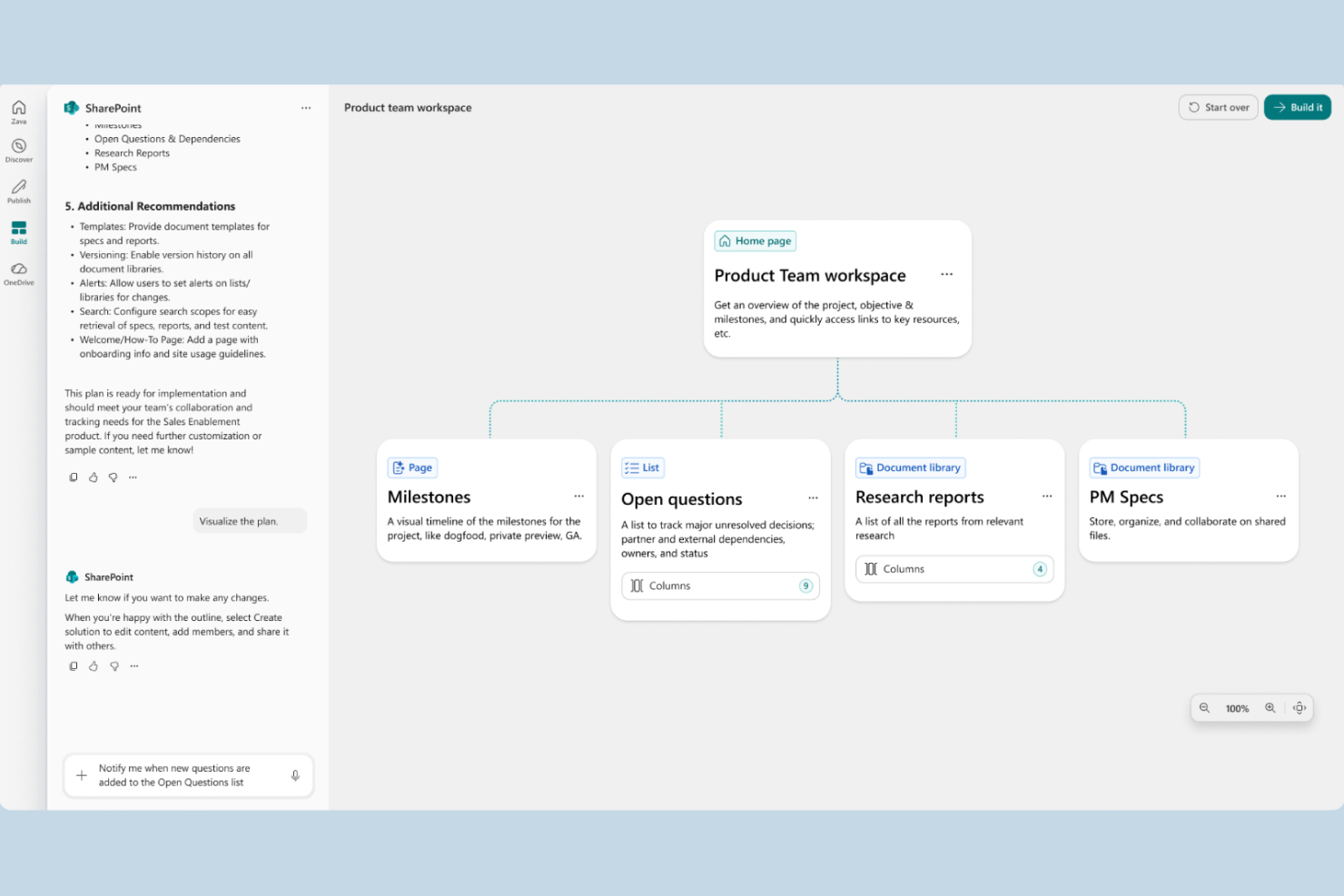
SharePoint is Microsoft's intranet and document management platform that lets teams build wiki-style sites, organize files in structured libraries, and manage internal knowledge across departments.
Who Is SharePoint Best For?
SharePoint is a natural fit for mid-size to enterprise organizations already running Microsoft 365, where IT teams manage access and governance across departments.
Why I Picked SharePoint
I picked SharePoint as one of the best because no other wiki tool matches its depth of integration within the Microsoft 365 ecosystem. My team uses SharePoint document libraries with co-authoring in Word and Excel directly in the browser, and content syncs automatically with OneDrive. I also rely on its metadata tagging and content types to keep large libraries organized across departments without manual sorting.
SharePoint Key Features
- Site pages editor: A drag-and-drop page builder with web parts for text, images, tables, and embedded content to structure wiki-style documentation.
- Granular permissions: Access controls at the site, library, folder, and individual file level, managed through Active Directory groups.
- Version history with check-in/check-out: Tracks document revisions and lets users lock files during editing to prevent conflicting changes.
- Microsoft Search: Cross-site full-text search that indexes pages, files, and list items across your entire SharePoint environment.
SharePoint Integrations
SharePoint has deep native integrations across the Microsoft ecosystem, including Teams, OneDrive, Outlook, Power Automate, Power Apps, Power BI, and Microsoft Lists. It also connects with third-party tools like Salesforce, Trello, Asana, DocuSign, and Adobe Sign through Power Automate connectors. SharePoint provides a REST API and Microsoft Graph API for custom integrations.
Pros and Cons
Pros:
- Scales from small teams to large enterprises
- Granular access controls at every level
- Deep native ties to Microsoft 365 apps
Cons:
- Requires significant admin setup and governance
- Wiki pages lack built-in content categorization
Best for collaboration on structured documents
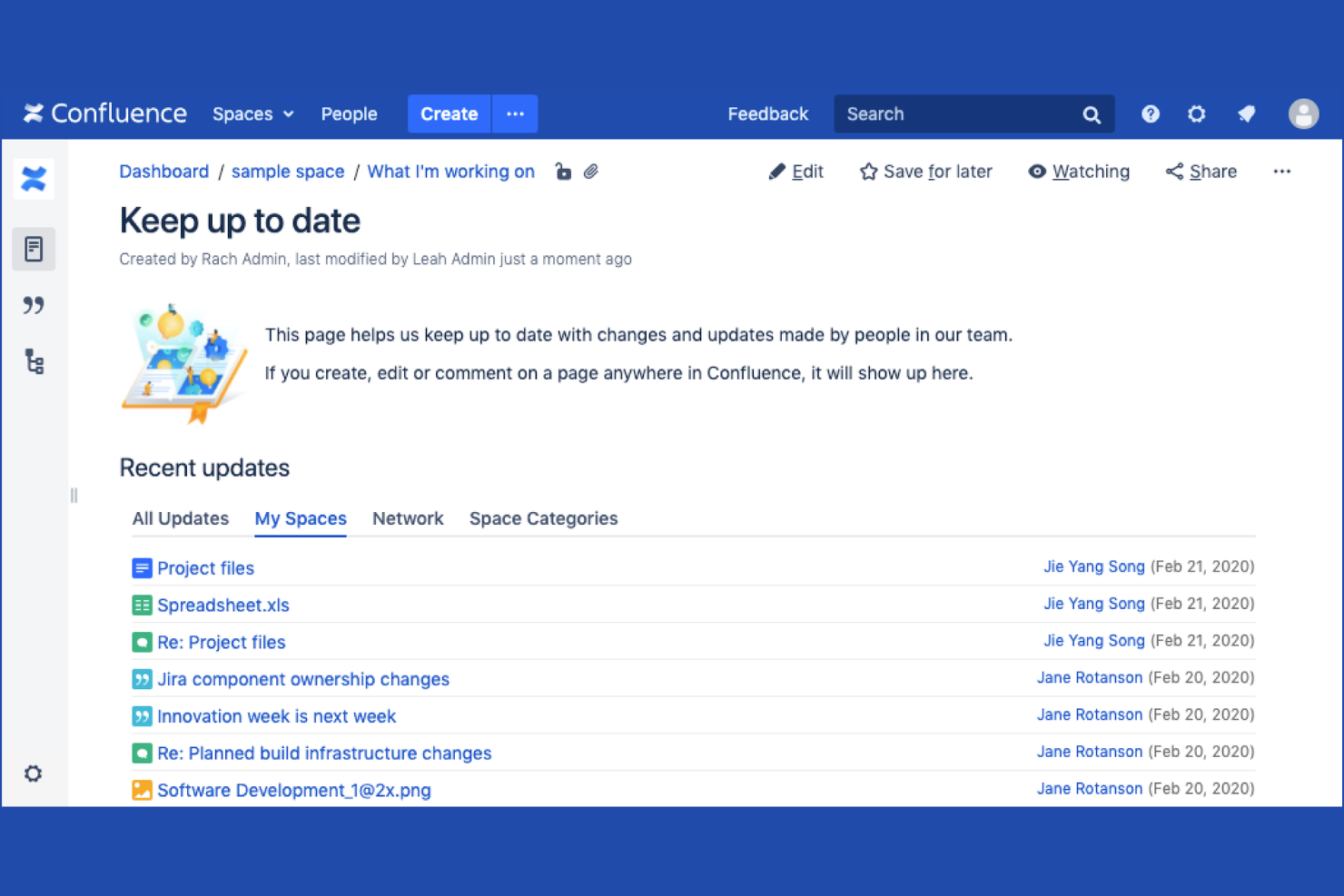
Confluence is an AI-powered company wiki and knowledge-sharing platform from Atlassian that lets teams create, organize, and collaborate on pages, live docs, whiteboards, and databases in a single shared workspace.
Who Is Confluence Best For?
Confluence is a strong fit for mid-size to enterprise tech teams already working within the Atlassian ecosystem with Jira or other Atlassian products.
Why I Picked Confluence
Confluence earns its spot on my shortlist because of how well it handles structured document collaboration across large teams. I particularly like the page hierarchy system, which lets my team nest docs within spaces so technical specs, PRDs, and runbooks stay organized by project or team. Inline commenting on pages keeps feedback in context rather than scattered across emails. The page templates for things like meeting notes and product requirements are genuinely useful for getting structured docs off the ground fast.
Confluence Key Features
- Spaces: Organize wiki content into dedicated, permission-controlled areas for each team, department, or project.
- Atlassian Intelligence: Use built-in AI to summarize pages, generate draft content, and surface relevant documentation.
- Page history: View, compare, and restore previous versions of any page to track how content has evolved over time.
- Macros: Embed dynamic content blocks like status labels, roadmaps, and tables of contents directly into pages.
Confluence Integrations
Confluence offers 1,000+ marketplace plugins and integrations through the Atlassian Marketplace, including native integrations with Jira, Jira Service Management, Slack, Microsoft Teams, Google Drive, Microsoft Office 365, Trello, Loom, and Bitbucket. An API is also available for custom integrations.
Pros and Cons
Pros:
- Large template library for common documents
- Real-time co-editing on the same page
- Deep page nesting for organized knowledge bases
Cons:
- The page editor feels slow with complex content
- Search results can be unreliable in large wikis

Guru
Best for fast answers with integrations
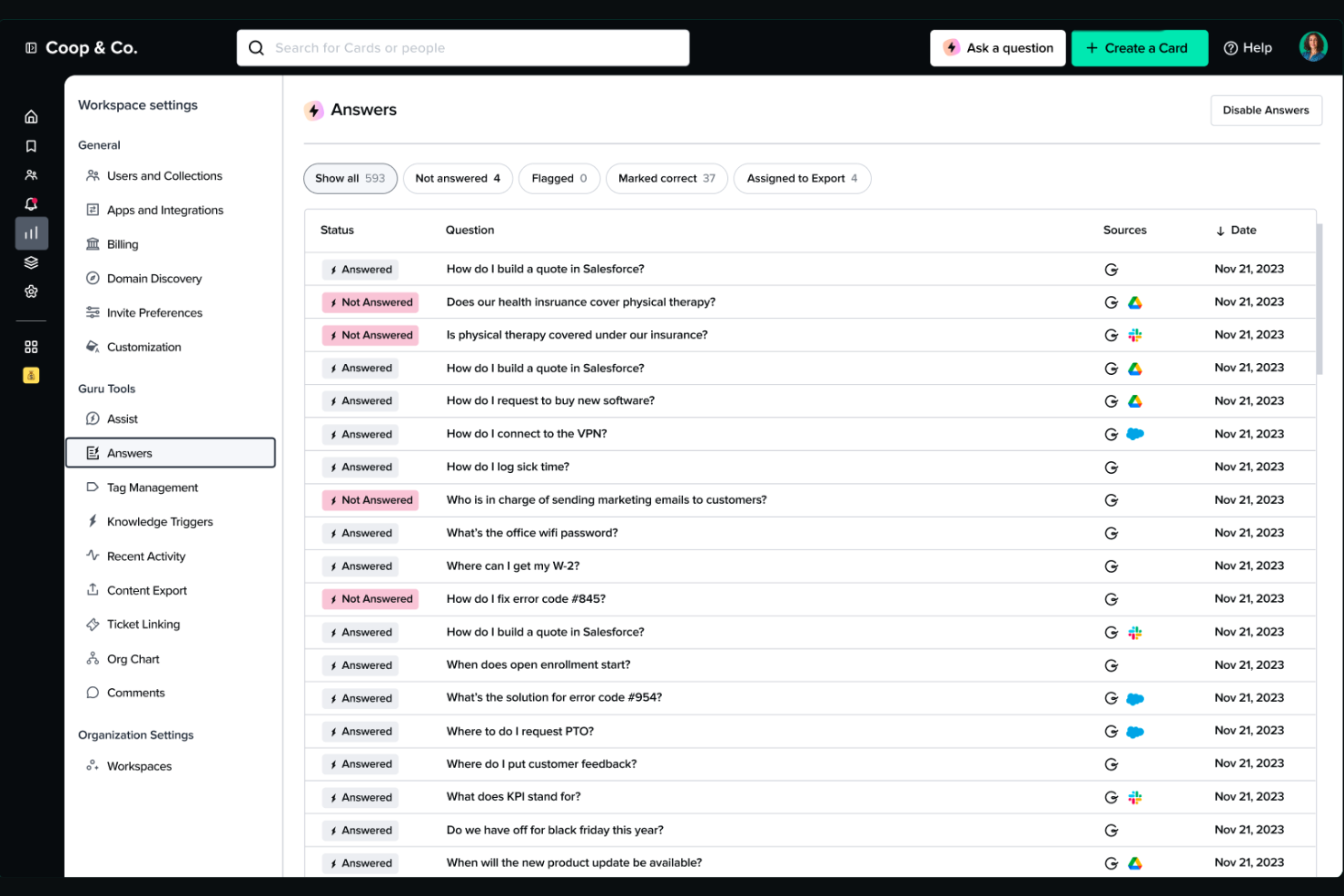
Guru is a knowledge management platform that captures, organizes, and verifies company knowledge, then surfaces it inside the tools your team already uses, including Slack, Chrome, and your browser.
Who Is Guru Best For?
Guru is a strong fit for customer-facing and support teams at growing companies that need instant access to verified answers without leaving their existing workflows.
Why I Picked Guru
I picked Guru as one of the best because its browser extension is one of the most practical features I've come across in this space. It surfaces contextual, cited answers directly on the page I'm already viewing, without opening a new tab or switching tools. I also love Guru's verification workflows, which route cards to subject-matter experts on a set review cycle so outdated answers don't sit in the wiki unchecked.
Guru Key Features
- Content deduplication and reconciliation: AI detects redundant or conflicting content across sources and reconciles it automatically.
- Gap detection and auto-generated knowledge: Identifies missing knowledge and drafts structured documentation where none existed yet.
- Targeted announcements: Push updates with read-tracking to specific teams or roles so nothing gets missed.
- Analytics and usage reporting: Tracks search behavior, usage patterns, and knowledge health metrics across the wiki.
Guru Integrations
Guru offers 100+ native integrations, including Slack, Microsoft Teams, Salesforce, Jira, Confluence, Google Drive, HubSpot, Intercom, Zendesk, and Notion. It also connects with Zapier, Workato, and Prismatic, and provides an API for custom integrations.
Pros and Cons
Pros:
- Decision trees guide step-by-step troubleshooting
- Card-based format surfaces answers quickly
- Verification workflows keep wiki content current
Cons:
- Content structure feels rigid for unique workflows
- Verification reminders can be overwhelming with notifications
Other Internal Wiki Software
Here are some additional internal wiki software options that didn’t make it onto my shortlist, but are still worth checking out:
- Outline
For customizable access permissions
- BookStack
For open-source, self-hosted deployments
- ClickUp
For integrating wikis with project workflows
- Bloomfire
For enterprise-grade knowledge search
- Archbee
For API documentation and technical teams
- Zoho Learn
For course creation with content organization
- XWiki
For content structuring and customization
- GitBook
For developer-friendly documentation
- Wiki.js
For flexible integrations with modern tools
- MediaWiki
For community-driven documentation


How I Evaluate Internal Wiki Software
I evaluate wikis in two layers: non-negotiable baseline criteria—like nested pages, search, and permissions—and differentiators that reveal the best-fit tool for your team.
Core Functionality (Table Stakes For This List)
When I'm selecting tools for my list, I rank each one on a scale from 0 (does not offer the functionality) to 5 (excels in this area) for each core functionality listed below. Then, I calculate the tool's total score into a percentage. Each tool needs to achieve a minimum total score of 75% to be considered for inclusion.
- Hierarchical Page Structure: I check whether a wiki supports nested pages, multiple spaces, and drag-and-drop reorganization so teams can mirror their project structure in documentation.
- Rich Collaborative Editing: Real-time co-editing, inline comments, and embedded content matter here—especially for distributed teams co-authoring specs or retro notes.
- Powerful Internal Search: I evaluate how quickly a tool surfaces answers across pages and attachments, including whether it offers filters by space, author, or date.
- Granular Permissions & Access: Project wikis often mix sensitive content with open docs, so I look for page-level and role-based controls rather than just workspace-wide toggles.
- Version History & Revisions: Teams editing living documents like runbooks need diff views, rollback, and change notifications—not just a record of the latest save.
- Project Tool Integrations: I look at native connectors with tools like Jira, Asana, Slack, and Google Drive, plus whether the platform offers an open API for custom workflows.
Once I have a list of tools that meet this criteria, I consider what sets each platform apart.
Differentiating Factors (What Sets Vendors Apart)
Here's how I compare and contrast different vendors:
Standout Features
AI-powered search is a major differentiator—I evaluate whether a wiki can answer natural-language questions from existing content, not just return keyword matches. Content freshness workflows matter just as much. When project docs go stale, teams stop trusting the wiki entirely. I look for tools that let you assign page owners, set verification cycles, and flag outdated content automatically. Template libraries round this out by giving teams ready-made structures for meeting notes, RFCs, and runbooks so documentation stays consistent across projects.
Beyond Features
Content migration is the first thing I consider. Moving hundreds of pages from Confluence or Google Docs into a new wiki can stall a rollout without dedicated import tools. Integration depth with your existing stack also matters. A wiki that connects to Jira, Slack, and GitHub keeps project context linked rather than siloed. Pricing structure deserves close attention too, especially whether guest or read-only seats are included or billed separately, since project wikis often serve contributors well beyond the core team.
How to Choose Internal Wiki Software
It’s easy to get bogged down in long feature lists and complex pricing structures. To help you stay focused as you work through your unique software selection process, here’s a checklist of factors to keep in mind:
| Factor | What to Consider |
|---|---|
| Scalability | Will the wiki support your user count and content volume as your team or company grows? Consider licensing minimums, user caps, and long-term storage or data retention needs. |
| Integrations | Does the software connect with your essential tools (Slack, Jira, Google Drive, Teams)? Assess how integration depth matches current workflows and future needs. |
| Customizability | Can you adapt templates, layouts, permissions, and workflows to fit your processes? Avoid rigid tools that lock you into their structure. |
| Ease of use | Will non-technical and distributed teams adopt it quickly? Prioritize intuitive interfaces, robust onboarding resources, and easy page navigation. |
| Implementation and onboarding | How steep is the learning curve? Evaluate migration help, customer success support, and documentation for rolling out to new users at scale. |
| Cost | Beyond base licensing, are there hidden costs for storage, premium support, or AI features? Run scenarios for your projected team size and feature needs. |
| Security safeguards | Do permission controls, SSO options, and audit trails align with your business’s data privacy requirements? Ensure security meets your organization’s minimum standards. |
| Support availability | Is support available across your time zones and in your preferred channels (email, chat, phone)? Assess responsiveness and coverage before you commit. |
What Is Internal Wiki Software?
Internal wiki software is a centralized digital platform for creating, organizing, and sharing company knowledge among employees. It supports real-time collaboration, structured content hierarchies, and secure access controls, helping teams document project information, onboarding materials, and standard operating procedures. With search and version history features, this platform operates like a secure, corporate Wikipedia that makes it easy for everyone in your organization to find, update, and rely on accurate, up-to-date documentation.
Features of Internal Wiki Software
When selecting internal wiki software, keep an eye out for the following key features:
- Hierarchical page organization: Structure your content using nested pages, spaces, or folders so teams can easily organize documentation by projects or departments.
- Collaborative editing: Multiple users can create, edit, and update content in real time, supporting teamwork and eliminating version confusion.
- Granular permissions: Control who can view, edit, or manage content at the page, space, or group level to protect sensitive or confidential information.
- Powerful search: Find pages, attachments, or keywords across the entire wiki using full-text search, filters, and search suggestions.
- Version history: Track all changes made to a page, compare past versions, and restore previous content if needed.
- Templates: Use built-in templates for meeting notes, onboarding guides, runbooks, and more to standardize documentation and speed up content creation.
- Notifications and comments: Enable discussion and feedback through page comments, mentions, and change notifications to keep everyone in the loop.
- Integrations: Connect with project management, communication, and storage tools, such as Jira, Slack, and Google Drive, to keep information accessible and in context.
- Mobile access: View, edit, and comment on documentation from smartphones or tablets to support remote and distributed teams.
Common Internal Wiki Software AI Features
Beyond the standard internal wiki software features listed above, many of these solutions are incorporating AI with features like:
- AI-powered search: Uses natural language processing to understand queries and surface the most relevant content, even if keywords don’t match exactly.
- Automated content summarization: Instantly generates concise summaries of long pages or documents, helping users quickly grasp key points without reading everything.
- AI-driven Q&A assistants: Answers user questions by pulling information from across the wiki, providing instant, context-aware responses to natural-language queries.
- Content freshness detection: Identifies outdated or stale documentation using AI, then prompts content owners to review or update pages as needed.
- Smart recommendations: Suggests related articles, pages, or resources based on user behavior and content context, making it easier to discover relevant information.
Benefits of Internal Wiki Software
Implementing internal wiki software provides several benefits for your team and your business. Here are a few you can look forward to:
- Centralized knowledge base: Store policies, processes, and project documentation in one organized, searchable place so everyone has access to the same information.
- Faster onboarding: Use templates and consistent documentation to bring new team members up to speed quickly.
- Improved collaboration: Real-time editing, comments, and notifications keep teams connected and ensure input from multiple stakeholders.
- Knowledge retention: Version history, permission controls, and assigned content owners make it easier to preserve institutional knowledge and prevent information loss as teams change.
- Reduced repetitive questions: AI-powered search, structured hierarchies, and easy integrations help team members find the answers they need without interrupting others.
- Increased transparency: Permissions and access controls allow for both open sharing of general information and protection of sensitive topics as needed.
- Better remote work support: Mobile access and async editing make it easy for distributed teams to contribute or consume documentation from anywhere, at any time.
Costs and Pricing of Internal Wiki Software
Selecting internal wiki software requires an understanding of the various pricing models and plans available. Costs vary based on features, team size, add-ons, and more. The table below summarizes common plans, their average prices, and typical features included in internal wiki software solutions:
Plan Comparison Table for Internal Wiki Software
| Plan Type | Average Price | Common Features |
|---|---|---|
| Free Plan | $0 | Basic page editing, limited storage, community support, and basic integrations. |
| Personal Plan | $5-$10/user/month | Individual workspaces, advanced search, personal templates, and email support. |
| Business Plan | $10-$25/user/month | Team collaboration tools, granular permissions, integrations with third-party apps, and version history. |
| Enterprise Plan | $25-$50/user/month | Advanced security, SSO, audit logs, priority support, data residency options, and custom onboarding. |
Internal Wiki Software FAQs
Here are some answers to common questions about internal wiki software:
How do I migrate content from an old wiki or docs platform?
Most internal wiki software includes import tools for migrating content from platforms like Confluence, Notion, or Google Docs. I recommend mapping your page structure and testing a small migration first to check formatting and permissions before rolling it out across your company.
Can I control who sees or edits specific pages in an internal wiki?
Yes, you can set detailed permissions to control who can view, edit, or manage content. Assign permissions at the page, space, or group level to keep sensitive information private while sharing general documentation broadly.
What integrations should I look for with internal wiki software?
Prioritize integrations with the tools your team already uses, like Slack, Microsoft Teams, Jira, Google Drive, and SSO providers. These make it easier to link, sync, and share knowledge in daily workflows.
How does internal wiki software support remote and distributed teams?
With mobile apps, async editing, real-time notifications, and collaborative tools, internal wikis help distributed teams find and contribute to documentation without timezone or location barriers.
How do AI features enhance internal wiki software?
AI features help by automating search, summarizing long pages, flagging outdated content, and answering natural-language questions. This saves time and keeps documentation current without manual upkeep.