

10 Best Free Knowledge Base Software in 2026

Best Free Knowledge Base Software Shortlist


Free knowledge base software gives your team a platform to store, organize, and share answers—without paying up front. If you’re looking for the best free plan or no-cost trial, you probably want to boost team productivity, reduce repetitive questions, or smooth your onboarding process.
This guide reviews and compares the top free options for project managers who need solid documentation tools that fit real project workflows. Here’s what you need to know to pick the right fit.
Why Trust Our Software Recommendations
Our team has been testing and reviewing software since 2012. As project managers ourselves, we know how difficult—and important—it is to choose the right software.
For this guide, we evaluated tools using hands-on testing and independent research, scoring tools using our selection criteria. We also draw on insights from industry thought leaders and practicing project management experts.
Our reviews reflect our human editorial judgment, not a sales pitch.
Expert reviewers:
Free Knowledge Base Software Comparison Table
This comparison table summarizes pricing details for my top free knowledge base software selections.
| Tool | Best For | Trial Info | Price | ||
|---|---|---|---|---|---|
| 1 | Best for visual page linking within team spaces | Free plan available | From $6/user/month (billed annually) | Website | |
| 2 | Best for fast onboarding | Free plan + Free trial + Free demo available | From $10/user/month | Website | |
| 3 | Best for internal training and manuals | Free plan available | From $1/user/month | Website | |
| 4 | Best for centralizing project documentation | 15-day free trial + free demo available | From $49/month (billed annually) | Website | |
| 5 | Best for advanced permissions in self-hosted wikis | Free plan + 30-day free trial available | From €2.50/user/month (billed annually) | Website | |
| 6 | Best for managing multiple team workspaces | Free plan + 7-day trial available | From $5.78/user/month | Website | |
| 7 | Best for verifying documented processes | Free plan available | From $6.67/user/month (billed annually) | Website | |
| 8 | Best for version control | 14-day free trial + free plan available | From $65/site/month + $12/user/month (billed annually) | Website | |
| 9 | Best for unlimited nested docs | 30-day free trial | From $4/user/month (billed annually) | Website | |
| 10 | Best for easy navigation with book-style structure | Free to use | Free to use | Website |
Free Knowledge Base Software Reviews
Below are my detailed summaries of the free knowledge base software that made it onto my shortlist. My reviews offer a detailed look at the features, best use cases, and integrations of each platform to help you find the best one for you.

Nuclino
Best for visual page linking within team spaces
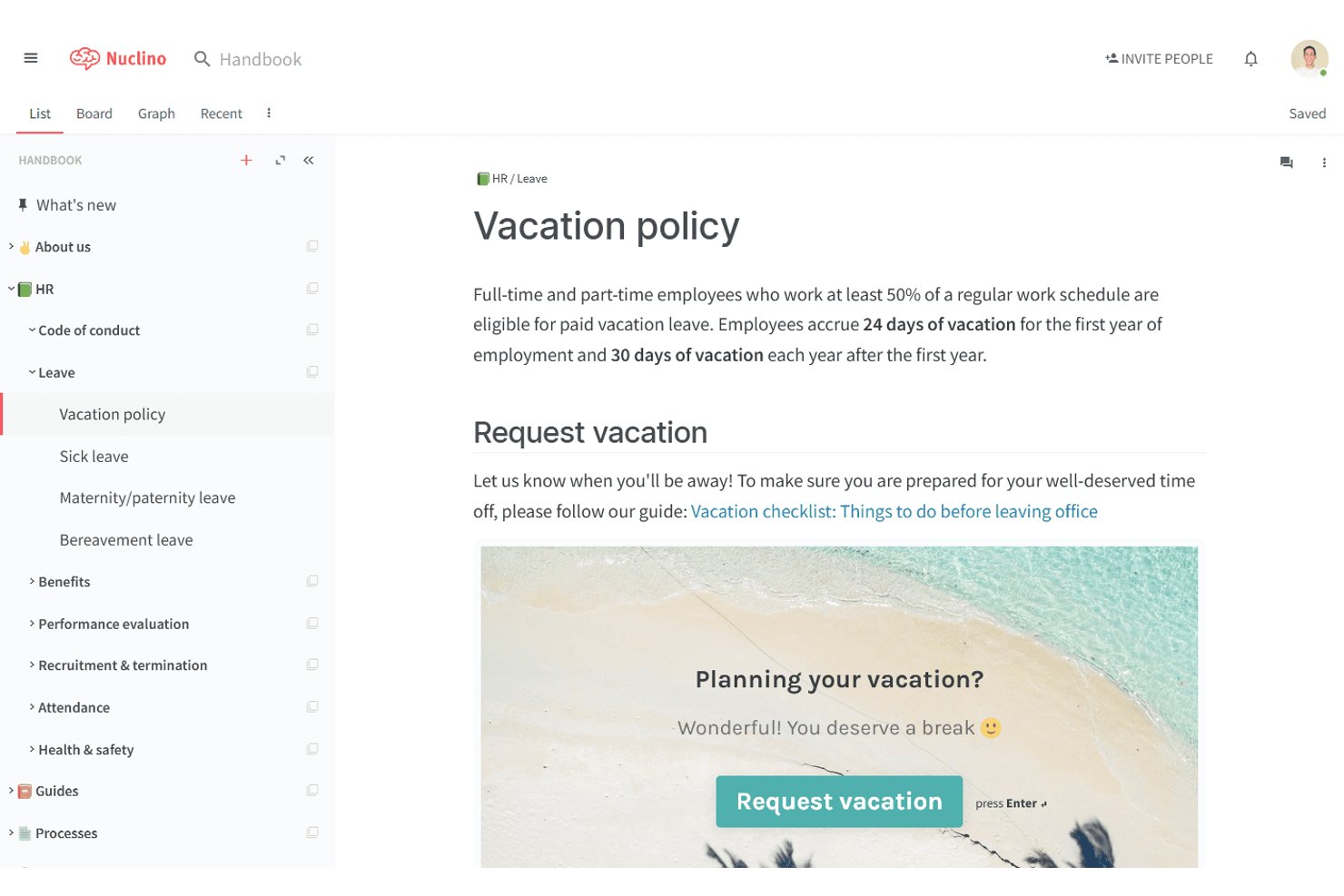
Nuclino is a wiki and knowledge base platform where teams create, organize, and link documents across nested workspaces using a combination of list, board, table, and graph views.
Who Is Nuclino Best For?
Nuclino is a natural fit for small teams and startups that need a lightweight, easy-to-adopt knowledge base without the overhead of a complex enterprise wiki tool.
Why I Picked Nuclino
I've included Nuclino in my top picks because of its graph view, which renders your entire knowledge base as an interactive visual map of linked pages. When I link one document to another inside Nuclino, that relationship appears as a node connection in the graph, making it easy to see how project SOPs, meeting notes, and onboarding guides connect. I also like that you can switch between graph, list, board, and table views on the same content without restructuring anything.
Nuclino Key Features
- Real-time collaborative editing: Multiple team members can edit documents at the same time and see changes instantly.
- Multiple content views: Switch between list, board, table, and graph views to organize and visualize knowledge.
- Markdown and slash commands: Format content quickly with markdown syntax or use slash commands for inserting elements.
- Third-party embed support: Add content from tools like Figma, Lucidchart, Google Drive, and Miro directly into knowledge pages.
Nuclino Integrations
Nuclino offers native integrations with Slack, Microsoft Teams, Figma, Lucidchart, Miro, Google Drive, Dropbox, YouTube, Airtable, and GitHub Gist. An API is available for custom integrations.
What's Free?
Nuclino's free plan is free forever and supports unlimited users, but limits you to 50 items (documents) total, up to 3 canvases, and 2GB of shared storage. It's a meaningful restriction for growing teams, since all documents across all workspaces count toward that 50-item cap.
Pros and Cons
Pros:
- Clean, distraction-free writing editor
- Real-time co-editing across all plan tiers
- Graph view maps page connections visually
Cons:
- No version history on the free plan
- Free plan caps total content at 50 items

Notion
Best for fast onboarding
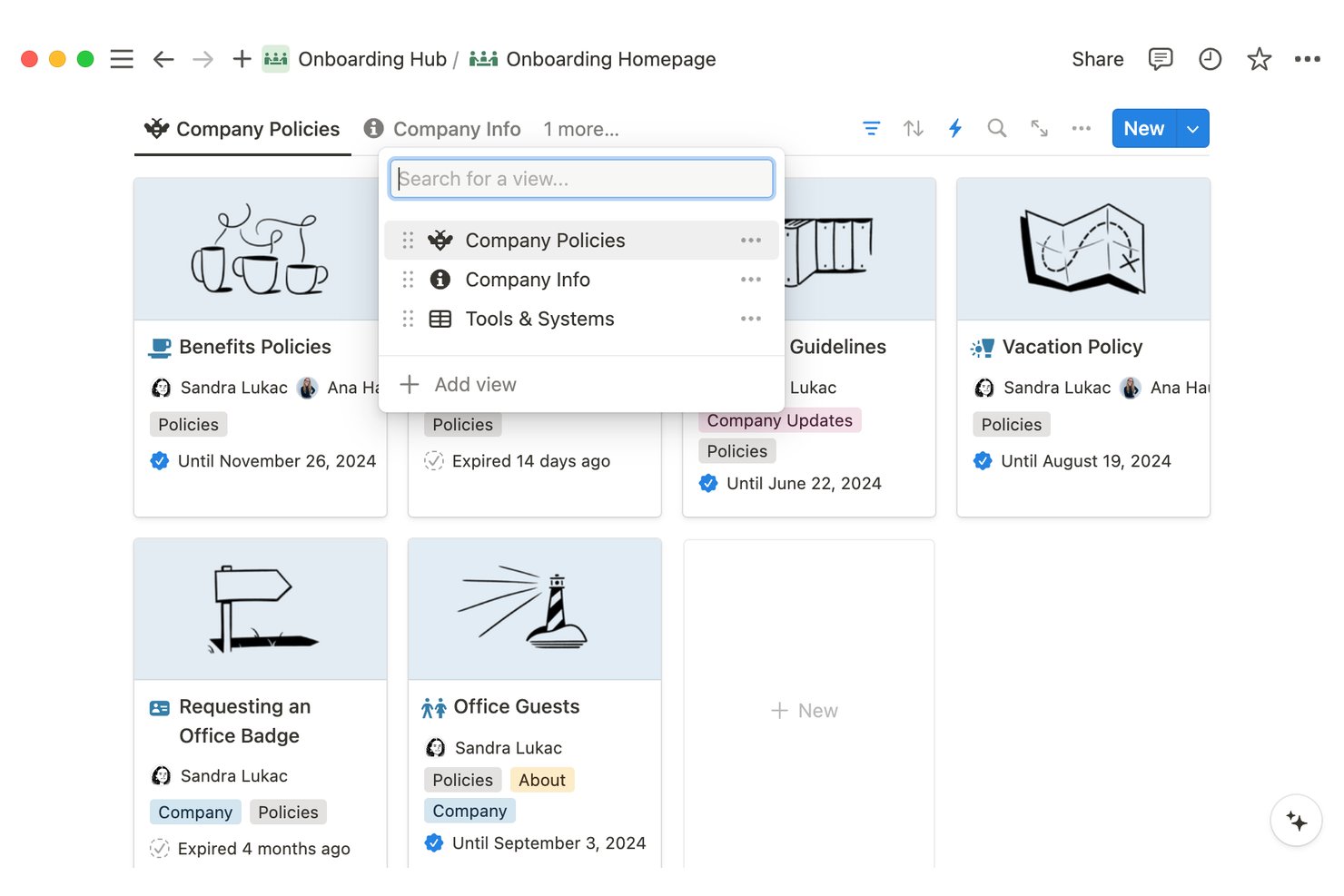
Notion is a block-based workspace where teams build internal knowledge base, documentation, and knowledge bases using nested pages, databases, and rich media embeds—all within a single, unified environment.
Who Is Notion Best For?
Notion is a strong fit for early-stage and growing teams that need a flexible, centralized knowledge base without committing to a specialized tool.
Why I Picked Notion
Notion earns its spot on my shortlist because the onboarding templates are genuinely ready to use on day one. I've built employee onboarding hubs using Notion's nested pages and synced blocks, where a change to a policy page updates everywhere it's referenced automatically. The verification badge feature is another thing I rely on, because new team members can immediately see which pages are confirmed up to date rather than guessing.
Notion Key Features
- Block-based editor: Create pages using drag-and-drop blocks for text, databases, code, images, and more.
- Unlimited page nesting: Organize documentation with multi-level nested pages, allowing logical grouping and deep hierarchies.
- Full-text and AI search: Locate any page or database entry instantly using robust search with advanced filters and AI assistance.
- Role-based permissions: Assign granular view, edit, or comment access at the page, database, or workspace level.
Notion Integrations
Notion offers native integrations with Slack, GitHub, Jira, Figma, Google Drive, and Zoom. An API is available for custom integrations.
What's Free?
Notion's free plan is free forever, but it's best suited to individual use. On a free plan with multiple members, collaborative blocks are limited, file uploads are capped at 5MB per file, and page history is restricted to 7 days.
Pros and Cons
Pros:
- Synced blocks keep repeated content up to date
- Unlimited pages on the free plan
- Templates accelerate wiki setup immediately
Cons:
- Search slows down in large workspaces
- 7-day page history on the free plan

Best for internal training and manuals
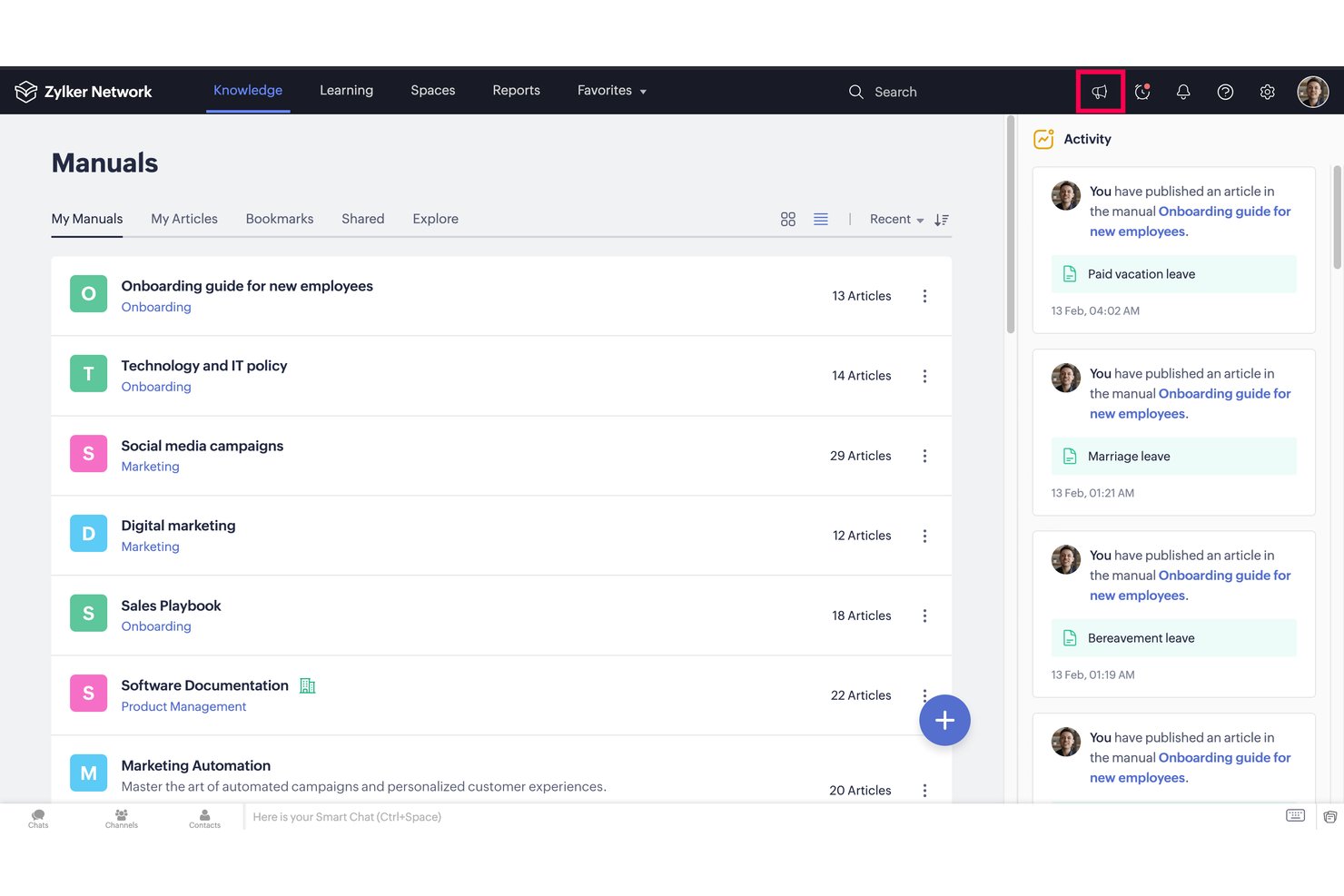
Zoho Learn is a knowledge management tool and LMS platform that pairs a structured article and manual builder with course authoring, quiz-based assessments, and learning paths in a single tool.
Who Is Zoho Learn Best For?
It's a strong fit for small businesses and teams already in the Zoho ecosystem that need to manage internal documentation and employee training in one place.
Why I Picked Zoho Learn
I picked Zoho Learn as one of the best because it's the only free knowledge base tool that pairs structured manuals with a built-in LMS and assessment engine. I use the Spaces → Manuals → Articles hierarchy to organize SOPs by team, and when a process needs more depth, I can convert it into a graded course with quizzes and passing scores. The mandatory reads feature lets me verify that team members have actually reviewed a document, which is something most pure knowledge base tools simply don't offer.
Zoho Learn Key Features
- Spaces and manuals organization: Structure knowledge using nested spaces and manuals to separate team, department, or topic content.
- Role-based access control: Assign user roles and set permissions at the space or manual level to manage who can view, edit, or contribute.
- Universal powerful search: Quickly find articles, documents, and courses across all spaces from a single search bar.
- File and media embedding: Embed images, videos, documents, flowcharts, and code blocks directly within knowledge articles.
Zoho Learn Integrations
Zoho Learn offers native integrations across the Zoho ecosystem, including Zoho People, Zoho Desk, and Zoho CRM. An API is available for custom integrations.
What's Free?
Zoho Learn's free plan is free forever and supports up to 5 users with 3 spaces, 5 manuals, 5 courses, 2 learning paths, and 1 GB of total storage. It's a meaningful limit for very small teams, but growing teams will hit the user and content caps quickly.
Pros and Cons
Pros:
- Quiz and assessment tools built in natively
- Mandatory reads verify team has reviewed articles
- Combines knowledge base and course authoring
Cons:
- No real-time collaborative article editing
- Free tier content limits feel quite restrictive

Bitrix24
Best for centralizing project documentation
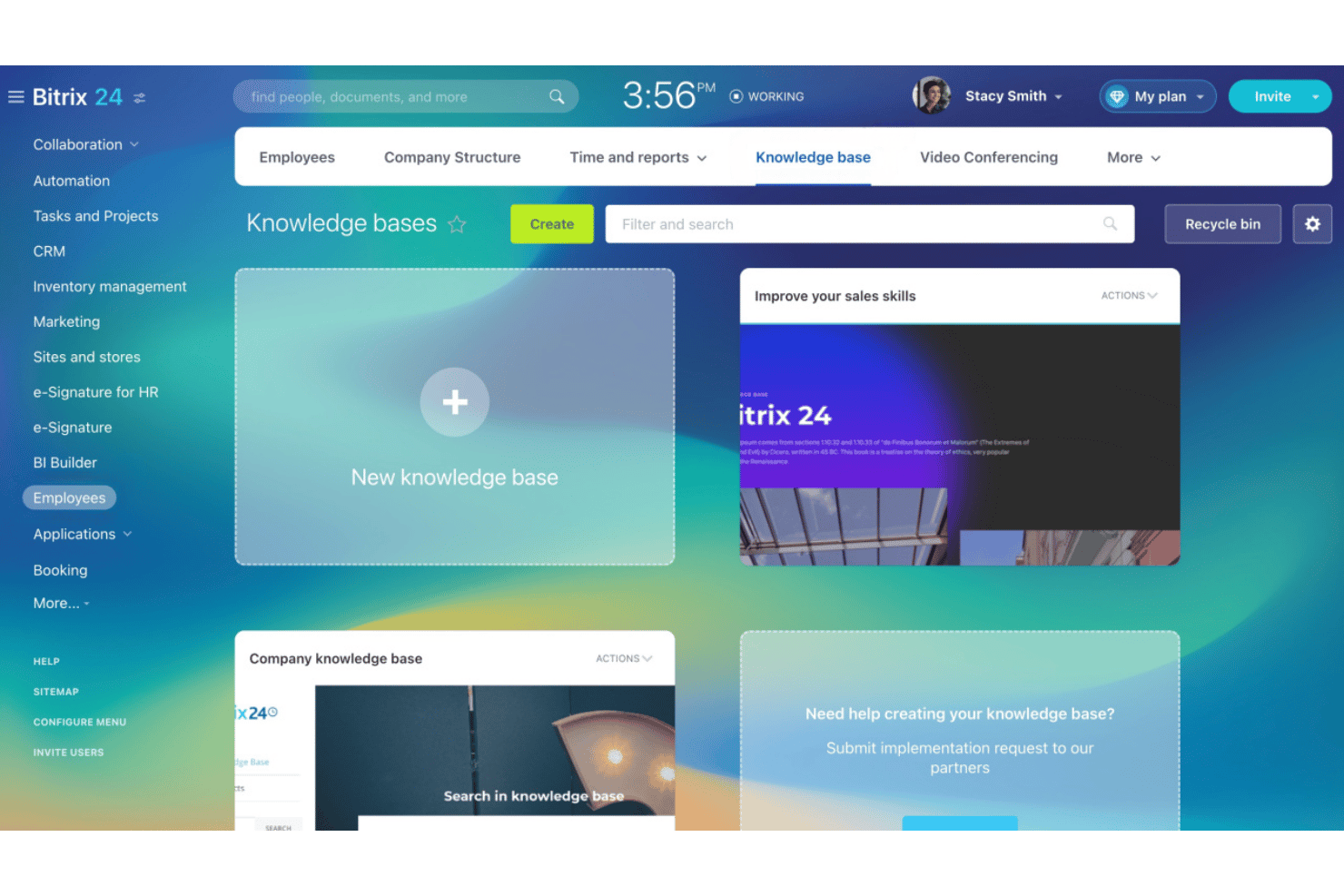
Bitrix24 is an all-in-one work platform with a built-in knowledge base module for creating, organizing, and sharing internal documentation alongside CRM, task management, and team communication tools.
Who Is Bitrix24 Best For?
Bitrix24 is a strong fit for mid-sized teams that want project documentation, task tracking, and communication managed in a single platform rather than separate tools.
Why I Picked Bitrix24
I picked Bitrix24 as one of the best because I love how it lets my team create separate knowledge bases for each project workgroup, keeping documentation scoped exactly where it belongs. In practice, that means a sprint retrospective or technical spec lives inside the same workspace as the tasks it informs. CoPilot also helps me draft and summarize pages directly in the editor, which keeps documentation from falling behind during fast-moving projects.
Bitrix24 Key Features
- Version history and restore: Track changes on every page and roll back to previous versions as needed.
- Role-based permissions: Set granular access controls for viewing, editing, and managing documentation.
- Full-text search: Quickly find knowledge base articles and files with a unified search bar.
- Multimedia embedding: Insert images, documents, and links directly into knowledge pages for richer documentation.
Bitrix24 Integrations
Bitrix24 offers native integrations with Google Drive, Dropbox, OneDrive, Microsoft Office 365, and Microsoft Teams. An API is available for custom integrations.
What's Free?
Bitrix24 offers a free-forever plan that supports up to two users with 5 GB of storage. It includes access to the knowledge base, tasks, and team chat, though features like telephony and marketplace apps are reserved for paid plans.
Pros and Cons
Pros:
- Tasks and docs live in one place
- AI CoPilot drafts and summarizes pages
- Separate knowledge bases per project workgroup
Cons:
- Interface feels cluttered with non-KB features
- Free plan capped at two users

XWiki
Best for advanced permissions in self-hosted wikis
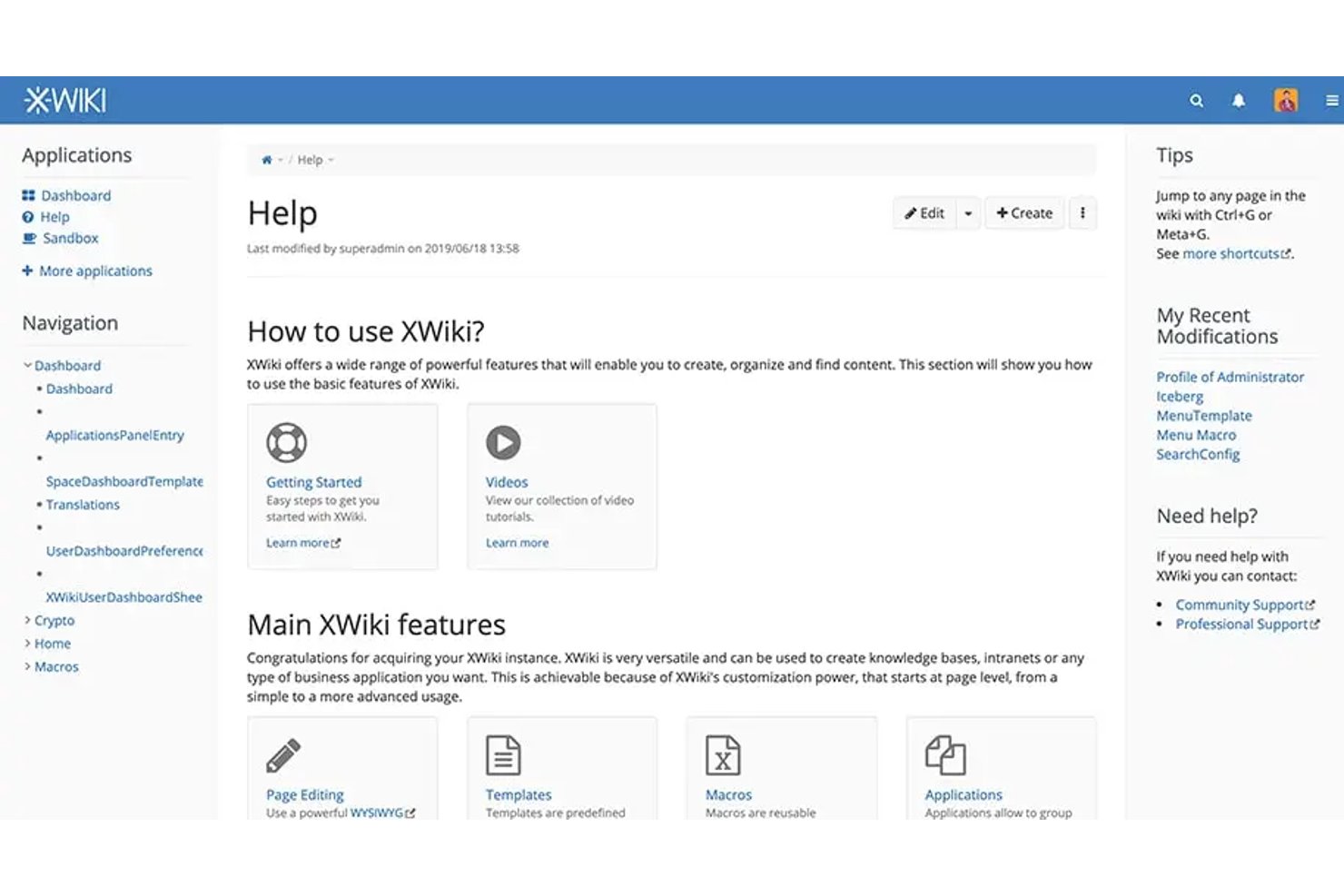
XWiki is an open-source, self-hosted wiki platform that combines structured page creation, hierarchical organization, full-text search, and granular access permissions for team knowledge management.
Who Is XWiki Best For?
XWiki is a strong fit for technical teams and IT-led organizations that need full control over their knowledge base infrastructure through self-hosting.
Why I Picked XWiki
XWiki earns its spot on my shortlist because its permission system goes deeper than almost any other free knowledge base tool I've used. I can set access controls at the page, space, and group level, which means I can lock down sensitive retrospectives or post-mortems while keeping general documentation open. It also connects natively to LDAP and Active Directory, so permissions stay in sync with your existing directory without manual upkeep.
XWiki Key Features
- Structured content templates: Create and apply customizable templates for consistent documentation across different projects or spaces.
- Full-text and faceted search: Locate articles, attachments, and information using advanced search with filters and facets.
- Versioning and rollback: Track every edit to pages and restore previous versions when needed with detailed history.
- Integrated extension marketplace: Browse and install over 900 extensions to add new macros, applications, and integrations.
XWiki Integrations
XWiki offers a marketplace of plugins and integrations with Jira, Google Analytics, OnlyOffice, and over 900 additional extensions. An API is available for custom integrations.
What's Free?
XWiki's open-source edition is free forever and available for self-hosting with no user limits. You're responsible for your own server infrastructure, but there are no restrictions on the number of users, pages, or spaces you can create.
Pros and Cons
Pros:
- Extension marketplace adds functionality without code
- Unlimited users and pages on free tier
- Page-level permissions unmatched by most free tools
Cons:
- Editor feels dated compared to modern alternatives
- Self-hosting requires server setup and maintenance

Best for managing multiple team workspaces
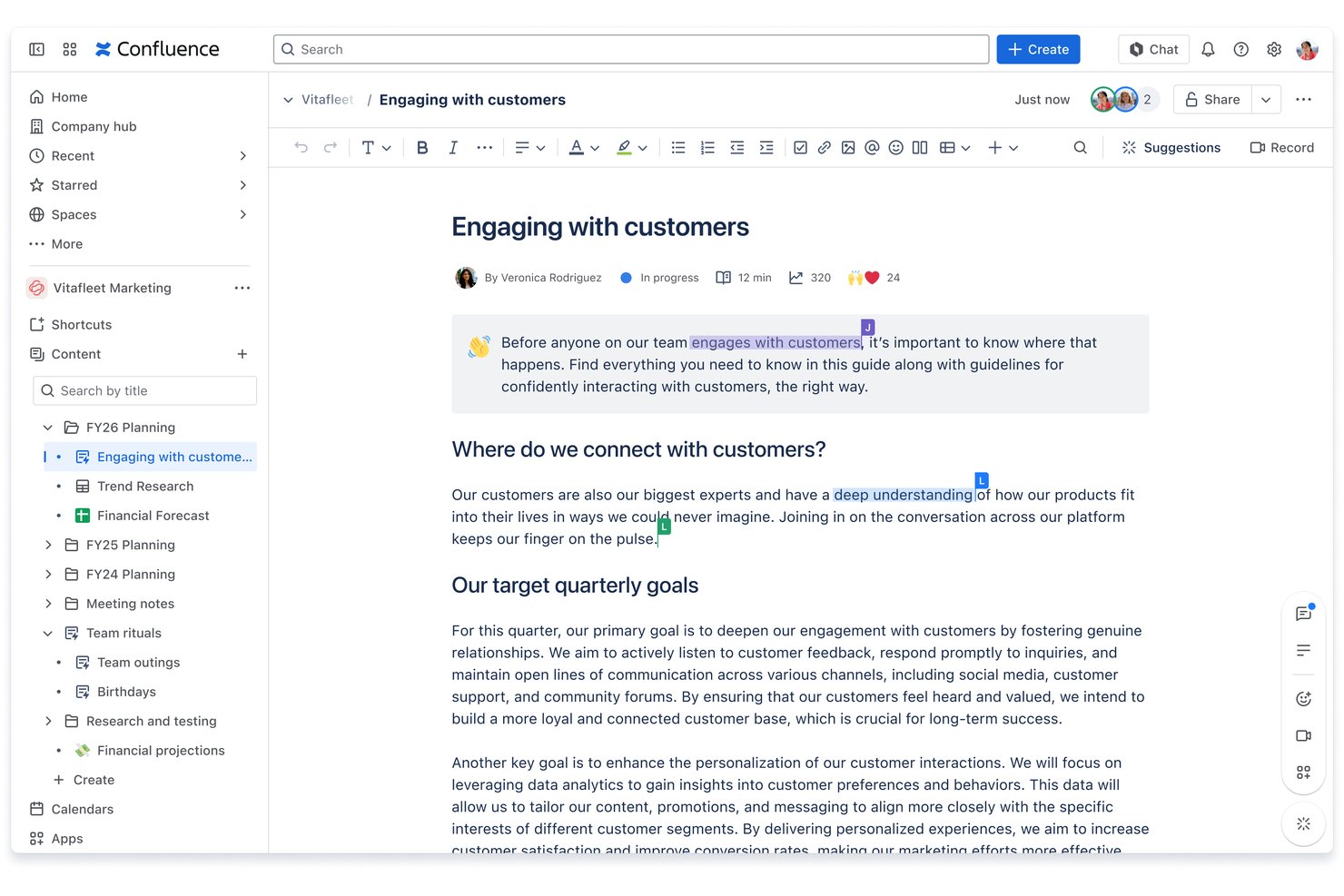
Confluence is Atlassian's team workspace and documentation platform that lets you create, organize, and search structured pages, wikis, databases, and whiteboards across multiple collaborative spaces.
Who Is Confluence Best For?
Confluence is a strong fit for technical teams and project managers who are already working within the Atlassian ecosystem alongside Jira.
Why I Picked Confluence
I've included Confluence in my top picks because no other free knowledge base tool structures multi-team documentation quite like it. Each team gets its own dedicated space, complete with an independent page tree and template library, so engineering, product, and design can each build and maintain a separate, organized wiki. I also like that the free plan includes unlimited spaces and pages, so you can spin up a new workspace for every project or team without hitting a ceiling.
Confluence Key Features
- Rich text and block editor: Create and format documentation with tables, images, code snippets, and advanced macros.
- Page version history: Track every change to pages and restore previous versions when needed.
- Full-text search: Instantly locate content using keyword-based and filterable search across spaces and pages.
- App marketplace integrations: Extend functionality with hundreds of add-ons for calendars, visualization, or workflow automation.
Confluence Integrations
Confluence offers native integrations with Jira, Trello, Slack, Microsoft Teams, Google Drive, Dropbox, and Zoom. Hundreds of additional integrations are available through the Atlassian Marketplace. An API is available for custom integrations.
What's Free?
Confluence offers a free-forever plan that supports up to 10 users and includes unlimited spaces and pages, with 2 GB of file storage. Advanced features like analytics, admin controls, and premium support are reserved for paid tiers.
Pros and Cons
Pros:
- Real-time co-editing with comments and mentions
- Nested page trees support deep documentation structure
- Unlimited spaces and pages on free plan
Cons:
- No content analytics on free tier
- Free plan capped at 10 users

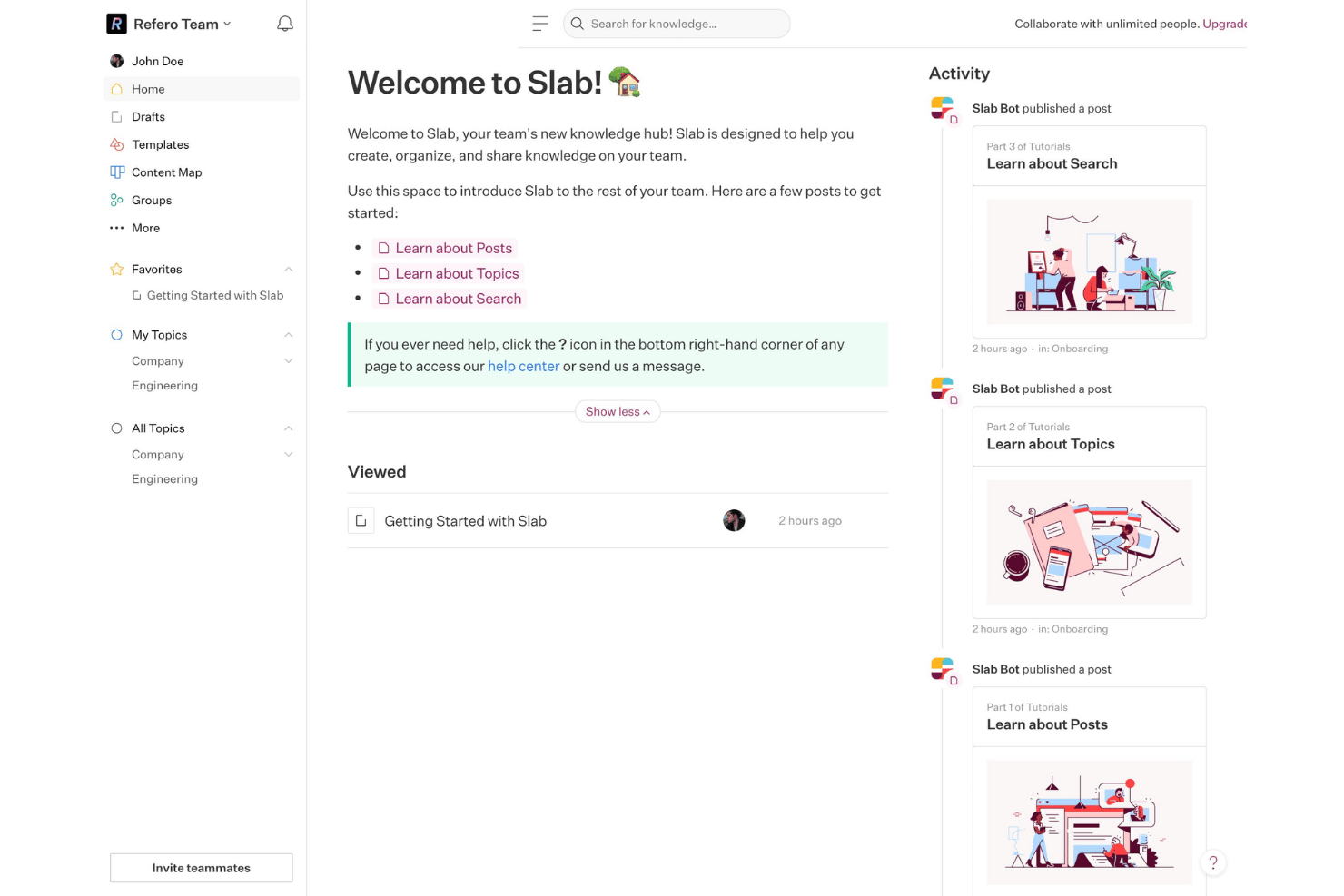
Slab is a knowledge base platform built for team documentation, featuring a block-based editor, Topics-based content organization, federated search across integrated tools, and a built-in Verification workflow for keeping documented processes accurate.
Who Is Slab Best For?
Slab is a strong fit for small to mid-sized tech teams that need a shared documentation hub accessible to both technical and non-technical teammates.
Why I Picked Slab
I've included Slab in my top picks because its Verification workflow is something I haven't seen handled this well in other free knowledge base tools. In practice, my team can flag any post for review on a set schedule, and Slab prompts the designated owner to confirm the content is still accurate. That built-in accountability loop means our SOPs and process docs don't quietly become outdated between quarterly reviews.
Slab Key Features
- Block-based editor: Create structured content with drag-and-drop blocks for headings, images, lists, and embeds.
- Topics organization: Group documentation using multi-level topics, allowing logical navigation and content discovery.
- Unified search: Find answers across Slab and integrated apps like Slack, Google Drive, and Asana in one search interface.
- Real-time collaborative editing: Edit pages with teammates simultaneously and view changes with instant updates.
Slab Integrations
Slab offers native integrations with Slack, Google Drive, Asana, GitHub, Dropbox, Microsoft OneDrive, Figma, Office 365, Trello, and Zapier. An API is available for custom integrations.
What's Free?
Slab's free plan is free forever for up to 10 users, with unlimited posts and topics, real-time collaboration, templates, Verification, and unified search included. Key restrictions include a 10MB attachment limit, 90-day version history, up to 10 standard integrations, and 30-day usage analytics.
Pros and Cons
Pros:
- Free plan includes unlimited posts and topics
- Unified search spans connected third-party apps
- Verification workflow keeps process docs current
Cons:
- No offline access for distributed teams
- Free plan capped at 10 users

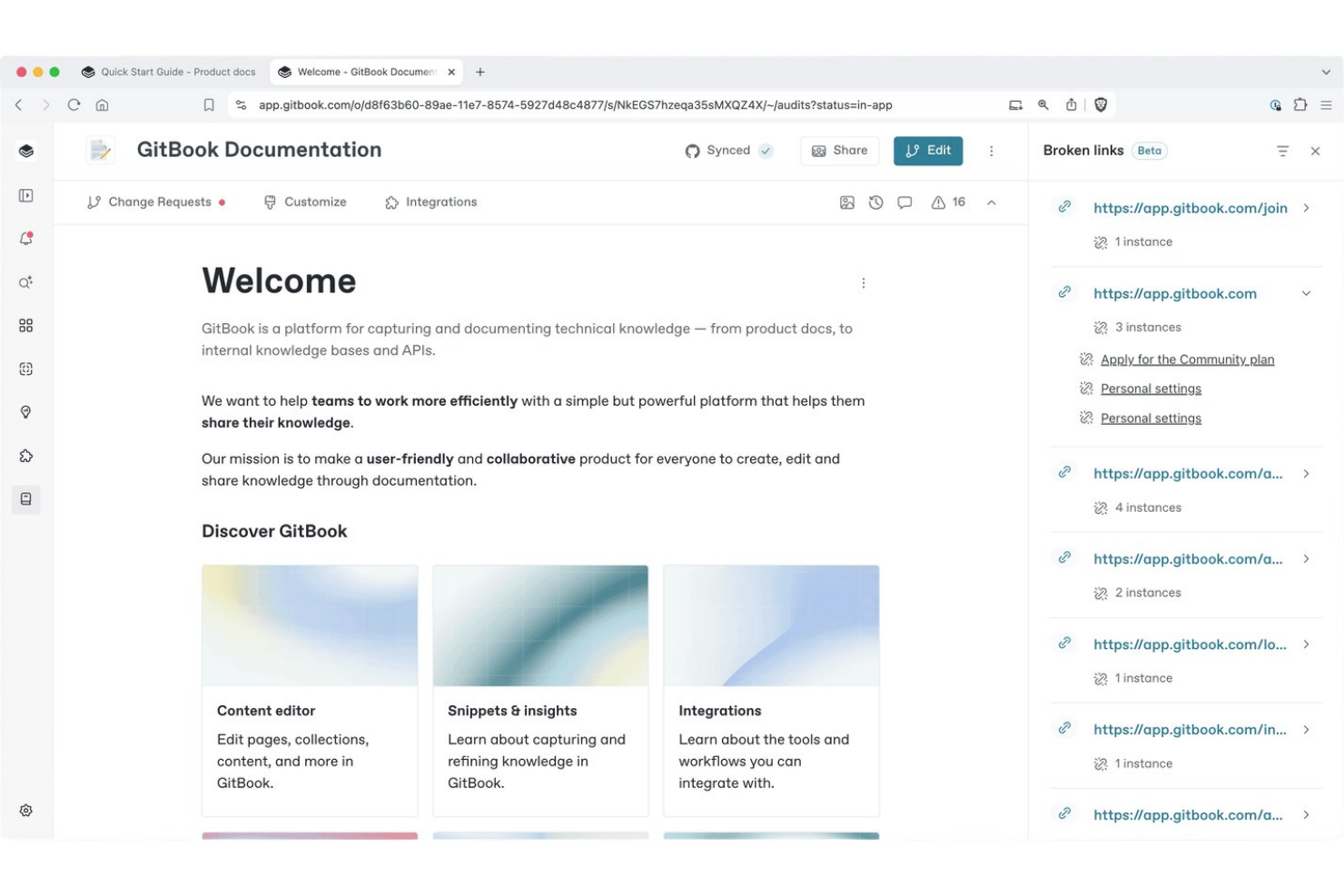
GitBook is a documentation platform built for technical teams, combining a block-based editor, Git Sync with GitHub and GitLab, AI-powered search, and a branch-review-merge workflow for managing knowledge bases.
Who Is GitBook Best For?
GitBook is a strong fit for technical project coordinators and developer teams who need to manage versioned documentation alongside their code workflows.
Why I Picked GitBook
I've included GitBook in my top picks because its Git Sync feature is genuinely unique in the knowledge base space. It works bidirectionally: changes made in GitBook's editor sync to GitHub as Markdown commits, and code pushes to the repo appear in GitBook automatically. On top of that, GitBook's change request workflow mirrors a pull request model, so my team can draft, review, and merge doc updates the same way we handle code changes.
GitBook Key Features
- Block-based visual editor: Edit documentation using drag-and-drop blocks for images, code, tables, and embeds.
- Spaces for content organization: Group related pages within flexible workspaces called spaces for logical knowledge base structuring.
- Full-text search: Find information quickly with built-in whole-article search functionality.
- Commenting and change requests: Capture feedback and manage proposed edits with threaded comments and approval workflows.
GitBook Integrations
GitBook offers native integrations with GitHub, GitLab, Figma, and Loom. An API is available for custom integrations.
What's Free?
GitBook's free plan is a permanent, free-forever tier for individual users (limited to 1 user). It includes the block-based editor, Git Sync with GitHub and GitLab, change requests, version history, full-text search, and page view analytics, but team collaboration features like real-time co-editing, review and approval workflows, and custom domains require a paid upgrade.
Pros and Cons
Pros:
- Free tier includes full version history access
- Change request workflow controls documentation contributions
- Git Sync mirrors code repository workflows natively
Cons:
- AI search locked behind paid plans
- Free plan restricted to one user only

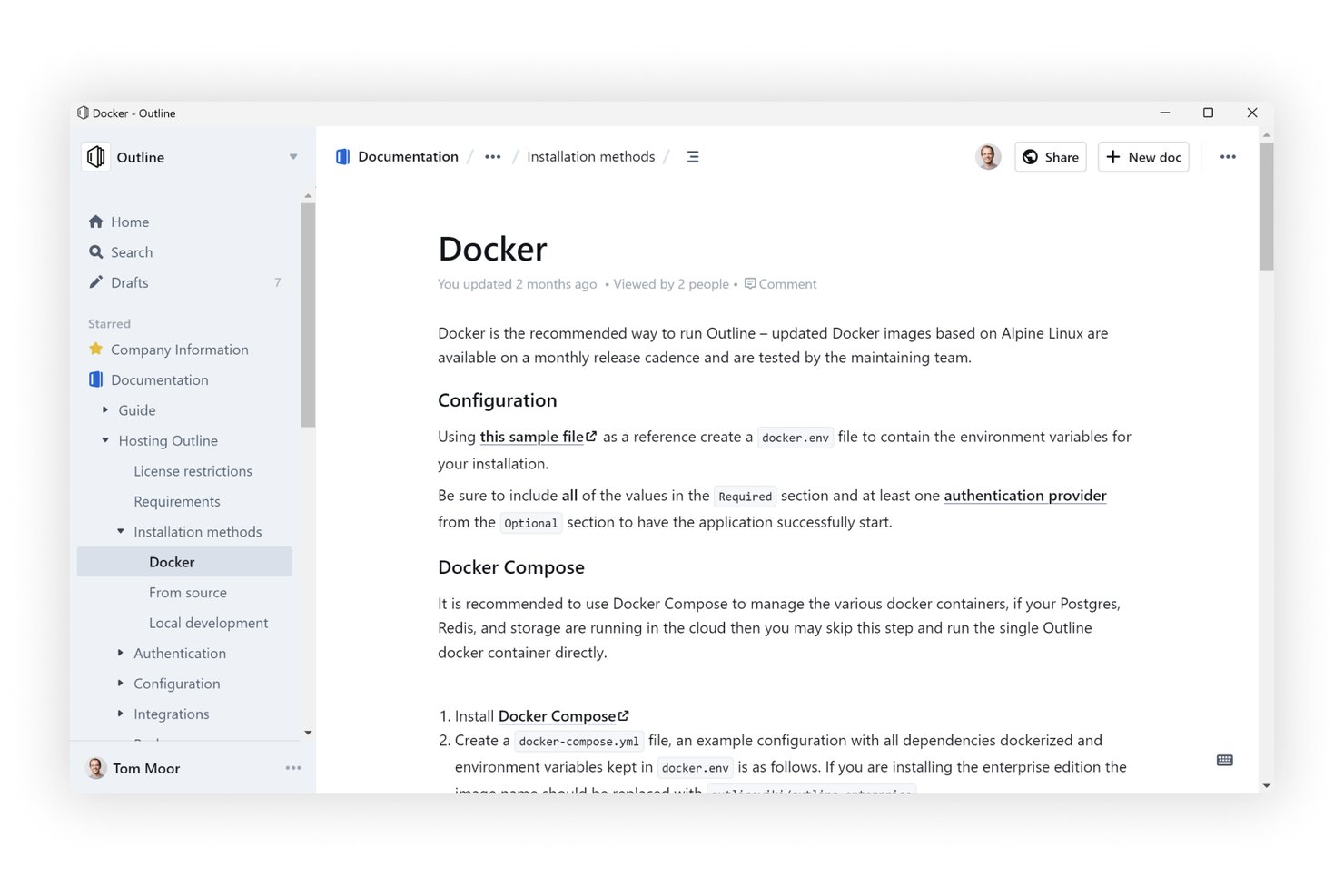
Outline is an open-source knowledge base software that supports real-time collaborative editing, unlimited nested documents, AI-powered search, and integrations with tools like Slack, GitHub, and Figma.
Who Is Outline Best For?
Outline is a strong fit for technical teams and engineering-adjacent project managers who want a self-hostable, open-source wiki with developer-friendly tooling.
Why I Picked Outline
Outline earns its spot on my shortlist because the unlimited nested document structure is the most flexible I've worked with. I can build deep collection hierarchies where a single project workspace holds sub-pages for briefs, meeting notes, retrospectives, and decisions, all cleanly stacked without hitting any depth limits. The AI-powered search cuts across that entire structure instantly, so nothing gets buried no matter how deep the nesting goes.
Outline Key Features
- Real-time collaborative editor: Multiple users can edit pages at the same time with live updates and comment threads.
- AI-powered workspace search: Instantly locate any document or answer questions using natural language queries.
- Public sharing and guest access: Publish knowledge base content to the web or share with external collaborators securely, for example, sharing a customer-facing document.
- 20+ embedding integrations: Embed content from Figma, Loom, GitHub, and other tools directly within documents.
Outline Integrations
Outline offers native integrations with Slack, GitHub, GitLab, Figma, Loom, and Miro. An API is available for custom integrations.
What's Free?
Outline offers a 30-day free trial on its cloud-hosted plans, after which your knowledge base becomes read-only until you add a payment method. There's no free-forever cloud plan, but Outline is open-source and free to self-host on your own infrastructure if your team has the technical capacity to manage it.
Pros and Cons
Pros:
- AI search spans the entire workspace
- Open-source codebase allows full self-hosting
- Unlimited document nesting without depth restrictions
Cons:
- Self-hosting demands significant technical overhead
- No free-forever cloud plan available

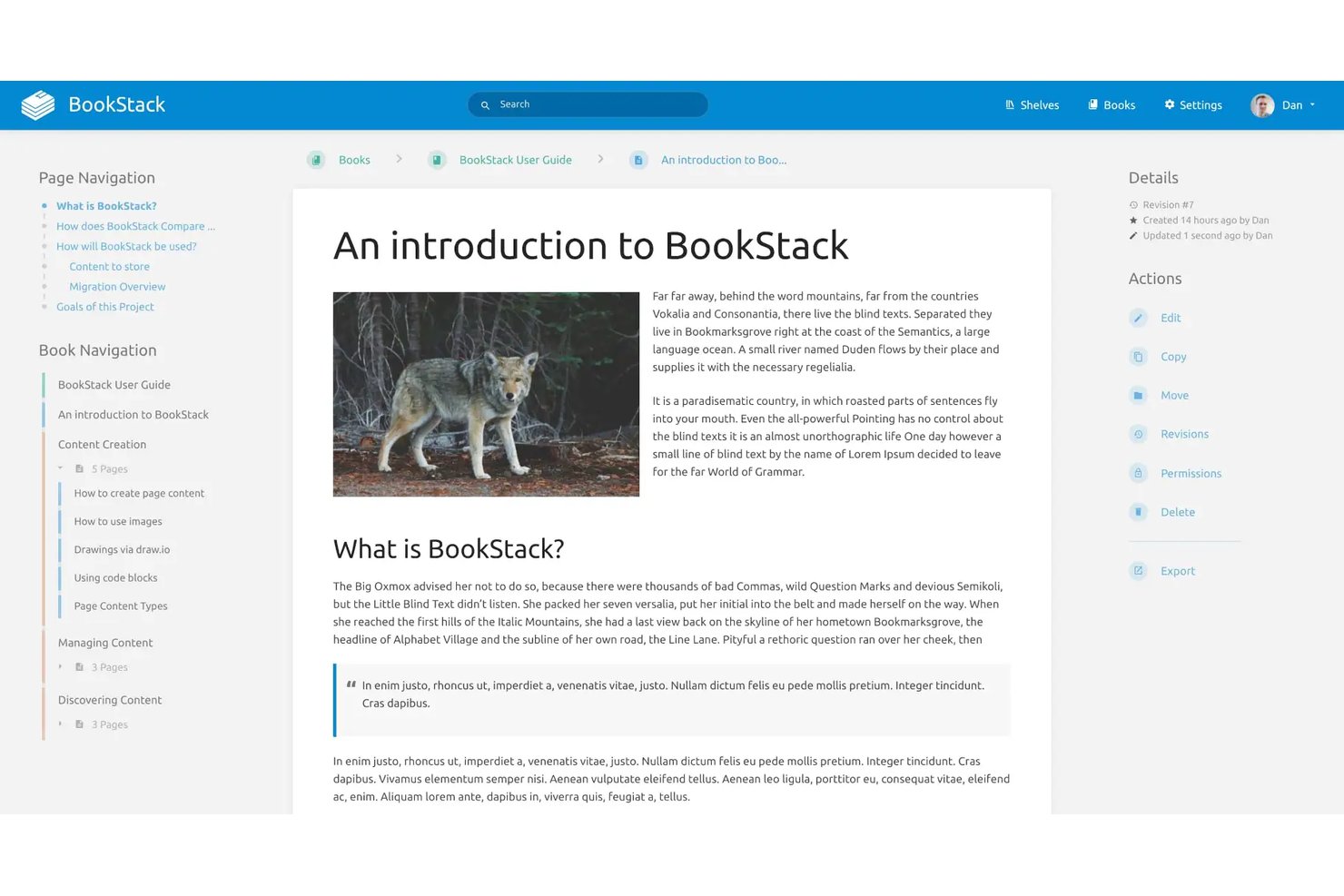
BookStack is a free, open-source, self-hosted knowledge base platform that structures content into shelves, books, chapters, and pages, with a WYSIWYG editor, full-text search, role-based permissions, and enterprise authentication support via SAML2 and LDAP.
Who Is BookStack Best For?
BookStack is a great fit for technical teams and organizations that can manage their own server infrastructure and want full control over their documentation environment.
Why I Picked BookStack
BookStack earns its spot on my shortlist because the Shelves > Books > Chapters > Pages hierarchy is genuinely unlike anything else in the free knowledge base space. I love how a single book can sit on multiple shelves, so a runbook can surface in both a "DevOps" shelf and an "Onboarding" shelf without duplicating content. The built-in direct paragraph linking also lets me point teammates to an exact section within a page, not just the page itself.
BookStack Key Features
- WYSIWYG and Markdown editors: Choose between a visual rich text editor or raw Markdown for content creation.
- Full RBAC permission system: Assign custom roles and set granular editing and viewing permissions for users and groups.
- Page revision history: Automatically tracks changes and enables you to view or restore previous versions of pages.
- Diagrams.net integration: Add and edit diagrams directly within knowledge base pages for richer documentation.
BookStack Integrations
BookStack offers native integrations with diagrams.net for creating and editing diagrams within pages and provides an API for custom integrations. SAML2, LDAP, and OpenID Connect authentication integrations are also supported.
What's Free?
BookStack is entirely free and open-source with no user limits, storage caps, or feature restrictions. The only requirement is that you host it on your own server, which means you're responsible for setup, maintenance, and infrastructure costs.
Pros and Cons
Pros:
- Full revision history with page-level rollback
- No caps on users, pages, or storage
- Book-style hierarchy makes content navigation intuitive
Cons:
- No real-time collaboration tools
- Requires self-hosting on your own server
Other Free Knowledge Base Software
Here are some additional free knowledge base software options that didn’t make it onto my shortlist, but are still worth checking out:
- Wiki.js
For third-party storage support
- ClickUp
For linking docs directly to project tasks
- ProProfs Knowledge Base
For pre-built templates
- Lark
For integrated docs and team chat
- Flowlu
For linking project docs with task management
- Coda
For database-style pages
- Bit.ai
For embedding dynamic content in documents
- MediaWiki
For flexible structure in open-source wikis
- Docmost
For collaborative SOP documentation
- Documize
For internal and external docs separation


How I Evaluate Free Knowledge Base Software
First, I define what counts as free. For knowledge base software, that means a perpetual free plan—not a trial—since teams need these as always-on documentation hubs. From there, I evaluate each tool on two layers: core functionality required to qualify, and the differentiating factors that set the best options apart.
Core Functionality (Table Stakes For This List)
In addition to my free offer requirements, I also use a scoring system to select tools for my list. Here's how it works:
When I'm selecting tools for my list, I rank each one on a scale from 0 (does not offer the functionality) to 5 (excels in this area) for each core functionality listed below. I then calculate the tool's total score into a percentage, using 75% as a benchmark to help assess its overall fit for the list.
- Article and page creation: I look for a rich text or block-based editor that lets teams draft SOPs, meeting notes, and project post-mortems without fighting the formatting.
- Hierarchical organization: Structured grouping through spaces, folders, or nested pages matters. I evaluate whether you can mirror a real project hierarchy—like separating onboarding docs from sprint retrospectives.
- Search functionality: Full-text search across all articles is what I check for, so team members can find a specific decision log or process doc without scrolling through dozens of pages.
- Access permissions: Role-based controls should let you restrict sensitive project documentation while keeping general resources open to the wider team.
- Collaborative editing: I look at whether multiple contributors can update the same page, with version history that tracks who changed what—useful when several people maintain a shared runbook.
- Media and file embedding: Teams need to drop screenshots, diagrams, and file attachments directly into articles. I check that the editor handles inline images and links without workarounds.
Once I have a list of tools that meet the criteria, I consider what sets each platform apart.
Differentiating Factors (What Sets Vendors Apart)
Here's how I compare and contrast different vendors:
Standout Features
Version history and rollback is a big one—I look for tools that let you compare revisions side by side and restore earlier content when someone accidentally overwrites a process doc. Public and private spaces also matter, especially when your team needs internal project documentation alongside client-facing resources without maintaining two separate platforms. I also evaluate multi-format embedding, since teams often need code snippets, video walkthroughs, or diagrams embedded directly in their articles.
Beyond Features
Free plan limits deserve close attention—I check how many users, pages, and storage a plan includes, since a knowledge base your team outgrows in a month isn't useful. Ease of content migration also shapes my evaluation. If you're moving from Google Docs or Confluence, import tools save weeks of manual copy-pasting. I also consider how well each platform connects to tools like Slack or Microsoft Teams, because surfacing the right article inside a chat thread is often faster than asking someone to go search for it.
How to Choose Free Knowledge Base Software
It’s easy to get bogged down in long feature lists and complex pricing structures. To help you stay focused as you work through your unique software selection process, here’s a checklist of factors to keep in mind:
| Factor | What to Consider |
|---|---|
| Scalability | Can the free plan handle your expected user count, article volume, and storage as your team expands? |
| Integrations | Does it integrate with project management, chat, or help desk tools your team already uses? |
| Customizability | Will you be able to tailor categories, templates, or workflow organization to match your processes? |
| Ease of use | How quickly can team members and non-technical users start creating and finding documentation? |
| Implementation and onboarding | What will it take to launch—can you import content, or will migration and training slow rollout? |
| Cost | Are paid plan limits clear? Will upgrades be needed soon if you hit a usage wall? |
| Security safeguards | Does the platform provide permissions, encryption, and backup options to protect your sensitive data? |
| Support availability | What support channels exist on the free plan if your team gets stuck or needs guidance? |
What Are Free Knowledge Base Software?
Free knowledge base software are platforms that let your team create, organize, and share documentation without a paid subscription. These tools offer essential features like page editing, search, and access controls at no cost. Project managers use them to centralize SOPs, meeting notes, and other important project content, making information accessible across distributed teams.
Features
Let’s go over the features commonly found in knowledge base software, and which ones are usually included in free vs. paid plans.
Typically Free Knowledge Base Software Features
- Rich text editor: Lets you create and format articles with headings, lists, links, and other basic layout tools.
- Basic search: Offers keyword search so users can quickly find relevant articles, policies, or project documentation.
- Hierarchical pages: Supports organizing content into categories, folders, or nested pages so teams can mirror project structures.
- User roles: Provides basic permission levels to control who can view, edit, or create knowledge base content.
- File attachments: Allows linking or uploading images, PDFs, or other files directly to articles for added context.
- Activity history: Keeps a simple change log so you can see when a page was edited and by whom.
- Public or internal access: Makes it possible to keep documentation restricted to your team or share it publicly.
Typically Paid Knowledge Base Software Features
- AI-powered search: Uses natural language processing to suggest articles and provide instant, relevant results for complex queries.
- Advanced analytics: Gives insights into article usage, search trends, content gaps, and user engagement to guide improvements.
- Granular permissions: Allows for fine-tuned control at the page, folder, or group level, including custom roles.
- Content version control: Supports advanced revision history with side-by-side comparisons and rollback to previous states.
- Multi-format embedding: Lets users add videos, code snippets, tables, and interactive elements within articles.
- Branded domains: Enables the use of custom domains and visual branding for your knowledge base portal.
- Integrations with other tools: Offers automated connections to platforms like Slack, help desks, and SSO providers for streamlined workflows.
- Public/private content segmentation: Distinguishes which content appears to which audiences without duplicating documentation.
- Automation and workflow tools: Includes triggers, approval flows, and scheduled publishing for managing content lifecycles.
- Premium support services: Provides dedicated email, chat, or onboarding assistance, often with faster response times.
Benefits
Implementing free knowledge base software provides several benefits for your team and your business. Here are a few you can look forward to:
- Faster onboarding: New team members can quickly use self-service for key information and get up to speed by accessing organized SOPs and project docs.
- Reduced repetitive questions: Common processes and policies are documented, so teammates spend less time answering the same queries over and over.
- Improved project visibility: All stakeholders get consistent access to decisions, meeting notes, and retrospectives in a centralized, searchable space.
- Cost savings: Teams can share and maintain vital documentation without worrying about recurring software expenses or hitting trial deadlines.
- Better collaboration: Multiple users contribute updates with version history, so your project documentation stays current and accurate.
- Simplified knowledge sharing: Hierarchical organization and in-article file attachments make it easy to distribute vital information across locations and departments.
- Controlled access: User roles and basic permissions let you choose who can view or update sensitive or important documentation.
Costs and Pricing
I realize you came to this article looking for the best knowledge base software options that are available for free. However, since free plans only offer limited features, there's a good chance you'll need to scale your plan up in the future.
The table below summarizes common plans, their average prices, and typical features included in knowledge base software:
Plan Comparison Table
| Plan Type | Average Price | Common Features |
|---|---|---|
| Free Plan | $0 | Basic article creation, basic search, limited users, simple permissions, and standard file attachments. |
| Personal Plan | $5–$10/user/month | All free features, custom branding, more storage, priority customer support, and basic analytics. |
| Business Plan | $15–$25/user/month | Advanced permissions, integrations, content versioning, analytics dashboards, and multi-format embedding. |
| Enterprise Plan | $30–$60/user/month | SSO, audit logs, dedicated support, advanced security, custom domains, and compliance tools. |
Free Knowledge Base Software FAQs
Here are some answers to common questions about free knowledge base software:
Can I migrate existing documentation into free knowledge management software?
Yes, most knowledge base solutions let you import documents from tools like Google Docs or Markdown files. Some even offer bulk import tools or integrations to move content from other systems, so your team can keep existing documentation organized without starting from scratch.
Are there limitations on users or storage with free knowledge base software?
Yes, most free plans cap the number of users, storage space, or articles you can add. Teams should check these limits upfront to avoid disruptions or unexpected cutoffs as the knowledge base grows.
How secure is information stored in free knowledge base software?
Free plans usually include standard encryption and basic permission settings, but advanced features like audit logs and compliance tools are often locked behind paid tiers. Always review a platform’s privacy policy and access controls before storing sensitive data.
Do free knowledge base tools support integrations with other apps?
Many do offer basic integrations with chat and project management apps, but workflow automation and advanced integrations are typically only available on paid plans. Check for compatibility with your existing stack before committing.
Is support available for users of free knowledge base software?
Support for free users is often limited to help centers, community forums, or email. Real-time chat and advanced onboarding are typically reserved for paying customers, so consider your team’s support needs during evaluation.