

19 Best Free Document Version Control Software in 2026

Best Free Document Version Control Software Shortlist


Free document version control software lets you track, manage, and organize changes to your documents without paying for a license or subscription. If you’re searching for ways to keep version history clear, collaborate on files, and prevent costly overwrites—without stretching your budget—knowing which tools offer a true free plan or trial is essential.
In this guide, you’ll find my take on standout options, so you can compare features, evaluate what works for your team, and pick a solution that actually fits your daily workflow.
Why Trust Our Software Recommendations
Our team has been testing and reviewing software since 2012. As project managers ourselves, we know how difficult—and important—it is to choose the right software.
For this guide, we evaluated tools using hands-on testing and independent research, scoring tools using our selection criteria. We also draw on insights from industry thought leaders and practicing project management experts.
Our reviews reflect our human editorial judgment, not a sales pitch.
Expert reviewers:
Free Document Version Control Software Comparison Table
This comparison table highlights pricing details for my top free document version control software selections.
| Tool | Best For | Trial Info | Price | ||
|---|---|---|---|---|---|
| 1 | Best for real-time document editing | Free plan + trial available | From $7/user/month (billed annually) | Website | |
| 2 | Best for built-in document co-editing tools | Free plan available | Pricing upon request | Website | |
| 3 | Best for tracking PDF versions | 7-day free trial | From $19.99/user/month (billed annually) | Website | |
| 4 | Best for task management integration | 15-day free trial + free demo available | From $49/month (billed annually) | Website | |
| 5 | Best for familiar editing interface | Free plan available | Pricing upon request | Website | |
| 6 | Best for team file collaboration | Free trial + free plan available | From $9.99/user/month (billed annually) | Website | |
| 7 | Best for advanced metadata organization | Free demo available | From $65/user/month | Website | |
| 8 | Best for centralized team file storage | Free demo + 15-day free trial available | From CAD $3/user/month (billed annually) | Website | |
| 9 | Best for customizable workflow automation | Free and open-source | Free and open-source | Website | |
| 10 | Best for scalable open-source deployments | Free to use | Free to use | Website |
Free Document Version Control Software Reviews
Below are my detailed summaries of the free document version control software that made it onto my shortlist. My reviews offer a detailed look at the features, best use cases, and integrations of each platform to help you find the best one for you.

Best for real-time document editing
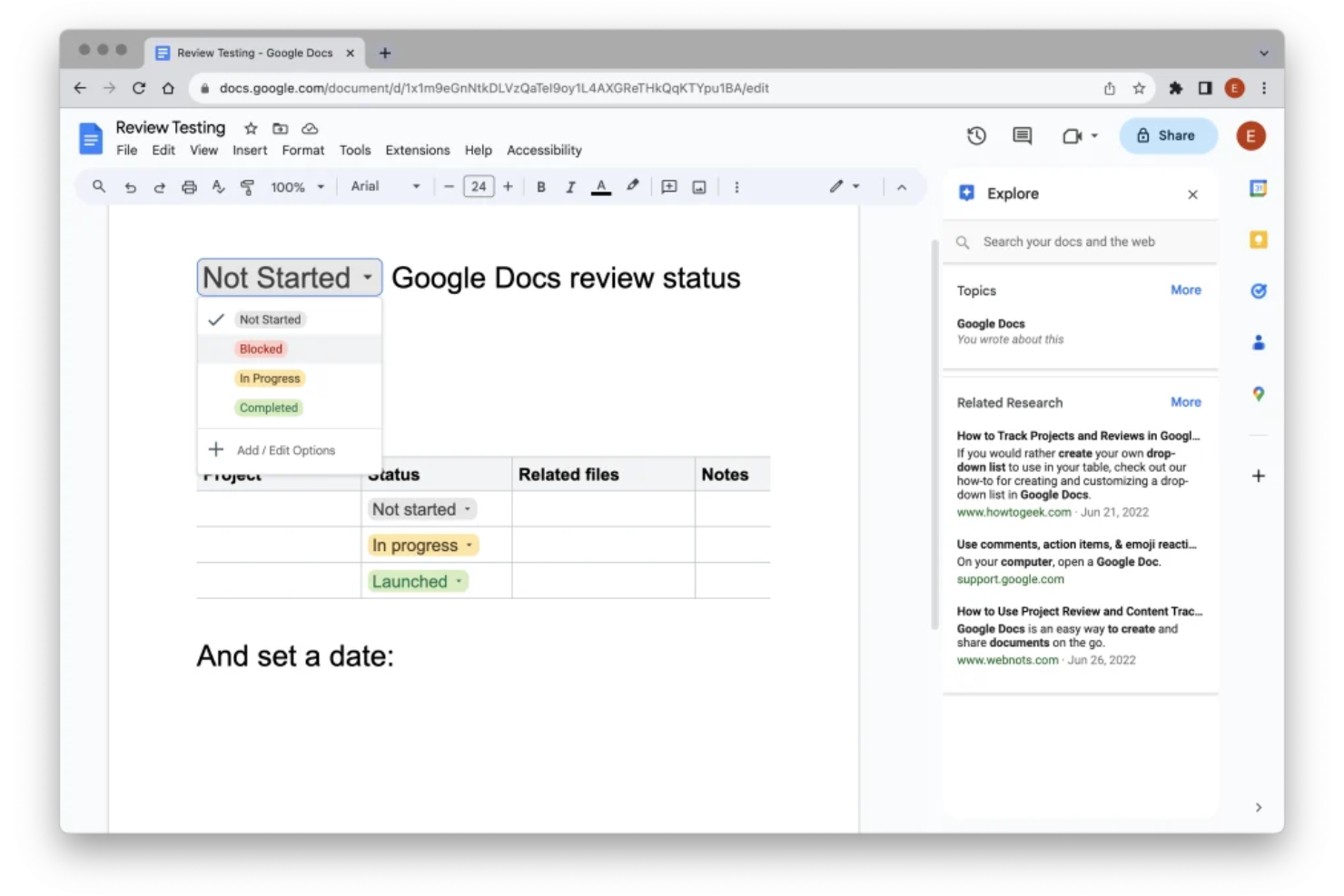
Google Docs is a cloud-based document editing and collaboration platform that enables individuals and teams to create, share, comment, and manage document versions in real time.
Who Is Google Docs Best For?
Google Docs is a good fit for distributed teams and small businesses that need to collaborate on documents online from anywhere.
Why I Picked Google Docs
I picked Google Docs as one of the best because I rely on its real-time editing and multi-user collaboration, where everyone can contribute and comment simultaneously. Version history lets my team track changes and restore past work with ease.
Google Docs Key Features
- Offline editing: Work on documents without an internet connection and sync changes later.
- Comment threading: Add, resolve, and track conversations linked to specific document text.
- Access permission controls: Limit who can view, edit, or comment on each file.
- File export options: Download documents as PDF, Word, or other formats for sharing outside Google Docs.
Google Docs Integrations
Google Docs offers native integrations with Google Drive, Google Sheets, Google Slides, Google Forms, and Gmail, and can connect to third-party apps through Google Workspace Marketplace. An API is also available for custom integrations.
What's Free?
Google Docs offers a free-forever plan for anyone with a Google Account. Some advanced features, like joining a Meet call from within Docs, require a paid Google Workspace plan.
Pros and Cons
Pros:
- Cloud-based with easy access from any device
- Automatic version history and change tracking
- Real-time collaboration for unlimited users
Cons:
- Limited offline editing functionality
- Formatting issues when importing from Word

Best for built-in document co-editing tools
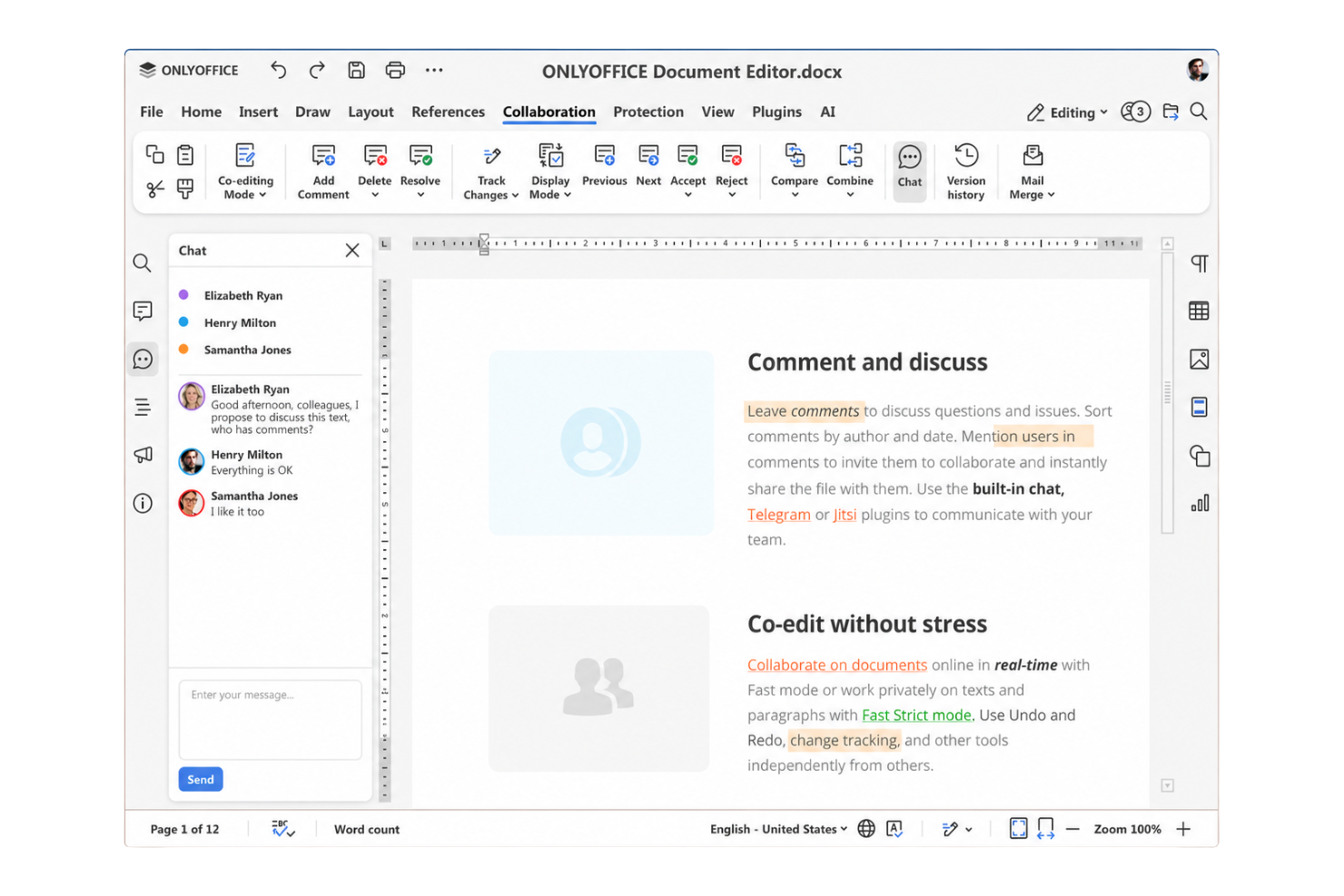
ONLYOFFICE Docs is a document management software and editing platform that provides teams with integrated word processing, spreadsheet, and presentation tools, plus advanced permission controls and real-time editing capabilities for multi-user document collaboration.
Who Is ONLYOFFICE Docs Best For?
ONLYOFFICE Docs is a solid choice for distributed teams and organizations that need collaborative editing and document control across offices or remote environments.
Why I Picked ONLYOFFICE Docs
I picked ONLYOFFICE Docs because my team can edit documents together in real time using both fast and strict co-editing modes, track document version history, and set custom sharing permissions within the same workspace. The built-in editors feel better than most alternatives.
ONLYOFFICE Docs Key Features
- Content control: Prevents content copying, printing, or screenshotting in sensitive documents.
- Multi-format support: Edits and manages DOCX, XLSX, PPTX, and other file types.
- Document comparison: Highlights and displays differences between file versions.
- Integration with storage platforms: Connects with Google Drive, Dropbox, Nextcloud, and others.
ONLYOFFICE Docs Integrations
ONLYOFFICE Docs offers native integrations with Nextcloud, ownCloud, Seafile, Alfresco, Confluence, SharePoint, Moodle, Redmine, and Jira. An API is available for custom integrations.
What's Free?
ONLYOFFICE Docs offers a free desktop version for Windows, Linux, and macOS, as well as a free community server build for self-hosting. Free plans may have some limitations compared to enterprise editions.
Pros and Cons
Pros:
- Multi-format document support
- Strong version history and permission controls
- Real-time collaborative document editing tools
Cons:
- Server setup requires technical knowledge
- Interface can feel outdated to some users

Best for tracking PDF versions

Adobe Acrobat is a document management solution for creating, editing, and organizing PDF files, with built-in tools for file comparison, commenting, and workflow management tailored to teams handling PDF-based version control.
Who Is Adobe Acrobat Best For?
Adobe Acrobat is a strong choice for legal, finance, and compliance teams that manage multiple versions of sensitive PDF documents.
Why I Picked Adobe Acrobat
I picked Adobe Acrobat as one of the best because I rely on its detailed PDF version tracking and audit trails. I like using the compare files tool to quickly spot every change between document versions. Its commenting and collaborative review features keep my team aligned.
Adobe Acrobat Key Features
- E-signature workflows: Collect signatures and approvals directly within PDF documents.
- Password protection: Restrict access to PDFs with password security settings.
- Redaction tools: Permanently remove sensitive information from files before sharing.
- Bulk file conversion: Convert multiple formats to PDF in one workflow.
Adobe Acrobat Integrations
Adobe Acrobat offers native integrations with Microsoft 365, Google Drive, Box, and Dropbox, enabling users to work with files stored in these platforms. An API is available for custom integrations.
What's Free?
Adobe’s free tier is called Adobe Acrobat Reader (available on desktop and mobile) alongside Acrobat Web (accessed via a browser). The free tier allows for viewing, commenting on, filling out, and signing PDFs, along with 2GB of cloud storage. Advanced features like editing text, merging files, and converting formats require a paid Acrobat subscription.
Pros and Cons
Pros:
- Advanced redaction for confidential documents
- Supports layered comments and annotations
- Detects every change between PDF versions
Cons:
- Limited collaboration options
- Only tracks version history for PDFs

Bitrix24
Best for task management integration
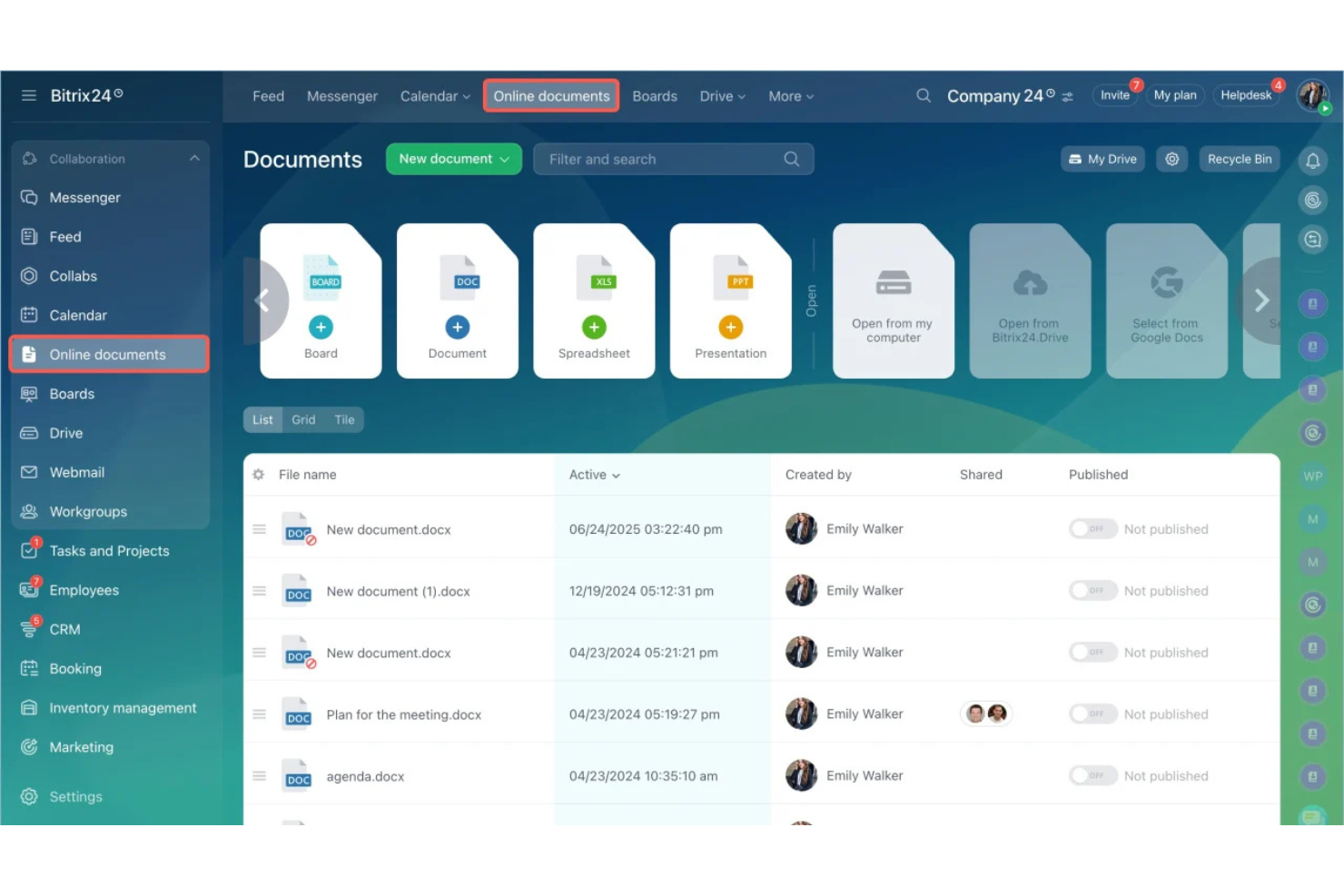
Bitrix24 is a project management platform that features document storage, editing, sharing, and automatic version control for teams needing free document management alongside collaboration and workflow tools.
Who Is Bitrix24 Best For?
Bitrix24 is a strong choice for small to midsize teams that need integrated document handling with project and task management in a single workspace.
Why I Picked Bitrix24
I picked Bitrix24 because its document version control ties closely with task tracking, so my team can link files to specific tasks and monitor updates in context. I also like the built-in change history and collaborative editing features.
Bitrix24 Key Features
- Document locking: Prevents multiple users from editing a document at the same time.
- Access permissions: Lets you assign granular read or edit rights to documents.
- Audit trails: Tracks a detailed activity log for every document.
- Cloud storage integration: Connects documents with Google Drive, Dropbox, and OneDrive.
Bitrix24 Integrations
Bitrix24 offers native integrations with Google Drive, Dropbox, Microsoft 365, OneDrive, Mailchimp, Xero, and Facebook, and provides an API for custom integrations.
What's Free?
Bitrix24 offers a free-forever plan for unlimited users. The free plan includes basic document management, task management, and collaboration tools, but limits storage and advanced features.
Pros and Cons
Pros:
- Granular access rights for document folders
- Document editing is integrated with tasks
- Supports multiple team collaborators
Cons:
- Large file uploads can be slow
- Strict five gigabyte storage cap
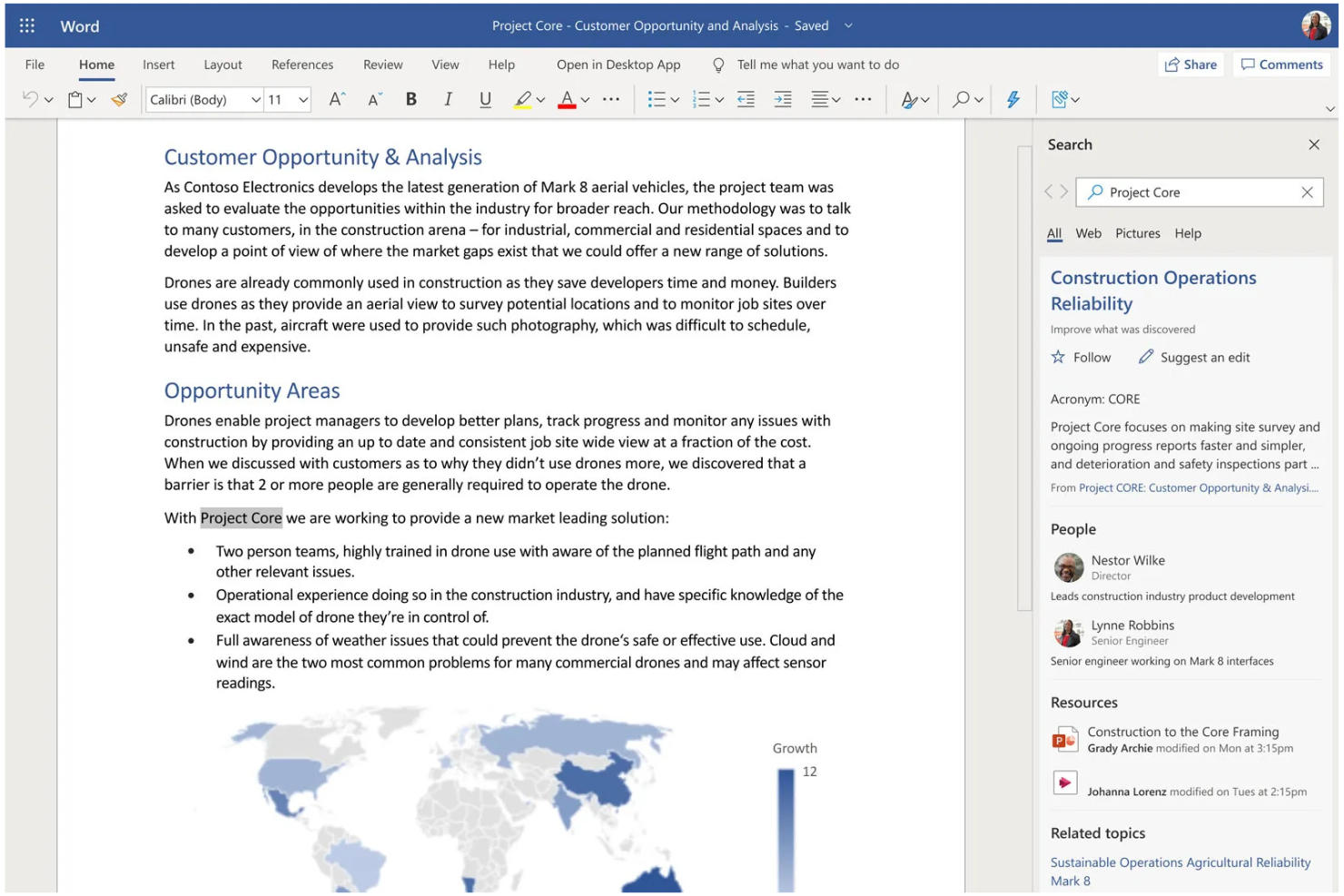
Microsoft Word is a document creation and editing platform that gives teams built-in version history, real-time collaboration, commenting, and easy access to files across devices using Microsoft 365 or the free online version.
Who Is Microsoft Word Best For?
Microsoft Word is a good fit for individuals and teams in any industry who need a widely recognized document editing and version control tool.
Why I Picked Microsoft Word
I picked Microsoft Word as one of the best because its familiar editing interface helps my team collaborate efficiently on docs everyone already knows. I rely on real-time co-authoring, tracked changes, and its extensive version history for document control.
Microsoft Word Key Features
- Templates gallery: Choose from a wide range of prebuilt templates for business, education, or reports.
- Password protection: Secure files with document-level encryption and access controls.
- Comments and annotations: Leave threaded feedback or notes directly within documents.
- Auto-save with OneDrive: Files save automatically when stored in OneDrive, reducing the risk of data loss.
Microsoft Word Integrations
Microsoft Word has native integrations across the Microsoft ecosystem, including Microsoft 365 and Azure. An API is available for custom integrations.
What's Free?
Microsoft Word offers a free online version with basic editing features and real-time collaboration for users with a Microsoft account. Advanced features and offline access require a paid Microsoft 365 subscription.
Pros and Cons
Pros:
- Offers extensive template selection
- Reliable version history with easy restore
- Real-time document co-authoring for teams
Cons:
- Collaboration requires Microsoft account
- Limited approval workflow options

Dropbox
Best for team file collaboration

Dropbox is a document version control platform where teams can upload, organize, sync, and track changes to files across devices with cloud-based collaboration and shared folder management.
Who Is Dropbox Best For?
Dropbox is a strong choice for distributed teams and organizations that need a central hub for file collaboration and version tracking across devices.
Why I Picked Dropbox
I included Dropbox in my shortlist because I rely on its shared folders, live comment threads, and granular file permissions to coordinate edits and feedback between multiple contributors. In practice, my team can review, update, and recover prior versions without confusion.
Dropbox Key Features
- Automatic version history: Saves past document versions and allows you to restore previous states easily.
- File activity feed: Shows a detailed log of changes, uploads, and user actions for each document.
- Link-based sharing: Lets you generate unique sharing links for specific files and folders with adjustable access settings.
- Desktop and mobile sync: Keeps document changes up to date across devices through native apps.
Dropbox Integrations
Dropbox offers native integrations with Google Workspace, Microsoft 365, Slack, Zoom, Trello, Adobe Creative Cloud, DocuSign, Canva, Okta, and Salesforce. An API is available for custom integrations.
What's Free?
Dropbox offers a free-forever plan with up to 2 GB of storage. The free plan is for individual use and includes basic file sharing and version history features, but advanced collaboration tools and more storage require a paid plan.
Pros and Cons
Pros:
- Syncs file changes across multiple devices
- Tracks collaboration history for each document
- Restores deleted or previous file versions easily
Cons:
- Cannot host on self-managed servers
- Free storage space is limited

M-Files
Best for advanced metadata organization

M-Files is a document management platform that centralizes file storage, automates version control, supports advanced metadata tagging, and enables secure collaboration for teams handling a wide range of business documents.
Who Is M-Files Best For?
M-Files is a good fit for midsize and large organizations managing high document volumes and requiring complex metadata and compliance controls.
Why I Picked M-Files
I picked M-Files as one of the best because I can organize documents around advanced metadata, not just folders. I often rely on its automatic versioning and permission controls to manage sensitive documents across complex workflows.
M-Files Key Features
- Automated workflow routing: Set up document review, approval, and publishing workflows tailored to your organization.
- Mobile document access: View, edit, and share documents securely from iOS and Android devices.
- Outlook integration: Save and manage emails and attachments directly from Microsoft Outlook.
- Audit logging: Track document access, changes, and history for security and compliance auditing.
M-Files Integrations
M-Files offers native integrations with Salesforce, Microsoft 365, Google Workspace, SharePoint, Microsoft Teams, Outlook, DocuSign, and Adobe Sign, and provides an API for custom integrations.
What's Free?
M-Files offers a free 30-day trial with no credit card required, and unlimited colleagues can be added. The trial includes all core features but does not provide access to all integrations or advanced industry configurations.
Pros and Cons
Pros:
- Detailed audit trails for compliance tracking
- Automated document workflows and permissions
- Metadata-based document search and retrieval
Cons:
- Limited mobile editing capabilities
- Complex initial configuration for administrators

Best for centralized team file storage

Zoho WorkDrive is a cloud-based document management system (DMS) designed for file versioning, team document collaboration, access controls, and centralized storage for business teams.
Who Is Zoho WorkDrive Best For?
Zoho WorkDrive suits small to midsize businesses that need organized, secure document storage and collaborative access for distributed project teams.
Why I Picked Zoho WorkDrive
I picked Zoho WorkDrive because I like how it brings every team file into a single space with group-level permissions, built-in file version tracking, and granular admin controls for centralized team file storage.
Zoho WorkDrive Key Features
- Activity timeline: Track actions, edits, and views on every document.
- File locking: Prevents simultaneous edits by locking files in use.
- Team folders: Organize files by projects, departments, or groups.
- Document request: Collect files or documents directly from stakeholders.
Zoho WorkDrive Integrations
Zoho WorkDrive offers native integrations across the Zoho ecosystem, including Zoho CRM, Zoho Projects, Zoho Mail, Zoho Cliq, and Zoho Sign, plus Google Workspace and Microsoft 365. An API is available for custom integrations.
What's Free?
Zoho WorkDrive offers a free forever plan for up to 3 users with 10 GB total storage. Some advanced features, admin controls, and higher storage limits are only available on paid plans.
Pros and Cons
Pros:
- Built-in document request feature
- Team folders for project-based organization
- Unlimited file version history included
Cons:
- No real-time co-editing like Google Docs
- Restrictive external sharing permissions


LogicalDOC Community Edition is an open-source document management platform that lets you organize, version, search, and share digital documents, with a focus on supporting team-based file access and control.
Who Is LogicalDOC Community Edition Best For?
Small to medium teams who want open-source document control with workflow customization options.
Why I Picked LogicalDOC Community Edition
I picked LogicalDOC Community Edition as one of the best because I can build custom workflow automations and set up granular document version history. My team uses its flexible rule-based engine to automate document approvals and organize complex folder hierarchies.
LogicalDOC Community Edition Key Features
- Document check-in/check-out: Prevents overwrites by allowing users to lock documents when editing.
- Full-text search: Lets you quickly find documents by searching file content and metadata.
- Multi-language support: Offers interface and OCR options in multiple languages.
- Role-based access control: Assigns specific permissions to users and groups for document security.
LogicalDOC Community Edition Integrations
LogicalDOC Community Edition offers an API for custom integrations.
What's Free?
LogicalDOC Community Edition is a free open-source document management system with no user or document limits. It does not include technical support or some advanced enterprise features.
Pros and Cons
Pros:
- Supports advanced indexing and full-text search
- Custom workflow automation for document processes
- Open-source and self-hosted option available
Cons:
- No built-in mobile app support
- Lacks advanced collaboration features

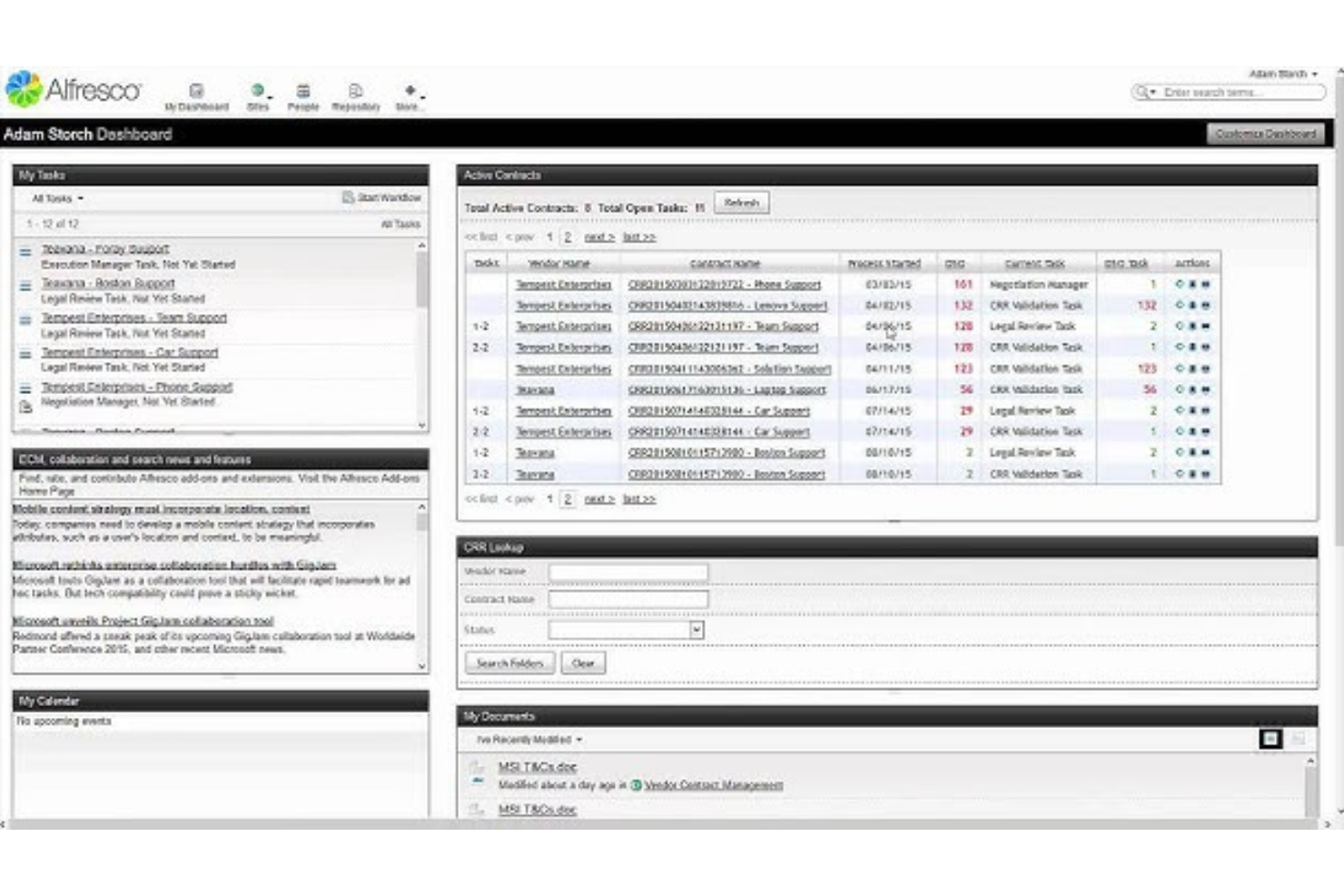
Hyland Alfresco is an enterprise content management platform that provides document version control, workflow automation, collaboration features, and extensive support for large-scale, open-source deployments.
Who Is Hyland Alfresco Community Edition Best For?
Hyland Alfresco is a strong choice for IT teams at large enterprises and government organizations seeking open-source document management with complex workflow needs.
Why I Picked Hyland Alfresco Community Edition
I picked Hyland Alfresco as one of the best because I can deploy it at scale through open-source components and automate complex business processes. I use its granular version control settings and workflow tools to manage enterprise documents securely across large teams.
Hyland Alfresco Community Edition Key Features
- Content repository: Store, organize, and retrieve documents in a central system.
- Metadata management: Tag documents with custom metadata for easy search.
- Document preview: View documents in-browser without downloading files.
- Permission controls: Define access levels by user, group, or role.
Hyland Alfresco Community Edition Integrations
Hyland Alfresco offers an API for custom integrations.
What's Free?
Hyland Alfresco offers a free open-source Community Edition with core document management, workflow automation, and open APIs for self-hosted deployment. High-availability clustering, commercial database support, official technical patches, and dedicated corporate support require a paid Enterprise license.
Pros and Cons
Pros:
- Scalable architecture for high-volume environments
- Supports custom metadata and smart folders
- Open-source deployment options for enterprises
Cons:
- Community support is less responsive than paid plans
- Configuration requires significant technical expertise
Other Free Document Version Control Software
Here are some additional free document version control software options that didn’t make it onto my shortlist but are still worth checking out:
- FormKiQ
For API-driven document automation
- Box
For granular document access controls
- Lark
For integrated chat within documents
- Notion
For combining documents with team wikis
- Simul Documents
For managing multiple document versions
- Git
For distributed file version tracking
- Collabora Online
For on-premise editing
- Mayan EDMS
For self-hosted document archiving
- Paperless-ngx
For automated document import and tagging


How I Evaluate Free Document Version Control Software
First, I define what counts as free. For document version control software—where PMs track spec revisions across months-long projects—that means a free-forever plan, not a trial. I then evaluate two layers: the core functionality a tool must have to make the list, and the differentiators that separate vendors.
Core Functionality (Table Stakes For This List)
In addition to my free offer requirements, I also use a scoring system to select tools for my list. Here's how it works:
I rank each one on a scale from 0 (does not offer the functionality) to 5 (excels in this area) for each core functionality listed below. Then, I calculate the tool's total score into a percentage. Each tool needs to achieve a minimum total score of 65% to be considered for inclusion.
- Version History Tracking: I check whether the tool automatically logs each saved revision with author names and timestamps, so a project coordinator can trace exactly who edited a contract draft and when.
- Version Restoration & Rollback: A good rollback lets you revert a policy document to last Tuesday's version without losing today's draft—I look for one-click restore that preserves the current state as a new entry.
- Change Comparison (Diff View): I evaluate how clearly the tool highlights what changed between two versions, especially for text-heavy files like SOWs or compliance policies where a single deleted clause can shift risk.
- Free Tier Availability: The free plan needs to actually include version control features for a usable number of collaborators and documents—I look past trial-only models and check what's truly available at no cost.
- Access Controls & Permissions: I look for role-based settings that let an ops manager grant view-only access to external reviewers while keeping edit rights limited to internal team members at the document or folder level.
- Check-In/Check-Out or Edit Locking: When multiple people touch the same deliverable, conflicting saves destroy work. I evaluate whether the tool offers file locking, formal check-out workflows, or real-time co-authoring with conflict resolution.
- Audit Trail & Activity Log: Compliance officers need to know who viewed, downloaded, or restored a file. I look for searchable activity logs that go beyond basic edit tracking to cover the full range of document interactions.
- Multi-Format File Support: Most teams don't work in a single file type, so I check whether version control applies across Word docs, spreadsheets, PDFs, and Google Workspace files rather than just native formats.
Once I have a list of tools that meet this criteria, I consider what sets each platform apart.
Differentiating Factors (What Sets Vendors Apart)
Here's how I compare and contrast different vendors:
Standout Features
Approval workflows matter a lot when your team needs formal sign-off before a document moves from draft to final—think compliance policies or client-facing proposals. I also look for automated version numbering, where the tool assigns labels like v1.0 or v2.1 based on approval milestones rather than forcing someone to rename files manually. Real-time co-editing is another differentiator I evaluate, since it lets distributed teams collaborate without waiting on file locks.
Beyond Features
Free plan limits deserve close attention—I check how many users and how much storage the free tier actually supports, because a five-person cap won't work if your project team has twelve contributors reviewing deliverables. Integration coverage also matters. I evaluate whether the tool connects to PM platforms like Jira or Asana and to file ecosystems like Google Workspace or Microsoft 365, since version control that lives outside your daily workflow gets ignored. Finally, I consider the upgrade path, making sure teams can scale into paid plans without losing version history or migrating files.
How to Choose Free Document Version Control Software
It’s easy to get bogged down in long feature lists and complex pricing structures. To help you stay focused as you work through your unique software selection process, here’s a checklist of factors to keep in mind:
| Factor | What to Consider |
|---|---|
| Scalability | Will the solution handle an increase in users or stored documents as your team or organization grows? Consider known limits on users, storage, or document types. |
| Integrations | Does the software work with your team's essential tools (email, productivity suites, workflow apps)? Watch for limited connection options or extra setup steps. |
| Customizability | Are you able to tailor workflows, permissions, and document types to your process? Some free solutions limit user access to customization capabilities. |
| Ease of use | Is the interface clear and intuitive for all team members? Test uploading, versioning, and restoring documents to check for unnecessary complexity. |
| Implementation and onboarding | How quickly can your team get up and running? Look for import/export options, onboarding guides, and data migration support for legacy documents. |
| Cost | Are there hidden upgrade or storage costs later? Understand storage caps or user limits that may require future purchases. |
| Security safeguards | What measures are in place for access control, encryption, or audit trails? Assess if security features align with your team’s data protection needs. |
| Support availability | What help channels exist if you get stuck—forums, chat, or email? Free tools may have slower or community-based support instead of dedicated help desks. |
What Is Free Document Version Control Software?
Free document version control software is a tool that lets you store, track, and manage different versions of your digital documents without paying subscription fees.
These platforms help individuals and teams organize, access, and restore document revisions, while also controlling who can view or change files. This approach prevents data loss and improves collaboration.
Features
Let’s go over the features commonly found in document version control software and which ones are usually included in free vs. paid plans.
Typically Free Document Version Control Software Features
- Version history: Offers an archive of previous file versions so users can track changes and retrieve earlier drafts quickly.
- Check-in and check-out: Lets users lock documents for editing so no one else overwrites changes until updated files are checked back in.
- User permissions: Allows basic access controls so you can restrict who can view or modify certain documents in your file system.
- File search: Provides a simple search bar for finding documents by name, metadata, or upload details within the system.
- Document preview: Lets users view supported file types within the platform without separately downloading them.
- Basic audit log: Tracks straightforward actions like uploads, downloads, or edits, creating a visible record for document oversight.
- Folder organization: Lets you create directories or nested folders to keep files properly categorized for team or personal use.
Typically Paid Document Version Control Software Features
- Workflow automation: Enables automated document routing, approval chains, and notifications to simplify repeatable review or publishing processes.
- Advanced security controls: Adds detailed permission sets, content encryption, multi-factor authentication, and stricter access controls for sensitive content.
- eSignature integration: Supports collecting electronic signatures within the platform for contracts or approvals that require legal verification.
- Full-text and OCR search: Lets users search within scanned PDFs or image files thanks to optical character recognition and search indexing.
- Document retention policies: Automates setting rules for document lifecycle management, such as auto-archiving, deleting, or legal holds.
- Custom metadata tagging: Allows users to add tailored tags or attributes for advanced categorization, sorting, and reporting on stored content.
- Mobile app access: Provides dedicated mobile applications for managing, sharing, and tracking document changes on-the-go.
- API and advanced integrations: Enables connection with other enterprise systems, including CRM, ERP, or workflow tools, for easier data sharing.
- Large file or storage upgrades: Offers expanded storage capacity and support for larger files beyond the limits of free plans.
- Priority or dedicated support: Includes expedited help, dedicated account managers, or training for paying customers seeking advanced assistance.
Benefits
Implementing free document version control software provides several benefits for your team and your business. Here are a few you can look forward to:
- Reduced risk of data loss: Storing previous versions and keeping audit logs means accidental deletions or edits can always be recovered.
- Improved collaboration: Multiple people can work on documents confidently, knowing their changes are tracked and recoverable.
- Cost savings: Free plans allow teams to manage document control without paying for licensing or subscription fees.
- Better process visibility: Access controls, versioning, and audit trails make it easier to track who did what and maintain accountability.
- Faster document retrieval: Search tools, folders, and metadata help users quickly locate the right document or version they need.
- Simpler onboarding: Most free solutions offer quick set-up, intuitive workflows, and community or documentation-based support for new users.
- Scalable for growing teams: Many free tools support unlimited users or documents, letting you expand usage as your needs change.
Costs and Pricing
I realize you came to this article looking for the best document version control software options that are available for free. However, since free plans only offer limited features, there's a good chance you'll need to scale your plan up in the future.
The table below summarizes common plans, their average prices, and typical features included in document version control software:
Plan Comparison Table for Document Version Control Software
| Plan Type | Average Price | Common Features |
|---|---|---|
| Free Plan | $0 | Basic version tracking, user permissions, search, document preview, folder organization, and limited storage. |
| Personal Plan | $5–$10/user/month | Increased storage, document sharing, mobile app access, enhanced search, and priority email support. |
| Business Plan | $15–$25/user/month | Workflow automation, advanced security controls, collaboration tools, audit logs, and integration options. |
| Enterprise Plan | $30–$50/user/month | Custom metadata, SSO, API access, compliance tools, unlimited storage, and dedicated customer support. |
Free Document Version Control Software FAQs
Here are some answers to common questions about free document version control software:
What’s the difference between free and paid document version control software?
Free versions usually include essentials like version tracking and basic permissions, but often limit storage, integrations, and automation features. Paid plans offer expanded security, more integrations, automation, support options, and storage for larger or growing teams to meet expanding business needs.
Can you use free document version control software for sensitive or confidential documents?
Yes, but you should carefully check the security safeguards, access controls, and compliance capabilities before storing sensitive information. Most free DMS (document management systems) limit advanced security features and approval processes and may not align with strict regulatory requirements.
How do you migrate documents into a free version control system?
You typically upload files manually or use built-in import tools if available. Some platforms let you import folders, source code, or bulk documents to share files, but advanced migration or integration help often requires a paid plan.
Are free document version control systems suitable for large teams?
Free tools can work for large teams if the platform allows unlimited users and documents. However, limits on advanced permission controls and collaboration features might become an issue as teams scale.
What happens if you reach the storage limit on a free plan?
Most software will restrict additional uploads, prompt you to upgrade, or temporarily block some features. You may need to archive, delete files, or purchase more storage to continue tracking new documents.