Adobe Acrobat Review: Key Features, Pros, Cons and Pricing Guide



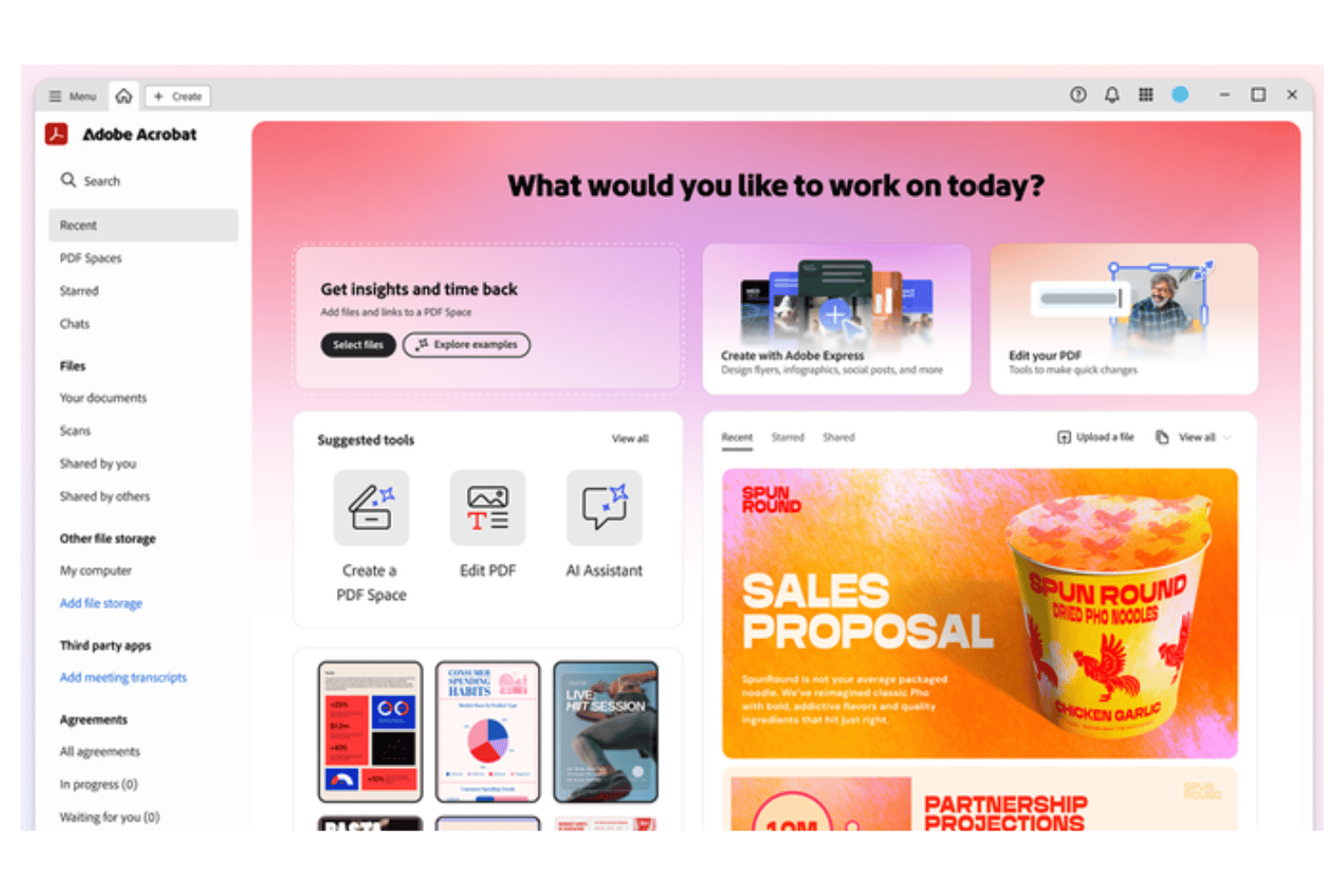
Adobe Acrobat is a document management system for teams that need to create, edit, sign, and control access to PDFs at scale. I'd choose it over a competitor like Foxit PDF Editor if your team needs deeper integrations with Microsoft 365 and Google Workspace, or wants more mature e-signature workflows built directly into the document process.
Adobe Acrobat Evaluation Summary
- From $19.99/user/month (billed annually)
- 7-day free trial
Why Trust Our Software Recommendations
Our team has been testing and reviewing software since 2012. As project managers ourselves, we know how difficult—and important—it is to choose the right software.
For this guide, we evaluated tools using hands-on testing and independent research, scoring tools using our selection criteria. We also draw on insights from industry thought leaders and practicing project management experts.
Our reviews reflect our human editorial judgment, not a sales pitch.
Expert reviewers:
Adobe Acrobat Overview
If you’re judging document management systems by PDF control, e-signatures, and broad compatibility, Adobe Acrobat is tough to beat. I think its feature depth—editing, commenting, OCR, cloud integration—outpaces most alternatives. However, pricing can be steep, and its full power sometimes needs a learning curve. The interface is familiar, support is strong, and onboarding is smooth for anyone used to digital workflows. You’ll get the most value if you need airtight document security, complex review cycles, or work across teams who juggle lots of file formats.
pros
-
Advanced PDF editing and document conversion tools
-
Secure electronic signature and approval workflows built in
-
Strong version control and audit history tracking
cons
-
Batch file processing limited without premium upgrades
-
Shared cloud file organization can be confusing for teams
-
Collaboration features lack real-time document co-authoring
-

Smartsheet
Visit WebsiteThis rating combines scores from multiple user review sites to reflect overall customer sentiment about the product.4.5 -
Celoxis
Visit WebsiteThis rating combines scores from multiple user review sites to reflect overall customer sentiment about the product.4.5 -
Accelo
Visit WebsiteThis rating combines scores from multiple user review sites to reflect overall customer sentiment about the product.4.4




Our Review Methodology
How We Test & Score Tools
We’ve spent years building, refining, and improving our software testing and scoring system. The rubric is designed to capture the nuances of software selection and what makes a tool effective, focusing on critical aspects of the decision-making process.
Below, you can see exactly how our testing and scoring works across seven criteria. It allows us to provide an unbiased evaluation of the software based on core functionality, standout features, ease of use, onboarding, customer support, integrations, customer reviews, and value for money.
Core Functionality (25% of final scoring)
The starting point of our evaluation is always the core functionality of the tool. Does it have the basic features and functions that a user would expect to see? Are any of those core features locked to higher-tiered pricing plans? At its core, we expect a tool to stand up against the baseline capabilities of its competitors.
Standout Features (25% of final scoring)
Next, we evaluate uncommon standout features that go above and beyond the core functionality typically found in tools of its kind. A high score reflects specialized or unique features that make the product faster, more efficient, or offer additional value to the user.
We also evaluate how easy it is to integrate with other tools typically found in the tech stack to expand the functionality and utility of the software. Tools offering plentiful native integrations, 3rd party connections, and API access to build custom integrations score best.
Ease of Use (10% of final scoring)
We consider how quick and easy it is to execute the tasks defined in the core functionality using the tool. High scoring software is well designed, intuitive to use, offers mobile apps, provides templates, and makes relatively complex tasks seem simple.
Onboarding (10% of final scoring)
We know how important rapid team adoption is for a new platform, so we evaluate how easy it is to learn and use a tool with minimal training. We evaluate how quickly a team member can get set up and start using the tool with no experience. High scoring solutions indicate little or no support is required.
Customer Support (10% of final scoring)
We review how quick and easy it is to get unstuck and find help by phone, live chat, or knowledge base. Tools and companies that provide real-time support score best, while chatbots score worst.
Customer Reviews (10% of final scoring)
Beyond our own testing and evaluation, we consider the net promoter score from current and past customers. We review their likelihood, given the option, to choose the tool again for the core functionality. A high scoring software reflects a high net promoter score from current or past customers.
Value for Money (10% of final scoring)
Lastly, in consideration of all the other criteria, we review the average price of entry level plans against the core features and consider the value of the other evaluation criteria. Software that delivers more, for less, will score higher.
Core Features
PDF Editing and Creation
Edit, combine, and create PDFs from multiple file types using familiar tools. Users can add or remove content, reorder pages, and save changes instantly.
Electronic Signatures
Send documents for legally binding e-signatures and track completion in real time. Signers can fill forms from any device without downloading extra software.
Document Commenting and Review
Annotate, highlight, and comment on documents with granular controls. Teams can keep feedback organized in context for easier project handoff.
OCR and Text Recognition
Convert scanned images or old PDFs into searchable, editable text. This feature makes archived documents fully retrievable by keyword.
Secure Document Sharing
Set permissions, restrict downloads, or password-protect files before sharing. You can revoke access or track who opens your shared documents.
Audit Trails and Version History
Automatic version control logs every change with user details and timestamps. This helps you monitor compliance and recover previous document versions easily.
Ease of Use
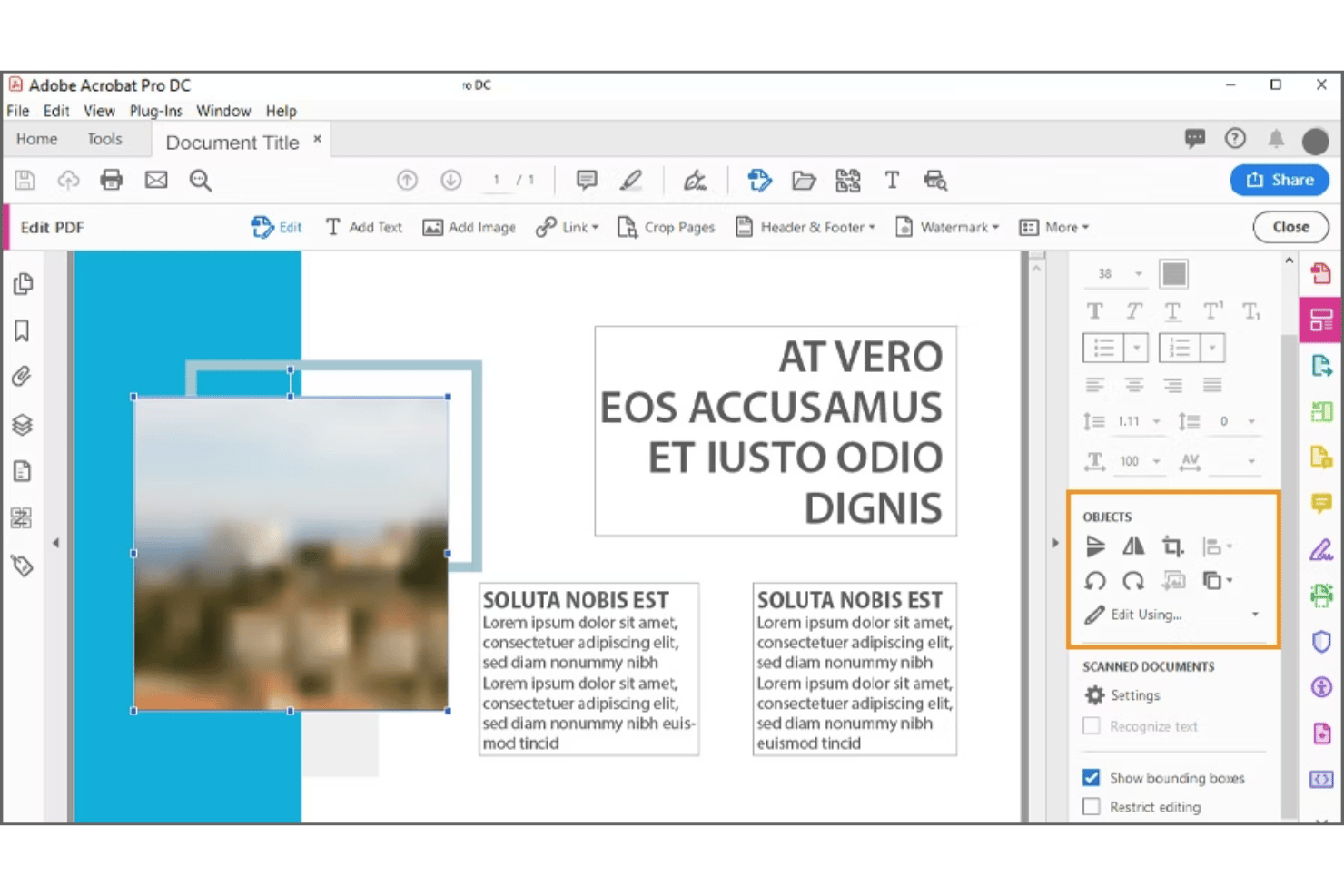
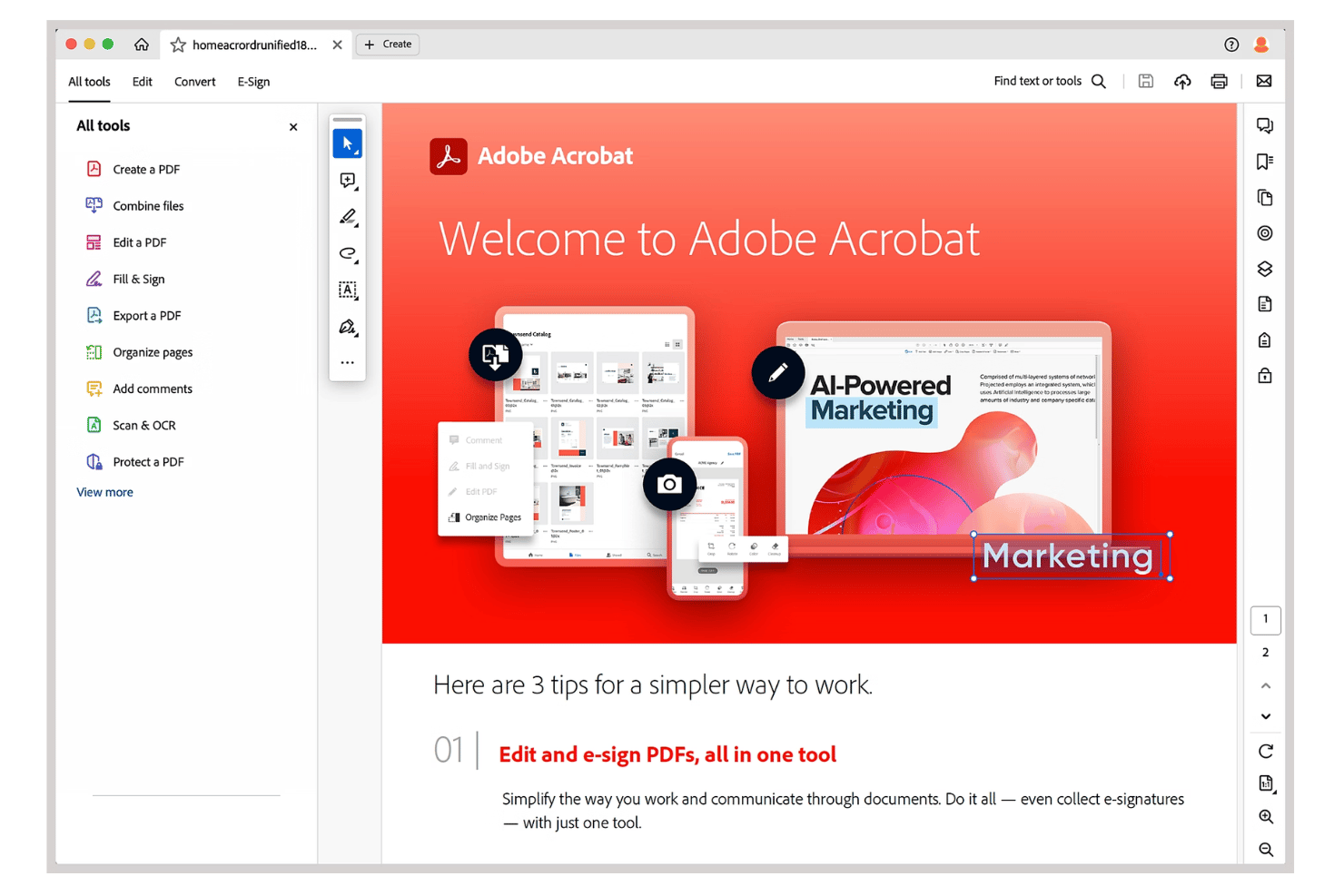
Adobe Acrobat is straightforward once you get past its deep toolkit—menus and controls feel intuitive for everyday use. I’ve found everyday tasks like combining files, securing documents, and collecting signatures to be fast and reliable. Many users appreciate its drag-and-drop interface and built-in tutorials, though occasional menu overload is still a theme in reviews.
Integrations
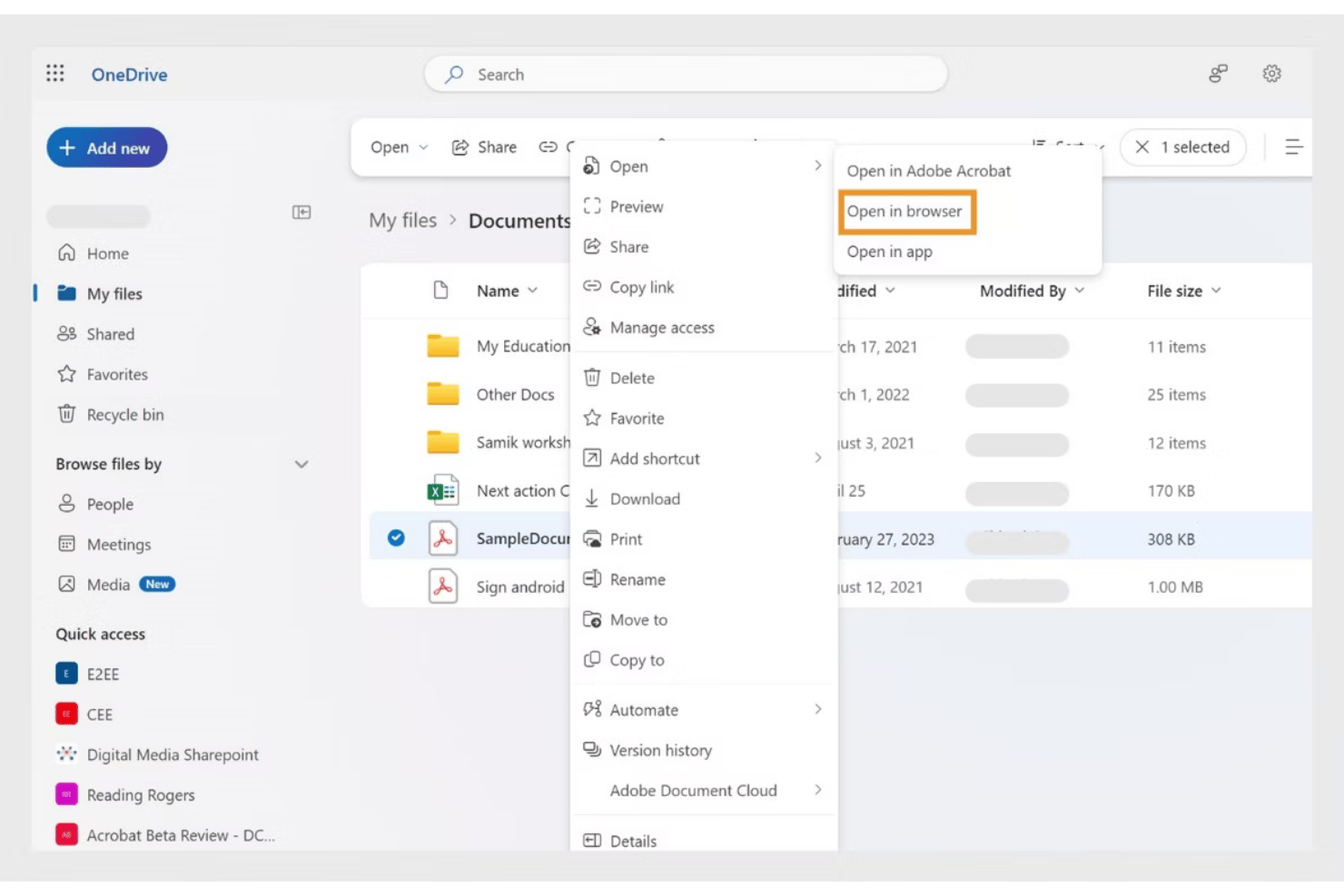
Adobe Acrobat integrates with Microsoft 365, Google Drive, Dropbox, Box, OneDrive, SharePoint, Salesforce, Workday, ServiceNow, and SAP, among others.
It also offers an API and connects with third-party integration tools.
Adobe Acrobat Specs
- 2-Factor Authentication
- API
- Approval Workflows
- Audit Trail
- Batch Permissions & Access
- Chat
- Dashboard
- Data Export
- Data Import
- Document Comparison
- Document Sharing
- Electronic Signature
- Email Integration
- External Integrations
- File Sharing
- File Transfer
- Google Apps Integration
- History/Version Control
- Metadata Management
- Multi-User
- NDA Management
- Notifications
- Password & Access Management
- Project Management
- Template Designer