23 Best File Sharing Software For Secure Transfers In 2026

15 Best File Sharing Software Shortlist
Here is a quick glance at my top recommended file sharing software that I review in this post:


The best file sharing software helps you quickly organize, access, and securely share documents with your team without version chaos or clunky permissions slowing you down. Without the right tool, you and your team will waste time hunting down documents, run into difficulty sharing work with clients, and get confused about which document is actually the final version.
I’ve used my experience running an agency and 3+ years of testing software to review dozens of tools and curate my list of the best file sharing software. I'll help you find the perfect fit for real-time collaboration, secure sharing, or easy integration with your workflow.
Why You Can Trust Us
We’ve been testing and reviewing project management software since 2012. As project managers ourselves, we know how critical and difficult it is to make the right decision when selecting software.
We invest in deep research to help our audience make better software purchasing decisions. We’ve tested more than 2,000 tools for different project management use cases and written over 1,000 comprehensive software reviews. Learn how we stay transparent & our software review methodology.
Compare Specs Side-By-Side
Compare pricing and specs for each of my picks for the best file sharing software to find the right fit for your budget and business needs.
| Tool | Best For | Trial Info | Price | ||
|---|---|---|---|---|---|
| 1 | Best for enterprise file sharing | 7-day free trial available | From $199/month | Website | |
| 2 | Best for controlled, multi-user collaboration | Free plan available | From $39/month (billed annually) | Website | |
| 3 | Best for branding and media management | 30-day free trial | From $29/user/month | Website | |
| 4 | Best for organizing digital content | 7-day free trial | From $100/month/user | Website | |
| 5 | Best with multi-protocol transfer support | 25-day free trial | Pricing upon request | Website | |
| 6 | Best for end-to-end encrypted file sharing | Free 14-day trial + free demo available | From $4.75/month (billed annually) | Website | |
| 7 | Best for seamless Microsoft ecosystem integration | Free plan available | From £1.99/user/month | Website | |
| 8 | Best for businesses using Google as an email client | 14-day free trial available | From $7/user/month (billed annually) | Website | |
| 9 | Best for seamless collaboration and syncing | Free plan available | From $9.99/person/month (billed annually) | Website | |
| 10 | Best for secure cloud-based file transfers | 7-day free trial available | From $100/month (billed annually) | Website | |
| 11 | Best streamlined file review and approval platform | 30-day free trial + free plan + free demo available | From $199/month | Website | |
| 12 | Best to manage and control deletion and other content risks | Free trial available | From $22/user/month (billed annually) | Website | |
| 13 | Best for sharing files with anonymity | 14-day free trial | From $20/user/month | Website | |
| 14 | Best for file security and encryption | Free plan available | From $2.99/month (billed annually) | Website | |
| 15 | Best for simple, fast large file sharing via email | Free version available | From $12 /user/month. | Website |
-

Insightful
Visit WebsiteThis is an aggregated rating for this tool including ratings from Crozdesk users and ratings from other sites.4.8 -
Accelo
Visit WebsiteThis is an aggregated rating for this tool including ratings from Crozdesk users and ratings from other sites.4.4 -
Forecast
Visit WebsiteThis is an aggregated rating for this tool including ratings from Crozdesk users and ratings from other sites.4.6



Best File Sharing Software Reviews
Read below my list of the best file sharing software and why I choose each file sharing tool for this list.


Files.com is a cloud-based file sharing platform built for organizations that need secure, scalable solutions to manage, transfer, and automate large volumes of files across teams, clients, and partners.
Who Is Files.com Best For?
Files.com is a strong fit for mid-size to enterprise teams in industries like finance, healthcare, and technology that need centralized, secure file sharing with granular access controls.
Why I Picked Files.com
Files.com earns its spot on my shortlist because it's purpose-built for enterprise file sharing at scale. I like how it handles automated file workflows—you can set up rules to move, copy, or delete files based on triggers, which cuts down on manual handoffs between teams and external partners. The permission system is also genuinely granular: I can control access at the folder level for individual users or groups, which matters when you're sharing sensitive files across departments or with outside vendors. The audit logging gives my team a clear, timestamped record of every file action.
Files.com Key Features
- FTP/SFTP support: Connect to Files.com using standard FTP, SFTP, or FTPS protocols for secure file transfers with legacy systems.
- Custom branding: Apply your company's logo and colors to the client-facing file sharing portal for a consistent experience.
- File request links: Send external users a link to upload files directly to a designated folder without needing an account.
- Remote server sync: Mirror files between Files.com and external cloud storage or on-premises servers automatically.
Files.com Integrations
Integrations include Amazon S3, Box, Dropbox, Google Drive, Microsoft OneDrive, SharePoint, Slack, Okta, Microsoft Teams, and WebDAV.
Pros and Cons
Pros:
- Scales across multi-cloud environments
- Automates file workflows without coding
- Strong encryption with compliance support
Cons:
- Setup can feel complex initially
- Pricing may be high for small teams


Stockpress is a digital asset management platform built for teams and organizations that need to securely organize, share, and collaborate on files while maintaining control over access and permissions.
Who Is Stockpress Best For?
Stockpress is a good fit for creative and marketing teams that need structured, permission-based access to shared files and brand assets.
Why I Picked Stockpress
Stockpress earns its spot on my shortlist because of how much control it gives you over who can see and do what across a shared workspace. I particularly like the custom user roles feature, which lets you build unlimited roles from scratch rather than picking from a fixed set of preset permissions. Pair that with file and collection visibility controls that toggle between open and restricted access, and my team can share assets with external collaborators without exposing everything in the workspace. The share link tracking is a nice bonus too—I can see exactly who opened, viewed, or downloaded a file.
Stockpress Key Features
- File annotations: Add comments to specific areas on any file type, including video, to give precise feedback without back-and-forth emails.
- AI tagging: Automatically tags uploaded images with up to 90% accuracy, making files searchable without manual metadata entry.
- File versioning: Upload new versions of a file into the original to create a version stack, so your team always knows which file is current.
- Guest uploads: Create public pages that let external users upload files directly into specific collections in your workspace.
Stockpress Integrations
Integrations include Adobe Creative Cloud, Box, Canva, Design Pickle, Dropbox, Figma, Google Drive, Klaviyo, Mailchimp, and Slack.
Pros and Cons
Pros:
- Can create custom collections for assets
- Good AI tagging features
- Manages large asset volumes
Cons:
- File migration support limited to enterprise plan
- Could offer more integrations
New Product Updates from Stockpress

Stockpress Introduces Integrations and AI Image Editing Enhancements
Stockpress introduces Canva integration, AI Image Editor enhancements, file Trash, Adobe InDesign plugin, and Custom Fields. These updates help teams streamline design workflows, improve image editing, and better manage digital assets. For more information, visit Stockpress’s official site.
 .
.
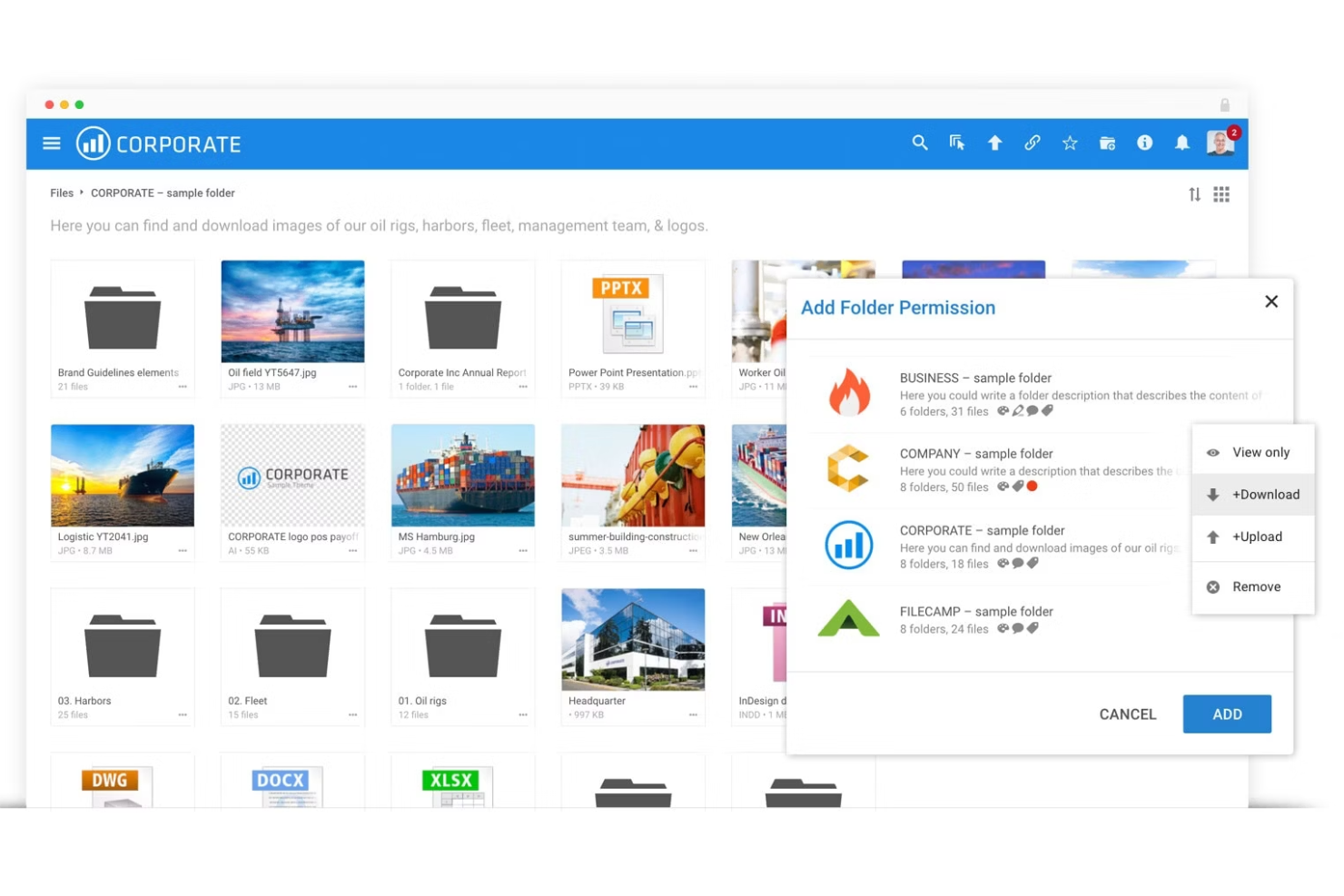
Filecamp is a file sharing and digital asset management platform built for creative teams, agencies, and marketing departments who need to organize, share, and collaborate on branded content and media files securely.
Who Is Filecamp Best For?
Filecamp is a strong fit for marketing teams and creative agencies that regularly share brand assets, media files, and visual content with clients or external collaborators.
Why I Picked Filecamp
Filecamp earns its spot on my shortlist because of how well it handles branding alongside file sharing. I particularly like the multiple themes feature, which lets my team associate different branded portals with different folders—so a client in one industry sees a completely different look and feel than one in another. I also use the brand guidelines feature to host an interactive style guide directly inside Filecamp, which keeps external partners aligned on logos, colors, and usage rules without any back-and-forth. The on-the-fly image renditions are a nice touch too, letting collaborators download assets in the exact format and resolution they need without me having to prep separate files.
Filecamp Key Features
- Granular access control: Assign folder- and file-level permissions so each user or client only sees what you've explicitly shared with them.
- Request file links: Generate upload links that let anyone send files directly into your Filecamp account, with notifications when uploads arrive.
- Collections: Pull files from multiple folders into a single shareable collection for easier distribution to collaborators.
- Version control: Store and access previous versions of a file so collaborators can review or restore earlier iterations at any point.
Filecamp Integrations
Integrations include Adobe Creative Cloud, Microsoft Office 365, Slack, Strapi, SharePoint, Salesforce, WordPress, and Google Analytics.
Pros and Cons
Pros:
- Media library management with easy file sharing and commenting.
- Custom branding with company logo.
- Digital asset management (DAM) API provision.
Cons:
- Many features can be difficult to maneuver.
- Limited third-party integrations compared to other options.
New Product Updates from Filecamp
Filecamp Introduces Major Platform Enhancements
Filecamp introduces expanded storage through a migration to Azure, new dark and light modes, a flexible grid layout, and a new Tags control panel. These updates improve scalability, usability, and asset organization for creative teams. For more information, visit Filecamp's official site.
 .
.

Pics.io is a digital asset management platform for creative teams and businesses that securely share, organize, and collaborate on large volumes of digital files.
Who Is Pics.io Best For?
Pics.io is a strong fit for marketing and creative teams that manage high volumes of branded assets and need a structured way to store, find, and share files across projects.
Why I Picked Pics.io
Pics.io earns its spot on my shortlist because of how well it handles the organizational side of file sharing—something most generic file sharing tools don't prioritize. I particularly like the custom metadata fields, which let my team tag and categorize assets using our own terminology rather than forcing us into a rigid folder structure. The AI-powered auto-tagging also cuts down on the manual work of labeling files at upload. When I need to share a specific asset, version control means shared links always point to the latest approved file—no broken links, no outdated versions circulating across teams.
Pics.io Key Features
- Advanced search: Search across your entire asset library using natural language, filters, and metadata—including content within PDFs and AI files.
- Access management: Set role-based and user-level permissions, add expiration dates to shared links, and password-protect individual assets.
- Facial recognition: Automatically identify and tag people across your image library to make person-specific searches faster.
- Timestamped comments: Add time-coded comments directly to photos and videos to give collaborators precise, contextual feedback.
Pics.io Integrations
Integrations include Google Drive, Amazon S3, Adobe Creative Cloud, Google Workspace, and WordPress.
Pros and Cons
Pros:
- Dynamic AI-based tagging
- Folder support with unlimited subfolders
- Large portfolio of media extension previews
Cons:
- Limited options for displaying assets on websites
- Limited customization options
New Product Updates from Pics.io
Pics.io Enhances Video Intelligence With Improved UI and Search
Pics.io introduces improvements to its Video Intelligence experience, including UI/UX updates and enhanced search display. These updates make it easier to navigate videos and find relevant moments. For more information, visit Pics.io’s official site.
 introduces improvements to its Video Intelligence experience, including UI/UX updates and enhanced search display. These updates make it easier to navigate videos and find relevant moments. For more information, visit
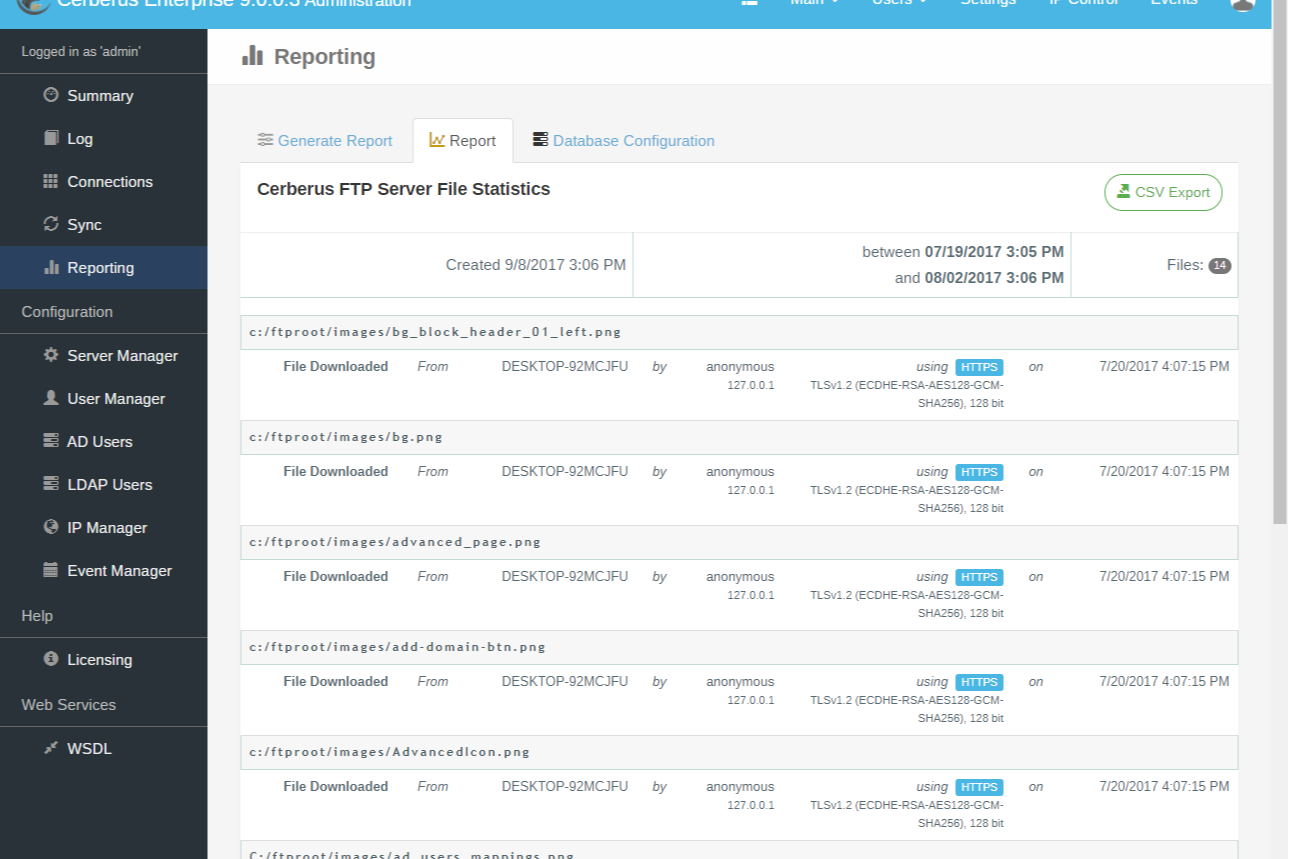
Cerberus FTP Server is a secure file sharing platform built for IT teams and organizations that need to manage sensitive data transfers, offering advanced protocol support and granular access controls for regulated industries and enterprise environments.
Who Is Cerberus FTP Server Best For?
Cerberus FTP Server is a strong fit for IT administrators and security-focused teams in regulated industries like healthcare, finance, and government that need strict control over file transfer infrastructure.
Why I Picked Cerberus FTP Server
Cerberus FTP Server earns its spot as one of the best on my shortlist because of how much protocol flexibility it packs into a single server. I like that my team can run FTP, FTPS, SFTP, SCP, and HTTPS all simultaneously on a single IP address—no separate servers, no routing headaches. That matters a lot when you're dealing with legacy systems that only speak SCP alongside modern clients that expect SFTP or browser-based HTTPS access. I also appreciate the ability to define which protocols specific users or groups can access, so you're not just supporting multiple protocols but actively enforcing which ones are allowed per connection.
Cerberus FTP Server Key Features
- AD/LDAP integration: Connect Cerberus FTP Server to Active Directory or LDAP to manage user authentication and access without maintaining a separate user database.
- Public file sharing links: Generate unique, time-limited public links to specific files or folders directly from the HTTPS web client, without requiring recipients to have an account.
- SAML SSO support: Authenticate users through Microsoft Entra ID (formerly Azure AD) or Okta via SAML-based single sign-on.
- Temporary user accounts: Create time-bound user accounts that automatically expire, useful for granting external partners short-term file access.
Cerberus FTP Server Integrations
Integrations include Microsoft Azure, Amazon Web Services, Active Directory, and LDAP.
Pros and Cons
Pros:
- Allows granular user and group permissions
- Offers detailed audit logs for compliance
- Supports FTP, FTPS, SFTP, and HTTPS protocols
Cons:
- Web interface can be slow with large directories
- Lacks built-in file versioning features


Tresorit is a secure file sharing platform designed for organizations and professionals who need to protect sensitive documents while collaborating across teams and devices.
Who Is Tresorit Best For?
Tresorit is a strong fit for security-conscious teams in legal, healthcare, and finance who handle confidential files and need strict data privacy controls.
Why I Picked Tresorit
Tresorit earns its spot on my shortlist because end-to-end encryption isn't a bolt-on feature here—it's the foundation everything else is built on. What I find particularly compelling is the zero-knowledge architecture, which means even Tresorit itself can't access your files. When my team shares a sensitive contract or confidential project brief, the file is encrypted before it ever leaves the device. I also like the granular link controls—you can set password protection, open limits, expiry dates, and access logs on any shared link, so you're not just sending a file into the void and hoping for the best.
Tresorit Key Features
- File request links: Create end-to-end encrypted links that let external partners upload sensitive files directly to your Tresorit folders without needing an account.
- Data residency options: Choose where your data is stored from a range of global locations, including the EU, Switzerland, UK, and US, to meet regional compliance requirements.
- Admin sharing policies: Set user-group-level rules that restrict who can share folders and links, preventing accidental exposure of sensitive files outside approved domains.
- Tresorit eSign: Send, sign, and manage documents directly within the platform using built-in electronic signature workflows.
Tresorit Integrations
Integrations include Microsoft Outlook, Microsoft 365, Google Workspace, Microsoft Teams, Active Directory, Okta, Azure Active Directory, Salesforce, Dropbox, and Google Drive.
Pros and Cons
Pros:
- Local and remote wipe.
- Simple electronic signatures and reduced turnaround times.
- Email encryption system for information security.
- End-to-end encryption and Zero-knowledge encryption.
Cons:
- Might lack some advanced collaboration features.
- Higher pricing compared to some alternatives.


OneDrive is a cloud-based file sharing platform for businesses and teams that need secure storage, real-time collaboration, and access to documents across devices.
Who Is OneDrive Best For?
OneDrive is a natural fit for businesses of any size that are already running on Microsoft 365 and need file sharing built into their existing workflow.
Why I Picked OneDrive
OneDrive earns its spot on my shortlist because of how naturally it fits into a Microsoft 365 workflow. When my team is editing a Word doc or reviewing a PowerPoint deck, files open directly in the browser without any app-switching or re-uploading. The co-authoring experience is immediate. I also like the Teams integration—shared files from a Teams channel show up directly in OneDrive, so there's one consistent place to find everything rather than hunting across chat threads and email attachments. The sensitivity labels and sync reports give admins real visibility into how files are being accessed and shared across the org.
OneDrive Key Features
- Version history: Access and restore previous versions of any file stored in OneDrive, going back up to 180 days.
- Granular sharing permissions: Set view-only, edit, or password-protected access on individual files and folders when sharing with internal or external users.
- Personal Vault: Store sensitive files in a protected area that requires additional identity verification to access.
- Offline sync: Sync files to your device so you can access and edit them without an internet connection, with changes uploading automatically when you're back online.
OneDrive Integrations
Integrations include Microsoft Teams, SharePoint, Outlook, Word, Excel, PowerPoint, OneNote, Microsoft Defender, Microsoft Designer, and Azure.
Pros and Cons
Pros:
- Sharing controls to authorized users.
- Automatic or manual document backup and version history.
- Advanced security, including encryption, 2FA, and expiration date for shared links.
- Seamless integration with Microsoft apps and easy collaboration within Microsoft Teams.
Cons:
- Limited storage for lower-tier plans.
- May require Microsoft and Microsoft Office ecosystem commitment.


Google Drive gives teams and businesses a secure way to store, share, and collaborate on files in the cloud, providing unified syncing and centralized access to documents and projects across devices and locations.
Who Is Google Drive Best For?
Google Drive is a natural fit for teams of all sizes that already rely on Gmail and Google Workspace for day-to-day communication and collaboration.
Why I Picked Google Drive
I picked Google Drive as one of the best because of how naturally it fits into a Gmail-based workflow. When my team receives a file attachment in Gmail, we can save it directly to Drive without ever leaving the inbox—and attach Drive files back to emails without leaving the inbox. I also like the shared drives feature, which gives cross-functional teams a dedicated space to store and manage files together, with granular permission controls like expiration dates on shared links. That combination of Gmail attachment handling and team-level file organization is hard to replicate without switching ecosystems.
Google Drive Key Features
- Offline access: View and edit files without an internet connection, with changes syncing automatically when you reconnect.
- File version history: Access and restore previous versions of any file stored in Drive, so you can track changes over time.
- Priority page: Drive's Priority page surfaces recently accessed and suggested files based on your activity, reducing time spent searching.
- Drive search filters: Use advanced search operators to filter files by type, owner, date modified, and location within Drive.
Google Drive Integrations
Integrations include Gmail, Google Meet, Google Chat, Google Docs, Google Sheets, Google Slides, Google Forms, Google Sites, Google Keep, and AppSheet.
Pros and Cons
Pros:
- Document revisions are automatically saved and can revert back.
- Expansively generous free storage.
- Efficient real-time collaboration.
- Deep integration with G Suite apps.
Cons:
- Large files make Google Docs sluggish.
- Limited offline access makes it only better when online.

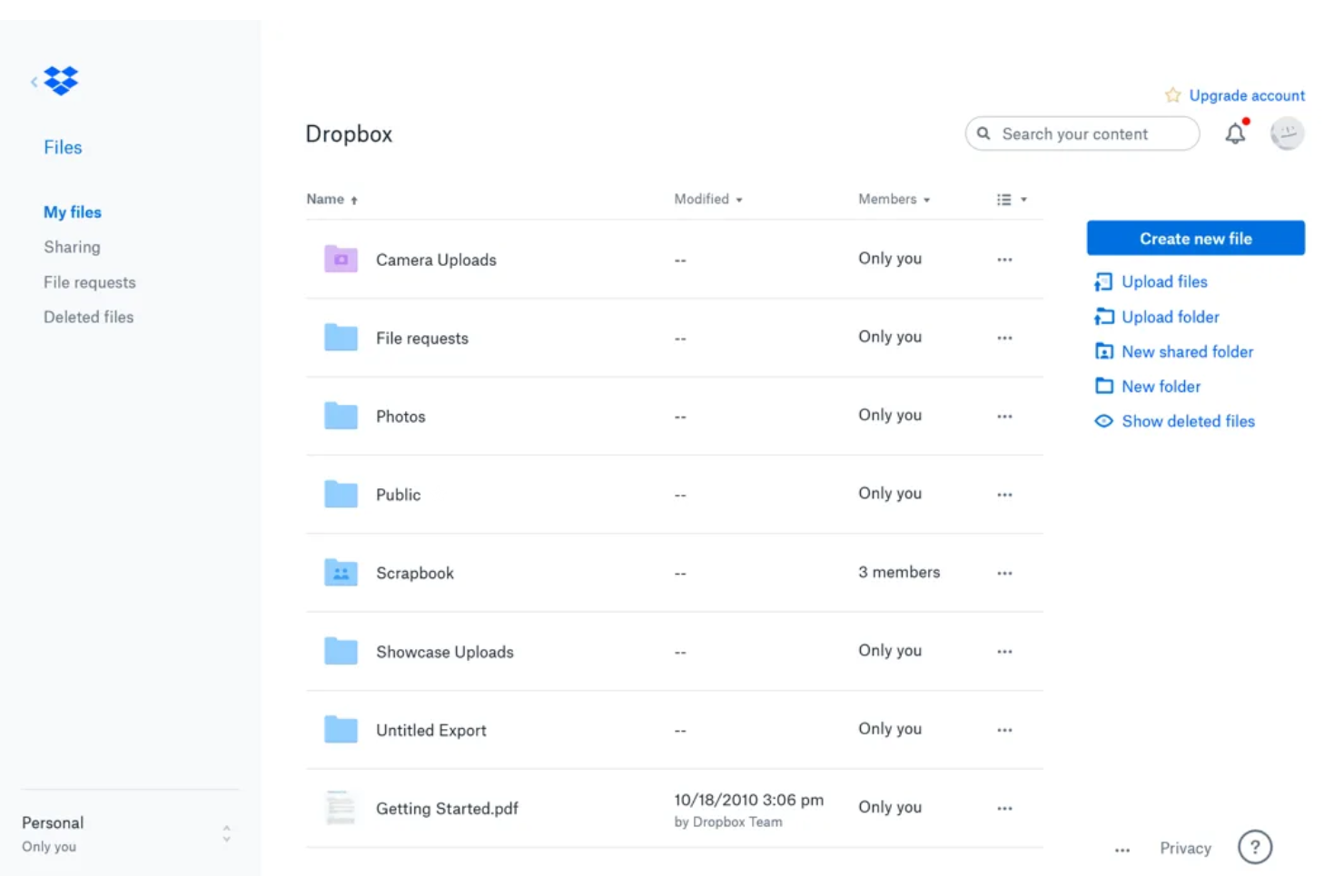
Dropbox is a cloud-based file sharing platform used by teams and businesses who need secure storage, easy access across devices, and tools for organizing and collaborating on documents in real time.
Who Is Dropbox Best For?
Dropbox is a good fit for small to mid-sized teams that work across multiple devices and need a reliable, centralized place to store, share, and access files.
Why I Picked Dropbox
Dropbox earns its spot on my shortlist because of how well it handles real-time syncing across devices—changes my team makes to a file show up instantly, no manual refreshing needed. I also like Dropbox Paper, which lets us co-edit documents, leave inline comments, and tag teammates without switching to a separate tool. Shared folders with granular permission controls mean I can give external collaborators access to specific files without exposing everything else in our workspace.
Dropbox Key Features
- Version history and file recovery: Restore previous versions of files or recover deleted items, with history going back up to 180 days on Standard plans and one year on Advanced and Enterprise plans.
- File request tool: Send a link that lets anyone upload files directly to your Dropbox folder, even if they don't have an account.
- Password-protected and expiring share links: Set passwords or expiration dates on shared links to control who can access files and for how long.
- Remote device wipe: Remove Dropbox files from a lost or stolen device without affecting files stored in the cloud.
Dropbox Integrations
Integrations include Microsoft Office, Google Workspace, Adobe Acrobat DC, Slack, Zoom, Canva, AutoCAD, DocuSign, Salesforce, and Trello.
Pros and Cons
Pros:
- Efficient third-party app integrations.
- Real-time access monitoring to detect unauthorized access.
- Widespread compatibility and sync with various devices and file formats.
Cons:
- Advanced features come with higher pricing.
- Storage limitations in lower-tier plans.


SFTP To Go is a managed SFTP solution for businesses and teams that need secure, automated file transfers and cloud-based storage without the hassle of maintaining their own servers.
Who Is SFTP To Go Best For?
SFTP To Go is a strong fit for developers and engineering teams that need a reliable, cloud-hosted SFTP server with minimal infrastructure overhead.
Why I Picked SFTP To Go
SFTP To Go is one of my top picks because I love how it handles secure cloud-based file transfers without requiring any server management on my end. The platform uses secure protocols—SFTP, FTPS, S3, and HTTPS—and encrypts files in transit and at rest with 256-bit AES, so I don't have to compromise security for convenience. I also rely heavily on the webhook triggers, which fire automations when files are uploaded or removed, letting my team build hands-off transfer workflows without custom polling. The shareable link feature lets us send password-protected, expiry-limited links to external partners without giving them full account access.
SFTP To Go Key Features
- User home directories: Assign each user their own isolated directory within your cloud storage to control exactly what files they can access.
- File versioning: Enable versioning on your storage to track changes to files over time and recover from accidental deletions or overwrites.
- Custom domain support: Connect your own domain to your SFTP To Go instance so external partners access your storage under your brand.
- IP allowlisting: Set network rules to restrict storage access to specific IP addresses, adding an extra layer of access control.
SFTP To Go Integrations
Integrations include FileZilla, CyberDuck, WinSCP, Amazon S3, and an API for custom connections.
Pros and Cons
Pros:
- Simple setup with scalable cloud storage
- Secure file sharing via share links
- Strong encryption and compliance focus
Cons:
- Higher entry pricing for small teams
- Lacks in-app document collaboration


Filestage is a file sharing and review platform built for creative teams, marketing departments, and agencies who need to manage feedback, approvals, and version control on documents, images, and videos in one secure workspace.
Who Is Filestage Best For?
Filestage is a strong fit for marketing teams and creative agencies that regularly share files with external stakeholders and need a structured way to collect feedback and sign off on deliverables.
Why I Picked Filestage
I picked Filestage as one of the best because it's the only file sharing tool I've used that prioritizes review and approval. When my team shares a video or PDF, reviewers can drop timestamped comments, draw directly on the file, and highlight specific text—all without a single email. I also like the AI reviewer, which checks files against custom rules like forbidden terms or mandatory brand images before human reviewers open the file. It reduces the back-and-forth that prolongs approval cycles.
Filestage Key Features
- Version control: Upload new file versions and keep a full history of all previous versions alongside their associated feedback and approval status.
- Guest reviewer access: Invite external stakeholders to review and comment on files without requiring them to create an account.
- Due dates and reminders: Set deadlines on review steps and send automated reminders to reviewers who haven't responded yet.
- Project dashboard: View the approval status of all files across multiple projects in a single centralized dashboard.
Filestage Integrations
Integrations include Slack, Microsoft Teams, Jira, monday.com, Adobe Premiere Pro, Adobe InDesign, Adobe After Effects, Figma, Google Drive, and Dropbox.
Pros and Cons
Pros:
- Automatic file versioning eliminates email clutter.
- Seamless and organized file review process.
- Simplifies document sharing and feedback collection.
Cons:
- Might not cover broader file sharing needs.
- Primarily focused on review workflows.

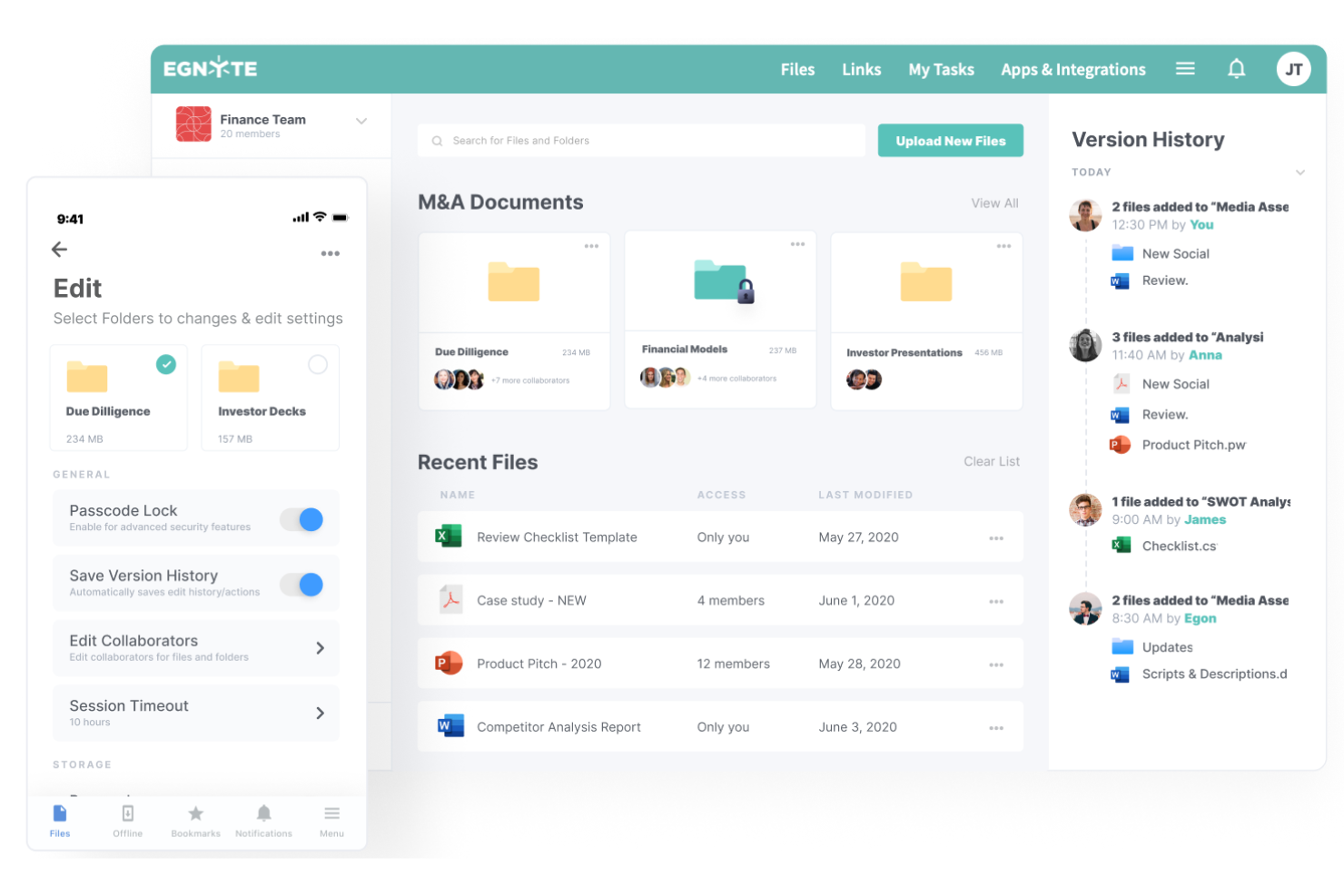
Egnyte gives IT teams and security-focused businesses a way to share files securely, manage sensitive content, and maintain compliance across distributed teams and cloud environments.
Who Is Egnyte Best For?
Egnyte is a strong fit for mid-size to enterprise businesses in regulated industries like life sciences, financial services, and construction that need tight control over how files are shared and governed.
Why I Picked Egnyte
Egnyte earns its spot as one of the best on my shortlist because of how seriously it takes content risk—specifically around deletion and data lifecycle control. I like that the content lifecycle dashboard gives my team a single view of all stored files, flagging duplicate, redundant, and obsolete content so we can take immediate action to archive or delete it before it becomes a liability. It also lets administrators set automated retention and deletion policies tied to regulatory requirements like GDPR and HIPAA, preventing files from lingering past compliance windows. Anomaly detection alerts my security team the moment a user deletes or moves a large number of files—which is exactly the kind of early warning you need to catch both accidental data loss and potential ransomware activity.
Egnyte Key Features
- Secure sharing controls: Share files via encrypted links with password protection, expiration dates, view-only permissions, and dynamic watermarking for external collaborators.
- Real-time co-editing: Co-edit files in Google Workspace and Microsoft 365 directly from the desktop, browser, or mobile without creating duplicate copies.
- Sensitive data classification: Automatically scan and classify files containing PII, PHI, and PCI-DSS data so security teams can apply targeted protection policies.
- Snapshot recovery: Restore files from point-in-time snapshots after a ransomware attack or accidental deletion.
Egnyte Integrations
Integrations include Salesforce, Microsoft 365, Google Workspace, Autodesk Construction Cloud, Procore, Raken, AWS, Science Exchange, DocuSign, and Microsoft Teams.
Pros and Cons
Pros:
- Hybrid storage options.
- Enterprise File Sharing capabilities.
- Modern user interface and content architecture.
- Controlled and secure external file sharing and content governance controls.
Cons:
- Feature-richness can be overwhelming for simpler needs.
- Pricing might be high for smaller businesses.

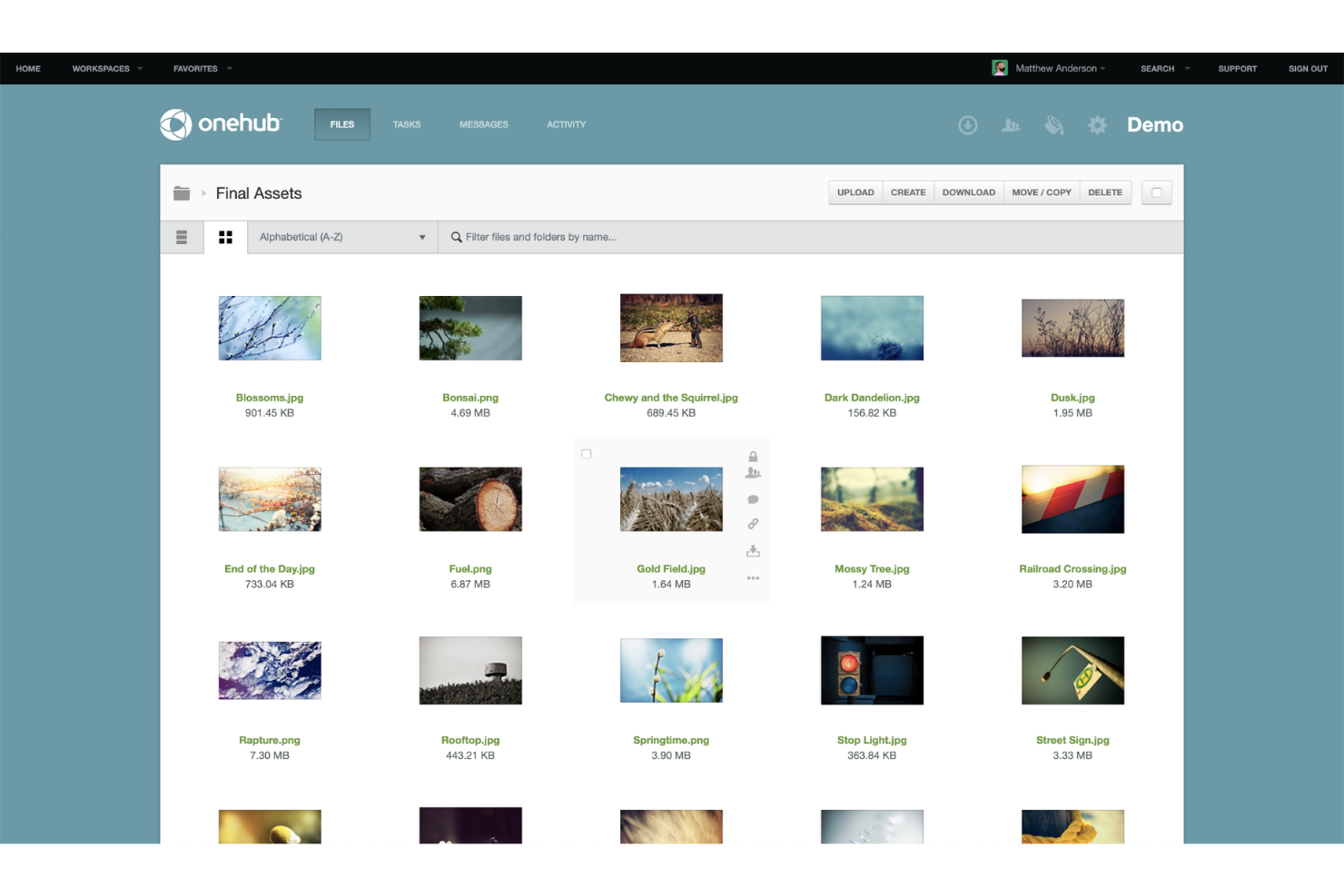
OneHub is a secure file sharing platform designed for businesses and teams that need to manage, share, and collaborate on sensitive documents while maintaining strict control over access and privacy.
Who Is OneHub Best For?
OneHub suits small to mid-sized businesses that need a secure, organized way to share files and documents with clients or external partners.
Why I Picked OneHub
OneHub earns its spot on my shortlist because of its stealth mode feature, which is rare in file sharing tools. When my team shares documents with multiple competing bidders in a data room, stealth mode acts as a set of "blinders"—participants can access the shared content but can't see each other or each other's activity. Document watermarking automatically stamps files with identifying information, so if something leaks, you know exactly where it came from. These two features together make OneHub a strong pick for anyone who needs to share sensitive files without exposing who else is in the room.
OneHub Key Features
- Role-based permissions: Assign specific access levels to users, controlling who can view, download, print, or edit files within a workspace.
- Audit trails: Track all user activity within a workspace, including file views, downloads, and logins, with timestamped logs.
- Custom branded workspaces: Apply your company's logo, colors, and domain to client-facing portals for a consistent presentation.
- Secure link sharing: Generate password-protected links with expiration dates to control how long shared files remain accessible.
OneHub Integrations
Integrations include Microsoft Office Online and Google Drive.
Pros and Cons
Pros:
- Powerful search through instant indexing.
- Comprehensive permission controls.
- Virtual data rooms for efficient and secure file sharing and management.
- Custom branding allows you to own your brand on the platform.
Cons:
- Steep learning curve for new users.
- User interface might not be as intuitive as other platforms.

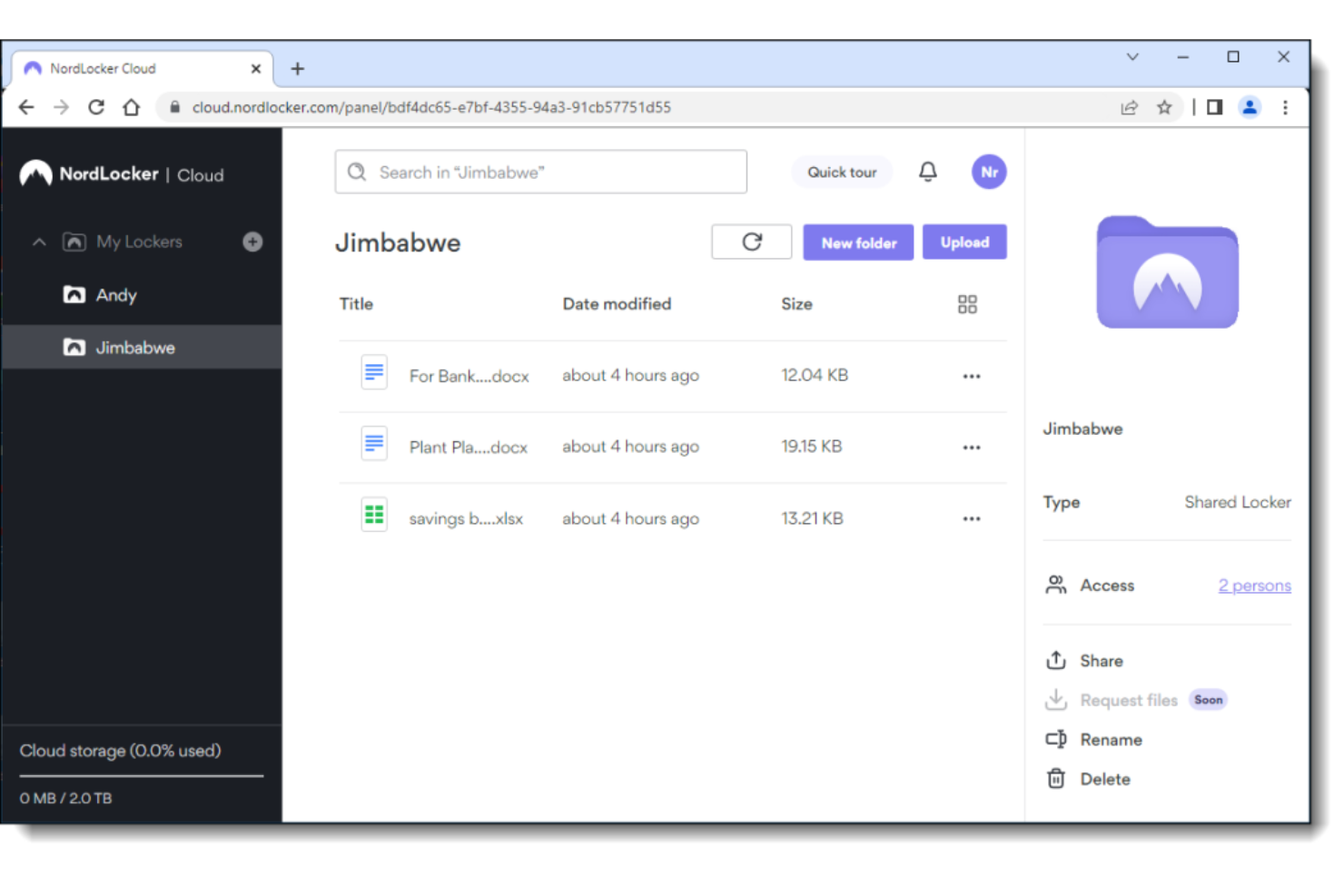
NordLocker is a file sharing and storage platform designed for businesses and professionals who need to protect sensitive data while collaborating and exchanging files securely across devices.
Who Is NordLocker Best For?
NordLocker is a good fit for security-conscious teams in industries like legal, finance, and healthcare that handle confidential files and need strict control over who can access shared data.
Why I Picked NordLocker
NordLocker earns its spot on my shortlist because of how seriously it takes encryption without making it complicated to use. I picked it specifically for the zero-knowledge architecture—NordLocker itself can never see or access what you store, which matters when my team shares confidential project files or sensitive client documents. The encrypted file sharing feature lets you send files via a password-protected link or invite collaborators as editors or viewers by email. NordLocker also uses a combination of AES-256, xChaCha20-Poly1305, and Ed25519 algorithms, so the encryption isn't just a checkbox—it's layered and hard to crack.
NordLocker Key Features
- Cross-platform sync: Access and sync your encrypted files across Windows, Android, iOS, and all major web browsers from a single account.
- Access control: Invite collaborators as editors or viewers and revoke access to shared files at any time directly from your cloud.
- Encrypted cloud backup: Files stored in NordLocker are automatically backed up to the cloud, keeping them recoverable even if a device is lost, damaged, or stolen.
- All file type support: Store and share any file type—documents, folders, photos, videos—regardless of size.
NordLocker Integrations
Integrations include NordVPN, NordPass, Windows File Explorer, macOS Finder, and Google Drive.
Pros and Cons
Pros:
- 3GB free cloud storage.
- Impressive drag-and-drop interface.
- Strong focus on security and end-to-end encryption.
Cons:
- Might be an overkill for users not focused on encryption
- Limited integrations compared to other options.

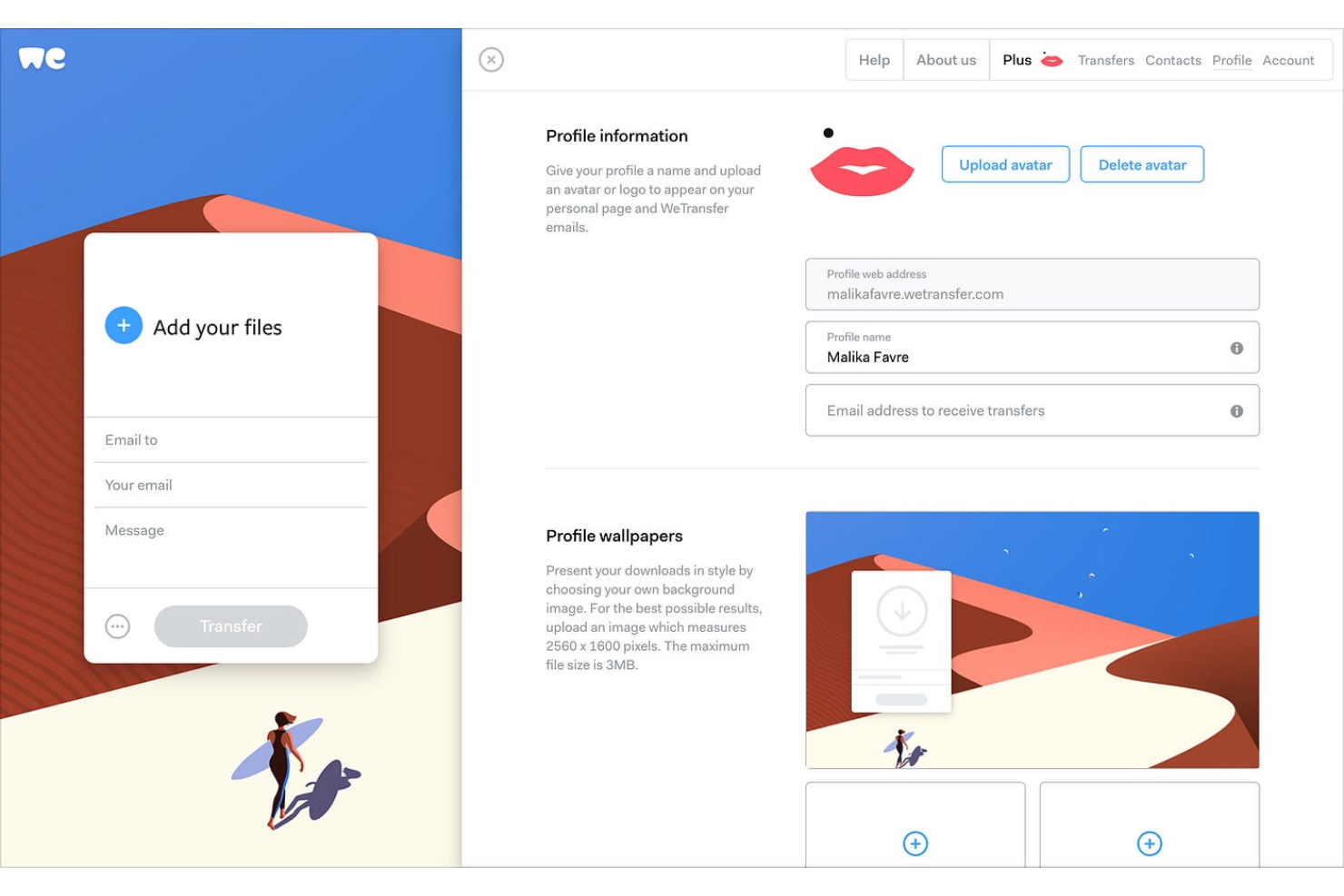
WeTransfer is a file sharing platform designed for creative professionals, agencies, and teams who need to send large files promptly, without complicated setup or account creation.
Who Is WeTransfer Best For?
WeTransfer is a great fit for freelancers, creatives, and small teams who need to send large files to clients or collaborators without asking them to create an account.
Why I Picked WeTransfer
WeTransfer earns its spot on my shortlist because it removes barriers to sending large files without delay. I picked it for the email-based sharing flow—you enter a recipient's email, attach your files, and they receive a direct download link with no account required on their end. I also like the file request feature, where you can share a personal WeTransfer page URL and let clients upload files directly to you, which eliminates the back-and-forth of coordinating transfers. On paid plans, automatic malware scanning adds a layer of security that's important when you're regularly receiving files from external contacts.
WeTransfer Key Features
- Transfer tracking: See when recipients have opened and downloaded your files directly from your transfer history.
- Custom expiry dates: Set how long a transfer link stays active, from one day up to one year on paid plans.
- Password protection: Add a password to individual transfers so only intended recipients can access the download link.
- Branded transfer pages: Customize your transfer page with your own logo, colors, and background images on paid plans.
WeTransfer Integrations
Integrations include Slack, Microsoft Teams, Adobe Creative Cloud, Sketch, Canva, and Google Reviews.
Pros and Cons
Pros:
- Supports fast and large file transfer.
- No sign-up or account required to start using.
- Extremely easy to use file sharing platform
Cons:
- Provides limited integrations with other tools and apps.
- Lacks advanced collaboration features for teams or individuals.
Other File Sharing Software
Here are some other file sharing tools that did not make my top list, but which are worth your consideration.
- ShareFile
For industry-specific modules
- Jumpshare
For Visual Communication and Annotation
- Air
For sharing files among creative teams
- Wrike
For medium to enterprise-level organizations.
- monday.com
For visual workflow management with file sharing needs.
- ClickUp
For flexible and customizable project and tasks management.
- MEGA
For generous cloud storage and encryption for individuals and businesses.
- MediaFire
For simple and fast, straightforward file sharing for small businesses.


Selection Criteria for File Sharing Software
When selecting the best file sharing software to include on this list, I considered common buyer needs and pain points like ensuring secure file transfers and maintaining version control across teams. I also used the following framework to keep my evaluation structured and fair:
Core Functionality (25% of total score)
To be considered for inclusion on this list, each solution had to fulfill these common use cases:
- Uploading and storing files
- Sharing files with internal and external users
- Setting user permissions and access controls
- Syncing files across multiple devices
- Supporting multiple file formats and sizes
Additional Standout Features (25% of total score)
To help further narrow down the competition, I also looked for unique features, such as:
- End-to-end encryption for enhanced security
- Integration with project management and productivity tools
- Real-time co-editing and collaboration features
- Automated file versioning and rollback options
- AI-powered search and content organization
Usability (10% of total score)
To get a sense of the usability of each system, I considered the following:
- Learning curve for first-time users
- Simplicity of file uploading, organizing, and sharing
- Clarity of the user interface and navigation
- Consistency of performance across desktop, mobile, and web apps
- Customization options for user preferences and workflows
Onboarding (10% of total score)
To evaluate the onboarding experience for each platform, I considered the following:
- Availability of interactive product tours and setup wizards
- Access to onboarding guides, tutorials, and knowledge bases
- Prebuilt templates for organizing and sharing files
- Availability of live training sessions and webinars
- Responsiveness of onboarding support teams
Customer Support (10% of total score)
To assess each software provider’s customer support services, I considered the following:
- Availability of 24/7 customer support
- Response times for live chat, email, and phone support
- Help center resources, FAQs, and community forums
- Availability of dedicated account managers for enterprise users
- Customer feedback on support effectiveness and helpfulness
Value For Money (10% of total score)
To evaluate the value for money of each platform, I considered the following:
- Availability of free or affordable entry-level plans
- Pricing transparency and flexibility in scaling up
- Cost of additional storage and advanced features
- Comparison of features offered at similar price points
- Availability of free trials or money-back guarantees
Customer Reviews (10% of total score)
To get a sense of overall customer satisfaction, I considered the following when reading customer reviews:
- Overall sentiment regarding ease of use and reliability
- Feedback on security and access control features
- Reports on file syncing and collaboration effectiveness
- Complaints about performance issues or downtime
- Praise or concerns about pricing and hidden costs
How to Choose File Sharing Software
It’s easy to get bogged down in long feature lists and complex pricing structures. To help you stay focused as you work through your unique software selection process, here’s a checklist of factors to keep in mind:
| Factor | What to Consider |
|---|---|
| Scalability | Ensure the software can handle your current needs and grow with your business. Look for flexible storage options, user limits, and performance under heavy loads. |
| Integrations | Check if the software connects with tools your team already uses, like project management platforms, CRMs, or cloud storage providers, to streamline workflows. |
| Customizability | Some tools let you define user permissions, branding, and workflow automations. Make sure you can tailor the software to fit your team’s specific needs. |
| Ease of Use | A steep learning curve slows productivity. Look for an intuitive interface, drag-and-drop uploads, and quick access to frequently used files. |
| Budget | Consider not just the base cost but also hidden fees like storage overages, extra users, or advanced security features. |
| Security Safeguards | Strong encryption, access controls, and compliance with regulations (like GDPR or HIPAA) are must-haves to protect sensitive data. |
| Collaboration Features | If teamwork is key, look for real-time editing, version history, and seamless file commenting to keep projects moving smoothly. |
| Mobile Accessibility | Your team may need to access files on-the-go. Check for reliable mobile apps with offline access and syncing capabilities. |
Trends in File Sharing Software
In my research, I sourced countless product updates, press releases, and release logs from different file sharing software vendors. Here are some of the emerging trends I’m keeping an eye on:
- End-to-end encryption by default: More vendors are making strong encryption a standard instead of an optional add-on. Users no longer have to enable extra security settings manually, reducing the risk of human error. Some platforms even offer zero-knowledge encryption, meaning only the user—not the provider—can access files.
- AI-powered file organization: AI tools are being used to tag, categorize, and suggest file locations based on user behavior. Some platforms even auto-classify sensitive documents to prevent accidental sharing. This helps teams cut down on manual sorting and find files faster.
- Granular expiry and access controls: Businesses want more control over who can access files and for how long. Vendors are responding with share links that auto-expire after a set time, role-based access tied to project stages, and notifications when files are downloaded or shared externally.
- Decentralized and peer-to-peer sharing: Some platforms are moving away from centralized cloud storage and experimenting with peer-to-peer file sharing. This reduces reliance on servers, cuts storage costs, and improves privacy by keeping files on users' own devices instead of a third-party cloud.
- Embedded collaboration features: Instead of just sharing files, software is adding in-document commenting, approvals, and version comparisons. This reduces the need to download, edit, and re-upload files manually, keeping everything in one place and reducing version conflicts.
What is file sharing software?
File sharing software is a tool that lets you share and access files over the internet or a network. It supports the transfer of various file types, including documents, images, and videos, between different devices and users. This software often includes features for uploading, downloading, managing access, and ensuring the security of the shared files.
People like remote workers, project teams, and anyone needing to swap documents or media use it to keep files organized and easy to reach. File sharing tools make sure files are easily accessible, can be quickly updated, and are securely shared.
Features of File Sharing Software
When selecting file sharing software, keep an eye out for the following key features:
- Granular permissions: Lets you control who can view, edit, or download specific files, reducing the risk of unauthorized access.
- End-to-end encryption: Protects files from being intercepted by encrypting data before it leaves your device and decrypting it only for the intended recipient.
- Version history and file syncing: Saves past versions of a file, allowing you to track changes, restore previous versions, and avoid accidental data loss.
- Large file transfers: Supports sending and receiving large files without hitting size limits that often restrict email attachments.
- Expiring share links: Lets you set automatic expiration dates for shared files, ensuring temporary access without manual intervention.
- Activity tracking: Logs file views, edits, and shares so you can monitor who accessed your files and when.
- Built-in preview and editing: Enables users to view or edit files directly within the platform without downloading them first.
- Remote wipe: Allows you to delete shared files from a user’s device in case of a security breach or lost device.
- Offline access: Lets users access and edit files without an internet connection, syncing changes once they’re back online.
- Compliance support: Helps meet industry regulations like GDPR or HIPAA by providing audit logs, data residency options, and secure access controls.
- E-signature support: Allows users to sign documents securely within the platform, making it easier to finalize agreements without switching tools.
Benefits of File Sharing Software
Implementing file sharing software can provide several benefits for your team and your business. Here are a few you can look forward to:
- Faster collaboration: Team members can access, edit, and comment on shared files in real time without waiting for email attachments.
- Better security: Encryption, access controls, and audit logs help protect sensitive files from unauthorized access or data leaks.
- Easier remote work: Cloud-based access ensures employees can retrieve and share files from anywhere, whether they’re in the office or on-the-go.
- More organized storage: Centralized file repositories with search, tagging, and version history make it easy to find and manage documents.
- Less reliance on email: Large file transfers, share links, and in-app collaboration reduce the need for back-and-forth email exchanges.
- Lower storage costs: Cloud-based options reduce the need for expensive physical storage and minimize duplicate file versions.
- Stronger compliance: Built-in security features and access tracking help businesses meet industry regulations and data protection requirements.
Costs & Pricing of File Sharing Software
Selecting file sharing software requires an understanding of the various pricing models and plans available. Costs vary based on features, team size, add-ons, and more. The table below summarizes common plans, their average prices, and typical features included in file sharing software solutions:
Plan Comparison Table for File Sharing Software
| Plan Type | Average Price | Common Features |
|---|---|---|
| Free Plan | $0 | Limited storage, basic file sharing, single-user access, and minimal security options |
| Personal Plan | $5-$15/user/month | Increased storage, file version history, mobile access, and basic encryption |
| Business Plan | $15-$30/user/month | Advanced security controls, team collaboration tools, admin controls, and audit logs |
| Enterprise Plan | $30-$50+/user/month | Custom storage limits, end-to-end encryption, compliance support, priority support, and advanced user permissions |
File Sharing Software Frequently Asked Questions
Find answers to common questions other people ask about this topic.
What is file sharing?
File sharing is the act of transferring digital files between devices or users, via the Internet, for collaboration or distribution purposes. For example, sending a presentation to a colleague through email or sharing project files using a cloud storage service like Dropbox, Filestage, or Google Drive.
What is the main benefit of cloud-based file sharing?
The primary benefit of cloud-based file sharing is the ability to access and collaborate on files from anywhere with an internet connection, enabling seamless collaboration among distributed teams and eliminating the need for physical storage devices.
How secure is file sharing?
The security of file sharing depends on the type of file sharing software, methods, and tools used. While reputable cloud-based platforms often employ encryption and security measures to protect data, it’s important to choose trusted services, implement strong access controls, and user services that follow best practices to enhance security.
What are some alternatives to file sharing software?
If these file sharing tools aren’t quite what you’re looking for, you have options. When it comes to managing and sharing files, there are several alternatives to traditional file sharing software available. Here are some of the tool types that can serve as alternatives:
What’s Next?
If you're in the process of researching file sharing software, connect with a SoftwareSelect advisor for free recommendations.
You fill out a form and have a quick chat where they get into the specifics of your needs. Then you'll get a shortlist of software to review. They'll even support you through the entire buying process, including price negotiations.