

Top Google Project Management Tools to Try in 2026

As a PM, I can tell you that you can manage a project using Google Workspace, but there's a catch: you'll probably need more than one Google tool to do it well.
Google Sheets can handle your project plan, Docs can manage requirements, and Chat can keep everyone talking. The tricky part is getting them to work together without turning project management into a second project.
In this guide, I'll walk through the Google project management tools worth using, where each fits into a real project, and the workarounds that help compensate for what's missing compared to dedicated project management tools.

What Are Google Project Management Tools?
Google project management tools are applications within the Google ecosystem that support project planning, task tracking, scheduling, collaboration, documentation, and reporting.
Rather than relying on one dedicated project management platform, teams can combine Google Workspace applications such as Sheets, Docs, Tasks, Chat, Calendar, and Drive to manage different parts of a project.
This approach is useful for smaller teams already working in Google Workspace. However, more complex projects may require additional tools for dependency management, resource planning, and automated reporting.
How We'll Use Google Tools to Manage a Project
Let's say we're launching a new customer self-service portal.
We have eight weeks, a six-person team, and a $25,000 budget. The work involves requirements gathering, design, development, testing, stakeholder approvals, and launch preparation.
That's enough moving parts to make a shared checklist inadequate, but not necessarily enough to justify a heavyweight project management platform.
Here's how I'd organize the project using Google tools.
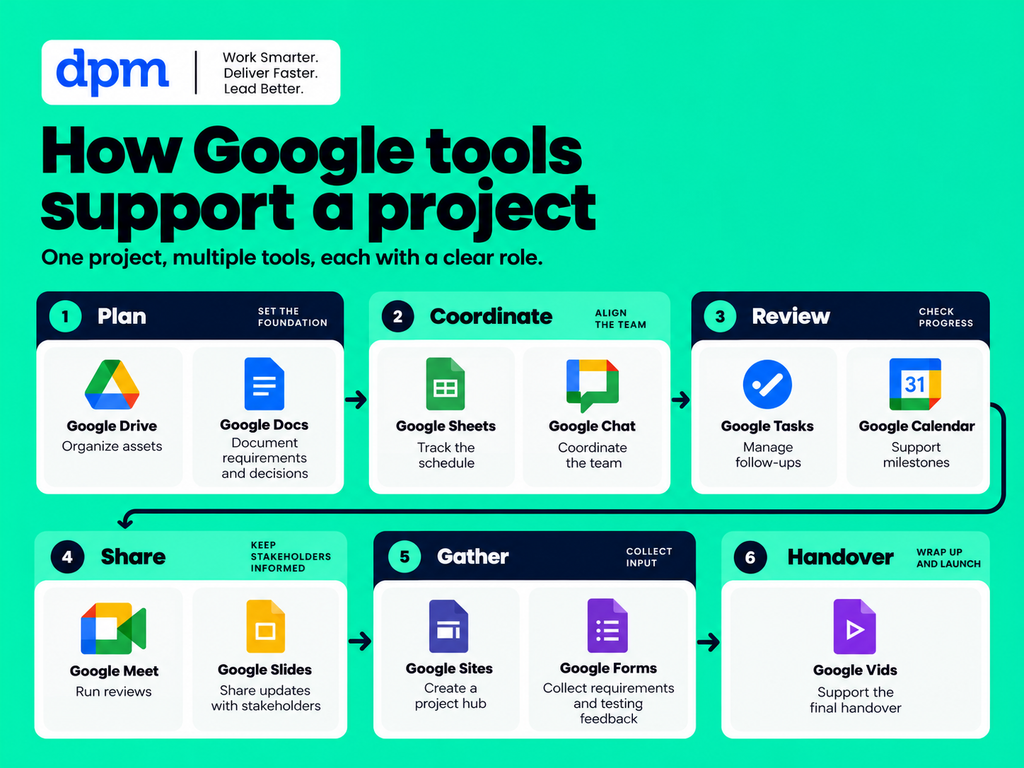
The trick to managing projects with Google Workspace isn't using every tool. It's knowing which one owns what. Keep your schedule in Sheets, decisions in Docs, and day-to-day coordination in Chat and Tasks.
My advice? Give every piece of project information one primary home, then link to it from the other tools. Otherwise, you'll spend more time reconciling three versions of the project plan than actually managing the project.
1. Google Drive: Organizing Project Files

Google Drive is a cloud storage and file-sharing tool that gives project teams a central place to store and access their work, whether on or offline.
For our portal launch, I'd create one project folder with subfolders for planning, design, development, testing, reporting, and launch materials.
That sounds basic, but there's a good reason to do it first: finding the latest approved document shouldn't require searching through three people's email attachments.
How I'd Use Google Drive for Project Management
I'd set up a structure like this:
- 00 – Project management
- 01 – Requirements and scope
- 02 – Design and development
- 03 – Testing and approvals
- 04 – Launch materials
- 05 – Reports and retrospective
I'd also put links to the project charter, master tracker, and meeting notes in one project index document.
Where it falls short: Drive handles files, not project coordination. You'll still need a place to track who owns each deliverable, when it's due, and whether it's been approved.

2. Google Docs: Writing Project Charters, Requirements, and Meeting Notes

Google Docs is a collaborative document editor that supports real-time editing, comments, checklists, and smart chips.
It's where I'd start documenting what the team is actually trying to deliver.
How I'd Use Docs for Project Management
For our customer portal, I'd create a project charter covering the business problem, objectives, scope, deliverables, constraints, stakeholders, and success criteria.
I'd also maintain a decision log in the same document, or link to a separate one if the project grows.
Google Docs has a particularly useful feature for project managers: typing
@
brings up options for linking people, files, dates, and other project information.
For instance, I could link the design brief directly in the charter, reference our kickoff meeting, and use assigned tasks to request an approval.
What I like: Assigned checklist items can sync to Google Tasks, which helps turn meeting decisions into actionable work. On eligible work or school accounts, you can create an assigned task using
@task
or the checklist controls.
3. Google Sheets: Building Customizable Project Plans & Timelines

Google Sheets is a spreadsheet application that can be adapted for project scheduling, task tracking, budgets, risk registers, and reporting.
Of all Google's tools, this is the one I'd expect to do the heaviest lifting for our project.
How I'd Use Sheets for Project Management
I'd build a master task tracker with these columns:
| Task | Owner | Start | Due | Status |
|---|---|---|---|---|
| Approve requirements | Product lead | Week 1 | Week 1 | Complete |
| Finalize portal designs | Designer | Week 1 | Week 3 | In progress |
| Build account dashboard | Developer | Week 3 | Week 5 | Not started |
| Complete user testing | Product lead | Week 6 | Week 7 | Not started |
| Launch portal | Project manager | Week 8 | Week 8 | Not started |
I'd add priority, dependency, and risk columns, plus separate tabs for budget and issue tracking.
Dropdown menus would keep status labels consistent, while conditional formatting could highlight overdue tasks and upcoming milestones.
A workaround worth knowing: Google Sheets timeline view
Google Sheets offers a timeline view that displays date-based information as a visual schedule.
If the project tracker contains task names, start dates, and end dates, I can use it to create a timeline without rebuilding everything in another application.
That's useful for spotting overlapping work and explaining the schedule during a project review.

What I like: There's no need to choose between a spreadsheet and a basic visual timeline. I can update the source data and work with different views of the plan.
Where it gets frustrating: A visual timeline isn't the same as automated dependency management. Adding a predecessor column doesn't mean downstream dates will automatically adjust when a task slips.
For that, I'd need formulas, scripting, or dedicated project management software.

How To Create The Native Google Sheets Timeline View
- Upload this .xlsx to Google Drive and open it with Google Sheets.
- Select the Project tracker task table (B7:G22), including task, owner, start/end dates and status.
- Use Insert > Timeline (available on eligible Google Workspace editions).
- Set card title = Task / deliverable, start = Start date, end = End date; optionally group by Owner or Phase.
- Choose a weekly view, then capture that native Google Sheets interface for the article.
Tip: This visual worksheet is a fallback. Neither view automatically reschedules dependent tasks.
Download The Free Google Sheets PM Template
Want to Download my Project Template for Google Sheets? Find it Below.
4. Google Forms: Collecting Requirements and Testing Feedback
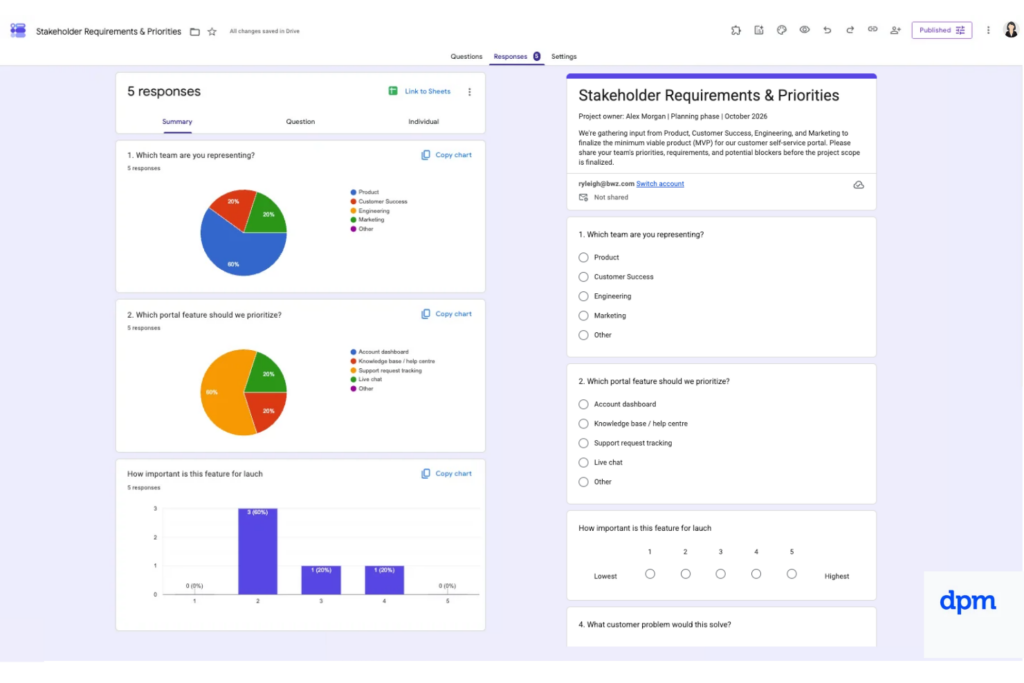
Google Forms is an online form and survey tool for collecting responses in a consistent format.
I find it particularly useful for the stages of a project where information needs to come from multiple people.
How I'd Use Forms for Project Management
Before designing the portal, I'd send a requirements form to the customer success team.
Instead of asking everyone to email their feature requests, I'd collect:
- Which customer issues the portal should solve
- Which features are essential for launch
- How frequently each issue occurs
- Which requests can wait until a later release
Once the portal reaches testing, I'd create a second form for user feedback, including severity, steps to reproduce, and expected behavior.
Responses can be exported or linked to Sheets for analysis.
What I like: Forms brings some discipline to feedback collection. It's much easier to prioritize 30 responses when everyone has answered the same questions.
Where it falls short: It's an intake tool, not a full issue-tracking system.
My workaround: Use a linked Sheet to triage submissions and assign owners. Don't treat every response as an approved feature request. That needs a decision, not just another spreadsheet row.
5. Google Chat: Project Comms & Shared Action Items
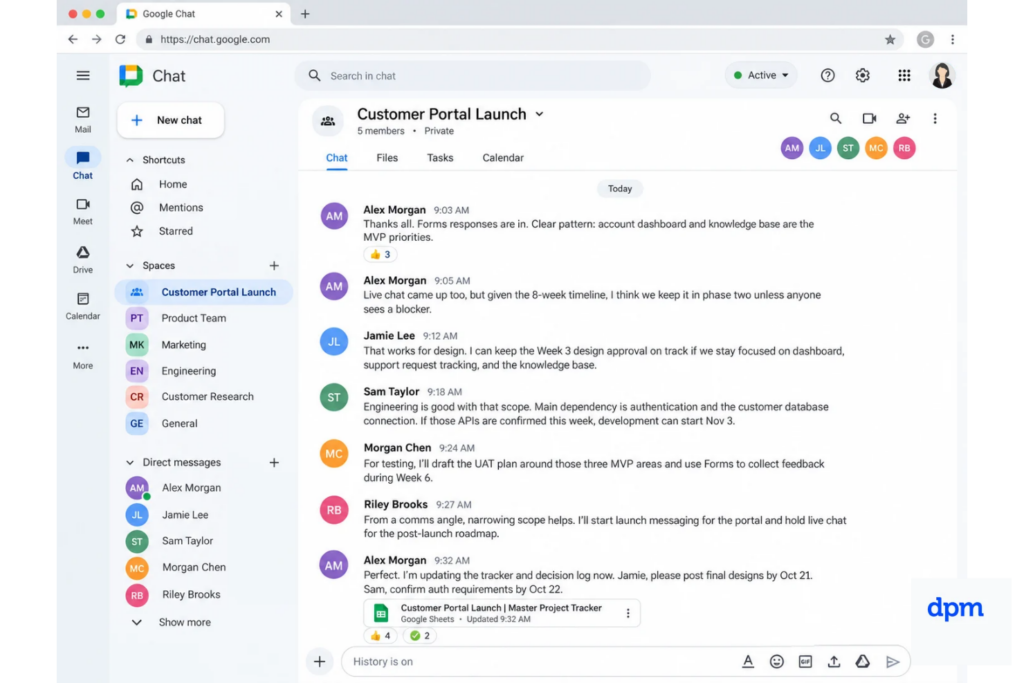
Google Chat is a team messaging application that supports project spaces, threaded discussions, file sharing, and shared tasks.
For our portal launch, I'd create a space called "Customer Portal Launch" and invite the core project team.
How I'd Use Google Chat for Project Management
The space would host daily coordination, quick questions, blockers, and links to important project files.
I'd use threads for specific issues instead of letting every discussion merge into one long conversation.
Google Chat also lets teams create tasks inside a space, assign them to members, and set due dates.
For example, after our design review, I could assign the designer an action to revise the mobile account screen before Friday.
What I like: The task stays close to the conversation that created it. That makes it easier to understand why someone was asked to do something.
Where it falls short: The shared task list isn't a replacement for our master project plan. It doesn't provide the detailed dependency tracking, workload management, or reporting I'd expect from a dedicated PM platform.
6. Google Tasks: Managing Individual Follow-Ups

Google Tasks is a task management application for organizing individual assignments, due dates, and reminders.
Its role is slightly different from Google Chat.
Chat helps us assign work within the team. Tasks helps each person see what they personally need to do.
How I'd Use Google Tasks for Project Management
When the product lead receives an assigned task in Chat or Docs, that task can appear in their Google Tasks list.
For our portal launch, I'd use Tasks to manage my own actions:
- Review the updated designs
- Follow up with the security team
- Prepare Friday's stakeholder report
- Confirm final launch approval
Tasks with scheduled dates can also appear in Google Calendar.
What I like: It's a handy way to collect actions from different Google applications without manually copying every item into another list.
The limitation: Shared tasks don't support subtasks or recurrence. That can make detailed project work harder to organize.
My workaround: Keep complex work packages in Sheets and use Tasks for the next concrete action. "Launch customer portal" isn't a useful personal task. "Confirm final sign-off with security" is.
7. Google Calendar: Scheduling Milestones and Reviews
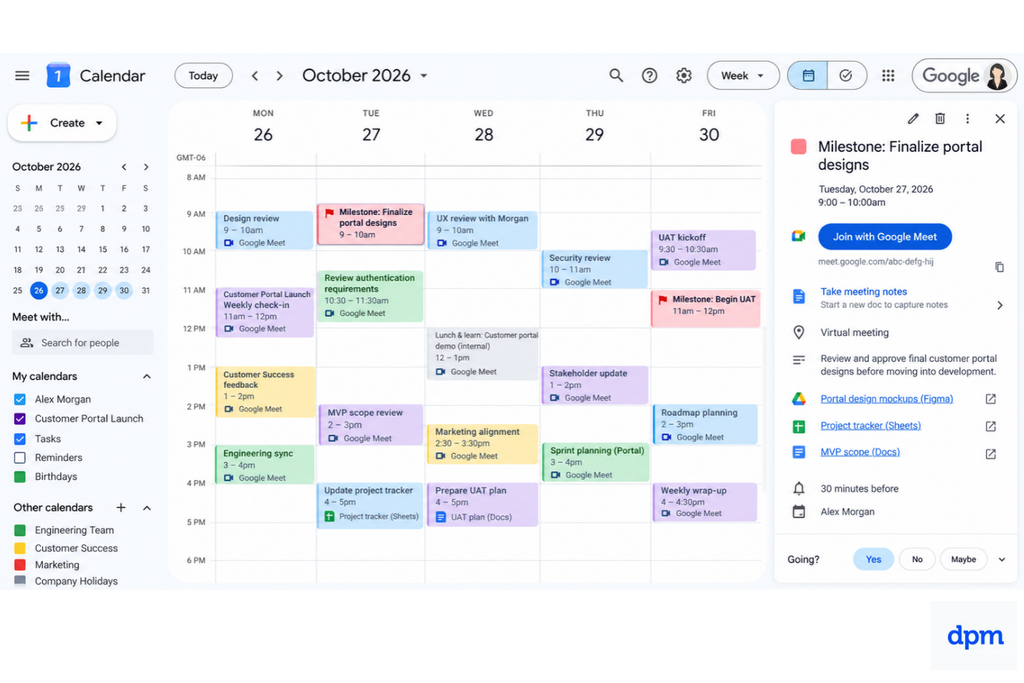
Google Calendar is a scheduling tool for managing events, meetings, reminders, and shared calendars.
It seems obvious, but there's a difference between a deadline existing in a spreadsheet and a deadline being visible on everyone's calendar.
How I'd Use Google Calendar for Project Deadlines
I'd set up recurring project check-ins and add important milestones to a shared calendar.
For our portal launch, that means the kickoff, design approval, testing window, go/no-go meeting, and launch day.
I'd include links to the relevant Docs, Sheets, and Meet sessions in each calendar event.
What I like: Stakeholders don't need to open the project tracker to know when a major decision is approaching.
Where it falls short: Calendar gives you dates, not a meaningful picture of task dependencies or overall progress.
PM tip: Don't add all 75 project tasks as calendar events. People will start ignoring the calendar. Reserve shared events for actual meetings, important review windows, and milestones.
8. Google Meet: Collaborative Project Meetings

Google Meet is a video conferencing application for meetings, screen sharing, and collaboration.
For our project, I'd use it for the kickoff, design walkthroughs, stakeholder reviews, and launch readiness meeting.
How I'd Use Google Meet for Project Management
During our Week 3 design review, I'd share the prototype, walk stakeholders through the customer journey, and capture feedback in the meeting notes document.
When appropriate features are available on our Workspace plan, AI-assisted note-taking can help capture a meeting summary and action items.
What I like: Live reviews are useful when a decision requires explanation or discussion. A ten-minute screen-share can sometimes resolve what would otherwise become a lengthy comment thread.
My workaround: Document decisions after the call and assign follow-ups. A meeting recording or transcript is useful reference material, but neither should become the team's only record of what was agreed.
9. Gmail: Managing Formal Approvals and External Stakeholders

Gmail is an email application that can also support project communication, reminders, and task creation.
I wouldn't use it as our day-to-day project workspace, but I'd still rely on it for formal communication with sponsors, vendors, and external stakeholders.
How I'd Use Gmail for Project Management
For our portal launch, I'd create a project label to organize related correspondence.
I'd use email for requests that require a clear record, including budget approval, vendor deliverables, and final stakeholder sign-off.
A useful trick is turning an email into a Google Task when it requires follow-up.
What I like: Gmail works well when communication extends beyond the core team.
Where it falls short: Email threads are a poor substitute for a project decision register.
PM tip: When an approval comes through Gmail, capture the decision in the project log and link to the relevant supporting information. Nobody should have to search through six months of email to find out who approved the scope change.
10. Google Slides: Reporting Project Progress

Google Slides is a collaborative presentation application that can be used for project reviews, steering committee meetings, and executive updates.
It's where I'd translate our detailed tracker into something a project sponsor can understand quickly.
How I'd Use Google Slides for Project Management
I'd create a short weekly update covering:
- Overall project health
- Progress against milestones
- Budget status
- Major risks and blockers
- Decisions needed from stakeholders
Charts created in Google Sheets can be linked to Slides, helping keep visual reporting tied to the underlying data.
What I like: Different audiences need different levels of detail. Sheets is for the people managing the work. Slides is for the people who need to make decisions about it.
Where it falls short: Reporting can become repetitive when updates are prepared manually.
My workaround: Use a consistent reporting template and link charts from Sheets wherever practical. That reduces the risk of presenting numbers that don't match the tracker.
11. Google Sites: Creating a Project Information Hub

Google Sites is a website-building tool that can be used to create an internal project information hub without writing code.
For projects with several stakeholders, I like the idea of having one place where someone can find the essentials without requesting a meeting.
How I'd Use Google Sites to Share Project Updates
I'd build a simple project site containing the objectives, team contacts, milestone schedule, progress reports, and important documents.
Think of Google Sites as a lightweight alternative to tools like Slite when you need a project wiki or central knowledge hub. The homepage would point to the latest status update and any decisions requiring attention.
You can organize FAQs, project updates, and resources into pages, then embed live Google Docs, Sheets, and Slides so stakeholders can find what they need without digging through Drive.
What I like: It's useful when people outside the core team need visibility but don't need access to every discussion.
Where it falls short: It's less suited to collaborative knowledge management than Slite, but for a straightforward project hub, it does the job. Plus, a project hub is only useful when someone maintains it.
12. Google Keep: Capturing Notes and Loose Ends

Google Keep is a lightweight note-taking application for capturing text, lists, images, and reminders.
I see it as a useful supporting tool rather than a central part of the project management system.
How I'd Use Google Keep for Project Management
I might use Keep to capture questions before a meeting, jot down (or even sketch out) ideas during an informal discussion, or maintain a personal checklist while testing the portal.
What I like: It removes the temptation to open a formal project document every time I have a quick thought.
The limitation: Notes aren't automatically approved decisions or managed deliverables.
My workaround: Move anything important into Docs, Sheets, or Tasks. Keep is the capture point, not the permanent home for project requirements.
13. Google Vids: Sharing Asynchronous Project Updates

Google Vids is is a video creation tool that supports collaborative editing, screen recordings, narration, and AI-assisted production features.
It's an optional addition, but one I'd consider for distributed teams or projects where stakeholders need regular updates without another meeting on the calendar.
How I'd Use Google Vids for Project Management
For our eight-week customer portal launch, I'd use Google Vids to record a short walkthrough once the MVP is ready for review.
I'd show stakeholders the account dashboard, knowledge base, and support request tracking features, then explain what's been completed, what's still being tested, and what we've pushed to phase two.
The customer success team could also use the recording to prepare for launch, while stakeholders who missed the review could catch up without scheduling another call.
What I like: Showing someone how a feature works beats describing it in three paragraphs. I also like that you can combine screen recordings, narration, and project updates into one short video.
Where it falls short: Videos become outdated as projects change, and they're not particularly useful for tracking decisions or individual tasks.
My workaround: Keep the video focused on demonstrating progress, then link to the latest project tracker and decision log for anything that might change. Nobody should have to rewatch a recording to find out whether a deadline has moved.
14. Google AppSheet: Turning a Spreadsheet Into a Project App

Google AppSheet is a no-code application development platform that lets you build custom apps using data from Google Sheets and other sources.
I'd consider it when a project needs a better way for team members to interact with a tracker without everyone editing the spreadsheet directly.
Think of AppSheet as a cousin to Airtable's Interface Designer. Both let you build custom interfaces around your data without coding. The difference is that AppSheet can turn an existing Google Sheet into a working app, complete with forms, assigned tasks, and mobile access. Handy when your spreadsheet works fine for the PM, but the rest of the team needs something easier to use.
How I'd Use Google Appsheet for Project Management
Say we are at the point in our project where we are preparing for user acceptance testing (UAT). Rather than asking testers to log bugs in a shared spreadsheet, I'd use AppSheet to turn our Google Sheets issue tracker into a simple, mobile-friendly app.
Testers could:
- Report problems
- Attach screenshots and flag their severity.
Project managers could then:
- Review assigned issues
- Update issue status
- Track fixes and the changes reflected
What I like: You're giving the team a proper interface without rebuilding your tracking system from scratch. Testers get a straightforward reporting form, while the PM keeps the data in one place.
The trade-off: You're also creating another thing to maintain. For an eight-week project, I'd only go this route if multiple testers were involved, spreadsheet updates were getting messy, or we planned to reuse the app for future launches.
15. Google Apps Script: Automating Repetitive Project Admin

Google Apps Script is is a scripting platform that lets you automate repetitive work across Google applications, including Sheets, Gmail, and Calendar.
I'd consider it when the team has a reliable project tracker, but keeping everyone updated is starting to take more time than the actual project management.
How I'd Use Google Apps Script for Project Management
If I had an upcoming launch, for example, I'd set up a script that checks the Google Sheets tracker every Monday morning for overdue tasks and deadlines approaching in the next seven days.
It could automatically email project owners and the project team a summary of outstanding work, including task owners and due dates. That way, everyone knows what needs attention before the weekly check-in, without me having to manually pull together another status email.
What I like: It's particularly handy for automating small, repetitive tasks between Google apps. You can build around your existing workflow rather than changing how the team works.
Where it gets complicated: Apps Script requires some coding, testing, and maintenance. It also won't fix inaccurate project data.
My workaround: Start with one simple automation, like a weekly deadline digest, and use consistent status labels and dates in Sheets. I'd rather have one reliable reminder than five clever scripts nobody knows how to troubleshoot.
16. Looker Studio: Building a Project Dashboard

Looker Studio is a reporting and data visualization tool that can create dashboards from connected data sources, including Google Sheets.
I'd use it when the project becomes large enough that stakeholders need regular metrics rather than occasional manual updates.
A reminder that Looker Studio complements Google Sheets rather than replacing it. Sheets remains where the team manages the work, while Looker Studio makes the information easier for stakeholders to understand.
How I'd Use Looker Studio for Project Management
For an upcoming product launch, I'd connect my Google Sheets project tracker to Looker Studio and build a dashboard showing completed tasks, overdue work, upcoming milestones, and progress by team.
I could add filters so stakeholders can check their department's progress or see which high-priority tasks need attention. As the underlying Sheet is updated, the dashboard can reflect those changes when its data refreshes.
What I like: It's a nice way to give stakeholders a self-service view of project progress. Instead of sending another spreadsheet, I can share a dashboard that answers most of their questions before they ask.
Where it falls short: Looker Studio is a reporting tool, not a project tracker. It won't manage dependencies, assign tasks, or fix outdated information. Building useful dashboards also takes some initial setup.
What Google Project Management Tools Are Missing
The biggest limitation isn't that Google's individual applications are inadequate. Many work well for their intended purpose.
The problem is that a collection of connected productivity applications still isn't the same as an integrated project management system.
| Project need | Google's approach | Potential limitation |
|---|---|---|
| Task tracking | Sheets, Tasks, Chat | Multiple places to update |
| Project timelines | Sheets timeline view | Limited automated dependency handling |
| Resource planning | Custom Sheets | Capacity calculations require setup |
| Task dependencies | Sheets formulas or scripts | No native end-to-end dependency scheduler |
| Project reporting | Sheets, Slides, Looker Studio | Depends on source data quality |
| Approvals | Docs comments, Gmail, Chat | Approval workflows need coordination |
| Workflow automation | Apps Script, AppSheet | Additional setup and maintenance |
For a small project, these trade-offs might be perfectly acceptable.
But if I'm managing several projects with shared resources, shifting deadlines, and complex dependencies, I'd consider dedicated project management software.
Tools like Asana, Monday, ClickUp, or Smartsheet can provide more structured ways to manage assignments, workload, dependencies, and project reporting. They can also work alongside Google Workspace, so teams don't necessarily have to abandon Docs, Drive, or Calendar.
Can You Manage an Entire Project Using Google Workspace?
Yes, particularly for smaller projects where teams already use Google Workspace and don't need complex scheduling or resource management.
Our customer portal example could reasonably be managed using Sheets, Docs, Drive, Chat, Tasks, Calendar, and Forms, with Slides added for stakeholder reporting.
I'd start with those tools before adding more. Every new application should solve a specific project problem, not just create another place where the team needs to update information.
For larger or more complex work, however, a dedicated project management platform, whether for a small business or an enterprise, may reduce the manual effort required to coordinate schedules, dependencies, and reporting.
The goal isn't to use every Google application. It's to give the team a reliable way to plan the work, see what's happening, and make decisions before problems turn into missed deadlines.
Google Tools for Project Management FAQs
Google’s apps can cover the basics, but the right setup depends on how much coordination your project needs. These answers can help you decide where Workspace fits and where a dedicated project platform may be worth adding:
Can Google Workspace replace dedicated project management software?
Yes, Google Workspace can be enough for small projects with a clear owner, a manageable task list, and few dependencies. I’d use a shared Google Sheet for task ownership and status, Docs for the project brief, and Calendar for key dates.
When several teams need dependency tracking, workload views, or automated status reports, a spreadsheet can become hard to maintain. Set a limit: if people keep duplicating updates across files, consider dedicated project management software with dependencies.
Which Google app should I use to track project tasks?
Choosing the right project management methodology and tool for the job is key for any project’s success. For a shared project tracker, start with Google Sheets; for your own reminders, use Google Tasks. In Sheets, add columns for the task, owner, status, due date, and blocker so the team can filter the work and spot overdue items.
Tasks works better for individual follow-ups than for a cross-functional project plan. In my experience, keeping one team-facing source of truth prevents the familiar problem of updates split between personal lists, chat, and a spreadsheet.
How do you track project dependencies with Google tools?
Google Sheets can show dependencies, but your team needs to record them explicitly. Add a “blocked by” column with the predecessor task, plus an owner, status, and target date for each item. For a product launch, for example, mark QA as blocked by code freeze; a date alone won’t tell the team why QA can’t start.
Review blocked items during check-ins, and update dates when upstream work shifts. Sheets won’t automatically manage a dependency network like dedicated project software can.
How can I keep project decisions and updates easy to find?
Use a shared Google Drive folder as the project home, then link the working files from one index Doc. Keep decisions and their owners in a short decision log, and use Chat for discussion rather than as the only record. For example, if a launch date changes in chat, update the tracker and decision log too.
I’ve found this small habit saves teams from treating an old message as the current plan. Give the folder a clear owner who can maintain links and access.
When Google Workspace Isn’t Enough
As projects grow, managing dependencies, resources, and reporting across separate tools can become more work than it's worth. If you're starting to hit those limits, knowing how to choose project management software can help you figure out which features you actually need and whether it's time to move beyond Google's toolkit.

