

10 Best Team Chat Apps in 2026

10 Best Team Chat Apps Shortlist


Team chat apps are digital platforms that let your team communicate in real time, organize conversations, and share files in one place. If you’re searching for the best team chat apps, you’re likely looking to cut down on scattered emails, keep everyone in sync, and make collaboration easier—especially when your team is remote or distributed. In this guide, you’ll find a curated list of top team chat apps, what makes each one unique, and how they can help your team stay connected and productive in 2026.
Why Trust Our Software Recommendations
Our team has been testing and reviewing software since 2012. As project managers ourselves, we know how difficult—and important—it is to choose the right software.
For this guide, we evaluated tools using hands-on testing and independent research, scoring tools using our selection criteria. We also draw on insights from industry thought leaders and practicing project management experts.
Our reviews reflect our human editorial judgment, not a sales pitch.
Expert reviewers:
Best Team Chat Apps Summary
This comparison chart summarizes pricing details for my top team chat app selections to help you find the best one for your budget and business needs.
| Tool | Best For | Trial Info | Price | ||
|---|---|---|---|---|---|
| 1 | Best for topic-based team discussions | Free plan + free demo available | From $6.67/user/month (billed annually) | Website | |
| 2 | Best for simple chat with tasks | Free plan + free demo available | From $3/user/month (billed annually) | Website | |
| 3 | Best for chat with productivity tools | 30-day free trial + free plan available | From $4.50/user/month (billed annually) | Website | |
| 4 | Best for Microsoft 365 collaboration | Free trial available | From $4.00/user/month (billed annually) | Website | |
| 5 | Best for secure decentralized messaging | Free plan available | Pricing upon request | Website | |
| 6 | Best for secure customizable chat | Free plan + free demo available | Pricing upon request | Website | |
| 7 | Best for focused threaded conversations | Free plan available | From $6/user/month (billed annually) | Website | |
| 8 | Best for unified messaging and calls | 14-day free trial | From £18/user/month | Website | |
| 9 | Best for open-source team messaging | 30-day free trial | Pricing upon request | Website | |
| 10 | Best for chat with workflow automation | 14-day free trial available | From $2/user/month | Website |
Best Team Chat Apps Reviews
Below are my detailed summaries of the best team chat apps that made it onto my shortlist. My reviews offer a detailed look at the features, integrations, and best use cases of each platform to help you find the best one for you.
Zulip
Best for topic-based team discussions
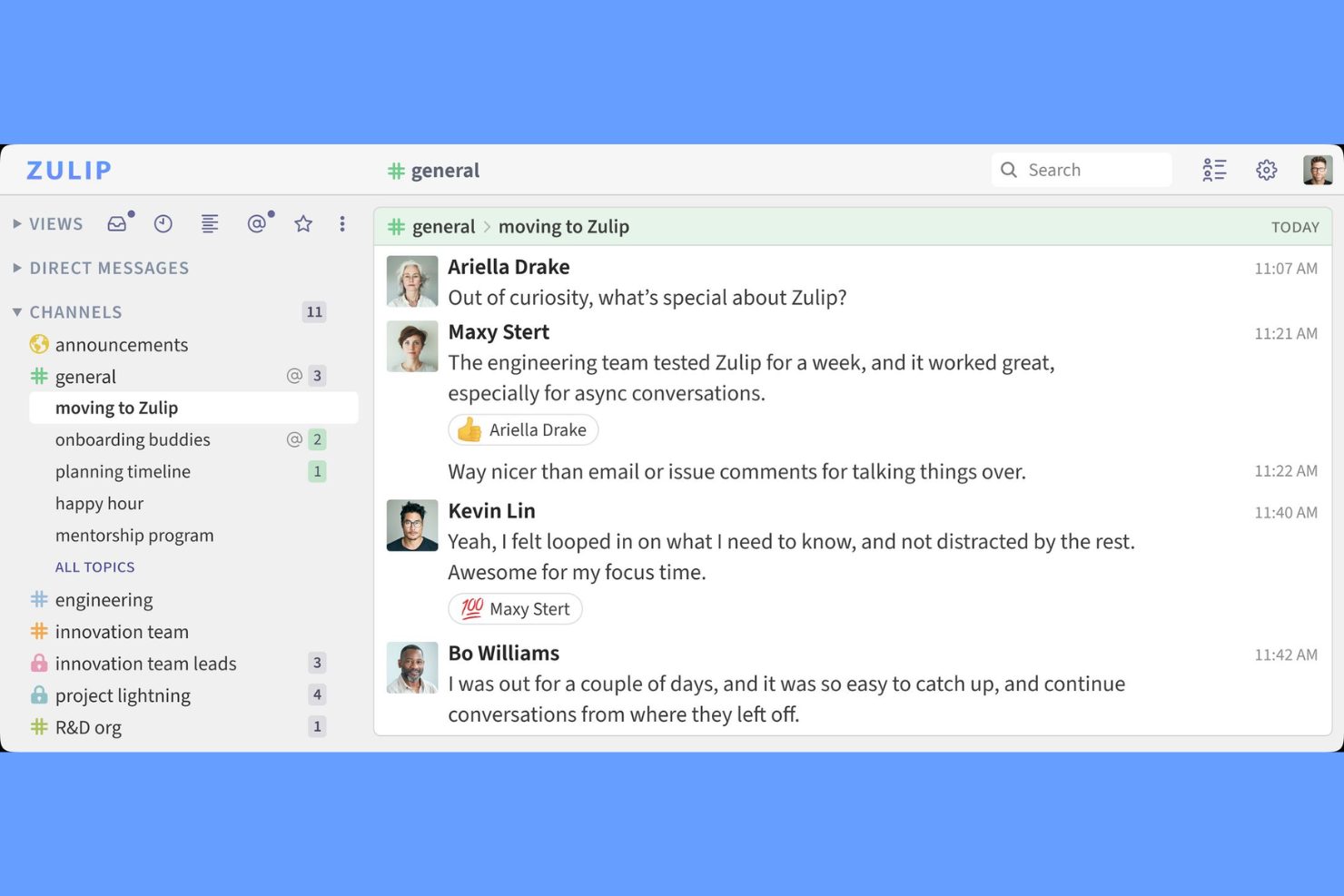
Zulip is a team chat app that organizes conversations into topic-based threads, combining real-time and asynchronous messaging with features like channels, file sharing, and integrations.
Who Is Zulip Best For?
Zulip is a strong fit for distributed engineering teams and open-source communities that need structured, topic-based chat.
Why I Picked Zulip
I picked Zulip as one of the best because I like how it lets my team split conversations into topic-based threads inside channels, so we never lose track of discussions. The async chat model means I can jump into any topic—even hours later—and still see the full context. I use Zulip’s keyboard shortcuts and message filters to quickly catch up on what matters most, which is a huge help when managing multiple projects at once.
Zulip Key Features
- Message editing and deletion: Edit or delete sent messages within a configurable time window.
- Customizable notifications: Set notification preferences by stream, topic, or keyword.
- Markdown support: Format messages with Markdown for code, lists, and links.
- Role-based permissions: Assign roles like admin, moderator, or guest to control access.
Zulip Integrations
Zulip offers native integrations with GitHub, Jira, Travis CI, Sentry, Zendesk, Nagios, Jenkins, GitLab, and Trello, and connects with Zapier. An API is available for custom integrations.
Pros and Cons
Pros:
- Guest access supports external collaboration
- Inbox feature highlights important unread messages
- Topic-based threads keep conversations organized
Cons:
- Notifications and connectivity can be inconsistent
- Mobile app UX is less intuitive and feature-limited

Chanty
Best for simple chat with tasks
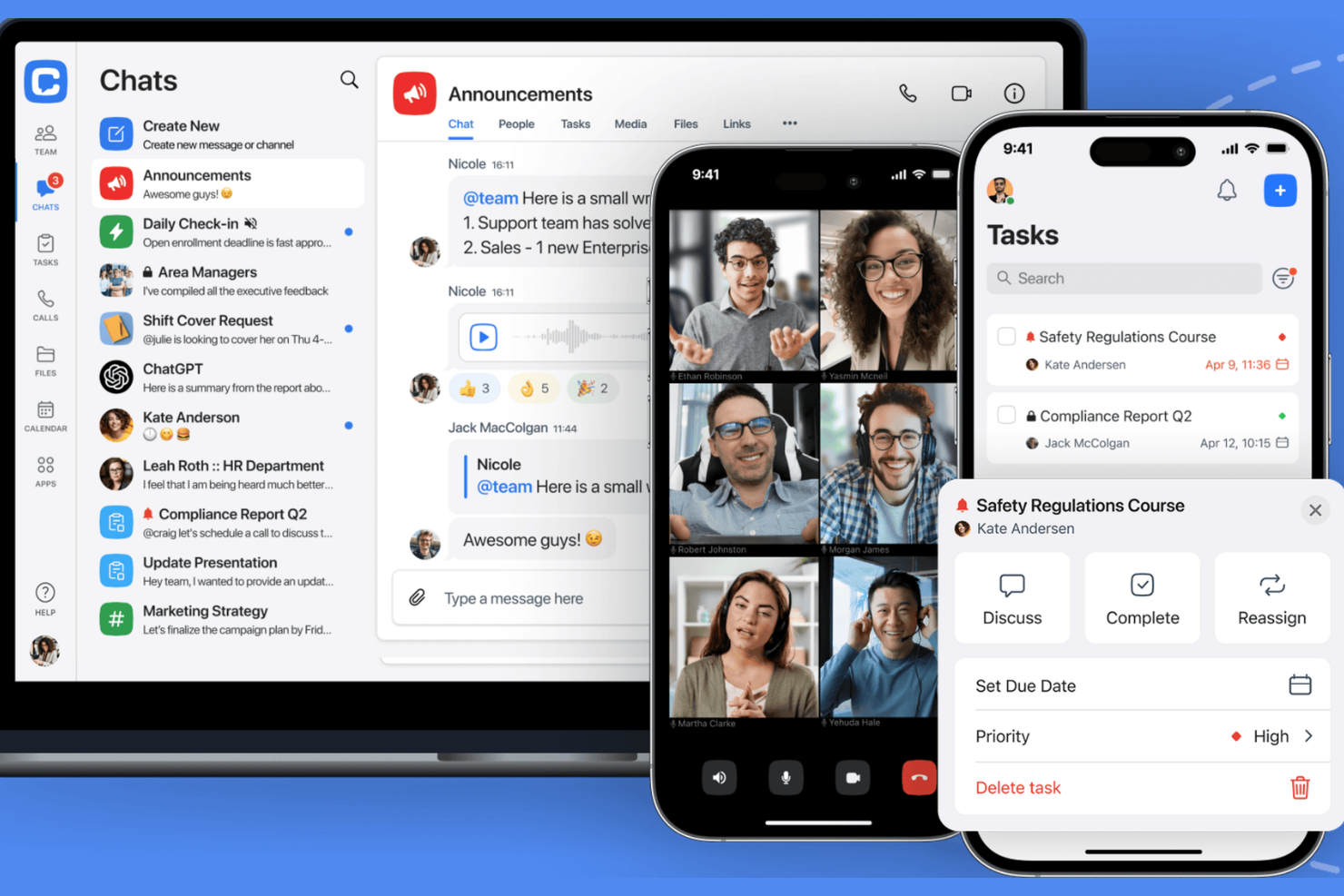
Chanty is a team chat app that combines real-time messaging, audio and video calls, file sharing, and a built-in task management system for collaborative workspaces.
Who Is Chanty Best For?
Chanty is a good fit for small businesses and startups that want simple team chats with built-in task management.
Why I Picked Chanty
I picked Chanty as one of the best because I like how it combines team chat with a built-in task management system—my team can turn any message into a task and track progress right inside the chat. I also use its Teambook feature to organize conversations, tasks, and shared files in one place. Voice and video calls are available without needing extra plugins, which keeps our workflow simple.
Chanty Key Features
- Public and private conversations: Create open or restricted channels for different teams or topics.
- Pinned messages: Pin important messages to keep key information visible in any conversation.
- Built-in file sharing: Upload and share documents, images, and other files directly in chat.
- Third-party integrations: Connect with tools like Google Drive, Trello, and GitHub for added functionality.
Chanty Integrations
Chanty offers native integrations with Trello, Asana, GitHub, Google Drive, Dropbox, OneDrive, Mailchimp, and Zapier, and provides an API for custom integrations.
Pros and Cons
Pros:
- Teambook organizes conversations and files
- Unlimited message history on all plans
- Built-in task management for actionable chats
Cons:
- No built-in screen sharing during calls
- Lacks advanced admin controls for larger orgs

Flock
Best for chat with productivity tools
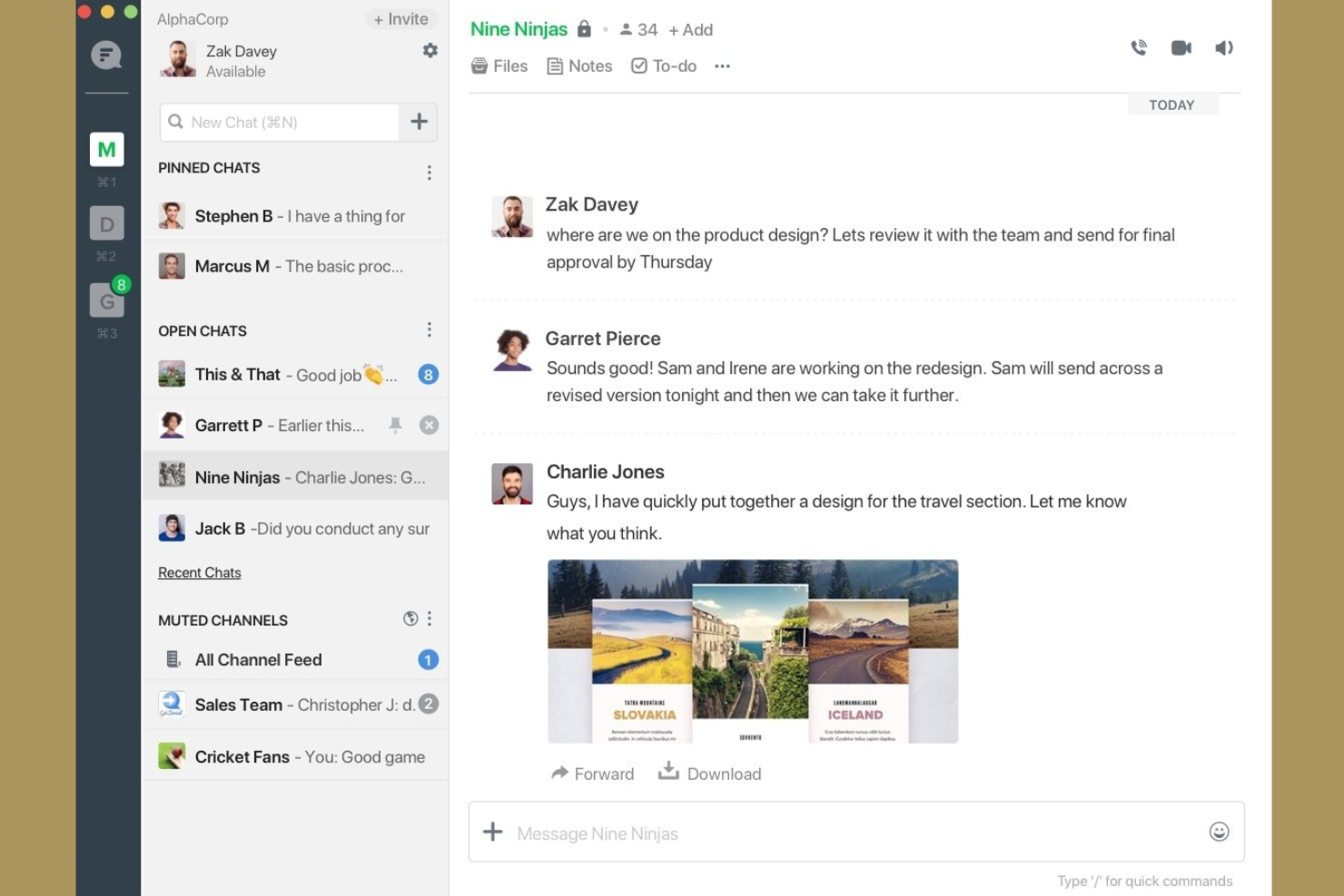
Flock is a team chat app that brings together messaging, video conferencing, shared to-dos, polls, reminders, and file sharing in one workspace.
Who Is Flock Best For?
Flock is a good fit for small to midsize businesses that want built-in productivity tools alongside team chat.
Why I Picked Flock
I picked Flock as one of the best because I like how it combines chat, video meetings, and built-in productivity tools like shared to-dos and polls in one place. My team uses the reminders and note-taking features to keep track of action items during conversations. I also rely on Flock’s file sharing and searchable message history to keep our project resources organized and accessible.
Flock Key Features
- Channel-based messaging: Organize conversations by topic, project, or team in dedicated channels.
- Guest user access: Invite external collaborators to specific channels without giving full workspace access.
- Integrated calendar: Schedule meetings and view upcoming events directly within the app.
- Custom app integrations: Connect Flock with tools like Google Drive, Trello, and GitHub for added functionality.
Flock Integrations
Flock offers native integrations with Google Drive, Trello, GitHub, Asana, Dropbox, Mailchimp, Twitter, and connects with Zapier. An API is available for custom integrations.
Pros and Cons
Pros:
- Easy setup and onboarding for small to mid-sized teams
- Strong messaging with channels, voice, and video in one app
- Built-in to-dos and reminders for lightweight task management
Cons:
- Message history limits on free plan restrict long-term tracking
- Occasional bugs and performance glitches reported

Best for Microsoft 365 collaboration
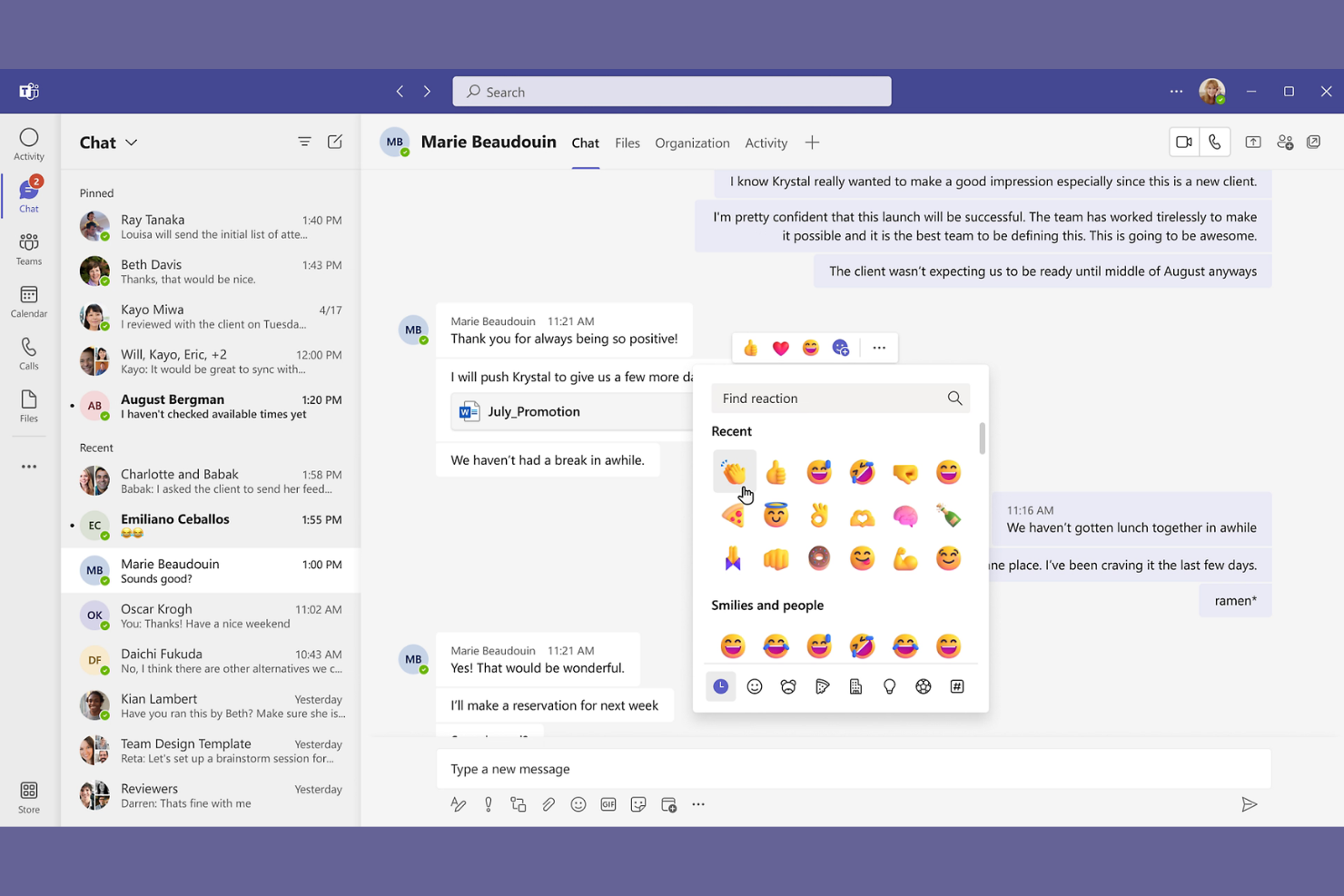
Microsoft Teams is a team chat and collaboration platform that combines instant messaging, video meetings, file sharing, and workspace organization within a unified interface.
Who Is Microsoft Teams Best For?
Microsoft Teams fits organizations that rely on Microsoft 365 for daily communication, document collaboration, and meetings.
Why I Picked Microsoft Teams
I picked Microsoft Teams as one of the best because my team can jump from chat to video meetings and co-edit files without leaving the app. I rely on its deep Microsoft 365 integration to access Word, Excel, and PowerPoint documents right inside our channels. I also use Teams’ calendar and meeting scheduling to keep everyone in sync.
Microsoft Teams Key Features
- Channel-based chat: Organize conversations by topic, project, or team in dedicated channels.
- @mentions and notifications: Tag individuals or groups to draw attention to important messages.
- Persistent chat history: Access and search past conversations and shared files at any time.
- Third-party app integrations: Add tools like Trello, Polly, and GitHub directly into your workspace.
Microsoft Teams Integrations
Microsoft Teams has native integrations across the Microsoft ecosystem, including Microsoft 365 and Azure, and also connects with popular tools like Trello, GitHub, Salesforce, ServiceNow, and Zoom. An API is available for custom integrations.
Pros and Cons
Pros:
- Allows external guest access for collaboration
- Built-in meeting scheduling and calendar sync
- Integrates chat, meetings, and file sharing
Cons:
- Search function sometimes misses older messages
- Notification settings are complex to manage

Element
Best for secure decentralized messaging
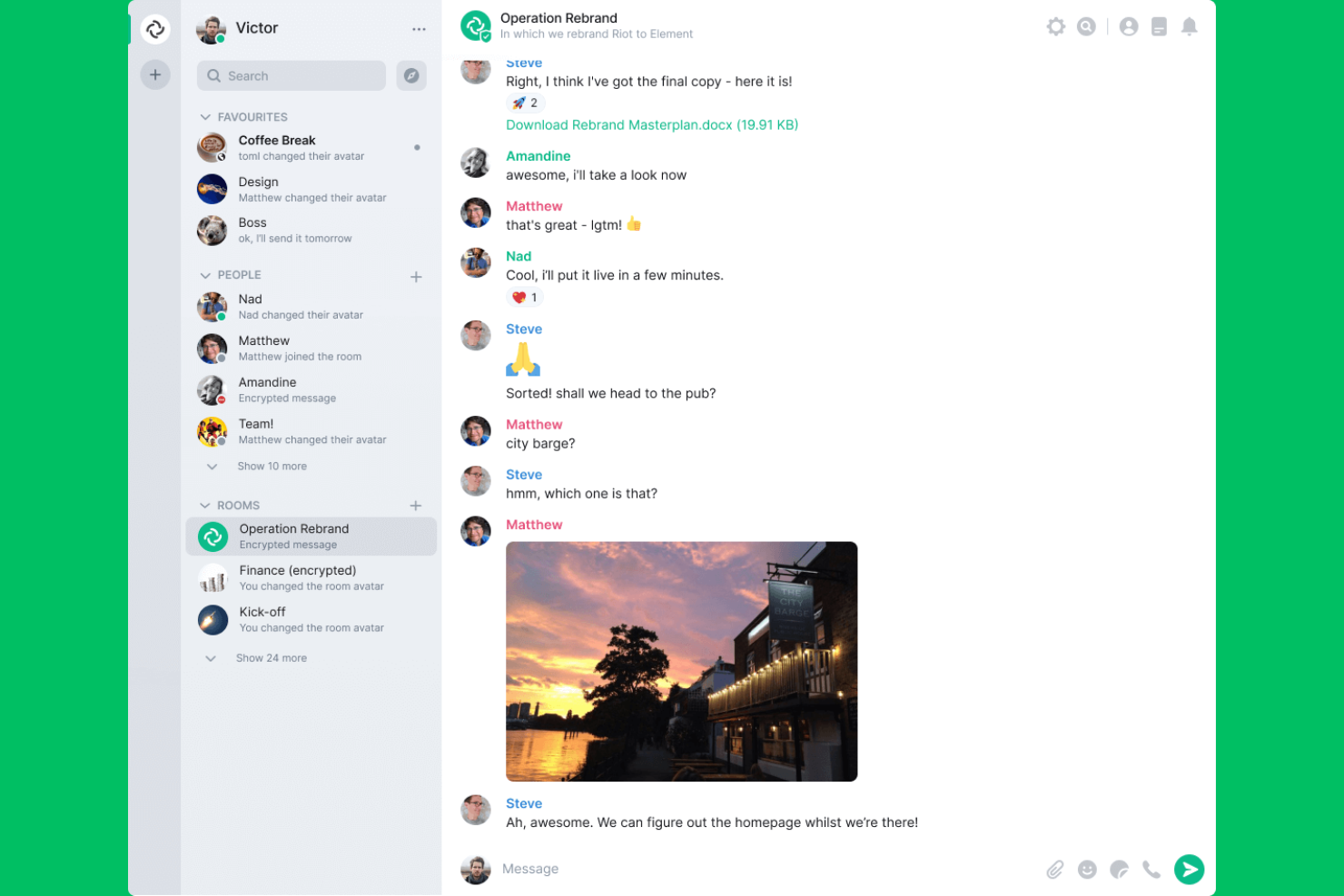
Element is a team chat app built on the Matrix protocol that offers secure messaging, voice and video calls, file sharing, and decentralized communication for organizations.
Who Is Element Best For?
Element is a strong fit for privacy-focused organizations and teams that need secure, decentralized communication across multiple locations.
Why I Picked Element
I picked Element as one of the best because I need a secure, decentralized team chat that puts privacy first. I like that my team can host our own servers and use end-to-end encryption for every message. In practice, that means we control our data and can federate with other Matrix-based platforms.
Element Key Features
- Bridging to other platforms: Connects with Slack, Microsoft Teams, and IRC for cross-platform messaging.
- Rich media sharing: Supports sending images, videos, and files directly in chat rooms.
- Custom notification settings: Lets users fine-tune alerts for each room or conversation.
- Message search: Allows searching across all rooms and direct messages for quick information retrieval.
Element Integrations
Element offers native integrations with Slack, Microsoft Teams, IRC, GitHub, Jitsi, and more. An API is available for custom integrations.
Pros and Cons
Pros:
- Open-source with active community support
- Self-hosting option for full data control
- End-to-end encryption for all messages
Cons:
- Notification settings can be confusing
- Mobile app performance is inconsistent

Best for secure customizable chat
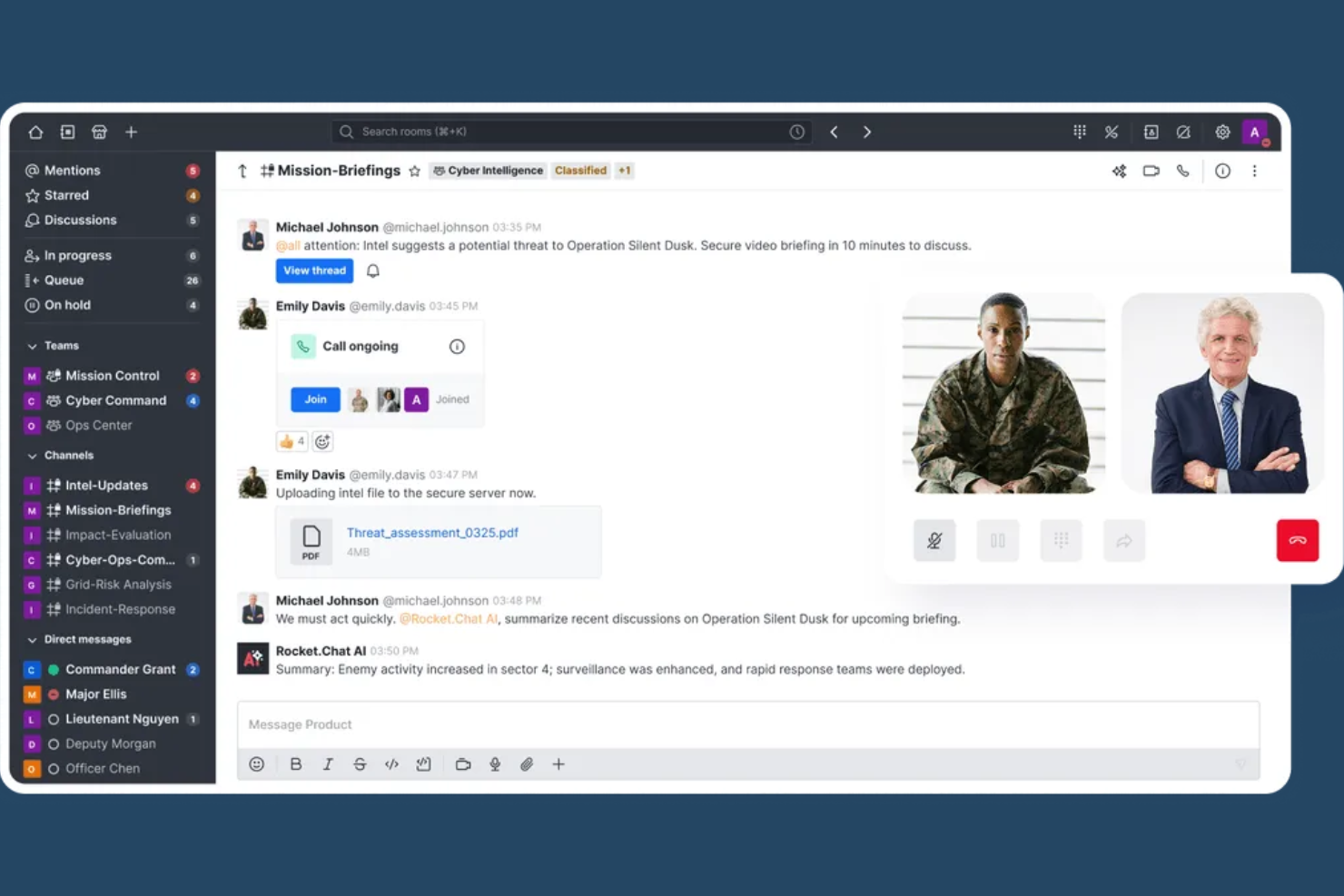
Rocket.Chat is an open-source team chat platform that offers real-time messaging, file sharing, video conferencing, and extensive customization for secure internal and external communications.
Who Is Rocket.Chat Best For?
Rocket.Chat is a strong fit for IT teams and organizations in regulated industries that need secure, customizable team chat.
Why I Picked Rocket.Chat
I picked Rocket.Chat as one of the best because I need a team chat app that’s open-source and built for advanced security and compliance. I use its on-premise deployment and end-to-end encryption to meet strict data protection requirements. My team also customizes the platform’s permissions and audit logs to fit our organization’s compliance workflows.
Rocket.Chat Key Features
- Omnichannel messaging: Manage conversations from email, SMS, WhatsApp, and social channels in one inbox.
- Threaded messaging: Keep discussions organized with threaded replies in any channel.
- Custom emoji and reactions: Personalize chats with custom emoji sets and message reactions.
- Role-based access controls: Assign granular permissions to users and groups for secure collaboration.
Rocket.Chat Integrations
Rocket.Chat offers 50+ native integrations, including Jira, GitHub, GitLab, Trello, Dropbox, Google Drive, Zapier, and has native integrations across the Microsoft ecosystem, including Microsoft 365 and Azure. An API is available for custom integrations.
Pros and Cons
Pros:
- Omnichannel messaging combines chat, voice, and video
- Strong security with encryption, SSO, and access controls
- Open-source and self-hosted for full data control
Cons:
- Insufficient community-based support for enterprise needs
- UI can feel less polished than modern chat tools

Twist
Best for focused threaded conversations
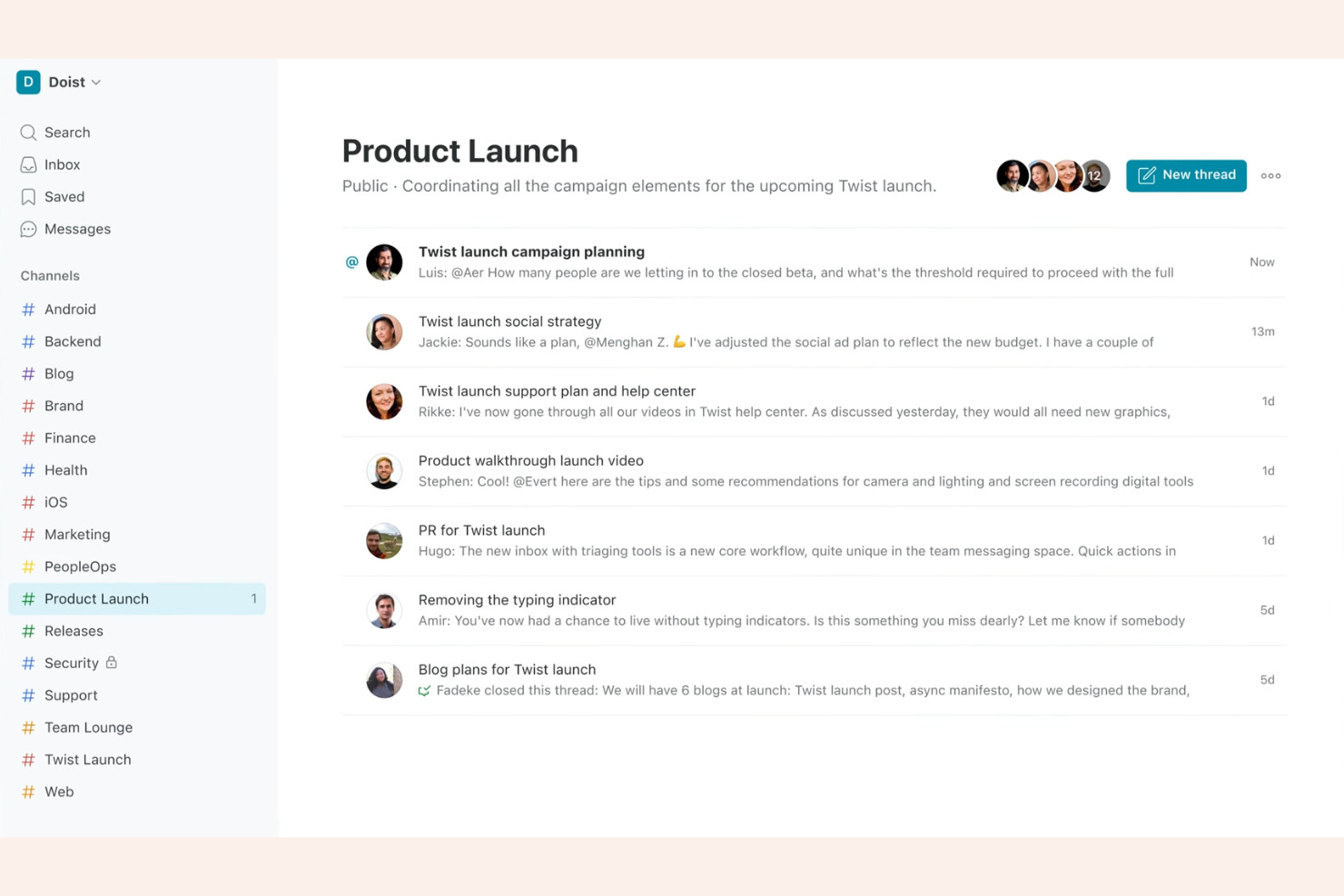
Twist is a team chat app designed around organized threads, channels, and asynchronous messaging for teams who want structured communication.
Who Is Twist Best For?
Twist suits remote or distributed teams who prioritize asynchronous, organized communication over real-time chat.
Why I Picked Twist
I picked Twist as one of the best because I like how it organizes conversations into threads within channels, making it easy for my team to keep discussions focused and searchable. The async-first approach means we don’t feel pressured to respond instantly, which helps when working across time zones. I also use the inbox feature to track updates and jump back into important threads without missing context.
Twist Key Features
- Guest access: Invite external collaborators to specific channels without giving them full workspace access.
- Advanced search: Find messages, files, and threads quickly using filters and keywords.
- Integrations with tools: Connect with GitHub, Todoist, Google Drive, and Zapier for workflow automation.
- Do not disturb mode: Mute notifications during focused work or outside working hours.
Twist Integrations
Twist offers native integrations with GitHub, Todoist, Google Drive, Zapier, and provides an API for custom integrations.
Pros and Cons
Pros:
- Guest access for external collaborators
- Inbox feature helps track important updates
- Async-first design reduces notification overload
Cons:
- Mobile app notifications can be delayed
- No built-in voice or video calling

Best for unified messaging and calls
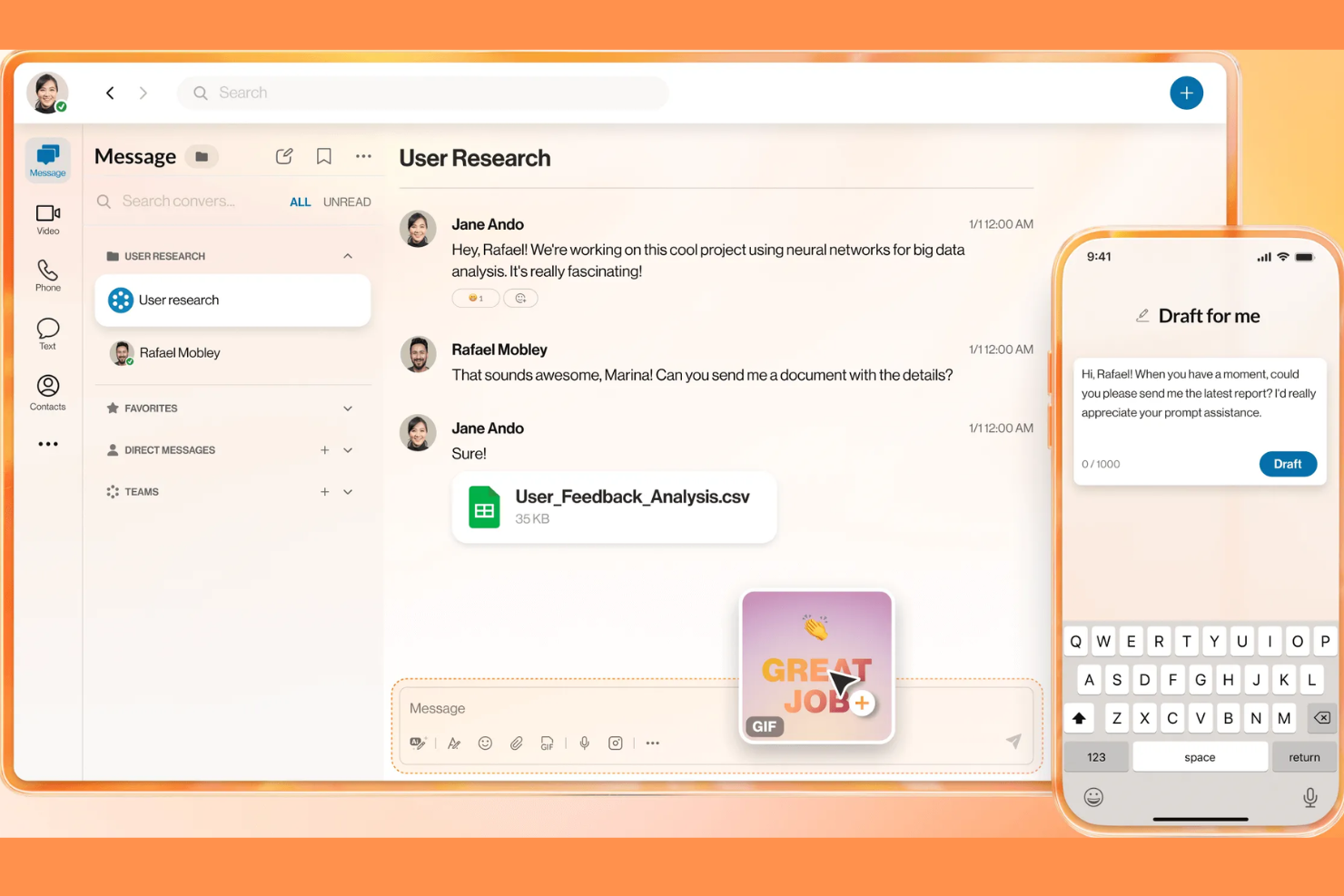
RingCentral is a unified communications platform for teams that brings together chat, video meetings, phone calls, and file sharing in one solution.
Who Is RingCentral Best For?
RingCentral is a strong choice for large enterprises and distributed teams that need unified communications across multiple channels.
Why I Picked RingCentral
I picked RingCentral as one of the best because I rely on its enterprise-grade unified communications to keep my team connected across chat, video, and phone. I like that I can launch video meetings or calls directly from a chat thread without switching apps. My team also uses persistent chat rooms and message search to keep project conversations organized and accessible.
RingCentral Key Features
- Team chat channels: Create dedicated spaces for group conversations and projects.
- File sharing: Upload and share documents, images, and files directly in chat.
- Message pinning: Pin important messages to keep key information visible in any chat.
- Task assignment: Assign and track tasks within chat threads for better accountability.
RingCentral Integrations
RingCentral offers 300+ native integrations, including Google Workspace, Microsoft 365, Salesforce, Zendesk, ServiceNow, Slack, Trello, Asana, Box, and Okta, and it connects with Zapier. An API is available for custom integrations.
Pros and Cons
Pros:
- Unlimited message history for all users
- Built-in task assignment within chat threads
- Persistent chat rooms for ongoing projects
Cons:
- Screen sharing not available in chat conversations
- Admin controls lack advanced customization

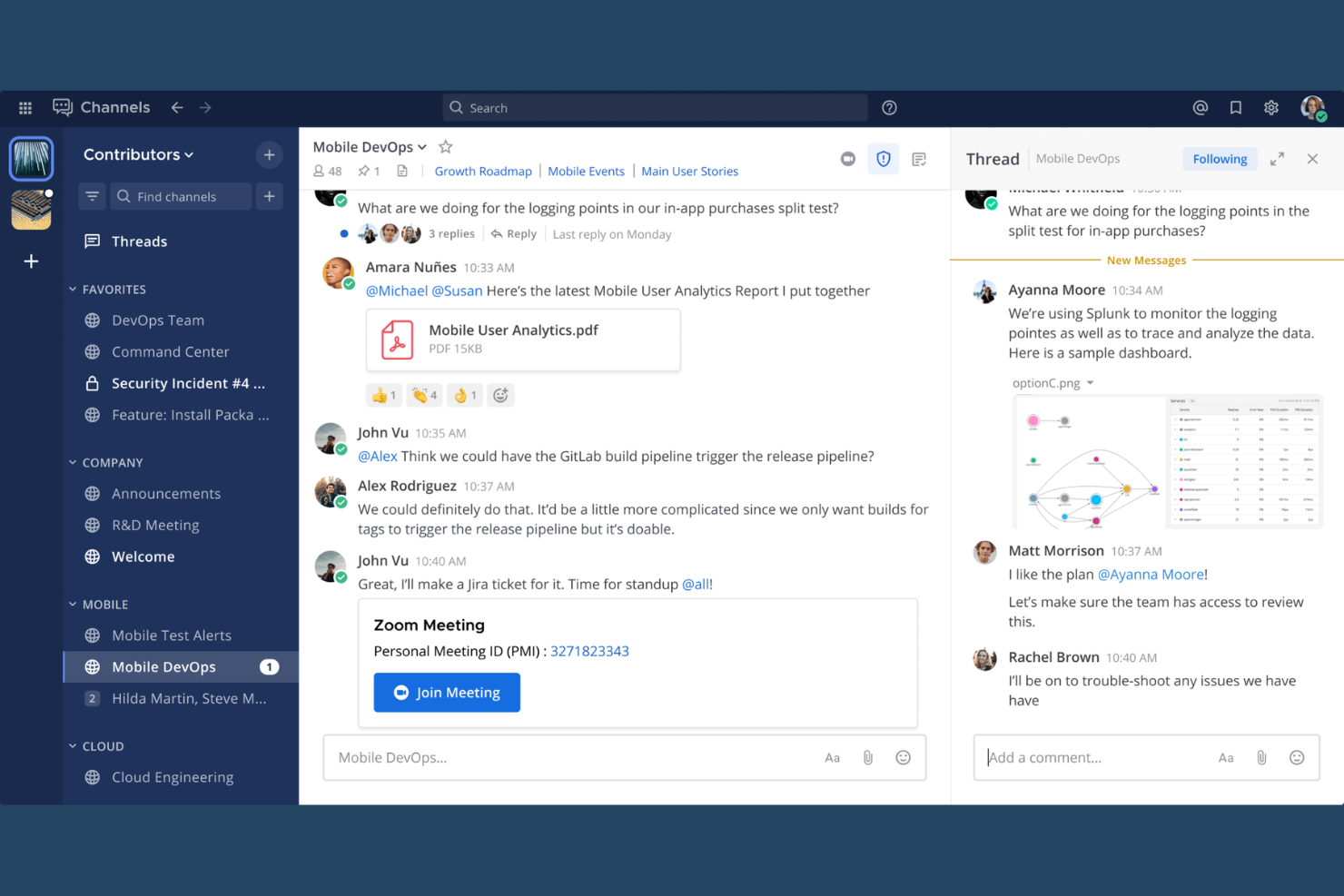
Mattermost is an open-source team chat platform designed for secure messaging, file sharing, workflow automation, and integrations with developer tools.
Who Is Mattermost Best For?
Mattermost is a strong choice for technical teams in regulated industries that require secure, self-hosted team chat.
Why I Picked Mattermost
I picked Mattermost as one of the best because I like how it gives my team full control over our data with self-hosted deployment options. I use its granular access controls and encrypted messaging to meet strict security requirements. My team also relies on its open-source flexibility to customize workflows and integrate with our internal tools.
Mattermost Key Features
- Threaded conversations: Keep discussions organized with threaded replies in channels.
- Channel-based messaging: Create public or private channels for focused team communication.
- File sharing: Upload and share documents, images, and other files directly in chat.
- Custom slash commands: Trigger actions or automate tasks within chat using custom commands.
Mattermost Integrations
Mattermost offers 100+ native integrations, including Jira, GitHub, GitLab, Jenkins, PagerDuty, ServiceNow, Zoom, Microsoft 365, Google Workspace, Slack, and Zapier. An API is available for custom integrations.
Pros and Cons
Pros:
- Supports granular user and channel permissions
- Open-source codebase allows deep customization
- Self-hosting supports strict data privacy needs
Cons:
- No offline access, needs constant internet connection
- Requires external tools for full video conferencing

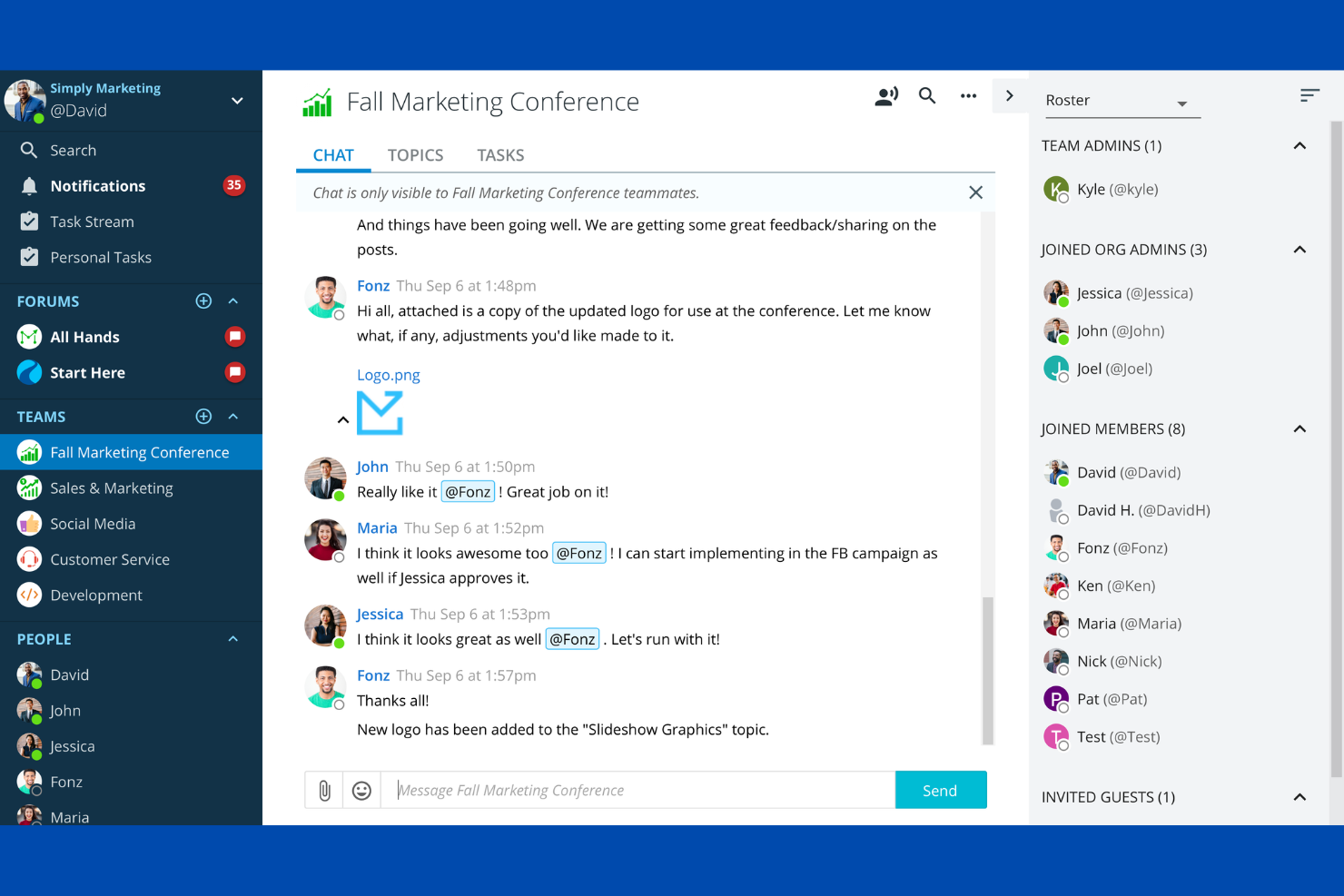
Ryver is a team chat app that combines group messaging, topic-based forums, direct messaging, and integrated task boards for managing conversations and workflows in one platform.
Who Is Ryver Best For?
Ryver is a good fit for small to midsize teams that want chat and task management in a single platform.
Why I Picked Ryver
I picked Ryver as one of the best because I like how it combines chat, topic-based forums, and task boards in a single workspace. My team uses the built-in task management to turn conversations into actionable tasks without switching tools. I also rely on Ryver’s threaded discussions to keep project topics organized and easy to follow.
Ryver Key Features
- Universal search: Find messages, files, and tasks across all teams and forums.
- Custom invite links: Share unique links to quickly onboard new users to specific teams or forums.
- Role-based permissions: Assign user roles to control access to conversations and tasks.
- Unlimited chat history: Access all past messages without restrictions or archiving limits.
Ryver Integrations
Ryver offers native integrations with Google Drive, Dropbox, Box, and connects with Zapier. An API is available for custom integrations.
Pros and Cons
Pros:
- Built-in task boards link conversations to actions
- Replaces internal email with real-time messaging
- Unlimited teams and conversations improve collaboration
Cons:
- Audio/video quality can be inconsistent
- Interface is not intuitive for new users
Other Team Chat Apps
Here are some additional team chat app options that didn’t make it onto my shortlist, but are still worth checking out:
- Google Chat
For Google Workspace messaging
- Slack
For channel-based team collaboration
- TeamSnap
For team chat in sports groups
- Blink
For frontline team communication
- Homebase
For messaging hourly teams
- Staffbase
For enterprise employee communications
- Nextiva
For unified business communication
- Pumble
For free team chat with history
- Connecteam
For mobile workforce communication
- Coast
For chat with task management
- Breakroom
For virtual office communication
- Teamwork Chat
For chat within project workflows


How I Evaluate Team Chat Apps
I split my evaluation into two layers: baseline must-haves like threaded channels and PM integrations, and differentiators like AI summaries, guest access, and workflow automation.
Core Functionality (Table Stakes For This List)
When I'm selecting tools for my list, I rank each one on a scale from 0 (does not offer the functionality) to 5 (excels in this area) for each core functionality listed below. Then, I calculate the tool's total score into a percentage. Each tool needs to achieve a minimum total score of 75% to be considered for inclusion.
- Real-Time Messaging: I check for reliable instant messaging across 1:1 and group conversations, including presence indicators and message reactions that keep sprint standups and ad-hoc decisions moving.
- Channels & Threads: Organized channels and threaded replies are how project teams separate conversations by workstream. I look for public/private options, pinning, and topic-level structure.
- File Sharing & Search: Teams share specs, mockups, and status docs constantly. I evaluate how each tool handles file previews, searchable message history, and cross-channel search with date or user filters.
- Voice & Video Calls: Quick huddles replace unnecessary meetings. I look for built-in group calling with screen sharing so a PM can walk through a Gantt chart or wireframe without switching apps.
- Third-Party Integrations: I evaluate each tool's connection to PM platforms like Jira, Asana, and Trello, plus file storage tools like Google Drive and OneDrive, including how updates surface directly in chat.
- Notifications & Mentions: Customizable alerts matter when you're managing multiple project channels. I look for @mention support, per-channel controls, DND scheduling, and keyword-based notifications.
Once I have a list of tools that meet the criteria, I consider what sets each platform apart.
Differentiating Factors (What Sets Vendors Apart)
Here's how I compare and contrast different vendors:
Standout Features
AI-powered thread summaries are a big deal for PMs who return from back-to-back meetings to dozens of unread channels. I look for tools that surface action items and key decisions automatically. In-chat task creation is another differentiator—converting a message into an assigned task with a due date saves the copy-paste dance between apps. I also evaluate guest access options, since most projects involve external contractors or clients who need visibility into specific channels without a full license.
Beyond Features
Security and compliance matter when project channels contain client data or contract details. I check for SOC 2 Type II certification, SSO/SAML support, and configurable retention policies. Pricing transparency is another area I evaluate closely—message history caps and per-guest fees can catch teams off guard as projects scale. I also consider cross-platform coverage, since distributed teams need native desktop, mobile, and web apps with offline access to stay connected during travel or connectivity gaps.
How to Choose Team Chat Apps
It’s easy to get bogged down in long feature lists and complex pricing structures. To help you stay focused as you work through your unique software selection process, here’s a checklist of factors to keep in mind:
| Factor | What to Consider |
|---|---|
| Scalability | Will the tool support your team size now and as you grow? Check user limits, pricing tiers, and performance with large groups. |
| Integrations | Does it connect natively with your core tools (e.g., project management, file storage, HR systems)? List must-have integrations before shortlisting. |
| Customizability | Can you tailor notifications, permissions, and chat structures to fit your workflows? Consider admin controls and user-level settings. |
| Ease of use | Will your team adopt it quickly? Look for intuitive navigation, clear labeling, and minimal training requirements. Test with a small group if possible. |
| Implementation and onboarding | How long will setup take, and what resources are needed? Ask about migration support, training materials, and onboarding help for distributed teams. |
| Cost | Are pricing plans transparent and predictable? Factor in all users, add-ons, and potential overages. Compare the total cost of ownership, not just monthly fees. |
| Security safeguards | Does the app offer end-to-end encryption, data residency options, and compliance with your industry’s standards? Review audit logs and admin controls. |
| Support availability | What support channels are offered, and during what hours? Consider if you need 24/7 help, dedicated account reps, or just a searchable help center. |
What Are Team Chat Apps?
Team chat apps are team communication apps and communication tools that let the entire team connect in real time through messages, channels, and shared spaces. These messaging apps support text messages, voice messages, and rich chat features, making them essential collaboration tools for remote work. Often delivered as SaaS platforms, many act as an all-in-one communication app with messaging features, file sharing, and integrations with tools like CRM systems. They help teams streamline conversations, improve coordination, and stay aligned across projects. These tools are popular with small teams and growing businesses, often offering a free version, scalable paid plans, and support for unlimited users.
Features of Team Chat Apps
When selecting team chat apps, keep an eye out for the following key features:
- Direct messaging: Lets users send private, one-on-one messages for quick, focused conversations without involving the whole team.
- Group channels: Provides shared spaces where teams can organize discussions by project, topic, or department, keeping conversations organized and accessible.
- File sharing: Allows users to upload, share, and preview documents, images, and other files directly within chat threads for easy collaboration.
- Searchable message history: Enables users to search past conversations, files, and links, making it easy to retrieve important information when needed.
- Mentions and notifications: Lets users tag teammates and customize alerts so important messages aren’t missed, even in busy channels.
- Threaded conversations: Supports replies within a specific message thread, helping keep discussions clear and reducing clutter in busy chats.
- User presence indicators: Shows who is online, away, or offline, making it easier to know when teammates are available for quick responses.
- Admin controls: Gives administrators the ability to manage users, permissions, and channel settings to maintain security and order.
- Cross-platform access: Offers apps for desktop, web, and mobile devices so teams can stay connected wherever they work.
- Integration support: Connects with other workplace tools like calendars, project management, and file storage systems to centralize workflows.
Common Team Chat Apps AI Features
Beyond the standard team chat app features listed above, many of these solutions are incorporating AI with features like:
- Smart message summarization: Uses AI to automatically generate concise summaries of long conversations or threads, helping users quickly catch up on what they missed.
- Automated meeting scheduling: Leverages AI to suggest meeting times, coordinate calendars, and even book meetings directly within chat based on participants’ availability.
- Intelligent message prioritization: Applies AI to highlight or surface urgent or relevant messages, reducing noise and helping users focus on what matters most.
- AI-powered chatbots: Integrates virtual assistants that can answer questions, automate routine tasks, and provide instant support within chat channels.
- Real-time language translation: Uses AI to translate messages between languages instantly, enabling smooth communication for global or multilingual teams.
- Contextual task extraction: Employs AI to identify action items or tasks mentioned in chat and automatically add them to project management tools or to-do lists.
Benefits of Team Chat Apps
Implementing team chat apps provides several benefits for your team and your business. Here are a few you can look forward to:
- Faster decision-making: Real-time messaging and instant notifications help teams resolve questions and make decisions quickly.
- Centralized communication: Group channels and searchable message history keep all conversations and files in one accessible place.
- Improved collaboration: File sharing, threaded discussions, and integrations with other tools make it easier to work together on projects.
- Greater transparency: Open channels and admin controls allow everyone to stay informed about team activities and updates.
- Improved flexibility: Cross-platform access and mobile apps let team members communicate and collaborate from anywhere.
- Increased accountability: Mentions, message history, and admin oversight help track responsibilities and follow up on action items.
- Better security: Features like end-to-end encryption and customizable permissions protect sensitive information and maintain compliance.
Costs and Pricing of Team Chat Apps
Selecting team chat apps requires an understanding of the various pricing models and plans available. Costs vary based on features, team size, add-ons, and more. The table below summarizes common plans, their average prices, and typical features included in team chat app solutions:
Plan Comparison Table for Team Chat Apps
| Plan Type | Average Price | Common Features |
|---|---|---|
| Free Plan | $0 | Basic messaging, limited file sharing, searchable message history, and basic integrations. |
| Personal Plan | $5–$8/user/month | Unlimited message history, improved file sharing, group channels, and priority support. |
| Business Plan | $10–$15/user/month | Advanced admin controls, integrations with business tools, guest access, and increased storage. |
| Enterprise Plan | $20–$25/user/month | Custom security settings, compliance features, dedicated account management, and advanced analytics. |
Team Chat Apps FAQs
Here are some answers to common questions about team chat apps:
Can team chat apps replace email for internal communication?
Yes, team chat apps can replace most internal emails by providing real-time messaging, group channels, and file sharing. Many teams find that chat apps reduce inbox clutter and speed up decision-making, but some formal or external communications may still require email.
How secure are team chat apps for sensitive business information?
Most team chat apps offer strong security features like encryption, admin controls, and compliance options. However, you should review each tool’s security certifications, data residency options, and permission settings to ensure they meet your organization’s requirements.
Do team chat apps work for remote and distributed teams?
Yes, team chat apps are designed to support remote and distributed teams by enabling real-time communication, file sharing, and collaboration from any location or device. Features like mobile apps and presence indicators help keep everyone connected.
What should I consider when migrating to a new team chat app?
Plan for data migration, user onboarding, and integration with your existing tools. Look for solutions that offer import tools, training resources, and support to minimize disruption and help your team adapt quickly.
Can team chat apps integrate with other workplace tools?
Yes, most team chat apps offer integrations with project management, file storage, calendar, and HR systems. Check if your must-have tools are supported and whether integrations are included in your chosen pricing plan.