De 10 beste prosjektstyringskalenderne jeg prøvde i 2026

10 De beste kalenderverktøyene for prosjektstyring – kortliste


De beste kalenderverktøyene for prosjektstyring hjelper deg med å administrere og planlegge prosjekter og ressurser ved hjelp av et visuelt kalendergrensesnitt. Når du planlegger prosjekter på denne måten, blir det enklere å identifisere og fjerne flaskehalser i prosessene dine, administrere teamets arbeidsbelastning og visualisere tidslinjen, slik at du holder kursen og oppnår suksess med prosjektet.
Jeg har brukt mine 15 års erfaring innen prosjektstyring til å evaluere mer enn 20 kalenderverktøy for prosjekter – les analysen min av hvert verktøy, de viktigste funksjonene og bruksområdene nedenfor. Jeg hjelper deg med å finne det rette verktøyet for å forbedre planlegging, prognoser og koordinering av oppgaver i prosjektene dine, samt få en samlet oversikt over milepæler, oppgaver, avhengigheter og tidsfrister, slik at ingenting faller mellom stolene.
Why Trust Our Software Recommendations
Our team has been testing and reviewing software since 2012. As project managers ourselves, we know how difficult—and important—it is to choose the right software.
For this guide, we evaluated tools using hands-on testing and independent research, scoring tools using our selection criteria. We also draw on insights from industry thought leaders and practicing project management experts.
Our reviews reflect our human editorial judgment, not a sales pitch.
Expert reviewers:
Sammenligningstabell for kalendere for prosjektstyring
Denne sammenligningstabellen oppsummerer prisopplysningene for mine beste utvalgte kalenderverktøy for prosjektstyring:
| Tool | Best For | Trial Info | Price | ||
|---|---|---|---|---|---|
| 1 | Best for workflow automation | Free plan available; 14-day free trial | From $9/user/month (billed annually) | Website | |
| 2 | Best for agile project management | 14-day free trial | From $10/user/month (billed annually) | Website | |
| 3 | Best for resource planning | Free plan + 15-day free trial available | Pricing upon request | Website | |
| 4 | Best mobile app version | Free plan available | From $7/user/month (billed annually) | Website | |
| 5 | Best for milestone-driven timeline scheduling | Free plan + 14-day free trial + free demo available | From $79/user/month (billed annually) | Website | |
| 6 | Best for docs, tasks, and calendar in one app | Free plan + free demo available | From $10/user/month (billed annually) | Website | |
| 7 | Best for cross-team workflow tracking | Free plan + free demo available | From $10.99/user/month (billed annually) | Website | |
| 8 | Best for visual task management | 14-day free trial | From $5/user/month (billed annually) | Website | |
| 9 | Best for all-in-one task and calendar scheduling | 15-day free trial + free demo available | From $49/month (billed annually) | Website | |
| 10 | Best for preventing resource over-allocation | Free trial available | From $5/user/month (billed annually) | Website |


Anmeldelser av de beste kalenderverktøyene for prosjektstyring
Her er en kort beskrivelse av hver kalenderapp for prosjektstyring, hva den egner seg best til, og bemerkelsesverdige funksjoner.
Best for workflow automation
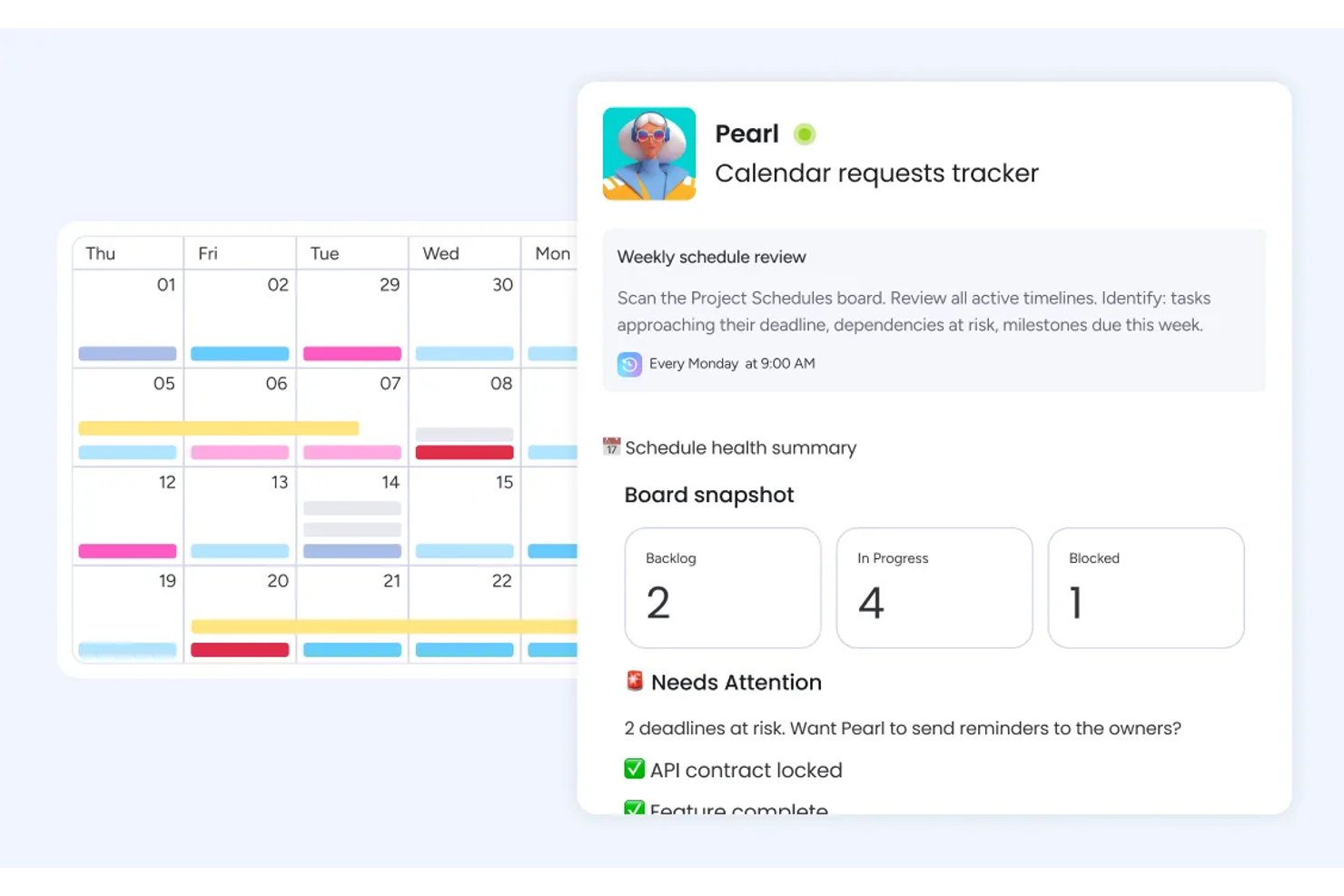
monday AI Workspace is an AI-powered work management platform that combines calendar, Gantt, timeline, and workload views with automated scheduling, dependency tracking, and cross-team visibility across projects.
Who Is monday AI Workspace Best For?
It's a strong fit for cross-functional teams and PMO leads at mid-size to enterprise organizations managing multiple concurrent projects across departments.
Why I Picked monday AI Workspace
monday AI Workspace earns its spot on my shortlist because its automation engine directly serves scheduling workflows. I love that you can set triggers like "when a date changes, push all dependent tasks forward automatically," which removes the manual rescheduling work that typically slows teams down. The AI Workflow Builder also surfaces date conflicts and suggests adjusted timelines before they become blockers.
monday AI Workspace Key Features
- Calendar widget with time range support: Displays projects and events across multi-day spans, making it easier to visualize overlapping tasks by duration.
- Workload view: Shows every team member’s assigned tasks and capacity by day, week, or month for quick balance checks.
- Permission-based sharing: Lets teams share project boards or calendars with internal users and external guests using custom access levels.
- Native integration with Google Calendar and Outlook: Keeps project deadlines and deliverables synced in both directions between monday and your external calendars.
monday AI Workspace Integrations
monday AI Workspace offers hundreds of native integrations, including Slack, Google Workspace, Microsoft 365, Salesforce, Jira, GitHub, Zoom, Dropbox, HubSpot, and Zendesk. It also supports Zapier and provides an API for custom integrations.
Pros and Cons
Pros:
- Multiple calendar views including Gantt and timeline
- Workload view flags team over-allocation visually
- Automation shifts dependent task dates automatically
Cons:
- Mobile app limits full calendar scheduling functionality
- Calendar view lacks standalone depth vs. dedicated tools
New Product Updates from monday AI Workspace
monday AI Workspace Adds Human Approval Routing
monday AI Workspace adds a human-in-the-loop approval block to AI Workflows, sending approval requests and routing workflow paths based on responses. For more information, visit monday AI Workspace's official site.
Wrike
Best for agile project management
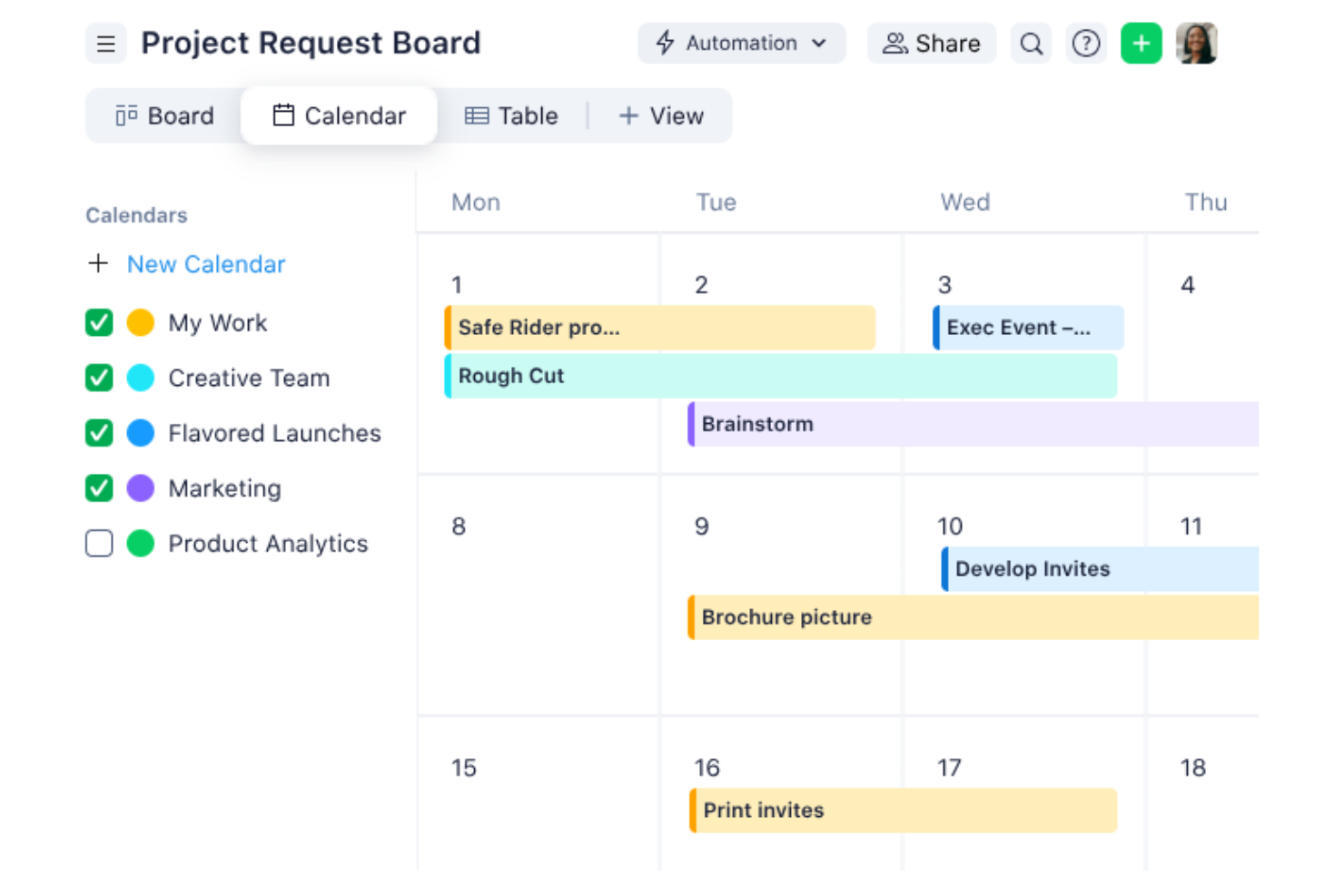
Wrike is a versatile project management tool designed to help teams collaborate better and manage tasks more efficiently. It offers a range of features that cater to diverse project needs, which makes it a valuable asset for any team.
I recently spoke with Caleb Johnstone, the SEO director at Paperstack, about his experience with Wrike and its ability to schedule projects and timelines. "The simplified interface and the simple timelines \[keep] everything straight so we stay organized and meet our deadlines without the stress," he says.
Why I Picked Wrike
I picked Wrike for its ability to support agile project management. Wrike's online team calendar offers visibility into timelines and deadlines, so you can help your team stay on track without constant manual updates. Its agile project management features, such as customizable workflows and AI-driven task suggestions, let your team adapt quickly to changing project requirements and help you maintain continuous collaboration and efficient task management.
Wrike's automation capabilities help you reduce manual tasks. This lets your team focus on the work that truly matters. The platform also offers multiple visualization options, including Gantt charts and Kanban boards, to give you the flexibility to choose what works best for your team.
Wrike Key Features
Wrike offers several other features that make it a standout choice for your project management calendar needs.
- Calendar View: This feature lets you visualize tasks and initiatives in a project calendar format and provides a clear overview of timelines and deadlines.
- Board View: The Kanban-style boards let you efficiently update task statuses and track overdue tasks, so your team stays on top of their responsibilities.
- Table View: A customizable spreadsheet format lets you manage work without the need for external tools, which means more flexibility in tracking and organizing tasks.
- Resource Bookings: This functionality lets you reserve team member time and estimate project hours, so you can make sure resources are allocated effectively.
Wrike Integrations
Integrations include Salesforce, QuickBooks, Jira, Tableau, Power BI, Microsoft Teams, Google Drive, Slack, and Microsoft Outlook.
Pros and Cons
Pros:
- Variety of views like Gantt charts and Kanban boards
- AI-driven tools for risk assessment
- Centralizes data from multiple sources
Cons:
- Customization is time-consuming to setup
- Limited offline capabilities
New Product Updates from Wrike
Wrike Adds Klaxoon MCP Integration
Wrike’s Klaxoon MCP integration is now generally available, enabling AI agents to navigate between Wrike tasks and attached whiteboards, read task context, and manage whiteboard attachments via API. For more information, visit Wrike's official site.

Best for resource planning
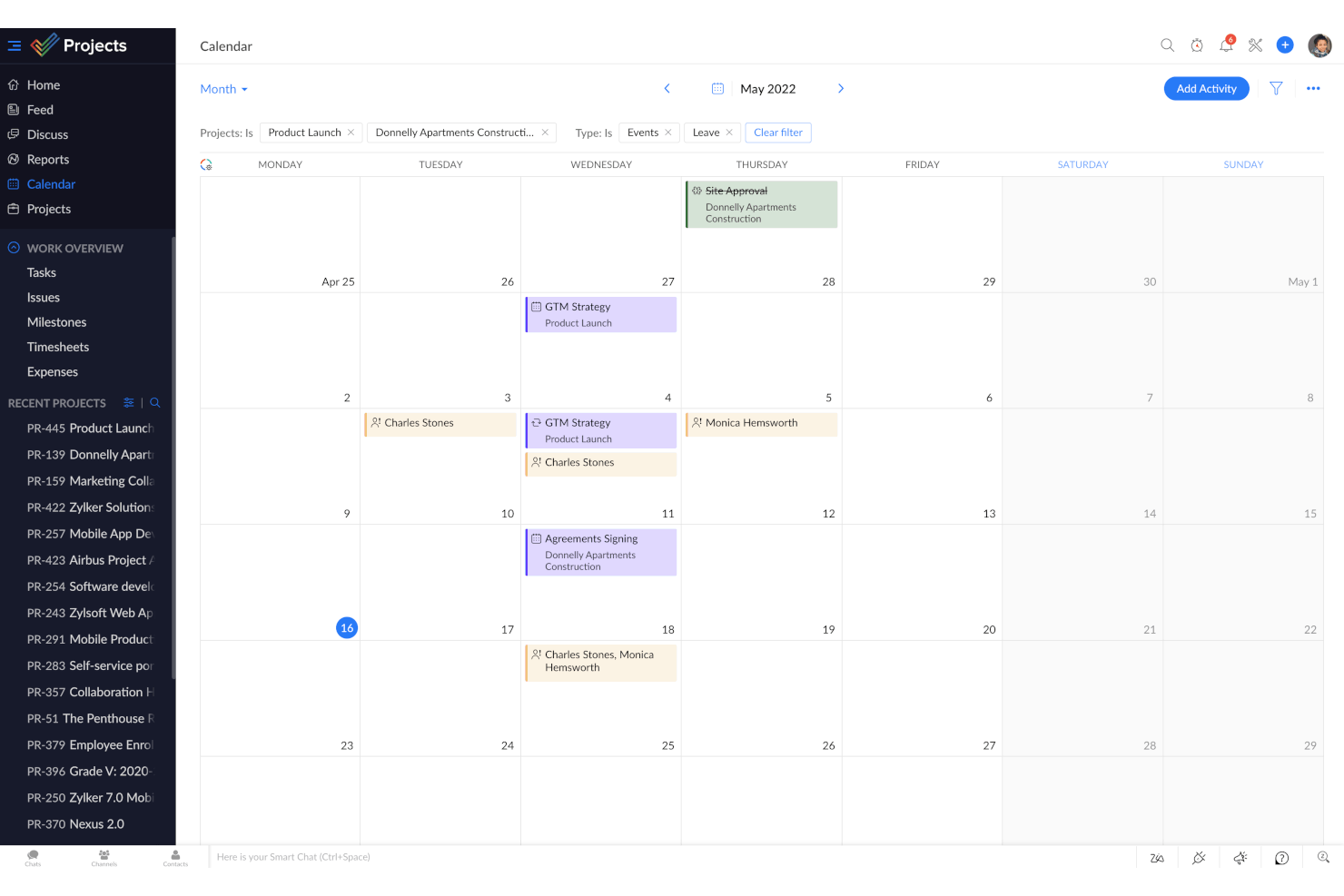
Zoho Projects is a project management software that can help you improve productivity and collaboration on your teams. It offers a suite of features such as task management, automation, and reporting that help you and your team manage projects more effectively.
Why I Picked Zoho Projects
I picked Zoho Projects because it provides a unified platform where you can plan resources, manage tasks, track time, and generate reports. The resource utilization chart is a key feature that lets you visualize your team's availability, so you can make sure tasks are allocated optimally without overloading anyone. You also get time tracking, which is essential for keeping projects on schedule and making sure resources are used wisely.
Zoho Projects also stands out for its automation capabilities, which can help reduce repetitive tasks and keep your team focused on more critical work. The reporting tools offer insights into project performance, so you can make informed decisions based on real-time data, stay on top of your projects, and make sure work is progressing as planned.
Zoho Projects Key Features
In addition to resource planning, Zoho Projects offers a variety of other features for project and calendar management.
- Task Management: You can break down projects into manageable tasks and sub-tasks and use different views like Gantt charts and Kanban boards for better organization.
- Collaboration Tools: You get features like feeds, chat, and document management, which facilitate seamless communication and collaboration within your team.
- Reporting and Analytics: This lets you generate detailed performance reports to assess project health and make data-driven decisions.
- Roll-Up: This summarizes planned work hours, actual hours logged, and task completion percentages to give you a clear view of your team's productivity and project timelines.
Zoho Projects Integrations
Integrations include Zoho Assist, Zoho Voice, Zoho SalesIQ, Zoho Bookings, Zoho FSM, Zoho Books, Zoho Expense, Zoho Payroll, Zoho Mail, Zoho WorkDrive, Zoho Cliq, and Zoho Recruit.
Pros and Cons
Pros:
- Detailed project breakdowns into tasks and subtasks
- Built-in time tracking
- Visually appealing and adjustable Gantt charts
Cons:
- Limited customization compared to other tools
- Fewer integration options than other tools
New Product Updates from Zoho Projects
Zoho Projects Adds CodeX Scripts for Custom Modules
Zoho Projects now supports CodeX Scripts for custom modules, enabling conditional logic and rules for creating, updating, and deleting records. For more information, visit Zoho Projects' official site.
 .
.
ClickUp
Best mobile app version
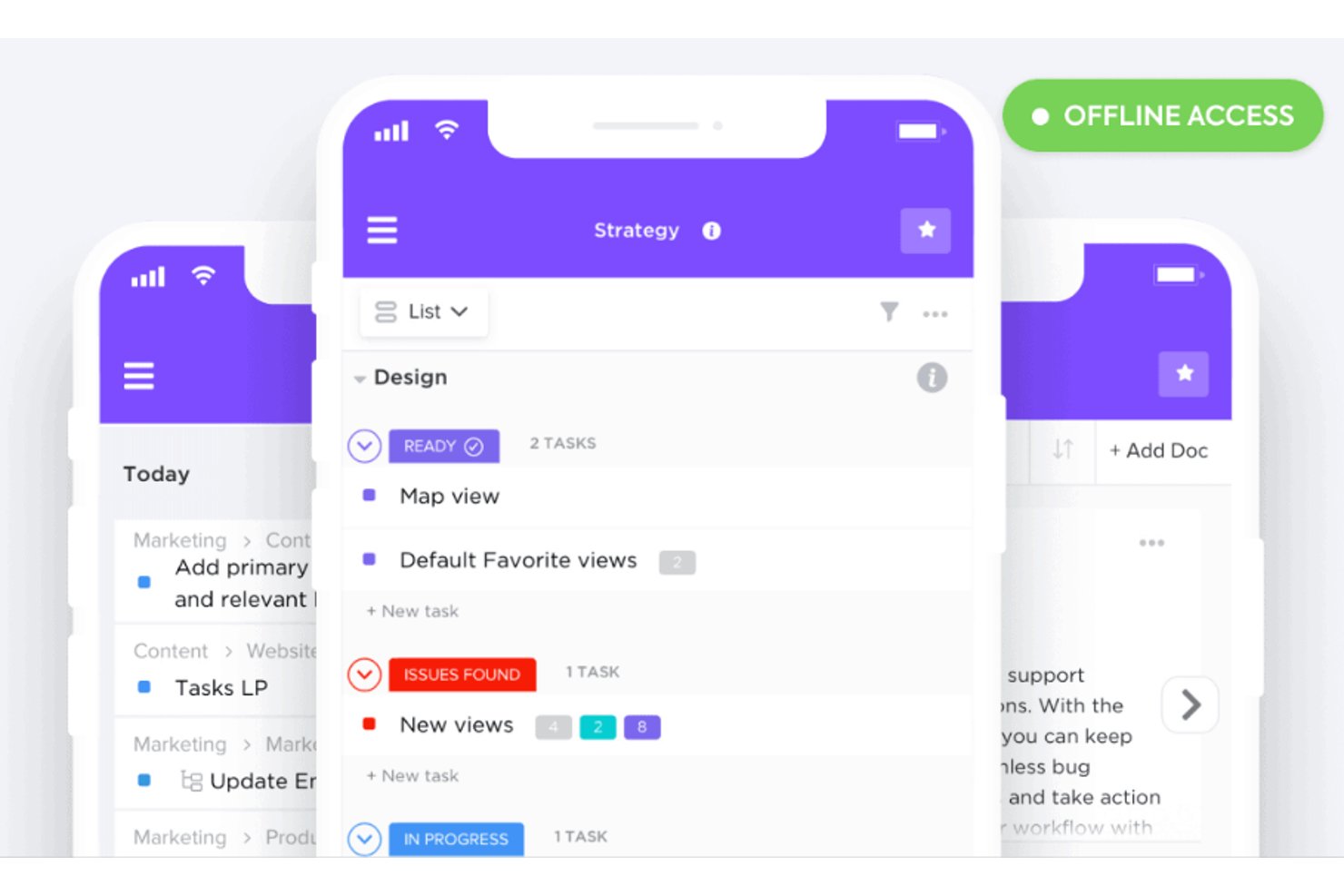
ClickUp is a versatile project management tool that consolidates various productivity features into a single platform. With its array of functionalities, ClickUp helps you manage tasks, track time, and organize projects effectively.
The tool also lets you easily reschedule deadlines when things change. I recently spoke with Jeff Cypher, who was a ClickUp expert and consultant before accepting a role at the company. Here's what he had to say about ClickUp's flexibility. "The ClickUp system allows you to remap deadlines in real-time, which is invaluable for project managers dealing with timeline changes," he says.
Why I Picked ClickUp
I picked ClickUp for its exceptional mobile app. The app offers customizable views, such as daily, weekly, and monthly options, so you can tailor your calendar to meet your specific needs. With drag-and-drop functionality, you can easily reschedule tasks on the go and keep your team remains agile and responsive.
Another reason ClickUp stands out is its AI capabilities, which let you automate tasks and provide real-time updates. This feature helps keep your team aligned and maintain timely project delivery. By automating routine tasks, ClickUp frees up your time to focus on more strategic elements of your project, which improves overall productivity.
ClickUp Key Features
ClickUp offers a range of other features that will help you and your team better manage your projects.
- Task Dependencies: You can keep your team on track by setting task dependencies that visually indicate which tasks need to be completed before others can start.
- Time Tracking: This lets you easily log the time spent on each task, so you can manage project timelines and resource allocation more effectively.
- Goal Tracking: You can align your team's efforts by setting and tracking goals and make sure everyone is working towards the same objectives.
- Custom Statuses: You can create custom task statuses that fit your workflow, which provides clarity and transparency into the progress of each project stage.
ClickUp Integrations
Integrations include Google Drive, Slack, Zoom, Microsoft Teams, Trello, Asana, GitHub, Outlook, Google Calendar, Salesforce, Zapier, and Dropbox.
Pros and Cons
Pros:
- Highly customizable interface lets you tailor workspace
- Built-in automations reduce manual work
- Real-time collaboration improves team communication
Cons:
- Learning curve steep due to rich feature set
- Occasional performance lags when managing large projects
New Product Updates from ClickUp
ClickUp Adds Meetings Hub, Super Agent Templates, and ZoomInfo Integration
ClickUp adds a searchable Meetings Hub, new ways to clone and template Super Agents, and a ZoomInfo integration through the App Center. These updates improve meeting retrieval, agent reuse, and access to sales intelligence. For more information, visit ClickUp’s official site.

Nifty
Best for milestone-driven timeline scheduling
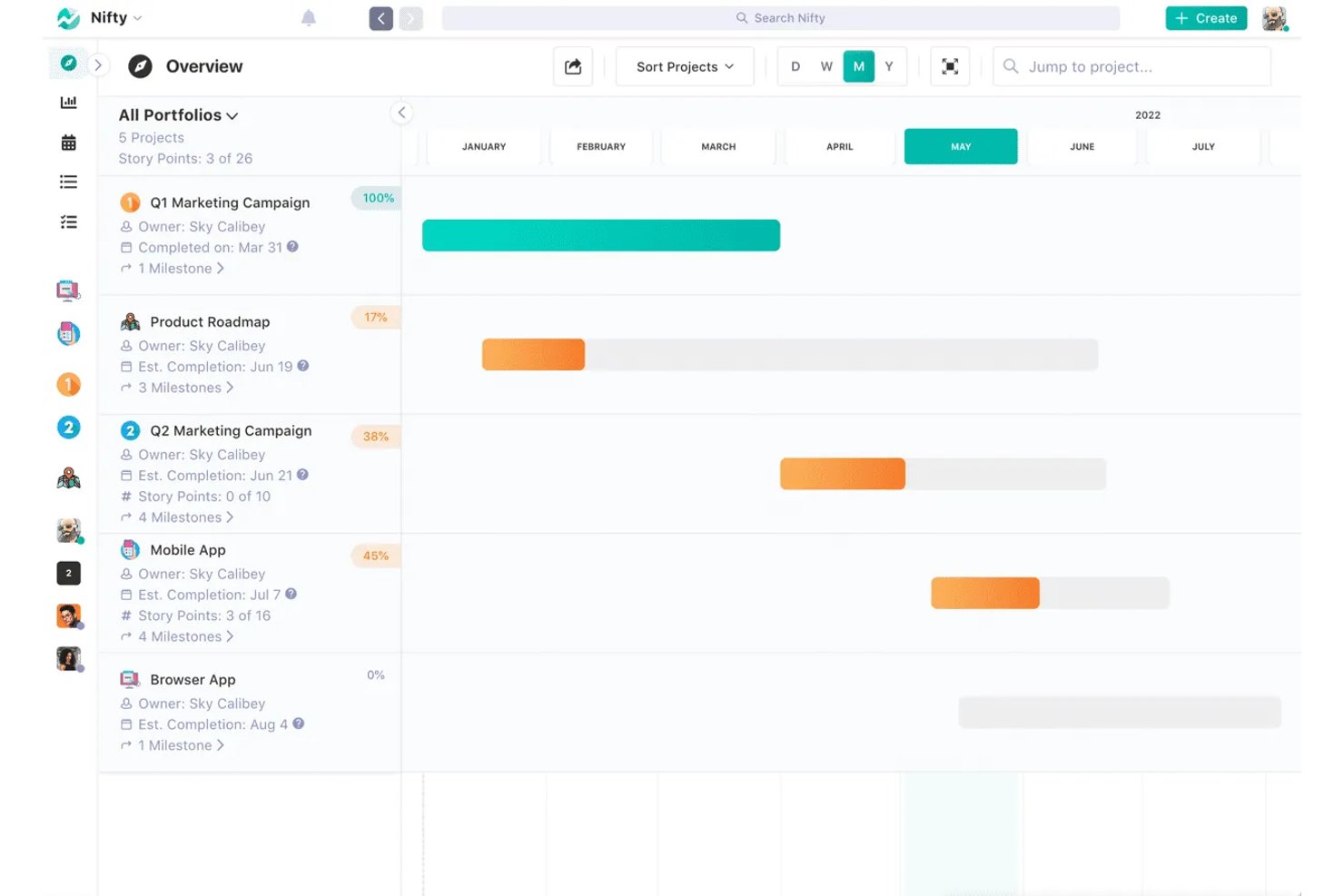
Nifty is a versatile project management tool that offers a range of features to improve your team's productivity. It provides a centralized platform where you can manage tasks, collaborate with your team, and track project timelines with tools like Gantt charts and calendar views.
Why I Picked Nifty
I picked Nifty because of its roadmaps feature, which uses Gantt charts to help you visualize timelines and align your team's goals. This feature is perfect for keeping everyone on the same page and meeting project milestones. Nifty's task management capabilities let you organize and track work through multiple views, including Kanban and Calendar, to provide the flexibility to manage tasks in the way that best suits your team.
Another reason Nifty stands out is its real-time collaboration tools, which facilitate discussions and feedback among team members. This means you can have meaningful conversations and make decisions quickly without leaving the platform. The documentation feature lets you create and connect project files so project information is centralized and accessible.
Nifty Key Features
Nifty offers a range of other features for project management and calendar management.
- In-App Chat: You can facilitate communication within your team directly through Nifty, which keeps all project discussions centralized and accessible.
- Docs & Files: You can create, share, and collaborate on documents and files within the platform, which lets your team maintain a single source of truth for all project-related information.
- Time Tracking: You can monitor the time spent on tasks to better understand resource allocation and productivity, which allows for more informed project planning and adjustments.
- Project Portfolios: This lets you organize and manage multiple projects in one view, so you can oversee and prioritize tasks across different teams and initiatives.
Nifty Integrations
Integrations include Harvest, Webex, Zoom, Slack, GitHub, Google Drive, Google Calendar, Miro, and Typeform.
Pros and Cons
Pros:
- Reuse project templates across multiple calendars
- Calendar view shows tasks and deadlines
- Assign tasks to phases that feed into the calendar
Cons:
- Occasional lag when switching calendar views
- Dependencies must be manually linked

Notion
Best for docs, tasks, and calendar in one app
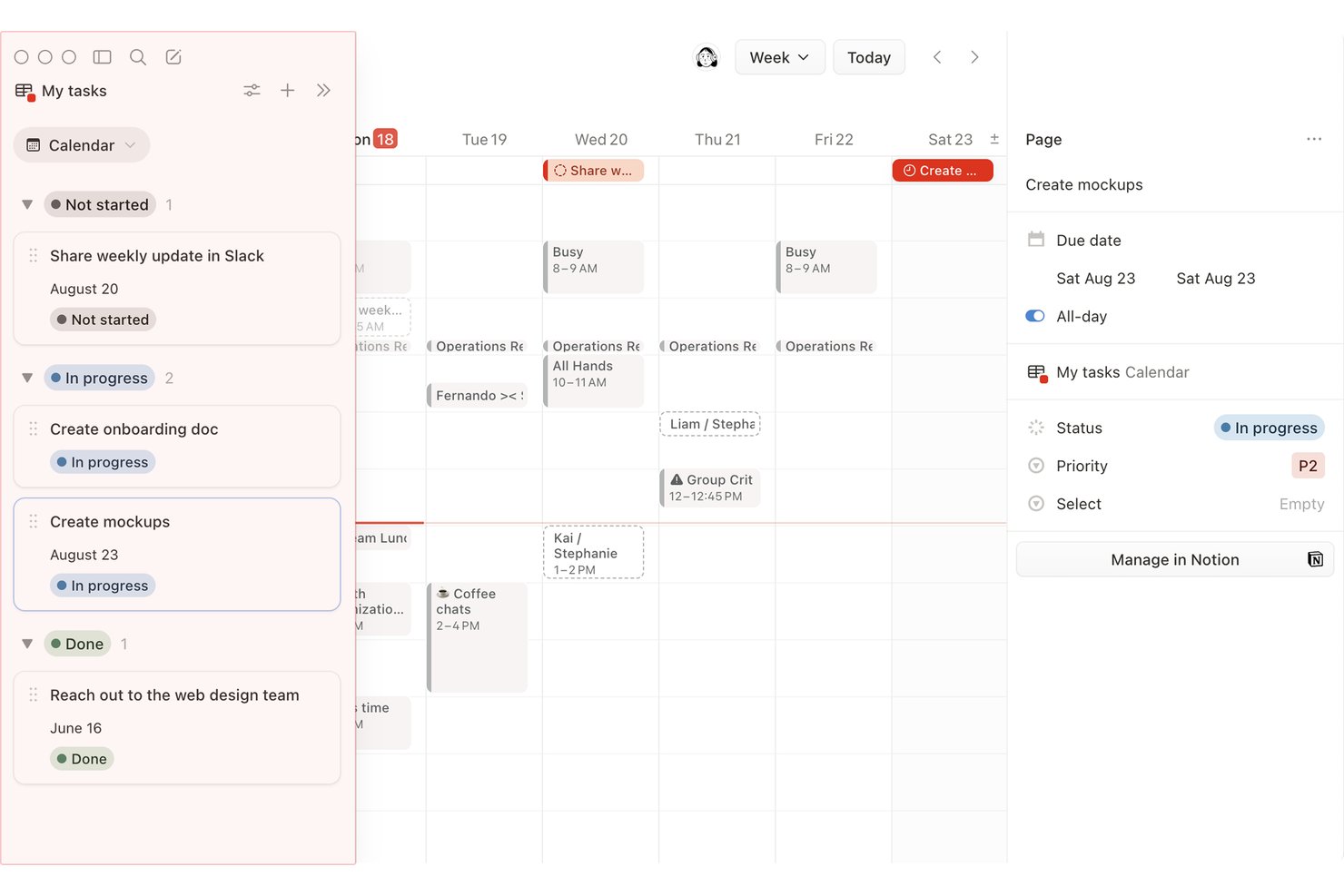
Notion is an all-in-one workspace that combines docs, databases, and project tracking with calendar, timeline, and board views for managing tasks and deadlines.
Who Is Notion Best For?
Notion is a strong fit for project managers and team leads who want docs, tasks, and project calendars to live in the same workspace rather than across separate tools.
Why I Picked Notion
Notion earns its spot on my shortlist because it keeps docs, tasks, and project calendars in one workspace rather than spreading them across separate tools. I love that I can add a calendar view to any database and choose which properties, like assignee or status, show on each card. Notion Calendar connects up to 20 databases with color-coding, so I can see multiple projects on one grid without duplicating any data.
Notion Key Features
- Dependency date shifting: Notion's timeline view automatically shifts dependent task dates when you adjust a predecessor, with modes to maintain gaps or shift only on overlap.
- Conditional color rules: Set property-based color rules on calendar cards to visually flag items by status, priority, or assignee across your database.
- Database automations: Trigger Slack messages, email alerts, or in-app notifications to up to 20 users based on property changes or recurring schedules.
- Drag-and-drop rescheduling: Drag cards to new dates or stretch their edges across multiple days directly in the calendar or timeline view.
Notion Integrations
Notion Calendar connects with Google Calendar, Microsoft Outlook, and Apple iCloud, while Notion lists connections for Jira, Asana, GitHub, Slack, Figma, and Google Drive. Notion also offers a public API and Zapier support.
Pros and Cons
Pros:
- Color rules flag overdue work visually
- Dependencies shift dates when predecessors move
- Calendar cards show assignees and status
Cons:
- No native workload or capacity views
- Separate projects need a shared database
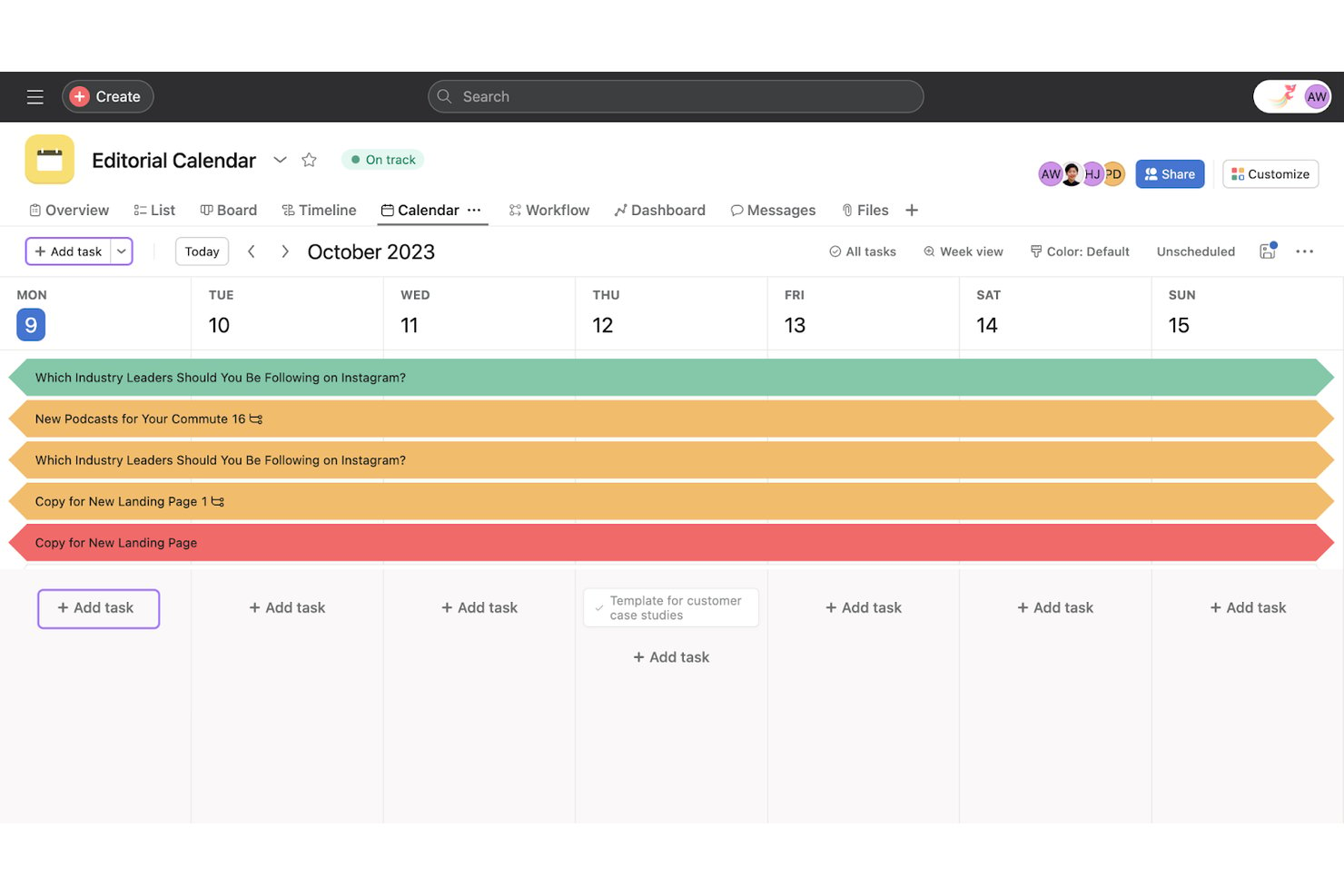
Asana is a project management platform with calendar, timeline, board, and list views that lets teams schedule tasks, set dependencies, track workload, and manage cross-team projects from a single workspace.
Who Is Asana Best For?
Asana works well for project managers and team leads overseeing cross-functional work across product, engineering, and design teams.
Why I Picked Asana
I've included Asana in my top picks because it's one of the few project management tools where cross-team scheduling visibility is genuinely built into the core workflow. When a task shifts, Asana's dependency auto-shifting opens a preview modal showing exactly how dependent tasks will move before you confirm, which keeps cross-team timelines from quietly falling apart. I also like the workload heatmap, which surfaces overloaded team members across projects so you can reschedule or reassign before a deadline becomes a problem.
Asana Key Features
- Color-coded calendar views: Color-code tasks by custom field values like priority or task type, and save that color view for the whole team.
- Critical path highlighting: In Timeline view, Asana flags critical tasks so you can see which ones will delay the project if they slip.
- One-way calendar sync: Push project tasks to Google Calendar, Outlook, or iCal via subscription URL so due dates appear in your external calendar.
- AI calendar scheduling: Asana's AI schedules time blocks based on deadlines, priorities, and capacity, then syncs them to Google or Outlook.
Asana Integrations
Asana offers 100+ free integrations, including Google Workspace, Microsoft 365, Slack, and Jira Cloud with two-way sync. It also provides a public API for custom integrations.
Pros and Cons
Pros:
- Workload heatmaps reveal cross-project overload
- Calendar colors reflect custom task fields
- Dependency shifts preview before confirmation
Cons:
- No built-in overdue task reminders
- No unified calendar across selected projects
Trello
Best for visual task management
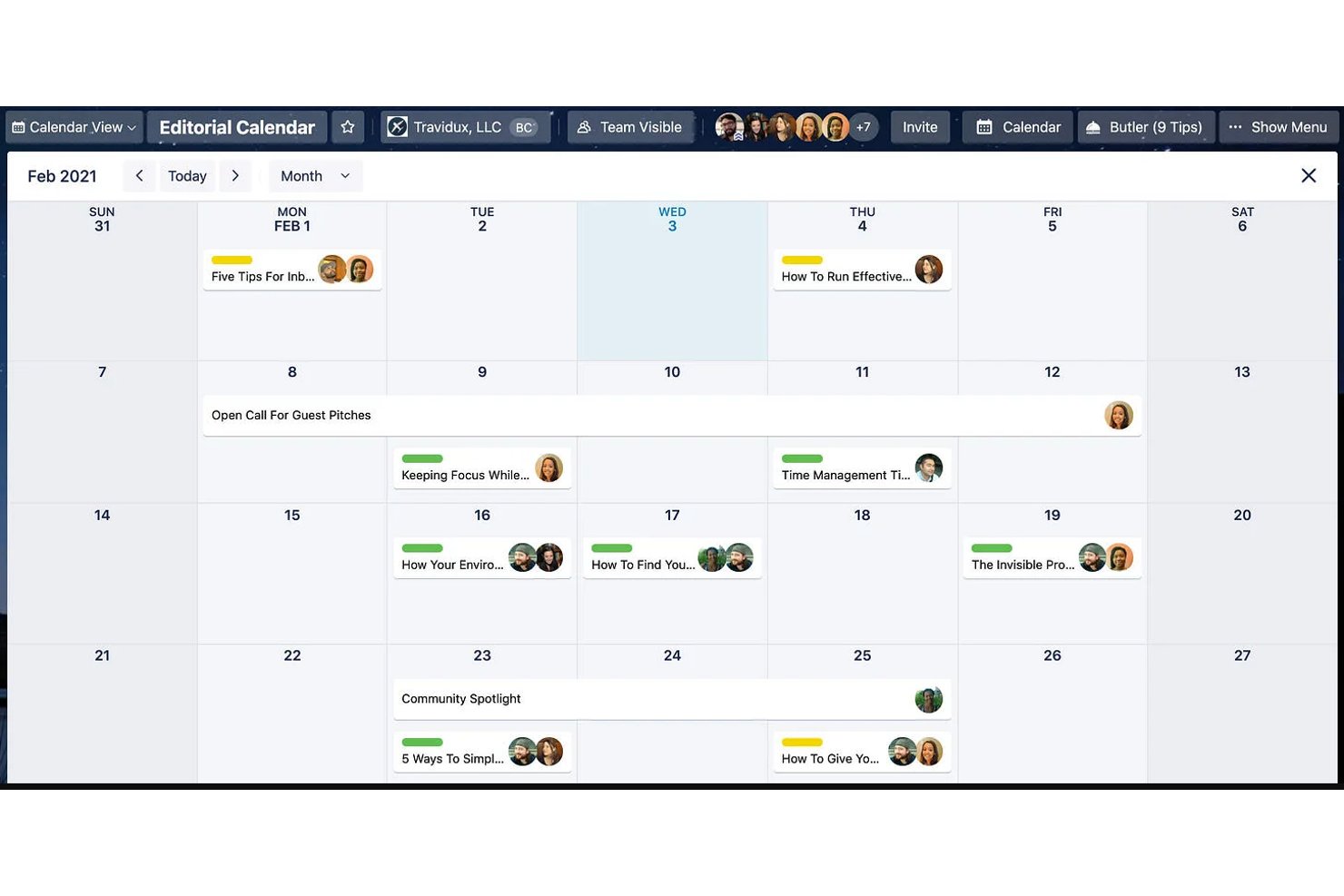
Trello is a visual project management tool that organizes work across Kanban boards, calendar views, timelines, and a multi-board Workspace Calendar for tracking card due dates and schedules across projects.
Who Is Trello Best For?
Trello is a great fit for small teams and operations managers who want a visual, low-friction way to track tasks and deadlines without a steep learning curve.
Why I Picked Trello
Trello earns its spot on my shortlist because its visual-first approach to task management translates directly into calendar scheduling. I love that the Workspace Calendar pulls due dates from up to 20 boards into a single filterable view, so I can see what's due across projects without toggling between boards. The drag-and-drop rescheduling in both the Calendar and Workspace Calendar views makes it easy to shift deadlines on the fly, and badge color escalation keeps overdue cards impossible to miss.
Trello Key Features
- Workspace Calendar view: Aggregates cards with due dates from up to 20 boards in a single Workspace into one filterable calendar.
- Timeline view: Displays card durations across a zoomable day-to-year timeline, with grouping by list, member, or label.
- Recurring due dates: Lets you set cards to repeat on a schedule automatically, directly from the card detail view.
- Automation rules: Triggers no-code actions when cards reach or pass their due dates, without any third-party tools.
Trello Integrations
Trello supports 200+ marketplace integrations through Power-Ups, including Slack, Microsoft Teams, Google Drive, Confluence, and Salesforce. Native calendar connectivity includes Google Calendar and Outlook through Planner, while iCal feeds support Google, Outlook, and Apple Calendar.
Pros and Cons
Pros:
- Workspace Calendar combines up to 20 boards
- Drag-and-drop rescheduling updates card dates
- Teams report quick onboarding
Cons:
- No built-in task dependencies or critical path
- Native calendar views require a paid plan

Bitrix24
Best for all-in-one task and calendar scheduling
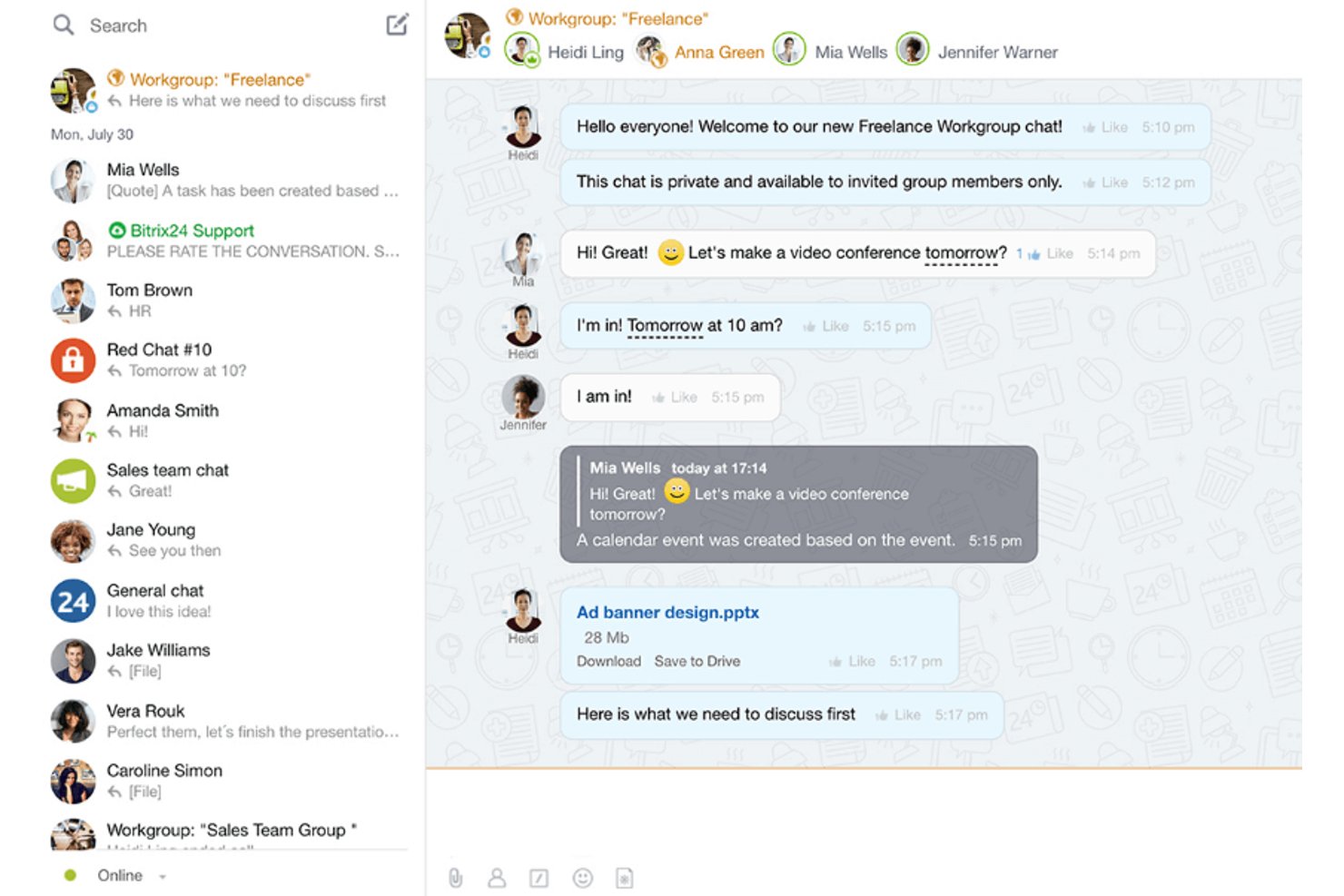
Bitrix24 is an all-in-one project management suite that combines task scheduling, calendar views, Gantt charts, CRM, and team communication in a single platform.
Who Is Bitrix24 Best For?
Bitrix24 suits small to mid-sized teams that want tasks, calendars, CRM, and team chat in one place without paying per user.
Why I Picked Bitrix24
Bitrix24 earns its spot on my shortlist because it bundles tasks, calendars, CRM, and team chat into one platform without splitting the bill per user. I love that you can layer personal, group, and project calendars into a single color-coded view, then drag task deadlines directly across days to reschedule. The Gantt chart takes it further: shift one task and its dependents move automatically, which keeps linked work aligned without manual updates.
Bitrix24 Key Features
- Deadline view: Organizes your tasks into columns sorted by urgency, giving you a quick read on what's due soonest across all your work.
- "Involvement in tasks" chart: Shows each team member's assigned tasks over time and flags scheduling overlaps, so you can spot conflicts before they become problems.
- Automation rules: Trigger status changes, notifications, or emails based on task conditions, reducing the manual follow-up that slows teams down.
- Open-slot booking links: Share a link via email or messenger so teammates or external contacts can pick an available meeting time directly from your calendar.
Bitrix24 Integrations
Bitrix24 has native calendar integrations with Google Calendar, Outlook, Office 365, iCloud, CalDAV, and Exchange. It also supports a REST API, marketplace apps, and Zapier for custom connectivity.
Pros and Cons
Pros:
- Reviewers praise calendar reminders and color-coding
- Gantt dependencies shift linked tasks
- Drag tasks across calendar dates
Cons:
- Large workspaces and mobile app can lag
- Setup can feel cluttered and demanding

Best for preventing resource over-allocation

Resource Guru is a resource management and scheduling tool designed to bring clarity and order to your project management efforts. It offers a suite of features that help you manage resources, plan capacity, and track time, and it's an essential tool for teams looking to optimize their workflows.
Why I Picked Resource Guru
I picked Resource Guru for its robust resource scheduling capabilities, which let you visualize team availability and manage workloads effectively. This feature helps you avoid scheduling conflicts and makes sure your team is always working at optimal capacity. Additionally, the capacity planning feature is invaluable for long-term project management, as it helps you foresee potential bottlenecks and address them before they become issues.
Another reason Resource Guru stands out is its time tracking functionality, which lets you compare scheduled hours with actual hours worked. This feature is crucial for making data-driven decisions and improving project outcomes. It also offers customizable reports, which provide insights into performance and help you identify areas for improvement.
Resource Guru Key Features
Resource Guru offers a range of other features for project management and schedule management.
- Calendar Integration: You can sync seamlessly with Google Calendar and Outlook to consolidate schedules and reduce the chance of scheduling conflicts.
- Leave Management: This integrates team leave schedules directly into your planning so you get clear visibility of team availability.
- Clash Management: This automatically identifies and resolves scheduling conflicts so you can maintain efficient resource allocation.
- Customizable Reports: You can generate reports tailored to your project's specific needs and get insights into your team's performance and project progress.
Resource Guru Integrations
Integrations include Google Calendar and Microsoft Outlook, as well as with Slack, Salesforce, and Microsoft Teams via Zapier.
Pros and Cons
Pros:
- Simple implementation process
- Intuitive drag-and-drop functionality
- Automatic timeline updates
Cons:
- No mobile app
- Lacks communication features found in other tools
New Product Updates from Resource Guru

Resource Guru Adds More Control Over Calendar Sync
Resource Guru adds more control over Google and Outlook Calendar sync, including source calendar selection and destination calendar options. These updates help users manage external events and Resource Guru bookings with less clutter. For more information, visit Resource Guru’s official site.
 .
.Andre kalenderverktøy for prosjektstyring
Her er noen flere programvarealternativer for prosjektstyringskalendere som ikke kom med på topplisten min, men som er verdt å vurdere hvis du ikke fant det du lette etter ovenfor.
- Float.com
For scheduling around team availability
- GoodDay
For multi-project calendar workspaces
- Smartsheet
For creating BI reports
- Paymo
For freelancers and small teams
- ProjectManager
For dependency-enforced calendar scheduling
- Teamwork.com
For color-coded calendar entries
- Ravetree
For resource management
- Hive
For flexible project views
- Motion
For AI-driven schedule auto-balancing


How I Evaluate Project Management Calendars
I split my evaluation into two layers: baseline criteria a tool must clear—like multi-project milestone views and two-way calendar sync—and differentiators that set the best tools apart.
Core Functionality (Table Stakes For This List)
When I'm selecting tools for my list, I rank each one on a scale from 0 (does not offer the functionality) to 5 (excels in this area) for each core functionality listed below. Then, I calculate the tool's total score into a percentage. Each tool needs to achieve a minimum total score of 75% to be considered for inclusion.
- Calendar View Options: I look for day, week, month, and timeline or Gantt views so teams can zoom in on daily standups or zoom out to review quarterly milestones.
- Task & Milestone Scheduling: Creating tasks with start and end dates directly inside the calendar matters—I check for milestone markers, subtasks, and recurring event support.
- Drag-and-Drop Rescheduling: When a sprint slips or a client moves a deadline, I evaluate how quickly you can grab a task and drop it onto a new date without opening a form.
- Dependencies & Conflict Detection: I look at how each tool handles predecessor/successor links and whether it flags scheduling overlaps, like two deliverables hitting the same resource.
- Team Collaboration & Sharing: Shared calendar views with role-based permissions matter here—I check whether you can give a client read-only access without burning a paid seat.
- External Calendar Sync: I evaluate whether the tool supports two-way sync with Google Calendar, Outlook, or iCal so project deadlines show up where your team already lives.
Once I have a list of tools that meet the criteria, I consider what sets each platform apart.
Differentiating Factors (What Sets Vendors Apart)
Here's how I compare and contrast different vendors:
Standout Features
Resource workload heatmaps are a big differentiator—I look for tools that overlay team capacity directly on the calendar so you can spot an over-allocated designer before the sprint starts. Automated scheduling rules also matter. When a deadline shifts, the best tools cascade changes across dependent tasks without manual updates. I also evaluate client-facing portals that let external stakeholders view project timelines without needing a paid license or full platform access.
Beyond Features
Integration depth is one of the first things I evaluate—a calendar tool that syncs with Slack, Jira, and Google Drive keeps project updates flowing without tab-switching. I also check how pricing scales as teams grow, since some vendors gate calendar features like dependencies or shared views behind higher tiers. Onboarding resources matter too. Tools with pre-built templates for common project types—product launches, marketing campaigns, construction phases—help teams get value from day one instead of building views from scratch.
Slik velger du kalenderverktøy for prosjektstyring
Det er lett å gå seg vill i lange funksjonslister og komplekse prismodeller. For å hjelpe deg med å holde fokus mens du går gjennom den unike prosessen din for valg av programvare, finner du her en sjekkliste over faktorer du bør ha i tankene:
| Faktor | Hva du bør vurdere |
|---|---|
| Skalerbarhet | Forsikre deg om at verktøyet kan vokse med teamet ditt. Se etter alternativer som kan håndtere et økende antall prosjekter og brukere uten ytelsesproblemer. |
| Integrasjoner | Kontroller om programvaren integreres sømløst med de eksisterende verktøyene dine, for eksempel oppgavebehandlere, CRM-systemer eller kommunikasjonsplattformer som Slack eller Microsoft Teams. |
| Tilpasningsmuligheter | Bekreft at du kan tilpasse kalendervisninger, etiketter og arbeidsflyter slik at de passer teamets spesifikke prosesser og preferanser. |
| Brukervennlighet | Vurder grensesnittet med tanke på enkelhet og tilgjengelighet. Teamet ditt bør ikke trenge omfattende opplæring for å komme i gang. |
| Budsjett | Sammenlign prisplanene og sørg for at de samsvarer med budsjettet ditt. Ta hensyn til både kostnader på forhånd og langsiktige utgifter. |
| Sikkerhetstiltak | Kontroller funksjoner som kryptering, rollebasert tilgang og samsvar med standarder for databeskyttelse, slik at den sensitive prosjektinformasjonen din beskyttes. |
| Mobiltilgang | Se etter mobilvennlige verktøy som lar deg og teamet ditt oppdatere eller gjennomgå kalendere mens dere er på farten. |
| Samarbeidsfunksjoner | Prioriter verktøy med funksjoner for samarbeid i sanntid, for eksempel delte kalenderoppdateringer, varsler og kommentartråder, slik at alle holder seg samkjørte. |
Trender innen kalenderverktøy for prosjektstyring
I arbeidet med undersøkelsen min hentet jeg inn utallige produktoppdateringer, pressemeldinger og lanseringslogger fra leverandører av ulike kalenderapplikasjoner. Her er noen av de fremvoksende trendene jeg følger med på:
- AI-drevet planlegging: Verktøy bruker AI til å optimalisere tidsplaner, forutsi forsinkelser og foreslå ressursfordelinger. Noen av de beste verktøyene for digitale kalendervisninger kan for eksempel analysere teamets arbeidsmengde og automatisk justere tidsfrister for å unngå utbrenthet.
- Visuelle arbeidsflyter: Leverandører fokuserer nå på mer dynamiske og interaktive kalendervisualiseringer, for eksempel tidslinjeanimasjoner, dra-og-slipp-dashbord og digitale kalendervisninger. Disse funksjonene gjør det enklere for brukerne å se avhengigheter og overlappende oppgaver med et øyekast i den digitale tidsplanen.
- Fokus på behovene ved hybridarbeid: Nye funksjoner er utviklet for å støtte team som arbeider på tvers av tidssoner, for eksempel delte tilgjengelighetskalendere og forslag til møtetidspunkter i kalenderapper for team. Noen verktøy fremhever nå også arbeidstidene til eksterne teammedlemmer og teammedlemmer som arbeider på kontoret, noe som gjør dem til de beste delte kalenderne.
- Forbedrede samarbeidsverktøy: Oppdateringer i sanntid, kommentartråder direkte på kalenderelementer og videointegrasjon blir stadig mer vanlig i samarbeidskalendere. Disse tilleggene kan hjelpe team med å diskutere endringer og oppdateringer uten å bytte plattform, noe som er ideelt for en kalender for små bedrifter.
- Datadrevet innsikt: Avanserte rapporteringsfunksjoner kan nå spore mønstre i fullføringen av oppgaver, forsinkelser og teamets produktivitet. Noen kalenderplanleggingsverktøy kan for eksempel generere analyseoversikter som hjelper ledere med å justere planene.
Hva er et kalenderverktøy for prosjektstyring?
Kalenderverktøy for prosjektstyring er programvareløsninger som hjelper deg med å planlegge, organisere og følge opp prosjektplaner, oppgaver og tidsfrister på ett sted. Du kan dra og slippe oppgaver i kalenderen for enkelt å tildele og justere dem, sette opp gjentakende oppgaver og påminnelser samt bruke fargekoder på oppgaver for å prioritere og planlegge arbeidet.
Du kan også bruke kalenderverktøy for prosjektstyring til å holde teamet samkjørt om hva som skal gjøres og når, overvåke teamets kapasitet og håndtere ressurskonflikter samt dele informasjon åpent med kunder og interessenter for å bygge tillit.
Funksjoner i kalenderverktøy for prosjektstyring
Når du velger et kalenderverktøy for prosjektstyring, bør du se etter følgende viktige funksjoner:
- Oppgaveplanlegging: Dette lar deg tildele oppgaver, sette tidsfrister og flytte ting rundt i kalenderen. Det gir alle en tydelig oversikt over hvem som gjør hva og når, slik at ingen trenger å gjette eller stresse i siste liten.
- Ressursallokering: Du kan se hvem som er tilgjengelig, og hvilke ressurser som er booket. Dette hindrer at du ved et uhell dobbeltbooker noen, og sørger for at teamet ditt fungerer problemfritt.
- Samarbeidsverktøy: Dette inkluderer innebygd chat, kommentarer og dokumentdeling, slik at teamet ditt kan samarbeide direkte og redusere lange e-posttråder.
- Oppfølging av milepæler: Du kan enkelt markere viktige mål og tidsfrister og se fremdriften med et øyekast. Dette gjør det enkelt å hente inn statusoppdateringer og holde alle informert.
- Gjentakende hendelser: Dette lar deg sette opp ukentlige møter eller regelmessige oppfølgingssamtaler med bare noen få klikk, noe som sparer tid og energi til det faktiske prosjektarbeidet.
- Varsler og påminnelser: Du får nyttige påminnelser før møter eller tidsfrister, slik at oppgaver ikke faller mellom sprekkene.
- Kalenderintegrasjoner: Du kan synkronisere prosjektkalenderen din med Google, Outlook eller mobile enheter, slik at alt holdes samlet på ett sted.
- Tilpassbare visninger: Dette lar deg bytte mellom daglige, ukentlige eller månedlige oppsett, samt tidslinje- eller Gantt-visninger. Du kan velge det som hjelper deg best med å visualisere arbeidsmengder og tidsfrister.
- Tilgangskontroll: Du kan angi tillatelser slik at de rette personene kan se eller redigere bestemte hendelser eller detaljer. Dette bidrar til å beskytte sensitive planer.
Vanlige AI-funksjoner i kalenderverktøy for prosjektstyring
I tillegg til standardfunksjonene i kalenderverktøy for prosjektstyring som er nevnt ovenfor, har mange løsninger AI-funksjoner som:
- Automatisert planlegging: AI kan foreslå ideelle møtetidspunkter og tidsfrister for oppgaver basert på tilgjengelighet og arbeidsmengde, slik at behovet for mange planleggings-e-poster frem og tilbake reduseres.
- Smart prioritering av oppgaver: AI kan gjennomgå listen over oppgaver, tidsfrister og ressurser og rangere hva som bør gjøres først, slik at teamet ditt holder fokus.
- Forutsigende justeringer av tidsfrister: AI kan oppdage potensielle forsinkelser og anbefale endringer, slik at du proaktivt kan håndtere problemer og holde tidsfristene på rett spor.
- Oppretting av hendelser med naturlig språk: Du kan legge til hendelser ved å skrive eller snakke, og AI-en kan automatisk sette opp møtet og sende ut invitasjoner.
- Automatisk konfliktdeteksjon: AI kan se etter overlappende bookinger eller dobbeltbookede ressurser og varsle deg for å forhindre overraskelser i siste liten.
Fordeler med kalenderverktøy for prosjektstyring
Implementering av kalenderverktøy for prosjektstyring kan gi flere fordeler for teamet og virksomheten din. Her er noen av fordelene du kan se frem til:
- Bedre tidsstyring: Hjelper team med å fordele og følge opp tid for oppgaver og tidsfrister på en effektiv måte.
- Bedre teamsamarbeid: Lar alle se og planlegge timeplanene sine sammen på ett sted.
- Enklere prioritering av oppgaver: Gjør det enkelt å sortere og fokusere på det viktigste arbeidet først.
- Tydeligere prosjektoversikt: Viser alle oppgaver, milepæler og tidsfrister i et visuelt format.
- Færre overskredne tidsfrister: Sender påminnelser og varsler for å holde oppgavene på rett spor.
- Enklere justeringer av tidsplanen: Gjør det mulig å foreta raske endringer når prioriteringer eller tidslinjer endres.
- Sentraliserte prosjektoppdateringer: Samler alle prosjektrelaterte tidsplaner og oppdateringer i ett verktøy.
Kostnader og priser for kalenderverktøy for prosjektstyring
Kostnadene for kalenderverktøy for prosjektstyring varierer vanligvis basert på funksjoner, teamstørrelse, tillegg og mer. Tabellen nedenfor oppsummerer vanlige abonnementer, gjennomsnittsprisene deres og typiske funksjoner som er inkludert i løsninger med kalenderverktøy for prosjektstyring:
Sammenligningstabell for abonnementer for kalenderverktøy for prosjektstyring
| Plantype | Gjennomsnittspris | Vanlige funksjoner |
|---|---|---|
| Gratisplan | $0 | Grunnleggende planlegging, oppgavepåminnelser, begrensede integrasjoner og tilgang til delt kalender. |
| Personlig plan | $5-$15/per bruker/måned | Tilpassbare visninger, tilgang via mobilapp, oppgavebehandling og e-postvarsler. |
| Forretningsplan | $15-$30/per bruker/måned | Avanserte samarbeidsverktøy, deling av flere kalendere, analyser og integrasjoner. |
| Virksomhetsplan | $30-$50/per bruker/måned | Prioritert brukerstøtte, integrasjoner på virksomhetsnivå, brukertillatelser og skalerbarhet. |
Vanlige spørsmål om prosjektstyringskalendere
Finn svar på vanlige spørsmål andre stiller om dette emnet.
Hva er noen gode fremgangsmåter for bruk av en prosjektkalender?
Start med å sørge for at kalenderen er synlig og tilgjengelig for hele teamet. Hold den oppdatert, og planlegg regelmessige oppfølginger for å bekrefte at alles oppgaver er aktuelle og samsvarer med det som faktisk arbeides med.
Fargekod oppgaver eller milepæler for rask referanse, og bruk tydelige navnekonvensjoner. Konfigurer varsler og påminnelser slik at ingenting blir glemt. Gå regelmessig gjennom kalenderen i teammøter for å oppdage flaskehalser tidlig og holde arbeidet på rett spor.
Hva er noen vanlige utfordringer ved bruk av prosjektkalendere?
Vanlige utfordringer omfatter å holde kalenderdataene nøyaktige når planer og prosjektinformasjon endres. Det er lett å havne på etterskudd med oppdateringer hvis den ansvarlige glemmer det, eller hvis oppgavene endres ofte. Teammedlemmer kan bli forvirret hvis alt havner på ett sted uten tydelige etiketter eller fargekoding. For å løse disse problemene bør kalenderstyring være et delt ansvar, og det bør fastsettes tydelige regler for oppdatering.
Kan prosjektstyringsverktøy for kalendere integreres med verktøyene jeg allerede bruker (for eksempel Slack, Trello eller Outlook)?
Ja, de fleste ledende prosjektstyringsverktøy for kalendere tilbyr integrasjoner med populære apper som Slack, Trello, Outlook, Google Kalender og Microsoft Teams. Disse integrasjonene lar deg synkronisere hendelser, sende varsler og administrere oppdateringer på tvers av ulike plattformer. Sjekk informasjonen om integrasjoner for hvert verktøy du vurderer, slik at du er sikker på at det støtter de spesifikke appene teamet ditt bruker.
Hvordan kan jeg bruke en prosjektstyringskalender til å håndtere endrede tidsfrister eller endringer i siste liten?
Du kan raskt oppdatere oppgaver eller milepæler i prosjektstyringskalenderen for å gjenspeile nye datoer. De fleste verktøy har dra-og-slipp-funksjoner som lar deg planlegge på nytt, samt angi umiddelbare varsler slik at teamet får vite om endringer. De fleste verktøy lar deg spore endringshistorikk, slik at du kan se hvordan planene har utviklet seg. Gå regelmessig gjennom kalenderen sammen med teamet for å holde alle samkjørte når prioriteringene endres.
Finnes det måter å automatisere tilbakevendende oppgaver eller påminnelser i en prosjektstyringskalender på?
Ja, mange prosjektstyringsverktøy for kalendere lar deg konfigurere tilbakevendende oppgaver og automatiske påminnelser. Du kan planlegge regelmessige møter, statusoppdateringer og ukentlige eller månedlige oppfølginger. Automatiserte påminnelser hjelper teamet med å holde oversikt over rutinearbeid uten manuell innsats. Sjekk innstillingene for automatisering eller arbeidsflyt i verktøyet ditt for å konfigurere dette.