

10 beste alternativer til Mural for samarbeid i 2026

Beste kortliste over Mural-alternativer


Mural er et verdifullt verktøy for team som trenger mer samarbeidsrettet programvare for visuelle prosjekter. Det er imidlertid ikke sikkert at det passer for alle team. Enten du ønsker å forbedre samarbeid i sanntid, forbedre workshoper innen designtenkning eller ganske enkelt ønsker et verktøy som passer bedre med teamets unike arbeidsflyt, finnes det mange alternativer som er verdt å vurdere.
For å hjelpe deg med å finne de beste alternativene til Mural undersøkte og vurderte jeg ulike programvarer, med tanke på blant annet priser, fordeler og ulemper samt generell effektivitet. Ved hjelp av mine grundige vurderinger vil du kunne finne det ideelle verktøyet for å fremme kreativitet og effektivitet i teamet ditt og lykkes på jobben.
Hva er Mural?
Mural er et digitalt arbeidsområde for visuelt samarbeid, utviklet for å styrke teamets kreativitet og produktivitet gjennom digitale tavler. Det lar brukerne opprette, dele og samarbeide om visuelt innhold som diagrammer, flytskjemaer og lapper i sanntid, uavhengig av hvor de befinner seg fysisk.
Hvorfor bruke et alternativ til Mural?
Selv om Mural er et verdifullt verktøy for fjernsamarbeid og design, er det ikke sikkert at det passer helt til teamets behov. Det kan være lurt å se etter et alternativ til Mural hvis du er bekymret for:
- Kostnad: Murals prismodell kan vise seg å overstige budsjettet til teamet eller organisasjonen din, noe som potensielt gjør det til et mindre egnet alternativ for kostnadsbevisste virksomheter.
- Funksjoner: Hvis Mural ikke har enkelte viktige funksjoner som er nødvendige for arbeidsflytene dine, for eksempel avansert dataanalyse eller tilpassbare maler, er det ikke sikkert at det dekker prosjektbehovene dine fullt ut.
- Brukergrensesnitt: Du kan oppleve at brukergrensesnittet i Mural er mindre intuitivt eller visuelt tiltalende enn i andre samarbeidsverktøy på markedet.
- Integrasjon: Mural integreres kanskje ikke like sømløst med andre verktøy du bruker daglig, for eksempel prosjektstyringsprogramvare eller CRM-systemer, noe som kan føre til ineffektivitet i arbeidsflyten din.
- Ytelse: Hvis du opplever ytelsesproblemer med Mural, for eksempel lange innlastingstider eller feil under interaksjoner med høy belastning, kan det forstyrre teamets samarbeidsarbeid betydelig.
Alternativer til Mural kan tilby unike funksjoner, bedre integrasjon og forbedret ytelse som samsvarer med dine spesifikke behov og preferanser. De kan også tilby mer budsjettvennlige alternativer og ulike brukergrensesnitt som kanskje passer bedre til arbeidsflyten din.
Hvorfor du kan stole på våre programvareanbefalinger
Teamet vårt har testet og anmeldt programvare siden 2012. Vi er selv prosjektledere, så vi vet hvor vanskelig og hvor viktig det er å velge riktig programvare.
I denne guiden har vi vurdert verktøyene gjennom praktisk testing og uavhengig research og gitt dem poeng ut fra våre utvelgelseskriterier. Vi bygger også på innsikt fra ledende eksperter i bransjen og erfarne prosjektledere.
Anmeldelsene våre bygger på vår egen redaksjonelle vurdering. De er ikke et salgsargument.
Ekspertanmeldere:
Sammenligningstabell over Mural-alternativer
| Tool | Best For | Trial Info | Price | ||
|---|---|---|---|---|---|
| 1 | Best for collaborative interface design | Free plan available | From $3/user/month | Website | |
| 2 | Best for bringing Miro boards into team plans | Free plan + free trial available | From $12/user/month (billed annually) | Website | |
| 3 | Best for unified communication | 14-day free trial + free demo available | From $45/month (billed annually) | Website | |
| 4 | Best for organizing creative projects visually | Free plan + free trial + free demo available | From $9.99/user/month (billed annually) | Website | |
| 5 | Best for a remote-friendly team workspace | Free plan + 7-day trial available | From $5.78/user/month | Website | |
| 6 | Best for keeping boards in Microsoft 365 | Free plan available | Pricing upon request | Website | |
| 7 | Best for seamless collaboration and productivity | 14-day free trial + demo available | From €10/user/month | Website | |
| 8 | Best for visual workspace for innovation | Free plan + 14-day free trial available | From $8/user/month (billed annually) | Website | |
| 9 | Best for enterprise work management and automation | 30-day free trial + demo available | From $12/user/month | Website | |
| 10 | Best for real-time brainstorming and collaboration | Free plan + 7-day free trial + free demo available | From $9/month (billed annually) | Website |


Vurderinger av de beste Mural-alternativene
Nedenfor gir jeg en grundig analyse og oversikt over hvert alternativ til Mural. Jeg går gjennom fordeler og ulemper ved hvert verktøy, funksjonene deres og hvilke bruksområder de egner seg best for.
Figma
Best for collaborative interface design
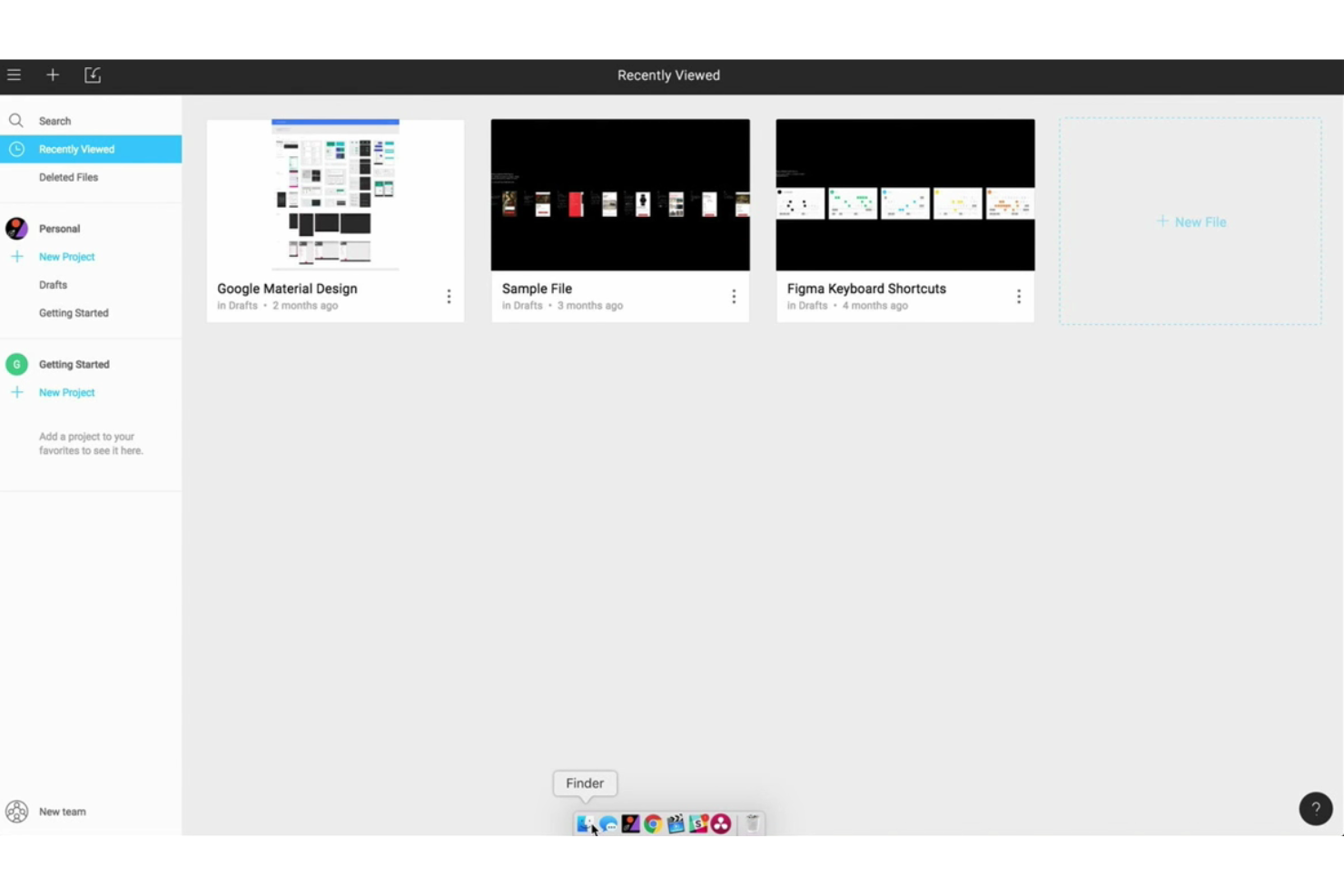
FigJam is Figma's dedicated online whiteboard that brings together sticky notes, voting, diagramming, agile workflows, and AI-assisted summarization for real-time and async team collaboration.
Who Is FigJam Best For?
FigJam is a natural fit for product and design teams who already live in Figma and want their brainstorming, planning, and retrospectives in the same ecosystem.
Why I Picked Figma
FigJam earns its spot on my shortlist because it's the only whiteboard tool that lives inside the same canvas where your design work actually happens. I love how teams can move from a sticky-note brainstorm directly into a Figma Design file without switching apps, which keeps sprint planning and interface work in one continuous workflow. FigJam's AI can also sort sticky clusters into themes and generate flowcharts or Gantt charts from a prompt, which I've found genuinely cuts down on post-session cleanup time.
FigJam Key Features
- Voting sessions: Facilitators set a prompt and vote limit, and participants cast votes on sticky notes that stay hidden until the session ends.
- Spotlight mode: Guides all participants to follow the facilitator's cursor and focus on the same content in real time.
- Agile workflow templates: Ready-made boards for sprint planning, retrospectives, Kanban boards, and Gantt charts support common agile ceremonies.
- Open sessions: Paid plan users can invite external contributors without a Figma account to collaborate on a board for up to 24 hours.
Figma Integrations
FigJam offers documented native integrations with Jira, Asana, GitHub, Slack, Zoom, Google Workspace, Notion Custom Agents, and Mixpanel. It also works with Microsoft Teams channels and meetings and provides a REST API and webhooks for custom integrations.
Pros and Cons
Pros:
- Voting and templates support remote workshops
- AI groups sticky notes into themes
- Moves brainstorms directly into design work
Cons:
- Offline collaboration and phone editing remain limited
- Dense boards become hard to navigate
Coda
Best for bringing Miro boards into team plans
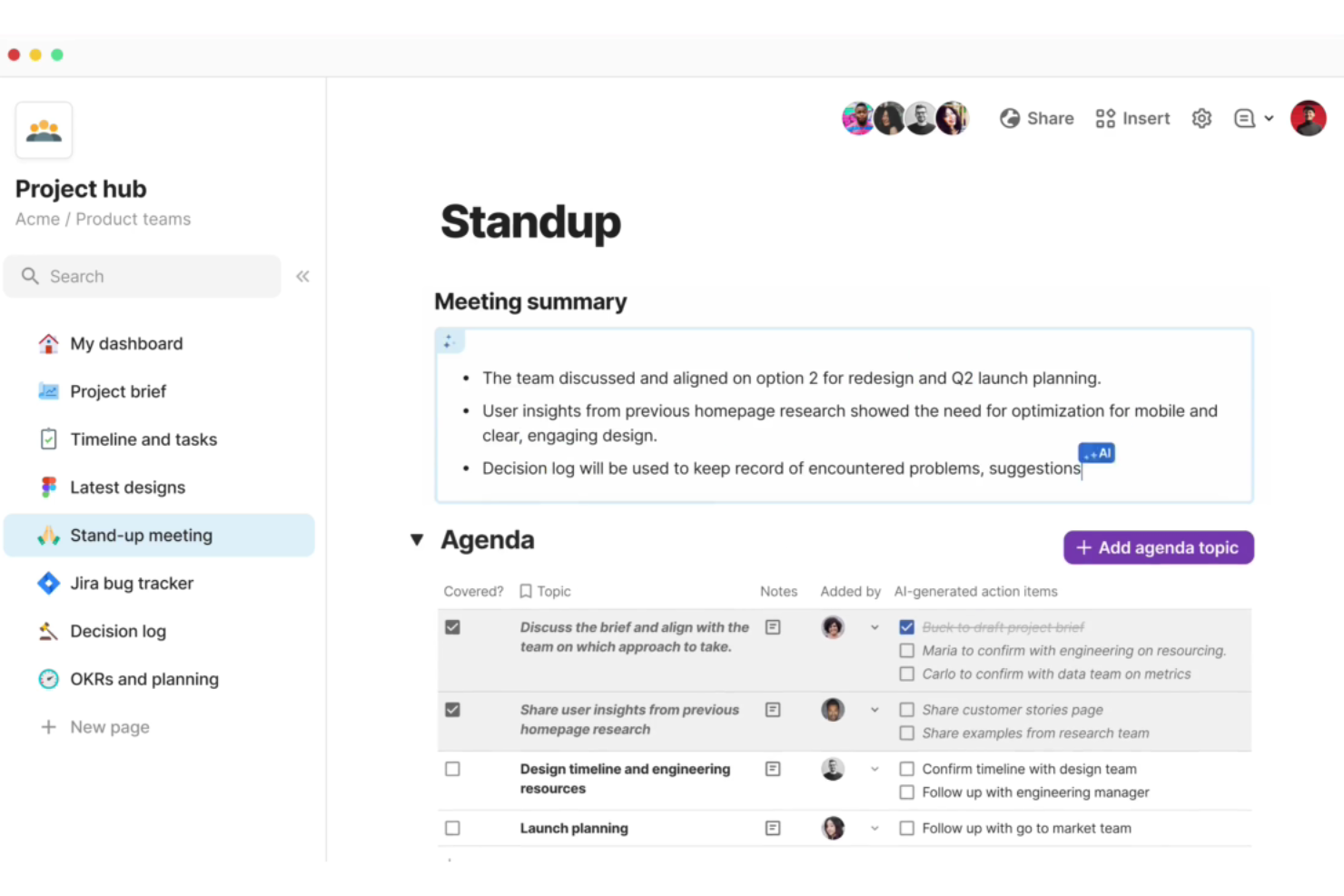
Coda is a collaborative workspace platform that combines documents, databases, project trackers, and an AI assistant into a single shared environment for teams.
Who Is Coda Best For?
Coda suits teams that want to consolidate project tracking, knowledge management, and AI-assisted writing into one workspace instead of juggling separate tools.
Why I Picked Coda
I picked Coda as one of the best because it pulls documents, databases, project trackers, and an AI assistant into a single workspace, so teams stop bouncing between tools mid-project. I especially like how Docs AI lets you build trackers and dashboards from a plain-language prompt, turning a rough ask into a structured project view in seconds. Pair that with two-way sync to Jira, Slack, and GitHub, and your team's source of truth actually stays current.
Coda Key Features
- Packs integration library: Connect Docs to 800+ external tools, including Jira, GitHub, Slack, and Salesforce, using pre-built Packs that support two-way data sync.
- Cross-doc sync: Pull data from other Docs into a single workspace view and take actions across documents without leaving your current doc.
- Automated workflows: Set up rule-based automations that trigger actions, send notifications, or update records based on changes in your document data.
- Role-based permissions: Control access at the folder, doc, and page level, with options to lock pages and restrict editing to specific team members.
Coda Integrations
Coda offers 800+ integrations through Packs, including marketplace integrations with Miro, Figma, Zoom, Jira, Slack, Microsoft Teams, and Google Drive. It also provides REST and MCP APIs for custom integrations.
Pros and Cons
Pros:
- AI summarizes documents and surfaces action items
- Custom workflows carry workshop decisions into project tracking
- Teams co-edit notes and project trackers live
Cons:
- No built-in timers, grouping, or facilitator controls
- No freeform canvas for sticky-note brainstorming
ProofHub
Best for unified communication
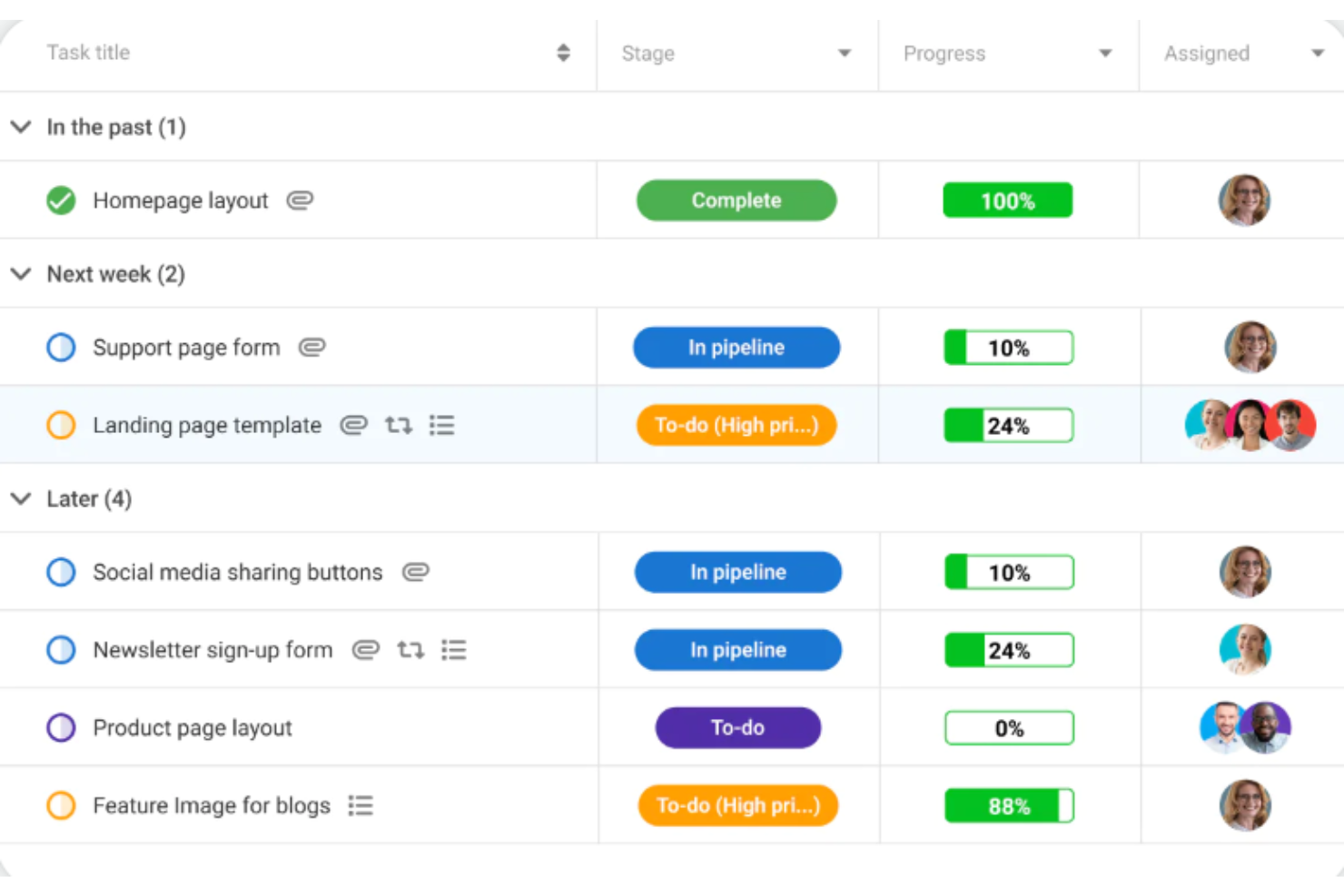
ProofHub is a project management and team collaboration platform that centralizes tasks, discussions, file proofing, time tracking, and reporting in one place.
Who Is ProofHub Best For?
ProofHub suits remote team managers who need tasks, files, discussions, and time tracking in one place.
Why I Picked ProofHub
I've included ProofHub in my top picks because it pulls tasks, discussions, file proofing, and time tracking into a single account, which cuts down on the context-switching that fragments remote team communication. I particularly like the proofing and review tools: you can annotate design files, leave markup feedback, and approve work without leaving the platform. Notes let teams build shared wikis and capture meeting minutes in one place, keeping project context accessible to everyone.
ProofHub Key Features
- Gantt chart view: Visualize project schedules, set task dependencies, and track deadlines across your team's work.
- Time tracking: Log time manually or via timers, set estimates on tasks, and pull time reports across projects.
- Custom roles and permissions: Define access levels per user, controlling what each person can view, add, or manage across projects and sections.
- Forms: Collect work requests or tickets through customizable forms that feed directly into your project tasks.
ProofHub Integrations
ProofHub offers native integrations with Slack, Google Calendar, Dropbox, Box, OneDrive, and iCal, plus FreshBooks and QuickBooks. It also provides a REST API for custom integrations.
Pros and Cons
Pros:
- Tracks decisions through tasks and milestones
- Annotates design files for consolidated feedback
- Keeps project discussions beside assigned work
Cons:
- No voting, timers, or retrospective tools
- No freeform canvas for visual brainstorming
Milanote
Best for organizing creative projects visually
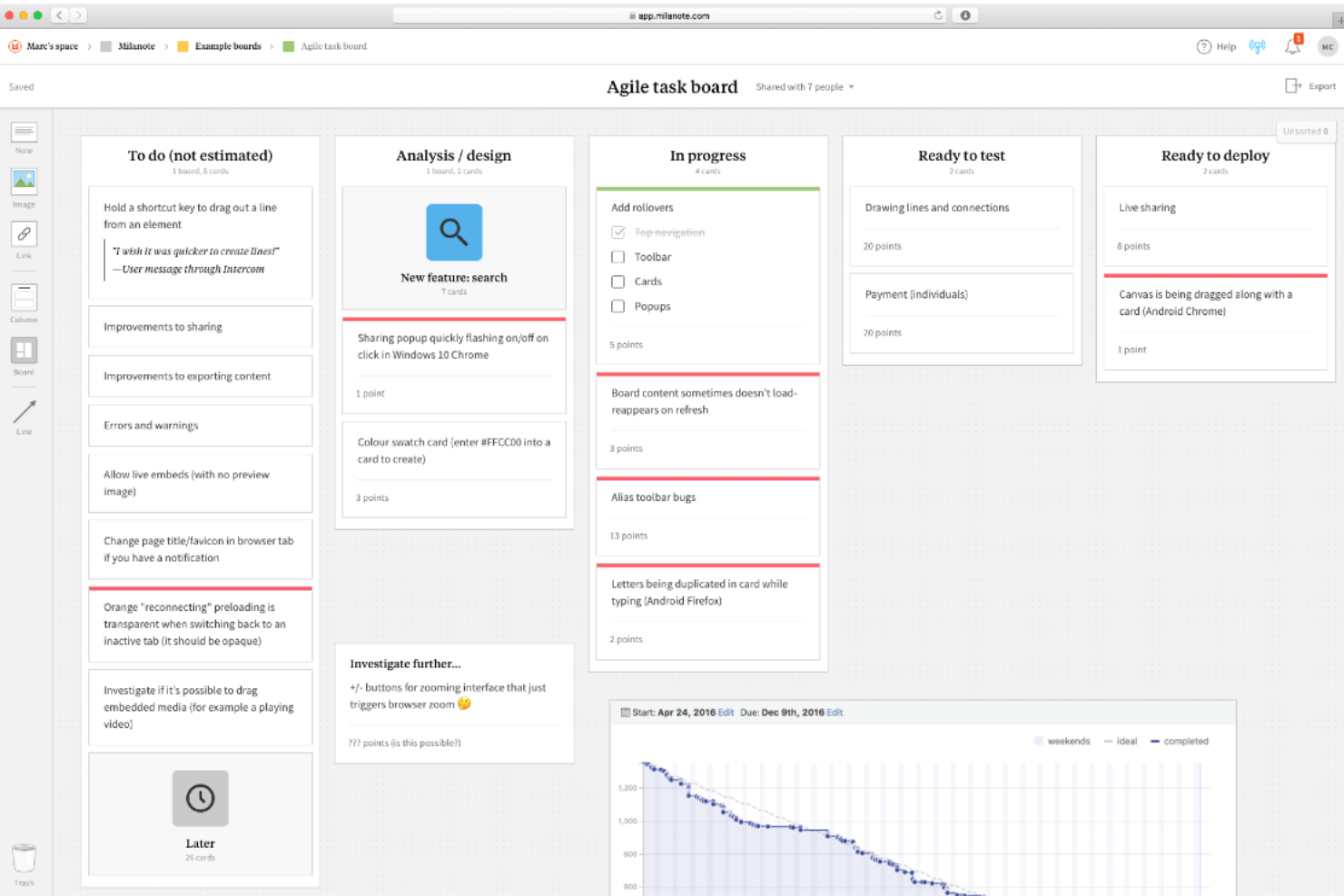
Milanote is a visual workspace tool that lets teams arrange notes, images, links, files, and tasks on an infinite canvas for creative project organization, moodboarding, mind mapping, and collaborative brainstorming.
Who Is Milanote Best For?
Milanote is a strong fit for UX designers, creative directors, and content teams who need a flexible visual workspace to organize project materials, moodboards, and user-journey maps.
Why I Picked Milanote
I picked Milanote as one of the best because it's purpose-built for visual creative organization in a way most whiteboard tools aren't. I love how you can pull moodboard images, sketches, notes, links, and files onto a single infinite canvas and arrange them freely, which makes it genuinely useful for UX journey mapping or creative project planning. The 100-plus templates, including user-persona and user-flow diagrams, give my team a real head start on structuring visual work collaboratively.
Milanote Key Features
- Real-time multi-user boards: Multiple teammates can work on the same board simultaneously, with everyone's activity visible as it happens.
- @mention comments and reactions: Comment cards support threaded replies, @mentions that trigger notifications, and emoji reactions attached to any card on the board.
- Custom and shareable templates: Build your own templates from any board, reuse them across projects, and share them as editable or read-only links.
- Web Clipper: Save text, images, videos, and links from any website directly to a Milanote board via a Chrome extension.
Milanote Integrations
Milanote has one documented native integration, Pexels, for searching and adding professional photos to boards. No API or broader third-party integration ecosystem is documented, so connectivity is more limited than in many Mural alternatives.
Pros and Cons
Pros:
- UX journey-map templates support design workshops
- Real-time boards support distributed brainstorming
- Flexible canvas mixes notes, images, and tasks
Cons:
- Mobile boards require internet access
- No timers, voting, or facilitator controls
Best for a remote-friendly team workspace
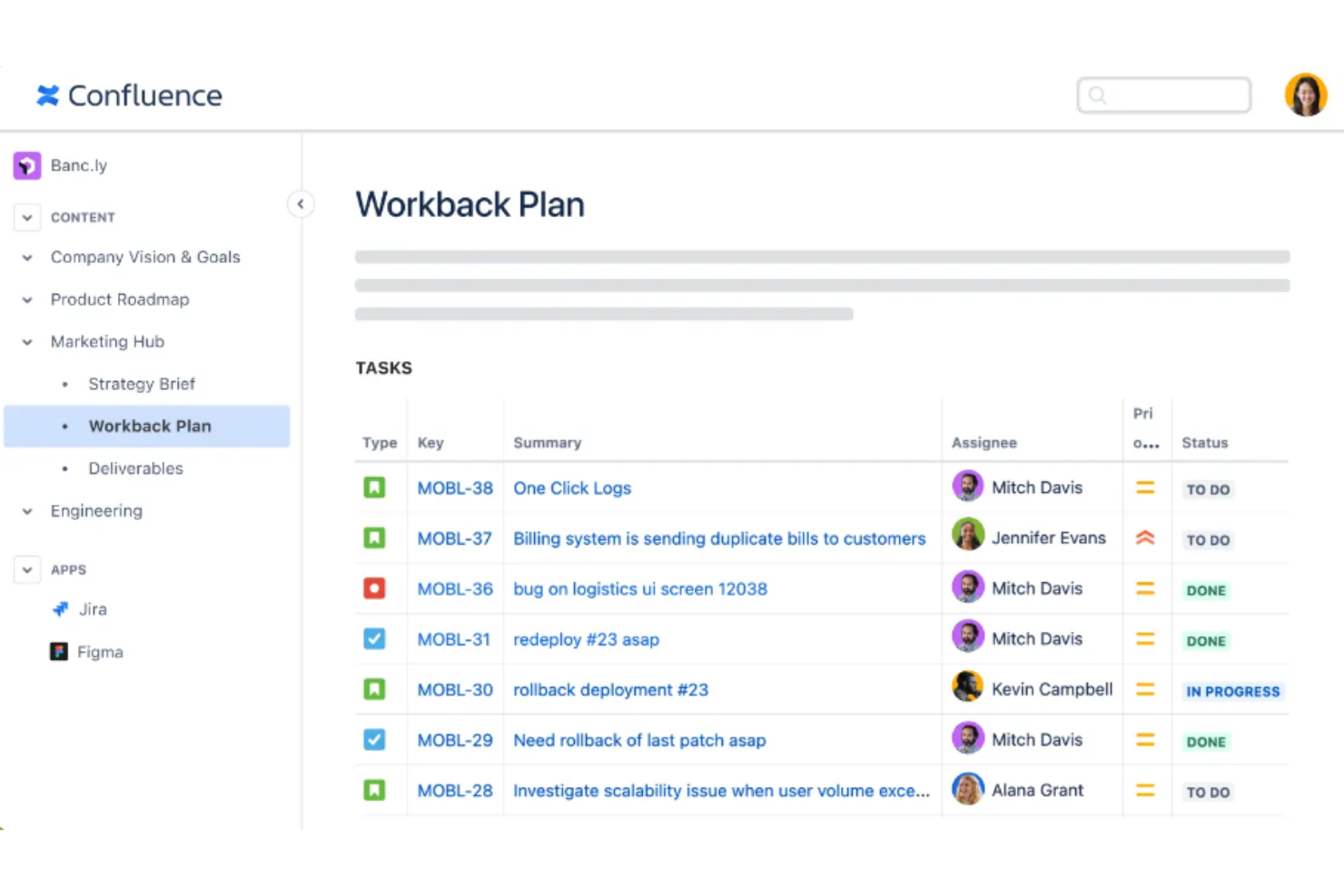
Confluence is a team workspace platform from Atlassian that combines wiki-style documentation, databases, and whiteboards for real-time and async collaboration across distributed teams.
Who Is Confluence Best For?
Confluence is a strong fit for teams already using Jira who want whiteboarding and documentation in one connected workspace.
Why I Picked Confluence
I've included Confluence in my top picks because it's the only tool on this list that doubles as a full team workspace, making it a natural fit if your team already lives in Jira. I love that whiteboards connect directly to your Jira backlog: sticky notes convert into linked issues in a click, and smart connectors build relationships between work items right on the canvas. Rovo's AI can also group stickies and summarize an entire board into a Confluence page, which turns async brainstorming sessions into documented decisions without extra steps.
Confluence Key Features
- Shared countdown timer: A collaborative timer with start, pause, stop, and add-time controls that all whiteboard participants can see during sessions.
- Canvas-placed comments: Comments can be anchored to specific locations on the whiteboard canvas, with reply threads and notifications built in.
- Whiteboard voting sessions: Anyone on the board can launch a vote with anonymous voting options and configurable vote allowances per person.
- Mural board import: Existing Mural boards can be imported as editable Confluence whiteboards directly from Mural or via a ZIP of exported PDFs.
Confluence Integrations
Confluence has native integrations with Jira, Jira Service Management, and Loom, plus Rovo connections to Slack, Trello, Google Drive, and Microsoft Teams. It supports over 1,000 marketplace apps and REST and GraphQL APIs for custom integrations.
Pros and Cons
Pros:
- Mural boards can import as editable canvases
- Templates support repeatable planning sessions
- Shared editing keeps workshop notes current
Cons:
- Voting offers no facilitator-only controls
- Whiteboards lack offline editing

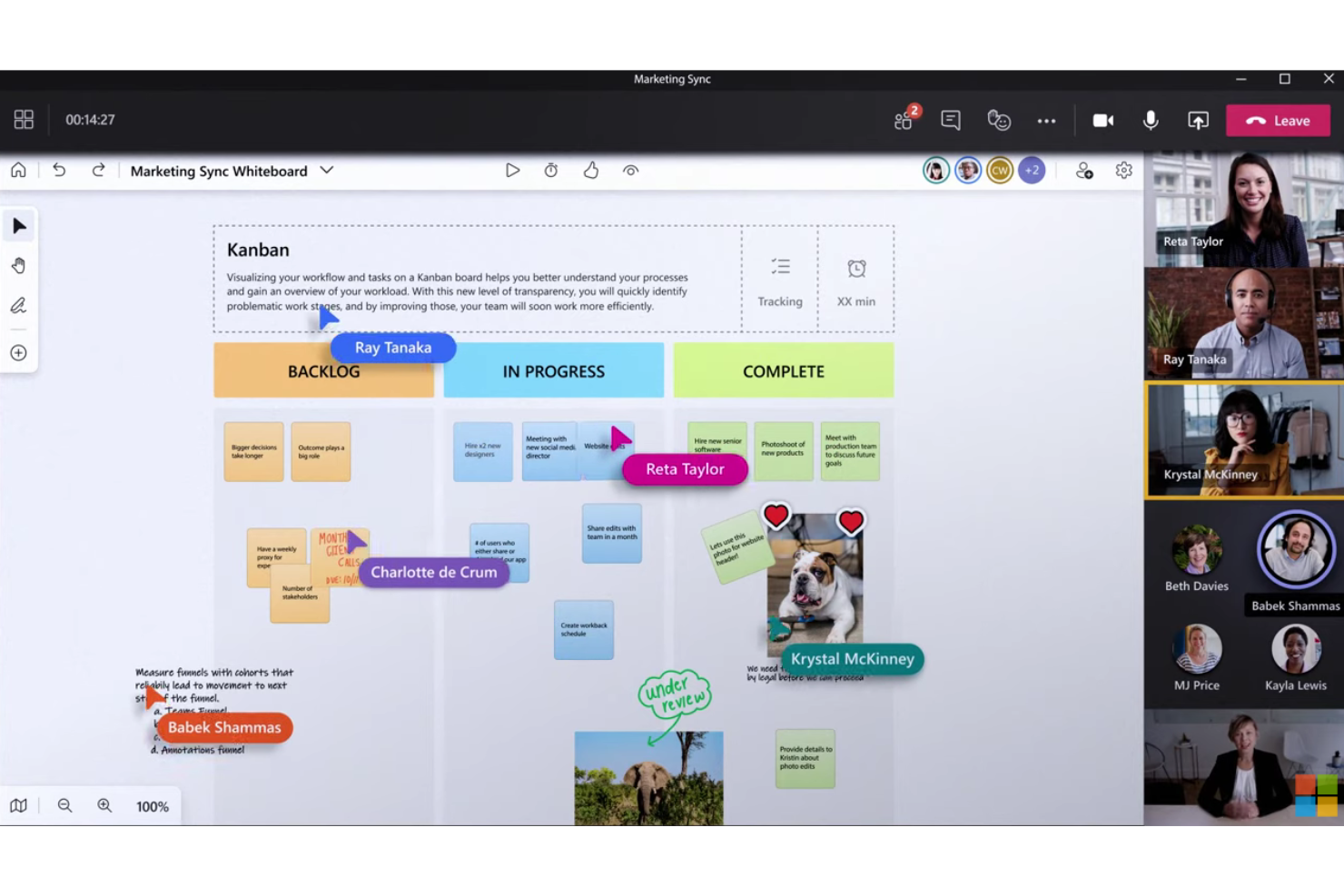
Microsoft Whiteboard is a digital collaboration canvas built into Microsoft 365 that supports sticky notes, freeform drawing, collaborative diagramming, templates, and real-time co-editing across web, desktop, and mobile.
Who Is Microsoft Whiteboard Best For?
Microsoft Whiteboard is a natural fit for teams already embedded in the Microsoft 365 ecosystem who want a free, no-friction whiteboarding tool without adding another platform.
Why I Picked Microsoft Whiteboard
Microsoft Whiteboard earns its spot on my list because it's the only tool here that lives natively inside Microsoft 365, making it a zero-friction choice if your team already runs on Teams. I particularly like how boards started in a Teams meeting persist after the call ends, so your retrospective sticky notes or sprint diagrams don't disappear. Copilot can also summarize board content into a bullet-point Loop component on the canvas, which saves real time when you're wrapping up a workshop.
Microsoft Whiteboard Key Features
- Reaction stickers: Participants can place emoji reactions directly on the board to vote on ideas or give lightweight feedback during live sessions.
- Notes Grid: Automatically arranges sticky notes into a structured grid, making it easy to group and compare related ideas.
- Collaborative diagrams: Teams can build diagrams together using shapes, lines, text, and ink directly on the canvas.
- Granular access controls: Board owners can assign editing or read-only access to individual invitees, with a toggle to lock boards after a Teams meeting ends.
Microsoft Whiteboard Integrations
Microsoft Whiteboard offers native integrations across the Microsoft ecosystem, including Microsoft Teams, OneDrive for Business, Office.com, and SharePoint. No API or third-party integration marketplace is clearly documented.
Pros and Cons
Pros:
- Notes Grid organizes related ideas
- Templates cover retrospectives and workshops
- Live cursors support collaborative idea-building
Cons:
- Large boards can lag and become hard to navigate
- No built-in timer or structured voting

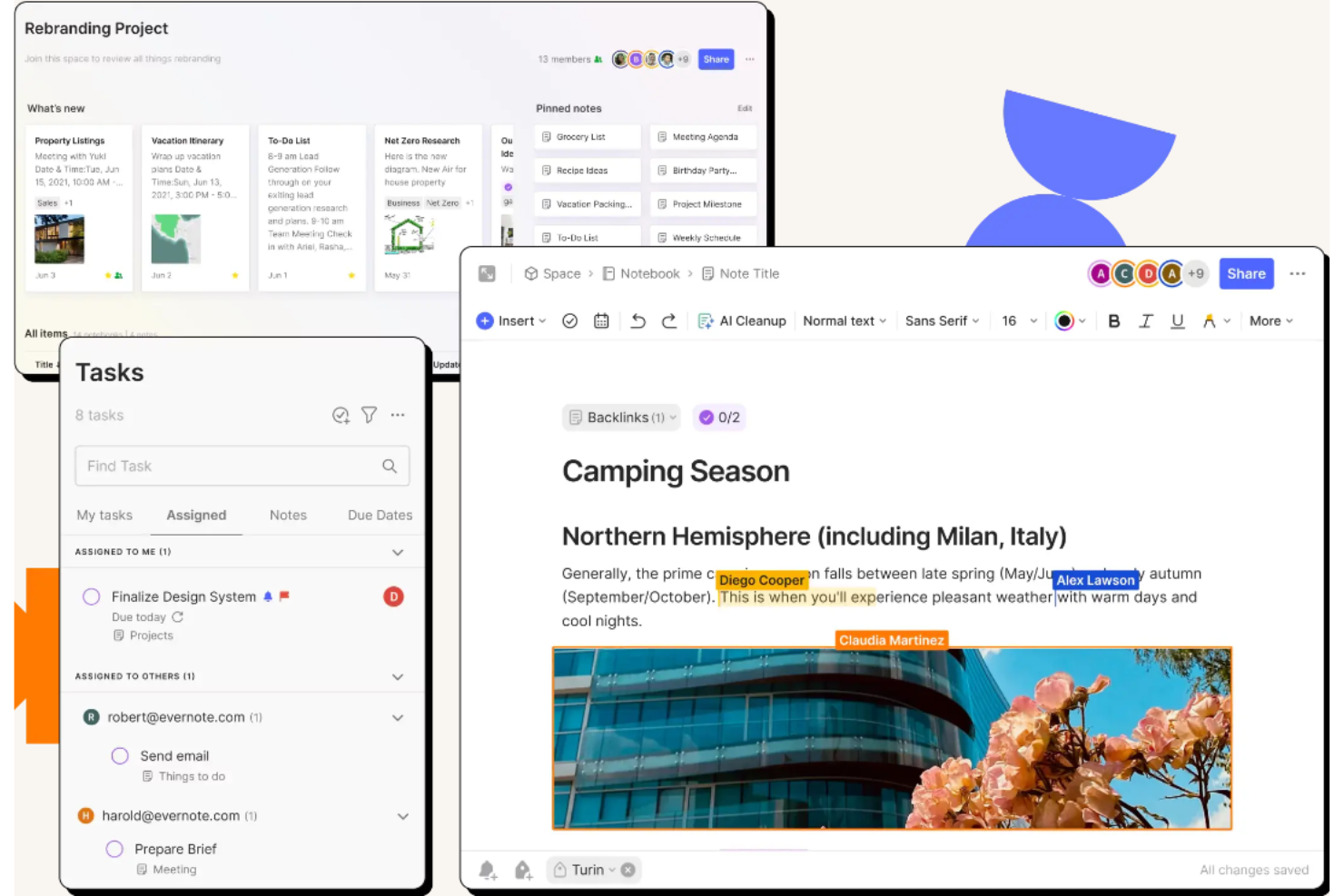
Evernote Teams is a note-taking and team collaboration platform that centers on shared notebooks, spaces, task management, and AI-assisted meeting notes rather than visual canvases or whiteboarding.
Who Is Evernote Teams Best For?
Evernote Teams suits knowledge workers and distributed teams who need a shared space to capture, organize, and reference information across projects.
Why I Picked Evernote Teams
I've included Evernote Teams in my top picks because it takes a different angle from visual whiteboarding tools, centering on shared notebooks and spaces where distributed teams capture, organize, and reference project knowledge together. I particularly like how AI Meeting Notes records and transcribes conversations directly inside Evernote, keeping decisions and action items alongside the notes they belong to. Shared spaces let the whole team contribute to project briefs, status updates, and task lists simultaneously, without bouncing between separate apps.
Evernote Teams Key Features
- AI Meeting Notes: Records, transcribes, and summarizes in-person or remote conversations directly inside Evernote, with support for over 50 languages.
- Threaded comments: Lets team members add and reply to comments on notes, with notifications sent to the note owner and prior thread contributors.
- Calendar integration: Connects Google Calendar and Outlook to sync schedules, create linked meeting notes in one click, and trigger pre- or post-meeting reminders.
- Granular space permissions: Controls notebook and space access with view, edit, or edit-and-invite settings, managed through a central admin console.
Evernote Teams Integrations
Evernote Teams integrates with Google Calendar, Outlook Calendar, Google Drive, Gmail, Slack, and Microsoft Outlook Email. It also offers an API for custom integrations.
Pros and Cons
Pros:
- Meeting transcripts capture decisions beyond sessions
- Searchable project knowledge stays easy to retrieve
- Shared notes keep workshop decisions together
Cons:
- No voting, timers, or facilitation controls
- No visual canvas for live brainstorming
Miro
Best for visual workspace for innovation
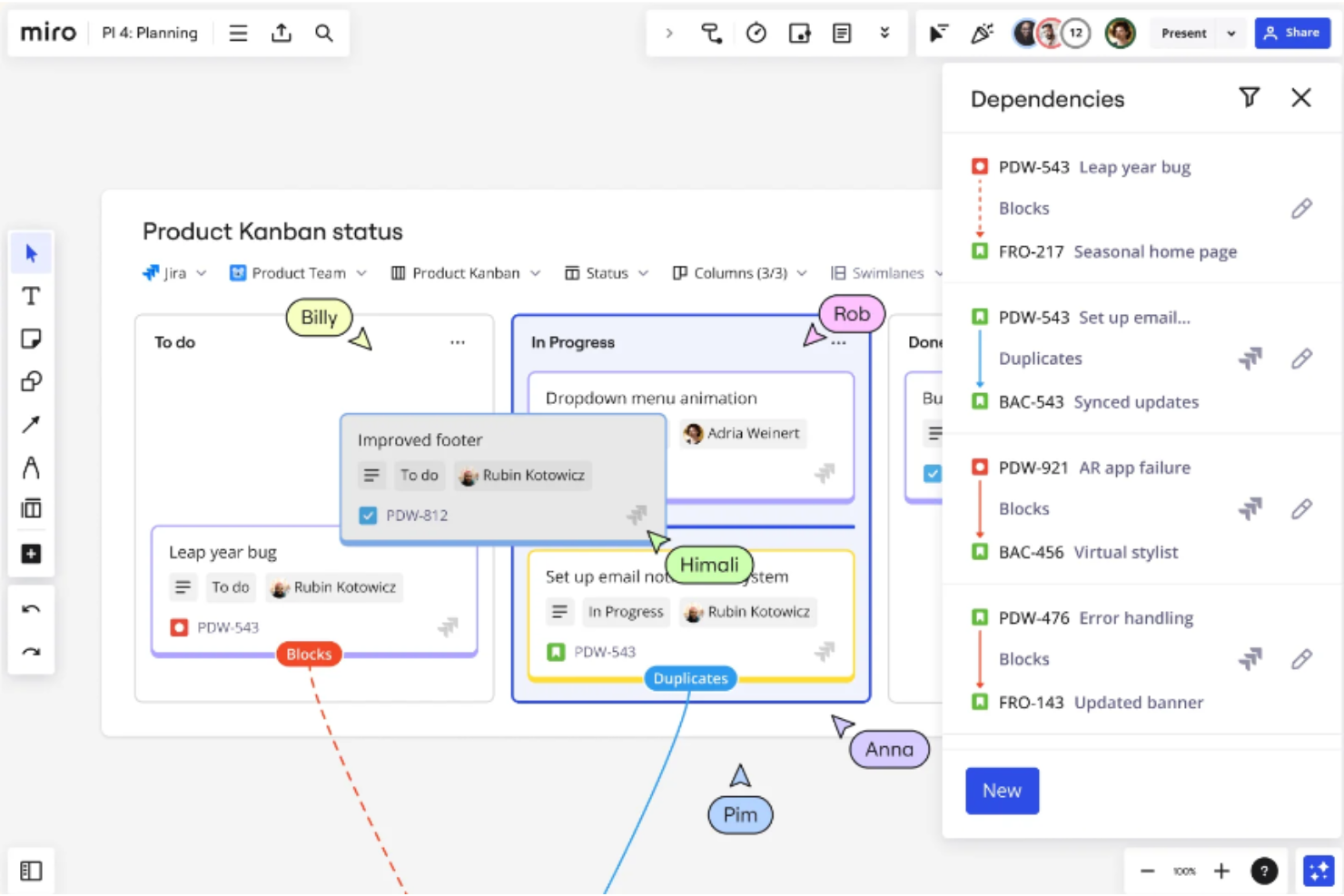
Miro is a visual collaboration platform that combines an infinite canvas, real-time co-editing, workshop facilitation tools, diagramming, and AI-assisted synthesis for distributed teams.
Who Is Miro Best For?
Miro is a strong fit for cross-functional teams in tech that need one shared space for brainstorming, diagramming, sprint planning, and async collaboration.
Why I Picked Miro
Miro earns its spot as one of the best on my shortlist because it's purpose-built as a visual workspace for innovation, giving cross-functional teams a single canvas where brainstorming, diagramming, and sprint facilitation all happen together. I particularly like the Estimation app, which lets agile teams run multiplayer pointing sessions with Fibonacci or T-shirt sizing directly on the board. Miro's AI can also cluster sticky notes by theme and synthesize retrospective input automatically, which cuts down significantly on post-session cleanup.
Miro Key Features
- Real-time video calls on canvas: Host video calls with up to 25 participants directly on your Miro board, with screen sharing, recording, and live transcription to a board Doc.
- MCP server connectivity: Connect your Miro boards to external AI tools like Claude, ChatGPT, and GitHub Copilot so those tools can read board context and create content on the canvas.
- Engage activities: Run mobile-friendly polls, 2×2 matrices, and scale activities to collect structured input from participants during live sessions.
- Diagramming shape libraries: Access shapes for BPMN, UML, AWS, Azure, ERD, Kubernetes, and Google Cloud diagrams, with support for importing existing diagrams from Visio, Lucidchart, and draw.io.
Miro Integrations
Miro offers 250+ apps and integrations, including native Jira, Azure DevOps, Asana, Slack, Microsoft Teams, Google Meet, Google Drive, and Confluence connections, plus marketplace integrations for Notion and monday.com. REST APIs, Web SDKs, and an MCP server support custom connectivity.
Pros and Cons
Pros:
- Canvas combines diagrams and workshop artifacts
- Agile estimation supports anonymous multiplayer voting
- AI clusters retrospective notes automatically
Cons:
- Facilitators get fewer session guardrails than Mural
- Crowded boards can slow navigation
New Product Updates from Miro
Miro Adds Japan Data Residency for Enterprise Customers
Miro has introduced Japan data residency for enterprise customers, offering in-region storage for production data, backups, and metadata, plus in-region compute infrastructure. For more information, visit Miro's official site.
Best for enterprise work management and automation
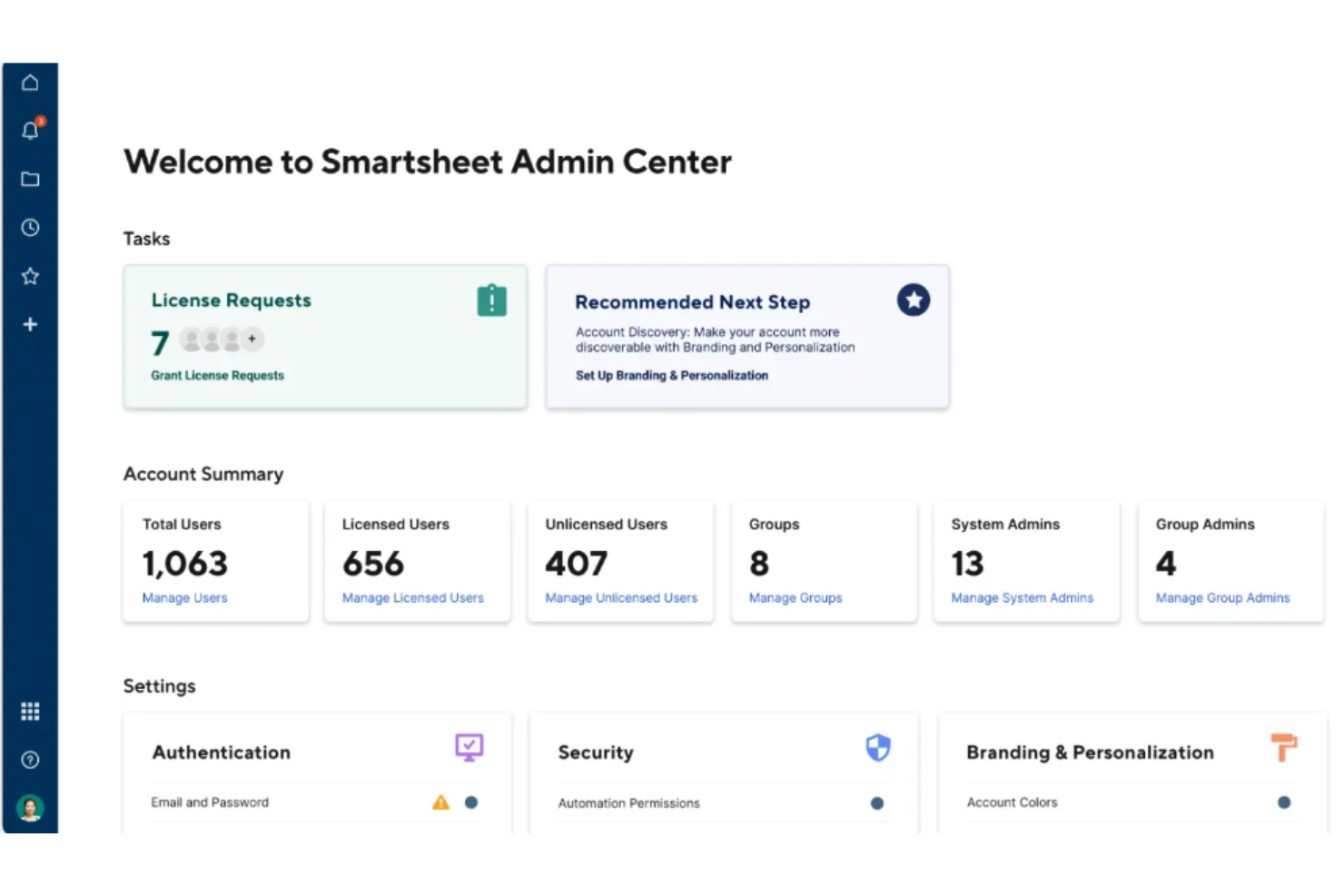
Smartsheet is an AI-powered work management platform that combines project tracking, portfolio oversight, workflow automation, and real-time collaboration across grid, Gantt, card, and calendar views.
Who Is Smartsheet Best For?
Smartsheet is a strong fit for enterprise teams that need structured work management, portfolio oversight, and automated workflows across large, cross-functional programs.
Why I Picked Smartsheet
I've included Smartsheet in my top picks because it's the strongest option here for teams that need serious enterprise work management alongside their visual collaboration stack. Where it really shines is portfolio oversight and automation: you can auto-create project plans when conditions are met, track budgets and resource workloads across programs, and run unlimited automated workflows on Business and above. Its two-way Miro sync also means sticky-note ideas from whiteboard sessions flow directly into structured Smartsheet rows, keeping creative work connected to execution.
Smartsheet Key Features
- Agile Backlog and Sprint Planning template: A pre-built solution for backlog prioritization, story-point assignment, sprint planning, and capacity monitoring.
- Automated workflow builder: Triggers actions like row moves, approval requests, and notifications based on conditions you set in each sheet.
- Real-time dashboards: Consolidate project status, resource workloads, and portfolio metrics into live, widget-based dashboards shared across teams.
- @mention comments: Tag collaborators directly in sheet comments to surface feedback and keep conversations tied to specific tasks.
Smartsheet Integrations
Smartsheet lists over 175 integrations, including two-way Miro sync, Microsoft Teams, Slack, Lucidspark, Adobe Creative Cloud, and Jira Software. Its REST API, client SDKs, and MCP server support custom integrations on Business, Enterprise, and Advanced Work Management plans.
Pros and Cons
Pros:
- Dashboards give remote teams shared progress visibility
- Familiar grids clarify project status quickly
- Automated workflows turn ideas into tracked tasks
Cons:
- No built-in voting or workshop timers
- No native canvas for visual brainstorming
New Product Updates from Smartsheet

Smartsheet Adds Non-Plan User Management in Admin Center
Smartsheet adds a Non plan users tab to the Seat types and true-up page in Admin Center. This lets system admins review non-plan users and add them to the plan or remove them from the organization in one place. For more information, visit Smartsheet’s official site.

Lucidspark
Best for real-time brainstorming and collaboration
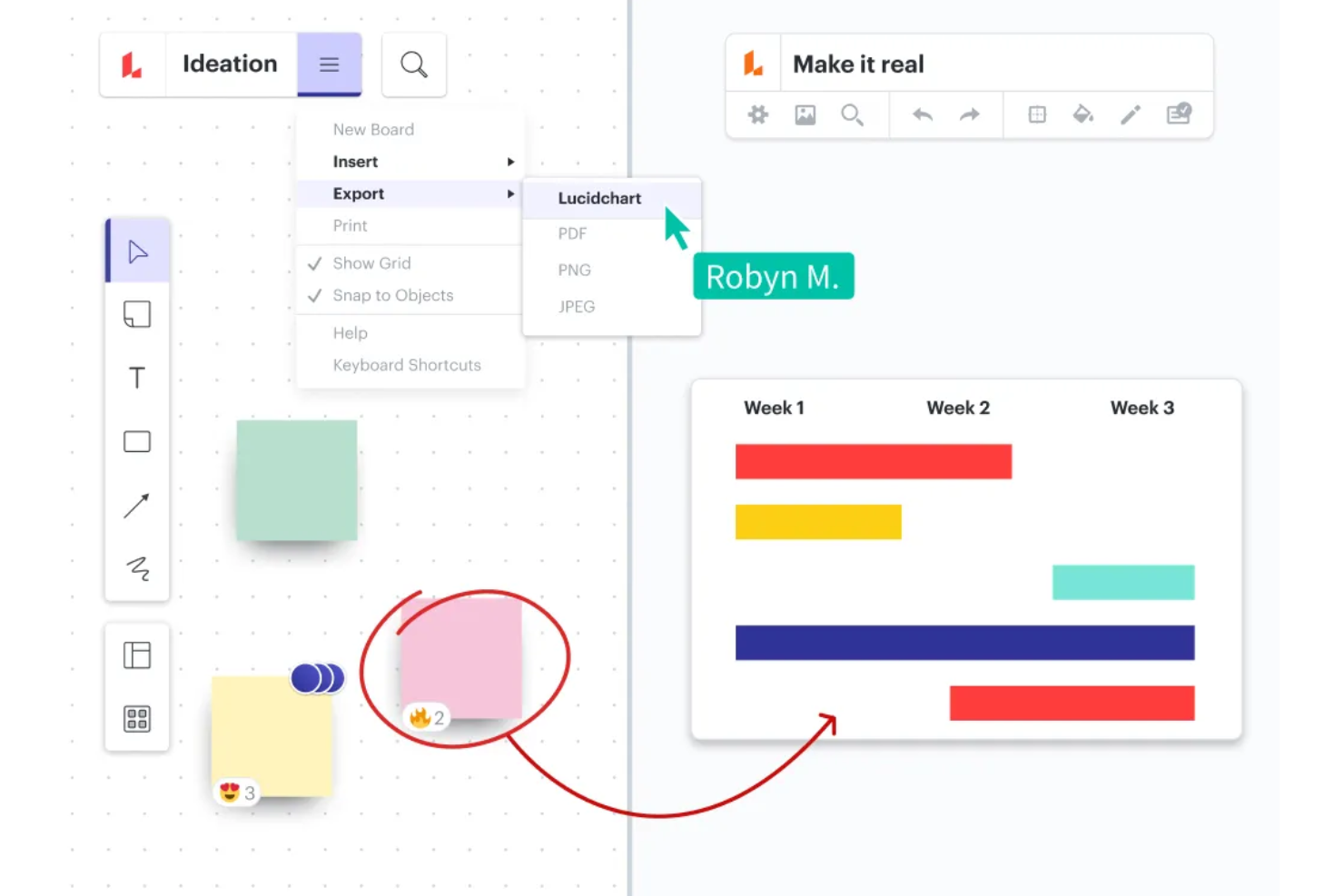
Lucidspark is a virtual whiteboard built for team ideation, offering an infinite canvas, real-time co-editing, sticky notes, mind maps, AI-assisted idea sorting, and agile facilitation tools like voting, timers, and team estimation.
Who Is Lucidspark Best For?
Lucidspark is a strong fit for agile teams and remote team managers who need a dedicated space for live brainstorming, sprint facilitation, and collaborative ideation.
Why I Picked Lucidspark
Lucidspark earns its spot on my shortlist because its AI-assisted idea sorting sets it apart when brainstorming sessions generate too many sticky notes to wrangle manually. I've found the AI grouping feature genuinely useful: it identifies themes across a board and clusters notes into labeled Containers without you having to drag a single card. The built-in Facilitator Tools, including live voting, a timer, and "Take the lead," make it easy to run structured retrospectives or sprint planning sessions with a distributed team in real time.
Lucidspark Key Features
- Real-time co-editing with collaborator cursors: Multiple users can edit the same board simultaneously, with live cursors showing where each person is working.
- Lucid Cards with Jira and Azure DevOps integration: Teams can convert sticky notes and ideas into tracked tasks that sync directly with Jira or Azure DevOps.
- CSV and TXT import for sticky notes: Users can upload CSV or TXT files to bulk-create sticky notes on the canvas from existing data or spreadsheets.
- Threaded comments with task assignment: Collaborators can leave comments on any shape or canvas area, reply in threads, and assign comments as actionable tasks to specific team members.
Lucidspark Integrations
Lucidspark offers more than 100 integrations, including Lucidchart, Slack, Google Drive, Jira, Azure DevOps, and Zoom. Its API supports custom integrations, while the marketplace lists 113 integration results.
Pros and Cons
Pros:
- Templates cover retrospectives and sprint planning
- Facilitator controls structure agile workshops
- AI groups sticky notes into themes
Cons:
- Comments and tasks disappear from exports
- Large boards can slow with many collaborators
Andre Mural-alternativer
Nedenfor finner du en liste over flere alternativer til Mural som jeg valgte ut. Selv om de ikke kom med blant de 10 beste, er de fortsatt verdifulle og verdt å undersøke nærmere.
- GoodDay
For workflow automation
- Basecamp
For team communication
- Wrike
For detailed task tracking and reporting
- Zoho Projects
For integrated project tools and apps
- monday AI Workspace
For customizable workflows
- Trello
For enhanced productivity
- Airtable
For building custom business apps without code
- Jira Service Management
For Agile project management
- ClickUp
For all-in-one project management
- Asana
For campaign workflows


Relaterte vurderinger av prosjektstyringsprogramvare
Hvis du fortsatt ikke har funnet det du leter etter her, kan du se nærmere på disse andre relaterte verktøyene som vi har testet og vurdert:
- Programvare for prosjektstyring
- Programvare for ressursstyring
- Programvare for arbeidsflytautomatisering
- Programvare for tidsregistrering
- Programvare for oppgavestyring
- Samhandlingsverktøy
- Gantt-diagramverktøy
- Produktivitetsverktøy
- Programvare for prosjektsporing
- Programvare for prosjektplanlegging
How I Evaluate Mural Alternatives
I split my evaluation into baseline criteria—like real-time collaboration and facilitation tools—and differentiators that separate a good whiteboard from the right one for your team.
Core Functionality (Table Stakes For This List)
When I'm selecting tools for my list, I rank each one on a scale from 0 (does not offer the functionality) to 5 (excels in this area) for each core functionality listed below. Then, I calculate the tool's total score into a percentage. Each tool needs to achieve a minimum total score of 65% to be considered for inclusion.
- Infinite Digital Whiteboard: I look for an unbounded canvas that stays responsive when you're zooming through a sprint planning board covered in hundreds of sticky notes and connector lines.
- Real-Time Multi-User Collaboration: Live cursors, presence indicators, and simultaneous editing matter—especially when a distributed team of 15+ is mapping dependencies together mid-workshop.
- Sticky Notes & Templates: A strong template library for retros, Kanban boards, and story maps saves hours of setup. I check whether teams can create and share custom templates across workspaces.
- Facilitation & Workshop Tools: Features like timers, voting, and private mode turn a blank canvas into a structured session. I evaluate how well each tool supports a facilitator running a live retrospective or prioritization exercise.
- Project Management Integrations: Connecting whiteboard outputs to tools like Jira, Asana, or Monday is where real value shows up. I look for native integrations and two-way sync, not just one-directional embeds.
- Diagramming & Visual Frameworks: Flowcharts, mind maps, and user story maps should be easy to build with shape libraries and smart connectors—not cobbled together from basic rectangles.
Once I have a list of tools that meet this criteria, I consider what sets each platform apart.
Differentiating Factors (What Sets Vendors Apart)
Here's how I compare and contrast different vendors:
Standout Features
AI-generated sticky note clusters and board summaries can cut hours off post-workshop synthesis—I check whether a tool offers this natively or through third-party add-ons. Async collaboration is another differentiator I evaluate closely. When your team spans multiple time zones, voice notes and threaded video comments keep a retro moving without scheduling another call. I also look at voting and prioritization features like dot voting and impact/effort matrices, which turn brainstorming outputs into actionable, ranked backlogs.
Beyond Features
Pricing structure matters here. Some tools charge per editor while others charge per seat regardless of role—this shifts costs significantly when you have 50 facilitators but 200 view-only stakeholders. I also evaluate security certifications like SOC 2 and ISO 27001, especially for teams handling sensitive product roadmaps or client data. Board performance is another factor I watch closely. A canvas that lags when 30 people join a PI planning session defeats the purpose of real-time collaboration.
Viktige funksjoner du bør se etter i alternativer til Mural
Her er noen viktige funksjoner i Mural som den alternative programvaren bør kunne gjenskape eller forbedre for å passe godt:
- Klistrelapper & tekst: Klistrelapper og tekstbokser er avgjørende for å legge til ideer og handlingspunkter under idédugnader. De kan tilpasses med ulike farger og størrelser for å passe forskjellige temaer eller prioriteringer. Denne fleksibiliteten gjør det mulig for deltakerne å uttrykke og organisere tankene sine effektivt i et samarbeidsmiljø.
- Uendelig og justerbart lerret: Et uendelig og justerbart lerret er viktig fordi det gir plass til å utvikle ideer uten begrensninger, og kan tilpasses alt fra små team til omfattende samarbeidsprosesser. Denne tilpasningsevnen sikrer at all relevant informasjon og alle ideer kan fanges opp og utforskes i ett stort arbeidsområde.
- Fleksible tillatelser: Fleksible tillatelser i et samarbeidsverktøy er viktig for å styre hvem som kan se eller redigere innhold, slik at sensitiv informasjon forblir kontrollert samtidig som samarbeid fremmes. Innstillinger som kun visning, redigering og tilretteleggerroller bidrar til å styre bidragene og opprettholde integriteten i samarbeidsprosessen.
- Kartlegging & diagrammer: Verktøy for kartlegging og diagrammer er viktige for å representere arbeidsflyter, prosesser eller organisasjonsstrukturer visuelt, slik at kompleks informasjon blir enklere å forstå og dele. Disse funksjonene gjør det mulig for team å lage tydelige og handlingsrettede visualiseringer som forbedrer kommunikasjon og planlegging.
- Ikoner, GIF-er & bilder: Integrasjoner med ressurser som Noun Project, GIPHY og Unsplash gir samarbeid et sterkere visuelt uttrykk, og lar brukerne uttrykke ideer på en mer dynamisk og engasjerende måte. Disse visuelle elementene bidrar til å fange oppmerksomheten og formidle budskap mer effektivt i et digitalt arbeidsområde.
- Tilpassede maler: Tilpassede maler sparer tid og sikrer konsistens på tvers av prosjekter ved å gjøre det mulig for organisasjoner å standardisere prosesser og arbeidsflyter. Denne funksjonen gjør det enklere å sette opp nye prosjekter eller møter raskt, og sikrer at alle teammedlemmer følger organisasjonens metoder.
- Tilretteleggingsverktøy: Tilretteleggingsverktøy som tidtakere, innkalling av deltakere og privat modus er avgjørende for å gjennomføre effektive møter på en effektiv måte. Disse verktøyene bidrar til å styre tiden, engasjere deltakerne og opprettholde fokus under samarbeidsøkter, slik at målene nås uten problemer.
- Kommentering & tekstchat: Funksjoner for kommentering og tekstchat muliggjør løpende kommunikasjon i en samarbeidsplattform, slik at teammedlemmer kan gi tilbakemeldinger, avklare punkter og diskutere ideer asynkront. Denne kontinuerlige interaksjonen forbedrer samarbeidsprosessen og holder alle engasjert og informert.
- Integrasjoner: Muligheten til å integrere med eksisterende produktivitetsverktøy er avgjørende for å forbedre arbeidsflyter ved å sikre sømløse overganger mellom ulike plattformer og minimere avbrudd. Denne tilkoblingen støtter en mer strømlinjeformet og effektiv arbeidsprosess ved å ta i bruk kjente verktøy i samarbeidsmiljøet. For team som ser etter alternativer til dokumentasjonsplattformer som Confluence, gjør integrasjon med verktøy som Notion, Slite eller Coda det mulig å bygge inn samarbeidstavler i deres bredere økosystemer for kunnskapsstyring.
- Sikkerhet: Å sikre sterke sikkerhetstiltak er avgjørende for å beskytte sensitive data og opprettholde tilliten blant brukerne. Robuste sikkerhetsprotokoller beskytter informasjon mot uautorisert tilgang og digitale trusler, noe som er viktig for å ivareta personvern- og samsvarsstandarder i alle samarbeidsverktøy.