

I 10 migliori software per il flusso di lavoro dei processi recensiti per il 2026

10 Elenco dei migliori software per i flussi di lavoro dei processi


Il software per i flussi di lavoro dei processi consente di automatizzare quelle attività fastidiose e ripetitive e di standardizzare i processi per migliorare la qualità ed evitare che qualcosa passi inosservato. Tuttavia, trovare lo strumento giusto per le proprie esigenze può essere complicato.
Grazie a una ricerca accurata e alla mia esperienza nell'utilizzo di questo tipo di strumento come responsabile di progetto, ho individuato i migliori software per i flussi di lavoro dei processi disponibili sul mercato e delineato i casi d'uso ideali per semplificare questo processo.
Perché fidarsi dei nostri consigli sui software
Il nostro team testa e recensisce software dal 2012. In quanto project manager noi stessi, sappiamo quanto sia difficile — e importante — scegliere il software giusto.
Per questa guida, abbiamo valutato gli strumenti attraverso test pratici e ricerche indipendenti, assegnando un punteggio agli strumenti in base ai nostri criteri di selezione. Ci basiamo inoltre sulle competenze di leader di pensiero del settore e di professionisti attivi nella gestione dei progetti.
Le nostre recensioni riflettono il nostro giudizio editoriale umano, non un discorso di vendita.
Revisori esperti:
Tabella comparativa dei software per i flussi di lavoro dei processi
Questa tabella comparativa riassume i dettagli sui prezzi delle mie migliori selezioni di software per i flussi di lavoro dei processi:
| Tool | Best For | Trial Info | Price | ||
|---|---|---|---|---|---|
| 1 | Ideale per portali processuali rivolti al cliente in modo sicuro | Piano gratuito + prova gratuita + demo gratuita disponibile | Da $99/mese | Website | |
| 2 | Ideale per costruire flussi di lavoro dinamici | Prova gratuita di 14 giorni | Da $9.80/utente/mese | Website | |
| 3 | Ideale per flussi di lavoro creativi omnicanale con IA | Demo gratuita disponibile | Prezzo su richiesta | Website | |
| 4 | Ideale per preset di automazione | Prova gratuita di 14 giorni | Da $8/utente/mese | Website | |
| 5 | Ideale per la diagrammazione intelligente dei workflow | Prova gratuita + piano free disponibili | Da $9/mese | Website | |
| 6 | Ideale per l'automazione dei workflow aziendali | Prova gratuita di 15 giorni | Da $19/utente/mese (fatturazione annuale) | Website | |
| 7 | Ideale con oltre 1.000 connettori app preconfigurati | Demo gratuita disponibile | Prezzi su richiesta | Website | |
| 8 | Ideale per la collaborazione su flussi di lavoro complessi | Piano gratuito disponibile | Da $8/membro/mese (fatturazione annuale) | Website | |
| 9 | Ideale per l'automazione dei processi guidata dall'IA | Versione di prova gratuita disponibile + demo gratuita | Prezzo su richiesta | Website | |
| 10 | Miglior piano gratuito e robusto | Offre una prova gratuita | Da $5/utente/mese | Website |


Recensioni dei migliori software per i flussi di lavoro dei processi
Ecco una breve descrizione di ogni strumento per i processi, che illustra il miglior caso d’uso e le funzionalità più interessanti di ciascuno.

Moxo
Ideale per portali processuali rivolti al cliente in modo sicuro
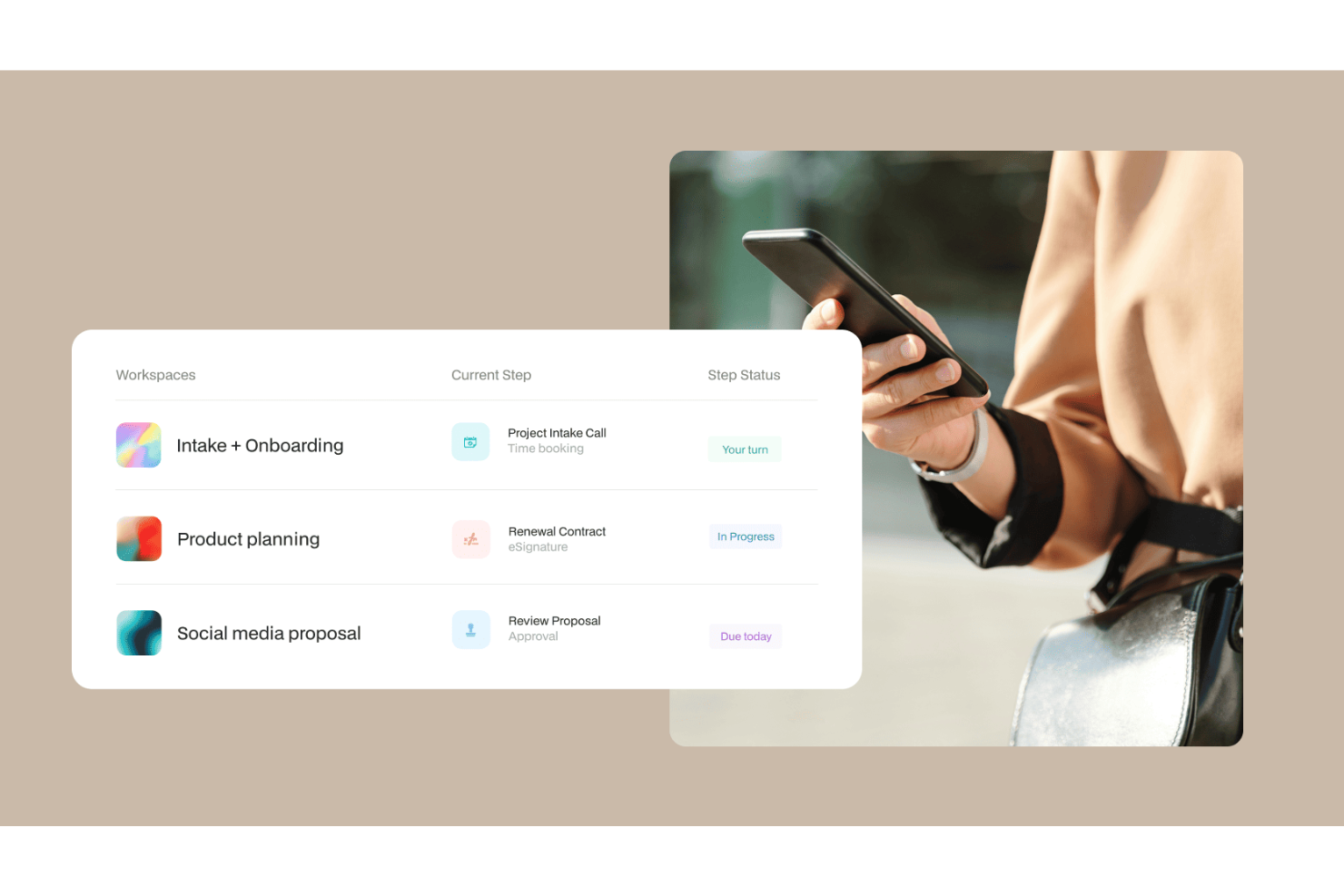
Moxo è una piattaforma di automazione dei flussi di lavoro e collaborazione con i clienti che combina un costruttore di processi visivo, instradamento dei compiti basato sui ruoli, agenti AI e portali personalizzati per gestire flussi di lavoro strutturati sia con team interni sia con stakeholder esterni.
Per chi è ideale Moxo?
Moxo è particolarmente adatto per servizi professionali, servizi finanziari e team operativi che gestiscono processi strutturati e multi-attore che coinvolgono clienti o partner esterni.
Perché ho scelto Moxo
Ho scelto Moxo tra i migliori per il modo in cui gestisce la partecipazione di utenti esterni nei flussi di lavoro senza compromettere la sicurezza. Quando gestisco un flusso di onboarding di un cliente, ogni partecipante vede solo l’azione assegnata e il contesto necessario per completarla, grazie a controlli di accesso dettagliati basati sui ruoli che tutelano i dati sensibili. Inoltre, Moxo possiede la certificazione SOC 2 Type II, è conforme al GDPR e offre opzioni di deployment on-premise o su cloud privato, elementi importanti quando clienti del settore finanziario o sanitario chiedono dove risiederanno i dati prima di firmare.
Funzionalità principali di Moxo
- Costruttore di flussi visivo: Progetta flussi di lavoro multi-step con ramificazioni condizionali, percorsi paralleli, cicli e trigger utilizzando un editor drag-and-drop.
- Timer SLA ed escalation: Imposta scadenze per i singoli passaggi ed esegui escalation automatiche delle attività in ritardo senza bisogno di follow-up manuali.
- Instradamento delle azioni umane: Assegna approvazioni, firme elettroniche, richieste di file e invio di moduli a partecipanti specifici in determinati momenti del flusso.
- Audit trail superiore a 7 anni: Registra ogni azione, decisione e invio di documento con traccia temporale per la revisione di conformità.
Integrazioni di Moxo
Moxo offre connettori di sincronizzazione dati con Salesforce, HubSpot, Microsoft Dynamics, Zoho, Xero e Redtail, oltre a integrazioni documentate con Jira, Slack, DocuSign, Stripe, Google Drive, Dropbox, Box, OneDrive, QuickBooks e Zendesk, tra gli altri. Si collega inoltre a Zapier e offre una REST API e webhook per integrazioni personalizzate.
Pros and Cons
Pros:
- Firme elettroniche, moduli e richieste di file integrate
- Conforme SOC 2 Type II e GDPR
- Portali white-label con supporto dominio personalizzato
Cons:
- L'app mobile è meno performante rispetto alla versione desktop
- La configurazione del costruttore di flussi può risultare troppo complessa

Wrike
Ideale per costruire flussi di lavoro dinamici
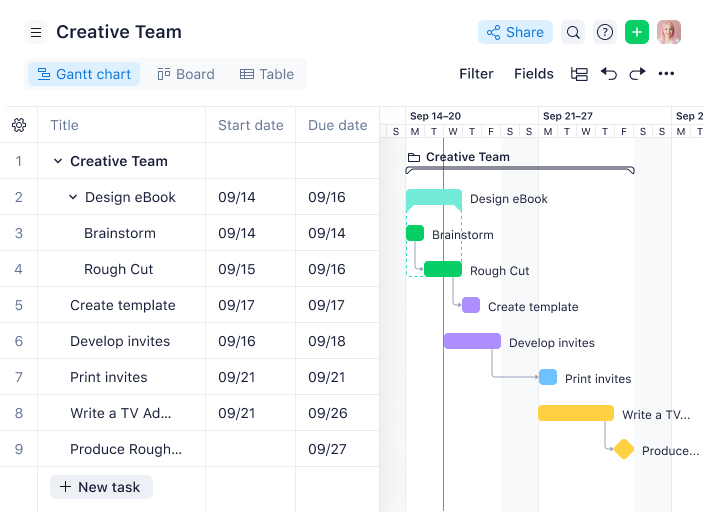
Wrike si guadagna un posto nella mia lista perché è il primo strumento a cui penso quando i team devono costruire e adattare i flussi di lavoro rapidamente. Consiglio Wrike quando si supera la fase delle semplici liste di attività e si ha bisogno di automatizzare passaggi, approvazioni e dipendenze man mano che il processo evolve.
Quello che apprezzo di più è come Wrike mi permetta di progettare fasi di lavoro personalizzate, impostare automazioni basate su regole e visualizzare i colli di bottiglia in tempo reale. Quando ho lavorato con team che gestivano più progetti e priorità mutevoli, il generatore dinamico di flussi di lavoro di Wrike ha reso facile mantenere tutti allineati e responsabili.
Wrike è ideale per
- Team di operations, marketing e PMO che progettano flussi di lavoro personalizzati e automatizzati
- Organizzazioni che necessitano di un controllo dettagliato su approvazioni, dipendenze e visibilità dei processi
Quando Wrike non è la scelta migliore
- Team che vogliono uno strumento di project management leggero e pronto all'uso
- Piccoli gruppi con processi informali o esigenza minima di automazione dei flussi
Cosa distingue Wrike
Quello che noto di Wrike è come tratti la progettazione dei flussi di lavoro come parte integrante della gestione dei progetti, non come una funzione aggiuntiva. A differenza di ClickUp, che prova ad adattarsi a ogni stile di lavoro, Wrike si aspetta che i team definiscano fasi, regole e responsabilità chiare per ogni processo.
È pensato per i team che vogliono mappare esattamente come il lavoro si sposta dall’inizio alla fine, con automazione e approvazioni integrate. Wrike dà per scontato che tu sia pronto a investire nella chiarezza dei processi e nel coordinamento tra team, invece che solo nel tracciamento delle attività.
Compromessi con Wrike
Wrike ottimizza per struttura e rigore nei processi, il che significa che dedicherai più tempo all'inizio per configurare i flussi di lavoro. Il rovescio della medaglia è che può sembrare pesante o restrittivo se il tuo team preferisce processi informali o soggetti a rapidi cambiamenti.
New Product Updates from Wrike
Wrike Adds Klaxoon MCP Integration
Wrike’s Klaxoon MCP integration is now generally available, enabling AI agents to navigate between Wrike tasks and attached whiteboards, read task context, and manage whiteboard attachments via API. For more information, visit Wrike's official site.

Ideale per flussi di lavoro creativi omnicanale con IA
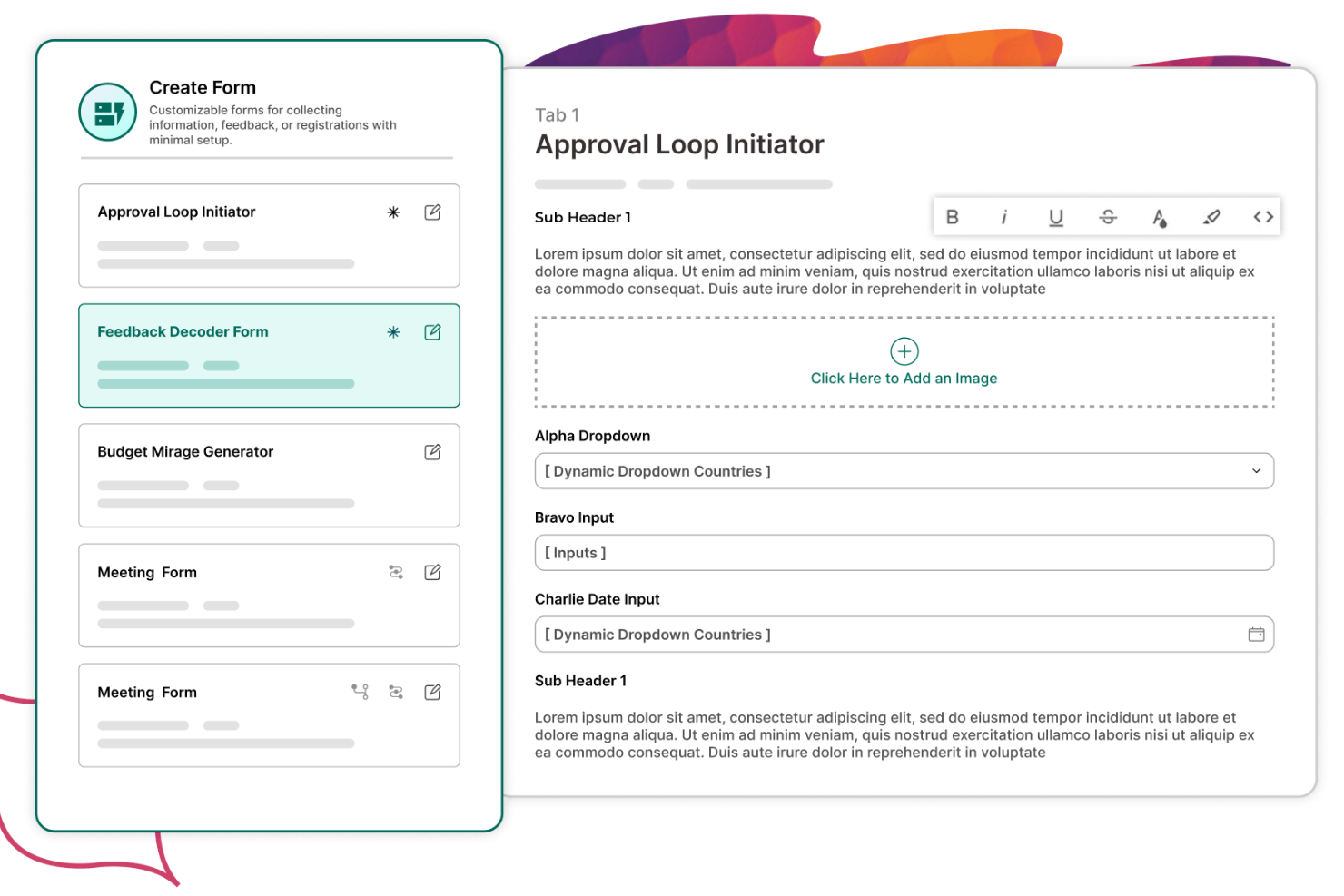
Screendragon si distingue per i team che gestiscono flussi di lavoro creativi complessi e omnicanale che necessitano di supporto basato sull’IA. Lo consiglio quando si devono coordinare campagne su più canali e serve automatizzare processi creativi ripetitivi senza perdere il controllo.
Quello che apprezzo di più è come l’automazione dei flussi di lavoro di Screendragon, supportata dall’IA, aiuta ad instradare i compiti, gestire le approvazioni e ottimizzare l’allocazione delle risorse per i team creativi. Quando ho testato il suo costruttore di flussi di lavoro, l’ho trovato particolarmente valido nella gestione di processi multi-step e multi-team, in cui le risorse creative transitano tra reparti e stakeholder.
Ideale per
- Team creativi, marketing e agenzie che gestiscono campagne omnicanale con catene di approvazione complesse
- Organizzazioni che desiderano automazione dei flussi di lavoro basata sull’IA per una produzione creativa ad alto volume
Non indicato per
- Piccoli team con processi semplici, lineari o collaborazione creativa minima
- Team che non necessitano di automazione avanzata o gestione risorse su più canali
Cosa distingue Screendragon
Screendragon affronta la gestione dei flussi di lavoro con una mentalità orientata alla creatività, costruendo la propria piattaforma attorno alle esigenze dei team marketing e agenzia che gestiscono campagne omnicanale. A differenza di strumenti come Asana o Jira, focalizzati sul monitoraggio dei progetti generali o flussi di lavoro di ingegneria, Screendragon presuppone che i team orchestrino processi creativi complessi con molteplici stakeholder, risorse e livelli di approvazione. Il suo design prevede l’automazione e l’ottimizzazione della produzione creativa su larga scala, non solo la gestione dei compiti.
Compromessi con Screendragon
Screendragon è ottimizzato per gestire flussi di lavoro creativi ad alto volume e su più canali, ma questa focalizzazione può renderlo pesante o eccessivo per i team con processi semplici. La conseguenza pratica è che potresti spendere più tempo a configurare i flussi di lavoro che a gestire realmente progetti semplici.
New Product Updates from Screendragon
Screendragon Unveils New AI Hub
Screendragon introduced AI Hub, a new capability that lets teams build and manage AI agents directly within workflows. The update helps marketing teams automate tasks, maintain governance controls, and scale AI-driven operations more efficiently. For more information, visit Screendragon's official site.

Ideale per preset di automazione
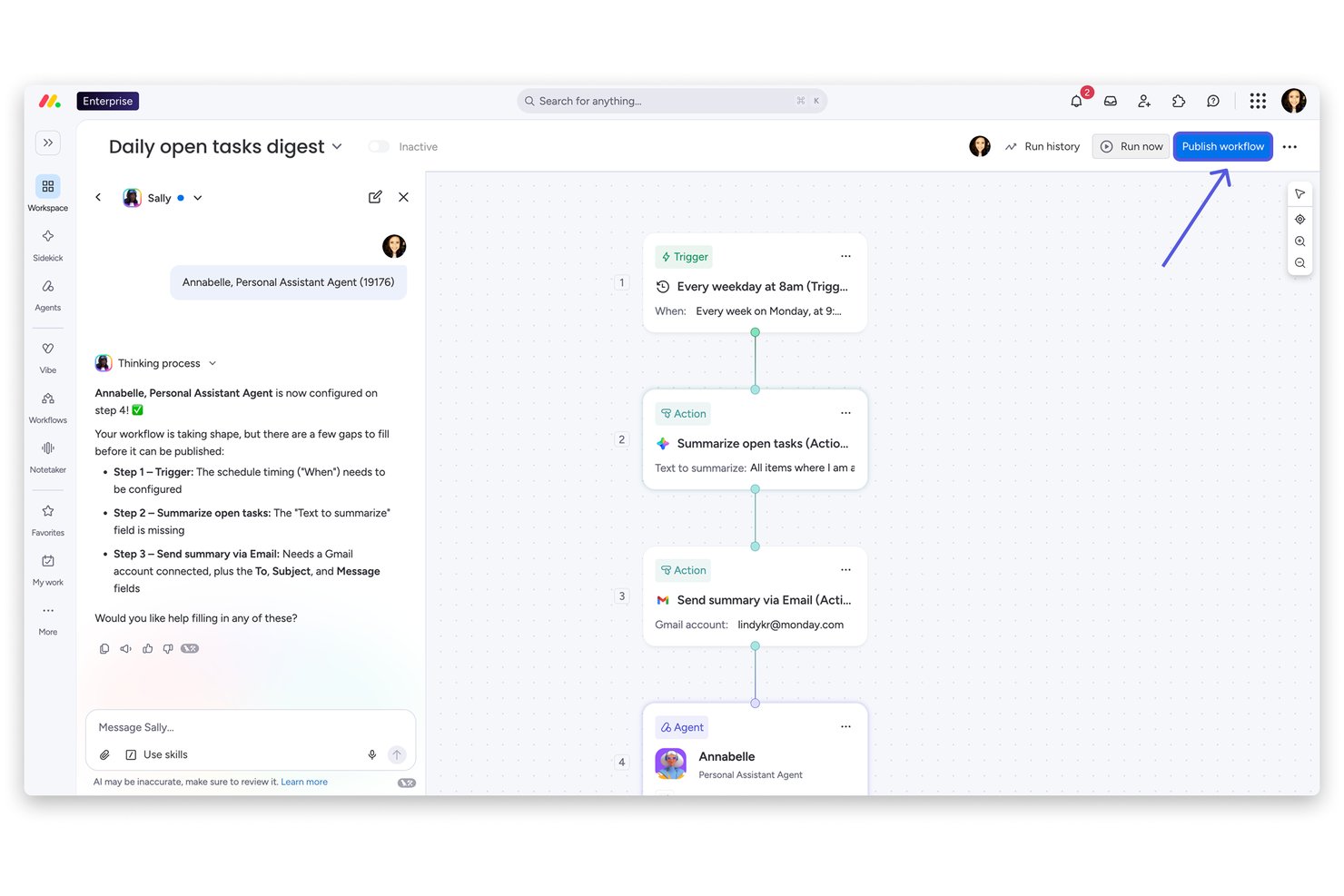
monday AI Workspace è una piattaforma di gestione del lavoro nativa per l'IA che combina la creazione visiva di flussi di lavoro, automazioni senza codice, logica di ramificazione condizionale e agenti AI autonomi per orchestrare processi multi-step tra team.
Per chi è pensato monday AI Workspace?
È particolarmente indicato per direttori PMO e responsabili delle operazioni in organizzazioni di medie e grandi dimensioni che necessitano di standardizzare e automatizzare i processi tra più team e reparti.
Perché ho scelto monday AI Workspace
monday AI Workspace si è guadagnato un posto nella mia shortlist perché la sua libreria di preset di automazione copre gli scenari che i team incontrano realmente. Posso implementare preset per l'instradamento delle approvazioni, l'escalation delle scadenze e l'assegnazione di compiti basata sulla capacità senza scrivere nemmeno una regola da zero. Inoltre, gli agenti di monday eseguono questi flussi di lavoro in maniera autonoma, riassegnando attività, riepilogando aggiornamenti di stato e segnalando i rischi senza attendere un intervento umano.
Caratteristiche principali di monday AI Workspace
- Creazione visiva di flussi di lavoro: Crea e modifica workflow multi-step con un'interfaccia drag-and-drop e passi personalizzati.
- Libreria di template di processo: Accedi e implementa centinaia di workflow predefiniti per scenari progettuali comuni.
- Analisi avanzate dei flussi di lavoro: Monitora tempi di ciclo, colli di bottiglia e stato tramite dashboard in tempo reale e report dettagliati.
- Gestione risorse nativa: Assegna la capacità del team e monitora i carichi di lavoro nello stesso spazio di lavoro dei processi di progetto.
Integrazioni di monday AI Workspace
monday AI Workspace offre centinaia di integrazioni native attraverso le integrazioni incorporate e il marketplace, tra cui Slack, Salesforce, HubSpot, Jira, Google Workspace, Microsoft 365, Trello, Zendesk, GitHub, Dropbox e si collega con Zapier. È disponibile un'API per integrazioni personalizzate.
Pros and Cons
Pros:
- Ampia libreria di preset di automazione pronti all'uso
- Agenti AI gestiscono autonomamente l'esecuzione di workflow multi-step
- Ramificazione condizionale senza codice su workflow complessi
Cons:
- I limiti di automazione sono restrittivi nei piani di livello inferiore
- I dashboard richiedono configurazione per le analisi dei workflow
New Product Updates from monday AI Workspace
monday AI Workspace Adds Human Approval Routing
monday AI Workspace adds a human-in-the-loop approval block to AI Workflows, sending approval requests and routing workflow paths based on responses. For more information, visit monday AI Workspace's official site.

Ideale per la diagrammazione intelligente dei workflow

Lucidchart si guadagna un posto qui perché è il primo strumento a cui mi rivolgo quando ho bisogno di rappresentare visivamente e in modo intelligente flussi di lavoro complessi. Lo consiglio quando i team vogliono andare oltre i diagrammi statici e creare vere e proprie mappe di processo dinamiche e collegate ai dati.
Ciò che apprezzo di più è come Lucidchart mi consenta di inserire logica condizionale e dati in tempo reale nei diagrammi, così i flussi di lavoro non sono semplici immagini, ma diventano interattivi e dinamici. Quando ho avuto la necessità di mostrare come i processi si adattano a diversi scenari o si collegano a sistemi live, le forme intelligenti di Lucidchart e le funzionalità di automazione hanno reso tutto ciò possibile.
Per cosa è ideale Lucidchart
- Team che devono progettare, visualizzare e automatizzare flussi di lavoro complessi
- Organizzazioni che vogliono diagrammi interattivi collegati a dati e logica in tempo reale
Non ideale per
- Team che cercano una piattaforma completa per la gestione di progetti o il tracciamento delle attività
- Utenti che necessitano solo di semplici diagrammi di flusso senza automazione o integrazione dati
Cosa distingue Lucidchart
Lucidchart affronta la progettazione dei flussi di lavoro come un processo visivo e interattivo, piuttosto che come una semplice documentazione statica. A differenza di strumenti come Visio che si concentrano sul disegno di diagrammi, Lucidchart si aspetta che i team costruiscano mappe di processo dinamiche che si connettono a dati reali e si adattano quando i flussi cambiano.
Non cerca di essere un hub di gestione progetti come Asana o Jira. Invece, parte dal presupposto che i team vogliano sperimentare, iterare e automatizzare visivamente i processi, rendendo il diagramma stesso la fonte della verità di come scorre il lavoro.
Compromessi con Lucidchart
Lucidchart è ottimizzato per la mappatura visuale dei processi e la creazione intelligente di diagrammi, ma ciò significa che non offre funzionalità integrate di gestione delle attività o di esecuzione. In pratica, questo comporta la necessità di affiancare altri strumenti per gestire e monitorare concretamente il lavoro.

Qntrl
Ideale per l'automazione dei workflow aziendali

Qntrl entra nella mia selezione perché è progettato per le organizzazioni che devono automatizzare e orchestrare flussi di lavoro complessi e multi-fase su larga scala. Consiglio Qntrl quando i team superano la gestione base delle attività e necessitano di un controllo dettagliato sui flussi di processo, permessi e compliance.
Ciò che mi colpisce di più è la capacità di Qntrl di progettare modelli di flusso di lavoro personalizzati e applicare regole aziendali in ogni fase. Apprezzo in particolare come le tracce di audit e l’accesso basato sui ruoli aiutino i team aziendali a mantenere responsabilità e trasparenza tra i reparti.
Qntrl è Ideale Per
- Team aziendali che hanno bisogno di automatizzare e controllare flussi di lavoro complessi e articolati
- Organizzazioni con requisiti stringenti di compliance, audit e governance dei processi
Qntrl Non è Ideale Per
- Piccoli team che necessitano solo di un monitoraggio base di attività o progetti
- Gruppi che cercano un’implementazione rapida o strumenti di workflow visuali e snelli
Cosa Distingue Qntrl
Qntrl si distingue, a mio avviso, per essere fortemente incentrato su enforcement di processo e controllo dettagliato, più come un motore di workflow che come uno strumento di project management tradizionale. Diversamente da piattaforme come monday.com, che privilegiano flessibilità e board visive, Qntrl richiede che i team definiscano in anticipo ogni passaggio, regola e approvazione.
È progettato per organizzazioni che vogliono controllare stringentemente come il lavoro si muove tra persone e reparti, con forte focus su compliance e tracciabilità. Lo vedo indicato per team che trattano il processo come qualcosa di imprescindibile, non solo una linea guida.
Compromessi con Qntrl
Qntrl è ottimizzato per il controllo rigoroso dei processi e la governance, ma questo significa sacrificare velocità e flessibilità. Se i tuoi flussi di lavoro cambiano spesso o hai bisogno di sperimentare, il mantenimento di modelli dettagliati può rallentarti.


Celigo merita un posto nella mia lista perché è l'unica piattaforma di workflow che abbia mai usato a offrire oltre 1.000 connettori per app preconfigurati fin dall'inizio. Lo consiglio quando i team hanno bisogno di automatizzare processi che coinvolgono decine di app cloud senza dover creare integrazioni personalizzate da zero.
Quello che mi colpisce è la velocità con cui posso mappare workflow complessi e multi-step tra sistemi come NetSuite, Salesforce e Shopify. Apprezzo il fatto che la libreria di Celigo permetta al mio team di collegare nuovi strumenti in pochi minuti, un enorme vantaggio quando i processi aziendali si sviluppano su più piattaforme.
Ideale per
- Team IT e operativi che automatizzano workflow su decine di app cloud
- Aziende che necessitano di connettori preconfigurati per integrare rapidamente le principali piattaforme SaaS
Non consigliato per
- Piccoli team con workflow semplici e su singola app
- Utenti che desiderano un costruttore di workflow visuale e drag-and-drop senza necessità di configurazioni tecniche
Cosa rende Celigo diverso
Celigo affronta l'automazione dei workflow come un problema di integrazione, non solo di gestione dei processi. A differenza di strumenti come Zapier, che si concentrano su automazioni semplici e basate su eventi, Celigo prevede che i team orchestrino workflow complessi e multi-app usando la sua vasta libreria di connettori preconfigurati. È pensato per le organizzazioni che considerano l’integrazione una parte fondamentale delle loro operazioni, non un ripensamento.
Invece di proporre un generatore di workflow visuale e leggero come monday.com, Celigo parte dal presupposto che tu voglia collegare e automatizzare sistemi aziendali critici su larga scala, spesso con supervisione IT o tecnica.
Compromessi con Celigo
Celigo è ottimizzato per integrazioni profonde e automazioni su molte app, ma questo implica che configurazione e manutenzione possano richiedere competenze tecniche e coinvolgimento dell’IT. In pratica, i team non tecnici potrebbero trovare più difficile creare o modificare workflow senza supporto.
Pros and Cons
Pros:
- Controlli di accesso granulari basati sui ruoli, per la sicurezza
- Dashboard di monitoraggio in tempo reale per la salute delle integrazioni
- Vasta libreria di template per processi aziendali comuni
Cons:
- Configurazione iniziale può risultare complessa per i nuovi utenti
- Supporto offline limitato per la gestione dei workflow
New Product Updates from Celigo
Celigo Adds SuiteTax and Variant Publishing for Shopify–NetSuite
Celigo adds NetSuite SuiteTax support and variant-level sales channel publishing to its Shopify–NetSuite integration. These updates improve tax handling and give merchants more control over how product variants are published. For more information, visit Celigo’s official site.
 .
.
Miro
Ideale per la collaborazione su flussi di lavoro complessi
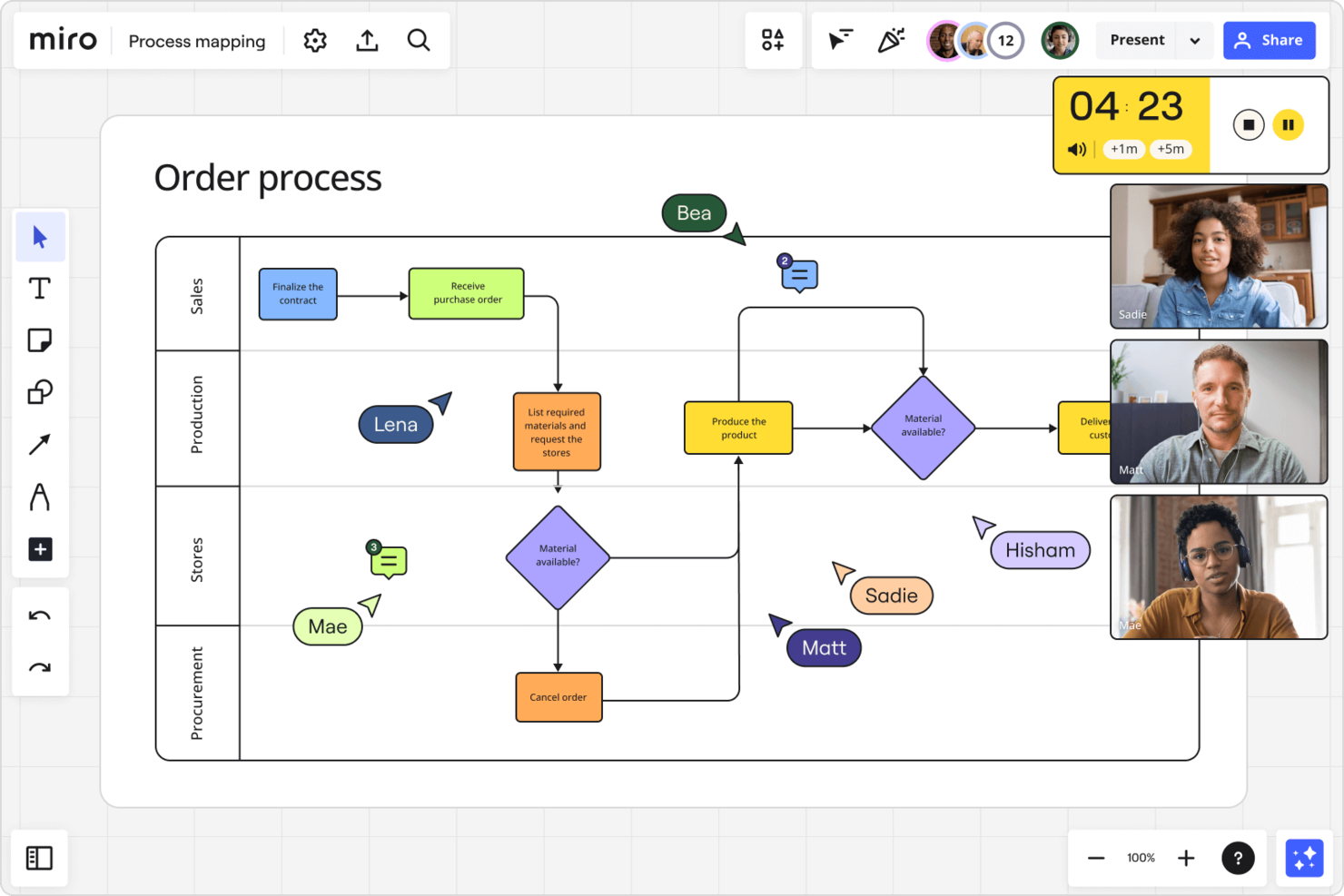
Miro si guadagna un posto qui perché è l’unica piattaforma che ho usato che supporta davvero la mappatura e l’iterazione su flussi di lavoro complessi con team distribuiti. Lo consiglio quando hai bisogno di visualizzare processi interconnessi, dipendenze e cicli di feedback in modo interattivo e facile da aggiornare quando le cose cambiano.
Quello che apprezzo di più è come la canvas infinita di Miro, la diagrammazione avanzata e la collaborazione in tempo reale permettono al mio team di co-creare mappe di processo e swimlane senza perdere il contesto. Quando lavoriamo su passaggi tra team diversi o progettiamo nuovi flussi di lavoro, gli strumenti visivi di Miro ci aiutano a individuare rapidamente le lacune e ad allinearci tutti.
Ideale per
- Team di prodotto, design e processo che mappano flussi di lavoro complessi e articolati
- Team distribuiti che hanno bisogno di co-creare e migliorare diagrammi di processo visivi
Non ideale per
- Team che necessitano di una gestione rigorosa delle attività o funzionalità di automazione dei flussi di lavoro
- Organizzazioni che cercano report dettagliati o tracciamento strutturato dei progetti
Cosa distingue Miro
Miro affronta i flussi di lavoro in modo visivo, trattando ogni processo come qualcosa da mappare, esplorare e migliorare in modo collaborativo. Diversamente da strumenti come Jira, che richiedono la definizione di attività strutturate e stati, Miro presuppone che il tuo team abbia bisogno di vedere il quadro generale e spostare gli elementi man mano che le idee si evolvono.
È progettato per i team che vogliono co-creare e perfezionare processi in tempo reale, non solo seguire un percorso definito. Trovo che sia particolarmente diverso da piattaforme come monday.com, che si concentrano su bacheche e liste strutturate: Miro si aspetta che tu parta da una tela bianca e costruisca visivamente il tuo flusso di lavoro da zero.
Compromessi con Miro
Miro ottimizza per la collaborazione senza limiti e la mappatura visiva, ma questo significa sacrificare il controllo integrato dei processi e il tracciamento strutturato. Di conseguenza, è facile che i flussi di lavoro risultino disordinati o manchino di responsabilità se il tuo team ha bisogno di più regole di controllo.
New Product Updates from Miro
Miro Adds Japan Data Residency for Enterprise Customers
Miro has introduced Japan data residency for enterprise customers, offering in-region storage for production data, backups, and metadata, plus in-region compute infrastructure. For more information, visit Miro's official site.

TrailHQ
Ideale per l'automazione dei processi guidata dall'IA

Nanonets merita un posto nella mia lista perché è una delle poche piattaforme di workflow che punta davvero sull'automazione dei processi guidata dall'IA. Lo consiglio quando i team sono sommersi da una gestione ripetitiva dei documenti o hanno bisogno di automatizzare flussi di lavoro complessi e multi-step che prevedono l'estrazione e l'instradamento dei dati.
Quello che apprezzo di più è come Nanonets utilizza il machine learning per leggere, classificare e spostare le informazioni tra i sistemi senza intervento manuale. Quando ho testato il suo processamento dei documenti e i trigger del workflow, si è dimostrato particolarmente efficace nel ridurre i colli di bottiglia per i team di finanza, risorse umane e operations.
Nanonets è ideale per
- Team di operations, finanza e risorse umane che vogliono automatizzare i flussi di lavoro ricchi di documenti con l'IA
- Organizzazioni che devono estrarre, classificare e instradare dati attraverso più sistemi
Nanonets non è indicato per
- Team che cercano una gestione dei workflow tradizionale e manuale, senza automazione
- Utenti che hanno bisogno di un tracking di progetto molto visivo o strumenti di collaborazione su bacheca
Cosa distingue Nanonets
Nanonets affronta l'automazione dei workflow mettendo l'IA al centro, invece di aggiungere automazione a una classica gestione delle attività. Diversamente da strumenti come Zapier, che si concentrano sul collegare le app con semplici trigger, Nanonets si rivolge a team che vogliono automatizzare processi complessi basati sui documenti, dove il machine learning può occuparsi di estrazione dati e presa di decisioni.
È pensato per i team che vogliono allontanarsi dall'inserimento manuale dei dati e dalla validazione ripetitiva, permettendo all'IA di gestire le attività più gravose così che le persone possano dedicarsi alle eccezioni e al controllo.
Compromessi di Nanonets
Nanonets punta su una profonda automazione e su workflow guidati dall'IA, ma ciò significa che è meno adatto ai team che desiderano un controllo diretto e granulare su ogni fase dei processi. La conseguenza pratica è che, se i tuoi flussi di lavoro non sono document-heavy o non traggono beneficio dall'IA, potresti trovare la piattaforma più complessa del necessario.

ClickUp
Miglior piano gratuito e robusto
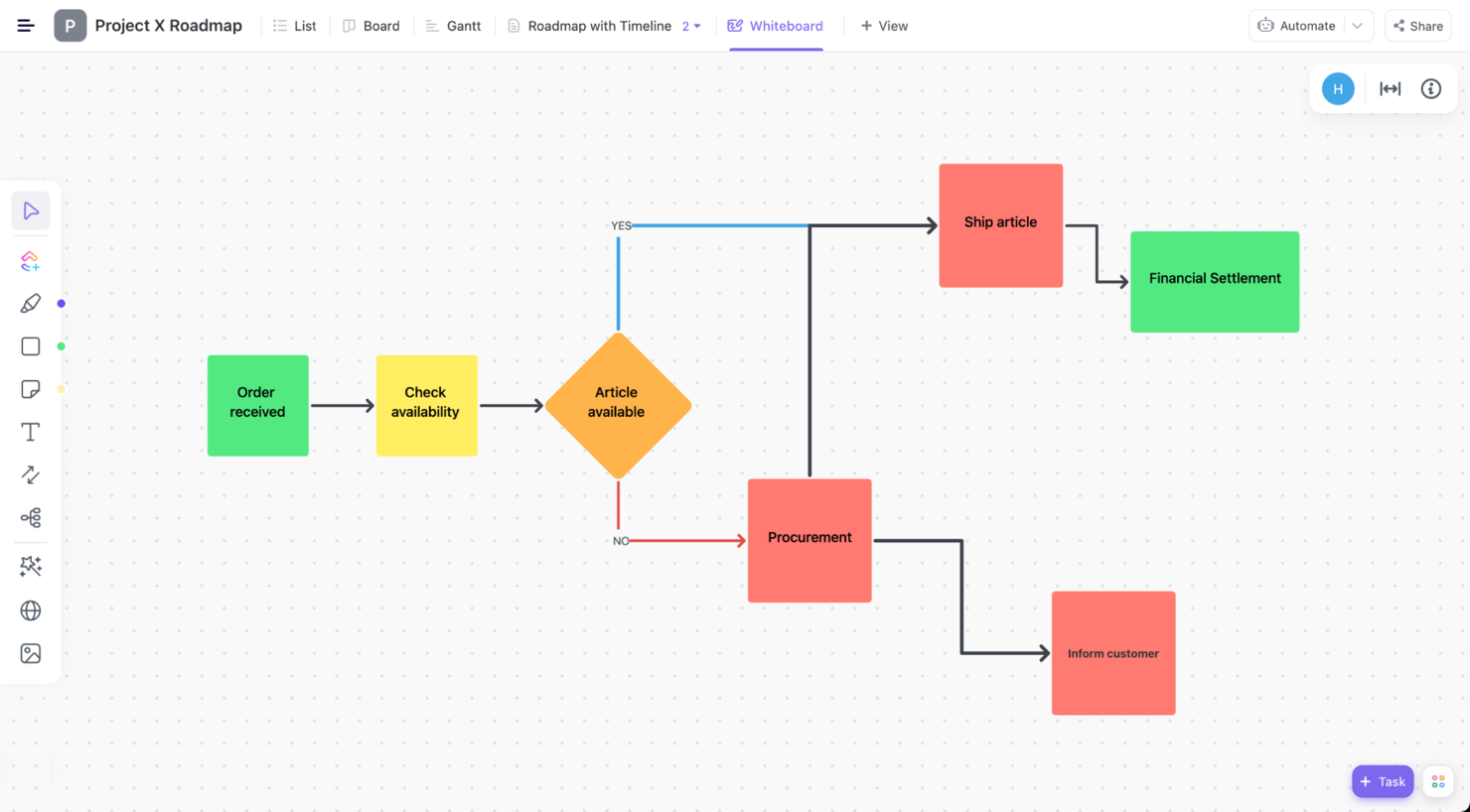

ClickUp è uno strumento di workflow personalizzato che utilizzo personalmente grazie a tutte le sue funzionalità e per la perfetta integrazione di ciascun elemento nella sua piattaforma. Gestire i flussi di processo non fa eccezione. Per iniziare, crea un progetto e aggiungi una vista chiamata ‘lavagne’.
All'interno delle lavagne, puoi facilmente creare un diagramma di flusso per aiutarti a mappare il tuo flusso di lavoro. Essendo una vista, rimarrà comodamente all'interno del file di progetto in ogni momento. Fatto? Vai alla vista task o board e crea le fasi e i task del tuo processo.
Infine, vai nella sezione automazioni cliccando sul pulsante ‘automate’ nell’angolo in alto a destra dello schermo. Puoi scegliere tra dozzine di automazioni predefinite oppure crearne di personalizzate.
ClickUp offre integrazioni native con Slack, G Suite, Dropbox e molti altri strumenti, oltre a più di 1.000 integrazioni tramite Zapier.
ClickUp è gratuito con spazio di archiviazione limitato per un numero illimitato di utenti. I piani a pagamento partono da $5/utente/mese e offrono una prova gratuita.
New Product Updates from ClickUp
ClickUp Adds Meetings Hub, Super Agent Templates, and ZoomInfo Integration
ClickUp adds a searchable Meetings Hub, new ways to clone and template Super Agents, and a ZoomInfo integration through the App Center. These updates improve meeting retrieval, agent reuse, and access to sales intelligence. For more information, visit ClickUp’s official site.
Software correlati per i flussi di lavoro dei processi
Se non hai ancora trovato quello che cerchi, dai un'occhiata a questi altri strumenti correlati che abbiamo testato e valutato:
- Software per la gestione dei progetti
- Software per l'automazione intelligente dei processi
- Software per la gestione delle risorse
- Software per l'automazione dei flussi di lavoro
- Software per il monitoraggio del tempo
- Software per la gestione delle attività
- Software per la pianificazione dei progetti
Come valuto il software per la gestione dei flussi di lavoro
Divido la mia valutazione in due livelli: le caratteristiche imprescindibili che ogni strumento valido deve avere—come l'instradamento delle approvazioni e il branching condizionale—e i fattori differenzianti che separano le opzioni forti da quelle deboli.
Funzionalità di base (requisiti minimi per questa lista)
Quando seleziono gli strumenti per la mia lista, valuto ciascuno su una scala da 0 (non offre la funzionalità) a 5 (eccelle in quest'area) per ogni funzionalità di base elencata di seguito. Successivamente, calcolo il punteggio totale dello strumento in percentuale. Ogni strumento deve raggiungere un punteggio totale minimo del 65% per essere preso in considerazione.
- Costruttore visuale di flussi di lavoro: Valuto se posso mappare un processo multi-step—come una sequenza di onboarding di un dipendente o una pipeline di richiesta di modifica—usando un design drag-and-drop invece del codice.
- Motore di automazione dei processi: Ogni strumento dovrebbe permettermi di impostare trigger e azioni che fanno avanzare il lavoro automaticamente, ad esempio assegnando un'attività di revisione quando lo stato di una consegna cambia.
- Logica condizionale & Branching: Verifico se i flussi di lavoro possono ramificarsi in base agli input reali, come l'instradamento di un'approvazione di budget a un direttore quando una richiesta supera una certa soglia.
- Gestione di approvazioni & attività: Catene di approvazione strutturate sono fondamentali qui—cerco approvazioni sequenziali e parallele, dipendenze tra attività e percorsi di escalation collegati alle fasi del flusso di lavoro.
- Template di processo & riutilizzabilità: I team riutilizzano costantemente gli stessi processi, quindi valuto la libreria di template di ciascun strumento e la capacità di clonare, versionare e condividere template di flussi di lavoro personalizzati.
- Analisi & monitoraggio dei flussi di lavoro: I dashboard dovrebbero mostrare tempi di ciclo, colli di bottiglia e rispetto degli SLA, così un responsabile PMO può individuare dove un flusso di lavoro di retrospettiva sprint si blocca.
Una volta che ho una lista di strumenti che soddisfano questi criteri, considero cosa distingue realmente ogni piattaforma.
Fattori differenzianti (cosa distingue i fornitori)
Ecco come confronto e metto a confronto i diversi fornitori:
Caratteristiche distintive
La mappatura delle dipendenze tra progetti è per me fondamentale—i team PMO che gestiscono il lavoro a livello di programma necessitano di flussi che coordinano passaggi tra più progetti, non solo all'interno di uno. Cerco anche assistenti AI per i flussi di lavoro che possano suggerire sequenze di step o segnalare rischi in base ai dati di esecuzione storici. I costruttori di moduli senza codice completano il quadro permettendo ai team di generare rapidamente richieste di intake—come una proposta per un nuovo progetto—che confluiscono direttamente in un trigger di workflow senza il coinvolgimento degli sviluppatori.
Oltre le caratteristiche
La profondità di integrazione è molto importante qui—uno strumento di workflow che non può connettersi al backlog Jira o ai canali Slack crea più lavoro manuale di quanto ne elimini. Valuto anche le strutture di prezzo, in particolare se i fornitori offrono licenze light-user per stakeholder che devono solo approvare o commentare. Vale la pena controllare anche certificazioni di sicurezza come SOC 2 e ISO 27001, specialmente quando i flussi di lavoro gestiscono dati di progetto sensibili o interessano diversi reparti con differenti requisiti di accesso.
Come scegliere il software per i flussi di lavoro dei processi
Mentre crei la tua lista, provi e selezioni il software per i flussi di lavoro dei processi, considera quanto segue:
- Quale problema stai cercando di risolvere: inizia identificando la lacuna nelle funzionalità del flusso di lavoro dei processi che stai cercando di colmare, per chiarire quali caratteristiche e funzionalità ti servono in un software per i flussi di lavoro dei processi. Se, ad esempio, volessi documentare i tuoi processi, questa domanda ti indirizzerebbe verso un software per la documentazione dei processi.
- Chi dovrà utilizzarlo: per valutare costi e requisiti, considera chi utilizzerà il software e di quante licenze avrai bisogno. Una volta chiarito questo aspetto, vale la pena valutare se stai dando priorità alla facilità d'uso per tutti oppure alla velocità per gli utenti esperti del tuo software per i flussi di lavoro dei processi.
- Con quali altri strumenti dovrà funzionare: chiarisci quali strumenti stai sostituendo, quali resteranno e con quali strumenti dovrai integrarlo, come software di contabilità, CRM o per le risorse umane. Decidi se gli strumenti dovranno integrarsi tra loro oppure se puoi sostituire più strumenti con un unico strumento consolidato per i flussi di lavoro dei processi.
- Quali risultati sono importanti: considera il risultato che il software deve offrire per essere considerato un successo, quale capacità vuoi acquisire, cosa vuoi migliorare e come misurerai il successo. Ad esempio, un risultato potrebbe essere la possibilità di ottenere una maggiore visibilità sulle prestazioni. Potresti confrontare le funzionalità dei flussi di lavoro dei processi fino allo sfinimento, ma se non stai pensando ai risultati che vuoi ottenere, stai sprecando molto tempo prezioso.
- Come funzionerebbe all'interno della tua organizzazione: valuta la scelta del software insieme ai tuoi flussi di lavoro e alla tua metodologia di erogazione. Analizza ciò che funziona bene e le aree che stanno causando problemi e devono essere affrontate. Ricorda che ogni azienda è diversa: non dare per scontato che, solo perché uno strumento è popolare, funzionerà nella tua organizzazione.
Tendenze nel software per i flussi di lavoro dei processi
Ecco cinque tendenze che, a mio avviso, plasmeranno il futuro del software per i flussi di lavoro dei processi. Ognuna evidenzia un aspetto specifico del modo in cui questi strumenti si stanno adattando alle esigenze in evoluzione dei responsabili di progetto.
Tendenze in evoluzione nel software per i flussi di lavoro dei processi
- Integrazione dell'AI e dell'apprendimento automatico: si osserva una crescita significativa dell'integrazione di algoritmi di AI e apprendimento automatico che aiutano a prendere decisioni e ad automatizzare processi complessi. Si distinguono gli strumenti che offrono analisi predittive, automazione intelligente e ottimizzazione basata sull'AI.
- Attenzione alla sicurezza dei dati e alla conformità: poiché le aziende gestiscono quantità sempre maggiori di informazioni sensibili, nel software per i flussi di lavoro si presta maggiore attenzione alla sicurezza dei dati e alla conformità. Funzionalità come la crittografia da capo a capo, il controllo degli accessi basato sui ruoli e la conformità alle normative globali sulla protezione dei dati (come il GDPR) stanno diventando standard.
- Integrazione dei dispositivi IoT: l'integrazione dei dispositivi dell'Internet delle cose (IoT) con il software per i flussi di lavoro sta diventando sempre più diffusa. Questa tendenza evidenzia il ruolo crescente dell'IoT nell'automazione delle attività fisiche, nella raccolta dei dati e nell'attivazione dei flussi di lavoro sulla base degli input dei sensori.
- Sostenibilità e funzionalità ecocompatibili: una tendenza emergente è l'inclusione, nel software per i flussi di lavoro, di funzionalità che sostengono la sostenibilità e pratiche aziendali ecocompatibili. Ciò include strumenti che aiutano a ridurre l'uso della carta, ottimizzare l'allocazione delle risorse e monitorare l'impatto ambientale. Questa tendenza riflette la crescente consapevolezza della necessità per le aziende di operare in modo responsabile nei confronti dell'ambiente.
Che cos'è il software per i flussi di lavoro dei processi?
Il software per i flussi di lavoro dei processi è uno strumento che consente di definire una sequenza di attività e creare un flusso di lavoro utilizzando connettori, regole e automazioni in un ambiente con funzionalità di trascinamento. Questi sistemi sono fondamentali per migliorare l'efficienza organizzativa, eliminare gli errori manuali, ridurre i ritardi e aumentare la produttività complessiva.
In genere, il software per i flussi di lavoro dei processi fornisce una rappresentazione visiva dell'intero flusso di lavoro, così puoi mappare, analizzare e ottimizzare i processi. Puoi definire la sequenza delle attività, configurare le dipendenze e stabilire regole per il completamento delle attività. Le funzionalità di automazione consentono inoltre di instradare automaticamente le attività alle persone o ai team appropriati, monitorare i progressi e attivare notifiche o avvisi per le tappe fondamentali.
Tuttavia, se cerchi di automatizzare e coordinare flussi di lavoro complessi e interdipendenti tra più sistemi e team, dovresti cercare invece strumenti di orchestrazione dei flussi di lavoro.
Funzionalità del software per i flussi di lavoro dei processi
Ecco le funzionalità più importanti da considerare quando selezioni un software per i flussi di lavoro dei processi per la tua organizzazione.
- Interfaccia intuitiva: Un design semplice e intuitivo rende facile per tutti i membri del team adottare e utilizzare il software, indipendentemente dalla loro dimestichezza con la tecnologia. Questo rende fluida la transizione a un nuovo sistema e consente agli utenti di diventare rapidamente competenti, migliorando la produttività e riducendo i tempi di formazione.
- Personalizzazione e flessibilità: La personalizzazione garantisce che il software possa adattarsi ai flussi di lavoro della tua azienda, invece di costringere i tuoi processi a rientrare in una struttura predefinita. Questo ti aiuta a rendere le operazioni più efficienti.
- Funzionalità di integrazione: L'integrazione previene i silos di dati, migliora la comunicazione tra i diversi reparti e ti aiuta a garantire che le informazioni fluiscano senza problemi all'interno dell'intera organizzazione.
- Scalabilità: Man mano che la tua azienda cresce, anche il software per i flussi di lavoro dei processi dovrebbe crescere con essa. La scalabilità garantisce che il software possa gestire più attività, utenti e dati senza perdere prestazioni. I sistemi di gestione dei processi aziendali supportano questo obiettivo fornendo un quadro flessibile per ampliare e ottimizzare i flussi di lavoro.
- Analisi e reportistica in tempo reale: L'accesso ai dati in tempo reale e la possibilità di generare report approfonditi sono fondamentali per prendere decisioni informate. Questa funzionalità ti consente di monitorare attentamente i processi, identificare i colli di bottiglia e migliorare l'efficienza complessiva.
- Tecnologia basata sul cloud: Una soluzione basata sul cloud offre flessibilità, accessibilità e sicurezza. Gli utenti possono accedere al sistema da qualsiasi luogo e in qualsiasi momento, i team remoti possono rimanere connessi e i dati vengono archiviati e sottoposti a backup in modo sicuro al di fuori della sede.
- Notifiche e avvisi automatici: Mantenere i membri del team informati sulle attività, sulle scadenze e sulle modifiche all'interno del flusso di lavoro è fondamentale. Le notifiche automatiche aiutano a garantire che nulla venga trascurato, migliorano la responsabilità e consentono di completare le attività nei tempi previsti.
- Controllo degli accessi basato sui ruoli: Questo consente di garantire che gli utenti visualizzino solo ciò di cui hanno bisogno per svolgere le proprie attività, migliorando la sicurezza e proteggendo dalle violazioni dei dati.
- Mappatura, modellazione e visualizzazione dei processi: Questa funzionalità ti aiuta a identificare le ridondanze, semplificare le operazioni e garantire che tutti i passaggi siano necessari ed efficienti. La modellazione dei processi aziendali consente di simulare, analizzare e ottimizzare i flussi di lavoro prima di implementare le modifiche
- Compatibilità con i dispositivi mobili: La compatibilità con i dispositivi mobili consente agli utenti di utilizzare il sistema tramite smartphone o tablet, mantenendo l'azienda operativa anche quando le persone non si trovano in ufficio.
Vantaggi del software per i flussi di lavoro dei processi
Ecco cinque vantaggi derivanti dall'integrazione del software per i flussi di lavoro dei processi nelle operazioni aziendali:
- Maggiore efficienza: L'utilizzo di strumenti di automazione dei processi per automatizzare le attività di routine riduce il lavoro manuale e accelera i processi. I membri del team possono concentrarsi su attività più strategiche invece di essere rallentati da attività ripetitive, migliorando così la produttività complessiva.
- Collaborazione potenziata: Fornendo una piattaforma centralizzata per condividere le informazioni e monitorare i progressi, il software facilita un migliore lavoro di squadra e contribuisce a garantire che tutti siano allineati. Questo porta anche a un'esecuzione più fluida dei progetti.
- Maggiore trasparenza e responsabilità: Puoi monitorare i progressi in tempo reale, identificare rapidamente i colli di bottiglia e rendere i membri del team responsabili delle loro attività. Questo contribuisce a creare una forza lavoro più organizzata e responsabile.
- Riduzione degli errori: Automatizzando i flussi di lavoro, il software garantisce che le attività vengano completate in modo coerente e accurato. Riduce il rischio di errori e sbagli umani che possono causare costosi ritardi o rilavorazioni.
- Scalabilità: Man mano che la tua organizzazione si espande, il software per i flussi di lavoro dei processi può supportare utenti, processi e livelli di complessità aggiuntivi senza sacrificare le prestazioni, consentendo alla tua infrastruttura operativa di crescere insieme alla tua azienda.
Costi e prezzi del software per i flussi di lavoro dei processi
Di seguito è riportata una panoramica dei tipi di piano più comuni, dei relativi prezzi medi e delle loro funzionalità tipiche:
Tabella comparativa dei piani per il software per i flussi di lavoro dei processi
| Tipo di piano | Prezzo medio | Funzionalità comuni |
|---|---|---|
| Gratuito | $0 | Automazione di base dei processi, integrazioni limitate, supporto della comunità |
| Base | $10-15/user/month | Funzionalità di automazione avanzate, integrazioni aggiuntive, supporto via e-mail |
| Professionale | $20-30/user/month | Suite completa di automazione, integrazioni avanzate, supporto prioritario |
| Aziendale | Prezzi personalizzati | Soluzioni di automazione personalizzate, sicurezza di livello aziendale, responsabile dell'account dedicato |
I piani vanno in genere dalle versioni gratuite pensate per piccoli team o singoli utenti alle prime armi fino alle soluzioni di livello aziendale che offrono funzionalità avanzate per organizzazioni più grandi con requisiti complessi relativi ai flussi di lavoro. In generale, è una buona idea iniziare con un piano gratuito o di base per farsi un'idea dello strumento prima di impegnarsi in un investimento maggiore.
Quando scegli un piano, considera la portata delle tue attività, la complessità dei tuoi flussi di lavoro e il livello di assistenza di cui prevedi di aver bisogno, soprattutto quando la tua azienda cresce e cambia.
Le fasi comuni in cui potresti voler aggiornare il tuo piano tariffario includono:
- Aumento delle dimensioni del team: quando il numero di utenti o membri del team cresce in modo significativo, il tuo piano attuale potrebbe non supportare efficacemente i nuovi utenti. L'aggiornamento può fornire gli account utente necessari.
- Complessità dei progetti: man mano che i progetti diventano più complessi e richiedono funzionalità avanzate, un livello tariffario superiore potrebbe offrire gli strumenti necessari per gestire queste complessità in modo efficiente.
- Esigenze di integrazione: quando devi integrare il software per i flussi di lavoro dei processi con altri strumenti e sistemi, i livelli superiori spesso offrono funzionalità di integrazione più estese.
- Report e analisi avanzati: se hai bisogno di funzionalità più avanzate per report e analisi, così da prendere decisioni basate sui dati, i livelli tariffari superiori offrono in genere queste funzionalità.
- Assistenza clienti e formazione: man mano che aumenta la tua dipendenza dal software, potresti aver bisogno di assistenza clienti e formazione premium. L'aggiornamento a un livello superiore spesso include opzioni di assistenza migliori, responsabili dedicati alla gestione dell'account e una formazione più completa.
Domande frequenti sul software per i flussi di lavoro dei processi
Trova le risposte alle domande comuni che altre persone pongono su questo argomento.
Che cos'è un flusso di processo?
rn
Un flusso di processo è una serie di passaggi da seguire per completare un processo. Questo flusso di lavoro include la sequenza delle attività e delle azioni da intraprendere ed è guidato da regole predefinite che determinano il flusso delle informazioni.rnrnI flussi di processo dettagliati includono anche informazioni sulla persona responsabile di un’attività e sugli strumenti necessari per eseguire determinate operazioni.
rn
Quali sono alcuni esempi di processi del flusso di lavoro?
rn
All’interno di un progetto sono presenti molti processi che possiamo rappresentare come flussi di lavoro. Ad esempio:
rnrn
- rn t
- Gestione dei problemi: il modo in cui il tuo team risponde ai problemi durante lo sviluppo di un progetto è un processo importante da definire. Il tuo team dovrebbe seguire una serie di passaggi stabiliti per determinare come vengono gestite le escalation e il lavoro.
- Flusso di lavoro per l’inserimento: descrive le attività necessarie per inserire un nuovo membro nel team. Può essere utile quando cambia l’ambito del progetto e ciò richiede un nuovo membro del team, oppure quando devi sostituire una risorsa a metà progetto.
- Nuovo requisito del cliente: quale processo segui quando il tuo cliente fa una nuova richiesta o cerca di inserirne una durante la riunione di verifica?
rn t
rn t
rn