

10 Best Knowledge Base Software in 2026

Best Knowledge Base Software Shortlist


Knowledge base software lets your team organize, store, and share company knowledge in a searchable digital hub. If you’re searching for the right knowledge base, you’re likely aiming to reduce repetitive questions, keep product documentation up to date, and make answers easy to find for both your team and your customers. With so many options available, choosing the perfect knowledge management tool can impact how quickly your team onboards, handles troubleshooting, and collaborates. This guide will help you compare top solutions, understand their strengths, and find the best fit for your needs in 2026.
Why Trust Our Software Recommendations
Our team has been testing and reviewing software since 2012. As project managers ourselves, we know how difficult—and important—it is to choose the right software.
For this guide, we evaluated tools using hands-on testing and independent research, scoring tools using our selection criteria. We also draw on insights from industry thought leaders and practicing project management experts.
Our reviews reflect our human editorial judgment, not a sales pitch.
Expert reviewers:
Comparison Table: Knowledge Base Software
This comparison table summarizes pricing details for my top knowledge base software selections.
| Tool | Best For | Trial Info | Price | ||
|---|---|---|---|---|---|
| 1 | Best for version control and article rollback | Free demo available | Pricing upon request | Website | |
| 2 | Best for interactive self-serve guides | Free demo + 14-day free trial available | Pricing upon request | Website | |
| 3 | Best for ticketing and workflow automation | 14-day free trial | From $19/user/month (billed annually) | Website | |
| 4 | Best for integration with Microsoft Teams | 21-day free trial + free demo available | From $12/agent/month (billed annually) | Website | |
| 5 | Best for company-wide knowledge sharing | Free demo available | Pricing upon request | Website | |
| 6 | Best for collaborative team documentation | Free demo + 14-day free trial available | From $10/user/month (billed annually) | Website | |
| 7 | Best for flexible workspace organization | Free plan available | From $10/user/month | Website | |
| 8 | Best for AI-powered content search | Free demo available | Pricing upon request | Website | |
| 9 | Best with Microsoft 365 ecosystem integration | 30-day free trial available | From $5.40/user/month (billed annually) | Website | |
| 10 | Best for integrating with Atlassian project tools | Free trial + free plan available | From $5.42/user/month | Website |

Best Knowledge Base Software Reviews
Below are my detailed summaries of the best knowledge base software that made it onto my shortlist. My reviews offer a detailed look at the features, integrations, and best use cases of each platform to help you find the best one for you.

Best for version control and article rollback
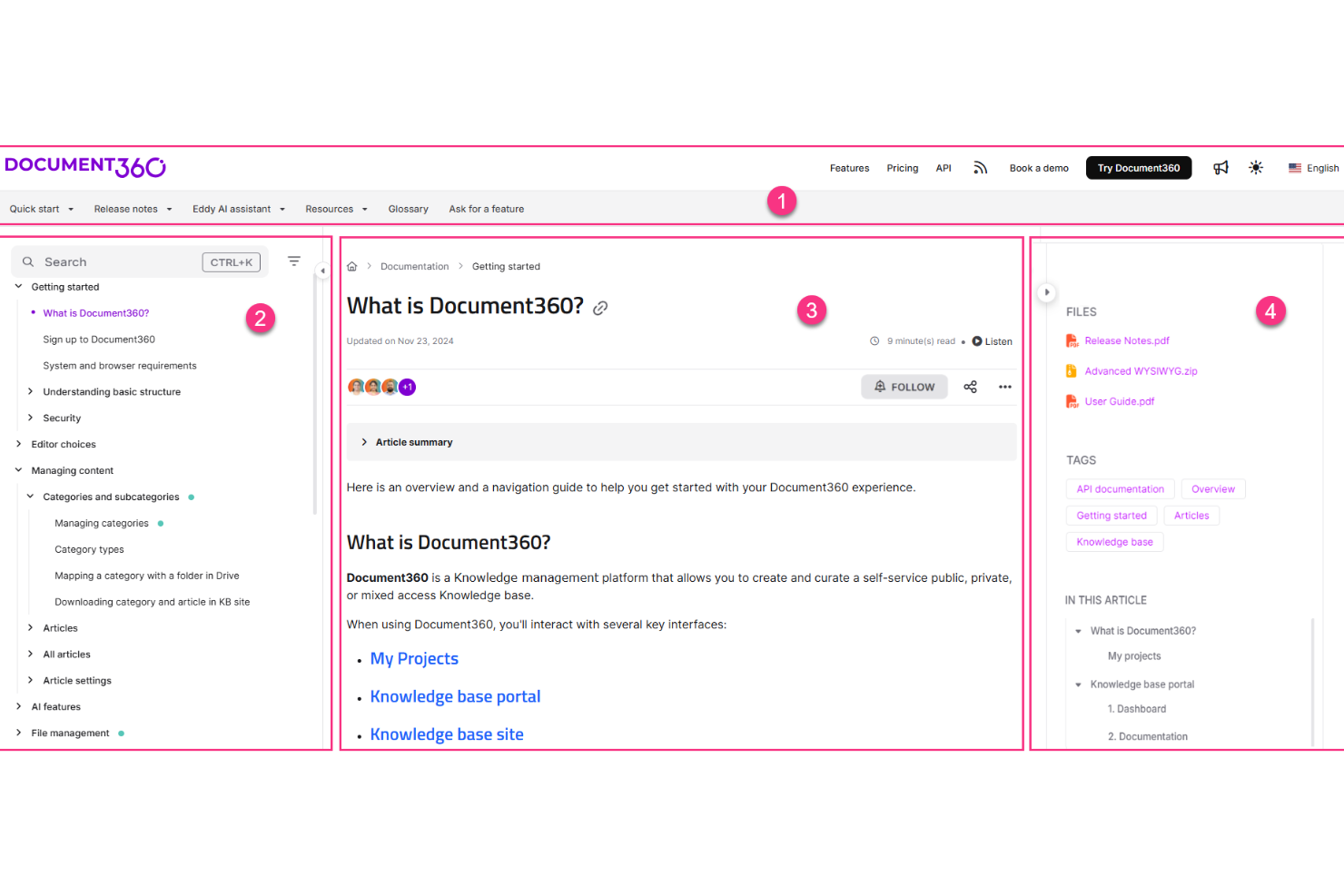
Document360 is a dedicated knowledge base platform built for creating, managing, and publishing self-service documentation, including product guides, SOPs, API docs, and internal wikis.
Who Is Document360 Best For?
Document360 is a strong fit for product and support teams at mid-size to enterprise SaaS companies that need structured, scalable documentation.
Why I Picked Document360
I've included Document360 in my top picks because its versioning and rollback capabilities are some of the most developed I've seen in a knowledge base tool. Every article maintains a full history of changes, and I can instantly compare versions side by side to see exactly what was modified and by whom. When a content update introduces errors, rolling back to a clean previous version takes seconds, not a support ticket. The built-in audit trail also makes it easy to track who changed what across a large team.
Document360 Key Features
- AI-powered search: Delivers intelligent, context-aware search results across your entire knowledge base so readers find answers without browsing.
- Category manager: Lets you organize articles into a structured, multi-level category hierarchy to keep large documentation sets navigable.
- Knowledge base widget: Embeds your knowledge base directly into your product or website as an in-app help panel.
- Review workflows: Routes articles through defined approval stages before publishing to enforce editorial standards.
Document360 Integrations
Integrations include Slack, Intercom, Zendesk, Salesforce, GitHub, Microsoft Teams, and Google Chrome.
Pros and Cons
Pros:
- AI search understands natural language queries
- Custom approval workflows for content publishing
- Supports both internal and external docs
Cons:
- Limits multi-workspace metrics to single portals
- Limited access in mobile apps
New Product Updates from Document360

Document360 Adds Bulk Mirroring, Eddy AI Citations, and Unified SSO
Document360 adds bulk article mirroring, citations in Eddy AI chatbot responses, and a unified Enterprise SSO setup. These updates improve content reuse, answer verification, and access management. For more information, visit Document360’s official site.
 .
.
Stonly
Best for interactive self-serve guides
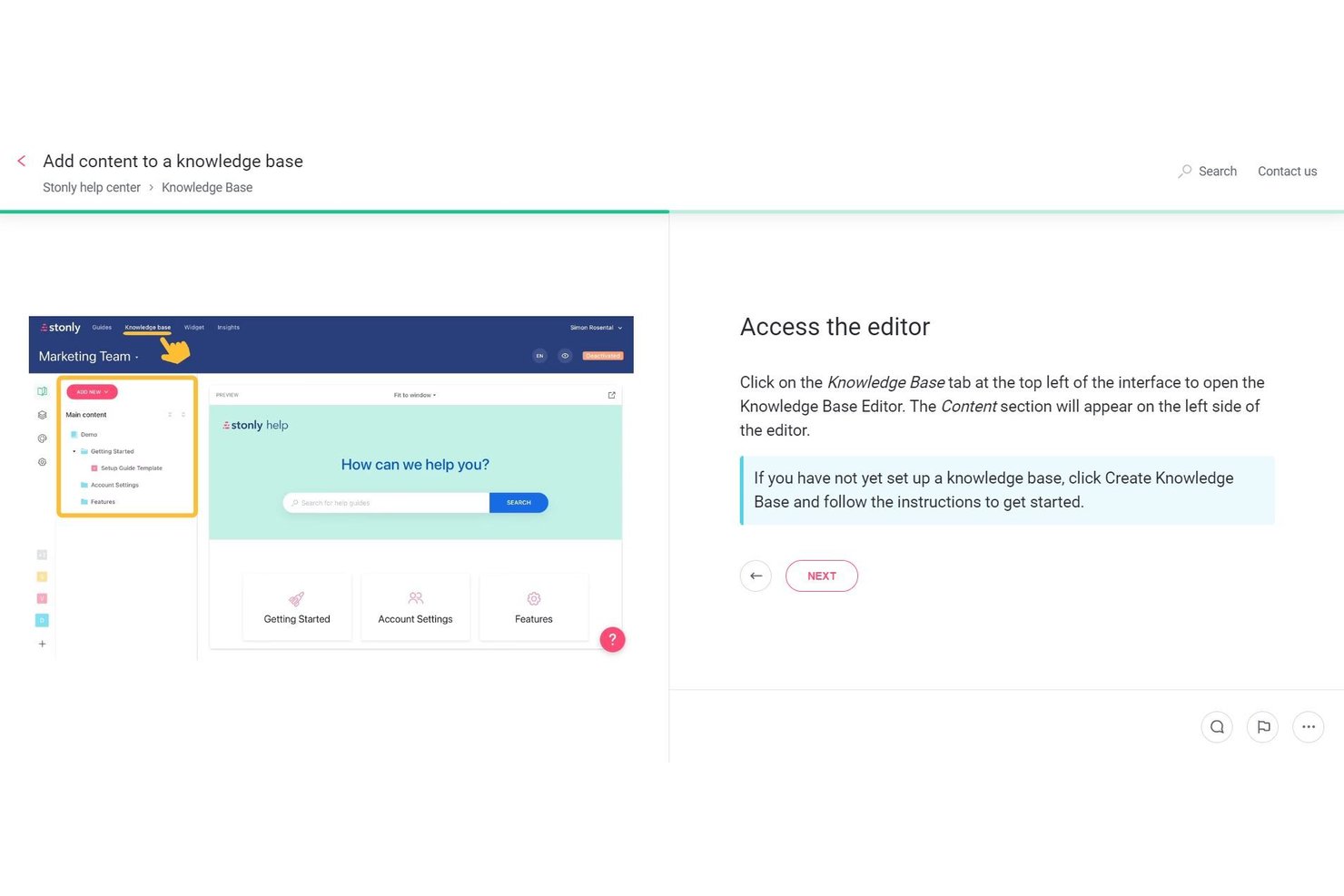
Stonly is a knowledge base platform built around interactive, branching guides that adapt based on user input, combining a WYSIWYG editor, AI-powered search, and workflow automation to deliver self-serve support experiences.
Who Is Stonly Best For?
Stonly is a strong fit for customer support and success teams that need to deliver interactive, self-serve help experiences to end users.
Why I Picked Stonly
I picked Stonly as one of the best because its branching, interactive guide format genuinely changes how users navigate self-serve support. Instead of scrolling through a static article, users answer questions and get a path tailored to their situation. I find the AI Answers feature especially compelling: it pulls from structured guide content and connected sources to deliver conversational, accurate responses with a reported 92% accuracy rate.
Stonly Key Features
- Knowledge agents: AI agents that continuously monitor your knowledge base for outdated content, gaps, and duplicates, then draft suggested updates for your review.
- Modular content snippets: Reusable content blocks you can create once and embed across multiple guides to keep information consistent without manual updates.
- Full-path analytics: Tracks how users move through each guide step-by-step, including where they drop off, so you can identify and fix friction points.
- Federated search: Pulls content from connected sources like Confluence, Notion, and Google Docs into a single search experience within your knowledge base.
Stonly Integrations
Stonly documents integrations with Confluence, Notion, Google Drive, SharePoint, Zendesk, Salesforce, and Jira. It also supports Zapier and an API for custom integrations.
Pros and Cons
Pros:
- Full-path analytics reveal content drop-off points
- AI agents continuously monitor and suggest updates
- Branching interactive guides adapt to user input
Cons:
- No project management templates or workflows
- Lacks hierarchical wiki structure for documentation

Best for ticketing and workflow automation
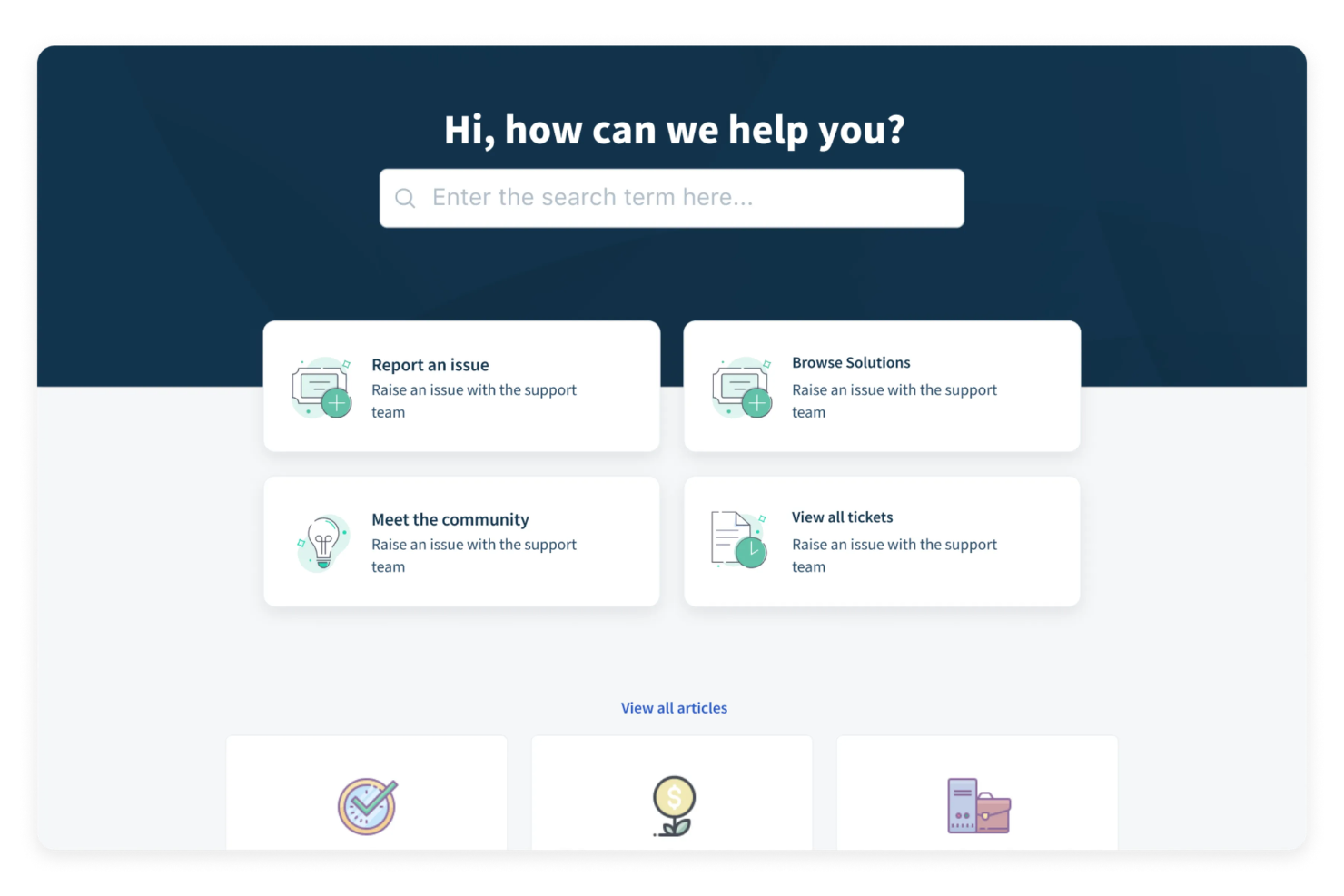
A cloud-based customer support suite, Freshdesk includes a built-in knowledge base, customizable self-service portals, ticket management, community forums, and multilingual article publishing.
Who Is Freshdesk Best For?
Freshdesk is a strong fit for mid-sized customer support teams that need a single platform to manage tickets, self-service content, and agent workflows together.
Why I Picked Freshdesk
I've included Freshdesk in my top picks because its ticket dispatch and automation rules give support teams a level of workflow control that's hard to replicate elsewhere. I particularly like the event- and time-based automation triggers: you can set rules to auto-assign, auto-escalate, and auto-resolve tickets based on specific conditions, which cuts down on the manual triage work agents deal with every day. On top of that, skill-based ticket routing and multiple SLA policies mean the right ticket gets to the right agent without anyone having to intervene.
Freshdesk Key Features
- Knowledge base article editor: Create, organize, and publish support articles into categorized folders with up to five levels of hierarchy.
- SEO optimization: Add meta titles, descriptions, and SEO-friendly URLs to knowledge base articles to improve search visibility.
- Article approval workflows: Route drafted articles through a review and approval process before they go live.
- Community forums: Give customers a space to post questions, share feedback, and find peer-sourced answers alongside your knowledge base.
Freshdesk Integrations
Freshdesk offers over 1,200 marketplace apps and integrations, including Slack, Microsoft Teams, Shopify, Salesforce, Jira, Google Calendar, Google Analytics, Atlassian Jira Plus, Aircall, and Freshsales Suite. It's also available on Zapier and provides a REST API for custom integrations.
Pros and Cons
Pros:
- Ticket replies convert into knowledge base articles
- Built-in multilingual article translations on select plans
- Helpdesk and knowledge base share one interface
Cons:
- Search performance degrades with large article volumes
- Article editor feels outdated versus standalone tools
New Product Updates from Freshdesk
Freshdesk Adds Analytics Charts to Team Dashboards
Freshdesk now lets teams add existing Analytics report charts to custom team dashboards from the same configuration pane used for live widgets. For more information, visit Freshdesk's official site.

Desk365
Best for integration with Microsoft Teams
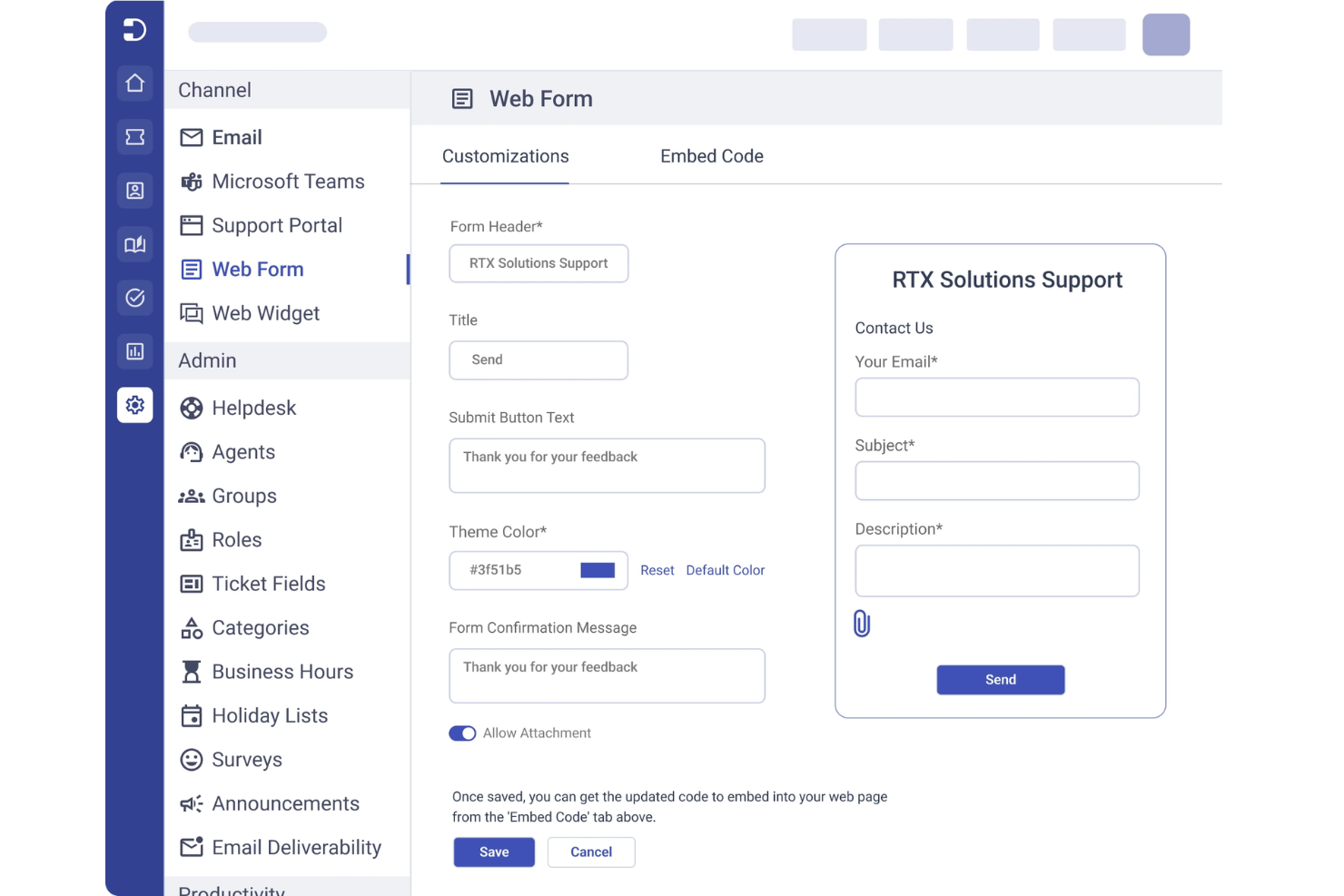
Desk365 is a cloud-based helpdesk platform designed for teams that want to manage customer support and internal requests in one place. It’s a strong fit for organizations already using Microsoft 365 who want to centralize ticketing, automate workflows, and build a searchable knowledge base. Desk365 helps reduce response times and keeps support information organized for both agents and end users.
Who Is Desk365 Best For?
Desk365 is well-suited for support teams in organizations that rely on Microsoft Teams for daily communication and ticket management.
Why I Picked Desk365
What stands out about Desk365 is how deeply it integrates with Microsoft Teams, making it a natural fit for organizations that already use Teams as their primary communication hub. I picked Desk365 because it lets users create, manage, and search knowledge base articles directly within Teams, so support agents and employees don’t have to switch platforms to find answers or resolve tickets. The ability to automate ticket creation from Teams conversations and surface relevant knowledge base content in real time helps keep support workflows efficient and contextually relevant. This approach is especially valuable for companies that want to keep all support and knowledge management activity inside their existing Microsoft 365 environment.
Desk365 Key Features
Some other Desk365 features that knowledge base buyers should know about include:
- Custom ticket fields: Add and configure custom fields to capture the exact information your team needs for each support request.
- Canned responses: Create and manage reusable response templates for common questions and issues.
- Customer portal: Offer a branded self-service portal where users can submit tickets and browse knowledge base articles.
- SLA management: Set, track, and enforce service level agreements to ensure timely responses and resolutions.
Desk365 Integrations
Integrations include Microsoft Teams, Microsoft 365, Outlook, Power Automate, Azure Active Directory, Jira, Slack, Salesforce, Google Workspace, and Zapier.
Pros and Cons
Pros:
- Good user management
- Affordable pricing
- Easy self-serve portal
Cons:
- Not for complex wikis
- Weak search analytics

Hub
Best for company-wide knowledge sharing

Hub is a knowledge management and intranet platform where teams can create, organize, and govern internal content across pages, documents, and integrated cloud drives.
Who Is Hub Best For?
Hub is a strong fit for mid-sized to large organizations that need a centralized intranet to manage internal knowledge across multiple departments or locations.
Why I Picked Hub
Hub is one of my top picks because I love how it handles knowledge sharing at scale across a whole organization. The federated search pulls results from intranet pages, attached documents, and connected cloud drives like Google Drive and SharePoint in a single query. I also use Smart Tags to make sure the right content surfaces for the right teams, so HR content doesn't clutter engineering, and vice versa.
Hub Key Features
- Version control: Track content changes over time with a full audit history and the ability to roll back to previous page versions.
- Content expiry notifications: Set review dates on pages so owners are automatically notified when content needs to be updated or revalidated.
- Must Reads: Assign specific pages or documents as required reading and collect read receipts to confirm acknowledgment.
- No-code CMS: Build and edit pages using pre-built content templates without any technical knowledge.
Hub Integrations
Hub offers integrations with Microsoft 365 (including SharePoint, OneDrive, and Teams), Google Workspace, Slack, Confluence, Box, BambooHR, and Eventbrite. It also supports SSO through Microsoft Entra ID, Google, Office 365, OneLogin, OKTA, and Duo Mobile. An API is available for custom integrations.
Pros and Cons
Pros:
- AI writing assistant for content creation
- Built-in multi-site content management
- Must Reads feature tracks policy acknowledgment
Cons:
- No external-facing knowledge base option
- Search can miss deeply nested content

Slite
Best for collaborative team documentation
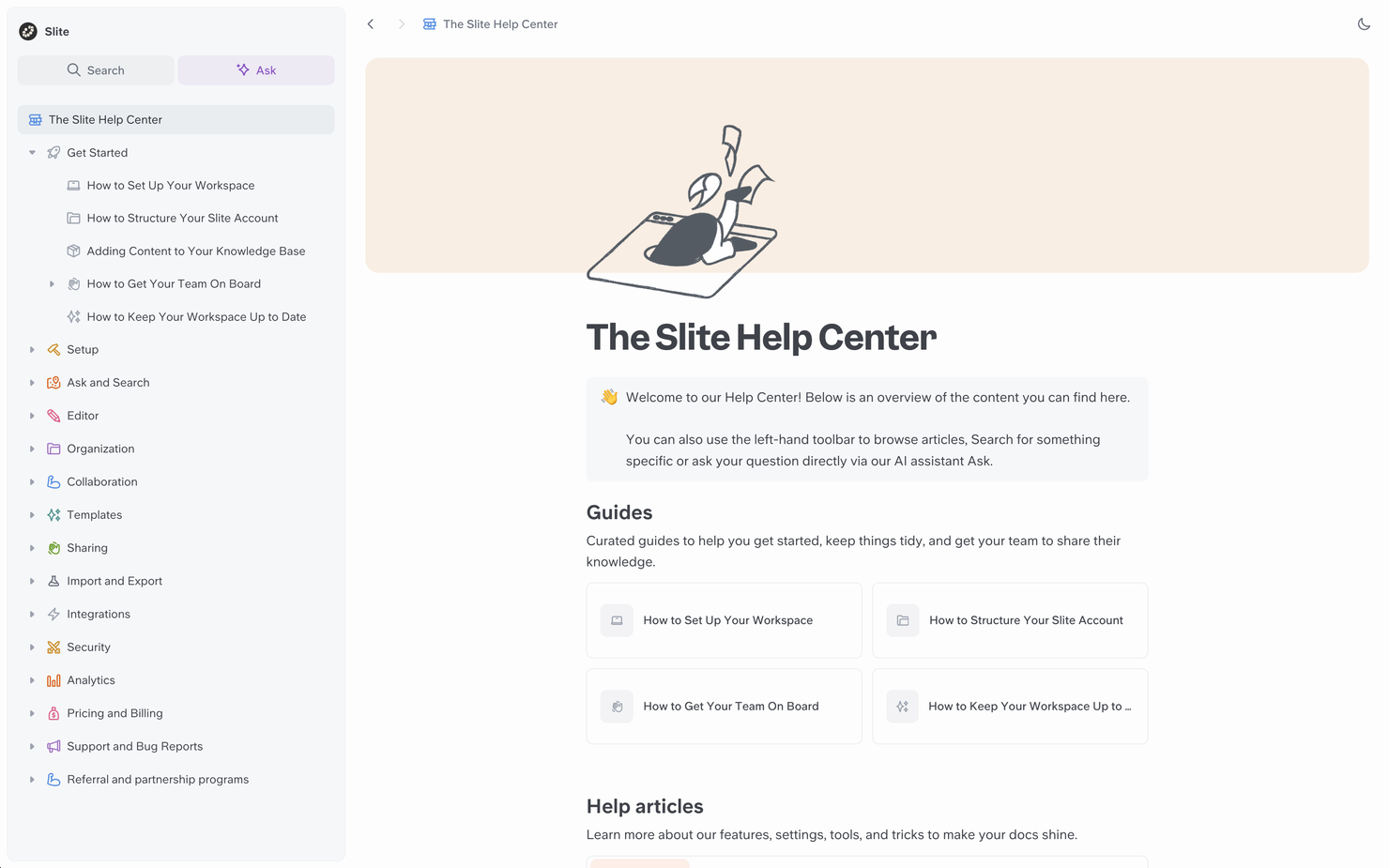
If your team needs a workspace for collaborative documentation, Slite is worth a look. The platform is designed for teams that want to organize, discuss, and update knowledge in one place. It’s especially useful for distributed teams who need to keep everyone aligned and informed as projects evolve.
Who Is Slite Best For?
Slite is a strong fit for distributed teams and startups that need a central hub for collaborative documentation and knowledge sharing.
Why I Picked Slite
What drew me to Slite is how it enables real-time collaboration on documentation, which is essential for teams that need to co-author and update knowledge together. The platform supports threaded discussions directly within documents, so teams can clarify details and resolve questions without leaving the workspace. I also appreciate the way Slite organizes content into channels and collections, making it easy for everyone to find and contribute to the right information. For teams that prioritize collaborative workflows in their knowledge base, these features make Slite a compelling choice.
Slite Key Features
Some other features that make Slite useful for knowledge management include:
- Document templates: Choose from a library of pre-built templates to quickly create meeting notes, project docs, and knowledge base articles.
- Advanced search: Use keyword and filter-based search to find documents, discussions, or attachments across your workspace.
- Access permissions: Set granular permissions for channels, collections, and individual documents to control who can view or edit content.
- Version history: Track changes and restore previous versions of any document to maintain accuracy and accountability.
Slite Integrations
Integrations include Slack, Jira, Google Drive, Figma, Asana, Trello, ClickUp, Notion, Loom, and Miro.
Pros and Cons
Pros:
- Easy daily notes
- Great for remote teams
- Real-time co-editing
Cons:
- Limited block types
- Lacks deep analytics

Notion
Best for flexible workspace organization
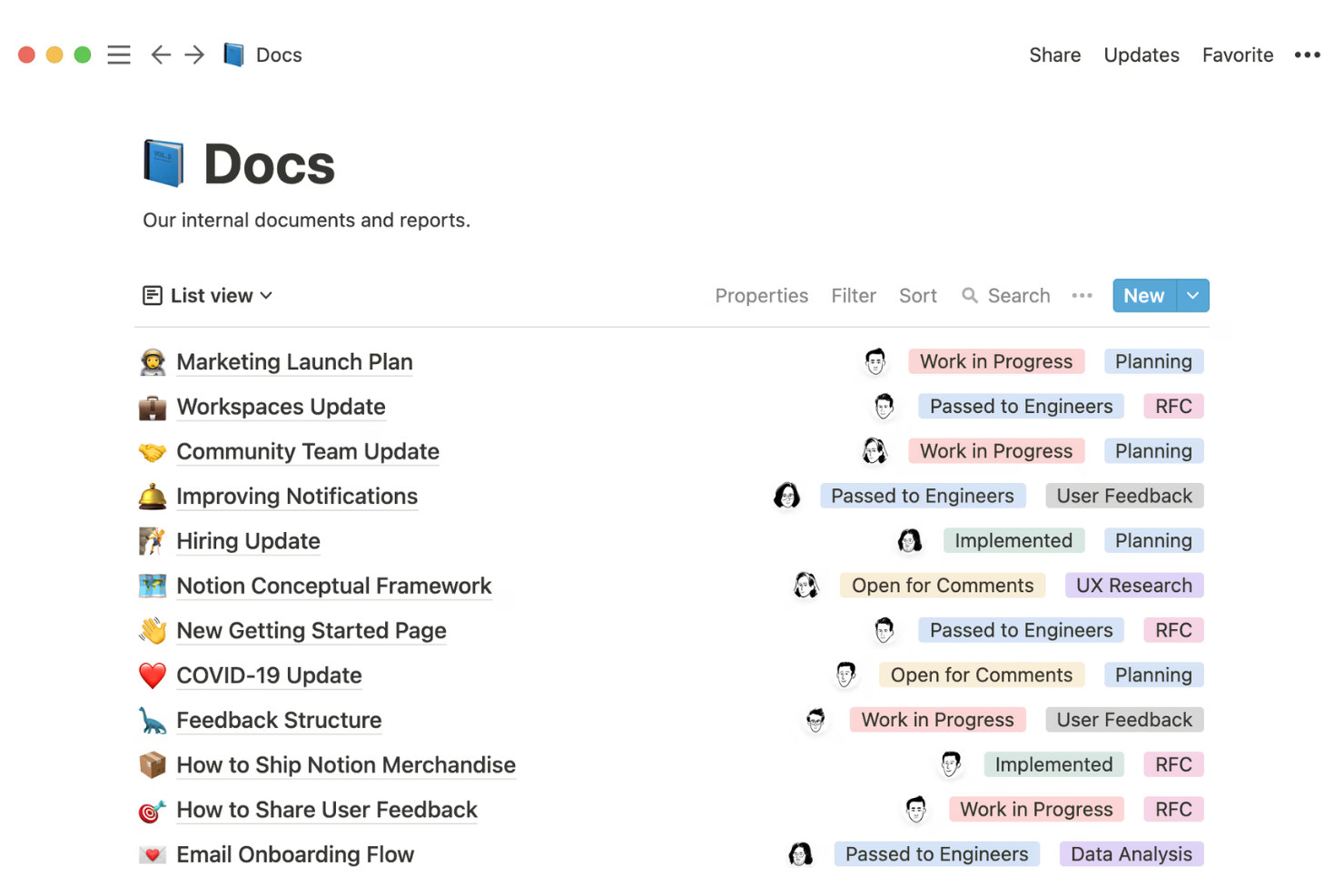
Notion offers a highly customizable platform for teams that want to build and organize their own knowledge base from the ground up. It’s especially appealing to startups, creative agencies, and tech companies that need flexible structures for documentation, project notes, and internal wikis. If your team values adaptability and collaborative editing, Notion can help you centralize information and keep everyone aligned.
Who Is Notion Best For?
Notion is a strong choice for startups and tech teams that need a flexible, collaborative workspace for organizing internal knowledge and documentation.
Why I Picked Notion
What sets Notion apart for knowledge base software is how it lets you organize information in whatever way fits your team’s workflow. I picked Notion because you can create custom databases, nested pages, and linked content blocks, so your workspace can evolve as your documentation grows. The drag-and-drop interface makes it easy to restructure content, while granular permissions let you control who can view or edit each section. This flexibility is especially useful for teams that want to adapt their knowledge base structure as their needs change.
Notion Key Features
Some other features that make Notion useful for knowledge base management include:
- Version history: Track changes to pages and restore previous versions when needed.
- Rich media embedding: Add images, videos, code snippets, and files directly into your documentation pages.
- Page commenting: Allow team members to leave feedback or ask questions directly on any page.
- Template gallery: Access a library of pre-built templates for wikis, docs, and project documentation.
Notion Integrations
Integrations include Slack, Jira, GitHub, Asana, Google Drive, Figma, Trello, Webex, Typeform, and Miro.
Pros and Cons
Pros:
- Great value for money
- Huge template gallery
- Strong AI features
Cons:
- Formatting breaks easy
- Weak access controls

Best for AI-powered content search
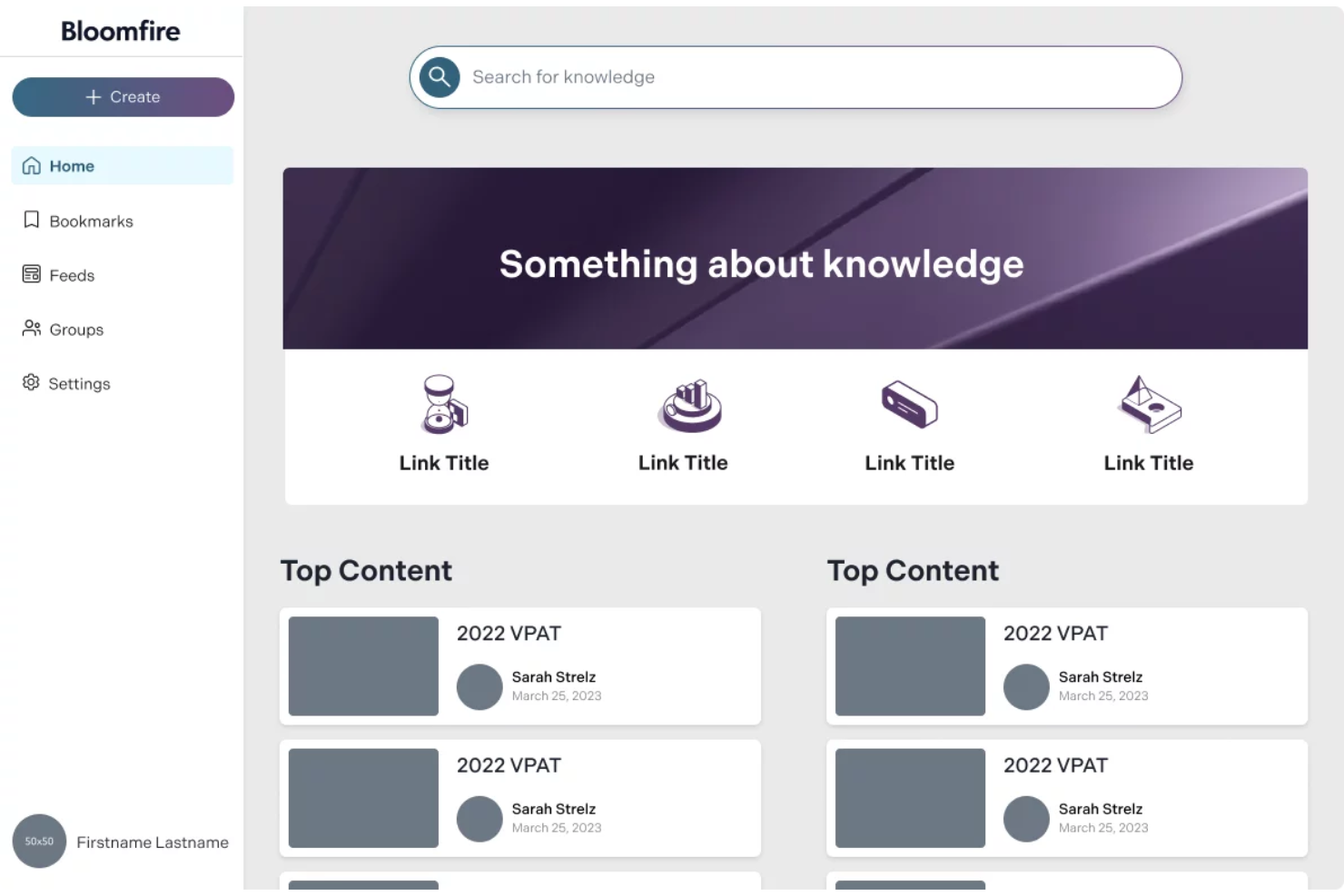
If your team needs a knowledge base that makes finding information fast and intuitive, Bloomfire is worth a look. The platform is designed for organizations that want to centralize knowledge and make it easily searchable for employees or customers. Its approach appeals to businesses that deal with large volumes of content and need to reduce time spent searching for answers.
Who Is Bloomfire Best For?
Bloomfire suits mid-sized to large organizations that need to make large volumes of internal knowledge easily searchable for distributed teams.
Why I Picked Bloomfire
What drew me to Bloomfire is how it uses AI to transform content search within a knowledge base. The platform’s AI-powered search understands natural language queries, so users can type questions as they would ask a colleague and get relevant results. I also appreciate the way Bloomfire automatically tags and organizes content, making it easier for teams to surface the right information quickly. For organizations where fast, accurate search is essential to productivity, these features make Bloomfire a strong contender.
Bloomfire Key Features
Some other features that make Bloomfire useful for knowledge management include:
- Content moderation tools: Assign moderators to review, approve, or reject posts before they go live.
- Rich media support: Upload and share videos, images, and documents directly within the knowledge base.
- Customizable user permissions: Set granular access controls for different teams, departments, or individuals.
- Q&A functionality: Allow users to ask questions and receive answers that are searchable and archived for future reference.
Bloomfire Integrations
Integrations include Salesforce, Slack, Microsoft Teams, Zendesk, and Google Drive.
Pros and Cons
Pros:
- Good content curation
- Strong Q&A workflow
- Auto-tagging features
Cons:
- Rigid folder structure
- Overkill for basic KBs

Best with Microsoft 365 ecosystem integration
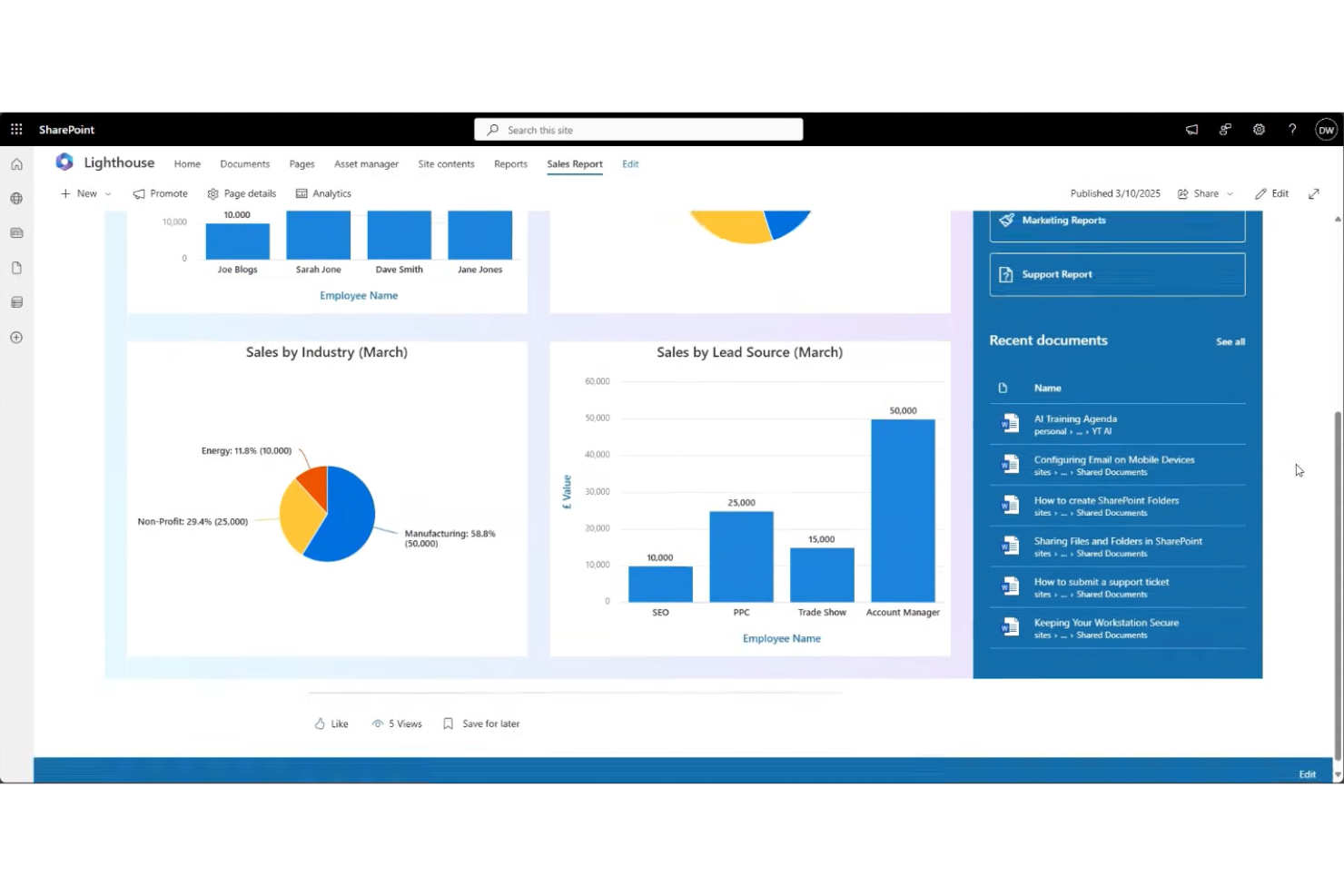
If your organization already uses Microsoft 365, Microsoft SharePoint offers a familiar way to manage and share internal knowledge. The platform is designed for businesses that need secure document management, team sites, and customizable intranets. SharePoint helps centralize company information and supports collaboration across departments and locations.
Who Is Microsoft SharePoint Best For?
SharePoint is a strong fit for mid-sized to large organizations that need secure, centralized knowledge management within the Microsoft 365 environment.
Why I Picked Microsoft SharePoint
What sets Microsoft SharePoint apart as a knowledge base software is how deeply it connects with the Microsoft 365 ecosystem. I picked SharePoint because it lets teams create, store, and manage documents directly alongside their existing Microsoft tools like Teams, Outlook, and OneDrive. This integration means you can embed files, automate workflows, and control permissions using the same identity and security framework your organization already relies on. For businesses that want their knowledge base to fit seamlessly into daily work and IT policies, SharePoint’s ecosystem alignment is a major advantage.
Microsoft SharePoint Key Features
Some other features that make SharePoint useful for knowledge management include:
- Customizable site templates: Create team sites, communication sites, or department portals tailored to your organization’s structure.
- Document versioning: Track changes and restore previous versions of files to maintain accuracy and accountability.
- Metadata tagging: Organize and categorize documents with custom tags for easier search and retrieval.
- Advanced search functionality: Use filters, keywords, and metadata to quickly locate documents and information across your knowledge base.
Microsoft SharePoint Integrations
Integrations include Microsoft Teams, OneDrive, Outlook, Microsoft Dynamics 365, and Power BI.
Pros and Cons
Pros:
- Intranet capabilities
- Massive file storage
- High security protocols
Cons:
- Needs IT to deploy
- Weak search function

Confluence
Best for integrating with Atlassian project tools
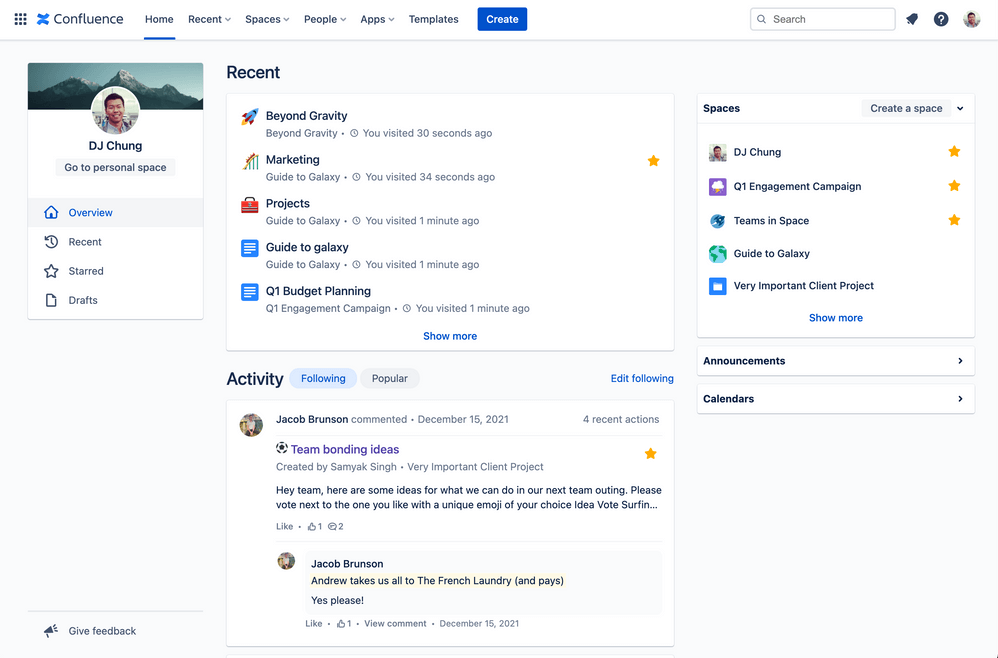
Confluence is a knowledge base platform designed for teams that need structured, collaborative documentation. It’s a strong fit for organizations already using Atlassian products or those managing complex projects across multiple departments. Teams can use Confluence to centralize information, reduce silos, and keep documentation accessible as projects evolve.
Who Is Confluence Best For?
Confluence suits project managers and cross-functional teams in mid-sized to large organizations that need structured, collaborative documentation.
Why I Picked Confluence
I chose Confluence because it offers deep integration with Atlassian project tools, making it a natural fit for teams already using Jira or Trello. This integration allows users to link project tickets, embed roadmaps, and reference tasks directly within knowledge base articles. I find this especially useful for keeping documentation and project work tightly connected, so teams always have the latest context. Confluence also supports structured page templates and permissions, which help maintain consistency and control as your knowledge base grows.
Confluence Key Features
Some other features that make Confluence a strong knowledge base platform include:
- Page version history: Track changes over time and restore previous versions of any page.
- Advanced search: Use filters and keywords to quickly locate relevant articles or documentation.
- Commenting and inline feedback: Allow team members to discuss content directly on pages for real-time collaboration.
- Analytics dashboard: Monitor page views, engagement, and popular content to understand how your knowledge base is being used.
Confluence Integrations
Integrations include Jira, Jira Service Management, Trello, Loom, Bitbucket, Compass, Rovo, Jira Align, Focus, and Talent.
Pros and Cons
Pros:
- Strong access controls
- Rich template library
- Great version control
Cons:
- Messy page hierarchy
- Slow load times
Other Knowledge Base Software
Here are some additional knowledge base software options that didn’t make it onto my shortlist, but are still worth checking out:
- KnowledgeOwl
For granular content permissions
- Guru
For browser extension knowledge capture
- Helpjuice
For advanced customization options
- KnowledgeBase
For rapid setup and deployment
- eGain
For AI-powered self-service support
- ClickHelp
For multi-format technical documentation
- Lark
With integrated chat and document editing
- Freshdesk
For omnichannel customer support integration


How I Evaluate Knowledge Base Software
I split my evaluation into two layers: the baseline requirements a tool must meet—like structured authoring, search, and PM integrations—and the differentiators that set the best options apart.
Core Functionality (Table Stakes For This List)
When I'm selecting tools for my list, I rank each one on a scale from 0 (does not offer the functionality) to 5 (excels in this area) for each core functionality listed below. Then, I calculate the tool's total score into a percentage. Each tool needs to achieve a minimum total score of 65% to be considered for inclusion.
- Content Authoring & Structure: I evaluate the editor's flexibility and how deeply you can nest pages—think organizing a sprint playbook into phases, ceremonies, and artifact sub-pages without hitting a ceiling.
- Search & Retrieval Quality: Finding a specific retrospective from three quarters ago shouldn't take more than a few seconds, so I check for full-text search, filters, and tagging.
- Access Controls & Permissions: I look at whether you can lock down sensitive project pages (like budget docs) to leadership while keeping process wikis open to the full delivery team.
- Collaboration & Version History: Real-time co-editing matters when multiple PMs update a shared runbook, so I evaluate commenting, change tracking, and the ability to roll back to earlier versions.
- Project Management Integrations: Tools like Jira, Asana, and Monday are central to most PM workflows, so I check for native integrations that link knowledge articles to active tasks and boards.
- Templates & Reusable Formats: Pre-built templates for project charters, post-mortems, and RACI matrices save hours of setup—I look at both the built-in library and the ability to create custom templates.
Once I have a list of tools that meet the criteria, I consider what sets each platform apart.
Differentiating Factors (What Sets Vendors Apart)
Here's how I compare and contrast different vendors:
Standout Features
AI-powered features are a big differentiator—I look for tools that can surface relevant docs when you're mid-sprint or auto-summarize lengthy post-mortems. Content analytics also matter. Knowing which pages go unread helps PMOs spot gaps in team knowledge and retire outdated process docs. Workflow automation rounds things out, with automated review reminders and scheduled archiving that keep project wikis from going stale between delivery phases.
Beyond Features
I pay close attention to the integration ecosystem—your knowledge base needs to connect with Slack, Teams, and your file storage layer, not just your PM tool. Pricing structure matters too, especially whether a vendor offers free viewer seats for stakeholders who only need to read project docs. I also evaluate migration support, because moving years of documentation out of Confluence or SharePoint is a real barrier that the right vendor can smooth out with dedicated tooling.
How to Choose Knowledge Base Software
It’s easy to get bogged down in long feature lists and complex pricing structures. To help you stay focused as you work through your unique software selection process, here’s a checklist of factors to keep in mind:
| Factor | What to Consider |
|---|---|
| Scalability | Will the software handle your growing content and user base? Consider future team size and article volume. |
| Integrations | Does it connect natively with your existing tools (e.g., Slack, Teams, CRM)? Check for direct integrations, not just API access. |
| Customizability | Can you tailor categories, branding, and permissions to fit your workflows and company identity? |
| Ease of use | Will your team and end users adopt it quickly? Look for intuitive navigation and minimal training requirements. |
| Implementation and onboarding | How long will the setup take, and what resources are needed? Ask about migration support, templates, and onboarding help. |
| Cost | Are pricing tiers clear and predictable as you scale? Watch for hidden fees, user limits, or extra charges for core capabilities. |
| Security safeguards | Does the platform meet your data protection standards? Check for encryption, access controls, and compliance certifications. |
| Support availability | What support channels and response times are offered? Consider if you need 24/7 help or dedicated onboarding assistance. |
What Is Knowledge Base Software?
Knowledge base software is a digital platform that allows organizations to create, organize, and share information in a centralized, searchable repository. Teams use it to document processes, answer common questions, and store reference materials for both internal and external audiences. This software helps reduce repetitive inquiries, supports self-service, and ensures that accurate, up-to-date information is always accessible to those who need it.
Features
When selecting knowledge base software, keep an eye out for the following key features:
- Article management: Lets you create, edit, organize, and publish articles so information stays accurate and easy to update as your organization grows.
- Search functionality: Provides users with a fast, intuitive way to find relevant articles or documents using keywords, filters, or tags.
- Category organization: Allows you to group articles into folders or categories, making it easier for users to browse and locate information by topic.
- User permissions: Enables you to control who can view, edit, or publish content, supporting both internal and external knowledge sharing.
- Version history: Tracks changes to articles over time, allowing you to review, restore, or audit previous versions as needed.
- Custom branding: Lets you tailor the look and feel of your knowledge base to match your company’s identity, including logos, colors, and domain.
- Feedback and ratings: Allows users to rate articles or leave feedback, helping you identify gaps or areas for improvement in your documentation.
- Multimedia support: Supports embedding images, videos, and attachments within articles to enhance clarity and provide richer explanations.
- Analytics and reporting: Offers insights into article usage, search trends, and user engagement so you can measure effectiveness and identify popular topics.
- Self-service portal: Provides a dedicated interface where users can search for answers, submit questions, or access resources without contacting support.
Common AI Features
Beyond the standard knowledge base software features listed above, many of these solutions are incorporating AI with features like:
- Automated article suggestions: Uses AI to recommend relevant articles to users based on their search queries or support tickets, reducing time spent searching for answers.
- Content gap analysis: Analyzes user searches and interactions to identify missing topics or underdeveloped areas in your knowledge base, helping you prioritize new content.
- AI-powered chatbots: Provides instant, conversational support by answering user questions and directing them to the most relevant articles using natural language processing.
- Automated content tagging: Applies intelligent tags to articles based on their content, improving search accuracy and making it easier to organize large knowledge bases.
- Article summarization: Uses AI to generate concise summaries of lengthy articles, allowing users to quickly grasp key points without reading the entire document.
Benefits
Implementing knowledge base software provides several benefits for your team and your business. Here are a few you can look forward to:
- Faster information access: Centralized search and organized categories help users quickly find answers without waiting for support.
- Consistent documentation: Version control and permissions ensure everyone references the most accurate, up-to-date information.
- Reduced repetitive inquiries: Self-service portals and article suggestions empower users to resolve common questions independently.
- Improved onboarding: Training resources, templates, and guided tours help new team members get up to speed faster.
- Better knowledge retention: Article management and analytics preserve institutional knowledge and highlight gaps for future improvement.
- Enhanced collaboration: User feedback, permissions, and content editing features support cross-team contributions and knowledge sharing.
- Scalable support: Automated workflows and AI-powered tools allow your knowledge base to grow with your business and user base.
Costs and Pricing
Selecting knowledge base software requires an understanding of the various pricing models and plans available. Costs vary based on features, team size, add-ons, and more. The table below summarizes common plans, their average prices, and typical features included in knowledge base software solutions:
Plan Comparison Table
| Plan Type | Average Price | Common Features |
|---|---|---|
| Free Plan | $0 | Basic article management, limited storage, simple search, and community support. |
| Personal Plan | $5-$15/user/month | Unlimited articles, basic analytics, custom branding, and email support. |
| Business Plan | $10-$25/user/month | Advanced permissions, integrations, version history, analytics, and priority support. |
| Enterprise Plan | $20-$50/user/month | SSO, advanced security, custom workflows, dedicated onboarding, and premium support. |
Knowledge Base Software FAQs
Here are some answers to common questions about knowledge base software:
How do I know if my team needs knowledge base software?
If your team spends time answering the same questions or struggles to keep documentation organized and accessible, you likely need knowledge base software. It helps centralize information, making it easier for everyone to find and update resources.
Can knowledge base software be used for both internal and external audiences?
Yes, most knowledge base software supports both internal and external use. You can set permissions to control who can view or edit content, allowing you to share information with employees, customers, or partners as needed. Teams focused specifically on employee-facing knowledge can use internal wiki software for that purpose.
What should I look for when migrating from an existing documentation system?
Look for import tools, migration support, and compatibility with your current file formats. Consider how the new software handles structure, links, and user permissions to avoid data loss or confusion during the transition.
How secure is knowledge base software?
Most solutions offer encryption, access controls, and compliance certifications. Always review a vendor’s security documentation and ask about data protection measures, especially if you handle sensitive or regulated information. Some open-source knowledge base solutions also support self-hosting for teams that want more control over deployment and data.
How often should I update my knowledge base content?
Update your knowledge base whenever processes change, new products launch, or you notice repeated questions. Regular reviews and user feedback help keep information accurate and relevant for your audience.