

10 Best Task Management Software for Individuals in 2026

Best Task Management Software for Individuals Shortlist


Task management software for individuals lets you organize tasks, set reminders, and track progress on your personal projects—all in one place. If you're looking for tools to help you prioritize, stay focused, and handle everything from work deadlines to daily habits, you're not alone. With so many options promising more productivity and less stress, figuring out what actually works can feel overwhelming. In this guide, I’ll break down the best task management software for individuals so you can quickly compare features, find what fits your workflow, and take more control over your time in 2026.
Why Trust Our Software Recommendations
Our team has been testing and reviewing software since 2012. As project managers ourselves, we know how difficult—and important—it is to choose the right software.
For this guide, we evaluated tools using hands-on testing and independent research, scoring tools using our selection criteria. We also draw on insights from industry thought leaders and practicing project management experts.
Our reviews reflect our human editorial judgment, not a sales pitch.
Expert reviewers:
Comparison Table: Task Management Software for Individuals Summary
This comparison table summarizes pricing details for my top task management Software for individuals:
| Tool | Best For | Trial Info | Price | ||
|---|---|---|---|---|---|
| 1 | Best for task inbox for fast universal capture | 7-day free trial | From $19/user/month | Website | |
| 2 | Best for Kanban boards for solo workflows | Free plan + free trial available | From $5/user/month (billed annually) | Website | |
| 3 | Best for all-in-one docs and task workspace | Free plan + free trial + free demo available | From $10/user/month (billed annually) | Website | |
| 4 | Best for custom perspectives for workflows | 14-day free trial | From $4.99/month | Website | |
| 5 | Best for smooth integration with Google Calendar | Free-forever plan available | Free to use | Website | |
| 6 | Best for Outlook and Office 365 syncing | Free-forever plan available | Free to use | Website | |
| 7 | Best for natural language task entry | Free plan available | From $5/user/month (billed annually) | Website | |
| 8 | Best for built-in habit tracking integration | Free plan available | From $49.99/year (billed annually) | Website | |
| 9 | Best for personal cross-device reminders | Free plan + free demo available | From $4.99/user/month (billed annually) | Website | |
| 10 | Best for macOS native design and performance | 15-day free trial (Mac only) | From $9.99 | Website |
Best Task Management Software for Individuals Reviews
Below are my detailed summaries of the best task management software for individuals that made it onto my shortlist. My reviews offer a detailed look at the features, best use cases, and integrations of each tool to help you find the best one for you.

Akiflow
Best for task inbox for fast universal capture
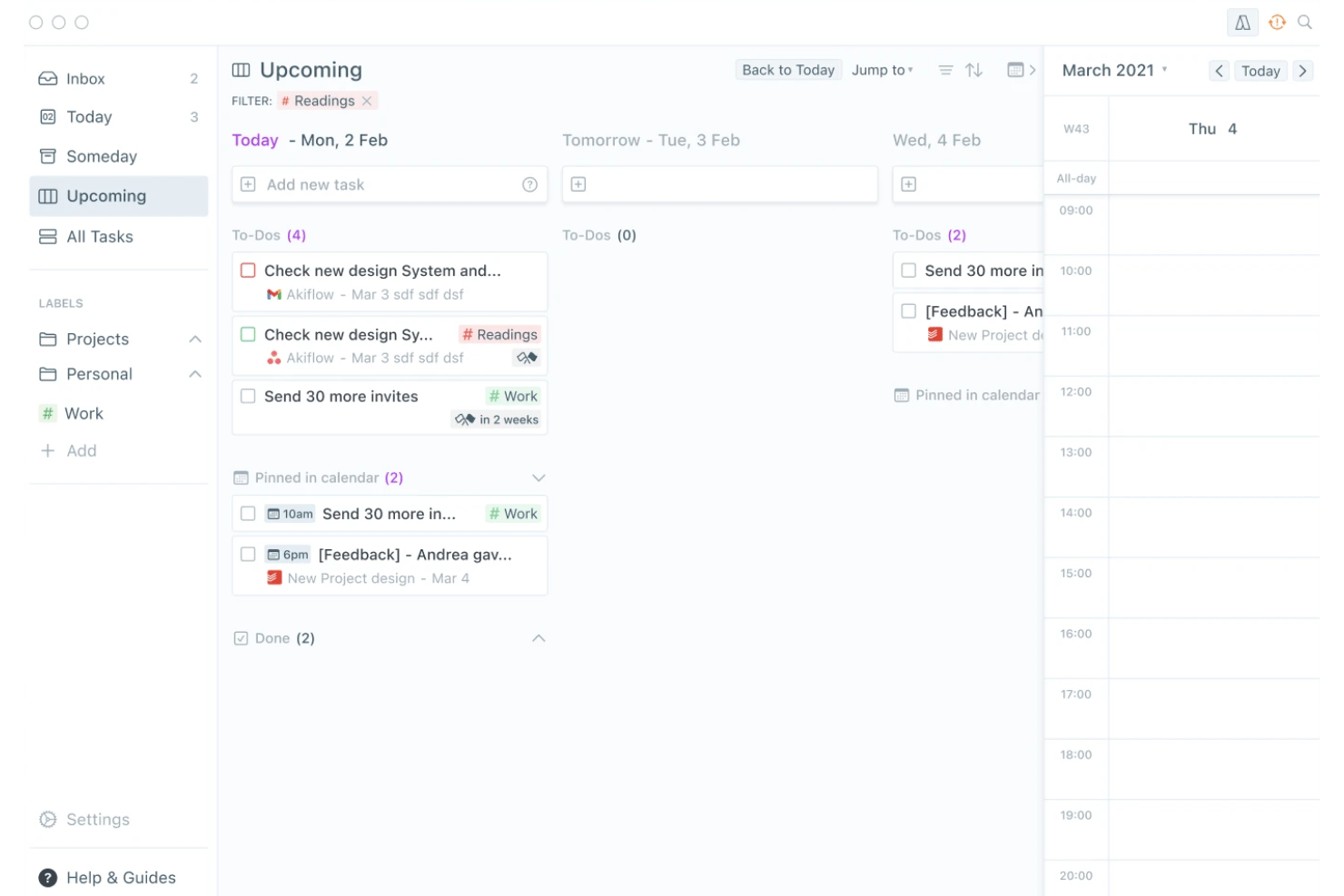
Akiflow is a personal task management app that combines a universal task inbox, time blocking, and calendar integration into a single daily planning interface.
Who Is Akiflow Best For?
Akiflow suits solo consultants and freelance professionals who manage tasks across multiple tools and need a single place to capture and schedule their day.
Why I Picked Akiflow
Akiflow earns its spot on my shortlist because the universal task inbox genuinely solves one of the messiest parts of solo work: tasks scattered across Slack, email, Notion, and five other tools. I love how the Command Bar lets me capture a task using natural language, like "Client call Friday at 2pm for 1 hour," and have it land directly on my calendar. In practice, that means I spend almost no time deciding where a task goes or how to schedule it.
Akiflow Key Features
- Custom recurring tasks: Set up tasks on daily, weekly, monthly, or fully custom repeat schedules.
- Unified calendar integration: Syncs Google and Outlook calendars for one central planning space.
- Focus timer and rituals: Use built-in timers and guided daily shutdowns to structure your workday.
- Cross-platform sync: Access tasks on Mac, Windows, iOS, Android, and web with real-time updates.
Akiflow Integrations
Akiflow offers native integrations with Google Calendar, Outlook, Gmail, Slack, Notion, Todoist, ClickUp, Linear, Microsoft Teams, and Zoom, and it connects with Zapier.
Pros and Cons
Pros:
- Natural language input for rapid task entry
- Smooth calendar integration with time blocking
- Quick universal inbox capture across platforms
Cons:
- Lacks a permanent free plan
- No Kanban or board visualization
Trello
Best for Kanban boards for solo workflows
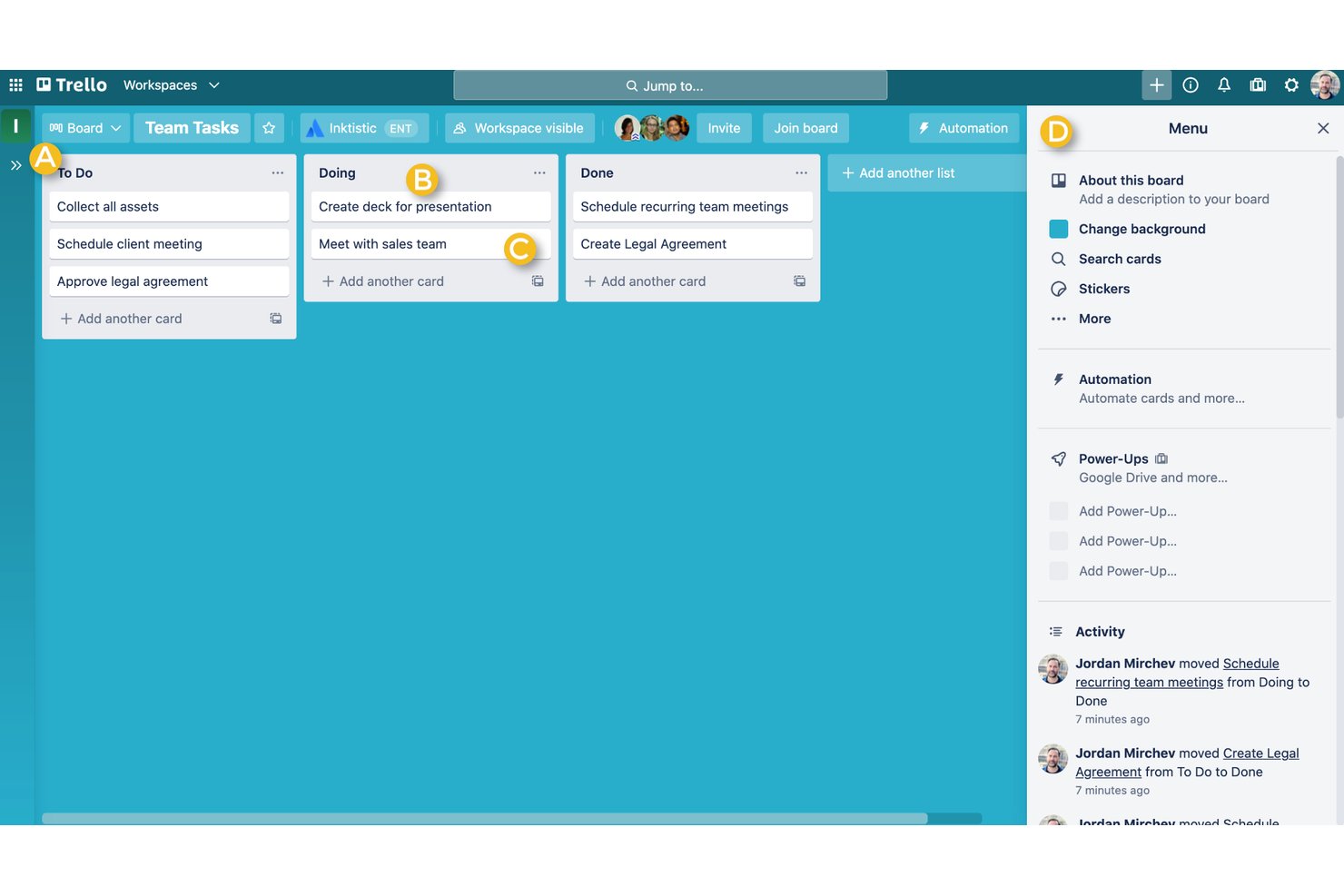
Trello is a visual task management tool built around Kanban boards, cards, and lists, with support for multiple views, built-in automation, and task capture from email and messaging apps.
Who Is Trello Best For?
Trello is a strong fit for freelancers and solo consultants who want a low-overhead, visual way to track tasks across multiple client projects.
Why I Picked Trello
Trello earns its spot on my shortlist because its Kanban board is the cleanest I've used for a solo workflow. I keep one board per client, use color-coded labels to flag priority, and pull tasks straight from email into the Inbox before sorting them into the right list. When my workload gets messy, the built-in Eisenhower Matrix template is something I keep coming back to for a fast reset.
Trello Key Features
- Advanced checklists: Break down tasks into subtasks with individual assignees and due dates.
- Power-Ups gallery: Extend boards with calendar sync, card aging, and 200+ app integrations.
- Butler automation: Create custom rules for recurring tasks, card movement, and notifications.
- AI card tools: Use AI to generate content, edit descriptions, and brainstorm directly within cards.
Trello Integrations
Trello offers native integrations through its Power-Ups gallery, including Slack, Google Drive, Figma, Jira, Google Calendar, and Zapier. An API is available for custom integrations.
Pros and Cons
Pros:
- Quick Capture pulls tasks from email and chat
- Unlimited cards for solo and client boards
- Kanban board is highly visual and flexible
Cons:
- Offline functionality is limited on mobile devices
- Recurring tasks need custom automation setup
Notion
Best for all-in-one docs and task workspace
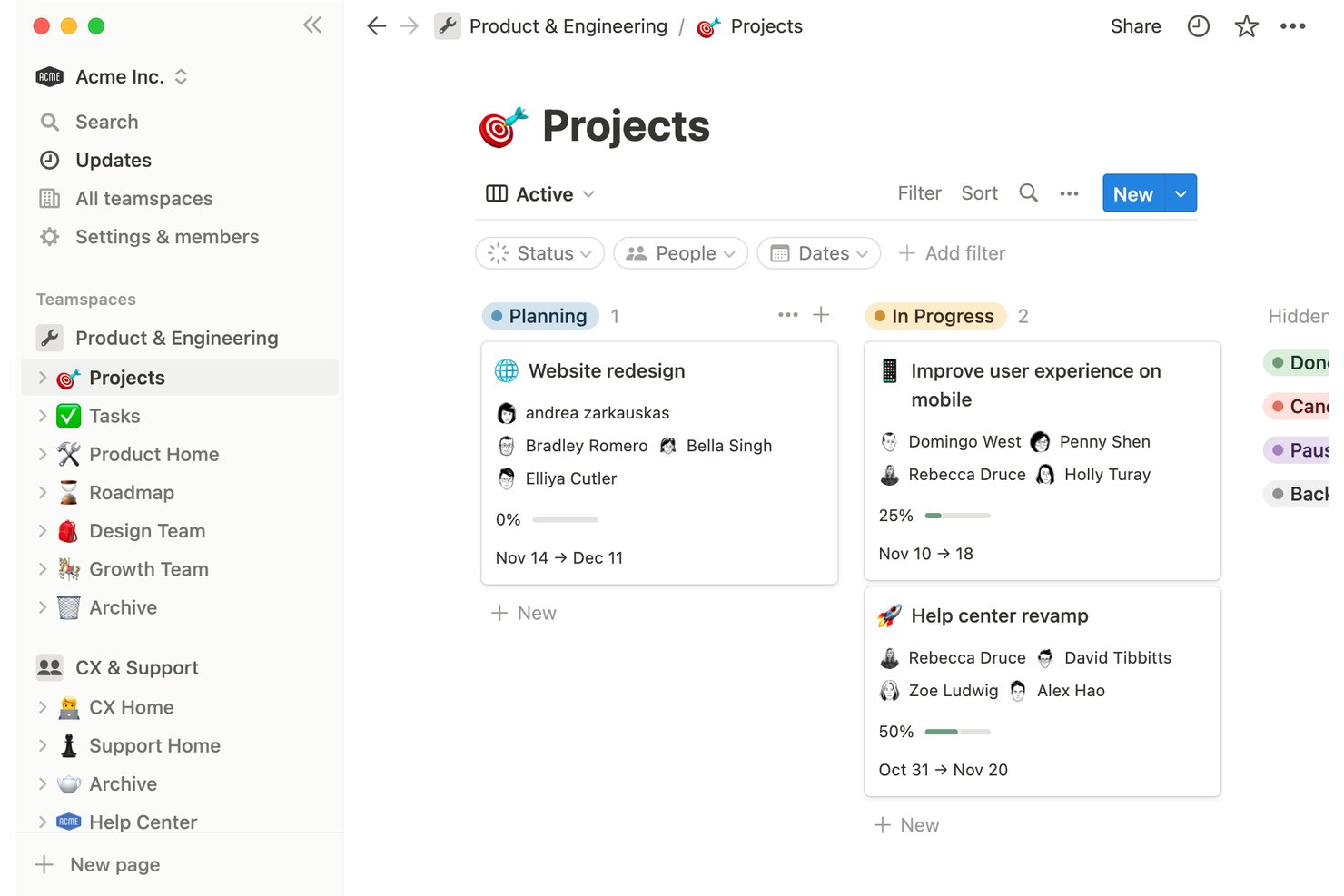
Notion is a block-based personal workspace that combines task management, notes, and databases into a single customizable environment for individuals managing projects, habits, and ideas.
Who Is Notion Best For?
Notion is a strong fit for freelancers and independent professionals who want to manage tasks, notes, and client projects in one place rather than across multiple apps.
Why I Picked Notion
I picked Notion as one of the best because no other tool on this list lets you build a task system from scratch using flexible database blocks. I can set up a board view for active client deliverables, switch to a calendar to track deadlines, and keep project notes on the same page, all without leaving the workspace. Recurring tasks with custom cadences and multi-select priority tags mean I can handle both ongoing client work and one-off to-dos in a single database.
Notion Key Features
- Multiple task views: Switch between list, board, gallery, timeline, and calendar displays for flexible project management.
- Template gallery: Access dozens of free, ready-made personal and project templates to jumpstart organization.
- Custom properties: Add fields for priority, tags, client names, and dates to any task or database.
- Offline access: Mark important pages and databases available for use without an internet connection on mobile or desktop.
Notion Integrations
Notion offers native integrations with Slack, Google Drive, GitHub, Jira, and more. It also connects with Zapier and provides an API for custom integrations.
Pros and Cons
Pros:
- Flexible tagging and prioritization for solo projects
- Allows unlimited custom task views and templates
- Combines notes, tasks, and databases together
Cons:
- Can feel slow with large databases
- Reminders and alerts are limited

Best for custom perspectives for workflows
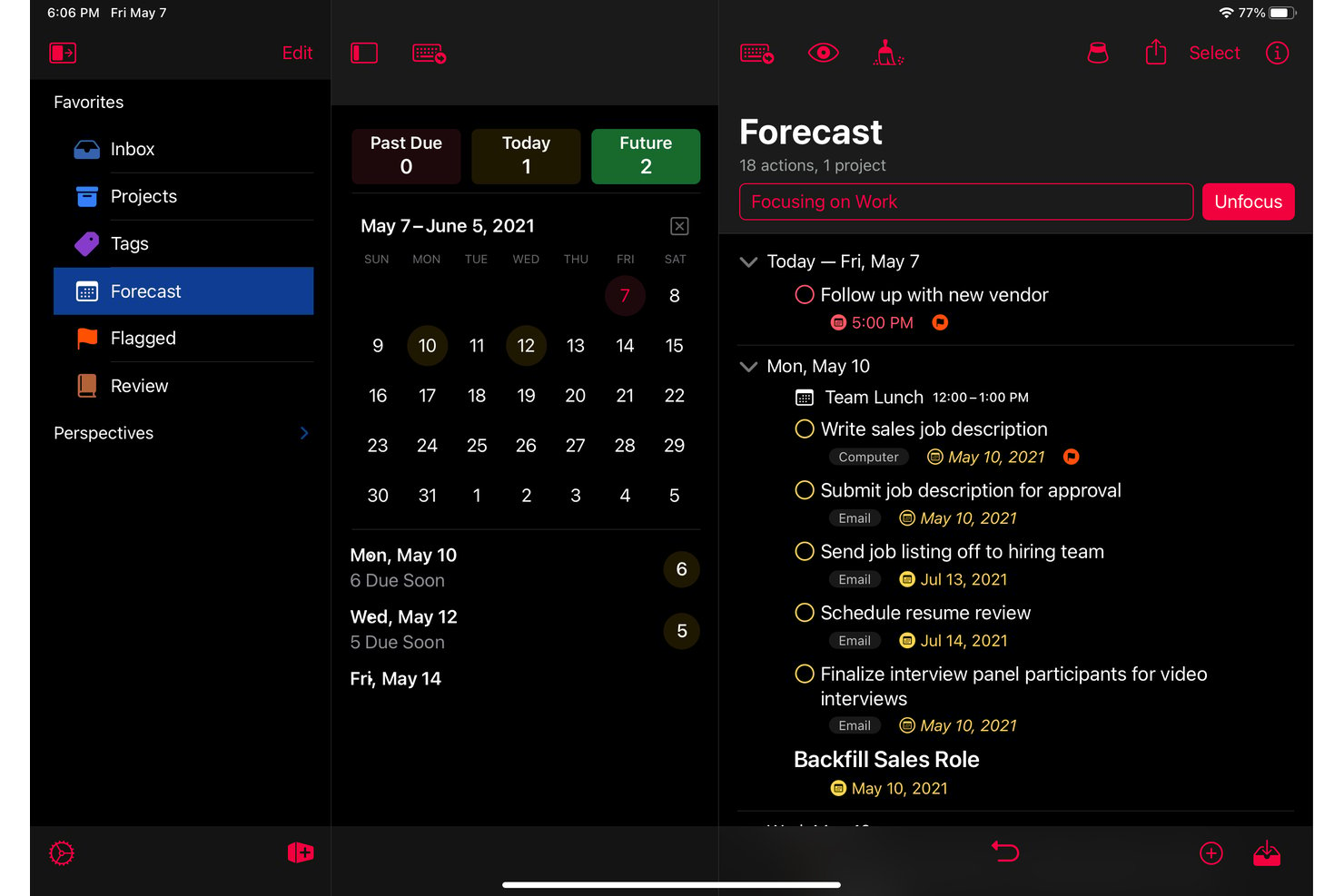
OmniFocus is an Apple-native personal task management app built around GTD methodology, with structured project organization, custom perspectives, tagging, defer and due dates, and a forecast view that combines tasks with calendar events.
Who Is OmniFocus Best For?
OmniFocus is a strong fit for solo professionals on Apple devices who manage complex, multi-project workloads and want a structured, GTD-based system for personal task management.
Why I Picked OmniFocus
OmniFocus earns its spot on my shortlist because the custom perspectives feature lets me build saved views that filter tasks by any combination of tag, project, status, and defer date. I use a "Client Deliverables Due This Week" perspective that pulls flagged tasks across all active projects into one focused list. The Forecast view then layers those tasks directly alongside my calendar, so I can see workload against availability without switching apps.
OmniFocus Key Features
- Forecast view: Combines tasks and calendar events in a single timeline for daily planning.
- End-to-end encrypted sync: Keeps tasks updated and secure across Mac, iPhone, iPad, Apple Watch, and Vision Pro.
- Review mode: Prompts structured reviews of ongoing projects and tasks on a chosen schedule.
- Batch editing: Lets users update, tag, or reschedule multiple tasks at once from any device.
OmniFocus Integrations
OmniFocus offers native integrations with Apple Calendar, Siri, and Apple Shortcuts. The tool syncs across all Apple devices, and an API is available for custom integrations.
Pros and Cons
Pros:
- Review mode for structured project check-ins
- Deep project organization with folders and tags
- Custom perspectives for workflow personalization
Cons:
- Steep initial learning for custom setups
- No native Windows or Android app

Best for smooth integration with Google Calendar
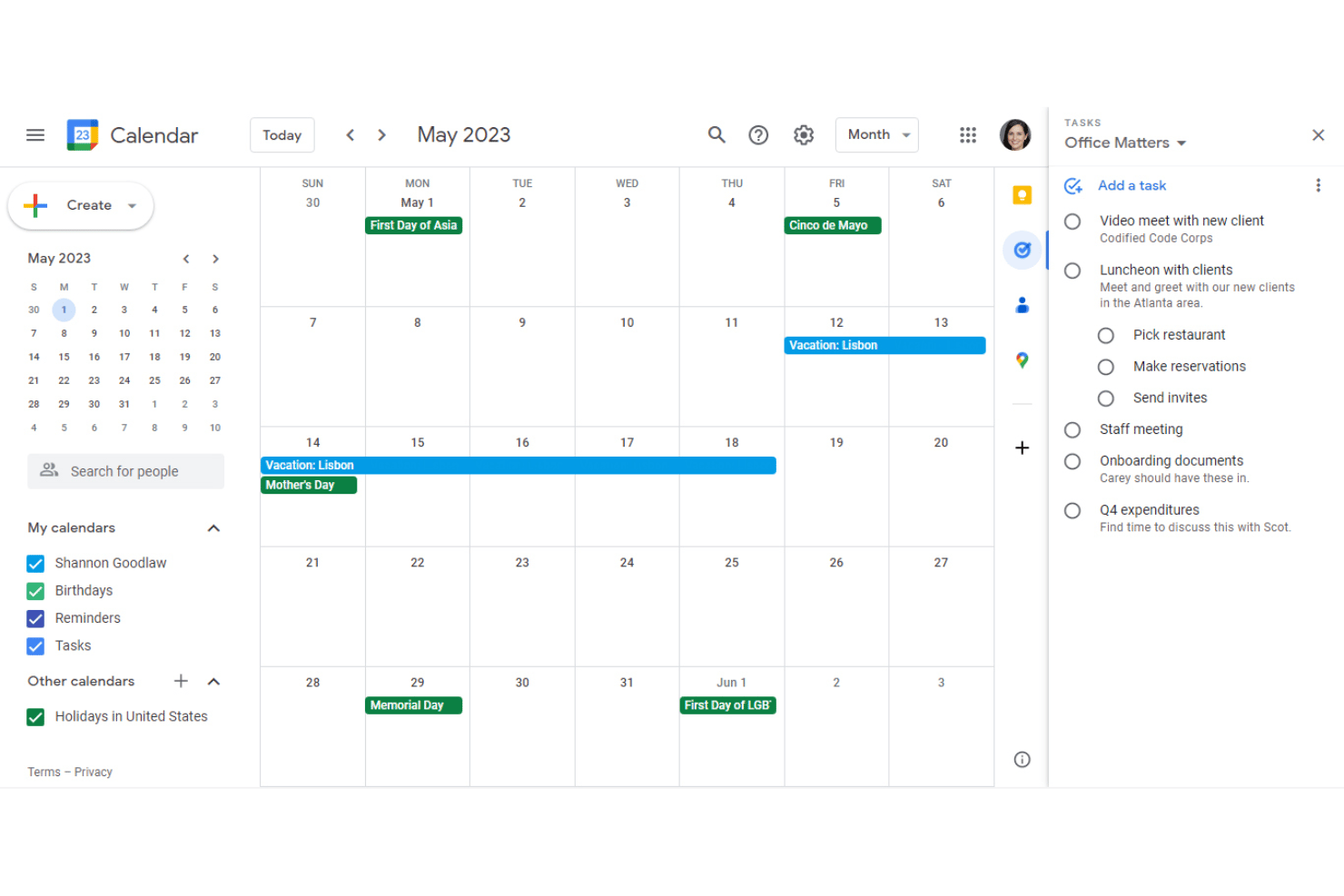
Google Tasks is a free personal task manager that lives natively inside Gmail, Google Calendar, and Google Docs, supporting to-do lists, subtasks, recurring tasks, due dates, and real-time cross-device sync.
Who Is Google Tasks Best For?
Google Tasks is a natural fit for solo professionals who already rely on Google Workspace daily and want task management without switching between apps.
Why I Picked Google Tasks
Google Tasks earns its spot on my shortlist because of how tightly it connects to Google Calendar. When I add a due date and time to a task, it shows up directly on my calendar alongside scheduled events, so nothing gets buried in a separate app. I also use the time-blocking feature to carve out focused work slots for specific tasks, which automatically mutes notifications and can decline conflicting meeting requests during that window.
Google Tasks Key Features
- Subtasks support: Break down larger tasks into manageable steps within any list.
- Multiple lists: Organize tasks by project, client, or context with separate lists for each area of work.
- Email-to-task creation: Turn Gmail messages into actionable tasks directly from your inbox for fast follow-up.
- Cross-device sync: Access and manage your task lists instantly across web and mobile devices.
Google Tasks Integrations
Google Tasks has native integrations across the Google ecosystem, including Gmail, Google Calendar, Google Chat, Google Docs, Google Drive, and the Gemini app. An API is available for custom integrations.
Pros and Cons
Pros:
- Task lists sync instantly across devices
- Quick add from Gmail or Google Chat
- Shows tasks alongside Google Calendar events
Cons:
- Cannot attach files to tasks
- Lacks board and timeline task views

Best for Outlook and Office 365 syncing
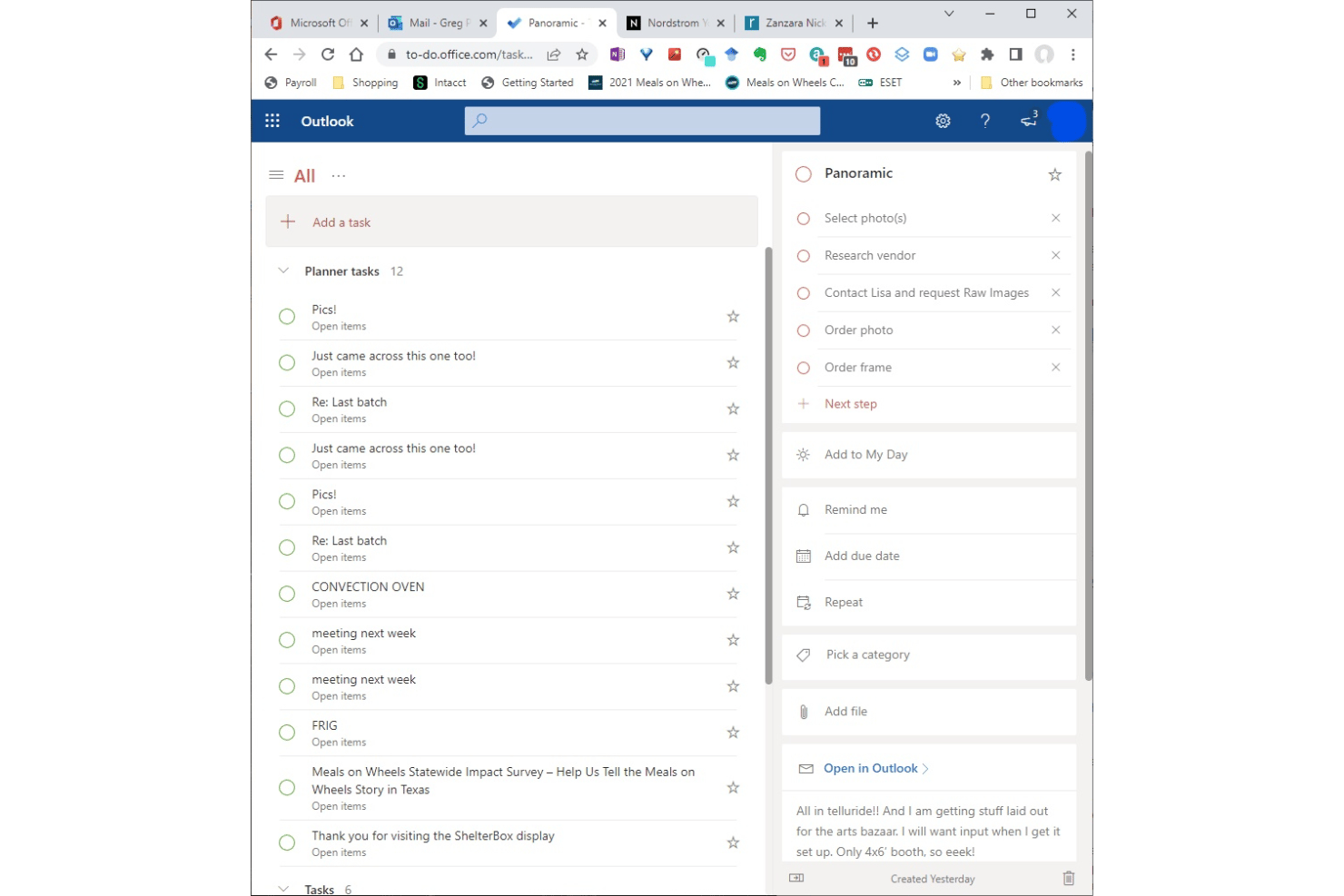
Microsoft To Do is a free personal task management app from Microsoft that lets individuals capture tasks, set due dates and reminders, build recurring to-do lists, and organize daily priorities across desktop and mobile devices.
Who Is Microsoft To Do Best For?
It's a strong fit for solo professionals and freelancers who already work within the Microsoft 365 ecosystem and want a lightweight task tool that connects directly to Outlook.
Why I Picked Microsoft To Do
I picked Microsoft To Do as one of the best because of how tightly it connects with Outlook. Flagged emails in Outlook automatically surface as tasks in To Do, which means my inbox doubles as a task capture tool with zero manual entry. The My Day view then lets me pull from that running queue and build a focused daily list across all my active client work.
Microsoft To Do Key Features
- Recurring tasks: Set custom repeat intervals for tasks to handle routines and ongoing responsibilities.
- Subtask support ("steps"): Break to-dos into smaller action items within each main task for detailed planning.
- Multi-list organization: Create and manage separate lists for each client, project, or context.
- Cross-device sync: Access and manage all tasks from Windows, macOS, iOS, Android, and the web with real-time updates.
Microsoft To Do Integrations
Microsoft To Do has native integrations across the Microsoft ecosystem, including Microsoft 365, Outlook, Teams, and Planner. An API is available for custom integrations.
Pros and Cons
Pros:
- Fast cross-device sync for all platforms
- Built-in daily focus list with My Day
- Excellent Outlook task and email syncing
Cons:
- Limited options for organizing with tags
- No calendar, board, or timeline views
Todoist
Best for natural language task entry
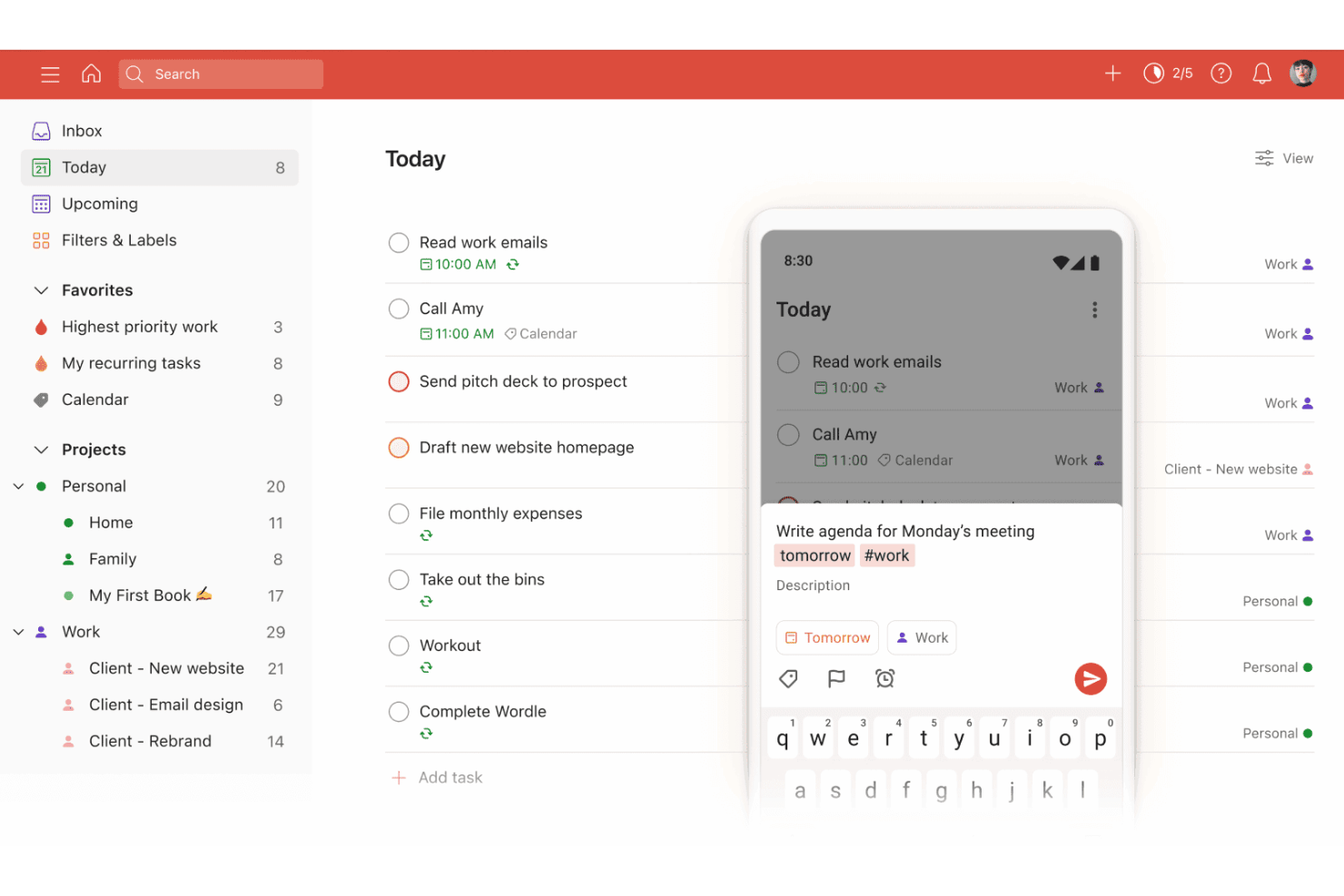
Todoist is a personal task management app that combines natural language task entry, AI-assisted capture, recurring schedules, and cross-platform sync into a single lightweight workspace.
Who Is Todoist Best For?
Todoist is a strong fit for freelancers and solo professionals managing multiple client projects who need a personal task system that works across every device.
Why I Picked Todoist
Todoist earns its spot on my shortlist because the natural language task entry is genuinely the fastest I've used. Typing "submit invoice every first Monday" instantly creates a correctly scheduled recurring task, with no dropdowns or extra clicks required. I also use Ramble, the voice capture feature, to talk through a backlog of ideas and have Todoist parse them directly into organized, actionable tasks.
Todoist Key Features
- Multiple project support: Manage up to 300 personal projects at once with color-coding and custom organization.
- Custom filter views: Create and save up to 150 unique task filters to quickly surface relevant tasks by context or tag.
- Cross-platform sync: Access your task list instantly on web, desktop, mobile apps, and browser extensions, all updated in real time.
- Recurring task rules: Set complex recurring schedules, such as tasks every third Thursday or custom intervals for ongoing routines.
Todoist Integrations
Todoist offers integrations with Google Calendar, Slack, Outlook Calendar, Dropbox, Trello, and Alexa. It also connects with automation platforms like Zapier and provides a REST API, official SDKs, and webhooks for custom integrations
Pros and Cons
Pros:
- Cross-platform sync includes offline access
- Recurring tasks handle complex schedules
- Natural language input speeds up task entry
Cons:
- Project and label limits on free plan
- No timeline or Gantt view option

TickTick
Best for built-in habit tracking integration
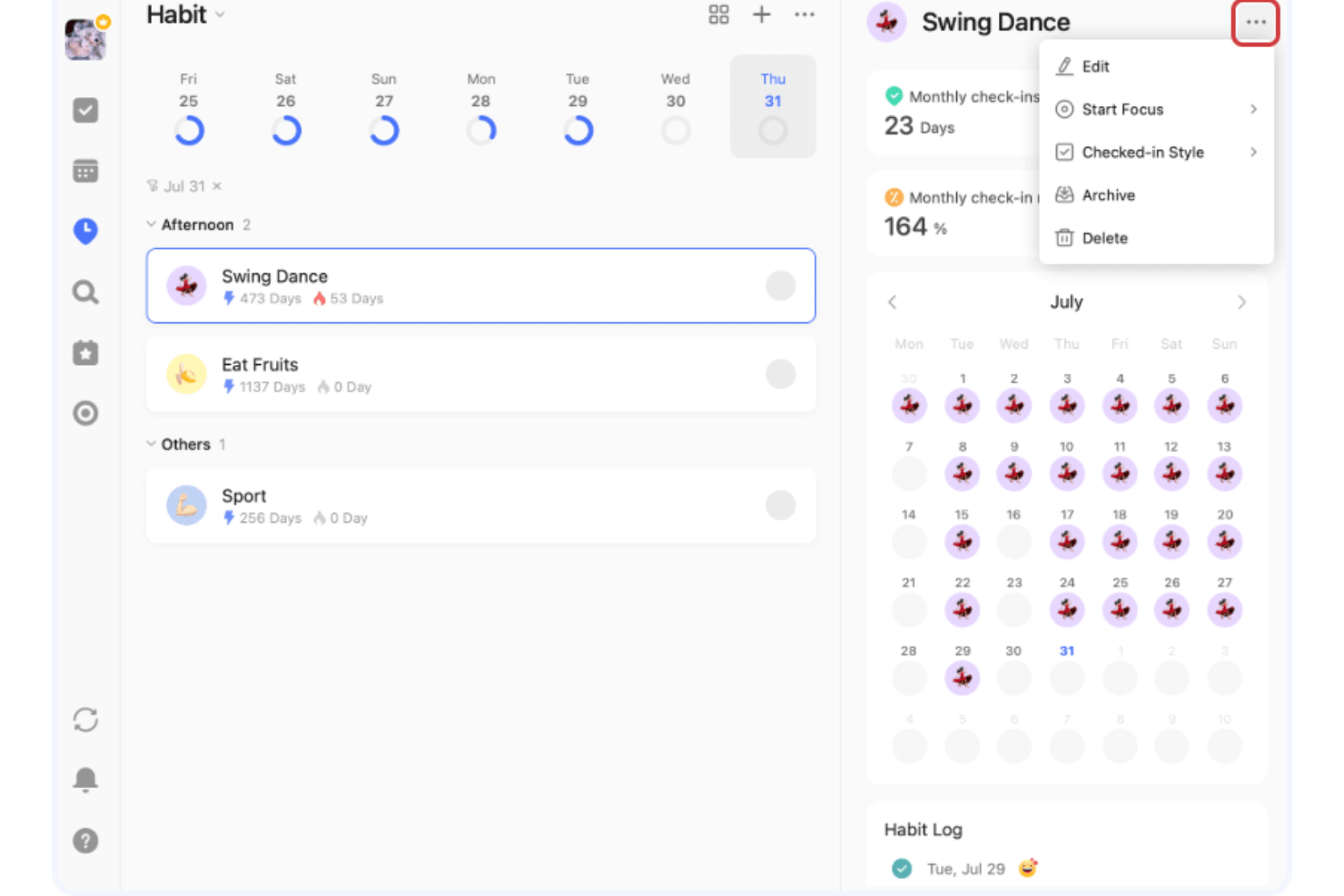
TickTick is a personal task management app that combines to-do lists, habit tracking, a Pomodoro timer, and calendar views in a single cross-platform tool.
Who Is TickTick Best For?
TickTick is a strong fit for freelancers and independent professionals who manage personal productivity alongside client deliverables.
Why I Picked TickTick
TickTick earns its spot as one of the best on my shortlist because no other task management app I've used bundles habit tracking this natively alongside task lists. The Habit Tracker includes a rich habit library, flexible scheduling, and detailed completion statistics, so I can track a daily client check-in routine right next to my project deadlines. I also like the built-in Pomodoro timer with estimated Pomos per task, which lets me attach focused work sessions directly to specific deliverables.
TickTick Key Features
- Multiple task views: Switch between list, Kanban board, timeline, and calendar layouts to organize work visually.
- Natural language processing: Add tasks using everyday speech with autofill dates, times, and reminders.
- Cross-device sync: Access and update tasks seamlessly on web, desktop, mobile, and smartwatches.
- Custom smart lists and filters: Create personalized lists and saved searches using tags, priorities, and other task properties.
TickTick Integrations
TickTick offers native integrations with Google Calendar, Notion, Siri, and Weibo, supports third-party calendar subscriptions, and connects with Zapier.
Pros and Cons
Pros:
- Fast natural language processing for tasks
- Multiple customizable task views available
- Habit tracker built directly into the app
Cons:
- No built-in collaboration or team workflows
- Advanced recurring task rules are limited

Any.do
Best for personal cross-device reminders
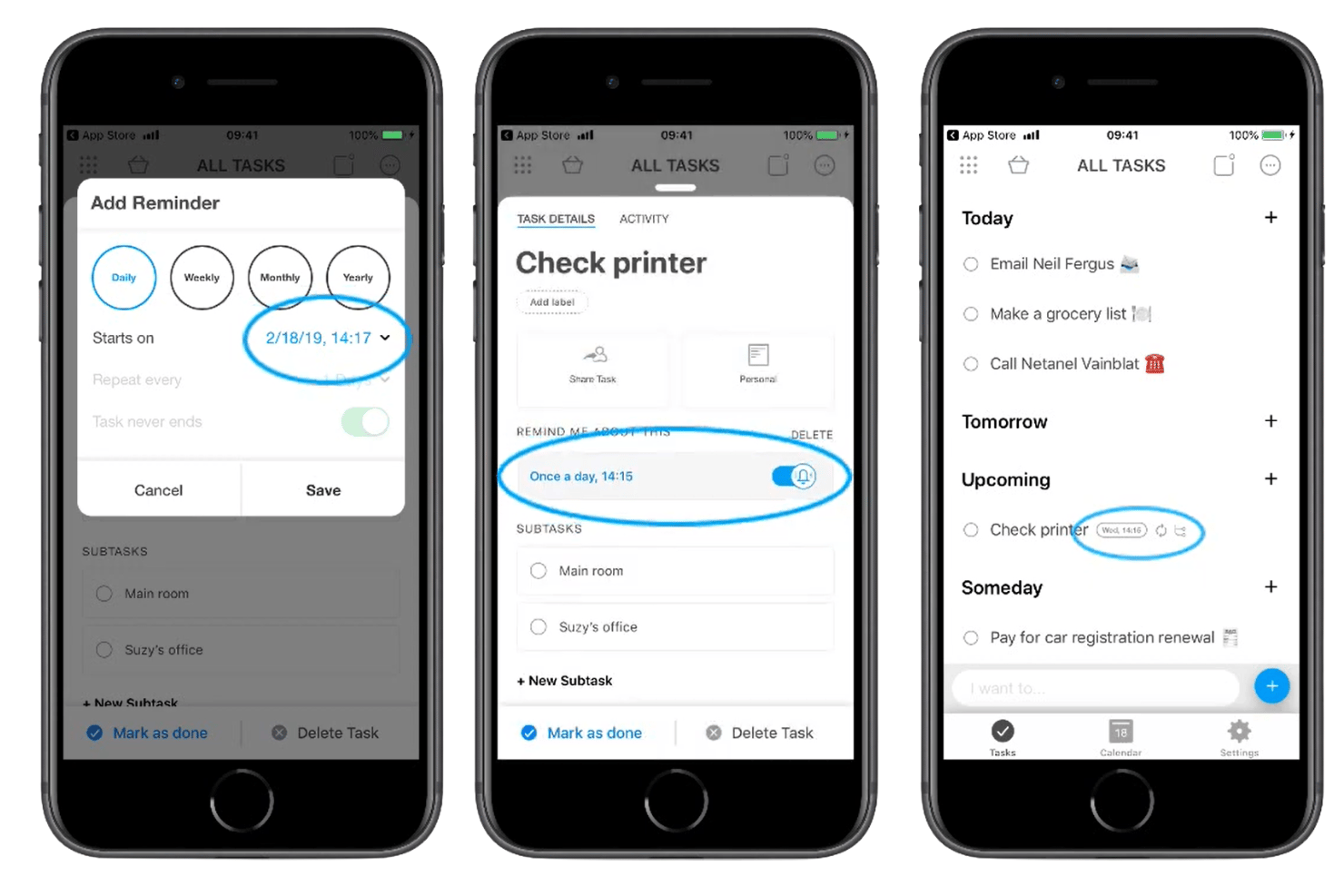
Any.do is a personal task management app that combines to-do lists, a daily planner, location-based reminders, and calendar sync across mobile, desktop, and wearable devices.
Who Is Any.do Best For?
Any.do suits solo professionals and independent contractors who need lightweight task management across personal and client workstreams without collaboration overhead.
Why I Picked Any.do
Any.do earns its spot as one of the best on my shortlist because no other personal task app matches its reminder depth. I love that you can set location-based reminders that fire when you arrive at or leave a specific place, alongside fully customizable recurring reminders. The WhatsApp integration (Premium) is also genuinely unique: you can forward a message directly to Any.do and it becomes a task with a reminder attached.
Any.do Key Features
- Color tags and labels: Organize and sort tasks by project, priority, or context using customizable colors.
- Multi-platform sync: Access and update tasks across web, desktop, mobile, and even wearable devices any time.
- Daily planner (My Day): Start each day by organizing and prioritizing tasks with a dedicated daily planning tool.
- Grocery and shopping lists: Create specialized lists that automatically group items by category and support sharing.
Any.do Integrations
Any.do offers native integrations with Google Calendar, iCloud, Outlook, Gmail, WhatsApp, Alexa, Slack, and more. It also connects with Zapier.
Pros and Cons
Pros:
- Works across mobile, desktop, and wearables
- My Day daily planning view
- Location-based and recurring reminders
Cons:
- Limited reporting or analytics features
- Kanban and calendar views require Premium

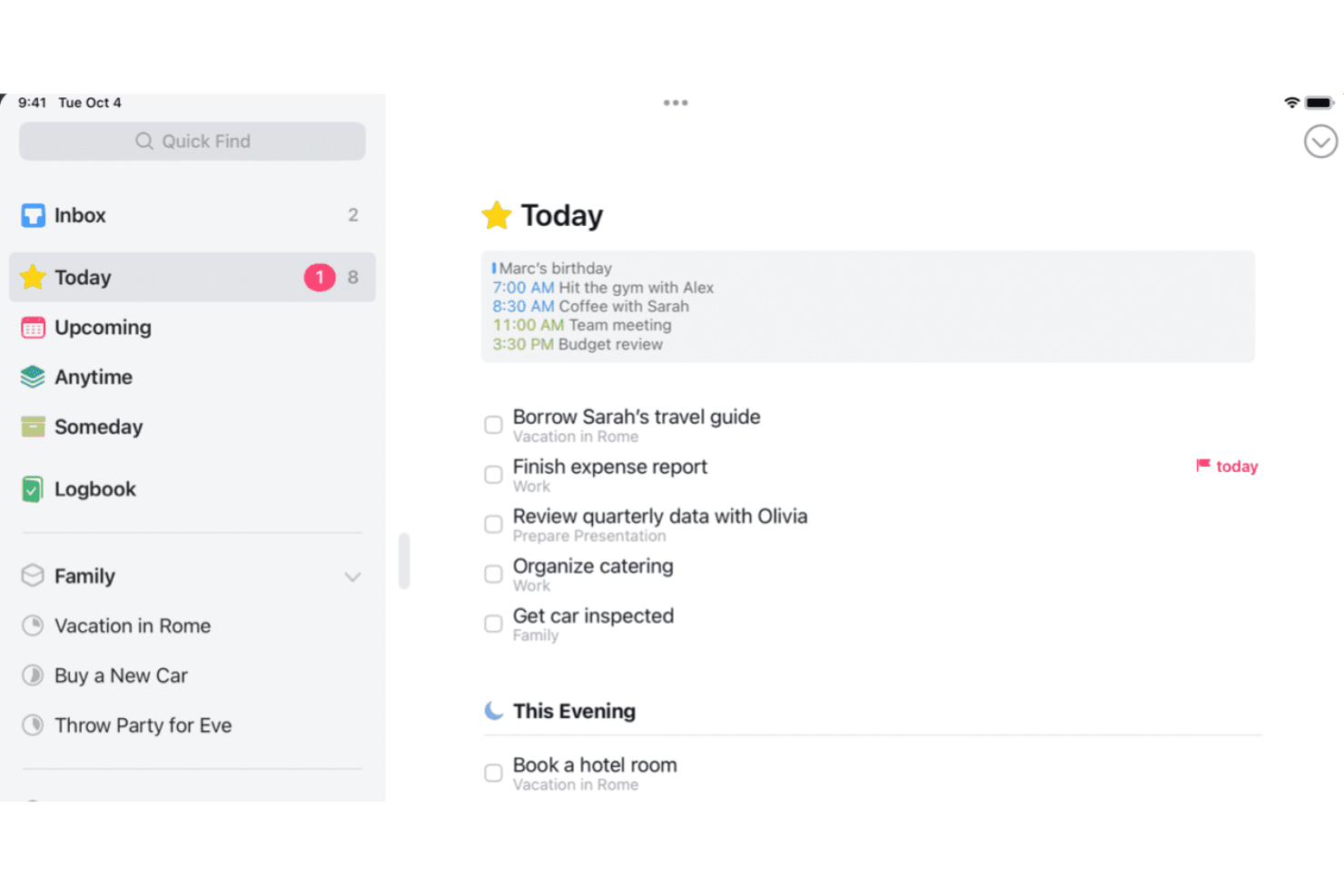
Things is an Apple-native personal task manager that lets you capture to-dos, organize them into projects and areas, set deadlines and reminders, and plan your day across Mac, iPhone, iPad, and Apple Watch.
Who Is Things Best For?
Things is a strong fit for freelancers, solo consultants, and self-employed creatives who work entirely within the Apple ecosystem and want a GTD-friendly system for managing personal workloads.
Why I Picked Things
Things earns its spot as one of the best on my shortlist because it's built exclusively for Apple hardware, and that focus shows in every interaction. I love how the Today list splits morning tasks from This Evening items, reflecting how Apple users naturally structure their day. Jump Start's natural language input lets me type 'Sat' to schedule for Saturday, and Things Cloud's Fastlane sync pushes reminders across Mac, iPhone, and Apple Watch with no lag.
Things Key Features
- Project and area organization: Group tasks within projects and organize multiple projects under larger areas for clean personal work structuring.
- Tag-based filtering: Assign custom tags to tasks and filter lists by tag to quickly drill down to context-specific to-dos.
- Mail to Things integration: Turn emails into action items by forwarding them straight into your task list from any email client.
- Checklists within tasks: Break tasks into smaller steps using checklists embedded directly inside any to-do.
Things Integrations
Things offers native integrations with Apple Calendar, Mail to Things for email capture, and provides a URL scheme and AppleScript support on Mac for advanced automation.
Pros and Cons
Pros:
- Inbox, Today, and Upcoming lists enable clarity
- Magic Plus button allows fast task organization
- Apple-native interface across Mac, iPhone, iPad
Cons:
- Cannot set explicit priority levels
- No Kanban or board view options
Other Task Management Software for Individuals
Here are some additional task management software for individuals options that didn’t make it onto my shortlist, but are still worth checking out:
- Amazing Marvin
For customizable productivity frameworks
- Sunsama
For daily planning with calendar integration
- MeisterTask
For vibrant visual boards and timeline views
- ClickUp
For tailored workflows with custom task views
- Motion
For auto-scheduling tasks into your calendar
- GQueues
For Google Workspace integration
- Remember The Milk
For list creation using powerful filters
- Nozbe
For productivity with quick task input
- Habitica
For gamifying tasks and habit achievement
- Apple Reminders
For deep Siri and Apple ecosystem integration


How I Evaluate Task Management Software for Individuals
I split my evaluation into two layers: the core functionality a freelancer juggling multiple clients actually needs, and the differentiators that make one tool the right fit.
Core Functionality (Table Stakes For This List)
When I'm selecting tools for my list, I rank each one on a scale from 0 (does not offer the functionality) to 5 (excels in this area) for each core functionality listed below. Then, I calculate the tool's total score into a percentage. Each tool needs to achieve a minimum total score of 65% to be considered for inclusion.
- Personal Task Capture: I look for how fast you can go from idea to task. Tools like Todoist and TickTick let you type a sentence and auto-parse dates, priorities, and labels.
- Multiple Task Views: A good tool offers lists, boards, and calendars so you can switch views depending on whether you're planning a week or triaging a backlog.
- Reminders & Due Dates: I evaluate whether reminders go beyond basic email pings. Push notifications, snooze options, and location-based alerts matter for staying on track.
- Recurring Tasks: Freelancers juggling monthly invoicing or weekly client check-ins need flexible recurrence rules, not just daily or weekly presets.
- Task Prioritization: I check for tags, labels, priority flags, and smart filters that let you surface urgent work across multiple client projects at a glance.
- Cross-Device Sync: The tool should sync across web, desktop, and mobile apps so you can capture a task on your phone and act on it from your laptop minutes later.
Once I have a list of tools that meet the criteria, I consider what sets each platform apart.
Differentiating Factors (What Sets Vendors Apart)
Here's how I compare and contrast different vendors:
Standout Features
Natural language input saves real time when you're capturing tasks on the fly. Typing "send proposal Friday at 2pm" and having dates auto-populate beats manual entry every time. I also look for focus modes and time-blocking features, like built-in Pomodoro timers or calendar integration that reserves blocks for deep work. Quick capture matters too; global hotkeys, browser extensions, and home-screen widgets let you log a task in seconds without switching apps.
Beyond Features
Pricing matters a lot when you're self-funded. I check whether the free tier is genuinely usable or if task limits and reminder restrictions push you toward a paid plan too quickly. Ecosystem integrations are another big differentiator; syncing with Google Calendar, Outlook, or voice assistants like Siri makes capture and scheduling feel native. I also evaluate methodology flexibility. Tools that support GTD, Kanban, or Eisenhower-style workflows give you room to build a system that matches how you actually think and work.
How to Choose Task Management Software for Individuals
It’s easy to get bogged down in long feature lists and complex pricing structures. To help you stay focused as you work through your unique software selection process, here’s a checklist of factors to keep in mind:
| Factor | What to Consider |
|---|---|
| Scalability | Will this tool still fit your workflow if your client roster doubles, or your workload grows? Look for solutions with flexible organization and no hard task caps. |
| Integrations | Does the tool connect with your calendar, email, note apps, or voice assistants you already use? Check for native sync, not just workarounds or clunky imports. |
| Customizability | Can you adapt tags, filters, and layouts to match the way you structure your projects? Some tools fit strict methods; others let you mix and match systems. |
| Ease of use | How quickly can you get productive without hunting through menus? Evaluate if the interface feels intuitive for your style of work and thinking. |
| Implementation and onboarding | Are setup and migration simple enough to start using the app today? Watch for hidden steps, required templates, or steep learning curves that slow you down. |
| Cost | Is the free plan enough for your solo use, or do you hit upgrade prompts fast? Don’t forget to compare renewal cycles, not just trial prices. |
| Security safeguards | How does the platform handle your client data and personal notes? Look for clear policies, export options, and privacy controls suitable for sensitive information. |
| Support availability | Are help docs up-to-date, and can you access human support if you hit a snag? Fast email replies or good forums can be a big advantage for solo users. |
What Is Task Management Software for Individuals?
Task management software for individuals is a digital tool designed to help solo professionals organize, prioritize, and track personal tasks and projects. These platforms support features like reminders, recurring tasks, and multiple viewing options so you can manage deadlines, habits, and goals—all without the overhead of team collaboration.
Features of Task Management Software for Individuals
When selecting task management software for individuals, keep an eye out for the following key features:
- Personal task capture: Quickly add and organize to-dos with details like due dates, notes, and priority levels so nothing slips through the cracks.
- Multiple task views: Switch between lists, boards, or calendar layouts to plan your week, track progress, or see everything at a glance.
- Reminders and notifications: Set alerts and deadlines for important tasks to ensure you never miss critical follow-ups or deliverables.
- Recurring tasks: Schedule tasks to repeat on custom intervals, helping you automate routines like invoicing, reporting, or regular client check-ins.
- Task prioritization: Flag, tag, or categorize items by urgency, project, or context so you always know where to focus your efforts next.
- Cross-device sync: Keep your tasks updated across web, mobile, and desktop so you can work seamlessly from anywhere.
- Quick capture tools: Use widgets, hotkeys, or email-to-task features to instantly log tasks when ideas strike or as you triage incoming work.
- Custom filters and smart lists: Create personalized views that surface only the tasks you want to focus on based on project, timeline, or context.
- Privacy and data control: Ensure your personal notes and client details are protected with strong privacy controls and clear export options.
- Habit and goal tracking: Monitor progress on recurring behaviors or long-term goals to support both professional projects and personal growth.
Benefits of Task Management Software for Individuals
Implementing task management software for individuals provides several benefits for your team and your business. Here are a few you can look forward to:
- Greater focus: Custom reminders and smart prioritization tools help you hone in on what matters most each day.
- Improved organization: Flexible task views and filtering options let you structure your work in ways that match your projects and personal style.
- Reliable accountability: Automated reminders and deadline tracking keep you on top of deliverables and minimize missed commitments.
- More efficient routines: Recurring task and habit features save time by automating your workflows and reducing repeat admin work.
- Seamless work anywhere: Cross-device sync ensures your action items are always accessible, whether you’re at your desk or on the go.
- Increased clarity: Quick capture and rich task details help you transfer ideas into action before they slip your mind.
- Protected data: Strong privacy controls and export options let you confidently manage sensitive client and personal information.
Costs and Pricing of Task Management Software for Individuals
Selecting task management software for individuals requires an understanding of the various pricing models and plans available. Costs vary based on features, team size, add-ons, and more. The table below summarizes common plans, their average prices, and typical features included in task management software for individuals solutions:
Plan Comparison Table for Task Management Software for Individuals
| Plan Type | Average Price | Common Features |
|---|---|---|
| Free Plan | $0 | Basic task capture, lists or boards, limited reminders, cross-device sync, and entry-level support. |
| Personal Plan | $5–$10/user/month | Unlimited tasks, advanced reminders, custom views, recurring tasks, integrations, and simple file attachments. |
| Business Plan | $10–$25/user/month | Team collaboration, shared projects, reporting tools, priority support, and additional integrations. |
| Enterprise Plan | $25+/user/month | Advanced security, admin controls, data export options, compliance features, personalized onboarding, and SLAs. |
Task Management Software for Individuals FAQs
Here are some answers to common questions about task management software for individuals:
Can I use task management software for both work and personal projects?
Yes. Most project management tools let you create separate workspaces or lists so you can manage work deadlines, personal errands, and long-term goals in one place. Many also let you assign tasks to yourself or others and track completed tasks across different projects.
How secure is my data on these platforms?
Most providers use encryption and offer privacy controls, but it’s important to check each tool’s security documentation and terms, especially if you’re tracking sensitive client or financial information. If you’re working with a team, review how team members access shared data and what customer support is available for security issues.
Do I need to pay for basic features?
No. Many productivity apps offer generous free plans with core features like task capture, reminders, and cross-device sync. Advanced features such as AI-powered automations, Gantt charts, custom fields, and workflow dependencies often require a paid plan.
How difficult is it to switch between task management tools?
Most platforms provide CSV or JSON export options, so you can usually migrate your data. You may still need to adjust tags, recurring tasks, or custom fields after importing into the new system.
What integrations are typically available?
Common integrations include Google Calendar, Outlook, note-taking apps, and voice assistants, making it easier to sync tasks and capture action items from your existing workflow. Many tools also connect with Agile development platforms and display information through customizable dashboards.