15 Best Personal Document Management Software in 2026

Personal Document Management Software Shortlist
Here’s my shortlist of personal document management software:


A personal document management system (DMS) helps you organize, store, and retrieve your personal files and records in one secure digital storage solution. If you’re searching for a way to keep track of everything from contracts and receipts to personal notes and important documents across multiple file formats, you know how quickly files can get lost or disorganized—especially when you’re juggling multiple devices or managing mixed personal and business processes. This list will help you compare the top paperless document management tools for 2026, so you can find the right fit for your workflow, security needs, and collaboration style.
Why You Can Trust Us
Best Personal Document Management Software Summary
This comparison chart summarizes pricing details for my top personal document management software selections to help you find the best one for your budget and business needs.
| Tool | Best For | Trial Info | Price | ||
|---|---|---|---|---|---|
| 1 | Best for Microsoft 365 integration | Free plan available | From £1.99/user/month | Website | |
| 2 | Best for real-time team collaboration | 14-day free trial available | From $7/user/month (billed annually) | Website | |
| 3 | Best for file version history tracking | Free plan available | From $9.99/person/month (billed annually) | Website | |
| 4 | Best for multilingual document indexing | 30-day free trial + free demo available | Pricing upon request | Website | |
| 5 | Best for secure external file sharing | Free demo available | From $7/user/month (billed annually) | Website | |
| 6 | Best for workflow automation features | Free demo available | Pricing upon request | Website | |
| 7 | Best for granular access permissions | 30-day free trial | From $52/month + Tax | Website | |
| 8 | Best for advanced PDF editing tools | 7-day free trial available | From CAD $19.99/month (billed annually) | Website | |
| 9 | Best for open-source customization options | Free plan available | From $99/month | Website | |
| 10 | Best for compliance management support | Free demo available | Pricing upon request | Website |
-

Insightful
Visit WebsiteThis is an aggregated rating for this tool including ratings from Crozdesk users and ratings from other sites.4.8 -
Accelo
Visit WebsiteThis is an aggregated rating for this tool including ratings from Crozdesk users and ratings from other sites.4.4 -
Forecast
Visit WebsiteThis is an aggregated rating for this tool including ratings from Crozdesk users and ratings from other sites.4.6



Personal Document Management Software Reviews
Below are my detailed summaries of the personal document management software that made it onto my shortlist. My reviews offer a detailed look at the features, best use cases, and integrations of each software to help you find the best one for you.

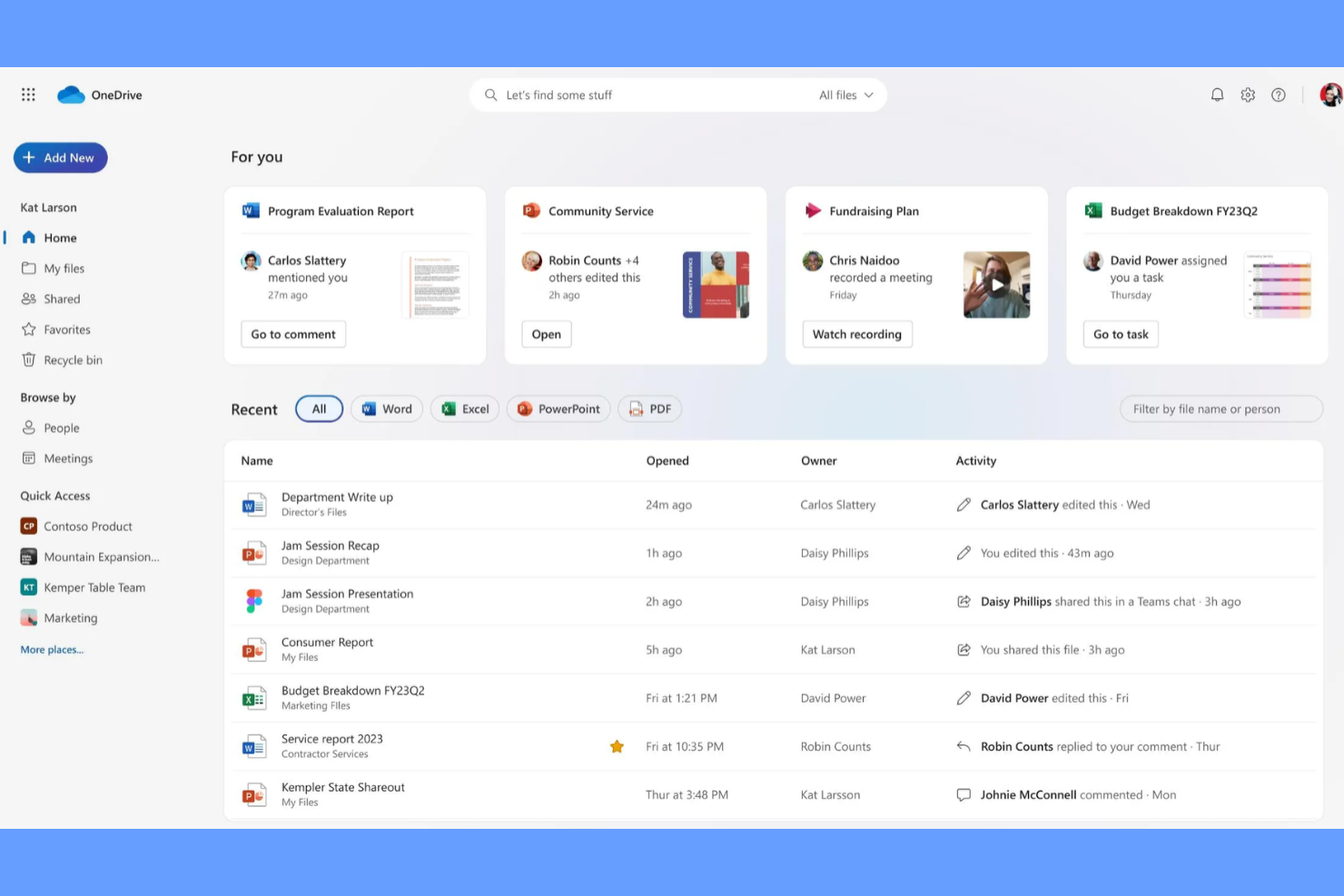
If you rely on Microsoft 365 apps for your daily work, OneDrive offers a tightly integrated way to manage and access your documents. It’s especially useful for professionals who want to keep files in sync across devices and collaborate directly within familiar Microsoft tools. OneDrive’s seamless connection to Word, Excel, and Teams makes it a natural fit for anyone already invested in the Microsoft ecosystem.
Why I Picked OneDrive
OneDrive stands out for anyone who works heavily within the Microsoft 365 environment and wants their document management to feel like a natural extension of those tools. You can open, edit, and collaborate on Word, Excel, and PowerPoint files directly from OneDrive, without needing to download or re-upload documents. I like that file sharing and permissions are managed using the same controls as the rest of Microsoft 365, which keeps everything consistent and secure. For anyone who wants document management that’s deeply woven into their existing Microsoft workflows, OneDrive is a logical choice.
OneDrive Key Features
Some other features that make OneDrive useful for personal document management include:
- Personal Vault: Store sensitive files in a protected area with extra security measures.
- Automatic Photo and Video Backup: Back up photos and videos from your mobile device directly to OneDrive.
- Offline Access: Access selected files and folders even when you’re not connected to the internet.
- File Restore: Restore your entire OneDrive to a previous point in time in case of accidental deletion or ransomware.
OneDrive Integrations
Integrations include Word, Excel, PowerPoint, Outlook, OneNote, Microsoft Teams, Microsoft Copilot, and Microsoft Forms.
Pros and Cons
Pros:
- Easy to use offline
- Personal Vault safe
- Good photo backup
Cons:
- Slow upload speeds
- Aggressive pop-ups

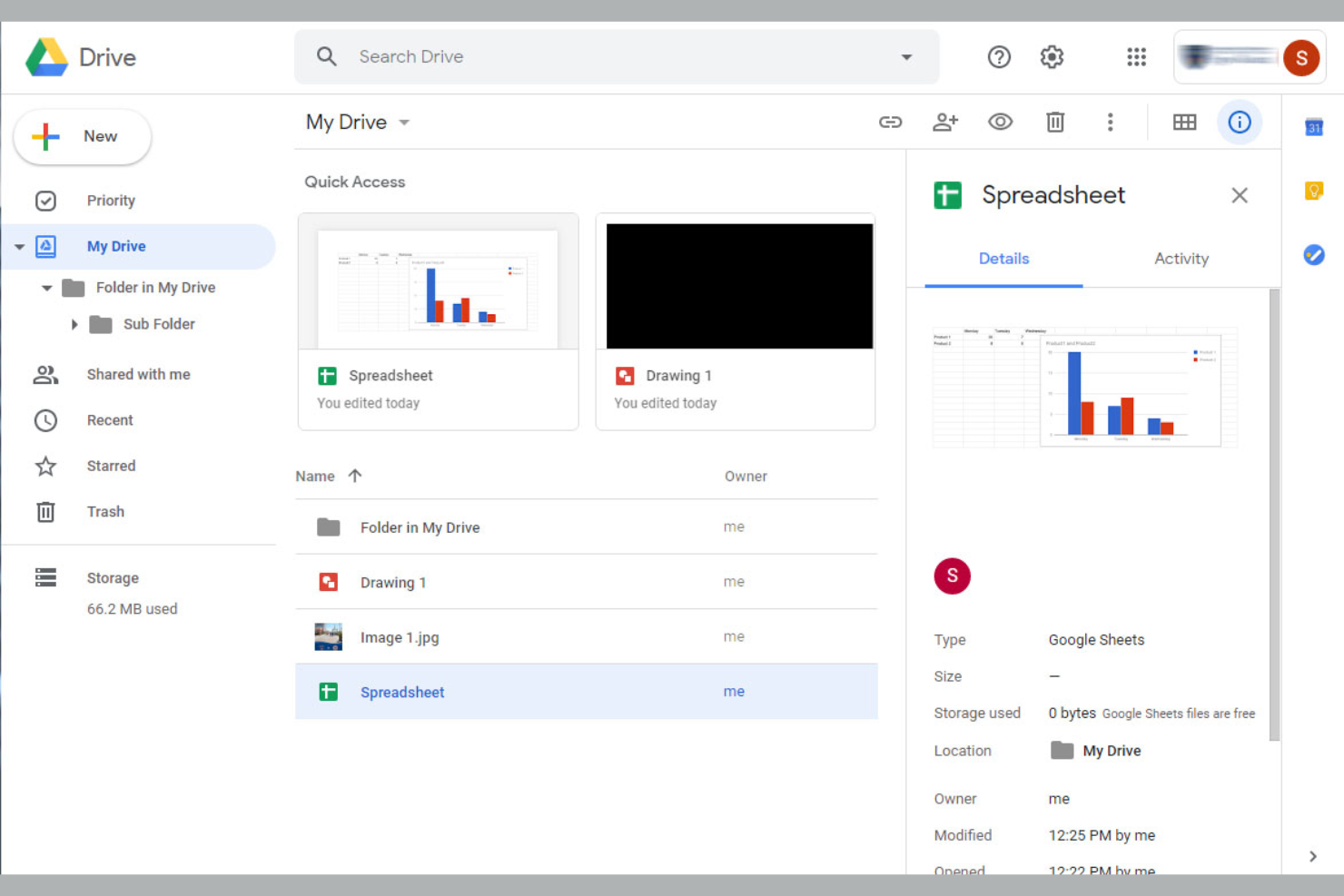
For anyone who needs to collaborate on documents in real time, Google Drive offers a cloud-based solution that keeps teams connected and organized. It’s especially useful for distributed teams, freelancers, or anyone who needs to share, edit, and comment on files without version confusion. Google Drive’s live editing and sharing features help you keep projects moving, even when everyone’s working from different locations.
Why I Picked Google Drive
When it comes to managing documents with real-time team collaboration, Google Drive stands out for its live editing and commenting capabilities. You can work on the same document with others at the same time, see changes as they happen, and leave feedback directly in the file. I like that Google Drive automatically saves every change, so you never have to worry about losing progress or dealing with conflicting versions. For anyone who needs to keep projects moving with input from multiple people, these collaboration features make Google Drive a strong choice.
Google Drive Key Features
Some other features that make Google Drive useful for personal document management include:
- File Version History: Access and restore previous versions of any file stored in Drive.
- Advanced Search Filters: Find documents quickly using filters for file type, owner, and keywords.
- Offline Access: View and edit files without an internet connection.
- Shared Drives: Organize files and folders for teams or projects in dedicated shared spaces.
Google Drive Integrations
Integrations include Gmail, Google Docs, Google Sheets, Google Slides, Google Forms, Google Calendar, Google Meet, Google Chat, Google Keep, and AppSheet.
Pros and Cons
Pros:
- Scans from phone app
- Free built-in tools
- Easy to share photos
Cons:
- Shared storage quota
- Confusing file sync

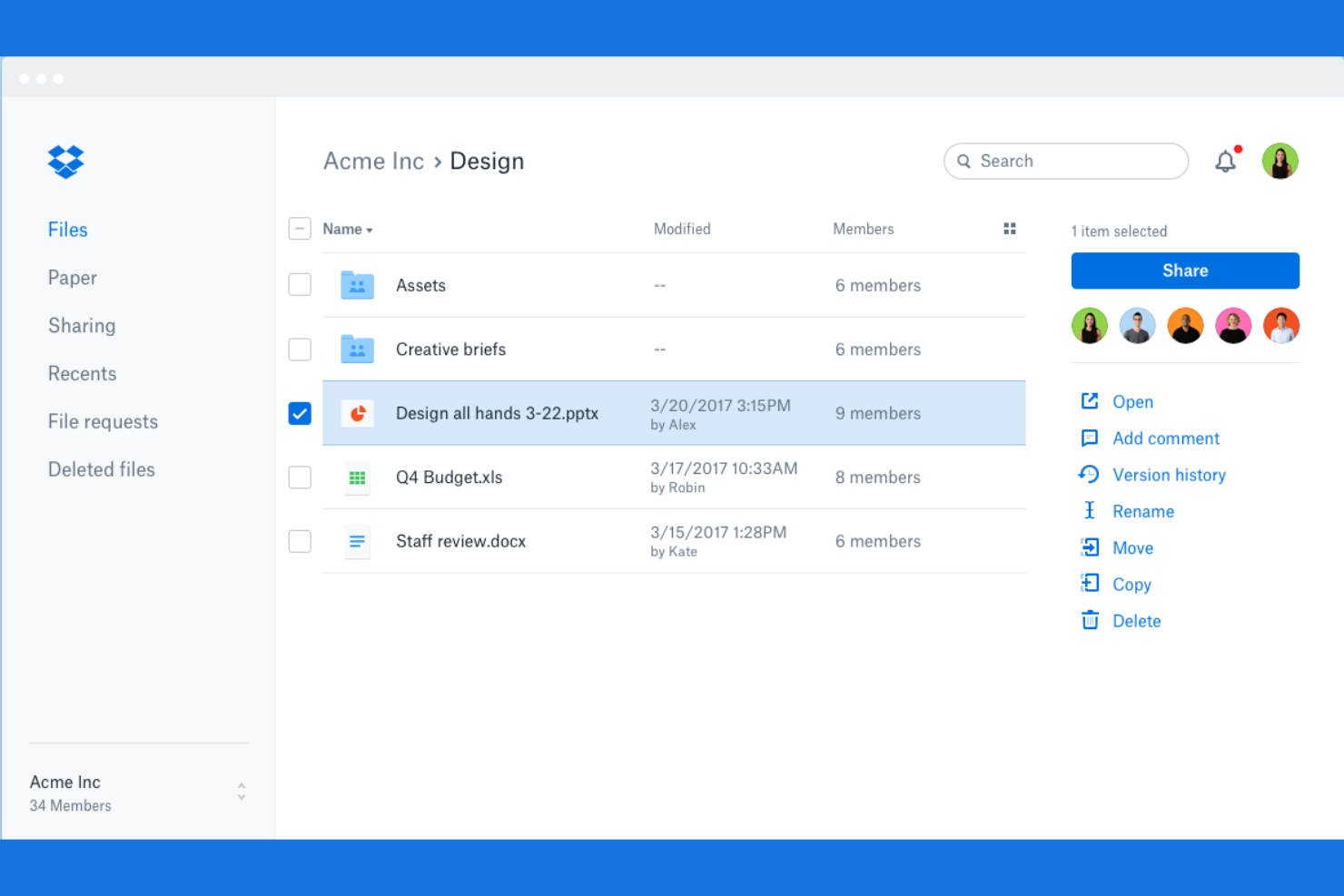
If you need to keep track of every change made to your files, Dropbox is designed with version history at its core. It’s a strong fit for professionals who manage evolving documents, creative assets, or collaborative projects where reverting to earlier versions is essential. Dropbox’s approach to file recovery and detailed change tracking helps you avoid accidental loss and maintain control over your document history.
Why I Picked Dropbox
For anyone who needs reliable file version history, Dropbox offers detailed tracking and recovery options that set it apart. You can view, restore, or download previous versions of files, which is especially useful if you’re managing documents that change frequently or need to recover from accidental edits. I appreciate that Dropbox keeps a clear record of changes, making it easy to audit document updates or roll back to earlier drafts. This focus on version control makes Dropbox a strong choice for personal document management where tracking file history is a priority.
Dropbox Key Features
Some other Dropbox features that support personal document management include:
- Selective Sync: Choose which folders sync to your device to save local storage space.
- File Requests: Collect files from others directly into your Dropbox, even if they don’t have an account.
- Document Scanning: Scan physical documents using the mobile app and save them as PDFs.
- Shared Links with Permissions: Set view, edit, or expiration controls on shared file links.
Dropbox Integrations
Integrations include Zoom, Slack, Microsoft 365, Trello, and Salesforce.
Pros and Cons
Pros:
- Simple home layout
- Works on all devices
- Great file recovery
Cons:
- Weak privacy stance
- Confusing web layout

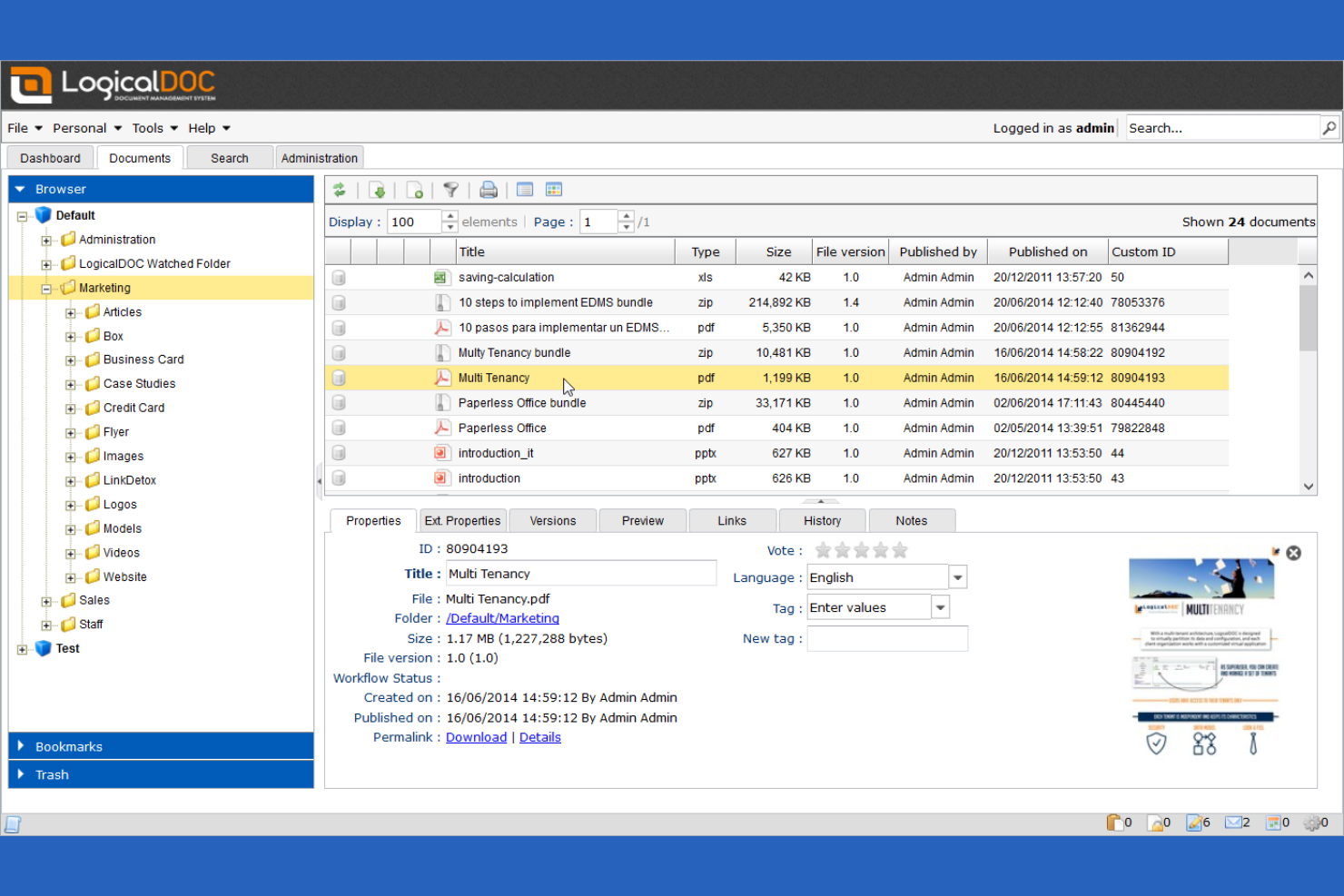
If you need to manage documents in multiple languages, LogicalDOC offers advanced multilingual indexing and search capabilities. This tool is a strong fit for professionals or teams working across international markets or handling documents in several languages. LogicalDOC helps you organize, tag, and retrieve files regardless of language, making it easier to keep global content accessible and searchable.
Why I Picked LogicalDOC
For anyone who needs to manage documents in several languages, LogicalDOC’s multilingual indexing is a clear advantage. I picked LogicalDOC because it automatically recognizes and indexes documents in dozens of languages, making it easy to search and retrieve files no matter what language they’re in. The platform also supports multilingual metadata and tagging, so you can organize your files using terms that make sense for your workflow. If you’re working in a global context or regularly handle documents in more than one language, these features make LogicalDOC a strong fit.
LogicalDOC Key Features
Some other features that make LogicalDOC useful for personal document management include:
- Workflow Automation: Create custom workflows to automate document review and approval processes.
- Document Versioning: Track changes and maintain a full history of document edits.
- Role-Based Access Control: Assign permissions based on user roles to manage document security.
- Full-Text Search: Search the entire content of documents, not just file names or metadata.
LogicalDOC Integrations
Integrations include Microsoft 365, Salesforce, Google Drive, DocuSign, and Acumatica.
Pros and Cons
Pros:
- Cross-platform access
- Highly customizable
- Tracks document edits
Cons:
- Too complex for home
- Needs server hardware

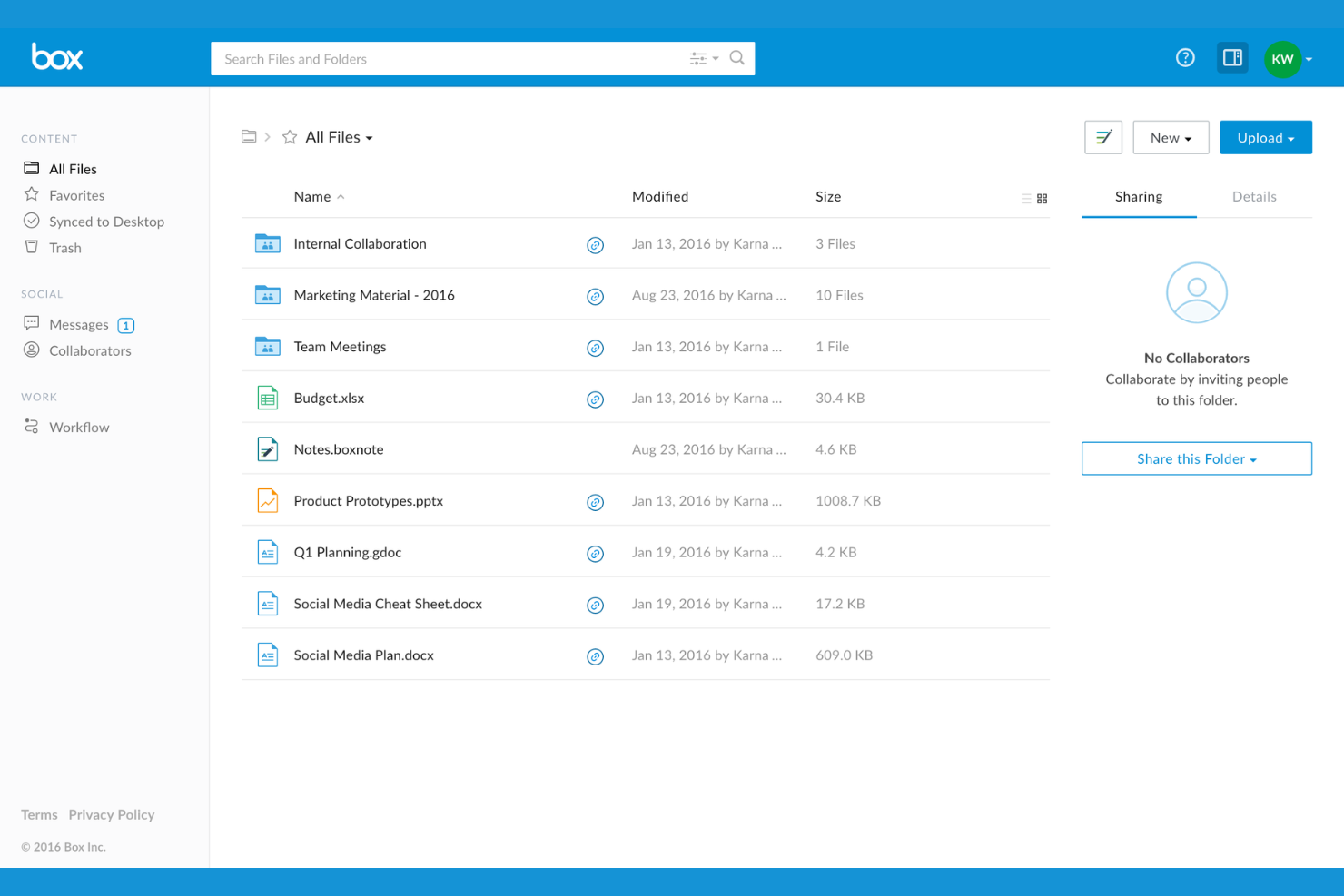
If you need to share sensitive files outside your organization, Box offers advanced security controls for external collaboration. It’s a strong fit for professionals and teams who regularly exchange confidential documents with clients, vendors, or partners. Box combines granular sharing permissions with audit trails to help you manage and track every file you send.
Why I Picked Box
When secure external file sharing is a top priority, Box offers features that go beyond basic document storage. I picked Box because it lets you set detailed sharing permissions, so you can control exactly who can view, edit, or download each file. The platform also provides secure links with expiration dates and password protection, which is especially useful for sending sensitive documents outside your organization. For anyone who needs to track document access and maintain compliance, Box’s audit logs and activity tracking add an extra layer of confidence.
Box Key Features
Some other features that make Box useful for personal document management include:
- Document Scanning: Capture and upload physical documents directly from your mobile device.
- eSignature Integration: Sign documents electronically without leaving the platform.
- Automated Workflows: Set up rules to automate document routing and approvals.
- File Version History: Access and restore previous versions of any file stored in Box.
Box Integrations
Integrations include Microsoft 365, Google Workspace, Adobe, Salesforce, Slack, Oracle NetSuite, Okta, Broadcom, Splunk, and Palo Alto Networks.
Pros and Cons
Pros:
- Fast search speeds
- Good mobile access
- Simple folder setup
Cons:
- Lacks photo tools
- Pricing is very high
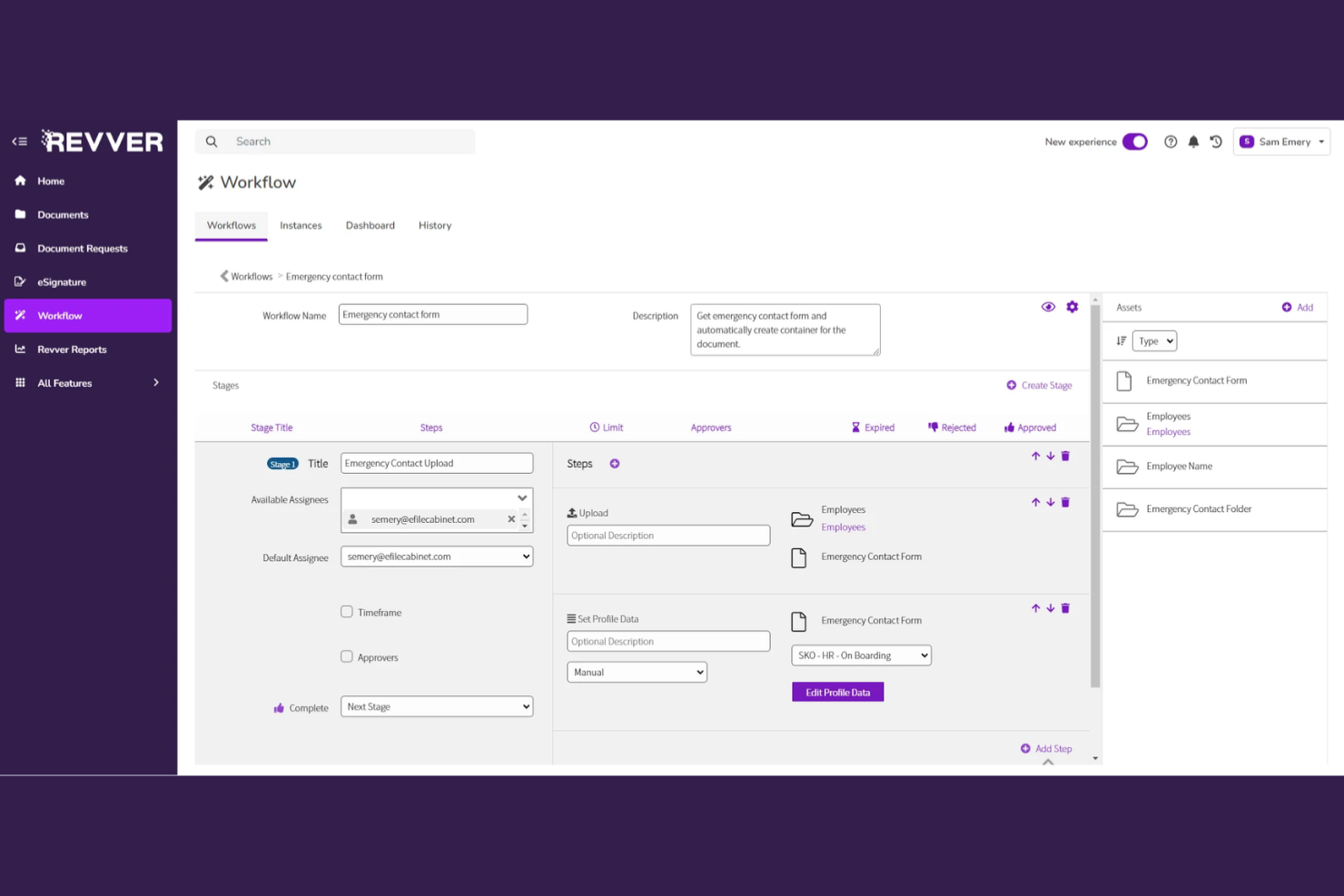
Revver stands out for anyone who wants to automate document-heavy workflows without building custom solutions from scratch. This platform is a strong fit for professionals and small teams who need to route, review, and approve documents with minimal manual effort. Revver’s automation features help you reduce repetitive tasks and keep your document processes moving smoothly.
Why I Picked Revver
When I looked for a tool that truly prioritizes workflow automation, Revver immediately caught my attention. Its document routing engine lets you set up automated approval chains and notifications, so you don’t have to manually chase down sign-offs or status updates. You can also build custom workflows that trigger actions based on document status or metadata, which is especially useful for managing personal or team document processes. For anyone who wants to automate repetitive document tasks and keep everything moving without constant oversight, Revver offers a focused set of automation features.
Revver Key Features
In addition to its workflow automation capabilities, Revver offers several other features worth noting:
- Document Version Control: Track, compare, and restore previous versions of documents.
- Granular Permission Settings: Assign user and group permissions for document access and actions.
- Full-Text Search: Search across all documents using keywords or phrases.
- Audit Logging: Monitor and record all document activity for compliance and transparency.
Revver Integrations
Integrations include Microsoft 365, Google Drive, Salesforce, NetSuite, and QuickBooks.
Pros and Cons
Pros:
- Clean user interface
- Tracks file history
- Fast search tools
Cons:
- Focuses on businesses
- Hidden pricing plans

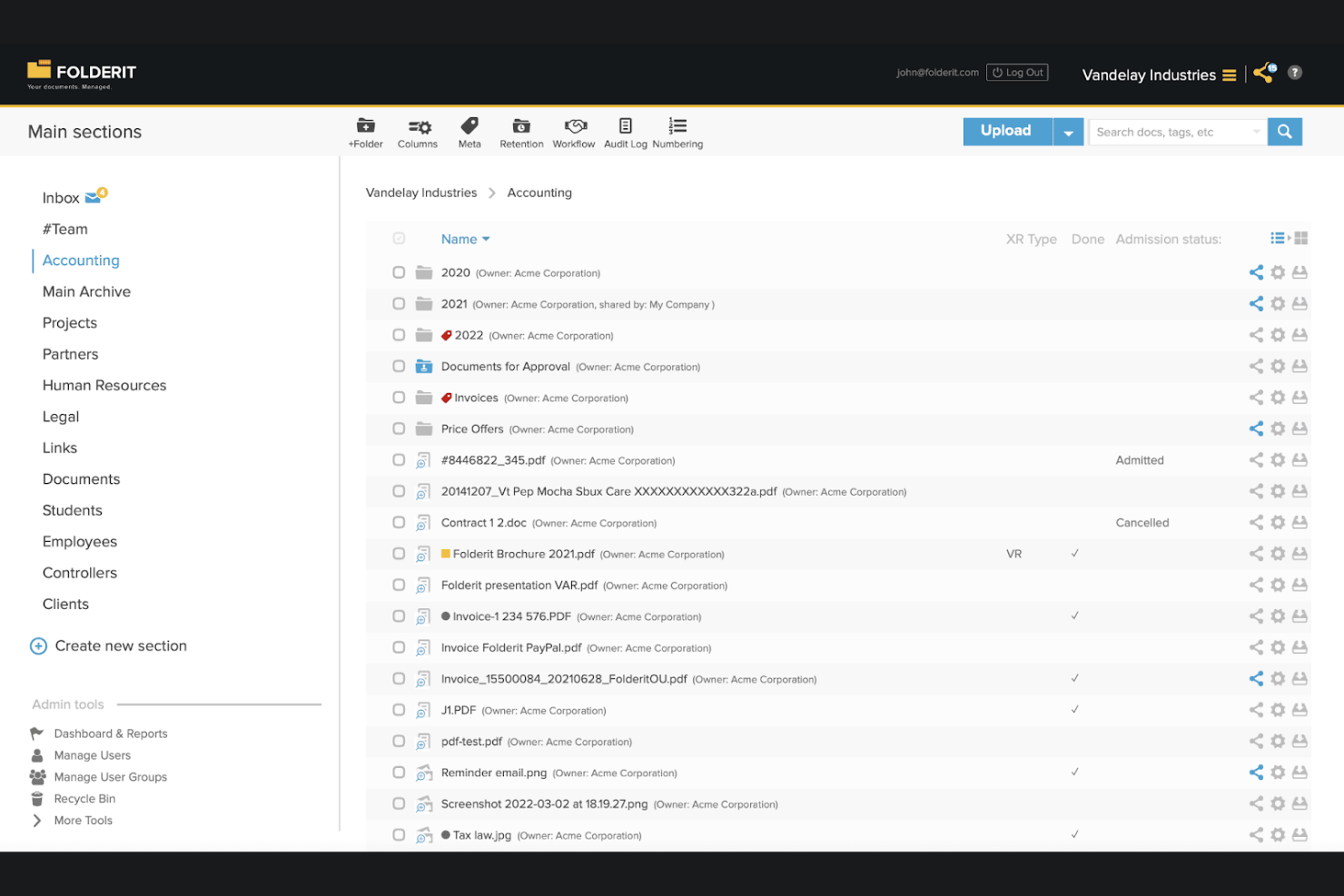
Folderit is designed for individuals and small teams who need precise control over document access and sharing. If you’re managing sensitive files or collaborating with multiple stakeholders, Folderit’s granular permission settings let you decide exactly who can view, edit, or approve each document. This makes it especially useful for consultants, legal professionals, or anyone handling confidential information.
Why I Picked Folderit
When you need to control exactly who can access your documents, Folderit’s granular permission system stands out. I picked Folderit because it lets you assign view, edit, and approval rights at the folder or even individual file level. You can also set up multi-level approval workflows, which is helpful if you’re managing documents that require sign-off from different people. For anyone who needs to keep sensitive files secure while still collaborating, these permission controls make Folderit a strong fit.
Folderit Key Features
In addition to its detailed permission controls, Folderit offers several other features for managing documents:
- Automated Document Retention: Set rules to automatically archive or delete files after a specified period.
- Version Control: Keep track of every change made to a document and restore previous versions if needed.
- Metadata Tagging: Add custom tags and metadata fields to organize and search for documents more efficiently.
- Audit Trail: Monitor all user activity and document actions with a detailed audit log.
Folderit Integrations
Integrations include Microsoft 365, DocuSign, Okta, Microsoft Entra ID (Azure AD), and Google Workspace.
Pros and Cons
Pros:
- Good for home records
- Easy folder structure
- Cloud access anywhere
Cons:
- Permissions overkill
- Aimed at businesses

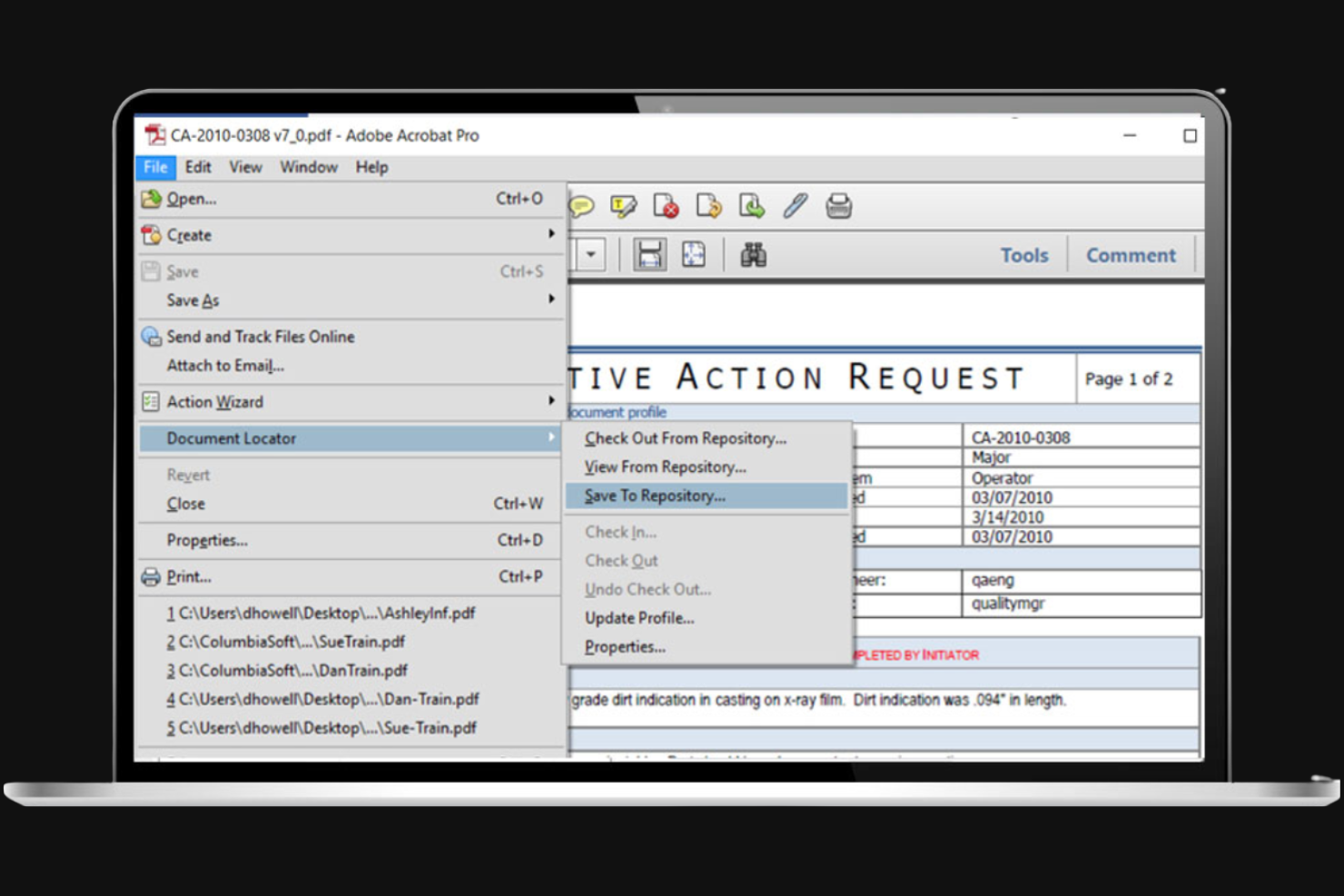
If you need advanced control over PDFs, Adobe Acrobat is a top choice for editing, organizing, and securing documents. It’s especially useful for professionals who regularly work with contracts, forms, or reports that require precise formatting and annotation. Adobe Acrobat’s editing tools let you modify text, images, and layouts directly within your PDFs, making it much more than just a viewer.
Why I Picked Adobe Acrobat
What sets Adobe Acrobat apart for personal document management is its advanced PDF editing toolkit. You can edit text and images directly within a PDF, which is essential for anyone who needs to update contracts, forms, or reports without converting files back and forth. I appreciate that Acrobat also supports features like redaction and digital signatures, making it a strong choice for handling sensitive or official documents. If you need more than just basic PDF viewing and want full editing control, Acrobat is built for that level of work.
Adobe Acrobat Key Features
Some other features that make Adobe Acrobat useful for personal document management include:
- OCR (Optical Character Recognition): Convert scanned documents and images into searchable and editable PDFs.
- PDF File Merging and Splitting: Combine multiple files into one PDF or split a PDF into separate documents.
- Cloud Storage Integration: Access and manage your PDFs from Adobe Document Cloud and other connected storage services.
- Commenting and Annotation Tools: Add notes, highlights, and markups directly to PDF files.
Adobe Acrobat Integrations
Integrations include Microsoft 365, Google Drive, Dropbox, Box, OneDrive, SharePoint, Salesforce, Workday, ServiceNow, and Microsoft Teams.
Pros and Cons
Pros:
- Merges family docs
- Reliable offline use
- Scans paper to PDF
Cons:
- Annoying upsell popups
- Constant app updates


If you want full control over your document management setup, OpenDocMan is an open-source platform designed for customization. This tool is a strong fit for tech-savvy individuals or small teams who want to tailor workflows, permissions, and storage to their exact needs. OpenDocMan helps you build a document management system that matches your unique requirements without being locked into a vendor’s limitations.
Why I Picked OpenDocMan
What sets OpenDocMan apart is its open-source foundation, which gives you the freedom to customize nearly every aspect of your document management system. I picked OpenDocMan because you can modify source code, create custom plugins, and adapt workflows to fit your exact needs. The platform also lets you define granular access controls and tailor document approval processes, making it a strong choice for anyone who wants a solution that grows and changes with their requirements. If you’re comfortable with a bit of technical setup, OpenDocMan offers flexibility that’s hard to match in personal document management software.
OpenDocMan Key Features
Some other features that make OpenDocMan useful for personal document management include:
- Automated Document Expiry: Set expiration dates for documents to manage retention policies.
- File Check-In/Check-Out: Lock documents while editing to prevent version conflicts.
- Custom Metadata Fields: Add and configure metadata fields to organize and search documents.
- Audit Trail: Track all user actions and document changes for accountability.
OpenDocMan Integrations
Integrations include MySQL, Apache, LDAP, Active Directory, and SMTP.
Pros and Cons
Pros:
- Works on any browser
- Highly customizable
- Good file expiration
Cons:
- No official support
- Outdated interface

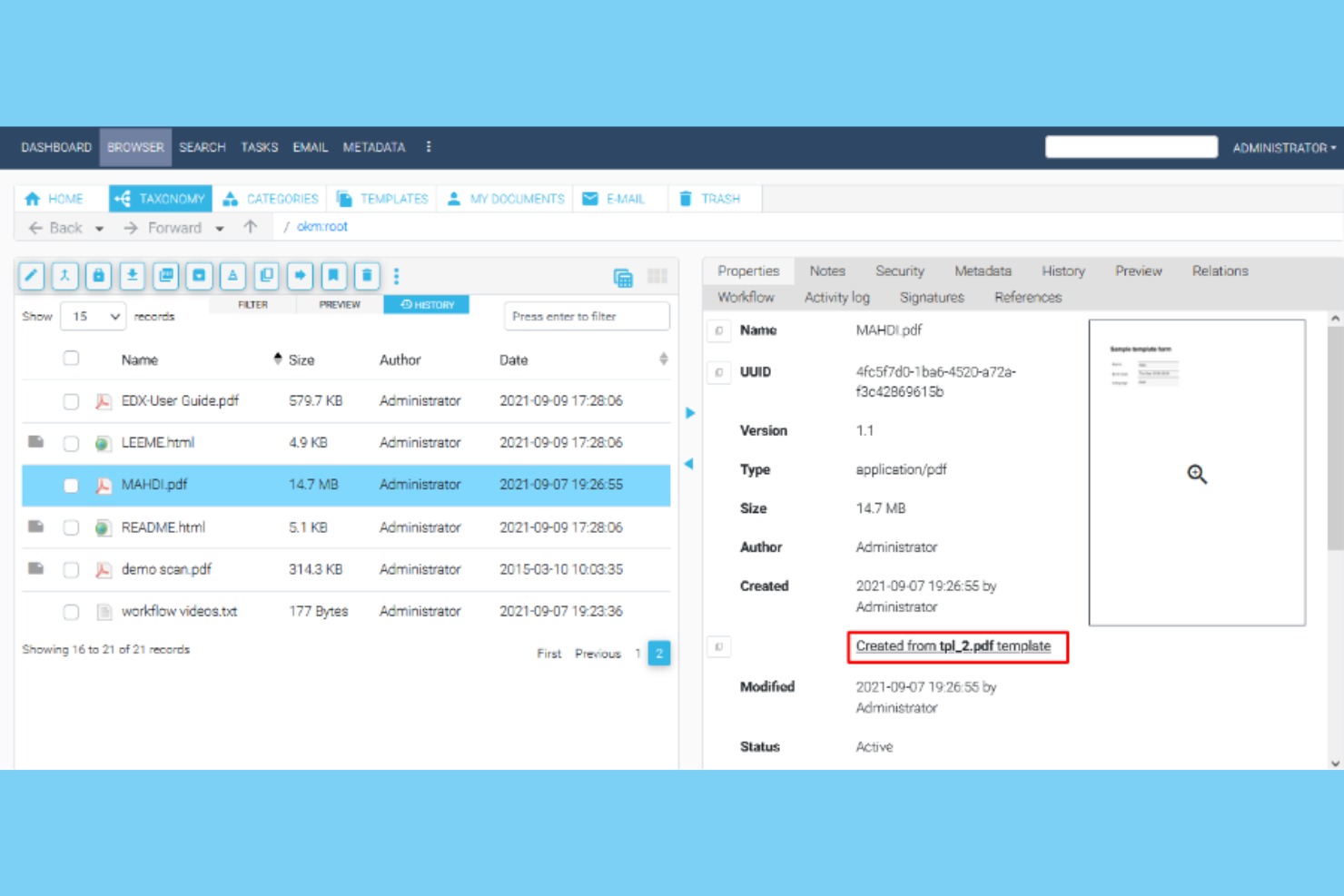
OpenKM is designed for users who need strict compliance and audit controls in their document management. It’s a strong fit for professionals in regulated industries who want to track document access, changes, and approvals. With features for policy enforcement and detailed reporting, OpenKM helps you maintain oversight and meet compliance requirements.
Why I Picked OpenKM
When compliance management is a top priority, OpenKM offers features that go beyond basic document storage. The platform includes audit trails that log every document action, so you can always see who accessed or modified a file. I appreciate its policy management tools, which let you enforce document retention and approval workflows to meet regulatory standards. For anyone who needs to demonstrate compliance and maintain strict control over document processes, OpenKM is a strong choice.
OpenKM Key Features
Some other features that make OpenKM useful for personal document management include:
- Document Version Control: Track and manage multiple versions of a document over time.
- Optical Character Recognition (OCR): Convert scanned documents and images into searchable text.
- Email Integration: Archive and manage emails directly within the document management system.
- Custom Metadata Fields: Add and organize documents using user-defined metadata for easier retrieval.
OpenKM Integrations
Integrations include Kofax, Abby Flexicapture, Cognitive Forms, Flexibar, Canon IW DS, Active Directory, LDAP, Microsoft Office, SSO, and CAS.
Pros and Cons
Pros:
- Reads text in images
- Good file tagging
- Tracks version history
Cons:
- Hard personal setup
- UI looks very old
Other Personal Document Management Software
Here are some additional personal document management software options that didn’t make it onto my shortlist, but are still worth checking out:
- Mayan EDMS
For self-hosted deployment flexibility
- FileCenter
For automated document scanning workflows
- SmartVault
For integrated e-signature support
- Nextcloud
For private cloud file hosting
- Sortifyd
For organizing household records


Personal Document Management Software Selection Criteria
When selecting the best personal document management software to include in this list, I considered common buyer needs and pain points like keeping sensitive documents secure and making files easy to organize and retrieve. I also used the following framework to keep my evaluation structured and fair:
Core Functionality (25% of total score)
To be considered for inclusion in this list, each solution had to fulfill these common use cases:
- Upload and store digital documents
- Organize files into folders or categories
- Search for documents by name or content
- Share files with others securely
- Access documents from multiple devices
Additional Standout Features (25% of total score)
To help further narrow down the competition, I also looked for unique features, such as:
- Built-in eSignature capabilities
- Automated document workflows
- Advanced permission and access controls
- Document scanning from mobile devices
- Detailed audit trails and activity logs
Usability (10% of total score)
To get a sense of the usability of each system, I considered the following:
- Clean and intuitive user interface
- Simple navigation between folders and files
- Fast file upload and download speeds
- Customizable dashboard or home screen
- Accessibility features for all users
Onboarding (10% of total score)
To evaluate the onboarding experience for each platform, I considered the following:
- Step-by-step product tours or walkthroughs
- Availability of training videos and tutorials
- Pre-built templates for common document types
- Easy data import and migration tools
- Access to live chat or onboarding webinars
Customer Support (10% of total score)
To assess each software provider’s customer support services, I considered the following:
- 24/7 support availability
- Multiple support channels like chat, email, and phone
- Fast response times to inquiries
- Helpful and knowledgeable support staff
- Access to a searchable help center or knowledge base
Value For Money (10% of total score)
To evaluate the value for money of each platform, I considered the following:
- Transparent and flexible pricing plans
- Features included at each pricing tier
- Free trial or free plan availability
- No hidden fees or surprise charges
- Discounts for annual billing or multiple users
Customer Reviews (10% of total score)
To get a sense of overall customer satisfaction, I considered the following when reading customer reviews:
- Positive feedback on reliability and uptime
- Reports of helpful customer support
- User satisfaction with security features
- Comments on ease of organizing and finding files
- Feedback on mobile app performance
How to Choose Personal Document Management Software
It’s easy to get bogged down in long feature lists and complex pricing structures. To help you stay focused as you work through your unique software selection process, here’s a checklist of factors to keep in mind:
| Factor | What to Consider |
|---|---|
| Scalability | Will the software handle your growing document volume and user base over time without extra costs or slowdowns? |
| Integrations | Does the tool connect natively with your existing apps (like email, cloud storage, or e-signature platforms)? |
| Customizability | Can you tailor folder structures, access controls, and workflows to match your personal or team preferences? |
| Ease of use | Is the interface intuitive for all users, or will you need to invest time in training and troubleshooting? |
| Implementation and onboarding | How long will it take to migrate your documents and get everyone up and running? Are there tools or support for this? |
| Cost | Are pricing tiers clear and predictable? Watch for storage limits, user caps, or extra charges for advanced features. |
| Security safeguards | Does the platform offer encryption, granular permissions, and audit trails to protect sensitive files? |
| Compliance requirements | Will the software help you meet any legal or industry-specific standards (like GDPR or HIPAA) relevant to your documents? |
Features of Personal Document Management Software
When selecting personal document management software, keep an eye out for the following key features:
- Document storage: Securely save and organize digital files in a centralized location, making it easy to access documents from any device.
- Folder organization: Create, name, and arrange folders or categories to keep documents sorted and easy to find.
- Advanced search: Locate files quickly using keywords, file types, dates, or content within documents.
- Version control: Track changes to documents over time, restore previous versions, and avoid confusion from duplicate or outdated files.
- File sharing: Send documents to others with customizable permissions, such as view-only or editing access.
- Access controls: Set user-specific permissions to restrict who can view, edit, or share certain files or folders.
- Audit trails: Monitor document activity, including who accessed, edited, or shared files, for added transparency and security.
- Mobile access: Use dedicated mobile apps or responsive web interfaces to manage and view documents on smartphones and tablets.
- Document scanning: Digitize paper documents directly into the system using a mobile device or scanner, making them searchable and easy to store.
Costs and Pricing of Personal Document Management Software
Selecting personal document management software requires an understanding of the various pricing models and plans available. Costs vary based on features, team size, add-ons, and more. The table below summarizes common plans, their average prices, and typical features included in personal document management software solutions:
Plan Comparison Table for Personal Document Management Software
| Plan Type | Average Price | Common Features |
|---|---|---|
| Free Plan | $0 | Basic document storage, limited sharing, simple folder organization, and basic search. |
| Personal Plan | $7-$20/user/month | Increased storage, advanced search, mobile access, version control, and basic support. |
| Business Plan | $18-$35/user/month | Team collaboration, enhanced security, audit trails, integration options, and priority support. |
| Enterprise Plan | $45-$95/user/month | Advanced compliance, custom workflows, granular permissions, dedicated onboarding, and admin controls. |
Personal Document Management Software FAQs
Here are some answers to common questions about personal document management software:
Can I use personal document management software for both work and personal files?
Yes, most personal document management software allows you to organize, separate, and secure both work and personal files. Look for tools that support multiple folders, user profiles, or tagging to keep your documents organized and accessible.
How secure is personal document management software?
Security varies by provider, but most solutions offer encryption, access controls, and audit trails. Always review the platform’s security certifications and settings to ensure your sensitive documents are protected according to your needs.
What happens if I exceed my storage limit?
If you exceed your storage limit, you may be unable to upload new files until you delete existing ones or upgrade your plan. Some platforms offer alerts or temporary grace periods, but it’s important to monitor your usage to avoid disruptions.
Can I access my documents offline?
Some personal document management software allows offline access by syncing selected files to your device. Check if the platform supports offline mode and how to enable it, especially if you need to work without a constant internet connection.
Is it easy to migrate my existing documents into a new system?
Most platforms offer import tools, drag-and-drop uploads, or migration support to help you transfer files. Before switching, review the available migration options and consider reaching out to support for guidance on large or complex document libraries.