
20 Best draw.io Alternatives for 2026

draw.io Alternatives Shortlist
Here’s my shortlist of draw.io alternatives:


A strong draw.io alternative offers flexible diagramming software features, real-time teamwork (and, by extension), visual collaboration, and a range of templates that fit your team’s workflow. If you’re searching for user-friendly alternatives to draw.io (now diagrams.net) like whimsical, you’re likely looking for tools that handle complex uml diagrams, support cross-functional teamwork, or provide a shorter learning curve and enhanced ease of use. This list will help you compare leading platforms, highlighting what sets each one apart so you can choose the right fit for your process mapping projects and team needs.
What Is draw.io?
draw.io is a web-based diagramming tool that lets users create flowcharts, mind maps, aws network diagrams, wireframes, and other visual content. It offers a drag-and-drop interface, a wide selection of shapes, and integration with platforms like Google Drive, Google Docs, Powerpoint, and Microsoft 365. Teams use draw.io to visualize systems and collaborate on diagrams in real time, making it a popular choice for both technical and non-technical users.
Best draw.io Alternatives Summary
This comparison chart summarizes pricing details for my top draw.io alternative selections to help you find the best one for your budget and business needs.
| Tool | Best For | Trial Info | Price | ||
|---|---|---|---|---|---|
| 1 | Best for interactive brainstorming sessions | Free plan available | From $3/user/month (billed annually) | Website | |
| 2 | Best with multi-user workflow integration | Free plan available | From $5/month (billed annually) | Website | |
| 3 | Best with enterprise-grade diagram templates | Free demo available | From $10.95/user/month (billed annually) | Website | |
| 4 | Best for product roadmap visualization | 30-day free trial + free demo available | From $9/user/month | Website | |
| 5 | Best for real-time idea organization | 30-day free trial + free plan + free demo available | From $8.33/user/month (billed annually) | Website | |
| 6 | Best for macOS and iOS compatibility | 14-day free trial available | From $129.99/year | Website | |
| 7 | Best for hand-drawn style visuals | 14-day free trial + free plan available | From $6/user/month (billed annually) | Website | |
| 8 | Best for text-based diagram creation | Free trial + free plan available | From $10/user/month (billed annually) | Website | |
| 9 | Best for structured mind mapping | 7-day free trial + free plan + free demo available | From $4.92/month (billed annually) | Website | |
| 10 | Best for visual project planning | 30-day free trial available | From $99/user/year | Website |
Why You Can Trust Us
We’ve been testing and reviewing project management software since 2012. As project managers ourselves, we know how critical and difficult it is to make the right decision when selecting software.
We invest in deep research to help our audience make better software purchasing decisions. We’ve tested more than 2,000 tools for different project management use cases and written over 1,000 comprehensive software reviews. Learn how we stay transparent & our software review methodology.
-

Accelo
Visit WebsiteThis is an aggregated rating for this tool including ratings from Crozdesk users and ratings from other sites.4.4 -
Wrike
Visit WebsiteThis is an aggregated rating for this tool including ratings from Crozdesk users and ratings from other sites.4.2 -
Forecast
Visit WebsiteThis is an aggregated rating for this tool including ratings from Crozdesk users and ratings from other sites.4.6




draw.io Alternatives Reviews
Below are my detailed summaries of the draw.io alternatives that made it onto my shortlist. My reviews offer a detailed look at the features, best use cases, and integrations of each diagramming tool to help you find the best one for you.

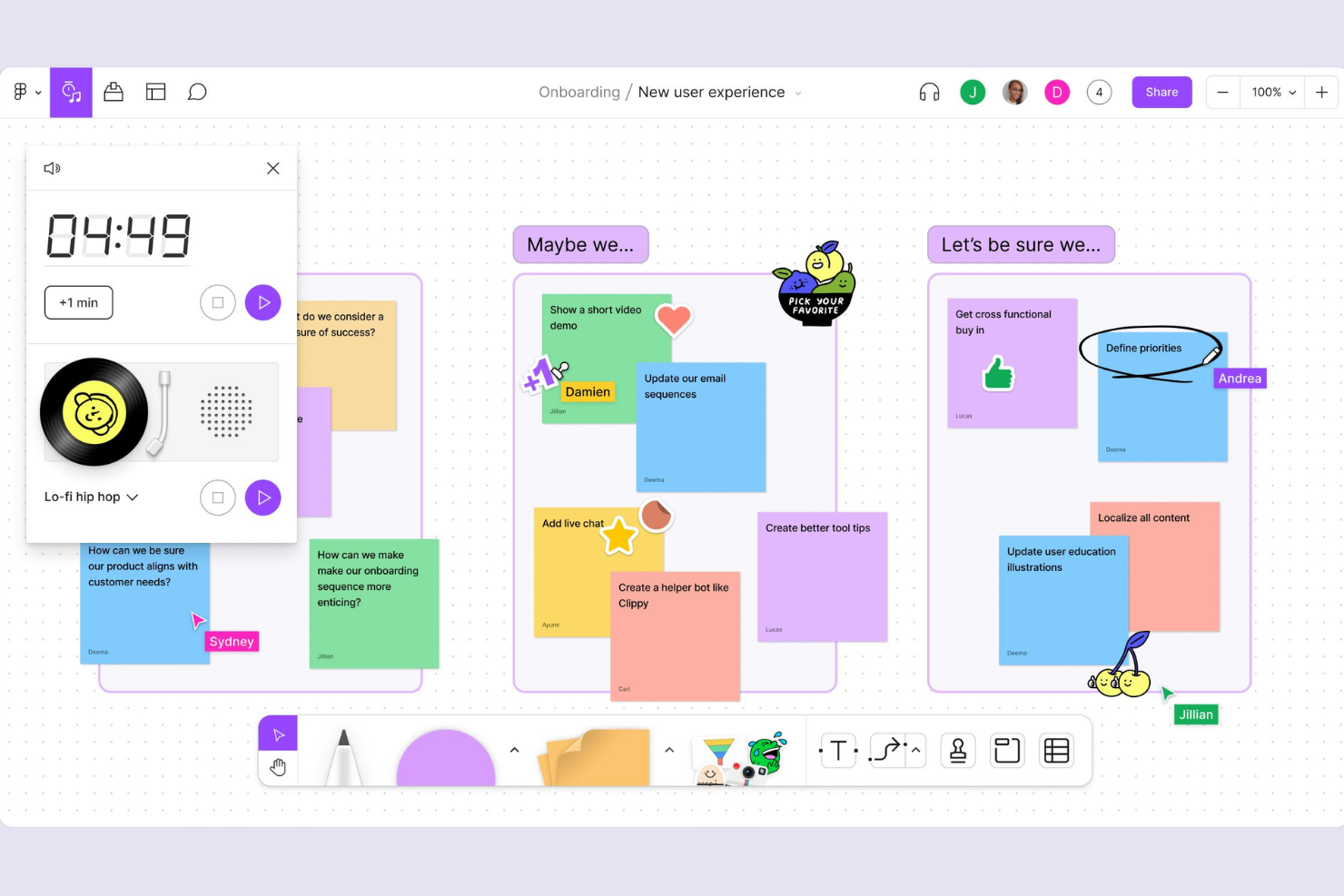
FigJam brings interactive whiteboarding and real-time collaboration to teams that need more than static diagrams. It’s especially useful for product managers, designers, and cross-functional groups who want to run brainstorming sessions, workshops, or agile ceremonies in a shared digital space. Unlike traditional diagramming tools, FigJam offers sticky notes, voting, and playful widgets that help teams capture ideas and make decisions together.
Why FigJam Is a Good draw.io Alternative
For teams that want to move beyond static diagrams, FigJam offers a highly interactive space for brainstorming and workshops. I picked it because it’s built for real-time collaboration, letting everyone contribute ideas with sticky notes, emoji reactions, and live cursors. FigJam’s voting tools and timers help groups quickly prioritize ideas and keep sessions focused. These features make it a strong choice for teams that need to facilitate dynamic, participatory meetings rather than just create diagrams.
FigJam Key Features
In addition to its interactive brainstorming tools, FigJam includes several other features that support collaborative diagramming:
- Pre-built Templates: Choose from a library of templates for flowcharts, mind maps, and agile ceremonies.
- Audio Chat: Start voice conversations directly within the whiteboard for quick discussions.
- Figma Integration: Seamlessly bring in Figma designs and components to connect brainstorming with design work.
- Customizable Widgets: Add timers, music players, and polls to tailor sessions to your team’s needs.
FigJam Integrations
Integrations include Asana, Jira, GitHub, Slack, Microsoft Teams, Zoom, Notion, Dropbox, Trello, and ChatGPT.
Pros and Cons
Pros:
- Modern fluid interface
- Great sticky note tools
- Built-in audio chats
Cons:
- Less standard shape sets
- Requires user accounts

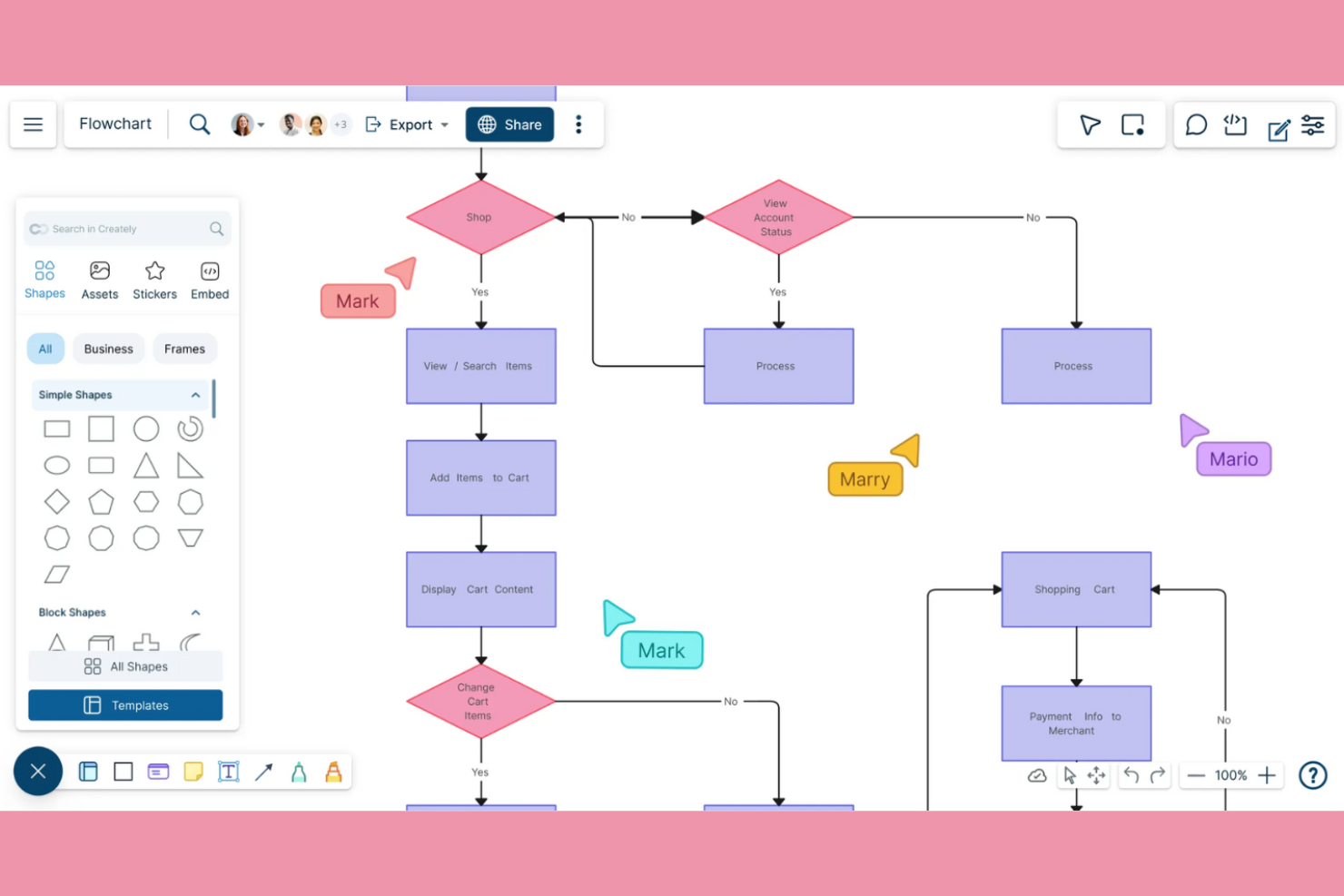
If your team needs a diagramming tool that supports real-time collaboration and workflow integration, Creately is worth a look. It’s designed for distributed teams and organizations that want to connect diagrams directly to tasks, notes, and project workflows. Unlike most diagramming tools, Creately combines visual workspaces with built-in project management features for a more unified team experience.
Why Creately Is a Good draw.io Alternative
Unlike most diagramming tools, Creately is built for teams that need to collaborate on diagrams and workflows in real time. I picked Creately because it lets multiple users co-edit diagrams, attach tasks and notes directly to shapes, and manage project workflows within the same workspace. The platform’s visual canvas is tightly integrated with task boards and databases, so you can move from brainstorming to execution without switching tools. If your team values multi-user workflow integration, Creately offers a more connected experience than traditional diagramming solutions.
Creately Key Features
Some other features that make Creately useful for teams include:
- Template Library: Access hundreds of pre-built templates for flowcharts, org charts, mind maps, and more.
- Infinite Canvas: Expand diagrams without boundaries to accommodate large or complex projects.
- Data Linking: Connect shapes to live data from tables or databases for dynamic visualizations.
- Version History: Review and restore previous versions of diagrams to track changes over time.
Creately Integrations
Integrations include Google Drive, Slack, Confluence, and Microsoft Teams.
Pros and Cons
Pros:
- Custom database linking
- Smooth live collaboration
- Great context menus
Cons:
- Confusing pricing tiers
- Heavier web performance


For teams that need a wide range of ready-made, professional diagrams, SmartDraw offers an extensive library of enterprise-grade templates. It’s especially useful for large organizations, IT departments, and project managers who need to create complex visuals like org charts, network diagrams, or floor plans. SmartDraw helps you standardize diagramming across your business with templates that meet industry and enterprise requirements.
Why SmartDraw Is a Good draw.io Alternative
If you’re looking for a diagramming tool with a deep catalog of enterprise-grade templates, SmartDraw is worth considering. I picked it for teams that need to produce diagrams that follow industry standards or require specialized formats, like engineering schematics or healthcare workflows. SmartDraw’s template library covers a wide range of business needs, from network diagrams to project timelines. This makes it easier to create polished, professional visuals without starting from scratch.
SmartDraw Key Features
Some other features in SmartDraw help teams manage and share diagrams more efficiently:
- Automatic Formatting: Shapes and connectors automatically align and adjust as you build diagrams.
- Visio Import and Export: Open, edit, and save Microsoft Visio files directly within SmartDraw.
- Collaboration Tools: Share diagrams with team members and collect feedback in real time.
- Single Sign-On (SSO): Integrate with your organization’s authentication system for secure access.
SmartDraw Integrations
Integrations include Microsoft Teams, Confluence, Jira, Trello, Google Workspace, Google Drive, OneDrive, SharePoint, Dropbox, and Box.
Pros and Cons
Pros:
- Enterprise-grade security
- Great for floor plans
- True CAD drawing tools
Cons:
- UI feels much heavier
- No truly free tier

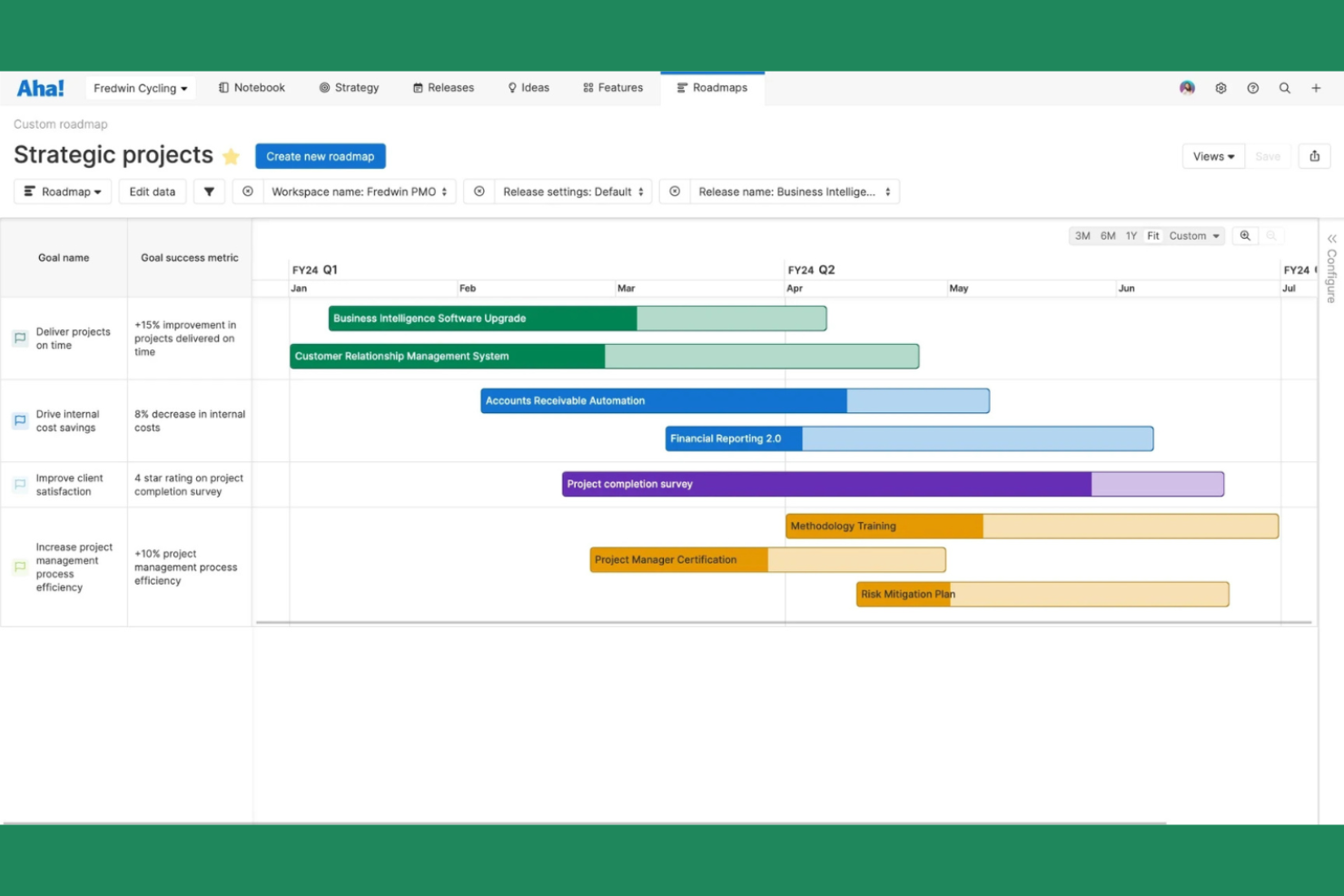
Product managers and strategy teams looking to visualize complex product roadmaps may want to consider Aha!. The platform is built for organizations that need to connect high-level strategy with detailed planning, offering advanced roadmap, dependency, and goal-tracking features. Unlike standard diagramming tools, Aha! lets you link initiatives, releases, and features directly to business objectives for a more strategic view of your product plans.
Why Aha! Is a Good draw.io Alternative
When you need to visualize product roadmaps with more depth than standard diagramming tools, Aha! stands out. I picked Aha! because it lets you create interactive roadmaps that connect features, releases, and goals in a single view. The platform supports advanced dependency mapping and timeline visualization, so you can see how initiatives align with business objectives. If your team needs to move beyond basic flowcharts and build strategic product plans, Aha! offers specialized tools for that purpose.
Aha! Key Features
Some other features that make Aha! useful for product teams include:
- Customizable Workflow Boards: Set up boards to match your team’s process for tracking ideas, features, and releases.
- Idea Portal: Collect, organize, and prioritize feedback from stakeholders and customers in a dedicated portal.
- Capacity Planning: Allocate resources and visualize team workloads across multiple projects.
- Presentation Builder: Create and share live presentations directly from your product data and roadmaps.
Aha! Integrations
Integrations include Jira, Azure DevOps, Salesforce, Slack, Zendesk, GitHub, Google Drive, Microsoft Teams, Box, and Confluence.
Pros and Cons
Pros:
- Direct development sync
- Great resource planning
- Deep backlog management
Cons:
- Useless for network maps
- No standard flowcharts

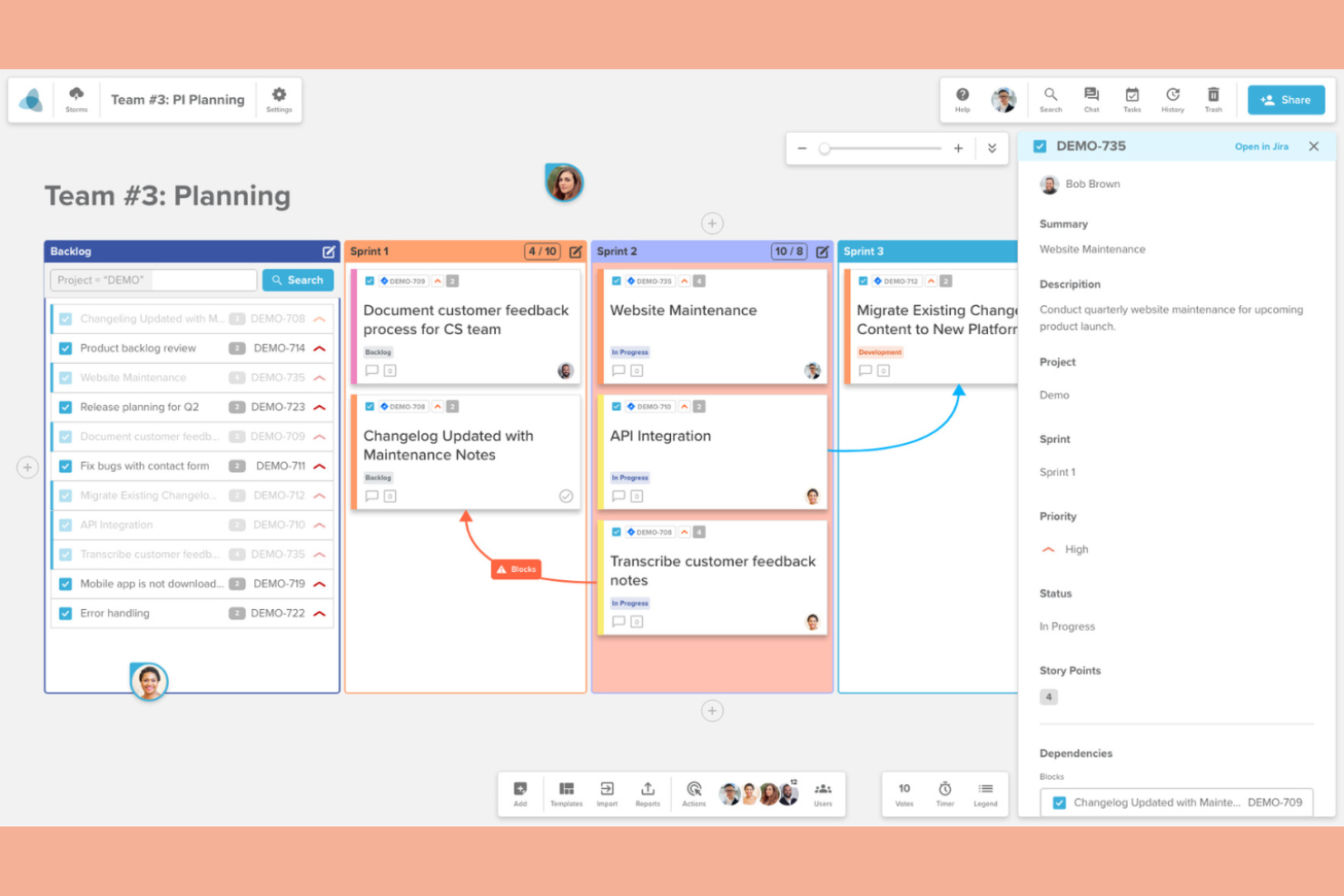
Teams that need to organize ideas and collaborate in real time may find Stormboard especially useful. The platform is designed for distributed teams, project managers, and facilitators who want to capture, structure, and prioritize input during live sessions. Unlike traditional diagramming tools, Stormboard combines sticky notes, templates, and live voting to help groups turn brainstorming into actionable plans on the spot.
Why Stormboard Is a Good draw.io Alternative
For teams that need to organize ideas as they happen, Stormboard offers a real-time approach that sets it apart from traditional diagramming tools. I picked Stormboard because it lets users add sticky notes, images, and drawings to shared boards while collaborating live with others. Built-in templates for brainstorming, project planning, and agile ceremonies help structure sessions and keep everyone aligned. If you’re looking for a tool that turns group input into organized, actionable diagrams on the fly, Stormboard is designed for that workflow.
Stormboard Key Features
Some other features that make Stormboard useful for collaborative diagramming include:
- Reporting Tools: Generate structured reports from your boards in formats like Word, Excel, and PDF.
- Task Assignment: Assign action items to team members directly within the workspace.
- Voting and Polling: Collect feedback and prioritize ideas using built-in voting features.
- Integration with Microsoft Teams: Collaborate on Stormboard sessions directly inside Microsoft Teams.
Stormboard Integrations
Integrations include Microsoft Teams, Slack, Jira, Azure DevOps, and Rally.
Pros and Cons
Pros:
- Easy sticky note sorting
- Built-in team voting
- Auto-generates reports
Cons:
- Weak line connectors
- Lacks freeform diagramming
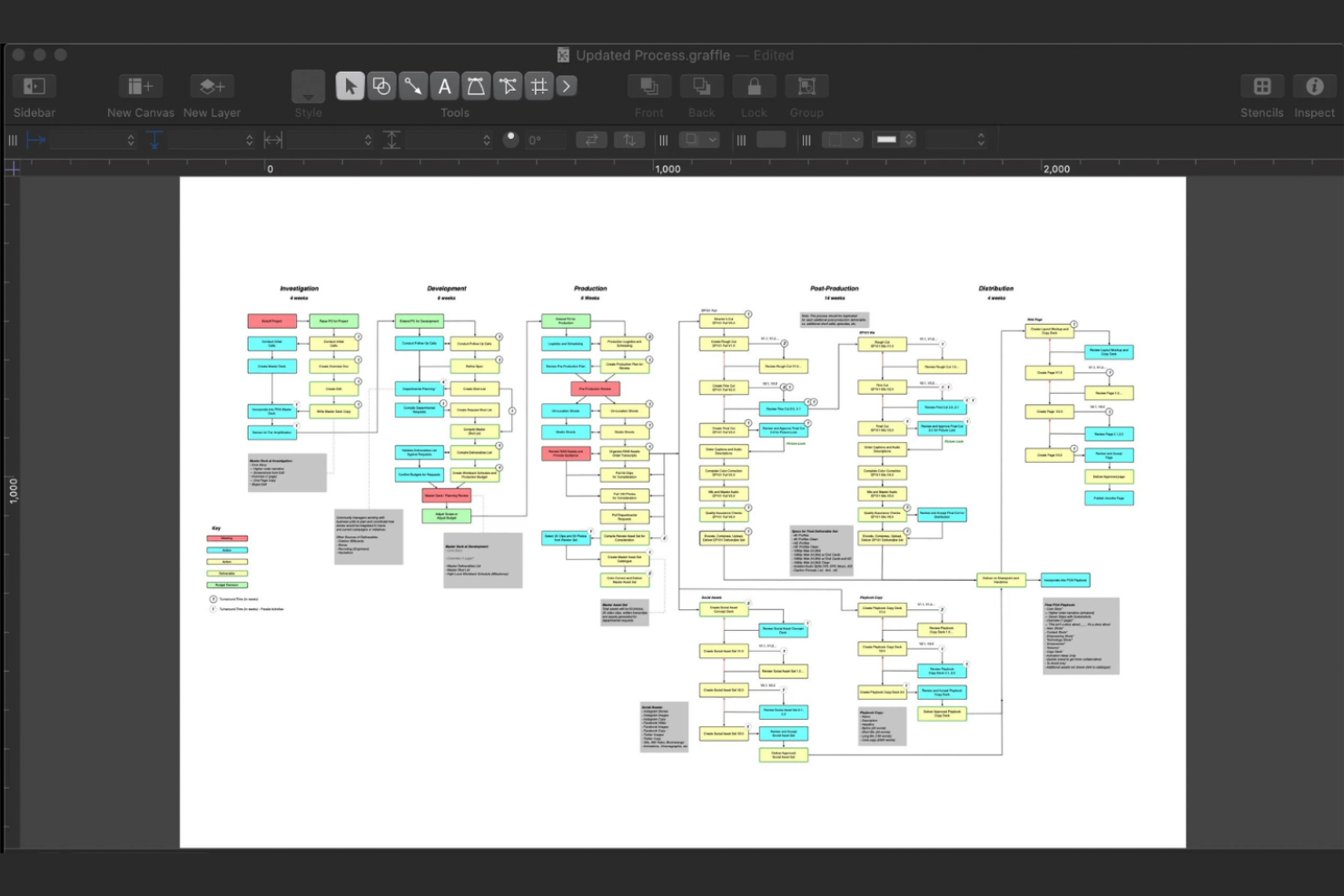
If you’re looking for a diagramming tool built specifically for Apple devices, OmniGraffle is designed for macOS and iOS users who need precision and native performance. It’s a strong fit for UX designers, architects, and technical professionals who want advanced layout controls and Apple ecosystem integration. Unlike browser-based tools, OmniGraffle offers offline access, automation with AppleScript, and deep support for macOS features.
Why OmniGraffle Is a Good draw.io Alternative
Unlike many diagramming tools, OmniGraffle is purpose-built for macOS and iOS, making it a top choice if your team works exclusively on Apple devices. I picked it because it takes full advantage of native Apple features, including support for Apple Pencil on iPad and automation with AppleScript. OmniGraffle also offers offline access and advanced canvas controls, which are especially useful for professionals who need precision and reliability without relying on a web browser. These capabilities set it apart from draw.io for users who prioritize seamless Apple ecosystem compatibility.
OmniGraffle Key Features
Some other features that make OmniGraffle appealing for diagramming include:
- Shape Recognition: Instantly convert rough sketches into precise shapes for cleaner diagrams.
- Shared Layer Support: Use shared layers to maintain consistency across multiple canvases in a single document.
- Stencils Library: Access a built-in library of reusable shapes and symbols for faster diagram creation.
- SVG Import and Export: Bring in or export diagrams in SVG format for compatibility with other design tools.
OmniGraffle Integrations
Integrations include OmniFocus, OmniPlan, Apple Shortcuts, Dropbox, and iCloud Drive.
Pros and Cons
Pros:
- Advanced vector drawing
- Stunning high-res exports
- AppleScript automation
Cons:
- Lacks web collaboration
- Very expensive license

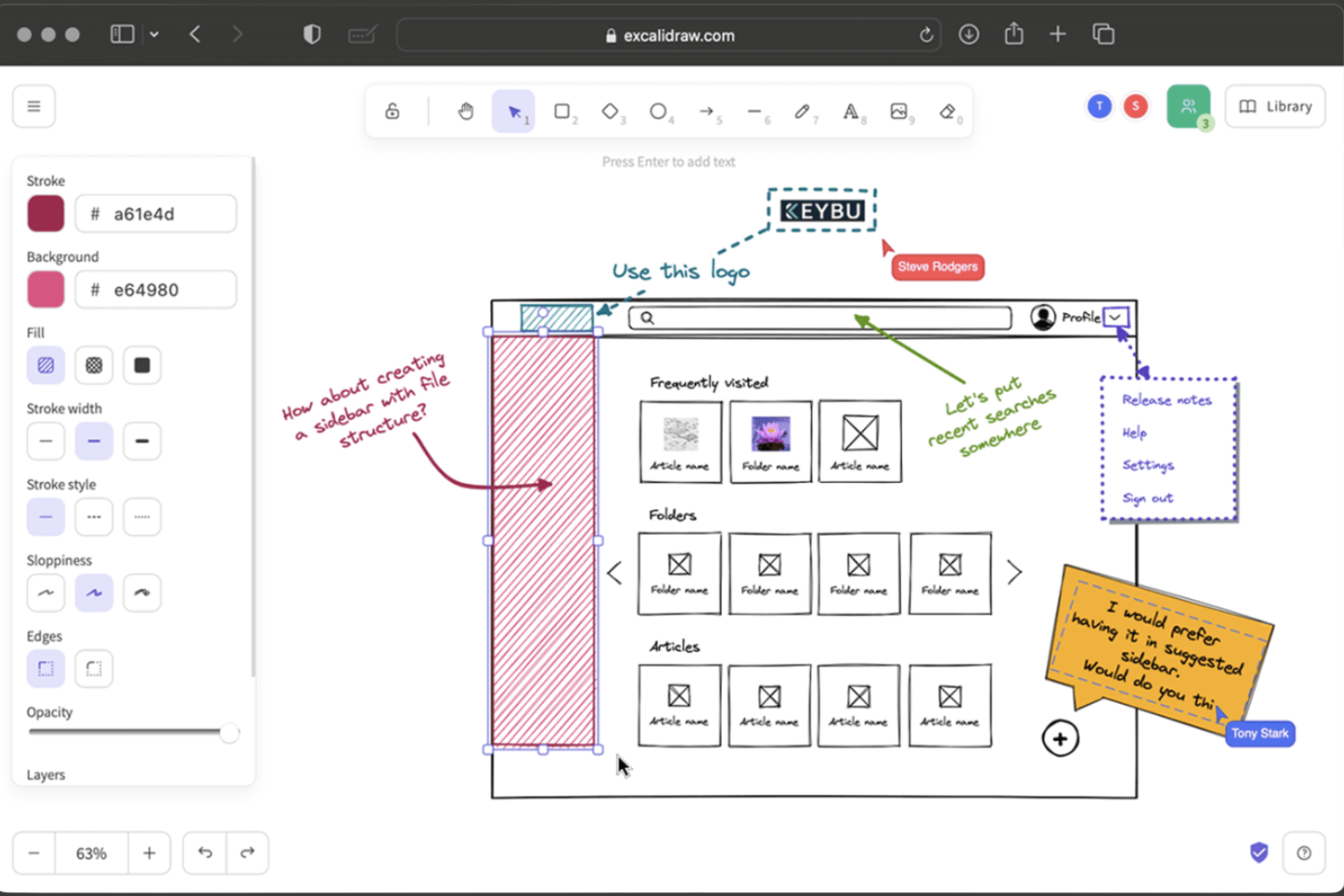
If you want a diagramming tool that mimics the look of sketches on a whiteboard, Excalidraw stands out. It’s a great fit for designers, product teams, and educators who value a hand-drawn style for brainstorming or presenting ideas. Excalidraw helps you create visuals that feel informal and approachable, making it easier to communicate concepts without the rigidity of traditional diagramming tools.
Why Excalidraw Is a Good draw.io Alternative
Excalidraw is a strong choice if you want diagrams that look hand-drawn and informal. I picked it for teams who need visuals that feel more like sketches than polished flowcharts. Excalidraw’s freeform drawing tools and rough-edged shapes help you capture ideas quickly without the constraints of rigid templates. This approach makes it easier to brainstorm, iterate, and communicate concepts in a way that feels approachable and collaborative.
Excalidraw Key Features
Some other features in Excalidraw make it a flexible option for different diagramming needs:
- Collaboration Mode: Multiple users can draw and edit on the same canvas in real time.
- Export Options: Export diagrams as png, svg, or clipboard-ready images for easy sharing.
- Custom Libraries: Save and reuse your own shapes and components across projects.
- Dark Mode: Switch to a dark interface for comfortable viewing during long sessions.
Excalidraw Integrations
Integrations include Obsidian, Notion, VS Code, GitHub, and Jira.
Pros and Cons
Pros:
- Live collaboration built-in
- Great for quick sketches
- Zero clutter interface
Cons:
- Limited export formats
- Not for technical drawings

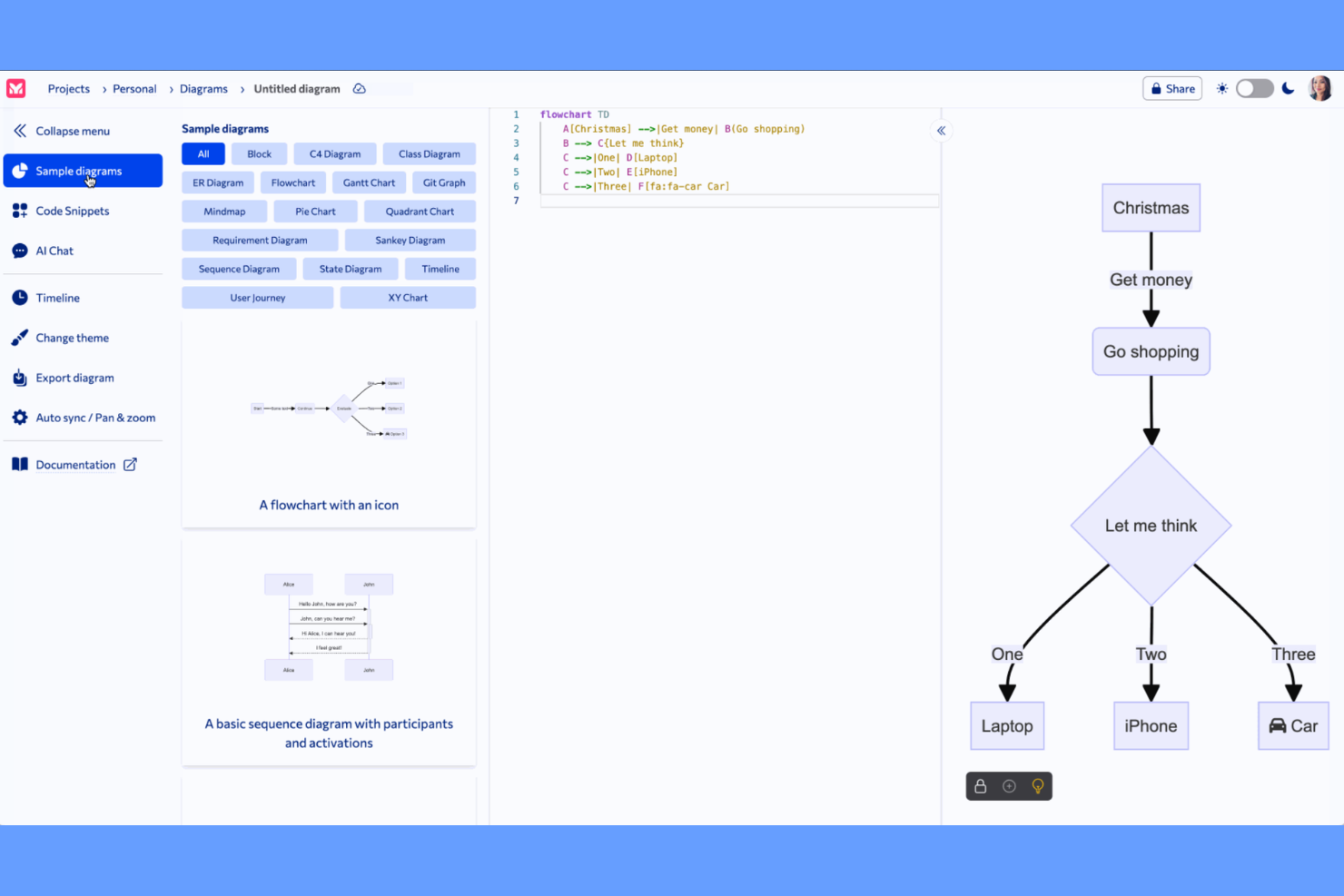
Developers and technical teams who prefer working in code will find Mermaid a unique fit for diagramming. This tool lets you create flowcharts, sequence diagrams, and more using a simple markdown-inspired syntax, making it ideal for embedding diagrams directly in documentation or code repositories. Mermaid stands out from visual drag-and-drop tools like draw.io by enabling version control and easy updates through text edits.
Why Mermaid Is a Good draw.io Alternative
If you want to create diagrams directly from text, Mermaid offers a completely different approach than visual editors like draw.io. I picked Mermaid because it lets you define flowcharts, Gantt charts, and sequence diagrams using a markdown-inspired syntax, which is especially useful for developers and technical writers. This text-based method makes it easy to version diagrams alongside code and update them with simple text edits. For teams that value automation and documentation embedded in code, Mermaid’s approach is a strong fit.
Mermaid Key Features
Some other features that make Mermaid appealing for diagramming include:
- Live Editor: Edit and preview diagrams in real time within the browser.
- Theme Customization: Adjust colors, fonts, and styles using built-in or custom themes.
- Embeddable Diagrams: Insert diagrams directly into markdown files, wikis, and documentation platforms.
- Export Options: Save diagrams as SVG, PNG, or copy the code for use elsewhere.
Mermaid Integrations
Integrations include GitHub, GitLab, Notion, Obsidian, and Confluence.
Pros and Cons
Pros:
- Great for developers
- Generates charts instantly
- No manual layout needed
Cons:
- Hard to customize colors
- Rigid visual layouts

If you’re looking for a mind mapping tool that emphasizes structure and clarity, XMind is worth considering. It’s designed for professionals and teams who need to organize complex ideas, workflows, or strategies in a visually logical way. XMind stands out from other diagramming tools by offering advanced map structures, outline modes, and export options tailored for structured thinking and presentation.
Why XMind Is a Good draw.io Alternative
Unlike general-purpose diagramming tools, XMind is built specifically for structured mind mapping. I picked XMind because it offers advanced map structures like logic charts, tree diagrams, and fishbone diagrams that help you organize information hierarchically and visually. Its outline mode lets you switch between map and text views, making it easier to refine and present complex ideas. If you need a tool that supports disciplined thinking and clear organization, XMind delivers features tailored for structured mapping.
XMind Key Features
Some other features that make XMind appealing for structured diagramming include:
- Zen Mode: Focus on your mind map without distractions by hiding all toolbars and menus.
- Pitch Mode: Turn your mind map into a slide-based presentation directly within XMind.
- Sticker and Illustration Library: Add visual elements to maps using built-in stickers and hand-drawn style illustrations.
- Cross-Platform Sync: Access and edit your maps across Windows, macOS, iOS, Android, and web.
XMind Integrations
Integrations include Slack, Zoom, Notion, Dropbox, Google Drive, and OneDrive.
Pros and Cons
Pros:
- Great aesthetic templates
- Built-in presentation mode
- Fast keyboard navigation
Cons:
- Lacks custom shape imports
- Free version watermarks

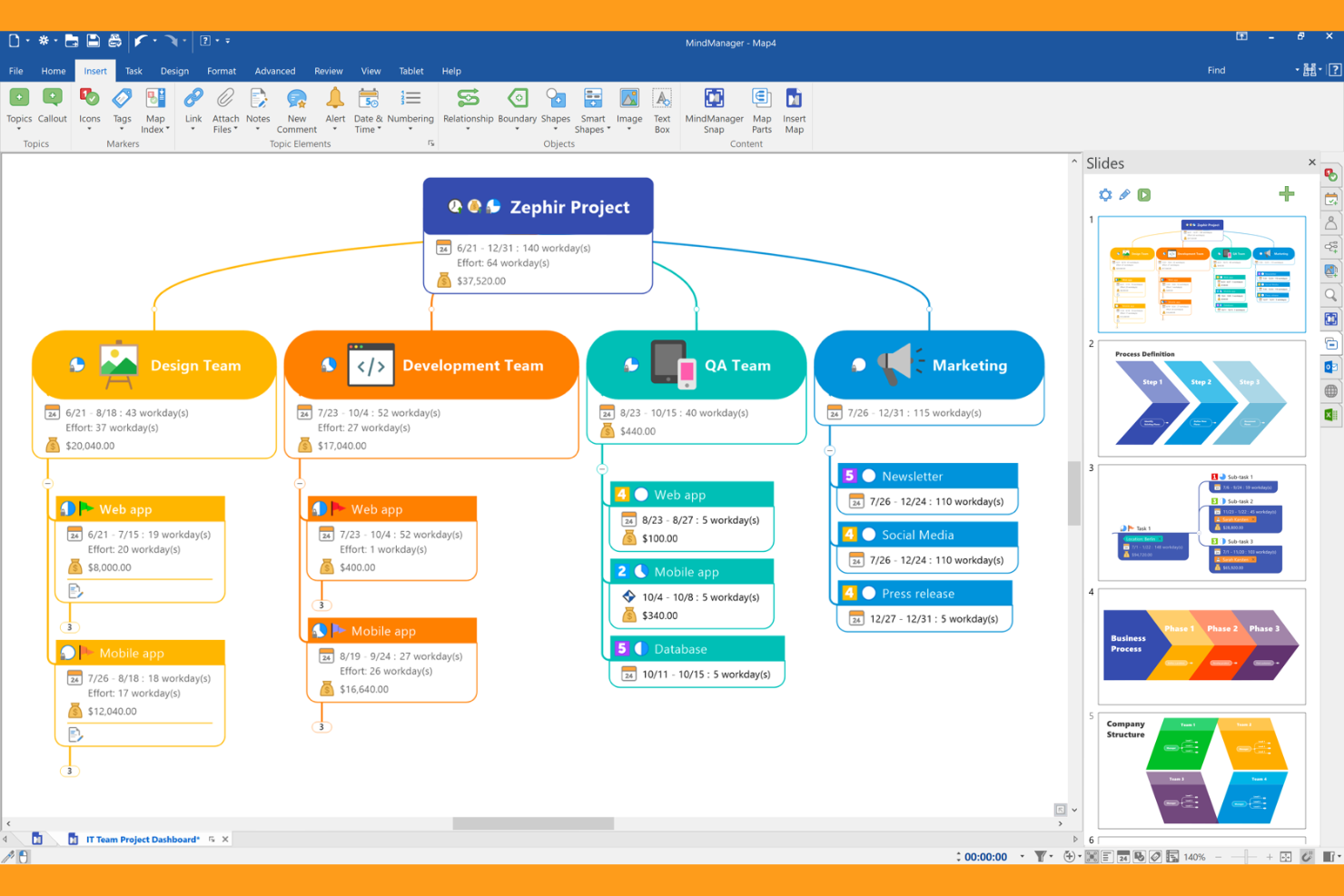
MindManager gives project managers and business teams a way to visually organize complex projects and ideas. Unlike basic diagramming tools, it combines mind mapping, flowcharting, and project planning features in one workspace. This makes it especially useful for teams that need to connect tasks, timelines, and dependencies in a single, interactive view.
Why MindManager Is a Good draw.io Alternative
For teams that want more than just basic diagramming, MindManager offers a dedicated environment for visual project planning. I picked MindManager because it lets you build mind maps, flowcharts, and project timelines all in one place, making it easier to connect ideas with actionable tasks. Its interactive Gantt charts and task management tools help you visualize dependencies and track progress directly within your diagrams. If you need to move from brainstorming to structured project execution, MindManager brings those capabilities together in a single workspace.
MindManager Key Features
Some other features that make MindManager useful for project planning include:
- SmartRules Automation: Set up conditional formatting and triggers to automate visual changes in your diagrams.
- Co-Editing: Collaborate with team members in real time on the same map or diagram.
- Presentation Mode: Turn maps and diagrams into interactive presentations without leaving the platform.
- Import and Export Options: Bring in data from Microsoft Project, Excel, and Outlook, or export diagrams to a variety of formats.
MindManager Integrations
Integrations include Jira, Microsoft Teams, Microsoft Word, Microsoft Excel, Microsoft SharePoint, Microsoft Outlook, Microsoft Project, Microsoft Planner, Microsoft To Do, and Box.
Pros and Cons
Pros:
- Great for project plans
- Deep MS Office sync
- Links directly to tasks
Cons:
- Not for network diagrams
- Weak flowchart tools
Other draw.io Alternatives
Here are some additional draw.io alternatives options that didn’t make it onto my shortlist, but are still worth checking out:
- Gliffy
For quick team collaboration
- LibreOffice Draw
For open-source desktop editing
- Lucidchart
For advanced data linking features
- Miro
For cross-functional team workshops
- Edraw Max
For all-in-one diagram template variety
- Venngage
For infographic diagram creation
- SketchWow
For playful sketch-style diagrams
- IcePanel
For collaborative software modeling
- Nulab Cacoo
With built-in video chat support
- Holori
For cloud architecture visualization


draw.io Alternatives Selection Criteria
When selecting the best draw.io alternatives to include in this list, I considered common buyer needs and pain points related to diagramming tool products, like supporting real-time team collaboration and managing complex, multi-layered diagrams. I also used the following framework to keep my evaluation structured and fair:
Core Functionality (25% of total score)
To be considered for inclusion in this list, each solution had to fulfill these common use cases:
- Create flowcharts and process diagrams
- Build organizational charts
- Design network and architecture diagrams
- Collaborate on diagrams with team members
- Export diagrams in standard file formats
Additional Standout Features (25% of total score)
To help further narrow down the competition, I also looked for unique features, such as:
- Real-time multi-user editing
- Data linking and live data visualization
- Built-in project management tools
- Advanced version history and change tracking
- Embedded commenting and feedback tools
Usability (10% of total score)
To get a sense of the usability of each system, I considered the following:
- Clean and intuitive user interface
- Minimal clicks to create and edit diagrams
- Responsive performance with large diagrams
- Customizable toolbars and shortcuts
- Accessibility for users with different needs
Onboarding (10% of total score)
To evaluate the onboarding experience for each platform, I considered the following:
- Availability of step-by-step tutorials
- Access to template libraries for quick starts
- Interactive product tours for new users
- In-app chatbots or guided help
- Webinars or live training sessions
Customer Support (10% of total score)
To assess each software provider’s customer support services, I considered the following:
- Multiple support channels (chat, email, phone)
- Fast response times to inquiries
- Helpful and knowledgeable support staff
- Access to a searchable help center
- Community forums or user groups
Value For Money (10% of total score)
To evaluate the value for money of each platform, I considered the following:
- Transparent and flexible pricing plans
- Features included at each pricing tier
- Free plan or trial availability
- Discounts for teams or education
- No hidden fees or surprise charges
Customer Reviews (10% of total score)
To get a sense of overall customer satisfaction, I considered the following when reading customer reviews:
- Positive feedback on collaboration features
- Reports of reliability and uptime
- Comments on integration capabilities
- User satisfaction with support and onboarding
- Feedback on feature updates and improvements
Why Look For A draw.io Alternative?
While draw.io is a good choice of diagramming tool, there are a number of reasons why some users seek out alternative solutions. You might be looking for a draw.io alternative because…
- You need real-time multi-user editing and workflow integration
- Your team wants built-in project management features
- You require more advanced data linking or automation
- You need a wider range of native integrations
- You want a more modern or customizable user interface
- You need better support for large, complex diagrams
If any of these sound like you, you’ve come to the right place. My list contains several diagramming tool options that are better suited for teams facing these challenges with draw.io and looking for alternative solutions.
draw.io Key Features
Here are some of the key features of draw.io, to help you contrast and compare what alternative solutions offer:
- Drag-and-drop diagram creation
- Extensive shape and icon libraries
- Real-time collaboration with shared editing
- Integration with Google Drive, OneDrive, and Dropbox
- Customizable templates for various diagram types
- Layer support for organizing complex diagrams
- Revision history and version control
- Export options to multiple file formats
- Embedding diagrams in Confluence and Jira
- Offline access through desktop applications