
30 Best Document Workflow Software Reviewed For 2026

10 Best Document Workflow Software Shortlist
Here's my pick of the 10 best software from the 30 tools reviewed.


Handling documents should be straightforward. Your team needs a clear process for approvals, version control, and collaboration—without the delays or confusion that come with manual tracking.
Document workflow software is designed to keep everything moving. It ensures documents reach the right people at the right time, tracks progress automatically, and reduces unnecessary back-and-forth.
In this article, I’ve reviewed the best document workflow software on the market to help you find the right fit. My list highlights tools that improve efficiency, keep files organized, and make document management easier for your team. Here, you can review your options and choose the best software for your team.
Why You Can Trust Us
We’ve been testing and reviewing project management software since 2012. As project managers ourselves, we know how critical and difficult it is to make the right decision when selecting software.
We invest in deep research to help our audience make better software purchasing decisions. We’ve tested more than 2,000 tools for different project management use cases and written over 1,000 comprehensive software reviews. Learn how we stay transparent & our software review methodology.
Compare Specs Side-By-Side
Here is a table where you can compare all the tools we just covered in the overviews.
| Tool | Best For | Trial Info | Price | ||
|---|---|---|---|---|---|
| 1 | Best for automated document routing | Free demo available | From $399/month (billed annually) | Website | |
| 2 | Best for complex, high volume document automation | Free demo available | Pricing upon request | Website | |
| 3 | Best for structured workflow tools | Free demo available | Pricing upon request | Website | |
| 4 | Best for no-code workflow automation | Free plan available | From $19.50/month (billed annually) | Website | |
| 5 | Best for advanced OCR capabilities | Free demo available | Pricing upon request | Website | |
| 6 | Best for enabling document-driven workflows with AI extraction | Free plan available | From $79.20/month (billed annually) | Website | |
| 7 | Best for AI-driven document automation | Free trial available + free demo | Pricing upon request | Website | |
| 8 | Best for field data collection | 14-day free trial + free demo available | From $20/user/month | Website | |
| 9 | Best cloud-based or on-premise storage | Free trial + free demo available | Pricing upon request | Website | |
| 10 | Best for contract management and e-signature | Free plan available | From $10/user/month | Website |
-

Accelo
Visit WebsiteThis is an aggregated rating for this tool including ratings from Crozdesk users and ratings from other sites.4.4 -
Wrike
Visit WebsiteThis is an aggregated rating for this tool including ratings from Crozdesk users and ratings from other sites.4.2 -
Forecast
Visit WebsiteThis is an aggregated rating for this tool including ratings from Crozdesk users and ratings from other sites.4.6




Best Document Workflow Software Reviews
Below you can find a detailed overview of each of the best document workflow software that made it onto my shortlist. I’ve outlined their best use case, standout features, and pros and cons. I also added a screenshot of each platform’s interface to give you a sense of what to expect.
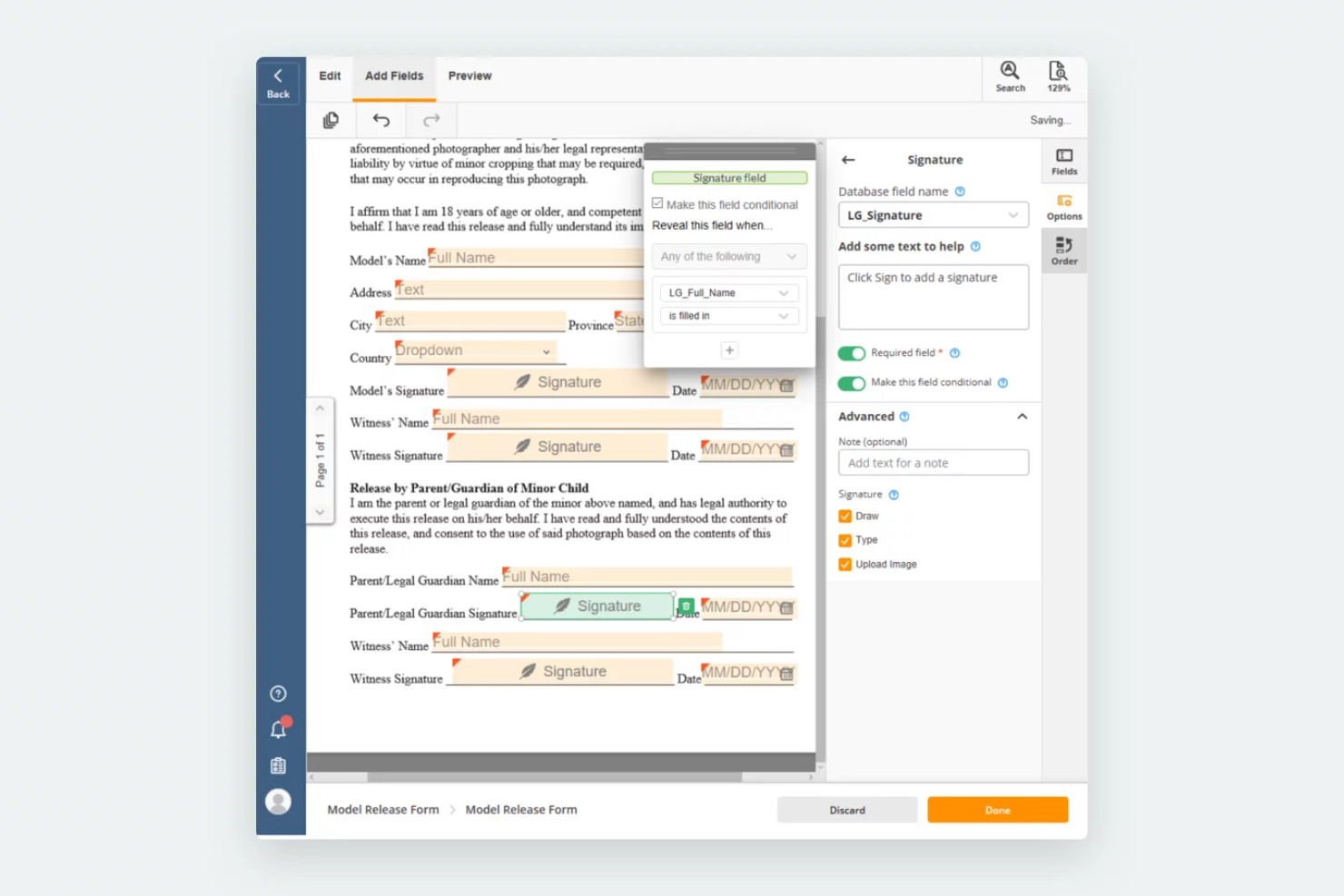
airSlate Workflow is a no-code document workflow automation platform that helps organizations create, route, and manage documents with greater accuracy. It supports industries such as healthcare, legal, education, and finance by providing tools for contract management, electronic signatures, and compliance-driven processes.
Why I picked airSlate Workflow: I chose this tool because of its intelligent automation features that allow documents to move through workflows without manual oversight. Triggers can initiate workflows from systems like CRMs, ensuring tasks are completed on time and records stay up to date. I also liked its “fill” capability, which pre-populates forms and contracts with data from connected systems, reducing errors and saving staff from repetitive entry.
airSlate Workflow Standout Features and Integrations
Standout features include native bi-directional data sync that writes completed document data back to connected systems automatically, a no-code workflow builder for configuring document generation, routing, approvals, and e-signatures, and built-in governance controls such as SSO, role-based access control, audit trails, and configurable data retention policies. E-signature is included in every plan with no per-envelope fees, supporting secure and compliant document workflows across regulated industries.
Integrations include Salesforce, NetSuite, Microsoft Dynamics, and SharePoint.
Pros and Cons
Pros:
- Customizable workflows tailored to organizational needs
- Broad integration options with CRMs and databases
- Accessible for non-technical users with a clear interface
Cons:
- Learning curve for advanced automation setups
- Separate billing per workspace can be costly

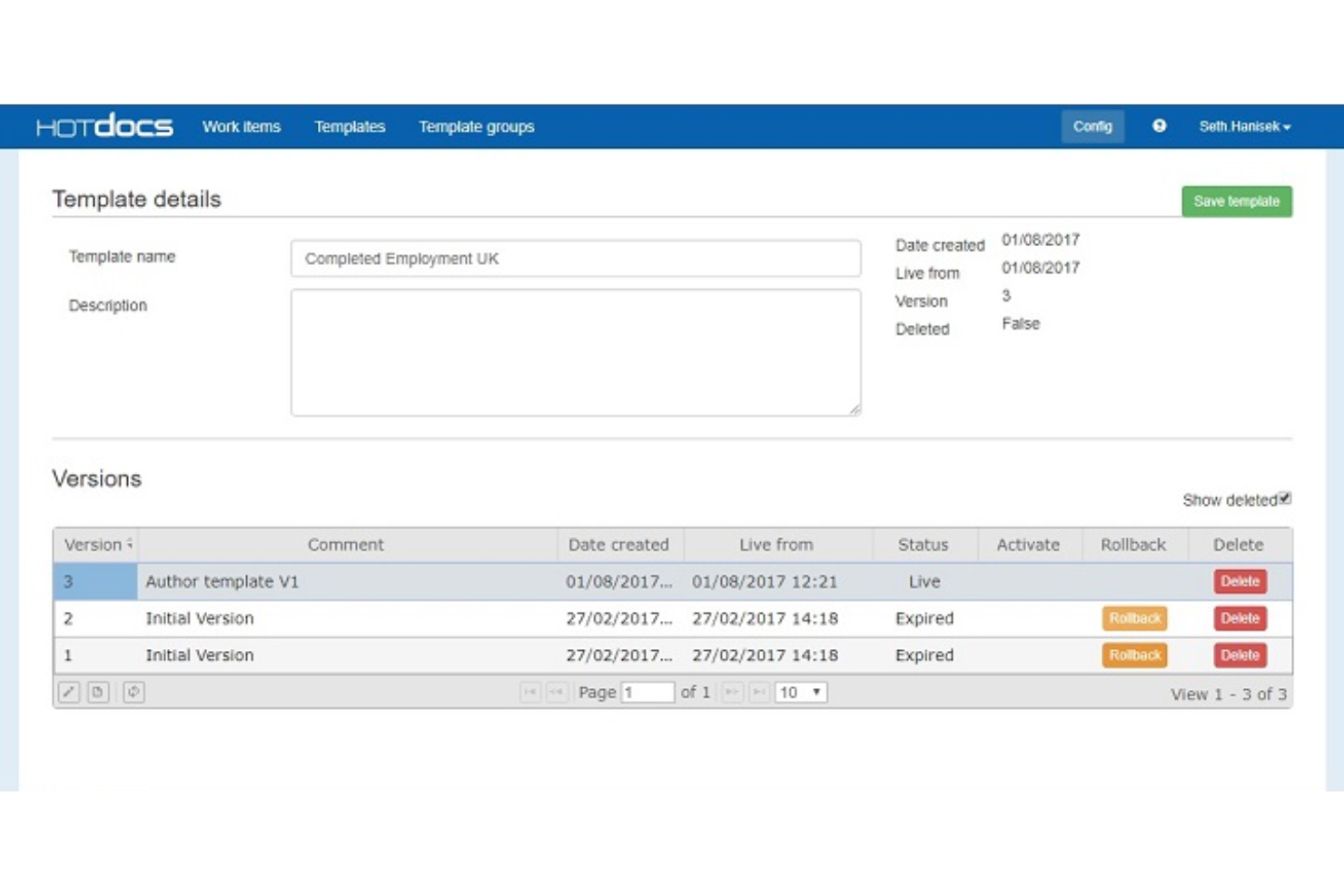
HotDocs is a document automation software solution designed to simplify the creation of complex, customized documents. It's often used in legal, financial, and governmental sectors to automate the production of various documents such as contracts, court forms, loan applications, and sales proposals.
Why I picked HotDocs: HotDocs excels in automating complex document assembly processes. This includes the ability to generate expanding tables and conditional text areas and perform sophisticated calculations within documents. These dynamic elements ensure that documents are not only accurate but also tailored to specific needs without requiring extensive manual adjustments.
HotDocs Standout Features and Integrations
Standout features include conditional logic, which helps users create dynamic documents by incorporating if/then statements. It also provides audit trails and workflow automation for repetitive tasks such as document review, approval, and filing.
Integrations include Salesforce, Microsoft Dynamics, Sage, Microsoft 365, Microsoft Word, Tabs3, CARET Legal, Actionstep, Amicus Attorney, and AbacusLaw.
Pros and Cons
Pros:
- Customizable templates
- Robust document automation capabilities
- Good for end-to-end document management
Cons:
- Can be challenging to learn how to create templates
- Can be pricey for smaller businesses


Document360 is a knowledge base platform with workflow automation features designed to help teams create, organize, and manage documentation. It supports a range of use cases, from internal process docs to customer-facing help centers, with robust controls for roles, approvals, and publishing.
Why I Picked Document360: I picked Document360 because it combines intuitive knowledge management with structured workflow tools, making it easy to manage complex documentation projects. Its custom workflow builder helps teams set up approval processes and tailor collaboration across departments. I also liked the AI-assisted search, embedded help widgets, and analytics that give insights into what users are reading—and what content might need refinement.
Document360 Standout Features and Integrations:
Standout features include a custom workflow builder, glossary management, role-based access, embedded help centers, decision tree builder, and analytics with SEO optimization tools.
Integrations include Zendesk, Freshdesk, Intercom, Drift, Slack, GitHub, Make, Salesforce, and Microsoft Teams.
Pros and Cons
Pros:
- Provides robust version control with audit trails
- Offers powerful reporting and analytics
- Smart file management features
Cons:
- Most integrations are only available on higher-tier plans
- Can be pricey for teams on a budget
New Product Updates from Document360

Document360 Improves Article Review Workflows
Document360 introduces enhancements to article review reminders, improving review governance with new interactive features. For more information, visit Document360's official site.
 .
.

For businesses that need a straightforward, flexible way to manage document workflows, Jotform Workflows provides a no-code platform designed for a range of organizational needs. It’s used across industries like healthcare, finance, and education, where approvals, e-signatures, and task assignments are part of daily operations. With a drag-and-drop builder, customizable workflows, and built-in integrations, Jotform Workflows helps teams streamline processes and reduce operational friction.
Why I Picked Jotform Workflows
I picked Jotform Workflows because it can automate complex document processes without requiring technical expertise. The drag-and-drop builder makes it easy to create workflows tailored to specific use cases, such as approval chains or e-signature collection. Jotform Workflows also supports more than 40 payment gateways, allowing financial transactions to be automated directly within a workflow. Together, these features help organizations cut down on manual work and maintain consistency across their document management processes.
Jotform Workflows Key Features
In addition to its automation capabilities, Jotform Workflows offers several other features that enhance document workflow management:
- Conditional Logic: This feature allows you to create dynamic workflows that adapt based on user input, ensuring that your processes are as efficient as possible.
- Parallel Processing: You can manage multiple tasks simultaneously, which is particularly useful for complex workflows requiring input from different departments.
- Real-Time Tracking: Monitor the progress of your workflows in real-time, providing you with insights into task completion and bottlenecks.
- Automated Reminders: Keep your team on track with automated email reminders for pending tasks, approvals, or deadlines.
Jotform Workflows Integrations
Integrations include Microsoft Teams, Google Drive, Slack, Zoom, Asana, Airtable, Salesforce, PayPal, Stripe, and Trello.
Pros and Cons
Pros:
- Integrates with Google Drive Slack
- Conditional logic enables dynamic workflows
- No-code drag-and-drop workflow builder
Cons:
- Free plan limits complex workflows
- Advanced features require paid plans


Klippa DocHorizon is an AI-powered document workflow software designed to automate your document processing tasks.
Why I picked Klippa DocHorizon: I chose Klippa DocHorizon for its advanced OCR capabilities that accurately extract data from diverse documents, including invoices, receipts, and identity documents. Additionally, its document conversion functionality allows you to transform documents into formats like CSV, XML, JSON, or PDF, ensuring compatibility with your existing systems. It also has a document classification feature, which automatically categorizes documents based on specific data fields.
Klippa DocHorizon Standout Features and Integrations
Standout features include document verification to detect fraudulent documents, identity verification through AI algorithms, and a workflow builder that lets you create and manage document processing workflows tailored to your needs. These features work together to enhance your document management processes.
Integrations include Gmail, Google Drive, Outlook, OneDrive, Sharepoint, Oracle Netsuite, Xero, Dropbox, Quickbooks, and Zoho.
Pros and Cons
Pros:
- Supports multiple document formats for conversion
- Automated document classification
- Fraud detection capabilities
Cons:
- Documentation around the API could be improved
- Limited customization options for specific workflows

DocuPipe offers document workflow automation designed for teams that need advanced data extraction and compliance features. It’s a strong fit for organizations in regulated industries or those handling high volumes of complex documents.
Who Is DocuPipe Best For?
DocuPipe suits compliance-driven teams in finance, healthcare, or legal sectors that need to automate and secure document workflows.
Why I Picked DocuPipe
I picked DocuPipe because its AI-powered document extraction saves my team hours on manual data entry. The platform automatically identifies and pulls key information from invoices, contracts, and forms, even when layouts vary. I appreciate how it handles unstructured documents and adapts to new formats without custom coding. This lets us process high volumes of paperwork with fewer errors and faster turnaround.
DocuPipe Key Features
- Visual review: Review extracted data alongside the original document for quick verification and correction.
- Document type classification: Automatically categorize documents by type to organize workflows and trigger specific processes.
- Document splitting: Separate multi-document files into individual documents for easier processing and routing.
- Support for 60+ languages: Process documents in a wide range of languages to accommodate global teams and clients.
DocuPipe Integrations
DocuPipe offers a well-documented API for custom integrations and supports no-code connectivity through Make (Integromat), allowing you to send extracted data to thousands of applications, including CRMs, accounting systems, and databases.
Pros and Cons
Pros:
- Supports granular role-based access controls
- AI-powered extraction for unstructured documents
- Custom field mapping for unique document types
Cons:
- No mobile app for on-the-go access
- Free credits may not cover large projects


Nanonets is an AI-driven platform designed to automate document processing and data extraction workflows, particularly benefiting industries such as finance, healthcare, and logistics.
Why I picked Nanonets: It uses AI to automate complex document processes, such as data capture for invoices and purchase orders. This automation extends to workflows for accounts payable, financial reconciliation, and claims processing in the insurance sector. By utilizing machine learning and Optical Character Recognition (OCR) technology, Nanonets efficiently handles unstructured data, ensuring even the most intricate tasks are managed with precision. This is accompanied by human-in-the-loop AI workflows, which allow you to incorporate human oversight into automated processes where necessary.
Nanonets Standout Features and Integrations
Standout features include insights extraction from unstructured data, GDPR, SOC 2, and HIPAA compliance, and a no-code platform to provide more accessibility to a range of users.
Integrations include Quickbooks, Salesforce, Google Sheets, Dropbox, and Zapier.
Pros and Cons
Pros:
- Simple API for easy integration
- Compatible with multiple programming languages
- Data extraction features
Cons:
- May not be suitable for more extensive machine learning projects with very large datasets
- Compared to more advanced tools, Nanonets offers fewer customization options


Fluix is a no-code document management and workflow automation platform. It can be used by various types of field teams for data collection and form processing purposes.
Why I picked Fluix: Building forms is simplified by the software’s drag-and-drop interface, so you can create various types of documents to collect data from customers, clients, and partners in the field. It’s a suitable solution for teams performing various types of inspections, field sales teams, and other field service providers. You can have documents signed, add images with geotags, and add annotations to files on the go. Once you’ve collected your data, you can build workflows for your various business processes in the system, and automate repetitive tasks.
Fluix Standout Features and Integrations
Standout features include dynamic values that can be implemented in forms, which can then be used to customize your follow-up workflows. The workflow builder also allows for conditional logic, so you can connect specific rules based on specific values entered in forms. Ready-made and custom templates are also available on the platform, helping you speed up your form creation process.
Integrations include PowerBI, Tableau, Airtable, Smartsheet, Microsoft 365, Dropbox, Google Drive, Trello, monday.com, Asana, Salesforce, Pipedrive, NetSuite, and Slack, among others. Zapier, Integromat, and Automate can all be used to build additional custom integrations.
Pros and Cons
Pros:
- Form building, data collection, and workflow automation in one
- Easy to learn, drag-and-drop interface
- Can be used from any device
Cons:
- Some feature discrepancies between the mobile and desktop app
- Some features come as paid add-ons

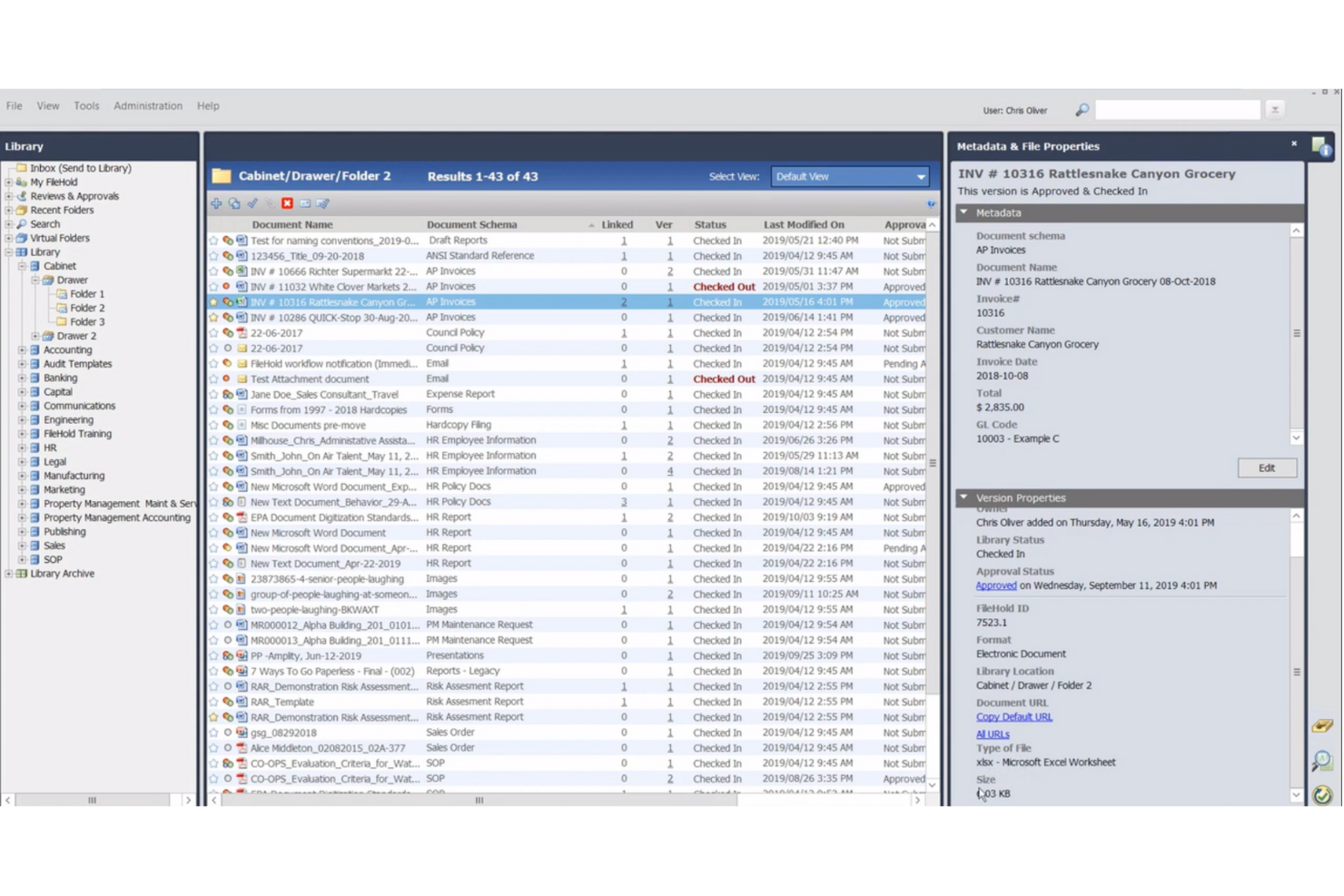
FileHold is a document management system that provides both cloud-based and on-premise storage solutions for your business files. It can support your document scanning, records management, and review and approval workflows.
Why I picked FileHold: Whether you’re looking to outsource your file storage to the cloud or keep it within your control, you can use the software for your document management needs. The software has version controls and user roles for access management and security. You can tag documents and capture metadata for easier search and file management. A calendar view is also available to see where various documents are in their lifecycle, and alert stakeholders when action needs to be taken on documents.
FileHold Standout Features and Integrations
Standout features include language localization of the software, which allows businesses operating in other languages to customize the platform to their needs. Custom branding can also be deployed to match the system to look and feel more like a part of your business. Several add-on features can also be purchased, like guest accounts, multiple document repositories, and custom naming sequence numbering.
Integrations include Adobe Acrobat, DocuSign, Kodak Alaris, Kofax Capture, Microsoft Dynamics, Microsoft Office, QuickBooks, SAP, Sage, and Salesforce, among others. An API is also available to configure additional integrations.
Pros and Cons
Pros:
- Consulting services are also available from the company
- Web-based training hub accessible to all users
- Trial, financing, pay-per-use, and partnership purchase options
Cons:
- Limited workflow customization
- Robust system, comes with a learning curve

DocuSign is a company that offers various document management products including e-signature software and contract lifecycle management (CLM) software.
Why I picked DocuSign: A simple one-person plan can help sole proprietors manage their business contracts and sign documents digitally. Meanwhile, an enterprise-level plan can be customized to meet your unique business needs and provide you with 24/7 live support. The software is flexible and suitable for virtually any business size in any industry. It can support your customer, employee, legal, and partnership contract processes. Users can create and store templates for future use, auto-populate fields with data from their CRM or other sources, and set reminders for actions needed.
DocuSign Standout Features and Integrations
Standout features include the ability to manage documents in 14 different languages and facilitate e-signatures in 44 different languages. This is a helpful tool for businesses operating globally or in multilingual areas. Various field types are available for forms, including drop-down selections, approve/decline fields, and drawing fields.
Integrations include Google Workspace, Microsoft Suite, SAP, Oracle, Salesforce, Zoom, Workday, Stripe, Apple, and hundreds more.
Pros and Cons
Pros:
- Ability to create and store templates
- Friendly and easy-to-learn user interface
- Flexible to suit the needs of various industries and company sizes
Cons:
- Limited customizability
- Rules and routing can’t be saved as part of a template
Other Document Workflow Software
Here are a few more options that didn’t make the best document workflow software list:
- OpenText
With professional services available
- Pneumatic Workflow
For unlimited workflow creation
- PandaDoc
For a simple interface
- Amazon WorkDocs
For content syncing
- Kofax
For a modular product selection
- Applied Innovation
Advanced analytics capabilities
- Document Logistix
For flexibility
- Jotform
For document collaboration
- Wrike
For a range of workflows
- GoodDay
For document-task integration
- NetDocuments
For email management
- Arena, a PTC Business
For complex electronics and medical device companies
- Microsoft SharePoint
For Microsoft users
- MasterControl
For companies in regulated industries
- OpenKM
For enterprise content management workflows
- MFiles
Metadata-driven document management
- Meridian
For engineering teams
- docEdge DMS
For feature-packed document management
- Dokkio
For cross-platform document management
- Rubex by eFileCabinet
For individuals and small businesses


Document Workflow Software Selection Criteria
When selecting the best document workflow software to include on this list, I considered common buyer needs and pain points like reducing approval bottlenecks and ensuring version control. I also used the following framework to keep my evaluation structured and fair:
Core Functionality (25% of total score)
To be considered for inclusion on this list, each solution had to fulfill these common use cases:
- Automating document approvals
- Managing version control
- Tracking document status
- Assigning tasks and deadlines
- Storing and organizing files
Additional Standout Features (25% of total score)
To help further narrow down the competition, I also looked for unique features, such as:
- AI-powered document processing
- Advanced compliance tracking
- No-code workflow customization
- E-signature integration
- Real-time document collaboration
Usability (10% of total score)
To get a sense of the usability of each system, I considered the following:
- Navigability of the interface
- Ease of setting up workflows
- Customization without coding
- Clarity of dashboard and reporting tools
- Mobile accessibility
Onboarding (10% of total score)
To evaluate the onboarding experience for each platform, I considered the following:
- Availability of interactive product tours
- Access to training videos and documentation
- Presence of onboarding templates
- Guided setup assistance
- Responsiveness of chatbot or live support during onboarding
Customer Support (10% of total score)
To assess each software provider’s customer support services, I considered the following:
- Availability of live chat, phone, and email support
- Response time to customer inquiries
- Quality of knowledge base and self-help resources
- Access to dedicated account managers
- Availability of community forums or user groups
Value For Money (10% of total score)
To evaluate the value for money of each platform, I considered the following:
- Transparency of pricing
- Availability of free trials or freemium plans
- Cost relative to similar tools
- Scalability of pricing tiers
- Inclusion of essential features in lower-tier plans
Customer Reviews (10% of total score)
To get a sense of overall customer satisfaction, I considered the following when reading customer reviews:
- Frequency of complaints about reliability or bugs
- Praise for ease of use or learning curve
- Feedback on the quality of customer support
- Sentiment around pricing fairness
- Reports on workflow efficiency improvements
How to Choose Document Workflow Software
It’s easy to get bogged down in long feature lists and complex pricing structures. To help you stay focused as you work through your unique software selection process, here’s a checklist of factors to keep in mind:
| Factor | What to Consider |
| Scalability | Make sure the software can grow with your business. Look for solutions that can handle increasing document volume, users, and workflows without performance issues. Cloud-based options often offer flexible scaling. |
| Integrations | Your workflow software should connect seamlessly with the tools your team already uses, like CRM, ERP, or cloud storage platforms (Google Drive, Dropbox). API support is a plus for custom connections. |
| Customizability | Every business has unique workflow needs. Ensure the software allows you to modify templates, create custom approval paths, and adjust permissions to fit your processes. |
| Ease of Use | Complicated software slows adoption. Look for intuitive interfaces, drag-and-drop builders, and minimal training requirements so your team can get up to speed quickly. |
| Budget | Compare pricing structures—subscription vs. one-time purchase. Factor in costs for additional users, integrations, and premium features to avoid hidden fees. |
| Security Safeguards | Your documents contain sensitive data. Look for encryption, access controls, audit trails, and compliance with industry standards (e.g., GDPR, HIPAA) to protect your information. |
| Automation Capabilities | Automating approvals, notifications, and document routing saves time. Look for AI-driven features or rule-based automation to minimize manual effort. |
| Collaboration Features | Your team needs real-time editing, version control, and comment tracking. Ensure the software supports simultaneous collaboration without data conflicts. |
Trends in Document Workflow Software
In my research, I sourced countless product updates, press releases, and release logs from different document workflow software vendors. Here are some of the emerging trends I’m keeping an eye on:
- AI-Powered Document Processing: More tools are using AI to extract data, recognize patterns, and auto-tag documents. This cuts down on manual data entry and speeds up processing. Some intelligent document processing software tools and process documentation software offer AI-driven document classification and automated approvals.
- Blockchain for Document Verification: Some platforms are adding blockchain-based audit trails to verify document authenticity. This is especially useful for contracts, legal documents, and compliance-heavy industries where tamper-proof records matter.
- No-Code Workflow Builders: Vendors are making it easier for teams to build and modify workflows without IT support. Drag-and-drop interfaces let users set up document approvals, routing, and notifications with simple logic-based rules.
- Embedded E-Signature Capabilities: More document management and collection tools now include built-in e-signature tools instead of relying on third-party integrations with e-signature software. This makes approvals faster and keeps everything in one system without extra costs.
- Granular Access and Compliance Controls: As data security concerns grow, vendors are adding more precise permission settings, audit logs, and compliance-specific features (e.g., SOC 2, HIPAA, ISO 27001). Some tools also now allow time-limited access or location-based restrictions.
What is document workflow software?
Document workflow software is a tool that helps manage and automate the flow of documents within an organization. It organizes the way documents are created, reviewed, approved, and stored, replacing manual and paper-based processes with digital ones. This software usually includes features for tracking document progress, setting up approval hierarchies, and notifying relevant parties when their input is required.
Document workflow tools can also help streamline business processes, making them more efficient and less prone to errors. Businesses benefit from improved communication and collaboration, as team members can easily access and work on documents simultaneously. Additionally, it supports compliance with record-keeping regulations by maintaining orderly and secure document archives. This makes document workflow software a valuable asset for any organization looking to optimize their document-related processes.
Features of Document Workflow Software
When selecting document workflow software, keep an eye out for the following key features:
- Automated routing: Documents move through predefined workflows based on triggers, reducing manual handoffs and approval delays.
- Version control: Keeps track of changes, allowing users to view, compare, and revert to previous document versions when needed.
- Role-based access: Ensures that only authorized users can view, edit, or approve documents based on their permissions.
- E-signature support: Allows users to sign documents digitally, speeding up approvals without requiring external tools.
- OCR (optical character recognition): Converts scanned or image-based documents into searchable and editable text.
- Audit trails: Logs every action taken on a document, providing visibility and compliance for regulatory needs.
- Template management: Lets users create and reuse standardized document templates to ensure consistency.
- Collaboration tools: Enables multiple users to comment, edit, and review documents in real time.
- Conditional workflows: Allows workflows to branch based on specific conditions, such as approval thresholds or document types.
- Data extraction: Pulls key information from documents automatically, reducing manual data entry and errors.
Benefits of Document Workflow Software
Implementing document workflow software provides several benefits for your team and your business. Here are a few you can look forward to:
- Faster approvals: Automated routing and e-signatures cut down on delays, keeping projects and processes moving.
- Fewer errors: Features like version control and data extraction help reduce mistakes caused by manual input and miscommunication.
- Better security: Role-based access and audit trails ensure only authorized users can view or modify documents, protecting sensitive information.
- Improved collaboration: Real-time editing, commenting, and notifications make it easier for teams to work on documents together.
- Easier compliance: Built-in audit logs and standardized templates help meet industry regulations and record-keeping requirements.
- Less paperwork: Digital workflows replace physical documents, reducing printing, storage, and administrative costs.
- More visibility: Dashboards and tracking features let you see where documents are in the process and identify bottlenecks.
Costs & Pricing of Document Workflow Software
Selecting document workflow software requires an understanding of the various pricing models and plans available. Costs vary based on features, team size, add-ons, and more. The table below summarizes common plans, their average prices, and typical features included in document workflow software:
Plan Comparison Table for Document Workflow Software
| Plan Type | Average Price | Common Features |
|---|---|---|
| Free Plan | $0 | Basic document storage, limited workflow automation, basic collaboration tools, and limited user access. |
| Personal Plan | $5-$15/user/month | More storage, simple approval workflows, e-signature support, role-based permissions, and basic integrations. |
| Business Plan | $20-$50/user/month | Advanced workflow automation, unlimited storage, audit logs, custom templates, and API access. |
| Enterprise Plan | $50-$100+/user/month | AI-powered automation, blockchain verification, advanced compliance tools, dedicated support, and multi-level approvals. |
Document Workflow Software Frequently Asked Questions
Here are answers to a few of the common questions people ask about document management:
What is a document workflow?
A document workflow is the journey your document takes from creation through editing, approval, distribution, signing, and storage. Each stage of your document workflows are important pieces that contribute to effective document management and compliance. The workflow processes you implement will vary depending on the type of document, the people involved, and your general business processes. For example, a contract workflow might look like this:
- Draft the contract, or update a contract template.
- Add contact data for the relevant parties.
- Send to internal stakeholders for approval.
- Share with external stakeholders for review.
- Negotiate specific clauses or details.
- Finalize the amended contract.
- Send to internal stakeholders for signing.
- Send to external stakeholders for signing.
- Store signed, finalized contract in a document repository.
- Add specific clauses to a clause library for future use.
What is the best way to manage documents?
There’s no one right way to manage your documents or execute your document workflows. But, having a document management system in place with standardized processes and designated stakeholders is a good best practice. You can also implement employee training and have documentation that outlines file routing, storage, and management protocol.
The most important thing is to ensure you’re meeting any relevant compliance laws or regulations, and that your processes are efficient. Using document management software can help streamline and automate elements of your processes, saving your team time and reducing risk and room for human error.
What type of documents can document workflow software manage?
The types of documents that can be worked on and managed with document workflow software vary, but might include any number of the following:
- Contracts and agreements
- Compliance documents
- Proposals and quotes
- Reports and presentations
- Company policies
- HR documents
- Invoices and purchase orders
- Technical documentation
What are common features of document workflow software?
In addition the the key features listed in my selection criteria, here are some other common features you can find in a document management solution:
- Document creation: You may be able to craft new documents directly in the platform, and draw from templates and clause libraries to speed up the process. Some software may even have artificial intelligence drafting capabilities.
- Collaboration tools: Being able to work on a document with other team members can support your document development process. Commenting, tagging, and redlining may be available to facilitate virtual teamwork.
- Automated workflows: Many of these software solutions will have a drag-and-drop workflow builder, workflow templates, or custom notifications to alert team members when it’s their turn to edit, approve, or sign a document.
- File sharing: Most tools allow you to securely send digital documents to relevant parties, either via email, dropbox, google drive, or directly through the software. Cloud storage makes it easier to share documents virtually.
- E-signature: The ability to sign electronic documents is a common feature of document management tools. This allows internal and external parties to sign contracts, agreements, quotes, and other files.
- Version control: To keep track of how documents change over time, audit trails and version histories are included in many software options. Many provide an end-to-end overview of signatures, approvals, and amendments made to your files.
- Document management: Many cloud-based document management solutions have tools to help you digitize paper documents. They also have indexing capabilities and a searchable repository to keep all business documents organized and accounted for.
- Security features: Finally, most tools offer security features such as encryption and access permissions. This alongside advanced search functions and file architecture provides improved document governance for your business.
How do I document a workflow process?
Documenting your workflow processes begins with learning workflow diagrams. These diagrams give you a visual overview of all the steps that need to be taken to complete a project or initiative. They’re usually put together in the form of a flowchart, showing how each task or stage connects with the next. To document your workflow process using a workflow diagram, get together with your team and answer the following questions:
- What are the stages of the initiative?
- What are the individual tasks within each stage?
- What inputs need to be transformed? What are the outputs?
- Who is responsible for completing each task? Do you need swimlanes?
- What are the dependencies between tasks?
- How long should each task take?
- What are the potential roadblocks or bottlenecks in this process?
- What are the final outcomes of this process?
You can repeat questions as needed to dig deeper into your process or different stages of it. Workflow builders are available in some document workflow software to help you create a visual representation of your process. Often, you can also then automate some of the tasks and stages with the software.
What are some alternative workflow tools?
There are many types of workflow tools designed to help businesses manage processes efficiently. Whether you need to automate repetitive tasks, streamline approval processes, or visually map out workflows, there’s software built for the job. Here are some alternative workflow software types:
What’s Next:
If you're in the process of researching document workflow software, connect with a SoftwareSelect advisor for free recommendations.
You fill out a form and have a quick chat where they get into the specifics of your needs. Then you'll get a shortlist of software to review. They'll even support you through the entire buying process, including price negotiations.