
19 Google Docs Alternatives Picked for 2026

Best Google Docs Alternatives Shortlist
Here's my pick of the 10 best software from the 19 tools reviewed.


A strong Google Docs alternative offers online document editing, real-time collaboration, and reliable file compatibility without locking you into Google’s ecosystem. If you’re searching for Google Docs alternatives, you’re likely looking for tools that fit your team’s workflow, support privacy or compliance needs, or offer features Google Docs doesn’t.
With so many options available, it’s tough to know which platforms actually deliver on collaboration, integration, and flexibility. This list will help you compare the top Google Docs alternatives for 2026, so you can find the right online office suite for your projects and teams.
What Are Google Docs?
Google Docs is a cloud-based office suite that functions as a modern word processing platform, allowing users to create, edit, and share documents online. As a browser-based word processor, it supports real-time collaboration, version history, and access from any device with an internet connection. Teams use Google Docs to collaborate on text documents, track changes, leave comments, and manage shared content without installing desktop software.
Its integration with other Google Workspace apps makes it one of the most widely used all-in-one collaboration tools for distributed teams. For many organizations, Google Docs helps streamline document creation and feedback workflows across departments, especially when paired with tools like Sheets and Slides.
Best Google Docs Alternatives Summary
This comparison chart summarizes pricing details for my top Google Docs alternative selections to help you find the best one for your budget and business needs.
| Tool | Best For | Trial Info | Price | ||
|---|---|---|---|---|---|
| 1 | Best for combining notes and databases | Free plan + free demo available | From $10/user/month (billed annually) | Website | |
| 2 | Best for compatibility with Microsoft file formats | Free plan available | From $2.99/month (billed annually) | Website | |
| 3 | Best for open-source document editing | Free plan available | Pricing upon request | Website | |
| 4 | Best for private cloud document hosting | 1-hour free trial available | From $74.50/user/year (billed annually) | Website | |
| 5 | Best with integrated project management tools | Free plan + free demo available | From $20/admin/month | Website | |
| 6 | Best for visual workflow documentation | Free demo + 30-day free trial available | From $6/month | Website | |
| 7 | Best for built-in business app integrations | 14-day free trial | Pricing upon request | Website | |
| 8 | Best for offline document creation | Not available | Free to use | Website | |
| 9 | Best for cross-device file syncing | Free plan available | From $3.33/month (billed annually) | Website | |
| 10 | Best for real-time team collaboration | 30-day free trial + free plan available | From $6/user/month (billed annually) | Website |
Why You Can Trust Us
-

Accelo
Visit WebsiteThis is an aggregated rating for this tool including ratings from Crozdesk users and ratings from other sites.4.4 -
Forecast
Visit WebsiteThis is an aggregated rating for this tool including ratings from Crozdesk users and ratings from other sites.4.6 -
Wrike
Visit WebsiteThis is an aggregated rating for this tool including ratings from Crozdesk users and ratings from other sites.4.2





Best Google Docs Alternatives Reviews
Below are my detailed summaries of the Google Docs alternatives that made it onto my shortlist. My reviews offer a detailed look at the features, best use cases, and integrations of each platform to help you find the best one for you.
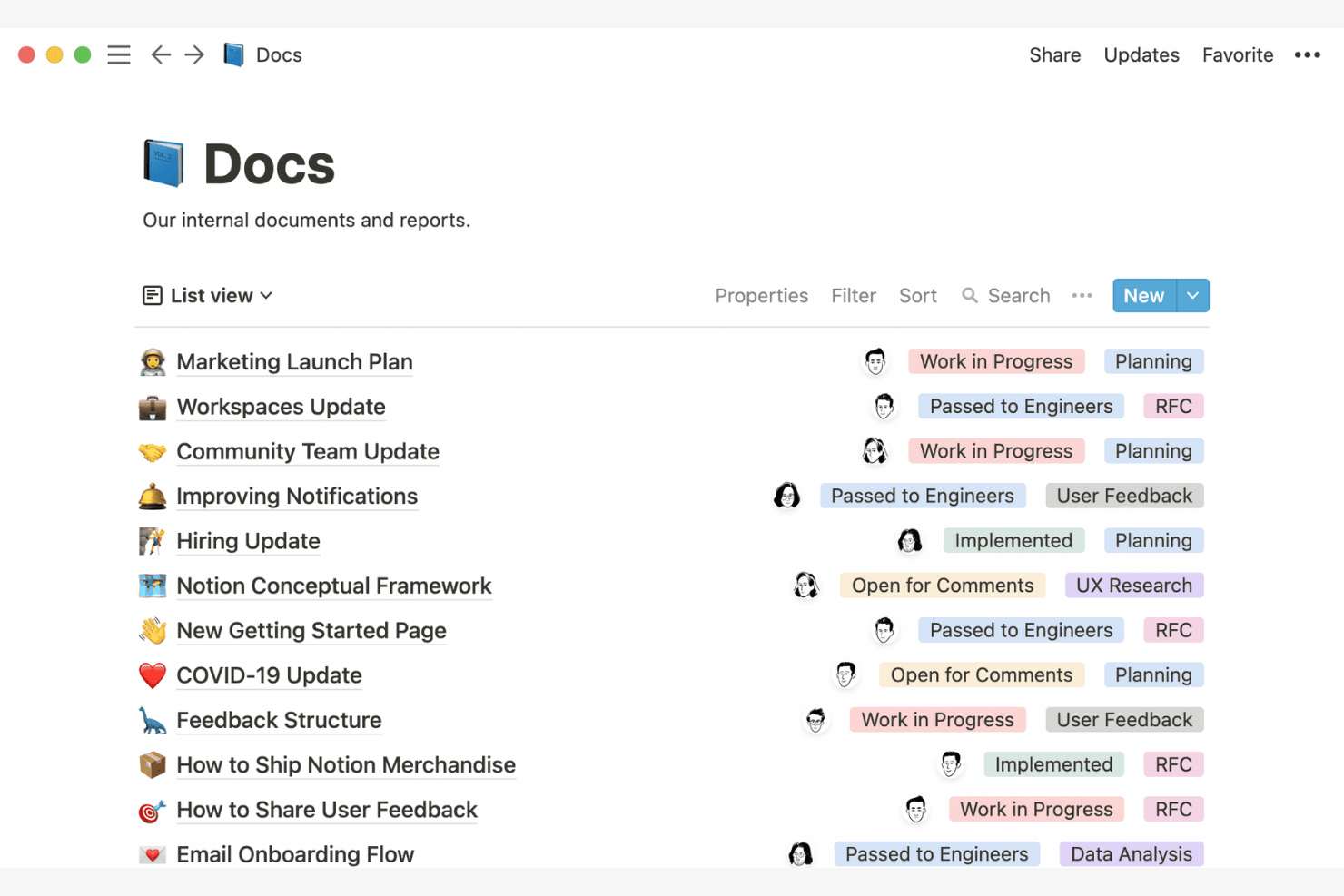
Notion gives teams a way to blend note-taking, documentation, and databases in a single workspace. It’s especially useful for product managers, operations leads, and anyone who needs to organize structured and unstructured information side by side. Unlike Google Docs, Notion lets you build custom tables, link notes to project trackers, and create dashboards that bring all your work together.
Why Notion Is a Good Google Docs Alternative
If you need to manage both notes and structured data in one place, Notion offers a unique approach that goes beyond traditional document editors. I picked Notion because you can create databases, link them to your notes, and build custom views for tracking projects or resources. This flexibility lets your team organize everything from meeting notes to product roadmaps without jumping between tools. For anyone who wants to combine documentation with dynamic tables and lists, Notion stands out as a strong Google Docs alternative.
Notion Key Features
Some other features in Notion help teams manage and collaborate on content more flexibly:
- Drag-and-drop page organization: Move pages and sections around to quickly restructure your workspace.
- Real-time collaborative editing: Multiple users can edit the same page at once and see changes live.
- Rich media embedding: Add images, videos, code snippets, and files directly into any page.
- Customizable templates: Start new projects or documents with pre-built templates for wikis, meeting notes, and more.
Notion Integrations
Integrations include Slack, Jira, GitHub, Asana, Google Drive, Figma, Trello, GitLab, Webex, and Typeform.
Pros and Cons
Pros:
- Great for team wikis, meeting notes, and lightweight project docs
- Flexible organization with templates and linked pages
- Combines docs with databases for structured knowledge management
Cons:
- Exporting to PDF or Word can break layouts and hierarchy
- Advanced document formatting is limited

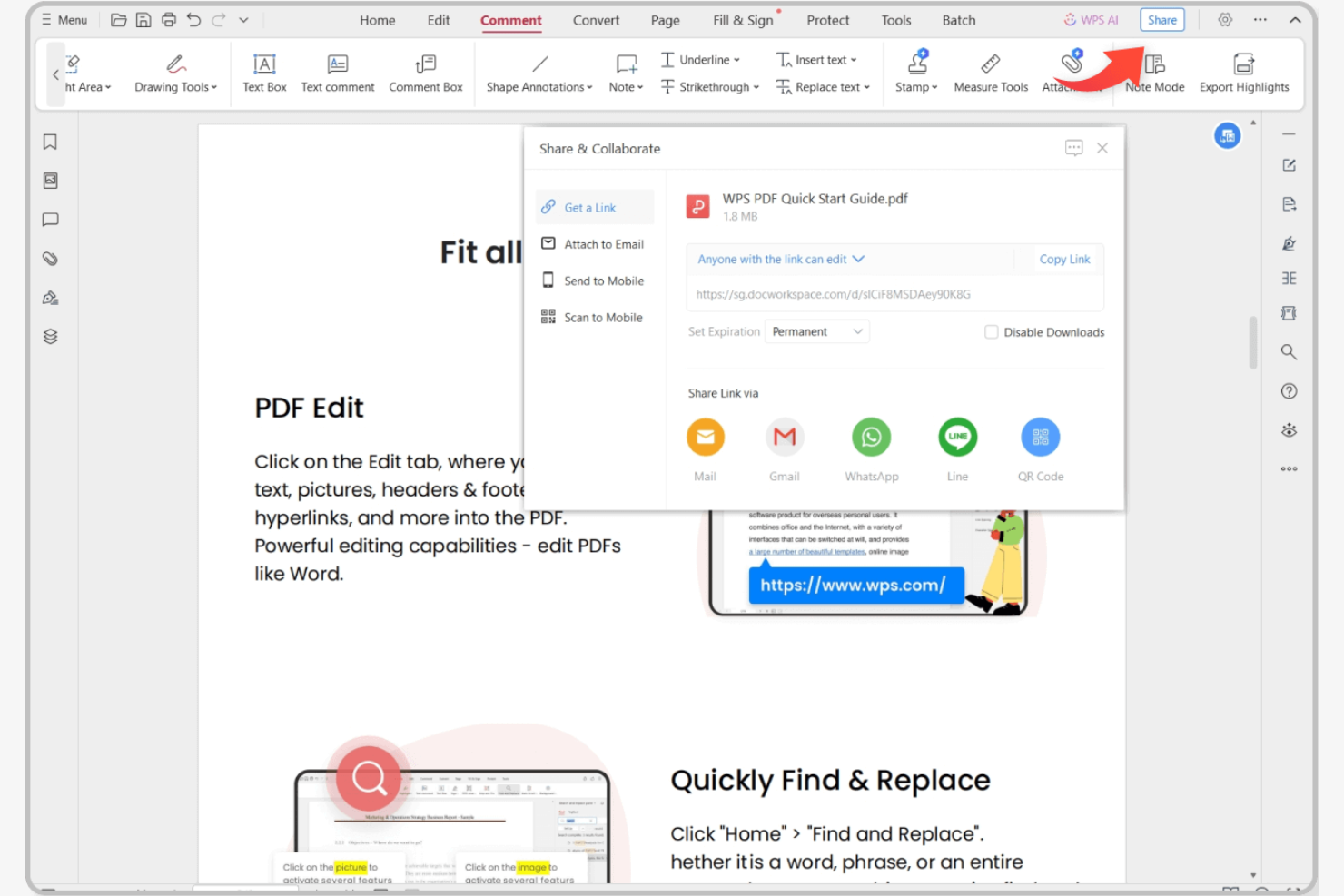
If you’re looking for an online office suite that handles Microsoft file formats without hiccups, WPS Office is worth a close look. It’s designed for professionals and teams who regularly exchange Word, Excel, and PowerPoint files with clients or colleagues using Microsoft Office. Unlike Google Docs, WPS Office preserves advanced formatting and features in Microsoft files, reducing compatibility headaches during collaboration.
Why WPS Office Is a Good Google Docs Alternative
When you need flawless compatibility with Microsoft file formats, WPS Office stands out from other online office suites. I picked WPS Office because it opens, edits, and saves DOCX, XLSX, and PPTX files while preserving advanced formatting, macros, and embedded objects. The suite also includes a built-in PDF editor, which is helpful for teams that work with a mix of document types. If your workflow depends on exchanging files with Microsoft Office users, WPS Office helps you avoid the formatting issues that often come up with Google Docs.
WPS Office Key Features
Some other features in WPS Office help teams manage documents and workflows more efficiently:
- Tabbed document interface: Open and switch between multiple documents in a single window.
- Cloud storage integration: Connect to services like Dropbox, Google Drive, and OneDrive for direct file access.
- Document templates library: Access a wide range of pre-built templates for reports, resumes, and presentations.
- Cross-platform support: Use WPS Office on Windows, macOS, Linux, Android, and iOS devices.
WPS Office Integrations
Native integrations are not currently listed by WPS Office.
Pros and Cons
Pros:
- Works across many operating systems with offline support
- Built-in PDF editor plus large template library
- Strong compatibility with Microsoft Word, Excel, and PowerPoint formats
Cons:
- Free version includes ads that can distract while editing
- Real-time collaboration is more limited than Google Docs

If you’re looking for a fully open-source alternative to Google Docs, LibreOffice stands out. It’s a strong fit for organizations and professionals who need complete control over their documents and data, without relying on cloud-based platforms. LibreOffice appeals to teams that value privacy, offline access, and compatibility with a wide range of file formats.
Why LibreOffice Is a Good Google Docs Alternative
Unlike most online office suites, LibreOffice gives you full access to its source code and complete control over your documents. I picked LibreOffice because it lets you edit and store files locally, which is ideal for teams with strict privacy or data residency requirements. Its support for a wide range of file formats, including Microsoft Office and legacy document types, makes it easy to work with diverse content. These open-source features set LibreOffice apart for users who want transparency and flexibility in their document editing tools.
LibreOffice Key Features
Some other features in LibreOffice make it a versatile choice for document editing:
- Built-in PDF export: Create PDF files directly from any document without needing extra software.
- Customizable toolbars and menus: Adjust the interface to match your workflow and preferences.
- Extensive template library: Access a wide range of pre-built templates for documents, spreadsheets, and presentations.
- Macro recording and scripting: Automate repetitive tasks using built-in macro tools and scripting languages.
LibreOffice Integrations
Integrations include Kasm Workspaces, Intrexx, Ultima Linux, NemoVote, TimeSpreader, BuildViewVU, Sprint Boards, File Manager Pro, Scribens, Twake, Devart ODBC Drivers, CSVpad, Agent S, FileRun, Zotero, LibreOffice Draw, and more.
Pros and Cons
Pros:
- Broad format support plus PDF export and macro scripting
- Strong offline editing and local file control for privacy
- Free open-source suite with no licensing fees
Cons:
- Formatting can shift when working with complex Microsoft files
- No native real-time co-editing like Google Docs


If your team needs full control over document storage and privacy, Nextcloud offers a private cloud platform you can host yourself. It’s a strong fit for organizations with strict data security requirements or those in regulated industries. Nextcloud stands out by letting you manage documents, collaboration, and sharing entirely on your own infrastructure, unlike most cloud-based office suites.
Why Nextcloud Is a Good Google Docs Alternative
Unlike most cloud office suites, Nextcloud gives you the option to host your own private document environment. I picked Nextcloud because it lets you control where your data lives and who can access it, which is essential for teams with strict privacy or compliance needs. The platform supports collaborative editing, file sharing, and user management—all on infrastructure you manage yourself. This makes Nextcloud a strong choice for organizations that can’t rely on public cloud services for sensitive documents.
Nextcloud Key Features
Some other features in Nextcloud make it a flexible platform for document collaboration:
- Integrated calendar and contacts: Manage events and address books alongside your files and documents.
- End-to-end encryption: Protect sensitive files with encryption that only you and your collaborators can access.
- Version control: Track changes and restore previous versions of documents as needed.
- Collaboration apps marketplace: Extend functionality with add-ons for chat, video calls, and workflow automation.
Nextcloud Integrations
Integrations include OnlyOffice, Nextcloud Office, Nextcloud Assistant, Giphy, draw.io, Discord, Edusign, XtalaDraw, Sentry, Slack, YouTube, OneDrive, Google services, GitLab, Dropbox, Jira, Reddit, GitHub, and more.
Pros and Cons
Pros:
- Provides extensive user and group access controls for admins
- Integrates file sharing, calendar, and contacts in one platform
- Supports collaborative editing with OnlyOffice or Collabora Online
- Offers end-to-end encryption for sensitive document storage
- Lets you host documents on your own private cloud server
Cons:
- Collaboration quality depends on the editor stack you pair with it
- Requires technical setup and ongoing server maintenance

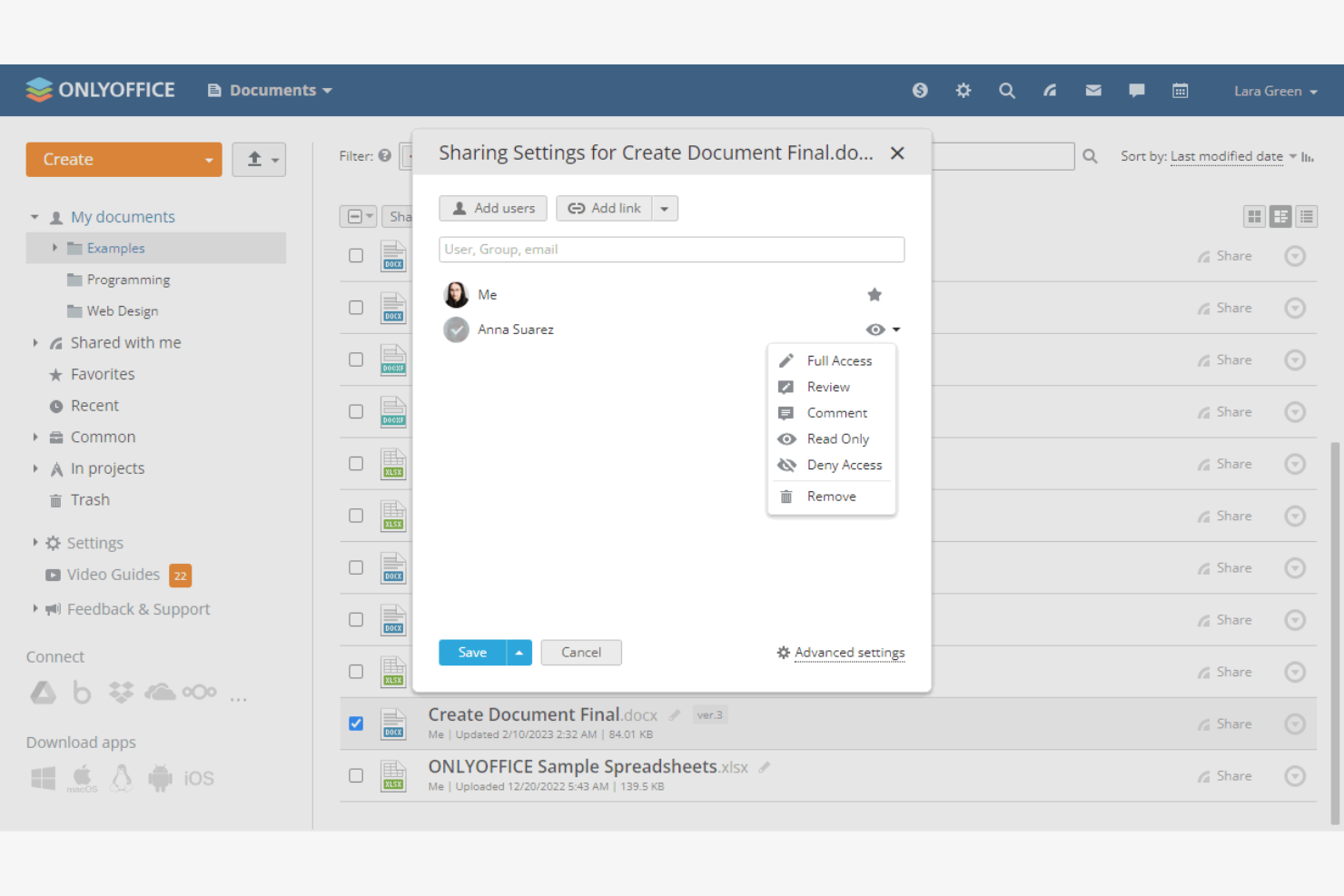
Teams that want document editing and project management in one place often turn to ONLYOFFICE. This platform is designed for businesses and project-driven teams that need to manage documents, tasks, and collaboration from a single dashboard. ONLYOFFICE stands out by combining familiar office suite tools with integrated project tracking and team communication features.
Why ONLYOFFICE Is a Good Google Docs Alternative
For teams that want more than just document editing, ONLYOFFICE brings project management tools directly into its online office suite. I picked ONLYOFFICE because it lets you create, assign, and track tasks alongside your documents, so you can manage projects and content in one place. The platform includes features like Gantt charts and milestone tracking, which help teams coordinate work without switching between separate apps. This integrated approach makes ONLYOFFICE a strong choice for businesses that need both collaboration and project oversight.
ONLYOFFICE Key Features
Some other features in ONLYOFFICE make it a flexible choice for teams:
- Document co-editing: Multiple users can edit documents at the same time with real-time updates.
- Built-in chat and comments: Communicate and leave feedback directly within documents and projects.
- Customizable access permissions: Set detailed user roles and permissions for documents and folders.
- Mail and calendar modules: Manage email and schedule events without leaving the platform.
ONLYOFFICE Integrations
Integrations include Trello, Odoo, Moodle, Monday, Pipedrive, Alfresco, Box, Confluence, Dropbox, DZZ Office, Jira, Nextcloud, SharePoint, SuiteCRM, Trello, WordPress, Zapier, Zoom, and more.
Pros and Cons
Pros:
- On-premises deployment option for strict data policies
- Supports real-time co-editing with role-based access permissions
- Combines document editing with built-in project management modules
Cons:
- Mobile apps have fewer features than desktop and web
- Third-party integration ecosystem is smaller than Google Workspace


When your team needs to map out complex workflows visually, Visual Paradigm offers a specialized platform for diagramming and process documentation. It’s especially useful for project managers, business analysts, and IT teams who need more than just text-based documents. Unlike Google Docs, Visual Paradigm supports advanced modeling tools for flowcharts, UML diagrams, and business process mapping.
Why Visual Paradigm Is a Good Google Docs Alternative
For teams that need to document and communicate workflows visually, Visual Paradigm offers capabilities that go far beyond what Google Docs provides. I picked it because it supports a wide range of diagram types, including flowcharts, BPMN, and UML, which are essential for mapping out processes and systems. The drag-and-drop editor makes it easy to build complex diagrams, while built-in templates help you get started quickly. This focus on visual workflow documentation makes Visual Paradigm a strong choice for project managers and technical teams.
Visual Paradigm Key Features
Some other features in Visual Paradigm help teams manage documentation and collaboration:
- Team collaboration workspace: Multiple users can work together on diagrams and documents in real time.
- Document generation tools: Automatically create project documentation from your diagrams and models.
- Revision history: Track changes and restore previous versions of diagrams and documents.
- Cloud storage integration: Save and access your projects directly from cloud platforms like Google Drive and Dropbox.
Visual Paradigm Integrations
Visual Paradigm can integrate with tools like Git, IntelliJ IDEA, Jira, Eclipse, and NetBeans IDE. It also offers a plugin API that lets developers build custom integrations to extend functionality and connect with other systems. Some versions additionally support publishing diagrams into Atlassian Confluence via an API token.
Pros and Cons
Pros:
- Supports team collaboration and revision history for models
- Auto-generates documentation from diagrams for standardized reporting
- Best-in-class workflow documentation with UML, BPMN, and process modeling
Cons:
- Learning curve is higher than traditional document editors
- Overkill for teams that mainly need text documents

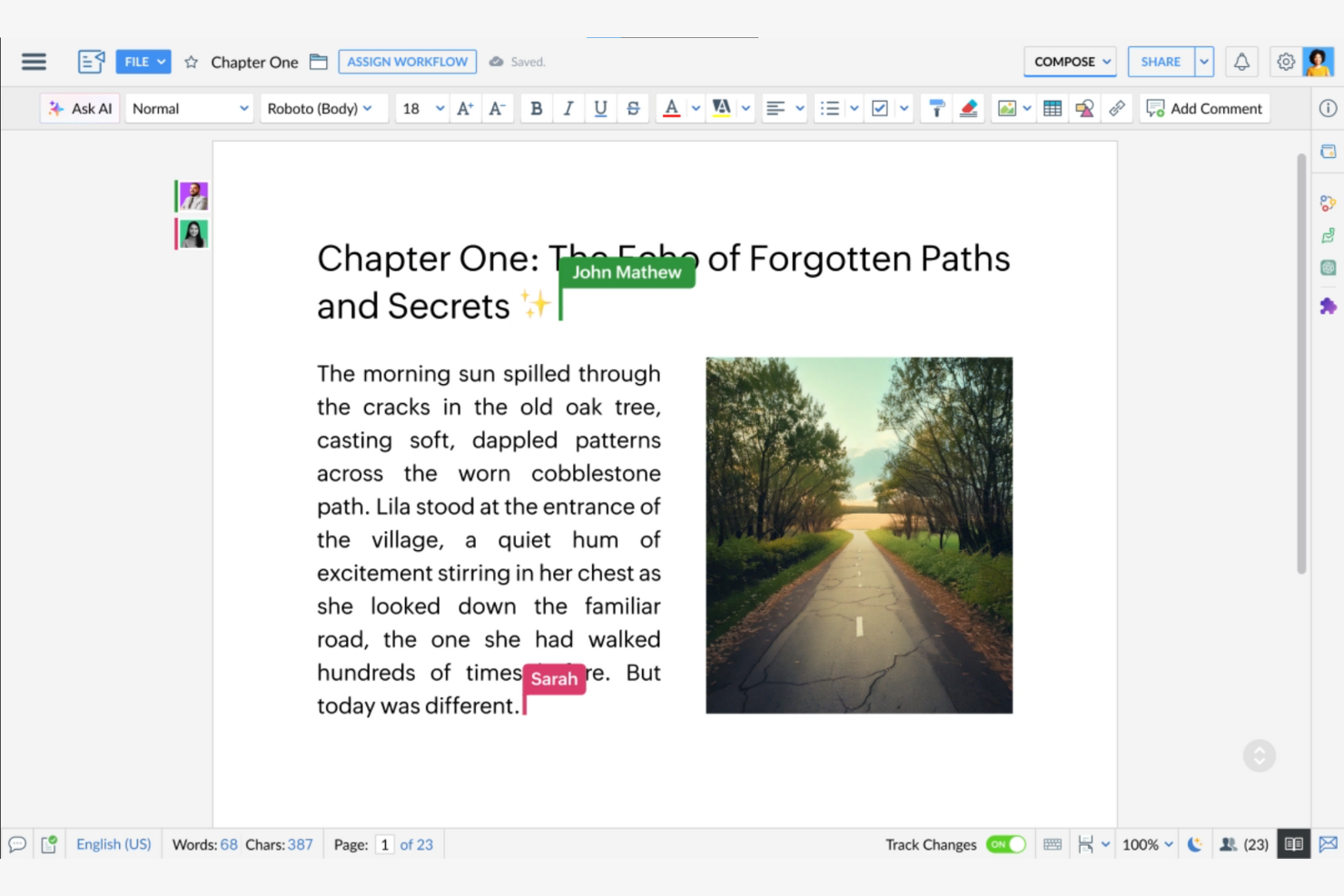
For teams that want their office suite to work seamlessly with other business tools, Zoho offers a tightly integrated platform. It’s especially useful for businesses already using Zoho’s CRM, project management, or finance apps and looking to connect document workflows across departments. Unlike Google Docs, Zoho’s suite lets you automate processes and share data directly with a wide range of built-in business applications.
Why Zoho Is a Good Google Docs Alternative
What sets Zoho apart from other office suites is its deep integration with a wide range of business applications. I picked Zoho because you can connect documents, spreadsheets, and presentations directly to tools like Zoho CRM, Zoho Projects, and Zoho Books. This lets you automate document workflows, sync data between apps, and keep your business processes connected without manual workarounds. For teams that want their office suite to be part of a larger business ecosystem, Zoho offers a level of built-in connectivity that Google Docs doesn’t match.
Zoho Key Features
Some other features in Zoho help teams manage documents and collaborate more efficiently:
- Version history: Track changes and restore previous versions of documents at any time.
- Real-time co-authoring: Multiple users can edit documents simultaneously with live updates.
- Document templates: Access a library of ready-made templates for common business documents.
- Role-based permissions: Set granular access controls for viewing, editing, and sharing files.
Zoho Integrations
Integrations include Zoho CRM, Zoho Projects, Zoho Books, Zoho Mail, Zoho People, Zoho Desk, Zoho Campaigns, Zoho Meeting, Zoho Sign, and Zoho Analytics.
Pros and Cons
Pros:
- Good template library for common business documents
- Real-time co-authoring with version history and permissions
- Tight integration with Zoho CRM Projects and other business apps
Cons:
- UI can feel busy when multiple Zoho modules are in play
- Best experience depends on being invested in the Zoho ecosystem
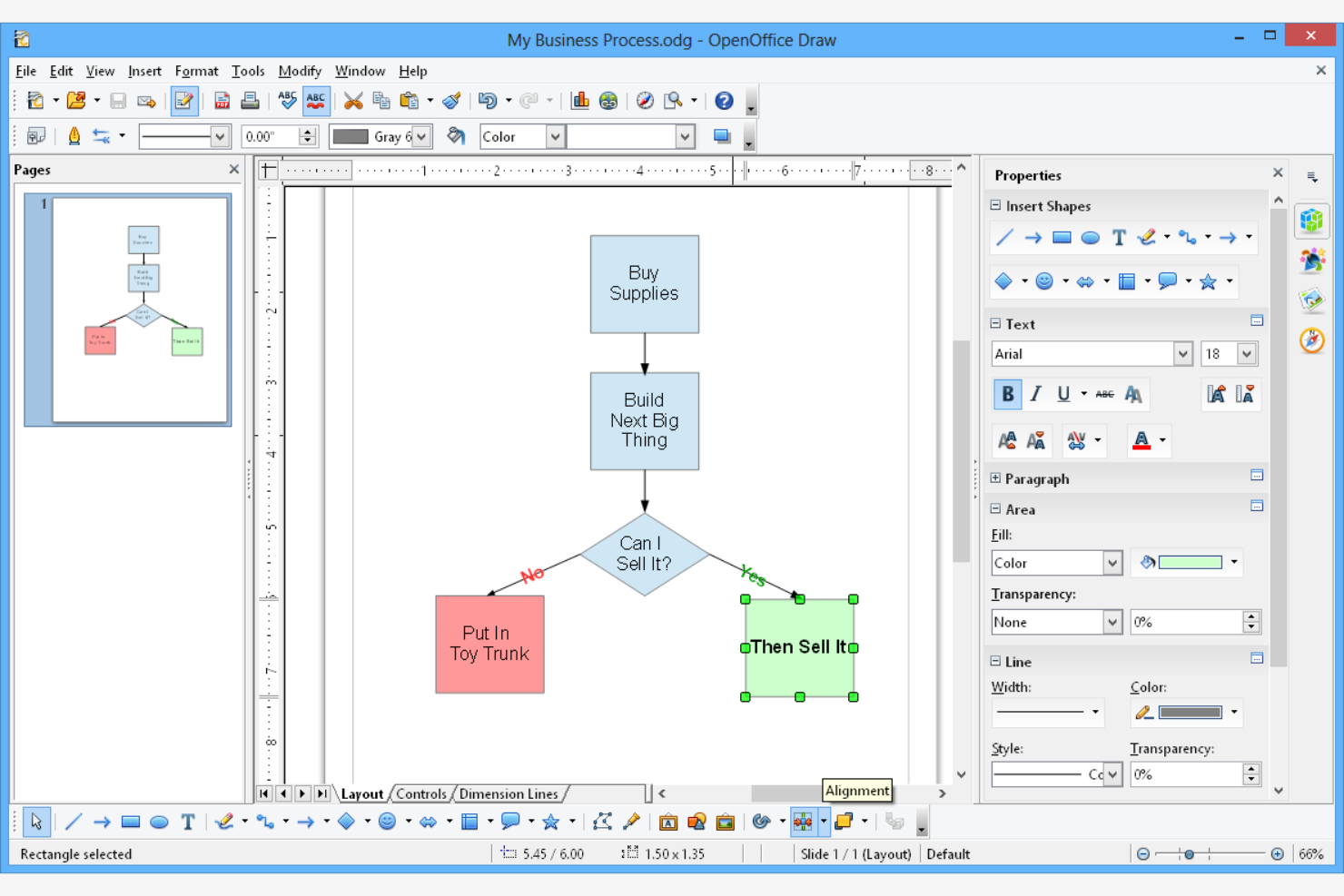
For teams that need a fully offline office suite, Apache OpenOffice offers a downloadable solution with no internet required. It’s a strong fit for organizations with strict data privacy policies or those working in low-connectivity environments. Unlike Google Docs, OpenOffice lets you create, edit, and store documents entirely on your local devices.
Why Apache OpenOffice Is a Good Google Docs Alternative
If you need to work without an internet connection, Apache OpenOffice stands out as a reliable choice. I picked it because it lets you create and edit documents, spreadsheets, and presentations entirely offline, which is something Google Docs can’t do natively. OpenOffice also supports saving files directly to your local drive, so you keep full control over your data. This makes it a strong fit for teams with strict privacy requirements or those in remote locations.
Apache OpenOffice Key Features
Some other features in Apache OpenOffice make it a versatile office suite:
- Draw module: Create diagrams, flowcharts, and vector graphics directly within the suite.
- Math formula editor: Build and edit complex mathematical equations for technical documents.
- PDF export: Save any document, spreadsheet, or presentation as a PDF file without extra plugins.
- Multi-format compatibility: Open and save files in Microsoft Office, OpenDocument, and other common formats.
Apache OpenOffice Integrations
Native integrations are not currently listed by Apache OpenOffice.
Pros and Cons
Pros:
- Includes Draw and Math tools for diagrams and formulas
- Free open-source suite with PDF export included
- Offline-first document creation with no cloud dependency
Cons:
- Modern file compatibility and feature updates lag behind competitors
- No real-time collaboration or built-in syncing
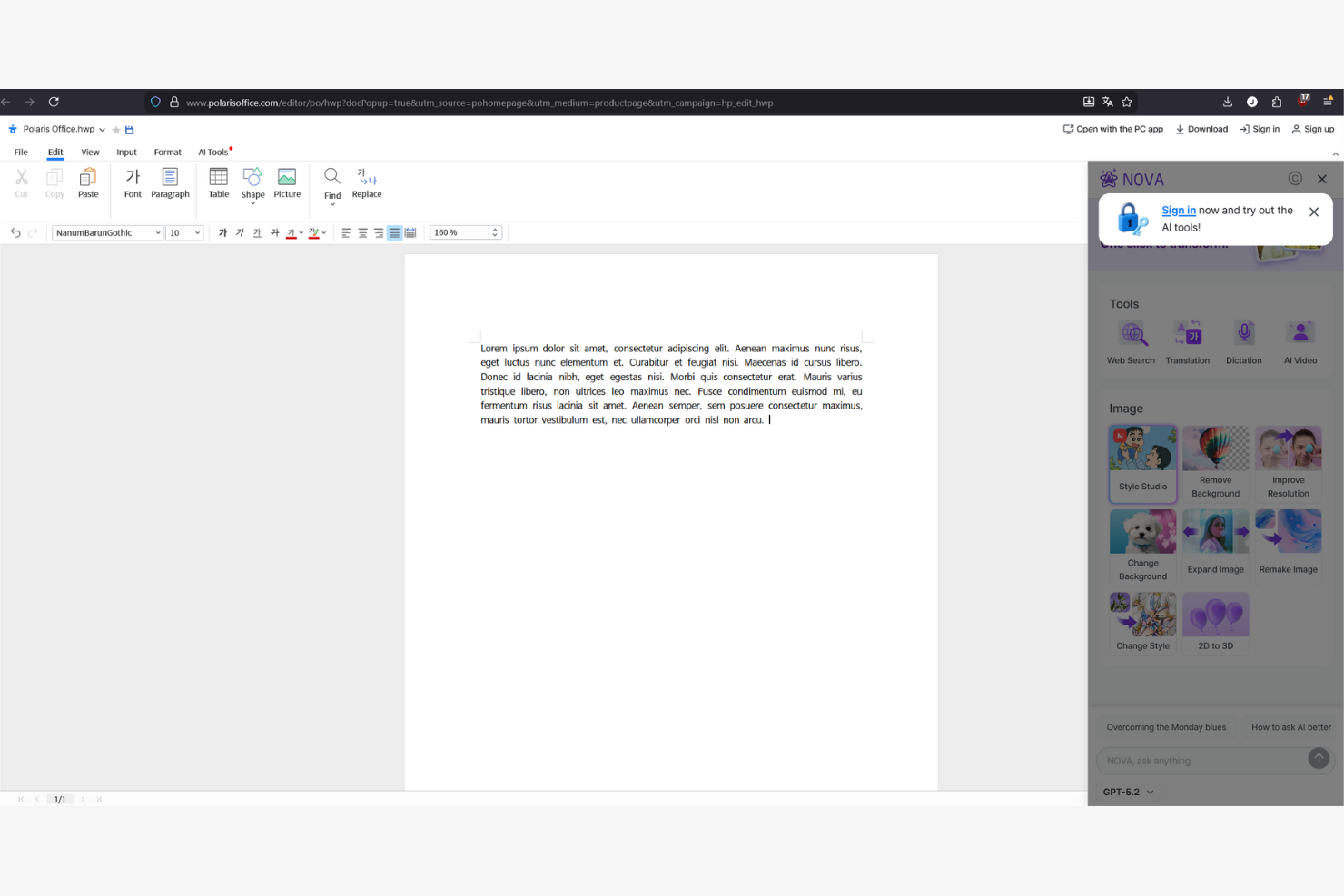
Polaris Office stands out for teams and individuals who need to work across multiple devices without losing track of their files. It’s a strong fit for remote workers, field teams, or anyone who switches between desktop, mobile, and tablet throughout the day. Unlike Google Docs, Polaris Office offers built-in syncing for a wide range of file types, making it easier to keep documents, spreadsheets, and presentations up to date everywhere you work.
Why Polaris Office Is a Good Google Docs Alternative
For anyone who needs to keep documents in sync across multiple devices, Polaris Office offers a clear advantage over traditional online office suites. I picked Polaris Office because it automatically syncs files between desktop, mobile, and tablet, so you always have the latest version at hand. The platform supports editing and viewing of a wide range of file formats, including Microsoft Office and PDF files, without conversion. If your workflow depends on moving between devices throughout the day, Polaris Office makes it much easier to keep your work consistent and accessible.
Polaris Office Key Features
Some other features in Polaris Office help teams work with documents more flexibly:
- Built-in PDF editing: Edit, annotate, and convert PDF files directly within the platform.
- Document encryption: Protect sensitive files with password-based encryption and access controls.
- Handwriting input support: Add handwritten notes or drawings using a stylus or touchscreen device.
- Cloud storage integration: Connect to services like Google Drive, Dropbox, and OneDrive to access and manage files from multiple sources.
Polaris Office Integrations
Integrations include Google Drive, OneDrive, Dropbox, Box, Jira, Okta, and DocHub
Pros and Cons
Pros:
- Offline editing is supported with sync when reconnected
- Edits Microsoft formats and PDFs without conversion friction
- Cross-device syncing across desktop, mobile, and tablet
Cons:
- Free plan experience can feel cluttered with ads and prompts
- Collaboration is weaker than Google Docs for live co-editing

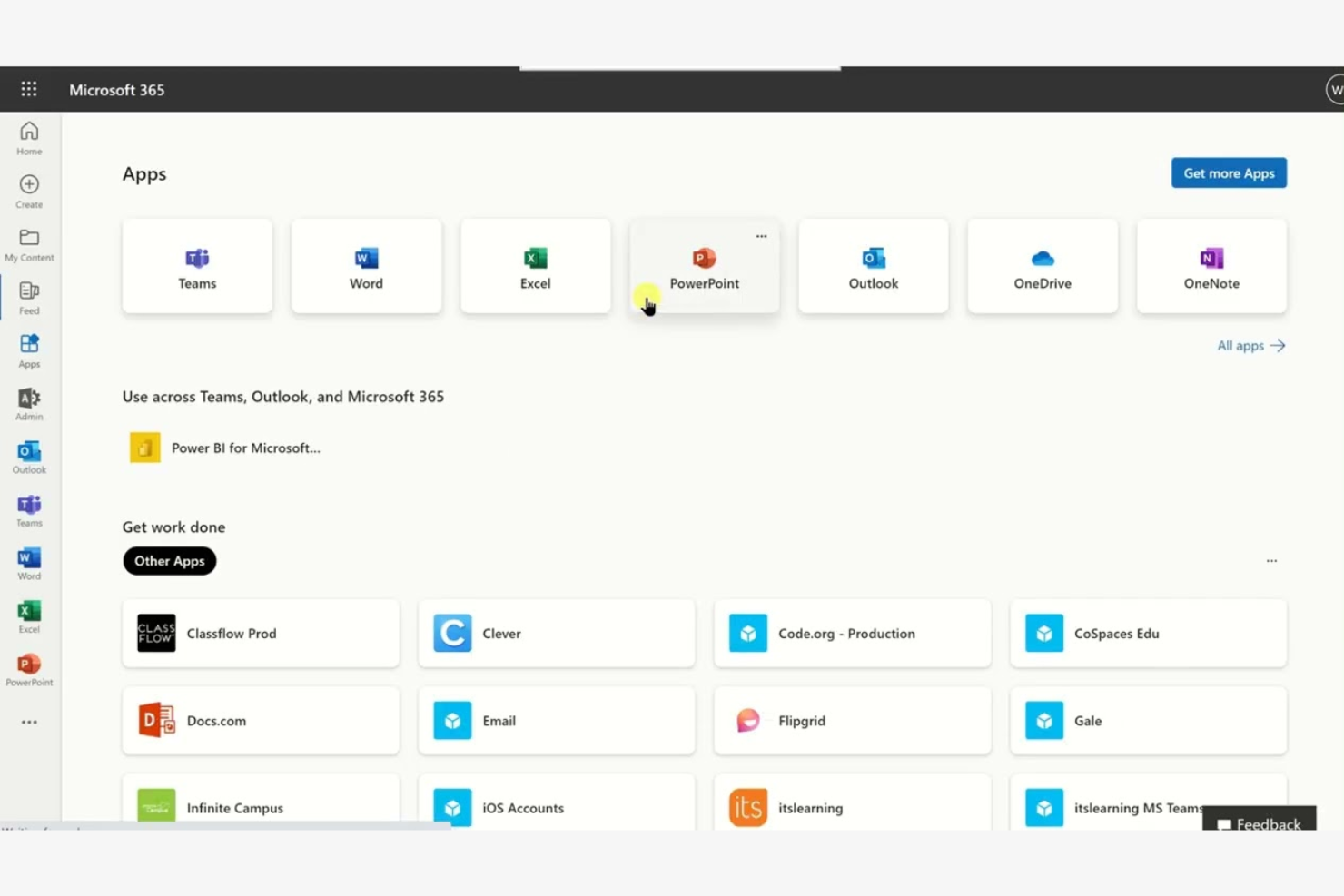
Microsoft 365 offers a suite of online office tools designed for teams that need advanced collaboration and document management. It’s a strong fit for businesses that rely on real-time co-authoring, deep integration with Microsoft Teams, and compatibility with complex file formats. If your projects demand strict version control and simplified workflow across Word, Excel, and PowerPoint, Microsoft 365 stands out from Google Docs.
Why Microsoft Is a Good Google Docs Alternative
For teams that need real-time collaboration, Microsoft 365 offers co-authoring in Word, Excel, and PowerPoint with instant updates across devices. I picked Microsoft because its document editing tools let multiple users work together on the same file while tracking changes and comments in detail. The integration with Microsoft Teams means you can chat, meet, and share files without leaving your workspace. These features make it a strong choice for organizations that prioritize live teamwork and document accuracy.
Microsoft Key Features
Some other features in Microsoft 365 make it a flexible choice for teams managing documents online:
- Advanced permission controls: Set granular access levels for files and folders to manage who can view, edit, or share documents.
- Automated version history: Restore previous versions of documents and track changes over time without manual backups.
- Built-in accessibility tools: Use features like Immersive Reader and voice dictation to support diverse work styles and needs.
- Offline editing mode: Work on documents without an internet connection and sync changes automatically when you’re back online.
Microsoft Integrations
Integrations include Microsoft Teams, OneDrive, SharePoint, Outlook, Power BI, Dynamics 365, Yammer, Planner, Forms, and Power Automate.
Pros and Cons
Pros:
- Advanced permission settings allow granular control over document access
- Deep integration with Microsoft Teams supports in-document chat and meetings
- Real-time co-authoring works across Word, Excel, and PowerPoint files
Cons:
- Some advanced features are only available in higher-tier plans
- Requires a Microsoft account and subscription for full functionality
Other Google Docs Alternatives
Here are some additional Google Docs alternatives that didn’t make it onto my shortlist, but are still worth checking out:
- MobiSystems
For mobile-first document access
- ClickUp
For task and document linking
- Coda
For turning documents into interactive apps
- Confluence
For structured team knowledge management
- Miro
For collaborative whiteboarding
- Evernote
For personal knowledge capture and organization
- Quip
For document and spreadsheet collaboration inside Salesforce
- Dropbox Paper
For lightweight collaborative brainstorming
- FreeOffice
For lightweight system requirements


Google Docs Alternatives Selection Criteria
When selecting the best Google Docs alternatives to include in this list, I considered common buyer needs and pain points related to online office suite tool products, like compatibility with Microsoft file formats and real-time collaboration capabilities. I also used the following framework to keep my evaluation structured and fair:
Core Functionality (25% of total score) To be considered for inclusion in this list, each solution had to fulfill these common use cases:
- Create and edit text documents
- Create and edit spreadsheets
- Create and edit presentations
- Share documents with others
- Collaborate on documents in real time
Additional Standout Features (25% of total score) To help further narrow down the competition, I also looked for unique features, such as:
- Built-in PDF editing tools
- Advanced document version history
- Offline editing capabilities
- Extensive template libraries
- Support for complex macros and scripting
Usability (10% of total score) To get a sense of the usability of each system, I considered the following:
- Intuitive navigation and menu structure
- Clean and modern interface design
- Minimal clicks to access core features
- Responsive performance on web and mobile
- Accessibility options for diverse users
Onboarding (10% of total score) To evaluate the onboarding experience for each platform, I considered the following:
- Availability of step-by-step product tours
- Access to training videos and documentation
- Pre-built templates for quick setup
- In-app chatbots or guided help
- Webinars or live onboarding sessions
Customer Support (10% of total score) To assess each software provider’s customer support services, I considered the following:
- 24/7 support availability
- Multiple support channels like chat, email, and phone
- Fast response times to inquiries
- Access to a searchable help center
- Community forums for peer support
Value For Money (10% of total score) To evaluate the value for money of each platform, I considered the following:
- Transparent and flexible pricing plans
- Free plan or trial availability
- Features included at each pricing tier
- Discounts for annual billing or teams
- No hidden fees or surprise charges
Customer Reviews (10% of total score) To get a sense of overall customer satisfaction, I considered the following when reading customer reviews:
- Consistent praise or complaints about specific features
- Reports of reliability and uptime
- Feedback on customer support experiences
- Comments on ease of collaboration
- User sentiment about value for price
Why Look For a Google Docs Alternative?
While Google Docs is a strong online word processing solution, there are several reasons why some users explore alternative platforms. You might be looking for a Google Docs alternative because…
- You need better compatibility with Microsoft Office file formats
- Your team requires advanced PDF editing and annotation tools
- You work in regions where Google services are restricted
- You need offline editing without relying on browser extensions
- Your organization has strict data privacy or on-premises requirements
- You want more control over document formatting, layout, or Markdown support
- You’re concerned about the learning curve for non-technical users
- You prefer a different user-friendly interface or workflow style
If any of these sound familiar, you’re in the right place. The options in this list include online word processing and collaboration platforms designed for teams that need more flexibility, stronger formatting control, or a different approach to document management.
Google Docs Key Features
Here are some of the key features of Google Docs to help you compare it with other all-in-one collaboration tools and word processing platforms:
- Real-time collaborative editing with multiple users
- Automatic cloud saving to Google Drive
- Version history and document revision tracking
- Built-in commenting and suggestion tools
- Integration with Google Workspace apps like Sheets and Slides
- Offline editing mode for working without internet access
- Extensive sharing and permission controls
- Voice typing and accessibility features