19 Best Global Document Management Systems Picked for 2026

Global Document Management System Shortlist
Here’s my shortlist of global document management systems:


A global document management system is software that lets your team organize, store, and access documents securely from anywhere in the world. If you’re searching for a solution that supports distributed teams, meets compliance needs, and keeps workflows moving across borders, you know how much is at stake.
The right platform can help you manage permissions, automate processes, and integrate with your existing tools—without creating new silos or bottlenecks. In this list, you’ll find a comparison of top global document management systems for 2026, so you can confidently choose the best fit for your organization’s needs.
Why You Can Trust Us
We’ve been testing and reviewing project management software since 2012. As project managers ourselves, we know how critical and difficult it is to make the right decision when selecting software.
We invest in deep research to help our audience make better software purchasing decisions. We’ve tested more than 2,000 tools for different project management use cases and written over 1,000 comprehensive software reviews. Learn how we stay transparent & our software review methodology.
Best Global Document Management System Summary
This comparison chart summarizes pricing details for my top global document management system selections to help you find the best one for your budget and business needs.
| Tool | Best For | Trial Info | Price | ||
|---|---|---|---|---|---|
| 1 | Best for mobile document workflows | 14-day free trial + free demo available | From $20/user/month | Website | |
| 2 | Best for regulatory compliance features | Free trial + free demo available | Pricing upon request | Website | |
| 3 | Best for granular access controls | 15-day free trial + free demo available | From $22/user/month (billed annually) | Website | |
| 4 | Best for multilingual document support | 30-day free trial (download) + free demo available | Pricing upon request | Website | |
| 5 | Best for advanced workflow automation | 14-day free trial + free demo available | From $24/user/month (billed annually) | Website | |
| 6 | Best for small team collaboration | Free trial available | From $53/month + tax | Website | |
| 7 | Best with Microsoft 365 integration | 30-day free trial available | From $6/user/month (billed annually) | Website | |
| 8 | Best with cross-platform file syncing | 30-day free trial available | From $12.99/person/month (billed annually) | Website | |
| 9 | Best for open-source customization | Free version + free demo available | Pricing upon request | Website | |
| 10 | Best with accounting software integration | 14-day free trial + free demo available | From $210/month (billed annually) | Website |
-

Insightful
Visit WebsiteThis is an aggregated rating for this tool including ratings from Crozdesk users and ratings from other sites.4.8 -
Accelo
Visit WebsiteThis is an aggregated rating for this tool including ratings from Crozdesk users and ratings from other sites.4.4 -
Wrike
Visit WebsiteThis is an aggregated rating for this tool including ratings from Crozdesk users and ratings from other sites.4.2




Global Document Management System Reviews
Below are my detailed summaries of the global document management systems that made it onto my shortlist. My reviews offer a detailed look at the features, integrations, and best use cases of each system to help you find the best one for your team.

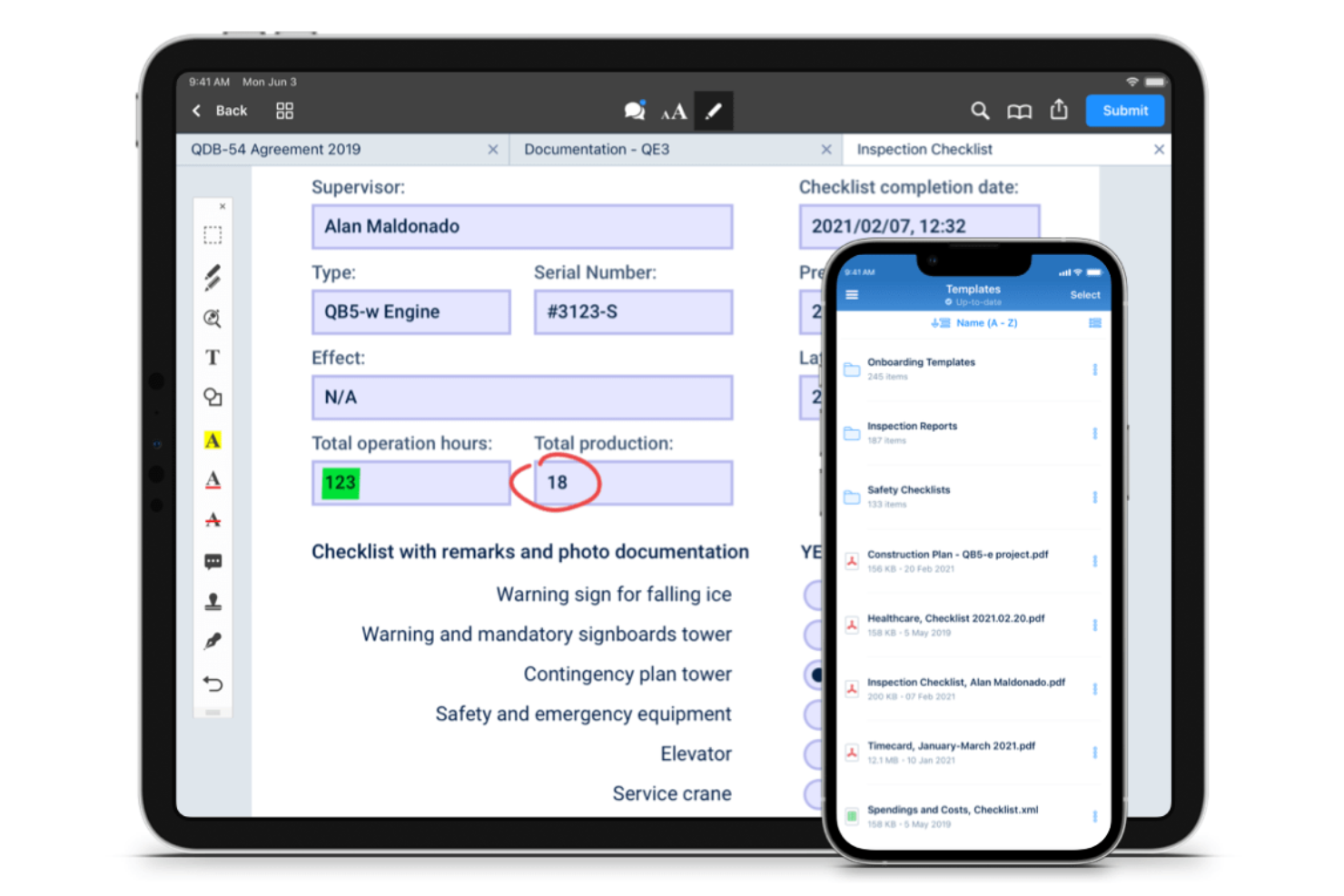
Fluix stands out for teams that need to manage documents and workflows on mobile devices, especially in field service, construction, and energy sectors. It’s built for organizations with distributed or remote teams who need to fill out forms, collect signatures, and route documents while on the move. Fluix helps businesses keep mobile document processes organized, compliant, and connected to back-office systems.
Why I Picked Fluix
For organizations that need to manage documents in the field, Fluix offers a mobile-first approach that’s hard to match. I picked Fluix because it lets teams fill out forms, annotate PDFs, and collect signatures directly on tablets and smartphones, even when offline. The workflow automation tools help route documents for review or approval without requiring a desktop. These features make Fluix a strong choice for businesses that need reliable document management on the go.
Fluix Key Features
Some other features that make Fluix useful for document management teams include:
- Role-Based Access Controls: Assign permissions to users based on their role or project.
- Automated Document Distribution: Distribute updated documents to specific teams or devices automatically.
- Audit Trails: Track document activity and user actions for compliance.
- Integration with Cloud Storage: Connect Fluix to platforms like Box, Dropbox, and Google Drive for file syncing.
Fluix Integrations
Integrations include Airtable, Procore, HubSpot, Salesforce, Power BI, Domo, Qlik, Tableau, Smartsheet, and Dropbox.
Pros and Cons
Pros:
- Real-time document status tracking
- Native PDF form filling and annotation
- Built-in workflow automation for approvals
Cons:
- The bulk document upload process is manual
- Lacks native e-signature integration

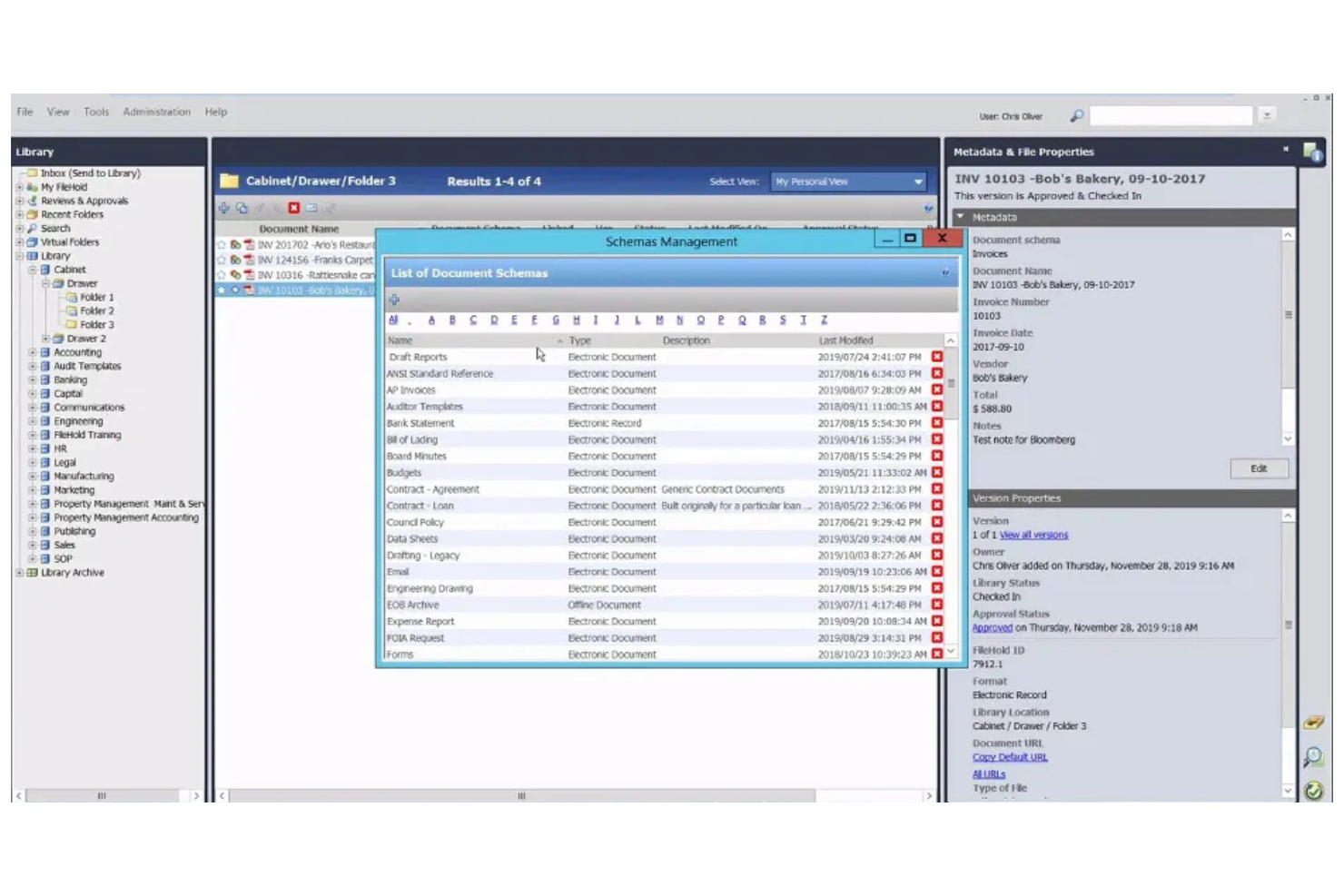
FileHold is purpose-built for organizations that need to meet strict regulatory and compliance requirements in their document management. It’s especially relevant for industries like healthcare, finance, and government, where audit trails and document control are non-negotiable. FileHold helps teams manage sensitive records, enforce retention policies, and maintain compliance with industry standards.
Why I Picked FileHold
When regulatory compliance is a top priority, FileHold stands out for its specialized controls and audit capabilities. I picked FileHold because it offers detailed document lifecycle management, including retention scheduling and automated disposition, which are essential for meeting industry regulations. The system also provides full audit trails and electronic signatures, helping organizations prove compliance during audits. For teams that need to demonstrate strict control over sensitive documents, FileHold’s compliance-focused features make it a strong choice.
FileHold Key Features
In addition to its compliance-focused controls, FileHold offers several other features for document management:
- Document Scanning and Capture: Import paper documents directly into the system using integrated scanning tools.
- Metadata Tagging: Assign custom metadata fields to documents for advanced search and organization.
- Role-Based Access Controls: Set user permissions at multiple levels to manage who can view, edit, or delete documents.
- Mobile Access: Access and manage documents securely from mobile devices through dedicated apps.
FileHold Integrations
Integrations include Microsoft Office, Adobe Acrobat Sign, Docusign, Salesforce, QuickBooks, SAP, Sage 300, Microsoft Dynamics GP, ABBYY FlexiCapture, and Kofax Capture.
Pros and Cons
Pros:
- Detailed audit trails for all document actions
- Automated document retention and disposition
- FDA 21 CFR Part 11 compliance support
Cons:
- Limited web-based editing capabilities
- No built-in document co-authoring tools


Egnyte is built for organizations that need precise control over document access and sharing. It’s a strong fit for businesses in regulated industries or those managing sensitive data across global teams. If your priorities include setting detailed permissions and monitoring document activity, Egnyte addresses those needs with its granular access controls.
Why I Picked Egnyte
When you need to manage sensitive documents across multiple teams and regions, Egnyte stands out for its granular access controls. I picked Egnyte because it lets you set detailed permissions at the folder, subfolder, and even file level, so you can tailor access for different users and groups. The platform also includes audit trails and real-time activity monitoring, which help you track who accessed or modified documents. These features make Egnyte a strong choice for organizations that need to balance collaboration with strict data security requirements.
Egnyte Key Features
In addition to its detailed permission settings, Egnyte offers several other features for document management:
- Hybrid Cloud Storage: Store and access files both in the cloud and on-premises, supporting flexible deployment needs.
- Document Collaboration Tools: Annotate, comment, and co-edit documents directly within the platform.
- Automated File Classification: Use AI-driven tagging and classification to organize documents based on content and sensitivity.
- Mobile Access App: Access, share, and manage documents securely from iOS and Android devices.
Egnyte Integrations
Integrations include Microsoft 365, Google Workspace, Salesforce, Slack, Procore, Autodesk, Box, Dropbox, AWS, and Azure.
Pros and Cons
Pros:
- Automated file classification uses AI tagging
- Hybrid storage supports both cloud and on-premises
- Permission settings support file-level access control
Cons:
- Limited built-in document editing capabilities
- External sharing requires extra configuration steps

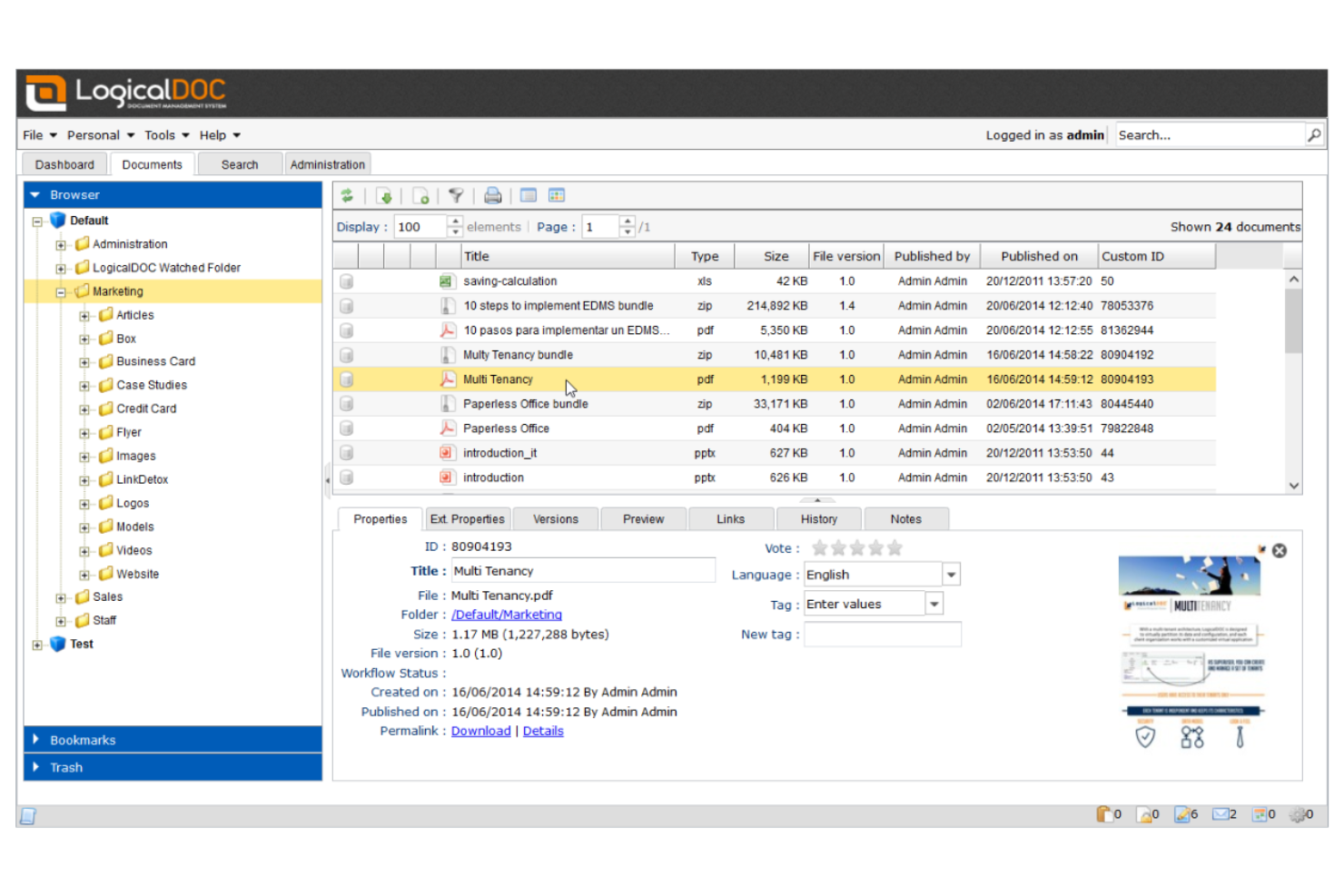
LogicalDOC is designed for organizations that need to manage documents in multiple languages across distributed teams. It’s especially useful for international businesses, legal teams, or any group handling multilingual content and compliance requirements. If your workflows depend on accurate language support and localization, LogicalDOC addresses those needs with its multilingual interface and metadata management.
Why I Picked LogicalDOC
For teams that need to manage documents in several languages, LogicalDOC offers multilingual support that’s hard to match. I picked LogicalDOC because it provides a user interface available in over a dozen languages and supports multilingual metadata, making it easier to organize and retrieve documents regardless of language. The platform also allows you to set language preferences for individual users, which helps global teams work more efficiently. These features make LogicalDOC a strong choice for organizations with international operations or diverse language requirements.
LogicalDOC Key Features
Some other features that make LogicalDOC useful for document management include:
- Version Control: Track document changes and maintain a full revision history for every file.
- Workflow Automation: Design and automate document approval and review processes.
- Full-Text Search: Search for documents using keywords found within the content, not just file names.
- Role-Based Access Control: Assign permissions based on user roles to manage document visibility and actions.
LogicalDOC Integrations
Integrations include WordPress, Joomla, Dropbox, Microsoft Office, Microsoft Outlook, OnlyOffice, Google Drive, Google Calendar, ShareFile, and Docusign.
Pros and Cons
Pros:
- Full-text search indexes multiple file formats
- Workflow automation includes visual process designer
- Multilingual interface supports over 15 languages
Cons:
- Limited collaboration tools for real-time editing
- Mobile app lacks advanced document features


Box offers workflow automation and secure document management for teams working across multiple locations. It’s a strong fit for organizations that need to coordinate complex approval processes or manage sensitive files at scale. If your business relies on automating document-centric workflows and maintaining strict access controls, Box is designed to address those needs.
Why I Picked Box
Box stands out for its advanced workflow automation, which is essential for teams managing documents across global offices. I picked Box because its workflow builder lets you automate multi-step approval processes and set up custom triggers for document routing. The platform also supports conditional logic, so you can tailor workflows to match your organization’s unique requirements. These automation features help reduce manual work and keep document processes consistent, even when your team is distributed worldwide.
Box Key Features
Some other features in Box that support global document management include:
- Granular Permission Controls: Set detailed access levels for users and groups to protect sensitive documents.
- Version History: Track and restore previous versions of files to maintain document integrity.
- Document Watermarking: Apply customizable watermarks to files for added security and traceability.
- Global Data Residency Options: Choose where your data is stored to meet regional compliance requirements.
Box Integrations
Integrations include Microsoft 365, Google Workspace, Salesforce, Oracle NetSuite, Okta, Broadcom, Splunk, Palo Alto Networks, Adobe, and Slack.
Pros and Cons
Pros:
- Data residency options for compliance needs
- Granular permissions for global team access
- Workflow automation supports complex, multi-step processes
Cons:
- Advanced features require higher-tier plans
- Workflow automation setup can be time-consuming

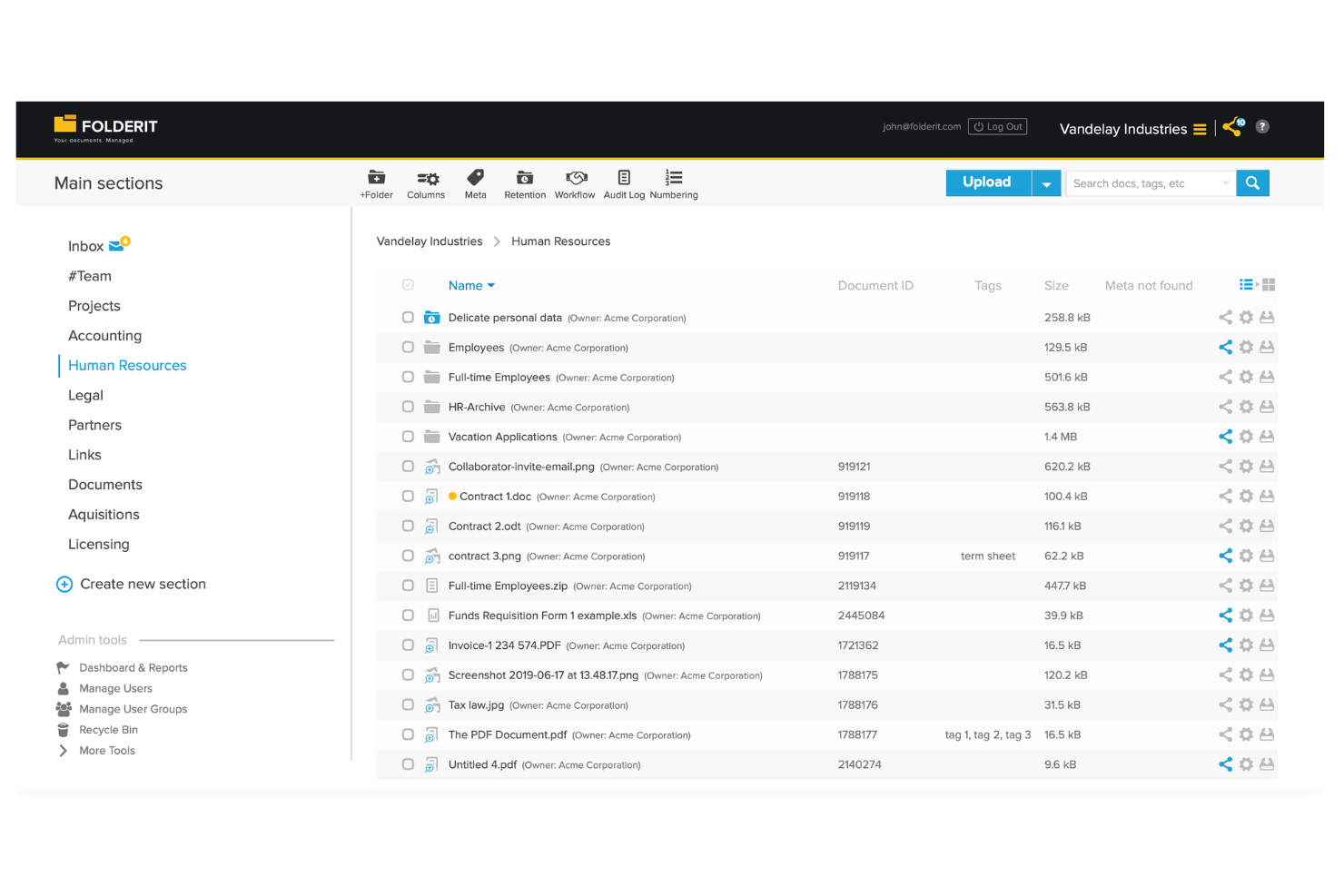
Folderit stands out for small teams that need a straightforward way to organize, share, and approve documents together. It’s a good fit for startups, nonprofits, or departments looking for simple collaboration tools without the complexity of enterprise systems. Folderit’s focus on easy sharing, granular permissions, and approval workflows helps teams keep everyone on the same page, even when working remotely.
Why I Picked Folderit
When small teams need a document management system that doesn’t overwhelm them with unnecessary complexity, Folderit is a strong choice. I picked Folderit because it offers built-in approval workflows and granular permission controls, which help teams collaborate securely and transparently. The platform’s document sharing features let users invite colleagues or external partners to view or edit files, making it easy to keep everyone involved. These collaboration-focused tools make Folderit especially useful for teams that need to manage documents together without the overhead of a large enterprise system.
Folderit Key Features
Some other features that make Folderit appealing for document management include:
- Automated Retention Scheduling: Set rules for how long documents are kept before automatic deletion or archiving.
- Document Linking: Connect related files together for easier cross-referencing and navigation.
- Audit Trail: Track every action taken on a document, including views, edits, and downloads.
- Custom Metadata Fields: Add searchable tags and fields to documents for more precise organization and retrieval.
Folderit Integrations
Native integrations are not currently listed. An API is available for custom integrations.
Pros and Cons
Pros:
- Custom metadata fields support advanced search
- Automated retention scheduling for compliance needs
- Approval workflow is built into document sharing
Cons:
- Bulk upload speed can be inconsistent
- No native integrations with third-party tools

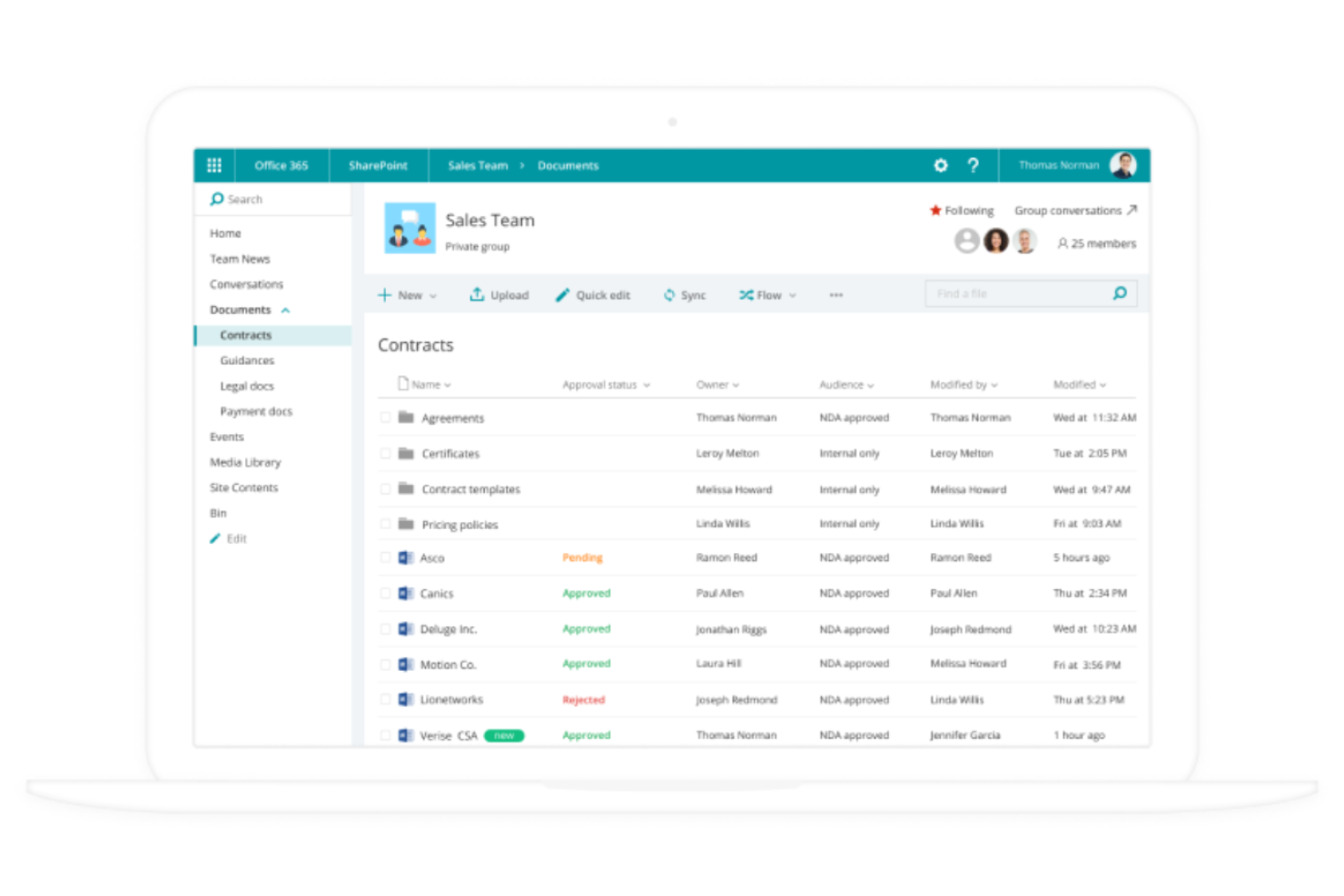
If your organization already relies on Microsoft 365, Microsoft SharePoint offers a familiar way to manage documents and collaborate across teams. It’s especially useful for enterprises and IT departments that need to centralize content, automate workflows, and control access within a secure Microsoft environment. SharePoint’s deep integration with Microsoft 365 apps helps teams connect files, conversations, and processes in one place.
Why I Picked Microsoft SharePoint
For teams already invested in Microsoft 365, SharePoint is a natural extension for managing documents at scale. I picked SharePoint because it lets you create centralized document libraries that sync with OneDrive and Teams, making file access and collaboration seamless across the Microsoft ecosystem. Its granular permission controls help organizations manage sensitive content and ensure compliance with internal policies. SharePoint’s workflow automation tools also support document approvals and versioning, which are essential for global teams handling complex projects.
Microsoft SharePoint Key Features
Some other features that make SharePoint valuable for document management include:
- Customizable Sites: Build internal sites and portals tailored to different teams or projects.
- Document Co-Authoring: Multiple users can edit documents simultaneously in real time.
- Enterprise Search: Search across all connected sites, libraries, and content with advanced filtering.
- Integration With Power Automate: Connect workflows to other Microsoft and third-party apps for process automation.
Microsoft SharePoint Integrations
Integrations include Microsoft Teams, OneDrive, Outlook, Word, Excel, PowerPoint, Microsoft Loop, Microsoft Forms, Microsoft Planner, and Microsoft Power Automate.
Pros and Cons
Pros:
- Granular access permissions for global teams
- Supports advanced document version control
- Deep integration with all Microsoft 365 apps
Cons:
- Storage limits depend on Microsoft 365 plan
- External sharing setup can be complex

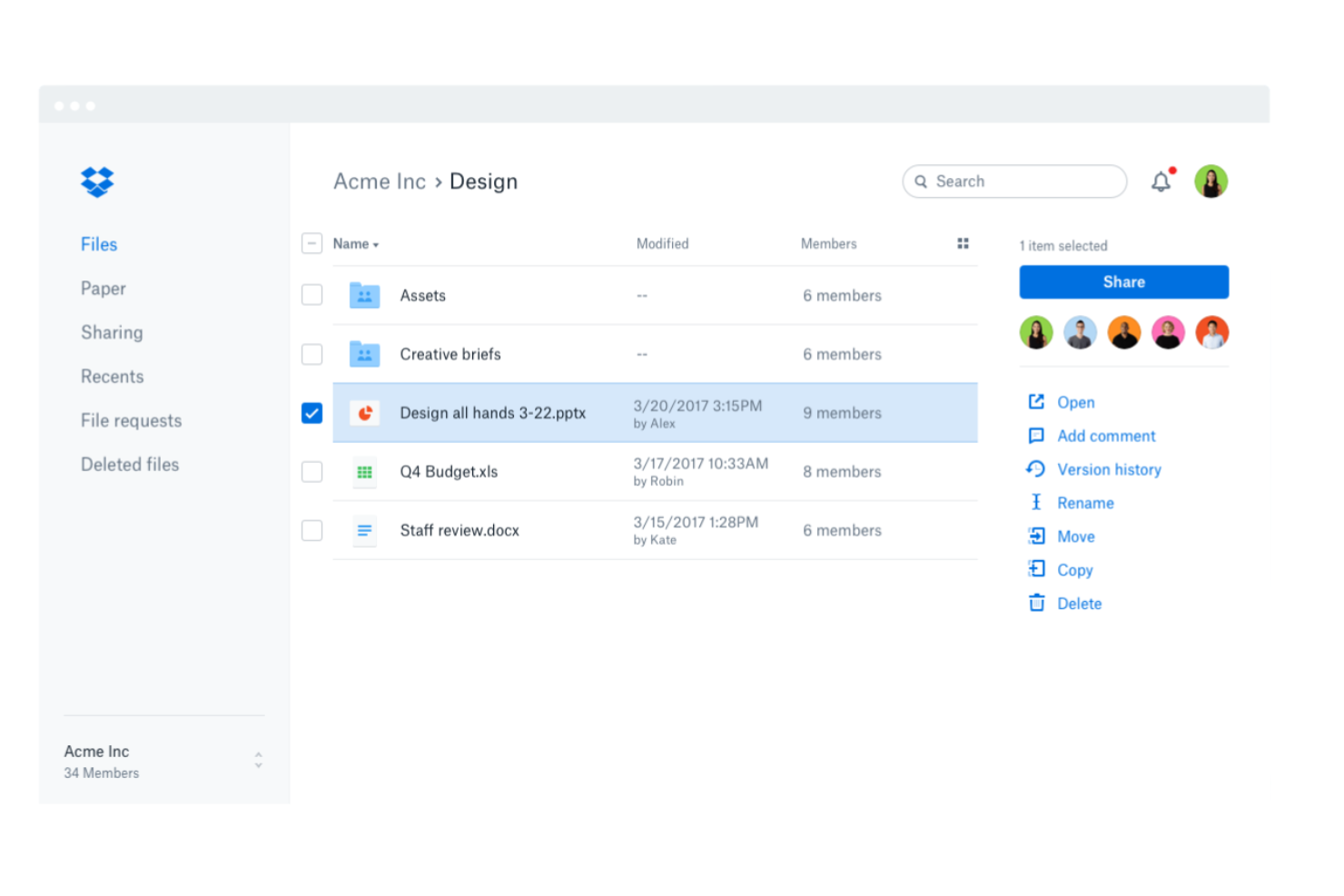
Dropbox Business is designed for teams that need reliable file syncing across devices and operating systems. It’s especially useful for organizations with distributed teams or those working in hybrid environments where seamless access to documents is essential. If your business depends on sharing and updating files from anywhere, Dropbox Business addresses those needs with its cross-platform capabilities.
Why I Picked Dropbox Business
For teams that need to keep files updated and accessible across different devices and operating systems, Dropbox Business delivers reliable cross-platform file syncing. I picked Dropbox Business because it automatically syncs changes in real time, so everyone always has the latest version of a document, no matter where they’re working. The Smart Sync feature lets you access all your files from your desktop without taking up local storage. These syncing capabilities make Dropbox Business a strong choice for organizations managing documents globally and collaborating across locations.
Dropbox Business Key Features
Some other features in Dropbox Business that support global document management include:
- File Request Tool: Collect files from anyone, even if they don’t have a Dropbox account.
- Team Folder Management: Organize and control access to shared folders for different teams or projects.
- Document Scanning: Scan and upload physical documents directly into your Dropbox workspace.
- Advanced Link Sharing Controls: Set passwords, expiration dates, and permissions for shared links.
Dropbox Business Integrations
Integrations include Microsoft 365, Google Workspace, Slack, Zoom, Adobe, HubSpot, Autodesk, Canva, AWS, and Asana.
Pros and Cons
Pros:
- Advanced sharing controls manage link permissions
- File versioning supports recovery of previous edits
- Cross-platform syncing covers Windows, Mac, and Linux
Cons:
- Large file uploads can stall or timeout
- Admin controls lack detailed audit reporting

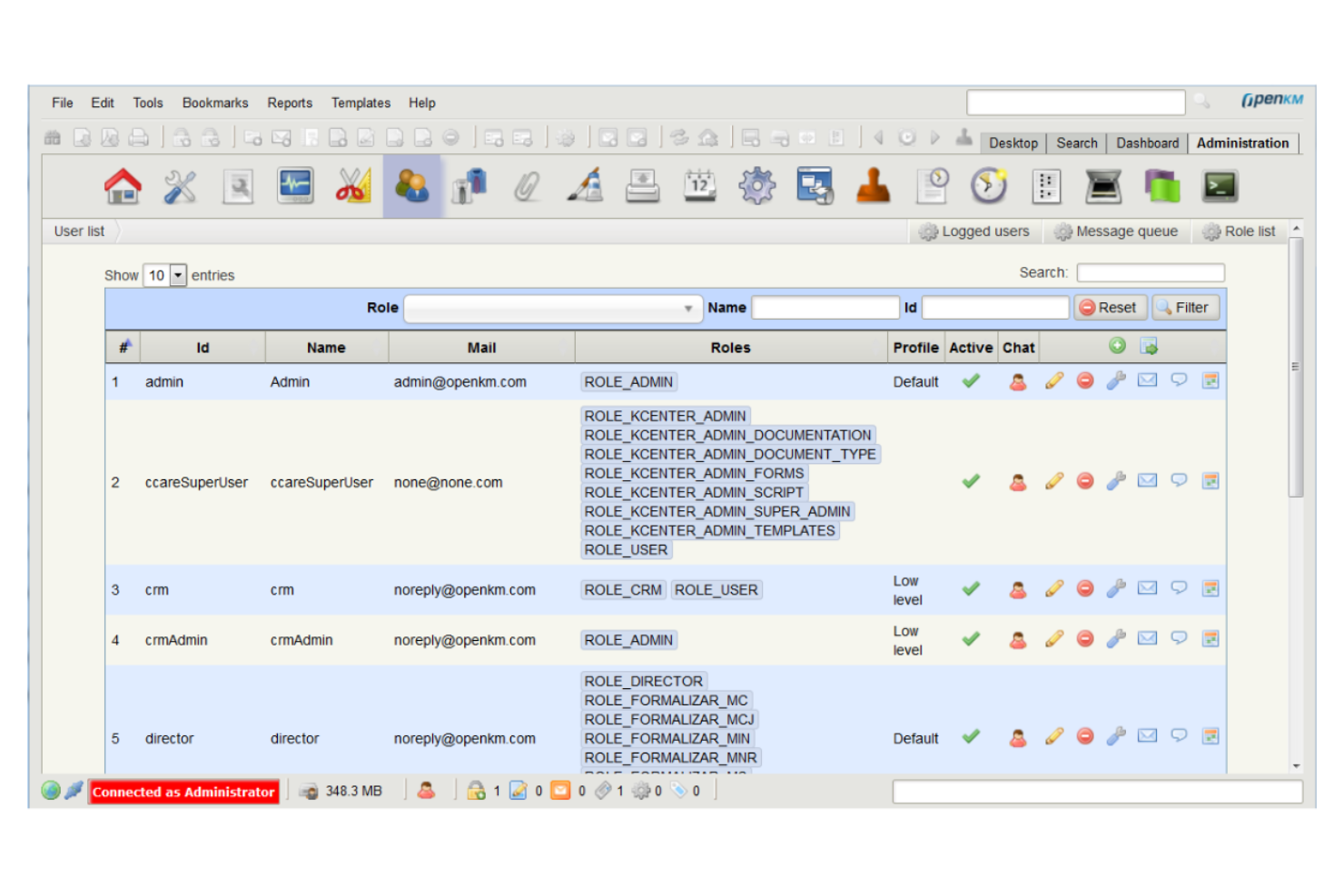
OpenKM gives organizations full control over their document management environment with an open-source platform built for customization. It’s a strong fit for IT teams, developers, and businesses with unique workflow or integration needs that can’t be met by off-the-shelf solutions. OpenKM helps teams design tailored document processes, automate tasks, and connect with other business systems through its flexible architecture.
Why I Picked OpenKM
For teams that need a document management system they can truly make their own, OpenKM’s open-source customization stands out. I picked OpenKM because it lets organizations modify workflows, user roles, and document structures to fit highly specific requirements. The platform supports custom scripting and API access, so you can automate processes or build unique integrations with other business tools. This level of flexibility is especially valuable for global teams with complex or evolving document management needs.
OpenKM Key Features
Some other features that make OpenKM useful for document management teams include:
- Version Control: Track document changes and maintain a full revision history for every file.
- Document Scanning: Capture and digitize paper documents directly into the system.
- Advanced Search: Locate files quickly using metadata, content, and full-text search options.
- Task Management: Assign, monitor, and manage document-related tasks within the platform.
OpenKM Integrations
Integrations include Kofax, ABBYY FlexiCapture, Cognitive Forms, Flexibar, Canon IW DS, Microsoft Office, Active Directory, LDAP, SSO, and CAS.
Pros and Cons
Pros:
- Granular permission controls for document security
- On-premises and cloud deployment options
- Source code access for deep system customization
Cons:
- Limited out-of-the-box third-party integrations
- No built-in e-signature integration

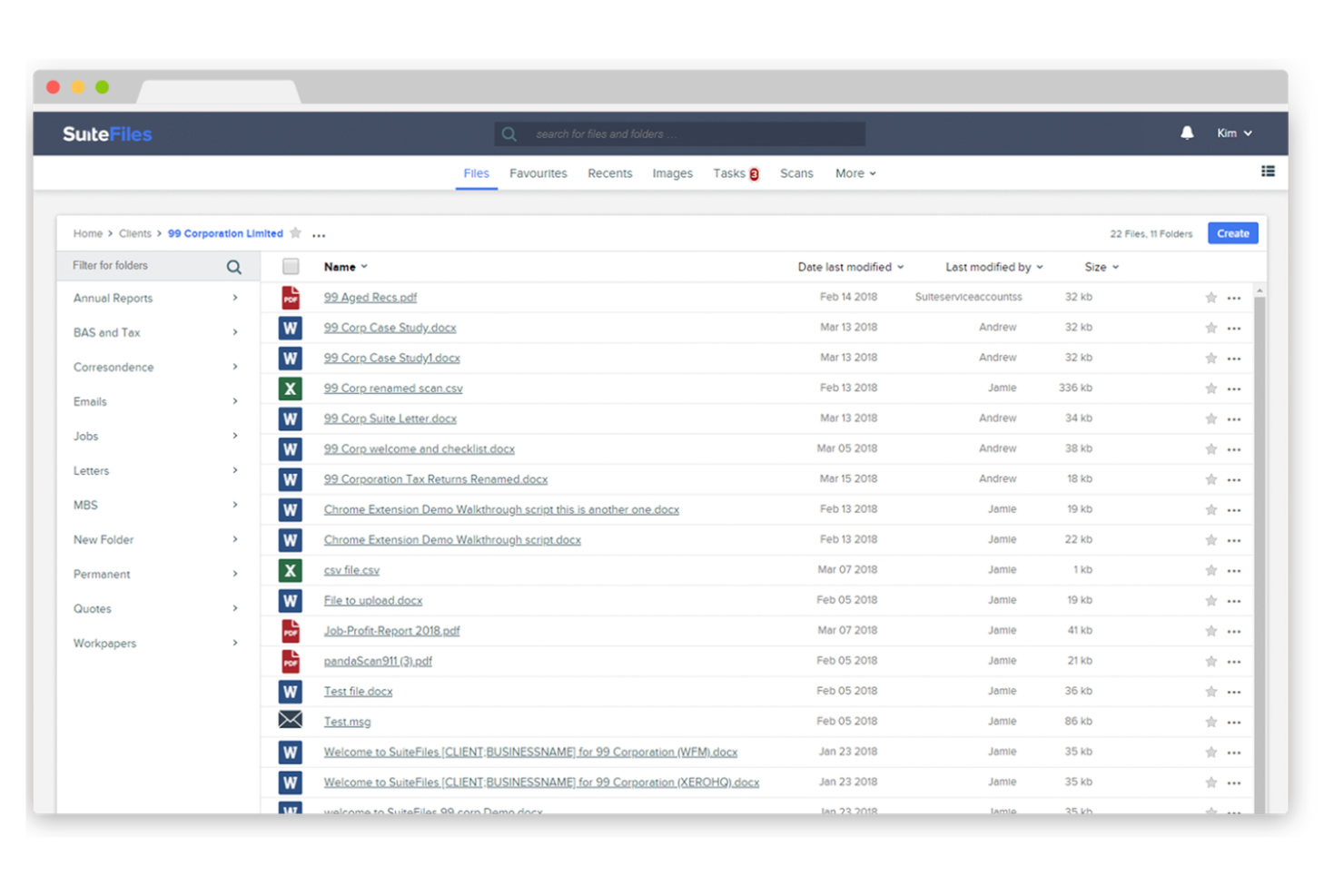
SuiteFiles is designed for firms that need tight integration between document management and accounting workflows. It’s especially useful for accounting practices, financial advisors, and professional services teams that rely on Xero or similar platforms. SuiteFiles helps teams centralize client files, automate document requests, and keep sensitive financial data organized and accessible.
Why I Picked SuiteFiles
When document management needs to work hand-in-hand with accounting software, SuiteFiles offers a purpose-built solution. I picked SuiteFiles because it provides direct integration with Xero Practice Manager, allowing teams to link client files, emails, and documents to accounting records without manual effort. The platform also supports secure client portals for document sharing and e-signatures, which helps accounting and finance teams manage sensitive information efficiently. These features make SuiteFiles a strong fit for firms that want to streamline both document and accounting workflows in one place.
SuiteFiles Key Features
Some other features that make SuiteFiles valuable for document management teams include:
- Document Templates: Create and use standardized templates for recurring documents and client communications.
- Automated Folder Creation: Set up rules to automatically generate folder structures for new clients or projects.
- Outlook Integration: Save emails and attachments directly from Outlook into SuiteFiles.
- PDF Editing: Annotate, merge, and edit PDF documents within the platform.
SuiteFiles Integrations
Integrations include Xero, Karbon, WorkflowMax, HubSpot, Microsoft 365, and QuickBooks Online.
Pros and Cons
Pros:
- Outlook add-in for saving emails to folders
- Secure client portal for document sharing
- Direct integration with Xero Practice Manager
Cons:
- Custom branding options are restricted
- Mobile app lacks advanced document features
Other Global Document Management Systems
Here are some additional global document management system options that didn’t make it onto my shortlist, but are still worth checking out:
- EisenVault
For on-premises deployment options
- Axero
For knowledge base management
- OpenText
For large-scale enterprise deployments
- M-Files
For metadata-driven organization
- Revver
For configurable approval processes
- DocuWare
For workflow automation features
- OpenDocMan
For simple open source document control
- IRIS Document Management
For automated document classification
- OnlyOffice Workspace
With integrated document editing tools


Global Document Management System Selection Criteria
When selecting the best global document management system to include in this list, I considered common buyer needs and pain points like managing secure document access across distributed teams and ensuring compliance with international data regulations. I also used the following framework to keep my evaluation structured and fair:
Core Functionality (25% of total score)
To be considered for inclusion in this list, each solution had to fulfill these common use cases:
- Store and organize digital documents
- Control user access and permissions
- Search and retrieve documents quickly
- Track document version history
- Share documents securely with others
Additional Standout Features (25% of total score)
To help further narrow down the competition, I also looked for unique features, such as:
- Automated document classification using AI
- Mobile-first document workflows
- Built-in e-signature capabilities
- Advanced compliance and audit reporting
- Integration with industry-specific software
Usability (10% of total score)
To get a sense of the usability of each system, I considered the following:
- Simple and intuitive user interface
- Customizable dashboards and views
- Minimal clicks to complete common tasks
- Responsive design for all device types
- Clear navigation and labeling
Onboarding (10% of total score)
To evaluate the onboarding experience for each platform, I considered the following:
- Step-by-step product tours or walkthroughs
- Availability of training videos and documentation
- Pre-built templates for common workflows
- Access to onboarding webinars or live sessions
- In-app chatbots or help widgets
Customer Support (10% of total score)
To assess each software provider’s customer support services, I considered the following:
- 24/7 support availability
- Multiple support channels (chat, email, phone)
- Fast response times to inquiries
- Access to a searchable knowledge base
- Dedicated account managers for enterprise clients
Value For Money (10% of total score)
To evaluate the value for money of each platform, I considered the following:
- Transparent and predictable pricing structure
- Flexible plans for different team sizes
- No hidden fees or surprise charges
- Discounts for annual commitments
- Features included at each pricing tier
Customer Reviews (10% of total score)
To get a sense of overall customer satisfaction, I considered the following when reading customer reviews:
- Positive feedback on reliability and uptime
- Reports of responsive customer support
- Comments on ease of adoption and training
- User satisfaction with feature updates
- Critiques of any recurring pain points
How to Choose a Global Document Management System
It’s easy to get bogged down in long feature lists and complex pricing structures. To help you stay focused as you work through your unique software selection process, here’s a checklist of factors to keep in mind:
| Factor | What to Consider |
|---|---|
| Scalability | Will the system handle your document volume and user growth over time? Consider future expansion, multi-site needs, and storage limits. |
| Integrations | Does the tool connect natively to your existing platforms (e.g., CRM, ERP, cloud storage)? Check for compatibility with your tech stack. |
| Customizability | Can you tailor workflows, permissions, and document templates to your organization’s processes? Avoid rigid systems that force workarounds. |
| Ease of use | Will your team adopt the tool quickly? Look for user-friendly navigation, clear labeling, and minimal training requirements. |
| Implementation and onboarding | How long will it take to get up and running? Assess migration support, onboarding resources, and the vendor’s track record with similar rollouts. |
| Cost | Are pricing tiers transparent and predictable? Factor in user licenses, storage, and any add-on fees that could impact your budget. |
| Security safeguards | Does the system offer encryption, access controls, and audit trails? Ensure it meets your organization’s data protection standards. |
| Compliance requirements | Does the tool support your industry’s regulatory needs (e.g., GDPR, HIPAA)? Confirm certifications and audit support before committing. |
What Is a Global Document Management System?
A global document management system (DMS) is a document management solution that helps organizations store, organize, and control access to electronic documents across multiple locations. This type of document management software supports content management and ensures that files are securely accessible to distributed teams.
Modern DMS platforms often include AI-powered capabilities such as OCR to extract data from documents, improving searchability and reducing manual work. These systems also support authentication, helping businesses protect sensitive information while maintaining efficient business processes.
Features of a Global Document Management Systems
When selecting document management software, keep an eye out for the following key features:
- Centralized document storage: Store and manage electronic documents in a single document management solution for easy access and organization.
- AI-powered OCR: Use OCR technology to capture and index data from scanned files, improving search and retrieval.
- User authentication and access control: Set authentication rules and permissions to protect sensitive content and control user access.
- Workflow automation: Automate business processes by routing documents through approval and review workflows.
- Version control: Track document changes and maintain a complete history of updates.
- Notifications and alerts: Receive notifications for approvals, updates, and required actions to keep workflows moving.
- Advanced search: Quickly find documents using metadata, keywords, and full-text search.
- Content management capabilities: Organize and manage files with structured folders, tags, and metadata.
- Modular functionality: Add or customize each module based on business needs and document workflows.
- Mobile access: Access and manage documents from any device to support remote and global teams.
Benefits of Global Document Management Systems
Implementing a global document management system provides several benefits for your team and your business. Here are a few you can look forward to:
- Centralized information access: Teams can find and retrieve documents from a single, organized repository, reducing time spent searching for files.
- Improved security and compliance: Role-based permissions, audit trails, and retention policies help protect sensitive data and support regulatory requirements.
- Streamlined collaboration: Automated workflow routing and secure file sharing enable teams to review, approve, and update documents efficiently, even across different locations.
- Consistent version control: Version tracking ensures everyone works from the latest document, minimizing errors and confusion caused by outdated files.
- Scalable document management: The system can handle growing document volumes and user bases, supporting business expansion without sacrificing organization or control.
- Enhanced remote productivity: Mobile access and cloud-based features allow distributed and field teams to manage documents and approvals from anywhere.
- Reduced manual workload: Automation of document routing, retention, and access management frees up time for higher-value tasks.
Costs and Pricing of Global Document Management System
Selecting a global document management system requires an understanding of the various pricing models and plans available. Costs vary based on features, team size, add-ons, and more. The table below summarizes common plans, their average prices, and typical features included in global document management system solutions:
Plan Comparison Table for Global Document Management System
| Plan Type | Average Price | Common Features |
|---|---|---|
| Free Plan | $0 | Basic document storage, limited user access, simple sharing, and basic search functionality. |
| Personal Plan | $5-$15/user/month | Individual document management, enhanced search, mobile access, and limited integrations. |
| Business Plan | $15-$40/user/month | Team collaboration tools, workflow automation, role-based permissions, audit trails, and reporting. |
| Enterprise Plan | $40-$100/user/month | Advanced security, compliance tools, custom integrations, dedicated support, and unlimited storage. |
Global Document Management System FAQs
Here are some answers to common questions about global document management systems:
How do global document management systems support international teams?
Global document management systems support international teams by providing centralized access to documents, multi-language interfaces, and compliance tools for different regions. This helps distributed teams collaborate, maintain version control, and meet local data regulations regardless of location.
Can I migrate existing documents into a global document management system?
Yes, most global document management systems offer migration tools or services to help you import existing files and folder structures. Look for solutions that support bulk uploads, metadata mapping, and integration with your current storage platforms to simplify the transition.
What security measures should I expect from a global document management system?
You should expect features like encryption at rest and in transit, role-based access controls, audit logs, and regular security updates. These safeguards help protect sensitive information and ensure compliance with industry standards and regulations.
How do these systems handle document versioning and audit trails?
Global document management systems automatically track document changes, maintain version histories, and log user actions. This allows you to restore previous versions, monitor activity, and demonstrate compliance during audits.
What kind of support is available if I run into issues?
Most vendors offer multiple support channels, such as live chat, email, and phone support. Some also provide dedicated account managers, knowledge bases, and onboarding resources to help you resolve issues and maximize the value of your system.
What’s Next:
If you're in the process of researching a global document management system, connect with a SoftwareSelect advisor for free recommendations.
You fill out a form and have a quick chat where they get into the specifics of your needs. Then you'll get a shortlist of software to review. They'll even support you through the entire buying process, including price negotiations.