

10 Best Document Comparison Software Reviewed in 2026

Best Document Comparison Software Shortlist


Document comparison software is the easiest way to keep track of changes to contracts, proposals, or technical documents; maintain accuracy and consistency across files; reduce the risk of errors; and reduce time spent manually reviewing edits.
I’ve tested and reviewed several tools to provide a clear and unbiased look at the top solutions available, so you can choose the right one for your projects and your team. Using my experience with this type of tool as a project manager, I’ll walk through key features and benefits of each tool.
Why Trust Our Software Recommendations
Our team has been testing and reviewing software since 2012. As project managers ourselves, we know how difficult—and important—it is to choose the right software.
For this guide, we evaluated tools using hands-on testing and independent research, scoring tools using our selection criteria. We also draw on insights from industry thought leaders and practicing project management experts.
Our reviews reflect our human editorial judgment, not a sales pitch.
Expert reviewers:
Document Comparison Software Comparison Table
This comparison table summarizes pricing details for my top document comparison software selections:
| Tool | Best For | Trial Info | Price | ||
|---|---|---|---|---|---|
| 1 | Best for creative teams | 30-day free trial + free plan + free demo available | From $199/month | Website | |
| 2 | Best with AI-powered document insights | 7-day free trial | From $19.99/user/month (billed annually) | Website | |
| 3 | Best for PDF document comparison | Free trial available | From $7/month (billed annually) | Website | |
| 4 | Best for code file comparison | 30-day free trial | From $7.50/user/month (billed annually) | Website | |
| 5 | Best for project management integration | Free trial available | From $7user//month (billed annually) | Website | |
| 6 | Best for Word document accuracy | Free demo available | Pricing upon request | Website | |
| 7 | Best for cross-platform use | Free trial available | From $35/user (one-time fee) | Website | |
| 8 | Best for contract management | Free demo available | Pricing upon request | Website | |
| 9 | Best for legal professionals | 30-day free trial | From $129/month (one time fee), then $29 (billed annually) | Website | |
| 10 | Best for fast processing speedPricing upon request | Free trial available | Pricing upon request | Website |
Best Document Comparison Software Review
Here are my detailed summaries of the best document comparison software. I’ve covered key features, pros & cons, integrations, and ideal use cases for each tool.

Best for creative teams

Filestage earns a spot on this list because of how specific its review and approval process is for creative teams working with documents, images, and videos. When you have multiple stakeholders leaving feedback on visual materials, its side-by-side version comparison, commenting, and tracked changes make approvals straightforward.
What I like is that you can see who suggested what in context, with visuals and markup, which saves a lot of time when finalizing creative projects.
Filestage’s Best For
- Creative teams managing marketing, video, design, or document reviews
- Agencies handling multi-stakeholder, visual asset approval processes
Filestage’s Not Great For
- Teams comparing mostly text-based legal or technical documents
- Organizations needing granular, automated document merging or diff tools
What Sets Filestage Apart
Filestage is built to keep visual feedback and document reviews structured and simple, not fractured across email or chat. Unlike Google Workspace or Slack, it assumes you need a single place for marking up videos, images, and documents with colleagues and clients. In practice, this works well when you’re juggling creative deliverables and need everyone’s feedback in one, clearly tracked place.
Tradeoffs with Filestage
Filestage optimizes for centralized, visual reviewing, but it sacrifices advanced document comparison. If you need detailed text diff or merging, it falls short.
Pros and Cons
Pros:
- Time-stamped video comments
- Supports version control
- Easy annotation on design files
Cons:
- Initial setup can be complex
- Requires internet for full functionality

Best with AI-powered document insights
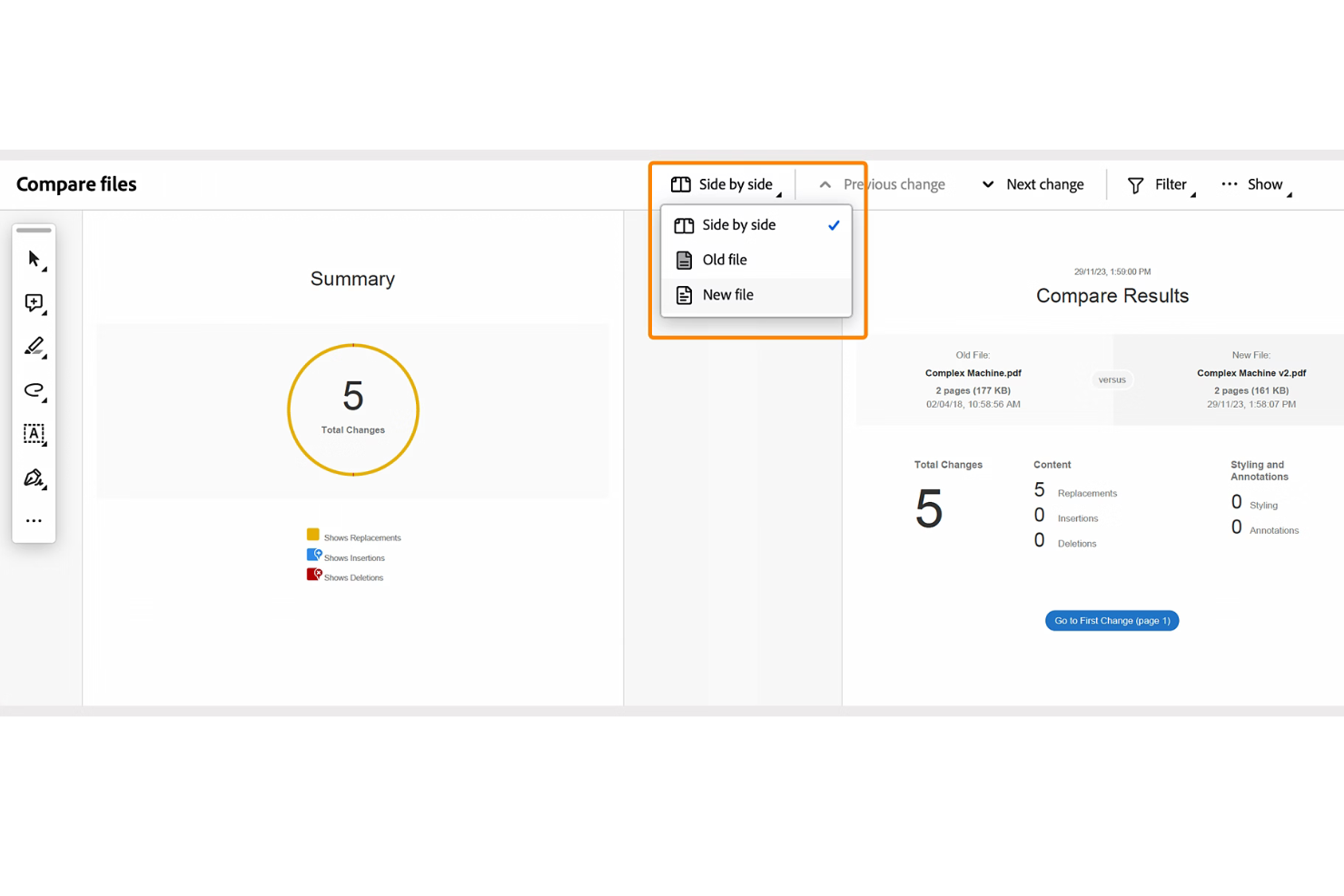
Adobe Acrobat stands out for me because of its AI tool, Acrobat AI Assistant, which analyzes, summarizes, and surfaces insights directly inside your PDFs. I see legal, finance, and contract teams relying on its precise comparison visualizations when accuracy actually matters. What I appreciate most is how you can ask questions across entire documents and instantly get answers, not just redlines or changes.
Adobe Acrobat’s Best For
- Legal, contract, and finance teams verifying document changes
- Organizations that need AI-driven insights and comparisons
Adobe Acrobat’s Not Great For
- Teams looking for lightweight, fast-only comparison tools
- Groups who don’t need advanced document analysis or AI
What sets Adobe Acrobat apart
Adobe Acrobat stands out because it blends document comparison with AI-powered analysis so you can pull insights directly from the files you work with. Unlike lightweight diff tools or Google Docs, Acrobat assumes you need more than just redlines—it expects you’ll question, summarize, and interact with your documents. In practice, you use Acrobat when accuracy and a deeper read of the content matter more than speed.
Tradeoffs with Adobe Acrobat
Acrobat is built for document insight and accuracy, so you end up with added steps and resource demands compared to tools focused only on side-by-side diffing.
Pros and Cons
Pros:
- Includes advanced redaction and security tools
- Offers batch comparison for multiple files
- Integrates with Microsoft 365 and Google Workspace
Cons:
- Can be resource-intensive on older devices
- AI-powered insights require enterprise subscription

Soda PDF
Best for PDF document comparison

Soda PDF makes my shortlist because its document comparison tool is unusually precise for handling complex PDF revisions. I reach for Soda PDF when you’re dealing with contracts, legal docs, or technical specs where miss even a small change can matter. What stands out for me is how it highlights insertions, deletions, and text modifications side by side in a visual report. I like how quickly you can flip through differences, which cuts a lot of back-and-forth for document-heavy teams.
Soda PDF’s Best For
- Legal teams comparing contracts or regulatory PDFs
- Teams reviewing technical documents with complex formatting
Soda PDF’s Not Great For
- Comparing file types other than PDFs
- Collaboration workflows with multiple document editors
What Sets Soda PDF Apart
Soda PDF expects you to review, markup, and compare finished, formatted documents—especially when precision matters. Unlike Google Docs, which works best with text-heavy drafts and in-progress collaboration, Soda PDF zeroes in on published PDF files where layout and graphical elements can change. I see it work well when the final form of the document matters just as much as the words inside.
Tradeoffs with Soda PDF
By optimizing for PDF accuracy and presentation, Soda PDF limits collaboration and editing tools, so you’ll need another system for drafting or team-based document changes.
Pros and Cons
Pros:
- Supports batch conversions
- Includes AI tools for translation
- Works offline and online
Cons:
- May have a learning curve for new users
- Limited advanced editing tools

Best for code file comparison

UltraEdit earns its spot because it does file comparison at a level few editors touch. When I need to review differences in sprawling codebases, its side-by-side, syntax-aware compare view saves me hours grokking changes. What I like is how quickly I can parse differences in massive files without choking performance. You’ll see the most value when project source files change fast and merge conflicts are a real concern.
UltraEdit’s Best For
- Developers comparing large or complex code files
- Teams who need fast, syntax-aware file comparison
UltraEdit’s Not Great For
- Non-technical users reviewing standard document revisions
- Comparing formatted documents like Word or PDF files
What sets UltraEdit apart
UltraEdit approaches code comparison with the perspective of a seasoned text editor instead of a dedicated diff tool like Beyond Compare or Meld. You work directly in your files, with syntax highlighting that helps spot changes in real code, not just document text. This works well when you're juggling large codebases and need to quickly spot tweaks, inserts, or deletions inside big source files.
Tradeoffs with UltraEdit
UltraEdit optimizes for technical users working with raw text, so reviewing PDFs or rich text formats is clunky. For side-by-side document review in anything but code or plain text, you lose accuracy and formatting context.
Pros and Cons
Pros:
- Offers column mode editing
- Handles large files efficiently
- Supports many programming languages
Cons:
- Limited collaboration features
- May overwhelm new users


Nifty PM earns a spot here because it brings project management and document workflows together in a way I don’t see from most competitors. When I’m working with teams who live in their project dashboards, having built-in document versioning and real-time collaboration makes it easy to compare files, track updates, and keep everything audit-ready.
I like how you don’t have to leave Nifty to spot document changes or manage reviews, which really helps when you’re juggling fast-moving projects or cross-functional reviews.
Nifty PM’s Best For
- Project teams that want documents and tasks in one hub
- Organizations needing document comparison inside project management
Nifty PM’s Not Great For
- Legal or compliance teams needing detailed redlining
- Teams wanting industry-specific document comparison features
What sets Nifty PM apart
Nifty PM puts document collaboration right next to your projects, tasks, and timelines. Unlike Google Workspace, where files and project work often live in different places, Nifty assumes you want everything tied together. In practice, this works well for teams who already manage high volumes of project-based documents and want to see file changes in context with project activity.
Tradeoffs with Nifty PM
Nifty PM optimizes for project and document unification, but you give up advanced comparison tools—like detailed version diffing or compliance-focused markup—that specialized software offers.
Pros and Cons
Pros:
- Integrates with various project tools
- Easy document collaboration
- Built-in chat for team communication
Cons:
- Learning curve for new users
- Limited offline functionality

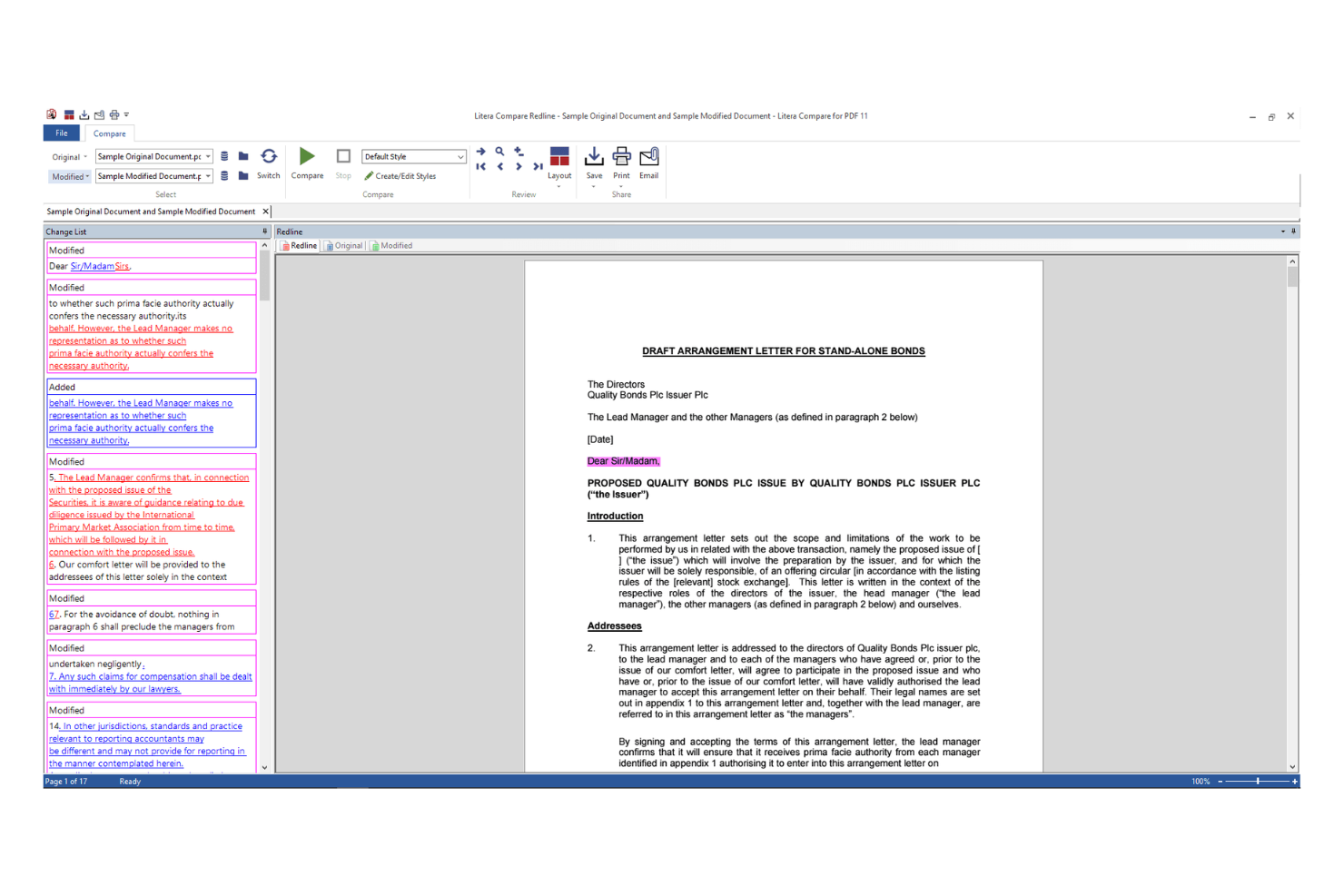
Litera Compare lands on my document comparison shortlist because of its unmatched accuracy in tracking changes within Word documents. When I see legal teams or firms handling high-stakes agreements, Litera Compare is the tool I trust for catching even the smallest edits and redlines. What I like most is how it highlights insertions, deletions, and formatting differences without clutter. It’s a staple when document precision is non-negotiable.
Litera Compare’s Best For
- Legal teams needing precise Word document comparison
- Professionals reviewing contracts or regulatory agreements
Litera Compare’s Not Great For
- Users comparing non-Word formats or PDFs
- Teams seeking simple or informal document change tracking
What sets Litera Compare apart
Litera Compare is built for anyone who needs precise, detailed tracking of changes in Microsoft Word documents. In practice, it focuses on clarity and thoroughness, surfacing even the smallest formatting or text edits. Unlike Adobe Acrobat or Google Docs, this tool expects you to work natively with the .docx format and approach comparison as a review step, not as part of a collaborative editing workflow.
Tradeoffs with Litera Compare
Litera Compare optimizes for in-depth review of Word files, but you lose flexibility with other file formats, so teams relying on multi-format or real-time editing will find it limiting.
Pros and Cons
Pros:
- Supports batch comparison
- Offers redline and track changes views
- Accurate comparison of complex tables
Cons:
- Limited customization options
- Pricing details are not transparent


Beyond Compare is worth highlighting for teams who need to compare files and folders across different operating systems. I picked it because you get the same feature set and interface whether you’re on Windows, macOS, or Linux, and it’s rare to find document comparison tools with that level of cross-platform consistency.
I really appreciate its robust side-by-side text comparison and how well it lets you merge changes line by line, especially when you’re collaborating across teams using mixed environments.
Beyond Compare’s Best For
- Teams working across Windows, macOS, and Linux
- Developers or editors comparing and merging text files
Beyond Compare’s Not Great For
- Non-technical users needing guided, document-only comparison
- Those needing advanced legal or PDF comparison features
What sets Beyond Compare apart
Beyond Compare stands out by making comparison work native on Windows, macOS, and Linux, treating every environment as first-class. Unlike text-focused tools like WinMerge, it expects you to use side-by-side comparisons not just for code, but for whole directories, and even images or data files. This works well when your team uses a mix of operating systems and you want a single workflow for merging and syncing files.
Tradeoffs with Beyond Compare
Because it optimizes for multi-format and cross-platform comparisons, you lose specialized features for PDF or legal document review, which you would find in document-centric solutions.
Pros and Cons
Pros:
- Intuitive side-by-side layout
- Built-in FTP support
- Offers session management
Cons:
- Lacks mobile app support
- Can be resource-intensive


Conga makes my list for contract management because it handles document versioning, redlining, and automated clause tracking in one workflow. I like how you can compare complex legal documents side by side, track every change, and generate audit-ready reports. Teams that manage high volumes of contracts benefit from the granular comparison tools, especially when compliance is critical.
Conga’s Best For
- Legal and procurement teams managing large contract volumes
- Organizations needing detailed audit trails on document changes
Conga’s Not Great For
- Teams needing straightforward short-form document comparisons
- Small businesses with minimal contract complexity
What Sets Conga Apart
Conga is shaped around handling high volumes of complex, sensitive contracts. Unlike basic comparison utilities in Google Workspace or Word, it expects you to keep precise tabs on every version, approval, and edit. I find it focuses on meeting strict audit and compliance requirements. This works well for legal or procurement teams that need to track accountability and status in one place.
Tradeoffs with Conga
Conga optimizes for control and accountability, but the learning curve and administrative setup become a burden if your review needs are simple.
Pros and Cons
Pros:
- Offers detailed audit trails
- Provides real-time change tracking
- Automates contract workflows
Cons:
- May need technical support for integration
- Requires training for new users


Araxis Merge stands out for legal professionals because it handles text and binary file comparisons in a side-by-side, visual format. I like that audit trails and detailed change reports support review cycles and documentation requirements. What puts it at the top for me is how easily you can compare contracts or disclosure documents and export clean, annotated output for compliance or negotiation review.
Araxis Merge’s Best For
- Legal professionals comparing contracts or regulatory documents
- Anyone needing granular, side-by-side file comparison and reporting
Araxis Merge’s Not Great For
- Teams wanting real-time multi-user collaboration
- Casual users who need basic document difference checks
What sets Araxis Merge apart
Araxis Merge is built for scenarios where precision and auditability matter more than collaboration or speed. Unlike Google Docs or Microsoft Word’s compare features, Merge focuses on showing the smallest differences and gives you a fine-grained, side-by-side view. I tend to recommend it when compliance, legal review, or regulatory filings need detailed documentation of changes. This works best when you have a formal review process and the stakes are high.
Tradeoffs with Araxis Merge
Merge optimizes for accurate, detailed comparison, but you lose out on collaborative editing and real-time comments. If teams work together on drafts or need instant input, this approach can slow things down.
Pros and Cons
Pros:
- Allows command line automation
- Offers color-coded difference highlighting
- Supports three-way file comparison
Cons:
- Interface can feel outdated
- May require technical knowledge to use


PDF Guru stands out to me for its speed, especially when handling high-volume or large document comparisons. I like how it can process files almost instantly, even with tricky formatting or layout differences. For teams working with tight deadlines or who need results fast, this is the tool I pick when other software leaves you waiting or timing out.
PDF Guru's Best For
- High-volume or batch document comparison with quick turnaround
- Legal teams or publishers working under aggressive deadlines
PDF Guru's Not Great For
- Users who need detailed change visualization features
- Teams wanting integrations with document management platforms
What sets PDF Guru apart
PDF Guru is built for people who need document comparisons completed fast, even when handling dozens or hundreds of files at a time. Unlike something like ABBYY FineReader, it’s less about digging into annotation or markup tools, and more about getting fast results for bulk review. In practice, this is great when you’re on a deadline and just need to spot the differences quickly.
Tradeoffs with PDF Guru
PDF Guru optimizes for processing speed, but you give up in-depth difference visualization. You don’t get detailed comparison reports like specialized review platforms provide.
Pros and Cons
Pros:
- Easy to use with a simple interface
- Comprehensive features for various PDF needs
- Fast processing and conversion
Cons:
- Lacks offline capabilities
- No specific advanced tools for professionals
Other Document Comparison Software
Here are some additional document comparison software options that didn’t make it onto my shortlist, but which are worth checking out if you didn’t find what you were looking for above:
- Draftable
For side-by-side comparison
- Verify
For regulatory compliance
- Document360
For evolving documentation
- MediaValet
For digital asset proofing
- altaFlow
For data-driven document accuracy
- ClickUp
For project management teams
- Diffchecker
For simple interface use
- Copyleaks
For detecting plagiarism
- ExamDiff
For quick text comparisons


How I Evaluate Document Comparison Software
When a PM is reconciling scope revisions or auditing contract redlines, I split my evaluation into core requirements every tool must meet and differentiators that separate the best options.
Core Functionality (Table Stakes For This List)
When I'm selecting tools for my list, I rank each one on a scale from 0 (does not offer the functionality) to 5 (excels in this area) for each core functionality listed below. Then, I calculate the tool's total score into a percentage. Each tool needs to achieve a minimum total score of 65% to be considered for inclusion.
- Side-by-Side Document Comparison: I check whether two document versions can be viewed in parallel with synchronized scrolling, which matters when reviewing a revised statement of work against the original.
- Change Detection & Highlighting: Every tool I evaluate should automatically surface insertions, deletions, and edits with clear visual markers so PMs can spot scope changes fast.
- Multi-Format File Support: I look for coverage across Word, PDF, Excel, and PowerPoint at minimum, since project documentation rarely lives in a single format.
- Redline & Markup Export: The ability to generate and share a redlined report is key—especially when circulating contract revisions to legal, procurement, or external vendors for sign-off.
- Version History & Audit Trail: I evaluate whether the tool logs past comparisons with timestamps and user attribution, which helps during retrospectives or compliance audits.
- Collaboration & Sharing: Sharing comparison results with stakeholders who need to weigh in matters, so I look for comment threads, role-based access, and shareable review links.
Once I have a list of tools that meet this criteria, I consider what sets each platform apart.
Differentiating Factors (What Sets Vendors Apart)
Here's how I compare and contrast different vendors:
Standout Features
AI-powered summarization is a major differentiator. Tools that flag material scope changes or high-risk edits save PMs from reading every redline manually. I also evaluate OCR capabilities, since teams often deal with scanned blueprints or signed PDFs that need comparison against digital originals. Batch comparison matters when you're reviewing multiple vendor proposals against a master RFP simultaneously. Native cloud storage sync with platforms like SharePoint or Google Drive removes the manual upload step entirely.
Beyond Features
Integration with your existing PM stack is a top priority. A tool that connects with Jira, Smartsheet, or Microsoft 365 fits into real workflows instead of creating another silo. Security also weighs heavily—I check for SOC 2 and encryption standards, especially when teams compare sensitive contracts or vendor agreements. Deployment flexibility matters too; some enterprise PMOs require on-premise hosting, while distributed teams benefit from cloud-native access.
How to Choose Document Comparison Software
It’s easy to get bogged down in long feature lists and complex pricing structures. To help you stay focused as you work through your unique software selection process, here’s a checklist of factors to keep in mind:
| Factor | What to Consider |
|---|---|
| Scalability | Make sure the software can grow with your team and handle more documents and users as your business expands without compromising performance. |
| Integrations | Look for compatibility with tools your team already uses, like project management systems or cloud storage solutions, to streamline your workflow |
| Customizability | Check if the tool allows you to tailor settings and features to fit your team's specific needs. |
| Ease of Use | Choose a tool with an intuitive interface that requires minimal training, so your team can start using it effectively right away. |
| Budget | Consider the total cost, including any hidden fees. Look for flexible pricing plans that align with your financial constraints |
| SecuritySafeguards | Verify that the software has strong security measures, such as encryption and compliance with data protection regulations, to protect sensitive information. |
| Support Services | Evaluate the availability and quality of customer support, including live chat, email, and phone support, to make sure you get help when needed. |
| Performances | Assess how quickly the software processes comparisons and manages large files, as slow performance can hinder productivity. |
What Is Document Comparison Software?
Document comparison software is a tool that identifies differences between versions of a document and highlights changes to make editing and reviewing easier. These tools are commonly used by legal professionals, editors, and project managers who need to maintain document accuracy and consistency.
Features like AI-powered analysis, cloud-based collaboration, and visual comparison tools help you detect subtle changes, support team collaboration, and maintain accuracy. These tools save time and reduce errors by providing a clear view of document changes.
Features of Document Comparison Software
When selecting document comparison software, keep an eye out for the following key features:
- Comparison mode: Lets you view two versions of a document side by side to make it easier to identify differences.
- Version control: Provides the ability to manage and track changes across multiple document versions to avoid confusion.
- Integration capabilities: Supports integration with other software and tools to streamline workflows and improve productivity.
- Highlight differences: Automatically highlights changes between documents to save time and reduce manual effort.
- Collaboration tools: Lets multiple users work on and review documents simultaneously to facilitate team collaboration.
- Security features: Protects sensitive information through encryption and access control mechanisms.
- Customizable settings: Offers the flexibility to adjust settings according to specific needs to enhance the user experience.
- User-friendly interface: Provides an intuitive and easy-to-navigate interface that reduces the learning curve for new users.
- Document management: Includes features for organizing, storing, and retrieving documents efficiently as well as tools to sync files.
- Reporting and analytics: Offers insights into document changes and usage through detailed reports and analytics.
Benefits of Document Comparison Software
Implementing document comparison software provides several benefits for your team and your business. Here are a few you can look forward to:
- Increased accuracy: AI-powered analysis lets you detect even the smallest changes and reduces the risk of errors.
- Improved collaboration: Cloud-based features let team members work together on documents in real-time to improve teamwork and productivity.
- Time savings: Automated reporting and advanced search tools help you quickly identify and address document changes to save valuable time.
- Regulatory compliance: Compliance tracking features help make sure documents meet industry standards and minimize the risk of legal issues.
- Improved document management: Version history tracking keeps a detailed record of changes and makes it easier to manage and review document revisions.
- Visual clarity: Visual comparison tools help you make sure images and graphics within documents are accurate, which is crucial for creative industries.
Costs and Pricing of Document Comparison Software
Selecting document comparison software requires an understanding of the various pricing models and plans available. Costs vary based on features, team size, add-ons, and more. The table below summarizes common plans, their average prices, and typical features included in document comparison software solutions:
| Plan Type | Average Price | Common Features |
|---|---|---|
| Free Plan | $0 | Basic text comparison, limited file formats, and manual updates |
| Personal Plan | $5 - $25/user/ month | Text and image comparison, basic reporting, and limited cloud storage |
| Business Plan | $30 - $75/user/month | Advanced comparison tools, collaboration features, and real-time updates |
| Enterprise Plan | $80 - $150/user/month | Customizable templates, compliance tracking, dedicated support, and advanced security features |
Document Comparison Software FAQs
Here are some answers to common questions about document comparison software:
What is the fastest way to compare two documents for differences?
To quickly compare two documents, use a document comparison tool that allows you to upload both files and analyze them side-by-side. This method highlights differences so you can easily spot changes. Many tools offer real-time analysis, so you can see results almost instantly.
What is the purpose of comparing document features?
Comparing document features helps identify changes made between different versions, so you can maintain consistency and accuracy. This is crucial if you need to track edits (like legal teams and editors do). Comparing docs lets you catch formatting and grammatical changes.
Is there software to compare two documents?
Yes, there are several software options available for comparing two documents. These tools can highlight changes in text, images, and formatting. They are designed to make the process of identifying differences straightforward and save you time and effort in manual comparisons.
How do I choose the right document comparison software?
Choose a document comparison software based on your specific needs, such as the types of documents you work with and the level of detail you require. Consider factors like ease of use, integration capabilities, and support services. Test a few options to find the best fit.
Can document comparison software handle images and charts?
Yes, many document comparison tools can handle images and charts. They highlight changes not only in text but also in visual elements. This feature is especially beneficial for teams working with complex documents that include graphical data.