

10 Melhores Ferramentas Alternativas ao TeamGantt para Planeamento em 2026

Melhores alternativas ao TeamGantt — seleção


O TeamGantt é uma ferramenta de gestão de projetos que fornece uma linha temporal visual para o agendamento e acompanhamento de tarefas, ajudando as equipas a planear projetos de forma eficaz e a manter uma comunicação clara. No entanto, alguns utilizadores podem procurar alternativas devido a preferências por funcionalidades, preços ou interfaces de utilizador diferentes.
Com base na minha vasta experiência em gestão de projetos e software digital, procurei e testei várias alternativas ao TeamGantt. Quer seja uma pequena empresa ou uma grande organização, estou confiante de que as minhas análises detalhadas o ajudarão a encontrar a solução ideal para si e para a sua equipa.
O que é o TeamGantt?
O TeamGantt é um software de gestão de projetos concebido para ajudar as equipas a planear e executar projetos através de uma interface intuitiva de gráfico de Gantt. É frequentemente utilizado para alinhar os membros da equipa quanto aos prazos e resultados dos projetos, garantindo que estes são concluídos dentro do prazo e do âmbito definidos.
Why Trust Our Software Recommendations
Our team has been testing and reviewing software since 2012. As project managers ourselves, we know how difficult—and important—it is to choose the right software.
For this guide, we evaluated tools using hands-on testing and independent research, scoring tools using our selection criteria. We also draw on insights from industry thought leaders and practicing project management experts.
Our reviews reflect our human editorial judgment, not a sales pitch.
Expert reviewers:
Tabela de comparação das alternativas ao TeamGantt
| Tool | Best For | Trial Info | Price | ||
|---|---|---|---|---|---|
| 1 | Best for enterprise-grade features | Not available | Pricing upon request | Website | |
| 2 | Best for Kanban purists | Free plan + 14-day trial available | From €6/user/month | Website | |
| 3 | Best for milestone-driven planning | Free plan + 14-day free trial available | From $10/user/month (billed annually) | Website | |
| 4 | Best for unified project control | 14-day free trial | From $45/month (billed annually) | Website | |
| 5 | Best for client-focused teams | Free plan + 14-day free trial + free demo available | From $9.99/user/month (billed annually) | Website | |
| 6 | Best for workflow customization | Free plan + 30-day free trial + free demo available | From $14/user/month | Website | |
| 7 | Best for live progress tracking | 30-day free trial + demo available | From $15/user/month (billed annually) | Website | |
| 8 | Best for CRM integration | Free plan + 15-day cloud trial + 30-day On-Premise trial + free demo available | From $69/month | Website | |
| 9 | Best for dynamic scheduling | Free plan + 7-day trial + demo available | Pricing upon request | Website | |
| 10 | Best for open source project management | Free plan + demo available | Pricing upon request | Website |
Análises das melhores alternativas ao TeamGantt
De seguida, apresentarei uma análise e uma visão geral detalhadas de cada alternativa ao TeamGantt. Examinarei as vantagens e desvantagens, explorarei as suas funcionalidades e discutirei os cenários em que mais se destacam.
Best for enterprise-grade features
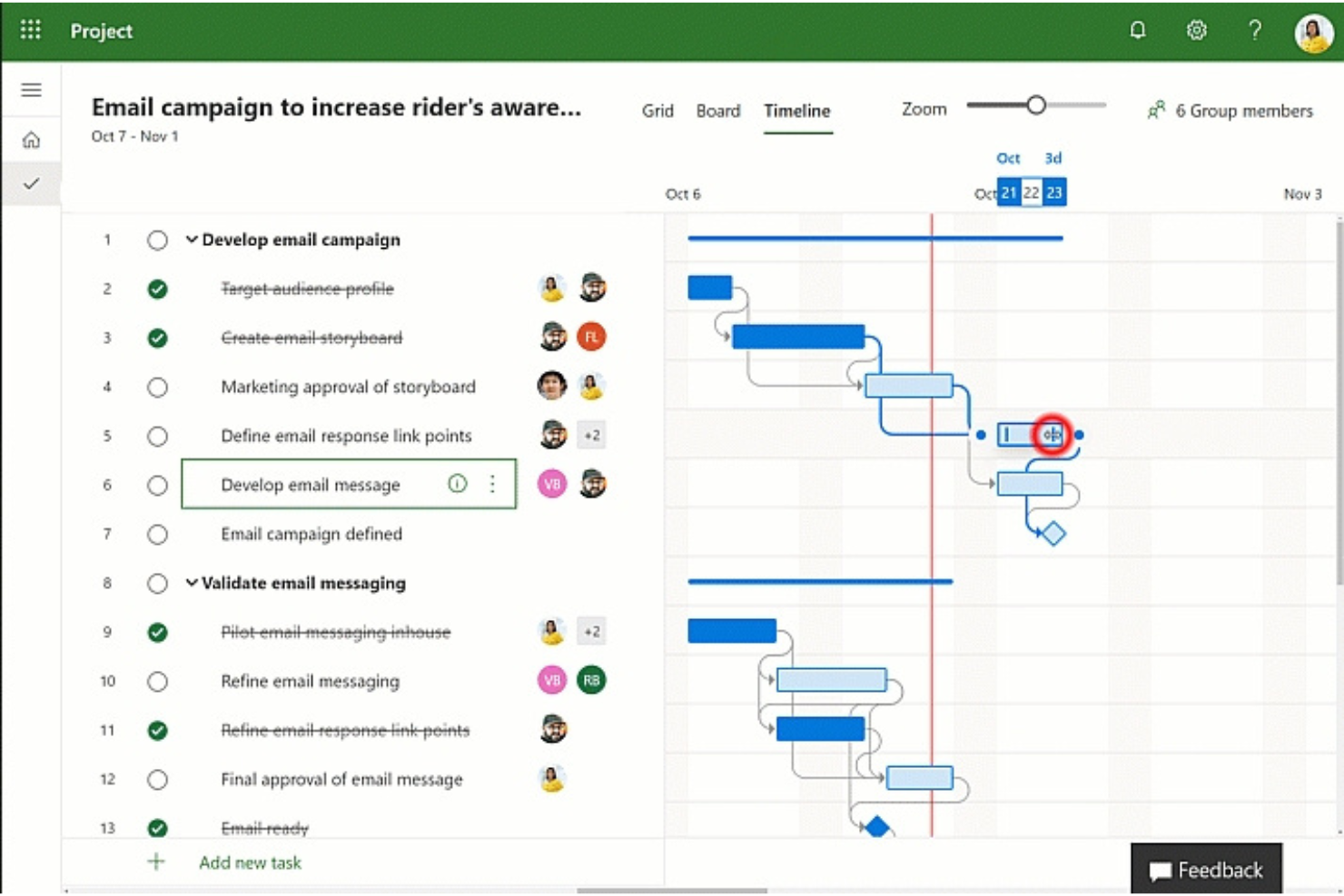
Microsoft Planner is a task and project management tool within the Microsoft 365 ecosystem that combines Gantt-style timeline planning, multi-view task tracking, portfolio management, and team collaboration.
Who Is Microsoft Planner Best For?
Microsoft Planner is a natural fit for teams already working inside Microsoft 365 who need structured project tracking without adopting a separate tool.
Why I Picked Microsoft Planner
Microsoft Planner earns its spot on my shortlist because it brings enterprise-grade project planning into an environment many teams already live in. I'm particularly impressed by the Timeline view, which renders full Gantt charts with all four dependency types (finish-to-start, start-to-start, finish-to-finish, start-to-finish) and automatically recalculates execution dates when dependencies shift. Critical path visibility is built in, and the Portfolios feature lets me track percent complete, status, and key dates across multiple premium plans from a single view.
Microsoft Planner Key Features
- Task chat with @mentions: Each task includes a threaded chat where team members can post updates, react, and tag colleagues to trigger email and Teams notifications.
- Agile sprint planning: Premium plans support backlog creation, prioritization, and sprint scheduling for teams running iterative delivery cycles.
- Custom fields: Add up to ten fields per plan using Text, Date, Number, Yes/No, or Choice types to capture project-specific data.
- Guest access: External users can create tasks, edit task fields, and comment directly within a plan without needing a full Microsoft 365 account.
Microsoft Project Integrations
Microsoft Planner offers native integration with Microsoft Teams and connectivity across Microsoft 365, including Power BI connectors for Project data. It also provides a Microsoft Graph REST API for custom integrations, although the Planner API supports basic plans only.
Pros and Cons
Pros:
- Task boards make ownership and progress visible
- Portfolio rollups surface status across multiple plans
- Gantt timelines show dependencies and critical path
Cons:
- No built-in budget tracking for project oversight
- Gantt planning and dependencies require premium access

Best for Kanban purists
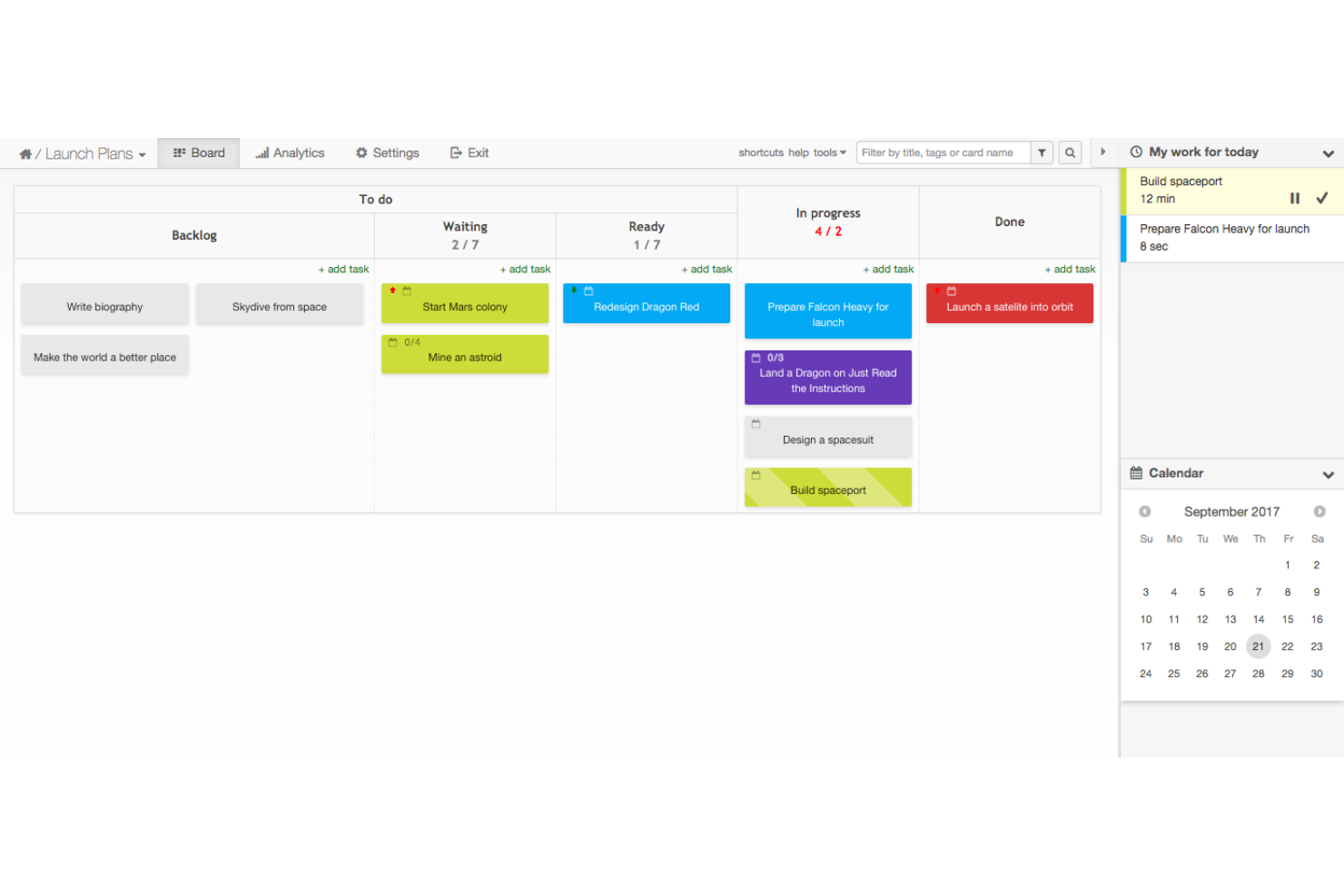
Kanban Tool is a visual project management tool built around Kanban boards, offering task tracking, workflow customization, time tracking, and analytics without Gantt chart functionality.
Who Is Kanban Tool Best For?
Kanban Tool is a strong fit for small teams and project managers who run purely Kanban-based workflows and don't need Gantt chart timelines.
Why I Picked Kanban Tool
I picked Kanban Tool as one of the best because it commits fully to the Kanban method in a way most tools don't. Where TeamGantt centers timelines, Kanban Tool centers flow: WIP limits keep work from piling up in a single column, cumulative flow diagrams surface bottlenecks visually, and lead-time and cycle-time comparisons show exactly where work slows down. If your team runs purely board-based workflows and wants that discipline baked into the tool itself, Kanban Tool delivers it without compromise.
Kanban Tool Key Features
- Task dependencies: Link tasks across columns and boards, with a dependency tree showing each task's status, assignee, and tracked time.
- Custom fields: Add up to 15 custom fields per board, including dropdowns, date pickers, progress indicators, and user lists.
- Process automation: Set event-triggered or scheduled rules to assign tasks, shift due dates, move cards, or send notifications automatically.
- Time tracking: Start and stop timers manually or configure them to trigger automatically as tasks move between workflow columns.
Kanban Tool Integrations
Kanban Tool offers integrations with Google Drive, OneDrive, Box, Dropbox, and Outlook, plus a REST API and SDK for custom connections. It also supports Zapier.
Pros and Cons
Pros:
- Cycle-time charts reveal workflow bottlenecks
- Assignments and comments keep work coordinated
- Custom boards make task status visible
Cons:
- No capacity planning or workload balancing
- No Gantt view for timeline planning
Nifty
Best for milestone-driven planning
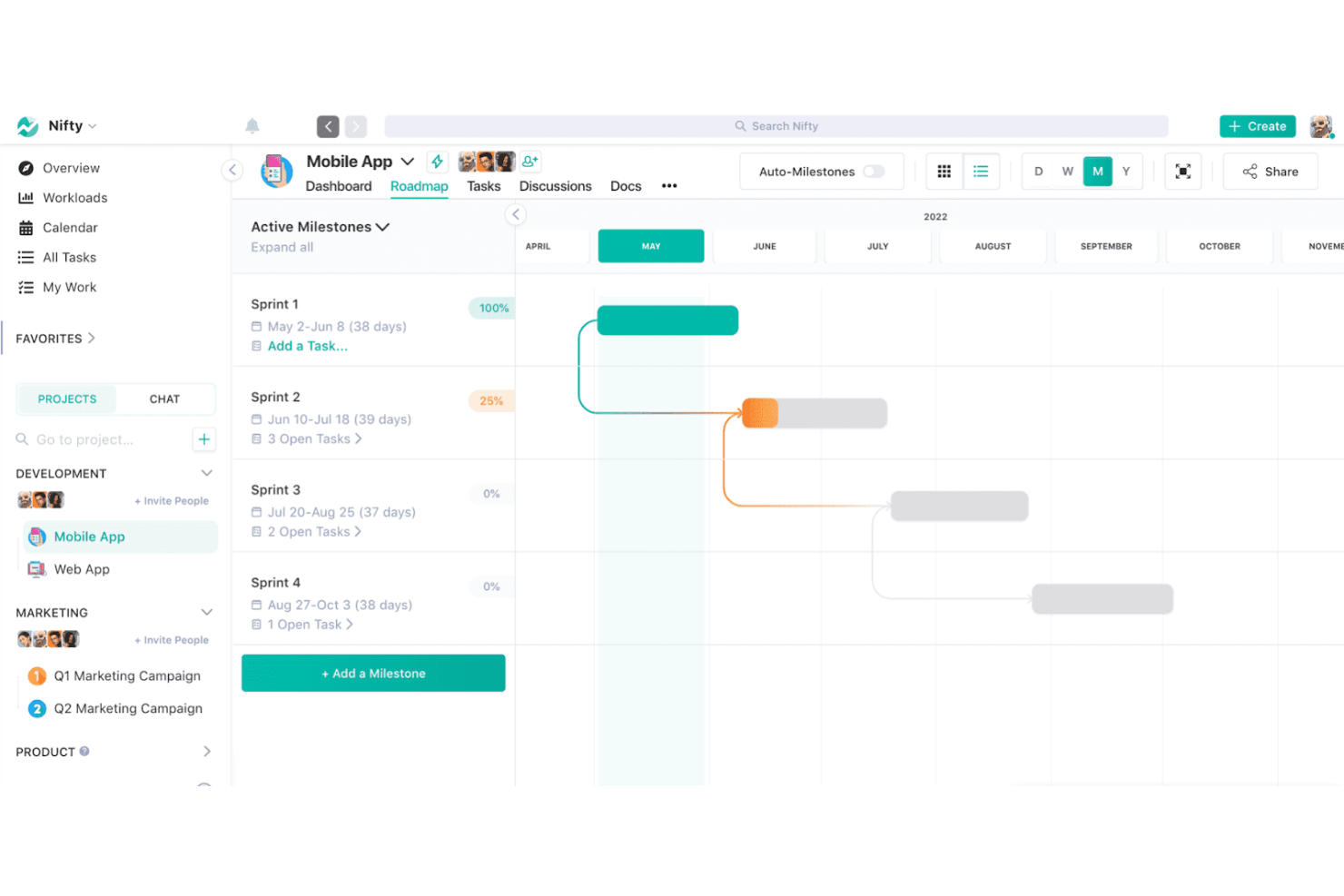
Nifty is a project management platform that combines milestone-based roadmaps, multi-view task management, team collaboration, and portfolio-level progress tracking in one workspace.
Who Is Nifty Best For?
Nifty is a strong fit for small teams that want milestone-based project tracking, built-in collaboration, and portfolio visibility without juggling multiple tools.
Why I Picked Nifty
I've included Nifty in my top picks because it's built around milestones in a way most project management tools aren't. Roadmap progress rolls up automatically as tasks are completed, so you always know where a project stands without manually updating a status. I also like that the Master Overview pulls deadlines and milestone progress across every project into one view, which is exactly what you need when you're juggling multiple workstreams at once.
Nifty Key Features
- Team chat and project discussions: Communicate with your team directly inside Nifty using threaded project discussions and a built-in team chat, keeping conversations tied to the work they relate to.
- Workflow automations: Set if/then rules to automatically assign users, update deadlines, or move tasks based on conditions, available on Pro and higher plans.
- Capacity planner: View each team member's workload against their available hours and drag tasks between assignees directly from the Calendar's Day view to rebalance work.
- Custom fields with budget tracking: Create workspace-level custom fields, including budget and currency types, that calculate spend using tracked time multiplied by an hourly rate or a manually entered amount.
Nifty Integrations
Nifty offers native integrations with Google Drive & Calendar, Microsoft Suite, Slack, GitHub, Zoom, Webex, Miro, Typeform, HubSpot, Calendly, GitLab, and Harvest. It also provides a REST API, webhooks, MCP support for Claude, Cursor, and ChatGPT, and Zapier.
Pros and Cons
Pros:
- Project discussions keep decisions beside tasks
- Portfolio views surface deadlines across projects
- Milestone progress updates as tasks finish
Cons:
- Report exports offer limited customization
- Timeline lacks confirmed critical-path scheduling

ProofHub
Best for unified project control
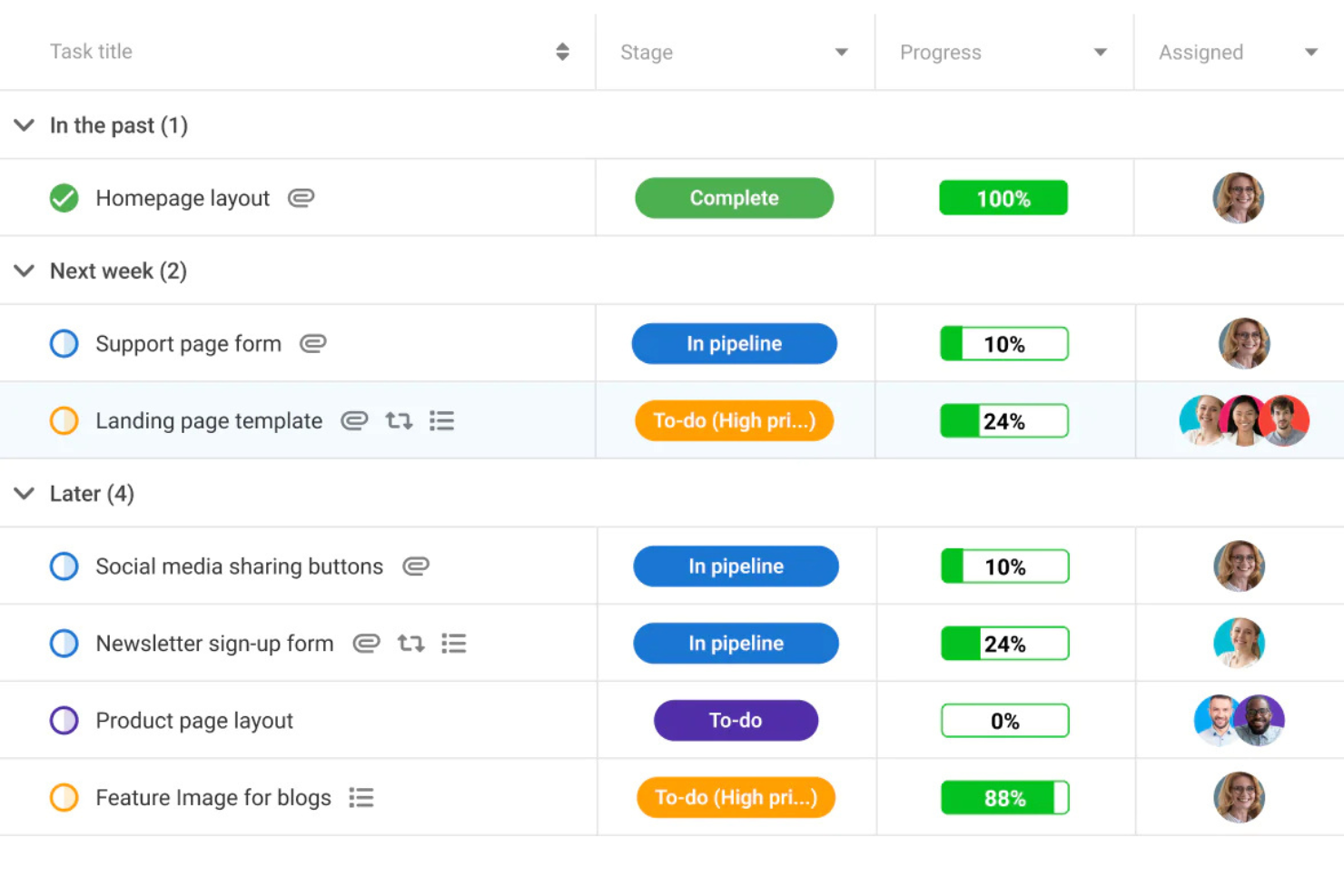
ProofHub is a project management and team collaboration platform that brings together Gantt scheduling, task management, time tracking, workload reporting, and file proofing in one flat-rate workspace.
Who Is ProofHub Best For?
ProofHub suits growing teams that need Gantt scheduling, collaboration, and reporting under one flat-rate subscription without paying per seat.
Why I Picked ProofHub
ProofHub earns its spot on my shortlist because it genuinely centralizes project control in a way most tools don't. I particularly like the All Gantt view, which pulls tasks across every project into a single timeline you can filter by assignee, and the baseline feature, which lets you freeze your original schedule and compare it against where things actually stand. Pair that with built-in proofing, workload reports, and time tracking, and you have one workspace covering the full project lifecycle.
ProofHub Key Features
- Custom roles and permissions: Create roles with separate access levels for projects, tasks, files, timesheets, chat, and reports to control exactly what each team member can see and do.
- Built-in file proofing and review: Annotate and mark up files directly in ProofHub, collaborate on designs and documents, and approve work without leaving the platform.
- Time tracking with billing statuses: Log time manually or with timers, assign entries a billable, non-billable, or billed status, and export timesheets to FreshBooks or QuickBooks.
- Milestone tracking: Set project checkpoints across tasks and view them in a shared calendar to keep the team aligned on upcoming deadlines.
ProofHub Integrations
ProofHub offers native integrations with Slack, Google Calendar, Box, Dropbox, OneDrive, FreshBooks, and QuickBooks. It also provides API access for custom integrations on the Ultimate Control plan.
Pros and Cons
Pros:
- Proofing keeps design reviews beside tasks
- Baselines compare planned and current dates
- Cross-project Gantt brings schedules together
Cons:
- Advanced reporting may fall short for complex projects
- Dependency links can feel finicky
Best for client-focused teams
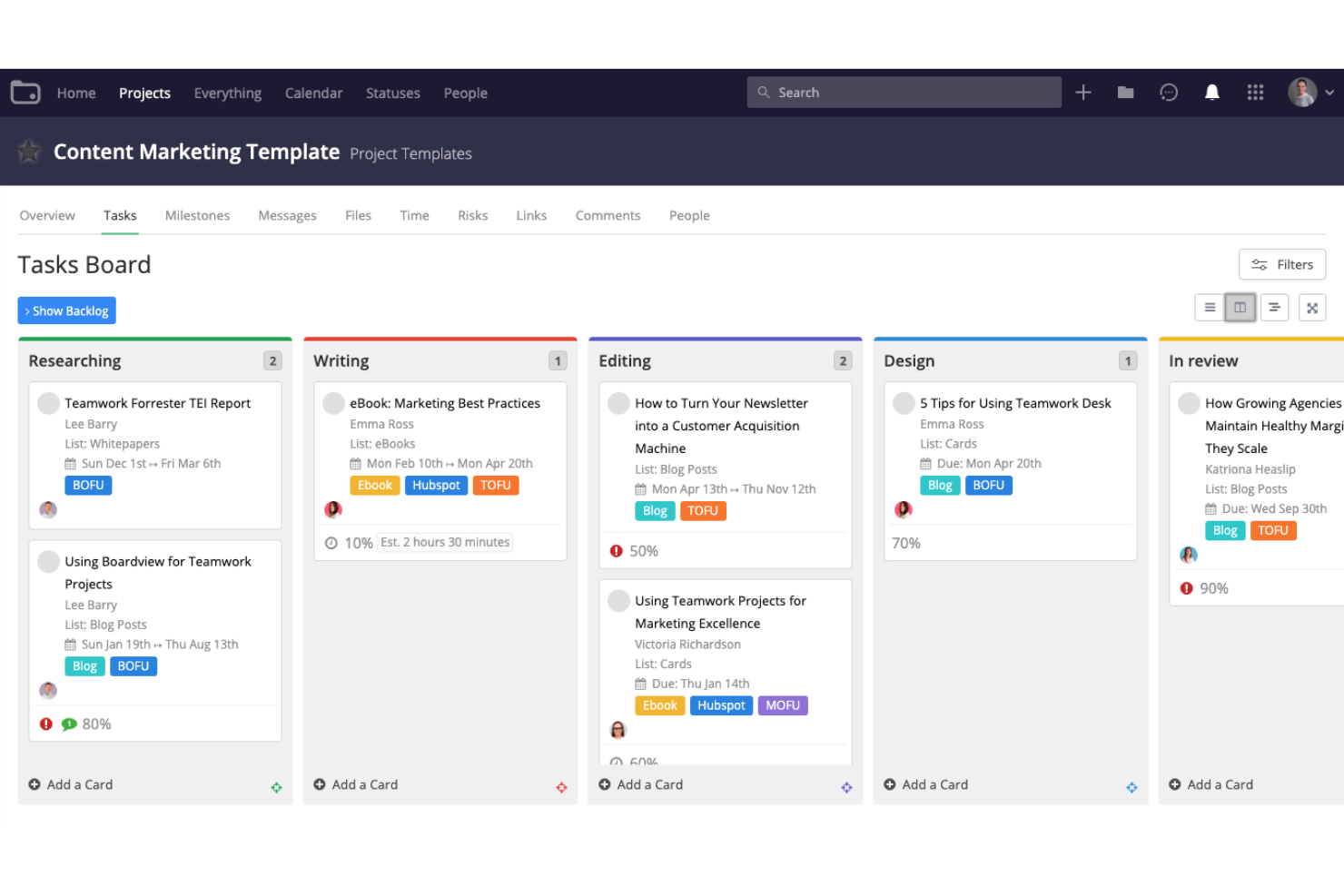
Teamwork.com is a project management platform built for client work that combines Gantt charts, task management, time tracking, resource scheduling, and financial reporting in one place.
Who Is Teamwork.com Best For?
Teamwork.com is a strong fit for agencies and client-service teams that need to manage budgets, billable time, and project delivery in one place.
Why I Picked Teamwork.com
Teamwork.com earns its spot on my shortlist because it goes well beyond Gantt charts to handle the full client project lifecycle. I particularly like that you can track billable time against tasks, generate client invoices directly from logged hours, and monitor project budgets and profitability all in one place. In practice, that means my team can run a client engagement from the first milestone to the final invoice without switching tools.
Teamwork.com Key Features
- Gantt chart with critical-path display: Visualizes task timelines with dependency links and marks critical-path tasks with a red border to flag schedule risks.
- Client user access: Lets you invite external clients to projects for free, with project-level permissions that keep admin controls locked down.
- Automated workflows: Triggers actions like task reassignment, deadline escalation, and follow-up task creation based on configurable rules.
- Custom reporting: Builds reports across projects, users, tasks, and milestones with filters for time, budget, and utilization data.
Teamwork.com Integrations
Teamwork.com offers 150+ integrations, including Slack, Microsoft Teams, Google Calendar, Microsoft Project, HubSpot, QuickBooks Online, Xero, Salesforce, and NetSuite. It also provides an API, webhooks, Make, and Zapier.
Pros and Cons
Pros:
- Workload views help balance capacity across projects
- Client access and proofing reduce review back-and-forth
- Billable time connects project work to invoicing
Cons:
- Agile sprint planning and backlog tools feel limited
- Reviewers find Gantt navigation awkward
Podio
Best for workflow customization
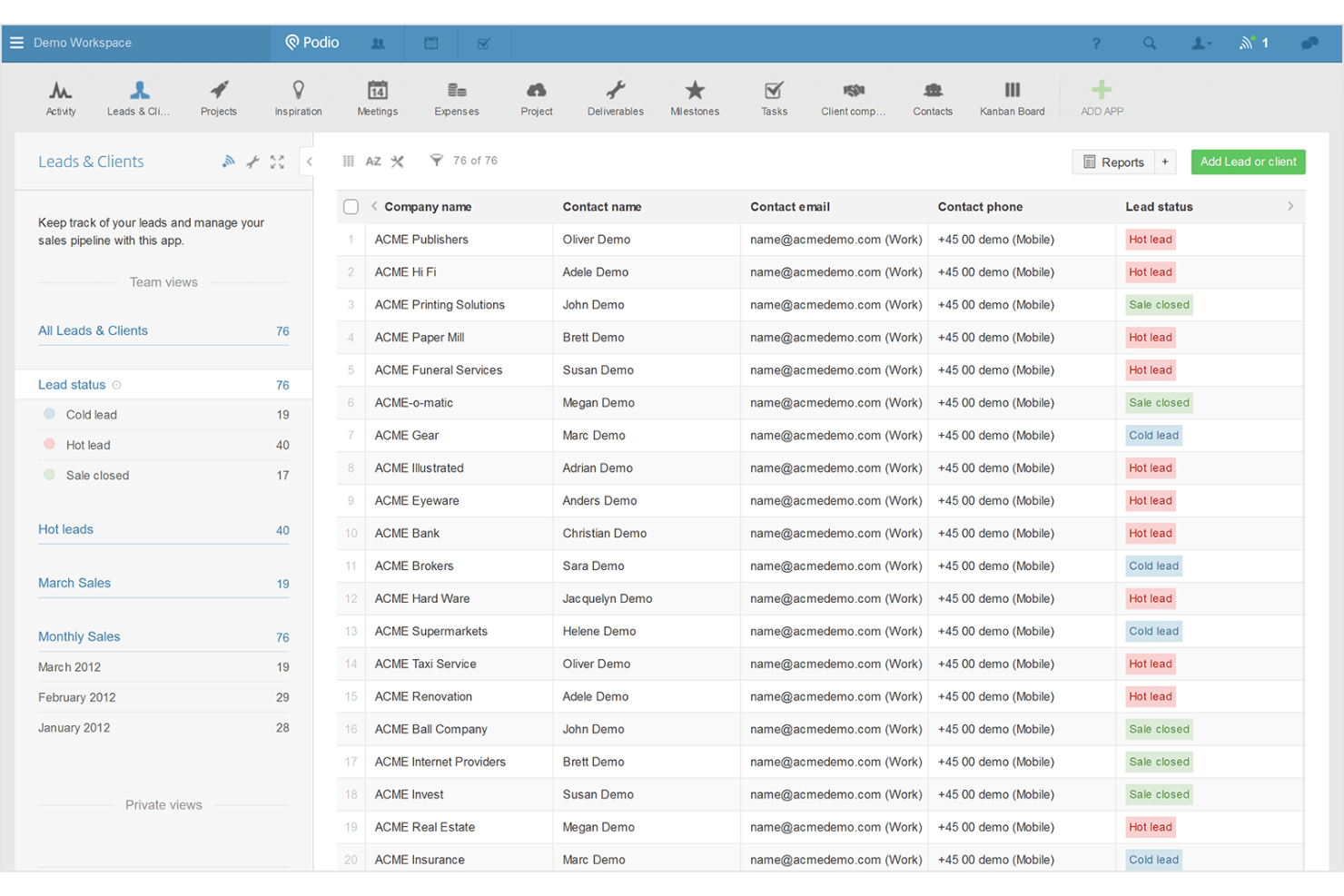
Podio is a no-code work management platform that lets teams build custom apps, automate workflows, and organize projects across table, Kanban, and calendar views.
Who Is Podio Best For?
Podio works well for teams that need to build custom workflows from scratch rather than adapt to a fixed project structure.
Why I Picked Podio
I picked Podio as one of the best because its workflow customization goes deeper than most tools allow. Instead of fitting your projects into a fixed structure, you build custom apps with drag-and-drop fields, then wire them together with automated "when/then" workflows. I've used this to connect a Projects app with a Deliverables app, linking records so status updates and overdue work surface automatically on a shared workspace dashboard.
Podio Key Features
- Task assignment and reminders: Create and assign tasks to team members with due dates, reminders, and file attachments directly on project records.
- Table, Kanban, and calendar views: Switch between three layout options to view app data in whichever format suits your current work.
- External user item sharing: Share individual Podio items with clients or freelancers via email so they can view, edit, and comment without accessing the full workspace.
- Excel import and export: Bring existing project data into Podio from a spreadsheet or export app content back to Excel for reporting outside the platform.
Podio Integrations
Podio offers native integrations with Google Drive, Dropbox, Excel, and ShareFile, plus marketplace integrations such as Plecto and smrtPhone. Its API supports webhooks, OAuth 2, and client libraries for custom connections.
Pros and Cons
Pros:
- Task comments keep team coordination together
- Linked project records surface deliverable status
- Custom apps adapt to changing workflows
Cons:
- Reports offer limited portfolio visibility
- Gantt charts remain static images
Best for live progress tracking
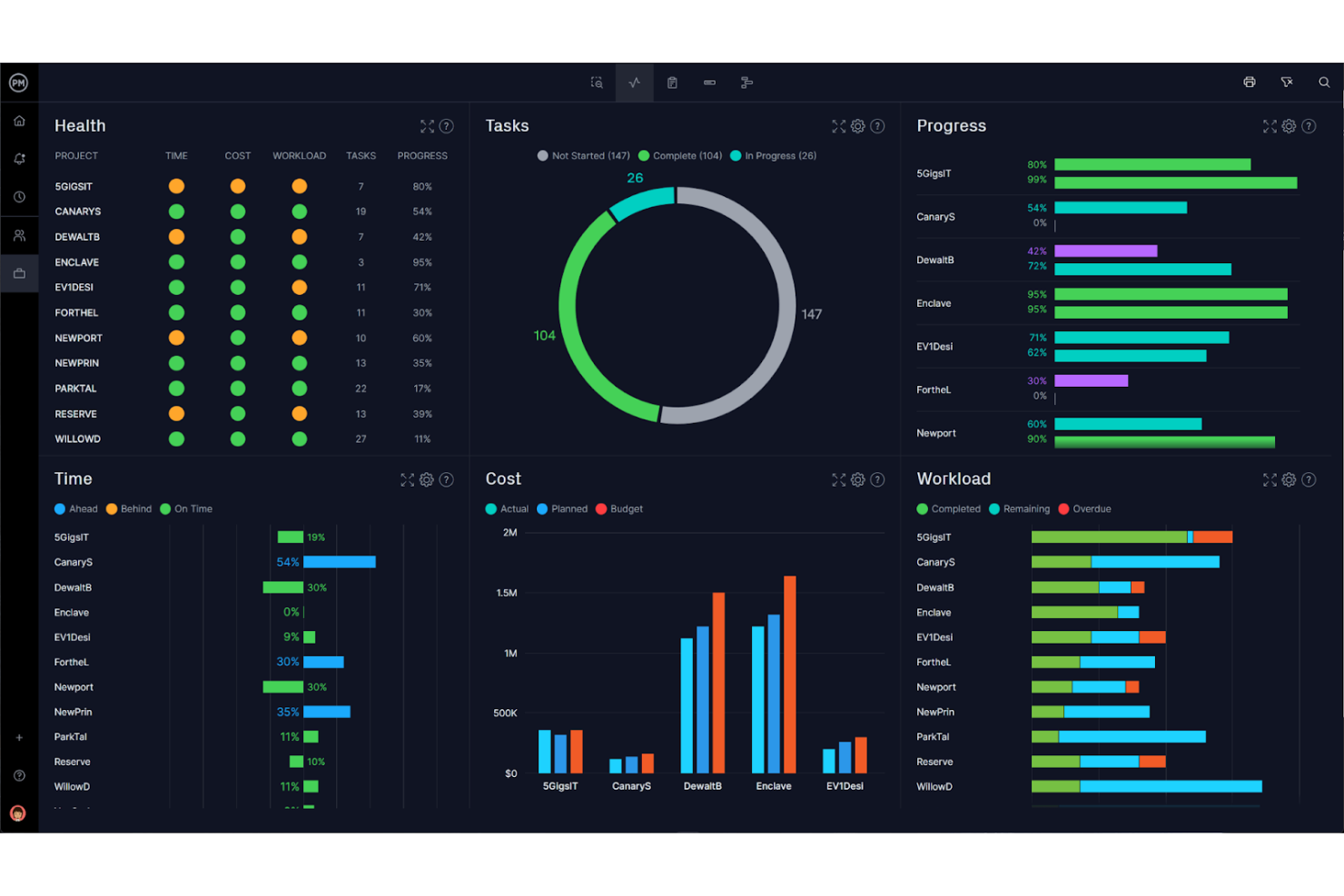
ProjectManager is a project and portfolio management platform that combines interactive Gantt charts, multi-view task management, resource planning, and real-time progress dashboards.
Who Is ProjectManager Best For?
ProjectManager suits project managers and team leads who need live visibility into task progress across multiple active projects.
Why I Picked ProjectManager
I picked ProjectManager as one of the best because its real-time dashboards genuinely set it apart from TeamGantt's more static reporting. While I'm building out a Gantt timeline, the project dashboard updates automatically alongside it, so I can see task progress, costs, and workload shifting in real time without manually pulling a report. The critical path filter and baseline comparisons are also immediately useful when I need to show stakeholders exactly where a project has drifted from the original plan.
ProjectManager Key Features
- Resource workload chart: A color-coded visual chart shows each team member's allocation across projects so you can spot over- or under-assignment and reassign tasks directly.
- Portfolio roadmap: A Gantt-style view displays all active projects across your portfolio in one place, with filtering to focus on what matters most.
- Workflow automation: No-code rules trigger automatic task updates based on changes to status, priority, assignees, dates, or costs, available on Business and above.
- Time tracking and timesheets: Team members log hours against tasks, and those hours populate timesheets automatically for manager approval and cost tracking.
ProjectManager Integrations
ProjectManager lists over 1,000 integrations, including native connections with Microsoft Project, Jira, Azure DevOps, Slack, Microsoft Teams, QuickBooks Online, Power BI, Excel, and ChatGPT. It also supports API access and Zapier.
Pros and Cons
Pros:
- Workload charts reveal overloaded teammates
- Baselines clarify planned-versus-actual progress
- Live dashboards expose schedule drift quickly
Cons:
- Mobile app offers fewer capabilities
- Task progress still requires manual updates
Bitrix24
Best for CRM integration
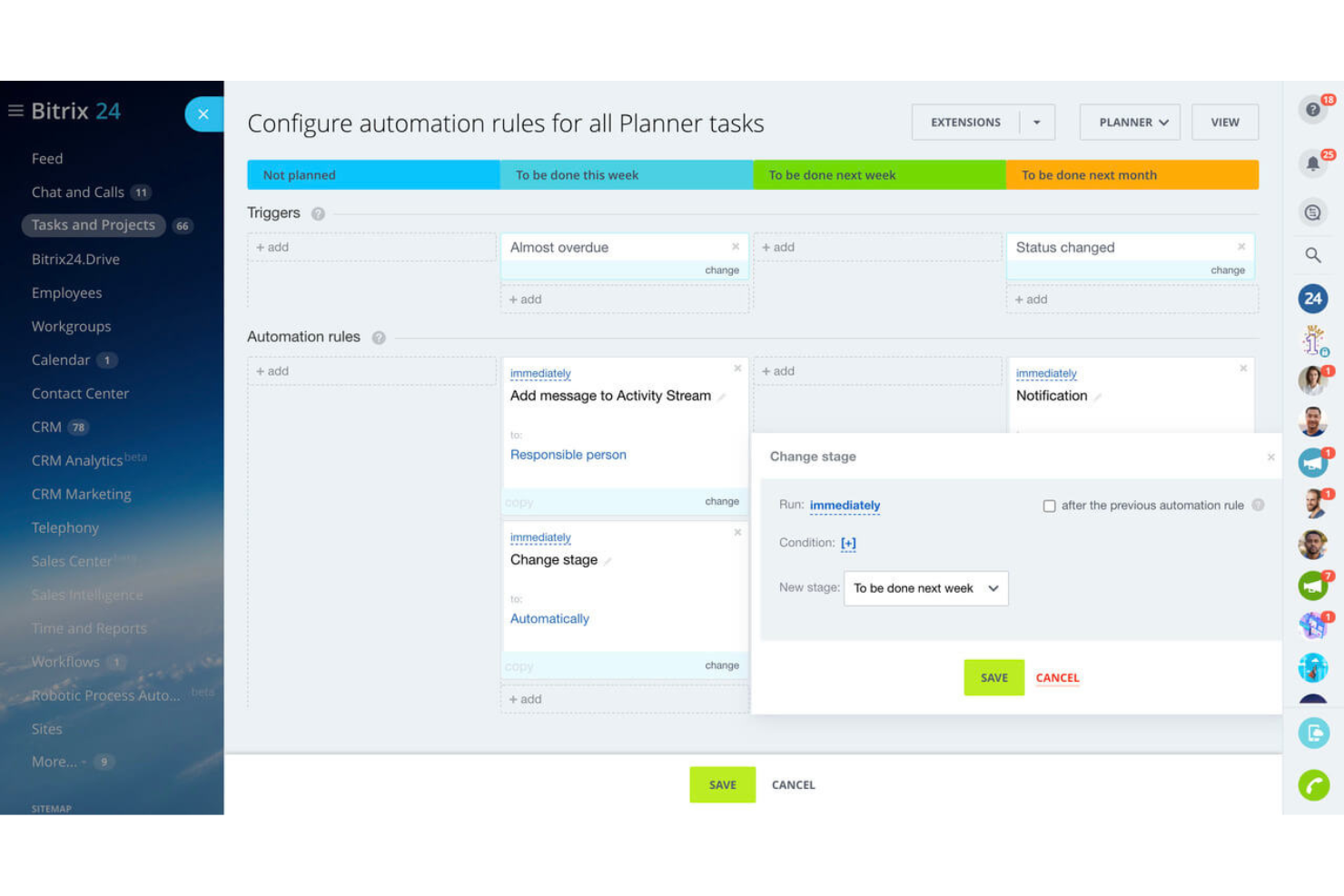
Bitrix24 is an all-in-one workspace that combines CRM, project management, Gantt charts, task tracking, team collaboration, and workflow automation in a single platform.
Who Is Bitrix24 Best For?
Bitrix24 is a strong fit for small businesses that want CRM, project management, and team collaboration in one platform without paying per user.
Why I Picked Bitrix24
I've included Bitrix24 in my top picks because it's the only tool on this list that treats CRM as a first-class feature alongside project management, not an afterthought. When a deal closes in the CRM pipeline, your team can spin up a linked project with tasks, deadlines, and a Gantt chart without ever leaving the platform. I also like that sales automation rules and triggers can kick off task creation automatically, keeping project work tightly connected to customer activity.
Bitrix24 Key Features
- Multiple task views: Switch between List, Kanban, Gantt, Calendar, Planner, and Scrum views within the same project.
- Task automation rules and triggers: Set up rules that automatically create tasks, reassign owners, or change statuses when conditions are met.
- Guest access: Invite external collaborators to specific projects by link, email, or phone number so they can work on tasks and join meetings.
- Task time tracking: Log planned and actual hours per task, with a record of who worked, when, and for how long.
Bitrix24 Integrations
Bitrix24 offers 850+ marketplace apps, including Jira, Asana, Trello, Monday, QuickBooks, FreshBooks, and Zapier. Its REST API, webhooks, and On-Premise PHP API support custom integrations.
Pros and Cons
Pros:
- Tasks combine multiple views with collaboration tools
- Gantt supports four dependency relationship types
- CRM deals can trigger linked project work
Cons:
- One user reported missing Gantt progress display
- Reviewers report crowded menus and difficult setup
Best for dynamic scheduling
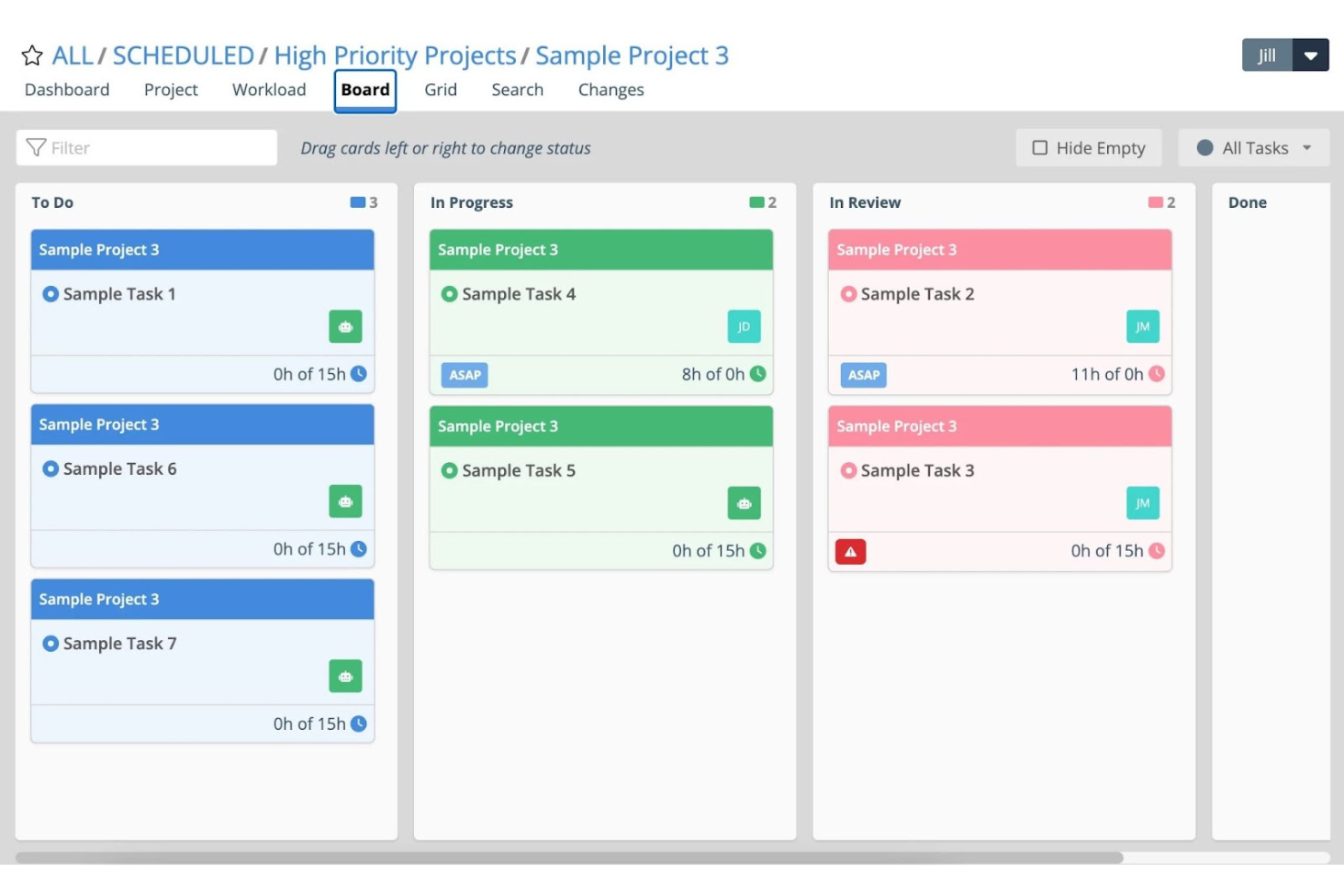
Tempo Portfolio Manager is a project and portfolio management platform that combines predictive scheduling, automatic resource leveling, and multi-view project tracking across tasks, workloads, and priorities.
Who Is Tempo Portfolio Manager Best For?
Tempo Portfolio Manager fits mid-to-large teams that need schedule forecasts to adapt automatically as priorities and resources shift across multiple concurrent projects.
Why I Picked Tempo Portfolio Manager
I picked Tempo Portfolio Manager because its predictive scheduling engine does something most Gantt tools can't: it calculates Expected Start and Finish dates automatically using your team's actual capacity, task estimates, and priorities, then updates those forecasts whenever conditions change. If a key resource goes on leave or a project gets reprioritized, the schedule adjusts without you manually redoing it. I also like the automatic resource leveling, which balances work across concurrent projects so you're not blindly stacking assignments on already-stretched people.
Tempo Portfolio Manager Key Features
- Scenario modeling: Compare project plans side by side to see how changes to resources or scope shift your timelines before you commit.
- Board view: Drag tasks across status columns to update progress without leaving your project dashboard.
- Jira integration: Sync Jira data directly into Portfolio Manager and push updated forecasts back to Jira manually.
- Portfolio-wide prioritization: Rank projects across your entire portfolio so work is ordered against shared team priorities.
Tempo Portfolio Manager Integrations
Tempo Portfolio Manager offers two documented native integrations: Jira and Slack. Jira syncs data with Portfolio Manager and supports manually pushing forecasts and changes back to Jira.
Pros and Cons
Pros:
- Deadline alerts flag at-risk target finishes
- Workload leveling balances assignments across projects
- Forecasts adjust as priorities and capacity change
Cons:
- Scheduled sunset creates transition risk by 2027-12-31
- Project setup demands substantial ramp-up
- Gantt chart is view-only
Redmine
Best for open source project management
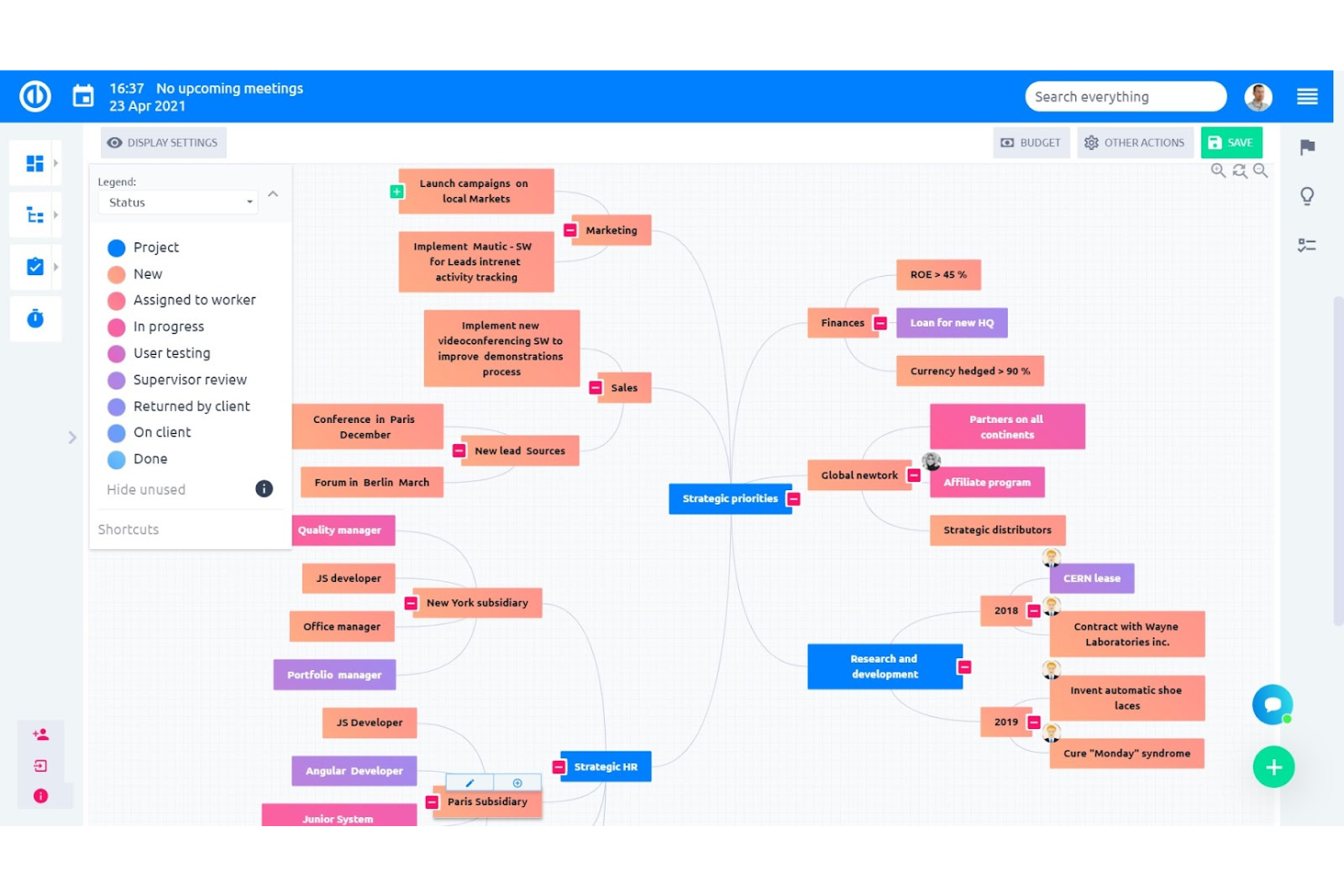
Redmine is a self-hosted, open-source project management tool built on Ruby on Rails that covers multi-project issue tracking, Gantt charts, time tracking, role-based access control, and per-project wikis and forums.
Who Is Redmine Best For?
Redmine is a strong fit for technical teams and developers who want a free, self-hosted project management tool they can configure and extend to match their own workflows.
Why I Picked Redmine
Redmine earns its spot on my shortlist as the go-to pick for open source project management because it gives technical teams full control over a self-hosted instance they can shape to match any workflow. I like that it handles multiple projects in one place, with configurable issue trackers, custom statuses, and role-based permissions that go well beyond what most hosted tools offer out of the box. Time tracking is built in at both the project and issue level, so my team can log hours against specific tickets without relying on a third-party add-on.
Redmine Key Features
- Self-hosted deployment: You install and run Redmine on your own server, giving your team full control over data, configuration, and infrastructure.
- Configurable issue workflows: Administrators can define custom issue statuses, types, and workflow transitions by role, so each team's process is enforced at the system level.
- Per-project wikis and forums: Each project gets its own wiki and discussion forum, keeping documentation and team conversations tied directly to the relevant work.
- REST API: Redmine exposes a REST API with XML and JSON support, letting you connect custom tools or scripts to read, create, and update project data programmatically.
Redmine Integrations
Redmine offers native integrations with Git, Subversion, CVS, Mercurial, and Bazaar, plus integrations with Clockify and Ybug. Its REST API supports XML and JSON for custom integrations.
Pros and Cons
Pros:
- Project-level time logs support deadline reviews
- Multi-project issue tracking keeps work organized
- Configurable issue workflows fit changing delivery processes
Cons:
- Crowded, dated screens can obscure team timelines
- Basic Gantt charts lack documented interactive rescheduling
Outras alternativas ao TeamGantt
Segue-se uma lista de alternativas adicionais ao TeamGantt que selecionei. Embora não tenham ficado entre as 10 melhores, continuam a ser opções valiosas que merecem uma investigação mais aprofundada.
- Ravetree
For built-in resourcing
- GanttPRO
For Gantt chart enthusiasts
- Celoxis
For cost-value balance
- GoodDay
For customizable workspaces
- Smartsheet
For spreadsheet-based projects
- Asana
For team collaboration
- Adobe Workfront
For enterprise work management
- Zoho Projects
For scalability and integration
- Notion
For integrated workspace
- Scoro
For end-to-end business management


Análises relacionadas de software de gestão de projetos
Se ainda não encontrou aqui o que procura, consulte estas outras ferramentas relacionadas que testámos e avaliámos:
- Software de gestão de projetos
- Software de gestão de recursos
- Software de automatização de fluxos de trabalho
- Software de controlo de tempo
- Software de gestão de tarefas
- Ferramentas de colaboração
- Criador de gráficos de Gantt
- Ferramentas de produtividade
- Software de acompanhamento de projetos
- Software de planeamento de projetos
- Alternativas ao Office Timeline
How I Evaluate TeamGantt Alternatives
I split my evaluation into two layers: the core Gantt scheduling and dependency features a project manager or agency producer relies on daily, and the differentiators that justify a switch.
Core Functionality (Table Stakes For This List)
When I'm selecting tools for my list, I rank each one on a scale from 0 (does not offer the functionality) to 5 (excels in this area) for each core functionality listed below. Then, I calculate the tool's total score into a percentage. Each tool needs to achieve a minimum total score of 65% to be considered for inclusion.
- Gantt Chart Visualization: I check whether the Gantt view supports drag-and-drop editing, zoom levels, and color-coded bars—things you'd rely on when presenting a launch timeline to stakeholders.
- Task Dependencies & Scheduling: Each tool should handle dependency types like finish-to-start and start-to-start, plus auto-reschedule downstream tasks when a delay hits your critical path.
- Milestones & Baselines: I look for the ability to set baselines and compare planned vs. actual timelines, which is how teams catch scope creep before a sprint review or client check-in.
- Resource & Workload Management: The tool should show who's overloaded and who has capacity, especially when you're juggling multiple projects with shared designers or engineers.
- Collaboration & Sharing: I evaluate comment threads, file attachments, and guest access so external clients or contractors can review timelines without needing a full paid seat.
- Multiple Project Views: Beyond Gantt, I look for Kanban, calendar, and list views so your team can switch contexts—like moving from a high-level portfolio view to a daily task board.
Once I have a list of tools that meet this criteria, I consider what sets each platform apart.
Differentiating Factors (What Sets Vendors Apart)
Here's how I compare and contrast different vendors:
Standout Features
Portfolio management matters when you're overseeing multiple projects at once—I look for rollup views that let PMO leads spot resource conflicts across a program without clicking into each project. Time tracking is another differentiator, especially for agencies billing clients by the hour. Built-in timesheets that log hours against tasks save you from toggling between your PM tool and a separate tracker. I also evaluate automation and templates, since reusable project plans and triggered status updates cut setup time on recurring deliverables.
Beyond Features
Pricing structure is a big factor when switching from TeamGantt. I check whether guest seats are free or paid, since that determines total cost when you're sharing timelines with clients or contractors. Integration depth also matters—your Gantt tool needs to connect with Slack, Jira, or Google Drive without workarounds. I evaluate how easily a team can import existing project files during onboarding, because migrating hundreds of tasks from one platform to another can stall adoption if the tool lacks CSV or MS Project import.
Por que razão procurar uma alternativa ao TeamGantt
O TeamGantt é uma ferramenta valiosa e, normalmente, mais vantajosa para equipas com projetos de grande escala. No entanto, pode não ser a solução mais adequada para todas as equipas. Existem vários motivos pelos quais pode estar à procura de uma alternativa ao TeamGantt, incluindo:
- Questões de custo: O modelo de preços do TeamGantt pode ser proibitivo, especialmente para equipas mais pequenas ou empresas em fase de arranque com um orçamento limitado. Se considerar difícil justificar o custo, explorar alternativas com estruturas de preços mais flexíveis poderá ser benéfico.
- Conjunto de funcionalidades: Embora o TeamGantt disponibilize uma série de funcionalidades, poderá não estar perfeitamente alinhado com os requisitos específicos dos seus projetos ou com os fluxos de trabalho da sua equipa. Isto pode motivar a procura de alternativas que disponibilizem funcionalidades mais adaptadas às suas necessidades de gestão de projetos.
- Experiência do utilizador: Uma interface pouco intuitiva pode afetar a produtividade e causar frustração entre os membros da equipa. Se a interface de utilizador do TeamGantt não corresponder às preferências ou ao estilo de trabalho da sua equipa, poderá valer a pena considerar outras ferramentas com designs mais fáceis de utilizar.
- Necessidades de integração: O TeamGantt poderá não suportar integrações com outras ferramentas e outros softwares importantes utilizados pela sua equipa, o que pode limitar a sua eficácia num ecossistema tecnológico coeso. Encontrar uma alternativa que se integre perfeitamente com as ferramentas existentes pode aumentar a eficiência e simplificar os processos de gestão de projetos.
- Escalabilidade: À medida que as organizações crescem, as suas necessidades de gestão de projetos tornam-se mais complexas, podendo ultrapassar as capacidades do TeamGantt. Nestes casos, procurar uma solução concebida para projetos maiores ou mais complexos pode garantir que a sua ferramenta de gestão de projetos acompanha o crescimento da organização.
Explorar alternativas ao TeamGantt pode ajudar a resolver desafios específicos relacionados com custos, necessidades de funcionalidades, experiência do utilizador, capacidades de integração e escalabilidade que poderão não ser totalmente satisfeitos pelo TeamGantt. Ao considerar outras opções, poderá encontrar uma ferramenta de gestão de projetos que não só se enquadre no seu orçamento, como também melhore a eficiência da sua equipa e se adapte perfeitamente às suas necessidades operacionais.
Principais funcionalidades das alternativas ao TeamGantt
Eis algumas das principais funcionalidades do TeamGantt que o seu software alternativo deverá conseguir replicar ou melhorar para se adequar às suas necessidades:
- Simplicidade de arrastar e largar: A funcionalidade de arrastar e largar permite efetuar ajustes rápidos nos cronogramas dos projetos, facilitando o reagendamento de tarefas e a alteração de prazos com um esforço mínimo. Esta simplicidade é essencial para manter a flexibilidade dos projetos e adaptar-se às alterações sem complicar o processo de planeamento.
- Várias vistas de projetos: A possibilidade de visualizar todos os projetos em simultâneo num único ecrã permite aos gestores supervisionar várias iniciativas de forma eficiente, ajudando a identificar conflitos de recursos e a alinhar os calendários dos projetos. Esta visibilidade é essencial para uma gestão eficaz dos recursos e um planeamento estratégico.
- Cargas de trabalho e disponibilidade da equipa: Esta funcionalidade permite aos gestores equilibrar a carga de trabalho entre os membros da equipa, garantindo que ninguém fica sobrecarregado e, ao mesmo tempo, otimizando a produtividade geral. Uma distribuição eficaz das tarefas ajuda a manter o moral elevado e a evitar o esgotamento, o que é essencial para manter o desempenho da equipa.
- Ferramentas de colaboração: As ferramentas de colaboração integradas facilitam a comunicação fluida entre os membros da equipa e as partes interessadas, permitindo partilhar documentos e atualizações diretamente na plataforma. Esta conectividade melhora o trabalho de equipa e garante que todas as partes estão informadas e envolvidas ao longo de todo o ciclo de vida do projeto.
- Vistas de portefólio e relatórios: As vistas de portefólio proporcionam uma visão geral de alto nível de todos os projetos em curso, permitindo avaliar rapidamente o progresso geral e identificar os projetos que estão atrasados. Estas informações são importantes para uma gestão proativa e uma tomada de decisões atempada, de modo a manter os projetos no caminho certo.
- Vistas de calendário, lista e quadro: Disponibilizar várias vistas, como calendários, listas e quadros kanban, permite às equipas gerir as tarefas no formato que melhor se adapta às suas preferências de fluxo de trabalho. Esta versatilidade ajuda a otimizar a organização e a aumentar a produtividade, acomodando diferentes estilos de trabalho e tipos de projetos.
- Cronograma planeado vs. real: A comparação entre os cronogramas planeados e o progresso real ajuda a identificar discrepâncias e a localizar áreas que requerem atenção. Esta funcionalidade é essencial para avaliar o desempenho do projeto e implementar medidas corretivas que permitam cumprir os prazos.
- Aplicação móvel: A disponibilidade de uma aplicação móvel permite aos gestores de projetos e aos membros da equipa manterem-se ligados aos seus projetos a partir de qualquer lugar, garantindo o acesso contínuo às ferramentas e às informações. Esta mobilidade é importante para manter o progresso e a colaboração fora dos ambientes de escritório tradicionais.
- Modelos de planos de projeto: Os modelos de projeto reutilizáveis poupam tempo ao fornecerem uma estrutura normalizada para novos projetos, acelerando o processo de configuração inicial e garantindo a consistência entre projetos. Esta eficiência é benéfica para equipas que gerem vários projetos semelhantes ou que precisam de iniciar rapidamente novos projetos.