

10 beste samarbeidsverktøy for fjernteam i 2026

Beste samarbeidsverktøy for eksterne team – kortliste


Det er vanskelig å velge de riktige samarbeidsverktøyene for eksterne team. Du ønsker å forbedre kommunikasjonen og produktiviteten, men må finne ut hvilket verktøy som passer best. I denne artikkelen gjør jeg det enkelt ved å bruke mange års erfaring med å lede digitale prosjekter og bruke ulike verktøy til å gi deg denne kortlisten over de beste samarbeidsverktøyene for eksterne team.
Why Trust Our Software Recommendations
Our team has been testing and reviewing software since 2012. As project managers ourselves, we know how difficult—and important—it is to choose the right software.
For this guide, we evaluated tools using hands-on testing and independent research, scoring tools using our selection criteria. We also draw on insights from industry thought leaders and practicing project management experts.
Our reviews reflect our human editorial judgment, not a sales pitch.
Expert reviewers:
Sammenligningstabell: Samarbeidsverktøy for eksterne team
Denne sammenligningstabellen oppsummerer prisdetaljene for mitt utvalg av de beste samarbeidsverktøyene for eksterne team:
| Tool | Best For | Trial Info | Price | ||
|---|---|---|---|---|---|
| 1 | Best for flexible dashboards | Free plan available | From $9/user/month (billed annually) | Website | |
| 2 | Best for cross-location project management | 14-day free trial | Pricing upon request | Website | |
| 3 | Best for collaborative whiteboards | Free plan + 14-day free trial available | From $8/user/month (billed annually) | Website | |
| 4 | Best with guest access for external partners | 30-day free trial | From $24/user/month (billed annually) | Website | |
| 5 | Best for interactive discussion tools | Free demo available | From $10/user/month | Website | |
| 6 | Best all-in-one workspace | Free plan available | From $10/user/month (billed annually) | Website | |
| 7 | Best for in-task collaboration | Free trial + free plan + free demo available | From $13/user/month (billed annually) | Website | |
| 8 | Best for customizable project management | Free plan available | From $9/user/month (billed annually) | Website | |
| 9 | Best for video conferencing and webinars | Free plan available | From $14.16/user/month (billed annually) | Website | |
| 10 | Best for visual task management | 14-day free trial | From $5/user/month (billed annually) | Website |


Anmeldelser av de beste samarbeidsverktøyene for eksterne team
Her er en grundig analyse og oversikt over ulike samarbeidsverktøy for eksterne team. Vi går gjennom fordeler og ulemper ved hvert verktøy, funksjonene deres og hvilke bruksområder de passer best til
Best for flexible dashboards

monday.com lands on my list because few tools match its dashboard flexibility for remote teams. In testing, I found distributed teams can use their visual boards to track projects, centralize feedback, and surface real-time progress in one place. The ability to tailor dashboards by role stands out—each person sees only what’s relevant to them.
This level of customization reduces noise, for example, leadership can track high-level progress and risks, while individual contributors focus on task-level updates.monday.com's Best For
- Distributed teams needing real-time, customizable dashboards
- Cross-functional project groups sharing updates and workload visually
monday.com's Not Great For
- Teams that need strict process compliance
- Organizations with highly complex, multi-layered approval chains
What sets monday.com apart
monday.com puts a lot of focus on adaptable boards and custom views, so you can shape workspaces to match each project’s needs. Unlike tools like ClickUp or Jira, it expects you to organize visually and tweak dashboards to reflect how your team actually collaborates. In practice, this approach is good for remote teams who want to surface key priorities or progress for different roles without wading through static lists.
Tradeoffs with monday.com
monday.com optimizes for dashboard customization, but you lose out on granular control over workflow automation and strict governance. This becomes a sticking point if you need tightly enforced flows with lots of audit trails.
Pros and Cons
Pros:
- Strong support for remote collaboration with real-time updates and mobile access
- Highly customizable boards let teams build workflows around their own processes
- Clarity and visibility across projects help distributed teams stay aligned
Cons:
- Without customization and thoughtful setup, boards can become messy as projects scale.
- Free and Basic plans are very limited and don’t include key views or automation features.
New Product Updates from monday AI Workspace
monday AI Workspace Adds Human Approval Routing
monday AI Workspace adds a human-in-the-loop approval block to AI Workflows, sending approval requests and routing workflow paths based on responses. For more information, visit monday AI Workspace's official site.
Wrike
Best for cross-location project management

Wrike stands out for cross-location project management because of how it structures workspaces for distributed teams. When I’ve set up projects across time zones, features like custom dashboards and spaces make it easy to keep everyone aligned even with shifting priorities.
What I appreciate most is the built-in proofing and request forms, which cut back on endless email chains and keep decisions visible right in the task stream.
Wrike’s Best For
- Distributed project teams with structured task dependencies
- Groups managing approvals, proofing, and requests at scale
Wrike’s Not Great For
- Small teams needing lightweight collaboration tools
- Teams wanting minimal configuration and setup
What sets Wrike apart
Wrike is designed for work that needs structure and accountability, but without the heaviness of something like Jira. It expects you to build repeatable workflows that give everyone visibility into tasks and approvals as work passes between people and teams. Compared to tools like ClickUp or Trello, Wrike strikes a balance between operational rigor and manageability, which suits distributed project teams that can’t rely on informal nudges or quick chats.
Tradeoffs with Wrike
Wrike optimizes for structured collaboration, but you trade off the simplicity and minimal setup you get from more flexible tools. Teams that prefer a lightweight, fast-start approach can end up slowed by Wrike’s process requirements.
Pros and Cons
Pros:
- Easily visualize workflow performance
- Individuals and teams can track workloads
- In-app chat to reduce switch cost for collaboration
Cons:
- Limited to 10 workflows per space
- Not suitable for small organizations
New Product Updates from Wrike
Wrike Adds Klaxoon MCP Integration
Wrike’s Klaxoon MCP integration is now generally available, enabling AI agents to navigate between Wrike tasks and attached whiteboards, read task context, and manage whiteboard attachments via API. For more information, visit Wrike's official site.
Miro
Best for collaborative whiteboards

Miro earns a spot on my list because it gives remote teams a true shared visual workspace, not just digital whiteboarding. I see teams easily co-create product roadmaps, flowcharts, and retros without losing the energy that comes from working together live.
What I appreciate most is how Miro’s real-time collaboration tools, sticky notes, and infinite canvas help people brainstorm and organize ideas visually, no matter where they’re located.
Miro’s Best For
- Remote product, design, or Agile teams brainstorming and mapping ideas
- Workshops, online retrospectives, and real-time visual collaboration
Miro’s Not Great For
- Teams needing detailed task management or Gantt charts
- Groups prioritizing document-centric or linear workflows
What sets Miro apart
Miro is built around visual collaboration, not linear task lists like Asana or ClickUp. In practice, this works well when teams need to co-create in real time across locations. Unlike Google Docs where discussion is tied to text, Miro expects you to work spatially—mapping ideas, workflows, or diagrams together on an infinite canvas.
I see it used most effectively when you need to quickly turn rough concepts into shared alignment visually.
Tradeoffs with Miro
Miro optimizes for unstructured, collaborative visuals, but that means you lose the kind of granular task tracking or process enforcement you’d get in formal project management tools. This can make it tricky to track concrete deadlines or dependencies directly in Miro.
Pros and Cons
Pros:
- Embedded communication tools reduce the need for external applications
- Infinite canvas provides lots of space for complex projects
- Supports both real-time and asynchronous collaboration
Cons:
- Integration with some third-party tools may require additional setup
- Performance can be affected when handling very large boards
New Product Updates from Miro
Miro Adds Japan Data Residency for Enterprise Customers
Miro has introduced Japan data residency for enterprise customers, offering in-region storage for production data, backups, and metadata, plus in-region compute infrastructure. For more information, visit Miro's official site.
Missive
Best with guest access for external partners

Missive is a collaborative inbox platform that unifies email, SMS, and social messaging channels with internal chat, task management, and workflow automation for remote teams.
Who Is Missive Best For?
Missive is a strong fit for remote teams that regularly collaborate with external partners—like clients, contractors, or agencies—and need a shared inbox to manage that communication without giving outside parties full access.
Why I Picked Missive
Missive earns its spot on my shortlist because of how it handles external collaboration through Guest Access: you can pull a client or contractor into a specific conversation thread, letting them read history and post internal chat messages, without giving them any view into the rest of your inbox. I've found this especially useful when looping in a freelance designer on a project handoff or getting sign-off from an external legal contact. Missive's async-first setup, with internal comment threads tied directly to email conversations and AI-generated summaries, keeps distributed teams aligned without requiring everyone online at the same time.
Missive Key Features
- Omnichannel inbox: Consolidates email, SMS, WhatsApp Business, Facebook Messenger, and Instagram into a single shared inbox.
- Workflow automation rules: Supports up to 1,000 rule-based automations for routing, assignment, escalation, and follow-up triggers.
- Missive MCP Server: Connect external AI clients (like Claude or ChatGPT) to mcp.missiveapp.com to search team conversations, check calendars, and draft replies—keeping human approval required before sending.
- Send Later scheduling: Lets you schedule outbound emails to send at a specific time, useful for coordinating across time zones.
- Workload balancing: Automatically distributes incoming conversations across team members using round-robin, least-busy, or random assignment methods.
Missive Integrations
Missive offers 25+ native integrations, including Asana, ClickUp, Trello, Todoist, Zoom, Google Drive, Dropbox, GitHub, and HubSpot. It also provides an open API, webhooks, Zapier, and its new MCP Server on Productive and Business plans (requires admin activation).
Pros and Cons
Pros:
- AI summaries speed up email catch-up
- Omnichannel inbox centralizes all team communication
- Guest access lets you loop in clients
Cons:
- Files can't be co-edited in real time
- No Kanban boards or Gantt charts
New Product Updates from Missive
Missive Adds Conversation Pins
Missive now lets you pin key links, decisions, and notes inside a conversation, keeping them accessible in a dedicated Pins section in the Details sidebar. For more information, visit Missive's official site.
 .
.
Axero
Best for interactive discussion tools

Axero is on my shortlist because it stands out for interactive discussion spaces and knowledge sharing, which are usually pain points for remote teams. When teams need more than just chat or file storage, I find Axero’s forums, Q&A boards, and social features are what actually drive participation and ongoing conversation.
What I like is how you can set up virtual communities where ideas don’t get buried, and people keep coming back to contribute or learn. This works best when your team values open discussion and decision-making across time zones.
Axero’s Best For
- Remote teams needing persistent discussion, forums, or knowledge hubs
- Organizations building open, interactive communities or Q&A boards
Axero’s Not Great For
- Teams that rely mostly on real-time chat tools
- Groups looking for advanced task or workflow automation
What sets Axero apart
Axero puts a lot of focus on structured, persistent conversations and knowledge sharing. It’s closer to building a digital community than a real-time chat app like Slack. In practice, this works well for distributed groups who don’t want fast-moving threads to bury important discussions or decisions.
Unlike tools such as Microsoft Teams, Axero’s approach is more about hosting ongoing topics, easily referenced resources, and deep discussions.
Tradeoffs with Axero
Axero optimizes for thoughtful, asynchronous interaction, but that emphasis means you lose speed for small, real-time conversations. You may also need a second tool for fast chat or task tracking.
Pros and Cons
Pros:
- Easy to organize content by spaces and departments
- Strong internal communication tools like forums
- Customizable to different team structures
Cons:
- Mobile experience lags behind desktop
- Search functionality can be inconsistent
Notion
Best all-in-one workspace

Notion stands out for me because it handles both documentation and live project work in one place. I think teams who jump back and forth between docs, wikis, and task boards get a lot out of having everything living together here.
I appreciate how you can spin up meeting notes, knowledge bases, and collaborative project plans as connected pages, then assign and track work without leaving the workspace. This feels especially useful when remote teams need to build and refer to living documentation, not just distribute static files.
Notion’s Best For
- Remote teams that combine documentation, planning, and tracking
- Groups building knowledge bases alongside project work
Notion’s Not Great For
- Teams needing advanced task dependencies or Gantt charts
- Organizations with strict process enforcement requirements
What sets Notion apart
Notion brings docs, wikis, projects, and databases together in one workspace instead of separating each into a separate tool like Confluence, Asana, or Google Drive. It expects you to layer context and structure right into your day-to-day work by connecting pages, tasks, and docs without jumping across apps.
This tends to work well when teams want to organize information, track work, and document processes right where collaboration is already happening.
Tradeoffs with Notion
Notion optimizes for flexibility and information linking, but you lose out on advanced project management features like task dependencies or timeline views. This often means teams with strict workflow or reporting needs find themselves looking for other tools.
Pros and Cons
Pros:
- Multilingual support
- Integrated AI assistant
- Customizable pages
Cons:
- Limited offline access
- Steeper learning curve
Best for in-task collaboration
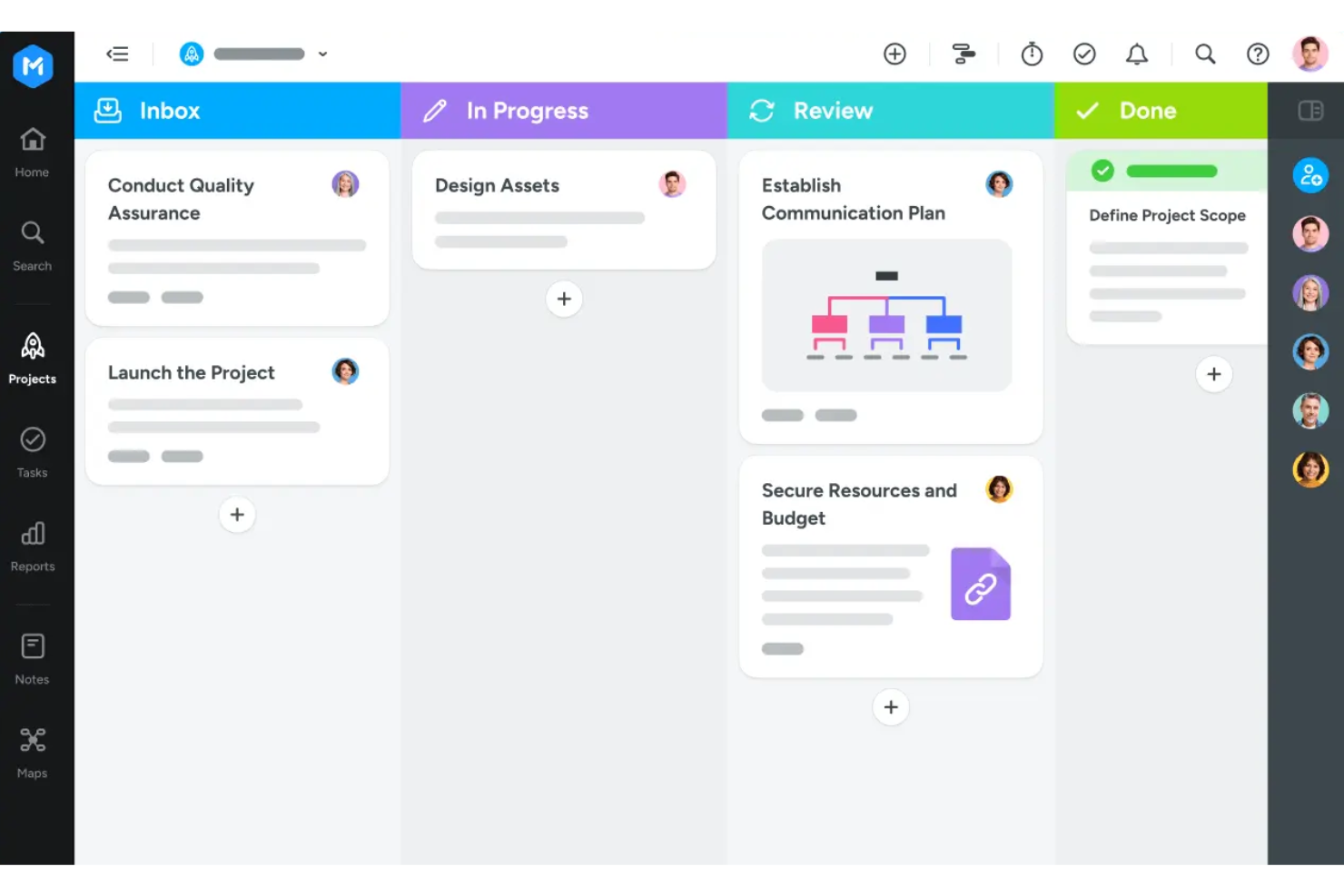
MeisterTask earns its spot here for how naturally it encourages teams to collaborate within individual tasks instead of splitting discussion across emails or other tools. In practice, what I appreciate is how conversation threads, file attachments, and real-time task updates sit together, making context easy to follow. When I see remote teams juggling a lot of concurrent projects, being able to keep feedback and decisions right where work happens is hard to beat.
MeisterTask’s Best For
- Remote teams that manage projects with lots of task-level discussion
- Groups needing real-time collaboration and in-task conversation
MeisterTask’s Not Great For
- Teams that need advanced reporting or portfolio management
- Organizations requiring complex, multi-level workflow automation
What sets MeisterTask apart
MeisterTask orients your project work around open, ongoing task conversations. Unlike tools like Jira, which tightly couple tasks to formal process, MeisterTask is built so you keep discussions linked to each task card itself. I can see the use case for people to add comments, share files, and clarify decisions right inside the space where work happens.
This works well for distributed groups who want conversation and documentation to travel with the task instead of getting lost in chat threads.
Tradeoffs with MeisterTask
MeisterTask optimizes for easy, in-context collaboration, so you give up the advanced workflow rules and deep reporting you'd expect in more process-focused tools. If you need structured oversight beyond Kanban, you might feel boxed in.
Pros and Cons
Pros:
- Visual task boards provide clarity on project progress
- Roles and permissions offer control over project access
- Real-time updates keep all team members informed
Cons:
- Some advanced features may come with a learning curve
- Mobile app may experience sync issues

ClickUp
Best for customizable project management

ClickUp is an all-in-one collaboration tool designed to centralize project management, time tracking, chat, whiteboards, and automation. It is great thanks to its flexibility in handling various types of work and its extensive customization options.
Why I Picked ClickUp: I chose ClickUp for this list because it stands out with its highly customizable project management features, which allow teams to tailor the tool to their specific needs. ClickUp's ability to integrate multiple functionalities into one platform makes it different from other collaboration tools. It offers a wide range of features that can be adapted to any team's workflow, making it a versatile choice for remote teams.
Standout Features & Integrations:
Features include customizable dashboards, task templates, time tracking, and no-code automation. ClickUp also offers collaborative docs, whiteboards, and real-time chat to enhance team collaboration and communication.
Integrations include Slack, Google Drive, Microsoft Teams, Salesforce, HubSpot, Jira, Trello, Asana, Zoom, and GitHub.
Pros and Cons
Pros:
- Real-time collaboration
- Comprehensive feature set
- Highly customizable
Cons:
- Overwhelming for small teams
- Steep learning curve
New Product Updates from ClickUp
ClickUp Adds Meetings Hub, Super Agent Templates, and ZoomInfo Integration
ClickUp adds a searchable Meetings Hub, new ways to clone and template Super Agents, and a ZoomInfo integration through the App Center. These updates improve meeting retrieval, agent reuse, and access to sales intelligence. For more information, visit ClickUp’s official site.

Zoom
Best for video conferencing and webinars

Zoom sticks out for me because it keeps large and small remote teams connected with high-quality video and audio, especially for recurring meetings or company-wide webinars. Being able to record sessions, run interactive polls, and split attendees into breakout rooms is why I recommend it when you need to manage webinars or facilitate training with lots of participants.
I like how easy it is to launch a session and share screens for both live demos and collaborative reviews. This is usually my pick when teams rely on all-hands meetings, cross-department check-ins, or client presentations.
Zoom’s Best For
- Remote teams needing reliable video meetings and webinars
- Groups running training, town halls, and recorded sessions
Zoom’s Not Great For
- Teams needing persistent chat or threaded discussions
- Groups looking for integrated document collaboration
What sets Zoom apart
Zoom approaches collaboration by centering everything on real-time, high-quality video and audio calls. I see teams rely on it to make large group gatherings, webinars, and live trainings practical when you need to reach many people at once and keep engagement high. Unlike Slack or Microsoft Teams, it puts meetings front and center, rather than ongoing chat or persistent channels.
This works best if you need scheduled sessions that can scale, not ongoing project conversation.
Tradeoffs with Zoom
Zoom optimizes for live communication in meetings, but conversation history and threaded collaboration get lost between sessions. As a result, you end up using something else to handle persistent team discussions or ongoing document work.
Pros and Cons
Pros:
- User-friendly interface
- Extensive integration options
- High-quality video and audio
Cons:
- Limited features in free plan
- Occasional security concerns
Trello
Best for visual task management

Trello is on my list because its board and card system creates a visual flow for remote team collaboration that’s hard to match. When teams need to see progress and priorities at a glance, I find Trello’s drag-and-drop boards and customizable lists keep everyone on the same page. I appreciate how you can quickly switch between layouts to run standups, manage sprints, or coordinate handoffs without slowing things down.
Trello’s Best For
- Remote teams that need a clear visual workflow
- Groups organizing simple projects or ongoing tasks
Trello’s Not Great For
- Projects with complex dependencies or resource needs
- Teams requiring built-in time tracking or workload views
What sets Trello apart
Trello takes a visual approach to managing work that centers on moving cards through customizable boards. Unlike Jira, which expects detailed planning and hierarchical structuring, Trello works best when your team prefers mapping progress by dragging tasks from one stage to the next. In practice, I see teams use it as a living workspace for check-ins and collaboration, rather than a static to-do list.
Tradeoffs with Trello
Trello optimizes for flexible, visual planning, but that simplicity can hold back teams who need dependencies or multi-layer reporting. As projects grow, tracking complex workflows becomes difficult.
Pros and Cons
Pros:
- Customizable workflows
- Easy to use
- Visual task management
Cons:
- Can become cluttered with many cards
- Limited reporting features
Andre samarbeidsverktøy for eksterne team
Nedenfor finner du en liste over flere samarbeidsverktøy for eksterne team som vi satte på kortlisten, men som ikke kom med på topplisten. Det er absolutt verdt å ta en titt på dem.
- Google Workspace
For integrated productivity tools
- ProofHub
For centralized project collaboration
- awork
For AI-assisted project scheduling
- Microsoft Teams
For team communication and collaboration
- Happeo
For intranet and internal communications
- Guru
For knowledge doc collaboration
- Stackfield
For EU-hosted encrypted workspaces
- Around
For inclusive hybrid-remote meetings
- Hiver
For shared inbox management
- Slack
For real-time team communication
- Ziflow
For creative asset collaboration
- Hub
Integrated comms and knowledge base
- TaskRay
With Salesforce-native project collaboration
- Asana
For goal-oriented project management
- Basecamp
For simple project management
- Kantata
Good for resource management


How I Evaluate Collaboration Tools for Remote Teams
I split my evaluation into two layers: core capabilities a distributed team can't work without—async messaging, video, task coordination—and the differentiators that set the best tools apart.
Core Functionality (Table Stakes For This List)
When I'm selecting tools for my list, I rank each one on a scale from 0 (does not offer the functionality) to 5 (excels in this area) for each core functionality listed below. Then, I calculate the tool's total score into a percentage. Each tool needs to achieve a minimum total score of 65% to be considered for inclusion.
- Real-Time Messaging: I look for channels, threads, and direct messages that let a distributed team run sprint planning discussions without losing context in a single chat stream.
- File Sharing & Co-Editing: Teams need to co-edit specs or briefs together in real time, so I evaluate whether the tool supports live document collaboration, previews, and version history.
- Video Conferencing: I check for group video calls with screen sharing and recording so remote teams can run standups, demos, and retrospectives without jumping to a separate app.
- Task & Project Coordination: Assigning action items after a kickoff call should happen where the conversation lives, so I look for task boards, assignees, due dates, and status tracking.
- Third-Party Integrations: Most remote teams already rely on tools like Jira, Google Drive, or Asana, so I evaluate each platform's integration catalog and API access for connecting existing workflows.
- Async Collaboration Features: Threaded discussions, recorded video updates, and smart notifications matter when teammates span multiple time zones and can't always overlap in real time.
Once I have a list of tools that meet this criteria, I consider what sets each platform apart.
Differentiating Factors (What Sets Vendors Apart)
Here's how I compare and contrast different vendors:
Standout Features
AI features like meeting summaries and action item extraction save hours of manual follow-up after remote standups and retros. Async video messaging is another differentiator I evaluate—being able to record a walkthrough instead of scheduling another call matters when your team spans eight time zones. I also check how each platform handles guest and client access, since most projects involve external stakeholders who need visibility into specific workstreams without full workspace permissions.
Beyond Features
Security and compliance matter when your remote team handles sensitive project data across borders—I look for SOC 2 Type II certification, SSO, and SCIM provisioning as baseline signals. Cross-platform experience is equally important because remote teams switch between laptops, phones, and tablets constantly. A tool that drops features or breaks notification parity on mobile creates blind spots. I also evaluate onboarding resources, since a platform your team struggles to adopt within the first week rarely becomes the long-term hub you need.
Slik velger du samarbeidsverktøy for eksterne team
For å hjelpe deg med å sortere gjennom anmeldelser av samarbeidsprogramvare for team, er dette spørsmålene du bør stille deg selv før du bestemmer deg for et kjøp:
⬜ Hva er målene dine med å ta i bruk samarbeidsverktøy for ekstern prosjektstyring?
⬜ Har du brukt samarbeidsverktøy for eksterne team før?
⬜ Hvor mange brukere trenger tilgang til verktøyet? Og hvor ofte?
⬜ Hvilke tre viktige programvarefunksjoner kan du ikke klare deg uten?
⬜ Hvilke unike eller spesialiserte behov har bedriften din?
⬜ Hvilke kanaler må det koble seg til? E-post, Slack eller andre?
⬜ Hva er budsjettet ditt for samarbeidsverktøy for eksterne team?
Det kan være nyttig å skrive ned svarene på disse spørsmålene før du begynner å lese anmeldelsene nedenfor. På den måten kan du vurdere hvert verktøy opp mot funksjonene, egenskapene og fleksibiliteten du faktisk trenger.
Trender innen samarbeidsverktøy for eksterne team i 2025
Eksternt arbeid er i utvikling, og det samme gjelder verktøyene som støtter det. Her er noen viktige trender som former samarbeidsverktøy for eksterne team.
- AI-drevet prosjektstyring: AI innen prosjektstyring integreres for å automatisere rutineoppgaver. Dette gjør det mulig for team å fokusere på mer strategiske aktiviteter. Det gir også prediktiv analyse for å forutse risikoer.
- Møter i virtuell virkelighet: Virtuell virkelighet forandrer eksterne møter ved å gjøre dem mer oppslukende. Team kan samhandle i et 3D-rom, noe som legger til rette for dypere interaksjon og samarbeid – særlig under kreative idémyldringer. Hvis du er interessert i denne trenden, kan du lese artikkelen vår, Å gjøre prosjektledere kjent med oppslukende teknologi, for en grundig gjennomgang av dens innvirkning.
- Asynkrone kommunikasjonsverktøy: Asynkrone kommunikasjonsverktøy blir stadig mer populære. De lar teammedlemmer bidra etter sine egne timeplaner. Dette er avgjørende for team som er spredt over ulike tidssoner.
- Integrert arbeidsflytautomatisering: Programvare for arbeidsflytautomatisering blir stadig mer integrert med andre verktøy. Dette reduserer behovet for manuell dataregistrering. Det sikrer også at informasjon flyter sømløst mellom ulike plattformer.
- Forbedrede sikkerhetsfunksjoner: Sikkerhet er en økende bekymring for eksterne team. Samarbeidsverktøy tilbyr nå avansert kryptering og flerfaktorautentisering. Disse funksjonene beskytter sensitiv informasjon mot cybertrusler.
Disse trendene former fremtiden for samarbeid i eksterne team.
Hva er samarbeidsverktøy for eksterne team?
Samarbeidsverktøy for eksterne team er programvare som er utviklet for å legge til rette for kommunikasjon, koordinering og samarbeid mellom teammedlemmer som ikke befinner seg fysisk på samme sted. Disse verktøyene brukes ofte av eksterne arbeidstakere, frilansere og distribuerte team til å dele informasjon, administrere oppgaver og samarbeide om prosjekter.
Komponenter i samarbeidsverktøy for eksterne team omfatter meldingsplattformer, videokonferanser, fildeling, oppgavehåndtering og samarbeid om redigering av dokumenter. Disse funksjonene hjelper teammedlemmer med å holde kontakten, være organiserte og produktive, uavhengig av hvor de befinner seg fysisk.
Funksjoner i samarbeidsverktøy for eksterne team
Samarbeidsverktøy har blitt avgjørende for å bygge bro over det fysiske skillet, legge til rette for effektiv kommunikasjon og effektivisere prosjektstyringen på tvers av geografisk spredte arbeidsstyrker. Her er noen av de viktigste funksjonene deres:
- Samlet kommunikasjon: Samler e-poster, chatter, dokumenter og kalenderhendelser på én plattform. Denne funksjonen eliminerer behovet for å veksle mellom flere applikasjoner, og gir sømløs tilgang til all relevant informasjon og kommunikasjon fra et sentralisert knutepunkt.
- Samarbeid i sanntid: Lar teammedlemmer dele oppdateringer og gi umiddelbare tilbakemeldinger. Dette skaper et dynamisk og interaktivt miljø som overskrider geografiske grenser, og forbedrer produktiviteten og samkjøringen i teamet.
- Kalenderintegrasjon: Kobler kalenderhendelser sammen med bredere kommunikasjonskontekster. Dette hjelper brukerne med å holde seg oppdatert på teamaktiviteter, følge opp tidsfrister og planlegge møter med en helhetlig forståelse av relevante diskusjoner og dokumentasjon.
- Taleanrop og skjermdeling: Legger til rette for engasjerende ansikt-til-ansikt-interaksjoner i distribuerte team. Disse funksjonene, kombinert med kontekstuell forståelse, hever kvaliteten på teamdiskusjoner og beslutningsprosesser.
- Fildeling og lagring: Enkel tilgang til alle nødvendige dokumenter og filer betyr at teammedlemmene har informasjonen de trenger uten å måtte vente, noe som gjør arbeidsflytene raskere. Dette kan også omfatte dokumentsamarbeid og redigering i sanntid.
- Sikkerhet og personvern: Sørger for sterke sikkerhetstiltak som beskytter sensitive data og ivaretar personvernet. Funksjoner som datakryptering, sikre tilgangskontroller og regelmessige sikkerhetsoppdateringer er avgjørende for å beskytte brukerinformasjon.
- Integrasjon med tredjepartsapper: Forbedrer samarbeidet ved å integreres med populære applikasjoner som prosjektstyringsverktøy, fillagringsplattformer og produktivitetsapper. Dette gjør det mulig for brukerne å effektivisere arbeidsflyten og samle kommunikasjonsarbeidet på én plattform.
- Tilpasning og personalisering: Lar brukerne tilpasse samarbeidsopplevelsen ved å velge temaer, angi innstillinger og organisere arbeidsområdet. Dette fremmer produktiviteten og gir en personlig og behagelig brukeropplevelse.
- Brukervennlig grensesnitt: Har et intuitivt og brukervennlig grensesnitt som forbedrer den generelle brukeropplevelsen. Et ryddig og enkelt oppsett gjør det lett for brukerne å navigere og få tilgang til funksjoner, og reduserer læringskurven.
- Tilstedeværelses- og statusindikatorer: Viser tilgjengeligheten og statusen til teammedlemmene, og angir hvem som er pålogget, opptatt eller borte. Denne funksjonen bidrar til effektiv og tidsriktig kommunikasjon ved at brukerne kan velge den mest hensiktsmessige interaksjonsformen basert på tilgjengelighet.
- Direkteoppdateringer & varsler: Sørger for at endringer som gjøres av én bruker, umiddelbart blir synlige for alle andre brukere. Denne funksjonen er avgjørende for å opprettholde dataintegriteten og forhindre konflikter under samarbeid.
- Mobiltilgang: Når teammedlemmer kan få tilgang til samarbeidsverktøy fra telefonene eller nettbrettene sine, blir det enklere for alle å holde kontakten, selv når de er på farten. Noen av de beste prosjektstyringsverktøyene for fjernteam har gode mobilapper for team som er på farten.
Ved å integrere disse funksjonene i samarbeidsverktøy forbedres ikke bare brukeropplevelsen, men det fremmer også datadrevet beslutningstaking og automatiserer rutineoppgaver, slik at teamene kan konsentrere seg om arbeid med stor betydning.
Fordeler med samarbeidsverktøy for fjernteam
Samarbeidsverktøy har blitt avgjørende for å opprettholde produktivitet og kommunikasjon mellom teammedlemmer i det digitale arbeidsmiljøet og fjernarbeidsmiljøet. Nedenfor finner du fem primære fordeler med samarbeidsverktøy for fjernteam, med fokus på hvordan de kan være nyttige både for brukere og organisasjoner.
- Forbedret kommunikasjon Samarbeidsverktøy legger til rette for kommunikasjon i sanntid gjennom funksjoner som videokonferanser, direktemeldinger og diskusjonskanaler. Dette sikrer at teammedlemmene enkelt kan dele ideer, gi oppdateringer og holde kontakten, uavhengig av hvor de fysisk befinner seg.
- Økt produktivitet Ved å automatisere rutineoppgaver og effektivisere arbeidsflyter frigjør samarbeidsverktøy tid til viktigere aktiviteter. Dette gjør det mulig for teammedlemmene å konsentrere seg om oppgaver med høy verdi, noe som øker den samlede produktiviteten og bidrar til raskere prosjektgjennomføring.
- Økt fleksibilitet Disse verktøyene gir fleksibilitet til å arbeide hvor som helst og når som helst. Dette tar ikke bare hensyn til ulike tidssoner og personlige timeplaner, men bidrar også til å tiltrekke og beholde dyktige medarbeidere som foretrekker muligheten til å arbeide eksternt.
- Bedre prosjektstyring Samarbeidsverktøy leveres ofte med prosjektstyringsfunksjoner som oppgavetildeling, fremdriftssporing og påminnelser om tidsfrister. Dette bidrar til å holde prosjektene på rett spor og sikrer at alle teammedlemmene er samkjørte med prosjektmålene og tidsplanene.
- Kostnadsbesparelser Ved å redusere behovet for fysiske kontorlokaler og minimere reiseutgifter kan samarbeidsverktøy føre til betydelige kostnadsbesparelser for organisasjoner. I tillegg kan effektiviteten som oppnås gjennom disse verktøyene, føre til bedre ressursallokering og reduserte driftskostnader.
Ved å utnytte disse verktøyene kan organisasjoner sørge for at fjernteamene arbeider så effektivt som mulig, noe som fører til bedre resultater og en mer engasjert arbeidsstyrke.
Kostnader og priser for samarbeidsverktøy for fjernteam
Å velge riktig samarbeidsverktøy for fjernteam kan være en avgjørende beslutning for bedrifter. Det er viktig å forstå de ulike abonnementsalternativene og de tilhørende kostnadene.
Nedenfor finner du en tabell som viser de ulike abonnementstypene, gjennomsnittspriser og vanlige funksjoner for samarbeidsverktøy for fjernteam.
Sammenligningstabell for samarbeidsverktøy for fjernteam
| Abonnementstype | Gjennomsnittspris | Vanlige funksjoner |
| Gratisabonnement | $0 | Grunnleggende meldinger, begrenset fildeling, begrensede integrasjoner, grunnleggende oppgavehåndtering |
| Personlig abonnement | $5 - $10 per bruker/måned | Forbedrede meldingsfunksjoner, fildeling, grunnleggende prosjektstyring, begrenset videokonferanse, prioritert brukerstøtte |
| Forretningsabonnement | $10 - $20 per bruker/måned | Avanserte meldingsfunksjoner, omfattende fildeling, prosjektstyring, administratorkontroller, videokonferanse, integrasjoner med andre verktøy |
| Enterprise-abonnement | $20 - $30 per bruker/måned | Alle funksjonene fra forretningsabonnementet, i tillegg til avansert sikkerhet, samsvar, tilpassede integrasjoner og dedikert brukerstøtte |
Ved vurdering av disse abonnementene bør kjøpere vurdere sine spesifikke behov, teamets størrelse og budsjettet for å velge det alternativet som passer best til deres behov for samarbeid på avstand.