

10 migliori software desktop per la gestione dei progetti: selezioni per il 2026

10 Selezione dei migliori software desktop per la gestione dei progetti


Gestire i progetti in modo efficace dipende spesso dall'avere gli strumenti giusti. Il software desktop per la gestione dei progetti offre un modo affidabile per pianificare, monitorare e portare a termine i progetti senza dipendere da una connessione Internet costante. È perfetto per chi ha bisogno di stabilità, privacy o di un maggiore controllo sui propri dati.
In questo articolo condividerò le mie migliori scelte tra i software desktop per la gestione dei progetti attualmente disponibili. Ho valutato ogni opzione in base all'usabilità, alle funzionalità e alla sua capacità di soddisfare le esigenze dei moderni responsabili di progetto.
In questo articolo puoi ottenere una breve panoramica delle opzioni disponibili, confrontare i dettagli e decidere in definitiva quale software desktop funzionerà meglio per te.
Perché fidarsi dei nostri consigli sui software
Il nostro team testa e recensisce software dal 2012. In quanto project manager noi stessi, sappiamo quanto sia difficile — e importante — scegliere il software giusto.
Per questa guida, abbiamo valutato gli strumenti attraverso test pratici e ricerche indipendenti, assegnando un punteggio agli strumenti in base ai nostri criteri di selezione. Ci basiamo inoltre sulle competenze di leader di pensiero del settore e di professionisti attivi nella gestione dei progetti.
Le nostre recensioni riflettono il nostro giudizio editoriale umano, non un discorso di vendita.
Revisori esperti:
Tabella comparativa dei software desktop per la gestione dei progetti
Questa tabella comparativa riassume i dettagli dei prezzi delle mie migliori selezioni di software desktop per la gestione dei progetti:
| Tool | Best For | Trial Info | Price | ||
|---|---|---|---|---|---|
| 1 | Ideale per la pianificazione con diagrammi di Gantt in un'app sincronizzata con il cloud | Prova gratuita di 14 giorni | A partire da $6/utente/mese | Website | |
| 2 | Ideale per analisi approfondite dei diagrammi di Gantt e monitoraggio del percorso critico | Prova gratuita di 14 giorni | A partire da $9.80/utente/mese | Website | |
| 3 | Ideale per la gestione finanziaria delle agenzie insieme al monitoraggio dei progetti | Prova gratuita di 14 giorni + demo gratuita disponibile | A partire da $10/mese (fatturato annualmente) | Website | |
| 4 | Ideale per la pianificazione con diagrammi di Gantt a un prezzo di abbonamento conveniente | Piano gratuito disponibile | A partire da $4/utente/mese (fatturato annualmente) | Website | |
| 5 | La soluzione migliore per diagrammi di Gantt basati su abbonamento con segnalazione delle attività tramite IA | Offre una prova gratuita | A partire da $5/utente/mese | Website | |
| 6 | Ideale per la pianificazione senza connessione con licenza una tantum | Prova gratuita di 30 giorni | A partire da $10/utente/mese | Website | |
| 7 | Ideale per la pianificazione nativa su Mac con diagrammi di Gantt e percorsi critici | Prova gratuita di 30 giorni | A partire da 16,99 $ / mese | Website | |
| 8 | Ideale per la programmazione CPM su larga scala offline | Demo gratuita disponibile | Prezzi su richiesta | Website | |
| 9 | Ideale per la pianificazione nativa su Mac del percorso critico | Prova gratuita di 14 giorni | Da $199.99/anno (con fatturazione annuale) | Website | |
| 10 | Ideale per la pianificazione CPM orientata alla conformità | Demo gratuita disponibile | Prezzi su richiesta | Website |


Recensioni dei migliori software desktop per la gestione dei progetti
Ecco una breve descrizione di ogni soluzione per la gestione dei progetti, con l’obiettivo di mettere in evidenza le funzionalità più importanti nell’ambiente desktop e fornire schermate che diano un’idea dell’interfaccia utente.

Ideale per la pianificazione con diagrammi di Gantt in un'app sincronizzata con il cloud
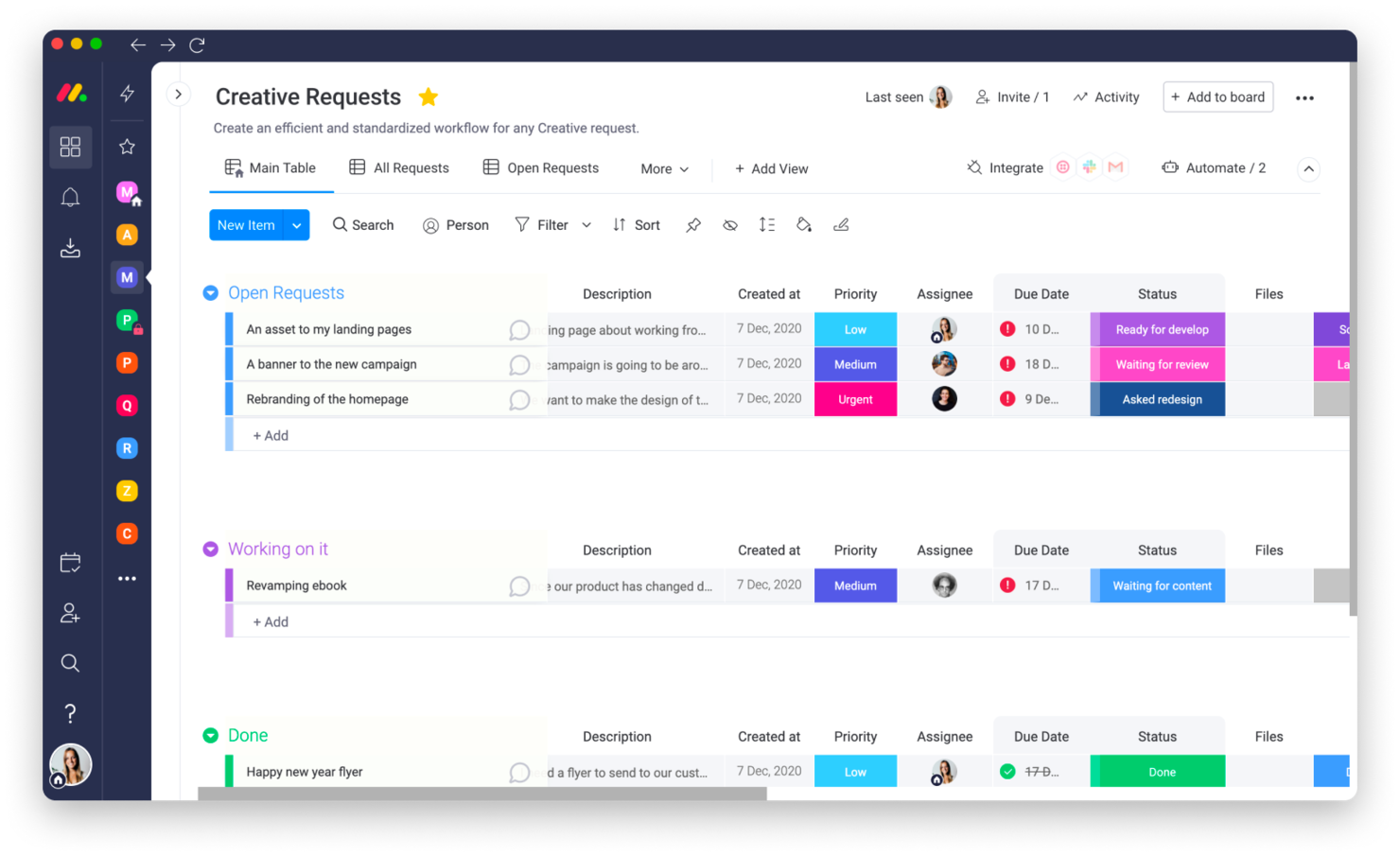
monday.com è una piattaforma di gestione dei progetti che aiuta i team a organizzare, monitorare ed eseguire il lavoro in modo efficiente. È adatta ad aziende di tutte le dimensioni e offre strumenti per gestire flussi di lavoro, progetti e attività collaborative. Nel complesso, il software semplifica i processi complessi grazie a bacheche personalizzabili e all'automazione.
Perché ho scelto monday.com: monday.com offre un'esperienza desktop quasi identica alla sua versione per browser, garantendo al team un flusso di lavoro coerente su tutti i dispositivi. Le sue bacheche personalizzabili consentono di adattare il monitoraggio delle attività alle esigenze del progetto. Le funzionalità di automazione possono inoltre farti risparmiare tempo gestendo attività ripetitive, come gli aggiornamenti dello stato o le notifiche. Puoi anche visualizzare il lavoro in diverse modalità, tra cui sequenze temporali, diagrammi di Gantt e bacheche Kanban, per ottenere una visione più chiara dei tuoi progressi.
Funzionalità e integrazioni distintive di monday.com:
Le funzionalità includono il monitoraggio integrato del tempo, che aiuta il team a controllare quanto tempo richiedono le attività e a individuare le inefficienze. Il software supporta anche strumenti di gestione delle risorse che consentono di distribuire i carichi di lavoro e monitorare la capacità del team. Inoltre, la funzionalità dashboard della piattaforma raccoglie i dati da più bacheche in un'unica vista, offrendo una visibilità complessiva migliore sul progetto.
Le integrazioni includono app di gestione dei progetti come Slack, Google Drive, Gmail, Google Calendar, Jira, GitHub, Trello, Dropbox, Typeform e molte altre, accessibili tramite un piano a pagamento con Zapier.
Pros and Cons
Pros:
- L'automazione riduce le attività amministrative ripetitive
- Ricerca avanzata per trovare rapidamente le attività
- Esperienza desktop e browser coerente
Cons:
- Curva di apprendimento per configurare automazioni personalizzate
- Le bacheche possono diventare disordinate nei progetti di grandi dimensioni
New Product Updates from monday AI Workspace
monday AI Workspace Adds Human Approval Routing
monday AI Workspace adds a human-in-the-loop approval block to AI Workflows, sending approval requests and routing workflow paths based on responses. For more information, visit monday AI Workspace's official site.

Wrike
Ideale per analisi approfondite dei diagrammi di Gantt e monitoraggio del percorso critico

Wrike è uno strumento collaborativo per la gestione dei progetti progettato per aiutare i team a organizzare le attività, gestire i flussi di lavoro e monitorare i progressi in tempo reale. È particolarmente adatto alle aziende che desiderano migliorare la produttività del team e semplificare i processi di gestione delle attività.
Perché ho scelto Wrike: Wrike offre una piattaforma desktop che consente di aprire più schede contemporaneamente, permettendo di svolgere più attività in parallelo in modo più efficace rispetto alla sua interfaccia browser. Puoi passare rapidamente da un progetto, una dashboard o un'attività all'altra senza perdere il contesto. L'app desktop riduce inoltre le distrazioni riunendo tutti gli strumenti in un unico posto, migliorando la concentrazione tua e del tuo team. Questa configurazione è ideale per i team che gestiscono flussi di lavoro complessi o più progetti contemporaneamente.
Funzionalità e integrazioni principali di Wrike:
Le funzionalità includono l'automazione delle attività per ridurre il lavoro ripetitivo e previsioni dei rischi basate sull'intelligenza artificiale per aiutarti a identificare i potenziali colli di bottiglia. Il software include anche moduli dinamici per le richieste, che semplificano l'inserimento dei progetti, e strumenti avanzati per la gestione del carico di lavoro, che aiutano a prevenire il sovraccarico del team.
Le integrazioni includono Microsoft Teams, Google Drive, Slack, Salesforce, Box, Dropbox, Zoom, OneDrive, Jira e Adobe Creative Cloud.
Pros and Cons
Pros:
- Sistema centralizzato di gestione dei file
- Aggiornamenti in tempo reale su tutti i dispositivi
- Autorizzazioni flessibili per i diversi ruoli del team
Cons:
- Spazio di archiviazione nativo limitato per gli allegati
- Nessuna funzionalità di chat integrata per discussioni rapide del team
New Product Updates from Wrike
Wrike Adds Klaxoon MCP Integration
Wrike’s Klaxoon MCP integration is now generally available, enabling AI agents to navigate between Wrike tasks and attached whiteboards, read task context, and manage whiteboard attachments via API. For more information, visit Wrike's official site.

Ideale per la gestione finanziaria delle agenzie insieme al monitoraggio dei progetti
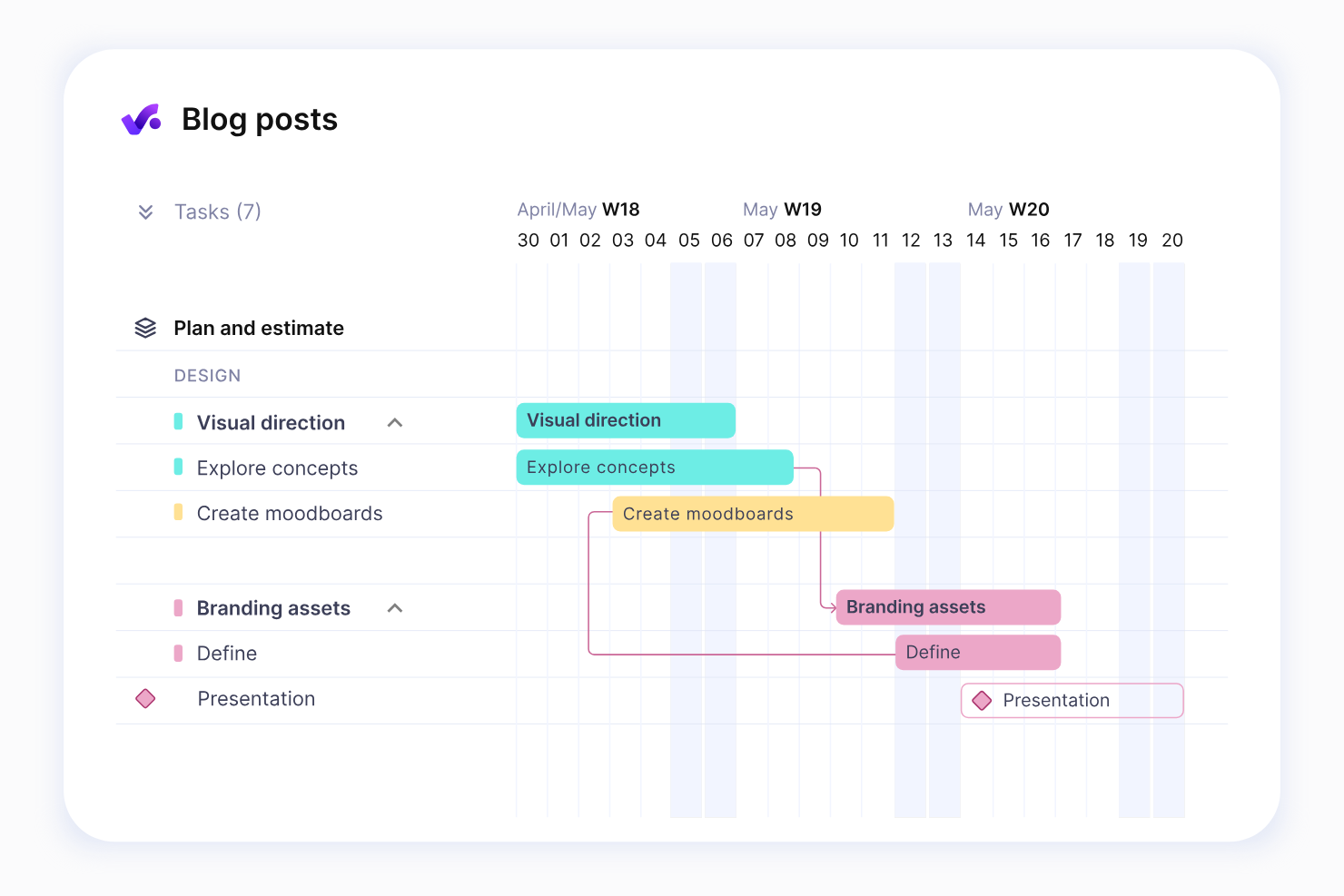
Productive è una piattaforma completa per la gestione del lavoro, progettata per aiutare le agenzie a pianificare, monitorare e consegnare i progetti, gestendo al contempo le risorse del team in modo efficace. Offre strumenti per ottimizzare i flussi di lavoro, monitorare i progressi e garantire la redditività dei progetti.
Perché ho scelto Productive: Productive offre una soluzione completa per gestire il lavoro delle agenzie, dalla pianificazione dei progetti al monitoraggio finanziario. È possibile utilizzare funzionalità come la pianificazione delle risorse per ottimizzare i carichi di lavoro del team e il monitoraggio del tempo per controllare le ore fatturabili. La piattaforma include anche report sulla redditività che mostrano in tempo reale l'andamento finanziario dei progetti. Gli strumenti di collaborazione mantengono il team connesso e la fatturazione integrata semplifica la fatturazione del lavoro completato.
Funzionalità e integrazioni principali di Productive:
Le funzionalità includono dashboard sull'utilizzo delle risorse per visualizzare a colpo d'occhio la disponibilità e il carico di lavoro del team. Il monitoraggio della redditività aiuta a misurare le prestazioni finanziarie dei singoli progetti, mentre il monitoraggio avanzato del tempo garantisce una fatturazione accurata. I modelli di attività e progetti semplificano i flussi di lavoro ripetitivi, consentendo configurazioni più rapide.
Le integrazioni includono Slack, QuickBooks, Xero, Zapier, Jira, Google Drive, Dropbox, Harvest, HubSpot e Trello.
Pros and Cons
Pros:
- Configurazione semplificata per attività e progetti ricorrenti
- Dashboard visive per l'utilizzo e la disponibilità delle risorse
- I modelli personalizzati di progetti e attività fanno risparmiare tempo
Cons:
- I report potrebbero non offrire un livello di dettaglio sufficiente per metriche specifiche
- Il monitoraggio del tempo richiede un inserimento manuale costante
New Product Updates from Productive
Productive Adds Voice Dictation, Slack Connector, Proposals, and Overtime
Productive adds voice dictation, a Slack Connector, proposal controls, and overtime tracking. These updates support faster AI interactions, client proposals, and time management. For more information, visit Productive’s official site.

Ideale per la pianificazione con diagrammi di Gantt a un prezzo di abbonamento conveniente

Zoho Projects è uno strumento di gestione dei progetti progettato per aiutare i team a pianificare, monitorare ed eseguire i progetti in modo efficace. Offre una piattaforma completa per organizzare i flussi di lavoro, monitorare i progressi e migliorare la collaborazione del team.
Perché ho scelto Zoho Projects: Zoho Projects offre un'interfaccia visiva con diagrammi di Gantt, bacheche delle attività e strumenti di gestione delle risorse per aiutare il tuo team a tenere sotto controllo ogni progetto. Puoi assegnare attività, impostare traguardi e monitorare i progressi utilizzando flussi di lavoro personalizzabili. Il monitoraggio integrato del tempo e i fogli presenze della piattaforma semplificano il controllo delle ore fatturabili e delle tempistiche dei progetti. Inoltre, le funzionalità di collaborazione come forum e feed mantengono il team connesso, rendendo Zoho Projects un'ottima scelta per i team alla ricerca di una soluzione completa per la gestione dei progetti.
Funzionalità e integrazioni di spicco di Zoho Projects:
Le funzionalità includono l'automazione delle attività per ridurre il lavoro ripetitivo e i report di riferimento per confrontare i progressi pianificati con quelli effettivi. Puoi inoltre utilizzare le dipendenze per collegare le attività ed evitare conflitti di pianificazione, oltre alla registrazione avanzata del tempo per una migliore allocazione delle risorse.
Le integrazioni includono Slack, Microsoft Teams, Google Drive, Dropbox, Zapier, Zoho CRM, Zoho Books, Trello, Asana e GitHub.
Pros and Cons
Pros:
- Interfaccia intuitiva con funzionalità di trascinamento della selezione
- La registrazione avanzata del tempo aiuta ad allocare le risorse
- Le dipendenze tra le attività evitano conflitti di pianificazione
Cons:
- Mancano analisi avanzate o dashboard integrate
- Alcune funzionalità richiedono una configurazione approfondita per essere implementate
New Product Updates from Zoho Projects
Zoho Projects Adds CodeX Scripts for Custom Modules
Zoho Projects now supports CodeX Scripts for custom modules, enabling conditional logic and rules for creating, updating, and deleting records. For more information, visit Zoho Projects' official site.
 .
.
ClickUp
La soluzione migliore per diagrammi di Gantt basati su abbonamento con segnalazione delle attività tramite IA

ClickUp è una piattaforma versatile per la gestione dei progetti, progettata per aiutare i team a organizzare, monitorare ed eseguire il proprio lavoro in modo più efficiente. È adatta ad aziende di tutte le dimensioni e offre strumenti per la gestione delle attività, il monitoraggio del tempo e la collaborazione. Il software mira a centralizzare il lavoro del team in un unico luogo per migliorare produttività e responsabilità.
Perché ho scelto ClickUp: L'app desktop di ClickUp rispecchia la versione del browser offrendo al contempo l'accesso offline, così puoi rimanere produttivo anche senza connessione Internet. Le viste delle attività personalizzabili, come elenco, bacheca e cronologia, ti consentono di organizzare il flusso di lavoro in modo adatto al tuo team. Puoi anche gestire risorse e budget assegnando carichi di lavoro e monitorando il tempo dedicato alle attività. Le funzionalità di automazione riducono le attività ripetitive, assicurando che il team si concentri su ciò che conta di più.
Funzionalità e integrazioni principali di ClickUp:
Le funzionalità includono il monitoraggio degli obiettivi, che consente di impostare, monitorare e raggiungere gli obiettivi del team con metriche chiare. Lo strumento di creazione dei documenti della piattaforma semplifica la redazione e la condivisione di documenti relativi ai progetti senza dover uscire dall'app. ClickUp offre anche opzioni avanzate per le attività ricorrenti, così puoi automatizzare gli incarichi ripetitivi senza aggiornamenti manuali.
Le integrazioni includono Google Drive, Slack, Zoom, Microsoft Teams, Dropbox, GitHub, Zapier, HubSpot, Evernote e Outlook.
Pros and Cons
Pros:
- Modalità offline per lavorare senza interruzioni
- Monitoraggio del tempo integrato nella gestione delle attività
- Viste delle attività altamente personalizzabili
Cons:
- Elevato consumo di risorse sui dispositivi meno recenti
- Alcune funzionalità richiedono una configurazione aggiuntiva
New Product Updates from ClickUp
ClickUp Adds Meetings Hub, Super Agent Templates, and ZoomInfo Integration
ClickUp adds a searchable Meetings Hub, new ways to clone and template Super Agents, and a ZoomInfo integration through the App Center. These updates improve meeting retrieval, agent reuse, and access to sales intelligence. For more information, visit ClickUp’s official site.
Ideale per la pianificazione senza connessione con licenza una tantum
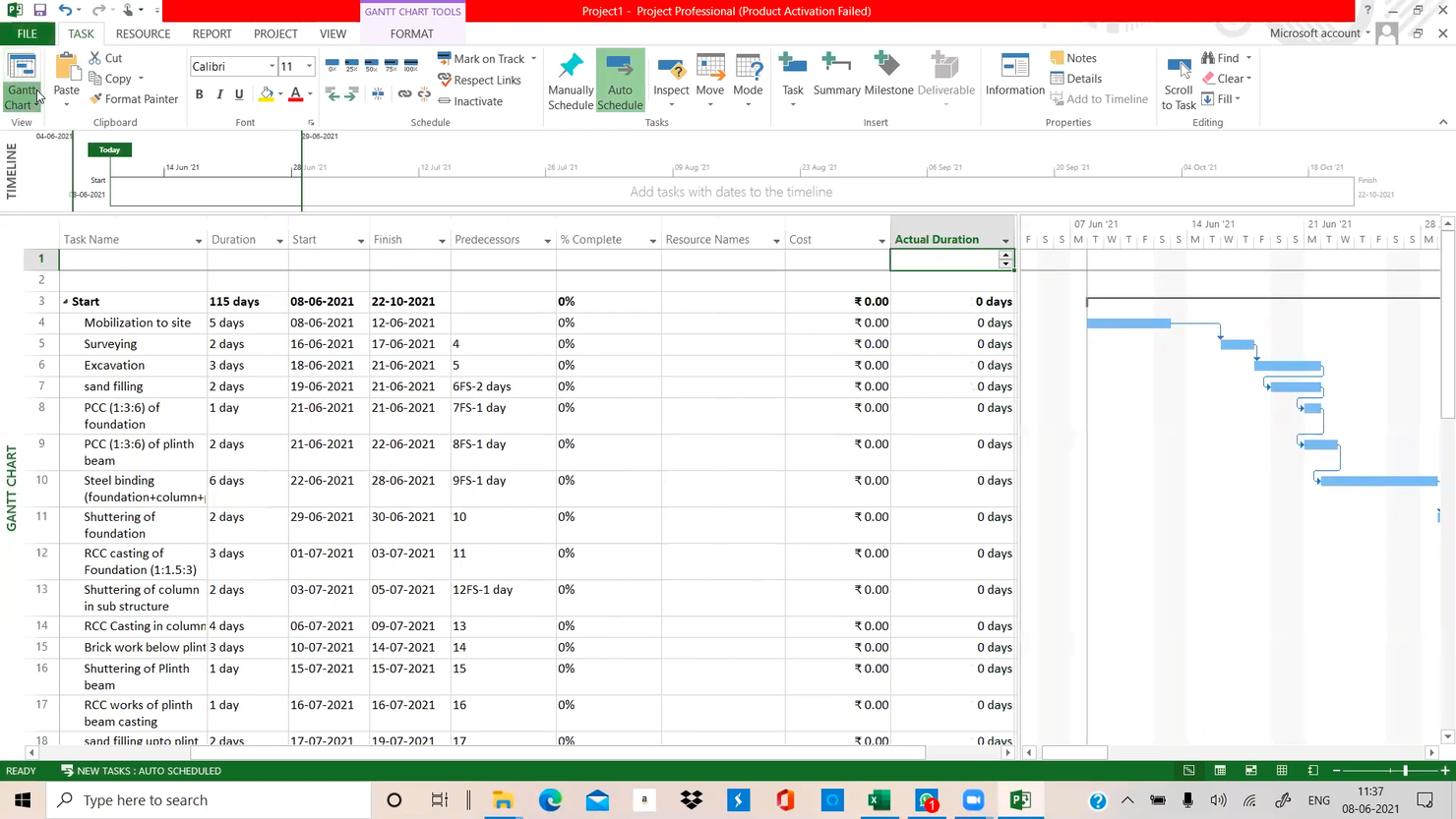
Microsoft Project è un'applicazione per computer Windows dedicata alla gestione dei progetti, che include la pianificazione con diagrammi di Gantt, l'analisi del percorso critico, il livellamento delle risorse, il monitoraggio delle linee di base e la gestione di più progetti tramite una licenza perpetua installata localmente.
Per chi è più adatto Microsoft Project?
Microsoft Project è ideale per i project manager e i team IT che gestiscono progetti complessi e articolati in più fasi e hanno bisogno di un controllo approfondito della pianificazione senza dipendere da un abbonamento cloud.
Perché ho scelto Microsoft Project
Microsoft Project è entrato nella mia selezione perché nessun altro strumento per computer offre la stessa profondità nella pianificazione senza connessione con licenza una tantum. Ho gestito piani articolati in più fasi con fino a 11 linee di base salvate e ho utilizzato il diagramma di Gantt di monitoraggio per confrontare i progressi effettivi con ciascuna di esse senza bisogno di una singola connessione cloud. Il livellamento delle risorse è l'aspetto in cui fa davvero la differenza: puoi impostare regole di livellamento precise che ritardano o dividono automaticamente le attività per risolvere le sovrallocazioni all'interno di un team numeroso, il tutto memorizzato in un file .mpp locale di cui mantieni la piena proprietà.
Funzionalità principali di Microsoft Project
- Pianificazione automatica: Project calcola le date di inizio e di fine in base alle dipendenze tra le attività, così il piano si aggiorna completamente quando cambia qualsiasi elemento.
- Evidenziazione del percorso critico: Lo strumento identifica la sequenza più lunga di attività dipendenti e segnala quelle che determinano direttamente la data di completamento del progetto.
- Visualizzazione Pianificazione del team: Un'interfaccia visiva con funzionalità di trascinamento mostra gli incarichi di ogni membro del team nel tempo, facilitando l'individuazione immediata di lacune e sovrallocazioni.
- Collegamento al progetto principale: Puoi consolidare più file .mpp in un unico progetto principale per monitorare da un solo punto le dipendenze tra progetti e i conflitti relativi alle risorse.
Integrazioni di Microsoft Project
Microsoft Project si integra con Microsoft 365, Teams, Excel, Power BI e SharePoint. Project Professional 2024 si sincronizza con Project Online e Project Server, mentre l'importazione e l'esportazione XML supportano lo scambio di dati personalizzato.
Pros and Cons
Pros:
- Gestisce in modo affidabile pianificazioni complesse e piani di grandi dimensioni
- Monitora localmente fino a 11 linee di base
- Livella le risorse sovraccariche con regole configurabili
Cons:
- I controlli avanzati di pianificazione richiedono tempo per essere padroneggiati
- I file .mpp condivisi complicano la modifica simultanea

Ideale per la pianificazione nativa su Mac con diagrammi di Gantt e percorsi critici
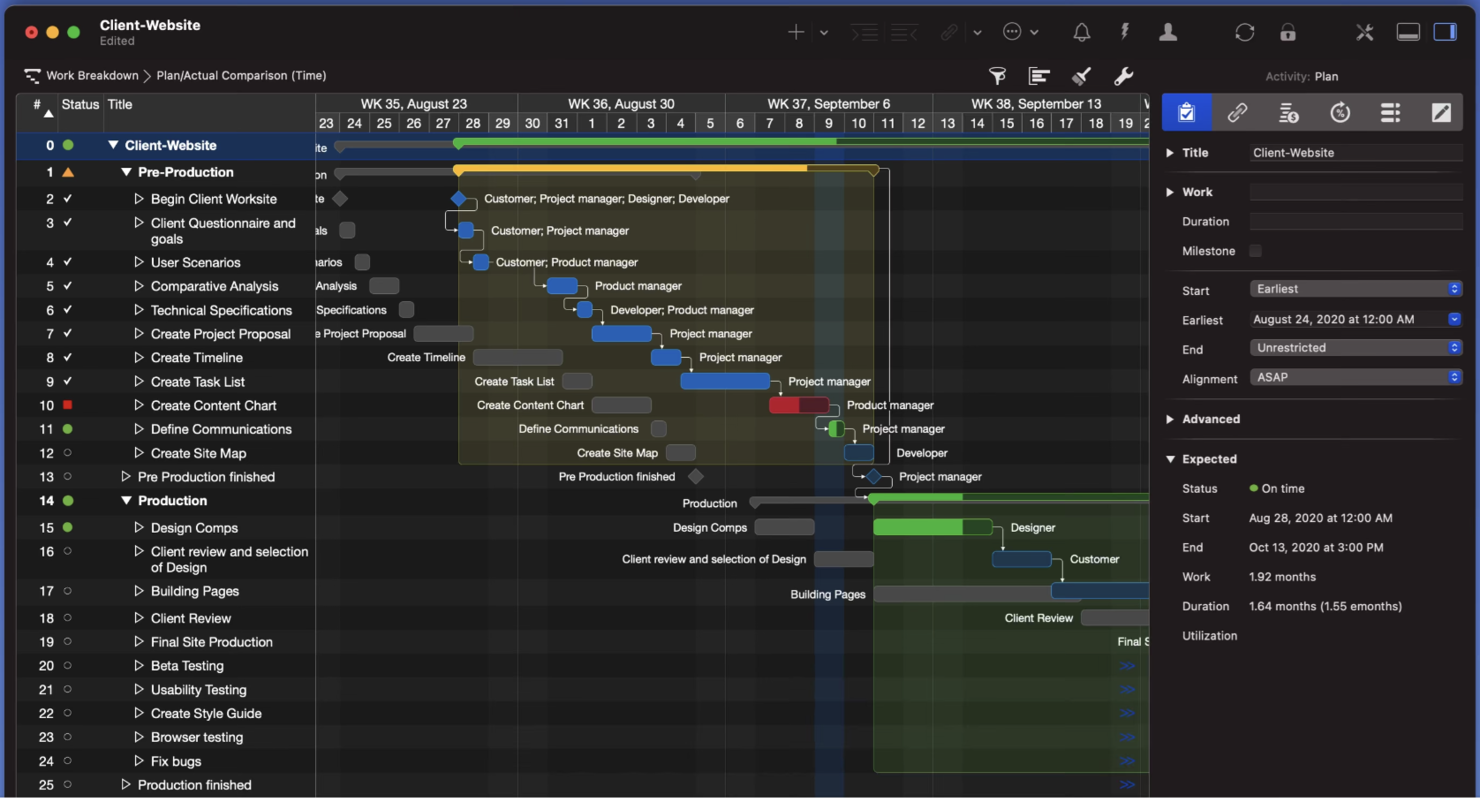
Merlin Project è un'applicazione nativa per computer Mac per la gestione dei progetti, che combina la pianificazione con diagrammi di Gantt, il monitoraggio del percorso critico, il livellamento delle risorse, le schede Kanban e il coordinamento di più progetti su Mac, iPad e iPhone.
A chi è più adatto Merlin Project?
Merlin Project è particolarmente adatto ai responsabili di progetto e delle operazioni che lavorano interamente nell'ecosistema Apple e necessitano di un controllo approfondito della pianificazione senza dipendere da uno strumento basato sul Web.
Perché ho scelto Merlin Project
Merlin Project è entrato nella mia selezione perché è lo strumento nativo per Mac più completo per diagrammi di Gantt e percorsi critici che abbia visto, progettato specificamente per l'ecosistema Apple. Apprezzo molto il modo in cui il percorso critico viene ricalcolato automaticamente quando registri i progressi, sia che tu aggiorni le attività nel diagramma di Gantt sia che contrassegni le schede come completate nella bacheca Kanban. Anche la linea di riferimento dinamica è un dettaglio di spicco: ogni attività viene monitorata fin dall'inizio senza configurazione manuale, così posso confrontare i progressi attuali con qualsiasi momento della cronologia del progetto.
Funzionalità principali di Merlin Project
- Dalla mappa mentale alla struttura di scomposizione del lavoro: Trasforma una mappa mentale in un piano di progetto completamente strutturato con un solo clic, completo di attività, fasi e gerarchia.
- Collaborazione MagicSync: Più utenti possono modificare simultaneamente lo stesso file di progetto tramite iCloud Drive o Dropbox, con l'unione automatica delle modifiche senza creare file di conflitto.
- Documenti principali multi-progetto: Combina diversi file di progetto in un unico documento principale con sottoprogetti collegati che si aggiornano in entrambe le direzioni, offrendo una visualizzazione consolidata delle risorse e della cronologia.
- Importazione di file di MS Project: Apri file MPP nativi di Microsoft Project dal 2003 al 2016, oltre ai formati XML e MPX di MS Project.
Integrazioni di Merlin Project
Merlin Project dispone di integrazioni documentate con iCloud Drive, Dropbox, Contatti Apple, Calendario Apple e Mail Apple. Importa inoltre file MPP, esporta file XML di Microsoft Project e supporta la pubblicazione tramite SFTP e WebDAV.
Pros and Cons
Pros:
- I file di progetto funzionano completamente senza connessione
- Le linee di riferimento automatiche conservano la cronologia della pianificazione
- Gli utenti apprezzano la conversione da mappa mentale a diagramma di Gantt
Cons:
- Nessun accesso da Windows o tramite browser
- Le pianificazioni complesse possono risultare difficili da gestire per i nuovi utenti

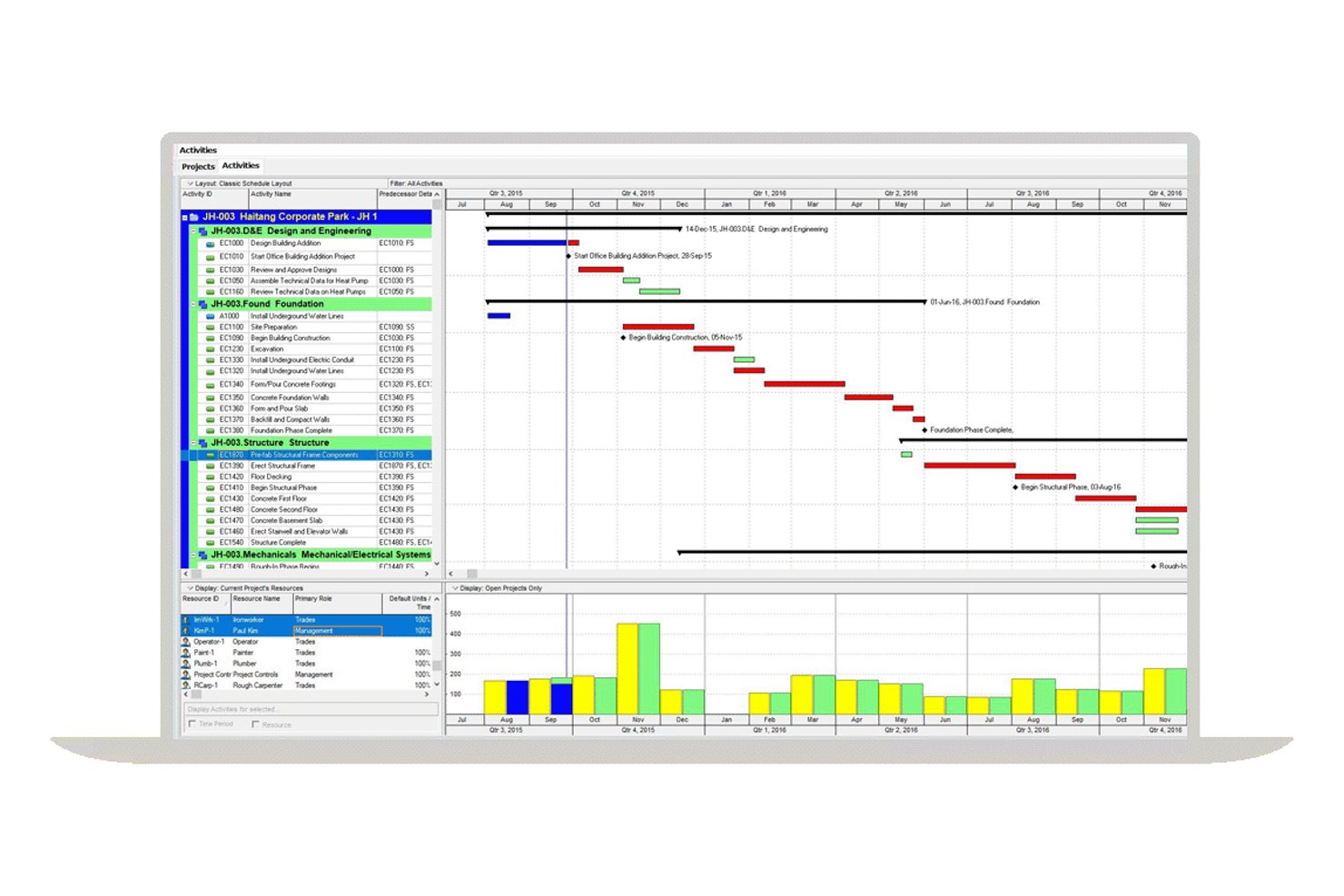
Oracle Primavera P6 è uno strumento desktop di gestione dei progetti basato su Windows, concepito attorno alla programmazione CPM, alla struttura di scomposizione del lavoro (WBS), al livellamento delle risorse e alla pianificazione di più progetti attraverso una struttura di progetto aziendale.
Per chi è più adatto Oracle Primavera P6?
Oracle Primavera P6 è pensato per i project manager e i responsabili delle operazioni che gestiscono programmi complessi composti da più progetti, in cui la profondità della programmazione CPM e il controllo dei dati offline sono indispensabili.
Perché ho scelto Oracle Primavera P6
Oracle Primavera P6 si è guadagnato un posto nella mia selezione perché nessun altro strumento desktop eguaglia la sua profondità nella programmazione CPM per programmi complessi composti da più progetti. Apprezzo in particolare la sua struttura di progetto aziendale, che consente di aprire, programmare e livellare le risorse su più progetti contemporaneamente da un unico client Windows. La sua modalità SQLite autonoma è una vera soluzione offline: tutti i dati del progetto risiedono in un unico file locale, senza bisogno di un server, un aspetto importante quando si gestisce un progetto di investimento in un sito con connettività instabile.
Caratteristiche principali di Oracle Primavera P6
- WBS (struttura di scomposizione del lavoro): Organizza i progetti in pacchetti di lavoro e risultati gerarchici direttamente collegati alla programmazione CPM.
- Codici delle attività: Contrassegna e filtra le attività tra i progetti utilizzando codici personalizzabili per ordinare, raggruppare e creare report sul lavoro secondo le tue esigenze.
- Modifica globale: Applica modifiche collettive ai dati delle attività nella programmazione utilizzando una logica condizionale, senza aggiornare i record uno alla volta.
- Importazione/esportazione di file XER: Trasferisci dati completi dei progetti, incluse risorse e mansioni, tra installazioni di P6 utilizzando il formato XER nativo di Oracle.
Integrazioni di Oracle Primavera P6
Oracle Primavera P6 supporta integrazioni con Microsoft Project, Microsoft Excel, P6 EPPM, Oracle Primavera Cloud tramite Primavera Gateway e Primavera Unifier. La sua API supporta integrazioni personalizzate quando è connesso a database autonomi Oracle XE o SQL Server.
Pros and Cons
Pros:
- Lavora offline in un file SQLite autonomo
- Livella le risorse condivise tra i progetti aperti
- Confronta le programmazioni di riferimento con l'avanzamento attuale
Cons:
- SQLite autonomo limita la collaborazione nei gruppi di lavoro
- L'interfaccia densa rallenta la configurazione iniziale della programmazione

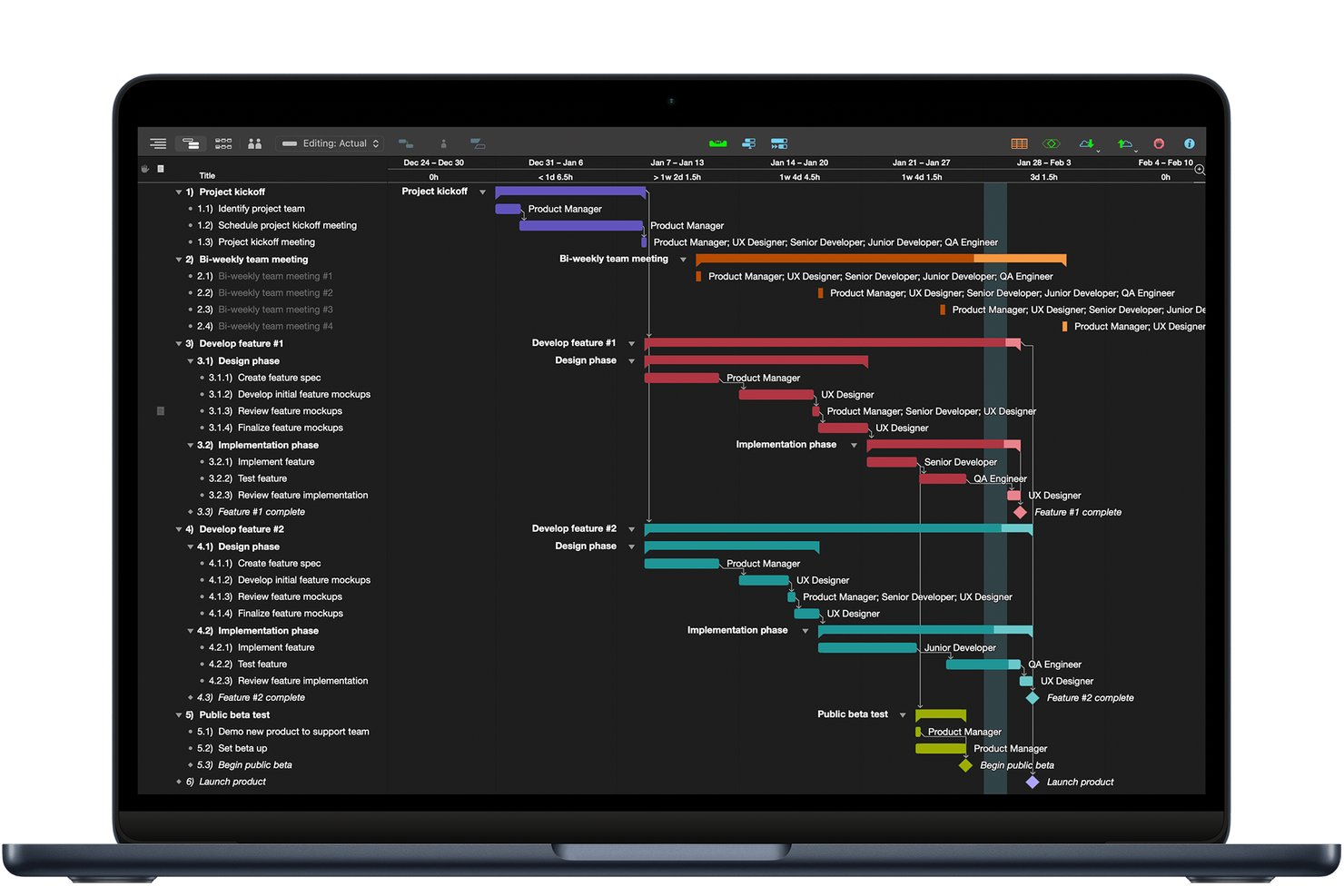
OmniPlan è un'applicazione desktop nativa per Mac, progettata per la gestione dei progetti basata su diagrammi di Gantt, pianificazione del percorso critico, livellamento delle risorse e monitoraggio di più linee di base.
Per chi è più adatto OmniPlan?
OmniPlan è particolarmente adatto ai responsabili di progetto che lavorano su Mac e necessitano di un controllo approfondito della pianificazione—percorso critico, livellamento delle risorse e linee di base—senza affidarsi a un browser o a una piattaforma cloud.
Perché ho scelto OmniPlan
OmniPlan si è guadagnato un posto nella mia rosa di candidati perché è l'unica applicazione nativa per Mac che ho trovato a offrire un motore completo per la pianificazione del percorso critico senza bisogno di un browser. Mi piace il modo in cui evidenzia automaticamente il percorso critico nel diagramma di Gantt, mostra il margine di tolleranza per ogni attività e consente di confrontare i progressi con più linee di base salvate, una funzione importante quando i piani cambiano durante il progetto. Anche il livellamento delle risorse viene eseguito automaticamente: se un membro del team è sovraccarico, OmniPlan ridistribuisce il carico senza che sia necessario analizzare manualmente la pianificazione.
Funzionalità principali di OmniPlan
- Simulazione Monte Carlo: Effettua previsioni dei rischi basate sulle probabilità per stimare quanto sia probabile che il progetto venga completato in tempo, utilizzando intervalli di impegno nel caso migliore e peggiore.
- Pannello di controllo per più progetti: Mostra una panoramica del portafoglio di tutti i progetti pubblicati insieme al carico di lavoro del team in un'unica interfaccia per Mac, disponibile nell'edizione Pro.
- Supporto per i file di Microsoft Project: Importa ed esporta file .mpp e XML, consentendo di scambiare le pianificazioni con team o clienti che utilizzano Microsoft Project.
- Monitoraggio delle modifiche: Registra le modifiche dei collaboratori in una barra laterale, dove è possibile esaminare, accettare o rifiutare ogni modifica prima che venga applicata al progetto.
Integrazioni di OmniPlan
OmniPlan si integra con iCloud Drive, Box, Git, WebDAV, Omni Sync Server, CalDAV e Google Calendar, mentre la versione Pro supporta i file MPP/XML di Microsoft Project. Non dispone di integrazioni native con Jira o Slack.
Pros and Cons
Pros:
- I diagrammi di Gantt dettagliati chiariscono le dipendenze della pianificazione
- Il livellamento automatico delle risorse bilancia i carichi di lavoro assegnati
- Le linee di base aiutano a confrontare i piani con i progressi
Cons:
- Le app esclusivamente per Apple escludono i team che lavorano su Windows
- La collaborazione richiede la pubblicazione invece della modifica in tempo reale
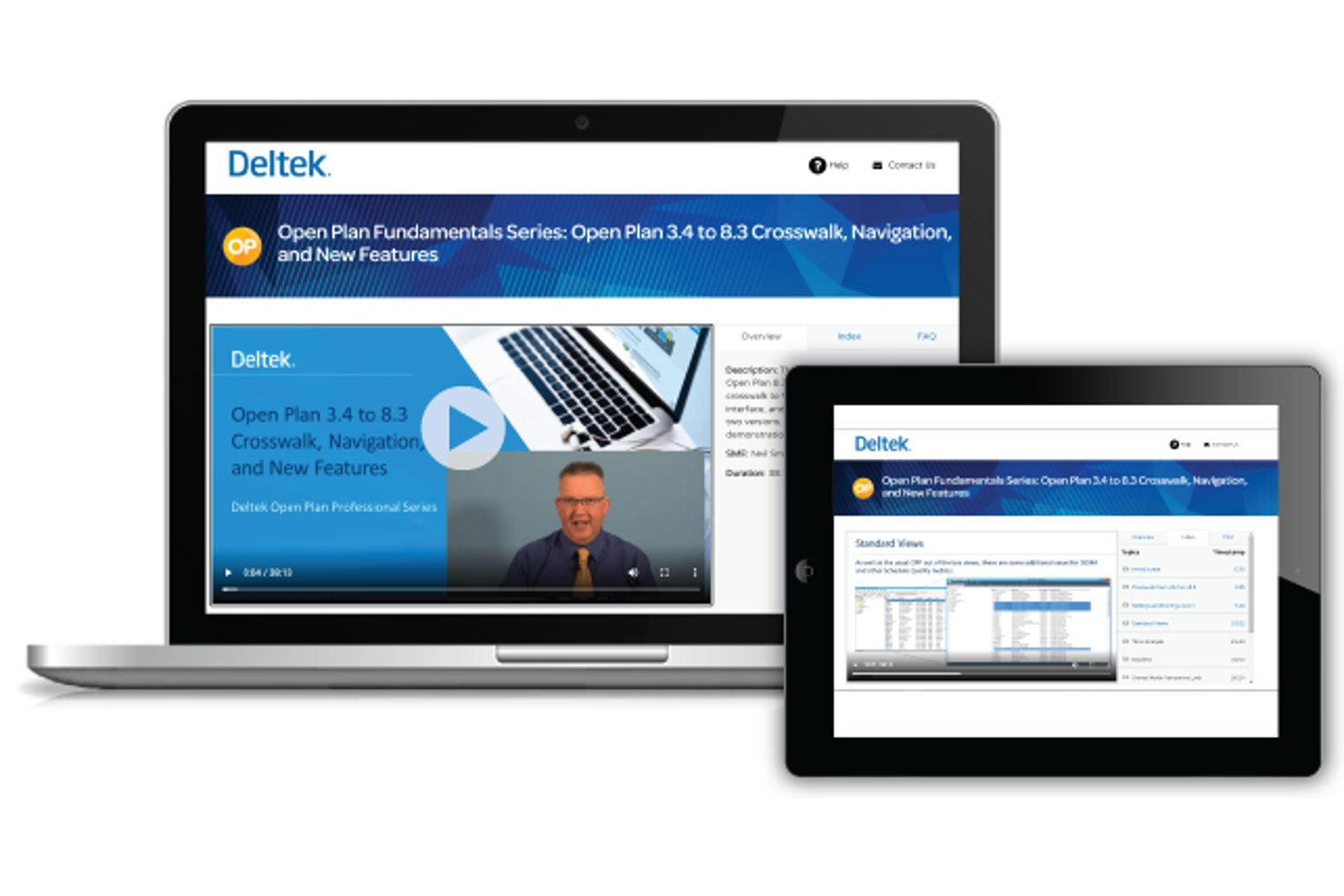
Deltek Open Plan è un'applicazione desktop Windows per la pianificazione, basata sulla metodologia CPM, che offre il monitoraggio di più progetti, il livellamento vincolato dalle risorse, l'analisi dei rischi Monte Carlo e i controlli di conformità DCMA.
Per chi è più adatto Deltek Open Plan?
Deltek Open Plan è particolarmente adatto ai project manager che operano nel settore degli appalti governativi, aerospaziale e della difesa e che necessitano di una pianificazione CPM rigorosa con controlli di conformità integrati.
Perché ho scelto Deltek Open Plan
Ho incluso Deltek Open Plan tra le mie scelte migliori perché è l'unico strumento desktop per la pianificazione che conosco a integrare direttamente nel motore di pianificazione i controlli di conformità DCMA in 14 punti. Per i programmi di appalti governativi o aerospaziali in cui lo stato di salute della pianificazione deve essere verificabile, questa è una vera caratteristica distintiva. Mi piace anche il fatto che l'analisi dei rischi Monte Carlo e il livellamento vincolato dalle risorse siano eseguiti nativamente, evitando di dover combinare strumenti separati per gestire rischi e capacità in programmi complessi con più progetti.
Funzionalità principali di Deltek Open Plan
- Riepiloghi di progetto principale e sottoprogetti: Annida i sottoprogetti all'interno di un progetto principale per riepilogare pianificazioni, risorse e avanzamento nell'intero portafoglio di programmi.
- Importazione da Jira: Mappa e importa direttamente i dati di Jira in Open Plan, con controllo a livello di campo e anteprima e registro dell'importazione.
- Archiviazione di più baseline: Salva e confronta più baseline della pianificazione, inclusa una baseline di misurazione delle prestazioni, con accesso basato sui ruoli e una cronologia completa degli audit.
- Elaborazione in blocco: Esegui contemporaneamente l'analisi temporale, la pianificazione delle risorse e l'analisi dei rischi su più progetti invece di procedere un progetto alla volta.
Integrazioni di Deltek Open Plan
Deltek Open Plan offre integrazioni native con Microsoft Project, Project Server, Oracle Primavera P6, Jira e Deltek Cobra. Offre inoltre API REST e un server MCP per integrazioni personalizzate.
Pros and Cons
Pros:
- Funziona offline con archiviazione locale in Access
- Controlli integrati dello stato di salute della pianificazione DCMA
- Il livellamento delle risorse si estende a più progetti
Cons:
- I revisori segnalano schermate lente e difficili da navigare
- La configurazione del database è onerosa per i piccoli team
Altri software desktop per la gestione dei progetti
Ecco altri strumenti che non sono entrati nella classifica principale, ma che meritano comunque di essere presi in considerazione.
- Smartsheet
Pianificazione collegata a Google Workspace
- RationalPlan
Ideale per la pianificazione con licenza una tantum allineata a PMBOK
- Hive
Ideale per diagrammi di Gantt e percorsi critici tramite l'app desktop
- ProjectLibre
Ideale per la pianificazione gratuita e offline dei file di MS Project
- Asta Powerproject
Ideale per la pianificazione e il controllo dei programmi dei lavori di costruzione
- FastTrack Schedule
Ideale per acquisti una tantum di diagrammi di Gantt e del percorso critico
- ConceptDraw PROJECT
Ideale per il monitoraggio di più progetti con licenza una tantum


Come Valuto il Software di Project Management per Desktop
Divido la mia valutazione in due livelli: la base che uno strumento deve superare—app nativa, accesso offline, autentico supporto Gantt—e i fattori differenzianti che distinguono una soluzione dall'altra.
Funzionalità Principali (Requisiti Indispensabili per Questa Lista)
Quando seleziono gli strumenti per la mia lista, valuto ciascuno su una scala da 0 (non offre la funzionalità) a 5 (eccelle in quest'area) per ogni funzionalità principale elencata di seguito. Poi calcolo il punteggio totale dello strumento come percentuale. Ogni strumento deve raggiungere un punteggio totale minimo del 65% per essere considerato incluso.
- Applicazione Desktop Nativa: Verifico se lo strumento offre un client desktop installabile con parità completa di funzionalità, e non un semplice involucro browser confezionato come app.
- Strutturazione di Task e Progetti: Cerco suddivisioni gerarchiche dei compiti, con sotto-attività, milestone e dipendenze che rispecchiano il modo in cui vengono costruiti i veri piani di consegna.
- Visualizzazione Tempistiche & Gantt: Un buon diagramma Gantt dovrebbe permetterti di trascinare le dipendenze, individuare elementi sul percorso critico e modificare i programmi senza dover cambiare schermata.
- Funzionalità Offline: Verifico se è effettivamente possibile aggiornare task e calendari mentre si è disconnessi, ad esempio lavorando in cantiere o durante i viaggi.
- Gestione Risorse & Carichi di Lavoro: I team che gestiscono più progetti hanno bisogno di sapere chi è sovraccarico. Cerco viste di capacità e il monitoraggio degli incarichi tra i diversi progetti.
- Portabilità di File & Dati: Controllo il supporto per import/export in formati come MPP, XML e CSV per poter condividere i piani con i clienti o migrare tra strumenti.
Una volta che ho una lista di strumenti che soddisfano i criteri, considero ciò che distingue ciascuna piattaforma.
Fattori Differenzianti (Cosa Distingue i Fornitori)
Ecco come confronto e metto in luce le differenze tra i vari fornitori:
Funzionalità Distintive
L'analisi di baseline e delle variazioni è un aspetto fondamentale per me. Poter fare uno snapshot di una pianificazione e confrontarla con l'avanzamento reale ti aiuta a individuare rallentamenti prima che mettano a rischio la scadenza. Cerco anche viste portfolio multi-progetto, dato che la maggior parte dei PM non gestisce un solo progetto per volta. La visibilità incrociata su tempistiche e priorità tra diversi progetti fa risparmiare ore di cambi di contesto. Anche le bacheche Kanban e agili contano, soprattutto per i team che affiancano metodologie ibride a quelle tradizionali in stile waterfall.
Oltre le Funzionalità
Il modello di licenza è molto importante per gli strumenti desktop. Valuto se un fornitore offre una licenza perpetua o impone un abbonamento, perché questa scelta incide sui costi a lungo termine per i team che non hanno bisogno di aggiornamenti costanti. L'ecosistema di integrazioni è un altro fattore chiave: controllo la presenza di connettori nativi verso Slack, Teams e piattaforme di archiviazione file che il team già utilizza ogni giorno. Anche le prestazioni del sistema hanno grande importanza. Un'app desktop che non riesce a gestire grandi file di progetto con centinaia di task e dipendenze nega il vantaggio di lavorare nativamente rispetto al browser.
Come scegliere un software desktop per la gestione dei progetti
È facile perdersi in lunghi elenchi di funzionalità e strutture tariffarie complesse. Per aiutarti a rimanere concentrato mentre affronti il tuo esclusivo processo di selezione del software, ecco una lista di controllo dei fattori da tenere a mente:
| Fattore | Cosa considerare |
| Scalabilità | Il software crescerà insieme alle esigenze in evoluzione del tuo team? |
| Integrazioni | Il software si integra perfettamente con gli strumenti che già utilizzi? |
| Personalizzazione | Puoi adattare il software ai flussi di lavoro specifici del tuo team? |
| Facilità d'uso | Quanto rapidamente il tuo team può imparare a utilizzare il software? |
| Budget | La struttura dei prezzi dello strumento è sostenibile per le tue esigenze a lungo termine? |
| Misure di sicurezza | Il software offre il livello di sicurezza richiesto dai tuoi dati? |
| Collaborazione | Il software supporta un lavoro di squadra e una comunicazione efficienti? |
| Reportistica | Il software fornisce le informazioni di cui il tuo team ha bisogno per monitorare i progressi? |
Tendenze nei software desktop per la gestione dei progetti
Durante la mia ricerca, ho raccolto innumerevoli aggiornamenti di prodotto, comunicati stampa e registri delle versioni di diversi fornitori di software desktop per la gestione dei progetti. Ecco alcune delle tendenze emergenti che sto tenendo d'occhio:
- Opzioni di distribuzione ibrida: gli utenti cercano sempre più flessibilità nel modo in cui accedono ai propri strumenti. I fornitori offrono software per la gestione dei desktop Windows in grado di passare dalla modalità basata sul cloud a quella offline, consentendo di lavorare senza interruzioni sia online sia offline.
- Pannelli personalizzabili: è in aumento la richiesta di strumenti desktop che consentano agli utenti di personalizzare i propri spazi di lavoro. Dalla modifica dei layout alla definizione delle priorità per i dati chiave, gli utenti desiderano un maggiore controllo sulla propria esperienza di gestione del desktop del PC. Questa tendenza è particolarmente evidente nei software open source per la gestione dei progetti, dove i pannelli personalizzati sono ormai indispensabili.
- Pianificazione dei progetti basata sull'intelligenza artificiale: l'intelligenza artificiale si sta affermando nelle applicazioni desktop per la gestione dei progetti, offrendo pianificazione e allocazione delle risorse più intelligenti. Non è più soltanto un espediente, ma una funzionalità degli strumenti Windows per la gestione dei progetti, in cui l'intelligenza artificiale suggerisce tempistiche ottimizzate e dipendenze tra le attività.
- Funzionalità incentrate sulla sicurezza: con l'aumento delle preoccupazioni relative alla sicurezza dei dati, le suite per la gestione desktop si stanno evolvendo per includere sistemi di crittografia e controllo degli accessi più potenti. Ad esempio, sia i software per la gestione dei laptop sia quelli per la gestione dei PC offrono ora l'autenticazione a più fattori e opzioni sicure per la condivisione dei file.
- Tecnologia desktop collaborativa: sebbene le integrazioni non rappresentino una tendenza, il modo in cui i team collaborano all'interno dei software desktop per la gestione dei progetti sta cambiando. Nuove funzionalità, come i feedback in tempo reale integrati nelle soluzioni per la gestione desktop, consentono ai team di lavorare insieme senza dover utilizzare strumenti separati per la comunicazione, rendendo la collaborazione più efficiente direttamente dal desktop.
Che cos'è un software desktop per la gestione dei progetti?
Il software desktop per la gestione dei progetti è un'applicazione informatica installata su un computer che aiuta a pianificare, organizzare e gestire i progetti. In genere include funzionalità come la gestione delle attività, la pianificazione, l'allocazione delle risorse, gli strumenti di collaborazione e l'accesso offline.
Il software desktop per la gestione dei progetti funge da strumento centralizzato per controllare i progetti direttamente dall'ambiente desktop e può offrire prestazioni e reattività superiori rispetto alle soluzioni basate sul browser: è perfetto quando si lavora con dati di progetto numerosi e complessi.
Quali sono le funzionalità dei software desktop per la gestione dei progetti?
Ci aspettiamo che un'app per la gestione dei progetti con software desktop disponga delle stesse funzionalità delle soluzioni basate sul cloud. Ecco alcune delle funzionalità che è possibile trovare in questi strumenti per la pianificazione dei progetti.
- Integrazioni: collegamento del software ad altre piattaforme, ad esempio le applicazioni Google.
- Gestione delle attività: possibilità di stabilire le priorità delle attività del progetto, monitorarle e spostarle all'interno del flusso di lavoro del progetto.
- Comunicazioni: uno spazio all'interno del sistema di gestione dei progetti in cui i membri del team comunicano per migliorare la collaborazione tra più progetti, accedere alla condivisione dei file e molto altro.
- Automazioni: funzionalità che semplifica le attività ricorrenti consentendo al software di attivare azioni per conto dell'utente.
- Visualizzazioni: spazi di lavoro che mostrano le informazioni in modi diversi, tra cui elenco delle attività, diagramma di Gantt, bacheca kanban e calendario.
- Gestione delle risorse: funzionalità che consente di visualizzare il carico di lavoro del team o, ad esempio, il numero di progetti assegnati a ciascun membro. I team piccoli probabilmente possono farne a meno, ma lo stesso non vale per i team più grandi.
- Modelli di progetto: contenuti predefiniti che possono fungere da punto di partenza per i progetti.
- Controllo degli accessi: possibilità di impostare autorizzazioni per ogni utente, in modo che solo le persone autorizzate possano modificare le attività. Ciò può essere utile, ad esempio, per gestire i collaboratori freelance.
- Pannelli: sezione della piattaforma in cui è possibile monitorare l'avanzamento complessivo dei progetti.
- Gestione del tempo: modulo che consente di monitorare le singole attività e i fogli presenze e di misurarne l'impatto sui risultati finali.
Vantaggi dei software desktop per la gestione dei progetti
L'implementazione di un software desktop per la gestione dei progetti offre diversi vantaggi al team e all'azienda. Ecco alcuni dei vantaggi di cui si può usufruire:
- Maggiore concentrazione: Utilizzando la tecnologia desktop, puoi ridurre le distrazioni causate dagli strumenti basati sul browser, consentendoti di concentrarti completamente sulle tue attività.
- Accessibilità offline: Con le soluzioni di gestione per Windows, puoi continuare a lavorare anche senza una connessione Internet, assicurandoti che i tuoi progetti rimangano in linea con i programmi, indipendentemente da dove ti trovi.
- Maggiore sicurezza: Il software di gestione del computer mantiene i tuoi dati sensibili più sicuri grazie all'archiviazione locale e a un controllo migliore degli accessi, riducendo i rischi associati all'archiviazione nel cloud.
- Spazi di lavoro personalizzabili: Gli strumenti di gestione del computer ti consentono di organizzare la tua interfaccia, semplificando l'adattamento alle esigenze specifiche del tuo team o dei singoli progetti.
- Prestazioni più elevate: Il software di gestione del computer funziona in modo più fluido rispetto a molte alternative basate sul cloud, offrendo un accesso più rapido a dati e strumenti.
- Costi inferiori: Sono disponibili gratuitamente molte opzioni di software open source per la gestione dei progetti su Windows, riducendo le spese e offrendo comunque potenti funzionalità di pianificazione dei progetti.
- Backup affidabili: Con il software per computer, i tuoi file e i dati dei progetti possono essere salvati direttamente sul computer, offrendoti un maggiore controllo sul recupero dei dati e sui backup.
Costi e prezzi del software per la gestione dei progetti su computer
La scelta di un software per la gestione dei progetti su computer richiede la comprensione dei vari modelli di prezzo e dei piani disponibili. I costi variano in base alle funzionalità, alle dimensioni del team, ai componenti aggiuntivi e ad altri fattori. La tabella seguente riassume i piani comuni, i relativi prezzi medi e le funzionalità tipicamente incluse nelle soluzioni software per la gestione dei progetti su computer:
| Tipo di piano | Prezzo medio | Funzionalità comuni |
| Piano gratuito | $0 | Gestione di base delle attività, spazio di archiviazione limitato e accesso per un singolo utente. |
| Piano personale | $5-$15/utente/mese | Monitoraggio delle attività, flussi di lavoro personalizzabili e modelli di progetto limitati. |
| Piano aziendale | $20-$40/utente/mese | Strumenti di collaborazione del team, report avanzati, monitoraggio del tempo e maggiore spazio di archiviazione. |
| Piano per grandi aziende | $50-$100/utente/mese | Supporto prioritario, funzionalità di sicurezza avanzate, progetti illimitati e integrazioni. |
Domande frequenti
Ecco alcune risposte alle domande comuni sul software desktop per la gestione dei progetti: