

How to Choose Project Management Software


Choosing the right project management software can make or break your team's success. The right tool can save time, improve accuracy, support compliance requirements, and help your team get more value from its investment.
But pick the wrong project management solution, and you're stuck with inefficiencies, missed deadlines, and frustrated team members.
This guide is for project managers, team leads, and anyone responsible for steering projects to success. Whether you're looking to improve collaboration or streamline processes, I'll help you find the right project management tool for your unique needs.

4 Things to Look for When Choosing Project Management Software
In my experience using project tools, I focus on integrations, scalability, role-based access, and reporting that makes project data clear:
1. Integration With Your Existing Tools

Integrations connect project management software to tools your team already uses, such as chat, calendars, code repositories, and file storage.
Check whether key integrations sync the data your workflow needs, and watch for duplicate records or manual updates; ask, “Which tools must exchange information for this workflow to work?”
For remote or distributed teams, also test mobile access and real-time syncing to ensure team members can manage projects from different locations.
For example, construction companies using Xero for accounting should look for construction project management software that works with Xero.
During a demo or free trial, test these integrations to confirm smooth data flow. Reducing manual updates and errors is a key construction project management software benefit.
2. Scalability as Your Team Grows
Scalability means the software can handle more users, projects, and workflow complexity as your team grows. Look for flexible permissions, reporting, and clear pricing as usage increases; avoid paying for capacity you don’t need yet. Ask: what team size or project volume would trigger an upgrade, and what would it cost?
Check the vendor's onboarding, training, and customer support options, along with any additional fees for changing plans or adding features.

3. Role-Based Access and Permissions
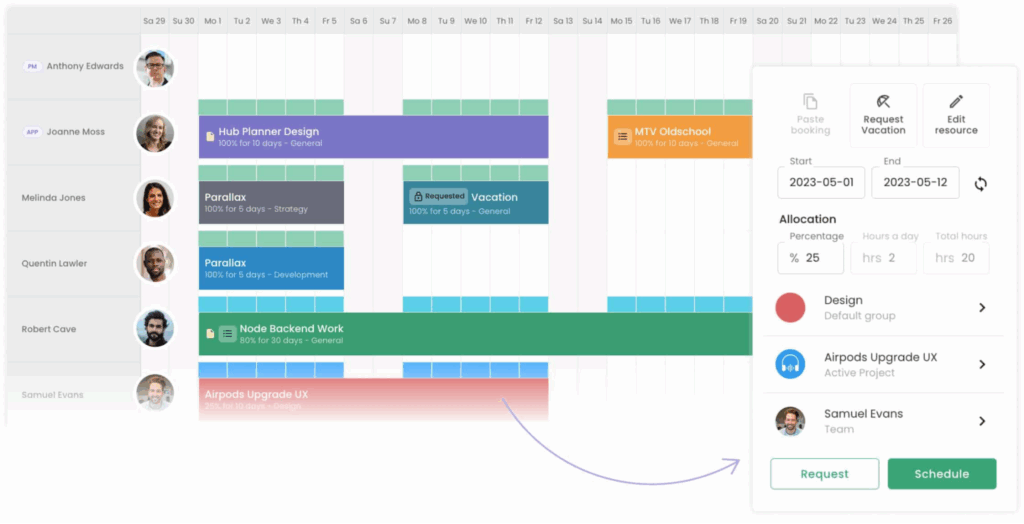
Role-based access lets you control who can view, edit, approve, or administer project data. Look for granular, easy-to-audit permissions that match team responsibilities, and avoid tools that depend on broad, shared access. Ask which people need access to sensitive project details and what actions they should be able to take.
Also check whether you can customize workflows, fields, and templates, and automate routine tasks such as assignments, notifications, and status updates.
4. Reporting and Data Visibility
Reporting turns project activity into views of progress, workload, risks, and delivery trends. Look for reports you can filter by project, team, and timeframe, and avoid dashboards that hide how metrics are calculated.
Ask: which decisions should your team make from project data, and can the software show the information behind those decisions?
How to Choose Project Management Software: A 5-Step Framework
Use these five steps to assess your workflow, test tool fit, and make a confident choice:
Step 1: Identify Your Needs
Before you open a single product page, talk to the people who'll use the tool every day. In my experience, skipping this step is what leads teams to pick software that looks great in a demo but gets quietly abandoned after a month.
Start by mapping how work actually moves through your team—not how it's supposed to move. Those two things are rarely the same, and the gap between them is where your real requirements live.
Talk to these stakeholders before you commit to anything:
- Project managers: What do they track manually that should be automatic? Where do things fall through the cracks?
- Team leads and individual contributors: Which steps in their current workflow feel like extra work? What would they want to see at the start of each day?
- Executives and sponsors: What project data do they need to make decisions, and how often?
- IT or ops: What security, compliance, or integration constraints will shape what you can actually use?
Once you've had those conversations, use these questions to shape your requirements:
- What's the primary work type: task-based delivery, ongoing operations, or a mix of both?
- How many people need access, and do they need different permission levels?
- Which tools does the software need to connect to on day one?
- Are there compliance, data residency, or security requirements that limit your options?
- What does "success" look like in six months, and how would you measure it?
By the end of this step, you should have a short list of must-haves, a separate list of nice-to-haves, and a clear picture of the workflows the tool needs to support. That distinction matters more than most teams realize—collapsing the two lists is how you end up overpaying for features no one uses.
Step 2: Research Project Management Software Vendors
Once you know what you need, it's time to look at what's out there. I'd resist the urge to Google "best project management software" and click the first result. Those lists can steer you toward the most popular tools, not the right one for your team's situation.
Instead, use multiple sources and treat each one differently. Here's how I approach this stage:
- Peer reviews: Read reviews from people with your team size, industry, and use case. Filter by role—what a solo freelancer values is different from what a 50-person engineering team needs.
- Analyst and comparison sites: Use these to map the market and understand where vendors position themselves. They're better for breadth than depth.
- Community forums and Slack groups: These surface real frustrations that vendors won't advertise. Search for the tool name alongside words like "problem," "limitation," or "switched from."
- Vendor documentation: Go straight to the product docs, not just the marketing site. Docs tell you what a tool actually does—marketing tells you what they want you to think it does.
- Recent release notes or changelogs: I always check these. A vendor that ships updates regularly is one that responds to user feedback. A stale changelog is a warning sign.
Use this table to evaluate the quality and intent of each source you consult:
| Source Type | Best Used For | Watch Out For |
|---|---|---|
| Peer review sites | Real user sentiment | Recency and role relevance |
| Vendor marketing sites | Understanding positioning | Overstated capabilities |
| Community forums | Known pain points | Outlier opinions or old posts |
| Analyst reports | Market context | Bias toward enterprise tools |
| Product documentation | Actual feature depth | Incomplete or outdated content |
Consider your team size and business needs when researching vendors. For example, some PM tools are well-suited for startups and small businesses, while solopreneurs managing their own projects may prioritize affordable pricing, easy onboarding, and simple task management over advanced features.
By the end of this step, you should have a working list of vendors that plausibly fit your requirements—not a shortlist yet, just candidates worth a closer look. I'd aim for five to eight options. Any more than that and the next steps get unwieldy fast.
Top Project Management Software to Consider
Here's my pick of the 10 best software from the 10 tools reviewed.
Clicks on the links below may earn a commission, which supports our independent testing and review of software and services. Learn more about how we stay transparent.


Step 3: Make a Project Management Software Shortlist
By now, you have a list of candidates and a clear picture of what you need. This step is about cutting that list to three or four tools worth testing seriously. In my experience, most teams skip this work and go straight to demos—which means they waste hours watching sales presentations for tools that were never going to fit.
Use these criteria to cut your initial list down to a workable shortlist:
- Must-have coverage: Does the tool support every item on your non-negotiable list? If it's missing even one, remove it. Don't assume you'll work around it.
- Pricing structure fit: Does the pricing model match how your team is structured? Per-seat costs hit differently for a 10-person team versus a 60-person org. Run the actual numbers.
- Integration depth: Does it connect to the tools your team uses daily, or does it just list them as supported? There's a real difference between a native integration and a third-party workaround.
- Deployment and security fit: Does it meet your IT or compliance requirements? Check whether the vendor's hosting locations and deployment options meet your data residency requirements.
- Review signal: What do people with your team size and work type actually say? One or two bad reviews don't disqualify a tool, but a consistent pattern does.
Use this table to compare your remaining candidates before booking demos:
| Evaluation Factor | What to Check |
|---|---|
| Must-have features | All non-negotiable requirements met. |
| Pricing at your team size | Actual cost, not entry-level pricing |
| Integration compatibility | Native or third-party connectors |
| Security and compliance | Data residency, SSO, permissions |
| User review patterns | Consistent themes, not outliers |
Once you've narrowed to your final shortlist, that's when I'd reach out to vendors. Contact them in the same week if you can—you'll get more out of conversations when the tools are fresh in your head and you can compare responses side by side.
When you book demos, come with your requirements list and ask vendors to show you your actual workflows, not their standard deck. That's the fastest way to find out whether a tool fits or just looks like it does.
After each demo, compare the tools against the same requirements, costs, and integration needs. When possible, have team members test a real workflow during a free trial. Document the tradeoffs and identify your preferred tool to recommend in the business case.
By the end of this step, you should have a preferred tool to recommend, clear reasons for your choice, and a backup option if needed.
Step 4: Build the Business Case
A business case isn't just a formality to get budget approval. In my experience, it's the clearest way to pressure-test whether you've actually chosen the right tool—and to set expectations before anyone touches a contract.
By the end of this step, you should have a one- or two-page document your stakeholders can read in five minutes and understand the tradeoff you're asking them to make.
Follow this process to build a case that holds up to scrutiny:
- Quantify the current cost of doing nothing: Estimate how much time teams spend on manual workarounds, status updates, and coordination tasks today. Even rough numbers work—the point is to show that the status quo isn't free.
- Summarize expected ROI and outcomes: Tie your projected gains to specific workflow problems you identified in Step 1. Focus on outcomes your stakeholders already care about: faster delivery cycles, fewer missed deadlines, clearer visibility into workload. Don't promise outcomes you can't trace back to a feature.
- Build a realistic cost estimate: Include licensing, onboarding, any integration work, and internal time spent on setup and training. Most teams underestimate implementation costs by ignoring the last two. Factor in your projected team size at 12 and 24 months, not just today's headcount.
- Map an implementation timeline: Break rollout into phases. A phased approach is easier to approve and easier to recover from if something doesn't work. Show which teams onboard first and what "done" looks like for each phase.
- Name the risks and how you'd handle them: Adoption risk is usually the biggest one. Address it directly—what's your plan if people default back to email and spreadsheets? Also flag integration risk, data migration complexity, and any contractual lock-in.
Use this table to organize your business case before presenting it to stakeholders:
| Business Case Element | What to Include |
|---|---|
| Current cost baseline | Time lost to manual work, missed handoffs, status meetings |
| Expected outcomes | Delivery speed, visibility, coordination overhead |
| Total cost of ownership | Licensing, setup, training, integration work |
| Implementation timeline | Phased rollout, milestones, team onboarding order |
| Risk mitigation | Adoption plan, rollback options, contract terms |
I'd keep the final document short. If you need more than two pages to make the case, you probably haven't distilled it enough. The goal isn't to cover every detail—it's to make the tradeoff obvious and the decision easy.
The pricing across tools varies astronomically. It’s important to consider how many seats you need, how guests are managed, and what add-ons are required, because it can spiral quickly.

The DPM's PM Software Buyer's Guide
Get a full breakdown of how to buy the right project management software with our complete buyer's guide:
Get the PM Software Buyer's Guide
Step 5: Implement Your Project Management Software and Onboard Your Users
Choosing the right tool is only half the job. In my experience, implementation is where most rollouts quietly fail—not because the software was wrong, but because the team wasn't set up to actually use it.
The goal of this step is to move from "we picked a tool" to "the team is working in it consistently." That shift doesn't happen on its own. It takes deliberate communication, clear ownership, and a feedback loop that catches problems before they become habits.
Before you go live, make sure you've covered these rollout fundamentals:
- Announce early and explain why: Tell your team what's changing, when it's changing, and—most importantly—why it's better than what you're replacing. People adopt tools faster when they understand the reason behind the switch.
- Assign a rollout owner: Someone needs to be accountable for setup, configuration, and troubleshooting. This doesn't have to be a full-time role, but it can't be everyone's job or it becomes no one's job.
- Phase the rollout by team or workflow: Don't try to migrate everything at once. Start with one team or one workstream, get it working well, then expand. This limits blast radius if something goes sideways.
- Build training around real work: Generic walkthroughs don't stick. Walk your team through the actual projects and tasks they'll manage in the tool, not a demo scenario. That's what makes training land.
- Set a feedback window: Pick a date—two to four weeks after launch—where you actively collect input. I'd do this in a short sync, not a survey. You'll hear things in conversation that people won't write down.
- Define what "done" looks like: Agree on what successful adoption means before you launch. Is it a percentage of tasks logged in the tool? Status updates happening without prompting? Set the bar so you know when you've cleared it.
Use this table to track the key decisions you need to make before going live:
| Rollout Decision | What to Define |
|---|---|
| Launch scope | Which team or workflow goes first |
| Rollout owner | Who handles setup, access, and support |
| Training format | Live session, async video, or written guide |
| Feedback mechanism | How and when you'll collect input post-launch |
| Success criteria | What adoption looks like at 30 and 90 days |
By the end of this step, your team should be working in the tool—not just logging in. That's a real distinction. Logins spike in week one. Consistent, unprompted use is what tells you the rollout actually worked.
What’s Next?
If you need a little more help deciding on the right project management software for your team, it's worth taking a second look at your list of project management software requirements to see where you can narrow down your options.
You can also create a project management software RFP to get more info from potential vendors on what they offer.
Before You Go…
Want a handy visual checklist to help you remember the steps? I've got you covered! Download our visual checklist here:

