
18 Best Process Documentation Software Reviewed in 2026

Best Process Documentation Software Shortlist
Here’s my pick of the 10 best software from the 19 tools reviewed.


Managing projects can be frustrating when processes aren’t documented. Miscommunication, delays, and wasted time can leave your team feeling overwhelmed. That’s where process documentation software comes in, helping you organize workflows so everyone knows exactly what to do and when.
In my experience, the right software can completely transform your team's operations. I’ve reviewed and tested top tools to provide you with unbiased recommendations tailored to your real needs.
Keep reading as I discuss the best options available and explain how each one can help your team stay aligned, save time, and tackle your biggest project management challenges.
Why Trust Our Software Reviews
We’ve been testing and reviewing project management software since 2012. As project managers ourselves, we know how critical and difficult it is to make the right decision when selecting software. We invest in deep research to help our audience make better software purchasing decisions.
We’ve tested more than 2,000 tools for different project management use cases and written over 1,000 comprehensive software reviews. Learn how we stay transparent & check out our software review methodology.
Best Process Documentation Software Summary
This comparison chart summarizes pricing details for my top Process documentation software selections to help you find the best one for your budget and business needs.
| Tool | Best For | Trial Info | Price | ||
|---|---|---|---|---|---|
| 1 | Best with secure, role-based document workspaces | 7-day free trial available | From $16.99/month | Website | |
| 2 | Best for AI‑guided process writing | 14-day free trial + free demo available | Pricing upon request | Website | |
| 3 | Best for AI-powered script generation | Free plan available (for 10 days) | From $40/month (billed annually) | Website | |
| 4 | Best for automating document creation | Free plan + free demo available | From $12/seat/month (billed annually) | Website | |
| 5 | Best for AI-driven insights | Free plan + free demo available | From $22/user/month (billed annually) | Website | |
| 6 | Best for user onboarding | Free demo available | Pricing upon request | Website | |
| 7 | Best for recurring workflows | 14-day free trial + free demo available | Pricing upon request | Website | |
| 8 | Best for diagram-based documentation | Free plan available | From $5/month (billed annually) | Website | |
| 9 | Best for internal knowledge sharing | 30-day free trial available | From $8/user/month (billed annually) | Website | |
| 10 | Best for team collaboration | Free plan available | From $5.42/user/month (billed annually) | Website |
-

Accelo
Visit WebsiteThis is an aggregated rating for this tool including ratings from Crozdesk users and ratings from other sites.4.4 -
Wrike
Visit WebsiteThis is an aggregated rating for this tool including ratings from Crozdesk users and ratings from other sites.4.2 -
Forecast
Visit WebsiteThis is an aggregated rating for this tool including ratings from Crozdesk users and ratings from other sites.4.6



Best Process Documentation Software Reviews
Below are my detailed summaries of the best Process documentation software that made it onto my shortlist. My reviews offer a detailed look at the key features, pros & cons, integrations, and ideal use cases of each tool to help you find the best one for you.

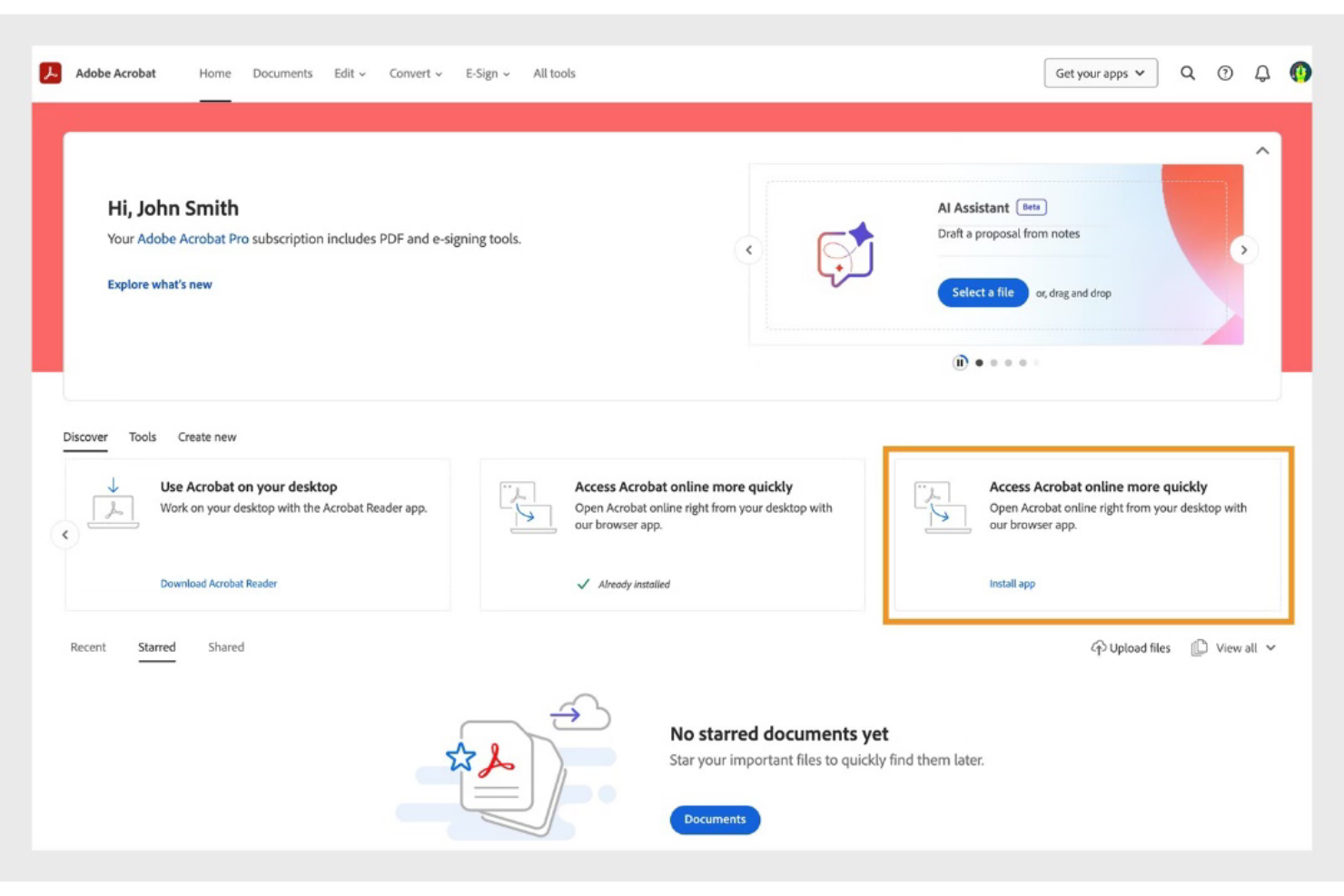
Adobe Acrobat is a document management platform that supports creating, editing, organizing, and securing process documentation in PDF format. It enables teams to manage documentation workflows, collaborate on files, and maintain controlled access to sensitive documents.
Who Is Adobe Acrobat Best For?
Adobe Acrobat is best suited for teams in regulated industries and large organizations that require secure document control, audit tracking, and structured collaboration on process documentation.
Why I Picked Adobe Acrobat
I picked Adobe Acrobat because it provides secure, role-based document controls that help manage access to sensitive process documentation. Teams can assign permissions to restrict editing, commenting, or viewing rights. Audit trails and activity tracking support accountability and compliance across documentation workflows.
Adobe Acrobat Key Features
- PDF editing tools: Edit text, images, and formatting directly within PDF documents.
- Template management: Create reusable document templates for consistent process documentation.
- E-signature workflows: Collect legally binding electronic signatures on process documents.
- Commenting and markup: Add annotations, highlights, and comments for collaborative review.
- OCR technology: Convert scanned documents into searchable, editable text.
Adobe Acrobat Integrations
Adobe Acrobat integrates with Microsoft 365, Google Workspace, Microsoft Teams, SharePoint, Box, Salesforce, and Workday. APIs are available for custom integrations.
Pros and Cons
Pros:
- Advanced PDF editing and redaction tools
- Deep integration with Microsoft 365 and Google Workspace
- Supports secure, role-based access for documents
Cons:
- Workflow automation features are basic compared to peers
- No free-forever business plan available


Document360 is a cloud-based platform that helps teams create and manage process documentation, SOPs, and user guides.
Who Is Document360 Best For?
Document360 suits technical writers, product teams, and customer support teams at mid-size to enterprise SaaS companies that need a dedicated platform for structured knowledge base and process documentation.
Why I Picked Document360
Document360 earns its spot on my shortlist because of how far its AI writing tools go beyond basic autocomplete. I particularly like the AI Writing Agent, which I use to turn video walkthroughs, audio files, or a simple prompt into fully structured documentation—complete with formatting, internal links, and SEO metadata. It also includes a style guide feature that lets my team define tone, formatting rules, and editorial standards so the AI generates content that matches how we write. The SOP generator is another standout for process documentation, producing step-by-step procedures with compliance guidelines built in.
Document360 Key Features
- Version control: Track and manage every revision of a document, with the ability to restore previous versions at any point.
- Category manager: Organize documentation into a hierarchical structure with up to six levels of nested categories.
- Content reuse (snippets): Create reusable content blocks that can be inserted across multiple articles without duplicating edits.
- Analytics dashboard: Monitor article performance, search queries, and reader engagement to identify gaps in your documentation.
Document360 Integrations
Document360 integrates with tools like Slack, Microsoft Teams, Zendesk, Freshdesk, Intercom, Google Analytics, Disqus, and Segment. It also supports additional integrations via Zapier and offers an API for custom connections.
Pros and Cons
Pros:
- Allows for creating personalized workflows to fit organizational needs
- Supports markdown and WYSIWYG editors for technical content
- Fast, robust search capability supports quick retrieval of SOPs
Cons:
- Occasional performance hiccups when loading large projects
- Limited offline access
New Product Updates from Document360

Document360 Improves Article Review Workflows
Document360 introduces enhancements to article review reminders, improving review governance with new interactive features. For more information, visit Document360's official site.
 .
.
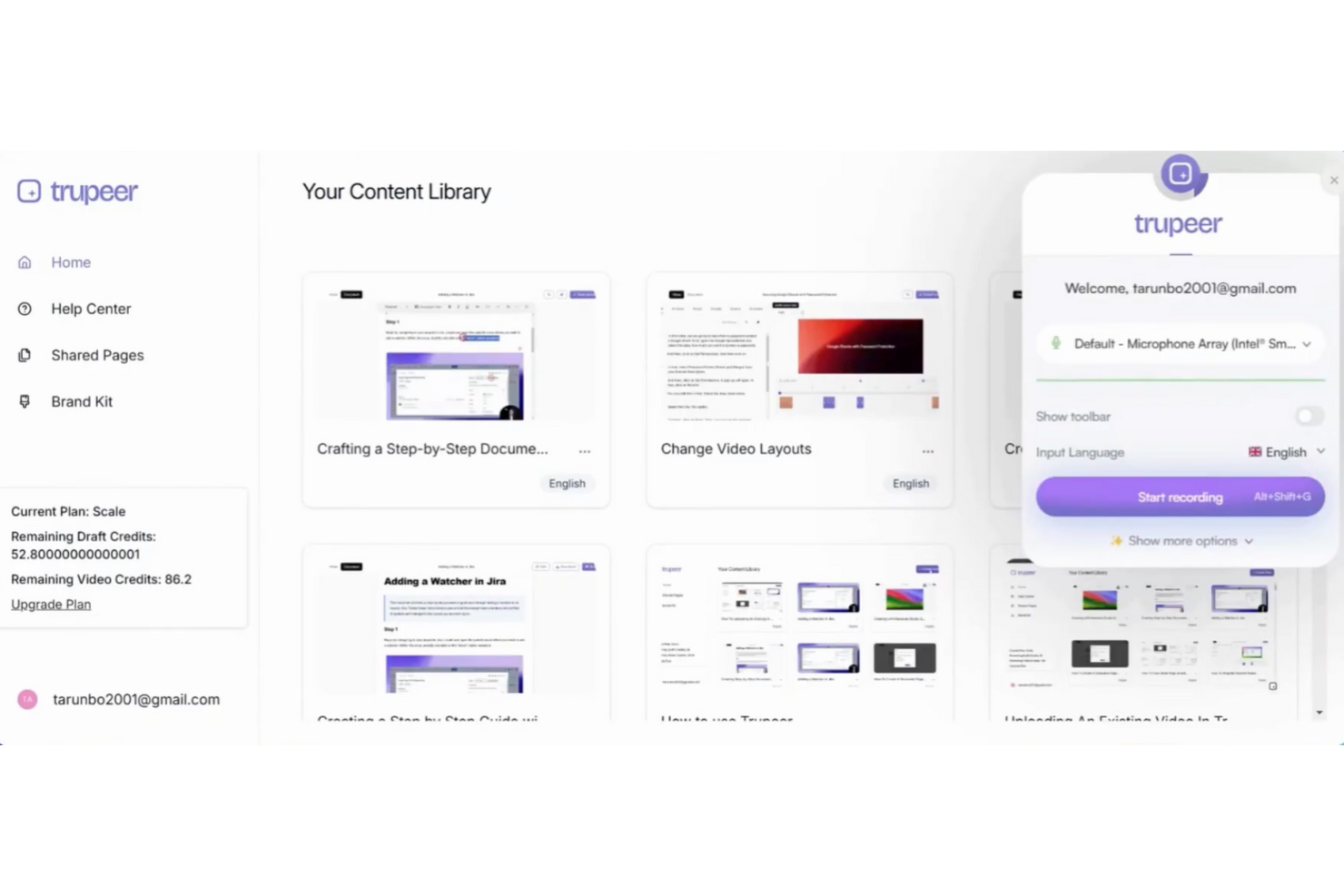
TruPeer is a process documentation platform that uses AI to generate, organize, and manage scripts and workflows for teams looking to standardize their operational procedures.
Who Is TruPeer Best For?
TruPeer is a good fit for operations and enablement teams that need to document and scale repeatable processes across distributed or growing organizations.
Why I Picked TruPeer
TruPeer earns its spot on my shortlist because of how it handles AI script generation directly from screen recordings. Rather than asking you to write documentation from scratch, TruPeer watches what you do on screen and auto-generates a refined, context-aware script—removing filler words, correcting grammar, and adapting tone to match your intended style. I also like that the AI syncs the generated script back to the video timeline, so edits you make to the text automatically update the corresponding video segment. TruPeer also converts those scripts into structured step-by-step written guides, so a single recording yields a polished video and a usable process document.
TruPeer Key Features
- Multi-language translation: Translate any video or written guide into 65+ languages directly within the platform, without re-recording.
- Brand mirroring: Upload an existing company document and TruPeer reverse-engineers its structure, fonts, colors, and layout to apply to every new guide.
- Vision-based action detection: TruPeer analyzes click metadata and screen transitions from any recording to accurately identify and describe each step in a process.
- Centralized knowledge base: Store all SOPs, articles, and videos in one searchable hub with AI-assisted search and sharing controls.
TruPeer Integrations
TruPeer offers native integrations with Slack, Google Drive, Confluence, Notion, and Zapier. An API is available for custom integrations.
Pros and Cons
Pros:
- Searchable video timestamps help users find exact steps quickly
- Supports multilingual voiceovers for diverse audiences
- Converts screen recordings into structured video and written guides
Cons:
- Limited workflow tracking compared to dedicated process tools
- Lacks built-in ticketing or support case linkage


Scribe is a process documentation platform that captures workflows, generates step-by-step guides with screenshots, and lets teams create and share detailed process documents.
Who Is Scribe Best For?
Scribe is a good fit for operations and enablement teams that need to document processes without relying on technical writers.
Why I Picked Scribe
Scribe earns its spot on my shortlist because of how it handles document creation—you just run through a process once, and Scribe captures every click and keystroke to generate a formatted, screenshot-annotated guide. I picked it specifically for its browser extension, which works in the background without interrupting your workflow. I also like the AI-generated text feature, which drafts step descriptions so my team isn't writing from scratch. For teams documenting repetitive processes like onboarding or software walkthroughs, that combination reduces documentation time.
Scribe Key Features
- Pages: Combine multiple Scribe guides into a single, organized process document with added text, videos, screenshots, and links.
- Sensitive data redaction: Automatically or manually blur sensitive information from captured screenshots before sharing guides.
- Viewer insights: Track who has viewed and completed a guide, and collect feedback to flag outdated content.
- Company branding: Upload your logo, brand colors, and website URL to apply consistent styling across all published guides.
Scribe Integrations
Scribe primarily works through a browser extension that captures workflows and lets users embed or share guides across tools. It allows content to be embedded in platforms like Confluence, Notion, and Google Docs, but does not offer a broad set of native integrations. Zapier and API support are not clearly documented.
Pros and Cons
Pros:
- Redacts sensitive information
- Easy customization options
- Fast documentation creation
Cons:
- Requires internet for full functionality
- Limited offline access


Tango is a process documentation platform that lets you capture workflows, generate step-by-step guides, and organize process knowledge directly from your browser.
Who Is Tango Best For?
Tango is a good fit for operations and enablement teams at mid-sized tech companies that need to document and share internal processes at scale.
Why I Picked Tango
Tango earns its spot on my shortlist because of how its analytics layer turns static documentation into a living feedback loop. I particularly like the process adoption analytics, which show me exactly which steps teammates are dropping off on—not just whether a guide was viewed, but where the friction lives. The step-level feedback collection lets users flag confusion in real time, so I'm crowdsourcing process improvements from the people doing the work. That combination of drop-off tracking and in-context feedback separates Tango from tools that capture and publish workflows.
Tango Key Features
- Automatic workflow capture: Record any process directly in your browser and Tango auto-generates a formatted, step-by-step guide with annotated screenshots.
- AI-generated descriptions: Tango automatically writes text descriptions for each captured step, reducing the manual effort of writing documentation from scratch.
- Embeddable guides: Publish and embed Tango guides directly into tools like Notion, Confluence, or your internal wiki without requiring recipients to log in.
- Knowledge base organization: Group and organize guides into folders and collections so teams can find the right documentation when they need it.
Tango Integrations
Tango offers native integrations with Notion, Confluence, Slack, Google Drive, and Microsoft Teams, and connects with Zapier. An API is available for custom integrations.
Pros and Cons
Pros:
- Enhances training and onboarding
- Automatic process documentation
- AI-driven workflow insights
Cons:
- Limited offline functionality
- May require initial setup time


Whatfix is a digital adoption platform for process documentation that lets you create interactive guides, in-app walkthroughs, and knowledge bases to document and deliver process instructions within your software tools.
Who Is Whatfix Best For?
Whatfix is a strong fit for mid-size to enterprise teams that need to document and deliver process guidance directly inside the software their employees or customers use every day.
Why I Picked Whatfix
I picked Whatfix as one of the best because of how it handles user onboarding documentation in a way that's genuinely different from static wikis or PDFs. Instead of asking new users to read a process doc and then figure out the application themselves, Whatfix lets me embed role-specific Flows and Task Lists directly inside the app they're learning. A new hire working in a CRM or ERP sees step-by-step guidance appear in context, right at the moment they need it. I also like the in-app survey feature, which lets me collect onboarding feedback without pulling users out of their workflow to fill out a separate form.
Whatfix Key Features
- No-code content editor: Create and update in-app guidance across any application without writing code or relying on developers.
- Multi-format content exporting: Export Whatfix content as videos, PDFs, slide decks, or how-to articles to embed in your LMS or knowledge base.
- Self Help widget: Give users an in-app help center with AI-powered conversational search that pulls answers from your existing knowledge repositories.
- Cross-application workflow support: Guide users through processes that span multiple applications without interrupting their workflow.
Whatfix Integrations
Whatfix offers native integrations with Salesforce, Oracle CX, SAP S/4HANA, NetSuite, and Bullhorn, and the Microsoft ecosystem, including Microsoft 365 and Azure. An API is available for custom integrations.
Pros and Cons
Pros:
- Real-time user analytics
- Customizable learning paths
- Effective in-app guidance
Cons:
- Requires initial training
- Complex setup process


Process Street is a process documentation platform designed for teams to create, organize, and manage detailed workflows and checklists with automation and collaboration features.
Who Is Process Street Best For?
Process Street suits operations and process-focused teams in small to mid-sized businesses that need a structured way to document and run repeatable procedures.
Why I Picked Process Street
Process Street earns its spot on my shortlist because of how well it handles recurring workflows through a structured, checklist-driven approach. I like that you can build workflow templates once and then run them as individual instances—so each time a process repeats, it gets its own tracked run with assignees, due dates, and conditional logic intact. My team uses the scheduled workflow feature to automatically trigger recurring processes on a set cadence, which removes the manual overhead of remembering to kick things off. The approval steps built into each workflow also make it easy to document who signed off on what, which matters when you're running the same process across a team.
Process Street Key Features
- Role assignments: Assign specific tasks within a workflow to different team members based on their role.
- Conditional logic: Set rules that show or hide tasks depending on how previous steps are completed.
- Form fields: Embed data-capture fields directly into workflow tasks to collect structured information as work progresses.
- Audit trail: Track a timestamped record of every action taken within a workflow run for accountability and review.
Process Street Integrations
Process Street integrates with tools like Slack, Google Sheets, Salesforce, Jira, DocuSign, Dropbox, Airtable, and Trello. It also connects via Zapier for additional integrations and offers an API for custom setups.
Pros and Cons
Pros:
- Offers Process AI
- Supports complex workflows
- Easy process creation
Cons:
- It can be complex to set up
- Limited offline features


Creately is a process documentation platform that lets you create, organize, and collaborate on diagrams, flowcharts, and visual process maps in a shared workspace.
Who Is Creately Best For?
Creately is a good fit for cross-functional teams in tech and product organizations who need to document and communicate processes visually.
Why I Picked Creately
Creately earns its spot on my shortlist because it goes deeper on diagram-based documentation than most tools in this category. I particularly like the BPMN support—when my team needs to document a multi-step approval workflow or a cross-functional handoff process, we can map it out using proper BPMN notation with swimlanes, decision gateways, and event triggers, all within the same canvas. Creately also supports 70 diagram types with 1,000+ purpose-built shapes, so you're not forcing a flowchart to do the job of a UML sequence diagram or a data flow diagram. The per-item docs feature lets you attach rich notes and context directly to individual shapes, which keeps the diagram and its supporting documentation in one place.
Creately Key Features
- Real-time editing: Multiple team members can work on the same canvas simultaneously, with live cursor tracking to see who's changing what.
- 8,000+ templates: Pre-built templates spanning process maps, org charts, and more, so you're not starting from scratch.
- Presentation mode: Present diagrams directly from the canvas by selecting shapes and adding them to slides, with content that updates automatically as the canvas changes.
- Full version history: Item-level change history and a per-item status feed let you track how a process document has evolved over time.
Creately Integrations
Creately offers native integrations with Google Drive, Slack, Microsoft Teams, Confluence, and Jira, and connects with Zapier. An API is available for custom integrations.
Pros and Cons
Pros:
- Real-time collaboration features
- Supports multi-page documents
- Extensive template library
Cons:
- Requires a stable internet connection
- It can be overwhelming for beginners


Tettra is a process documentation platform designed for teams to create, organize, and manage internal knowledge bases, structured wikis, and collaborative documentation.
Who Is Tettra Best For?
Tettra is a good fit for small to mid-sized teams that need a centralized place to document processes, answer recurring questions, and keep internal knowledge organized.
Why I Picked Tettra
Tettra earns its spot on my shortlist because of how well it handles the ongoing challenge of keeping internal knowledge accurate and findable. I particularly like the content verification feature, which lets subject matter experts review pages on a set schedule—so my team isn't accidentally relying on outdated process docs. The AI-powered Q&A bot, Kai, is also genuinely useful: when a teammate asks a question in Slack, Kai searches the knowledge base and surfaces an answer instantly, and if it can't find one, it routes the question to the right person. Structured documentation combined with active knowledge maintenance gives Tettra an advantage over more passive wiki tools.
Tettra Key Features
- Page templates: Use pre-built templates to create consistently structured process documents, SOPs, and team wikis.
- Content request workflows: Team members can flag missing documentation, which gets routed to the right person to fill the gap.
- Role-based permissions: Control who can view, edit, or manage specific pages and categories within your knowledge base.
- Slack and Teams integration: Surface and share knowledge base content directly within Slack or Microsoft Teams without switching tools.
Tettra Integrations
Tettra offers native integrations with Slack, Microsoft Teams, Google Workspace, GitHub, and Zapier. An API is available for custom integrations.
Pros and Cons
Pros:
- Assigns content ownership
- Simple editor for quick updates
- Easy content categorization
Cons:
- May not scale for larger teams
- Limited advanced features

Confluence is a process documentation platform from Atlassian that lets you create, organize, and manage collaborative documentation, knowledge bases, and project pages for teams.
Who Is Confluence Best For?
Confluence is a strong fit for mid-size to enterprise tech teams that need a centralized space to document processes, share knowledge, and collaborate across product, engineering, and design.
Why I Picked Confluence
Confluence earns its spot on my shortlist because of how well it supports real-time collaboration on process documentation. I like that multiple team members can edit the same page simultaneously, leave inline comments, and tag each other directly in the content—so feedback loops happen inside the document, not across a separate thread. I also use Confluence's live docs feature when my team needs to co-author something in the moment, like a sprint retrospective or a process update after an incident. The structured spaces and content hierarchy make it easy to keep documentation organized as the team scales.
Confluence Key Features
- Page templates: Choose from a library of pre-built templates for process docs, runbooks, meeting notes, and more to standardize documentation across your team.
- Version history: Track every change made to a page, compare past versions, and restore previous content when needed.
- Spaces: Organize documentation into dedicated spaces by team, project, or department to keep content structured and easy to navigate.
- Macros: Embed dynamic content like tables of contents, status labels, and task lists directly into pages to add structure and interactivity.
Confluence Integrations
Confluence offers 3,000+ native integrations through the Atlassian Marketplace, including Jira, Trello, Loom, Slack, Microsoft 365, Google Drive, Figma, Dropbox, Salesforce, and GitHub, and it connects with Zapier. An API is available for custom integrations.
Pros and Cons
Pros:
- Extensive template library
- Real-time collaboration features
- Centralized content management
Cons:
- Requires setup time
- Can be overwhelming for new users
Other Process Documentation Software
Here are some additional Process documentation software options that didn’t make it onto my shortlist, but are still worth checking out:
- Floik
For visual process mapping
- Tallyfy
For non-technical users
- SweetProcess
For small business processes
- Heflo
For process modeling
- Miro
For creative visual teamwork
- Lucidchart
For diagramming and visualization
- ProcessMaker
For low-code process management
- Nintex
For enterprise-level automation
- Bit.ai
For collaborative document creation


Process Documentation Software Selection Criteria
When selecting the best Process documentation software, I considered common buyer needs and pain points like ease of use and integration capabilities. I also used the following framework to keep my evaluation structured and fair:
Core Functionality (25% of total score)
To be considered for inclusion in this list, each solution had to fulfill these common use cases:
- Create and edit documentation
- Collaborate with team members
- Share documents securely
- Track changes and revisions
- Organize and categorize content
Additional Standout Features (25% of total score)
To help further narrow down the competition, I also looked for unique features, such as:
- Advanced search capabilities
- Customizable templates
- Integration with third-party tools
- Automated workflow processes
- Real-time analytics and reporting
Usability (10% of total score)
To get a sense of the usability of each system, I considered the following:
- Intuitive user interface
- Minimal learning curve
- Responsive design for mobile use
- Clear navigation and layout
- Customizable user settings
Onboarding (10% of total score)
To evaluate the onboarding experience for each platform, I considered the following:
- Availability of training videos
- Interactive product tours
- Access to templates and guides
- Live webinars and workshops
- Responsive support during setup
Customer Support (10% of total score)
To assess each software provider’s customer support services, I considered the following:
- 24/7 availability
- Multiple contact options
- Knowledgeable support staff
- Fast response times
- Comprehensive help center
Value For Money (10% of total score)
To evaluate the value for money of each platform, I considered the following:
- Competitive pricing
- Flexible subscription plans
- Free trial availability
- Discounts for long-term use
- Feature set relative to cost
Customer Reviews (10% of total score)
To get a sense of overall customer satisfaction, I considered the following when reading customer reviews:
- Overall satisfaction ratings
- Commonly reported issues
- Praise for ease of use
- Feedback on feature set
- Comments on support quality
How To Choose Process Documentation Software
It’s easy to get bogged down in long feature lists and complex pricing structures. To help you stay focused as you work through your unique software selection process, here’s a checklist of factors to keep in mind:
| Factor | What to Consider |
|---|---|
| Scalability | Ensure the software can grow with your team. Consider if it can handle increased users and data without compromising performance or requiring frequent upgrades |
| Integrations | Check if the software integrates with tools your team already uses, like Slack, Google Workspace, or Trello. This ensures a smoother workflow and data consistency |
| Customizability | Look for options to tailor the software to your team's needs. Customizable templates and workflows can improve efficiency and meet specific project requirements |
| Ease of Use | Evaluate the user interface and learning curve. The tool should be intuitive, allowing your team to quickly adopt it without extensive training |
| Budget | Consider the cost relative to your budget. Look for flexible pricing plans that offer value for money, and check for any hidden fees or long-term contracts |
| Security Safeguards | Verify the software has strong security measures, like data encryption and user access controls, to protect your sensitive information. |
| Support Services | Ensure responsive customer support is available. Access to live chat, phone support, and a comprehensive help center can be crucial during setup and troubleshooting |
| Collaboration Features | Look for features that facilitate team collaboration, such as real-time editing, commenting, and version control, to enhance teamwork and communication |
Trends In Process Documentation Software
In my research, I sourced countless product updates, press releases, and release logs from different Process documentation software vendors. Here are some of the emerging trends I’m keeping an eye on:
- AI-Powered Insights: Vendors are integrating AI to provide insights into workflow efficiency and user behavior. This helps teams identify bottlenecks and optimize processes. Some tools now offer predictive analytics to anticipate future workflow needs.
- Real-Time Collaboration: More tools are enabling real-time collaboration, allowing multiple users to edit and comment on documents simultaneously. This feature is becoming crucial for remote teams to maintain productivity and ensure everyone stays aligned.
- Interactive Guides: Interactive step-by-step guides are being developed to enhance user learning and onboarding. These guides help users understand complex processes more intuitively, reducing the need for extensive training sessions.
- Enhanced Security Features: As data protection becomes more important, vendors are focusing on advanced security features like encryption and role-based access controls. This ensures sensitive information remains protected, which is vital for compliance in many industries.
- Customizable Workflows: There's a growing demand for customizable workflows that cater to specific business needs. Vendors are offering more flexibility in how processes are structured and executed, allowing businesses to tailor the software to their unique requirements.
What Is Process Documentation Software?
Process documentation software is a tool that helps your team create, organize, and manage how work gets done. It's used by project managers, operations teams, and HR to clarify daily tasks and improve how things run.
With features like real-time collaboration, AI insights, and customizable workflows, your team can organize information, work better together, and spot ways to improve. These tools give you a clear, structured way to document and update your processes.
Features Of Processfea Documentation Software
When selecting Process documentation software, keep an eye out for the following key features:
- Real-time collaboration: Allows multiple users to edit and comment on documents simultaneously, enhancing teamwork and communication.
- AI-powered insights: Provides analytics on workflow efficiency and user behavior, helping teams optimize processes and identify bottlenecks.
- Customizable workflows: Offers flexibility in structuring processes to suit specific business needs, allowing for tailored solutions.
- Interactive guides: Enables the creation of step-by-step tutorials that simplify complex processes and reduce the need for extensive training.
- Security safeguards: These include features like encryption and role-based access controls to protect sensitive information and ensure compliance.
- Integration capabilities: Connects with other tools your team uses, ensuring smooth data flow and enhancing overall productivity.
- Task management: Helps in assigning and tracking tasks to keep the team organized and on schedule.
- Template library: Provides ready-to-use templates for quick setup and consistency in documentation.
- Version control: Tracks changes and revisions, allowing teams to maintain an accurate and up-to-date documentation history.
- Drag-and-drop interface: Simplifies the creation and arrangement of process elements, making it user-friendly and efficient.
Benefits Of Process Documentation Software
Implementing Process documentation software provides several benefits for your team and your business. Here are a few you can look forward to:
- Improved efficiency: Streamlines workflows and reduces redundancy, helping your team work more efficiently with features like task management and customizable workflows.
- Enhanced collaboration: Real-time collaboration tools allow team members to work together seamlessly, improving communication and teamwork.
- Better process clarity: Interactive guides and templates ensure everyone understands processes clearly, reducing errors and improving consistency.
- Data security: Advanced security safeguards protect sensitive information, giving you peace of mind about data compliance and safety.
- Informed decision-making: AI-powered insights provide valuable analytics, helping you make data-driven decisions to optimize processes.
- Time savings: Automation of repetitive tasks frees up time for your team to focus on higher-value activities, increasing overall productivity.
- Scalability: The ability to adjust and grow processes with your business ensures long-term adaptability and success.
Costs And Pricing Of Process Documentation Software
Selecting Process documentation software requires an understanding of the various pricing models and plans available. Costs vary based on features, team size, add-ons, and more. The table below summarizes common plans, their average prices, and typical features included in Process documentation software solutions:
Plan Comparison Table for Process Documentation Software
| Plan Type | Average Price | Common Features |
|---|---|---|
| Free Plan | $0 | Basic documentation tool, limited storage and community support |
| Personal Plan | $5 - $15/user/month | Additional storage, basic integrations, and some customization options |
| Business Plan | $20 - $50/user/month | Advanced integrations, enhanced security features, and collaboration tools |
| Enterprise Plan | $60 - $100/user/month | Customizable workflows, dedicated support and comprehensive analytics, and reporting capabilities |
Process Documentation Software FAQs
Here are some answers to common questions about Process documentation software:
What questions to ask when documenting a process?
When documenting a process, start by reviewing when it was last updated. Identify each step and how long it takes. Determine which steps are problematic or time-consuming. Also, consider which team members are involved and how they impact the process. These questions help ensure you cover all aspects.
What should be included in process documentation?
Effective process documentation includes a clear start and end point, expected results, and detailed inputs. Walk through the entire process to capture each step accurately. Identify who’s involved and use your documentation system to organize this information. This ensures clarity and consistency for all users.
What is the most useful tool for process documentation?
Popular tools for process documentation include process mapping software like Lucidchart and Microsoft Visio. These tools help visualize workflows clearly. Business process management tools and knowledge management systems are also valuable. They streamline documentation and ensure easy access for team members.
What are the risks of lack of process documentation?
Without proper process documentation, you risk inconsistent performance and difficulties in training new employees. Compliance issues and inefficiencies can arise, affecting overall productivity. Documenting processes helps mitigate these risks and ensures smoother operations.
How can process documentation software improve efficiency?
Process documentation software improves efficiency by providing a centralized location for all processes. It allows for easy updates and sharing among team members. Features like real-time collaboration and task management streamline workflows and reduce redundancy, saving time and resources.
How do I choose the right process documentation software for my team?
To choose the right software, consider your team’s specific needs and the features required. Look for tools that offer scalability, integration with existing systems, and user-friendly interfaces. Evaluate pricing plans to ensure they fit your budget and assess customer support options for ongoing assistance.
What's Next?
Want to connect with other digital project managers to share resources and best practices? Join our membership community and get access to 100+ templates, samples, and examples and connect with 100s of other digital project managers in Slack.