
14 Best Offline Task Management Software for 2026

Offline Task Management Software Shortlist
Here's my pick of the 10 best software from the 14 tools reviewed.


Offline task management software lets you organize, track, and update tasks without needing an internet connection. If you’re searching for tools that keep your projects moving even when you’re offline—whether you’re travelling, working remotely, or dealing with spotty Wi-Fi—you need options that won’t leave you stranded. This list will help you compare the top offline task management software for 2026, so you can find the right fit for your workflow, keep your team aligned, and avoid disruptions no matter where you work.
Why You Can Trust Us
We’ve been testing and reviewing project management software since 2012. As project managers ourselves, we know how critical and difficult it is to make the right decision when selecting software.
We invest in deep research to help our audience make better software purchasing decisions. We’ve tested more than 2,000 tools for different project management use cases and written over 1,000 comprehensive software reviews. Learn how we stay transparent & our software review methodology.
Best Offline Task Management Software Summary
This comparison chart summarizes pricing details for my top offline task management software selections to help you find the best one for your budget and business needs.
| Tool | Best For | Trial Info | Price | ||
|---|---|---|---|---|---|
| 1 | Best for integration with Microsoft 365 apps | Free plan available | Free to use | Website | |
| 2 | Best for cross-platform syncing without internet | Free plan available | From $5/user/month (billed annually) | Website | |
| 3 | Best for offline calendar and reminders | Free plan available | From $35.99/year | Website | |
| 4 | Best with offline voice input for tasks | Free plan available | From $4.99/month (billed annually) | Website | |
| 5 | Best with markdown-based task linking | Free plan available | From $4/month (billed annually) | Website | |
| 6 | Best for team collaboration in offline mode | Free plan + free demo available | From $9/user/month (billed annually) | Website | |
| 7 | Best with built-in time tracking tools | Free plan available | Free to use | Website | |
| 8 | Offline Task Management Software | Free plan available | Free to use | Website | |
| 9 | Best for customizable task hierarchies | Free, open-source | Free to use | Website | |
| 10 | Best for advanced task automation offline | Free trial available | From $19.95 (billed annually) | Website |
-

Accelo
Visit WebsiteThis is an aggregated rating for this tool including ratings from Crozdesk users and ratings from other sites.4.4 -
Wrike
Visit WebsiteThis is an aggregated rating for this tool including ratings from Crozdesk users and ratings from other sites.4.2 -
Forecast
Visit WebsiteThis is an aggregated rating for this tool including ratings from Crozdesk users and ratings from other sites.4.6




Offline Task Management Software Reviews
Below are my detailed summaries of the offline task management software that made it onto my shortlist. My reviews offer a detailed look at the features, offline capabilities, and best use cases of each tool to help you find the best one for you.

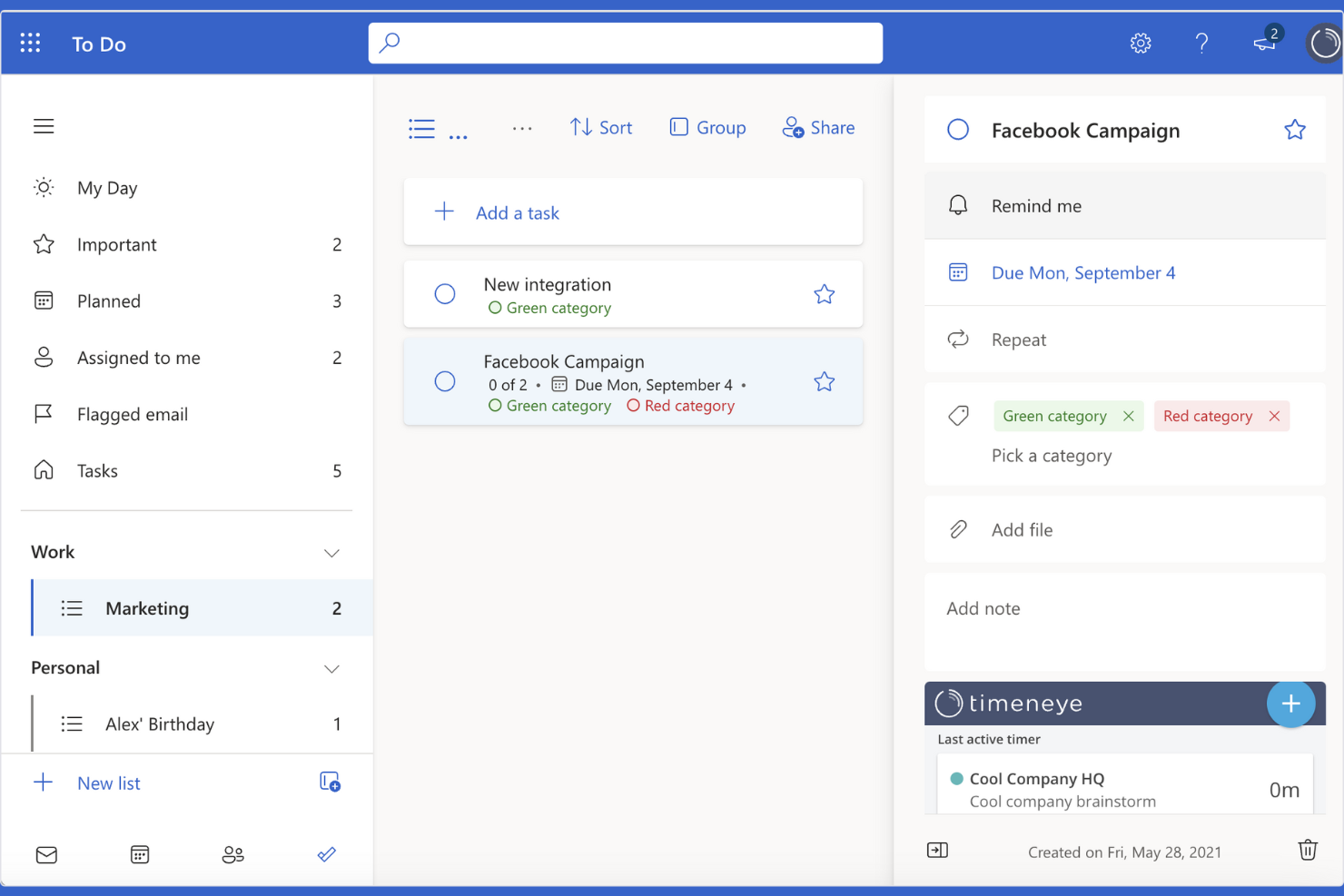
Microsoft To Do is designed for teams and professionals who rely on Microsoft 365 apps and want their task management to fit smoothly into that ecosystem. It’s especially useful for businesses that need to sync tasks across Outlook, Teams, and other Microsoft tools, even when working offline. As a to-do list app, it helps users keep personal and shared tasks organized within the familiar Microsoft environment, with connections to tools like Excel for broader workflow support.
Why I Picked Microsoft To Do
When you need task management that fits right into your Microsoft 365 workflow, Microsoft To Do is a natural choice. Its deep connection with Outlook lets you turn emails into actionable tasks and keep everything synced, even when you’re offline. I appreciate how you can access and update your lists from the desktop app without an internet connection, which is helpful for users who travel or work in low-connectivity environments. The ability to share lists and assign tasks within your organization also makes it practical for teams already using Microsoft 365.
Microsoft To Do Key Features
Some other features that make Microsoft To Do useful for offline task management include:
- Subtasks: Break larger tasks into smaller, manageable steps within any list.
- Due Dates and Reminders: Set deadlines and receive notifications for upcoming tasks.
- Color-Coded Lists: Organize tasks visually by assigning different colors to each list.
- File Attachments: Add files and documents directly to tasks for easy reference.
Microsoft To Do Integrations
Integrations include Outlook, Microsoft Teams, OneNote, Microsoft 365, and OneDrive.
Pros and Cons
Pros:
- Supports recurring tasks without internet
- Desktop app allows offline access to lists
- Syncs tasks with Outlook automatically offline
Cons:
- No offline calendar integration available
- Lacks offline file attachment support

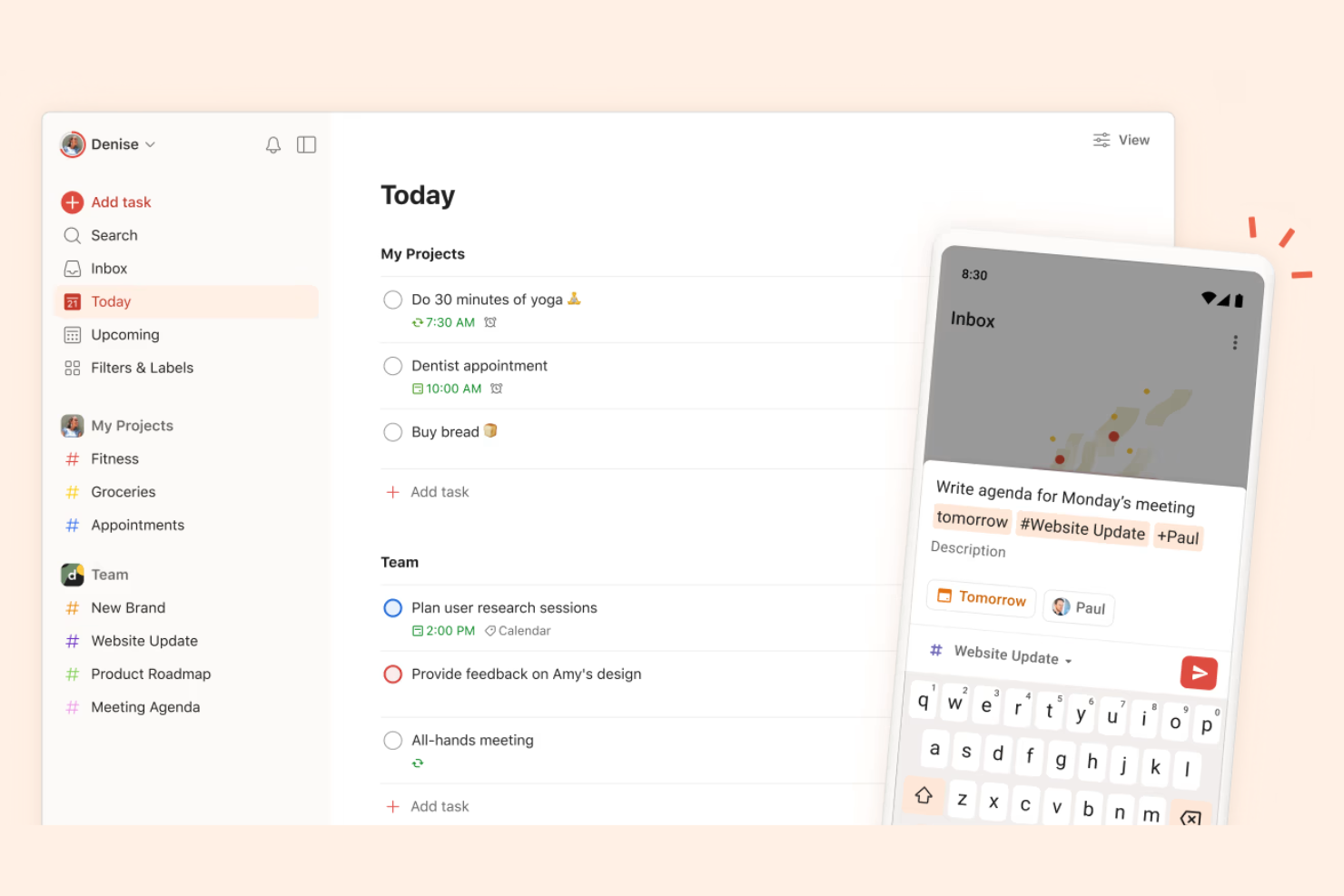
If you need a task manager that keeps your lists updated across devices even when you’re offline, Todoist is worth a look. This tool suits professionals and teams who move between laptops, tablets, and phones but can’t always count on a stable internet connection. Its cross-platform syncing and offline access help you stay organized and productive wherever you work.
Why I Picked Todoist
I chose Todoist because its offline functionality is paired with reliable cross-platform syncing, which is essential for users who switch between devices. When you update tasks on your phone, tablet, or desktop without internet, Todoist stores those changes locally and syncs them automatically once you’re back online. I appreciate that you can access and edit your entire task list offline, so you’re never locked out of your workflow. This makes Todoist a strong choice for anyone who needs uninterrupted task management across multiple devices.
Todoist Key Features
Some other features in Todoist make it a flexible option for offline task management:
- Task Prioritization: Assign priority levels to tasks so you can focus on what matters most, even when working offline.
- Recurring Due Dates: Set up repeating tasks with custom schedules to keep regular responsibilities on track.
- Project Sections: Organize tasks into sections within projects for clearer structure and easier navigation.
- Offline Comments: Add comments to tasks while offline, which sync with your team or devices once you reconnect.
Todoist Integrations
Integrations include Google Calendar, Outlook, Trello, Slack, Jira, Microsoft Teams, Task Assist, Safari, Gmail, Zapier, and more.
Pros and Cons
Pros:
- Supports offline task creation and editing
- Allows offline access to all task lists
- Syncs tasks across devices after reconnecting
Cons:
- Limited offline reporting and analytics
- Offline changes may cause sync conflicts
New Product Updates from Todoist

Todoist Launches Ramble for Voice-Based Task Capture
Todoist introduces Ramble with voice-to-task creation and real-time task editing. This update helps users quickly capture ideas and turn spoken thoughts into structured to-do items. For more information, visit Todoist's official site.
 .
.
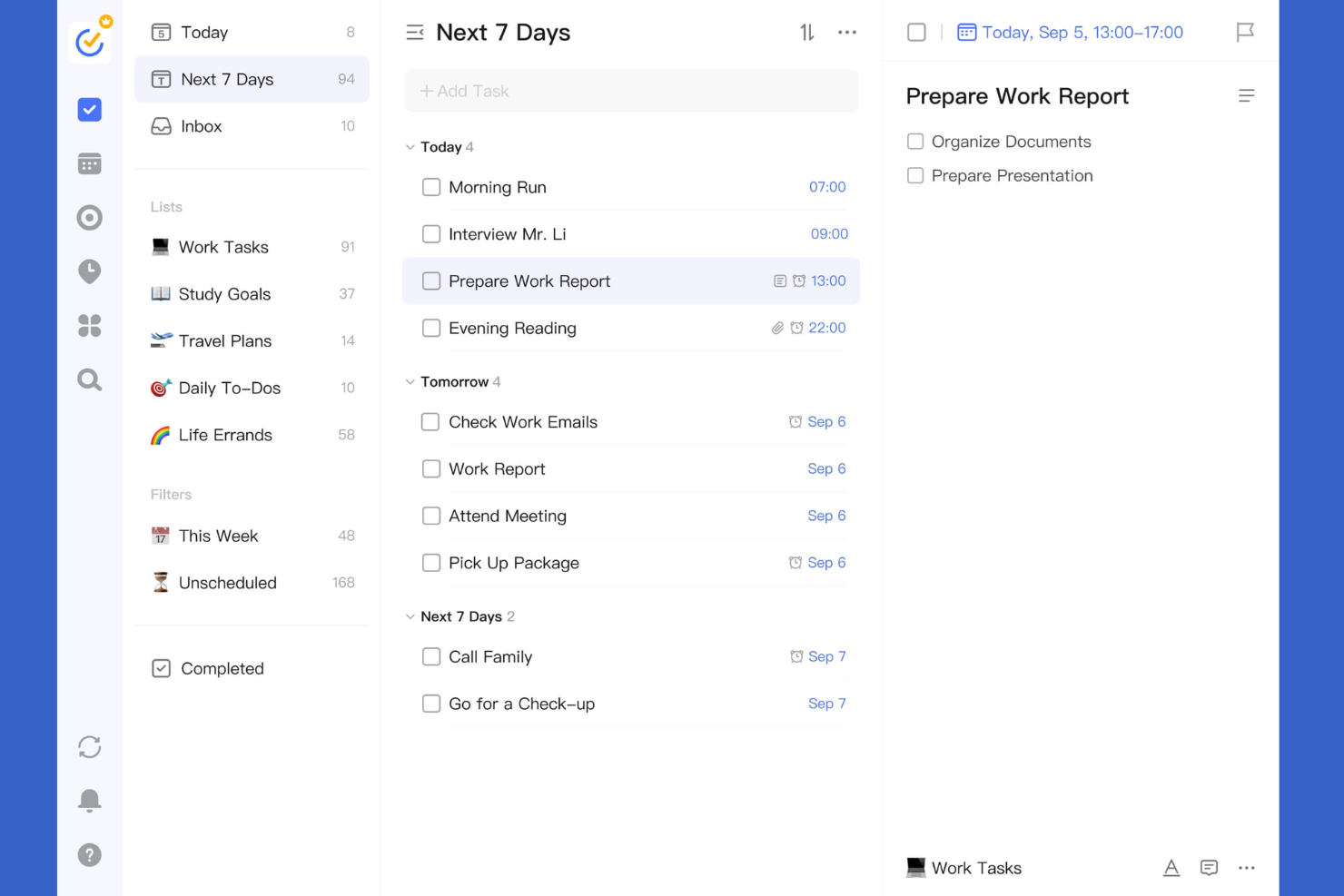
TickTick stands out for teams and individuals who need reliable offline access to both calendar and reminder features. It’s a strong fit for professionals who juggle complex schedules and want to manage tasks, events, and deadlines without always being connected. The app’s offline calendar, recurring reminders, and cross-device sync help users stay organized even when internet access is limited.
Why I Picked TickTick
For anyone who needs offline access to both calendar and reminders, TickTick offers a unique combination that’s hard to find elsewhere. Its offline calendar lets you view, edit, and schedule events without an internet connection, which is especially useful for users who travel or work in areas with spotty connectivity. I like that you can set recurring reminders and manage your daily agenda even when you’re offline, so nothing slips through the cracks. The ability to sync changes automatically once you’re back online makes TickTick a practical choice for dependable offline task management.
TickTick Key Features
Some other features that make TickTick useful for offline task management include:
- Task Prioritization: Assign priority levels to tasks to help organize your workload.
- Pomodoro Timer: Use a built-in timer to break work into focused intervals.
- Habit Tracker: Track daily habits alongside your tasks within the same app.
- List Sharing: Share task lists with others for collaborative planning.
TickTick Integrations
Integrations include Gmail, Spark, Amazon Alexa, Apple Shortcuts, Outlook, Slack, Chatmind, and more.
Pros and Cons
Pros:
- Habit tracker logs progress offline
- Pomodoro timer works fully offline
- Reminders trigger without internet connection
Cons:
- Calendar sync may lag after reconnecting
- No offline access to attachments

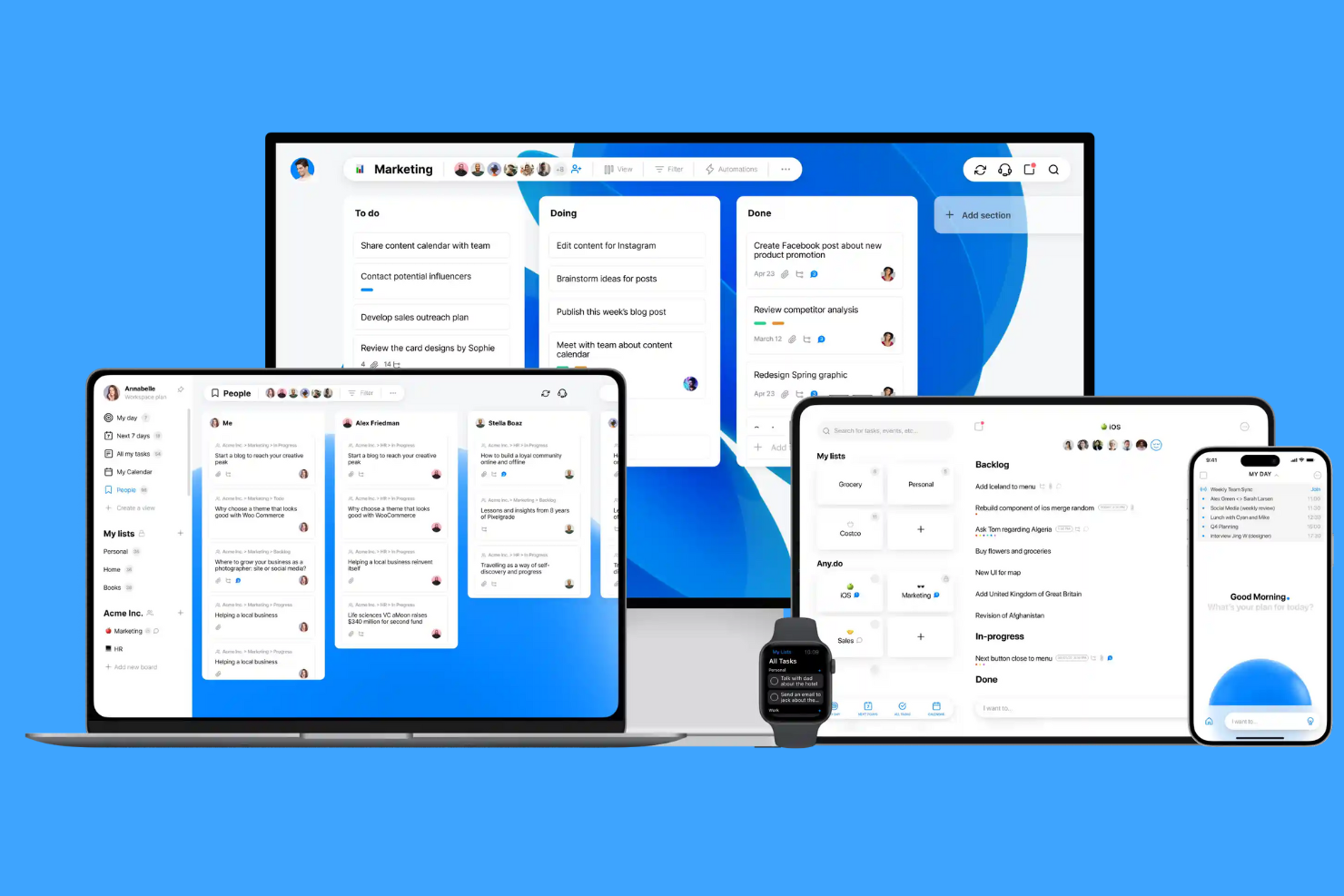
Any.do stands out for users who want to capture tasks quickly using offline voice input. It’s a strong fit for busy professionals, field workers, or anyone who needs to add tasks hands-free when internet access is unreliable. The app’s offline voice capture and task syncing help you keep your to-do list updated wherever you are.
Why I Picked Any.do
Unlike many task managers, Any.do lets you add tasks using voice input even when you’re offline. This feature is especially useful for people who need to capture ideas or reminders on the go, without relying on a data connection. I picked Any.do because its offline voice capture is reliable and works smoothly with its task list, letting you organize and review tasks later when you’re back online. For anyone who values hands-free task entry in areas with spotty internet, this tool stands out.
Any.do Key Features
Some other features that make Any.do useful for offline task management include:
- Task List Widgets: Add and view tasks directly from your device’s home screen.
- Subtasks: Break down larger tasks into smaller, actionable steps.
- Offline Task Editing: Edit and organize your to-do list without an internet connection.
- Recurring Tasks: Set up tasks to repeat on a custom schedule.
Any.do Integrations
Integrations include Slack, Microsoft Teams, Zoom, Google Meet, WhatsApp, Gmail, Google Calendar, Zapier, and more.
Pros and Cons
Pros:
- Offline editing syncs when reconnected
- Task list widgets work without internet
- Offline voice input for task creation
Cons:
- Offline recurring task setup is limited
- Some integrations require internet connection

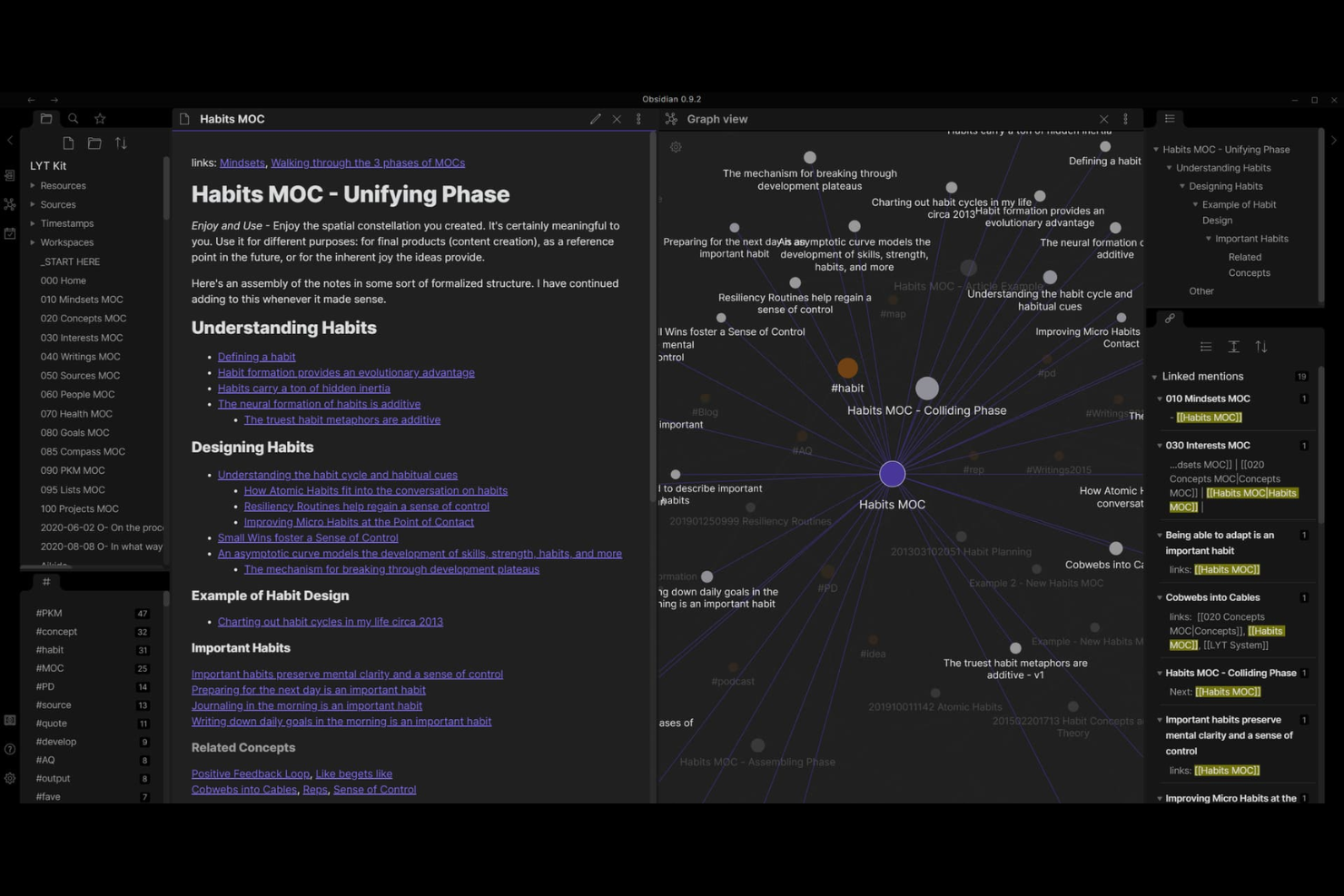
Obsidian is a markdown-based knowledge management app that’s ideal for users who want to link tasks, notes, and ideas offline. It appeals to researchers, writers, and technical professionals who need to organize complex information and connect tasks across documents. Its local-first approach and powerful linking features make it a strong choice for anyone managing projects or workflows without relying on cloud access.
Why I Picked Obsidian
For anyone who wants to manage tasks offline and connect them across notes, Obsidian’s markdown-based linking stands out. You can create tasks directly within any note and use backlinks or tags to connect related items, making it easy to track dependencies and context without internet access. I like that you can visualize relationships between tasks and notes using the graph view, which helps keep complex projects organized. Obsidian’s offline-first design and flexible linking features make it a strong fit for users who want to manage tasks and knowledge in one place.
Obsidian Key Features
In addition to its markdown-based task linking, I also found these features useful for offline task management:
- Local-First Storage: All notes and tasks are saved directly to your device, so you retain full control over your data.
- Customizable Plugins: Extend functionality with a wide range of community and core plugins, including calendar and kanban boards.
- Daily Notes: Quickly capture tasks and ideas in automatically generated daily note files.
- Multi-Device Sync (Optional): Sync your vaults across devices using Obsidian Sync or third-party solutions, while still supporting offline access.
Obsidian Integrations
Native integrations are not currently listed.
Pros and Cons
Pros:
- Plugins add kanban and calendar features
- Markdown syntax supports flexible task formatting
- Local vaults keep all data offline
Cons:
- No native recurring task support
- No built-in task reminders offline

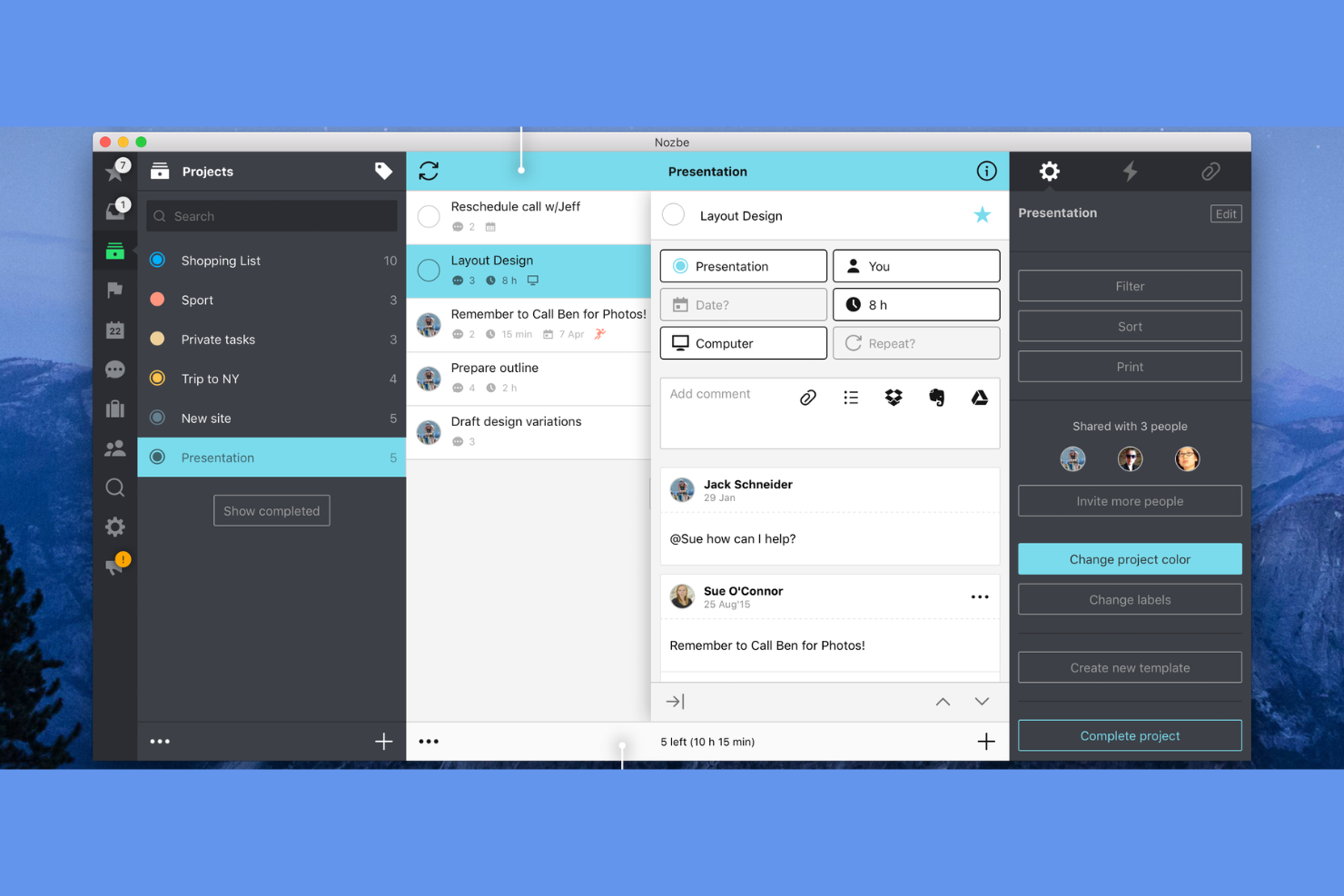
Nozbe stands out for teams that need to collaborate on tasks and projects, even when internet access is unreliable or unavailable. It’s designed for distributed teams, small businesses, and professionals who want to keep projects moving forward with offline syncing and shared task lists. The app’s offline-first approach helps teams stay coordinated and productive without being tied to a constant connection.
Why I Picked Nozbe
Unlike many task management tools, Nozbe is built with offline team collaboration in mind, making it a strong choice for distributed teams that can’t always rely on a stable internet connection. You can assign tasks, comment, and update project details while offline, and everything syncs automatically once you’re back online. I appreciate how Nozbe’s shared project spaces and real-time updates help teams stay aligned, even when working remotely or travelling. For teams that need to keep projects moving regardless of connectivity, Nozbe’s offline collaboration features are a clear advantage.
Nozbe Key Features
Some other features that make Nozbe useful for offline task management include:
- Multi-Platform Support: Access your tasks and projects on Windows, macOS, Android, and iOS devices.
- Task Templates: Create reusable templates for recurring projects or workflows.
- Priority and Tagging System: Organize and filter tasks using custom priorities and tags.
- File Attachments: Attach documents, images, or other files directly to tasks for easy reference.
Nozbe Integrations
Integrations include Google Calendar, Outlook Calendar, Slack, Dropbox, OneDrive, Evernote, and more.
Pros and Cons
Pros:
- Built-in templates for recurring offline workflows
- Cross-platform support for desktop and mobile
- Shared project spaces for team collaboration offline
Cons:
- Subtasks lack advanced nesting options
- No Linux desktop application available

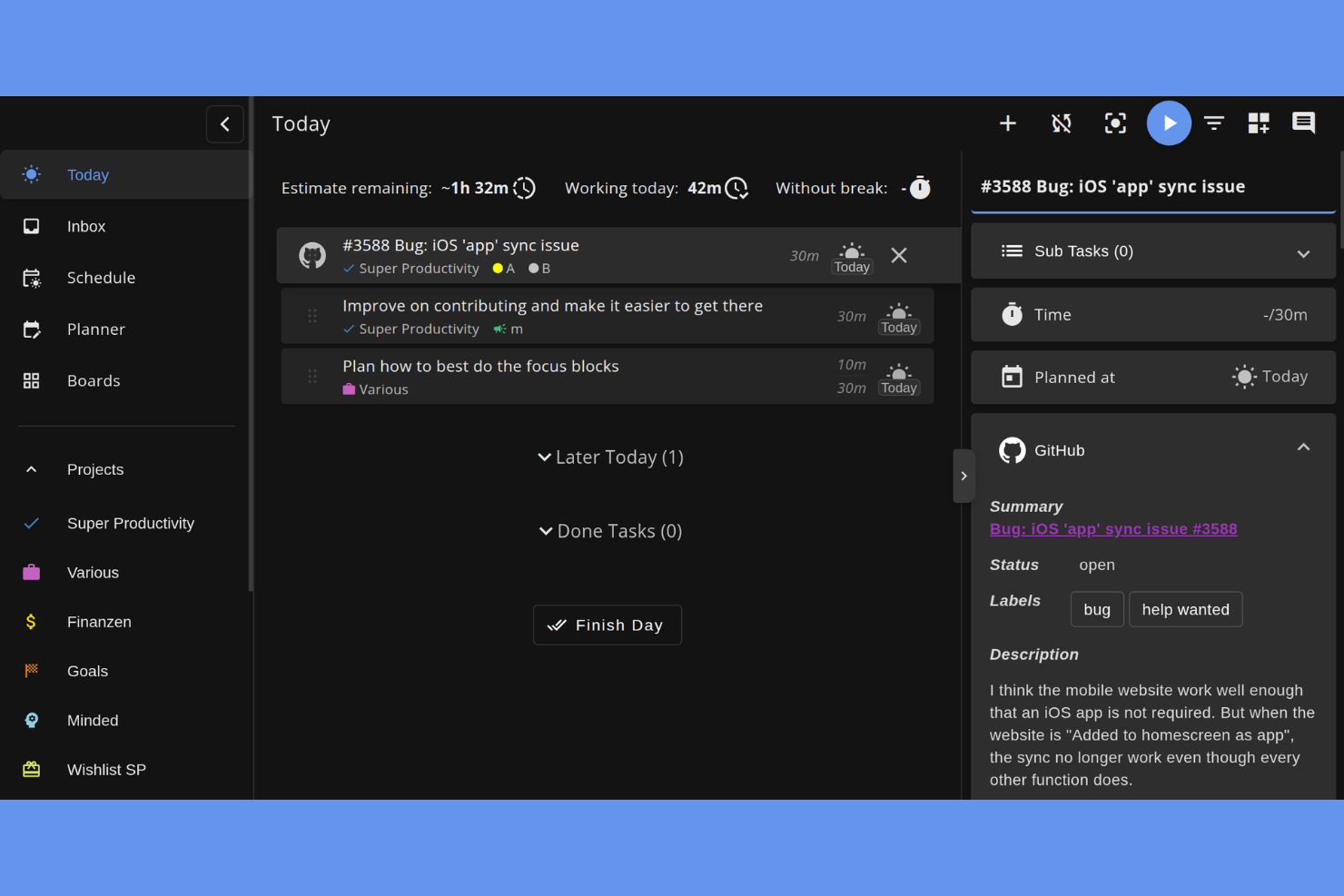
Super Productivity stands out for anyone who wants offline task management with built-in time tracking. This app is a strong fit for freelancers, developers, and project managers who need to track work hours alongside their to-dos without relying on internet access. Its integrated timer and offline-first design help you manage both tasks and time in one place, even when you’re disconnected.
Why I Picked Super Productivity
What drew me to Super Productivity is its focus on time tracking that works fully offline, which is rare among task management tools. You can start, pause, and stop timers for individual tasks without needing an internet connection, so your time logs are always up to date. I like that the app automatically links tracked time to your tasks, making it easy to review how you’re spending your work hours. This combination of offline task management and built-in time tracking makes Super Productivity a strong choice for anyone who needs both features in one place.
Super Productivity Key Features
In addition to its offline time tracking, there are several other features that make Super Productivity useful for managing tasks without internet access:
- Task Hierarchies: Organize tasks into subtasks and projects for better structure and clarity.
- Daily Planning View: Review and adjust your daily agenda in a dedicated planning interface.
- Attachment Support: Add files and links to tasks for easy reference, even when offline.
- Built-In Pomodoro Timer: Use a Pomodoro timer to break work into focused intervals directly within the app.
Super Productivity Integrations
Integrations include GitHub, GitLab, Jira, Gitea, Forgejo, CalDAV, Google Calendar, and support for custom plugins and REST API.
Pros and Cons
Pros:
- Supports offline file attachments to tasks
- Task data is stored locally without syncing
- Built-in Pomodoro timer works offline
Cons:
- Offline mode does not support collaboration
- No offline notifications or reminders

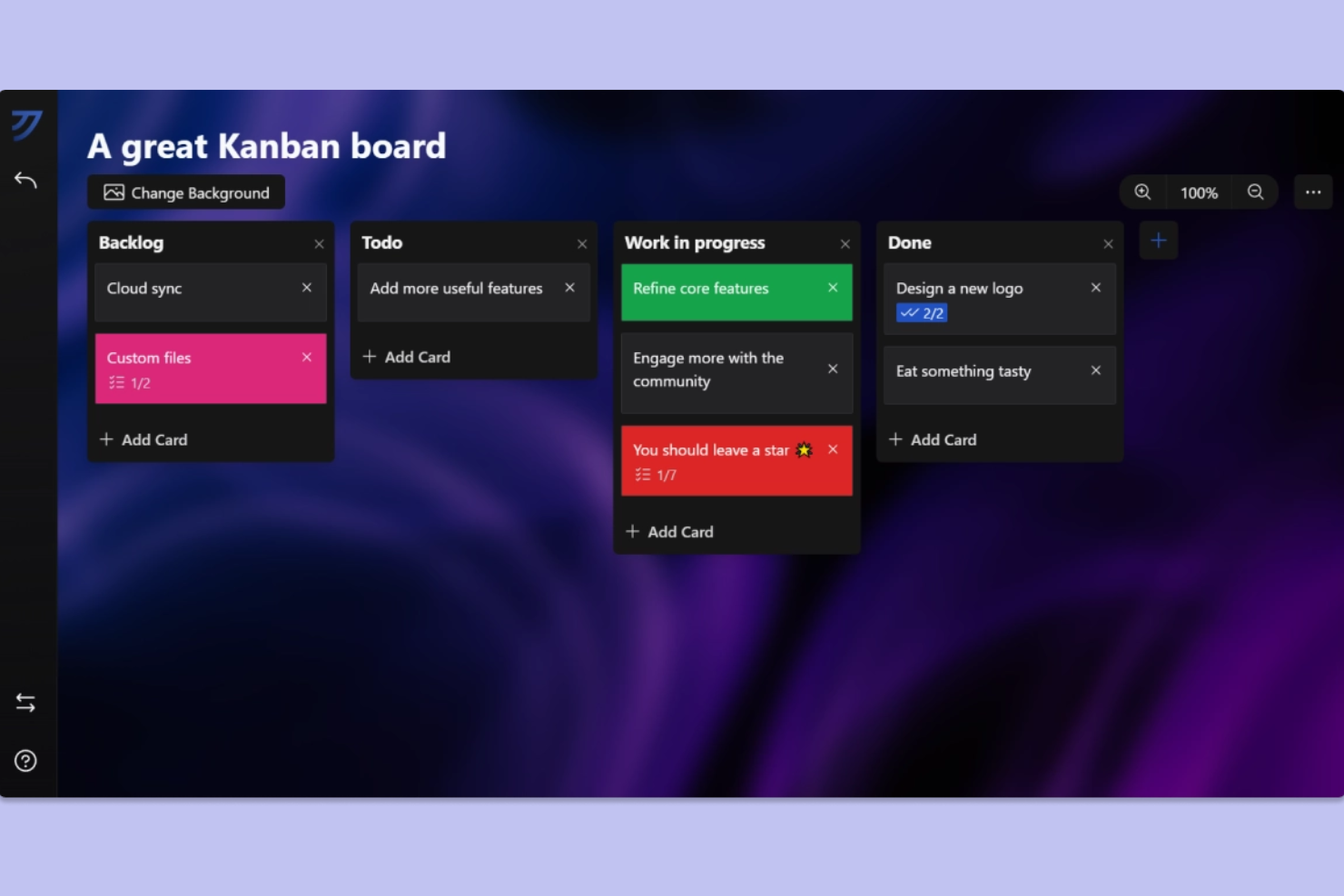
Kanri is designed for teams and individuals who want a Kanban-style workflow that works fully offline. It’s especially useful for project managers and professionals who need to visualize and update tasks without relying on internet access. With its local-first approach, Kanri helps users manage projects and track progress even in environments with limited or no connectivity.
Why I Picked Kanri
Unlike many task management tools that require constant connectivity, Kanri is built to support Kanban workflows entirely offline. Its local-first architecture means you can create, move, and update cards on your boards without an internet connection, which is ideal for users who work in remote or restricted environments. I appreciate that Kanri automatically syncs your changes once you’re back online, so you don’t have to worry about losing progress. This focus on offline Kanban functionality makes Kanri a strong choice for anyone who needs reliable project tracking without relying on the cloud.
Kanri Key Features
Some other features that make Kanri useful for offline task management include:
- Customizable Board Templates: Set up boards with custom columns and workflows to match your team’s process.
- Drag-and-Drop Card Movement: Move tasks between columns using a simple drag-and-drop interface.
- Task Color Coding: Assign colors to cards for quick visual categorization.
- Markdown Support: Format card descriptions and comments using Markdown for clearer communication.
Kanri Integrations
Native integrations are not currently listed.
Pros and Cons
Pros:
- Drag-and-drop task movement offline
- Local data storage ensures privacy
- Kanban boards work fully offline
Cons:
- No built-in calendar view
- Lacks recurring task automation

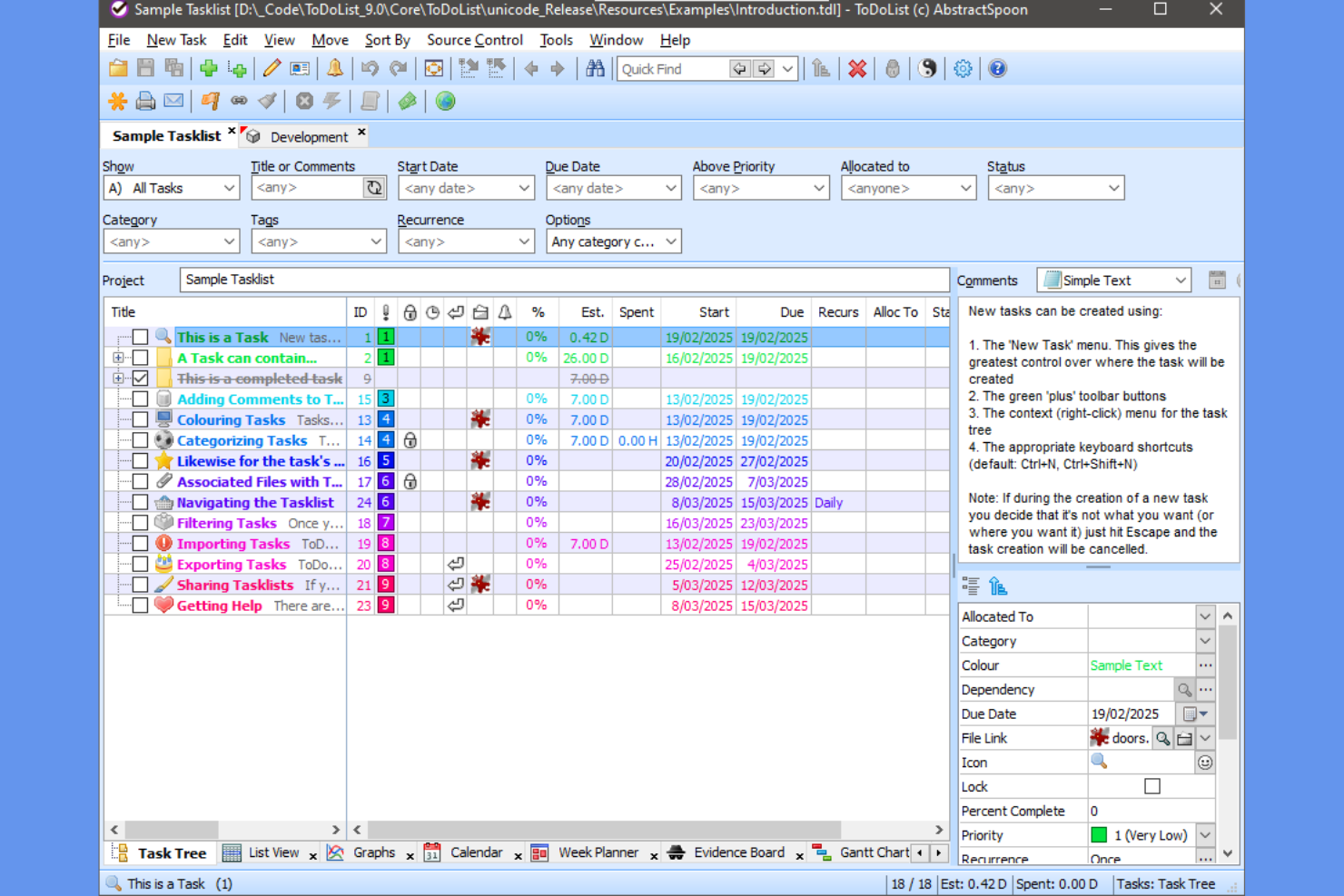
AbstractSpoon ToDoList is a Windows-based task manager designed for users who need deep customization and control over their task structures. It’s especially useful for project managers, consultants, and anyone handling complex projects that require detailed task hierarchies and dependencies. The tool’s offline functionality and flexible task tree system make it a strong choice for those who want to organize projects without relying on cloud services.
Why I Picked AbstractSpoon ToDoList
What sets AbstractSpoon ToDoList apart is its ability to let you build highly customizable task hierarchies, all while working completely offline. You can create unlimited levels of subtasks, set dependencies, and organize projects in a way that matches your workflow. I appreciate how you can tailor fields, columns, and views to fit different project needs, which is especially useful for complex or evolving projects. For anyone who wants granular control over task structure without relying on cloud storage, ToDoList offers a unique offline solution.
AbstractSpoon ToDoList Key Features
Some other features that make AbstractSpoon ToDoList stand out for offline project management include:
- Portable Application Option: Run the tool from a USB drive without installation.
- Customizable Task Attributes: Add custom fields to tasks for tracking unique project data.
- Recurring Task Support: Set up tasks to repeat on custom schedules.
- Gantt Chart Visualization: View project timelines and task dependencies in a Gantt chart format.
AbstractSpoon ToDoList Integrations
Native integrations are not currently listed.
Pros and Cons
Pros:
- Custom fields for tracking unique project data
- Portable app runs from USB without installation
- Unlimited task hierarchy depth for complex projects
Cons:
- Manual backup required for data protection
- Windows-only with no native Mac version

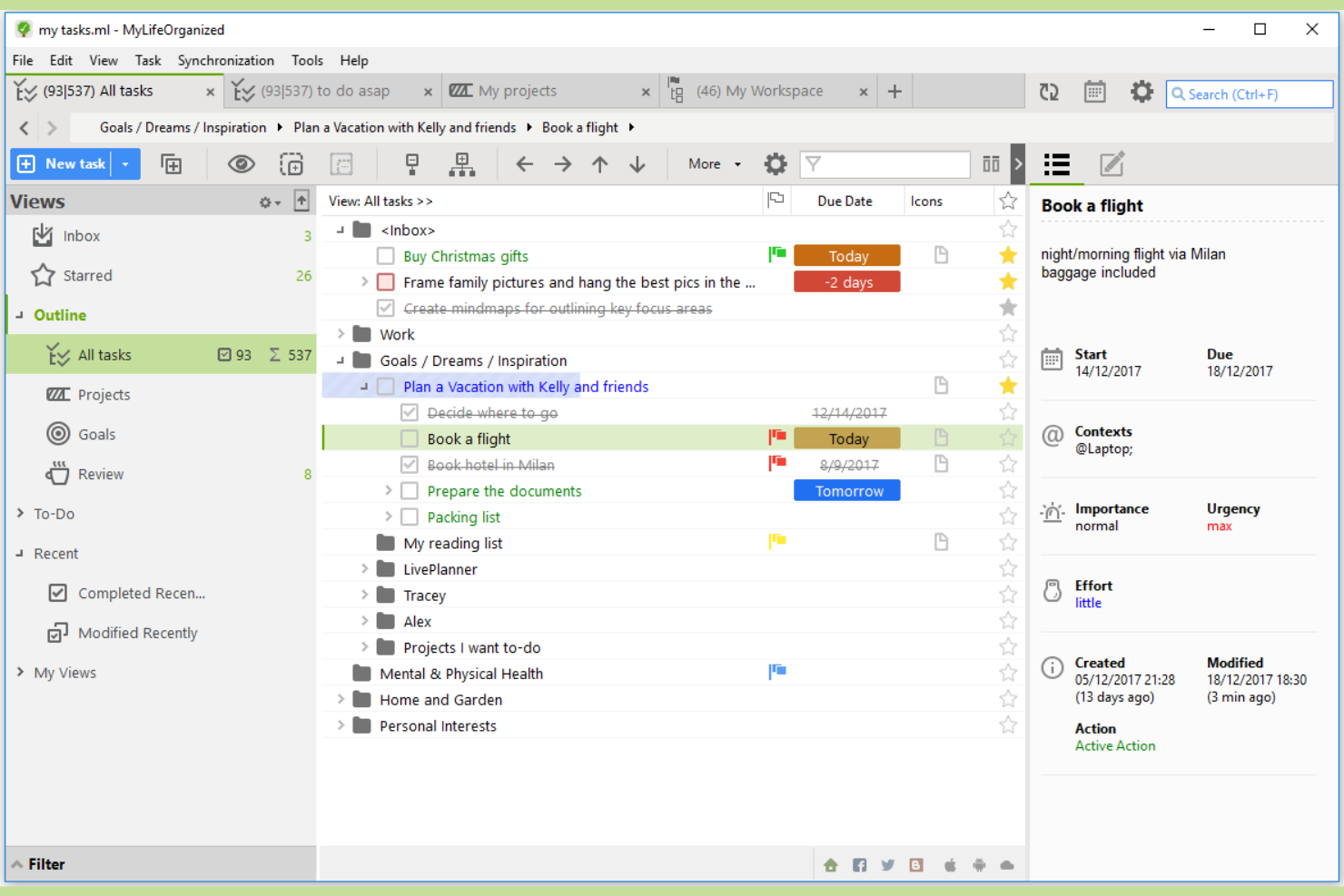
MyLifeOrganized is built for users who want advanced task automation and flexible offline organization. Professionals who manage complex projects or need powerful recurring task logic will find its customizable workflows especially useful. Its offline-first design helps you keep projects moving even without internet access.
Why I Picked MyLifeOrganized
What sets MyLifeOrganized apart is its advanced task automation that works fully offline. The tool lets you build complex recurring tasks, set up nested subtasks, and use custom filters to automatically organize your to-dos based on priority or context. I picked it because its rule-based task generation and flexible hierarchy features are rare among offline task managers. If you need granular control over how tasks are triggered and managed without relying on the cloud, MyLifeOrganized is a strong fit.
MyLifeOrganized Key Features
Some other features that make MyLifeOrganized stand out for offline task management include:
- Location-Based Reminders: Trigger reminders when you arrive at or leave specific locations.
- Custom Views: Create personalized task views using filters and sorting options.
- Project Templates: Save and reuse templates for recurring project structures.
- Progress Tracking: Monitor completion percentages for tasks and projects.
MyLifeOrganized Integrations
Native integrations are not currently listed.
Pros and Cons
Pros:
- Location-based reminders work without internet
- Hierarchical task structure with unlimited nesting
- Advanced recurring task automation offline
Cons:
- Limited export options for task data
- Mobile sync requires paid cloud subscription
Other Offline Task Management Software
Here are some additional offline task management software options that didn’t make it onto my shortlist, but are still worth checking out:


Offline Task Management Software Selection Criteria
When selecting the best offline task management software to include in this list, I considered common buyer needs and pain points like reliable access to tasks without internet and the ability to capture and organize information on the go. I also used the following framework to keep my evaluation structured and fair:
Core Functionality (25% of total score)
To be considered for inclusion in this list, each solution had to fulfill these common use cases:
- Add and edit tasks offline
- Organize tasks into lists or projects
- Set reminders and due dates
- Sync data when reconnected
- Access task history and completed items
Additional Standout Features (25% of total score)
To help further narrow down the competition, I also looked for unique features, such as:
- Offline voice input for tasks
- Local data storage with encryption
- Offline calendar and scheduling
- Offline file attachment support
- Customizable offline notifications
Usability (10% of total score)
To get a sense of the usability of each system, I considered the following:
- Simple and intuitive interface
- Clear offline and online status indicators
- Fast task entry and navigation
- Minimal required setup for offline use
- Responsive design across devices
Onboarding (10% of total score)
To evaluate the onboarding experience for each platform, I considered the following:
- Step-by-step product tours
- Availability of training videos
- Pre-built templates for quick setup
- In-app chatbots or help guides
- Easy data import from other tools
Customer Support (10% of total score)
To assess each software provider’s customer support services, I considered the following:
- Live chat or email support availability
- Detailed online knowledge base
- Community forums or user groups
- Fast response times to inquiries
- Access to onboarding webinars
Value For Money (10% of total score)
To evaluate the value for money of each platform, I considered the following:
- Transparent and flexible pricing plans
- Free plan or trial availability
- Features included at each price tier
- No hidden fees or charges
- Discounts for annual billing
Customer Reviews (10% of total score)
To get a sense of overall customer satisfaction, I considered the following when reading customer reviews:
- Positive feedback on offline reliability
- Reports of syncing issues or bugs
- Satisfaction with feature set
- Comments on customer support quality
- User sentiment about pricing and value
How to Choose Offline Task Management Software
It’s easy to get bogged down in long feature lists and complex pricing structures. To help you stay focused as you work through your unique software selection process, here’s a checklist of factors to keep in mind:
| Factor | What to Consider |
|---|---|
| Scalability | Will the tool support your team size and future growth? Consider whether it can handle more users or projects as your needs expand. |
| Integrations | Does it connect natively with your existing tools (email, calendars, project management platforms)? Check for direct integrations, not just API or Zapier options. |
| Customizability | Can you adapt task categories, labels, or workflows to match your team’s processes? Look for flexible organization and offline settings. |
| Ease of use | Is the interface straightforward for all users? Test with a small group to see if anyone struggles with offline access or navigation. |
| Implementation and onboarding | How long will it take to get your team up and running? Assess the availability of migration tools, training resources, and support during rollout. |
| Cost | Are the pricing tiers clear and predictable? Watch for hidden fees, limits on offline features, or required upgrades for basic functionality. |
| Security safeguards | How is your offline data protected? Look for local encryption, device-level security, and clear policies on data syncing and storage. |
| Support availability | Can you reach support when you need help? Check for live chat, email, or phone support, especially if your team works across time zones. |
What Is Offline Task Management Software?
Offline task management software is a type of task management app that lets you create, organize, and update personal tasks and teamwork without needing an internet connection. These tools store your data locally and sync changes once you’re back online, helping you complete tasks and maintain productivity in any environment. Many solutions combine features from project management tools and collaboration tools, offering task tracking, project planning, and time management in an all-in-one workspace. With elements like dashboards and support for managing deliverables, they help small teams and individuals streamline workflows and adapt to their specific needs.
Features
When selecting offline task management software, keep an eye out for the following key features:
- Offline task creation: Add new tasks and to-dos even when you don’t have an internet connection, ensuring nothing gets missed during downtime.
- Local data storage: Store all task data directly on your device, so you can access and update information without relying on cloud services.
- Automatic sync: Automatically update and synchronize your tasks across devices once you reconnect to the internet, keeping everything up to date.
- Task organization: Group tasks into lists, projects, or folders to keep your work structured and easy to navigate, even offline.
- Reminders and notifications: Set alerts for deadlines or important tasks that trigger locally, so you never miss a commitment when offline.
- Recurring tasks: Schedule tasks to repeat at set intervals, allowing you to manage ongoing responsibilities without manual re-entry.
- Subtasks: Break larger tasks into smaller, actionable steps for better clarity and progress tracking, regardless of connectivity.
- Search and filter: Quickly find specific tasks or sort your lists using search and filter tools that work without internet access.
- User permissions: Control who can view or edit tasks on shared devices, supporting secure collaboration in offline environments.
- Export and backup: Save or export your task data for backup or sharing, providing peace of mind if you need to restore information later.
Benefits
Implementing offline task management software provides several benefits for your team and your business. Here are a few you can look forward to:
- Uninterrupted access: Work on tasks and projects anytime, even in areas with unreliable or no internet connectivity, thanks to local data storage and offline editing.
- Reliable reminders: Receive notifications and alerts for deadlines or important tasks, regardless of your connection status, so nothing slips through the cracks.
- Consistent productivity: Capture ideas, update progress, and organize work without waiting for a network connection, supporting steady workflow momentum.
- Data security: Keep sensitive information stored locally on your device, reducing exposure to cloud-based security risks and supporting privacy requirements.
- Automatic syncing: Enjoy smooth updates across devices once you’re back online, ensuring your task lists and project data stay current everywhere you work.
- Flexible collaboration: Enable team members to contribute or review tasks on shared devices in offline environments, supporting fieldwork or travel scenarios.
- Reduced dependency on cloud services: Maintain full task management functionality without relying on third-party servers, minimizing disruptions from service outages.
Costs & Pricing
Selecting offline task management software requires an understanding of the various pricing models and plans available. Costs vary based on features, team size, add-ons, and more. The table below summarizes common plans, their average prices, and typical features included in offline task management software solutions:
Plan Comparison Table for Offline Task Management Software
| Plan Type | Average Price | Common Features |
|---|---|---|
| Plan Type | Average Price | Common Features |
| Free Plan | $0 | Basic offline task creation, limited lists, single device support, and basic reminders. |
| Personal Plan | $4–$8/user/month | Multi-device sync, offline editing, recurring tasks, subtasks, and priority support. |
| Business Plan | $8–$15/user/month | Team collaboration, shared projects, advanced offline features, admin controls, and integrations. |
| Enterprise Plan | $15–$35/user/month | Custom onboarding, improved security, advanced permissions, dedicated support, and compliance tools. |