

14 OCR Document Management Software for 2026

OCR Document Management Software Shortlist


OCR document management software combines optical character recognition with a document management system, letting you turn scanned images and physical documents into searchable, editable digital files. If you’re looking for ways to automate document scanning, extract text with AI-powered OCR tools, and manage compliance, the right platform can help your team stay organized and responsive. Many solutions also offer seamless integration with existing systems to optimize workflows and support faster decision-making.
In this list, you’ll find options for different business needs—from open-source platforms to enterprise-grade solutions—so you can compare features and choose the best fit for your workflow.
Why Trust Our Software Recommendations
Our team has been testing and reviewing software since 2012. As project managers ourselves, we know how difficult—and important—it is to choose the right software.
For this guide, we evaluated tools using hands-on testing and independent research, scoring tools using our selection criteria. We also draw on insights from industry thought leaders and practicing project management experts.
Our reviews reflect our human editorial judgment, not a sales pitch.
Expert reviewers:
OCR Document Management Software Comparison Table
This comparison table summarizes pricing details for my top OCR document management software selections:
| Tool | Best For | Trial Info | Price | ||
|---|---|---|---|---|---|
| 1 | Best for regulated industries | Free demo available | Pricing upon request | Website | |
| 2 | Best for enterprise-level integration options | Free demo available | From $73/user/month (billed annually) | Website | |
| 3 | Best for cloud-based document archiving | Free demo available | Pricing upon request | Website | |
| 4 | Best for small team collaboration features | Free plan available | From $52/month | Website | |
| 5 | Best for advanced data capture accuracy | Free demo available | Pricing upon request | Website | |
| 6 | Best for compliance-driven document control | Free demo available | Pricing upon request | Website | |
| 7 | Best for automated image-to-text workflows | 7-day free trial available | From $20/month | Website | |
| 8 | Best for integrating OCR into web forms | Free plan available | Pricing upon request | Website | |
| 9 | Best for open-source customization needs | Free and open-source | Free and open-source | Website | |
| 10 | Best for end-to-end process automation | Free demo available | Pricing upon request | Website |
OCR Document Management Software Reviews
Below are my detailed summaries of the best OCR document management software that made it onto my shortlist. My reviews offer a detailed look at the features, best use cases, and integrations of each software to help you find the best one for you.
Doxis
Best for regulated industries
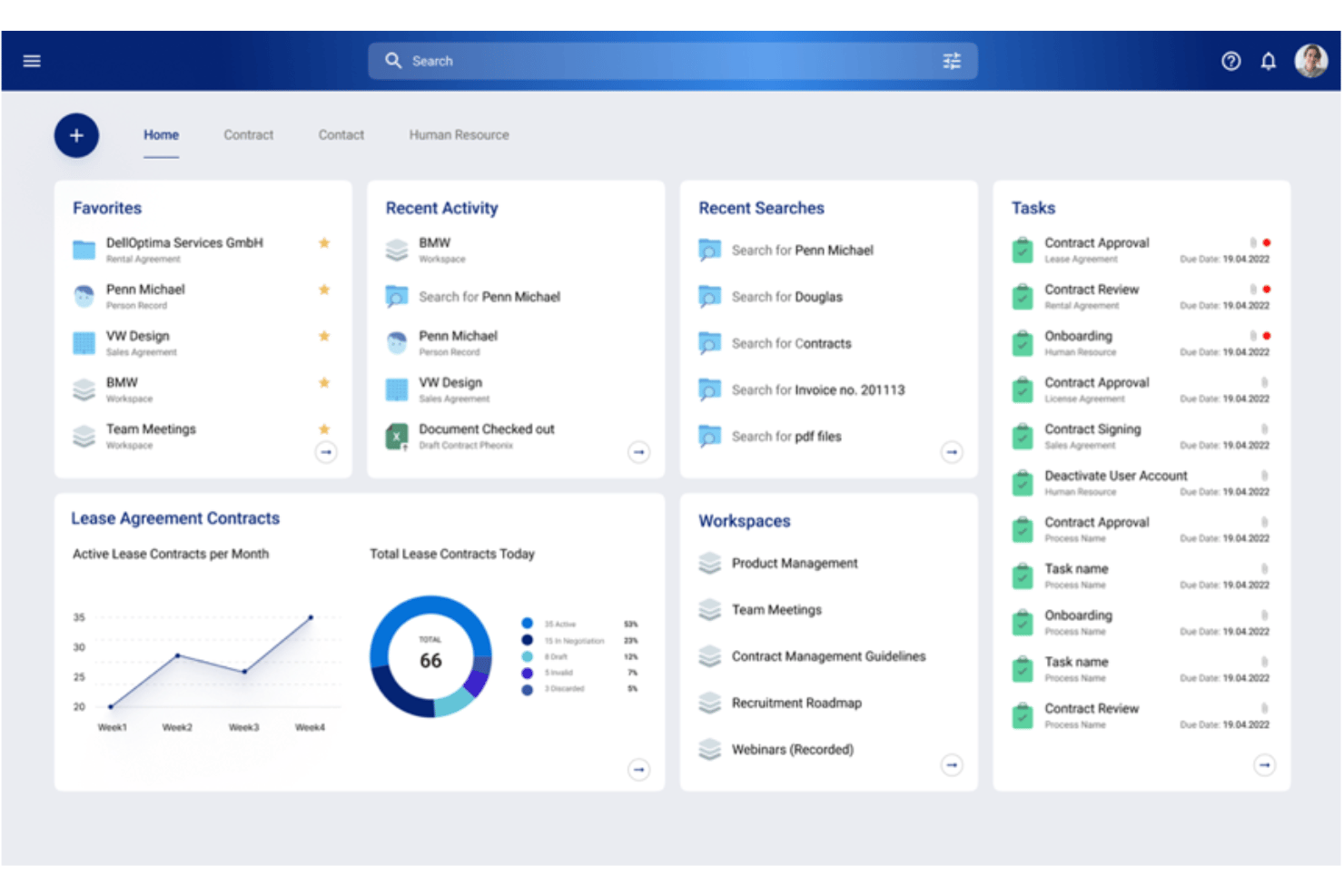
Doxis is an enterprise document management software offering advanced OCR, AI-driven data extraction, automated classification, and full-text search for complex project documentation and compliance archives.
Who Is Doxis Best For?
Doxis is ideal for mid-sized to large organizations in highly regulated industries that require advanced compliance, audit trails, and secure project documentation management.
Why I Picked Doxis
I picked Doxis as one of the best because its AI-driven OCR reliably extracts text and critical data from highly regulated project documents, and its audit trail features directly support compliance in industries with intense oversight.
Doxis Key Features
- Full-text search engine: Search OCR-processed documents and metadata fields across large repositories instantly.
- Role-based access control: Assign specific permissions to users and groups for secure document management.
- Automated workflow routing: Route project files through multi-step review and approval processes.
- Version management: Track, compare, and restore previous versions of every document in your archive.
Doxis Integrations
Doxis offers native integrations with SAP, Salesforce, and Microsoft 365, and provides an API for custom integrations.
Pros and Cons
Pros:
- Scalable document repository for large organizations
- Secure audit trails for compliance needs
- Advanced AI-powered OCR for handwriting
Cons:
- Limited suitability for non-regulated industries
- Require significant onboarding resources

Best for enterprise-level integration options
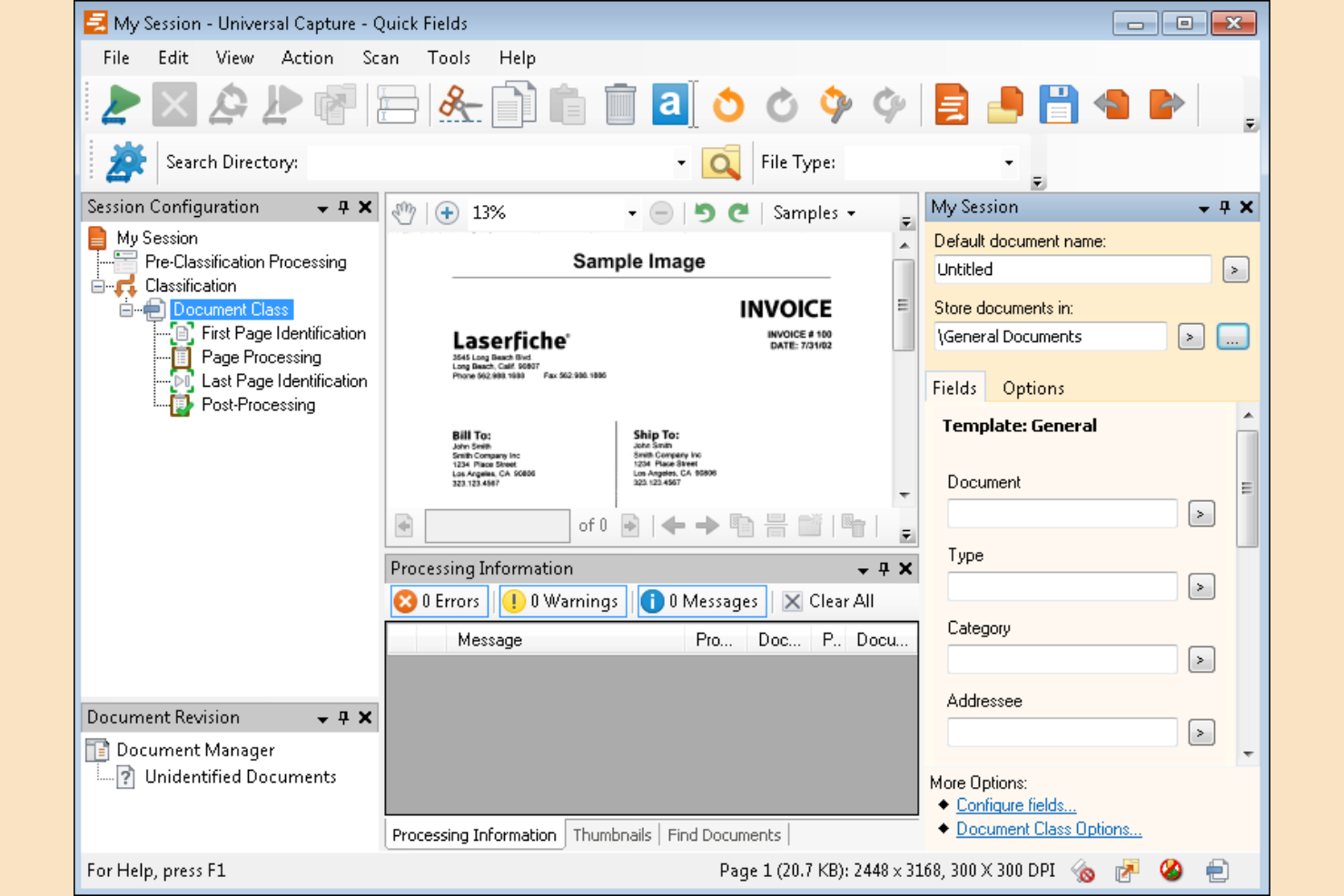
For organizations that need to connect document management with a wide range of enterprise systems, Laserfiche offers a flexible solution. Its platform is designed for IT teams and operations leaders who want to automate document capture, processing, and routing while integrating with existing business applications. Laserfiche stands out for its deep integration capabilities, making it a strong choice for enterprises with complex workflows and multiple software environments.
Why I Picked Laserfiche
What drew me to Laserfiche is its focus on enterprise-level integration options, which is especially important for organizations managing documents across multiple business systems. Laserfiche offers advanced workflow automation tools that let you design and execute complex document processes, including automated data capture and routing. I appreciate how the platform supports granular access controls and audit trails, which help IT teams maintain compliance and security in large environments. For enterprises that need to connect OCR document management with ERP, CRM, or industry-specific platforms, Laserfiche’s integration depth is a key advantage.
Laserfiche Key Features
Some other features that make Laserfiche a strong option for document management include:
- Electronic forms builder: Create custom forms to capture and standardize data entry across your organization.
- Records management tools: Apply retention schedules and automate compliance with regulatory requirements.
- Mobile app access: Capture, search, and manage documents from mobile devices.
- Document version control: Track changes and maintain a full history of document edits and updates.
Laserfiche Integrations
Integrations include SAP, DocuSign, Salesforce, Microsoft 365, and more.
Pros and Cons
Pros:
- Records management automates compliance tasks
- Electronic forms builder captures custom data
- Workflow automation supports complex document routing
Cons:
- Integrations focus on selected enterprise systems
- OCR struggles with low-quality or handwritten scans

DocuWare
Best for cloud-based document archiving
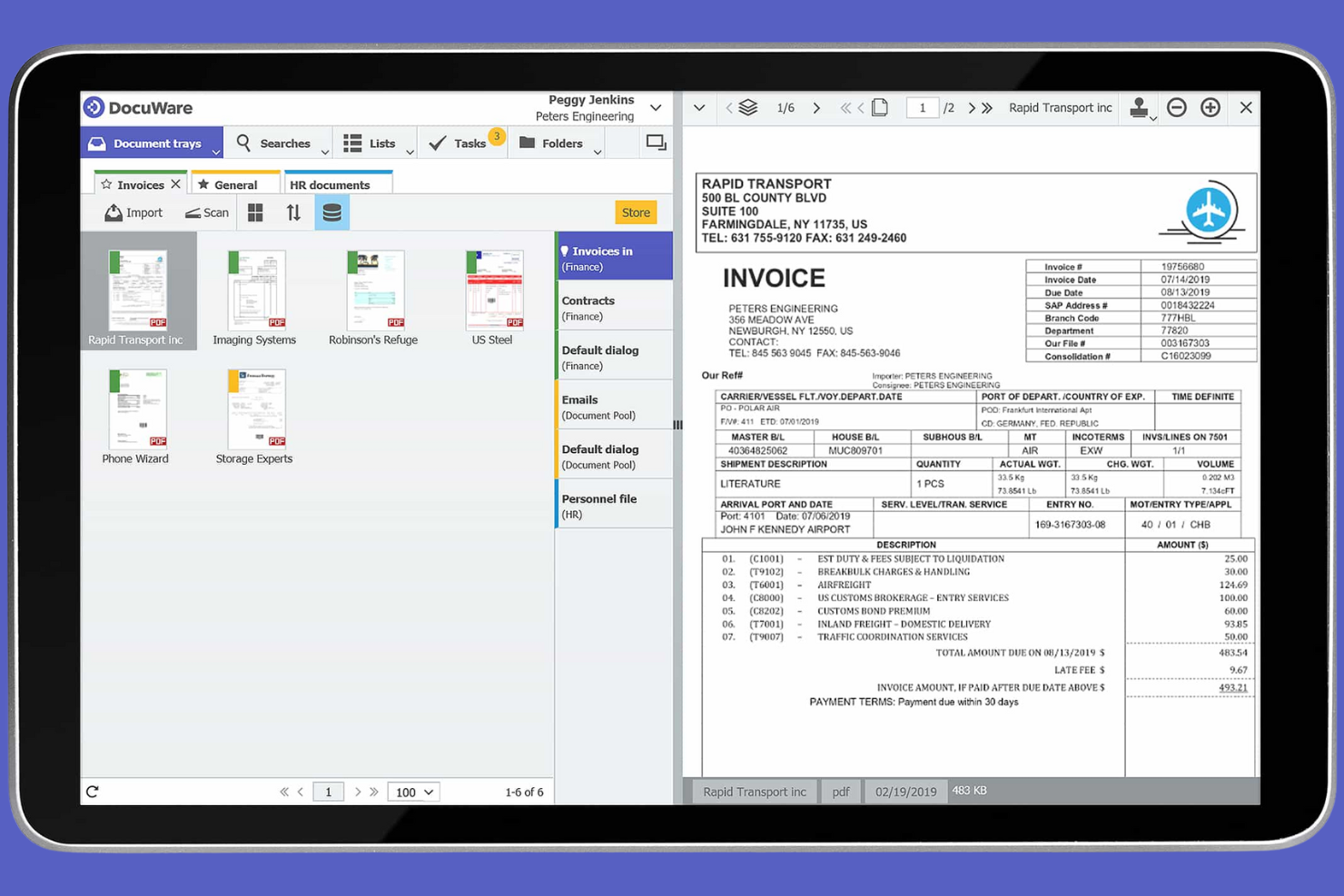
DocuWare is designed for organizations that need secure, cloud-based document archiving with built-in OCR capabilities. It’s a strong fit for teams in finance, HR, and compliance who manage large volumes of sensitive documents and require reliable search and retrieval. DocuWare helps you centralize, digitize, and automate document storage while making scanned files fully searchable.
Why I Picked DocuWare
For teams that need reliable, cloud-based document archiving, DocuWare stands out with its secure storage and advanced OCR capabilities. I picked DocuWare because it automatically indexes scanned documents, making them fully searchable and easy to retrieve from anywhere. The platform also supports automated document retention policies, which help organizations stay compliant with industry regulations. If you’re looking for a solution that centralizes and protects your digital records while enabling fast search through OCR, DocuWare is a strong choice.
DocuWare Key Features
Some other features that make DocuWare useful for document management include:
- Electronic signature support: Collect legally binding signatures directly within stored documents.
- Role-based permissions: Control access to documents based on user roles and responsibilities.
- Automated workflow routing: Set up document approval and review processes with customizable workflows.
- Version control: Track changes and maintain a full history of document revisions.
DocuWare Integrations
Native integrations are not currently listed. However, DocuWare offers an API for custom integrations.
Pros and Cons
Pros:
- Role-based permissions control document access
- OCR indexes scanned documents for search
- Cloud storage enables secure remote access
Cons:
- Template customization may require technical expertise
- Bulk imports can be slow for large archives

Folderit
Best for small team collaboration features
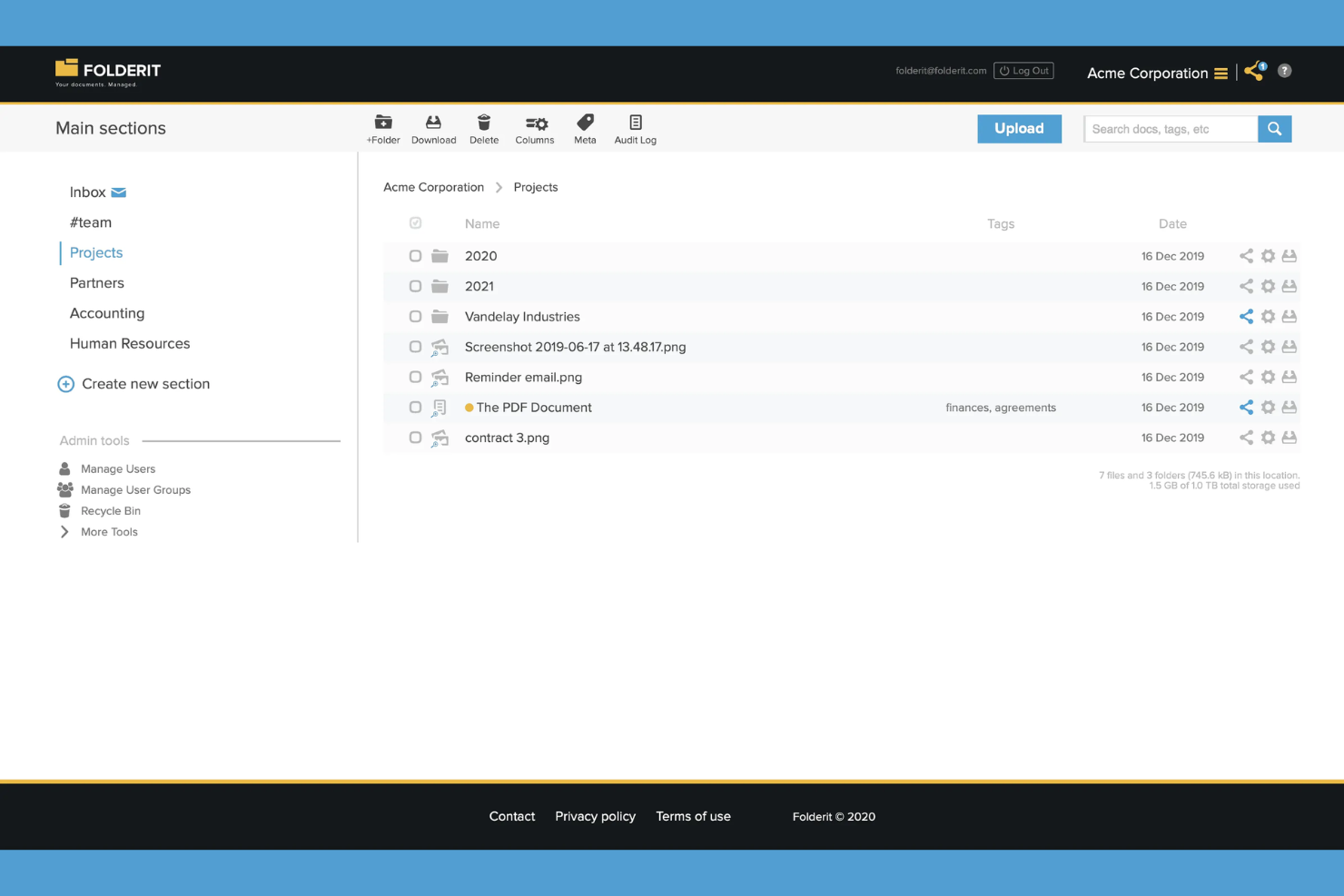
Folderit is designed for small teams that need to collaborate on document management without a complex setup. It’s especially useful for businesses that want to share, approve, and track documents with built-in OCR and granular permissions. If your team values features like document approval workflows and audit trails, Folderit offers a focused solution for secure, collaborative file handling.
Why I Picked Folderit
For teams that need to collaborate closely on document management, Folderit stands out for its built-in sharing and approval features. I picked Folderit because it lets users assign documents for approval, set reminders, and track every action with detailed audit trails. The OCR functionality ensures that all uploaded documents are searchable, making it easier for teams to find and work on files together. These collaboration-focused tools make Folderit a strong choice for small businesses that need both document control and transparency.
Folderit Key Features
Some other features that make Folderit useful for document management include:
- Metadata fields: Add custom metadata to documents for more detailed organization and search.
- Document linking: Link related documents together to keep supporting files connected.
- Automated retention policies: Set rules for document retention and automatic deletion based on your compliance needs.
- Version control: Maintain and access previous versions of documents as changes are made.
Folderit Integrations
Integrations include DocuSign, Microsoft 365, Outlook, and more.
Pros and Cons
Pros:
- Custom metadata improves document organization
- Approval workflows support multi-step collaboration
- OCR makes scanned documents fully searchable
Cons:
- Advanced workflow automation is not available
- Bulk upload features are limited for large archives

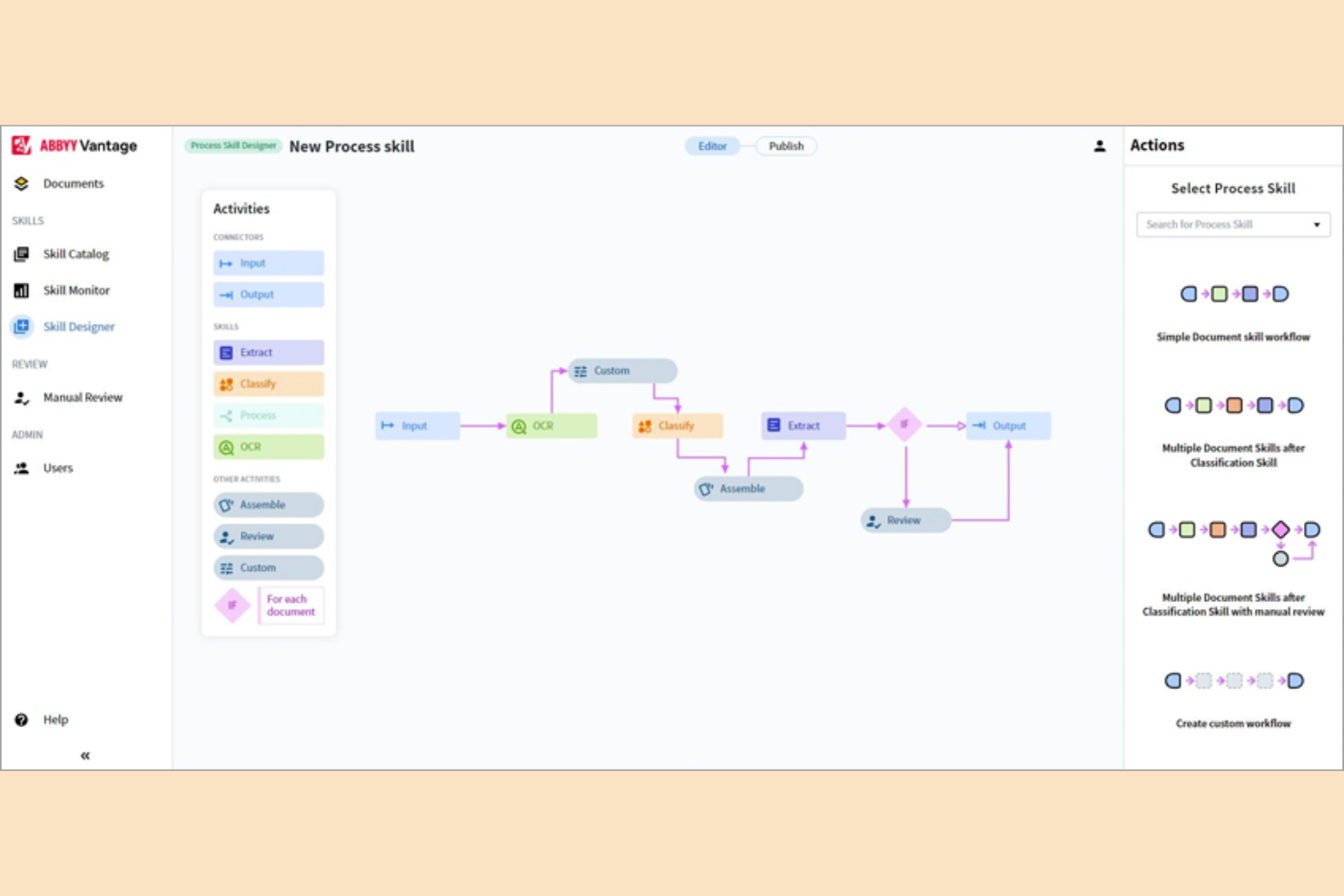
If your team needs highly accurate data extraction from complex documents, ABBYY is worth a close look. This platform specializes in advanced OCR and intelligent data capture, making it a strong fit for finance, legal, and operations teams handling high volumes of structured and unstructured documents. ABBYY stands out for its ability to recognize diverse document layouts and extract precise data, even from challenging formats.
Why I Picked ABBYY
What sets ABBYY apart for me is its focus on advanced data capture accuracy, which is essential for teams dealing with complex or high-stakes documents. ABBYY’s intelligent OCR engine uses machine learning to recognize and extract data from a wide range of document types, including invoices, contracts, and forms with variable layouts. I appreciate how its data validation tools help ensure extracted information is accurate before it enters downstream workflows. For organizations that can’t afford errors in document processing, ABBYY’s precision and adaptability make it a strong choice.
ABBYY Key Features
Some other features that make ABBYY a strong option for document management include:
- Multi-language recognition: Process documents in over 200 languages for global operations.
- Batch processing: Handle large volumes of documents simultaneously to speed up workflows.
- Document classification: Automatically sort and categorize documents based on content and layout.
- Cloud and on-premises deployment: Choose between cloud-based or on-premises installation to fit your IT requirements.
ABBYY Integrations
Integrations include SharePoint, Alteryx, Bizagi, M-Files, Laserfiche, and more.
Pros and Cons
Pros:
- Cloud and on-premises deployment options
- Document classification automates sorting
- Batch processing manages large document volumes
Cons:
- Support response times vary by region
- Large files can be processed slowly

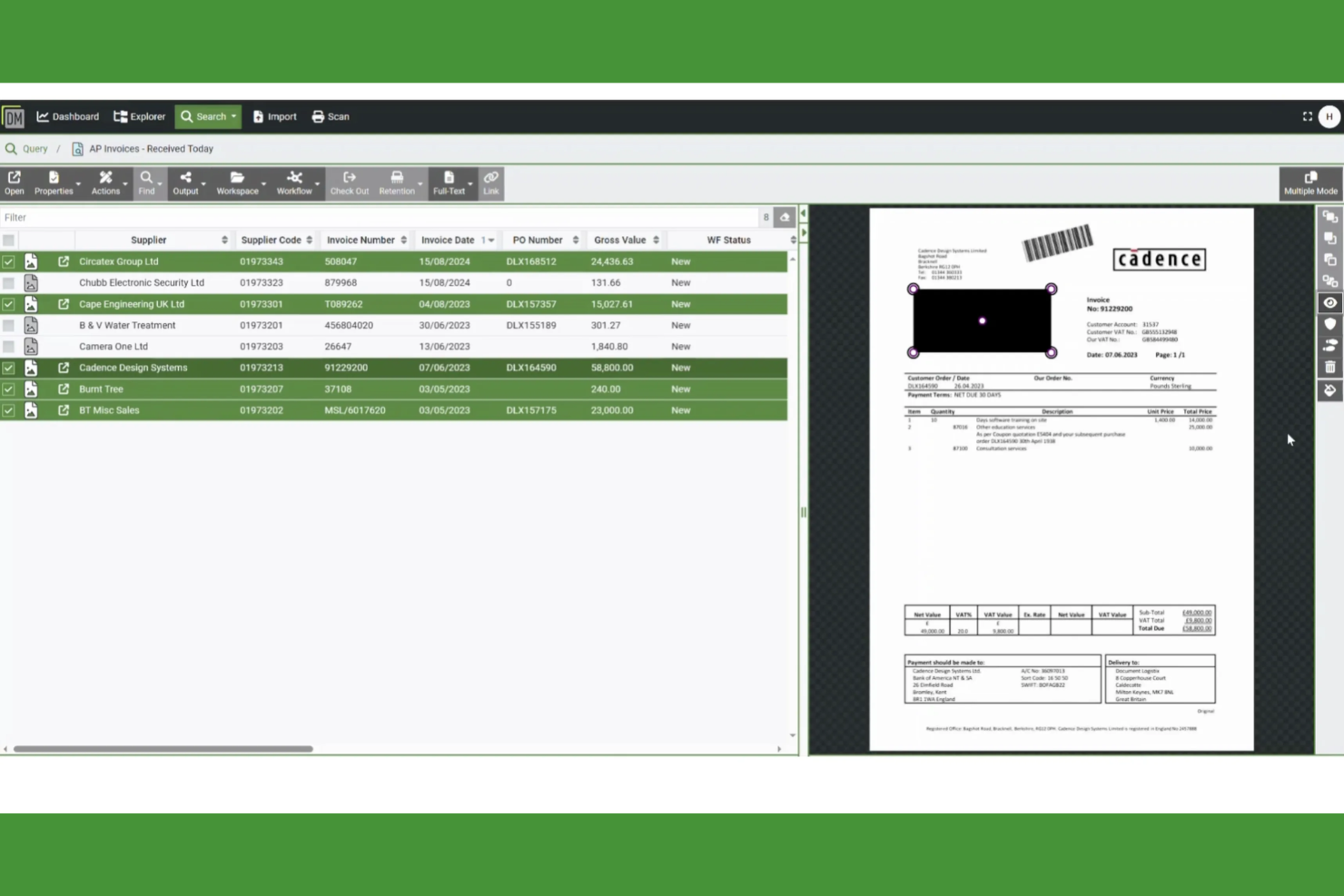
For organizations where regulatory compliance and document control are top priorities, Document Logistix offers a specialized approach. This platform is built for industries like healthcare, finance, and government that need strict audit trails and granular access controls. Document Logistix stands out for its ability to automate compliance workflows and maintain detailed records for every document action.
Why I Picked Document Logistix
What drew me to Document Logistix is its clear focus on compliance-driven document control, which is essential for teams handling sensitive or regulated information. The platform offers detailed audit trails that log every document action, helping organizations meet strict regulatory requirements. I also appreciate its granular permission settings, which let you control who can view, edit, or share specific documents. These features make Document Logistix a strong fit for businesses that need to automate OCR processes while maintaining full control over compliance and security.
Document Logistix Key Features
Some other features that make Document Logistix useful for document management teams include:
- Automated document capture: Import and classify documents from scanners, email, or network folders without manual intervention.
- Version control: Track and manage multiple versions of documents to ensure accuracy and compliance.
- Custom workflow designer: Build and modify document approval and review workflows to match your organization’s processes.
- Full-text search: Locate documents quickly using OCR-powered keyword and phrase searches across your entire repository.
Document Logistix Integrations
Native integrations are not currently listed.
Pros and Cons
Pros:
- Full-text OCR enables fast document search
- Automated capture reduces manual entry
- Audit trails support regulatory compliance
Cons:
- Advanced OCR configuration docs are limited
- Interface may feel dated vs newer platforms
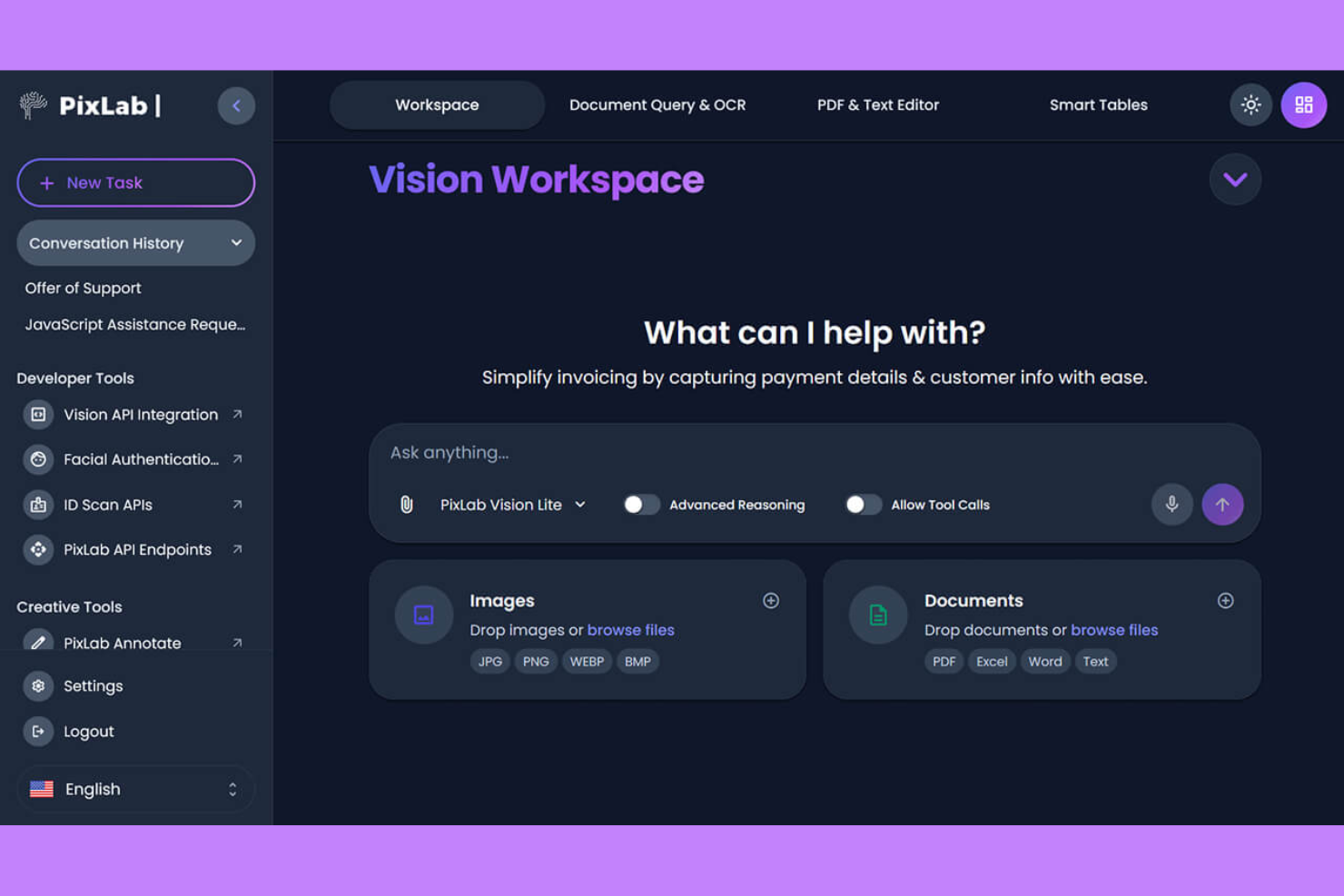
If your team needs to automate image-to-text conversion across large volumes of files, PixLab offers a focused solution. This platform is designed for developers and businesses that want to integrate OCR into custom workflows or applications. PixLab stands out for its API-driven approach, making it a strong fit for organizations handling complex or high-frequency document processing tasks.
Why I Picked PixLab
PixLab caught my attention because of its strong focus on automated image-to-text workflows, which is a key need for many teams handling document digitization. The platform’s API-first design lets you process images and extract text in bulk, making it easy to build custom automation into your document management pipeline. I also like that PixLab supports a wide range of file formats and offers advanced image preprocessing, which helps improve OCR accuracy for challenging documents. These capabilities make it a practical choice for businesses that need reliable, high-volume OCR as part of their document management strategy.
PixLab Key Features
Some other features in PixLab that are useful for document management teams include:
- Face and object detection: Identify faces and objects within images to support advanced document categorization or redaction workflows.
- Barcode and QR code reading: Extract data from barcodes and QR codes embedded in scanned documents or images.
- Content moderation tools: Automatically flag or filter inappropriate or sensitive content in uploaded files.
- Video frame extraction: Pull still frames from video files for OCR processing or further analysis.
PixLab Integrations
Native integrations are not currently listed. However, PixLab offers an API for custom integrations.
Pros and Cons
Pros:
- Built-in moderation and face detection tools
- Image preprocessing improves OCR accuracy
- Handles many image and video file formats
Cons:
- Documentation can be technical and sparse
- No user-friendly dashboard for non-developers

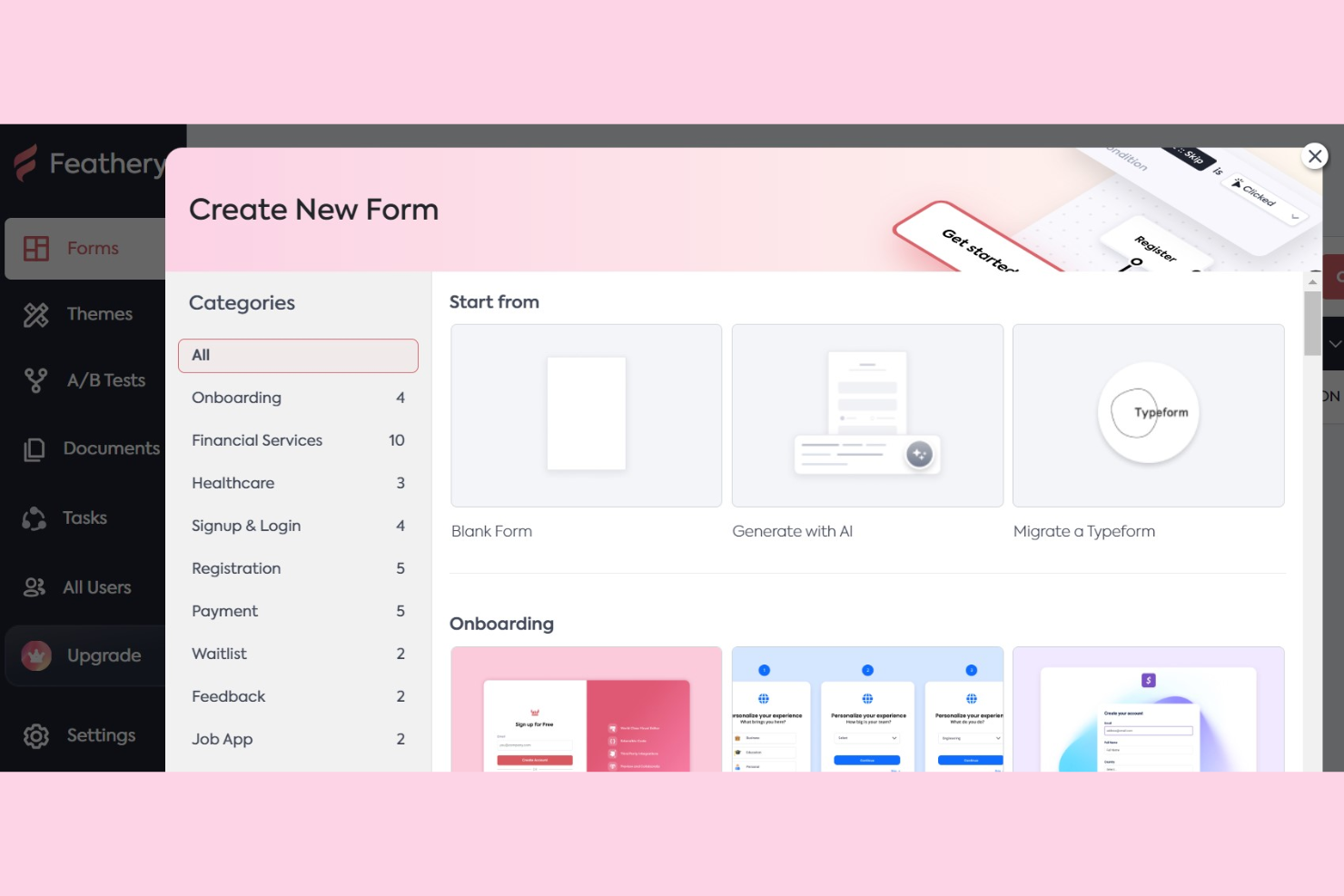
If you need to capture and process documents directly through web forms, Feathery offers a unique approach to OCR document management. It’s built for teams that want to automate data extraction from uploaded files and images as part of their digital workflows. Feathery is especially useful for businesses that rely on custom forms for onboarding, applications, or compliance, and need OCR to turn uploads into structured, actionable data.
Why I Picked Feathery
What sets Feathery apart is its ability to embed OCR directly into custom web forms, making document capture and data extraction part of your workflow from the start. I picked Feathery because it lets you build forms that accept file uploads and automatically extract text and data from images or PDFs using OCR. This approach is especially useful for teams that need to collect structured information from documents as part of onboarding, applications, or compliance processes. By integrating OCR at the point of data entry, Feathery helps you automate document management and reduce manual data handling.
Feathery Key Features
Some other features that make Feathery useful for document management include:
- Conditional logic: Build forms that show or hide fields based on user input.
- Custom validation rules: Set specific requirements for uploaded files and form fields.
- Workflow automation: Trigger actions or notifications when documents are submitted or processed.
- Role-based access controls: Manage who can view, edit, or approve documents within your forms.
Feathery Integrations
Integrations include Stripe, Salesforce, HubSpot, Plaid, Zapier, Calendly, Webhooks, Mixpanel, RudderStack, Amplitude, and more.
Pros and Cons
Pros:
- Validation rules enforce document quality
- Conditional logic enables dynamic intake forms
- Supports uploads for images, PDFs, and scans
Cons:
- Audit trails and compliance features are less detailed
- Advanced document search and filtering are limited
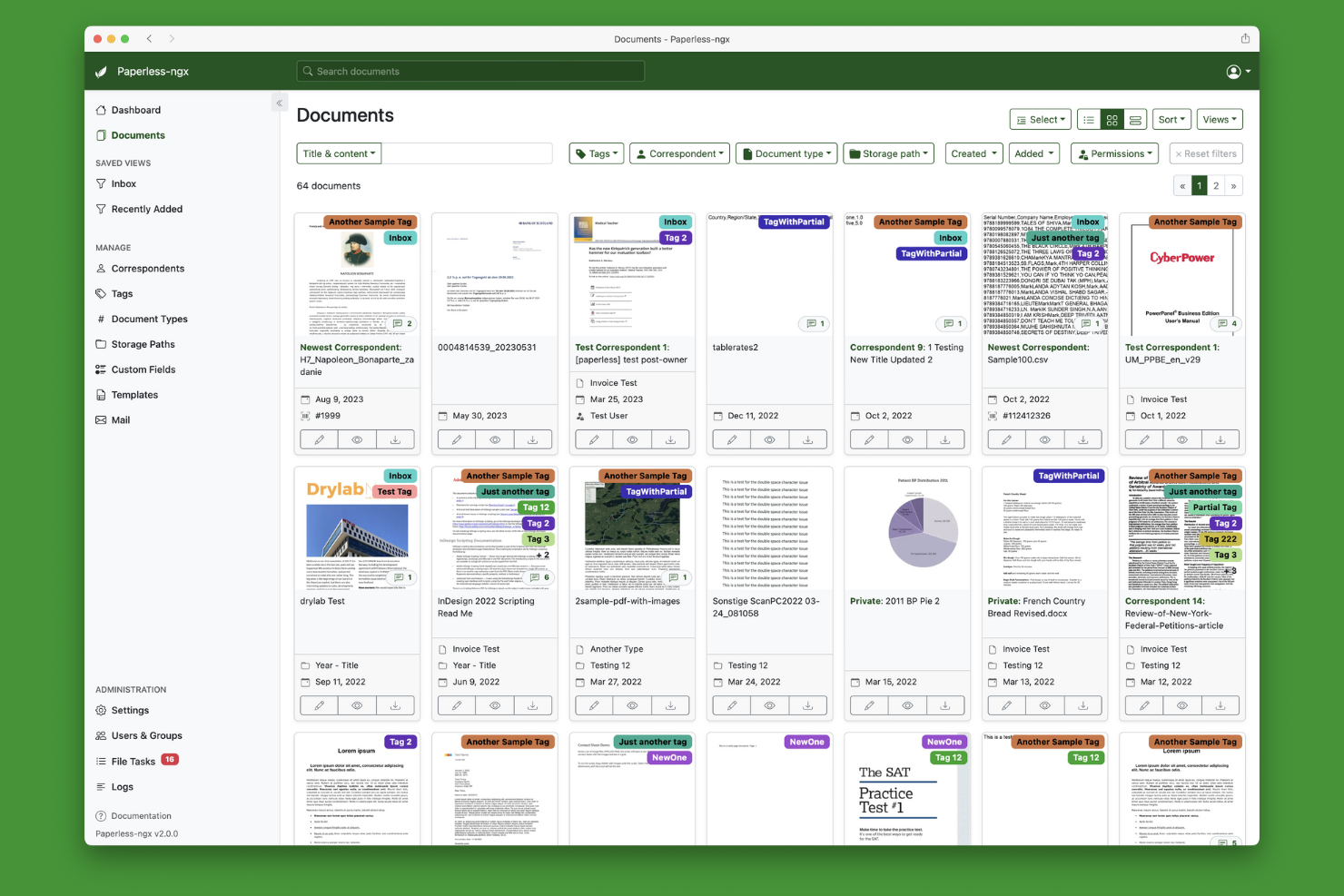
If you’re looking for a fully open-source OCR document management solution, Paperless-ngx stands out for its flexibility and transparency. This platform is ideal for IT teams, developers, and privacy-focused organizations that want to self-host and customize every aspect of their document workflows. Paperless-ngx is especially useful for those who need to automate document capture and processing without vendor lock-in or licensing fees.
Why I Picked Paperless-ngx
What makes Paperless-ngx a strong choice is its open-source foundation, which gives you full control over customization and deployment. For teams that want to tailor their OCR document management workflows, Paperless-ngx lets you modify document tagging, metadata extraction, and automation scripts to fit unique requirements. I like that you can self-host the platform, ensuring data privacy and compliance with internal policies. This level of flexibility is hard to find in proprietary solutions, making Paperless-ngx especially appealing for organizations with specialized or evolving needs.
Paperless-ngx Key Features
Some other features that make Paperless-ngx appealing for document management include:
- Bulk document import: Upload and process large batches of documents at once to speed up onboarding.
- Role-based access control: Assign user permissions to manage who can view, edit, or delete documents.
- Automated document retention policies: Set rules for archiving or deleting documents based on custom timeframes.
- Multi-language OCR support: Extract text from documents in a variety of languages for global teams.
Paperless-ngx Integrations
Native integrations are not currently listed. However, it offers an API for custom integrations.
Pros and Cons
Pros:
- Bulk import speeds large document digitization
- Multi-language OCR processes diverse scripts
- Self-hosting supports strict data privacy
Cons:
- Advanced automation may need manual scripting
- Installation and maintenance require technical skills


onPhase offers a unified platform for organizations that want to automate document capture, data extraction, and business processes from end to end. It’s especially well-suited for operations, finance, and HR teams that need to manage high volumes of documents and complex approval workflows. With built-in OCR and process automation, onPhase helps teams reduce manual data entry and keep work moving across multiple departments.
Why I Picked onPhase
What sets onPhase apart is its ability to automate entire document-driven processes, not just OCR and storage. For teams that need more than simple document capture, onPhase combines OCR with workflow automation, allowing you to route documents, trigger approvals, and manage exceptions all in one system. I picked onPhase because it supports complex, multi-step processes that often slow down operations in finance, HR, and other departments. This end-to-end automation focus makes it a strong fit for organizations looking to digitize and orchestrate every stage of their document lifecycle.
onPhase Key Features
In addition to its process automation capabilities, I also found these features valuable for document management:
- Document version control: Track changes and maintain a full history of document edits and updates.
- Custom form builder: Design and deploy digital forms to capture structured data alongside documents.
- Advanced search and filtering: Locate documents quickly using metadata, keywords, and custom filters.
- Audit trails: Monitor document access and activity for compliance and security purposes.
onPhase Integrations
Native integrations are not currently listed.
Pros and Cons
Pros:
- Custom forms capture structured document data
- Workflow automation routes files for approvals
- Built-in OCR extracts data from scanned documents
Cons:
- User support is primarily through vendor channels
- Setup may require vendor assistance
Other OCR Document Management Software
Here are some additional OCR document management software options that didn’t make it onto my shortlist, but are still worth checking out:
- SimpleIndex
For quick text extraction from scans
- Papermerge DMS
For folder-based document organization
- DocStar
For workflow automation in mid-sized businesses
- Google Cloud AI Platform
With multilingual text recognition
- Hyperscience
For automating high-volume document intake


How I Evaluate OCR Document Management Software
I evaluate tools in two layers—baseline capabilities like accurate OCR on scanned contracts and full-text indexing, and differentiating factors that matter for project teams.
Core Functionality (Table Stakes For This List)
When I'm selecting tools for my list, I rank each one on a scale from 0 (does not offer the functionality) to 5 (excels in this area) for each core functionality listed below. Then, I calculate the tool's total score into a percentage. Each tool needs to achieve a minimum total score of 65% to be considered for inclusion.
- OCR Text Recognition: I check how accurately each tool converts scanned project documents—like stamped drawings, signed change orders, and handwritten field notes—into searchable, editable text.
- Document Storage & Repository: A centralized repository with folder structures, tagging, and metadata matters here, especially for teams managing thousands of files across concurrent projects.
- Full-Text Search & Indexing: I evaluate whether you can search the actual content of OCR-processed files, not just filenames, to quickly locate a specific clause buried in a 200-page contract.
- Data Extraction & Automation: I look for tools that pull structured fields like invoice numbers, dates, and vendor names from scanned documents and feed them into downstream workflows.
- Version Control & Audit Trail: Project documentation goes through constant revisions, so I check for revision history, rollback options, and detailed activity logs that track who changed what and when.
- Access Control & Collaboration: Role-based permissions, document-level sharing, and collaborative features like annotations and approval workflows are what I evaluate for multi-stakeholder project teams.
Once I have a list of tools that meet this criteria, I consider what sets each platform apart.
Differentiating Factors (What Sets Vendors Apart)
Here's how I compare and contrast different vendors:
Standout Features
Mobile capture is a big one—field teams need to scan receipts, permits, or punch lists on-site and push them straight into the project repository. I also look for workflow automation builders that let you route documents through approval chains tied to project stages without writing code. AI-powered classification adds another layer, automatically tagging incoming files as invoices, contracts, or RFIs so nothing gets misfiled across a busy portfolio.
Beyond Features
Integrations matter a lot here. I check whether each tool connects to project management platforms like Jira, Asana, or Procore, plus accounting systems where extracted invoice data actually needs to land. Compliance and security certifications are another factor I evaluate, especially for teams handling contracts or regulated documentation that requires audit-ready logs. I also look closely at pricing models—some vendors charge per OCR page, others per user—so understanding total cost of ownership before you scale is essential.
How to Choose OCR Document Management Software
It’s easy to get bogged down in long feature lists and complex pricing structures. To help you stay focused as you work through your unique software selection process, here’s a checklist of factors to keep in mind:
| Factor | What to Consider |
|---|---|
| Scalability | Will the software handle your document volume as your business grows? Ask about page limits, user caps, and upgrade paths. |
| Integrations | Does the tool connect natively to your core systems (ERP, CRM, cloud storage)? Check for pre-built integrations, not just API access. |
| Customizability | Can you tailor workflows, document types, and metadata fields to your processes? Avoid rigid systems that force you to adapt your work. |
| Ease of use | Will your team adopt the tool quickly? Look for clear navigation, minimal training requirements, and a logical document organization. |
| Implementation and onboarding | How long will it take to get up and running? Consider migration support, training resources, and whether you’ll need IT involvement. |
| Cost | Are pricing tiers transparent and predictable? Watch for extra charges for OCR volume, storage, or integrations that can inflate costs. |
| Security safeguards | Does the software offer encryption, access controls, and audit logs? Make sure it meets your organization’s data protection standards. |
| Compliance requirements | Will the tool help you meet industry regulations (like HIPAA, GDPR, or SOX)? Confirm support for retention policies and audit trails. |
What is OCR Document Management Software?
OCR document management software is a type of digital tool that uses optical character recognition (OCR) technology to scan, extract, and organize text from paper documents, images, or PDFs. These systems help teams digitize physical records, automate data entry, and make documents searchable and retrievable. They are commonly used to simplify document workflows, improve accuracy, and support compliance with record-keeping requirements.
Features of OCR Document Management Software
When selecting OCR document management software, keep an eye out for the following key features:
- Optical character recognition (OCR): Converts scanned images, PDFs, or photos of documents into machine-readable and searchable text, making it possible to extract and use data from physical records.
- Document indexing: Assigns metadata, tags, or categories to documents, allowing users to organize, filter, and quickly locate files based on specific criteria.
- Full-text search: Enables users to search for keywords or phrases within the content of digitized documents, improving retrieval speed and accuracy.
- Version control: Tracks changes and maintains a history of document edits, so users can view, restore, or compare previous versions as needed.
- Access controls: Lets administrators set permissions for who can view, edit, or delete documents, supporting data security and compliance requirements.
- Batch processing: Allows users to scan, import, and process multiple documents at once, saving time when handling large volumes of paperwork.
- Automated document routing: Directs documents to the right people or departments based on predefined rules, supporting workflow automation and reducing manual handling.
- Records retention management: Applies policies for how long documents are stored and when they should be archived or deleted, helping organizations meet regulatory and compliance standards.
- Audit trails: Logs all user actions and document changes, providing a transparent record for security reviews and compliance audits.
Benefits of OCR Document Management Software
Implementing OCR document management software provides several benefits for your team and your business. Here are a few you can look forward to:
- Faster document retrieval: Full-text search and indexing features make it easy to find documents by keyword or metadata in seconds.
- Reduced manual data entry: OCR technology automatically extracts text and data from scanned documents, minimizing repetitive manual work.
- Improved compliance: Records retention management and audit trails help your organization meet regulatory requirements and maintain accurate records.
- Improved document security: Access controls and user permissions protect sensitive information and ensure only authorized users can view or edit documents.
- Simplified workflows: Automated document routing and batch processing move files efficiently through your business processes, reducing bottlenecks.
- Better collaboration: Version control and centralized storage allow teams to work from the same set of documents and track changes over time.
- Lower storage costs: Digitizing paper records reduces the need for physical storage space and makes archiving more efficient.
Costs and Pricing of OCR Document Management Software
Selecting OCR document management software requires an understanding of the various pricing models and plans available. Costs vary based on features, team size, add-ons, and more. The table below summarizes common plans, their average prices, and typical features included in OCR document management software solutions:
Plan Comparison Table for OCR Document Management Software
| Plan Type | Average Price | Common Features |
|---|---|---|
| Free Plan | $0 | Basic OCR scanning, limited document storage, and simple search functionality. |
| Personal Plan | $5-$20/user/month | OCR scanning, document indexing, basic search, and limited export options. |
| Business Plan | $20-$50/user/month | Advanced OCR, batch processing, workflow automation, access controls, and integration with cloud storage. |
| Enterprise Plan | $50-$150/user/month | Custom workflows, advanced security, compliance tools, API access, priority support, and audit trails. |
OCR Document Management Software FAQs
Here are some answers to common questions about OCR document management software:
How accurate is OCR in document management software?
OCR accuracy depends on the quality of the original document, the clarity of the text, and the software’s recognition engine. Clean, printed documents usually yield high accuracy, while handwritten or low-resolution scans may require manual review and correction.
Can OCR document management software handle handwritten documents?
Yes, some solutions support handwritten text recognition, but results can vary. Printed handwriting in block letters is more likely to be recognized accurately than cursive or stylized writing. Always test with your typical documents before committing.
What file formats can be processed and exported?
Most OCR document management software can process PDFs, JPEGs, TIFFs, and PNGs, and export to formats like searchable PDF, Word, Excel, or plain text. Check each tool’s documentation for supported input and output formats.
Is it possible to automate document workflows with these tools?
Yes, many platforms offer workflow automation features. You can set up rules to route documents, trigger notifications, or assign tasks based on document type or content, reducing manual handling and speeding up processes.
How do these systems help with compliance?
OCR document management software supports compliance by providing audit trails, records retention policies, and access controls. These features help organizations meet regulatory requirements for data security and document management.