

10 Best Free Process Mapping Software for 2026

Best Free Process Mapping Software Shortlist


Free process mapping software lets you create, edit, and share workflow diagrams without paying for a subscription—using tools that offer a free plan or trial. If you’re searching for ways to visualize processes, align your team, or document workflows without adding to your budget, you need options that don’t lock essential features behind a paywall.
This list will help you compare the top free process mapping tools, so you can find the right fit for your team’s collaboration, documentation, and workflow needs.
Why Trust Our Software Recommendations
Our team has been testing and reviewing software since 2012. As project managers ourselves, we know how difficult—and important—it is to choose the right software.
For this guide, we evaluated tools using hands-on testing and independent research, scoring tools using our selection criteria. We also draw on insights from industry thought leaders and practicing project management experts.
Our reviews reflect our human editorial judgment, not a sales pitch.
Expert reviewers:
Free Process Mapping Software Comparison Table
This comparison table highlights the base paid pricing for my top free process mapping software selections.
| Tool | Best For | Trial Info | Price | ||
|---|---|---|---|---|---|
| 1 | Best for real-time team collaboration | Free plan + 14-day free trial available | From $8/user/month (billed annually) | Website | |
| 2 | Best for combining diagrams with sticky notes | Free plan available | From $10/user/month (billed annually) | Website | |
| 3 | Best for multi-project workspace management | Free plan available | From $5/month (billed annually) | Website | |
| 4 | Best for hand-drawn style diagrams | 14-day free trial + free plan available | From $6/user/month (billed annually) | Website | |
| 5 | Best for offline diagram editing | Free forever | Free to use | Website | |
| 6 | Best for visually engaging presentations | Free plan available | Free plan available | Website | |
| 7 | Best for brainstorming with mind maps | Free plan available | From $5/user/month (billed annually) | Website | |
| 8 | Best for enterprise-ready modeling tools | Free plan available | From $4/user/month (billed annually) | Website | |
| 9 | Best for distraction-free flowchart creation | Not available | Free to use | Website | |
| 10 | Best for text-to-flowchart conversion | Free plan available | From $6/month | Website |

Best Free Process Mapping Software Reviews
Below are my detailed summaries of free process mapping software that made it onto my shortlist. My reviews offer a detailed look at the features, best use cases, and integrations of each tool to help you find the best one for you.
Miro
Best for real-time team collaboration
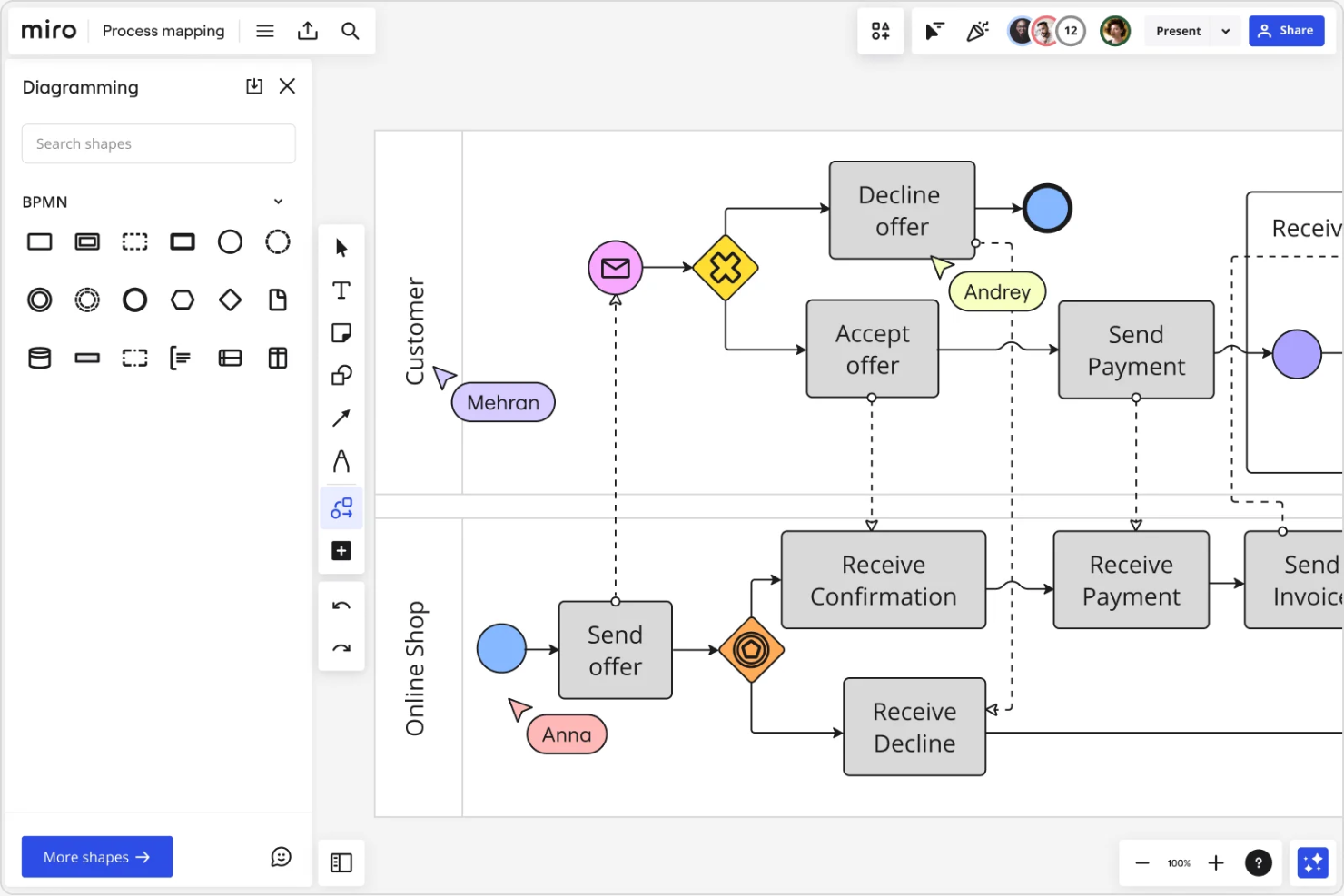
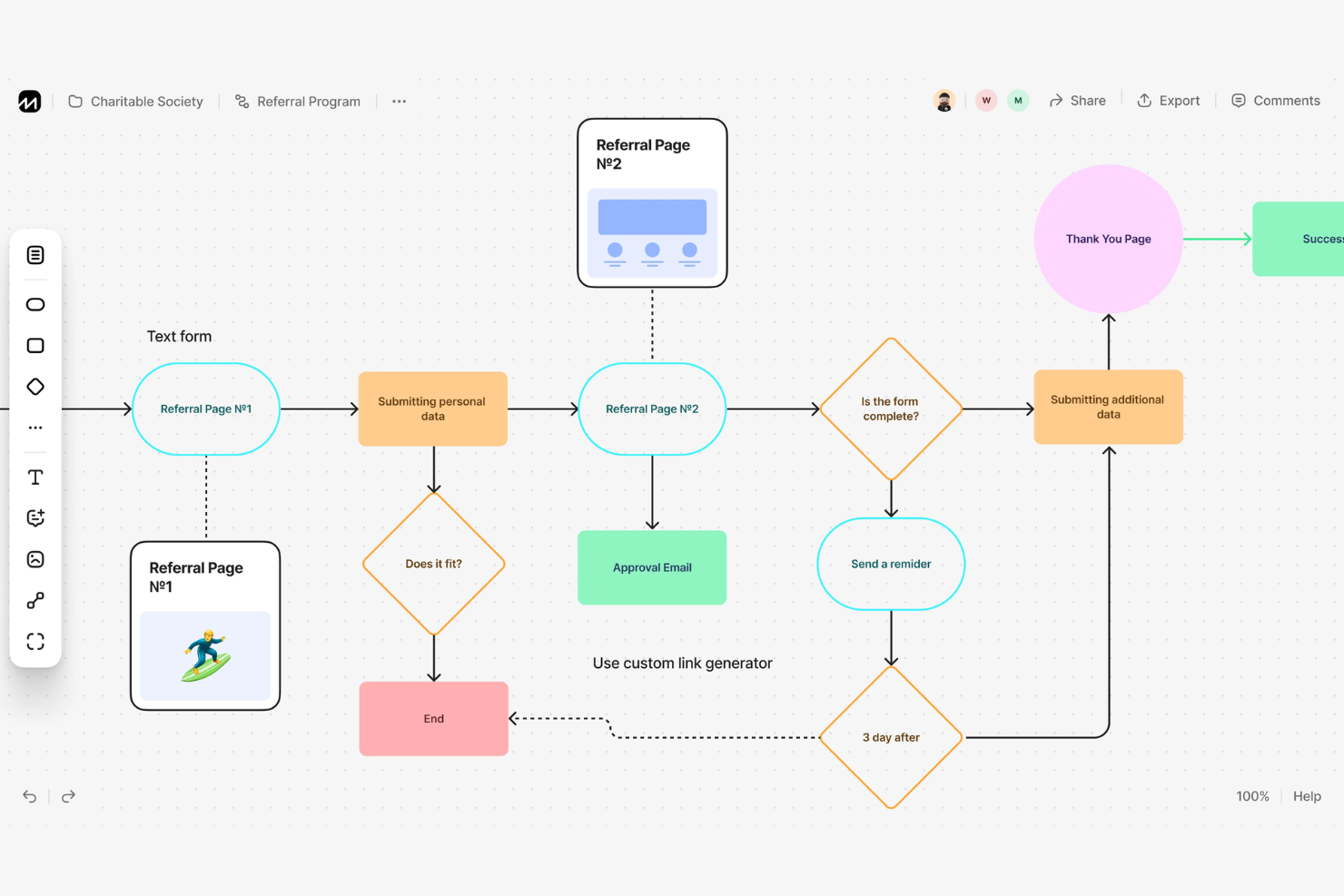
If your team needs to map processes together in real time, Miro is worth considering. This online whiteboard platform is popular with distributed teams, product managers, and facilitators who need to visualize workflows and systems collaboratively. Miro helps you capture ideas, organize handoffs, and keep everyone aligned as you build out process maps together.
Why I Picked Miro
What sets Miro apart for process mapping is its real-time team collaboration, which is especially valuable for distributed or hybrid teams. I picked Miro because you can see everyone’s changes as they happen, making it easy to co-create process maps during live meetings or workshops. The tool’s infinite canvas and built-in facilitation features, like sticky notes and voting, help teams brainstorm, organize, and refine workflows together. This level of interactivity makes Miro a strong choice if you need to keep everyone engaged and aligned while mapping out processes.
Miro Key Features
Some other features that make Miro useful for process mapping include:
- Template library: Access a wide range of pre-built process mapping and flowchart templates to get started quickly.
- Shape and connector tools: Use a variety of shapes, arrows, and connectors to build clear, detailed process diagrams.
- Presentation mode: Share your process maps in a guided, step-by-step format directly within the board.
- Commenting and tagging: Add comments and tag teammates directly on specific elements for targeted feedback and discussion.
Miro Integrations
Integrations include Microsoft Teams, Slack, Google Drive, Jira, Asana, Trello, Zoom, Dropbox, Notion, and more.
What's Free?
Miro offers a free-forever plan with unlimited team members and access to core features. The free plan limits you to three editable boards at a time and restricts some advanced diagramming and export options.
Pros and Cons
Pros:
- Native sticky note digitization
- Integrated video chat functionality
- Real-time mouse cursor tracking
Cons:
- No offline local file editing
- Free plan limits to three editable boards
New Product Updates from Miro
Miro Adds Japan Data Residency for Enterprise Customers
Miro has introduced Japan data residency for enterprise customers, offering in-region storage for production data, backups, and metadata, plus in-region compute infrastructure. For more information, visit Miro's official site.

Best for combining diagrams with sticky notes
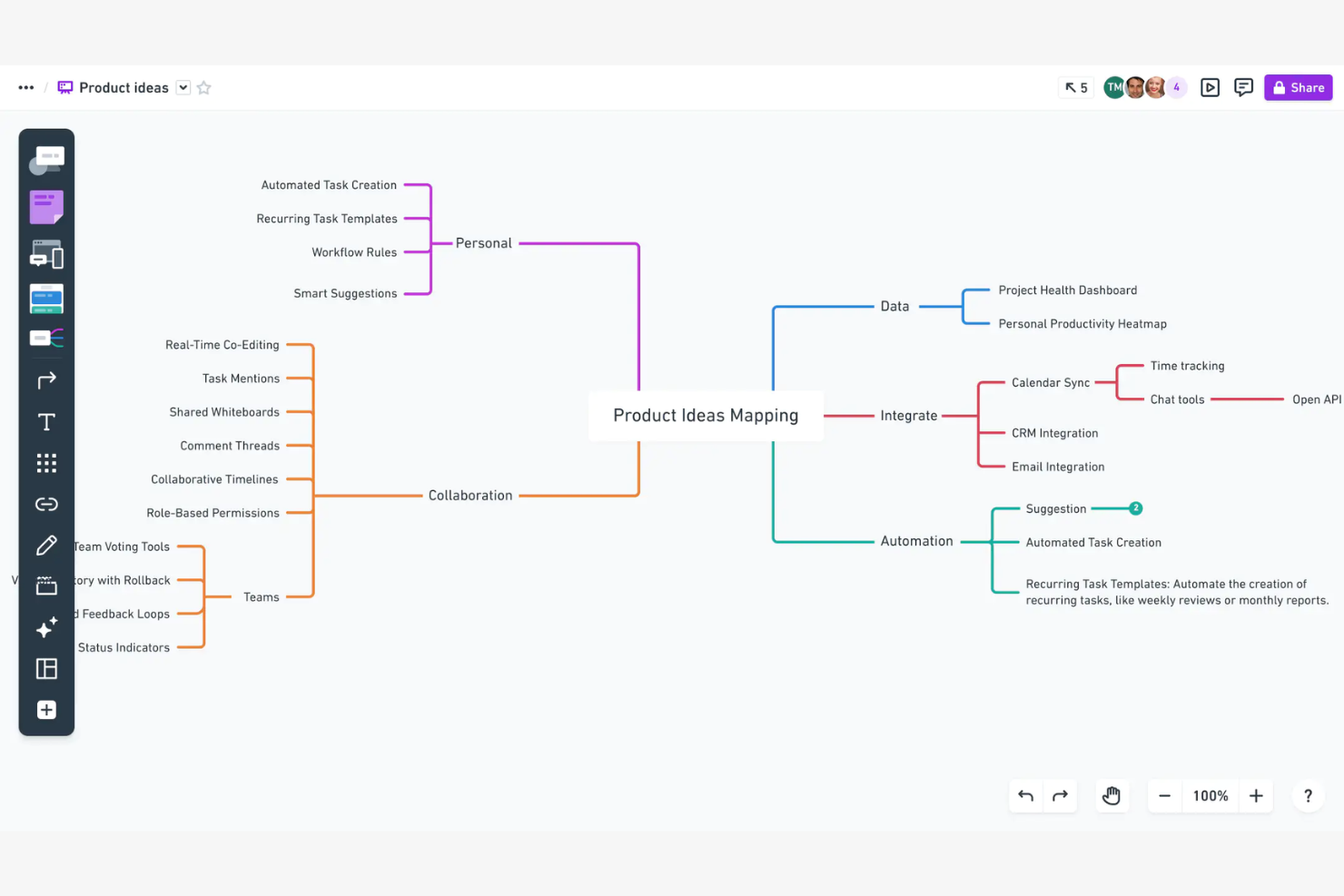
If you want to combine process diagrams with sticky notes in one workspace, Whimsical is worth considering. It’s designed for teams who need to map out workflows visually while capturing ideas, feedback, or requirements alongside their diagrams. Whimsical is especially useful for product managers, UX designers, and cross-functional teams who want to keep brainstorming and process mapping tightly connected.
Why I Picked Whimsical
What drew me to Whimsical is how it lets you combine process flowcharts and sticky notes in a single, unified workspace. This approach is especially helpful when you need to map out a workflow and capture related ideas, requirements, or feedback right alongside your diagram. I like that you can drag and drop sticky notes directly onto your flowcharts, making it easy to annotate steps or highlight action items. For teams that want to keep brainstorming and process mapping tightly linked, Whimsical offers a flexible and visual solution.
Whimsical Key Features
Some other features that make Whimsical useful for free process mapping include:
- Flowchart templates: Choose from a library of pre-built flowchart templates to get started quickly.
- Real-time collaboration: Multiple users can edit and comment on diagrams at the same time.
- Version history: Access previous versions of your diagrams and restore changes as needed.
- Multi-format export: Export diagrams as PNG, PDF, or SVG files for sharing or documentation.
Whimsical Integrations
Integrations include Google Docs, Jira, GitHub, Notion, Slack, and more.
What's Free?
Whimsical offers a free-forever plan that allows up to 1,000 items across all your boards. The free plan is limited to a single workspace and does not include advanced admin controls or priority support.
Pros and Cons
Pros:
- Collaborative real-time cursor chat
- Built-in searchable icon sets
- Integrated wireframing and flowcharts
Cons:
- Restricted free plan board limit
- Basic data visualization features

Creately
Best for multi-project workspace management
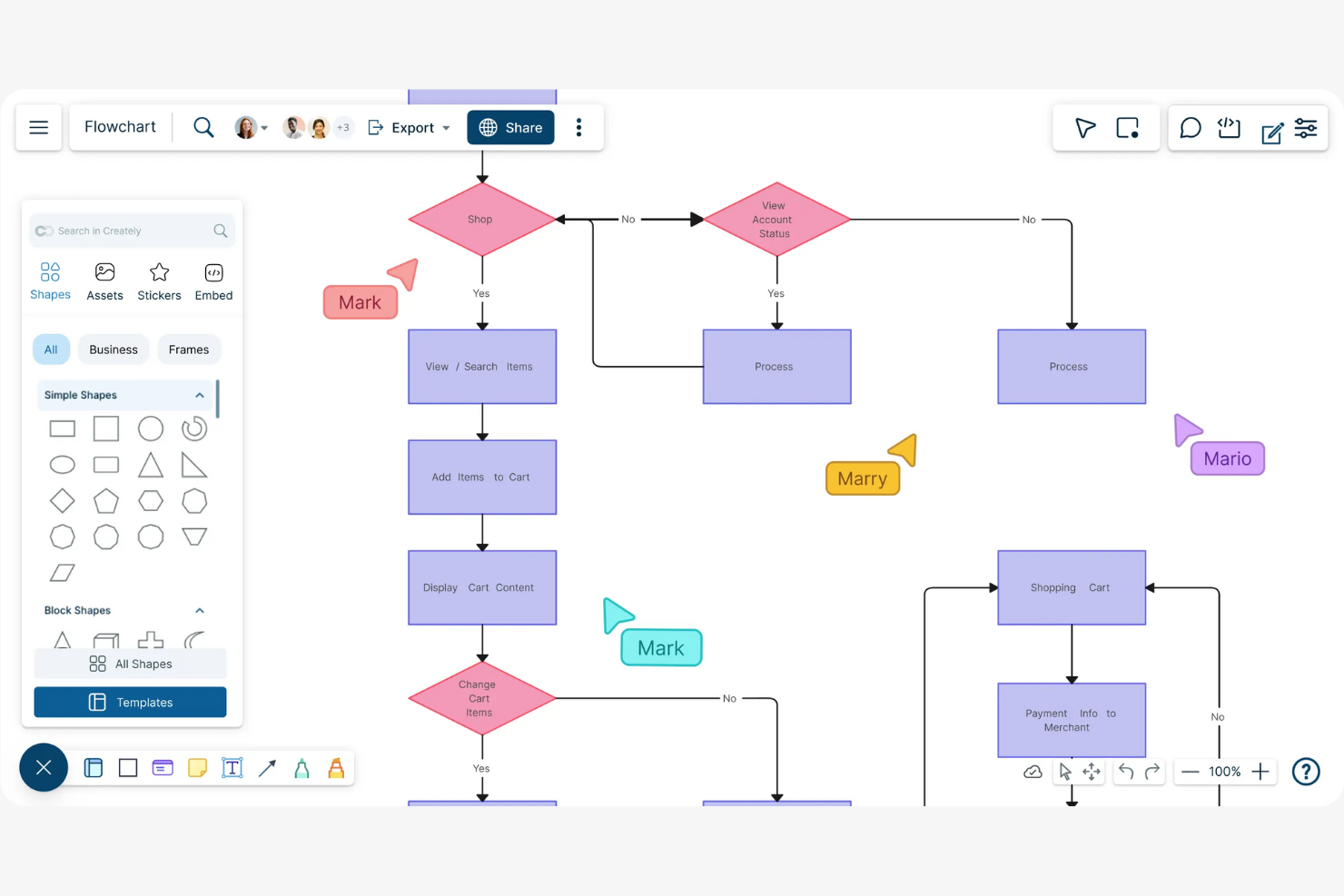
If you’re looking for a process mapping tool that can handle multiple projects and teams in one place, Creately is worth considering. This platform is designed for professionals who need to organize, visualize, and manage complex workflows across different workspaces. Creately stands out for its ability to connect diagrams, notes, and data, making it easier to coordinate work and keep everything linked together.
Why I Picked Creately
What makes Creately stand out for process mapping is its focus on managing multiple projects and workspaces within a single platform. I picked Creately because it lets you create separate workspaces for different teams or initiatives, so you can keep value stream mapping, documents, and data organized by project. The tool also links diagrams directly to notes and tasks, which helps you connect process flows to actionable work. This structure is especially useful if you’re juggling several projects at once and need a clear way to keep everything coordinated.
Creately Key Features
Some other features that make Creately useful for free process mapping include:
- Drag-and-drop diagram editor: Build process maps, flowcharts, and diagrams using an intuitive visual interface.
- Real-time collaboration: Invite team members to edit, comment, and brainstorm together on the same canvas.
- Template library: Access a wide range of pre-built templates for process mapping, org charts, and workflow diagrams.
- Revision history: Track changes and restore previous versions of your diagrams to maintain accuracy and accountability.
Creately Integrations
Integrations include Confluence, Microsoft Teams, Slack, and more.
What's Free?
Creately offers a free-forever plan with unlimited public documents and up to 3 collaborators per workspace. The free plan limits private documents, advanced export options, and access to some templates and shapes.
Pros and Cons
Pros:
- Automatic layout and shape alignment
- Built-in project management kanban views
- Real-time data syncing from Jira
Cons:
- Restricted custom font selections
- Free plan restricts private documents

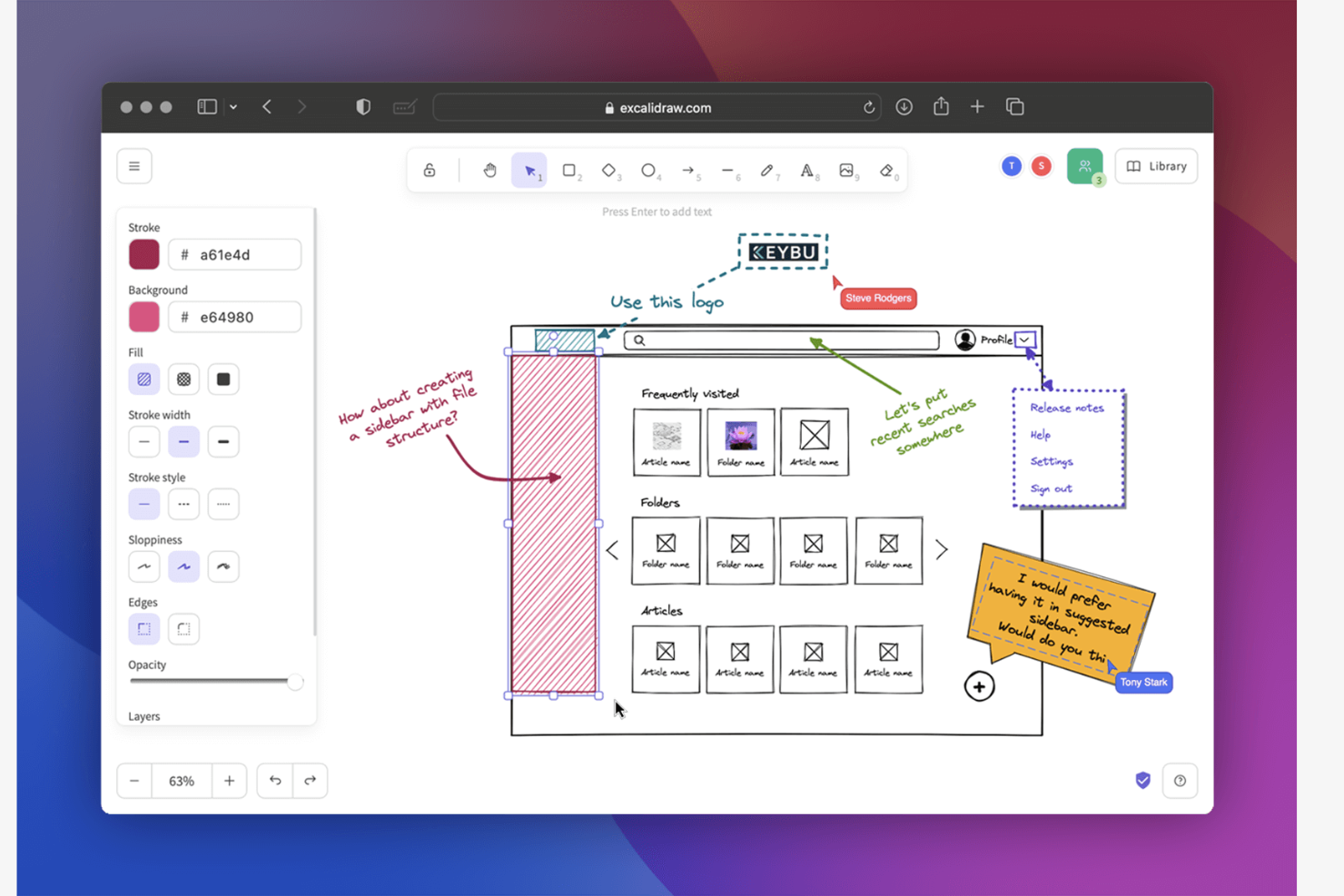
If you want to create process maps that look like they were sketched on a whiteboard, Excalidraw is worth a look. This tool appeals to product managers, designers, and teams who prefer a more informal, hand-drawn style for brainstorming and mapping workflows. It helps you capture ideas quickly and visually, making it easier to communicate rough concepts or evolving processes.
Why I Picked Excalidraw
What drew me to Excalidraw is its unique hand-drawn style, which sets it apart from most process mapping tools that focus on rigid, polished diagrams. This sketch-like approach is especially useful for teams who want to brainstorm, iterate, or present workflows in a more approachable and informal way. Excalidraw lets you create freeform shapes, arrows, and text that mimic the look of marker on a whiteboard, making it easy to capture ideas as they evolve. For anyone who values flexibility and visual storytelling in their process maps, Excalidraw offers a refreshing alternative to traditional diagramming tools.
Excalidraw Key Features
Some other features that make Excalidraw useful for process mapping include:
- Collaboration mode: Multiple users can draw and edit diagrams together in real time.
- Library of reusable shapes: Access a collection of pre-made shapes and icons to speed up diagram creation.
- Export options: Save diagrams as PNG, SVG, or even shareable links for easy distribution.
- Version history: Review and restore previous versions of your diagrams to track changes or undo mistakes.
Excalidraw Integrations
Integrations include Notion and Obsidian.
What's Free?
Excalidraw offers a free-forever plan with no sign-up required. You can create, edit, and export unlimited diagrams, but features like collaboration, version history, and advanced export options may require a paid plan.
Pros and Cons
Pros:
- Direct end-to-end encryption support
- Privacy-focused local-first data model
- Diagrams have a hand-drawn look
Cons:
- Limited structured data linking
- No automated flowchart logic

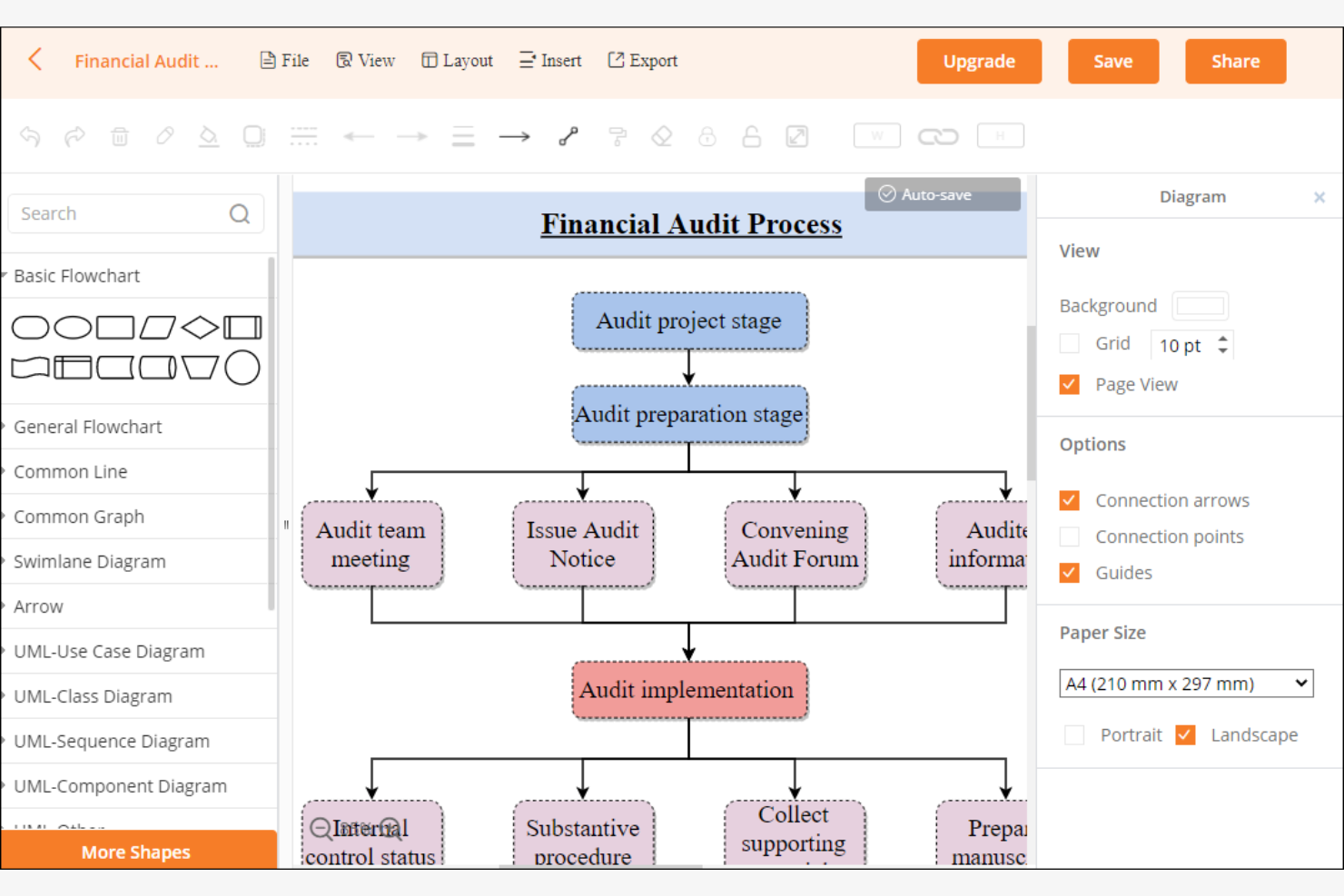
If you need a process mapping tool that works both online and offline, Diagrams.net (formerly draw.io) is worth a look. It’s a strong all-in-one fit for teams that want to create and edit diagrams without relying on cloud access or paid subscriptions. Diagrams.net helps you map out workflows, systems, and processes while keeping your files local and your costs at zero.
Why I Picked Diagrams.net
Diagrams.net stands out for its ability to let you create and edit process maps entirely offline, which is rare among free tools. I picked it because you can download the desktop app and work on diagrams without an internet connection, making it ideal for teams with strict data privacy needs or unreliable connectivity. The tool also supports saving files locally in multiple outputs, so you keep full control over your process documentation. Its offline editing and flexible file management make it a practical choice for anyone who needs process mapping without cloud dependencies.
Diagrams.net Key Features
Some other features that make diagrams.net useful for process mapping include:
- Template library: Access a wide range of pre-built templates for flowcharts, process diagrams, and organizational charts.
- Drag-and-drop interface: Build and modify diagrams quickly using an intuitive drag-and-drop canvas.
- Collaboration via cloud storage: Share and collaborate on diagrams by connecting to Google Drive, OneDrive, or Dropbox.
- Version history: Track changes and revert to previous versions of your diagrams when needed.
Diagrams.net Integrations
Integrations include GitHub, Jira, Confluence, and an API for custom integrations.
What's Free?
Diagrams.net offers a free-forever plan with no user or diagram limits. All core features, including offline editing and cloud integrations, are available without restrictions.
Pros and Cons
Pros:
- Offline desktop application available
- No account registration required
- Open-source code transparency
Cons:
- Basic visual template variety
- Lacks real-time multi-user editing
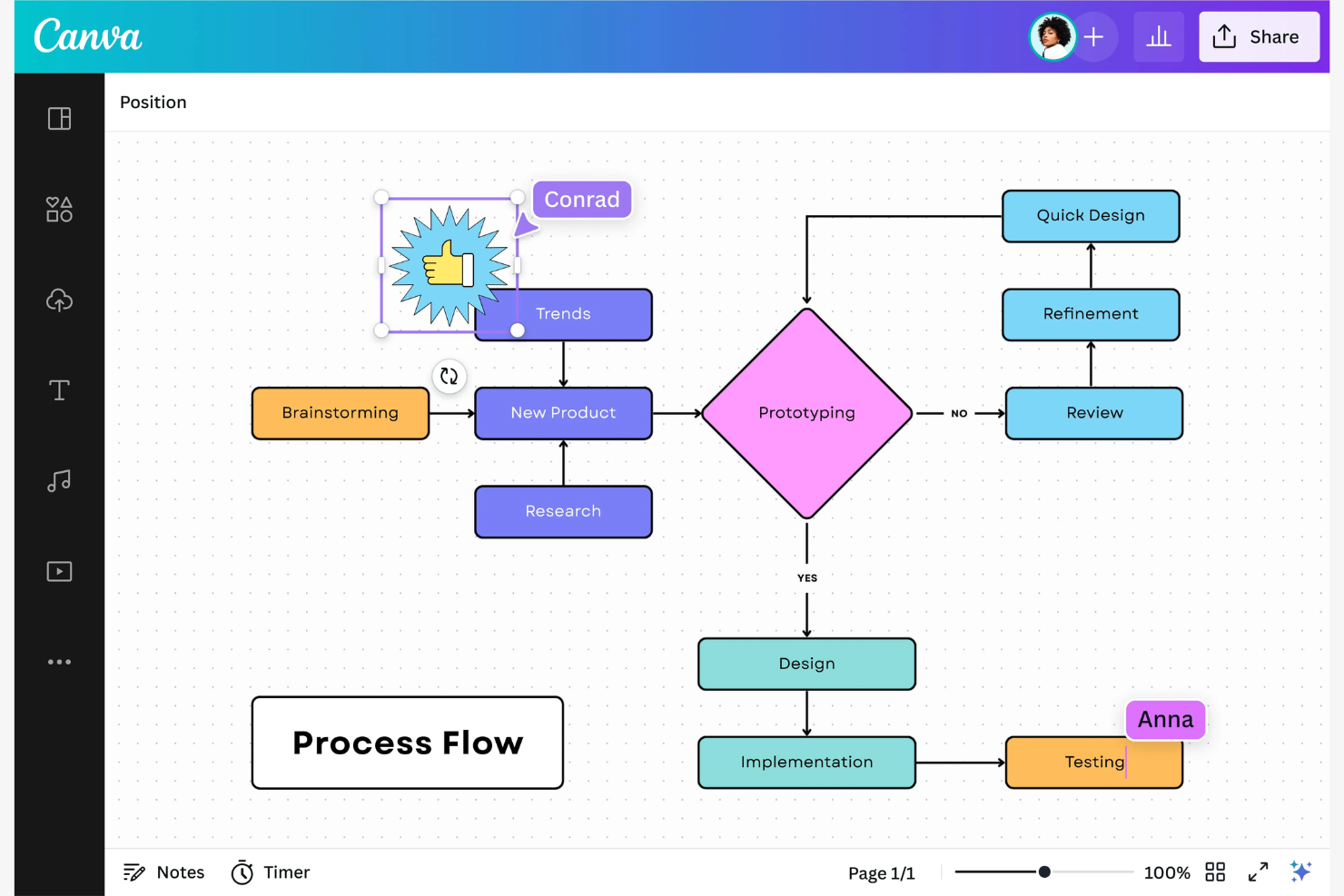
If you want to create process maps that are visually engaging and presentation-ready, Canva Whiteboards is worth a look. This tool appeals to teams and professionals who need to communicate workflows or ideas in a clear visual representation. Canva Whiteboards stands out for its design-focused features, making it easy to build process diagrams that capture attention in meetings or client presentations.
Why I Picked Canva Whiteboards
What drew me to Canva Whiteboards for process mapping is how it makes creating visually engaging presentations simple and accessible. The tool offers a wide range of design elements, including icons, illustrations, and color palettes, so you can build process maps that look polished and professional. I also appreciate the drag-and-drop interface, which lets you arrange and customize flowcharts or diagrams to match your brand or audience. If you need to present process maps to clients or stakeholders, Canva Whiteboards helps you create diagrams that are both clear and visually impressive.
Canva Whiteboards Key Features
Some other features that make Canva Whiteboards useful for free process mapping include:
- Collaboration tools: Invite team members to comment, edit, and brainstorm together in real time.
- Template library: Access a wide range of pre-built flowcharts and process map templates to get started quickly.
- Version history: Review and restore previous versions of your whiteboard to track changes or undo mistakes.
- Export options: Download your process maps as images, PDFs, or share them via a link for easy distribution.
Canva Whiteboards Integrations
Integrations include Slack, Microsoft Teams, Google Drive, Asana, and more.
What's Free?
Canva Whiteboards offers a free-forever plan with unlimited team members and access to core whiteboard features. The free plan limits some export options and advanced design elements, and does not include premium templates or brand management tools.
Pros and Cons
Pros:
- Drag-and-drop interface
- One-click background removal tool
- Large template library available
Cons:
- Restricted professional diagramming shortcuts
- Basic connector line logic

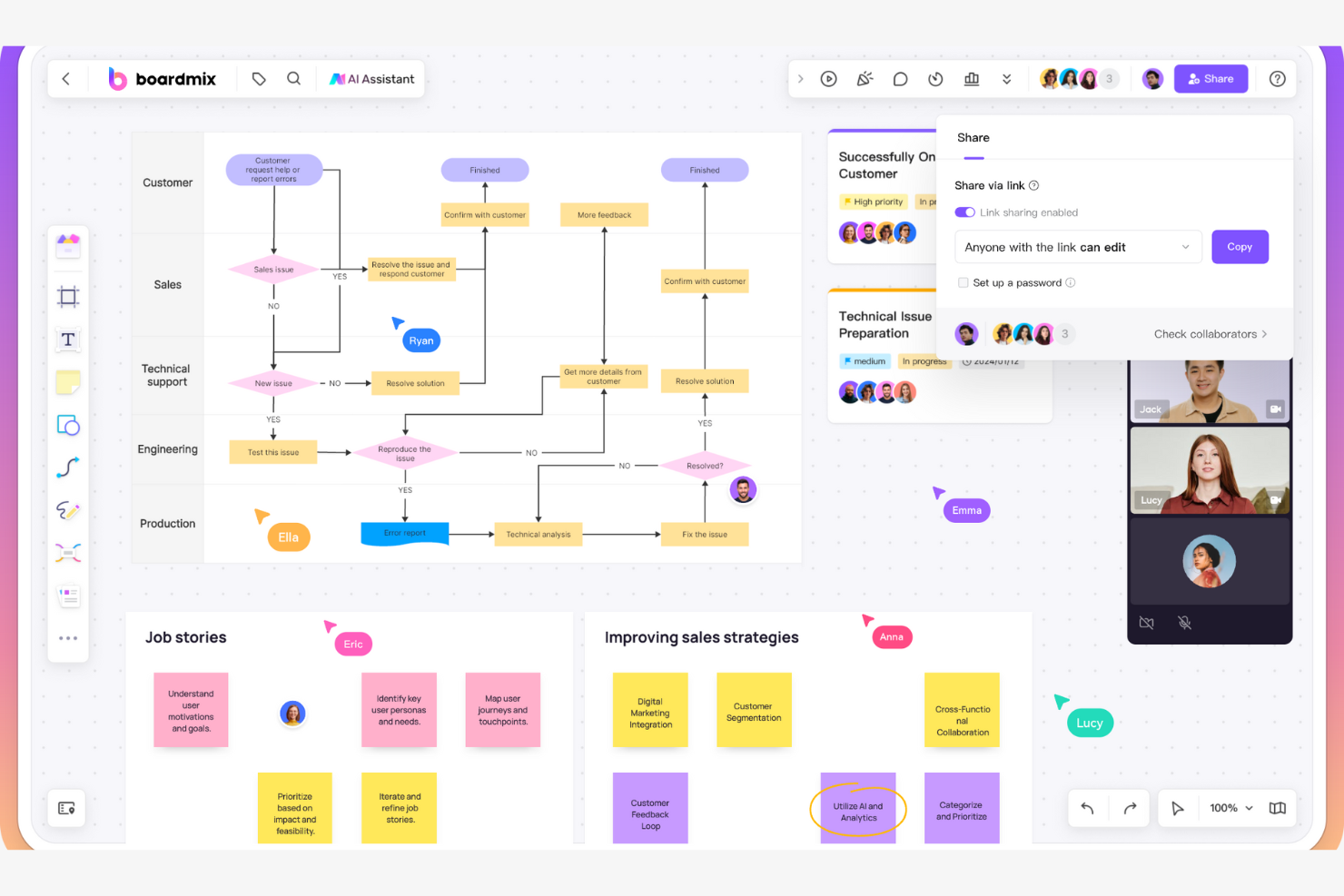
If you’re looking for a process mapping tool that puts brainstorming front and center, Boardmix is worth a look. It’s designed for teams and professionals who want to capture, organize, and expand on ideas visually using mind maps. Boardmix helps you turn freeform brainstorming sessions into structured process maps, making it easier to move from ideation to actionable workflows.
Why I Picked Boardmix
What drew me to Boardmix is how it centers brainstorming with mind maps, making it a strong fit for teams who want to visually organize ideas before building out process flows. The mind mapping feature lets you capture thoughts in a non-linear way, then easily branch out or rearrange nodes as your process takes shape. I also appreciate that you can convert mind maps into more structured flow diagrams, which helps bridge the gap between ideation and process mapping. For anyone who needs a tool that supports both creative brainstorming and process documentation, Boardmix offers a flexible approach.
Boardmix Key Features
Some other features that make Boardmix useful for process mapping include:
- Collaboration tools: Multiple users can edit, comment, and react on the same board in real time.
- Template library: Access a range of pre-built templates for high-level process mapping, flowcharts, and diagrams.
- Attachment support: Add files, images, and links directly to nodes or boards for richer context.
- Presentation mode: Share your process maps in a guided, full-screen view for team walkthroughs.
Boardmix Integrations
Integrations include Google Meet, Microsoft Teams, Zoom, Skype, and more.
What's Free?
Boardmix offers a free-forever plan that lets you create unlimited boards with basic mind mapping and collaboration features. Some advanced templates, export options, and premium features are only available on paid plans.
Pros and Cons
Pros:
- High-resolution image carousel attachments
- Integrated Kanban task management
- AI-powered automatic flowchart generation
Cons:
- Restricted storage on free tier
- Occasional browser interface bugs

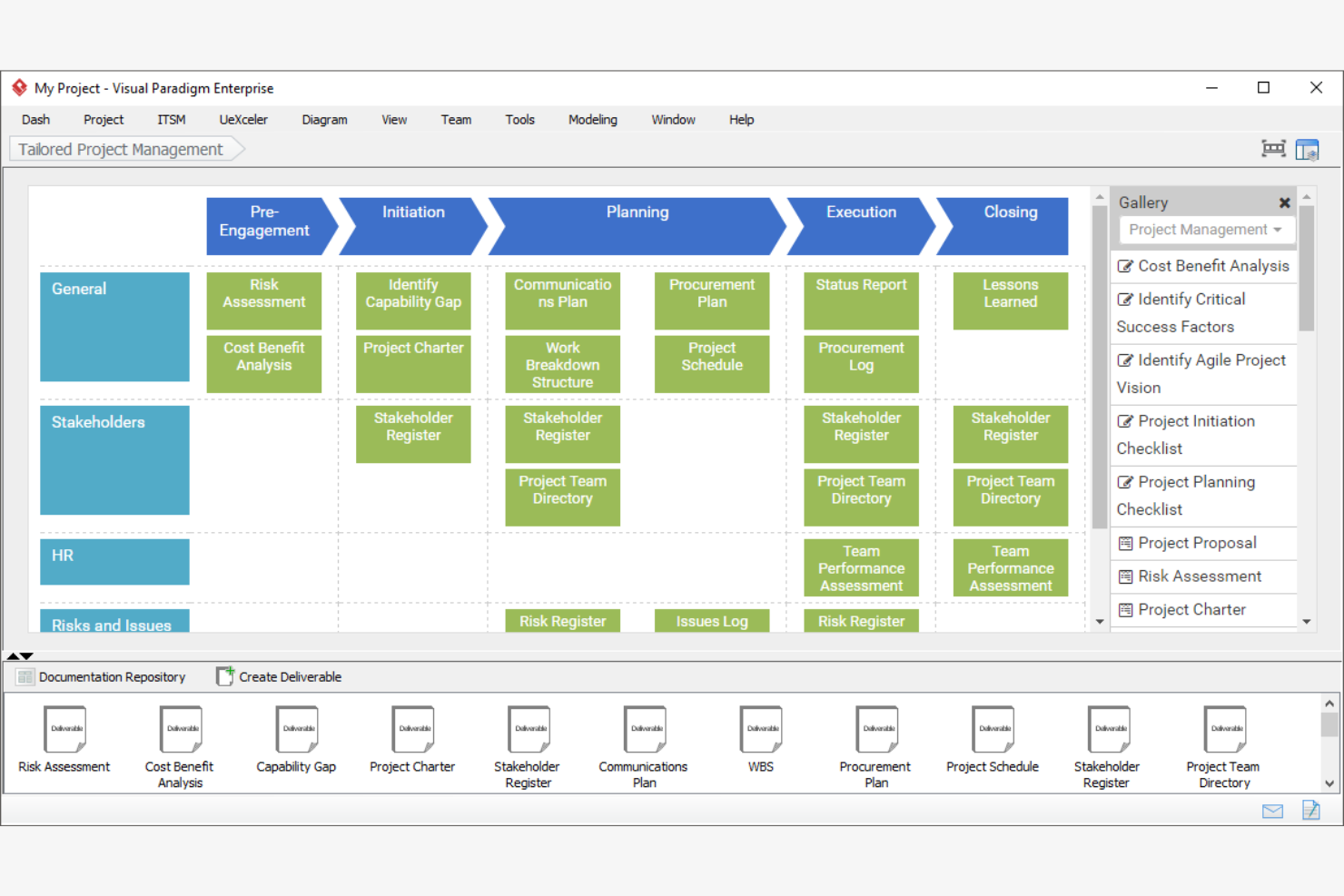
If you need process mapping software with advanced modeling capabilities, Visual Paradigm Online is worth considering. This platform is designed for teams in enterprise environments or regulated industries that require support for complex diagram types and standards. Visual Paradigm Online helps you create everything from BPMN and UML diagrams to enterprise architecture models, making it a strong fit for organizations with formal process documentation needs.
Why I Picked Visual Paradigm Online
What drew me to Visual Paradigm Online is its focus on enterprise-ready modeling tools, which you rarely find in free process mapping software. The platform supports advanced diagram types like BPMN, UML, and ArchiMate, so you can document processes that meet industry standards and regulatory requirements. I also appreciate that it includes features for version control and team collaboration, which are essential for organizations managing complex workflows. If your team needs more than just basic flowcharts and wants to align with formal modeling practices, Visual Paradigm Online stands out as a strong option.
Visual Paradigm Online Key Features
Some other features that make Visual Paradigm Online useful for free process mapping include:
- Drag-and-drop diagram editor: Build process maps and diagrams quickly using an intuitive visual interface.
- Template library: Access a wide range of pre-built templates for flowcharts, org charts, and process diagrams.
- Export options: Download diagrams in formats like PNG, JPG, PDF, and SVG for easy sharing or documentation.
- Cloud-based workspace: Store, access, and manage your diagrams online without installing any software.
Visual Paradigm Online Integrations
Integrations include Jira and Google Drive.
What's Free?
Visual Paradigm Online offers a free-forever plan with unlimited diagrams and basic features. The free plan adds a watermark to exports and restricts access to advanced diagram types, premium templates, and collaboration features.
Pros and Cons
Pros:
- Direct IDE integration for developers
- Automated Java code engineering support
- Industry-standard BPMN 2.0 compliance
Cons:
- Steep learning curve for non-engineers
- Outdated user interface design
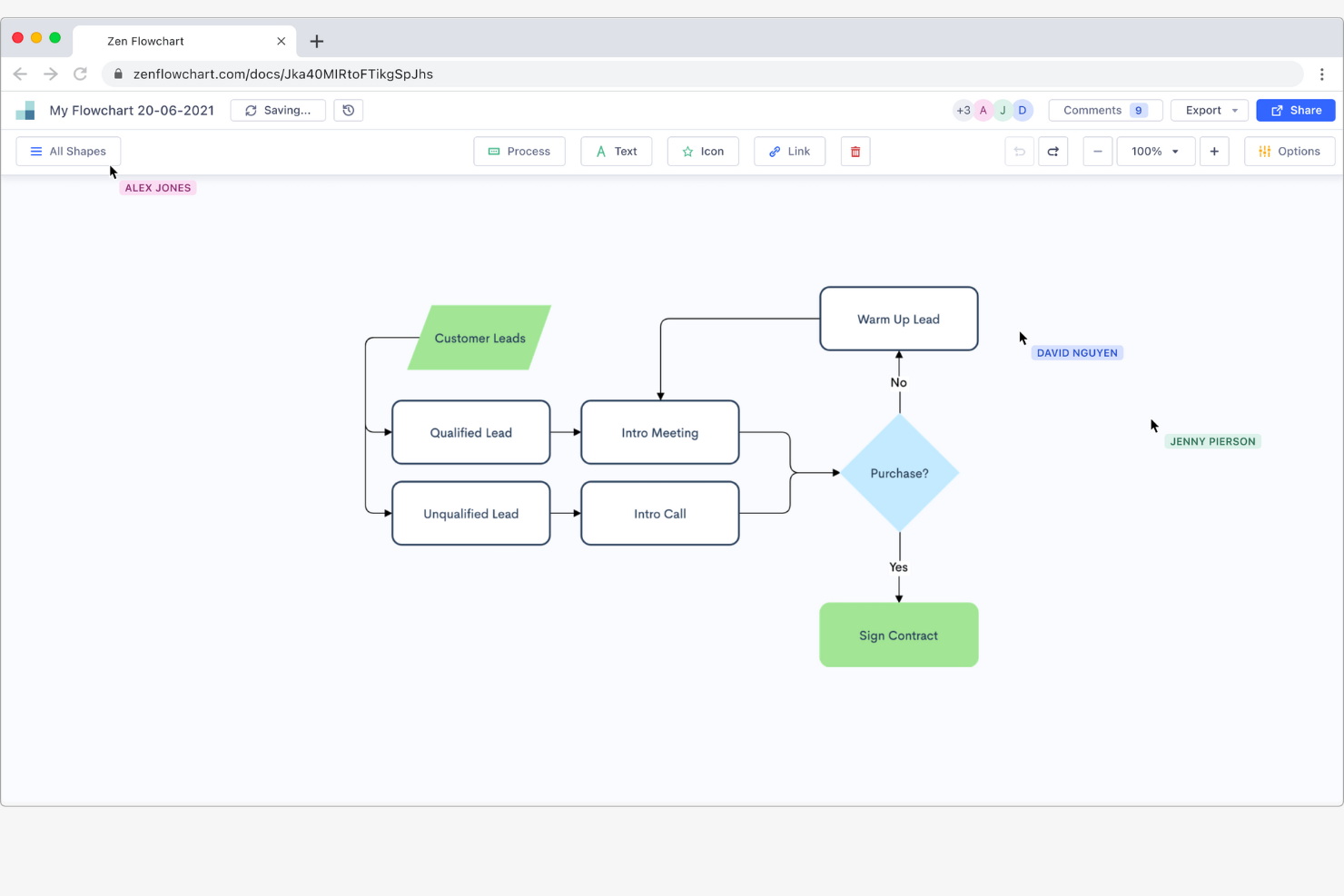
If you want a process mapping tool that keeps things simple, Zen Flowchart is worth a look. It’s designed for professionals who need to create clear, distraction-free flowcharts without extra clutter or complex menus. Zen Flowchart helps you focus on mapping out ideas and processes quickly, making it a good fit for educators, consultants, and teams who value a minimalist approach.
Why I Picked Zen Flowchart
What sets Zen Flowchart apart is its commitment to a distraction-free flowcharting experience. The interface strips away unnecessary toolbars and menus, so you can focus entirely on mapping out your process without visual clutter. I like that you can create and connect nodes with just a few clicks, which helps keep your workflow fast and straightforward. For anyone who wants to quickly sketch out ideas or processes without getting bogged down by extra features, Zen Flowchart delivers a clean and focused solution.
Zen Flowchart Key Features
Some other features that make Zen Flowchart useful for free process mapping include:
- Auto-formatting: The tool automatically aligns and spaces your flowchart elements for a tidy layout.
- Multiple export options: Export your diagrams as PNG, PDF, or SVG files for easy sharing.
- Collaboration tools: Invite others to view or edit your flowcharts in real time.
- Unlimited nodes: Create as many shapes and connections as you need without artificial limits.
Zen Flowchart Integrations
Integrations are not publicly listed.
What's Free?
Zen Flowchart offers a free-forever plan with unlimited flowcharts and nodes. The free plan adds a watermark to exports and does not include advanced features like team collaboration or premium templates.
Pros and Cons
Pros:
- Auto-formats to keep diagrams organized
- Instant PNG and PDF exports
- Minimalist one-click node creation
Cons:
- No advanced BPMN notation
- Very limited shape library

If you want to turn plain text into flowcharts quickly, Flowchart Fun is designed for you. This tool is especially useful for developers, technical writers, and anyone who prefers typing out processes instead of dragging shapes. It solves the problem of manual diagramming by converting structured text directly into visual process maps.
Why I Picked Flowchart Fun
What stands out about Flowchart Fun is how it lets you create flowcharts directly from plain text, which is rare among free process mapping tools. I picked it because this text-to-flowchart conversion is especially helpful for people who think in lists or outlines and want to skip the manual drag-and-drop process models. You can type out your process steps using simple syntax, and the tool instantly generates a visual diagram. This approach is ideal for technical users or anyone who wants to quickly map out processes without switching between keyboard and mouse.
Flowchart Fun Key Features
Some other features that make Flowchart Fun useful for process mapping include:
- Markdown support: You can use markdown syntax to format and structure your flowchart text.
- Collaboration mode: Invite others to view or edit your flowcharts in real time.
- Export options: Download your diagrams as PNG or SVG files for sharing or documentation.
- Dark mode: Switch to a dark interface for easier viewing during long work sessions.
Flowchart Fun Integrations
Native integrations are not currently listed by Flowchart Fun.
What's Free?
Flowchart Fun offers a free-forever plan with no sign-up required. You can create, edit, and export flowcharts without limits, but features like collaboration and advanced export options may require a paid plan.
Pros and Cons
Pros:
- Version control friendly format
- Direct SVG and CSV exports
- Converts structured text directly into flowcharts
Cons:
- No drag-and-drop shape placement
- Minimal manual aesthetic control
Other Free Process Mapping Software
Here are some additional free process mapping software options that didn’t make it onto my shortlist, but are still worth checking out:
- tldraw
For infinite canvas sketching
- Lucidchart
For advanced integration options
- yEd Graph Editor
For automatic layout generation
- LibreOffice Draw
For open-source desktop editing


How I Evaluate Free Process Mapping Software
I split my evaluation into baseline requirements—like true BPMN support and a real free plan—and the differentiators that matter for distributed project teams.
Core Functionality (Table Stakes For This List)
When I'm selecting tools for my list, I rank each one on a scale from 0 (does not offer the functionality) to 5 (excels in this area) for each core functionality listed below. Then, I calculate the tool's total score into a percentage. Each tool needs to achieve a minimum total score of 65% to be considered for inclusion.
- Process Diagramming Tools: I evaluate the canvas, shape libraries, and connector logic—things like whether you can build a swimlane diagram for a sprint workflow without fighting the tool.
- Pre-Built Templates: A good template library saves real time. I look for ready-made process maps covering common scenarios like change request flows or release pipelines.
- Free Plan Availability: I check that the free tier is genuinely usable for ongoing work, not a 14-day trial or a plan capped so tightly you can't map more than a couple of processes.
- Real-Time Collaboration: Distributed teams need live co-editing. I evaluate whether multiple stakeholders can work on the same diagram simultaneously with comments and cursors.
- Standard Notation Support: Tools like Lucidchart and draw.io handle BPMN and UML differently. I look for proper notation libraries that let you create spec-compliant diagrams.
- Export & Sharing Options: I check for PDF, PNG, and SVG export at minimum, plus shareable links—your process maps need to land cleanly in Confluence pages or project charters.
Once I have a list of tools that meet this criteria, I consider what sets each platform apart.
Differentiating Factors (What Sets Vendors Apart)
Here's how I compare and contrast different vendors:
Standout Features
AI diagram generation is a big differentiator—tools that can turn a text description into a draft flowchart cut hours off initial process discovery. I also evaluate native integrations with platforms like Jira and Confluence, since embedding a process map directly into a sprint board or project wiki beats sharing static screenshots. Whiteboard modes with sticky notes and voting are worth noting too, especially for teams running remote process workshops during retrospectives or kickoffs.
Beyond Features
Free plan transparency matters a lot here. I check whether diagrams get watermarked on export or whether collaboration caps make a tool impractical once your team grows past a handful of contributors. Security is another factor I weigh—process maps often contain sensitive operational details, so I look for SOC 2 or ISO 27001 compliance and granular share permissions even on free tiers. Browser-based performance also counts, especially when a diagram grows into a 50-shape swimlane. Tools that lag or crash at scale aren't useful for real project documentation.
How to Choose Free Process Mapping Software
It’s easy to get bogged down in long feature lists and complex pricing structures. To help you stay focused as you work through your unique software selection process, here’s a checklist of factors to keep in mind:
| Factor | What to Consider |
| Scalability | Will the tool support your team as it grows, or are there user or board limits on the free plan? |
| Integrations | Does the software connect natively to your existing tools, or will you need workarounds? |
| Customizability | Can you adapt diagrams, templates, and workflows to match your team’s processes and terminology? |
| Ease of use | How quickly can new users start mapping processes without training or support? |
| Implementation and onboarding | What resources—like tutorials, templates, or guided tours—are available to help your team get started? |
| Cost | Are there hidden costs, upgrade nudges, or paywalls that could disrupt your workflow later? |
| Security safeguards | Does the tool offer adequate data protection, access controls, and privacy settings for your needs? |
| Support availability | If you run into issues, is there timely help via chat, email, or a knowledge base on the free plan? |
What Is Free Process Mapping Software?
Free process mapping software is a digital tool that lets you create, edit, and share visual diagrams of workflows or business processes without requiring payment. These platforms typically offer core diagramming features, basic collaboration, and export options at no cost, making them accessible for individuals and teams who need to document or optimize processes without a budget commitment.
Features of Free Process Mapping Software
Let’s go over the features commonly found in process mapping software, and which ones are usually included in free vs. paid plans.
Typically Free Process Mapping Software Features
- Drag-and-drop diagramming: Build process maps by dragging shapes, lines, and connectors onto a canvas, making it easy to visualize workflows without technical skills.
- Basic shape and connector library: Access standard shapes like rectangles, diamonds, and arrows to represent steps, decisions, and flows in your process diagrams.
- Text annotation: Add labels, notes, and descriptions directly to shapes or connectors to clarify process steps and responsibilities.
- Simple export options: Download diagrams as images or PDF files for sharing or documentation outside the platform.
- Collaboration tools: Invite team members to view or edit diagrams in real time, supporting group brainstorming and process review.
- Template access: Use pre-built templates for common process types, helping you start new diagrams quickly and consistently.
- Unlimited or limited boards: Create multiple diagrams or boards, though some tools may cap the number available on free plans.
- Commenting: Leave feedback or questions on specific parts of a diagram to facilitate discussion and iteration.
Typically Paid Process Mapping Software Features
- Advanced export formats: Export diagrams to formats like SVG, Visio, or editable PowerPoint files for use in other business tools.
- Custom shape libraries: Access or create specialized shapes tailored to your organization’s processes or industry standards.
- Automated workflow triggers: Set up actions or notifications based on changes in the process map, such as sending alerts when a step is updated.
- Version history and rollback: Track changes over time and revert to previous versions of a diagram if needed.
- Role-based access controls: Assign permissions to users or groups, controlling who can view, edit, or share specific diagrams.
- Integration with external tools: Connect process maps to project management, documentation, or communication platforms for smoother workflows.
- Swimlane diagrams: Organize complex processes by department, role, or phase using swimlanes or layered views.
- Data import and export: Import process data from spreadsheets or databases, or export diagram data for analysis and reporting.
- Priority support: Access faster response times, dedicated support channels, or onboarding assistance from the vendor.
- Custom branding: Add your organization’s logo, colors, and styles to diagrams for a professional, branded appearance.
Benefits of Free Process Mapping Software
Implementing free process mapping software provides several benefits for your team and your business. Here are a few you can look forward to:
- No upfront cost: Start mapping and improving processes without budget approval or financial risk, thanks to free-forever plans.
- Accessible collaboration: Invite team members to co-edit diagrams in real time, making it easier to gather input and align on workflows.
- Faster process documentation: Use drag-and-drop tools and templates to quickly visualize and document business processes for training or analysis.
- Easy sharing and export: Export diagrams as images or PDFs to share with stakeholders or include in project documentation.
- Lower barrier to adoption: Simple interfaces and onboarding resources help teams get started without extensive training or IT support.
- Supports continuous improvement: Freely update and iterate on process maps as workflows evolve, keeping documentation current and actionable.
- Encourages process transparency: Make workflows visible to everyone involved, reducing confusion and helping teams identify bottlenecks or inefficiencies.
Costs and Pricing of Process Mapping Software
I realize you came to this article looking for the best process mapping software options that are available for free. However, since free plans only offer limited features, there's a good chance you'll need to scale your plan up in the future.
The table below summarizes common plans, their average prices, and typical features included in process mapping software:
Plan Comparison Table for Process Mapping Software
| Plan Type | Average Price | Common Features |
| Free Plan | $0 | Basic diagramming, limited templates, simple export options, real-time collaboration, and basic commenting. |
| Personal Plan | $5–$10/ user/month | Unlimited diagrams, advanced export formats, custom templates, priority support, and limited integrations. |
| Business Plan | $10–$25/ user/month | Team management, role-based permissions, workflow automation, advanced integrations, and version history. |
| Enterprise Plan | $25–$40/ user/month | SSO and advanced security, custom branding, dedicated support, compliance features, and API access. |
Free Process Mapping Software FAQs
Here are some answers to common questions about free process mapping software:
Can I use free process mapping software for business purposes?
Yes, most free process mapping software can be used for business purposes, but you should review each tool’s terms of service. Some vendors restrict commercial use or limit features for business teams on free plans, so check for any usage restrictions before rolling out to your organization.
What are the limitations of free process mapping software?
Free process mapping software often limits the number of diagrams, users, or export formats you can access. Advanced features like workflow automation, integrations, and custom branding are usually reserved for paid plans, so consider your long-term needs before committing to a free tool.
Is my data secure when using free process mapping software?
Data security varies by vendor, but most reputable free process mapping software providers use standard encryption and access controls. However, free plans may not include advanced security features like SSO or compliance certifications, so review the vendor’s security documentation if you handle sensitive information.
Can I migrate my diagrams if I upgrade to a paid plan or switch tools?
Yes, most process mapping software allows you to export diagrams in common formats like PDF or PNG, and some support formats like SVG or Visio. However, migrating editable files between different tools can be challenging, so check for import/export compatibility before making a switch.
Do free process mapping tools support real-time collaboration?
Yes, many free process mapping tools offer real-time collaboration, letting multiple users edit and comment on diagrams at the same time. However, some may limit the number of collaborators or restrict advanced collaboration features to paid plans.