
23 Best Free Mind Mapping Software For Creativity In 2026

20 Best Free Mind Mapping Software Shortlist
Here are my picks for the best free mind mapping software:


Free mind mapping software lets you visualize ideas, plans, and relationships using flexible diagrams. These tools help you break down complex concepts, structure your thoughts, and spark creativity without spending time formatting or organizing manually.
I’ve tested a range of free mind mapping tools to see how they stack up, and decided to include software that is free, has a free version, or offers a free trial. This way, you can have a mixed bag of tools that can help you in different ways.
Below, I’ve rounded up the top free mind mapping software in my opinion. You will find what makes them great and how they can facilitate your brainstorming.
Why Trust Our Mind Mapping Software Reviews
We’ve been testing and reviewing mind mapping software since 2012. As project managers ourselves, we know how critical and difficult it is to make the right decision when selecting software.
We invest in deep research to help our audience make better software purchasing decisions. We’ve tested more than 2,000 tools for different project management use cases and written over 1,000 comprehensive software reviews. Learn how we stay transparent & our review methodology.
Table of Contents
Compare Specs Side-by-Side
Here is a table where you can find all the tools we just covered in the overviews.
| Tool | Best For | Trial Info | Price | ||
|---|---|---|---|---|---|
| 1 | Best for customizable project management | Free plan + free demo available | From $7/user/month (billed annually) | Website | |
| 2 | Best for mind map templates | Free plan available | From $9/user/month (billed annually) | Website | |
| 3 | Best for visual collaboration | Free trial + free plan available | From $8/member/month | Website | |
| 4 | Best for real-time co-designing | Free plan + free demo + free trial available | From $3/seat/month (billed annually) | Website | |
| 5 | Best for non-designers | Free plan available | From $15/month (billed annually) | Website | |
| 6 | Best for individuals | Free demo + free plan available | From $9.99/user/month (billed annually) | Website | |
| 7 | Best for multiple diagram options | Free plan available | From $7/user/month | Website | |
| 8 | Best for real-time collaboration features | Free plan + free demo available | From $6.50/user/month (billed annually) | Website | |
| 9 | Best for enterprise diagram management | Free demo + 30-day free trial available | From $6.80/user/month (billed annually) | Website | |
| 10 | Best for enterprise agile management | Free demo + 14-day free trial available | From $8/user/month (billed annually) | Website | |
| 11 | Best for lightweight offline mapping | Free plan available | Website | ||
| 12 | Best for infographic mind maps | Free plan available | From $10/month (billed annually) | Website | |
| 13 | Best for mind map change history | Free plan available | From $5/month (1 user, billed annually) | Website | |
| 14 | Best for polished visual map designs | Free plan available | From $4.92/month (billed annually) | Website | |
| 15 | Best for Apple device users | 14-day free trial + free plan available | From $2.99/month | Website | |
| 16 | Best multi-platform mind mapping | 30-day free trial | From $100/year | Website | |
| 17 | Best for presentation mode | Free plan available | From $4.91/month (billed annually) | Website | |
| 18 | Best for simple mind maps | Free plan available | From $2.99/month (billed annually) | Website | |
| 19 | Best for online brainstorming | Free plan available | From $4.08/month (billed annually) | Website | |
| 20 | Best for quick idea sharing online | Free plan available | Pricing upon request (for ad-free version) | Website |


-

Insightful
Visit WebsiteThis is an aggregated rating for this tool including ratings from Crozdesk users and ratings from other sites.4.8 -
Accelo
Visit WebsiteThis is an aggregated rating for this tool including ratings from Crozdesk users and ratings from other sites.4.4 -
Forecast
Visit WebsiteThis is an aggregated rating for this tool including ratings from Crozdesk users and ratings from other sites.4.6




Best Free Mind Mapping Software Reviews
Read detailed descriptions of each tool, including what makes them great. Feel free to read how I picked the tools on this list at any time.
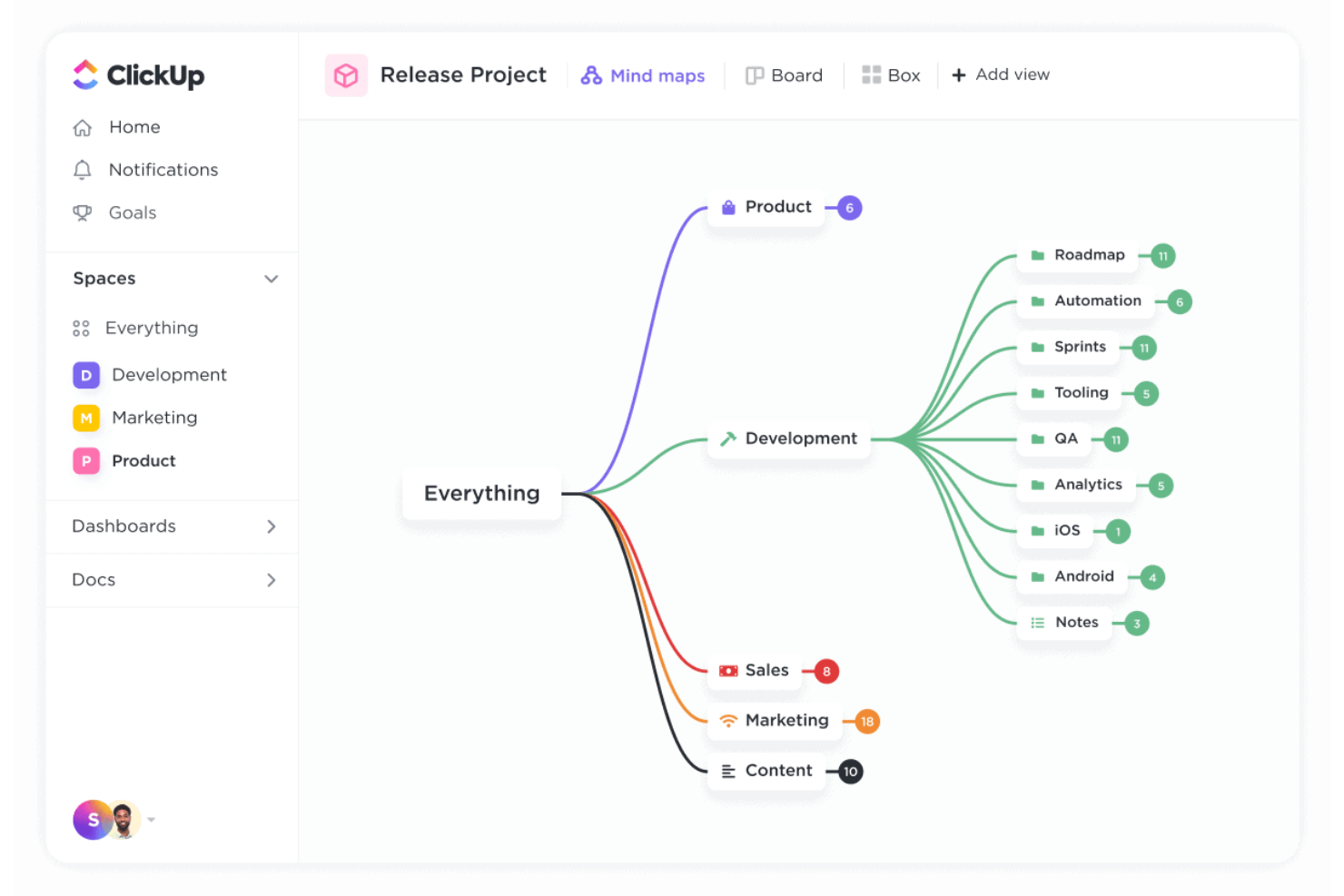
ClickUp gives teams and individuals a flexible workspace for mind mapping, project planning, and task management, making it easy to visualize ideas and turn them into actionable tasks—all within a single platform.
Who Is ClickUp Best For?
ClickUp is a great fit for project managers and cross-functional teams who want mind mapping built into a broader project management workflow.
Why I Picked ClickUp
ClickUp earns its spot on my shortlist because it lets you build mind maps that connect directly to your project management workflow. I like that you can convert mind map nodes into tasks with a single click, which means ideas don't just sit in a diagram—they become trackable work items with assignees, due dates, and priorities. My team also uses the custom views feature to switch between mind maps, Kanban boards, and Gantt charts depending on what the project needs at any given stage. That level of flexibility is what makes ClickUp stand out for teams who want mind mapping to actually feed into how work gets done.
ClickUp Key Features
- Whiteboard tool: Collaborate visually using freeform canvases where you can sketch ideas, add shapes, and link items to tasks.
- Docs: Create and attach rich-text documents directly within your workspace to support mind map context and project notes.
- Task dependencies: Set relationships between tasks so your team knows what needs to happen before work can move forward.
- Real-time collaboration: Work on mind maps and tasks simultaneously with teammates, with live cursor tracking and instant updates.
ClickUp Integrations
Integrations include Slack, GitHub, HubSpot, Google Drive, Outlook, Figma, Zoom, Microsoft Teams, Dropbox, and Google Calendar.
What's Free?
ClickUp offers a free-forever plan with unlimited tasks and members. Some advanced features, such as certain integrations and automations, are limited or only available on paid plans.
Pros and Cons
Pros:
- Blank-node mode allows free idea sketching
- Map view can auto–rearrange messy layouts
- You can link map nodes directly to tasks
Cons:
- Layouts get cluttered with deep trees
- No export of maps as images or files
New Product Updates from ClickUp

ClickUp Enhances Task Management and Introduces AI Notetaker
ClickUp introduces an AI Notetaker for meetings and improves task type management in views. These updates help teams capture meeting insights automatically and organize work more efficiently. For more information, visit ClickUp’s official site.

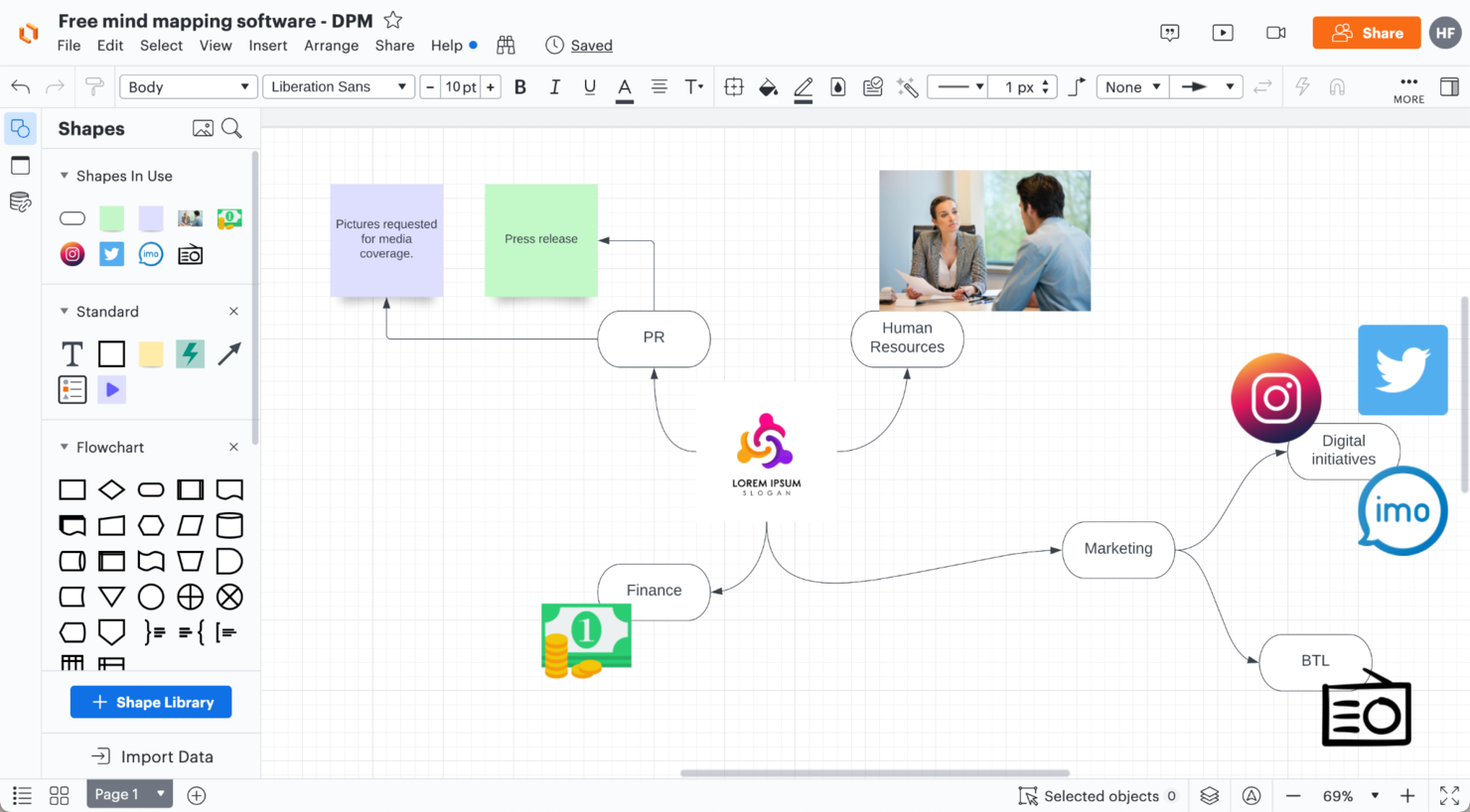
Lucidchart is a visual workspace designed for teams and professionals who need to create, organize, and share mind maps to clarify ideas and streamline project planning.
Who Is Lucidchart Best For?
Lucidchart is a strong fit for cross-functional teams in tech and product who need a flexible visual tool that goes beyond basic diagramming.
Why I Picked Lucidchart
I picked Lucidchart as one of the best because of how far its template library goes for mind mapping specifically. Beyond the standard bubble map, you get purpose-built options like the double bubble map, idea mind map, and mind map with lines—each structured for a different type of thinking, whether that's comparing two concepts or tracing relationships between ideas. I also like that the AI-powered mind map template lets my team generate a starting structure from a text prompt, which cuts out the blank-canvas paralysis that slows down early brainstorming sessions. The templates are free to use and open directly in the canvas, so my team can go from zero to a working mind map in under a minute.
Lucidchart Key Features
- Collapsible branches: Expand or collapse child branches directly on the canvas using the Z hotkey to keep large mind maps easy to scan.
- Presentation mode: Present your finished mind map to stakeholders directly within Lucidchart without exporting to a separate tool.
- Import from other diagramming tools: Bring in existing mind maps from Visio, Gliffy, OmniGraffle, and diagrams.net to continue building on previous work.
- Collaborative AI idea expansion: Use AI within the canvas to generate additional branches, expand on existing nodes, or summarize the full mind map.
Lucidchart Integrations
Integrations include Google Drive, Microsoft Teams, Slack, Jira, Confluence, Dropbox, Box, Zoom, Notion, and AWS.
What's Free?
Lucidchart offers a free-forever plan that includes up to 3 editable documents, 60 shapes per document, and access to 100 templates. Some integrations and advanced features are only available on paid plans.
Pros and Cons
Pros:
- Revisions track history even in maps
- Mind map shapes auto-snap to grid nicely
- You can embed live sub-diagrams inside nodes
Cons:
- Complex maps slow the browser
- No offline editing

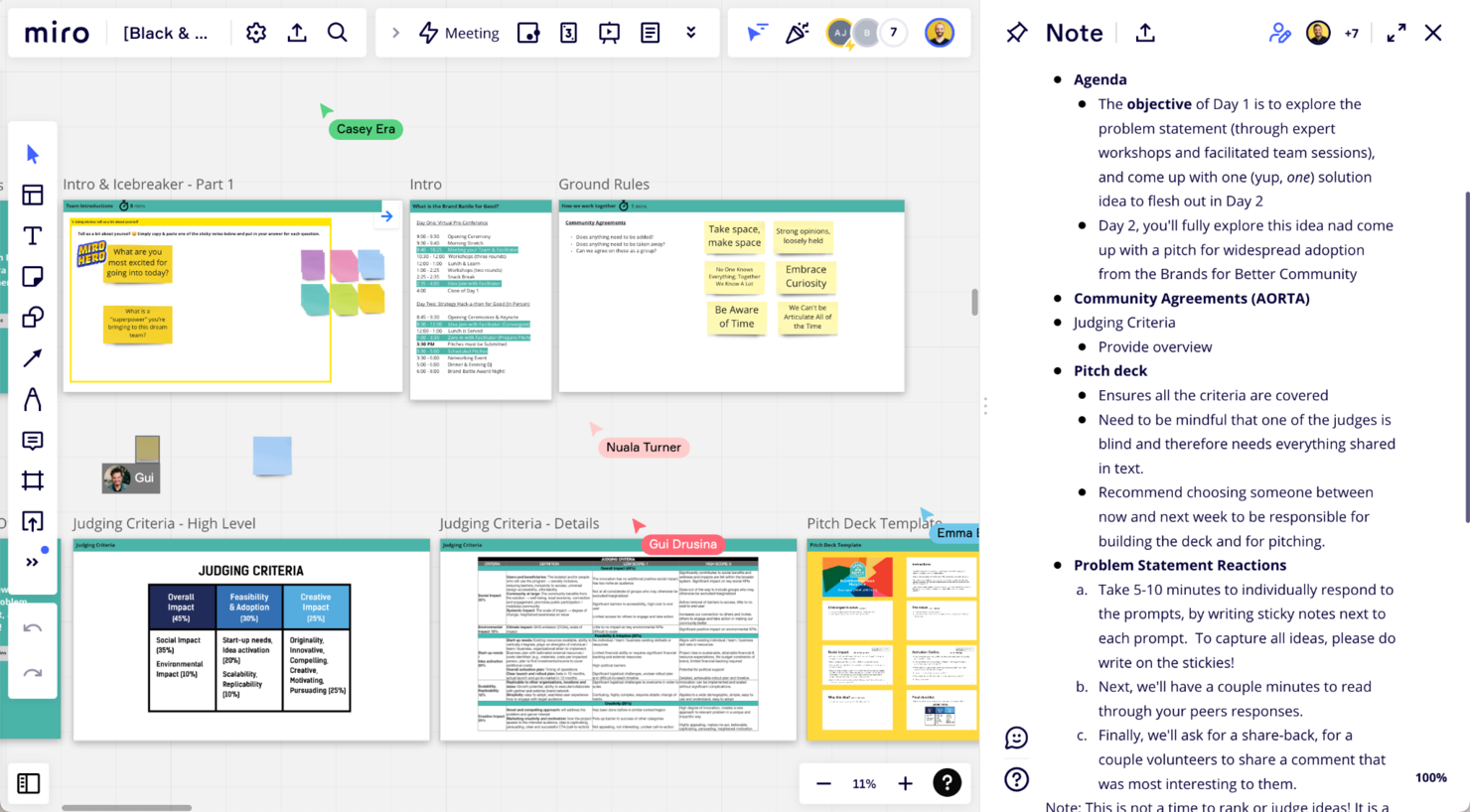
Miro gives teams, educators, and creative professionals a flexible online whiteboard for building mind maps, organizing ideas visually, and collaborating in real time from anywhere.
Who Is Miro Best For?
Miro is a great fit for cross-functional teams in product, design, and engineering who need a shared visual space for brainstorming and planning.
Why I Picked Miro
Miro earns its spot on my shortlist because the visual collaboration experience goes well beyond basic mind mapping. I love that multiple teammates can build out a mind map simultaneously on the same canvas, adding sticky notes, comments, and connections in real time without stepping on each other's work. I also use Miro's pre-built mind map templates to kick off brainstorming sessions fast, which keeps the focus on ideas rather than setup.
Miro Key Features
- Infinite canvas: Work on an unlimited-size board where you can expand your mind map in any direction without running out of space.
- Smart drawing: Miro converts freehand shapes into clean, structured diagram elements automatically as you sketch.
- Voting and prioritization: Run dot-voting sessions directly on the board to help teams rank and prioritize ideas within a mind map.
- Presentation mode: Walk stakeholders through your mind map as a live presentation without leaving the Miro board.
Miro Integrations
Integrations include Microsoft Teams, Google Workspace, Jira, Confluence, ServiceNow, GitHub Copilot, OpenAI Codex, Replit, Gemini CLI, and Claude Code.
What's Free?
Miro offers a free-forever plan that lets you create up to three editable boards with unlimited team members. Some advanced features and integrations are only available on paid plans.
Pros and Cons
Pros:
- Real-time cursors let you follow others’ edits
- Nodes and notes can float freely around ideas
- Infinite zoom without fixed boundaries
Cons:
- Too many floating items causes visual chaos
- Large maps may lag or stutter in browser
New Product Updates from Miro

Miro Enhances AI Workflows and Tables for Task Planning
Miro enhances AI workflows and Tables with AI-generated planning boards and web-aware automation. These updates help teams organize tasks faster and analyze external content within workflows. For more information, visit Miro’s official site.

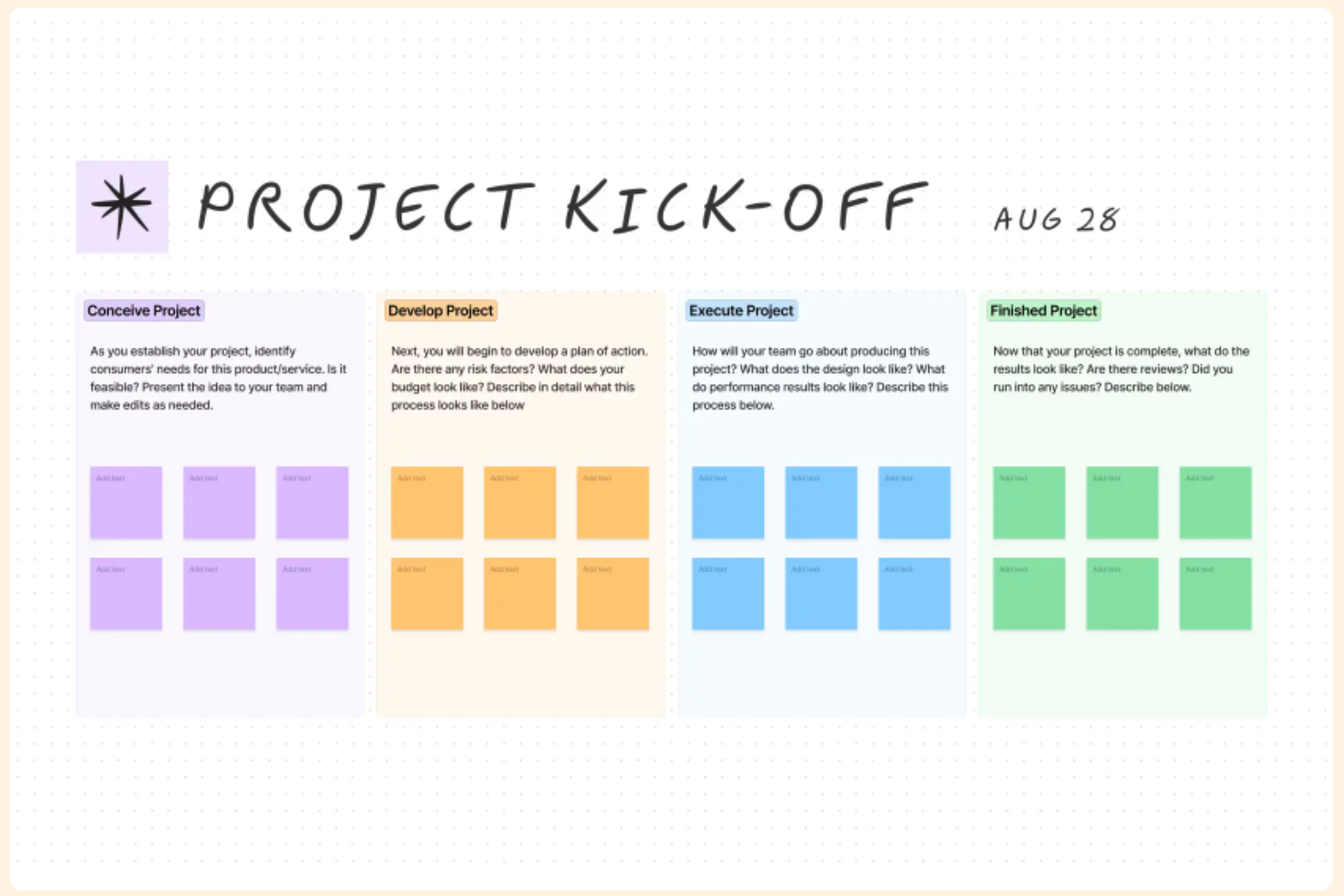
FigJam is an online whiteboard built for teams who want to brainstorm, map ideas visually, and collaborate on mind maps in real time, making it a go-to choice for product managers, designers, and anyone needing a flexible, interactive workspace.
Who Is FigJam Best For?
FigJam is a great fit for cross-functional teams in tech and design who need a shared visual space for brainstorming, planning, and ideation.
Why I Picked FigJam
FigJam earns its spot as one of the best on my shortlist because of how naturally it supports real-time co-designing across distributed teams. I love that multiple teammates can simultaneously drop sticky notes, draw connectors, and build out mind maps on the same canvas without any lag or conflict. FigJam's Spotlight mode is especially useful when I'm facilitating a live brainstorm—I can direct everyone's attention to a specific part of the board instantly. The AI-powered sticky note sorting saves time by automatically grouping ideas into themes after a session wraps up.
FigJam Key Features
- Mind mapping templates: Start sessions faster using pre-built mind map layouts you can customize directly on the canvas.
- FigJam widgets: Add interactive elements like polls, timers, and voting buttons to your mind maps during live sessions.
- Cursor chat: Communicate with teammates directly on the canvas using floating chat bubbles tied to your cursor.
- Figma file embedding: Embed live Figma design files into your FigJam board to connect mind maps directly to design work.
FigJam Integrations
Integrations include Asana, Jira, and ChatGPT.
What's Free?
FigJam offers a free-forever plan for up to 3 FigJam files and unlimited collaborators. Some advanced features and integrations are only available on paid plans.
Pros and Cons
Pros:
- Cursor animations help you track collaborator work
- Sticker and emoji tools add informal feedback cues
- Paste Figma components directly into maps
Cons:
- Limited undo history for dense map edits
- Very large maps cause slowdowns
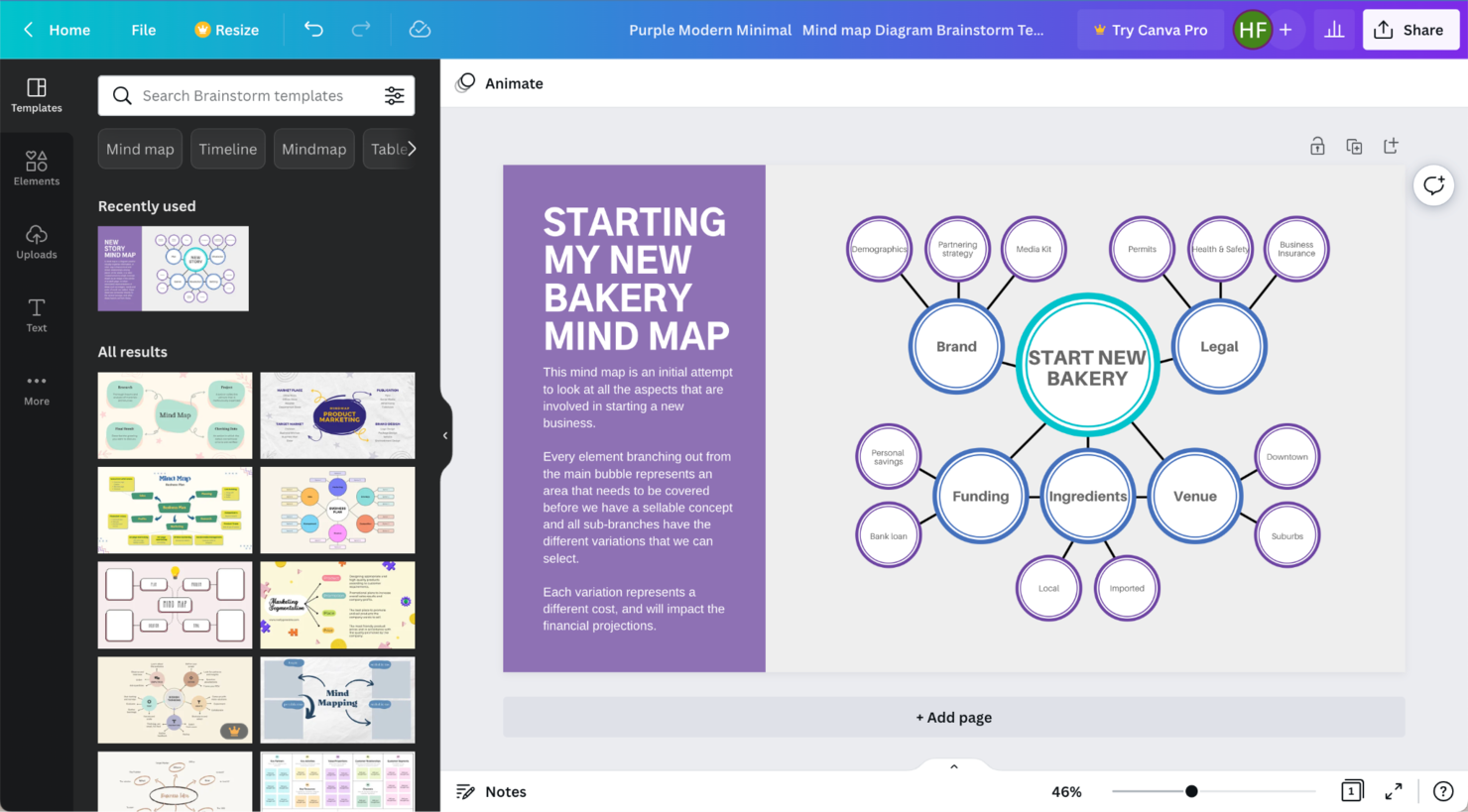
Canva gives teams and individuals an easy way to create visually engaging mind maps using a drag-and-drop interface, making it a popular choice for educators, marketers, and anyone who wants to organize ideas without needing advanced design skills.
Who Is Canva Best For?
Canva is a great fit for educators, freelancers, and small teams who need to create clear, visual mind maps without a design background.
Why I Picked Canva
Canva earns its spot as one of the best on my shortlist because it removes the visual friction that usually slows non-designers down. I love that you can start from a professionally designed mind map template and immediately begin adding branches, sticky notes, icons, and images without touching a single setting. The Text to Image feature is a nice touch too—I've used it to generate visual cues directly on the canvas when words alone don't capture an idea. Real-time collaboration on Canva Whiteboards also means my team can jump in, leave comments, and vote on ideas using stickers without needing any onboarding.
Canva Key Features
- Drag-and-drop canvas editor: Place and connect shapes, text, and media elements anywhere on an infinite canvas to build out mind map structures.
- Mind map templates: Choose from a library of pre-built mind map layouts that you can customize with your own content and branding.
- Presenter mode: Display your mind map as a live presentation directly from the canvas without exporting to another tool.
- Export options: Download your finished mind map as a PDF, PNG, or SVG file for sharing or embedding in documents.
Canva Integrations
Integrations include Google Drive, Slack, YouTube, Google Photos, and Microsoft Teams.
What's Free?
Canva offers a free-forever plan that includes unlimited mind maps, templates, and real-time collaboration. Some premium templates, images, and advanced features are only available on paid plans.
Pros and Cons
Pros:
- You can layer shapes to imply depth
- Maps easily double as presentation slides
- Mix images and icons within branches
Cons:
- Hard to maintain consistency across multiple pages
- Dense maps hard to manually align
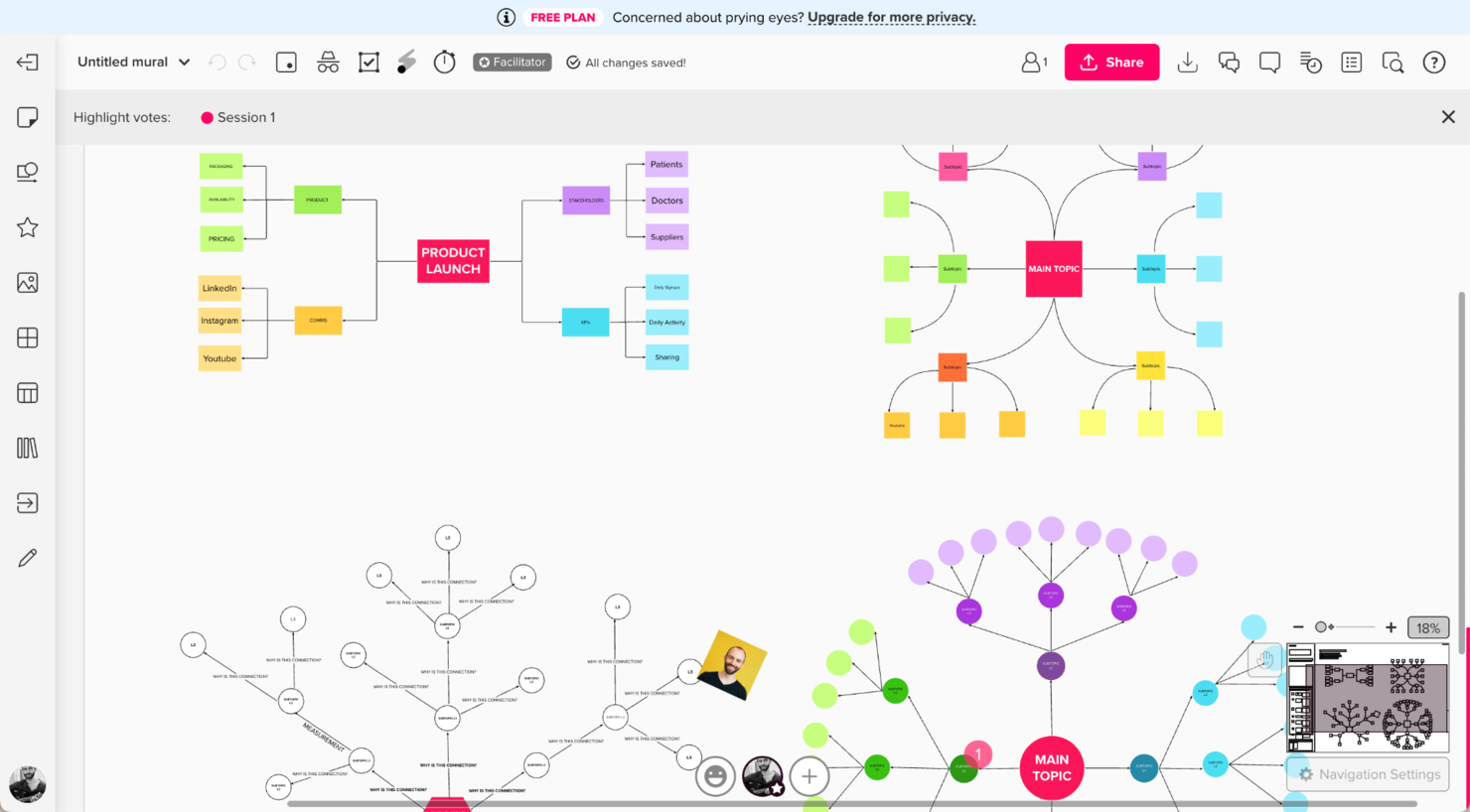
Mural is a visual collaboration platform for teams and individuals who need flexible mind mapping, diagramming, and brainstorming tools to organize ideas and drive creative problem-solving.
Who Is Mural Best For?
Mural is a strong fit for freelancers, consultants, and solo creatives who need a flexible visual workspace for mind mapping and brainstorming without team overhead.
Why I Picked Mural
I picked Mural as one of the best because its free plan gives individual users access to unlimited visitors and three editable murals—enough to build out real mind maps without hitting a paywall immediately. I especially like the pre-built mind mapping and brainstorming templates, which let you skip the blank canvas and jump straight into structuring ideas. The infinite canvas with sticky notes, connectors, and freehand drawing tools makes it easy to map out complex thoughts visually. For solo work, the ability to share murals with unlimited viewers means you can present your thinking without needing collaborators to sign up.
Mural Key Features
- Facilitation superpowers: Use built-in timer, voting, and anonymous input tools to run structured brainstorming sessions directly on the canvas.
- Outline view: Switch from the visual canvas to a structured outline view to organize and review mind map content in a linear format.
- Summon: Generate mind map content and ideas using Mural's AI assistant directly within the canvas.
- Presentation mode: Walk stakeholders through your mind map in a guided, slide-like view without leaving the tool.
Mural Integrations
Integrations include Microsoft Teams, Asana, Figma, Google Workspace, Jira, Slack, Zoom, Dropbox, Trello, and Notion.
What's Free?
Mural offers a free-forever plan for individuals, which includes unlimited visitors and three editable murals. Some advanced features and integrations are only available on paid plans.
Pros and Cons
Pros:
- You can “summon” participants to specific areas
- Supports embedding external media
- Branches can overlap without rigid tree rules
Cons:
- Very large maps cause heavy lag or stutter
- Easily to lose your place when zooming in dense maps
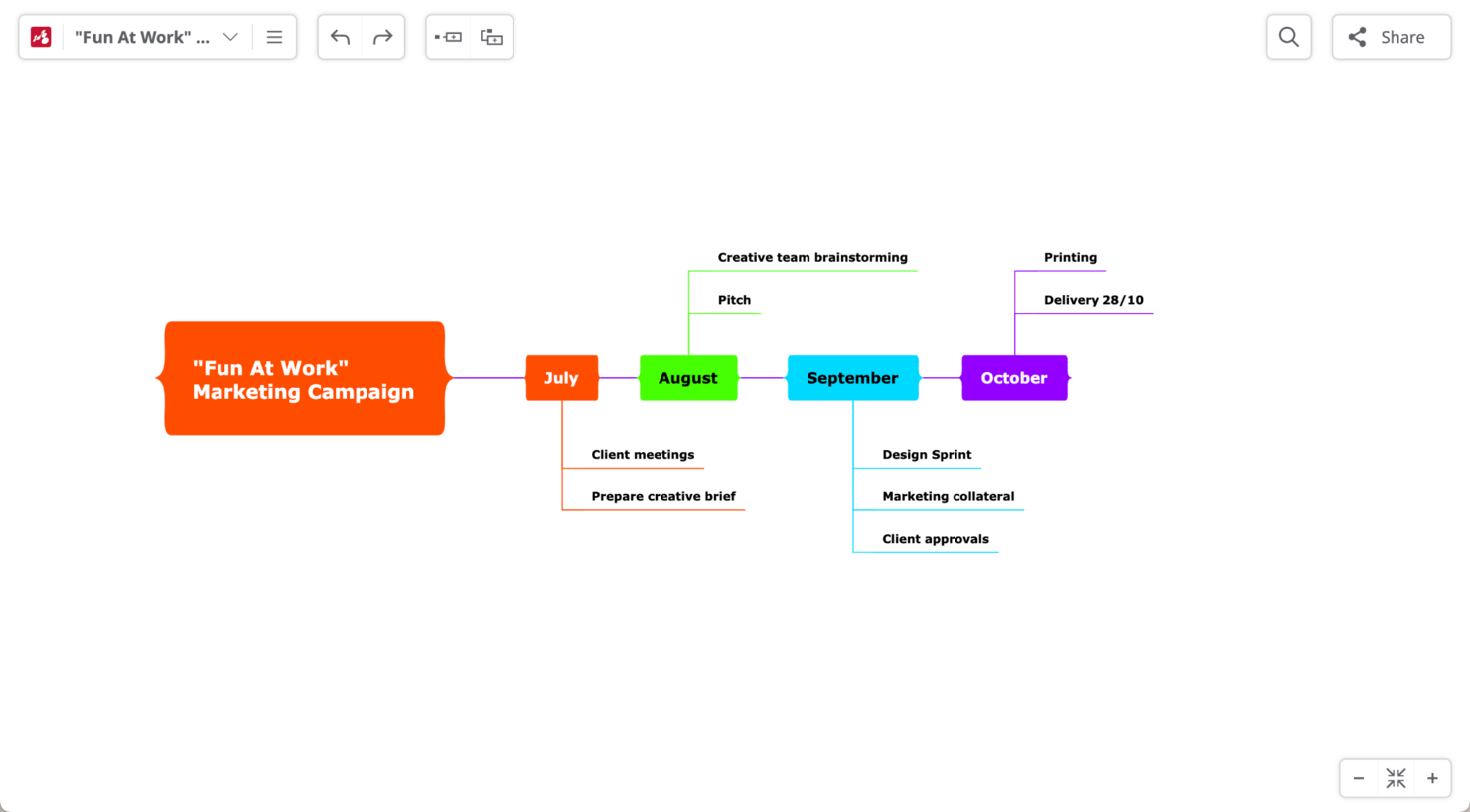
Mindomo is a flexible mind mapping platform for students, educators, and professionals who need to organize ideas visually, collaborate in real time, and manage projects across devices without upfront costs.
Who Is Mindomo Best For?
Mindomo is a strong fit for educators, students, and small teams who need a versatile visual thinking tool that goes beyond basic mind mapping.
Why I Picked Mindomo
Mindomo earns its spot on my shortlist because it goes well beyond standard mind mapping by supporting multiple diagram types in one place. I like that you can switch between mind maps, concept maps, outlines, and Gantt charts without leaving the platform—so when a brainstorm naturally evolves into a project plan, the tool keeps up. I've found the Gantt view especially useful for turning a mapped-out idea into a timeline with tasks and dependencies. That kind of flexibility is rare in free mind mapping tools.
Mindomo Key Features
- Presenter mode: Turn any diagram into an interactive slideshow to walk stakeholders or students through your ideas without leaving the tool.
- Visual tags and filters: Add icons and labels to topics, then filter across your diagram by tag, deadline, or assignee to find items within complex maps.
- Offline editing: Continue working on diagrams without an internet connection, with all changes syncing automatically once you're back online.
- Version history and restore: Track every change made to a diagram and revert to any previous version when needed.
Mindomo Integrations
Integrations include Microsoft Teams, Google Drive, Dropbox, OneDrive, Google Calendar, Outlook, Google Classroom, LTI, SAML SSO, and API access for custom integrations.
What's Free?
Mindomo offers a free-forever plan that lets you create up to three mind maps with basic features. Some advanced features and integrations are only available on paid plans.
Pros and Cons
Pros:
- Convert maps into interactive published versions
- Presentation mode with zooming transitions
- Embed audio and video inside nodes
Cons:
- Mobile app lacks full feature parity with web
- Exporting formats restricted in free tier


MindMeister is a cloud-based mind mapping tool designed for teams, educators, and professionals who need a visual way to organize ideas, plan projects, and capture brainstorming sessions online.
Who Is MindMeister Best For?
MindMeister is a good fit for remote and hybrid teams who need a shared visual workspace for collaborative brainstorming and project planning.
Why I Picked MindMeister
MindMeister is one of my top picks because I love how it handles real-time collaboration directly inside the map editor. My team can invite contributors via email or a shareable link, and we're all editing the same map simultaneously without any lag or version conflicts. I also rely on the history mode, which lets me play back every change to see who added what and when—useful when a brainstorm evolves quickly across multiple contributors. The ability to leave comments and receive notifications keeps async feedback organized without pulling the conversation into a separate tool.
MindMeister Key Features
- Map themes and styles: Apply pre-built visual themes to your mind map, including custom colors, fonts, and branch styles.
- Presentation mode: Convert any mind map into a step-by-step slideshow directly within the tool, without exporting to another app.
- Task management: Assign tasks with due dates, priorities, and assignees directly on map nodes to track action items.
- Mind map templates: Start from a library of pre-built templates for use cases like project planning, SWOT analysis, and meeting agendas.
MindMeister Integrations
Integrations include MeisterTask, Microsoft Teams, and Google Workspace.
What's Free?
MindMeister offers a free-forever plan that lets you create up to 3 mind maps with basic features. The free plan does not include export options, advanced map customization, or integrations.
Pros and Cons
Pros:
- Outline mode complements map view
- Unlimited collaborators in free plan
- Real-time edits with shared cursor feedback
Cons:
- Maps with many attachments slow down
- Version history limited on lower tiers

Visio is a diagramming platform designed for professionals and organizations that need to create, manage, and share complex visual workflows, making it a go-to choice for teams handling detailed mind maps and process diagrams.
Who Is Visio Best For?
Visio is a strong fit for enterprise teams and large organizations that need structured, scalable diagramming across departments like IT, operations, and project management.
Why I Picked Visio
Visio earns its spot on my shortlist because of how well it handles enterprise-scale diagram management across large, distributed teams. I particularly like the data connectivity feature in Plan 2, which lets you sync diagrams directly with live data sources like Excel, SQL Server, and SharePoint—so mind maps and process diagrams stay current without manual updates. The Information Rights Management (IRM) support is another feature I rely on, since it lets my team apply persistent access controls to diagram files, which matters when sensitive org structures or system architectures are being shared across departments. The 250,000+ shape library and BPMN 2.0 support also make it one of the more capable options for teams that need to go beyond basic mind mapping into structured process documentation.
Visio Key Features
- Co-authoring: Multiple team members can edit the same diagram simultaneously in Visio for the web.
- Template library: Pre-built templates cover mind maps, org charts, network diagrams, and flowcharts to speed up diagram creation.
- Cross-functional flowcharts: Swimlane diagrams let you map responsibilities and workflows across multiple teams or departments.
- Diagram embedding: Embed live Visio diagrams directly into Microsoft Teams channels or SharePoint pages for in-context viewing.
Visio Integrations
Integrations include Microsoft Teams, Power BI, Power Automate, Microsoft Excel, Microsoft Word, Microsoft PowerPoint, OneDrive for Business, Microsoft Azure, Microsoft SharePoint, and Microsoft SQL Server.
What's Free?
Visio offers a 30-day free trial of its paid plans. After the trial, continued use requires a paid subscription, and there is no free-forever plan available.
Pros and Cons
Pros:
- Embed diagrams into Power BI or web pages
- Strong security and access controls
- Large shape and template library
Cons:
- Web version lacks offline editing
- Desktop app only for Windows


Businessmap is an enterprise-focused platform designed for large organizations that need to manage complex workflows, projects, and agile processes across multiple teams.
Who Is Businessmap Best For?
Businessmap is a strong fit for large enterprises managing agile delivery across multiple teams, portfolios, and departments.
Why I Picked Businessmap
I picked Businessmap as one of the best because of how it connects high-level strategic planning directly to team-level execution. The Smart Canvas feature lets you brainstorm, map dependencies, and break down work into deliverables—all in one visual environment. I also like that it supports hybrid agile workflows, so one team can run Scrum while another uses Kanban, without needing separate tools. For enterprise teams managing multiple portfolios, the portfolio boards give you a single view across all projects, with real-time updates flowing up from individual team boards.
Businessmap Key Features
- Custom fields and card templates: Define structured data fields and reusable card templates to standardize how work items are captured across teams.
- WIP limits: Set work-in-progress limits on board columns to control how much work moves through each stage at once.
- Timeline view: Visualize project schedules and track task durations across a date-based timeline.
- Advanced analytics and reporting: Access built-in charts like cycle time, lead time, and flow efficiency to track delivery performance.
Businessmap Integrations
Integrations include Power BI, Looker Studio, Tableau, Trello, OneLogin, Azure Active Directory, Okta, Google Drive, and Dropbox. An API is also available for custom integrations.
What's Free?
Businessmap offers a 14-day free trial with access to all features. After the trial, you’ll need to upgrade to a paid plan to continue using the platform.
Pros and Cons
Pros:
- Flexible board/Kanban workflows with custom rules
- Good analytics, metrics, and forecasting features
- Clean UI for visualizing workflows and tasks
Cons:
- Gaps in advanced report customization
- Planning view lacks flexibility


FreeMind is an open-source mind mapping tool for individuals and teams who need a simple, offline way to organize ideas, manage projects, or brainstorm without relying on cloud-based platforms.
Who Is FreeMind Best For?
FreeMind is a great fit for solo users, students, and independent professionals who need a no-frills, desktop-based tool for organizing thoughts and ideas without an internet connection.
Why I Picked FreeMind
FreeMind earns its spot on my shortlist because it's one of the few truly free, open-source mind mapping tools built entirely for offline use. I like that it runs as a lightweight Java desktop app, meaning there's no account to create, no subscription to manage, and no internet dependency. I use FreeMind's folding feature to collapse and expand branches when working through complex topic hierarchies, which keeps large maps from becoming visually overwhelming. The keyboard-driven node creation also lets me build out maps without constantly switching between mouse and keyboard.
FreeMind Key Features
- Multi-format export: Save mind maps as HTML, PDF, PNG, or SVG files for sharing or embedding in documents.
- Node styling: Apply custom colors, fonts, and icons to individual nodes to visually differentiate branches and categories.
- Hyperlink and file attachment support: Attach external files or URLs directly to nodes for quick reference within a map.
- Scripting support: Extend FreeMind's functionality using Groovy scripts to automate repetitive tasks or customize map behavior.
FreeMind Integrations
Integrations include Microsoft Office, OpenOffice, Google Drive, Dropbox, Microsoft OneDrive, and Java Runtime Environment.
What's Free?
FreeMind is completely free and open-source with no time limits or feature restrictions. Anyone can download and use the full version without user limits or integration requirements.
Pros and Cons
Pros:
- Supports long multi-line nodes
- Fast fold/unfold navigation
- Works fully offline
Cons:
- No mobile or web client
- No collaboration support


Venngage is a visual design platform for teams and professionals who want to create engaging mind maps that double as polished infographics, making it easier to communicate ideas and processes visually.
Who Is Venngage Best For?
Venngage is a strong fit for marketers, educators, and content teams who need to present structured ideas in a visually compelling format.
Why I Picked Venngage
Venngage stands out: it's the only mind mapping tool I've used that treats visual design as a first-class feature rather than an afterthought. I like that its mind map templates are built with infographic-style layouts—color-coded branches, icon libraries, and data visualization elements that you can drop directly into a map. That lets my team turn a project charter or stakeholder analysis into something worth sharing in a presentation or report. The AI mind map generator creates branches and layouts from a single topic prompt, reducing setup time.
Venngage Key Features
- Brand kit integration: Upload your logos, fonts, and brand colors to apply branding consistently across any mind map design.
- Real-time collaboration: Invite team members to co-edit a mind map, leave comments, and apply changes directly within the editor.
- CSV/XLSX data import: Pull in data from spreadsheets and visualize it as charts, tables, or maps embedded within your mind map.
- Multi-format export: Download finished mind maps as PNG, PDF, or PowerPoint files for use in documents, decks, or slides.
Venngage Integrations
Integrations include Google Drive, Dropbox, Unsplash, HubSpot, Facebook, Pinterest, Intercom, Mixpanel, Google Analytics, and Amazon.
What's Free?
Venngage offers a free-forever plan that lets you create and share basic mind maps and infographics. Free users are limited to a small selection of templates and must export designs with a Venngage watermark.
Pros and Cons
Pros:
- Brand kit maintains design consistency
- AI tools help auto-build visual nodes
- Template layouts maintain graphic balance
Cons:
- Complex layouts degrade performance
- Integrations only available in enterprise plan

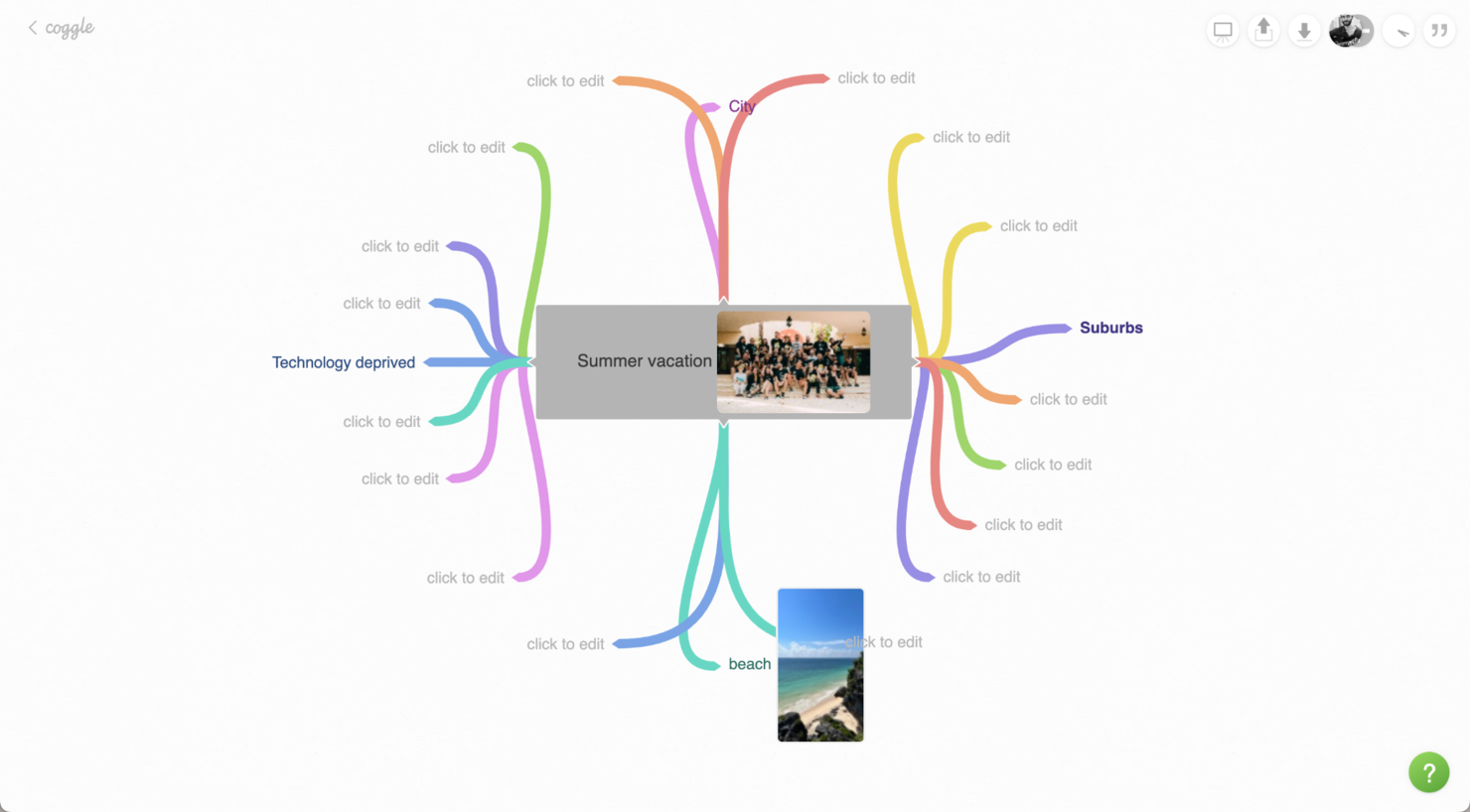
Coggle is a browser-based mind mapping tool designed for students, educators, and teams who need a simple way to brainstorm, organize ideas, and collaborate visually without paying for premium software.
Who Is Coggle Best For?
Coggle is a great fit for students, educators, and individual contributors who need a lightweight, no-cost tool for visual brainstorming and note organization.
Why I Picked Coggle
Coggle earns its spot on my shortlist because of how well it handles mind map change history, which is genuinely rare in free tools. Every edit is automatically tracked, so I can scroll back through the full revision timeline and restore any earlier version of a map. I also like that multiple collaborators can work on the same map simultaneously, and the history log makes it easy to see exactly who changed what and when. For teams iterating on complex diagrams, that audit trail removes a lot of guesswork.
Coggle Key Features
- Infinite canvas: Build mind maps of any size on an open, scrollable canvas without hitting layout constraints.
- Multi-branch color coding: Assign distinct colors to individual branches to visually separate topics and subtopics.
- Image and link embedding: Add images, URLs, and notes directly onto any node within your map.
- Export options: Download your mind maps as PDF, PNG, or plain text files for sharing outside the tool.
Coggle Integrations
Integrations include Google Drive, Microsoft Teams, Slack, Dropbox, Box, Google Workspace, and Microsoft OneDrive.
What's Free?
Coggle offers a free-forever plan that lets you create up to three private mind maps and unlimited public diagrams. Some advanced features and export options are only available on paid plans.
Pros and Cons
Pros:
- Allows multiple central nodes in one map
- Secret links allow editing without login
- Full version history always available
Cons:
- Branch auto-arrangement might clash with layout
- Limited custom styling options


Xmind is a dedicated mind mapping platform used by students, creative professionals, and teams who need a visually engaging way to organize ideas, structure projects, and capture brainstorming sessions.
Who Is Xmind Best For?
Xmind is a great fit for individual contributors, educators, and creative teams who prioritize visual clarity when mapping out ideas or plans.
Why I Picked Xmind
Xmind earns its spot as one of the best on my shortlist because the visual design quality of its maps is genuinely a cut above most free tools. I love that you can apply curated color themes like Rainbow, Forid, Candy, and CyberPunk across an entire map instantly, which makes a real difference when you're presenting a project plan to stakeholders rather than just using the map internally. You can also add local images, stickers, and custom color themes to individual topics, giving you fine-grained control over how a map looks. Xmind also supports multiple map structures—from classic mind maps to timelines and matrices—so you can match the visual format to the type of thinking you're doing, not just default to the same radial layout every time.
Xmind Key Features
- Audio notes: Record and attach audio directly to map topics to capture spoken context from meetings or lectures.
- Task and marker tracking: Convert map topics into to-do items and apply visual markers to flag priorities or progress.
- Attachment support: Embed files in various formats directly into map topics to keep reference materials organized alongside your ideas.
- Topic and web links: Connect individual topics to external URLs or other topics within the same map for faster navigation.
Xmind Integrations
Integrations include Slack, Microsoft Teams, Zoom, Notion, Evernote, Microsoft OneDrive, Google Drive, Dropbox, Microsoft PowerPoint, and Microsoft Excel.
What's Free?
Xmind offers a free-forever plan with core mind mapping features available on desktop and mobile. Free users will see a watermark on exported files and have limited access to some advanced templates and export formats.
Pros and Cons
Pros:
- Audio notes for richer context
- Math equations inside nodes
- Pitch mode transforms maps into slides
Cons:
- Some features require credits
- Collaboration features restricted in free tier


MindNode is a visual mind mapping app designed for individuals and teams who want to organize ideas, brainstorm, and outline projects using intuitive tools on Apple devices.
Who Is MindNode Best For?
MindNode is a great fit for freelancers, students, and creatives who work primarily on Mac, iPhone, or iPad and want a native mind mapping experience.
Why I Picked MindNode
MindNode earns its spot on my shortlist because it's built specifically for the Apple ecosystem, which makes a real difference if you're working across a Mac, iPhone, and iPad. I like how iCloud sync keeps everything updated across devices without any manual steps—I can start a mind map on my iPhone during a commute and pick it up on my Mac without missing a beat. Focus Mode dims everything except the branch you're actively working on, which helps when maps get complex.
MindNode Key Features
- Visual tags: Add color-coded tags to nodes to categorize and filter ideas across your mind map.
- Outline view: Switch between mind map and outline formats to view and edit your content as a structured list.
- Quick entry: Capture ideas using a minimal input mode that adds nodes without interrupting your flow.
- Export options: Share your mind maps as PDFs, images, or text files directly from the app.
MindNode Integrations
Integrations include Apple Reminders, Apple Shortcuts, iCloud, OmniFocus, and Things.
What's Free?
MindNode offers a free-forever plan called MindNode Free. This version lets you create, edit, and share mind maps, but advanced features like visual tags, Focus Mode, and export options require a paid upgrade.
Pros and Cons
Pros:
- Visual tags let you categorize nonhierarchical ideas
- Outline and map views stay in sync
- Private on-device AI features
Cons:
- Layout snapping can override manual positioning
- Android devices not supported


MindManager is a diagramming and visual planning tool that helps you capture ideas, structure information, and track work across maps, charts, and timelines. It supports thinking, planning, and communication tasks by letting you link, tag, and present data graphically.
Who Is MindManager Best For?
Program managers and business analysts in mid-sized to enterprise organizations across technology and manufacturing. It fits teams that require multi-platform mind mapping aligned with structured planning processes.
Why I Picked MindManager
You can run MindManager on desktop (Windows, Mac) and in web mode, so your team can work across devices. It supports multiple views like maps, outlines, flowcharts, and Gantt charts so you can shift perspectives. You can attach files, links, notes, and images to topics for richer context. It also shows topic author info and modification history so you know who changed what.
MindManager Key Features
MindManager also offers a suite of several other features for mind mapping.
- Timelines: You can present plans and projects in a clear, chronological format to keep stakeholders informed and aligned.
- Flowcharts: This lets you analyze and manage processes with visual clarity, which makes it easier for your team to understand complex workflows.
- Kanban Boards: You can visualize workflows to improve project management, track your team's progress, and identify bottlenecks.
- Fishbone Diagrams: This helps you identify potential causes of issues in product design to help you and your team troubleshoot effectively.
MindManager Integrations
Integrations include Microsoft Teams, Microsoft SharePoint, Jira, Microsoft Word, Microsoft Excel, Microsoft Outlook, and Microsoft Planner.
What's Free
MindManager offers a 30-day free trial for all features
Pros and Cons
Pros:
- Dynamic views let you change perspectives
- Topic metadata supports project planning
- Cross-platform support (desktop + web)
Cons:
- Learning curve for advanced views
- Web version lacks full desktop features


Bubbl.us is a browser-based diagram and mind mapping tool that helps you sketch thoughts and organize ideas via nodes and links. It supports visual thinking, brainstorming, and sharing of concept maps directly in your browser.
Who Is Bubbl.us Best For?
Educators, trainers, and team leads in small organizations and academic settings. It supports users who need simple mind maps with a built-in presentation mode for group discussions.
Why I Picked Bubbl.us
You can instantly jump into presentation mode to show your map cleanly to others without extra formatting. The tool auto-formats your map into a slide-style flow when you present. It supports real-time collaboration so edits appear live to your team. You can export maps as images or HTML for embedding or sharing. There’s also revision history to track changes over time.
Bubbl.us Key Features
Bubbl.us offers several other features that make it a standout choice for your mind mapping needs.
- Simple Drag-and-Drop Interface: You can easily organize and rearrange your ideas with a user-friendly interface that lets you drag and drop elements effortlessly.
- Customizable Templates: This lets you choose from a variety of templates to jumpstart your mind mapping process and tailor them to fit your specific needs.
- Colorful Themes: You can improve your mind maps with customizable color themes and create visually appealing diagrams that capture attention.
- Export Options: You can save your mind maps in various formats, such as PNG or JPEG, which makes it easy to share your work with others or incorporate it into presentations.
Bubbl.us Integrations
Integrations are not listed publicly on the Bubbl.us website.
What's Free
The free plan includes up to 3 mind maps and basic sharing
Pros and Cons
Pros:
- Export to HTML or image formats
- Real-time edits show immediately
- Use presentation mode with one click
Cons:
- Custom layout control is limited
- Some export types locked to paid plans


MindMup is a web-based mind mapping tool that lets users create maps quickly in a browser. You can sketch ideas, link nodes, and export maps. It supports both casual users and teams who need basic collaboration and sharing features.
Who Is MindMup Best For?
Individual contributors and small team members in startups and small businesses. It works well for users who require a straightforward tool for building simple mind maps quickly.
Why I Picked MindMup
MindMup favors simplicity over complexity, so it's a good fit when you just want to capture your ideas fast. It supports import/export of FreeMind mind map files, so you can move maps in and out. It lets you add links inside nodes (so a node can point to another map or web URL). You can choose visual themes (like top-down or straight connectors) to keep maps clean and readable. You can also use the “measurements” sidebar to attach numeric values (e.g. cost, effort) to nodes.
MindMup Key Features
In addition to simple mind mapping capabilities, MindMup offers several other features for mind mapping.
- Real-Time Collaboration: This feature lets multiple users work on the same mind map simultaneously, which makes it perfect for team brainstorming sessions.
- Keyboard Shortcuts: These shortcuts allow for quick navigation and editing within your mind maps, which helps with efficiency.
- Customizable Themes: You can choose from various visual themes to personalize your mind maps, which helps improve both aesthetics and clarity.
- Image Attachments: You can easily attach images to your mind maps to provide visual context and make your maps more engaging.
MindMup Integrations
Integrations include Microsoft Teams, Google Drive, and Microsoft 365.
What's Free
A free plan with unlimited mind maps and Google Drive storage for your files
Pros and Cons
Pros:
- Multiple root nodes allowed
- Maps can have disconnected floating nodes
- Nodes support clickable URL links
Cons:
- Large maps degrade performance
- Collaborative editing only on paid plans

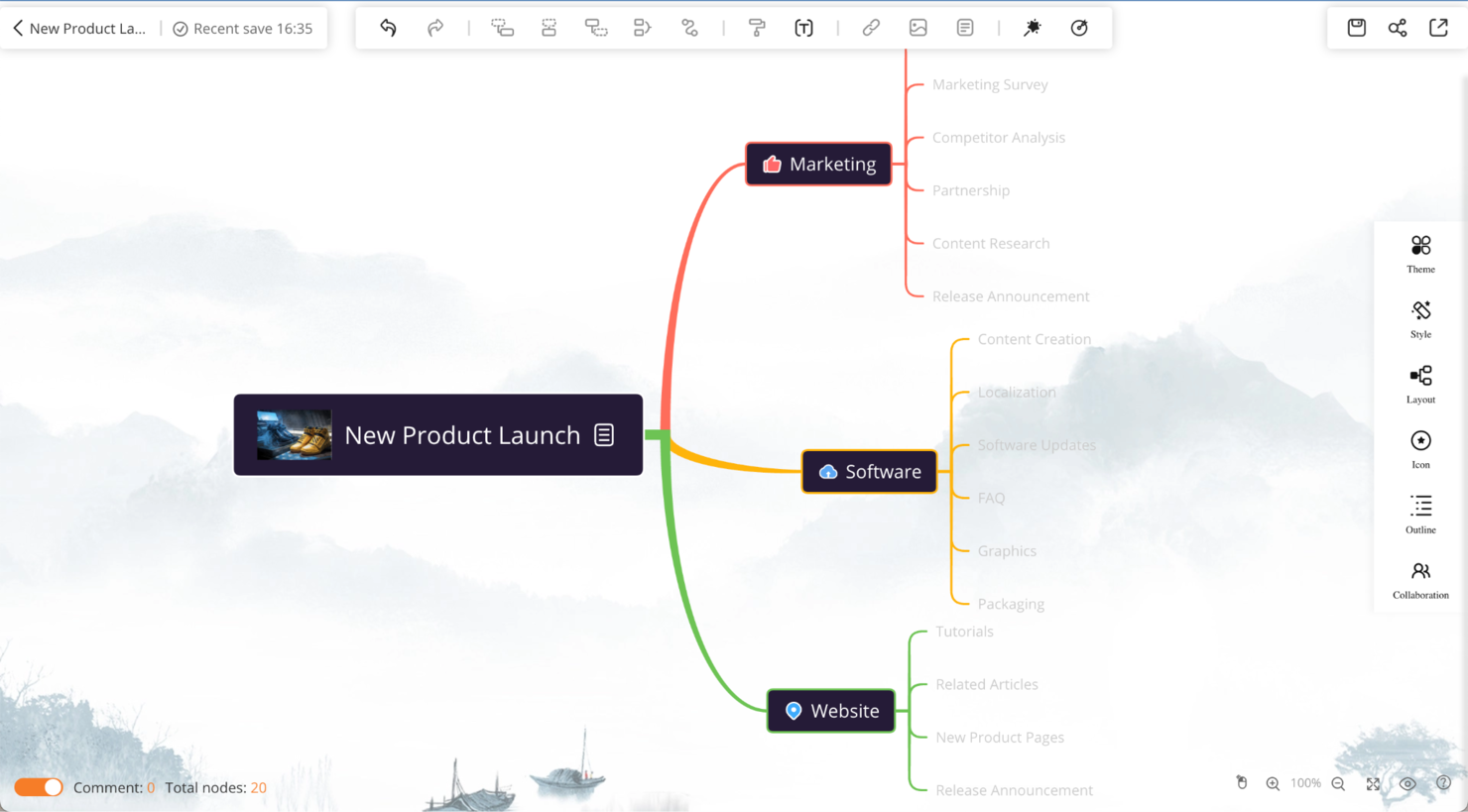
GitMind is a web-based tool for creating mind maps, flowcharts, whiteboards, and diagrams, and it supports idea capture, organization, and visual planning. It’s designed for teams or individuals who want to sketch out thoughts and processes in real time across devices.
Who Is GitMind Best For?
Project teams and workshop facilitators in small to mid-sized digital organizations. It suits groups that rely on online brainstorming sessions to structure early-stage ideas.
Why I Picked GitMind
You can brainstorm visually with an infinite canvas and freely add nodes, shapes, and connectors. It offers an AI bot to help prompt or generate mind maps from text or ideas. Your maps sync across web, desktop, and mobile so your team sees updates instantly. It supports outline mode and lets you switch between hierarchical text and visual map views. It also includes version history so you can revert edits and track changes over time.
GitMind Key Features
GitMind offers several other features that can help with mind mapping.
- AI Art Generation: This feature lets you create visual elements for your mind maps with AI, which adds a creative flair that can make your ideas more engaging and visually appealing.
- UML Diagrams: For those involved in software development or systems design, GitMind provides tools to create UML diagrams, which helps visualize and organize complex systems.
- Mobile App: The GitMind mobile app is available for iOS and Android and lets you access and edit mind maps on the go so you can keep your projects up to date wherever you are.
- Customizable Templates: You can quickly get started on your projects and tailor the designs to fit your specific needs, which saves time and maintains consistency across your work.
GitMind Integrations
Integrations include ChatGPT.
What's Free
A free plan with 10 mind maps
Pros and Cons
Pros:
- Outline mode mirrors the visual map
- AI bot can suggest nodes or layouts
- Version history lets you recover past maps
Cons:
- Some AI features require credits
- Offline editing not supported


Mind42 is a browser-based tool for creating structured visual maps of ideas. You can draw nodes, links, and annotations. It works entirely online and keeps each map private by default, with options to share or collaborate when you choose.
Who Is Mind42 Best For?
Consultants and small team leads in startups and remote-first organizations. It fits users who want to share ideas quickly through web-based mind maps.
Why I Picked Mind42
This tool lets you jump in and start building maps without installing any software. It supports real-time collaboration, and invited users can edit the same map together. It lets you insert images, attach links, and export maps to formats like PDF or image. You can also publish maps publicly or keep them private while preserving control over who views or edits.
Mind42 Key Features
Mind42 offers several other features that make it an attractive choice for free mind mapping software.
- Task Management: You can assign tasks directly within your mind maps, which helps your team keep track of responsibilities and deadlines.
- Zoomable Interface: This lets you zoom in and out of your mind maps and provides a flexible view of both the big picture and detailed elements.
- Export Options: Mind42 includes the ability to export mind maps in various formats, such as PDF and image files, to maintain easy sharing and presentation.
- Keyboard Shortcuts: These shortcuts allow for quicker navigation and editing within the platform, which boosts efficiency when you create or modify mind maps.
Mind42 Integrations
Integrations are not currently available.
What's Free
Mind42 is completely free with ads enabled
Pros and Cons
Pros:
- Insert images via URL into nodes
- Lots of export options
- Private maps by default
Cons:
- No mobile app
- No offline editing
Other Free Mind Mapping Software
Here are a few more that didn’t make the top list but are worth your consideration.
- QuikFlow
For quick diagram sketching
- Lucidspark
For virtual whiteboarding
- Ayoa
For unlimited maps


Related Project Management Software Reviews
If you still haven't found what you're looking for here, check out these other related tools that we've tested and evaluated:
- Project Management Software
- Task Management Software
- Collaboration Tools
- Gantt Chart Maker
- Productivity Tools
- Project Tracking Software
Selection Criteria for Free Mind Mapping Software
When selecting the best free mind mapping software to include in this list, I considered common buyer needs and pain points like ease of use for quick brainstorming sessions and compatibility across devices for versatile access. I also used the following framework to keep my evaluation structured and fair:
Core Functionality (25% of total score)
To be considered for inclusion in this list, each solution had to fulfill these common use cases:
- Create and save mind maps
- Add text and images to nodes
- Customize colors and styles
- Export maps to common file formats
- Provide basic collaboration tools
Additional Standout Features (25% of total score)
To help further narrow down the competition, I also looked for unique features, such as:
- Real-time collaboration with multiple users
- Integration with third-party tools like Google Workspace or Microsoft Office
- Advanced template libraries to support different brainstorming styles
- Free versions with scalable features for evolving needs
- Mobile accessibility for on-the-go editing
Usability (10% of total score)
To get a sense of the usability of each system, I considered the following:
- A visually clean, intuitive interface
- Easy-to-navigate menu and toolbars
- Drag-and-drop functionality
- Efficient and organized layout of mind maps
- Customization to simplify user workflows
Onboarding (10% of total score)
To evaluate the onboarding experience for each platform, I considered the following:
- Easy-to-follow setup instructions
- Interactive product tours for guided learning
- A library of templates to jumpstart mapping
- Available training resources, like video tutorials and webinars
- Responsive support for initial setup and troubleshooting
Customer Support (10% of total score)
To assess each software provider’s customer support services, I considered the following:
- 24/7 support channels like live chat or email
- A searchable knowledge base for self-service
- Access to customer support via multiple channels
- Dedicated support for free version users
- Quick response times for troubleshooting
Value For Money (10% of total score)
To evaluate the value for money of each platform, I considered the following:
- A feature-rich free tier that covers basic needs
- Options for paid upgrades that add clear value
- Favorable pricing when compared against similar tools
- Transparent pricing with no hidden fees
- Scalability for users with growing needs
Customer Reviews (10% of total score)
To get a sense of overall customer satisfaction, I considered the following when reading customer reviews:
- Highlighted ease-of-use and reliability
- Praise for the availability of useful free features
- Satisfaction with customer support quality
- Positive experiences in setup and daily use
- A consistent user experience across devices
How to Choose Free Mind Mapping Software
With so many different free mind mapping software solutions available, it can be challenging to make decisions on what free mind mapping software is going to be the best fit for your needs.
As you're shortlisting, trialing, and selecting free mind mapping software, consider the following:
- What problem are you trying to solve - Start by identifying the mind mapping feature gap you're trying to fill to clarify the features and functionality the free mind mapping software needs to provide.
- Who will need to use it - To evaluate cost and requirements, consider who'll be using the software and how many licenses you'll need. You'll need to evaluate if it'll just be the project management professionals, or the whole organization that will require access. When that's clear, it's worth considering if you're prioritizing ease of use for all, or speed for your free mind mapping software power users.
- What other tools it needs to work with - Clarify what tools you're replacing, what tools are staying, and the tools you'll need to integrate with, such as accounting, CRM or HR software. You'll need to decide if the tools will need to integrate together, or alternatively, if you can replace multiple tools with one consolidated free mind mapping tool.
- What outcomes are important - Consider the result that the software needs to deliver to be considered a success. Consider what capability you want to gain, or what you want to improve, and how you will be measuring success. For example, an outcome could be the ability to get greater visibility into performance. You could compare mind mapping features until you’re blue in the face, but if you aren’t thinking about the outcomes you want to drive, you could be wasting a lot of valuable time.
- How it would work within your organization - Consider the software selection alongside your workflows and delivery methodology. Evaluate what's working well, and the areas that are causing issues that need to be addressed. Remember every business is different — don’t assume that because a tool is popular that it'll work in your organization. Additionally, look for software that offers a great feature set in their free version that can scale in functionality as your needs grow.
Trends in Free Mind Mapping Software for 2026
As project management professionals in 2026 strive to find the most effective methods for organizing their thoughts and projects, several new trends have emerged to facilitate visual organization and brainstorming. These trends not only demonstrate technological advancements in the field but also underscore the evolving priorities and needs of users:
Features and Integrations
- Enhanced Real-time Collaboration: The most rapidly evolving feature in mind mapping software is real-time collaboration. Tools now offer more seamless, synchronous editing capabilities, allowing team members to work together on mind maps from different locations. This reflects the growing need for remote teams to brainstorm efficiently, making it easier to create thought webs that capture collective input in real-time.
- Deeper Integration with Productivity Tools: There's a noticeable trend towards deeper integration with other productivity tools, such as project management software, cloud storage, and communication platforms. This functionality facilitates a smoother workflow, allowing users to connect their visual maps directly with their projects and tasks.
- Advanced Visualization Techniques: There's a trend towards incorporating advanced visualization techniques, such as dynamic charts and graphs, into mind maps. This feature, ideal for tree mind maps, supports more complex data representation and analysis, catering to the needs of users dealing with intricate projects and datasets.
AI & Automation
- AI-Driven Auto-Expansion and Idea Generation: Some of the best map software now incorporates mind map AI generator features to automatically generate ideas and expand branches within a map. Using mind map AI can help users rapidly develop comprehensive maps, while a mind map generator AI tool suggests related topics or branches, enhancing brainstorming sessions.
- Automated Insights and Content Recommendations: Through machine learning, certain brainstorm apps can provide content recommendations based on detected patterns in the map. This might include links to related resources or personalized insights, streamlining research and guiding users to explore new topics effectively.
- Smart Formatting and Layout Adjustments: Some AI tools can automatically adjust layout and organization within mind maps. This feature is especially useful for large, complex maps, ensuring readability and professional presentation without manual adjustments.
- Voice and Text-Based Input for Map Creation: With advancements in natural language processing, many maps software options now support voice recognition, allowing users to dictate ideas or add notes hands-free. This is ideal for creating maps on-the-go or expanding maps with minimal interruption.
Evolving Demand
- Interactive Presentations: The ability to convert mind maps into interactive presentations directly within the software is becoming increasingly popular. This functionality enables users to present ideas and project plans in a more engaging and accessible manner. For users who frequently create mind mapping exercises, this interactive capability is particularly beneficial for team sessions, especially in online formats using free network mapping tools.
What Is Free Mind Mapping Software?
Free mind mapping software is a digital tool that helps create and organize visual diagrams of ideas at no cost. It allows individuals and teams to brainstorm, plan, and map out information around a central concept or theme using nodes, branches, and hierarchical structures.
Project managers, educators, marketers, and creatives use it to visualize workflows, improve clarity, and generate ideas quickly. Additionally, it is particularly useful for students, freelancers, and small businesses looking to enhance their brainstorming and planning processes without the financial investment required for premium tools.
However, keep in mind that free versions of mind mapping software may have a limit on the number of users or boards available.
How to Create a Mind Map
Here's how to make a mind map efficiently, from selecting the right mind map app, to organizing and customizing your map.
- Select Your Mind Mapping Tool: Choose a mind map online software that suits your needs. Consider the features you require, such as collaboration options, ease of use, and available templates. Popular options include simple mind mapping tools for quick setups, AI mind map generators for automated ideas, or more advanced options for detailed mind mapping online. If you're not starting out with a large budget, there are also many free, online mind map platforms you can use.
- Define Your Central Idea: Start with a clear and concise central concept. This is the core of your map and should be placed in the center. Tools like a concept map generator AI can help you brainstorm and refine your central theme, making it easier to expand upon.
- Branch Out Main Topics: From the central idea, create main branches that represent the primary topics or categories related to your theme. Use a simple mind map template or customize branches in a map editing software to suit your preferences. Try identifying keywords or concise phrases for your main branches to keep them clear and straightforward to maintain a logical flow.
- Expand with Subtopics and Details: Add sub-branches to your main topics to break down information into more manageable parts. This step allows you to drill down into specifics, making it an essential component for more complex work, such as mind maps for studying. Utilize mind map bubbles to add layers of detail and keep related ideas grouped together to enhance understanding.
- Organize and Customize Your Map: Arrange the branches and sub-branches to optimize readability and flow. Use colors, icons, and styles to differentiate between categories, emphasize key points, and improve readability. Many custom mapping software options include extensive customization features to help tailor your map to your needs.
- Incorporate Additional Features: Enhance your map with images, links, or attachments if your mapping tools allow it. Some digital map making tools offer integrations with other software, making it easy to connect and expand on your ideas.
- Review and Refine: Finally, review your mind map for clarity, completeness, and coherence. Ensure that the structure accurately represents your thoughts and that it serves its intended purpose, whether for a mind mapping workshop, project planning, or simply organizing ideas. Make adjustments as needed using your map creator software to fine-tune your final product.
Features of Free Mind Mapping Software
When selecting free mind mapping software, keep an eye out for the following key features:
- Flexible mind map structures: You should be able to create trees, flows, and network diagrams, as well as match the structure to the demands of your project instead of being shoehorned into a preset layout.
- Collaboration tools: You and your team can brainstorm together, which is helpful for group projects or remote teams who want a live whiteboard.
- Customization options: You should be able to tweak colors and fonts, as well as add images. This makes it easier to spot key concepts and can help you remember what’s what at a glance.
- Drag-and-drop interface: You should be able to add, move, or remove ideas via drag-and-drop. This makes it easy to build and reorganize your mind map.
- Export and sharing options: This includes the ability to export mind maps in different formats (like PDF or PNG) and share them with team members and stakeholders.
- Auto-save and cloud storage: This prevents you from losing your work and lets you work on your mind maps from anywhere.
- Keyboard shortcuts: Shortcut keys help you work faster and increase productivity when it comes to building and maintaining your mind maps.
AI Features to Look for in Free Mind Mapping Software
Beyond the standard mind mapping features listed above, many of these solutions are incorporating AI features (although these features are typically limited to paid mind mapping software plans).
- Automatic idea generation: This feature can suggest related topics or branches as you type and lets you use AI to expand your ideas or overcome creative blocks.
- Smart summarization: AI can condense large or complex mind maps into concise summaries, which makes it easier to review and share key points.
- Natural language processing: You can create mind maps by describing your ideas in plain language and letting AI convert this into organized nodes and branches.
- Content recommendations: AI can suggest resources, articles, or relevant links based on your mind map’s content, which saves you research time.
- Visual enhancements: AI-powered design tools can automatically adjust layouts, balance branches, and suggest color schemes to make mind maps clearer and more visually appealing.
- Speech-to-text mapping: You can speak your ideas aloud and let AI transcribe and organize them into a mind map, which makes brainstorming sessions more dynamic and hands-free.
Benefits of Free Mind Mapping Software
Mind mapping software has emerged as a powerful tool for enhancing productivity, creativity, and collaboration in both personal and professional settings. Here are five primary benefits of free mind mapping software:
- Enhanced Creativity and Idea Generation: Free mind mapping software facilitates a visual brainstorming process, making it easier to generate new ideas and connections. By visually organizing thoughts, users can uncover creative solutions to problems more efficiently.
- Improved Organization and Clarity: These tools help in organizing complex information in an easy-to-understand visual format. Users can break down large projects into manageable components, making it simpler to see the big picture and focus on details when necessary.
- Increased Productivity: By providing a clear structure for ideas and tasks, free mind mapping software can help users and teams save time on planning and decision-making. This leads to faster project completion and more efficient use of resources.
- Enhanced Collaboration: Many free mind mapping tools offer collaborative features that allow team members to contribute to maps in real-time. This enhances teamwork by ensuring all members have access to the latest updates and can contribute their ideas from anywhere.
- Cost Efficiency: The most obvious benefit is the cost savings. Free mind mapping software allows individuals and organizations to enjoy the benefits of mind mapping without the financial investment, making it accessible to startups, students, and non-profits with limited budgets.
Costs & Pricing for Mind Mapping Software
If you're looking for free software, you clearly understand how important pricing is to the selection process. Overall, mind mapping tools can vary widely in terms of features, scalability, and cost, catering to individuals, small teams, and large organizations alike. However, mind mapping software typically falls into general categories, including free plans.
Free plans are a great starting point. However, it's still important to understand the range of plan options and pricing available to fit different needs and budgets. After all, you might find that a paid plan actually provides more of the features you need at a cost you can afford.
Below is a summary of the typical plan options, including a free version, with their average prices and common features to help you make an informed decision:
Plan Comparison Table for Mind Mapping Software
| Plan Type | Average Price | Common Features |
|---|---|---|
| Free | $0 | Basic mind mapping capabilities, limited templates, cloud storage, collaboration |
| Individual | $5 - $10/month | Advanced mapping features, unlimited templates, more storage, priority support |
| Professional | $10 - $20/month | All Individual features plus collaboration tools, integration options, analytics |
| Team | $20 - $30/user/month | All Professional features plus team management, advanced security, custom branding |
| Enterprise | Custom Pricing | All Team features plus dedicated support, training sessions, SSO, enterprise-grade security |
When selecting a mind mapping software plan, it is important to consider both the features that meet your current needs and each tool's level of flexibility and ability to scale with you as your projects or organization grows. You may be looking for a free plan now, but it's a good idea to make sure you like the paid plans as well so you don't have to switch tools when you need to upgrade for more advanced features.
Common stages where your company may want to upgrade their pricing plan include:
- Complex Project Management: When projects become more complex and require advanced features such as task assignments, deadlines, and project tracking, which are usually available in paid plans.
- Collaboration Needs: As the need for real-time collaboration with a larger team increases, the limitations of the free version in terms of the number of users and collaboration tools may necessitate an upgrade.
- Storage Limitations: When the volume of mind maps and attached files surpasses the storage capacity offered by the free tier, prompting a need for additional storage space provided in paid versions.
- Integration Requirements: When there is a need to integrate mind mapping software with other tools and applications used within the company, such as project management, CRM, or productivity software, which often requires a higher-tier subscription.
- Enhanced Security and Compliance: As the company grows, ensuring data security and compliance with industry regulations becomes more critical, often necessitating a paid plan that offers enhanced security features and compliance support.
Free Mind Mapping Software Frequently Asked Questions
I’ve answered some common questions about mind mapping and the online tools that you can use for it.
Does Microsoft have a mind mapping tool?
Yes! Microsoft has software that, just like Microsoft Project, is a classic and known by most project managers. This software is called Microsoft Visio and can be purchased as an online solution based on a monthly subscription or a perpetual license.
Visio has an impressive library of elements you can use to build your mind maps and can aid you at any time, regardless of the mind mapping technique you use.
How can I make a mind map for free?
You can grab sticky notes, markers and a whiteboard! At least that’s how this all started. However, if you want to use software for it, you can try any of the tools on this list. Whether it’s a free version or a free trial, they will allow you to build mind maps for free.
However, if you do not want to download software or register for a free trial, you can try using the diagramming tools on Google Slides, Powerpoint, and Keynote.
Can these free tools be used for team training purposes effectively?
Absolutely! Many of these free mind mapping tools are quite effective for training purposes.
Is customer support available for free mind mapping software?
In general, customer support for free mind mapping software varies by provider. Some offer basic support through FAQs, forums, or email, especially for more common issues. However, the level and immediacy of support might not match that of paid versions, where dedicated, timely assistance is more of a guarantee.
As a project manager, you will likely find that you can resolve some issues through community support or available resources. However, for more complex or urgent needs, the support might be limited. It’s always wise to review the support options before heavily integrating a tool into your workflow.
How secure is data in free mind mapping tools?
The security of data in free mind mapping tools can vary significantly. As a project manager, you should know that while many providers prioritize user data security and privacy, the level of security measures may not be as robust as those found in paid versions. It’s crucial to check each tool’s privacy policy and security features, such as data encryption and GDPR compliance, to ensure your and your team’s ideas remain confidential. Always exercise caution with sensitive information, especially when using free tools.
How can I present a mind map to my colleagues?
To present a mind map to your colleagues effectively, you can use features that allow you to showcase your mind map designs in an engaging way. Start by creating a mind map online using a brain map maker tool, which can help streamline your brainstorming and organization process. Here’s how you can present your mind map:
- Presentation Mode: Many brainstorm programs offer a presentation mode that converts your mind map into a slideshow format. This feature lets you navigate through each branch of your map sequentially, highlighting key points without overwhelming your audience.
- Interactive Videos with Talktrack: Some tools provide the ability to record interactive videos of your mind map presentations with features like Talktrack. This allows you to draw a mind map while narrating your thought process, creating a dynamic and engaging presentation. Talktrack enables you to walk through each section of your mind map, making it easy to share complex ideas through video, perfect for asynchronous communication with your team.
- Idea Board Software Integration: Integrate your mind map with idea board software to enhance collaboration. This setup allows your team to interact directly with the mind map, providing a space for feedback, additional brainstorming, or even real-time modifications.
- Share or Export Directly: To ensure easy access and distribution, many mind map software solutions offer multiple sharing and export formats. You can export your mind maps as images, PDFs, or interactive HTML files, making it simple to embed or attach them in emails, project management tools, or documents. For teams that prefer working across different platforms, some tools also support direct sharing links or integrations with cloud storage solutions, so colleagues can access and view the latest version. Additionally, mind map graphic organizers can be exported in formats compatible with other software, maximizing their usability and reach across different contexts and applications.
Can these free tools be used for team training purposes effectively?
Yes, many free mind mapping tools work well for team training. You can use them to visually outline processes, brainstorm ideas together, or map out training content in a way that’s easy to follow.
If you are interested in training a team using mind mapping tools, look for tools that allow real-time collaboration and template sharing, so your team can build and update maps together. Free plans may limit the number of users or features, but for small to mid-sized teams, they often provide enough flexibility for effective sessions.
Which free mind mapping tools integrate best with project management platforms?
Tools like MindMeister and Miro offer strong integrations with popular project management platforms such as Trello, Asana, and ClickUp. These integrations let your team turn mind maps into action items, sync tasks, and streamline workflows without manual copying.
However, check each tool’s integration list before choosing as some free tiers include basic connections. Deeper integrations might require a paid plan.
Can I export mind maps to formats like PDF or Excel for sharing with stakeholders?
Yes, most free mind mapping tools let you export your maps as PDF or image files. Some, like Mindomo and Coggle, also offer options to export in formats like Word, Excel, or CSV for easier editing or sharing with stakeholders.
PDF exports keep your visuals intact for presentations, while Excel/CSV exports help you repurpose map data into spreadsheets or reports. Double-check export options on the free plan, as advanced features may require an upgrade.
What's Next?
Want to connect with other digital project managers to share resources and best practices? Join our membership community and get access to 100+ templates, samples, and examples and connect with 100s of other digital project managers in Slack.