
14 Best Drag and Drop Workflow Builder Tools for 2026

10 Best Drag and Drop Workflow Builder Shortlist
Here's my pick of the 10 best software from the 14 tools reviewed.


Why You Can Trust Us
We’ve been testing and reviewing project management software since 2012. As project managers ourselves, we know how critical and difficult it is to make the right decision when selecting software.
We invest in deep research to help our audience make better software purchasing decisions. We’ve tested more than 2,000 tools for different project management use cases and written over 1,000 comprehensive software reviews. Learn how we stay transparent & our software review methodology.
Best Drag and Drop Workflow Builder Summary
This comparison chart summarizes pricing details for my top drag-and-drop workflow builder selections to help you find the best one for your budget and business needs.
| Tool | Best For | Trial Info | Price | ||
|---|---|---|---|---|---|
| 1 | Best for open-source workflow customization | Free trial available | From $20/month (billed annually) | Website | |
| 2 | Best for connecting apps with advanced automation | Free plan + free demo available | From $9/month (billed monthly) | Website | |
| 3 | Best for visual collaboration on workflow diagrams | Free plan available | From $5/month (billed annually) | Website | |
| 4 | Best for designing conversational workflows | Free trial available | Pricing upon request | Website | |
| 5 | Best for integrating forms with workflow automation | 14-day free trial + free demo available | From $83/month (billed annually) | Website | |
| 6 | Best for automating multi-step business processes | Free plan + 7-day free trial + free demo available | From $22/user/month (billed annually) | Website | |
| 7 | Best for developers building workflow-driven apps | Free plan available (non-commercial use) | From $20/user/month (billed annually) | Website | |
| 8 | Best for rapid prototyping of workflow ideas | Free plan available | From $30/month (billed annually) | Website | |
| 9 | Best for on-premise deployment flexibility | Not available | Pricing upon request | Website | |
| 10 | Best for finance and accounts receivable teams | Free trial + free demo available | From $60/user/month (billed annually) | Website |
-

Accelo
Visit WebsiteThis is an aggregated rating for this tool including ratings from Crozdesk users and ratings from other sites.4.4 -
Wrike
Visit WebsiteThis is an aggregated rating for this tool including ratings from Crozdesk users and ratings from other sites.4.2 -
Forecast
Visit WebsiteThis is an aggregated rating for this tool including ratings from Crozdesk users and ratings from other sites.4.6




Best Drag and Drop Workflow Builder Reviews
Below are my detailed summaries of the drag-and-drop workflow builder tools that made it onto my shortlist. My reviews offer a detailed look at the features, best use cases, and integrations of each platform to help you find the best one for your team.

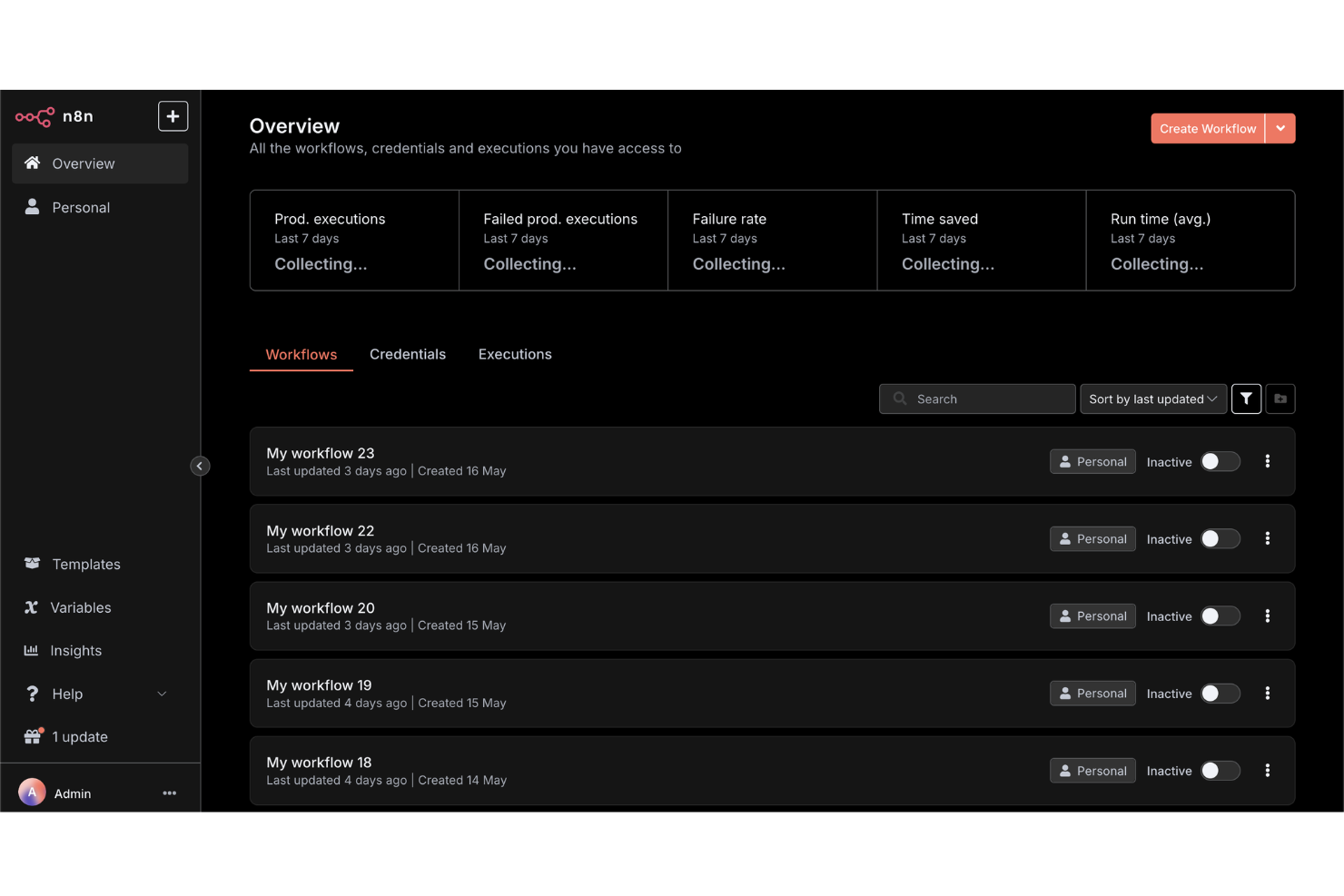
For teams that want full control over their workflow automations, n8n offers an open-source platform with deep customization options. Developers, IT teams, and technical operations leads can build, self-host, and extend workflows using a visual editor and custom code nodes. n8n is a strong fit if you need to tailor integrations or logic beyond what most drag-and-drop workflow builders allow.
Why I Picked n8n
What sets n8n apart is its open-source approach to workflow automation, which gives you full flexibility to customize and self-host your automations. I picked n8n because it lets you use a drag-and-drop builder alongside custom code nodes, so you can extend workflows far beyond standard templates. The platform supports building custom integrations and logic, making it ideal for teams with unique requirements or strict data control needs. If you want to tailor every aspect of your workflow builder, n8n offers the depth and control that many other tools don’t.
n8n Key Features
Some other features that make n8n appealing for workflow automation include:
- Built-In Credential Management: Securely store and manage authentication details for connected services.
- Webhooks Support: Trigger workflows from external apps or events using custom webhooks.
- Execution Logs: Access detailed logs for every workflow run to help with troubleshooting.
- Environment Variables: Configure workflows to use different settings across development, staging, and production.
n8n Integrations
Integrations include Google Sheets, Gmail, Slack, OpenAI, Airtable, Notion, Trello, HubSpot, Discord, and more.
Pros and Cons
Pros:
- Unlimited workflow executions on self-hosted plans
- Custom node creation with JavaScript or TypeScript
- Self-hosting option supports strict data privacy
Cons:
- Requires manual updates for self-hosted deployments
- Lacks built-in templates for common workflows

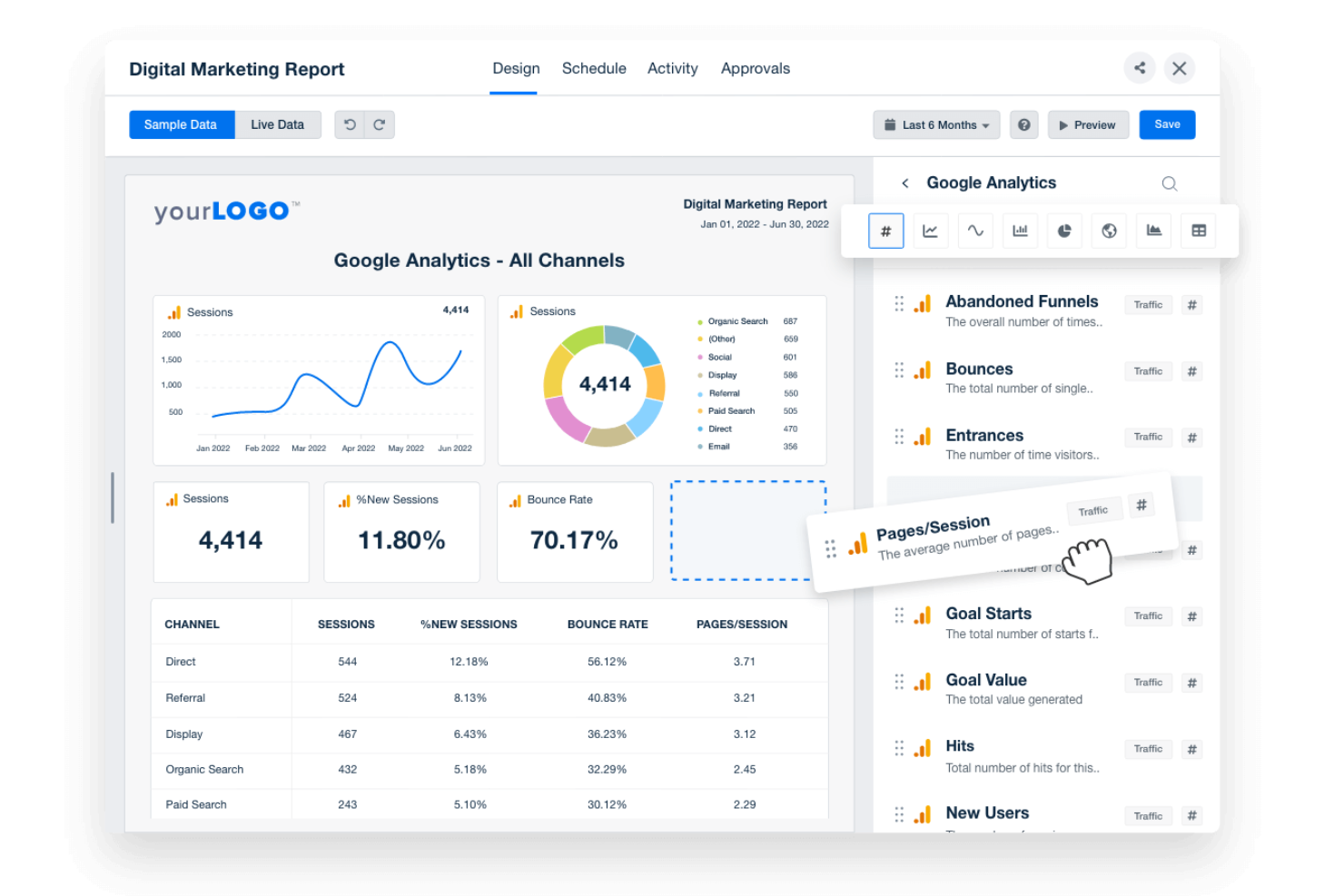
If you need to automate complex workflows across multiple apps, Make offers a visual builder that connects hundreds of tools with advanced logic. IT teams, operations leads, and product managers can design multi-step automations using a drag-and-drop canvas, branching, and custom triggers. Make stands out for users who want to build intricate, conditional workflows that go far beyond simple task automation.
Why I Picked Make
Unlike basic automation tools, Make gives you a drag-and-drop workflow builder designed for advanced, multi-app automation. I picked Make because it lets you visually map out complex workflows with branching logic, custom triggers, and conditional paths. The platform supports building automations that can handle data transformations and error handling within the same visual interface. This makes it a strong choice for teams that need to connect multiple systems and automate sophisticated processes without writing code.
Make Key Features
Some other features that make Make useful for workflow automation include:
- Scenario Versioning: Save and restore previous versions of your automation scenarios.
- Built-In Scheduling: Set workflows to run at specific times or intervals.
- Error Handling Tools: Configure custom responses for failed steps or data issues.
- Data Store Modules: Store and retrieve data within workflows without relying on external databases.
Make Integrations
Integrations include Google Sheets, Slack, Gmail, Airtable, Trello, Dropbox, HubSpot, Shopify, Facebook Pages, and more.
Pros and Cons
Pros:
- Scenario versioning allows rollback to previous states
- Supports scheduling automations by minute or hour
- Visual builder supports multi-step, branching workflows
Cons:
- Error messages can be difficult to interpret
- No built-in AI or machine learning modules

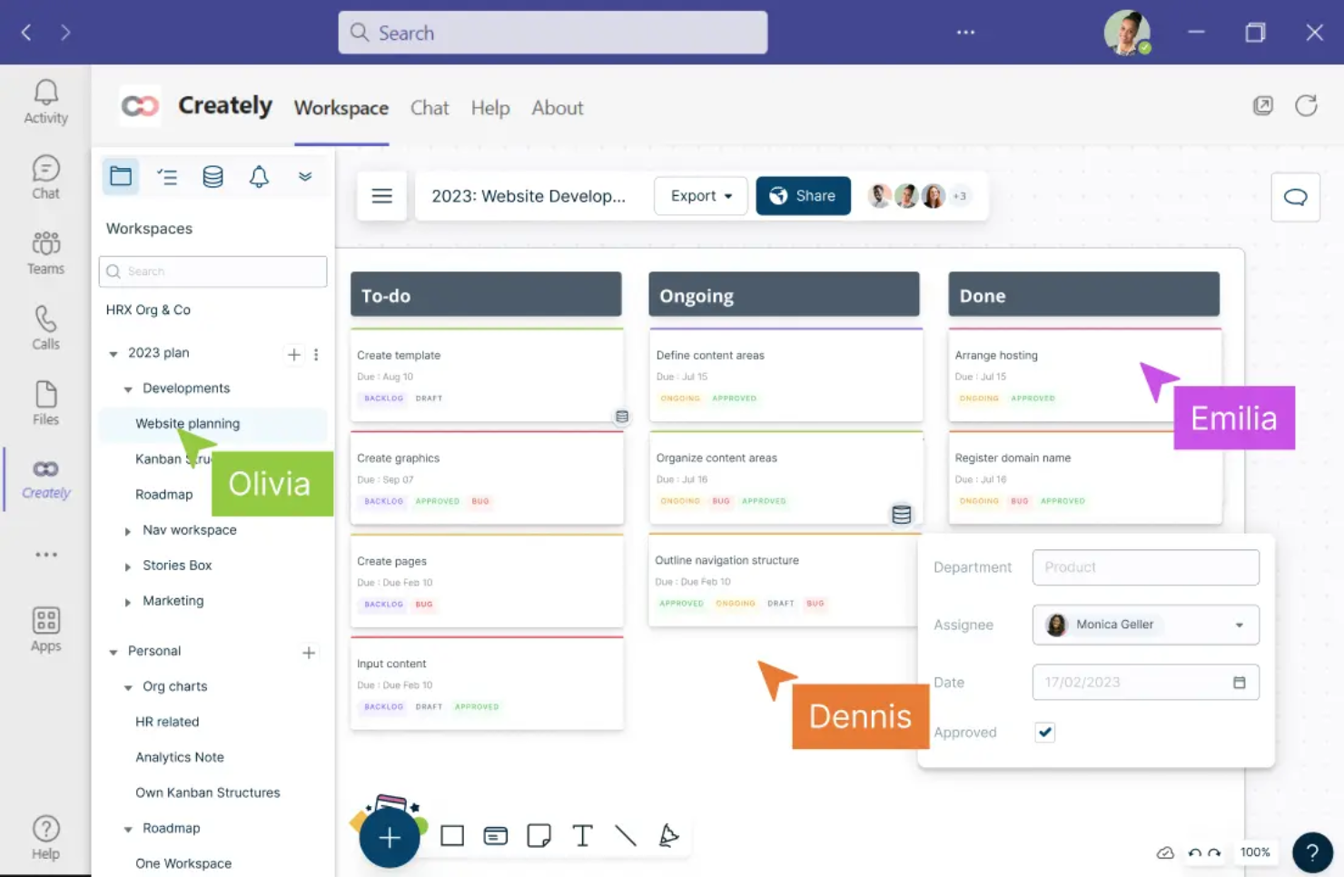
Creately offers a visual workspace built for teams that need to collaborate on workflow diagrams in real time. It’s a strong fit for project managers, business analysts, and cross-functional teams who want to map, discuss, and refine processes together. With features like multi-user editing and contextual comments, Creately helps teams turn complex workflows into clear, actionable diagrams.
Why I Picked Creately
For teams that need to collaborate visually on workflow diagrams, Creately brings real-time co-editing and discussion into a single workspace. I picked Creately because it lets multiple users build, edit, and comment on diagrams together, which is essential for cross-functional process mapping. The tool’s contextual commenting and in-diagram chat features help teams resolve questions and iterate on workflows without switching platforms. This focus on collaborative diagramming makes Creately a strong choice for anyone prioritizing teamwork in their workflow builder.
Creately Key Features
In addition to its collaborative diagramming tools, Creately offers several other features worth noting:
- Extensive Shape and Icon Library: Choose from thousands of shapes and icons to represent different workflow elements.
- Data Linking: Attach data sets or tables directly to workflow objects for richer context.
- Presentation Mode: Present workflow diagrams directly within the platform without exporting.
- Revision History: Track changes and restore previous versions of diagrams as needed.
Creately Integrations
Integrations include Google Drive, Slack, Confluence, and Microsoft Teams.
Pros and Cons
Pros:
- Presentation mode enables in-app workflow walkthroughs
- Data linking connects diagrams to live tables
- Real-time multi-user editing supports team workflows
Cons:
- Large diagrams can experience occasional lag
- Export options are restricted on lower plans
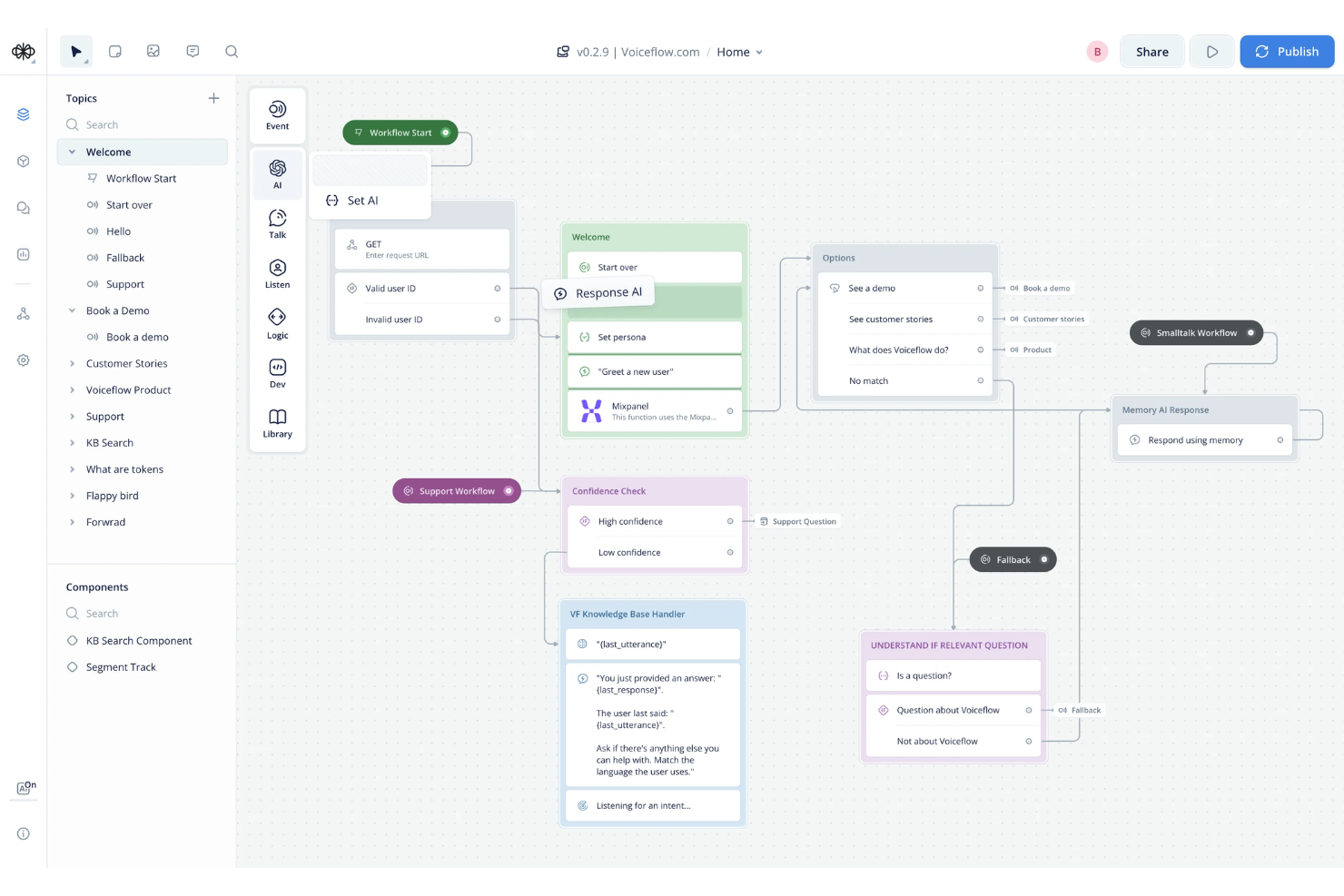
Voiceflow stands out for teams designing conversational workflows for chatbots, voice assistants, and AI agents. It’s built for product managers, conversation designers, and developers who need to map out complex, multi-turn dialogues visually. With Voiceflow, you can prototype, test, and iterate on conversational flows without writing code, making it easier to align technical and non-technical stakeholders.
Why I Picked Voiceflow
For teams focused on building conversational experiences, Voiceflow offers a specialized drag-and-drop workflow builder tailored to dialogue design. I picked it because it lets you visually map out conversation logic, branching paths, and context variables in a way that’s purpose-built for chatbots and voice assistants. The platform supports reusable components and modular flows, so you can manage complex, multi-turn conversations without getting lost in code. This makes Voiceflow a strong choice for anyone designing, prototyping, or iterating on conversational workflows.
Voiceflow Key Features
Some other features that make Voiceflow useful for workflow design include:
- AI Step Blocks: Add generative AI responses and logic directly into your conversational flows.
- Version History: Track changes and revert to previous versions of your workflow projects.
- User Testing Mode: Simulate conversations and gather feedback before deploying to production.
- Team Collaboration Tools: Invite team members to co-design, comment, and review workflows in real time.
Voiceflow Integrations
Integrations include Airtable, Discord, HubSpot, Linear, Manychat, Notion, SendGrid, Shopify, WhatsApp, Zendesk, and more.
Pros and Cons
Pros:
- Version history tracks all workflow changes
- User testing mode for pre-launch validation
- Built-in AI step for generative responses
Cons:
- Occasional lag with large, complex projects
- Limited export options for non-technical users

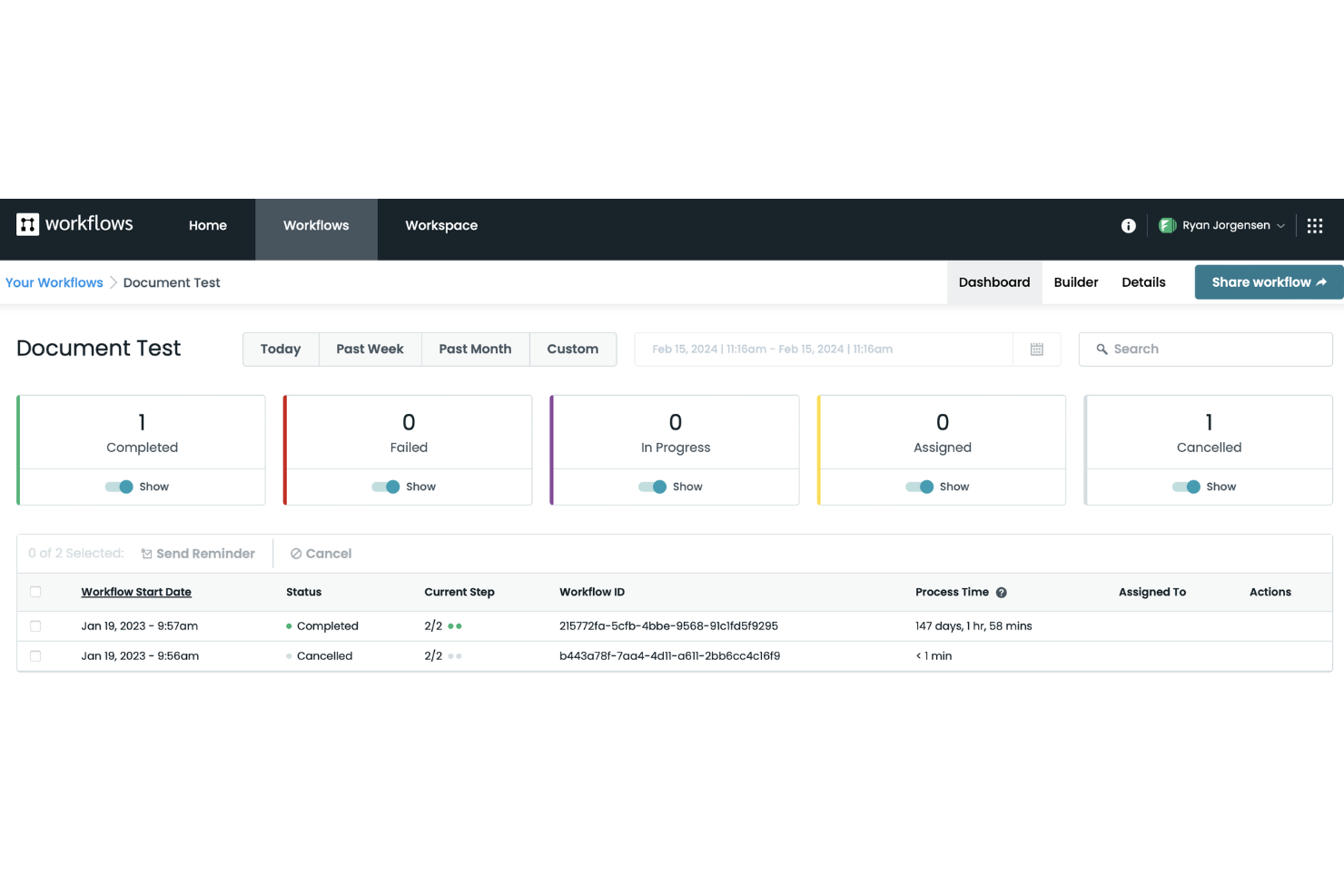
Formstack stands out for teams that need to connect forms directly to automated workflows without coding. It’s especially useful for operations, HR, and IT teams that want to capture data and trigger multi-step processes from a single form submission. If you’re looking to automate approvals, onboarding, or service requests with a drag-and-drop builder, Formstack is built for that kind of integration.
Why I Picked Formstack
Formstack caught my attention because it connects form submissions directly to workflow automation, which is a rare strength among drag-and-drop builders. The platform lets you build custom forms and then map each form field to workflow steps, so you can trigger approvals, notifications, or document generation automatically. I like that you can visually design both the form and the workflow in one place, making it easy to manage complex processes without switching tools. This approach is especially useful for teams that need to automate multi-step tasks starting from a single data entry point.
Formstack Key Features
Some other features that make Formstack useful for workflow automation include:
- Conditional Logic: Build workflows that branch based on user responses or data inputs.
- Document Generation: Automatically create PDFs or other documents from form data within a workflow.
- E-signature Collection: Collect legally binding signatures as part of automated processes.
- Role-Based Permissions: Control access to workflow steps and data based on user roles.
Formstack Integrations
Integrations include Salesforce, Amazon S3, PayPal, Stripe, HubSpot, Airtable, Microsoft, and more.
Pros and Cons
Pros:
- Prebuilt templates for common business processes
- Automated document generation from form data
- Native e-signature collection in workflows
Cons:
- No built-in chatbot or conversational forms
- Workflow versioning is not available

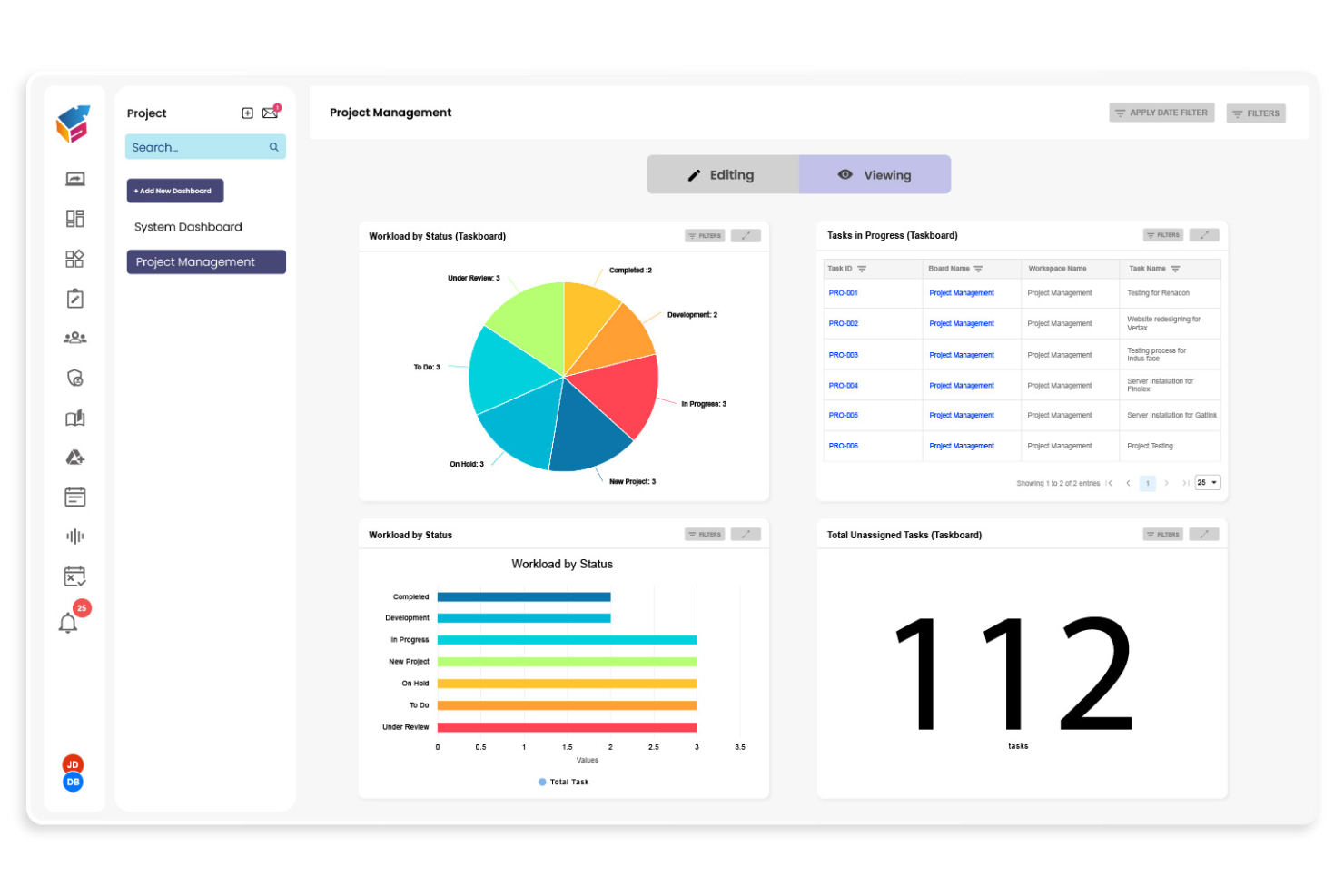
Yoroflow gives teams a way to automate complex, multi-step business processes without writing code. It’s a strong fit for operations managers, project leads, and IT teams who need to coordinate tasks across departments or systems. If you’re looking to build workflows that handle approvals, notifications, and integrations in one place, Yoroflow is designed for that level of control.
Why I Picked Yoroflow
I chose Yoroflow because it’s built to handle multi-step business processes that require more than just simple task automation. The platform’s drag and drop workflow builder lets you map out complex sequences, including conditional logic and parallel task branches, all from a visual interface. I like that you can set up automated approvals and notifications within the same workflow, which is essential for teams managing layered processes. Yoroflow’s focus on orchestrating multiple steps in a single flow makes it a strong choice for organizations with intricate operational needs.
Yoroflow Key Features
Some other features in Yoroflow that stand out for workflow builders include:
- Form Designer: Build custom forms to collect data and trigger workflows directly from user submissions.
- Document Management: Store, organize, and attach documents to workflow steps for easy reference and compliance.
- Role-Based Access Control: Assign permissions to users or groups to control who can view or edit specific workflows.
- Analytics Dashboard: Monitor workflow performance and track key metrics with built-in reporting tools.
Yoroflow Integrations
Native integrations are not currently listed.
Pros and Cons
Pros:
- Pre-built templates for common business processes
- Built-in document management and storage
- Multi-step workflows with conditional logic
Cons:
- Custom branding options are restricted
- Project board UX can slow navigation at scale

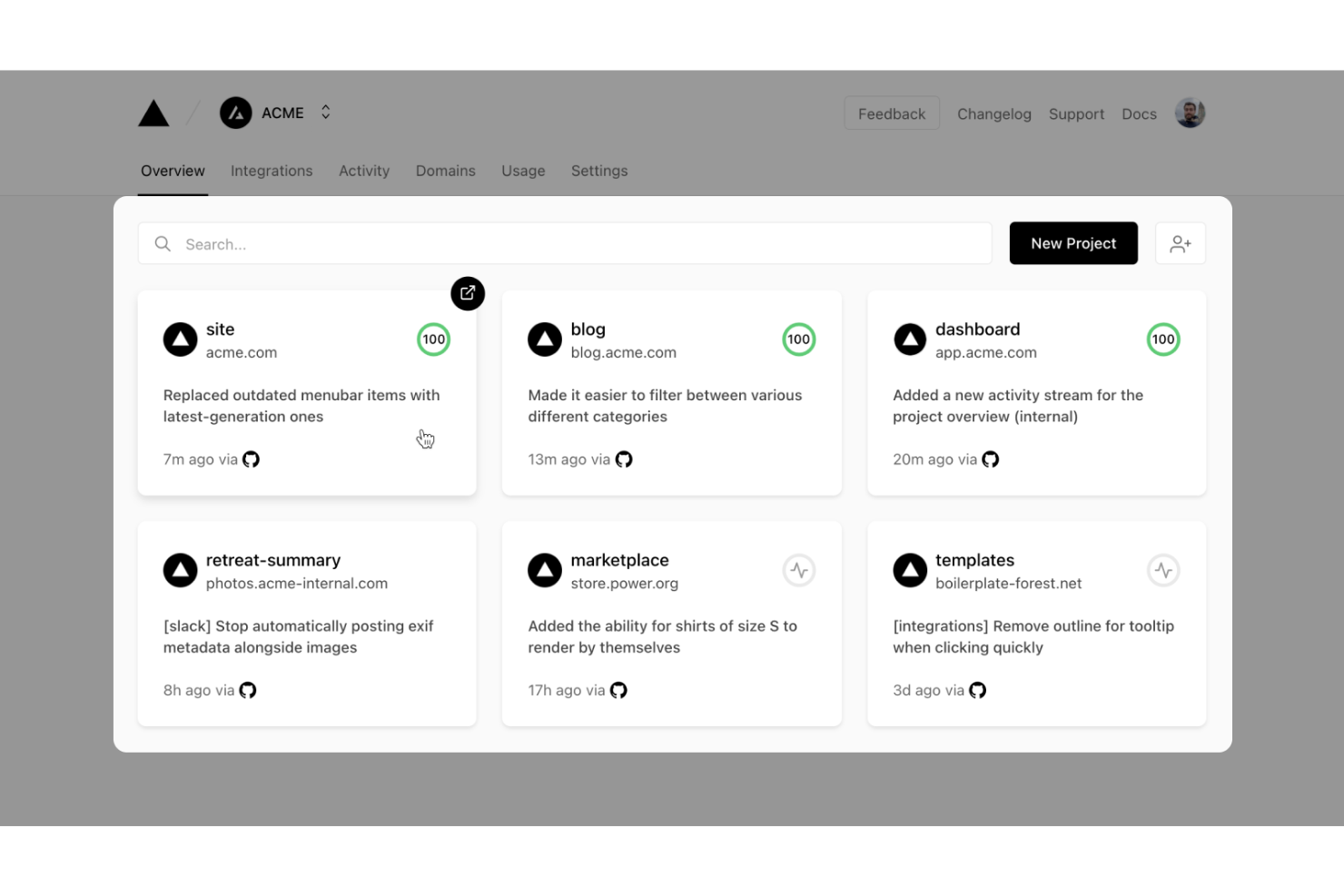
Vercel gives developers a platform to build, deploy, and scale workflow-driven web applications with modern frameworks. It’s especially useful for engineering teams who want to automate deployment pipelines and manage dynamic workflows in real time. With built-in serverless functions and instant preview environments, Vercel helps teams iterate quickly on workflow logic and user experience.
Why I Picked Vercel
What sets Vercel apart for workflow-driven app development is its focus on developer-centric automation and deployment. I picked Vercel because it lets teams build custom workflow logic using serverless functions and deploy changes instantly with preview environments. The platform’s Git-based workflow means every code push triggers automated builds and deployments, which is ideal for teams iterating on workflow builders. This approach gives developers full control over workflow customization while keeping deployment fast and reliable.
Vercel Key Features
Some other features that make Vercel appealing for workflow-driven app development include:
- Edge Middleware: Run custom logic at the edge to personalize workflows and handle requests before they reach your app.
- Environment Variable Management: Store and manage environment variables securely for different deployment stages.
- Custom Domains: Assign and manage custom domains directly from the Vercel dashboard.
- Analytics Dashboard: Access real-time performance and traffic analytics for deployed workflow apps.
Vercel Integrations
Integrations include GitHub, GitLab, Bitbucket, Slack, Datadog, Sentry, Contentful, Shopify, AWS, Sanity, and more.
Pros and Cons
Pros:
- Environment variable management for workflow configuration
- Middleware supports real-time workflow customization
- Instant preview deployments for workflow changes Edge
Cons:
- Custom domain setup can be complex for teams
- Limited visual workflow debugging tools

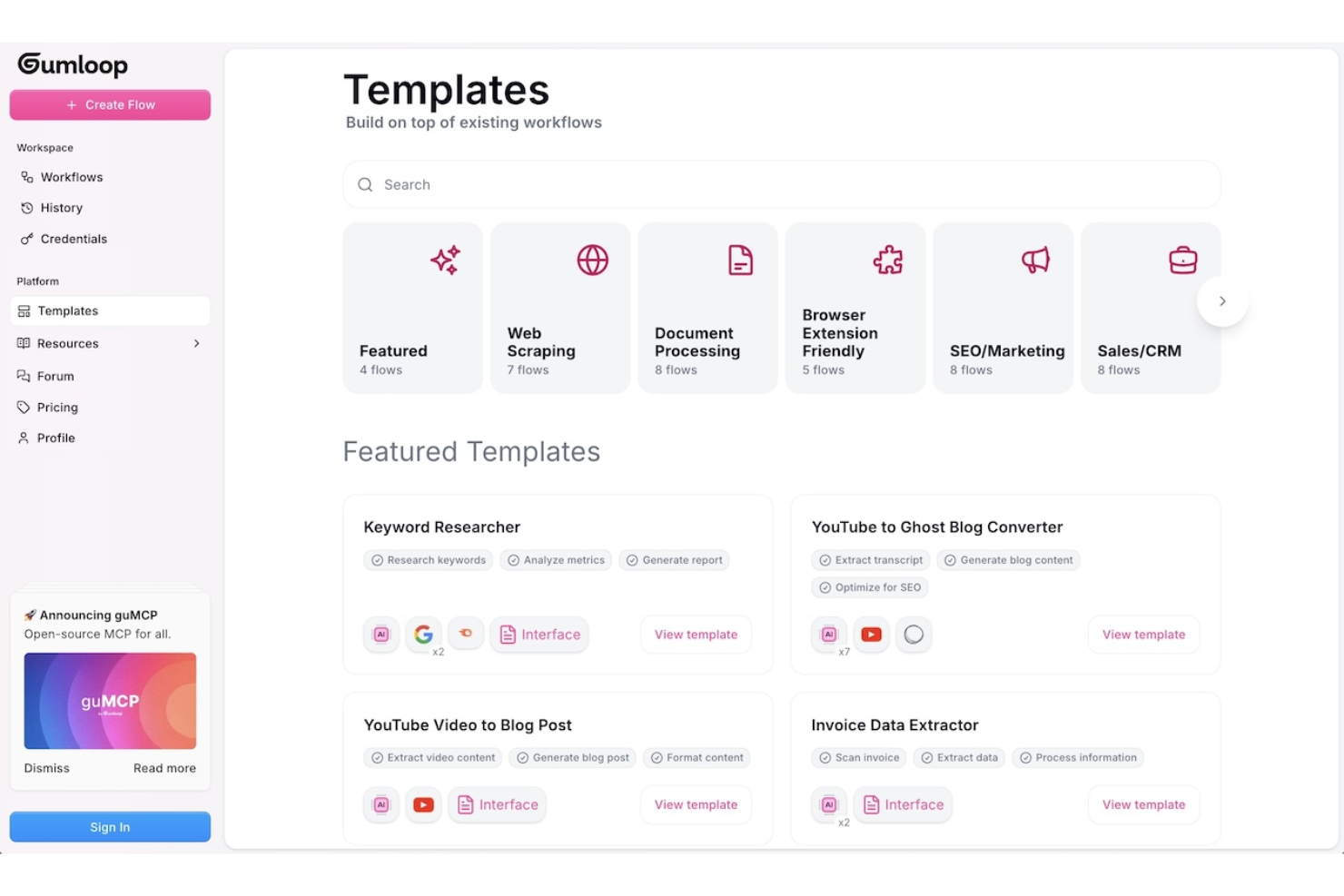
Gumloop is designed for teams and individuals who need to quickly prototype and test workflow ideas before committing to full development. It’s especially useful for product managers, UX designers, and innovation teams looking to validate concepts with interactive, drag-and-drop flows. With Gumloop, you can create and share workflow prototypes in minutes, making it easier to gather feedback and iterate early in the process.
Why I Picked Gumloop
When you need to move from idea to interactive prototype fast, Gumloop stands out for rapid workflow prototyping. I picked it because you can drag and drop steps, decisions, and actions to quickly visualize and test workflow logic without writing code. The tool supports instant sharing and live previews, so you can gather feedback from stakeholders or teammates right away. This makes Gumloop a strong fit for teams that want to validate workflow concepts before investing in full-scale development.
Gumloop Key Features
Some other features that make Gumloop useful for workflow prototyping include:
- Template Library: Access a collection of pre-built workflow templates to jumpstart new projects.
- Conditional Logic Blocks: Add if/then logic to simulate real-world decision points in your workflows.
- Commenting and Feedback Tools: Collect input directly on your prototypes from collaborators or stakeholders.
- Export to PDF or Image: Download workflow diagrams for documentation or presentations.
Gumloop Integrations
Integrations include Slack, Gmail, Google Sheets, Salesforce, Notion, HubSpot, Outlook, Google Drive, Apollo, and more.
Pros and Cons
Pros:
- No-code interface for non-technical team member
- Conditional logic blocks support complex flows
- Templates accelerate initial workflow prototyping
Cons:
- No built-in version control for prototypes
- Limited automation beyond visual prototyping stage

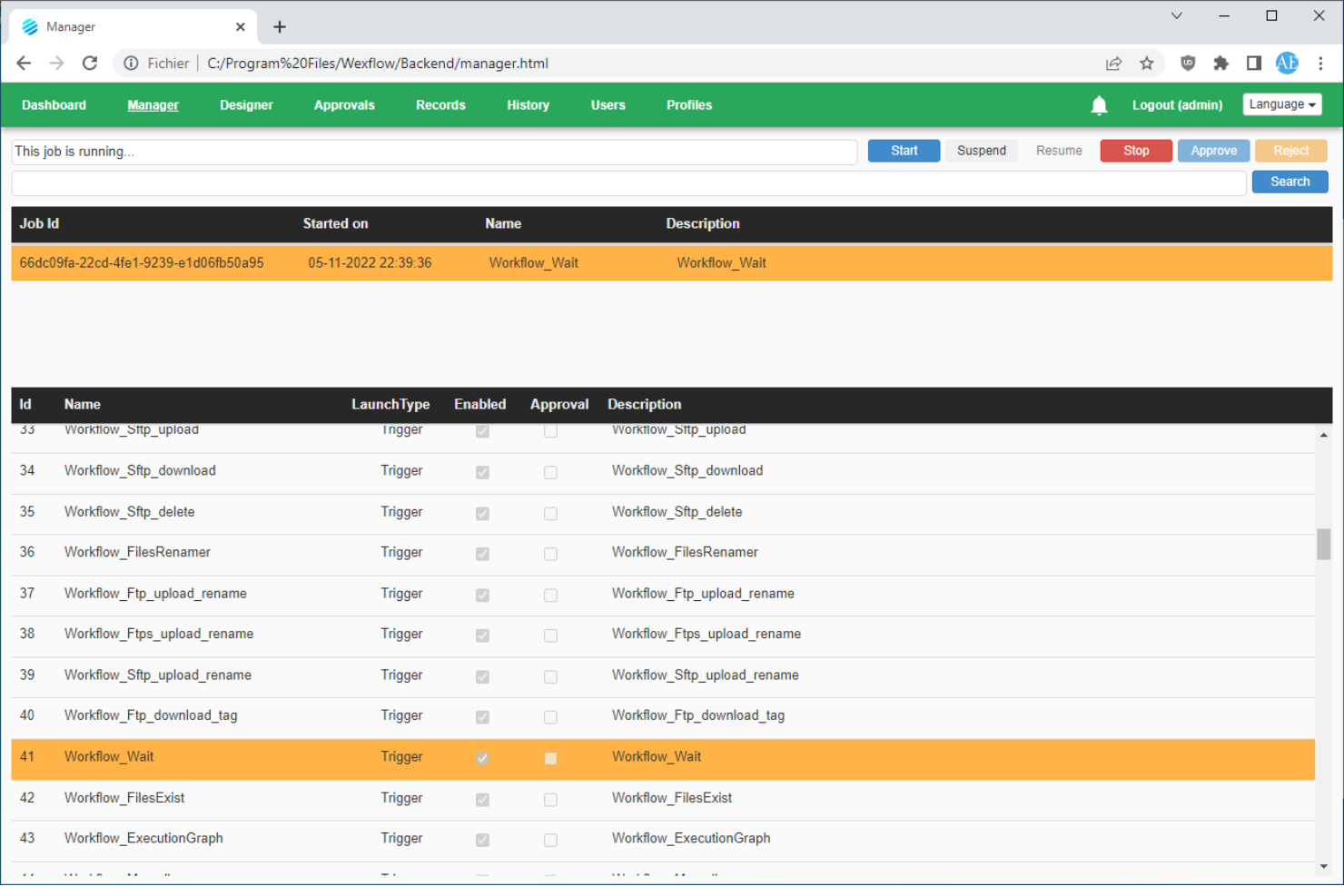
Wexflow is designed for IT teams and organizations that need full control over workflow automation in on-premise environments. It’s a fit for businesses with strict data security or compliance requirements that can’t use cloud-based workflow tools. If you want to build, schedule, and monitor automated processes on your own infrastructure, Wexflow gives you that deployment flexibility.
Why I Picked Wexflow
What sets Wexflow apart is its focus on on-premise deployment, which is rare among drag-and-drop workflow builders. I picked it because it lets you install and run the platform entirely within your own infrastructure, giving you full control over data and process security. Wexflow’s visual designer allows you to build, schedule, and monitor workflows without relying on cloud services. This makes it a strong choice for organizations with strict compliance needs or those operating in regulated industries.
Wexflow Key Features
Some other features that make Wexflow stand out for workflow automation include:
- Extensive Task Library: Choose from over 100 built-in tasks for automating file operations, email, database actions, and more.
- XML-Based Workflow Definitions: Edit and manage workflows using XML files for precise control and versioning.
- Real-Time Monitoring Dashboard: Track workflow execution status and logs through a web-based dashboard.
- Custom Script Integration: Add custom C# or PowerShell scripts directly into workflows for advanced automation needs.
Wexflow Integrations
Native integrations are not currently listed.
Pros and Cons
Pros:
- Built-in support for C# and PowerShell scripting
- XML workflow editing for advanced customization
- On-premise deployment supports strict data control
Cons:
- Lacks visual workflow version comparison
- No built-in cloud or SaaS option

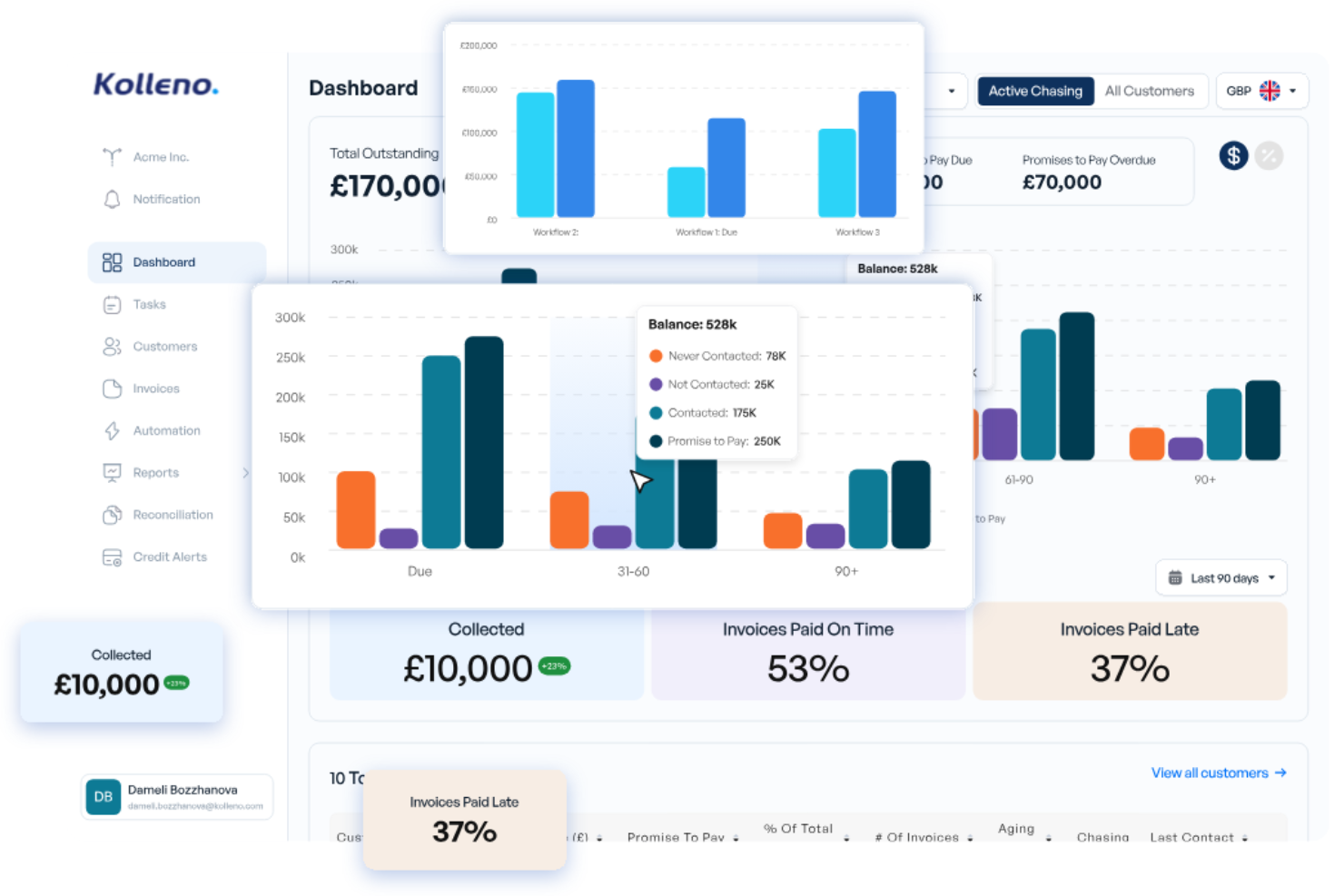
Kolleno brings drag-and-drop workflow automation to finance and accounts receivable teams managing collections and payments. It’s designed for finance professionals who need to simplify invoice chasing, payment reminders, and reconciliation tasks in one place. If your team wants to automate repetitive finance workflows while keeping full visibility over cash flow, Kolleno is built for that purpose.
Why I Picked Kolleno
What sets Kolleno apart is its focus on automating finance and accounts receivable workflows with a visual, drag-and-drop builder. The platform lets you design custom sequences for invoice reminders, payment escalations, and reconciliation steps, all tailored to your team’s processes. I appreciate how Kolleno allows finance teams to automate multi-channel communications and set up rules for different customer segments. This level of workflow control is especially valuable for organizations looking to reduce manual follow-up and improve cash collection efficiency.
Kolleno Key Features
Some other features in Kolleno that are useful for workflow automation include:
- Customizable Payment Portals: Give customers access to branded payment pages for settling invoices online.
- Automated Reconciliation: Match incoming payments to invoices automatically using bank feed integrations.
- Dispute Management: Track, document, and resolve invoice disputes within the platform.
- Audit Trail: Maintain a detailed log of all workflow actions and communications for compliance and transparency.
Kolleno Integrations
Integrations include NetSuite, QuickBooks, Microsoft Dynamics 365, Xero, Sage, GoCardless, and more.
Pros and Cons
Pros:
- Real-time invoice and payment status tracking
- Built-in dispute and escalation management
- Automated payment reminders with custom triggers
Cons:
- No built-in SMS communication channel
- Limited workflow templates for non-finance use
Other Drag and Drop Workflow Builder
Here are some additional drag-and-drop workflow builder options that didn’t make it onto my shortlist, but are still worth checking out:
- React Flow
For custom workflow UI development
- MyShyft
For shift scheduling and workforce management
- Puzzle
With real-time workflow collaboration
- Retool
For building internal tool workflows


Drag and Drop Workflow Builder Selection Criteria
When selecting the best drag and drop workflow builder to include in this list, I considered common buyer needs and pain points like quickly automating multi-step processes and enabling non-technical users to build workflows visually. I also used the following framework to keep my evaluation structured and fair:
Core Functionality (25% of total score)
To be considered for inclusion in this list, each solution had to fulfill these common use cases:
- Build workflows using a visual editor
- Connect multiple apps and services
- Automate multi-step processes
- Trigger workflows based on events or schedules
- Monitor and manage workflow runs
Additional Standout Features (25% of total score)
To help further narrow down the competition, I also looked for unique features, such as:
- Support for custom code or scripting
- Built-in version control for workflows
- Real-time workflow collaboration
- Advanced error handling and retries
- Self-hosting or on-premises deployment options
Usability (10% of total score)
To get a sense of the usability of each system, I considered the following:
- Clean and intuitive drag and drop interface
- Minimal clicks to build and deploy workflows
- Clear visual mapping of workflow steps
- Responsive design for different screen sizes
- Accessible documentation within the platform
Onboarding (10% of total score)
To evaluate the onboarding experience for each platform, I considered the following:
- Availability of step-by-step tutorials
- Pre-built workflow templates
- Interactive product tours or walkthroughs
- Access to live or recorded webinars
- In-app chatbots or guided help
Customer Support (10% of total score)
To assess each software provider’s customer support services, I considered the following:
- Multiple support channels (chat, email, phone)
- Fast response times for support requests
- Access to a searchable knowledge base
- Community forums or user groups
- Availability of onboarding or technical specialists
Value For Money (10% of total score)
To evaluate the value for money of each platform, I considered the following:
- Transparent and flexible pricing tiers
- Free plan or trial availability
- Features included at each pricing level
- Cost compared to similar tools
- Discounts for annual or volume commitments
Customer Reviews (10% of total score)
To get a sense of overall customer satisfaction, I considered the following when reading customer reviews:
- Positive feedback on workflow builder reliability
- Reports of helpful and responsive support
- User comments on ease of building workflows
- Critiques of limitations or missing features
- Overall ratings and recommendation rates
How to Choose Drag and Drop Workflow Builder
It’s easy to get bogged down in long feature lists and complex pricing structures. To help you stay focused as you work through your unique software selection process, here’s a checklist of factors to keep in mind:
| Factor | What to Consider |
| Scalability | Will the tool handle your workflow volume as your team or business grows? Check for user, workflow, or execution limits. |
| Integrations | Does it natively connect to the apps and services your team relies on? Review the integration list for gaps or workarounds. |
| Customizability | Can you adapt workflows to fit unique processes or requirements? Look for support for custom logic, scripting, or node creation. |
| Ease of use | Will non-technical users be able to build and manage workflows without constant IT help? Test the interface with real users. |
| Implementation and onboarding | How long will it take to get up and running? Consider migration needs, training resources, and the availability of templates or guided setup. |
| Cost | Are pricing tiers clear and predictable as usage grows? Watch for hidden fees, overage charges, or required add-ons. |
| Security safeguards | Does the platform meet your organization’s data privacy and security standards? Ask about encryption, access controls, and audit logs. |
| Support availability | Will you have access to timely help if issues arise? Check support hours, channels, and response time commitments. |
What Is a Drag and Drop Workflow Builder?
A drag-and-drop workflow builder is a visual tool that lets users design, automate, and manage multi-step processes by arranging components on a digital canvas. These platforms act as an automation platform and workflow engine, enabling teams to create no-code workflows with low-code flexibility. They allow you to connect tasks, triggers, and actions across apps like a CRM and other data sources, helping teams orchestrate processes in a more data-driven way. Often described as a visual workflow builder, many tools also include AI-powered features and are widely used by startups and growing teams. By making automation accessible to both technical and non-technical users, these platforms help teams simplify repetitive tasks, improve visibility, and validate results through examples like case studies.
Features
When selecting the drag and drop workflow builder, keep an eye out for the following key features:
- Visual workflow editor: Lets you design and organize workflows by dragging and connecting steps on a digital canvas, making process mapping intuitive and accessible.
- Multi-app integrations: Connects with a wide range of third-party tools and services so you can automate tasks across your existing tech stack.
- Conditional logic: Allows you to set rules and branching paths within workflows, enabling different actions based on specific triggers or data values.
- Reusable workflow templates: Provides pre-built workflow examples that you can customize, helping you get started quickly and standardize common processes.
- Real-time monitoring: Offers live tracking of workflow executions, so you can see progress, identify bottlenecks, and troubleshoot issues as they happen.
- Error handling controls: Lets you define what happens when a workflow step fails, such as retries, notifications, or alternate paths, to ensure reliability.
- Role-based access controls: Enable you to manage who can view, edit, or run workflows, supporting secure collaboration across teams.
- Scheduling and triggers: Supports running workflows automatically based on time, events, or external signals, reducing the need for manual intervention.
- Version history: Tracks changes to workflows over time, allowing you to revert to previous versions or audit modifications for compliance.
- In-app documentation: Provides built-in help, tooltips, or notes within the workflow builder, making it easier for users to understand and maintain complex processes.
Benefits
Implementing the drag and drop workflow builder provides several benefits for your team and your business. Here are a few you can look forward to:
- Faster process automation: Visual editors and templates let you quickly build and deploy automated workflows without coding.
- Greater cross-team collaboration: Role-based access controls and shared workflow canvases make it easier for multiple stakeholders to contribute and review processes.
- Reduced manual errors: Automated triggers, error handling, and conditional logic help eliminate mistakes that often occur with manual task management.
- Improved visibility and tracking: Real-time monitoring and version history features give you clear insight into workflow status and changes over time.
- Easier onboarding for new users: In-app documentation and intuitive drag-and-drop interfaces lower the barrier for non-technical team members to participate in automation.
- Scalability as needs grow: Support for multi-app integrations and customizable workflows ensures your automation can expand alongside your business requirements.
- Improved security and compliance: Role-based permissions and audit trails help you maintain control over sensitive processes and meet organizational standards.
Costs and Pricing
Selecting the drag-and-drop workflow builder requires an understanding of the various pricing models and plans available. Costs vary based on features, team size, add-ons, and more. The table below summarizes common plans, their average prices, and typical features included in drag-and-drop workflow builder solutions:
Plan Comparison Table for Drag and Drop Workflow Builder
| Plan Type | Average Price | Common Features |
| Free Plan | $0 | Basic workflow editor, limited integrations, single user access, community support, and capped workflow runs. |
| Personal Plan | $10-$25/user/month | Unlimited workflows, more integrations, higher usage limits, email support, and basic templates. |
| Business Plan | $25-$50/ user/month | Multi-user collaboration, advanced integrations, role-based permissions, audit logs, and priority support. |
| Enterprise Plan | $50-$100+/ user/month | Custom integrations, dedicated onboarding, advanced security controls, SLA-backed support, and compliance features. |
Drag and Drop Workflow Builder FAQs
Here are some answers to common questions about the drag-and-drop workflow builder:
Can non-technical users build workflows with drag-and-drop workflow builders?
Yes, most drag-and-drop workflow builders are designed so non-technical users can create and manage workflows visually. The interface typically uses a canvas and pre-built components, so you don’t need to write code to automate tasks or connect apps.
How do drag-and-drop workflow builders handle errors or failed steps?
Most platforms include error handling controls that let you define what happens if a step fails. You can set up retries, notifications, or alternate paths to ensure workflows continue or alert the right people when something goes wrong.
What types of processes can be automated with drag-and-drop workflow builders?
You can automate a wide range of processes, including approvals, notifications, data syncing, onboarding, and multi-step tasks that span multiple apps. These tools are flexible enough to support both simple and complex workflows across different teams.
Are there limits on the number of workflows or executions?
Yes, most plans set limits on the number of workflows you can create or the number of times workflows can run each month. Higher-tier plans usually offer increased or unlimited usage, so review plan details to match your needs.
How secure are drag-and-drop workflow builder platforms?
Security varies by provider, but most business-focused platforms offer features like encryption, access controls, audit logs, and compliance certifications. Always check that the platform meets your organization’s security and privacy requirements before adopting it.